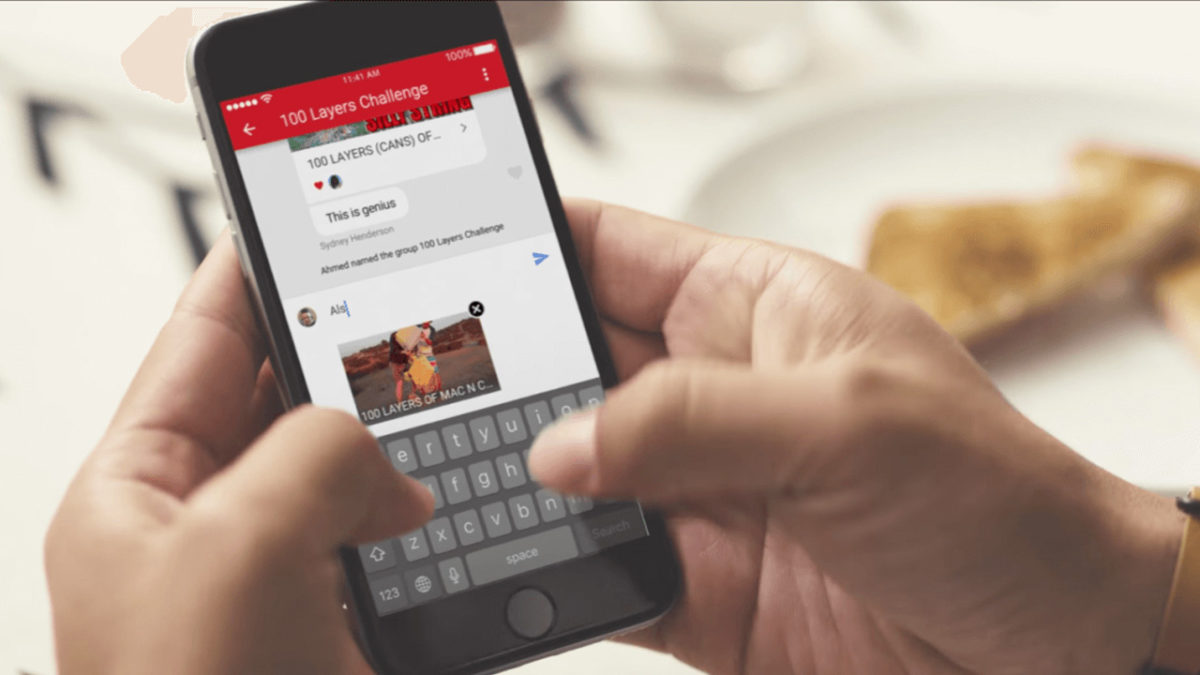
YouTube got non-stop updates in 2017. The video streaming platform knows that industry competition is fierce, so last year it launched a lot of new features, and developed some features that were already available but easy-to-miss. This is where YouTube chat comes in. Although it’s hard to believe, the system has a messaging service like WhatsApp or Facebook Messenger. Today at Softonic, we’ll tell you how YouTube chat works and what you can do with it.
Step by step
YouTube chat isn’t any different from what you see on major messaging services. In other words, you can write messages, send emojis and hold a normal conversation. However, the biggest difference is that everything is focused on YouTube. Instead of attaching videos or images, the icon is of sharing a YouTube clip. It’s a chat designed for browsing on the platform.
For whatever reason, Google hid the chat feature in a place you’re unlikely to look. To chat, we’re going to select a video and click “Share.” When the menu opens, select the user you want to send the video to. Do this and the chat will open.
This screen is the main conversation interface, which hides some secrets. If you click on the three dots that appear on the top, the app will display a menu where some options appear, such as “View participants” of the chat, “Add participants,” “Delete chat” and “Mute notifications.” Of course, each name indicates what you can do under each.
In case you want to see the chat you’ve opened previously, all you have to do is click on “Activity” and then “View contacts.” There all your previous conversations will appear, as well as all possible chats of yours.
A big asterisk to this is that you have to have a confirmed name on YouTube or none of this will work. We spent about an hour looking for these options and couldn’t find them in the app, probably because we don’t want to use our real name on the site.
Sometimes, parents of young kids can find themselves desperate to have a minute to themselves. The internet has been a lifesaver, with services like YouTube and YouTube Kids offering up vast amounts of entertainment and educational content for children of all ages.
The result is that children’s videos make up a significant audience for YouTube and other providers. Top children-themed channels like Chuchutv have amassed over 13 million subscribers, for example. Recent estimates suggest that children 8 and under are spending an average of 48 minutes a day on a mobile device, and an average of 2 hours 19 minutes a day with screens overall, according to a Common Sense Media survey.
While much of what kids are viewing is useful, there’s reason to be concerned that some of the more popular channels are borderline exploitative. Even when videos start out with familiar characters, some observers believe that combination of factory-like production and discovery algorithms can turn benign content into something that’s inappropriate for children.
YouTube reacted to reports of inappropriate content making its way into these mainstream channels by either taking down channels such as ToyFreaks (with 8m subscribers) altogether or removing videos. All told, the November 2017 crackdown saw the removal of 50 channels and thousands of videos. More recently, the company released new features on its YouTube Kids app that allowed parents to restrict channels to content that is verified by the company as “kid-friendly.”
According to YouTube, the company has stepped up enforcement of its Community Guidelines for both YouTube and YouTube Kids. Another key change: removing ads from inappropriate videos that are aimed at minors. By removing ads from millions of videos, the company is trying to take away the financial incentive for creating bad videos.
How to make YouTube safer for your kids
Enable Restricted Mode on YouTube
While YouTube asserts that it has thousands of people reviewing and flagging content, there are steps that parents can take to improve control over what is accessible to children.
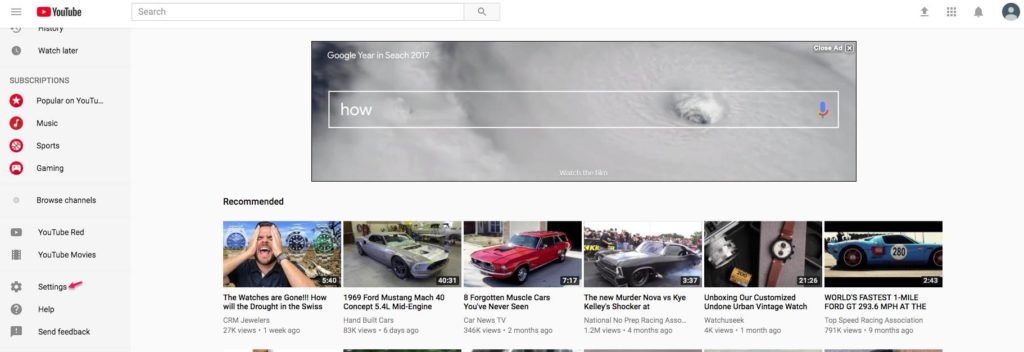
If you are allowing access to videos from the main YouTube site, you can set restrictions by signing in and clicking on the Settings button.
Source: YouTube
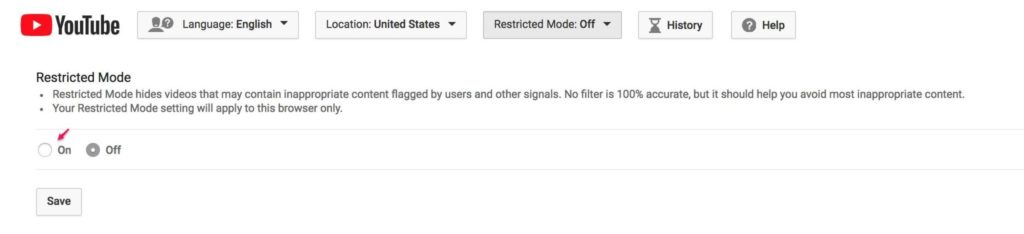
You will see a reference to Restricted Mode after scrolling to the bottom of the page.
Source: YouTube
Click the drop down button and details about Restricted Mode will appear.
Clicking the On button followed by the Save button will activate Restricted Mode. However, this will not lock the mode. To do that, make sure to log out of your account. Then, when a child uses the site, the settings be set and unchangeable by them.
Important note: If you have more than one browser on your computer, you will need to follow these steps for each browser.This also applies to tablets and other mobile devices.
YouTube offers a video that walks you through the process of implementing YouTube Controls that were just explained.
Set Controls on YouTube Kids
When YouTube introduced YouTube Kids, the app (available for Android and iOS devices) was billed as a safe, easy way for children to find and view videos. YouTube promised that content was “narrowed down” to videos that are appropriate for kids. The app also offers some additional controls that are worth getting familiar with.
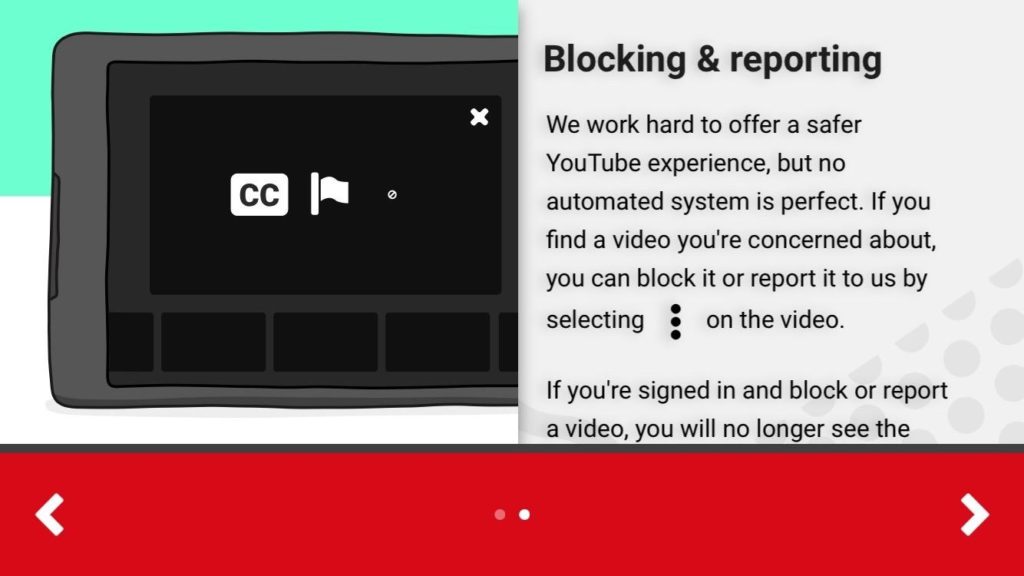
After installing the application, a setup screen reminds users that no automated system of filtering is perfect. There’s a method for blocking and reporting content that you think is inappropriate (see picture below).
Source: YouTube Kids (iOS)
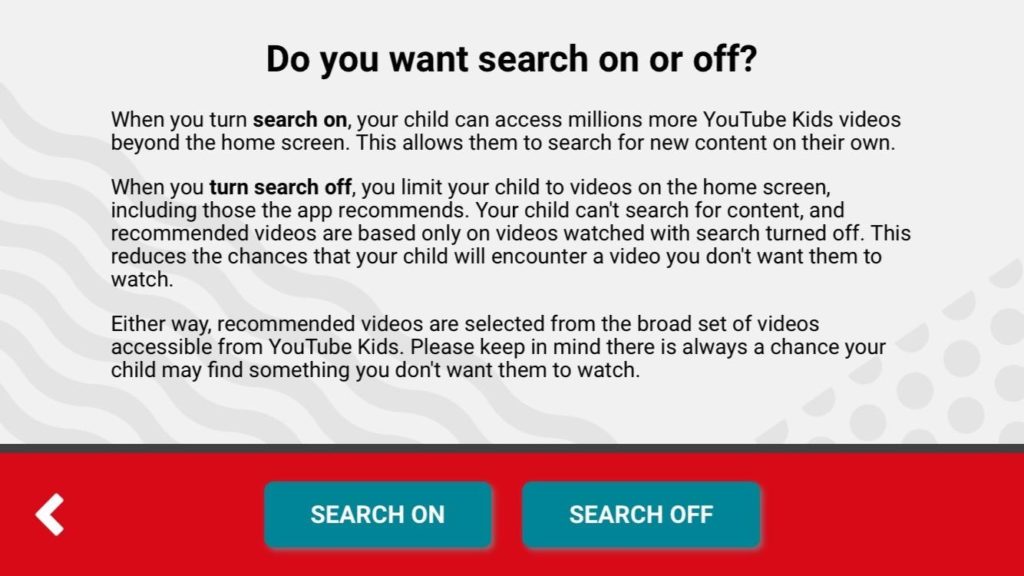
The next setup screen asks whether the user wants Search On or Search Off. Search On enables kids to search for videos beyond those seen on the home screen. Search Off limits videos to those on the home screen, and those videos that are recommended by the app, which are only listed based on videos watched with the search off. In other words, Search Off is a better option because it reduces the chance the application can find inappropriate versions of safe content
Source: YouTube Kids (iOS)
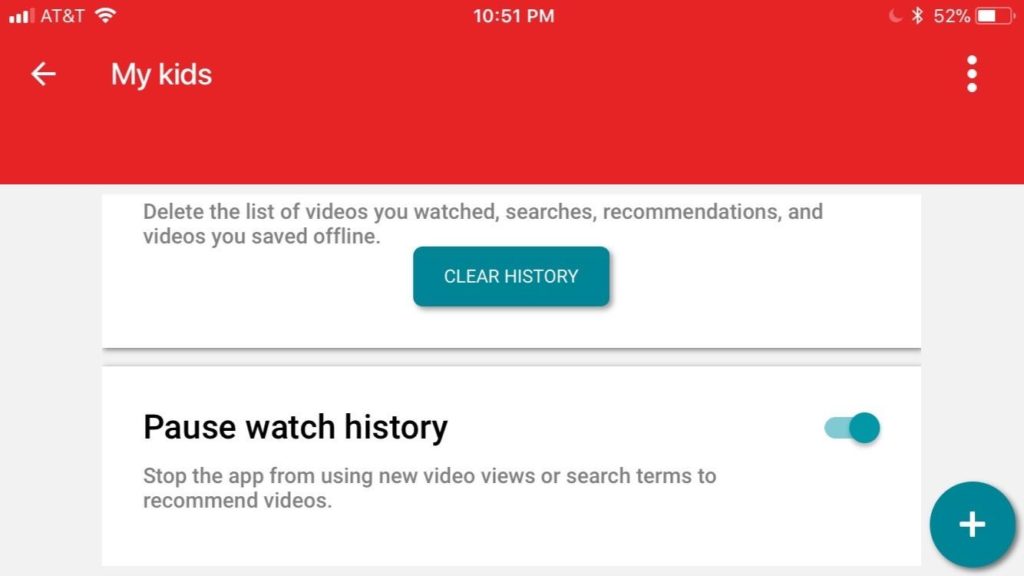
To further limit the app’s ability to discover content beyond what you have found to be appropriate, you can use the slide control to Pause watch history.
Source: YouTube Kids (iOS)
By turning this feature off, the user prevents the app from using new video views and search terms to recommend videos.
Add more layers of control
As YouTube itself says, no automated system of filtering is perfect. With automated systems creating videos as fast as YouTube’s automated systems swat them down, it’s a cat-and mouse game that parents will find hard to keep up with.
Consider adding additional tools to help you in your quest to keep your kids safe while being entertained and educated.
Use a separate parental control program. Most of the programs offer the ability to do additional filtering of content over YouTube’s built in controls, and some have the added utility of allowing a set amount of internet time per day before shutting off access.
Consider using networking services like OpenDNS (owned by Cisco) that help you manage your WiFi and internet access. These services can provide additional levels of content filtering over that offered by parental control software, and have an added benefit of helping automatically blocking access to sites that are a security risk.
Ultimately, there’s no fail-safe system to keep your kids from viewing questionable content other than to not give them access at all. Barring that, be sure to routinely monitor what your kids have been watching – there’s no substitute for a parent’s own judgement and vigilance.
Imagine if every great director – from Coppola to Tarantino – released the full, unedited versions of their films. Would they still have won awards? I doubt it. Every masterpiece in the world has been changed in some way during its journey to stardom. Novelists draft, artists sketch, and filmmakers edit.
But despite the importance of editing, many budding filmmakers don’t give it the attention it deserves. Some believe it expensive, time-consuming, and difficult, and in some ways, they’re right: many editing tools are expensive and hostile to beginners, forcing you to climb a steep learning curve that can take months or even years to master.
Thankfully, there’s a simpler way. We’ve been testing a bunch of editing software to find the right balance between simplicity, features, and professional output. We believe we’ve found just the right editing suite in VSDC Video Editor Pro.
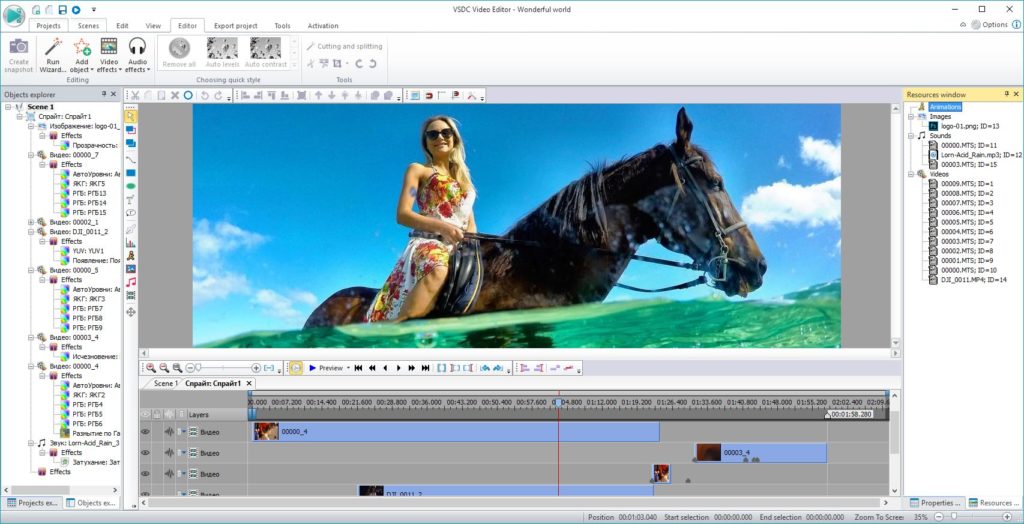
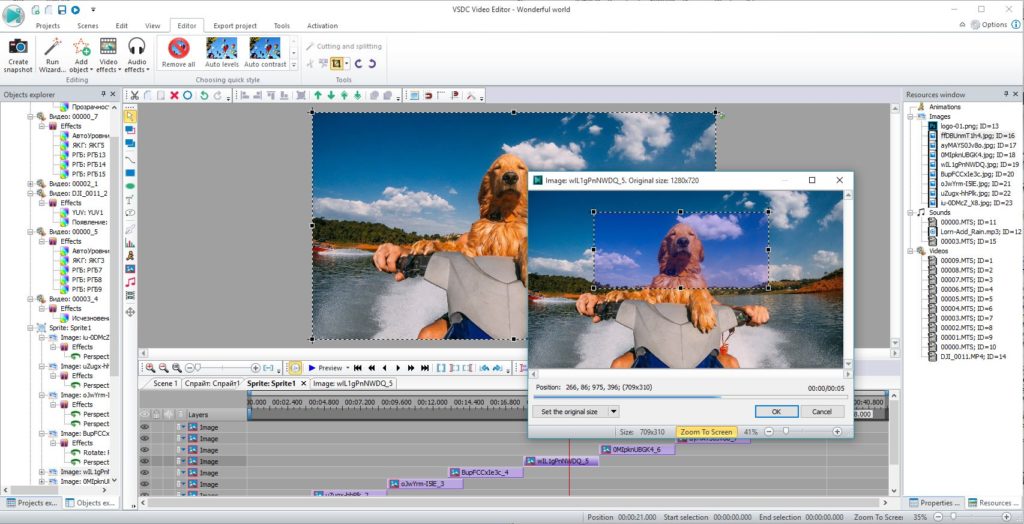
What makes VSDC Video Editor Pro so special? Well, let’s start with the basics. The usual trimming, splicing, and cropping features are all there, so you can stitch multiple movie clips together, break them apart, or zoom in on interesting detail. You can also adjust colour, exposure, and contrast, as well as add sounds, effects, and transitions to really make your movie stand out.
But it’s the professional tools that really shine. Take the sub-pixel editor, for example. Sometimes you need to adjust ultra-fine detail to get the look you want, and this allows you to do it with cinematic precision.
There are also ten video mask types to choose from. Video masking isolates individual objects in your video – a face or car, for example – so you can cut, highlight, or blur them for added realism, or combine them with other media to create something new. While these controls might take longer to master, they can transform your amateur videos into YouTube gold.
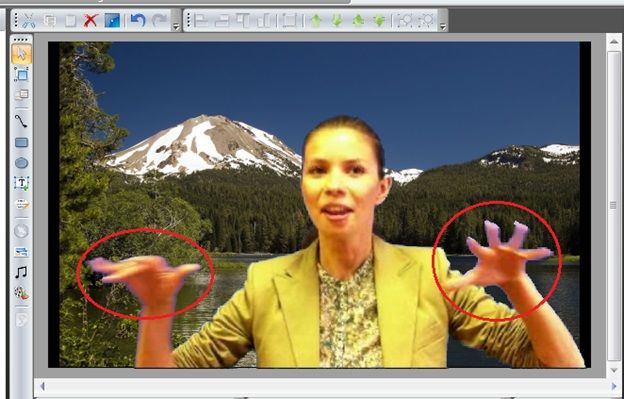
You’ve probably heard of “green screening” where you film in front of a uniform background so you can remove and replace it with something more interesting later. Video Editor Pro’s multiple chroma key support lets you do this in different colours, not just green, so you can match and remove the background without harming the foreground of your shot.
Of course, if you’re pressed for time or don’t want the hassle of manual control, you can select from Video Editor’s extensive selection of preset functions and styles. With 4K support in almost every video file format, you won’t need to do any irritating file conversion before you start, leaving you more time to create the perfect movie.
We think Video Editor Pro is one of the best editing suites on the market. Whether you want to direct the next Revenant, or just add a little quirky style to your YouTube channel, the software is a steal at just $24.19.
Online learning has made it possible for an iPad to become a classroom, and even the youngest students can benefit from the right platform.
While YouTube may have gotten its start with music videos and giggling baby clips over a decade ago, many individuals and organizations committed to education have since launched their own channels to deliver free content to students across the country. Here are some of the best learning tools available on YouTube right now.
The 10 best educational channels on YouTube
Pre-K: Mother Goose Club
Everything old is new again with this channel dedicated to reinventing
classic nursery rhymes.
Featured on PBS since 2009, Mother Goose Club is aimed at preparing children to read through exposing them to concepts like rhyme, which helps set the stage for faster identification of new words.
The goal is to get your little learner to become familiar with the cast of characters and start singing along, so be prepared to relive childhood tunes like “Row, row, row your boat,” well past the first day of kindergarten.
Kindergarten: Alphablocks
Phonics have never been more fun than with the cute cast of letter characters in the Alphablocks stories.
Episodes are smartly scripted to enforce the introduction of new words using the plot, and letters are individually sounded out multiple times to help your new reader develop good habits.
The episode focusing on the letter “w” will have kids tricked into thinking they are watching a cartoon about a sailboat race, with the real outcome being easy recognition of words like “wind,” “weep,” and “wait.”
Kindergarten: Brain Candy TV
To make sure your little learner is also on track with math, Brain Candy TV provides well-animated videos, covering concepts like counting to 1,000 and adding small numbers.
The 3-D visualizations of monster trucks are engaging, with plot elements like scores in a sport’s competition used to enforce the educational component. The YouTube channel provides a straightforward layout of other subjects available, including alphabet practice and the planets of the solar system.
1st-2nd grade: San Diego Zoo Kids
An important part of using YouTube as an educational tool is making sure that your little learner is exposed to a world beyond the screen.
The San Diego Zoo’s channel is the most convenient way to bring the wonders of the entire animal kingdom into your home, with amazing facts and clear explanations provided along the way.
To keep kids engaged, videos like “Rhino Crash Course” include questions from – you guessed it, kids. Animal lovers will slowly learn the basics of differences between species, setting the stage for more complex scientific observations down the road.
3rd-4th grade: It’s Okay to Be Smart
The “why?” phase might peak for most kids around age 2 or 3, but to create a true foundation of lifelong learning, It’s Okay to Be Smart teaches kids to keep asking questions.
Biology PhD Joe Hanson provides explanations to diverse topics that adults are likely to find fascinating too, ranging from “how does an igloo keep you warm?” to “how did the toilet change history?” Combining scientific expertise with some knowledge of history and culture, and topping it all off a thoroughly goofy sense of humor, Dr. Hanson will have young learners eager to impress their friends with facts they are unlikely to learn from an elementary school classroom.
5th-6th grade: TED-Ed
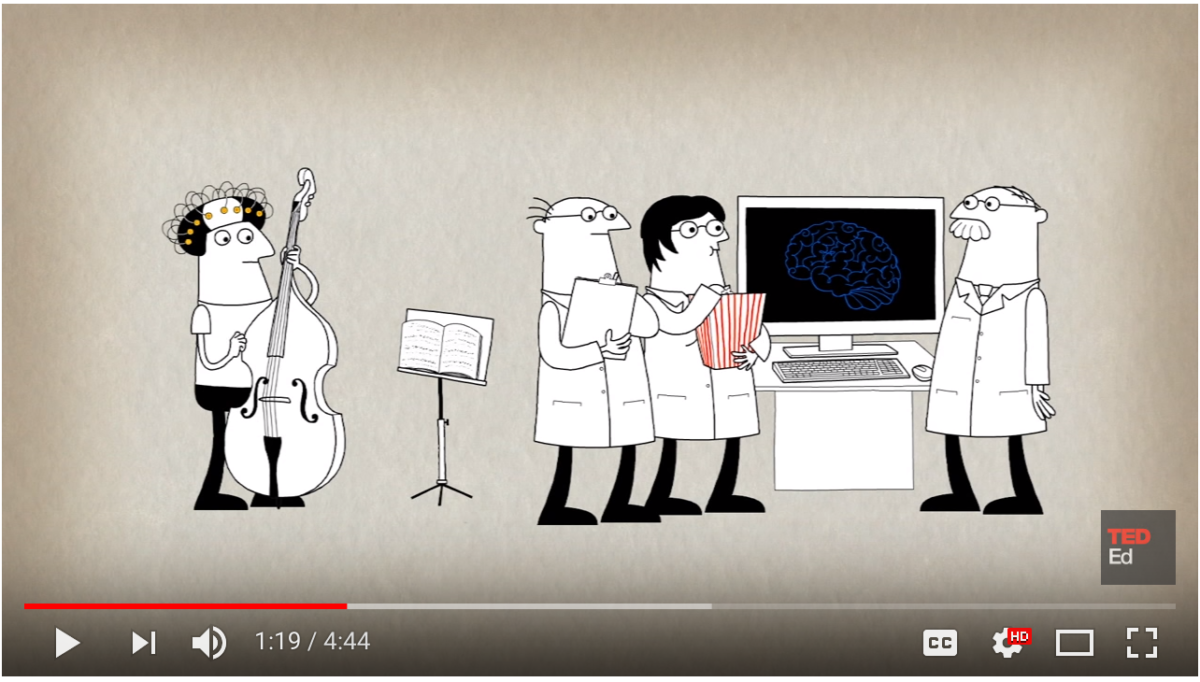
Using a format similar to the traditional TED Talk, Ted-Ed provides simplified explanations to complex subjects, often coming from leaders in a particular field.
As children become tweens and hunger for a greater sense of self, topics like “How playing an instrument benefits your brain” and “How the food you eat affects your brain” provide a basis for thoughtful decision-making in all aspects of life. Other videos strike an engaging balance between work and play with clever riddles that can even be used as a source of healthy family competition on a weeknight.
5th-6th grade: The Brain Scoop at the Field Museum
Watching a beaver dissection might not be of interest to every tween, but for the aspiring 12-year-old natural scientist, few channels top Emily Graslie’s videos on The Brain Scoop.
Using the collections at the famous Chicago Field Museum, learners can see research processes close-up, ranging from a tour of the gem room to a step-by-step look at skinning a wolf. The more graphic videos do include viewer discretion notices and a “gross-ometer”, so you may want to have your young learner work her way up to more intense content.
7th-8th grade: Socratica
With coding tutorials, periodic table memorization tools, and speed-reading tips as just a few of its highlights, Socratica is a multi-dimensional channel that learners will likely reference well into high school.
Whether your teenager is interested in learning Python at home or is looking for a straightforward explanation of an algebraic concept, this channel is worth exploring at the beginning of every semester. Bookmarking useful links for later use will be a major stress relief when it comes time to study for those first middle school exams. The video above on improving internet search results is the type of advice that can put a student well ahead of his or her peers.
9th Grade and up: MinutePhysics
While some of the content on MinutePhysics is aimed at younger audiences, for high school students trying to keep up with the latest developments in science and technology, this channel provides straightforward explanations to complicated topics.
Physicist Henry Reich breaks down subjects like the science of cloning and the debates around artificial intelligence, using clever animations combined with real-world contextualization. Both sci-fi lovers and followers of current events will benefit from scanning the channel’s latest additions on a regular basis.
9th grade and up: SoulPancake
By the time kids hit high school, they are often beginning to grapple
with many of the same personal and societal issues as adults. SoulPancake is a channel dedicated to demonstrating the importance of open dialogue and asking tough questions about life’s major challenges.
Not shying away from controversial subjects such as race and politics, videos on this channel include “Reverse Assumptions: What can you learn about a person without seeming them?” and “What it’s like to be incarcerated at age 16.”
What are your favorite YouTube channels for learning? Let us know in the comments.
After the inhumanity of the Parkland shooting, it seems that lack of human oversight on YouTube is aiding and abetting those who think the whole slaughter of the 14 students, two coaches and one teacher was a media invention.
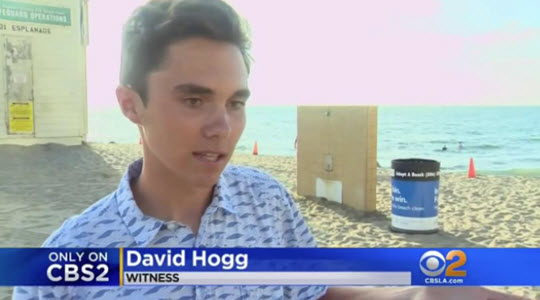
A video on the Google-owned platform suggested that shooting survivor and now gun-control advocate David Hogg was a so-called crisis actor – bought and paid for to appear in fraudulent footage of an atrocity that “never happened.”
Despite (or perhaps because of) the insane insensitivity of the video, it quickly trended before YouTube took it down… Yet another example of what can happen when algorithms decide what a grieving nation wants to watch.
At some point, you must have wondered how to create (or edit) any of the Youtube videos you watch often. The answer is that numerous editing programs come into the equation, which require months of experience to learn to use. However, here’s the important part: Youtube also has its own production tools for doing all the most accessible tasks and within minutes.
The most famous video streaming platform in the world has very basic options for editing that clip of your friend’s birthday or your last vacation without making you feel like shooting yourself in the foot. We’ll go into how they work.
Step by step
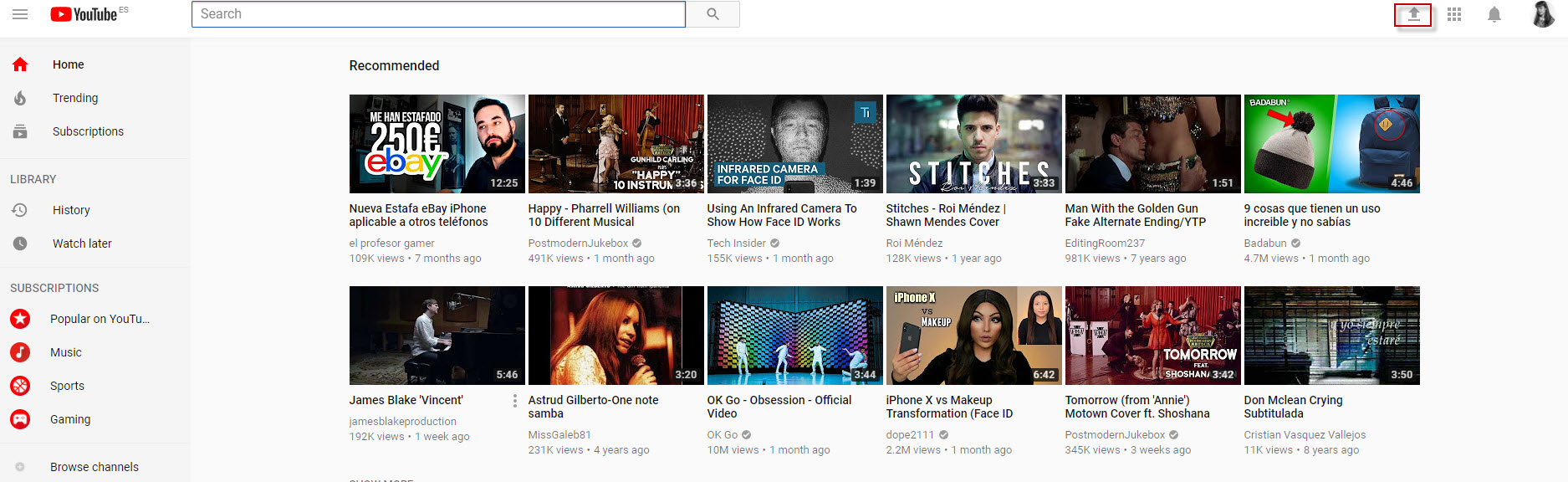
The first thing you must do when creating a Youtube video is upload the respective clip. To do this, type Youtube in the URL and click on the arrow that appears just right of the search bar (as long as we’re logged into Youtube, of course).
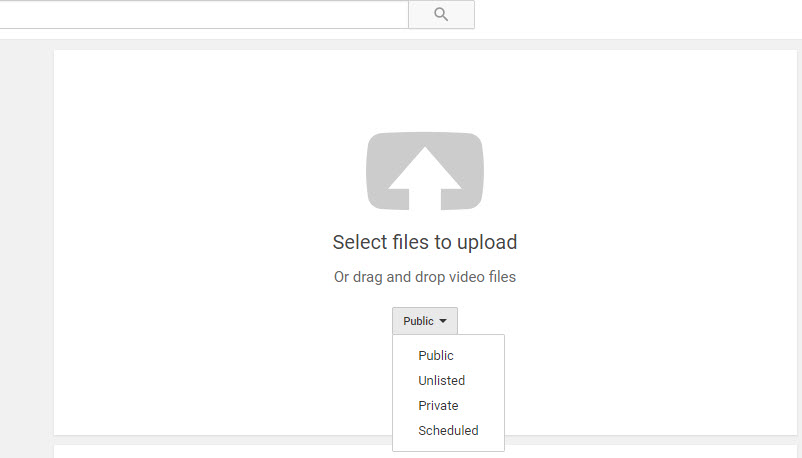
The next screen isn’t too mysterious: we can drag or select the file we want to upload to the platform. However, if it’s a video that you want to edit, our advice is that you change the default settings and add the clip as “Private” or “Unlisted.”
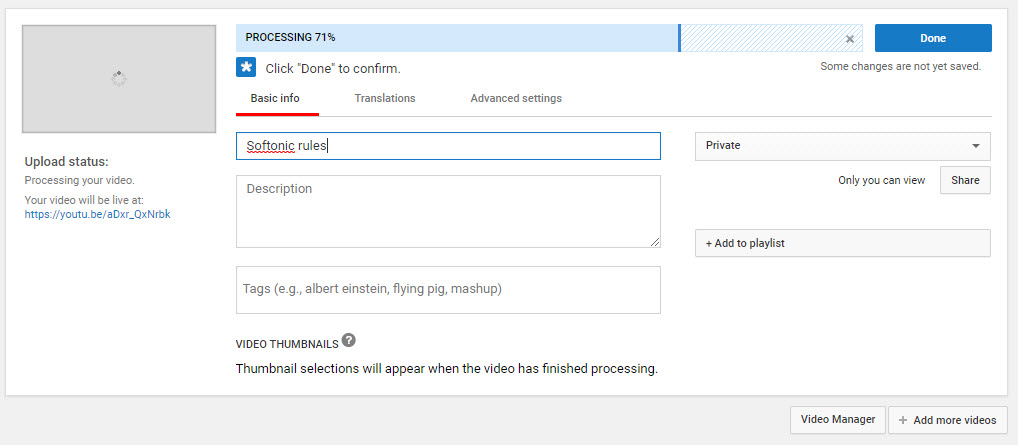
Once we’ve selected the video to upload, Youtube will send us to a new screen like the one you can see below. Here we’ve got several options, though they’re easy to understand: the title of our video; the description of it; tags that must be separated by commas (not phrases but keywords, e.g. birthday, Christmas, New Year’s); and the possibility of adding it to a playlist (if we’re going to upload many videos on the same subject, e.g. “Summer 2017″).
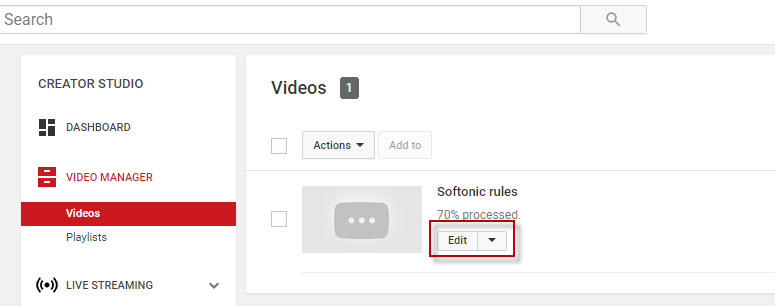
Once the video is uploaded, click below on the “Video manager” tab and it will take us to where we have all the clips we own. Click on “Edit” to use one of Youtube’s strong points.
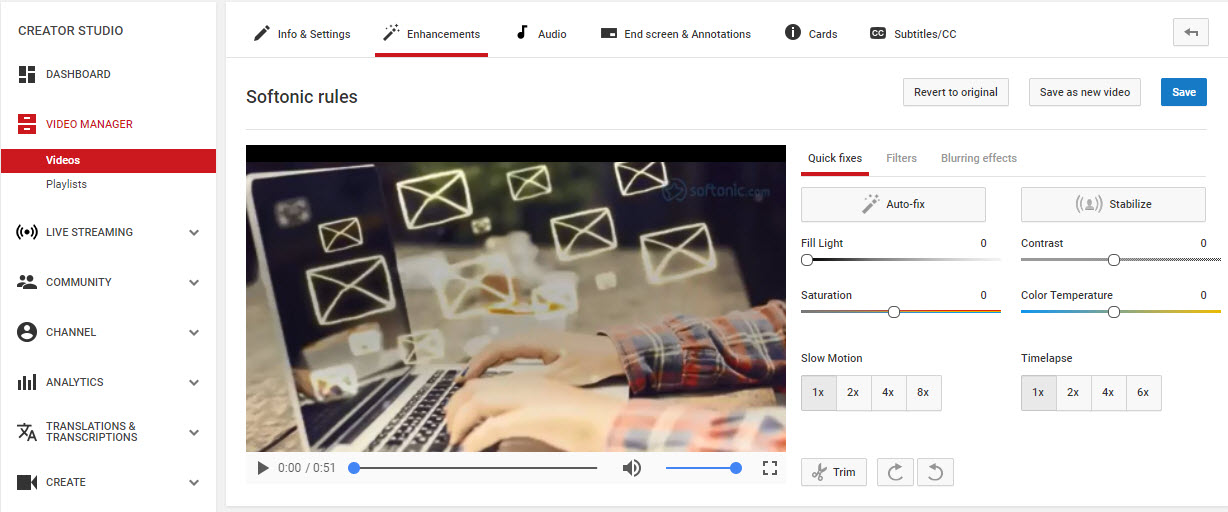
As soon as we enter, we’ll have the possibility of editing the video in front of us. The default field is “Information and configuration,” but we have to click on “Enhancements.” We can modify light, contrast, saturation, color temperature, put the video in slow motion, time lapse and most importantly: cut out the parts we don’t want.
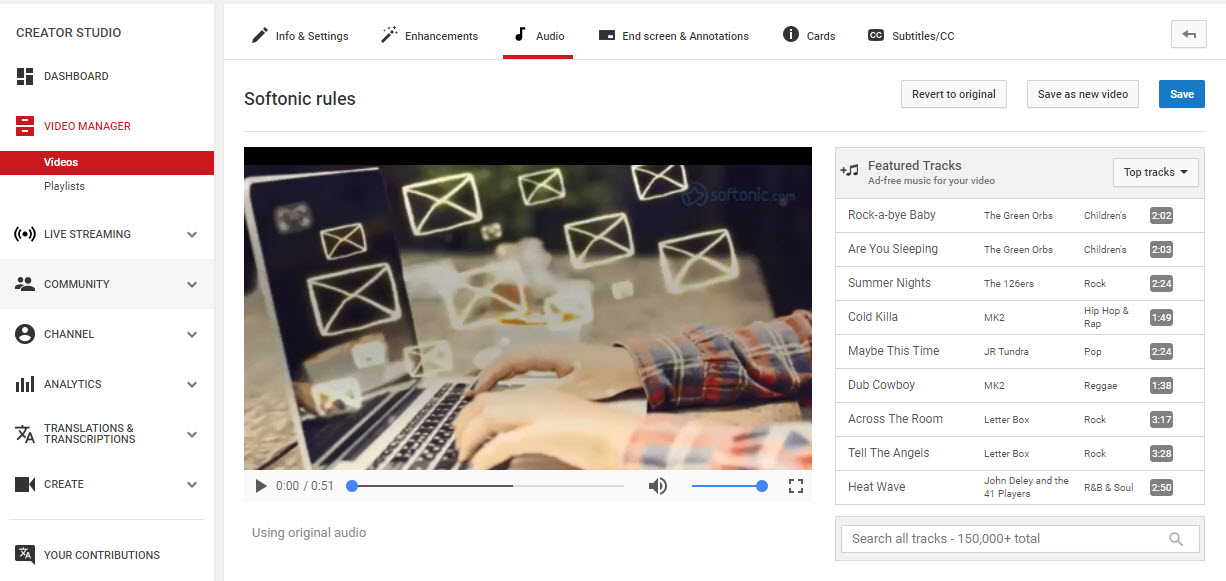
On the other hand, we have the “Audio” tab. As its name suggests, it gives us the chance to add a song from Youtube’s extensive music bank. Best of all? The available songs are copyright-free, i.e. they don’t have ownership rights and you can use them freely (it’s not the same to add a song by Justin Bieber, who has his own monetization system within the platform, as one of the songs that are there for this purpose).
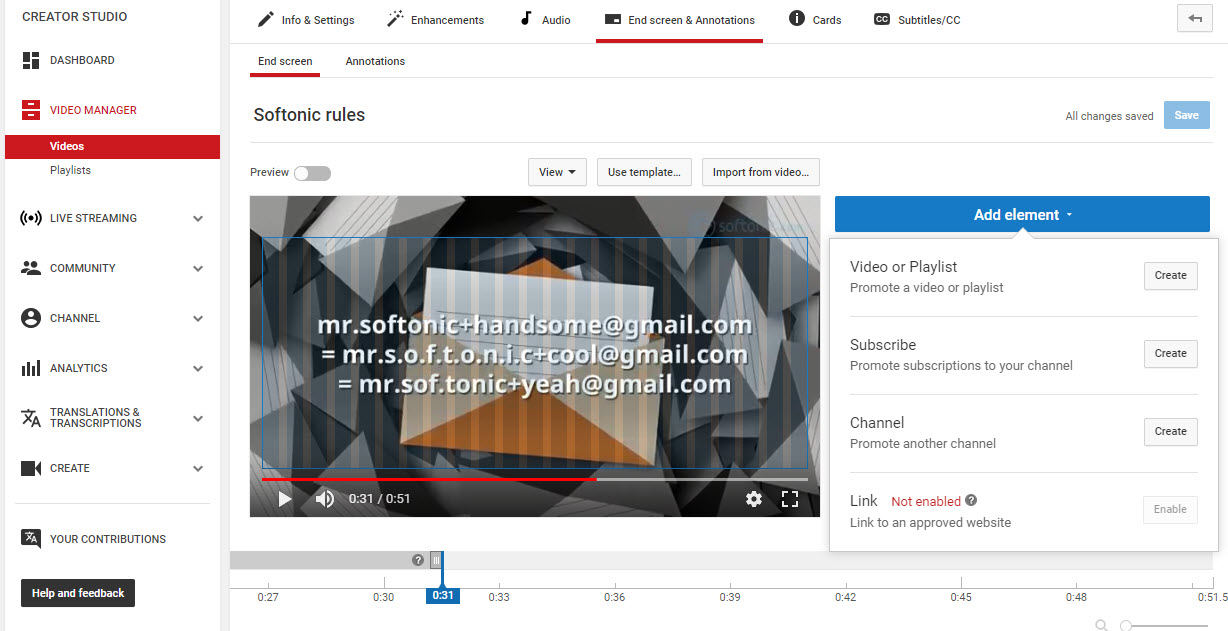
To wrap up, go to the “End screen and annotations,” where you can add all the text you want on the video, as well as annotations with links to other videos or webpages.
Our little guide to create videos on Youtube ends here. Try it out and leave your creations in the comments!
Following the fury that erupted when YouTube imposed its new comment system on users, Adblock Plus is poised to counterattack: the plugin now allows you to clean up Google’s YouTube interface.
Everyone’s heard the phrase ‘Google ecosystem’, and while the integration may not be ideal for some users, it does sum up well the whole range of products and services that Big G has aggregated and combined over the years.
Some of latest buzz was surrounding the YouTube comment system and the ability to comment on videos only when signed in with a Google+ profile, a flawless example of product integration. Google claims that the reason behind this move is to combat the trolling, offensive, violent and generally inappropriate comments that sometimes occur in an anonymous commenting system.
Many users have taken this news as an act of force on Google’s part. As a result, the developers behind Adblock Plus, a plugin for Chrome, Firefox and most recently Safari, have sprung into action, updating its add-on so that numerous ‘disturbing’ elements, including the now controversial comments field, can be removed from the YouTube interface.
Watch the video below to see how to install Adblock Plus, and check out results.