New year, new PS4? You need these essential games for 2020

Check out all the must have essential games you need for PS4.

must have Sony PlayStation 4 games for 2020

The PS4 and PS4 Pro are amazing games consoles. Graphics are so good now and games so massive that you can easily lose yourself in hundreds of hours of play per game. That’s just it though, at the end of the day all those graphics chips and processors, and all that system memory is nothing without the games. If all you have is the PS4, you don’t actually have anything at all.

Today, we’re going to walk you through all the must have PS4 games you need to get your hands on. We’ve action, strategy, sports, and many other types of adrenaline fueled and cranium stimulating interactive entertainment. These are the games you need, if you’re to let your new PlayStation 4 reach its true potential.

Best PS4 games 2020

Marvel’s Spider-Man

Marvel's Spiderman

The first game in our list is a superhero game because, well, that’s just the world we live in now. Marvel’s Spiderman is the best Spiderman game to come out since Spider-Man 2 on that most classic of Nintendo consoles, the GameCube. This game really gives you a great idea of what it would be like to swing through New York as Peter Parker’s alter ego and, let’s face it, that should be what all Spiderman games are about. On top of that, the fighting mechanics are lots of fun, a bit similar to those of the Batman Arkham series, and the slow burner of a story really does end with a bang. Do yourself a favor and get this game.

Red Dead Redemption 2

Rockstar don’t make many games these days. The games they do make, however, take the world by storm, which is exactly what Red Dead Redemption 2 did in 2018 and is still doing now. The open world RPG Wild West action looks beautiful and sees you riding with a gang of outlaws as the world of the old West falls apart around you. RDR2 is a truly beautiful game and at times feels more like a movie than a game. There is now a vibrant multiplayer world to explore too. In other words, it’s an absolute treat.

GTA V

We really don’t have to say too much about Grand Theft Auto V. If you have a PS4, you probably already know all about, what could possibly be, the biggest video game of all time. The fifth game in the GTA series sees you playing as three different characters as you drive, steel, and fight your way to the top of the Los Santos underworld. This game has it all so if you want it all, get this game.

God of War
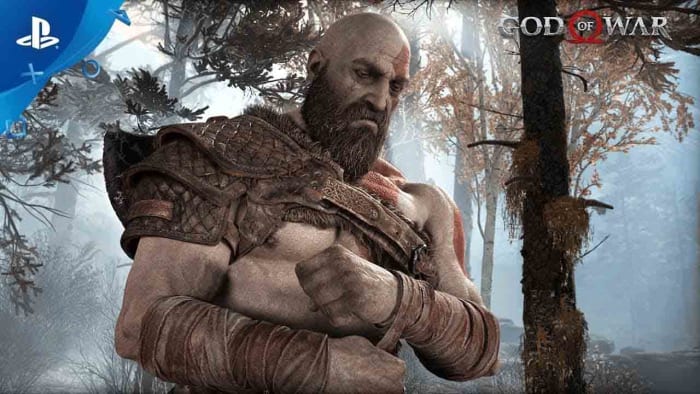
God of War for PS4

Sony’s God of War series has spanned three different generations of PlayStation console and the latest installment almost feels like a new approach to the established way God of War has always done things. Even though Kratos is still the angry brute you’d expect him to be, there is a much more cerebral feel to the game with challenging puzzles always testing you and smart dialogue betraying a brain behind the brawn. God of War is a PS4 exclusive and looks stunning too, which is just two more reasons why you need it.

Call of Duty: Modern Warfare (2019)

Call of Duty: Modern Warfare

Call of Duty could be described as the definitive first-person shooter franchise. It has been around for years and when the original Modern Warfare first burst onto the scene it was indisputably the best FPS action game around. A rough patch from the series, however, and a resurgence of the impressive Battlefield franchise saw this position threatened, but last year’s Modern Warfare reboot really did mark a return to form.

FIFA 20

FIFA 20

There used to be a time when FIFA wasn’t the dominant soccer game on the planet and Konami’s Pro Evolution Soccer series reigned supreme. That time is no more, and FIFA 20 is the latest in a long line of soccer games that have been the best in the world. FIFA 20 looks amazing, is lots of fun to play, and has some fantastic game modes to draw you in beyond the basic match day simulator.

Horizon Zero Dawn

horizon zero dawn

Another game that looks incredible is Guerilla Game’s Horizon Zero Dawn, which is bit like a mix between Jurassic Park and Transformers. I have to say though, that my rather crude description of this game doesn’t do it justice. This adventure game is massive, and its game world is rich with challenges to master and side quests to experience. Horizon Zero Dawn is essential because simply put, it is one of the best games ever made.

Shadow of the Colossus

Shadow of the Colossus is a remastered PS2 game that now packs a HDR supported 4K punch. In short, it looks truly beautiful and brings with it a unique gameplay experience that can’t be replicated in any other game or on any other console. That’s what makes Shadow of the Colossus a must-have game. It will take you to places other games can’t and will stay with you long after you’ve stopped playing.

Titanfall 2

Titanfall 2 is the sequel to a game that was never actually released on the PlayStation. The good news for all PS4 owners, however, is that the sequel is better than the original in almost every conceivable way. The FPS action Titanfall 2 offers is some of the best that’s ever been created and the mech-like Titans that you pilot, as well as fighting on foot, bring something fresh to the experience too. On top of that, the Titanfall 2 single player campaign is one of the best we’ve ever played.

What Remains of Edith Finch

What remains of Edith Finch on PlayStation

The final game to make our list of essential PlayStation 4 games is about emotion. What Remains of Edith Finch is a powerful game that sees you exploring the main character’s family home and unlocking her family’s history. Every new discovery will have you feeling something different and by the end you’ll be completely refreshed and feel truly exhilarated. This is a magical game that you really shouldn’t miss.

Wrapping up

OK, so this list has missed out a few classics like Metal Gear Solid, Resident Evil 7, Uncharted 4: A Thief’s End, Bloodborne, Dark Souls, Nier: Automata, and The Last of Us; but we feel that a list of essential games needs to have its limits. The games we’ve laid out above will leave you feeling fulfilled by your PlayStation yet hungry for more.


Top free computer games of 2020

If you’re looking for a new game to play but don’t want to break the bank,. you’ll love every game on this list of free games for PC

Best free games 2019

Disclosure: Our team is always looking for things we think our readers will value. We can receive compensation for publishing this article.

Video games just keep getting bigger and better, but unfortunately, they also keep getting more expensive. A triple-A game like GTA V or Call of Duty can easily set you back $60 on Steam. Fortunately, however, you don’t need to look to Microsoft or Valve for your games. We also live in a world that has plenty of great new games available to play for free. That’s right, there are games that are free-to-play. You can get the full Triple-A experience without having to take a hit to the wallet. Let’s take a look then at some of the best free video games.

Computer games that are free

World of Warships

World of Warships has long been considered one of the best free-to-play games. The action game offers almost limitless customization options with plenty to sink your teeth into and earn without having to pay for upgrades. If you’re a war games buff, a real-time strategy game fan, or if you’re interested in military history, you will like World of Warships. You’ll find a lot here even if you don’t fit into one of the categories laid out above. There are plenty of gamers out there who only play World of Warships. Give it a try and you might just end up one of them yourself.

World of Tanks

world of tanks

You might not be surprised to hear it, but World of Tanks comes from the same developer as World of Warships. You can expect the same exhilarating war simulation action from World of Tanks as you’ll get from World of Warships, with the main difference being that all the battles are land-based as you fight from inside your tank.

Rift

Rift

If you’d like your free game to be a bit less based in the real world, then you might want to think about Rift. Rift is a huge online fantasy world that has seen rapid growth over the last few years. Think of Blizzard’s MMORPG game World of Warcraft and you’re in the right ballpark with Rift. The game is big and beautiful, has lots of game modes to try, and best of all is completely free.

7

Fortnite: Battle Royale

Fortnite is more of an esports phenomenon than a mere multiplayer game. It is one of the best free PC games ever. With hundreds of millions of players already, you won’t be making the edgy choice by deciding to play Fortnite. What you will be doing, however, is signing on for bright, colourful, cartoon-like action that sees your fully customizable 3rd person character take on 99 other players in a last man standing battle as the world shrinks around you. There is a lot more to Fortnite, it is an incredibly popular game for a reason, but you’ll just have to try it for yourself, if you want to learn more.
Fortnite: Battle Royale Play Now
10

Planetside 2

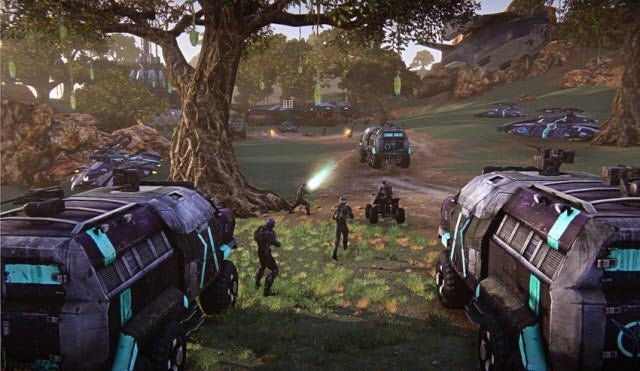
Planetside 2 is an amazing FPS game, particularly when you consider the fact that it’s free-to-play. Planetside 2 offers you exhilarating first person shooter battles that blaze across huge battlefields. Furthermore, although there are certain in-game elements you can pay for, you’ll still be able to have plenty of fun without paying for anything.

Planetside 2 Download now
8

Warframe

We’ve written about Warframe many times before. The action RPG sees you controlling what can only be described as space-ninjas. You customize and upgrade your “frame” and embark on epic solo and co-op missions through beautifully crafted sci-fi worlds. Warframe feels a lot like Destiny, which Bungie spent nearly half a billion dollars devloping; the kicker here, however, is that Warframe is free-to-play.
8

Eve Online

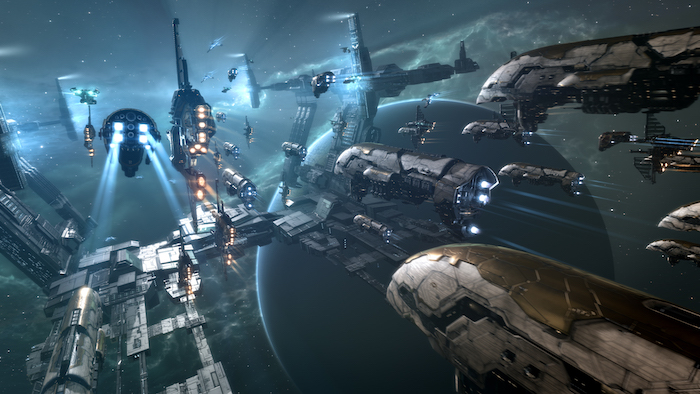
Eve Online is an incredible feat in virtual universe building. The Eve universe is vast and home to huge networks of allied players. Teams are more like kingdoms with real world players sitting atop vast virtual empires that span this virtual cosmos. Eve isn’t just about logging on and flying off into space in your ship, it is about carving out a place where you can grow and learn, before only then trying to climb the social ranks that have long developed in-game. This is not an easy game to get into, but if you do, it’ll be a hugely rewarding experience.

Lord of the Rings Online

Lord of the Rings Online

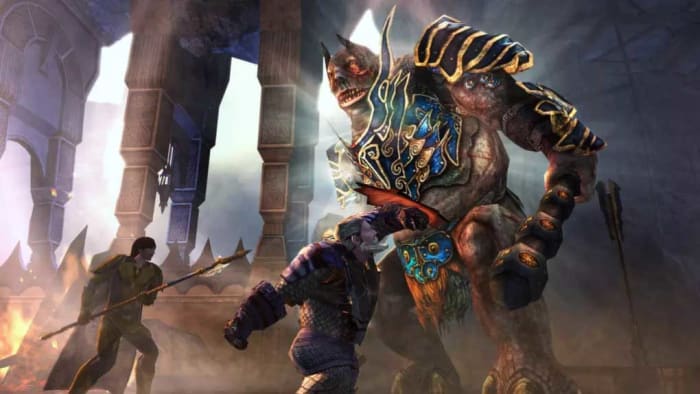
Lord of the Rings Online by Turbine offers you a free-to-play Tolkien-inspired virtual Middle-earth to explore. The MMO has some fantastic RPG-like features giving you the chance to build your player up to godlike status and offers plenty to anybody who’s ever been a fan of the Lord of the Rings or The Hobbit. There are premium elements here with a store offering plenty of elven and dwarf inspired goodies, but there’s no need to pay, if all you want to do is play.

The Lord of the Rings Online Download now
7

Star Wars: The Old Republic

Another epic pop culture world to explore here, although it be better described as a galaxy to explore. A galaxy far far away to be exact. Set thousands of years before the events of the original Star Wars trilogy, Star Wars: The Old Republic gives Star Wars fans the chance to play a part in an epic adventure game set in an online world filled with Jedi, Sith, bounty hunters, and all manner of aliens. If you’ve ever played Knights of the Old Republic, you’ll feel right at home here. If you haven’t, know that Star Wars: Knights of the Old Republic is widely regarded as the best Star Wars game ever made.
Star Wars: The Old Republic Download now
7

Smite

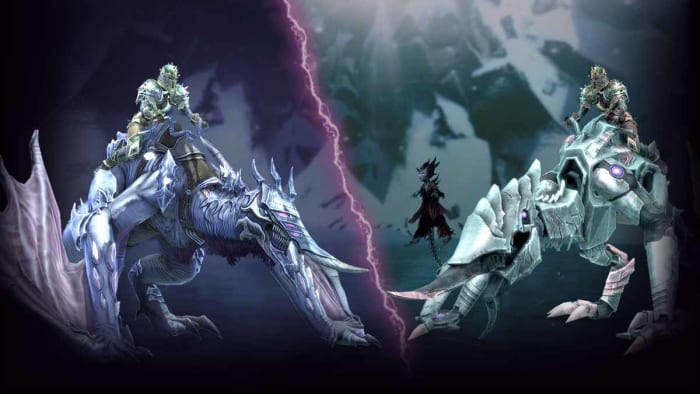
Smite

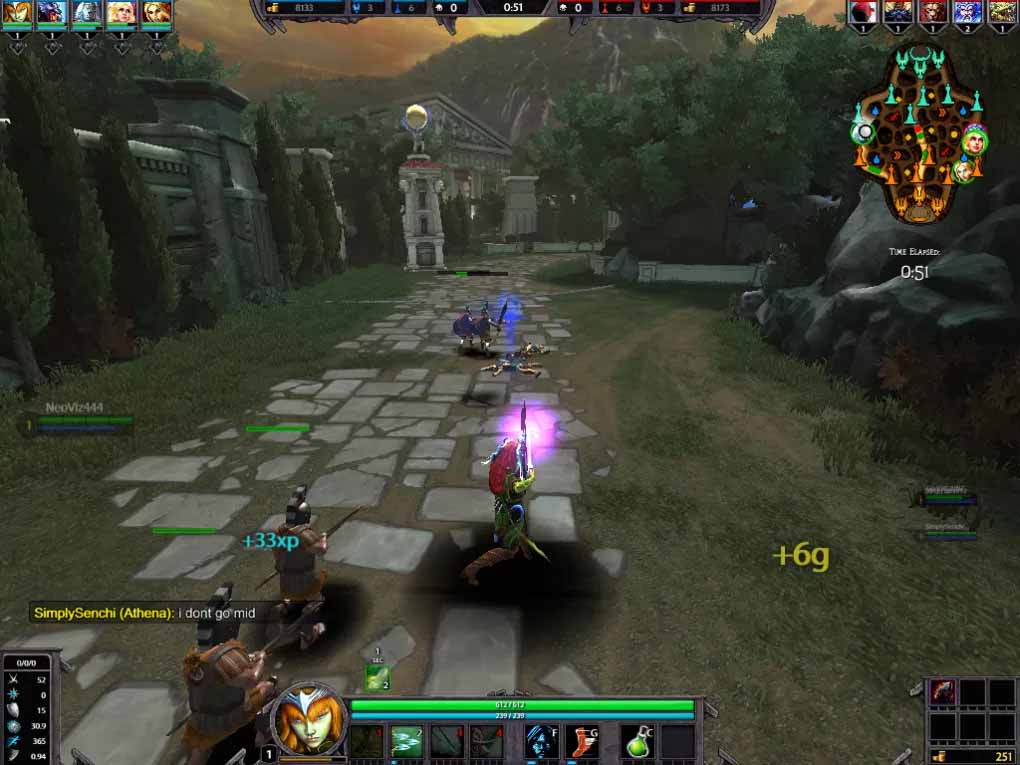
For our last game we’re bringing you an interesting take on two of the biggest free games ever. The Massive Online Battle Arena (MOBA) games Dota 2 and League of Legends enjoy hundreds of millions of active players between them. Smite is a newer MOBA game, with one big difference. Instead of giving players a top down view of the online battle arena, Smite offers a third person view similar to that found in Fortnite.

Smite Download now
7
Wrapping up

There you have ten of the best free games. Everyone of them looks fantastic and offers hundreds of hours of addictive gameplay to anybody willing to put the effort in. Other great free games worth checking out are Team Fortress, Team Fortress 2, the Hearthstone card game, War Thunder, Starcraft 2, Overwatch, and Path of Exile.

Video games have come a long way and it is good to know that plenty of them are available to play without the need to hand over fistfuls of cash for the pleasure. Developers do have bills to pay, however, which means all of the games listed here do have paid elements, should you decide you want to treat yourself now and then.

Sign of the times: DottedSign finally makes e-signatures easy

The company Kdan Mobile has released DottedSign a product that once and for all makes signing and tracking documents on the go as easy as checking your Facebook feed. It works across iOS and Android devices as well as through a web portal.

Signing documents has never been a joyous task. While services like Adobe Sign, DocuSign and HelloSign have attempted to bring ease to the process through electronic document signing, the result has often been confusing and not very mobile friendly. The company Kdan Mobile has now delivered a product that once and for all makes signing and tracking documents on the go as easy as checking your Facebook feed. Called DottedSign, the service works across iOS and Android devices as well as through a web portal to dramatically improve document workflow efficiency.

Mobile mastery

The issue with many online signing services is that, while they are meant to function in today’s world of electronic documents, they don’t necessarily take into account today’s mobile culture. Because Kdan Mobile is – well – a mobile app company, creating a signing system that works across a range of devices was paramount in building DottedSign.

“From the signing of business contracts to confirmation of receipt of any document, electronic signatures are necessary elements of mobile devices in the internet era,” explains Kenny Su, Kdan Mobile’s CEO and founder. “We created DottedSign to help close the loop and deliver that last mile.”

In addition to working across devices and operating systems, DottedSign also works with virtually any document – another advantage it has over its competitors who often force users into specific file formats such as PDF. DottedSign can handle documents from Google Drive, Drobox, iCould, OneDrive and Microsoft Office, as well as documents snapped via your smartphone’s camera. Creating a signature field on these documents is as easy as inserting a drag-and-drop box.

Real signatures

Another aspect of DottedSign that separates it from other e-signing solutions is that the software makes it super simple to create your own hand-drawn signature. You can either use your mouse or your laptop’s trackpad on the web or simply draw on your phone or tablet’s screen to digitize your actual signature. Other similar apps apply a pre-designed signature to your documents that most likely don’t resemble your actual John Hancock at all.

DottedSign also gives users the ability to indicate a signing order so that if multiple people need to sign the same document but in a particular order, the system will see to it that all goes according to plan. Simultaneous signatures are also supported.

Easy organization

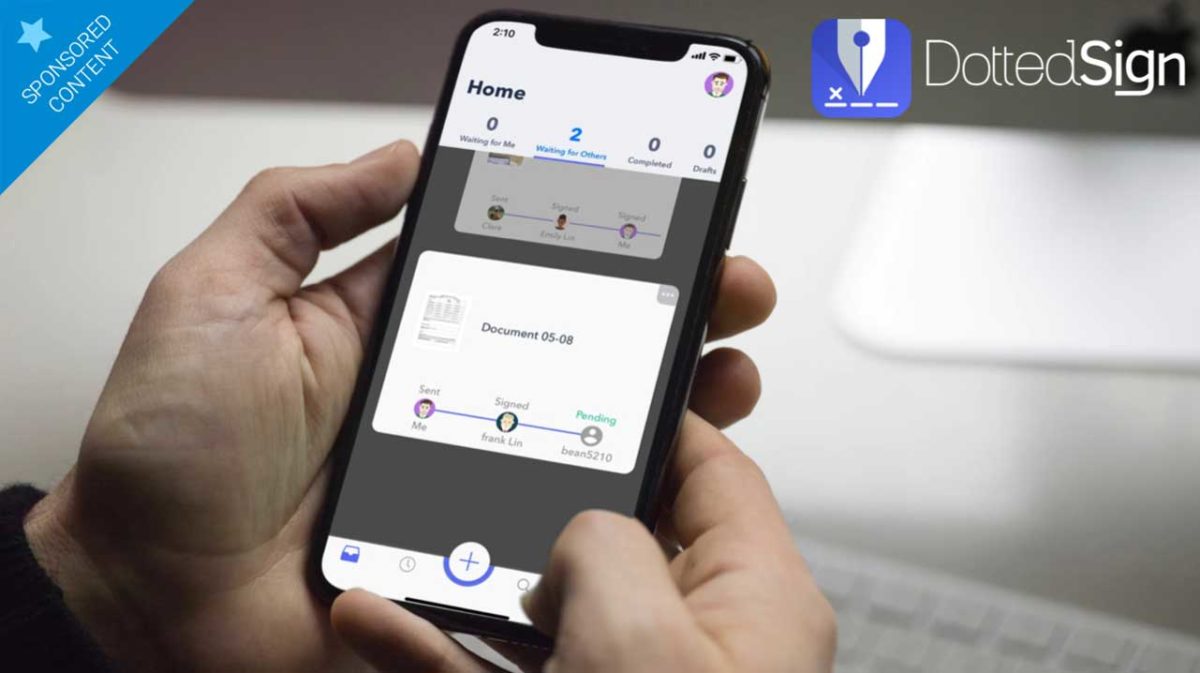
When it comes time to check on the status of documents, DottedSign shines as well. A visual progress bar shows where any particular document is in the signing process, a tab system helps users separate tasks according to completed documents or those still in process, and auto-reminders help keep everything on track.

What’s more, a secure audit trail tracks the entire history of each document. This time-stamped system lists the IP address of signatories and which device they used to sign, with all information protected through RSA-2048 encryption.

DottedSign comes in a free version, which caps the number of documents per month and the number of signatures per document to three, while the unrestricted Pro version is currently available at half off, coming in at just $4.99 per month.

How to clean your browser history in every Android browser

This is how to delete your browser history on all the major web browsers for Android.

How to clear your mobile android browser history

There are many reasons you might want to delete your web browsing history. You might have been buying gifts online or you could need to delete your cache to get rid of some erroneous code that has been causing your browser problems. At Softonic we’re not bothered about the why, we only care about the how.

There’s a good chance you know how to remove your web browser history from your laptop or desktop PC, but on your Android mobile it is a little bit trickier. Mobile browsers are more compact and accordingly, more complicated to navigate. Don’t worry though, because today we’re going to give you step by step instructions on how to delete your web search history on all the major Android web browsers.

How to clear Android browser history

How to clear your Android browser history on Google Chrome browser

Clear browser history on Chrome for Android

#1 Open Chrome on your Android device and hit the ellipsis (three vertical dots) menu in the top-right corner, then scroll down, and go to Settings.

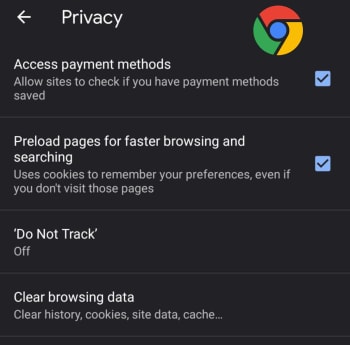
#2 Scroll down to the Advanced section of the menu and hit Privacy.

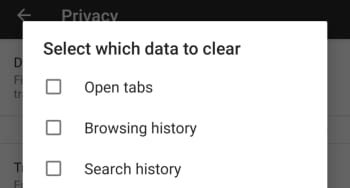
#3 Hit Clear Browsing data and then select the time range you that you want to remove all data from and select the exact type of data you want to remove.

#4 Tap Clear Data to confirm the actions.

7
Chrome is a young, fast browser that can browse any web page. It supports all major technologies and standards such as HTML5 and Flash.

How to clear your Android browser history on Mozilla Firefox

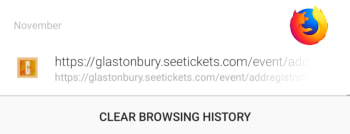
Clear browser history on Firefox for Android

#1 Open Firefox on your Android device and hit the ellipsis menu in the top-right of the screen.

#2 Select History and then hit CLEAR BROWSING HISTORY at the bottom of the screen.

#3 Confirm the action by pressing OK.

Bonus – You can set Mozilla Firefox to automatically delete selected data including bookmarks, browsing or search history, and saved passwords every time you stop using Firefox and shut the app. To do so follow these instructions:

Delete data when close on Firefox

A – Open Firefox on your Android device and hit the ellipsis menu in the top-right of the screen.

B – Hit the Settings option and then select Privacy.

C – Select the check mark next to the Clear private data option and then select the data you want Firefox to delete every time you close the app.

D – Confirm the action by selecting Set.

How to clear history on Opera for Android

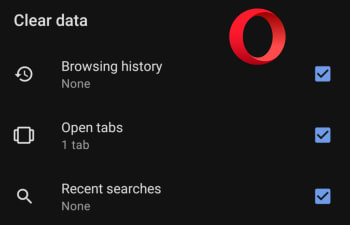
Delete browser history on Opera for Android

#1 Open the Opera browser on your Android smartphone and hit the Opera button in the bottom-right corner of the screen.

#2 Hit Settings and then scroll all the way down to the Privacy section of the menu.

#3 At the bottom of this section you’ll see the Clear browsing data option… Tap this and then select all the data you want to delete.

#4 Confirm the action by hitting the CLEAR DATA button.

How to delete browsing history on Microsoft Edge for Android

Delete browser history on Edge for Android

#1 Open the Edge browser on your Android phone or tablet and hit the ellipsis menu button in the bottom-right corner of the screen.

#2 Scroll down to the Advanced section of the menu and tap Privacy, which is the first option in the section.

#3 The very last option in the Privacy menu is Clear browsing data. Hit this and then select the data you want to delete.

#4 Tap Clear and then confirm the action by hitting CLEAR.

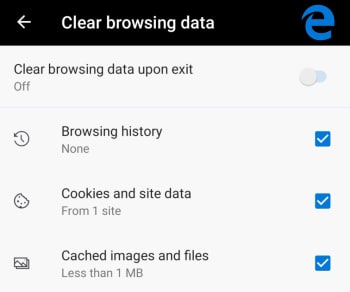
Bonus – Like with Firefox you can tell Edge to automatically delete all your browsing data every time you close the app. At the top of the Clear browsing data screen, there is a toggle switch for doing this. Simply select all the data you want deleting as normal and then toggle this switch to the on position and Edge will do the rest every time you exit the app.

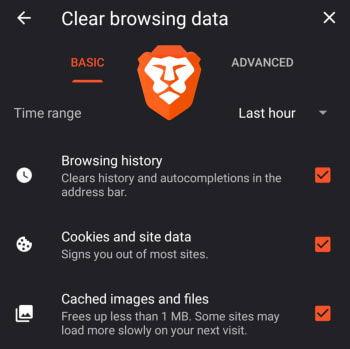
How to clear your Android browser data on Brave

Clear browser hist5ory on Brave

#1 Open the Brave browser on your Android smartphone and tap the ellipsis menu icon in the bottom-right of the screen.

#2 Select Settings and then scroll down to the Advanced section of the Settings menu and select Privacy.

#3 Scroll down to the second to last option, which is Clear browsing data. Select this and then choose the data you want Brave to delete.

#4 Confirm the action by tapping Clear data in the bottom-right corner of the screen.

Enjoy private, secure and fast browsing with Brave.

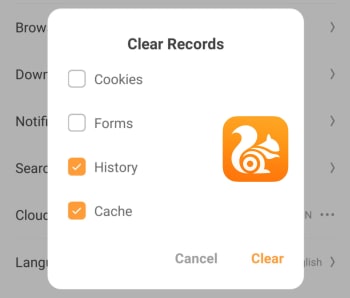
How to clear your Android browser history on UC Browser

Clear browser history on UC Browser

#1 Open the UC Browser on your Android phone and tap the Menu icon, which is the middle option on the bar running across the bottom of the screen.

#2 Then hit the Settings icon, which looks a little like a bolt and is found on the bottom-left of the menu screen.

#3 Tap the Clear Records button and then select the type of Data you want UC Browser to delete.

#4 Confirm the action by hitting the Clear button.

UC Browser Download now
8

How to recover deleted files from your Android

This is how to recover lost and deleted files on your Android phone and to protect yourself against future losses.

Android data recovery

We’ve all been there; we’ve all done it. Accidentally deleted some files that we weren’t supposed to delete. Apart from staring blankly at where they used to be, what can we actually do about this common mishap? On your Windows PC it isn’t that big of a deal, you simply go to the Recycle Bin and Restore the files you deleted. Then they’ll magically reappear back where they were before you deleted them. Android data recovery isn’t that simple, however, because there is no Recycle Bin type feature that stores your lost data.

Don’t worry though, all is not lost. You can recover deleted files on your Android smartphone and we’re going to show you how to do it. There are a few ways to restore deleted files and then there are a few steps you can take that will protect your files in the future. Let’s look then, at how to recover deleted files on Android.

How to recover deleted files from Android

When you delete a file on your Android mobile phone it isn’t completely erased from your device. Instead the actual file remains on the phone’s internal memory and what happens is the marker for the file is removed from your device. Android phones do this because it is quite difficult to actually remove files from a hard drive; if you wanted to do it yourself, you’d need to use a file shredding app. When you delete a file then, it is the marker that goes making the space the file was taking up “free” again, with the actual file only being overwritten, if new files are installed. This is good news for anybody who has deleted a file by accident. If this is you, you must remember that you shouldn’t install any new files or apps before you attempt to recover your “deleted” file as the new installs might overwrite the old data.

How to recover deleted Android files using a PC

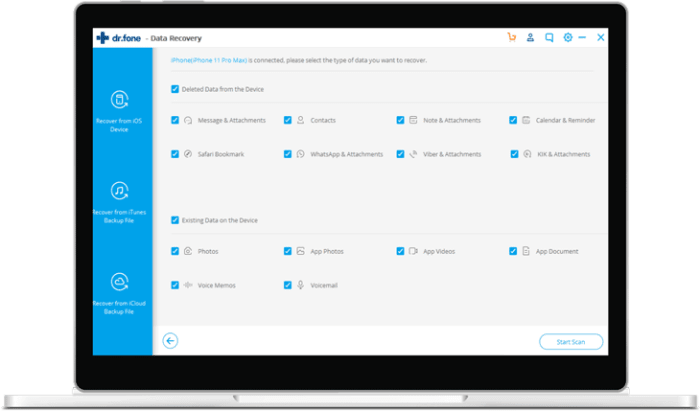
dr.fone Android recovery

What this all means is that you can recover deleted files, it just means that you’re going to have to delve into your Android phone’s internal storage to do so. To get your deleted data means using specialized recovery software and most of these programs require you to connect your Android phone to your PC with a USB cable.

The most successful Windows PC program recovery tool for Android lost files is dr.fone – Data Recovery (Android). There’s also an iPhone version. The program is compatible with over 6,000 different Android devices and can recover photos, videos, deleted contacts, text messages, and call logs, among other things. You can download dr.fone using the link below. It is a premium tool, but it does offer a free trial. Click the link and then follow the on-screen instructions to try and get your files back.

dr.fone Recovery for Android Download now
6

How to recover deleted Android files using an Android app

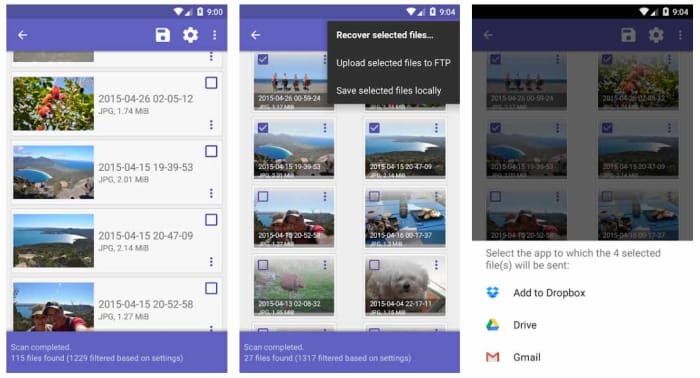
DiskDigger

DiskDigger and DiskDigger Pro are two Android recovery apps that can help you recover your accidentally deleted files from your Android smartphone. DiskDigger is great for photo recovery and can perform a limited scan for deleted photos and then recover JPG and PNG files that are still stored in your device’s cache or as thumbnails. The undelete app is simple to use although there is a more advanced scan that can recover more photos from your Android internal memory and memory card if your Android device has been rooted.

DiskDigger Undelete Download now
8

DiskDigger Pro is a premium Android data recovery tool that can recover more file types from your Android phone’s internal memory. These file types include images, videos, documents, music, and more and they can be recovered from the internal memory or an SD Card. Unfortunately, however, DiskDigger Pro only works with rooted devices so if you haven’t rooted your Android device, you’re going to have used another method like dr.fone.

DiskDigger Pro Download now
8

Recover files on Android: Prevention and backups

As you’ve seen from the solutions, we’ve outlined above including connecting your Android phone to a Windows PC and rooting your device, important file recovery on Android is a bit of a pain. Fortunately, however, there are certain apps you can download and steps that you can take that will keep you ahead of the game.

Download a file manager app like MiXplorer

Often file explorer apps for Android have their own Recycle Bin features, which means you can easily recover any files you accidentally delete. One of the best of these is the ES File Explorer Pro app, but this is no longer available on the Google Play Store due to some shady behavior from its developer. Another great option though is MiXplorer, which enables you to set an Undo feature that sets up a “recycle/trash” feature.

MiXplorer Silver File Manager Download now
10

Google Photos

Let’s face it, most of the files you have on your phone are photos and videos you’ve snapped yourself using your phone’s camera. The good news here is that if you use Google Photos, these will automatically be backed up to the cloud. This is a great feature because it allows you to free up space on your Android phone by deleting all the photos and videos that have already been backed up. You’ll then still be able to view them whenever you have an active internet connection. You need to use Google Photos as your default photo app.

The other great feature about Google Photos is that it has a Bin feature. Although your Google Photos automatically backs up your photos and videos, it doesn’t automatically protect them from accidental deletion because deleting a photo on your phone will also delete it from your Photos account. They will just go to the bin though, so if you have lost photos or videos accidentally, head to the Bin on Google Photos and recover them. Easy peasy.

Google Photos Download Google Photos
7

Use WhatsApp

WhatsApp has signed a deal with Google that allows you to backup all your WhatsApp messages using Google Drive for free. This deal has no limits meaning that should you lose any of your messages, you’ll always have backups.

WhatsApp Messenger Download Now ►
8

Terms and Conditions for “SOFTONIC – Avast 2020” contest

Terms and Conditions for “SOFTONIC – Avast 2020” contest
Terms and Conditions for “SOFTONIC – Avast 2020” contest (Hereinafter the “Contest”)

This draw is run by Softonic International, S.A., whose registered office is at MediaTic Building – Roc Boronat, 117, 6th Floor – 08018 Barcelona (SPAIN) (“Promoter”).

The draw is open worldwide to persons aged 18 or over, excluding employees of the Promoter and its affiliated companies and their immediate families, as well as any other persons and companies professionally associated with this draw.

In order to be eligible to participate in this draw, participants need to

  1. Like this post
  2. Try out the new version of Avast Free Antivirus and share here a screenshot of your favorite feature!

By taking part in this draw all participants will be deemed to have accepted and be bound by these terms and conditions. The contest commences at 00:01 Central European Summer Time (CEST) on 27th February and closes at 23:59 on 7th March 2020.

Prize: The winner will receive an iPhone 11 Pro 64GB
(worth estimated retail value 1.159,00 euro, varying from country to country). The Prize is non-transferable and there is no cash alternative. There will be only one Prize Winner, who will be selected through a random automatic system among the valid eligible participants.

Announcement of the Prize winner: Winner will be notified via email on or after 9th March 2020.

Delivery of the Prize: The Promoter will contact the Winner via email. Winner will be required to provide his or her valid identification (ID) with a complete name, a shipping address and email address to the Promoter in order to be eligible to receive the Prize. The winner hereby authorizes Softonic to perform the purchase on the site link https://www.apple.com/ or link https://www.amazon.com/ thus processing and sharing the personal data provided strictly for the purposes of placing the purchase and mandate the relevant shop to ship the prize. Softonic will directly perform the purchase on the site establishing the Winner as the recipient . Please note that providers’ sites Apple and Amazon privacy policy will apply to your data. Please refer to Apple or Amazon on the forgoing links for more information. We will reach you to find a solution in the event the relevant shop has any restriction or limitation to shipping or exporting the prize to the location provided.

The winner must provide the above details within the period of two (2) days from the date when he or she was notified. If a person drawn as the winner of the Prize does not confirm acceptance of the Prize and provide the above-mentioned information by the end of that period of two (2) days, then the Promoter reserves the right to draw an alternate winner from the valid entries received at the time that the Contest ended.

Your personal information will be used by the Promoter to conduct the draw, and in accordance with Softonic’s Privacy Policy, found at https://hello.softonic.com/privacy-policy/. To access, rectify or delete the data provided, participants can send an email to privacy@softonic.com indicating in the subject “Contest Data Rights”.

If you are the Winner, the Promoter may use your information for marketing or promotional purposes, including using your name and your Facebook profile picture to announce the winners online including but not limited to Softonic’s web pages, blogs and Softonic’s profile pages on Facebook, YouTube, Twitter, Google+, Pinterest and Instagram.

Other than death or personal injury arising from the acts or omissions of the Promoter or its employees, the Promoter to the fullest extent by Law will accept no responsibility for any loss, damage, injury or disappointment suffered by any participant from entering this Contest or by a Winner’s acceptance or enjoyment of the Prize.

This draw is in no way sponsored, endorsed or administered by, or associated with Facebook. By entering you confirm that you understand that you are providing your information to the Promoter and not to Facebook. By entering the Contest, all participants agree to release Facebook completely of any liability.

The Promoter reserves the right to cancel, modify or supersede the draw (including altering prizes) at its sole discretion, if it is not capable of being conducted as specified. The Promoter reserves the right to substitute a prize in the event that circumstances beyond its control make this necessary. The decision of the Promoter is final and binding in all matters relating to this draw.

These terms and conditions and all matters arising from or in connection with them are governed by the laws of Spain without regard to conflict of law rules and the courts of Barcelona will have exclusive jurisdiction.

Tips and tricks to make your Android battery last longer

These tips will help you keep you Android battery lasting longer.

Battery saving tips on Android

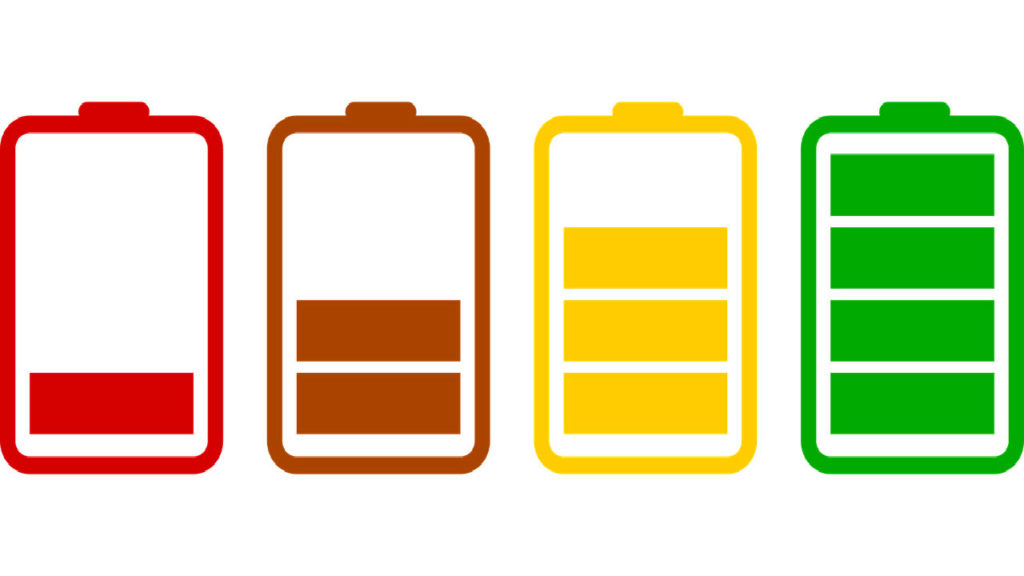
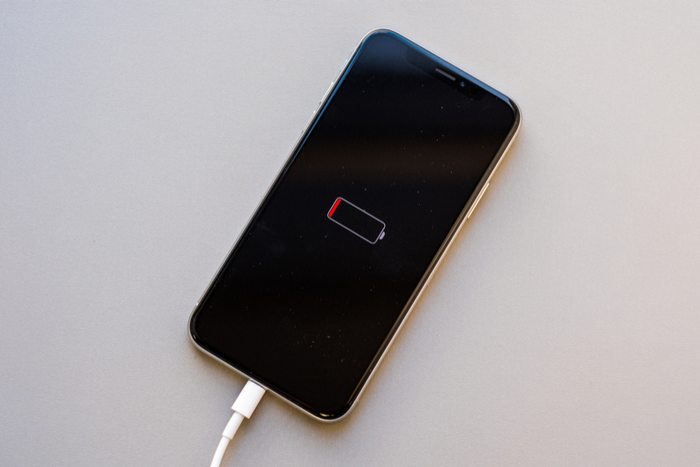
Poor battery life is the problem that smartphone manufacturers, both iPhone and Android, just can’t fix. Sure, there are phones these days that look more like tablets and contain massive batteries that might last a day and a half but that is no real solution, is it? A bigger battery just isn’t practical for many users, which means most of us are limping home at the end of the day trying to squeeze out every last bit of juice we pumped into our phones overnight.

This being the case, we thought we’d bring you some tips to help you make your Android phone’s battery last longer. If you’ve ever been frustrated by a lack of power or annoyed by your phone turning into nothing more than a cold, dark slab of glass and metal, read on. This is how to make your android battery last longer.

How to make your battery last longer on Android

#1 Control your screen brightness manually

The biggest drain on your phone’s battery life is your screen. It is big, it is bright, and it is on every single time you use your Android mobile phone. Brightness is key here and can make a big difference to how long your battery will last. Rather than relying on the adaptive brightness setting that will automatically change your screen brightness depending on how well lit your surroundings are, manually set your screen brightness to the lowest possible setting you can handle.

#2 Use the dark mode

Android 10 introduced a system-wide dark mode. If you select this setting, the background Android color scheme will turn black with letters showing white; rather than the other way around. This will also happen for all core Google apps like Gmail and Chrome. This helps save your battery because Google has proven that OLED screens require less power to display darker colors than they do for lighter colors. If you don’t have Android 10 on your device don’t worry. Many apps have their own dark modes, which you can set individually.

#3 Use the battery saver mode

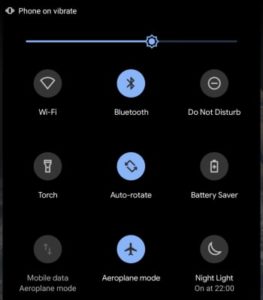
Your Android device is complex, can do many things, and is often running many complex actions in the background. Some of these are crucial to your device’s basic functions and others aren’t, but all place a strain on your battery. This means when you need to prioritize battery life you can deactivate all of these minor background functions. OK, this sounds like a laborious task but fortunately, Google has included a power-saving mode in Android for quite some time now that does exactly this. All you need to do to activate it is drag down the Quick Access Settings Menu from the top of your home page and tap Battery Saver.

#4 Deactivate keyboard sounds and notifications

Android phones with touchscreen keyboards try to mimic real keyboards by playing a small sound and producing haptic feedback. Both use battery power; deactivate sound and vibrate now. To do so go to your phone’s Settings menu, then hit Sound, and finally Advanced. Here you’ll see the toggle options for sounds and vibrations.

#5 Limit your phones antennae

Your phone can make calls, connect to Wi-Fi networks, pair with Bluetooth devices, and may be able to make other types of connections too. These antennae all need power when they’re active and you don’t actually need to be using them for them to be active. If you’re not connected to Wi-Fi, your Wi-Fi antenna is searching for Wi-Fi networks etc. If you’re not using an active connection deactivate the antenna. You’ll be amazed how much longer your battery will last when you’re in Airplane mode. The obvious caveat, however, is that you won’t be able to receive calls or messages etc.

#6 Prioritize Wi-Fi

If the idea of turning off all the ways your phone can connect to the world sounds crazy, don’t worry, we understand. If you must always maintain an active connection, prioritize Wi-Fi. Connecting over Wi-Fi uses a lot less power than maintaining a network connection so whenever possible use Wi-Fi and deactivate Mobile data.

#7 Uninstall your unused apps

As we’ve already mentioned, your phone is always running processes and actions in the background. The more apps you have on your home screen the more of these background processes you’ll be running. A simple battery saving tip then, is to delete all the apps you never use. Do so and you should notice your battery lasting a little longer at the end of the day.

#8 Disable location services

Location Services on Android

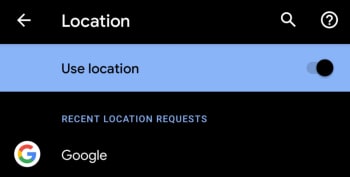
Another big phone battery drain comes from location services. Just like with your device’s antennae, location services will be scanning away in the background collecting data that you don’t even need. Sure you’ll need your GPS at some point, but why not just activate it then? Disabling your phone’s location services will save you power you may need later on.

#9 Get rid of Live Wallpapers and Widgets

It is all well and good for modern operating systems to offer cool and exciting features like wallpapers that move and integrated widgets, but while batteries are so puny you should think twice before using them. They eat up precious battery power that you might need at the end of the day. Use a static wallpaper and deactivate your widgets to limit your battery usage and save that power.

#10 Deactivate Google Assistant

Strange behavior from Google Assistant

We’ve mentioned this many times today but here we go again; anything that is always working is always using your battery. That means when Google says its AI Assistant is always listening then yes, it is always using your phone’s battery too. If you want to save that power, we’ll tell you how. Strap yourself in though, because Google doesn’t make this easy.

First you need to open the Google app and then open the More tab. Once you’re there, select Settings, hit Assistant, and then scroll all the way down to the bottom of the menu. There you’ll see your phone’s name. Tap this and you’ll finally come to the switch that allows you to Deactivate Google Assistant on your phone.