Chrome: New Features and Tricks You Didn’t Know About

With more than one billion active users every month, Google Chrome is inarguably the ultimate browser in the market today. While there are other critically acclaimed options such as Mozilla Firefox, Microsoft Edge, and the recent Brave, Chrome is still the default browser for most people who spend long hours on the internet. The reasons for its success are simple: it’s fast, it uses few resources, it allows easy synchronization with your Gmail account while obviously giving you the peace of mind that comes with using a Google product.

Portátil con Chrome

While many of us use Google Chrome on a daily basis, not everyone is thoroughly familiar with all of its features. In addition to being a truly efficient browser, Chrome comes with many tricks you can use to boost performance and make your hours in front of your PC far more productive. And not to mention all the improvements that come with its updates! Want to learn more about them?

In today’s article, we are going to review the new features on Google Chrome and some tricks to help you take full advantage of your browser. We hope you find them helpful!

First, make sure to update your browser

Before we dive into the best tricks and new features on Chrome, it’s important to make sure your browser is updated to the latest version. We recommend installing the Chrome Beta or Chrome Canary versions of Chrome, because most of the new features are only available on these versions for now.
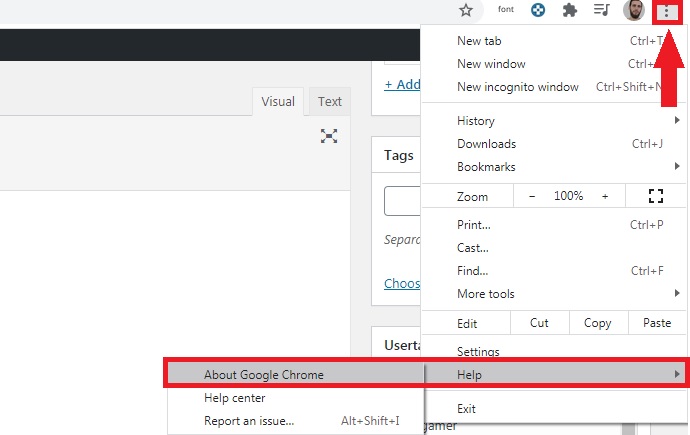
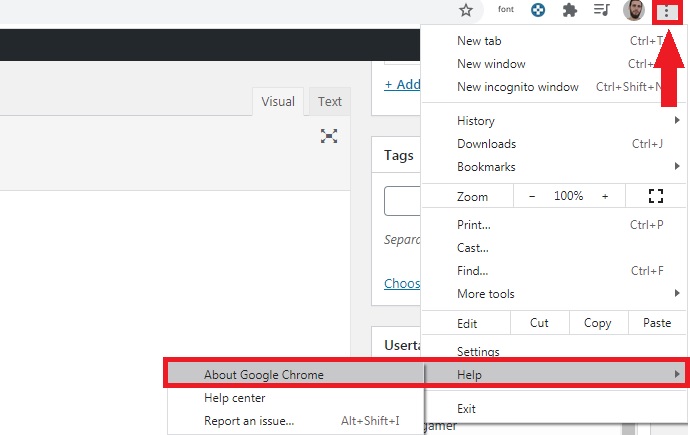
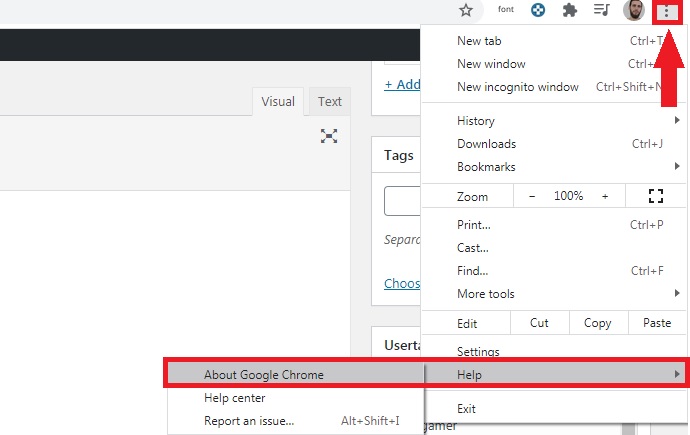
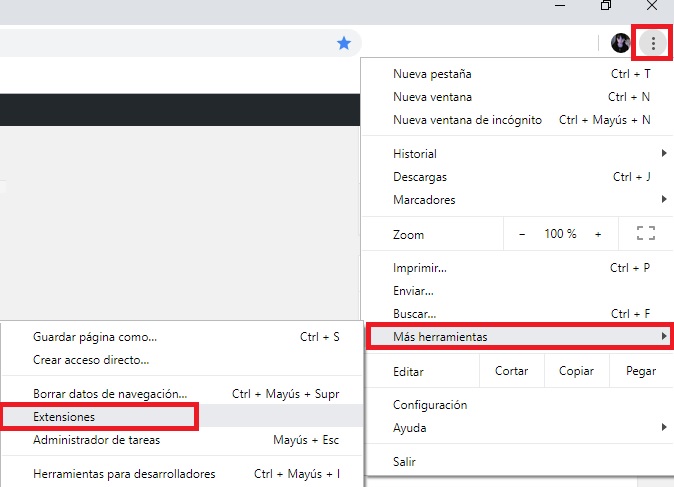
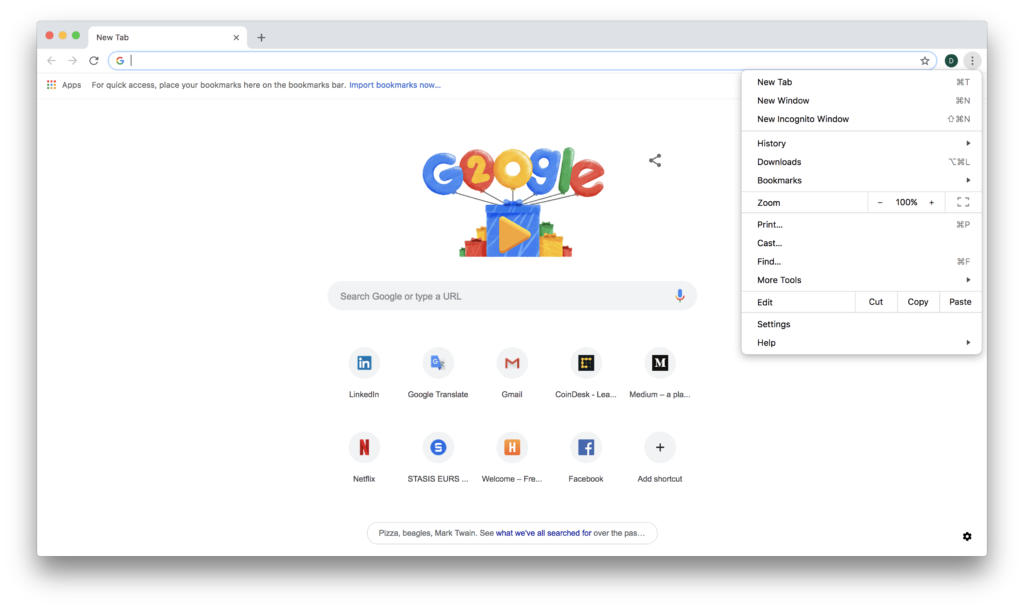
Updating Google Chrome is simple, just complete the following steps. First, click on the “Customize and control Google Chrome” button, which you can find in the upper right corner of the screen (three vertical dots). Once the drop-down menu appears, click on the “Help” option followed by “About Google Chrome.”
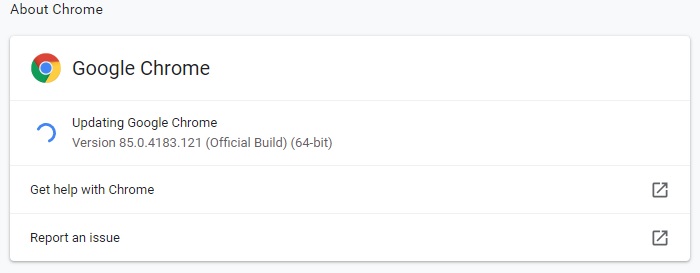
After that, a new window will open, and your version of Chrome will be analyzed. If a newer one exists, it will be downloaded and installed automatically.
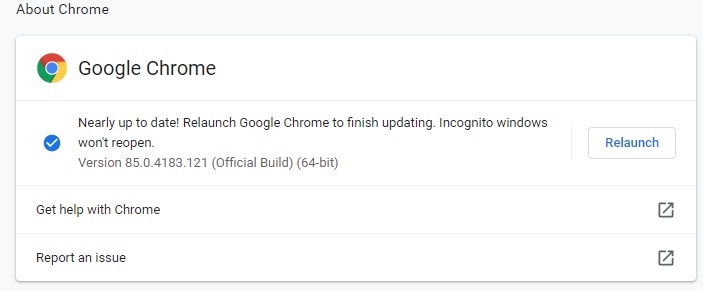
If you wish, you can also choose to download and install the latest version of Chrome, Chrome Beta or Canary manually. Download it to your computer quickly and safely by using the links below.

  • Google Chrome (official build)
Google Chrome DOWNLOAD
8
  • Google Chrome Beta
Google Chrome Beta DOWNLOAD
7
  • Google Chrome Canary
Google Chrome Canary DOWNLOAD
8

Learn to access Chrome’s experimental features

Chrome constantly adds experimental features to both its Canary version and its official build. As they are tested, Google adds them to its build definitely so they can be used easily by all browser users.

To use some of the features we’ll mention in this article, you’ll first have to enable them through the experimental features menu. Want to know how to access it? It’s easy, just type “chrome://flags/” in your browser’s address bar and hit the Enter key.
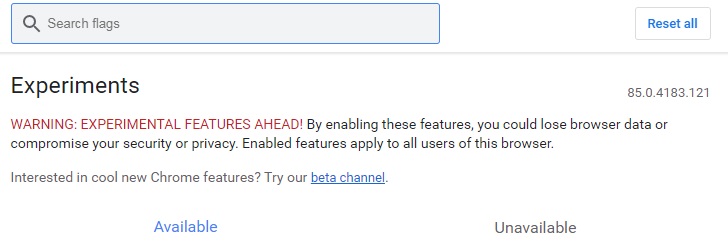
From the experimental features window, you can view a list of all the new features being tested in Chrome, which are disabled by default. To enable them, simply click the drop-down menu and select the “Enable” option. After that, you must restart Chrome for the changes to take effect. It’s that easy!

New features and tricks on Google Chrome

Now, without further ado, the following are some of the useful features on Google Chrome that you may be unaware of and that will exponentially improve your online browsing experience. Let’s have a look!

Tab groups
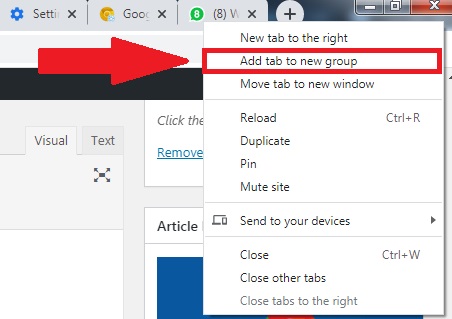
To access this feature, you have to first enable it in Chrome’s experimental window. You can find it under the name “Tab Groups.” This new feature lets you organize as many tabs as you want under a single tab, which you can give a name and a color. That way, you’ll always have your tabs handy at the click of a button on Chrome, whether or not you close the browser. This feature is especially useful for separating all the tabs you use every day at work; that way you won’t have to waste time searching for them among your favorites.

Quickly open any file

To quickly open any image, music or video file, you don’t need to open a player. Simply drag the file onto a Chrome page and the browser will take care of playing it.

Incognito mode

Browsers save by default a history of your searches and activities while you browse the internet. In theory, this gives you much faster access to pages you have already seen and also lets Google offer you personalized content tailored to your interests. However, not everyone likes having their browser constantly spying on them, and for this type of situation there is the so-called “incognito mode.”
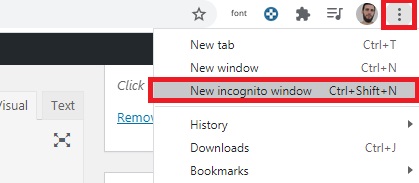
Accessing incognito mode in Google Chrome is easy. Just click the “Customize and control Google Chrome” button (the three vertical dots in the upper right corner of the browser) and then select “New incognito window.” Alternatively you can use the keyboard shortcut Ctrl + Shift + N. Now your browser will stop collecting information about what you do online.

Task manager

Just like your operating system has a task manager to check which programs are using your computer’s resources, Chrome has its own. To access it, click on the “Customize and control Google Chrome” button (the icon with the three vertical dots in the upper right corner of the screen) and click the “More tools” option. After that, a drop-down menu will appear where you must click the “Task manager” option. Or you can use the keyboard shortcut Shift + Esc.

Guest mode

Google Chrome is designed to synchronize with your Google account with all that this entails (access to your email, passwords, searches, use of YouTube, etc.). This is really useful if you are the only user of your computer, but it can be dangerous if you share it with other people.
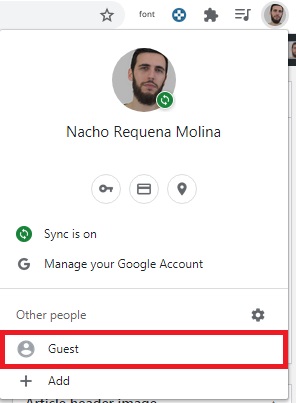
If someone asks you to use Chrome for a few minutes and you don’t want them to have access to all your private data, you can use guest mode. To do this, click the icon with your avatar in the upper right corner of the screen and, once the drop-down menu opens, click the “Guest” option. This will allow the person to whom you lend your computer to freely use the internet without snooping on your accounts.

Cast your screen to other devices via Chromecast

Google Chromecast

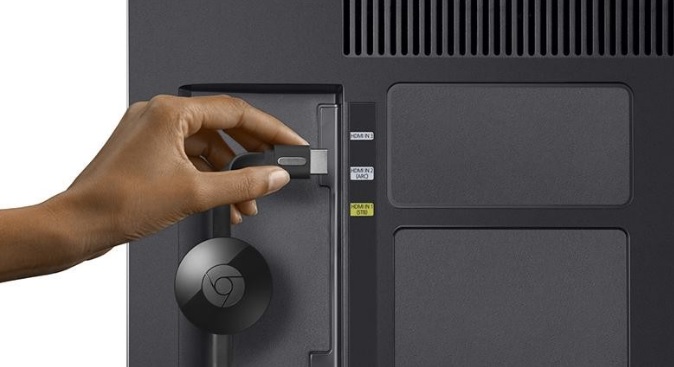
At one time or another, we have all wanted to send our computer screen to another device (whether it’s another PC or a smart TV) without much fuss. This is possible on Chrome thanks to the “Cast” option and its compatibility with Chromecast.

To use it, simply click “Customize and control Google Chrome” (the icon with the three vertical dots in the upper right corner of the screen) and select the “Cast…” option. Chrome will search for all Chromecast devices near your computer. Just select the one you want and your screen will magically appear on the other device.

Never heard of Chromecast? Don’t worry, we have an in-depth article about Google’s USB device. Just click the link below to read it.
Control YouTube from any tab

Google Chrome lets you control YouTube from any tab you have open. To do so, you only need to have a YouTube video open in one tab. In the upper right corner, you’ll see bubble-shaped icon appear with a musical note inside. If you click this button, you can play the video or go to the next track.

This feature is especially interesting if you frequently use YouTube to listen to playlists while you work. You’ll no longer have to keep clicking on the tab with the video open; now you can pause the music or select a new track directly from the new button on your browser.

Search with your mouse

While browsing the internet, it’s likely that you’ll come across a word or a topic that you want to learn more about. Many of us go back to the Google page and type in the word, but there is a much easier way to do it in Chrome. Simply underline the search term with your mouse and right-click on it. When the drop-down menu appears, click on the “Search Google for X” option, where X is the underlined term. It’s simple as that.

Recover closed tabs

When you work on your computer, it’s normal to have many browser tabs open, whether you’re writing reports or searching for information. It also happens very often that you inadvertently close the tab that you needed the most, and you don’t know how to get back to it. Instead of tracking your entire history, you can recover a tab you just closed in a few clicks. Do you find that hard to believe?
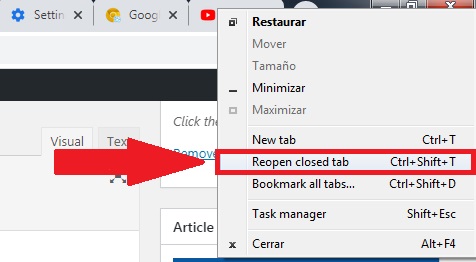
Right-click on the tab section of the browser and, once the drop-down menu opens, click the “Reopen closed tabs” option. Alternatively, you can also use the keyboard shortcut Ctrl + Shift + T.

Pin a tab

Continuing with tab-related features, if you usually work with many tabs open, you know that it can be a real hassle to find the one you need. To keep track of your most important tabs, you can pin them to your browser. This will make it easy for you to view them, and they will appear whenever you open the browser.

To pin a tab, simply place your mouse cursor over it and right-click. When the drop-down menu appears, select the “Pin” option. Now your tab will become an icon at the top left of your browser. When you want to get rid of it, follow the same steps as above but select “Unpin“.

Clean up your browser

Chrome is one of the fastest browsers on the market, so if yours starts to go slow, it’s a good idea to make use of its internal cleaner. To do this, click on “Customize and control Google Chrome” (the icon with the three dots in the upper right corner of the screen) and, once the drop-down menu opens, click the “Settings” option.
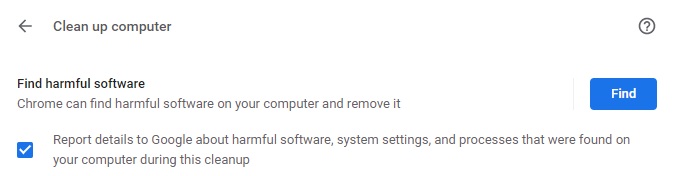
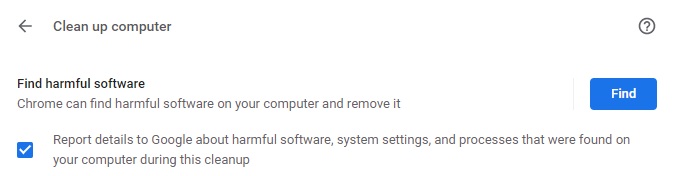
In the Settings window, go to “Advanced” and click on the “Clean up computer” option. Then Chrome will analyze your browser to search for harmful software that might be affecting its performance or jeopardizing your security and that of your data.

Create a desktop shortcut

In addition to being able to store websites in your favorites and pin them under tabs, Google Chrome allows users to create desktop shortcuts. To do so, just open the website you want to link to and click on “Customize and control Google Chrome” (the icon with the three vertical dots). Once the drop-down menu opens, select the option “More tools” followed by “Create shortcut.

When you go to your desktop, you’ll see a new icon with the name of the website. Double-clicking on it will open Google Chrome directly to the page you want to visit.

We hope our selection of Chrome tricks and features has helped you. Don’t forget you can find many more features on Chrome’s “Experimental” menu. Remember they are still in the beta phase, and Google does not guarantee that they won’t cause glitches in your browser’s performance.

Do you know of any other hidden Google Chrome tricks or features that didn’t appear on our list? Tell us about them in the comments section!
AliExpress: How to Detect Scams and Other Useful Tips

If you love a good online bargain, you’re probably more than familiar with AliExpress. This portal encompasses the majority of stores and small businesses in China that have ventured into the global market, selling their products to consumers all over the world… and always for the lowest price!

Mujer comprando por Internet

So, it’s easy to understand why AliExpress is one of the internet’s most popular marketplaces. But as usual, whenever money is involved, there are scams, and some dishonest seller is always ready to prey on unsuspecting shoppers with bait-and-switch schemes.

Did you purchase a brand-new iPhone 11 for a ridiculously low price, only to receive an iPhone-shaped cushion in the mail? Did you fall in love with an adorable stuffed seal but end up with something that looks more like Steven Seagal than the aquatic mammal of your dreams? Or did you simply purchase an item and never receive it?

Don’t worry, you’re not the only one who has felt scammed after buying something on AliExpress. Because unless you’re careful, you could easily end up frustrated with what initially seemed like the bargain of the century.

AliExpress DOWNLOAD
8

To save you from bad experiences on AliExpress, in today’s article, we’re going to teach you how to detect scams on this platform and give you some tips in case you have somehow been conned. We hope you find it helpful!

Is AliExpress a secure platform?

Logotipo de AliExpress

That’s the million-dollar question, something we all wonder when visiting AliExpress. This marketplace offers endless items we’d love to buy, but we seem to recall reading somewhere online that it’s not very secure. Is that right?

The truth is that AliExpress is completely secure as a platform, in the sense that your banking or credit card details won’t be stolen by the seller. Your payment information (credit card, Western Union, Paypal, etc.) is never shared with the seller and is also protected by a reliable security system, Verisign SSL.

But scams are another issue entirely. While you can be sure a seller won’t swipe your credit card info, you may never receive anything in the mail. There have been many cases where the seller plays dumb and never ships your package. Apparently, it’s also common to receive a pirated item instead of the original. Keep reading to find out about the most common types of scams on AliExpress.

The top scams on AliExpress

Compras online

There are many methods of scamming, but fortunately, dishonest AliExpress sellers often have a modus operandi that is easily identifiable. Below we’ll share the most common ones, so if you’re a victim of any of them you can defend yourself before it’s too late.

The seller never ships your item

Imagine finding a Nintendo Switch on AliExpress with that special edition of Animal Crossing that’s so hard to find. And all for just 100 euros! Who could resist such a bargain? But after you purchase it, several months go by and your package never arrives. The seller claims they shipped your package as soon as they received the money, but your Switch never turns up. What happened?

If you find yourself in a situation like this, we have bad news: it’s more than likely you have been the victim of the classic scam of the package that was never shipped. The seller will claim over and over that your package is on its way, asking you to be patient, but the fact is, they never sent your merchandise, and your cool Nintendo Switch probably doesn’t exist. The scammer will try to make you lose the 60-day buyer protection period as you wait, and then you can’t open a dispute.

The seller gives you a false tracking number

Closely linked to the above scam is the false tracking number trick. After announcing that your phantom shipment is on its way, the rogue seller gives you a false tracking number so you rest easy and don’t get suspicious.

When you go to check the tracking number on the mail website, you’ll probably be informed that no such number exists in its database. The seller will claim that this is normal, as it’s common for shipments from China to experience delays in being recorded in the database. They’ll tell you to wait about two weeks for the number to work. But don’t be fooled, this one is never going to work!

Another common tactic: they give you a tracking number that works, but when you search for it, your package appears as delivered. That way, the seller is covered when you try to open a dispute. It will claim that you received the package and that you’re the scammer, when the situation is actually the opposite!

The products you receive are different from those advertised

This is the ultimate AliExpress scam. It’s fairly normal for any product you purchase online to look much nicer in the advertising photos than it does at home. Photoshop is the culprit in most cases. However, we all know China has a reputation for creating copies of products and selling them for a much cheaper price.

One of the biggest tricks on AliExpress is sending us products that barely resemble what we wanted and cost their seller much less to manufacture. In this case, photos of the original products are often used to trick the buyer, and once received, their quality leaves much to be desired. We’re talking about the classic Chinese fakes.

How to avoid getting scammed on AliExpress

Idea

Now that you know what kinds of scams you can find on AliExpress, we’d like to tell you how you can avoid them. Let’s get to it!

One of the keys to avoiding being conned is to do some research on the seller. Never, ever buy a product from a person or a store with bad ratings or complaints from buyers. If many people leave bad ratings or complain that they never received their item, you’ll be taking a risk by purchasing something from that seller, and you’ll likely fall into the same trap.

But what if the seller is new? Scammers often open new accounts on AliExpress when their old one has racked up too many bad reviews and nobody is taking the bait anymore. Should you always avoid new sellers, then? While our best advice is to stay safe and only buy from verified “reliable” users, you don’t necessarily have to avoid all new sellers. That said, please tread carefully.

To determine whether or not seller is real, it’s a good idea to scrutinize the photos they are using to advertise their product. If they use advertising photos from the manufacturer, you should be wary. If, on the other hand, they are real photos of the product, you should run a search on Google Images to see if they appear on other websites. Just go to Google Images (click here) and drag the photo to the box in the middle of the page. If the same picture appears on multiple websites, find a different seller. It’s probably a scam!

What to do if you’ve been scammed on AliExpress

Mujer frustrada

So we’ve told you about the most common scams on this platform and how to avoid some pitfalls, but… what if you had a moment of weakness and some dodgy seller managed to rip you off? Don’t worry! Your money isn’t lost yet, and we can help you get it back.

Many users are unaware that AliExpress has a 60-day buyer protection period. During this time, if you’ve had some problem with the seller or never received your order, you can open a dispute on AliExpress. There, you can submit your complaint, photos and proof to the platform, explaining what happened and how you have been the victim of a scam.

In theory, the seller has the right to defend themselves in the dispute and try to reach an agreement with you, but if no solution is found, the platform itself will resolve the dispute. After reviewing your case, the messages you have exchanged with the seller and the proof that you have submitted for the dispute, AliExpress will settle the case.

If all goes well, your stolen money will be returned, and the seller will be reprimanded by AliExpress. So if fewer than 60 days have gone by since your purchase and you still haven’t received your order, don’t hesitate to open a dispute on AliExpress. Just go to “My Orders” and click the button that says “Open Dispute.”

We hope our tricks and tips for detecting scams and avoiding cons on AliExpress has been helpful to you. Have you ever been the victim of an online scam? Tell us about your experience in the comments section!

The Best Apps to Organize your Browser Bookmarks

Nowadays we spend a large part of our workday and even our free time navigating the internet. That’s why, more often than not, our browsers end up cluttered with bookmarks, whether it’s for that website you’re using to write your next report or the one you always visit for a few laughs. This isn’t a problem when your browser is clean and newly installed, but sooner or later you’ll have so many bookmarks that it frankly gets hard to find the one you’re looking for.

mujer utilizando un portátil

One of the best options for tidying up the bookmark chaos in your browser is to create folders. However, in the long run it becomes as chaotic leaving them on the taskbar. Is there no way to manage bookmarks that doesn’t involve spending several minutes hunting for the one you need?

In today’s article, we’re going to share our roundup of apps and tools that make it easy to organize your bookmarks. Time to tidy up that virtual “junk drawer” in your browser! We hope you find them helpful.

First, make sure your browser is up to date 

Before we get started with our selection of apps, we highly recommend checking to make sure your browser is up to date. That’s the only way you can be certain the app you’re using works correctly and at the same time, that all your browsing data is safe from hackers.

Updating your browser is easy. All of them use a similar system: just go into the options menu and select “About” or “Information about browser.” Then it will check to see if you have the latest version installed and give you the option of downloading it.

Alternatively, you can manually download the latest version of your favorite browser. Just click below to download them quickly and safely:

  • Google Chrome
Google Chrome DOWNLOAD
8
  • Mozilla Firefox
Mozilla Firefox DOWNLOAD
8
  • Microsoft Edge
Microsoft Edge DOWNLOAD
7
  • Opera
Opera DOWNLOAD
8
  • Brave
Brave DOWNLOAD
8

Our favorite bookmark managers

Dewey Bookmarks (Chrome)

Dewey Bookmarks

Dewey Bookmarks is a complete extension for Google Chrome that will change the way you see your browser bookmarks. It lets you view each and every one of your bookmarks as cards, so it’s much easier to find them at a glance. What’s more, Dewey Bookmarks lets you manage your bookmarks by adding tags, so you can search for them quickly, and they’re always just a click away.

One of the strengths of Dewey Bookmarks is this extension’s internal search engine. Find any bookmark by typing its name, tag or even part of its URL. In addition, you can import bookmarks directly from other Chrome browsers and edit any of them in just a few clicks.

You can download the Dewey Bookmarks extension here.

Pocket

Página oficial de Pocket

Pocket is an incredible service you can use to save all kinds of articles, videos and stories from any website or even app. It’s the best app by far for managing browser bookmarks, since it’s a multiplatform service you can use to save and easily access anything.

In fact, Pocket’s greatest asset is that it saves bookmarks across your devices, on your PC, phone and tablet, so you’ll never have to search for compatible programs. So, how does it work? Pocket is really easy to use: just click a convenient button on your browser to save anything that interests you in one place. What’s more, its useful tagging system makes it so easy to find your bookmarks. Don’t miss your chance to try it!

You can visit the official Pocket website here.

Neater Bookmarks (Chrome)

Marcadores elegantes

Neater Bookmarks is an interesting extension for Chrome that displays all your saved websites in a cleaner, more attractive format. Although at first glance it doesn’t seem particularly innovative, it’s a really useful extension for anyone who uses the Google browser on a daily basis.

Now it will be much easier for you to find your bookmarks thanks to its powerful internal search engine. In addition, Neater Bookmarks remembers the last bookmark you used and shows it first. That way, you’ll always have your most visited pages just a few clicks away.

You can download the Neater Bookmarks extension here.

Evernote

If you’re one of those people who loves to plan your day down to the last detail, you’re probably more than familiar with Evernote, but… did you know this app can also manage your bookmarks? In fact, it’s one of the most comprehensive, complex bookmark managers you can find online.

Evernote is an especially useful application to store all the bookmarks you use, for example, throughout the workday. This is because although it’s a powerful application, it’s not directly integrated into your browser, so you have to open the program to access your bookmarks. Fortunately, this little problem can be solved thanks to convenient extensions.

Another strong point of Evernote is that, since you can use it on your phone, you can save all the bookmarks you want, whether you’re on your way to work or on vacation. You’ll never have to use your PC. What’s more, there are different subscription plans (one is completely free), with new tools to better organize and manage your bookmarks.

You can download Evernote quickly and safely below.

  • Evernote for Windows
Evernote DOWNLOAD
7
  • Evernote for Android
Evernote (Android) DOWNLOAD
6
  • Evernote for iOS
Evernote (iOS) DOWNLOAD
6

Bookmark Manager (Chrome)

Bookmark manager para Chrome

Bookmark Manager is an excellent tool for managing your Google Chrome bookmarks. As it’s an extension for your browser, installing it is as easy as visiting the Chrome Web Store and downloading it to your device. Unlike similar extensions, Bookmark Manager can not only add and organize new bookmarks, but also identify the ones you already have in your browser and put them in perfect order.

Among its most outstanding features, Bookmark Manager provides a much more visible and intuitive interface for your bookmarks. When you have it installed, it lets you restore old browser sessions and eliminate duplicate bookmarks. Using its internal search engine, it becomes much easier to find that website you were looking for.

In terms of usability, Bookmark Manager is very intuitive, so there’s no learning curve for casual internet users. In short, it’s a sure bet for anyone who uses Chrome users and wants a simple, useful bookmark manager for their browser.

You can download Bookmark Manager from the Chrome Web Store here.

Diigo Web Collector

Diigo Web Collector is a browser bookmark manager designed for users who are looking to do far more than just organize their saved websites. Although it’s not one of the most visually stunning apps on our list, it couldn’t be more useful.

Diigo is widely considered to be the benchmark app for annotating and archiving bookmarks. Use it to save websites and visit them whenever you want, and even add notes and even reminders to them. This is especially useful if you use the internet to work or write reports for work.

One really interesting aspect of Diigo Web Collector is that, besides using the service on its website, there is an extension for most browsers (Google Chrome, Mozilla Firefox, Internet Explorer and even Safari). What’s more, Diigo has an app for both Android and iOS devices. That way you can work and organize all your bookmarks whether you are using your PC, tablet or phone.

You can visit the Diigo website here. You can download its extension for Google Chrome and its Android and iOS apps quickly and safely below.

Diigo Web Collector extension for Google Chrome

  • Diigo for Android
Diigo (Android) DOWNLOAD
6
  • Diigo for iOS
Diigo (iOS) DOWNLOAD
8

Raindrop.io

Raindrop.io

Our final pick is the “crown jewel” of our list. Raindrop.io is a fantastic bookmark manager that stands out for its visually stunning interface. It offers a card-like thumbnail of all your bookmarks, making it incredibly easy to find websites and tell them apart. If you have lots of bookmarks or simply prefer a more minimalist option, Raindrop.io can also display your organized websites in the quick, classic list view.

Here’s how it works: Raindrop.io lets you organize all your bookmarks in collections or folders within the program. You also have the option of tagging your bookmarks to make it much easier to find them. Finally, Raindrop.io is able to analyze all the bookmarks you have stored in your browser and eliminate any duplicated ones, or bookmarks whose URLs no longer work.

You can access Raindrop.io on its website, and this manager is compatible with today’s most popular browsers (Chrome, Firefox, Safari and Opera) and also has apps for Mac, iOS and Android. So, what are you waiting for? Download it today!

  • Raindrop.io for Android
Raindrop.io (Android) DOWNLOAD
9
  • Raindrop.io for iOS
Raindrop.io (iOS) DOWNLOAD
9

We hope our selection of tools for organizing your bookmarks has been helpful to you. Do you use any that don’t appear on our list? Tell us about them in the comments section!

Extensions on Chrome for Faster Browsing

The internet has become a fundamental tool and part of our daily lives. We use browsers on a daily basis to check email, read the news, stay on top of social media and even work remotely. It’s therefore essential for them to work seamlessly and take us to the websites we want to visit as fast as possible.

mujer utilizando un portátil

With more than a billion new monthly users, Google Chrome is positioned as one of today’s best browsers. It’s especially convenient for users of Google products, as it can be synchronized with your Gmail account. What’s more, it consumes few resources and is lightning fast, but did you know there are extensions that can make it even speedier?

In today’s article, we’re going to share some tricks to boost Chrome’s performance as well as a roundup of the best extensions for much faster browsing. We hope you find it helpful!

First of all, make sure to update Chrome

Before installing any browser extensions, it’s a good idea to make sure you’re using to the latest version of Chrome. Just click the “Customize and control Google Chrome” button in the upper right corner of your browser (the icon with the three vertical dots). Then select the “Help” option and click “About Google Chrome.”

Then a new window will open and display the Chrome version installed on your computer. If there is a newer one, Chrome will download and install it automatically, although you’ll need to restart your browser for the changes to take effect.

If you prefer, you can also download the latest version of Google Chrome quickly and safely below.

Google Chrome DOWNLOAD
8

The best extensions to speed up Chrome

Below is a roundup of what we consider to be the best Chrome extensions to improve your browser’s performance. They have all been verified by the Chrome Web Store, so they are completely safe for your computer and your internet sessions.

FasterChrome

FasterChrome

We’ll start off our list with FasterChrome, an extension that greatly increases the loading speed of websites.

By default, Chrome pre-loads your most visited pages in the background through your cookies or cached images. That way you can enjoy your favorite websites without long waits. But FasterChrome gives this concept a further twist and starts pre-loading websites when you hover your mouse over the link for more than 65 milliseconds. It ends up saving you a total of 300 milliseconds, making web navigation faster and easier. Although this means a slight increase in bandwidth use, you’ll notice the difference between browsing with or without this extension

If interested, you can download FasterChrome from Chrome Web Store here.

The Great Suspender

The Great Suspender

One of the main reasons why your browser slows down is open tabs. Keep in mind that the more tabs you have open during a session, the harder your browser needs to work to keep that page open and updated in the background. This results in increased use of your computer’s memory and diminished performance.

This is where The Great Suspender comes into play. This useful extension lets you freeze unused tabs, increasing the amount of free memory on your computer and also the speed of your internet sessions. If you’re one of those people who needs to have dozens of tabs open in your browser while working, you should definitely check it out.

You can download The Great Suspender quickly and safely here.

uBlock Origin

uBlock Origin

uBlock Origin is the perfect option for anyone who, along with faster website loading, is looking for other options that improve their browsing experience. uBlock Origin achieves this by far, because in addition to increasing Chrome’s performance in an astonishing way, it’s capable of blocking those annoying popup ads that torment you whenever you visit your favorite websites.

Unlike similar extensions, uBlock Origin uses only a moderate amount of RAM, so along with improving browser performance, it keeps your computer working optimally. Want to try it?

You can download uBlock Origin quickly and safely from Chrome Web Store here.

Web Boost

Web Boost

As its name suggests, Web Boost promises to boost Chrome’s speed so your websites load more efficiently. And it certainly gets the job done! To achieve this, the extension uses an interesting algorithm that blocks the downloads that are activated whenever you visit most websites. That way, a page that normally takes more than two seconds to load can be ready in just one second.

What’s more, it can block annoying ads and the services that spy on all your online activity. The extension is easy to use, at the click of a button on your browser. Get ready to be wowed by a new level of speed. If any page doesn’t load correctly, don’t worry. Simply click the Web Boost button again to deactivate it, and the site will load as usual.

You can download Web Boost from the Chrome Web Store here.

SearchPreview

SearchPreview

Our final pick is SearchPreview, a simple extension that displays a thumbnail of the websites that come up whenever you run a search. If you don’t use Google for your searches, don’t worry: it’s also compatible with DuckDuckGo, Bing and Yahoo. The utility of SearchPreview is as simple as this: by previewing pages before you click, you can avoid unnecessary browsing and spend your time on other online activities.

If you’re interested, you can download SearchPreview from the Chrome Web Store by clicking here.

I’ve tried many extensions, but Chrome is still slow

Sometimes your browser will remain slow no matter what extensions you install. This can be due to several factors, but one of the most common ones is that your browser cache is cluttered with files. We recommend that you first clear Chrome’s browsing data as well as its cache and cookies. Then restart the browser and see if it runs faster.

If your problem persists, you probably have an unnecessary extension installed that is using all your browser memory. To fix it, simply go to the Extensions menu (click on “Customize and control Google Chrome” followed by “More tools”) and check to see which extensions are installed on your browser. Deactivate any that you don’t use, or, if you wish, delete them. If you don’t know how to do that, don’t worry. In the article below, we discuss how to do this step by step.

Maybe none of the above options helped you. Don’t despair because you still have an ace up your sleeve. Did you know that Google Chrome has its own cleaner built into the browser? To access it, click the “Customize and control Google Chrome” button in the upper right corner of the screen (it looks like three vertical dots). Then a drop-down menu will appear where you should click the “Settings” option.

In the browser settings window, click “Advanced” to access the rest of Chrome’s options. Among them, look for the “Reset and clean up” section and click “Clean up computer.” Chrome will ask for your permission to collect information about the scan results and send the report to Google. This decision is totally optional, so don’t worry if you’d rather uncheck the box. After that, click the blue “Find” button.

After running the analysis, Chrome will generate a report where you can see if there is any type of malicious software installed on your browser. If so, it could be not only affecting your browser’s performance, but also jeopardizing the security of your data. After removing these programs, Chrome will restore its settings as if you had installed it from scratch. Now just restart the browser and see if it works faster.

If none of the above tricks work, click below for our guide with an in-depth discussion about how to speed up your web browser.

We hope our roundup of extensions to make Chrome faster has been helpful to you. Do you use any that we didn’t include on our list? Tell us about them in the comments section!

NordPass: A great password manager gets even better

When we first reviewed NordPass, we mentioned that compared to other password managers, it was pretty barebones, lacking a few of the bells and whistles that set other such programs apart. Thanks to a refresh that loaded the app with useful, powerful features, NordPass is now the one to beat in the password-storage space.

Why NordPass?

Well, for starters, it’s free. You can download a full-featured version of the app on pretty much any device you want across Android, iOS, Mac, PC, and Linux platforms. The only limitation with the free service is that you’ll have to choose only one device, as multiple devices require an upgrade to the Premium Plan, which currently costs a reasonable $2.50 per month based on a two-year plan. 

But starting with one device is a great way to try out the service without spending a penny. 

It’s also super secure

You might have heard of NordVPN, which is our top pick for a VPN (virtual private network) provider. One of the reasons we like the company so much is that it has the best suite of online protections out of all competitors. The same holds true for its password manager. Your data is encrypted by the cutting-edge XChaCha20 encryption algorithm. This encryption protocol is used by tech giants like Google to protect its data and it has yet to be cracked by a hacker – and likely never will be. Additionally, NordPass has just completed a comprehensive security assessment from an outside agency and got top marks. 

So what’s new? 

NordPass has incorporated some winning features in the most recent release of the app.

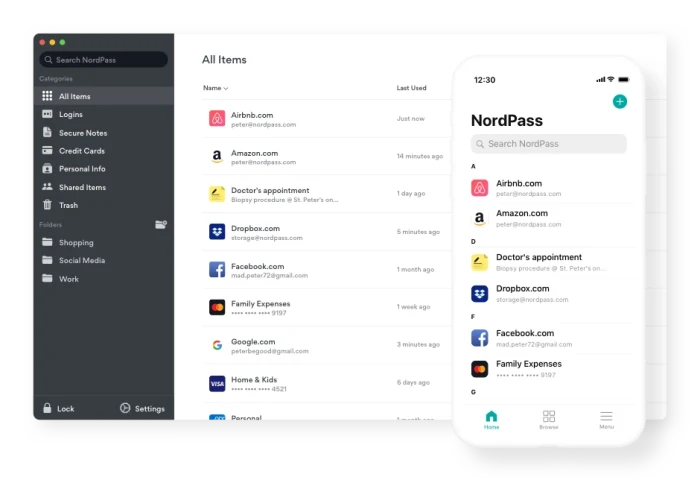
ScreenshotYou can now store your personal data in the app and then use it to easily autofill any forms that you come upon while surfing. It also allows you to securely store your credit card details so that if you find yourself without your wallet, you can still get at your digits. The password manager itself now incorporates a biometric scanner so that you can access your data using physical details like your fingerprint (or you can still use a master password); an OCR scanner to allow the easy import of credit card information; an autosave feature; and a vault in which you can save secure notes.

Perhaps most impressively of all, the app can now import all your password details from your browser, so there’s no need to start from scratch. And speaking of browsers, a new Safari extension joins those for Chrome, Firefox, Opera, and Edge.

Still to come

Those improvements to NordPass are impressive enough, but the company is not stopping there. In the coming months, users will get 3GB of free cloud storage for keeping important documents, photos, and other files safe and shareable across devices. A password health checker will also be released that scans your current passwords and lets you know where there is room for improvement. And finally, a data-breach scanner will let you know if a site on which your data is stored has been hacked. 

The Best Adventures to Enhance your Minecraft Games

Even after all these years, Minecraft is still as fun and challenging as it was the day it was released. This entertaining game that mixes elements of construction, adventure and survival will never go out of style.

Minecraft

Minecraft’s success is due largely to the fact that this Mojang title is so versatile. Besides having a blast with the basic game, you can add fun new adventures using your own creativity and, of course, mods.

Minecraft DOWNLOAD
7

In addition to the classic style mods and ones that add new scenarios or functions to the game, there are adventure mods. They offer a new twist on Minecraft by contributing plot elements, stories and objectives to meet, turning the game into a whole new experience. Want to know our favorites? Keep reading to find out!

How to add mods to Minecraft

To add adventures to your basic Minecraft game, you need to download and install mod files or “mods.” These files don’t usually take up much space on your hard drive and are easy to incorporate into the basic game. Of course, you need to know how to do it. If you’ve never added a mod to Minecraft, we recommend reading the article below, which has a step-by-step explanation of how to use them.

Herobrine’s Mansion

Herobrine’s Mansion is one of the most popular Minecraft adventure mods. It was made by Hypixel, one of the most beloved content creators in the Minecraft community. In it, we’ll investigate a gloomy mansion and its mysterious crypt to unravel all its secrets. Due to its difficulty (and many bosses), this mod is designed to be played by up to four players. Want to find out why it’s one of the most popular Minecraft adventures?

DOWNLOAD HEROBRINE’S MANSION

Torn: Origins

Torn: Origins is a fun adventure mod that puts you in the shoes of the first agent of the X.I.A. Your mission: liberate the city of Evan from the First Sons, a criminal organization that is sowing discord in the streets. With an open world to explore, Torn: Origins is a huge adventure map that changes according to how you carry out your missions. Because depending on how you behave, you can be either an exemplary agent or a ruthless one who takes justice into his own hands.

DOWNLOAD TORN: ORIGINS

In addition to the game file, you’ll need the mod’s resource pack. Download it by clicking here.

An Adventure, I Guess

Minecraft: An Adventure, I Guess

An Adventure, I Guess is a hilarious adventure map where you’ll be transported to… the bean dimension? As you can imagine, this is a humorous, highly entertaining mod loaded with references to other games and even series like Rick and Morty. Find your way back to your world and locate the exit portal while avoiding rivers of beans. While it’s not the longest mod on the list, it’s downright entertaining.

DOWNLOAD AN ADVENTURE, I GUESS

Why did I become a harem anime protagonist?

Mod de Minecraft

Why did I become a harem anime protagonist? is a fun adventure mod where you’ll embody a young otaku who, for no apparent reason, becomes the most popular boy at his new high school. What our protagonist doesn’t know is that, according to a legend circulating at school, you have to be very careful around the girls in his class. Will you heed the warning or throw yourself into the arms of your new harem? This Minecraft mod is designed for anime fans or anyone looking for a fun story and a good time. Of course, it is not recommended for children under the age of 16, as it is full of compromising situations and slightly risque jokes.

DOWNLOAD WHY DID I BECOME A HAREM ANIME PROTAGONIST?

Castle to None

Castle to None is a co-op adventure map based on the popular Bungie game, Destiny. It’s designed to be played in groups of three to six people who will invade a haunted castle full of monsters and hidden dangers. You can choose between three different character types depending on your style of play: Ranger to focus your actions on the attack, Defender for defense, and Support to heal your companions. If you’re looking for a well-rounded adventure on a beautiful and challenging map, you can’t go wrong with this title.

DOWNLOAD CASTLE TO NONE

Lost in the Woods: The Hospital

Lost in the woods: The Hospital

Lost in the Woods: The Hospital puts us in the shoes of Gregory Anderson, a man who wakes up in a deserted hospital room with no memory of how he got there. Anderson immediately suspects the worst and embarks on a desperate quest to escape from the doctors. Lost in the Woods: The Hospital combines a good story, the excitement of escape, and plenty of puzzles and riddles that make for an extraordinary time during its two hours. Want to try it?

DOWNLOAD LOST IN THE WOODS: THE HOSPITAL

The Mystery of Herobrine

The Mystery of Herobrine mod

The Mystery of Herobrine is, as the author describes it, a story planned out since 2016. Inspired by the classic creepypasta story of Herobrine (a Minecraft character capable of bending the game and its players to its whim), it creates a new universe and a new story that will keep you glued to Minecraft throughout its six chapters. The Mystery of Herobrine is intended to be played alone, although it can be enjoyed in multiplayer mode with two other people. Do you dare solve the mystery?

DOWNLOAD THE MYSTERY OF HEROBRINE

AFTERMATH

AFTERMATH is a map inspired by the classic game Crysis. In fact, its music has been reused for the mod, so if you’re a fan of the Crysis soundtrack you’re going to love AFTERMATH. In it you’ll put on your nanosuit and explore an open-world recreation of the Crysis universe. As for the plot, AFTERMATH assigns you the mission of capturing Brian, a criminal who has started a nuclear war and is hiding on the Island of Santa Cruz. Will you succeed in taking him down?

DOWNLOAD AFTERMATH

Revive the Planet

Revive the Planet para Minecraft

Revive the Planet is an entertaining mod reminiscent of classic games like Soul Blazer or Dark Cloud. In it you land on a deserted planet that’s completely dead except for five temples, each dedicated to an element. Inside each temple, you’ll be transported to a world full of missions, puzzles, enemies and adventures to revive parts of the planet. Exceptionally fun and challenging, Revive the Planet is a perfect adventure mod for anyone who finds satisfaction in seeing a dead environment gradually bounce back.

DOWNLOAD REVIVE THE PLANET

Small Worlds

Small Worlds en Minecraft

Small Worlds will take your Minecraft adventures straight into outer space. In it you’ll become an astronaut who has been stranded against his will on an inhospitable planet. Explore your new home, discover the reasons why you have been abandoned in space, and find a way to return home with all the resources you find. Small Worlds is ideal for anyone who’s looking for a space-inspired mod that does a good job of recreating the effects of gravity outside our planet

DOWNLOAD SMALL WORLDS

Dream

Dream para Minecraft

Dream is a map designed for fans of dream interpretation and dream worlds. It starts with our character going to sleep and waking up in one of his strange dreams. Travel to the depths of your mind as you solve puzzles and face the ghosts of your day-to-day life. The map is intended for a single player and is about an hour long, but it’s worth a try. In fact, it’s a classic among adventure mods for Minecraft. Don’t miss it!

DOWNLOAD DREAM

Oceaneer

Oceaneer para Minecraft

Oceaneer is an adventure and survival mod in which your character has been abandoned on an island with only a work table and some diving equipment. Delve into the depths of the island and solve all its enigmas and mysteries, because that’s the only way you can escape. Oceaneer is an entertaining and visually appealing adventure mod, ideal for fans of exploration and puzzle-solving games.

DOWNLOAD OCEANEER

Thirsty for more? Don’t worry! Below you’ll find an in-depth article on the best Minecraft mods and maps so you can continue playing this excellent title to your heart’s content.

We hope you’ve found our roundup of Minecraft adventures useful. What’s your favorite mod? Tell us about it in the comments section!

Ebay: How to Detect Scams and Other Useful Tips

Ebay is a true paradise for collectors and compulsive shoppers who love to snag the most unlikely items for the lowest prices. This online marketplace was not only a pioneer, the first of its kind on the internet, but also allows any user to seamlessly purchase or sell whatever they desire. However, in this wonderful environment of free buying and selling around the globe, there is always some scammer waiting patiently for unsuspecting users to fall into their web of deceit.

Comprar por Ebay

No doubt you have seen more than a few ads offering the latest Samsung Galaxy, brand new, for half the price it sells for in other online stores. There’s only one unit left, and the ad urges you to act fast or risk losing your new phone. Believing yourself to be the luckiest person alive, you purchase the phone and can’t wait to enjoy your new Samsung. But when your package finally arrives in the mail, inside is just a photo of the phone. You’ve been scammed!

These kinds of situations and many others happen on Ebay on a daily basis. And although the website normally works like a charm, con artists keep finding new methods and tricks to avoid being caught. Don’t be fooled, and make sure to protect yourself from their scams!

Ebay (Firefox Extension) DOWNLOAD
8

To save you and your wallet from more than one unpleasant experience, in today’s article, we’re going to tell you about the most common scams on Ebay, how to sniff them out, and of course, what to do if you’ve been ripped off. We hope you find them helpful!

The most common scams on Ebay

Ebay logo

Since it’s an extremely popular platform, a large number of scams are circulating on Ebay with the sole objective of stealing your money. Keep reading to learn about the ones that have been the most prolific in recent years.

The photo scam

This con is intended to trick anyone who visits Ebay to buy expensive products, such as a TV, gaming console, laptop or high-end phone. The Ebay ad seems reliable and shows you the exact product you want for a great price. After you make the purchase, the scammer prints out a photo of your item and mails it to you. So instead of a half-price iPhone 11, you receive a photo of the phone.

The fake PayPal payment

Instead of targeting Ebay buyers, this scam is directed at sellers. As you probably know, when an article is sold to a buyer using PayPal, the seller receives an email confirming payment and asking for the product to be shipped. In this scam, a fake email, supposedly from PayPal, is sent to announce the payment and request shipment of the item. However, the payment was never made, so the seller ends up sending the scammer an expensive item for free.

Fraudulent car sales

You can find anything on Ebay these days, even used cars. In this type of scam, the con artist will copy a real used-car ad and post it on Ebay. When you purchase the vehicle, the scammer will ask you to pay them outside of the platform (big mistake!) to make everything easier. Once you’ve paid thousands of euros and go to pick up your car, the real seller obviously won’t give you anything, since you were never really in contact with him or her. What’s more, Ebay doesn’t insure car sales, so the scammer will have made off with your money, and you won’t be able to do anything about it.

The item that supposedly arrives in bad condition

This is another scam targeting Ebay sellers. This time, the con artist will look for an expensive item (normally high-end phones) and purchase it for any price you ask for. Once he or she receives the purchase, the scammer will contact you with a photo of the supposedly broken item and ask Ebay for a refund. If it’s the first time, and the platform has no reason not to trust the buyer, Ebay will take the scammer’s side and require you to return their money. As you can imagine, the hustler already owns a broken copy of the stolen item, and he or she gets a new one completely free at your expense.

Payment through a stolen PayPal account

This scam is impossible to detect, but fortunately, it will only affect you if a payment is made outside of the platform. The scammer goes to buy an article using a PayPal account stolen from another user. Obviously, the payment will be reversed, because PayPal will detect that the transaction was fraudulent, so you’ll lose the money they paid.

The “chargeback scam”

In this type of scheme, the buyer purchases a product, and after receiving it, requests a refund by supposedly returning the product. But the scammer sends back an empty box or an item that’s completely different from the one purchased, so the seller will not only lose their money, but also the product they sold.

How to avoid scams on Ebay

Mujer pensando

After reading the above, you are likely terrified of buying anything on Ebay again. Don’t worry, because even though there are scams and dishonest users ready to steal your wallet, the platform is generally safe. That said, here are some tips to give you peace of mind the next time you buy something on Ebay:

Always do research on a potential buyer or seller

Fortunately, Ebay uses a reputation system through which both buyers and sellers can leave reviews of the transaction and the condition of the item received. Before making any payment or selling any item, make sure the other person has a good reputation on the platform.

Carefully read the description of the item you’re going to buy

To avoid any kind of scam, for instance, buying a photo, make sure to carefully read the description of the item. If you find the description very vague, or the specifications or condition of the item you are going to buy are never mentioned, it’s probably a con. To clear up any doubts, it’s best to send a message to the seller asking explicitly about the item. That way, if it’s a scam, you can use this message to file a claim with Ebay and recover your money.

If a price seems too good to be true, it probably is

When searching on Ebay, you’ve likely found high-end products for very cheap, when they’re usually sold for high prices. Don’t trust these ads, and don’t click the buy button just yet, because you could end up disappointed. Read the seller’s reviews, and never buy anything from a seller who just registered on the platform.

Don’t agree to complete transactions outside of the platform

Often buyers can be annoying for whatever reason and insist on paying you outside of the Ebay platform. Never accept that. If you sell an item without Ebay’s system, you’re giving up all the sales protection offered by the platform. That way, if you end up being the victim of a scan, you can’t open a dispute or ask for your money back.

Confirm any email from PayPal 

Since PayPal is the most commonly used and secure payment method for buying anything online, it’s also the one that scammers use the most to steal your money or items with fake emails. Always confirm the sender of any email you receive from PayPal, and never click on the links in any suspicious email. If you receive an email from PayPal, always visit the platform by going directly to the address and never through a link.

What to do if you’ve been a victim of a scam on Ebay

Mujer enfadada

Fortunately, Ebay has a protection system for both buyers and sellers. Still, we reiterate that to make use of it, you need to carry out all transactions through the platform, otherwise you won’t be able to file a claim.

To recover the money you have lost as a result of fraud via Ebay, you’ll need to open a dispute with the buyer or seller through the resolution center. You can access it by clicking here. After you explain your problem and experience with the buyer or seller, Ebay will examine your case, and if you have been a victim of a scam, your money will be returned to you.

If you have been conned and paid for the item through PayPal, you can also visit the resolution center in your account and challenge the fraudulent seller’s transaction. PayPal will review the case, and in most situations, return your money without problem.

We hope that our guide to avoiding scams and cons through Ebay has helped you. Have you ever been the victim of a scam on the internet? Tell us about it in the comments section!