Extensions on Chrome for Faster Browsing

The internet has become a fundamental tool and part of our daily lives. We use browsers on a daily basis to check email, read the news, stay on top of social media and even work remotely. It’s therefore essential for them to work seamlessly and take us to the websites we want to visit as fast as possible.

mujer utilizando un portátil

With more than a billion new monthly users, Google Chrome is positioned as one of today’s best browsers. It’s especially convenient for users of Google products, as it can be synchronized with your Gmail account. What’s more, it consumes few resources and is lightning fast, but did you know there are extensions that can make it even speedier?

In today’s article, we’re going to share some tricks to boost Chrome’s performance as well as a roundup of the best extensions for much faster browsing. We hope you find it helpful!

First of all, make sure to update Chrome

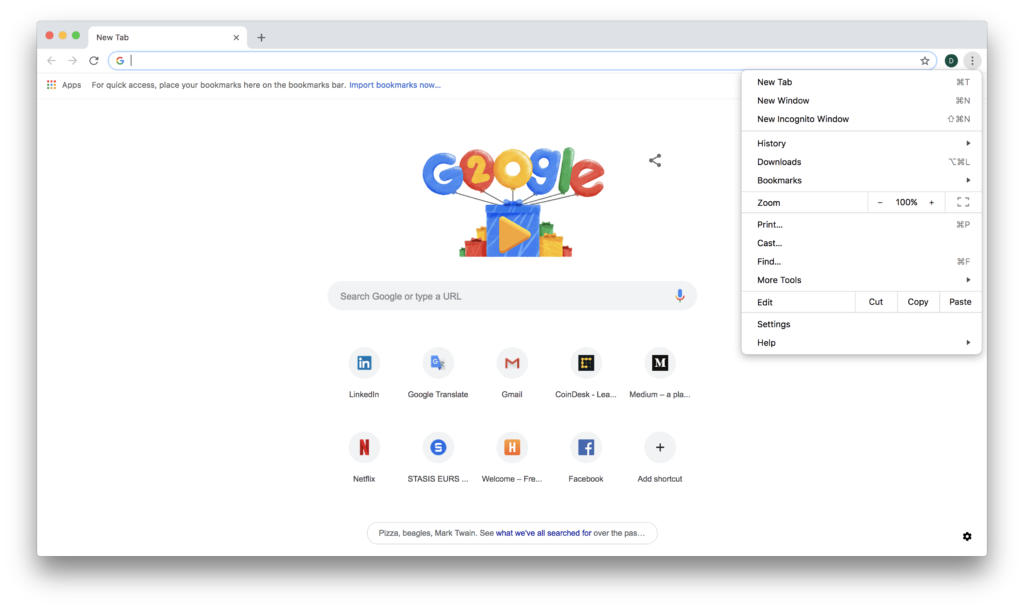
Before installing any browser extensions, it’s a good idea to make sure you’re using to the latest version of Chrome. Just click the “Customize and control Google Chrome” button in the upper right corner of your browser (the icon with the three vertical dots). Then select the “Help” option and click “About Google Chrome.”
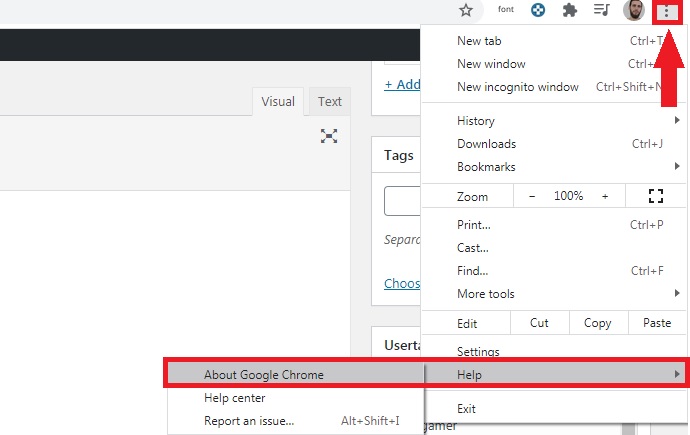
Then a new window will open and display the Chrome version installed on your computer. If there is a newer one, Chrome will download and install it automatically, although you’ll need to restart your browser for the changes to take effect.

If you prefer, you can also download the latest version of Google Chrome quickly and safely below.

Google Chrome DOWNLOAD
8

The best extensions to speed up Chrome

Below is a roundup of what we consider to be the best Chrome extensions to improve your browser’s performance. They have all been verified by the Chrome Web Store, so they are completely safe for your computer and your internet sessions.

FasterChrome

FasterChrome

We’ll start off our list with FasterChrome, an extension that greatly increases the loading speed of websites.

By default, Chrome pre-loads your most visited pages in the background through your cookies or cached images. That way you can enjoy your favorite websites without long waits. But FasterChrome gives this concept a further twist and starts pre-loading websites when you hover your mouse over the link for more than 65 milliseconds. It ends up saving you a total of 300 milliseconds, making web navigation faster and easier. Although this means a slight increase in bandwidth use, you’ll notice the difference between browsing with or without this extension

If interested, you can download FasterChrome from Chrome Web Store here.

The Great Suspender

The Great Suspender

One of the main reasons why your browser slows down is open tabs. Keep in mind that the more tabs you have open during a session, the harder your browser needs to work to keep that page open and updated in the background. This results in increased use of your computer’s memory and diminished performance.

This is where The Great Suspender comes into play. This useful extension lets you freeze unused tabs, increasing the amount of free memory on your computer and also the speed of your internet sessions. If you’re one of those people who needs to have dozens of tabs open in your browser while working, you should definitely check it out.

You can download The Great Suspender quickly and safely here.

uBlock Origin

uBlock Origin

uBlock Origin is the perfect option for anyone who, along with faster website loading, is looking for other options that improve their browsing experience. uBlock Origin achieves this by far, because in addition to increasing Chrome’s performance in an astonishing way, it’s capable of blocking those annoying popup ads that torment you whenever you visit your favorite websites.

Unlike similar extensions, uBlock Origin uses only a moderate amount of RAM, so along with improving browser performance, it keeps your computer working optimally. Want to try it?

You can download uBlock Origin quickly and safely from Chrome Web Store here.

Web Boost

Web Boost

As its name suggests, Web Boost promises to boost Chrome’s speed so your websites load more efficiently. And it certainly gets the job done! To achieve this, the extension uses an interesting algorithm that blocks the downloads that are activated whenever you visit most websites. That way, a page that normally takes more than two seconds to load can be ready in just one second.

What’s more, it can block annoying ads and the services that spy on all your online activity. The extension is easy to use, at the click of a button on your browser. Get ready to be wowed by a new level of speed. If any page doesn’t load correctly, don’t worry. Simply click the Web Boost button again to deactivate it, and the site will load as usual.

You can download Web Boost from the Chrome Web Store here.

SearchPreview

SearchPreview

Our final pick is SearchPreview, a simple extension that displays a thumbnail of the websites that come up whenever you run a search. If you don’t use Google for your searches, don’t worry: it’s also compatible with DuckDuckGo, Bing and Yahoo. The utility of SearchPreview is as simple as this: by previewing pages before you click, you can avoid unnecessary browsing and spend your time on other online activities.

If you’re interested, you can download SearchPreview from the Chrome Web Store by clicking here.

I’ve tried many extensions, but Chrome is still slow

Sometimes your browser will remain slow no matter what extensions you install. This can be due to several factors, but one of the most common ones is that your browser cache is cluttered with files. We recommend that you first clear Chrome’s browsing data as well as its cache and cookies. Then restart the browser and see if it runs faster.

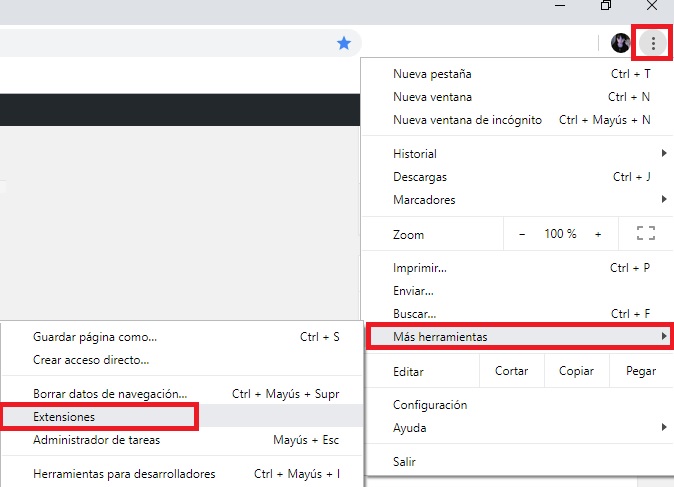
If your problem persists, you probably have an unnecessary extension installed that is using all your browser memory. To fix it, simply go to the Extensions menu (click on “Customize and control Google Chrome” followed by “More tools”) and check to see which extensions are installed on your browser. Deactivate any that you don’t use, or, if you wish, delete them. If you don’t know how to do that, don’t worry. In the article below, we discuss how to do this step by step.
Maybe none of the above options helped you. Don’t despair because you still have an ace up your sleeve. Did you know that Google Chrome has its own cleaner built into the browser? To access it, click the “Customize and control Google Chrome” button in the upper right corner of the screen (it looks like three vertical dots). Then a drop-down menu will appear where you should click the “Settings” option.

In the browser settings window, click “Advanced” to access the rest of Chrome’s options. Among them, look for the “Reset and clean up” section and click “Clean up computer.” Chrome will ask for your permission to collect information about the scan results and send the report to Google. This decision is totally optional, so don’t worry if you’d rather uncheck the box. After that, click the blue “Find” button.
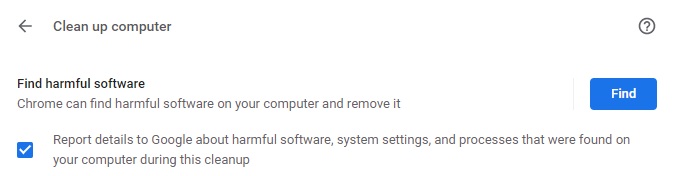
After running the analysis, Chrome will generate a report where you can see if there is any type of malicious software installed on your browser. If so, it could be not only affecting your browser’s performance, but also jeopardizing the security of your data. After removing these programs, Chrome will restore its settings as if you had installed it from scratch. Now just restart the browser and see if it works faster.

If none of the above tricks work, click below for our guide with an in-depth discussion about how to speed up your web browser.
We hope our roundup of extensions to make Chrome faster has been helpful to you. Do you use any that we didn’t include on our list? Tell us about them in the comments section!
Meet Brave, the faster browser

Download and install Brave and enjoy private, secure and fast browsing

Brave Browser

If you’re reading this article on a browser that isn’t Brave, we’ll tell you right now – Brave probably would have loaded this page faster. Don’t take our word for it. Try it for free:

Browse the web up to 3x faster DOWNLOAD NOW ►
9
Enjoy private, secure and fast browsing with Brave.

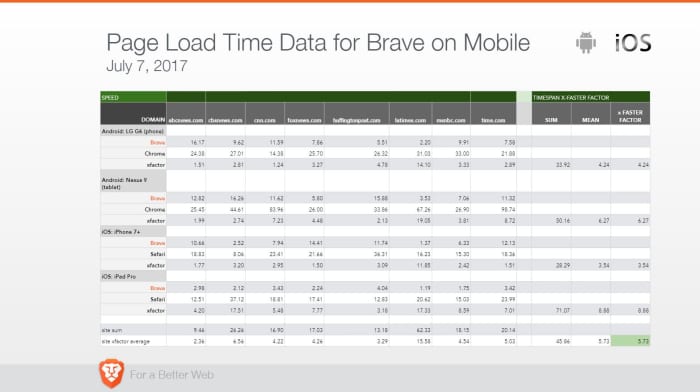
How fast is fast? On a laptop or desktop you’ll see load times anywhere from 50% to 100% faster. It’s even more noticeable on mobile devices, and you could be seeing pages load up to eight times faster than on your smartphone’s default browser (like Safari or Chrome). Check the stats yourself:

Brave mobile page load time data

Speed is about more than page load times

Brave loads pages faster than other browsers, but that’s not all that matters. Browsing eats up time in other, subtler ways: Pop-ups, advertisement videos, banners you have to scroll past – it all bogs down your experience. Brave’s default setting is to shield you from all manner of ads, trackers, banners, cookies, and pop-ups. That means all it has to load is the actual web content, not ads. It doesn’t require you to add additional plug-ins either, so the experience doesn’t get bloated. See it in action:

No bloatware and slimmer pages also means your device’s battery life will last longer than if you used Chrome on mobile. More battery life means fewer trips to recharge you phone, so you’ll be saving time on that front too.

Save time, save money

We probably don’t even need to mention it, but time is money. Since you’re paying for bandwidth you’re also paying for all the ads and slow page load times. When your browser isn’t eating up your bandwidth just to load obtrusive ads, you’re saving money as well.

Try Brave today

When you open a browser you’ve got a goal in mind. Everything that gets in the way of you and the content you’re seeking is unnecessary traffic. Download Brave and you’ll immediately understand why it’s gotten over 28 million downloads on Android alone. Download it here 100% free, and see what the hype is about.

Browse the web up to 3x faster DOWNLOAD NOW ►
9
Browse faster. Choose Brave.

Softonic is proud to partner with Brave. When you download from us, we may earn a commission.

Browse privately with Brave

If you think it’s time to browse the Internet in privacy, it’s time to step up and be Brave. Download and install the Brave browser now.

It’s 2019 and ads are everywhere. Whether you’re watching YouTube or just doing a quick Google search everybody’s trying to watch you work. Incognito mode doesn’t help either. If you think it’s time to browse the Internet in privacy, it’s time to step up and be Brave.

Browse the web up to 3x faster FREE DOWNLOAD ►
9
Surf the net free of unwanted ads

Brave blocks all ads

The Brave browser automatically blocks all trackers, pop-ups, cookies, and banners. This not only frees you from irksome advertisements and interruptions, but also saves you time and money. “It’s hard to believe,” says Brave’s co-founder Brendan Eich, “but we’re paying to be bothered by ads.” You’re paying for bandwidth, technically spending money to load not only the content you view, but all the ads that come with it – ads that you never asked to see in the first place.

Brave’s shield requires no set-up and begins working as soon as you open the browser. They’ve recently improved the ad blocker algorithm to keep your browsing even more private. Check out the details here.

Brave rewards content creators

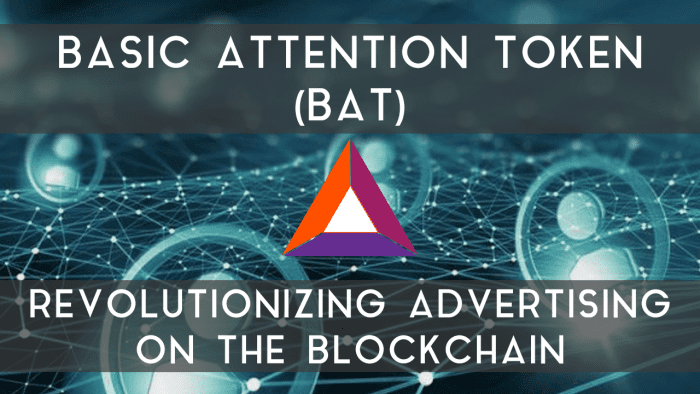
Brave utilizes an advertising platform built on privacy. As long as you’re on Brave you’ll never have to deal with ads again. Choose to turn them back on, though, and you’ll actually be rewarded for viewing them. “The [Basic Attention] Token is derived from, and therefore denominates, user attention,” explains Eich.

Brave Basic Attention Token

As you view pages and tabs, Brave will accurately and privately monitor where you spend your time. It then compiles the time (and attention) you gave these ads, and rewards you with digital tokens, or BATs. “That’s really just focused mental engagement – on an advertisement, on great content, on whatever the user is looking at.” The result is far fewer instances of fraudulent marketing and malvertising.

Adjust the shield

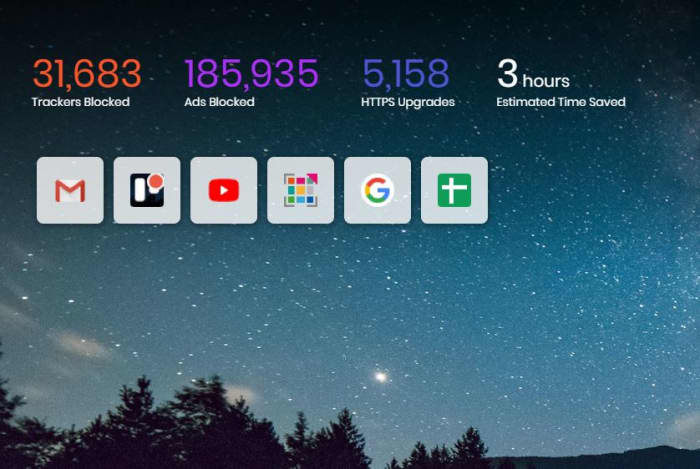
Brave automatically blocks all advertisements and trackers, and even tells you how many it’s succeeded in thwarting every time you open a new tab. Brave even bumps HTTP to HTTPS whenever possible to offer you the highest security possible when you’re online. If you want to personally customize your experience it’s a simple as opening up the Settings menu in-browser. Scroll down to the Shields settings to adjust the level of ads and cookies that make it through. You can even choose to allow or block all fingerprinting.

Brave new tab tracker ad blocked
Brave can save you hours of load times

Right below these options, you can also toggle shields pertaining to social media – Google login buttons, embedded Tweets, and posts from LinkedIn or Facebook. If you’re unsure whether Brave is the right browser for you, we recommend installing it and seeing for yourself. Brave has had over 28 million downloads on Android alone, with over 2 million downloaded every month. The download is 100% free and it’s available for download right here. Give it a try and let us know what you think!

Browse the web up to 3x faster FREE DOWNLOAD ►
9
Surf the net free of unwanted ads

Softonic is proud to partner with Brave. When you download from us, we may earn a commission.

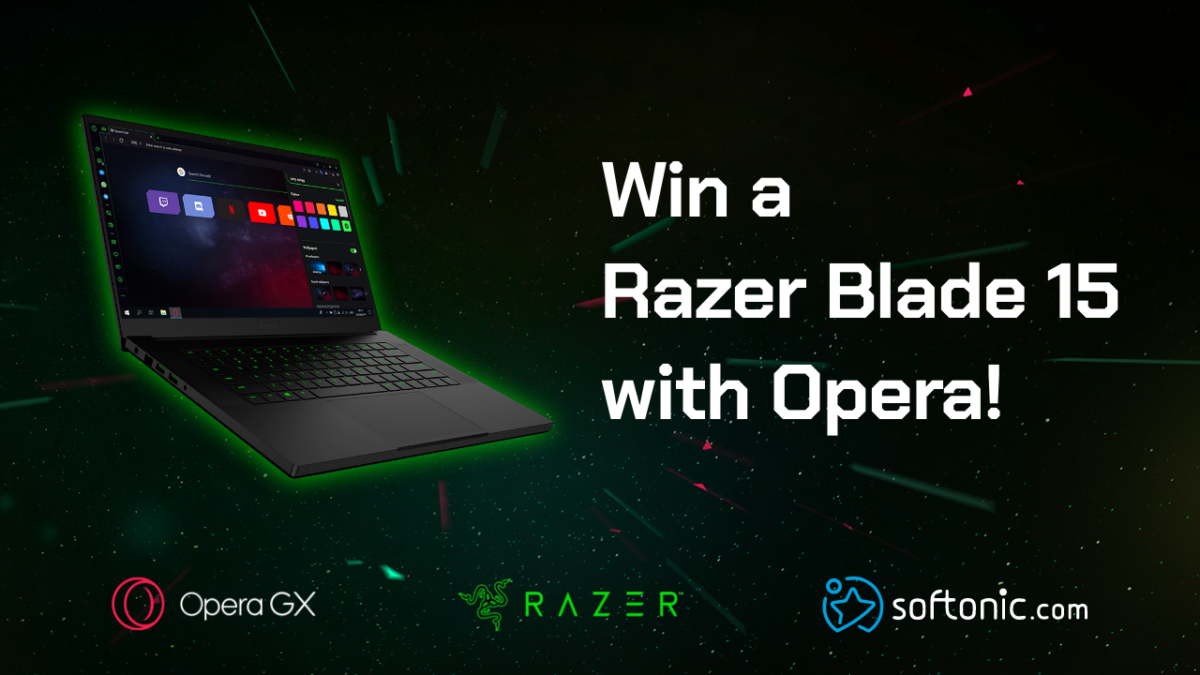
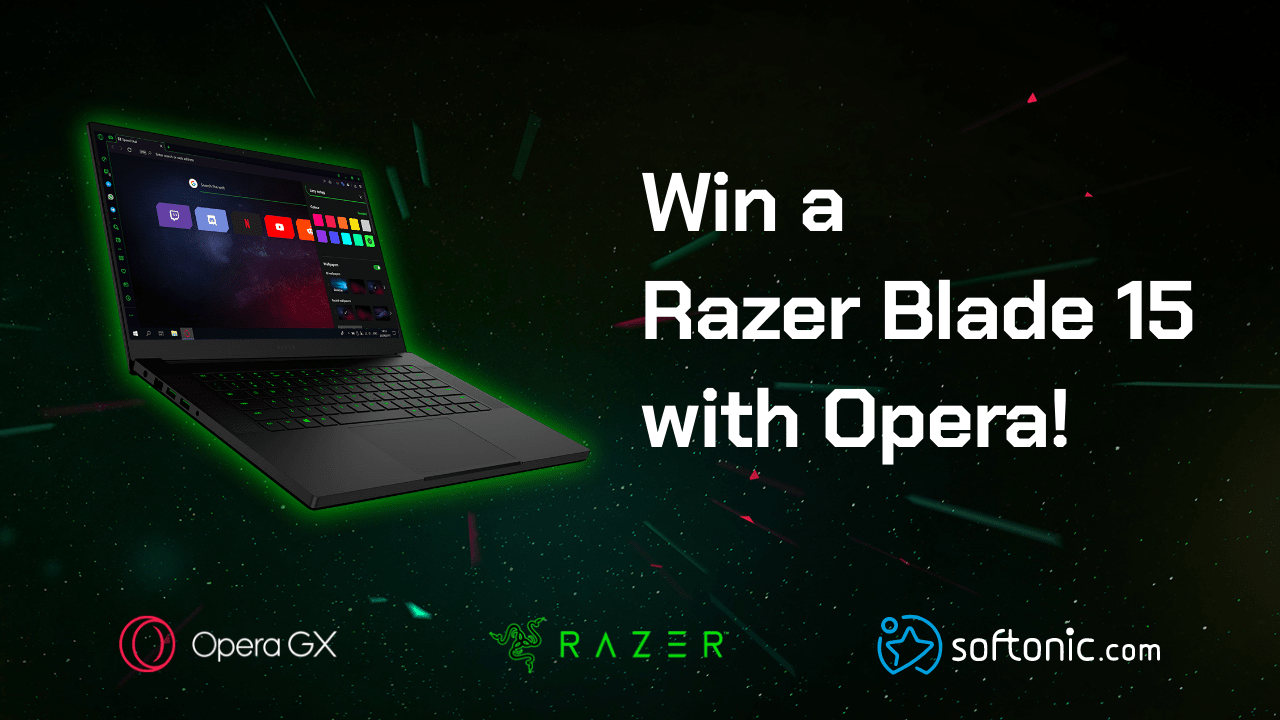
Win a Razer Blade laptop with Opera!

To celebrate the launch of Opera GX, the world’s first gaming browser, we have teamed up with Opera to give away the top-of-the-line Razer Blade 15 laptop. Join the contest!

To celebrate the launch of Opera GX, the world’s first gaming browser, we have teamed up with Opera to give away a top-of-the-line Razer Blade laptop.

Further down we’ll explain how you can get a chance to win, but first, here’s some essential intel on how Opera GX can transform your gaming experience.

Opera already provides its more than 350 million users with plenty of benefits such as secure browsing through its integrated VPN and rapid page loading thanks to its built-in ad blocker. But Opera GX takes things to another level with a suite of customizable options that will maximize your computer’s performance and enhance your gaming and browsing pleasure:

  • GX Control: Lets you limit your browser’s CPU and RAM usage
  • Twitch integration: You can follow your favorite streamers and get notified when they go live
  • Video pop out: Watch video on top of other tabs and applications
  • Gaming design: Advanced customization and gaming hardware support
  • GX Corner: Latest gaming news and deals
  • SFX: Gaming-inspired sound effects in your browser

Games eat up a lot of computing power, and running a browser in parallel to playing a game often leads to game stuttering and lag, especially if you’re streaming as well. So, GX Control solves this problem by enabling you to choose how much of your CPU and RAM is allocated to your browser. Read more about what the Opera GX browser has to offer.

Back to the competition!

To get a chance to win a Razer Blade laptop:

  1. Follow Opera and Softonic
  2. Like this post
  3. Comment under this post with a screenshot of Opera GX and mention your favorite #OperaGX feature. Be creative!

Download the Opera GX browser here in case you haven’t done it already. The contest ends on August 5th. Winners will be announced on August 7th.

For Terms and Conditions: Softonic terms and conditions

Good luck!

How to earn BAT with Brave

This browser makes it easier than ever to support your favorite online creators.

Brave BAT

Brave is a new browser that offers crazy fast browsing speeds, reinforced security, all the familiarity, and customization that a 2019 internet user can expect, as well as a top-notch privacy filter that shoots down invasive trackers, ads, pop-ups, cookies, and banners. That’s usually where the story stops, but Brave takes modern browsing a step even further: Brave allows its users to convert their attention into tokens that they can seamlessly distribute to their choice of content publishers and advertisers.

This Basic Attention Token is based on Ethereum technology and serves as a unit of account between advertisers, publishers, and users in Brave’s new, blockchain-based digital advertising and services platform. Here’s how you can earn BAT with Brave.

How to earn BAT

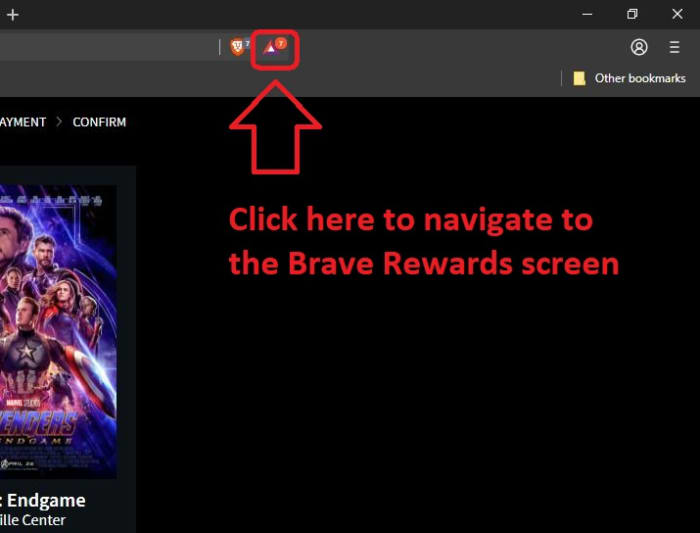
You never have to watch ads with Brave. Period. They’re ignored and blocked by default, but if you choose to turn them back on, you will receive BAT any time you take the time to view them. To begin, turn on Brave Rewards by clicking on the BAT symbol on the right of your main search portal:

Open Brave Rewards

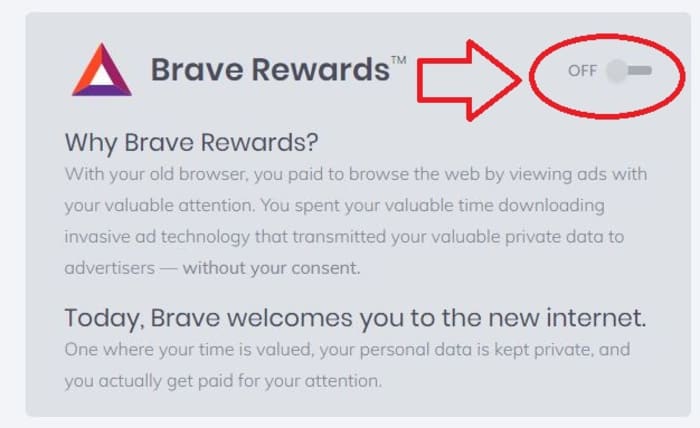
This will take you to the Brave Rewards page where you can toggle on the optional feature and start getting paid for your attention. Just flip the switch at the top of the page and Brave Rewards is turned on!

turn on Brave Rewards

Brave will alert you to any ad offers coming in, and you can choose to watch any you like. Or don’t! It’s up to you. When you do elect to watch an ad, it is opened in a new private tab. Any time that you spend watching the ad generates you BAT. Think of it as compensation for your attention. You’ll receive 70% of the ad revenue, and can spend it on content publishers you like: Your favorite bands, bloggers, podcasters, and publishers. Any malicious ads, trackers, or cookies that try to get their hooks in you or infect you with malware are blocked.

How to spend BAT

Spending BAT is just as easy as earning it. Just tap that same BAT icon to the right of your main search portal again. Then simply select how much you’d like to tip to whatever publisher you’re looking at. This way you get to reward content creators with BAT. Some publishers may even reward you with premium subscriptions for your BAT contribution!

Brave hopes to use the BAT to create an ecosystem that will offer users and publishers a better, more direct way to fund the web. Hundreds of publishers have already joined with Brave (via publishers.brave.com), looking towards a future free of a broken ad-tech ecosystem. Will you join them in taking a stand? Help usher in a Web 3.0 world, and sign up for Brave Rewards today!

Softonic is proud to partner with Brave. When you download from us, we may earn a commission.

How the newest Firefox keeps you safe

Firefox is more than just a browser. Here’s what it does to keep you safe!

If you’re looking for a browser to keep you safe, the latest version of Mozilla Firefox is here to watch your back. From password management to security alerts and beyond, Firefox makes safety and privacy their top priorities.

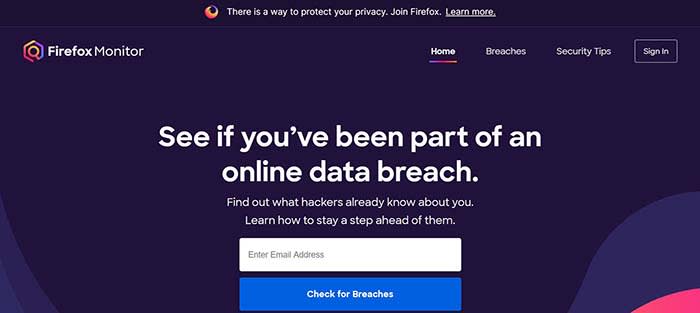
Firefox Monitor alerts you to data breaches

Firefox Monitor

It seems like there’s a new data breach every other day. Have you ever been concerned that you were involved in one, and that your data has been compromised? Firefox Monitor can help you find out!

Simply enter your email address, and Firefox Monitor will tell you if that email address was ever involved in a data breach. Also, when you join Firefox, you can save all of your email addresses in their system, and receive a notification if one is ever involved.

Firefox Lockwise safely saves and syncs your passwords across devices

Many of us have a system for keeping track of our passwords that’s probably less than ideal. Maybe we have a sticky note in the corner of our monitor with a list of them. Maybe we threw them into the notepad on our phone or computer. It could be we just think we have a good enough memory to remember them all. Either way, none of these methods are optimal.

That’s where Firefox Lockwise comes in handy. It keeps all of your passwords safely behind a firewall and autofills them in the login page when you give the okay. The best part? Lockwise can carry those passwords across devices so you’re never locked out or trying to find that Post-It note with the password you created for that site you haven’t visited in three years.

Send big files with Firefox Send

Firefox send

It’s happened to all of us: we have a large file we need to send, but we don’t have a flash drive nearby, and it’s too big to send via email. That’s where Firefox Send comes in handy. Firefox Send allows you to send a file up to 2.5 gigabytes in size just by joining Firefox.

Sync to your Android or iPhone

Maybe you have 12 tabs open on your desktop, but when you jump on your mobile device, you have to remember what those tabs were. Firefox solves that problem by syncing your sessions between desktop and mobile devices.

When you sign in on Firefox on any of your devices, your browser will be personalized the same way thanks to Firefox’s syncing feature. Even better: your sessions are protected by end-to-end encryption.

The newest Firefox is the best version of a trusted browser from a team that puts your privacy first. Give it a spin and see why these features are so groundbreaking!

Softonic is proud to partner with Mozilla. When you download from us, we may earn a commission.

What the Brave browser can do for you

There are better options than Chrome… Learn more about how the Brave browser stacks up the competition.

Not all browsers are created equally, and at this day and age when you’re spending so much time online, you should be using the best browsing tool possible. So which is it? Chrome? Firefox? Edge? The truth is there’s no objective ‘best browser,’ but there are certainly strengths and weaknesses to each. And we’ve got some compelling reasons why Brave could be the best browser yet. We’ve compiled a list of pros and cons for each one. Let’s run through them.

Mozilla Firefox

Pros:

  • More privacy than Chrome
  • Can be as fast as Chrome
  • Less likely to mine for data

Cons:

  • Runs slower on pages with lots of images, pop-ups, and videos
  • Lags behind Chrome once you install plug-ins to block those pop-ups and vids
  • No built-in support for Flash

Google Chrome

Pros:

  • Recognizes all plug-ins
  • Fast
  • Tons of extensions

Cons:

  • Bloated and heavy
  • Taxing on your RAM
  • Lacks trustworthy privacy features

Microsoft Edge

Pros:

  • Lightweight and smoother than Chrome
  • Built-in Cortana is very convenient
  • Reading mode fights distractions and blocks ads

Cons:

  • Unavailable on Mac or any Windows OS less than 10
  • If you have Windows 10, Chrome is still a better option
  • Even Internet Explorer is more popular

Opera

Pros:

  • Turbo mode speeds up page loads dramatically
  • Free, built-in VPN
  • Integrated wallet and messenger services, including WhatsApp and Messenger

Cons:

  • Fewer extensions
  • No parental controls
  • Middle of the road option, lacking where other browsers excel

Safari

Pros:

  • Default browser for Apple, very convenient
  • Works in tandem with all software designed by Apple
  • Default pop-up blocking

Cons:

  • Safari is over 15 years old, and its age is beginning to show
  • Lacking in customization
  • Useless if you don’t use Apple products

Brave

Brave is a relative newcomer for iOS, Android, macOS, Windows, and Linux created by Brian Bondy and Brendan Eich, the inventor of JavaScript and the co-founder of Mozilla.

Brave automatically blocks any third party trackers, shutting down anything that might worsen your browsing experience. Without ads in the way, Brave is up to eight times faster than the mobile competition, and offers numerous extensions as well. Brave also helps you support your favorite publishers.

Softonic is proud to partner with Brave. When you download from us, we may earn a commission.

Avast Secure Browser sets the benchmark for security and privacy

Avast Secure Browser

How many of us can remember a world where we couldn’t turn to Google for easy answers, where Wikipedia didn’t serve as a one-stop shop for research, or where connecting and networking with people was something you could only do with business cards and landline telephones? The world wide web has woven itself into our daily lives, and its use in American homes has increased by 400% in the past 20 years. The number of hours we spend on the internet each week has shot up from 9.4 hours to 23.6 in the past 19 years, and overall internet penetration has increased from 67% to 92%. That’s all time you spend using your web browser (i.e. email, shopping, banking, social media, news & entertainment, etc.). By now you should be using one that’s safe, fast and private.

Avast Secure Browser was designed around those exact priorities, and a new, updated version was released back in April 2019. Avast was built by security experts, their prime focus being to grant users control, anonymity, safety, and smart intuitive browsing. Avast Secure Browser doesn’t follow your searches, clicks, or purchases, and seamlessly brings all your privacy and security tools together, and as of the new update also includes features like an Email Hack Check, a Webcam Guard, and better Anti-Fingerprinting tools than ever before.

Avast Secure Browser Free Download
8
Secure, fast and private web browser with a new customized Security & Privacy Center

Extensions are dangerous

We all love our browser extensions, and while many are useful and safe, it just takes one wrong download to put your computer at risk. A compromised extension can actually grant attackers access to all data on both your computer and the websites that you’ve visited.

Avast polled over 10,000 consumers globally and discovered that even the most popular browser extension frameworks had serious security vulnerabilities despite widespread use. 64% of respondents said they used third-party browser extensions, yet a meager 21% of them said they trusted them. 96% of the same people polled said they wished their browser did a better job of being up front about identifying ads or malware hidden extensions instead of merely apologizing and cleaning up the mess later. When you move to get a new extension, Avast Secure Browser scans for any unsafe add-ons, links and content that could be potential malware.

What is Avast Secure Browser?

Avast Secure Browser is a new approach to internet browsing based on the powerful Chromium open source platform. Other well-known browsers that use the Chromium source code are Google Chrome, Opera, and Brave, with Microsoft Edge next in the queue. Avast Secure Browser is fast and comes with a litany of privacy-enhancing features and customizable settings to bolster your privacy. Officially, Avast Secure Browser is the successor of Avast SafeZone Browser which has since been discontinued in order to pave the way for the new kid on the block. The most obvious example of this level of customization is the new Security and Privacy Center.

Avast Secure Browser Free Download
8
Secure, fast and private web browser with a new customized Security & Privacy Center

Security and Privacy Center

The Security & Privacy Center is a curated collection of tools, features, and settings for managing your online activity. Each feature or setting in the Security & Privacy Center is also a knowledge center helping users understand what the feature is, the benefits, and when it should be used. Avast implemented this feature so users could “easily customize their browser to their own needs. Plus, you’ll get the same familiar look you’re used to so you won’t need to change your browsing habits!”

In the Security and Privacy Center you can view and set various filters to not only craft a more secure and private browser but a more secure PC and personal identity. You can access it by simply clicking the Avast symbol in the top-right corner of the Avast Secure Browser screen.

This way you control browsing aspects such as ad-blocking, privacy, HTTPS encryption, password manager extensions, and other tools such as:

  • Webcam Guard (enabled) to give consumers complete control over who can access their computer cameras.
  • Email Hack Check to let people know if their email addresses have been compromised.
  • Extension Guard (enabled) to block the installation of untrusted browser extensions.
  • Adblock (enabled) to improve browsing speed and block potentially malicious ads.
  • Anti-Phishing (enabled) to protect against phishing attempts.
  • Anti-Fingerprinting (disabled) to prevent websites from tracking people as they browse.
  • Flash Blocker (enabled) to block all Flash content.

You may also launch a new private browsing window (called Stealth Mode) and a Privacy Cleaner (which cleans your browsing data) from the Security & Privacy Center as well – and this time they’ll actually do their job. Enabling Stealth Mode with Avast Secure Browser ensures both anti-tracking and anti-phishing, and automatically upgrades all http to https encryption.

“Consumers using tools like Private Browsing and Incognito Mode are being lulled into a false sense of security as these only offer limited privacy options and no real protection at all against many security or privacy threats,” said Matt Adkisson, Director, Platform Products, Avast.

“Consumers have never been offered a browser that provides both industry leading web protection and online privacy delivered by cybersecurity experts. We are first and foremost a security company and we redesigned Avast Secure Browser specifically to deliver a secure and private online experience. Not only is it a simple and safe choice for the privacy-conscious individual, it’s also substantially faster than other browsers available today.”

How’s the privacy?

While Avast Secure Browser definitely has speed going for it, speed still comes secondary to its stance on privacy and security. The browser has top-of-the-line built-in privacy features that serve to hide your identity, cover your digital footprint, and keep your business strictly your own. “We believe that what you do online is your business,” says the team. “Your posts, your emails, your searches, your browsing history — they’re yours. With our browser, it stays that way.”

Avast Secure Browser Free Download
8
Secure, fast and private web browser with a new customized Security & Privacy Center

Avast Secure Browser is available on Windows 10, 8, and 7 to any new users of Avast Antivirus products and can be downloaded right here. You can also elect to tack on additional paid subscription features like Avast SecureLine VPN for a small annual fee. The full feature list and the link to download the new Avast Secure Browser is available on their website. Stay tuned with us for more information as it becomes available!

How to store and use cryptocurrency with Opera’s web browser wallet

Opera is the first to offer web 3.0 capabilities on its platforms through blockchain integration. Learn how to store and use cryptocurrency with Opera’s web browser wallet.

Our team is always looking for things we think our readers will value. If we make a content partnership like the one featured in this article, then we may receive compensation for publishing.

Now that the novelty of cryptocurrency has worn off, there is plenty of speculation about what their real-world use cases might look like. Will they replace fiat currency and become a new way of conducting business? Will they be a sort of alternative stock market where investors speculate on the perceived value of different digital assets?

To some degree, probably a little bit of both.

However, the more tangible use case is through the decentralized infrastructure growing up around digital currencies. Blockchain-based games, dApps, digital payments – all expressed through web 3.0 capabilities – are the most practical expression of digital currencies.

If you’re unfamiliar with web 3.0, you’re not alone. While the jargon hasn’t made it to the popular lexicon yet, its capabilities are, and Opera is leading the charge.

A web browser with more than 320 million global users, Opera is the first to offer web 3.0 capabilities on its platforms through blockchain integration, a native crypto wallet, and growing access to the emerging decentralized ecosystem.

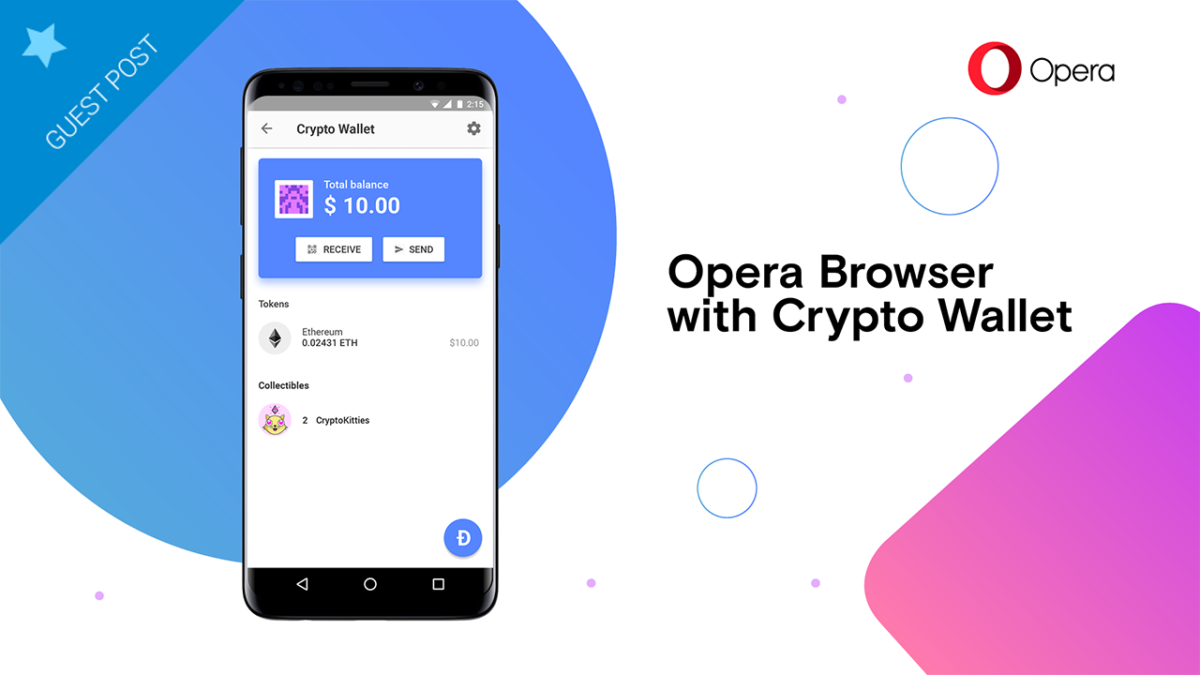
This week, Opera took another significant step in that regard, announcing its plans to integrate TRON into its platform’s built-in digital wallet (What is TRON?). Opera’s built-in wallet already supports Ethereum’s Ether token and other Ethereum-based ERC-20 tokens, and the browser intends to add additional blockchain platforms in the next year.

These moves allow users to access videogames, dApps, and online payments directly from their browser, making it incredibly easy for anyone to access web 3.0 functionality.

3 Steps to store and use cryptocurrency with Opera’s wallet

1. Create an Opera Crypto Wallet

While Opera is quickly building an iOS app, it is currently an Android-based service, which is where users start. From there, setting up your wallet is simple.

  1. On your Opera for Android browser, go to Settings.
  2. Tap Crypto Wallet.
  3. Tap Open Wallet.

When generating an account, users receive a 12-word backup phrase that’s used at sign in. This is meant to be the primary security mechanism that protects your account. Opera representatives will never ask for your passphrase, and users are strongly encouraged to store it in a safe location to ensure the integrity of their Opera account.

2. Connect to Your Computers

Opera’s browser works with all major computing platforms, and users can quickly integrate their crypto wallets to their computer browser by adding the Crypto Wallet sidebar.

  1. Click the Easy Setup button in the far-right edge of the toolbar.
  2. Under Features, click Crypto Wallet.
  3. Open the Crypto Wallet sidebar and reveal the code.
  4. Open your Android browser and tap the bar scan icon.
  5. Scan the code with your Android device.
  6. View your wallet’s funds, tokens, and collectibles.

3. Enjoy Web 3.0 Functionality

Once users set up the browser wallets, they are free to make purchases and to send/receive tokens. Opera applies its Android app as a de-facto two-factor authentication service that users implement to verify transactions.

In this way, users can keep their accounts secure while actively participating in today’s digital environment.

Opera’s wallet detects and conveys ERC-20 tokens, which can be used to make purchases or to complete other applicable transactions. Meanwhile, crypto collectibles, a growing niche among crypto enthusiasts, can also be bought and traded through the built-in wallet.

Complete with a wallet address and a dApp explorer, Opera users are equipped to discover new products, to participate in new ecosystems, and to maintain security and integrity throughout the process.

By bringing these features directly to the desktop, Opera is making the processes of using digital currencies more realistic and simpler than ever before.

While digital currencies will undoubtedly have many use cases in the future, practical and painless usability will play a prominent role in that space.

How to tell if your PC is cryptojacked

What is cryptojacking and how do you know if you’re affected?

There are a lot of reasons a computer could be slow: Excessive programs running in the background; bloated temp files; a corrupted hard drive; or if you’re unlucky, it could be malware and viruses. One particularly sinister emerging threat is cryptojacking, which can increase overheating, slow down processing speed, and drain your batteries – all under the radar.

What is cryptojacking?

Cryptojacking is when someone takes hold of your computer to mine cryptocurrency. Often, hackers will ensnare you by infecting a website or online ad with an infected JavaScript code. The code auto-executes once loaded into your browser. Alternatively, a hacker might lure you into clicking a malicious link in an email. Once you click it, it uploads a cryptomining code to your computer and suddenly your processing power is getting leeched to an outside source.

Why would someone bother doing this?

Money.

Cryptojacking allows someone with malicious intent to steal computing resources from a victim’s device instead of having to build their own dedicated cryptomining computer. In this way, they can compete against sophisticated cryptomining operations without any of the costly overhead.

Stay protected

Even on a healthy computer, it’s tough to track the origin of a program that’s draining all your CPU. It’s harder still when you’re trying to do so on an infected computer that’s slow as dirt. Troubleshooting when your computer can barely chug along is a nightmare. As such, the best way to deal with cryptojacking threats is to not get infected in the first place.

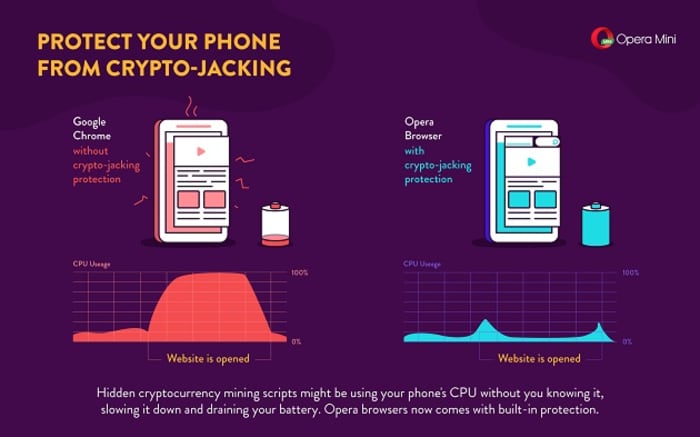
A smart, secure browser is your first line of defense – especially one that can block JavaScript. While this effectively closes any door on a cryptojacking attempt, the obvious drawback is that blocking JavaScript will also cull functions that you like and need. The best middle ground is Opera, a browser that’s been fighting the cryptojacking war since before we even knew about it. If you install Opera on your mobile device, it’ll actually block risky mining scripts when visiting a site. It’s analyzed over 100 mined websites, and noted how smartphones such as the Galaxy S8 or HTC One suffered reduced performance when exposed to cryptojacking.

Opera Mini cryptojacking

You can also download an extension like No Coin which blocks miners using your computer resources without consent. Opera even comes with the extension already installed on download.

Lastly, Opera even made this cool test to tell you whether you’ve been cryptojacked. If you’re a regular user of cryptocurrency, it might be a good idea to bookmark the page.

Using Opera in tandem with a strong anti-malware tool will help keep your PC protected from cryptojacking attempts, but it always helps to take extra precautions before clicking on that sketchy email, or opening a link that you don’t trust. Stay frosty, and stay tuned with Softonic for more tips and tricks to keep protect your computer protected.