What to know about Amazon’s Live Shopping 2.0

Is Amazon’s live shopping video channel worth watching?

If at first, you don’t succeed…

Amazon has just launched Amazon Live, a streaming video channel that showcases products like household items, tech, and beauty products.

This is Amazon’s second attempt at a QVC-style shopping channel. In 2017, the e-commerce giant launched Style Code Live, a beauty and fashion feed starring Ariana Grande’s brother.

The streaming channel didn’t last long, but Amazon is back at it with a new approach to live shopping.

Here’s a little more about the platform:

How Amazon Live works:

Amazon Live Stream

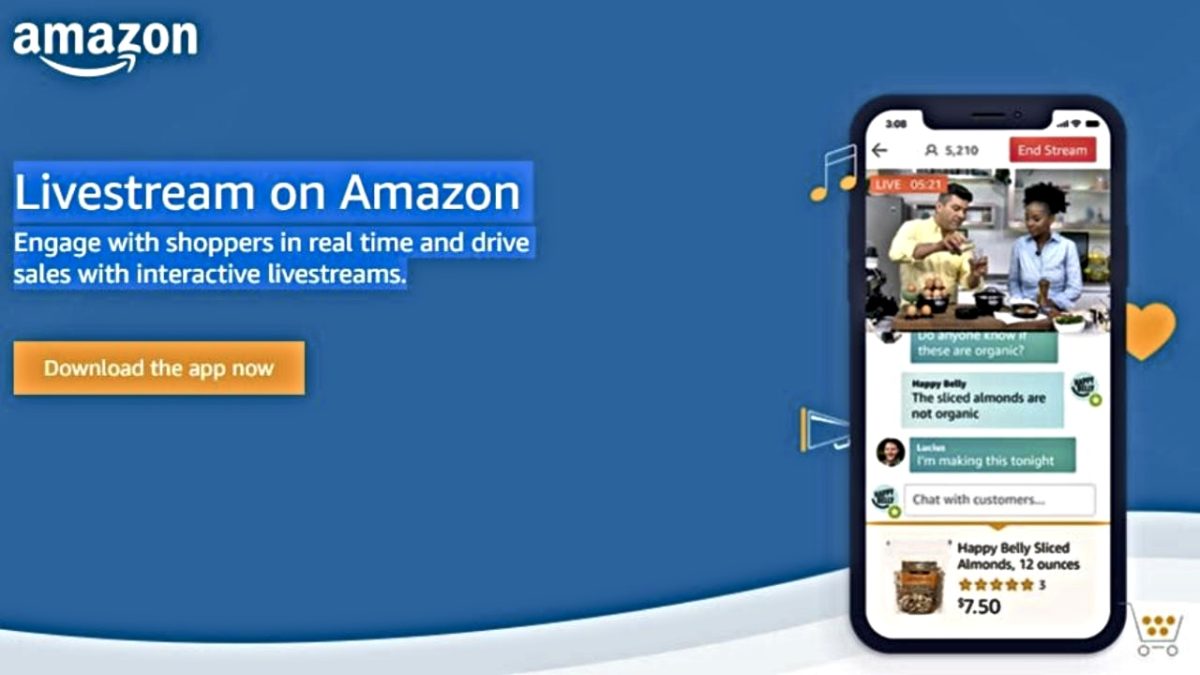
Amazon Live’s video player lives in an obvious location: just head to amazon.com/live and if there’s a live stream in progress, you can go ahead and start watching.

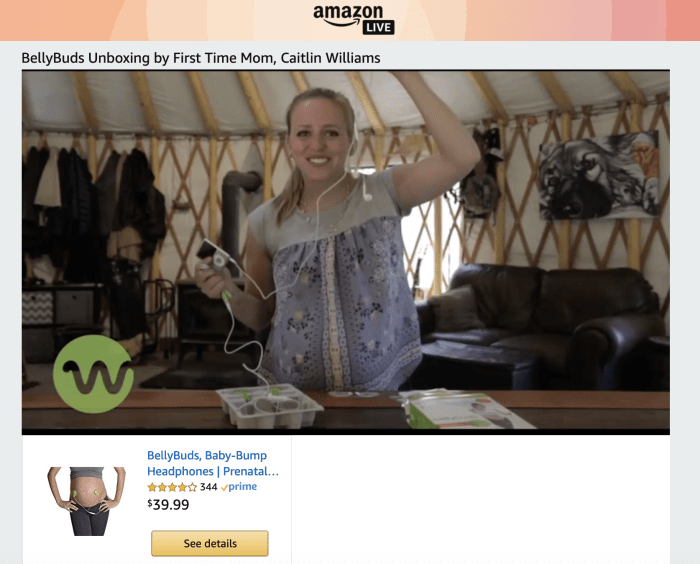
You’ll see a live feed where a brand will sort of unpack their Amazon offerings, then walk you through how the products work. Supposedly, consumers will have an opportunity to ask questions during the stream, but that doesn’t seem to be available at the moment.

Below the video, you’ll see an Amazon carousel with a rotating selection of products you can easily add to your cart. The first time we checked out the app, a company called Jacebox was taking us through a collection of lunchboxes and reusable containers–which you could easily add to your cart without leaving the stream.

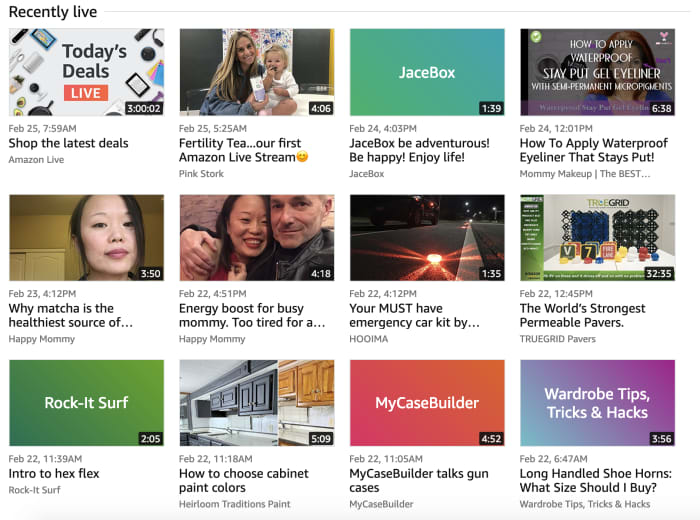
Scroll down a bit further and you can also watch recordings of previous live streams.

Amazon says Live Shopping is for interaction

As we mentioned, Amazon is promoting the tool as this hub of interaction, kind of like those Pearl Parties — where hosts break open oysters and reveal colorful pearls on Facebook Live.

However, at the time of writing, the interaction component didn’t seem to exist.

We caught a glimpse of a couple of infomercial actors promoting the August Smart Lock and “the only remote you’ll ever need.” But, there was no place to input questions into the live stream.

As Mashable points out, most content appears to be a series of quick cuts — some of which flash to some very sad expressions from the hosts.

And, if you look at some of the segments, many are clearly pre-recorded and others are essentially bad slideshows. If you’ve seen those scammy male enhancement or wrinkle cream ads on Facebook, certain streams will look familiar.

What kinds of brands will you find on Live?

Amazon Live Shopping Recordings

It’s a mixed bag.

The Amazon Live platform is open to any U.S. sellers registered through Amazon Brand Registry. The sellers can create their content through the mobile app and upload to the platform, or air a Live feed.

There are some legitimate products offered. But a lot comes from these “Mommy” channels, which are likely Amazon Associate members promoting affiliate links.

There’s something called the Meatball Master, where you can stick ground beef into a honeycomb-shaped mold. Primal Life Organics will treat you to a video that shows you how to use deodorant — very educational.

Anyway, the site just launched a couple of weeks ago, so it remains to be seen whether this will be a new platform to be reckoned with. But, it’s already got IGTV to compete with, YouTube, and QVC has announced their own stoppable live streaming app — coming soon.

It’s interesting that Amazon thinks that a modernized QVC experience is something people want. But, hey, maybe we’re not quite the right demographic.

We could see this becoming a useful tool for brands, but they’ll need to step up the quality if they want to drive traffic.

If nothing else, Amazon Live Shopping could be the internet’s next guilty pleasure — akin to reading general questions on Quora or the bad advice on Yahoo Answers.

7 easy website design tips for beginners

Trying to build your own website? Follow our guide to make sure it looks its best.

A successful website combines great content with great design. While you might have the content on lock and a great product, web design is a whole other animal.

You have to consider the user experience, the color scheme, and of course, whether the site works well on the iPhone.

It’s a lot for the budding business owner to take in.

8 tips for building a better website

These aren’t necessarily the top web design trends for 2019. But, clear navigation, hi-res pics, and a winning color scheme never go out of style.

1. Take photos seriously

flower

Visual assets are one of the key elements that make or break a website. But not everyone has access to a personal photographer or high-end equipment.

Original photos:

You might want to look into hiring someone for a few hours for some specific elements. There are some things that you need to produce yourself — or get a pro to do it for you.

Outsource, if possible:

  • Headshots — if an “about me” section is needed
  • Product shots — well, if you’re selling a product
  • Process shots — anything related to services, or a look behind the scenes

That said, if it’s totally out of your budget, a recent smartphone and some choice editing apps can do the trick. VSCO, Lightroom, Snapseed—all great for editing Instagram pics — extends to your own site, too.

Stock photos are your best friend, especially if you have some photo editing capabilities. Fill in the blanks by adding stock shots that represent content.

Sites like Pexels, Unsplash, and Snappa are our top picks, as they allow you to simply “click to download” so you can get right to work.

But, tread carefully. We recommend avoiding stock shots with recognizable models. It’s a dead giveaway that you’re using stock photos.

One that comes to mind is that guy with the big beard and whimsical mustache—he seems to come up in all kinds of workplace content.

unsplash mustache model

Beyond sourcing photos, everything should have a similar look and feel. A good way to get a sense of this is by looking at popular Instagram feeds.

You’ll notice they use the same filters and color schemes — which creates a cohesive feel. Doing this with your own photos and stock photos allows you to make all visual assets feel like they belong in the same collection.

Size should be uniform, too. So, if you’re posting blog content — all blogs should come with the same size photo header and formatting rules for embedded images and videos.

2. Navigation needs to be clear

Website navigation allows users to follow a map that gets them from one point to the next. As such, the fewer twists and turns, the better the user experience.

This example below is confusing. There’s no direct path from point A to B to Z.

website navigation mistake

Alternatively, here’s a good example of clean, clear design. They’re not trying to get cute with the layout. Instead, visual interest lies in the products, not some crazy menu.

simple website navigation

Navigation questions to ask yourself:

  • Who is the target audience and what do you want them to accomplish while on the site?
  • What kind of information or touchpoints are available on the website?
  • How will I demonstrate what information is most important?
  • How do I want people to get in touch?

A few extras to keep in mind:

  • Dropdown menus should include essential information only
  • Make logo part of the navigation – and make sure it’s clickable.
  • Be sure contact details are listed on every page.

3. Design on a grid

You’re likely reading this because you aren’t some natural web design pro. That’s okay. Luckily today’s prevailing aesthetics are relatively clean and uncluttered—not much to do on your end.

A grid system allows you to plot out every photo, button, and text block so that all elements are aligned correctly.
how to use the grid web design

The grid system has been around since the early days of print — and there are two types: landscape and portrait.

different grid layouts web design

The main benefit is, you can easily make decisions about where to add images and content, as the grid inherently limits where you can place these elements.

4. Embrace the (white) space

White space is like a fresh drink of water when you’re taking on a big chunk of text.

Even the most avid readers prefer to scan their content, not take it in all at once. As a visual element, a wall of text isn’t pretty. It adds a visual texture that can create friction.

Don’t feel compelled to fill every square inch of site space. Let each element speak for itself, with enough space on each side for some visual breathing room.

Even websites can make people feel claustrophobic. Apply the same principles to your new site as you would your home — it’s not wall to wall stuff — it’s a few choice pieces here and there.

5. Coordinate your colors

When it comes to color, less is always more. A three-color palette on a white background is a good starting point. Think a neutral with a strong accent color to add some interest.

What those colors are is a whole other story. Failing to add color means you’re going to be looking at a website with minimal interest. Too much color and you risk making a poor impression. Web visitors won’t want to enter the fun house.

Hubspot put together this handy guide for those who want to dive a little deeper into color theory and how it relates to the web.

Finally, you’ll want to make sure that you keep the same color scheme throughout the site. Consistency builds trust, and color is one of the easiest ways to keep the same look going across pages and onto other platforms.

6. Limit fonts

The more fonts added to the mix, the messier your site will look. The rule of thumb here is to use no more than three fonts.

Use one for headers, one for body content, and one accent font. An accent font should be used sparingly — generally, you’d see this in branded graphics, a logo, and other pieces of marketing collateral.

If you’re new to the world of typeface, Google Design is a really solid resource. They’ve put together a beginner’s guide to picking the right web fonts.

Prefer something more visual? Canva offers a different approach with several examples, like this one:

canva guide to fonts

10

7. Understand the art of the CTA

Just about any site, regardless of the goal, must have what’s called a call to action, or CTA. CTAs are generally represented by buttons or links placed on the page. The goal is to get the reader to take action.

That action depends on what you’re trying to do, though. It’s not all “buy, buy, buy.”

For example, if you are creating a blog, your primary CTAs are likely things like “subscribe now” “enter email for free ebook” and so on. You’re promising something in return for providing an email and a name.
subscribe CTA example

An e-commerce store might have a link to buy products or a newsletter sign-up.

eCommerce cta example

Ground rules for driving action:

  • Action words
  • No wishy-washy language
  • Tell users exactly what you want them to do
  • One CTA per page
  • Must be relevant to the content on the page
  • Must also align with goals
  • Make sure your site is responsive

This last tip isn’t so much something you need to do. Rather, it’s something that you need to make sure is part of the web hosting package you sign up for.

Wix, Squarespace, and others are automatically mobile responsive. So whatever you create for the web is automatically optimized for mobile. Most platforms allow you to preview both versions before you publish.

Wrapping up

Hopefully, the information above allows you to feel less overwhelmed by the whole idea of creating a website.

While it might seem like a lot, the main theme across the board is: you need to keep things neat. Photos should be crisp and clear, fonts and colors consistent, all elements aligned on the grid.

Beyond that, you’ll start to develop your own style as you go. Don’t be afraid to keep things simple — the whole purpose of the site is to make things easy for users.
Build a better Instagram feed: 5 ways to give your account that catalog vibe

Want to Instagram like a pro? Follow our advice.

According to Pew Research Center, over 35% of adults now use Instagram. It’s the fastest growing social network on the scene these days and most use it to keep up with friends, look at food, and maybe do some shopping.

It’s also a great way to develop your personal brand and get your name out there.

Whether you’re trying to become the next big thing in influencing or want to show off your social chops before kicking off a job search, you’ll need to create a cohesive feed that represents you. A polished, organized version of you, that is.

Here are some tips for kicking your “gram” up a few notches, by virtue of being consistent, intentional, and ideally, yourself.

How to take your Instagram feed to the next level

1. Pick an overall aesthetic

The basis of a great Instagram account is the overall vibe. Vague, we know. But, you need to develop a consistent look and feel.

Do this by considering your feed in terms of the grid.

On a broader level, how does each image fit in with the others? Use similar colors, subject matter, composition, angles, and fonts in your posts. This doesn’t mean everything is the same, but it does mean that you should avoid a haphazard scrapbook-style feed.

Pick a handful of colors to use in your feed — no more than five. The idea is, you’ll have these little pops of the same colors that connect when photos are displayed in your grid.

limit colors in your Instagram feed

2. Be consistent with your filters

And by consistent, what we mean is, you should use the same filter for all of your images. After you’ve made some decisions regarding your overall aesthetic, it’s time to think about creating a filter that flatters.

The filter you use functions as a sort of visual personality. It makes your feed feel more cohesive and organized.

It’s been a long time since Instagram’s default filters were enough to impress. As such, if you’re going for that professional vibe, you’ll need to do a custom job.

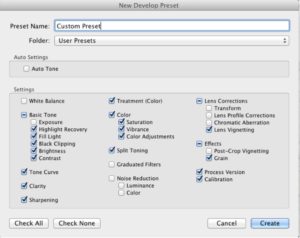
Apps like VSCO and Lightroom make it easy to do this—and you can save your settings for long term use.

Instagram filters via Lightroom

VSCO allows you to select preset filters, then customize to build your own. This means it’s relatively easy to set up a custom filter without starting from scratch.

VSCO filter settings

3. Post with a target audience in mind

Marketing — whether you’re just marketing yourself or growing a business — is all about understanding your target audience. The better you know these folks, the more effective your content.

To figure out who that audience is, you need to ask yourself a few questions first. For example:

  • What am I selling? This could be yourself—if you’re trying to promote your services or showcase knowledge about a certain topic. Or, in a more straightforward sense, a literal product.
  • Who do I want to attract? I.e. who do you want to hire you, become a client, or make a purchase?
  • What is my audience looking for?
  • How will I attract that audience? In this case, you’ll want to scour Instagram profiles both from your ideal customers and the more successful people they follow. Look for aesthetic themes, a general tone used in captions, colors, and subject matter.

4. Figure out your content buckets

What is a content bucket? Well, the term refers to the collection of general topics covered in your posts. Ideally, you’ll pick an overarching theme. Maybe something like wellness, beauty, fitness, or design. And from there, you’d choose a few sub-topics that relate to that high-level theme.

Say, you’re going for a wellness vibe. In that case, your buckets might be DIY recipe demonstrations, product showcases, and a look at your workout or skincare routine. These things are loosely related and can be further unified by sticking to a color scheme and filter, as mentioned above.

If you’re a designer trying to attract new clients, the bulk of your feed should be images of your work. Other buckets might include videos or behind the scenes content. And, maybe some of your favorite images from art exhibits you went and saw.

5. Get a planning app

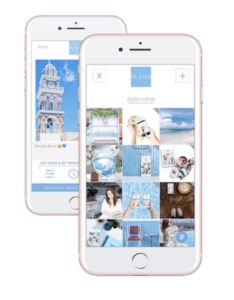
Preview is a popular choice. As are Plann, Buffer, and countless others. The benefit of a scheduling app is, you’ll have the ability to slow down and look at your feed the way it would look if it were already live on Instagram.

Plann Layout Example

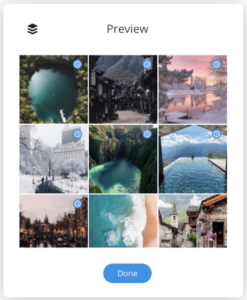
As you upload your content, you’ll be able to rearrange it. The idea is to create some movement and flow. You’ll see in the below images, Preview allows you to move images around.

Notice how the examples contain similar colors, the same filter, and a loose affiliation with a theme? That’s great—but keep in mind, you’ll want to put them in an order that creates interest.

Some users like to go about this really systematically:

planning Instagram layout

While others aim to create a sort of planned chaos.

buffer sample Instagram feed

We liked Preview best, as far as visual planning is concerned, but Buffer — especially their paid plans, also offers some notable benefits. You’ll gain Instagram insights into which posts are performing best. This eliminates some of the guesswork that comes with selecting hashtags and subjects.

Wrapping up

If you’re new to Instagram, or just new to considering the platform as a strategic approach to personal branding, this can seem overwhelming. In reality, crafting that catalog-look isn’t hard at all. It’s a matter of getting organized and keeping things consistent.

8 ways to boost mindfulness at work

8 simple steps to stay mentally healthy at work.

Like other buzzwords and a lot of the concepts tangentially related to the wellness movement, it’s fair if you’ve considered writing off mindfulness as a passing trend.

Mindfulness is about paying attention to the things in your daily life.

The idea is, focusing on how you feel in certain situations will give you more control over how you respond.

As such, mindfulness is well worth exploring. And, it can get you through the frustrations, stress, and other hallmarks of your working life.

In today’s office, you’re dealing with office politics, a soundtrack of chatty coworkers, and passive-aggressive messages firing from all directions.

Here are a few mindfulness tips you can take with you, even if you have a wide open desk in the middle of an open plan.

How to boost mindfulness at work

meditation

1. Prioritize tasks in advance

Mindfulness in the office starts with thinking with intention about how your day will play out. When you start the day with no clear plan, you risk wasting time hanging out in your inbox or playing it by ear.

Instead, set an alarm 15 minutes before you leave and use that time to write down a list of priorities for the next day.

This pre-planned to-do list gives you something to get started on first thing in the AM. And, it also allows you to start being mindful of where your time goes. As time passes, you’ll learn how much you can take on each day and can plan with greater accuracy.

We also recommend writing down a big picture to-do list at the end of the week. Every Friday, list goals to address for the following week.

2. Practice your breath work

relaxing work

It’s not just for the yoga mat. Deep breathing can change the way your brain works. Controlled breathing may improve immune health and boost energy metabolism, which might play a role in fighting fatigue and avoiding the office cold.

Research published in the Journal of Neurophysiology found that deep breathing can help you access new parts of your brain.

Deep breathing can help you control your emotions, meaning you’ll be able to keep your cool in the face of those little frustrations. Think passive aggressive CCs or interrupting colleagues.

Get started by following these steps:

  1. Sit in a relaxed position — in a comfortable chair or on the floor.
  2. Try to relax your body and notice any areas of tension. Notice where you shift your weight and notice any sensations, stress, or other feelings.
  3. Tune into your breath. Notice the natural flow when you breathe in and breathe out. No need to change anything, keep it natural.
  4. Pay attention to where you feel your breath inside the body — it might be in the stomach, chest, throat, or right there in your nose. Notice whether you can sense any evidence of the last breath. Paying attention to those slight sensations is an exercise in mindfulness; you’re learning about your body a
  5. If your mind wanders (perfectly normal), try to redirect it back to the breath.
  6. Sit for about five minutes and observe your breath. Return to your breath and repeat.
  7. Relax — take a moment to acknowledge your effort (whatever that means for you) and return to work refreshed.

3.  Focus on one task at a time

We’ve said it before — and science backs it up — pretty much everyone sucks at multitasking. It’s not a strength. In a study from Ohio State University, students who multitasked felt like they were more productive, though their output suggested the opposite.

Task switching can cost you up to 40% of your productive time.

The APA says the brain wasn’t designed to perform multiple tasks at a time, and rapid switching between tasks can result in a mindfulness disaster.

Instead, take some time to slow down and take things one step at a time. Your brain might freak out at first, tempted to click over to your inbox after just a few minutes of single-tasking.

4. Address emails and small tasks ASAP

email

Now, we’re not suggesting hanging around your inbox all day. That’s a major productivity killer to be sure.

But, emails are like tasks, and when you do check them, make sure you respond right away — as they come in.

This way, those little stressors like remembering on the drive home that you forgot to email a colleague about something important won’t come up as frequently.

Same goes for tasks that take less than five minutes. Often we put off things that take minimal effort — be it a boring errand or a simple organization process. The longer it waits, the more it’ll feel like pulling teeth when you finally get down to business.

5. Write some stuff down

Mindfulness experts and enthusiasts alike will be quick to tell you to write down what you’re grateful for.

The traditional gratitude journal usually entails writing down three things that make you happy. This is all well and good, but if the gratitude journal isn’t quite your bag, frame it a little differently.

When you’re getting ready to head out, shut the computer, or whatever signifies the end of the day, write down at least one positive thing that happened during the workday. This could be something simple like: “finished follow-up calls” or “wrote the first draft.”

Or, use this space to document your goals. Even better if you can break goals up into a series of actionable steps.

Another idea is writing a “done list.” While not a straightforward representation of gratitude, a done list is a way to keep track of your accomplishments. It’s something you can look back at when you need a boost—like a “hey, I really am getting things done” reminder.

6. Start the day with meditation

meditation

Kicking off the day with 10-15 minutes of mindfulness meditation can set the tone for a day of calm. Before you head out, sit down in a quiet room, close your eyes, and breathe deeply.

Acknowledge your thoughts as they come, but refrain from judging. It’s about awareness. While meditation might not be for everyone, it’s worth giving a try. Experts and a whole range of successful people swear that the practice has made them more productive — improving clarity and calm.

7. Set mindfulness reminders

As the day wears on, your brain will start to hit a wall. Whether you’ve chowed down on a big old lunch or just feel fatigued, mindfulness can help you sharpen up the old brain.

Set timers on your phone, every hour or so. Each time the timer rings, take a mini break to do a short mindfulness exercise. Be it a five-minute meditation or a walk around the block; these little breaks will keep you from working like a zombie.

8. Make time for the outdoors

The glow of your laptop is no match for the good old sun. Make sure you pencil in some time to go outside a few times a day.

Movement can help you boost memory retention and focus. Leave your phone behind (or on airplane mode) and pay attention to the sights and sounds in your environment.

The point is, this little act of mindfulness allows you to reconnect with how you’re feeling in the moment.

How to create a Baby Registry on Amazon

Expecting? Here’s how to build a baby registry with Amazon.

baby

Look, letting others pick out stuff on your behalf is not always the thoughtful surprise they intended.

For parents-to-be, an Amazon Baby Registry is probably the most comprehensive, straightforward approach to stockpiling all things baby–and letting your network know exactly what you need.

This way, friends and family aren’t stuck trying to guess how you want to dress your baby or how you plan on wheeling them around.

Amazon is home to the largest selection of, well, everything, including baby stuff. 

Here, you’ll find practical items like bottles and diapers, as well as toys, high-tech monitors, and luxury cribs. (Need recommendations? We recommend Mr. Dad Reviews.)

What’s more, gift givers can send registry items straight to your house, they can join forces for one big purchase, or receive items themselves to wrap and give in person. 

Here, we’ll look at how to get started with your Amazon registry, and give you a quick overview of some of the features:

How to set up your Amazon baby registry

Signing up is really easy. 

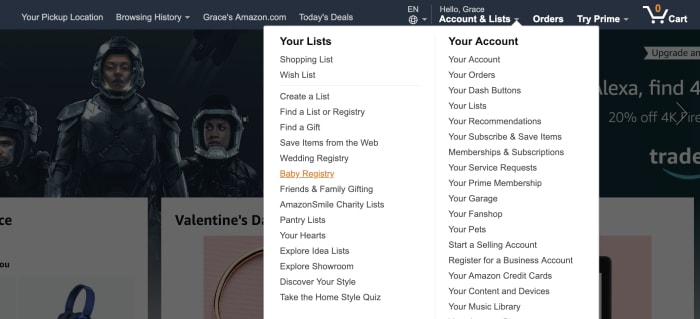
To get started, select “baby registry” from the dropdown menu on the top right-hand corner.

When you create your registry, Amazon will ask for a few details. Fill in the expected due date, an address for receiving gifts, and who can see the registry.

You can choose to make this private — i.e. so you can set things up before you’re ready to share the news. Provide access to anyone with a link, go public, or share your registry on TheBump.com.

Additionally, you can add a message for family and friends — select the gender (or leave it a surprise, if you don’t want to receive a bunch of frilly baby dresses or tiny football jerseys).

After that, you’re in — and it’s time to fill out that list.

Start “shopping”

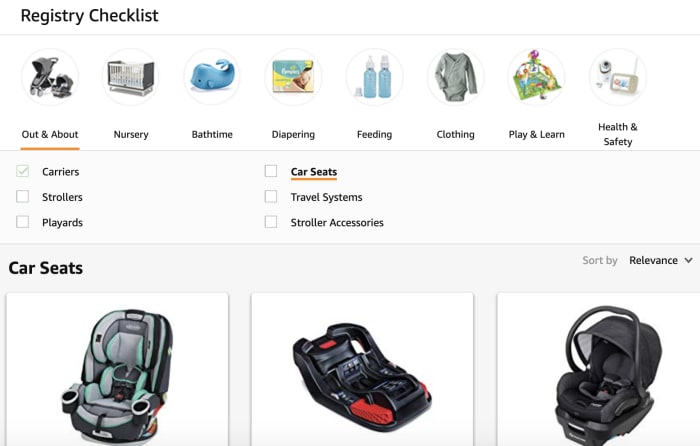
Checklist baby registry

So, even if you’re totally unprepared and don’t really know what you’re supposed to have when the baby comes — Amazon breaks things down pretty well.

Navigate to the Registry Checklist tab, and you can shop by section. The Out & About section offers everything you need to transport your baby — from joggers to those baby-packs.

Nursery has cribs and changing tables — your basics for outfitting the baby’s room. And — from there, you can sort through diapering essentials, feeding, clothing, and toys.

There’s also the ideas and inspiration section, which provides a list of popular items, product guides, and additional checklists. 

Adding items is as easy as putting items in your Amazon cart. The only difference is, you’ll click the “Add to Baby Registry” link instead. 

There’s also a section that allows you to provide additional details. Set priority to low, medium, or high, and indicate how many of that item you have or need.

For example, you might opt to indicate that you need 10 bottles — and if someone buys six, your registry will reflect that you still need four. 

What’s nice about the browsing features is, it’s easy to discover products you might not have initially thought of.

Share your registry

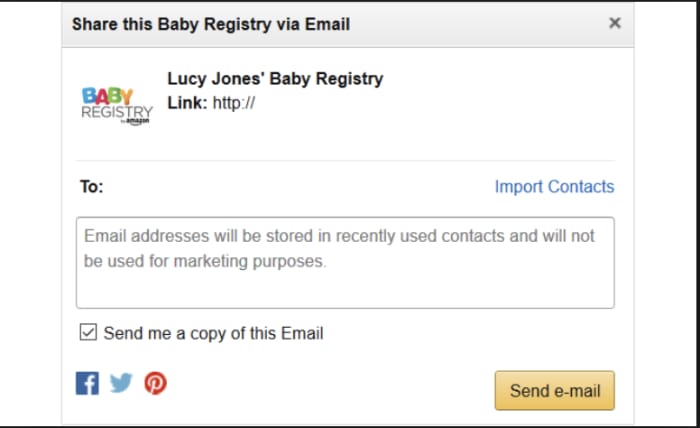
Amazon’s baby registry offers a few different sharing options — all of them easy. Share your link via email, social media, or create an ecard announcement. 

share registry link on Amazon

Claim your welcome box

The welcome box is a surprise selection of samples and full-size products. 

To claim a welcome box, you’ll need to first complete your checklist by adding products from each category. You’ll also need to mark each category as complete — and purchase $10 or more. That initial purchase can come from you or your gifters.

Contents vary, based on what’s available, but Amazon lists items that have been included in previous boxes — it’s a mix of things like baby wipes, ointments, diapers, and soaps and shampoos. There are a few outliers, the odd pacifier, a pack of onesies, bottles. 

Completion discount

Amazon offers a completion discount — 10% off or 15% off for Prime members — that applies to items remaining on the registry. 

The registrant can buy the items left over for up to 60 days after the arrival date listed on the registry. 

There are a couple of caveats here.

For one, the discount only applies to baby or maternity-related items. So you can’t load up your registry with household necessities or even books for the baby.

Second, the discount is only good for two orders for a combined total of $2,000 or less.

Still, this is a good way to buy up those last minute items and save a bit of cash.

Universal registry

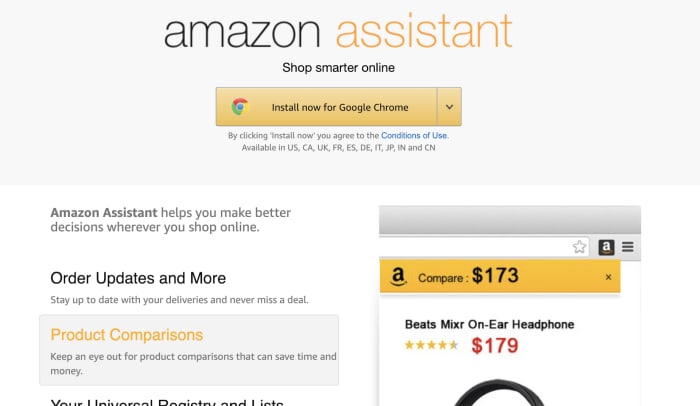
The universal registry is a feature that allows you to add items from any website with the help of the Amazon assistant. 

If you’ve used Amazon’s 1-Button App extension to add products to your wishlist, the process is the same. This allows you to add items not available on Amazon and add it to your registry.

amazon assistant add extension

Thank you list

Finally, we’ve got to call out this nice little touch. With all of the craziness that comes with getting ready for baby, keeping track of who gave you which set of burp cloths might not be a priority.

Luckily, your registry navigation links to Thank You List & Returns. This is a lifesaver, as you can see who purchased what — and show your appreciation accordingly down the road. 

Final thoughts

In the end, if you’re expecting,  Amazon’s Baby Registry is definitely the best bet when it comes to covering all your bases.

The massive selection, plus all of the convenience features, make things easy on you, your family and friends. 

Oh, and one final word of advice. Don’t be afraid of looking greedy. As you go through your checklist, add big-ticket items, miscellaneous necessities, and everything in between. You never know what people will give you.

And, if the spendy stuff goes untouched, that 15% Prime discount will take a good chunk off of that luxury crib.

Best upcoming gaming conventions in 2019

Hit the road and celebrate the best in gaming with these incredible conventions.

Gaming conventions are a great way to discover new games, meet up with gamers, and dress up as your favorite characters.

But they’re not all the same. Some conventions are all about the industry, while others celebrate fandom. Whether you’re considering your first gaming convention or you’ve competed in tournaments all over the world — 2019 has a lot to offer.

Sure, we’re already three months in, but convention season is just kicking into high gear. Fortnite fanatic? Smash Bros. addict? Just there for the LAN parties? Check out the list to see what’s on the books for the rest of the year.

Best gaming conventions of 2019

PAX East

PAX Boston

March 28-31, 2019, Boston, MA

PAX is a festival for gamers across all genres to come together. PAX South just wrapped up last month, but if you missed it, the East coast installation promises a solid lineup, though it’s not yet available. Catch the indie showcase to discover new games from small developers, chill out in the handheld lounge and regroup on a bean bag. Or, bring your PC and join the LAN Party. And, if unstructured activity is more your speed—you can check out consoles or VR headsets at the con — or take a break from screens with a tabletop games.

What we like about PAX is, this convention seems more about playing games and discovering new releases than serving as a promotion space for the titans of the gaming industry.

E3 2019

E3 Los Angeles 2019

June 11-13, Los Angeles, CA

E3 is one of the world’s biggest events for computer and video game enthusiasts. The three-day event hosts all of the biggest companies, influencers, gamers, and often serves as a platform for some of the biggest announcements in the tech and gaming space. The conference is still a few months off, so most of the information circulating the web is just hearsay. But rumor has it that Microsoft will unveil the next generation of Xboxes, while Sony is skipping the con.

Dreamhack


View this post on Instagram


Sometimes we just reminisce about #DHMasters ?

A post shared by DreamHack (@dreamhack) on Feb 24, 2019 at 11:18am PST

June 15-17, 2019 Elmia, Jönköping, Sweden

Dreamhack’s festivals are a global affair, with cons cropping up all over the world from Rio to Mumbai. However, the biggest events this year take place in Sweden — once in June and once in December.

The three-day events host the world’s biggest LAN party, live music, esports tournaments, and more. Unlike events like E3, Dreamhack is more about the attendees than industry insiders.

Last winter’s event hosted official tournaments for Super Smash Bros., Brawlhalla and Dragon Ball Fighter Z. It’s also a great place to discover new indie games, meet pro gamers, and dance to some DJ sets.

Paris Games Week

Paris Games week

October 30-November 3, 2019, Paris, France

Paris Games Week is a huge gaming convention spanning five days. This fall, you can expect a preview of 2020’s biggest releases, eSports competitions and of course, plenty of cosplay.

PGW is a celebration of all things pop culture — games old and new, and there are several family-friendly activities — including an area dedicated to kids 3-12 – you can even learn to code with your child.

Additional features include the IndieCade area, which is a celebration of European indie designers, and a section devoted to art and literature. In all, it’s a pretty rad mashup of gaming, the arts, and more.

Tokyo Game Show

Tokyo Games

Late September 2019

The Tokyo Game Show is an industry event not unlike E3, but they open their doors to the general public for the last two days of the convention.

This event is Japan’s biggest video game conference, held in late September every year. Because the con is a bit far off, the schedule is all TBA. Still, you can expect to see 300+ exhibitors from over 40 countries showing off everything from the latest game releases to AI innovations and more.

BlizzCon

Blizzcon Anaheim

October 25-28, 2019 Anaheim, CA

Forget Disneyland. Come October, Blizzcon’s semi-annual event is Anaheim’s biggest attraction. The event features several gaming tournaments – watch the pros duke it out in your favorite Blizz games: Starcraft, World of Warcraft, Heroes of the Storm, or Hearthstone. If you’re not really the competitive type, the event offers cosplay contests, exhibitions, and plenty of activities.

Research before you get your tickets

Before you buy tickets to the next big con—near or far—you may want to do some research. Check StubHub to see what’s available, then dig deeper into the details.

Has the convention been around for years or is it a new, untested event? What types of vendors will be there, and are there tournaments or casual gaming activities you can participate in?

Finding out what to expect will allow you to make sure you have the most fun possible — whether you venture into a new country or stay close to home.

Upgrade to smart luggage

Make your next vacation even better with smart luggage.

smart luggage

A new (ish) technology in an uncertain regulatory space, smart luggage enjoyed a spike in sales thanks in part to podcast plugs and online marketing.

This practical innovation has seen its fair share of ups and downs, leaving many travelers asking whether smart bags are worth the investment.

Long story short, these charging bags will add value to your travel experience, especially if you’ve got devices to charge (chances, are, you relate).

Here, we’ll look at the rules governing the smart luggage space, and some sleek options for your next trip.

What is smart luggage?

So, for those who don’t know, or feel that luggage doesn’t need disruption, smart luggage is a term for luggage that comes with some added features. Most notably, smart luggage comes with a portable battery pack that charges your phone, no outlet required.

Features might include the following:

  • Battery pack for charging
  • Mobile app
  • GPS tracking
  • Weight sensors
  • USB-C/USB-A ports
  • Bluetooth enabled lock

Smart luggage comes in the form of carry-ons and checked baggage, as well as lighter options like duffels and backpacks.

With checked bags, smart luggage might not have as many benefits as you’ll get with the carry-on. As per FAA regulations, things like GPS tracking won’t work, as you’ll need to shut off the device — or ideally, remove the battery before dropping off your bag.

Below, we’ve included a few options for kicking off your smart luggage search.

eBags

eBags smart luggage different brands

eBags offers smart luggage that charges your bag while you’re hanging around at the airport, whether it’s a layover or the time between the first boarding announcement and when it’s actually time to get in line.

What we liked about eBags was, you’re not limited to one brand like you are with some of these internet start-ups like Away or Bluesmart (RIP).

Instead, you can browse through various carry-ons from backpacks to weekenders to compact suitcases with a hard, protective shell.

Use the coupon code SOFTONIC for 25% Off Sitewide + Free Shipping Over $49!

Away

Away smart luggage

Away is likely one of the most recognizable brands in the smart luggage game. The suitcase company is well-known for advertising by podcast and Instagram and has become popular with consumers, too.

The luggage is more than hype, though — it’s quite well made. Shoppers can choose between a smart suitcase or a regular; the former comes with an ejectable battery, while the latter is a beautiful, but standard, carry-on. Do take note that larger bags do not come with batteries.

Away luggage comes in several sizes, but the style is consistent across the brand. Baggage comes in a range of solid colors, with a protective shell.

Additionally, bags come with TSA-approved locks for an additional layer of protection.

G-RO

G-RO smart luggage

The Gravity Roll or G-RO is a unique-looking carry-on with a removable power bank, two USB charging ports, and big, rolling wheels, that according to the site can handle any terrain.

Spacious, yet compact, the G-RO has an appealing aesthetic for anyone looking for a standout piece of technology and plenty of room for all of your travel necessities.

While the $445 price tag might seem steep, this is a real investment piece. The G-RO is made from durable materials, with a lifetime guarantee on those signature wheels.

Arlo Skye

arlo skye smart luggage

Arlo Skye is a brand specializing in minimalist suitcases that look as though they were designed for the future. Suitcases come in different sizes and colors, but all share a similar design, with no zippers in sight. Instead, the bags close with two combination locks (approved by the FAA) for added security.

Electronics-wise, Arlo Skye bags come equipped with removable chargers and two USB ports. You know so that you can charge your phone and computer at the same time.

What about the FAA crackdown?

Alright, we couldn’t have a conversation about smart luggage without mentioning FAA restrictions. At the end of 2017, airlines began restricting the use of smart luggage because the lithium-ion batteries found in the devices pose a fire risk.

And while there was a bit of uncertainty in the space at the time — smart bags aren’t outlawed. They’re here to stay, provided you follow the rules.

According to the FAA website, devices containing lithium metal or lithium ion batteries must be carried in carry-on luggage. If they are checked, devices containing those batteries must be powered off.

It gets a little complicated when the bag itself includes a battery. Rules vary by airline, but in general, the FAA requires that travelers pop out the battery before going through security or checking the bag. American Airlines does allow the batteries in carry-on bags, but you will need to turn them off before boarding.

A weird time in punctuation: navigating emoji and exclamation points

A closer look at how the emoji is changing communication.

You’ve probably sent an emoji or two to your friends and family — they’re fun, silly, and they get the point across without words.

Maybe you campaigned for the dumpling and the taco to be immortalized in Unicode. You cringed with the masses when Apple rolled out their interpretation of a bagel (plain and dry).

But have you thought about emoji etiquette? Sure, you’re probably not sending your boss a bunch of eggplants and peaches. But new linguistic norms can confuse or offend.

And then there’s the less obvious stuff. The period is on its way out, for example. And exclamation points, or lack thereof, can sometimes cause unnecessary stress.

Which brings us to this point — the punctuation landscape has changed dramatically in recent years — in ways that would blow the minds of Strunk and White.

emoji

How do emoji effect language?

Some people have called emoji a language. That’s not necessarily an accurate interpretation.

There’s no actual grammar system like English, French, or Japanese. The flexibility they provide is their benefit and their downside.

People tend to apply their own method of making sense of emoji syntax. Those custom rules allow us to build a secret language of sorts.

Secret languages between friend groups, siblings, and of course the weird baby talk that happens with closely connected couples are all signs of insider group membership.

Emojis, too, can have that effect.

The other benefit is, emoji help us replace the cues found in face-to-face communications; reducing the ambiguity that comes with text-based messaging, be it email or text.

Ambiguity is driving us crazy

shrug

Between emails and texts, changing punctuation norms, and a library of emoji; reading between the lines has become a job all its own.

We came across a piece a while back highlighting this new norm: women are increasingly expected to add exclamation points to emails to demonstrate warmth. Use a period, and you risk coming off as cold or dismissive.

This use of punctuation marks has created some interesting communication problems. With face-to-face communications, we have access to all of these tiny cues that come together to give us context.

Remove the body language, and it can be impossible to tell if someone is in a bad mood or not. Frontiers in Psychology published a paper on mood detection in an ambiguous text. Researchers found that people were less likely to respond quickly to messages with an unclear mood attached.

Should you use emoji at work?

Like all personal exchanges, the relationship should be taken into account before you start deploying your favorite Unicode symbols.

A study from Social Psychological and Personality Science advised that people should refrain from using emoji in professional communications and the first time you message someone.

While the science is all over the place when it comes to how emoji affect your reputation at work, there are several that say using them in the workplace does not increase positive feelings.

Instead, they may give colleagues cause to assume you are less competent.

Because it’s not necessarily appropriate to use emoji in a professional setting, people tend to adopt a unique use of punctuation marks to convey sentiment in a medium devoid of obvious cues.

Think too many exclamation points, an extended ellipsis (thanks……..), or “what???!” Exerting force in writing is no longer limited to YELLING in all caps.

In some cases, those unnecessary exclamation points have taken on a sort of emotional labor — this article mentions a woman, Jess, whose manager called her out for her “aggressive” email tone.

Long story short, the solution was the exclamation point — a way to add excitement, enthusiasm, and friendliness to dry communication channels. They also soften emails and make them seem abrupt.

Why do we have to convey enthusiasm, anyway?

With friends, the solution is easy. Drop in an emoji for context, no big deal. At work, however, we’re probably stuck in feigned enthusiasm hell for a while.

On the one hand, if we normalize emojis as part of professional, intelligent communication, there are more options than choosing between three exclamations or four. On the other, emojis might then become the next frontier of text-based obligation.

What is Youtube TV, channels and how to use it

Is YouTube TV the best way to cut the cord? Let’s take a closer look.

YouTube TV has been around for a couple of years now, but as of January 23, the service is now available nationwide.

The service expanded into 95 new markets, meaning there are bound to be a whole lot of beginners looking into the site’s potential as a cable replacement. While there are some limits when it comes to channels and compatible devices, YouTube’s streaming service proves to be a strong competitor to Hulu Live, Sling TV, and other cable TV replacements.

Here’s a look at what you need to know about what YouTube is and how to use it.

What is YouTube TV?

YouTube TV is a $40/month service in the same vein as Hulu Live, DirecTV Now, and PlayStation Vue. It’s compatible with all of the usual streaming devices: Xbox One, iOS, Android, Apple TV, Chromecast, and Roku and provides a mix of live TV, free movies, and a few premium upgrades.

Additionally, YouTube TV comes with a cloud-based DVR, which lets you record all your shows with no storage limits. Recordings do have a 9-month shelf life, so you don’t get to keep them forever.

For a quick explainer, take a look at YouTube’s video explanation:

Is YouTube TV different than YouTube Premium?

Yes, YouTube TV is live TV and on-demand viewing, similar to what you’d get from a cable provider. YouTube Premium is a paid version of YouTube, with some additional features. YouTube Premium includes music streaming, YouTube Originals, and ad-free streaming.

What channels are offered on YouTube TV?

YouTube TV comes with a range of familiar channels like NBC, CBS, Fox, and ABC. Cable channels like FX, ESPN, AMC, Disney, and more are also available, as well as YouTube Originals and local TV stations.

Add-on channels like AMC Premiere, Showtime, and Starz are an additional few bucks a month, though we should note that YouTube doesn’t offer HBO or NFL RedZone, which might keep some people away.

Still, this is one of the more straightforward alternatives to “regular” TV. The benefit of using YouTube’s option over traditional cable is, your subscription is portable — log into your account as you would any other app and start watching. Oh, and it’s a lot cheaper.

What does Youtube TV cost? Price and Plans

A subscription to YouTube TV costs just $64.99 a month. There are no hidden additional fees like equipment rentals or installation fees. For an additional monthly payment, you can add on sports and premium networks, including Fox Soccer Plus, STARZ ($9/mo), SHOWTIME ($7/mo), British TV channel Acorn ($6/mo.), AMC Premiere ($5/mo.), Curiosity Stream ($3/mo.), and Sundance ($7/mo.) and more.

The 4K Plus add-on offers better video quality, the ability to watch recordings offline, and unlimited streams at home. Sports fans can add on FOX Soccer Plus ($15/mo.) and NBA League Pass ($40/mo.)

How to get started with YouTube TV?

You can sign up either on the YouTube TV website or the YouTube TV app. YouTube TV must be available in your current location to sign up. The good news is, roughly 98% of the U.S. has access, so unless you live in a super-remote area, you should be good.

Can you get YouTube TV on Firestick?

Compared to other streaming apps like Sling TV, YouTube TV doesn’t work on every device you can think of. Unfortunately, because YouTube is owned by Google, you won’t be able to stream through the Firestick or the Fire TV Cube.

It’s also worth pointing out that YouTube TV won’t be the best choice for PlayStation owners, either. Sony offers live TV through the PlayStation Vue service and has opted to make that service the only streaming option for PS4 users.
How many people can use the account?

Another perk of being a YouTube TV customer is you’ll get six accounts per household, each with their own log-in credential and personalized cloud DVR. So, for 40 bucks, it’s a pretty good deal.

How does YouTube TV compare to Sling or Hulu Live?

Where YouTube TV really shines is the cloud DVR. There were some kinks with the last iteration of the DVR, as it gave preference to on-demand versions of shows rather than those you recorded, thus making it impossible to skip commercials. As of October 2018, YouTube changed it up, announcing that users would now have full control over the DVR feature.

Another highlight is the fact that YouTube TV allows you to give six family members their own account. The downside is, where other streaming services come with upgrades, YouTube does not — so if you want to add more accounts, you can’t.

It mostly comes down to the channel lineup and how it fills in the blanks with your existing subscriptions. Pricing is comparable, but the main advantage of YouTube TV is access to YouTube Originals like Jordan Peele’s “Weird City.”

DirecTV Now, Vue, and Sling TV all offer various channel packages, while YouTube TV does not. Still, for only $40, you get quite a few channels, plus a handful of add-ons if you want to pay a bit more.

In the end, if you’re on the fence, take advantage of the free seven-day trial to give it a try.

Guide to Netflix’s Smart Downloads feature

Netflix’s new feature comes to iOS! Here’s how to use it on any device.

netflix

Netflix is always on the lookout for more ways to help you keep on binging the “Great British Bakeoff” or “Stranger Things.” Or, you know, watch “The Office” for the millionth time.

While Netflix has offered a plain downloads feature since 2016, things just got a little smarter for Apple users. Smart downloads are now available on iOS. (It’s been available on Android since last year.)

Now, everyone with a password can keep their download stream nice and clean — whether or not you’re keeping up with Marie Kondo’s tidying tips on the platform.

Whether you use iOS or Android, here’s a look at how to set up and use Netflix Smart Downloads.

Netflix Download Free
8

Complete guide to Smart Downloads on Netflix

What is it? Are Smart Downloads different than regular Downloads?

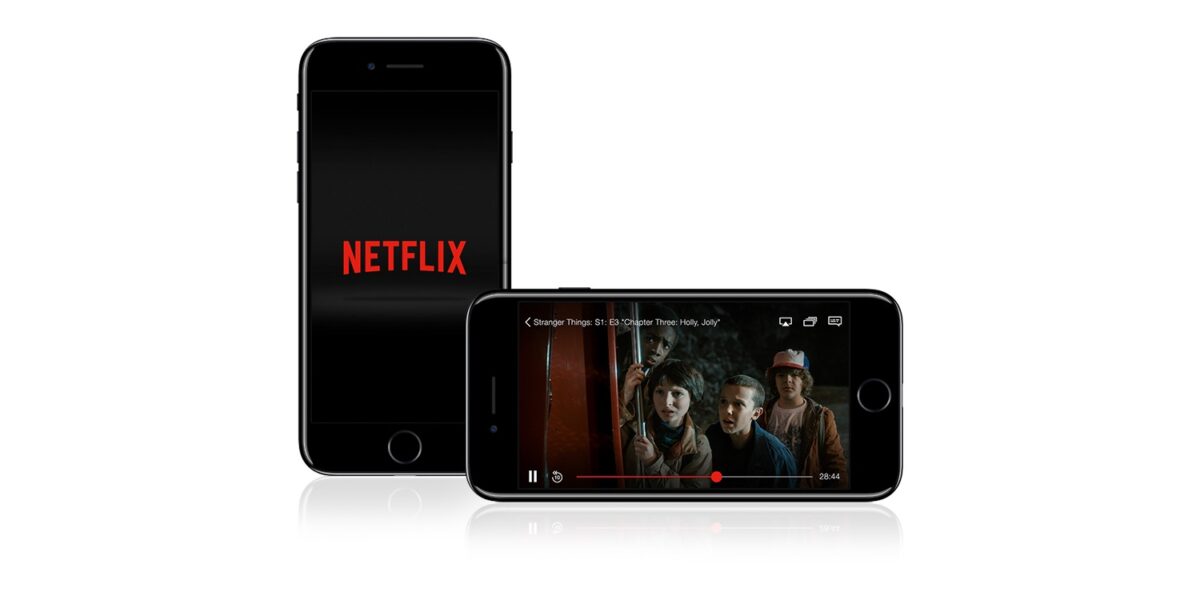
Netflix smart downloads phone

Yep. Smart Downloads is a feature within the Downloads Section.

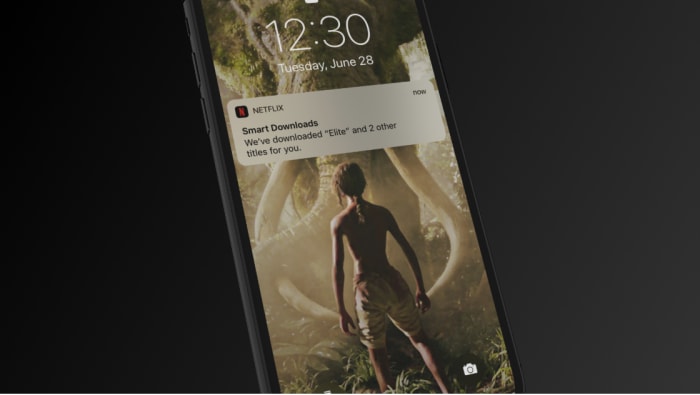
The concept is simple. Per Netflix, Smart Downloads will automatically delete the downloads you’ve watched and automatically download the next episode to replace it.

Of course, this makes it easier to keep watching a series — and will help you tidy your downloads in the process.

Smart downloads are ideal for folks who regularly do the Netflix binge on the go. Think commuters, people waiting around at the airport, or those who like to watch a quick episode during their lunch break.

The whole idea is, smartphone bingers no longer have to go through the trouble of managing their downloads manually — it’s sooo time-consuming, right?

While the convenience benefits are nice (but not game-changing), Smart Downloads are a real boon for those with limited connectivity issues.

For example, users based in emerging economies with unpredictable Wi-Fi can load up on content when connected, and watch when they’re not.

The basic rundown:

  1. Download episodes 1,2,3
  2. Watch episode 1
  3. Smart Downloads deletes episode 1, and replaces it with the next episode

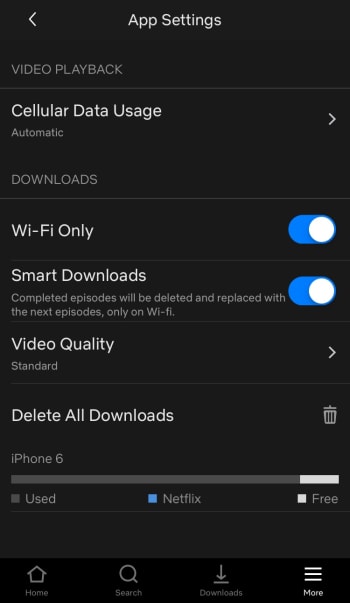
The feature allows you to toggle the downloads on and off – much like Spotify’s app. This way, Netflix won’t hog all your phone space.  Netflix says their goal is to give you more control—you’ll spend less time managing your downloads.

Netflix app settings

How to enable Netflix Smart Downloads on iOS

To turn Smart Downloads on, hit the down arrow icon in the Downloads section of the app. Go to My Downloads, then Smart Downloads and move the toggle switch on or off.

Or, access the toggle this way: Menu > App Settings > Downloads.

To turn off the feature, simply toggle the switch back to “off” and download the old fashioned way. Easy as that.

Storage and your Netflix files

The size of a downloadable Netflix file depends on how long the movie/episode is, as well as whether it’s hi-def. An hour-long episode clocks in at around 280 MB, so it’s safe to say that Android users and those with new iPhones stand to see more value than say, those folks who still have the iPhone 6s.

View and manage your Netflix settings manually from your “Downloads” section. What’s nice about this is, your files only live inside the Netflix app. So you don’t need to worry about deleting them from another location or diving deep into your phone’s settings to make more room.

In your settings, you can also change the video quality for your Downloads. The default is Standard, which gives you decent picture quality, while still keeping space top of mind. If you want better picture quality, you can change to “Higher.”

video quality

What’s available for download?

Not everything. There are still some limits in place, including expiration dates and content offerings. Additionally, there are also some limits on the number of times you can download the same movie or show.

Downloadable content changes on a monthly basis, just like the main app. Most Netflix Originals are available for download, though there may be some exceptions.

Currently, there’s a long list of downloadable gems, from Oscar-winner “Roma” to “Unbreakable Kimmy Schmidt” and “The Good Place,” to “Breaking Bad” and “The Babadook.”

As far as download limits go, Netflix says you can download up to 100 items at a time. Which… sounds like a lot — it’s a lot more content than the Los Angeles Public Library lets you check out for your Kindle, anyway.

Smart Downloads only works when you’re connected to Wi-Fi, so if you’re loading up your device ahead of a big trip with no Wi-Fi, you might want to keep things “dumb” so you’ve got plenty of content. Now you’re clear to enjoy the Netflix goodness offline!