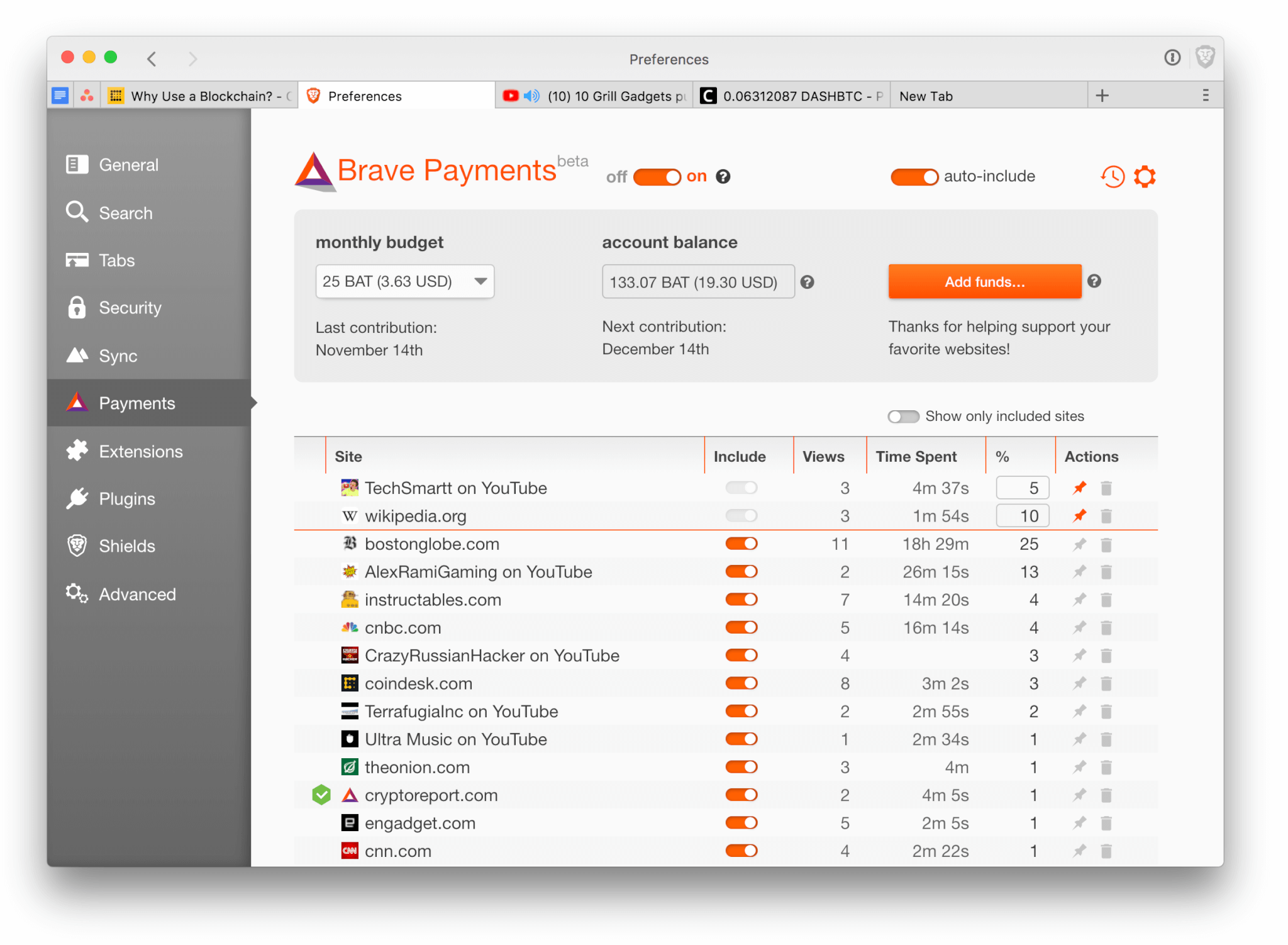
How to sync old and create new bookmarks with Brave

Brave’s got speed, privacy, security, customization, and a rewards system. Brave browser lets you simply and seamlessly transfer all your stuff over in seconds. Find out how to bookmark and how to sync all your settings.

If you’re reading this article you likely already know why Brave is such an incredible browser: It saves you time and money by blocking ads, trackers, pop-ups, banners, and cookies, and keeps your web history private and secure by upgrading your HTTP to HTTPS. Brave also allows you to earn Basic Attention Tokens when you elect to watch ads, and then lets you spend them as a form of currency for preferred publishers and advertisers.

So Brave’s got speed, privacy, security, customization, and a rewards system. All this good stuff, so what’s the catch? It’s not your usual browser. All your favorite extensions, plug-ins, and bookmarks are back in Chrome or Firefox where you left them. So do you have to manually go back and punch them all into Brave?

Browse the web up to 8x faster than Chrome and Safari Free Download
9
Enjoy private, secure and fast browsing with Brave

Of course not. Brave lets you simply and seamlessly transfer all your stuff over in seconds. Here’s how:

Sync your old bookmarks

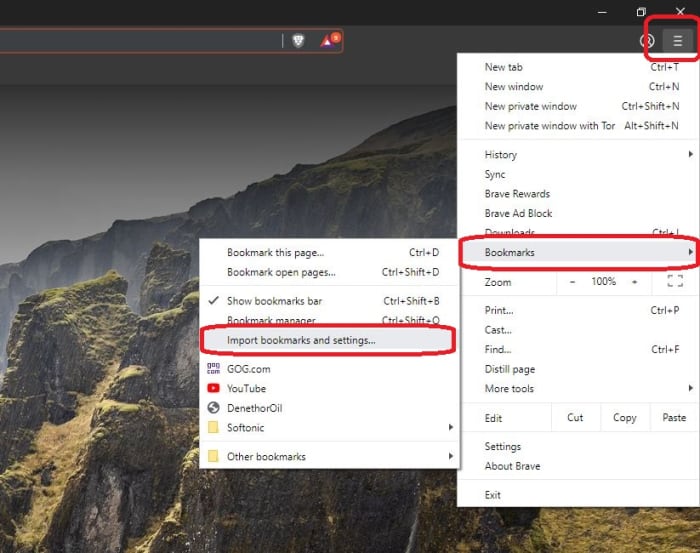
Inside the Brave browser, click the three horizontal lines in the upper right corner:

Brave Import Bookmarks and settings

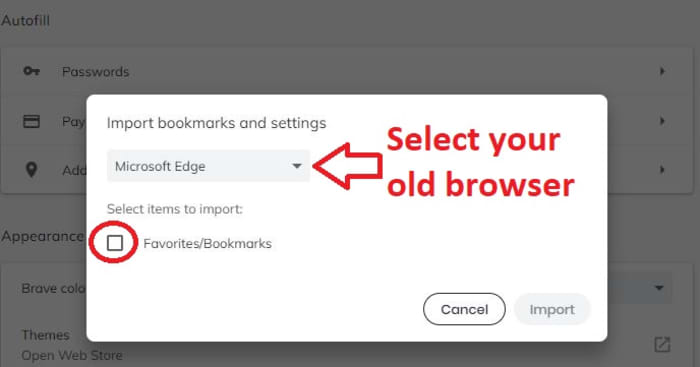
Follow the drop-down menu from bookmarks and click on Import bookmarks and settings

Brave select browser Import bookmarks From here all you have to do is pick the browser you want to import from (you can import from multiple browsers too, if you wish), check the box, and click Import. A couple seconds later you should have all your old favorites in your new home. If anything is out of place, you can press Ctrl+Shift+Q to open up your Bookmark Manager and adjust any way you want.

Create new bookmarks

Making new bookmarks is even easier. All you have to do is click the bookmark symbol on top of the screen next your main search portal and there you have it – you’ve marked the page. From here you can choose to name the bookmark anything you like, and manage what folder it goes into.

So there you have it! All your past and future bookmarks living under one roof. Enjoy safer, faster, ad-free browsing with Brave!

Browse the web up to 8x faster than Chrome and Safari Free Download
9
Enjoy private, secure and fast browsing with Brave

Why you should upgrade your browser to Opera

Why Opera browser is the right choice for you, both desktop and mobile. New free, unlimited VPN, crypto wallet and much more. Download Opera for free.

Opera Browser

The browser wars have been going on for years, bringing you better features, designs, and faster performance. But whether you’re a die-hard Chrome fan or a Firefox devotee, it’s time you had a rethink. Opera’s latest browser has a ton of new features designed for the internet of the future – an internet that puts your experience, privacy, and enjoyment at its core.

While most browsers have been improving through incremental upgrades, Opera has rethought the entire browser experience, setting a new standard. Why should you care? For the first time ever, you have all the tools to control your digital life in-browser, putting the world at your fingertips like never before.

You use your internet browser every day, so why settle for second best? Upgrading to Opera’s latest browser could be your best decision yet – let’s explore why.

Explore the Web of the future with Opera Reborn 3 Free Download
8
Install the browser and join our mailing list to get all the juicy tips!

1. Opera is the first browser ever to support Web 3.0

Web 3.0 is an emerging technological trend that shifts control of the internet from centralized bodies – like governments, ISPs, and large corporations – to the public.

Powered by blockchain technology, a kind of decentralized, digital ledger, Web 3.0 describes a free and democratic internet that gives power to the people using it. So no more spying, censorship, or exploitation of users by elite groups or organizations.

Web 3.0 networks are run entirely by the people connected to them, and Opera is the first browser ever to let you browse and transact on these new networks. You will therefore enjoy all the benefits of Web 3.0 – such as decentralized applications, digital asset management, and more – before anyone else.

2. Enjoy a FREE and unlimited VPN

A VPN (Virtual Private Network) both protects you online and ensures you can access every website on the internet – even if they’re blocked in your country. It works by routing all your incoming and outgoing internet traffic through its servers, thereby masking your location and encrypting any data you share.

Most VPNs cost money, cap your usage, and require you to install an extension that’s potentially unsafe. Opera, however, integrates a powerful, unlimited VPN in-browser for FREE. Better yet, there are no usage limits, and you can toggle it on and off by clicking a button in the URL bar – no extra installations or extensions required.

Explore the Web of the future with Opera Reborn 3 Free Download
8
Install the browser and join our mailing list to get all the juicy tips!

3. Block ads and other unwanted content

Ads are a frustrating distraction, drawing you away from the content you love. With large gaudy images, spammy headlines, and a creepy knowledge of your interests, it can feel like having a pushy sales team inside your machine. But with Opera’s built-in ad-blocker, you can kick them out for good.

Some websites, however, rely on ad revenue to survive. They will often put content behind paywalls that require you to view ads before accessing the content. Luckily, Opera lets you whitelist certain websites to allow ads through, giving you full control over the content you want or don’t want to see.

4. Safely store your digital value with Crypto Wallet

Remember Web 3.0? Another benefit of blockchain networks is the ability to create digital value. Since digital assets are flexible, borderless, and efficient, they can help fix many of the problems of our existing economies as well as bring financial services to millions of the unbanked around the world.

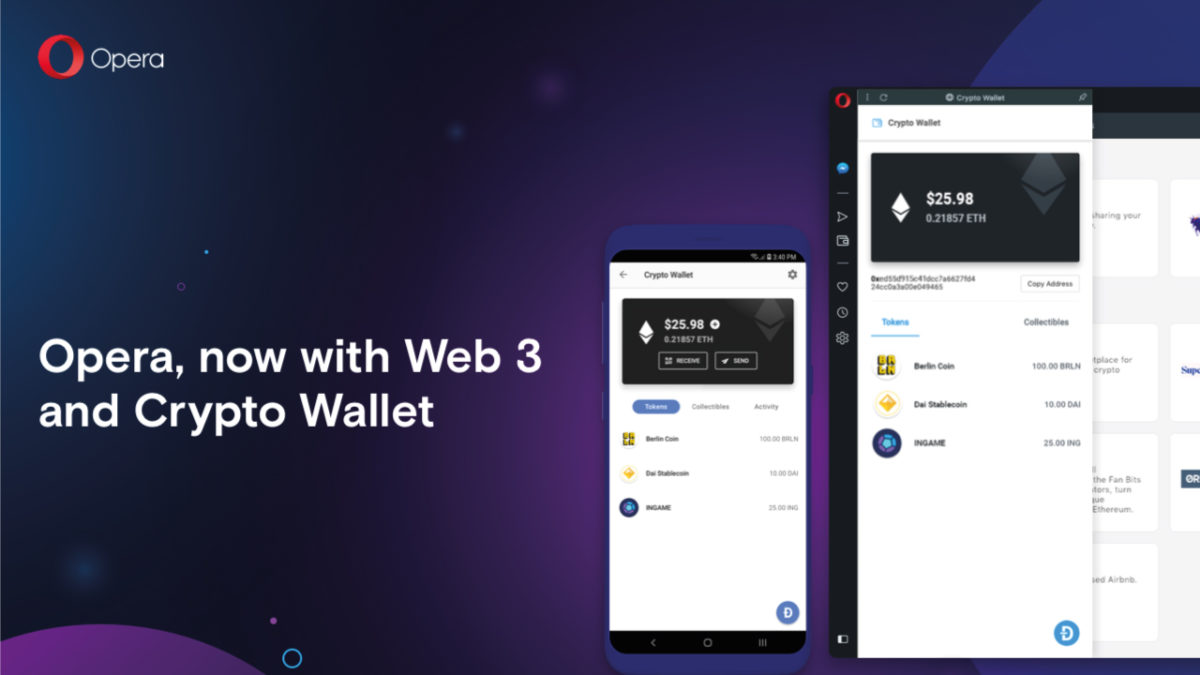
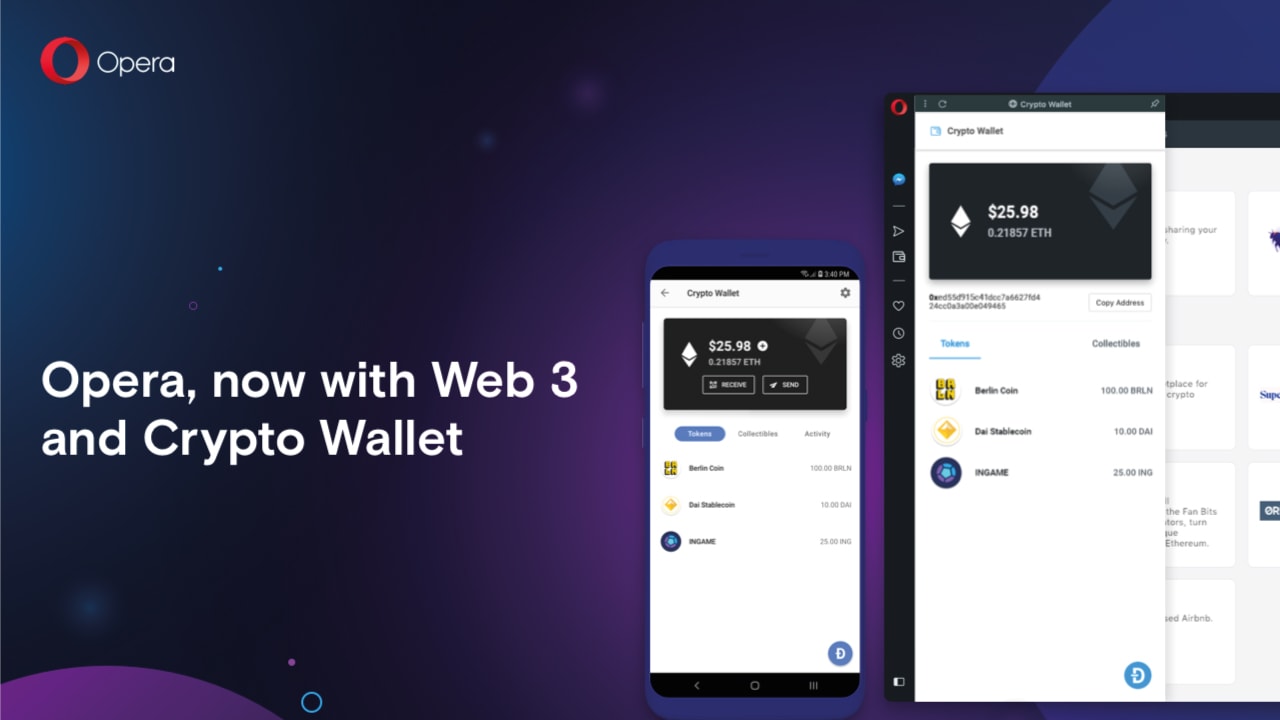
Opera’s integrated Crypto Wallet lets you join the Web 3.0 economy. You can store, send, and transact digital value in-browser, secured by private keys stored on your smartphone. So whether you’re storing cryptocurrency, trading digital assets like Bitcoin, or using your favorite Ethereum dApp, you can do everything without leaving your browser.

5. Enjoy a redesign that emphasizes digital freedom

The internet is evolving faster than ever, but you don’t have to let others decide your experience for you. With Opera, you can personalize the web. Don’t like ads? Turn on ad-blocker. Can’t access censored content? Use the VPN. Want to explore Web 3.0? Explore blockchain networks and sign transactions through the integrated Crypto Wallet.

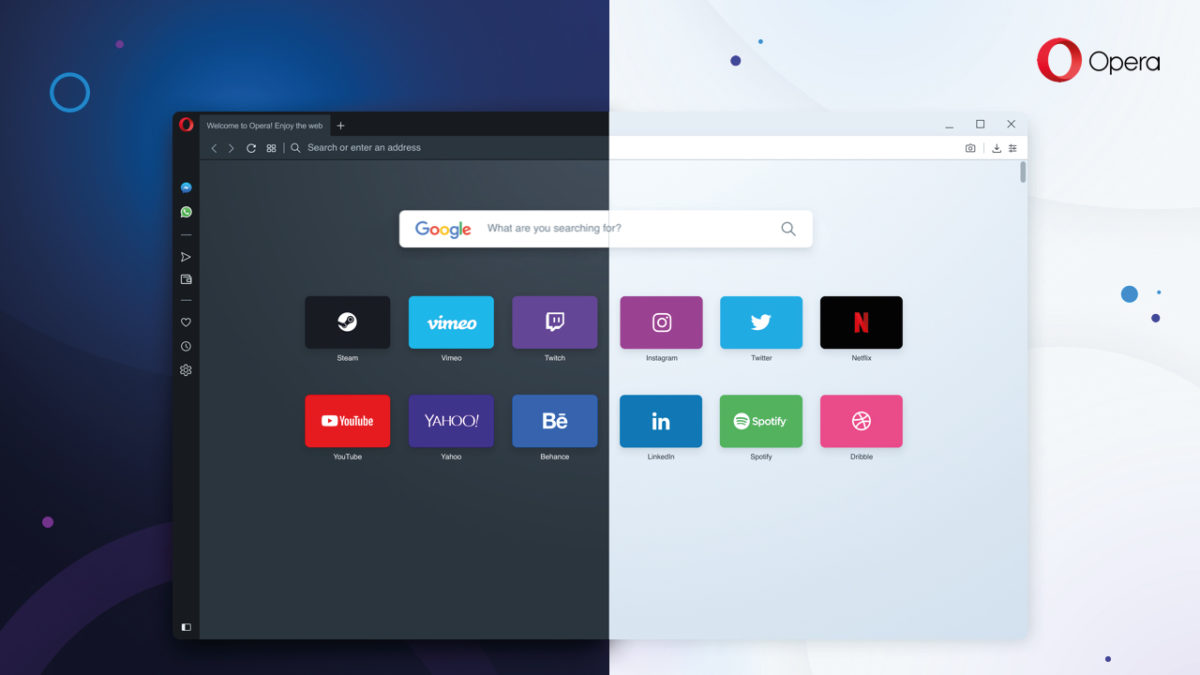
Opera’s redesign puts everything you need for a personal, tailored web experience. From the integrated snapshot tool to the battery saver, from the light and dark browser themes to the Messenger and Whatsapp integration – Opera is one of the most sophisticated and user-centric browsers available today. Download Opera now and enjoy a web made just for you.

Explore the Web of the future with Opera Reborn 3 Free Download
8
Install the browser and join our mailing list to get all the juicy tips!

Softonic is proud to partner with Opera. When you download from us, we may earn a commission.

How to import your bookmarks into Opera

Switch to Opera’s latest browser. Free, unlimited VPN, ad-blocking minimalist interface for distraction-free browsing, and Web 3.0. Learn How to import your bookmarks into Opera.

Opera browser

People dislike change. Why? Because usually it takes effort – and let’s face it, we can all be a bit lazy at times. But our reluctance to try something new often means missing out.

Take internet browsers, for instance. I could list ten different reasons why you should switch to Opera’s latest browser. I might mention the free, unlimited VPN, the ad-blocking minimalist interface for distraction-free browsing, or the Web 3.0 support that includes a secure crypto wallet.

But if the switch to Opera isn’t easy, you’ll probably just stick to what you know. Thankfully, Opera knows this well. Instead of just making one of the best browsers ever, they’ve also made it easier than ever to switch – starting with bookmarks.

Explore the Web of the future with Opera Reborn 3 Free Download
8
Install the browser and join our mailing list to get all the juicy tips!

Why import your bookmarks to a new browser?

I’ll be honest with you. I don’t use bookmarks as often as I should. I’m one of those simple folk who always types in the web address. And when I forget a URL, I waste time googling the site until I find it again. It’s frustrating, time-consuming, and makes research harder than it needs to be.

However, lots of people do use bookmarks. And they absolutely rave about them. Not only are they handy links to your favorite websites, but they’re an invaluable tool for organizing your digital life. They also help personalize the web – a guidebook to everything you love online, accessible with a single click.

In a way, bookmarks are a bit like fast travel points in Skyrim or Red Dead Redemption – places of interest you can access instantly without retreading the same old paths. So when you change browsers, it’s important you take your bookmarks with you. Or, like me, you’ll be wasting your life googling websites you’ve already visited.

How to import your bookmarks into Opera (desktop)

Importing your bookmarks into Opera is super easy. Simply follow the steps below:

  • Download and install Opera (if you haven’t done so already)
  • On the top menu, click Opera → Import bookmarks and settings…
  • Choose which browser you’d like to import from, or import directly from an HTML file.
  • Select what you’d like to import (you might also want to download cookies and your browsing history).
  • Click Import.

Once done, you should see another popup window with a big tick showing the import was successful. You can also show the bookmarks bar in Opera for fast access to your favorite websites.

How to import your bookmarks into Opera (mobile)

Once you’ve imported your bookmarks into Opera on desktop, you can then synchronize with Opera’s mobile app. This is the only way to get your bookmarks into Opera for mobile, but thankfully, it’s really easy.

  • Download and install Opera for desktop.
  • Import bookmarks as described above.
  • On the top menu, click Opera → Synchronise…
  • Sign into Opera (if you’re not already signed in).
  • You will now be able to see all the bookmarks, open tabs, browsing history, and settings on all of your devices, including your mobile app.

Synchronization only works if you’re signed in to Opera on all your devices, so make sure you stay logged in. You won’t lose data by not logging in, but you won’t have access to everything across all your devices. They need to be logged into Opera servers to enable the synchronization to work.

So there you go – a really simple way to have one of the best browsers on the market without giving up on the ease and convenience of your existing bookmarks. Some changes are easier to make than others, right?

Explore the Web of the future with Opera Reborn 3 Free Download
8
Install the browser and join our mailing list to get all the juicy tips!

Softonic is proud to partner with Opera. When you download from us, we may earn a commission.

How to use the free unlimited VPN included in Opera

Opera browser includes everything you need already built-in, including a battery saver, snapshot tool, ad-blocker, and better yet, a FREE and unlimited VPN. Download and install Opera browser for free.

Opera browser

Opera’s latest browser pulls out all the stops to give you the best web experience. All those fiddly extensions you have to download on other browsers? No longer necessary. Opera includes everything you need already built-in, including a battery saver, snapshot tool, ad-blocker, and better yet, a FREE and unlimited VPN.

Explore the Web of the future with Opera Reborn 3 Free Download
8
Install the browser and join our mailing list to get all the juicy tips!

What is a VPN?

VPN stands for Virtual Private Network. Instead of exchanging information directly with the internet, all your traffic goes through the VPN servers first, preserving your anonymity and protecting your data.

This means you can mask your computer’s IP address so websites don’t know your location. The VPN also encrypts your data, so anyone spying on your connection can’t view sensitive information, such as bank details and credit card numbers.

Why do you need a VPN?

VPNs are like the skeleton keys of the internet. They bypass censorship and other restrictions to ensure you get full access to the world wide web. They also prevent governments, agencies, criminals, or your ISP (Internet Service Provider) from spying on you, and potentially, using that data to persecute, extort, or steal from you.

A VPN protects you on public wifi, for example. Cybercriminals often exploit these unsecured connections to infiltrate bank accounts or steal sensitive data. A VPN, however, encrypts your connection, so even if someone hacks into the public wifi spot, they won’t make sense of your data. VPNs are therefore extremely powerful tools to keep you safe online.

Why use Opera’s VPN?

Most free VPN providers cap your data usage, limit bandwidth, or require you to log in and activate the VPN every time you want to use it. This leads to a slow, frustrating experience, forcing you to upgrade for a hefty price for the best service. And even then, many of these VPNs require you to install an extension that is potentially unsafe.

Opera’s VPN replaces your IP address with a virtual one, hides your location, and protects you on public wifi networks. Better yet, it’s completely FREE, has no bandwidth or usage limits, and never stores (or even views) your data. It’s therefore one of the easiest, most hassle-free ways to enjoy the internet – and as it’s fully integrated within the browser, once activated you won’t even know it’s there.

Explore the Web of the future with Opera Reborn 3 Free Download
8
Install the browser and join our mailing list to get all the juicy tips!

How to switch on Opera’s VPN (desktop)

If you’re looking for a safe, fast, and censorship-free internet, download Opera and turn on the integrated VPN. It takes just a few minutes, and full instructions are below:

  1. Download Opera.
  2. Install and start Opera.
  3. On the top menu, click Opera → Preferences…
  4. Go to Advanced → Features
  5. Toggle VPN on

Now, instead of communicating with third-party websites directly, everything goes through the VPN servers first to cover your tracks. This might slow your internet speed a bit, but you probably won’t notice, and it’s a small price to pay for the additional security and privacy.

Once enabled, you can toggle the VPN off and on by clicking the VPN button in the URL bar. You can also choose which location to present to the internet, but Opera is smart enough to choose the best one for the page you’re trying to access. Feel free to toggle the VPN off and on as you like.

How to switch on Opera’s VPN (mobile)

At the moment, you only get the integrated VPN on Opera’s mobile app for Android. To enable the VPN, download and install Opera for Android, click settings (the three vertical dots in the top right) and toggle the VPN on. Once enabled, you can toggle the VPN on or off from the URL bar in the same was the desktop version.

Opera has done an excellent job of pulling together the features you need for the best web experience. The integrated VPN is super useful, and being free and without usage limits, puts it at the top of our most recommended VPNs ever – the fact it’s preinstalled on one of the best browsers, too, is just the icing on the cake.

Explore the Web of the future with Opera Reborn 3 Free Download
8
Install the browser and join our mailing list to get all the juicy tips!

Softonic is proud to partner with Opera. When you download from us, we may earn a commission.

How to remove Internet Explorer from your PC

Don’t leave yourself open to the latest hacking threat, completely eliminate Internet Explorer with these steps.

Internet Explorer has long been the butt of jokes and the wearer of the dunce cap in browser class. It’s no news that IE’s best days are long behind it, but now it’s not only terrible – it’s dangerous. Internet Explorer currently sports an unpatched exploit in the way it processes MHT files, the web archive format that the browser uses. Consequently, any hacker with malicious intent can easily spy on a Windows user and break into their local data. The flaw puts you at risk for doing something as harmless as opening an attachment. With so many better browsers out there, Internet Explorer is doing you more harm than good. Time to get rid of it:

But first…

Is removing IE dangerous?

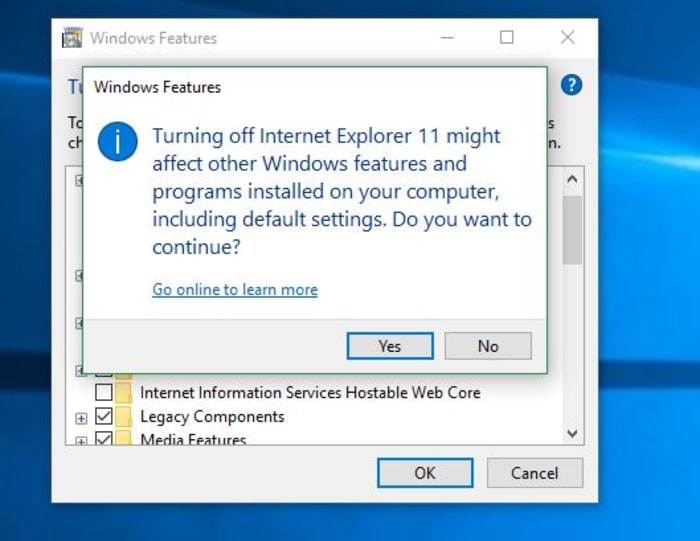
Windows Features turn off Internet Explorer 11

When you try to turn off IE, you’ll get a scary message from your PC, saying that removing IE might mess with your default programs or settings. Surely this means the process is dangerous, right? Is this meddling in affairs that we do not comprehend?? Honestly … it’s not that big of a deal. Removing IE will change a couple of small things:

1. Links leading to IE are removed

If you remove IE, you’ll no longer have a shortcut for it (boo hoo), and until you elect to restore it, you’ll have no conventional way to run the browser. Obviously, you should have another browser in place before you remove IE (even if it’s just Windows Edge, the other default), otherwise, when you try to open a URL web address, nothing will happen.

2. IE is no longer the default for opening HTML

You won’t be given the option to use IE as a default program for opening HTML or FTP. It won’t even be listed in your Control Panel’s Default Programs anymore. Again, we’re not going to shed a tear.

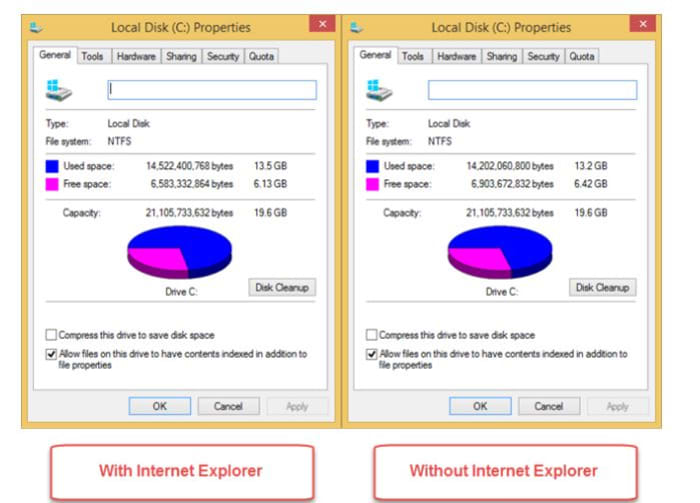
Removing IE from your device in the following manner will shuffle how certain programs get opened, but it won’t actually delete any of your files that rely on the browser. As long as you have some other browser installed, you’ll be totally fine. All of your universal Windows apps will continue to function as normal, too. You’ll even gain hundreds of MB of free space!

Local disk space Windows 10 Internet Explorer 11

Install an alternative browser first!

9
Browse better for free

As we mentioned above, turning off Internet Explorer is perfectly safe, but we strongly encourage you to install some other browser first. Our recommendation is Brave, a browser that prioritizes speed, safety, and privacy. Brave was created by Brian Bondy and Brendan Eich a few years back. Like Eich’s previous baby, Firefox, Brave boasts great speed, safer connections, and more private browsing, even integrating other big names in anonymity like DuckDuckGo and Tor. In a lot of ways, Brave feels like an upgrade to Firefox, it’s default being to block any and all trackers, cookies, ads, pop-ups, and banners right out of the gate. It even automatically boosts your connections to HTTPS for the highest protection.

On top of that, the browser also introduces Basic Attention Tokens, a form of e-currency that safely allows users to distribute “attention” to their favorite publishers. The token encourages a more direct relationship between user and content publisher, and is working to usher in a “web 3.0” atmosphere where users are only given ads that are relevant, and only when they elect to see them. The Brave browser is free, and can be installed in three easy steps, so our recommendation is to install Brave before you rid yourself of Internet Explorer, which we’ll walk you through right now:

How to remove Internet Explorer

1. Open Settings

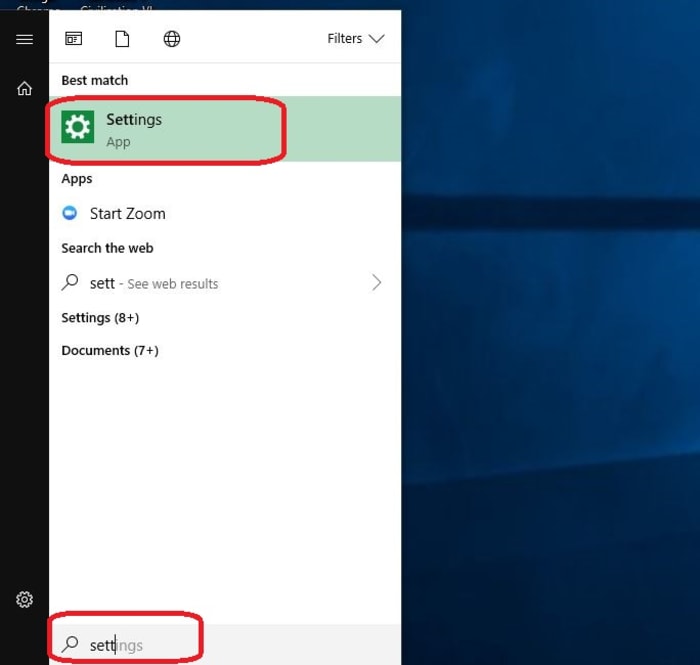
The easiest way to get to your Settings screen is to simply hit the ‘Win’ key and start typing “settings.” Once the option pops up, click on it.

Windows 10 open settings

2. Go to Apps

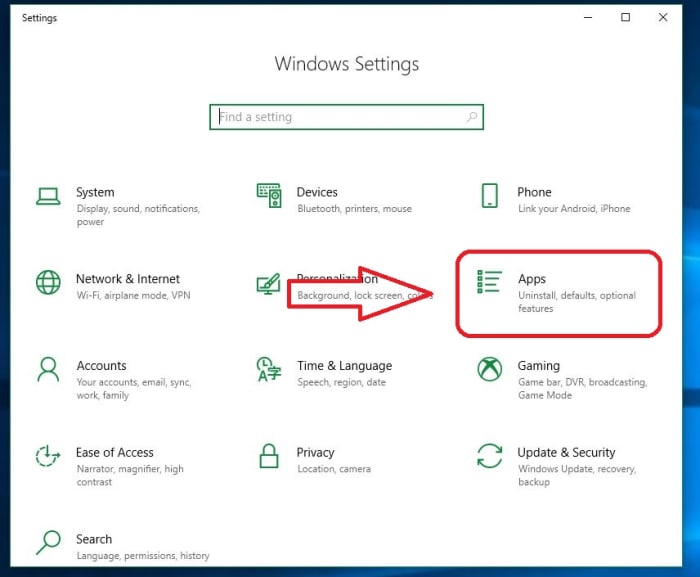
On the right of your Settings page you’ll see ‘Apps.’ Click here.

Windows 10 Settings Apps

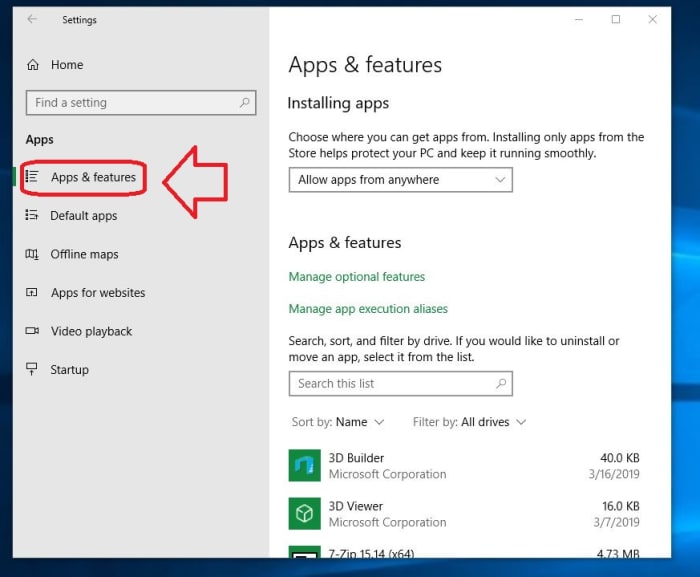
3. Open Apps and Features

On the left of the Apps page you’ll see a list of subcategories. The first one on the list is ‘Apps and Features.’ Click this and it’ll take you to them.

Windows 10 Apps and Features

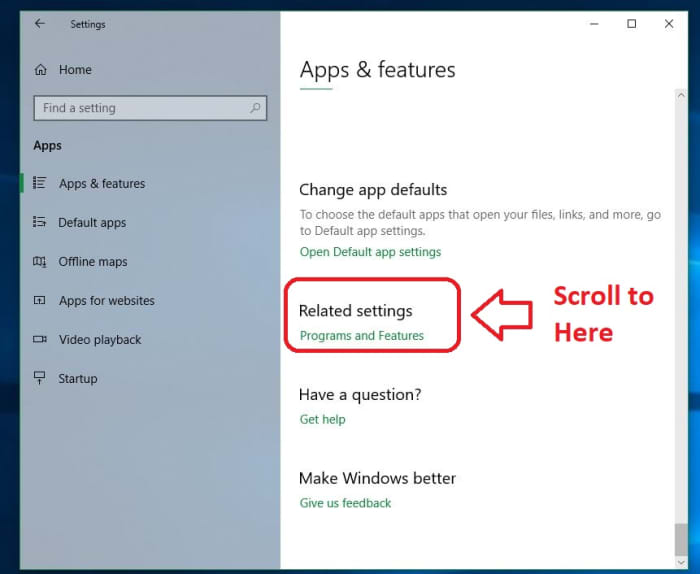
4. Open Programs and Features

The only tricky part of this whole process is finding where your Programs and Features link is located. Luckily, there are two easy ways to do this. The first is to maximize the window and you should see ‘Programs and Features’ on the right. Alternatively, you can also just scroll past all your apps and you’ll find it under the list. Typing in the search portal will not help here, so don’t let that discourage you. Eventually, you should see ‘Programs and Features’ right under ‘related settings.’

Windows 10 Related Settings Programs and Features

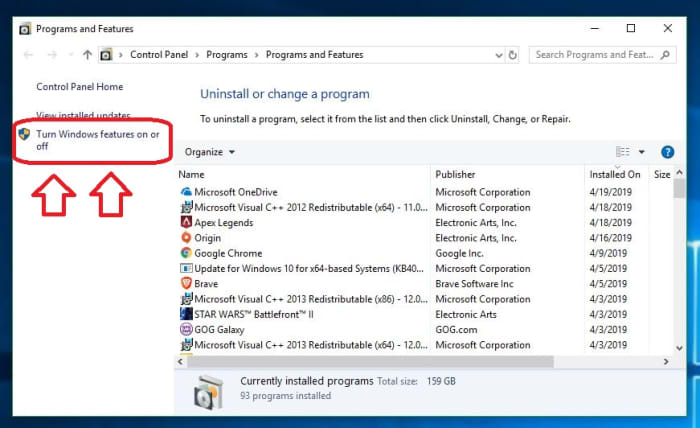
5. Toggle Windows features

On the left of this new window, you’ll see an admin option to toggle Windows features. Clicking this will bring you to a list of Windows features, one of them being the elusive IE 11.

Windows 10 Settings Programs and Features Admin features on or off

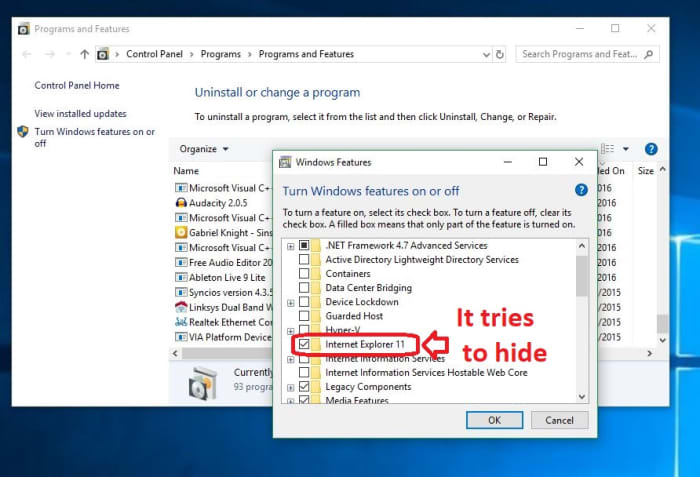
6. Uncheck Internet Explorer

Now that you’ve found it, disabling IE is as simple as unchecking the box next to it. Do so and banish it from your realm.

Windows Features Internet Explorer 11

Once the box is unchecked, click OK, then ‘yes’ to confirm that you want this dastardly piece of software removed from your OS. When prompted, click ‘restart now’ and enjoy your newly protected computer that’s at last free of its IE shackles. It’s also worth noting that if you want to bring the browser back (though we can’t see any reason why you would), you can just repeat the process above and when you get to step 6, re-check the Internet Explorer 11 box.

And there you have it! Your computer is safer, more efficient, and now has a bunch more space to boot. Let us know in the comments below if you have any questions with the process, and stay tuned with us for more tech tips and tricks.

These are the most important digital privacy tools in 2019

Follow our recommendations to stay safe while online!

The average person isn’t overthinking their digital footprint.

They might think, “Hey, I’m not doing anything embarrassing or illegal, why should anyone care what I’m doing?”

Still, if you’ve looked at the news at all in the last year, you know that things have never looked worse for our data. Not to sound like those alarmist dark web commercials, but keeping your data within your control has never been more critical.

While you may have nothing to hide, advertisers are after your data, phishing attacks remain rampant, and sensitive information is there for the taking.

Here, we’ve compiled a list of things you should add to your digital toolbox, you know, just in case.

Most important digital privacy tools
internet security

Spyware Removal Tools

Spyware is a type of malware that hides inside your systems and collects information about you without your knowledge. It could enter the system by way of a seemingly legit download, an email attachment, or a malicious link. The danger is, spyware monitors your keystrokes to learn your passwords — which, of course, puts you at risk for identity theft.

Some recommendations:

Bitdefender

A user-friendly antivirus program, Bitdefender doesn’t ask you a ton of questions at the point of install. Instead, it works to eliminate any security risks quickly.

Bitdefender 2018 Download now ►
7

Malwarebytes Anti-Malware

One of the most effective malware removes on the market, Malwarebytes detects ransomware, adware, and works well with your existing antivirus program. The tool targets and removes security threats and performs deep scans that remove unwanted programs that mess with your system.

Malwarebytes Download now ►
8

Emsisoft Emergency Kit

This app is a portable app that allows you to use the program on your own devices, as well as anytime someone you know needs help fighting off a virus. Keep the app stored in the cloud or USB drive for easy access. Like other malware removal options, Emsisoft keeps a database of current threats, so it requires an internet connection to keep things up to date.

Emsisoft Emergency Kit download free ►
8

VPNs

vpn

Internet service providers often record information like connection times, metadata, and more. Without a VPN, ISPs have access to every website you visit. And, in the U.S., the UK, and Australia, governments require internet companies to keep track of this information.

VPNs, or virtual private networks, are used to route all internet traffic through a secure server. This process hides your browsing history and allows you to access blocked or banned online content.

While there are some free VPNs out there, most fail to conceal your online activity completely, or worse; they could be scams.

You don’t have to spend a lot; in fact, NordVPN ($2.99 per month) ExpressVPN ($6.99 per month), and VPNArea.com ($4.92) all provide comprehensive privacy for just a few bucks.

Adblocking and Tracking Prevention

Good adblockers are essential in this era of autoplay ads and tracking. From a security standpoint, adblocking is crucial, because advertisers are recording your online activity so they can show you targeted ads.

The best ad blocking stack depends on your needs — you might look for an option built into a private browser or VPN, or seek out a tool designed to work across all your devices.

As you can imagine, there are countless options. uBlock Origin is a popular choice; it’s a general blocker that filters ads and prevents tracking. More advanced users might prefer something like uMatrix, a tool that blocks Javascript from running. AdGuard is a paid option that works with Windows, Mac, iOS, and Android.

The benefit of AdGuard over simply using a browser extension is, it brings more blocking capabilities to the table. See, browser extensions do a decent job keeping ads from getting out of control, but they don’t fully prevent companies from accessing your data.

Password manager
password

Chances are, you’re using the same weak, easy to remember password you’ve been using for years. Most people stick to the same few passwords — and tend to share them with family members or whoever asks them for access to Netflix.

The problem is, if someone gets their hands on one credential, they can log into bank accounts, credit cards, and social profiles.

LastPass, 1Password, and Dashlane all make it easy to create and save unique, complex passwords that don’t require you to remember a long list of special characters, numbers, and a mix of cases.

Apple users with the latest OS, Mojave have access to a free password manager, too. So, there’s no excuse.

Consider changing your browser

Browsers are the portal to the rest of the web. Unfortunately, as you surf the web, you leave a digital imprint on every site you visit. Chrome, for example, automatically logs you into the browser when you log into a Google site.

Users do have the option to switch back to basic mode (which doesn’t access your password. Still, you need to choose this option. Otherwise, Chrome will keep logging you in automatically.

All activity in the Chrome browser links to your Google account, which keeps tracking scripts on the sites you visit.

If this concerns you, consider switching to a browser that offers more privacy features. A few options:

Brave

Brave’s whole selling point is that they don’t treat you like a product. The platform automatically blocks ads and trackers, allowing you to navigate the web with your privacy intact. Brave is one of the best options for privacy — it’s built on the open-sourced Chromium project and promises load times up to 8x faster than Safari and Chrome.

Tor Browser

Tor Browser doesn’t have the flashiest website, but don’t let the poor user interface prevent you from giving this a chance. Tor comes equipped with privacy add-ons, encryption, and an advanced proxy. You also don’t need to install anything on your computer. Instead, it comes as a pre-configured web browser you can run off of a USB drive.

Firefox

Perhaps the most mainstream of our three recommendations, Firefox has upped their privacy game in recent years. Their private browsing settings automatically erase online information like cookies, passwords, and browsing history, so that every time you exit the browser, you don’t leave anything behind.

It’s important to note that the default configurations don’t come with the privacy settings enabled. However, several add-ons make Firefox a reliable private browsing option. Features like tracking protection, HTTPS Everywhere, uBlock Origin, NoScript, Stop Fingerprinting and Windscribe come together for a more secure experience.

Mozilla Firefox Download free ►
7

A better trash bin

You might move unwanted files and photos into the trash bin and call it a day, but unfortunately, that doesn’t mean it’s actually been destroyed. The data still exists and could potentially be recovered.

In most cases, the recycling bin is fine — so long as the information you’re getting rid of doesn’t contain identifying details. Sensitive information, on the other hand, should be treated as such.

CCleaner and CleanMyMac are free services that allow you to securely erase files — which matters if you loan your computer to someone, take your device to the shop or return a laptop to your employer. What’s more, should your device get stolen, identity thieves know to head for the hard drive when for valuable data.

CCleaner Download Now ►
8
CleanMyMac download now ►
7

Encrypted hard drive

Speaking of hard drives, an encrypted version is essential. While you might spend a good deal of time using cloud-based tools, your information could be exposed when you download — think tax forms, financial information, trade secrets, and so on.

Hard drive encryption works like this: data is encrypted through a cryptographic algorithm. This renders all data unreadable unless it’s unlocked with a secret key. We don’t recommend using an encrypted hard drive to store items that do not include sensitive information, because again, data is unreadable without the secret key.

As such, you’ll need to make sure you keep this passcode in a safe, secure place — if you lose it, it could be gone forever.

12 ways Firefox can defend your data against internet threats

Discover how these Firefox tools can keep your data safe.

firefox security

There are a ton of different things we can do to secure our privacy online, but if you’re like us, you probably want the simplest, safest solution. Thankfully, Firefox has many different add-ons to choose from to customize your browser and create your own unique type of safety.

A closer look at Firefox’s enhanced security options

Multi-Account Containers

If your browsing habits are different at work and home, you should look into Multi-Account Containers. Create a tab and group your favorite websites together (for example, travel websites or vegan recipe blogs) for convenient access. No more having to open 10 tabs one at a time. Each tab is a different color, and cookies aren’t shared between tabs so you can answer your work emails in one tab and visit a few dating profiles in the other. This way, if a friend or family member wants to use your computer, they can visit a webpage that you might also have an account for and it won’t automatically sign you in. This is the ultimate extension for multitaskers.

Mozilla Firefox Free Download
7
Mozilla Firefox is a free, open-source web browser. Now with new features, faster and more secure.

Facebook Container

Do you ever get on Facebook and see an ad for something that you Googled yesterday? Everyone has a Facebook page, but for the last few years, it seems like the social network has been playing fast and loose with our data. Downloading Firefox’s Facebook Container extension will make it difficult for Facebook to track your online activity by isolating your identity into an entirely separate container.

Bloody Vikings!

No matter what we sign up for, usually it will require giving our email address even if we don’t need to receive emails to use the service. With the Bloody Vikings! extension, you don’t have to worry about sharing your private data because you won’t have to. Right click on the box when you’re prompted to enter your email and Bloody Vikings! will give a temporary email address and open that email in a separate tab in case you have to verify it to use a service.

Cookie AutoDelete

This is as simple as it gets, but it’s incredibly useful. When you close a tab, Cookie AutoDelete will delete any cookies from the web pages that aren’t being used anymore. You’ll reduce the amount of data being held by web pages, and you can also whitelist sites that you trust.

Decentraleyes

Decentraleyes logo

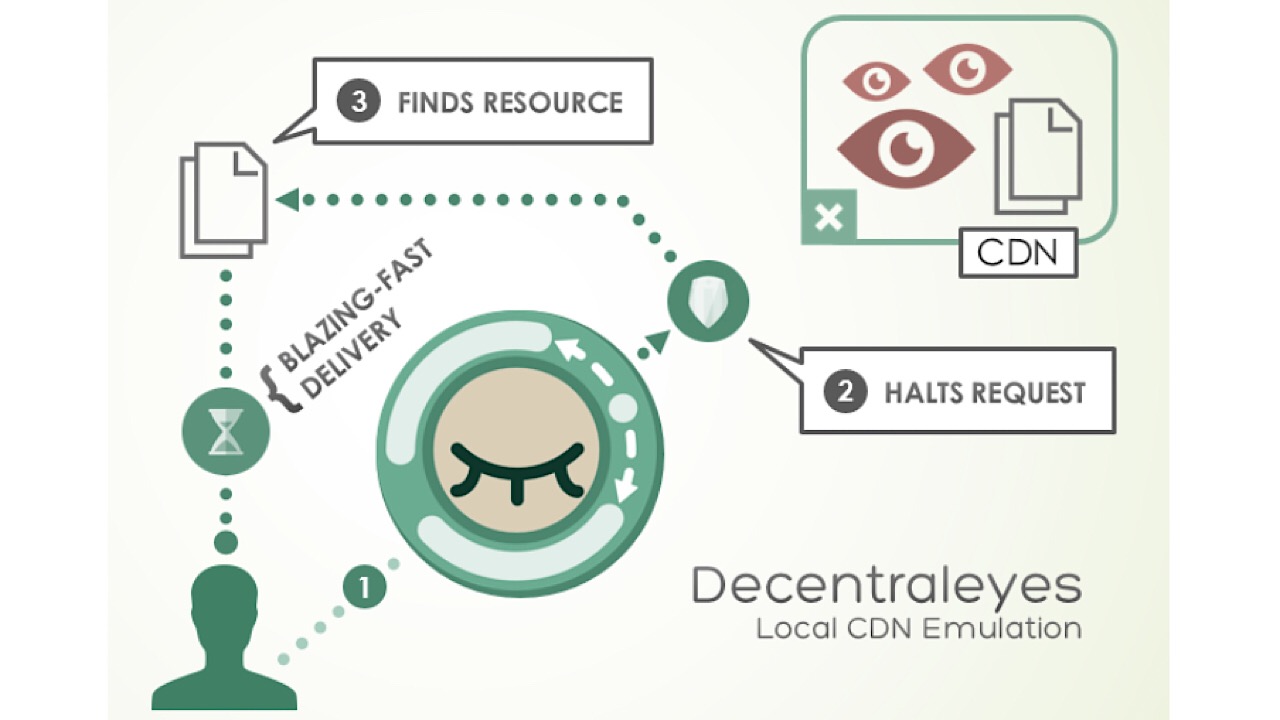
Surf the web privately and don’t leave a single footprint. Decentraleyes protects you against tracking by third-party web pages by canceling the requests from those pages for trackers and ads. When you receive content from a website, this extension bundles them and delivers them quickly to keep your downloads private.

Disconnect

Disconnect was named one of the best privacy tools by the New York Times, and for a good reason. Get an alert when a website is attempting to track your movement and browsing history, then block them. Some of the websites that you trust the most could be retaining some of your information.

Disconnect for Facebook

All of the protection from the original Disconnect extension, but this time specifically for Facebook. This version of the extension is a firewall that blocks third-party websites from accessing your information and Facebook activity. Even though Disconnect for Facebook will be running while you’re using the website, it won’t affect any of the functions.

DuckDuckGo Privacy Essentials

DuckDuckGo logo

Block tracking, ensuring smarter encryption, and using a special private search are just a few of the things that are included in DuckDuckGo’s Privacy Essentials.  This collection contains tools  to help you take control of your private information, no matter what you’re doing on the internet. A toolbar included will give you a privacy rating for each website that you visit, and you can simplify the tons of paragraphs that make up a service’s privacy policies before you take the plunge and sign up for that service. There are a ton of things you can do with DuckDuckGo, and everything is made simple so you aren’t stuck at your computer, reading the fine print.
Mozilla Firefox Free Download
7
Mozilla Firefox is a free, open-source web browser. Now with new features, faster and more secure.

History Cleaner

With History Cleaner, you can choose how long your computer keeps your browser history before it is deleted. If you want to turn off or pause the extension, just set the number of days to zero.

Link Cleaner

Long URLs in a tweet or Facebook post can make them an eyesore. Use Link Cleaner and your URLs are transformed into a link that is short, sweet, and without tracking parameters.

Privacy Badger

Privacy Badger logo

No more keeping track of what to block. Privacy Badger watches closely as you browse and automatically learns which domains are tracking you and deletes them. If you have Do Not Track enabled already, some sites might ignore your request not to be tracked, but Privacy Badger is built to catch and block those domains as well.

Privacy Possum

Similar to Privacy Badger, but a bit more mischievous. When a third party attempts to collect your data, Privacy Possum makes short work of the activity by reducing the data being taken and falsifying it. Take that!

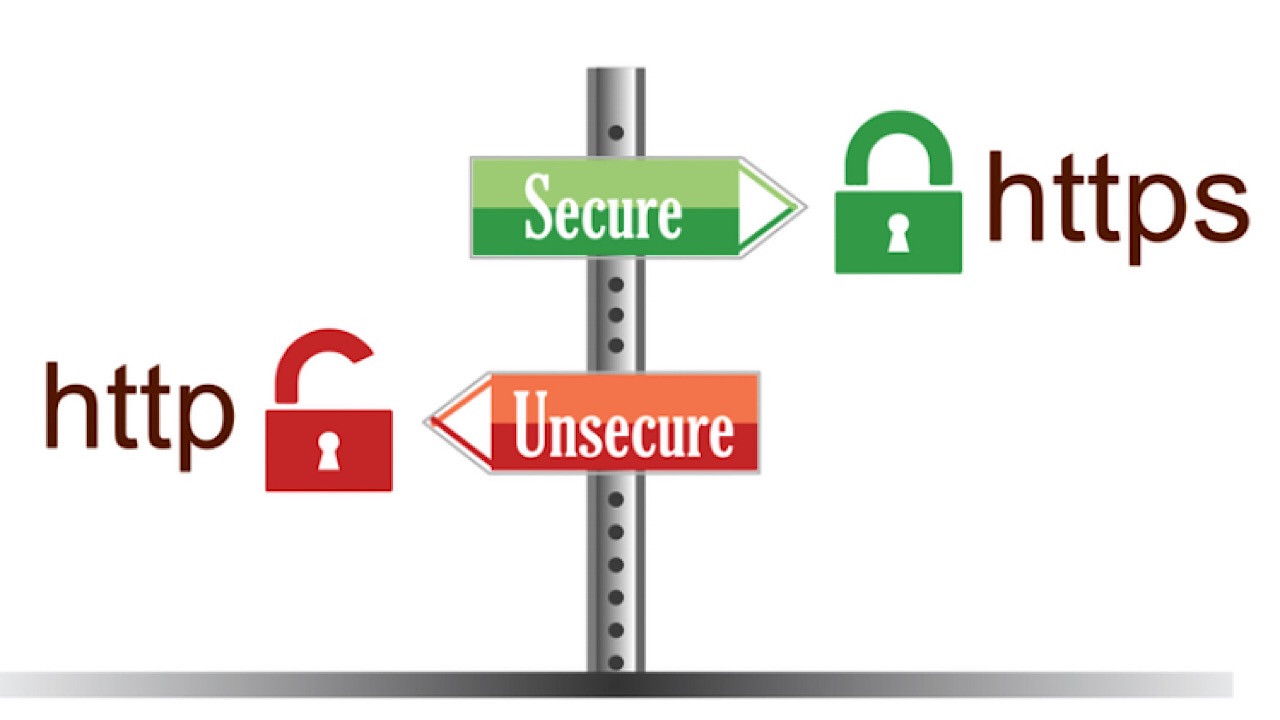
Smart HTTPS

Smart https photo

Servers and browsers communicate and send information back and forth by way of HTTP, which stands for Hypertext Transfer Protocol. Enabling Smart HTTPS will automatically change HTTP addresses to HTTPS, which is the more secure way of sending information.

Whether you’re using the internet extensively or just to browse social media from time to time, you’ll be able to pick which of the large variety of extensions that Firefox has to choose from in order to customize your privacy.

Mozilla Firefox Free Download
7
Mozilla Firefox is a free, open-source web browser. Now with new features, faster and more secure.

5 reasons why you should be using Brave

5 reasons why you should use Brave browser. Download and install Brave to browse safely.

Google Chrome and Safari are two of the most recognized browsers out there, but just because they’re popular doesn’t mean they’re the best. Brave is one of our favorite browsers, from the Co-Founder of Mozilla, Brendan Eich. It’s fast, private, secure, and offers a new way to reward websites without having to watch ads.

Here are five reasons you should be using it right now

Browse the web up to 8x faster on mobile and 2x faster on desktop Free Download
9
Enjoy private, secure and fast browsing with Brave

1. Safety

Cybercrime is a lucrative business – it’s expected to make criminals $1.5 trillion this year alone. Brave does several things to protect your security online. First, it blocks all malware, malvertising, spyware, phishing, fingerprinting, and also upgrades websites to HTTPS (a secure connection between you and a website). It also prevents scripts running on the page, so no-one can hijack your browser.

With Brave you can enjoy peace of mind without having to install countless extensions.

2. Speed

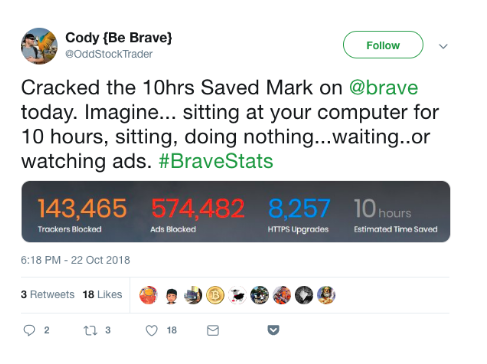
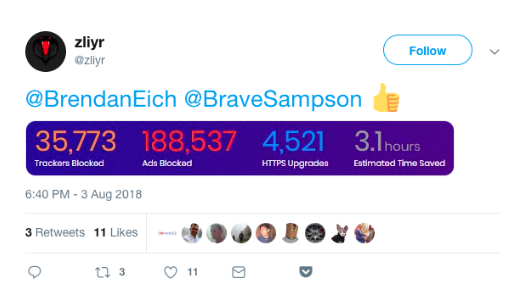
Brave is twice as fast as Chrome on desktop, and up to eight times as fast on mobile. The time you save using Brave quickly adds up. If you don’t believe us, check out these Twitter users’ stats:


Brave’s privacy and security shields also prevent a lot of unwanted or malicious content from interfering with your browsing. You get a clean page, lightning fast, every time.

3. Support your favorite sites

Brave blocks all ads by default, which normally harms your favorite sites since they’re no longer generating ad revenue.

Browse the web up to 8x faster on mobile and 2x faster on desktop Free Download
9
Enjoy private, secure and fast browsing with Brave

Brave Rewards changes all of that: Brave saves you from watching annoying ads, opting to instead let you reward websites through a cryptocurrency called the BAT (Basic Attention Token). You can buy BAT in the Brave browser using other cryptocurrencies, or you can also pay using fiat (GBP, USD, EUR, etc.) via an exchange like Uphold.

With BAT in your Brave browser wallet, you can tip any website you like. Eventually, you can even earn BAT by watching ads based on the content you enjoy the most. So load up your wallet and give back to your favorite content creators.

4. Stop corporations from spying on you

In our data-driven age, it seems every company from Facebook to Google knows where we eat, shop, and travel. Brave bucks this trend by making it extremely difficult for anyone to track you. It blocks all spyware, trackers, and third-party cookies. Brave never stores anything on its servers, so your data stays on your device until you delete it.

Brave has also partnered with Tor (The Onion Router) to give you an ultra-private browsing mode called Private Windows with Tor. Everything you do in a Private Window with Tor is relayed across the Tor network, effectively hiding your data through a complex web of servers so you can’t be traced.
If you’re concerned about your data, privacy, or simply want to reclaim control from big tech companies, Brave is your best bet.

5. Save on mobile data

Ads use as much as 79% of your data plan, according to a report from Enders Analysis. Brave estimates you lose around $23 per month on data charges, or around $276 per year. For unwanted content, that’s a steep price to pay.

Since Brave blocks all unwanted content by default – including annoying ads – you get more data for your money. That means fewer excess data charges and more money in your pocket.

Brave is fast, private, secure, and best of all, it could even save you money. So what are you waiting for? Download, install, and start using Brave today. We’re sure you won’t regret it.

Browse the web up to 8x faster on mobile and 2x faster on desktop Free Download
9
Enjoy private, secure and fast browsing with Brave

Softonic is proud to partner with Brave. When you download from us, we may earn a commission.

5 tips to get the most out of Brave

Brave is not only one of the fastest browsers on the market, but also offers unrivaled control over privacy, ads, and the content you see. If you don’t have Brave, you can install it right here. Once Brave is installed, take a look at these five tips to get you started off on the right foot:

1. Set Brave as your default browser (and get it on mobile)

Browse the web up to 8x faster than Chrome and Safari Download Now
9
Enjoy private, secure and fast browsing with Brave

Setting Brave as your default browser will keep your emails and messages safe behind Brave’s powerful security shields. Here’s how to do it.

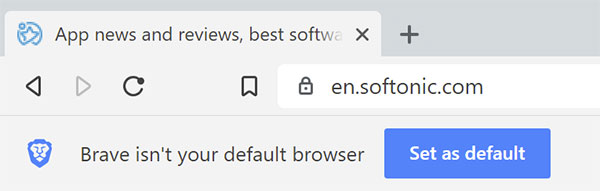
The easy way is to just click the button that appears under the address bar when you first launch the browser.

Brave Default Browser Button

From there, the instructions vary a little bit, depending on your operating system, regardless of whether you’re in the browser:

Windows 10

Settings > System > Default apps > Web browser tab > Select Brave Browser

OSX

System Preferences > General > Default web browser > Select Brave Browser

You can also do this in-browser through the Settings menu.

Android

Brave is crazy fast (and just as secure) on mobile. Close the loop by getting Brave on all of your devices. Brave makes it really easy to sync your browser preferences between devices.

2. Import your settings

Switching over to Brave is simple and seamless. You can easily import all your settings (bookmarks, saved passwords, browsing history) right over.

Inside the Brave browser, click the three horizontal lines in the upper right corner

  • Click Settings
  • In the new window, click Import bookmarks and settings
  • Select one of your previous browsers
  • Click Import

3. Customize Brave

Access all your settings by clicking the three horizontal lines in the upper right corner of Brave’s browser window. You can customize them a number of ways:

By default, Brave protects you from malware, phishing, fingerprinting, and plugins. It also upgrades all sites to HTTPS wherever possible. If you trust a site, however, you can lower the default shields. To do so, simply click the Brave icon in the URL bar and toggle settings for ads, cookies, scripts, and more. You can also access global shield settings.

4. Use Tor and DuckDuckGo for maximum privacy

While Brave protects you from pop-ups, ads, cookies, and similar intrusions, you’re still vulnerable once you open a search engine. “Search engines such as Google record what the user enters in the search bar,”explains DuckDuckGo, an alternative search engine. Google is so entrenched in targeting and cookies that Brave can’t offer its peak strength in its murkier waters. For search sessions that you want to keep private, open a private tab and DuckDuckGo takes over. Now searches won’t be tracked.

You can also use Tor (The Onion Router) and Brave together to make it more difficult to track which websites you visit. Websites also have a much harder time identifying or tracking user IP addresses arriving via Brave’s ‘Private Tabs with Tor’.

5. Enable Brave Payments and tip your favorite sites

Brave Payments lets you tip your favorite sites in BAT (Basic Attention Tokens) instead of watching tiresome, irrelevant ads.

When you enable Brave Payments, the browser creates a BAT wallet which you can link to other digital assets like Bitcoin, Litecoin, or Ethereum.

You can also buy BAT from cryptocurrency exchanges like Uphold. Brave gives away BAT for special promotions, too. To enable Brave Payments, click the triangle on the upper right of the Brave browser, and then choose how you want to top up your BAT balance.

What is BAT?

BAT is a token that lets you tip the people making the content you love, giving recognition for a job well done.

Once you’ve got some BAT in your wallet, you choose whether to tip sites, or let Brave divide your BAT according to how much attention you pay to each site you visit.

We hope these tips are useful, and that you’ll discover a few cool tricks yourself. If you’ve yet to start using Brave, download and install it now and enjoy one of the fastest, most secure browsers available!

Browse the web up to 8x faster than Chrome and Safari Download Now
9
Enjoy private, secure and fast browsing with Brave

Softonic is proud to partner with Brave. When you download from us, we may earn a commission.

Could Brave’s Basic Attention Token change the Internet forever?

The BAT could revolutionize the online content world and get rid of annoying ads.

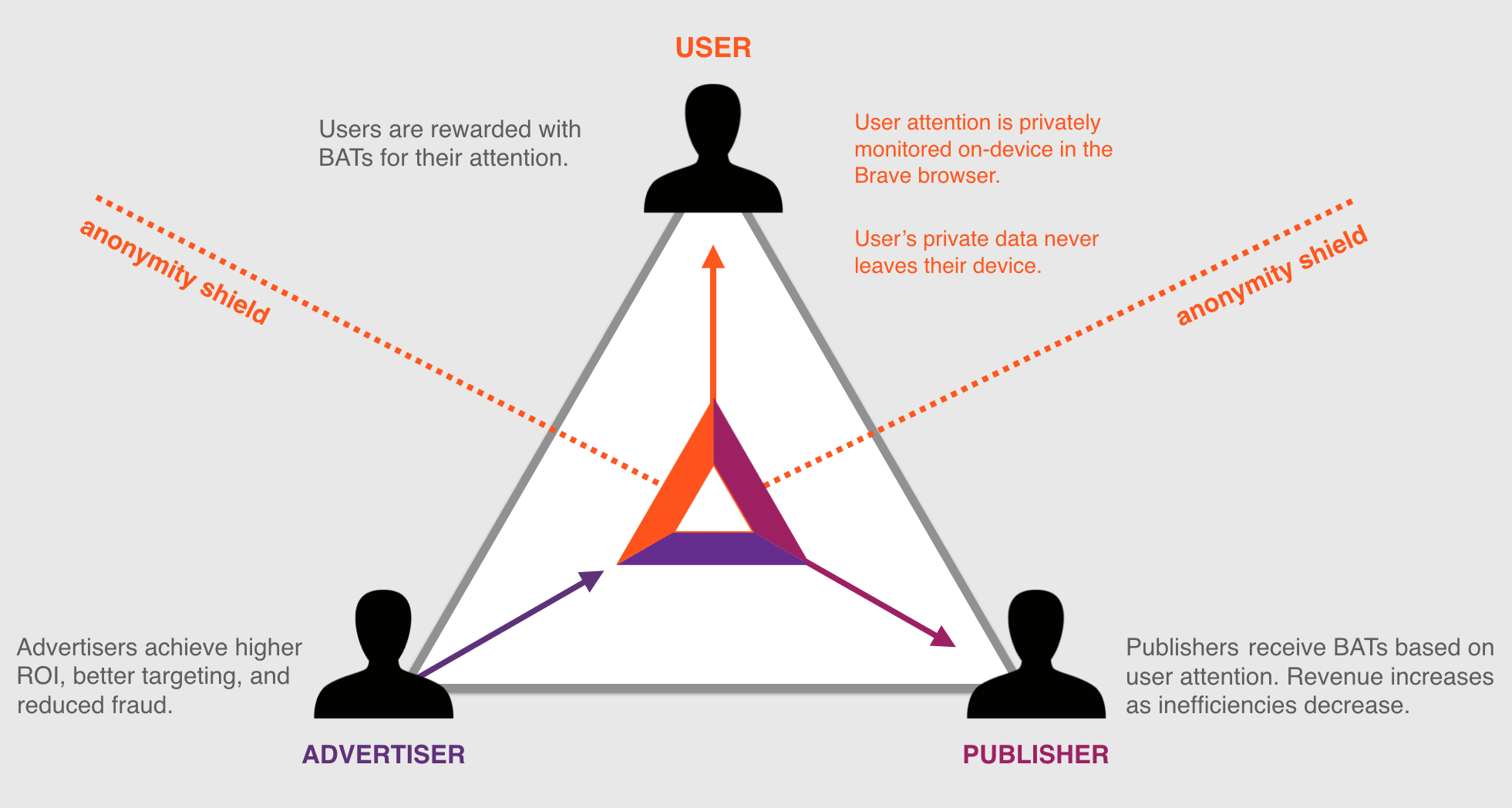
Brave believes the current online ecosystem is broken. The relationship is comprised of three parties: The publishers of content, the advertising and marketing companies, and everyday consumers. Brave’s Ben Livshits calls it “the Bermuda Triangle of advertising,” and it’s a scenario in which none of those three parties are happy. “This is an ecosystem that is ultimately suffering and is not sustainable,” says Livshits. “We’re trying to build something else using our browser; we’re using Brave as the cornerstone.”

Browse the web up to 8x faster than Chrome and Safari. DOWNLOAD NOW
10
Enjoy private, secure and fast browsing with Brave.

How do users suffer?

“Users suffer from ad overload and tracker overload,” says Brendan Eich, CEO and co-founder of Brave. And he’s not wrong. Popular media sites can have as many as 70 trackers, all vying for your attention at once, taking your bandwidth, costing you money you spend on that bandwidth, and drastically slowing down the loading times of websites. Malware has gone up by 132% in just one year. Users “feel like they’re stalked by ads, they’re tracked by ads, they’re spending more on data plans just to download the ad tracker scripts.”

As it turns out, underlying ad technology can result in up to 60% of a page’s loading time. If that statistic doesn’t phase you, the frightening truth is that upwards of 20% of that loading time is for websites to learn more about you and report that information to the creators of the content, and the advertisers who pay for it.

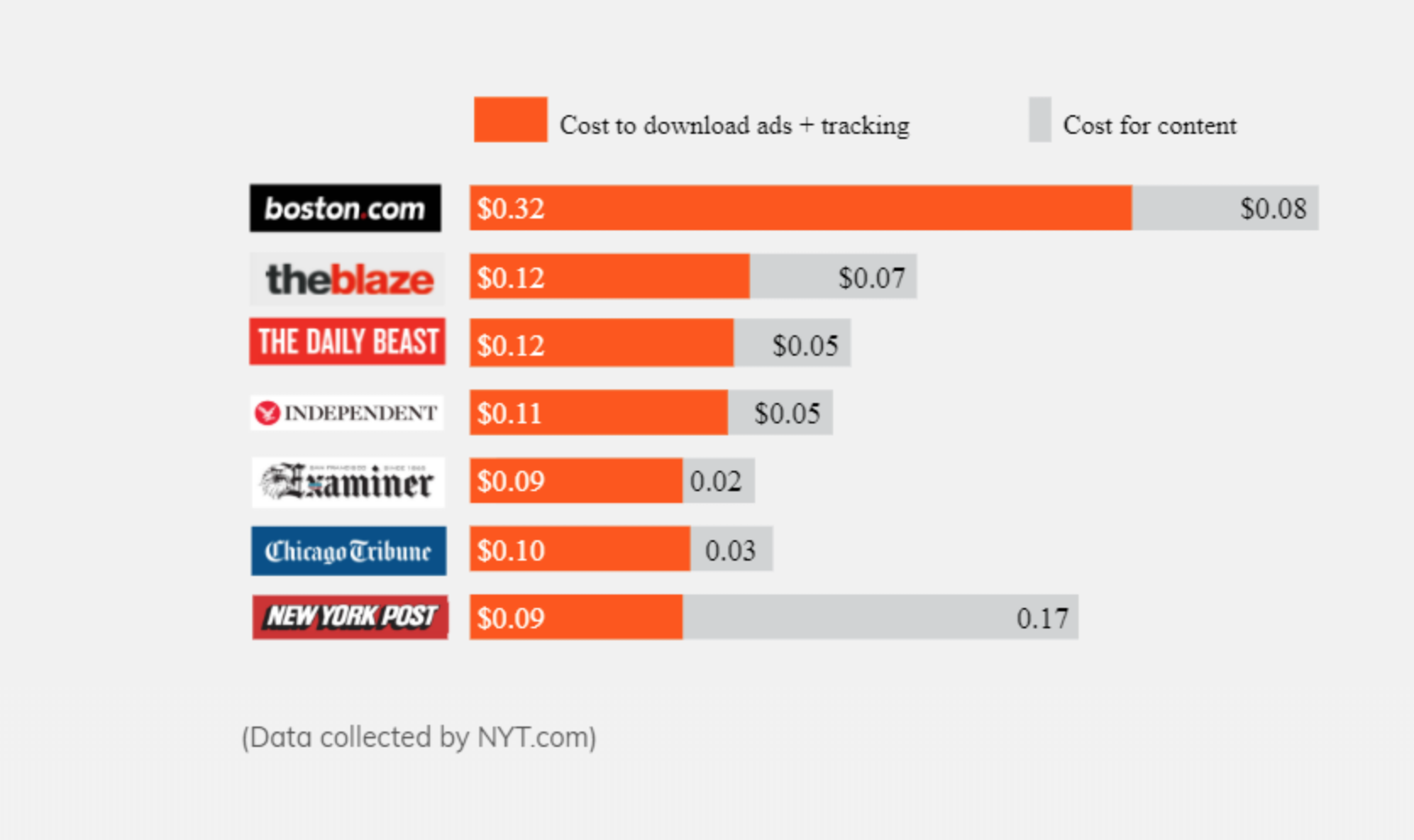
Remember, you’re paying for that bandwidth and it’s being spent on ads, which you never asked for and likely do not want taking up your bandwidth. “It’s hard to believe,” says Eich, “but we’re paying to be bothered by ads!” As much as 50% of the average user’s mobile data is for ads and trackers. According to the New York Times, that sum amounts to about $23 a month – $276 a year! – that’s for your browser to load minutiae that you didn’t want to see anyway. It’s also bogging down your loading times and takes around five extra seconds per page on mobile devices – costing you data and draining as much as 21% of a phone’s battery life.

How do publishers suffer?

Nearly all the money is going to titans like Facebook and Google

Monopoly companies and titanic mergers dominating the global market are sadly not news in 2018, so it probably won’t come as a surprise that the same one-sided battle is hurting the online economy as well. The extent to which it’s happening may surprise you, however: Google and Facebook take 73% of all ad dollars … and experience 99% of all growth. All the small start-ups online may be gaining traction and momentum at their own pace, but their successes fuel the big guys too, and it’s hurting everyone else. Revenue for online publishers has gone down by a demoralizing 66%.

Ad blockers may seem like a good idea for most users: Put an ad blocker extension on your Chrome browser and you’ll receive less harassment from pop-ups and trackers, but it’s not all sunshine and rainbows; you’re hurting the livelihood and income of fledgling sites and businesses that are dependent on those ads to generate income:

Users may not care right now, but ad blockers could ultimately affect the amount of free content available from places like news sites, forums, or blogs. Why? If companies aren’t generating revenue from ads anymore (due to ad blocking, for example), they need to get that money some other way. That means users will have to start paying for more base content.

Or many of these publisher likely will just go out of business. Over 600 million phones and desktops already run ad blocking and that number is only climbing. It’s leading us to an online economy in which publishers can no longer easily monetize value-added services, and that’s going to affect everyone.

Badly.

How do advertisers suffer?

Fraud advertising is an ongoing issue, and AI inflicted over $7.2 billion in fraud just last year. Online, it becomes an expensive guessing game for ad companies to determine where their money is best spent; what exactly they’re choosing to pay for. The reason is that ad targeting is inaccurate and, when it works, comes off as creepy to the user. Users don’t want targeted ads that know your location and demographics, or that know the kind of people you talk to or relationships you keep. When an ad company hits a user in this way it looks really bad for the ad company, too, and certainly doesn’t help their business.

Targeted ads are good in theory

The reason this happens is because marketers are often fooled by fake websites and fraudulent AI that doesn’t hit the mark, often mis-targeting its demographic or targeting it way too close to the mark. “Some of the estimates claim that half of the money that companies spend on ads goes nowhere,” says Livshits. “They’re not seen by anybody, they’re below the fold, and they’re just dropped on the floor.” The result is that ad targeting is not functioning nearly as effectively as it should, and it’s making consumers mistrust or ignore 80% of advertisements they see.

Browse the web up to 8x faster than Chrome and Safari. DOWNLOAD NOW
10
Enjoy private, secure and fast browsing with Brave.

The answer: Basic Attention Tokens

How BAT works

Basic Attention Tokens, or BATs, are utility tokens based on Ethereum technology that serve as Brave’s units of currency between advertisers, publishers, and users. “The token is derived from, and therefore denominates, user attention,” explains Eich. It’s a new blockchain-based digital advertising and services platform where owning and spending these tokens allows users to earn unique services via the BAT platform, enabling special interactions with the platform.

The BAT promotes safer, lucrative content for everyone involved

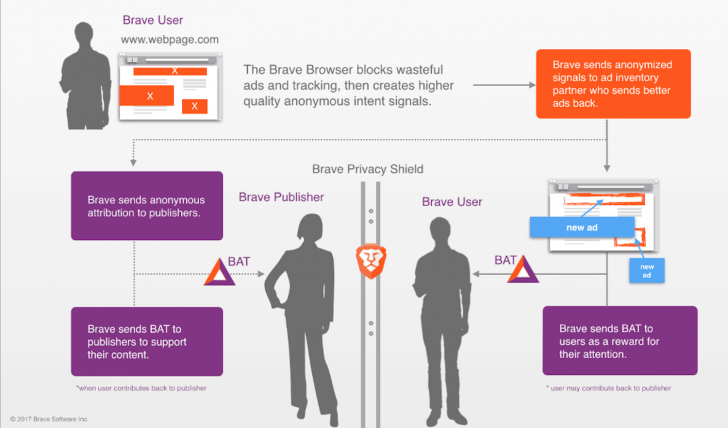
In layman’s terms, it’s a means for users to be able to collect and use time they spend looking at ads in a positive, constructive way that benefits in equal parts the publisher of content, the advertiser on the page, and ultimately themselves as well; users will have the power to distribute their BAT to companies they support, creating a “web 3.0” atmosphere in which you’ll be able to choose who is financially rewarded by your attention. Users can also opt to directly fund or replenish their Brave Rewards wallet to tip content creators.

Publisher, advertiser, and user working in close harmony

Basic Attention Tokens don’t connote any official ownership right or stake, Brave explains, and are not refundable nor intended to be a digital currency. This way, all the Brave Rewards analysis is done without disclosing your identity, keeping the browser as anonymous and secure as they have promised.

Rather, the analysis enters the network by way of the open source Anonize protocol, ensuring that neither Brave nor any other entity can match your web browsing habits with your BAT contributions. “That’s really just focused mental engagement,” says Eich proudly, “on an advertisement, on great content, on whatever the user is looking at.”

With Brave, users can choose to either go ad-free, or switch them back on at the drop of a hat. Users who choose to view ads will be paid to do so, will benefit from better ad-matching, and the data will stay private. Thirty percent of the ‘revenue’ gained from watching the ads goes to Brave, while the other 70% goes directly to the user. How is that kept private? The answer is simple:

Brave integrates an anonymous ledger system which allows for your funding to be made available to your chosen site owners. But the browser still keeps specifics like bookmarks and history completely anonymous.

Should you choose to browse with Brave Rewards you’ll remain completely unidentifiable, while still benefiting from more accurate ad-matching and reception of Basic Attention Tokens. If this sounds like a feature you’d be interested in, you’ll be happy to know over 10,000 content creators and publishers have already registered to receive Brave Rewards.

BAT is the way of the future
(Source)

There will be some instances where the BAT revenue goes to the publishers as well, in which case the user and Brave split their 30% evenly (15% each) and the rest will go to the publisher. This effectively cuts out the middleman while still ensuring privacy to the viewer.

How soon will we see this?

At a recent Web3 Summit Ben Livshits announced that they are looking to ship the first phase of the BAT system in the next couple of months. “This is something we have been experimenting with quite a while,” he said. The most recent beta to be released is said to already be 22% faster than the Brave that’s currently available, and can be downloaded right here. From the looks of it, progress is speeding along pretty encouragingly.

In the meantime, if you haven’t checked out Brave yet, we encourage you to give it a look! Download it for free right here and we’ll keep you up-to-date with the rest!

Browse the web up to 8x faster than Chrome and Safari. DOWNLOAD NOW
10
Enjoy private, secure and fast browsing with Brave.

Softonic is proud to partner with Brave. When you download from us, we may earn a commission.