This is how to make money using Google Rewards

Want to make money with Google quickly and easily? This may seem like a scam, but it’s possible. Google gives you the chance to make money through its Rewards program. If you want to know a little more about this, we’ll explain how you can make money using Google Rewards, the Android app.

Google Opinion Rewards Download Now
7

Google Rewards is an app that you can download for free. Once you’ve downloaded it, open it up. The first screen is self-explanatory: Google requests info about you. They’re basic questions that are easy to answer. The idea is for the search engine to get more info about you, the user.

Once you answer these questions, the app will open and you can start using it. How do you make money? By responding to surveys that Google sends you periodically. In general, you’ll get one survey per week, though the frequency can sometimes be higher (or lower). The price of each survey depends on the importance Google assigns it, though the most you can get is $1 in Google Play credits. That’s right. A whole dollar.

These surveys look to get feedback on general Google issues. For example: which logo you like better; if this ad looks interesting; where you want to travel; if you use Google products regularly; etc.

It’s an easy way to get a few bucks that you can then redeem for some apps. Also, the surveys can be answered in one or two minutes, so it’s worth trying out!


How to detect fake apps in the Google Play Store in just 3 steps

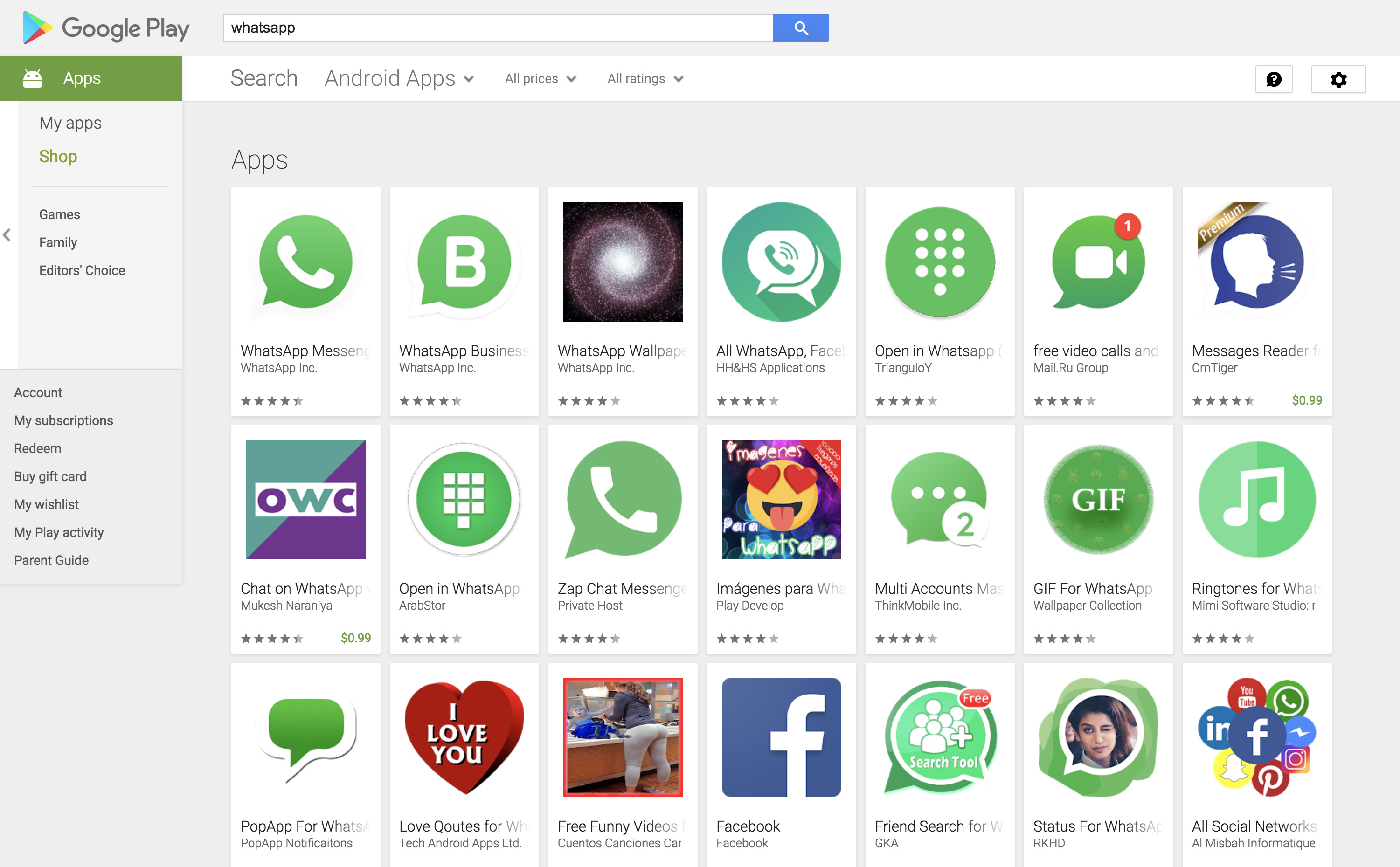
Google is facing an uphill battle, trying to keep fake apps from ending up in their virtual store. But even the best algorithms can fail, and good proof of this is what happened recently with a fake version of WhatsApp that thousands of people downloaded within a few days. At Softonic, we care about your cell phone’s health, so we’re going to show you how to detect fake apps in the Google Play Store in just three steps. But before we get started, an explanation:

Why are they created?

We’ll be quick: fake apps are created with the sole purpose of infecting your smartphone. There are exceptions, of course, but they’re called “exceptions” for a reason: the general rule is that these apps have malicious code that is inserted into your device. They extract personal data, ads appear without permission, etc. If you download one, it’s a total mess.

Pay attention to the name and company

Two apps can’t have the same name. In some way, a copycat app must be different from the original. Check the name of each app carefully, since somewhere you’ll find the detail: an extra (or missing) letter, a logo in another color, a spelling error that changes everything, etc.

Likewise, the name of the company is another important sign. If you look carefully at the developer, you’ll find this second detail to check. Official companies usually have well-crafted profiles and respond to requests.

Comments

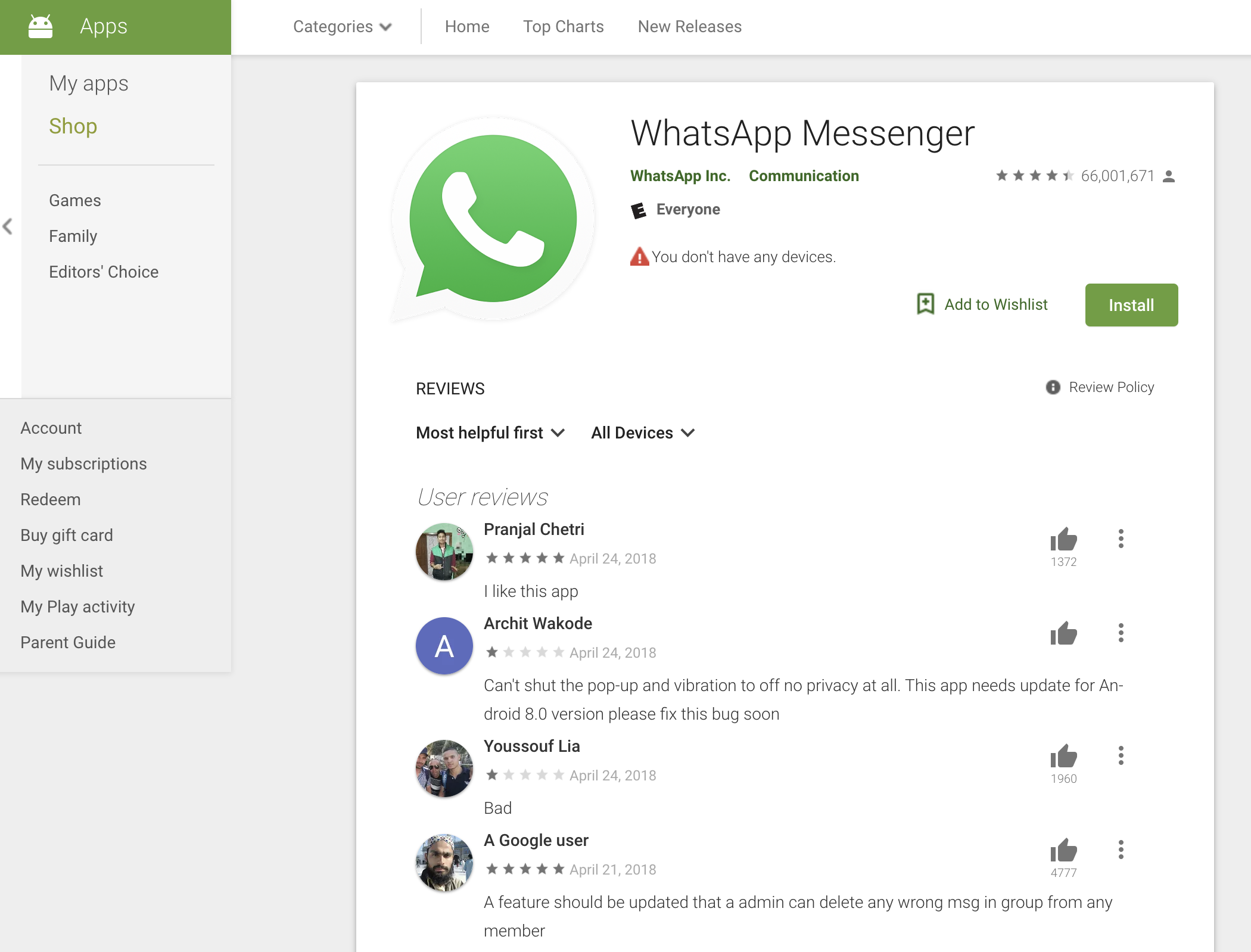
The second step to detect a fake app is the comments section. Yes, we know what you’re going to say: the Google Play Store isn’t exactly known to have a community exuding positivity and optimism, but when an app is fake, you’ll thank us.

Comments and ratings are key telltale signs. If you see very low ratings and comments emphasizing that “this app is fake,” we recommend that you pay attention…


Google Play Protect

Google finally launched its own antivirus for Android under the name Google Play Protect. It’s a good way to know if an app is fake. The problem is that if you run the antivirus on an app… it may be too late. Lucky for you, there’s a previous step where it’s not necessary to download the app you’re uncertain about.

A few months ago, Google Play Protect started integrating into the Google Play Store platform, i.e. the store. We say this because now the most popular apps appear with a banner that says: “Verified by Play Protect.” If you get this logo and message, you’re almost certainly accessing the right app. Of course, hackers continue to get around this protection and Google continues changing their algorithms. Don’t forget, it can still fail you.

What updates can we expect for WhatsApp?

A new WhatsApp update has been added to the Google Play Beta program. The guys over at WABetaInfo have put together a little breakdown of what we can expect once the features being tested in the beta version get a wider rollout. There is still no Sticker availability but it looks like WhatsApp are working on a Double Sticker function for future updates. Other cool functions added via the new update include a Location Sticker, a Dismiss as Admin feature, and Priority Messages. Let’s take a look.

WhatsApp Messenger Download WhatsApp
8

Location Stickers allow you to add a signpost to your favorite places to your WhatsApp messages. There are two different styles of Location Stickers, which you can check out below.

Image Via: WABetaInfo

Dismiss as Admin is aimed at WhatsApp group messages. The new feature gives group admins the power to demote other admins without having to remove them from the group. Until now, kicking other admins out of the group entirely was the only way to remove their admin privileges. To dismiss an admin, hold your finger on their name in the group chat menu. The option should then pop up in the drop-down menu.

Image via: Gadgets 360

High Priority gives you more control over the push notifications. If you enable High Priority, then your incoming WhatsApp notifications will be pinned to the top of your notification center. This feature will only be available on phones with Android version 5.0 or higher. To enable High Priority, open Settings and then tap Notifications. High Priority should be at the top of the screen if you have the latest beta version of WhatsApp installed on your phone.

Are you a member of WhatsApp’s beta testing program? If you’d like to try out the latest WhatsApp features before everybody else gets their hands on them, you should give it a try. We’ll be posting a guide to accessing beta versions of apps, games, and programs soon, so remember to keep checking in with us.

New Google Apps to Take On Skype, Facetime and Whatsapp

Google’s solution for free mobile calls and messaging was introduced to us earlier this week and is positioned to take on the likes of Apple’s Facetime, Microsoft’s Skype and Whatsapp.

Google Duo

The first of the two apps is Google Duo, a video-calling application that, unlike Facetime, is available on both Android and iOS. This means that you’ll now be able to make free calls to all your friends and family, regardless if they’re using an Android or iOS device.

The one feature that Google hopes will get you very excited about is Knock Knock. Not found on rival apps, Knock Knock lets you preview who’s on the other end of the call, and lets you decide if it’s worth getting out of that meeting to pick up.


Google Allo

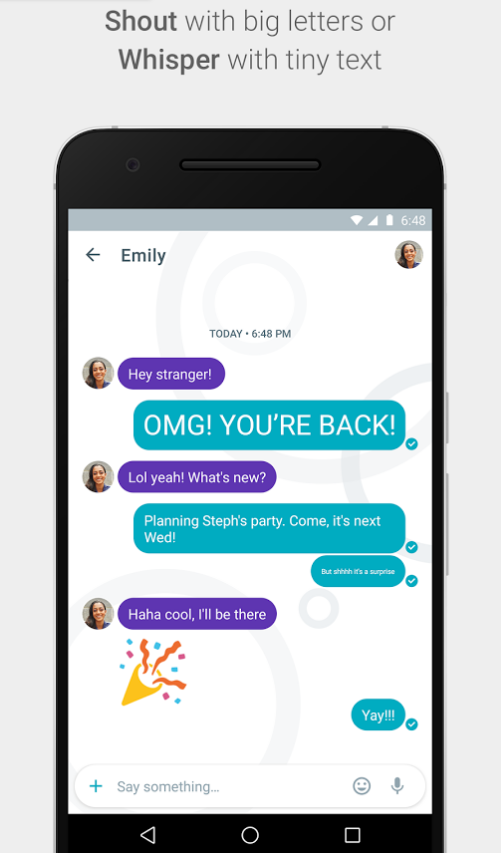
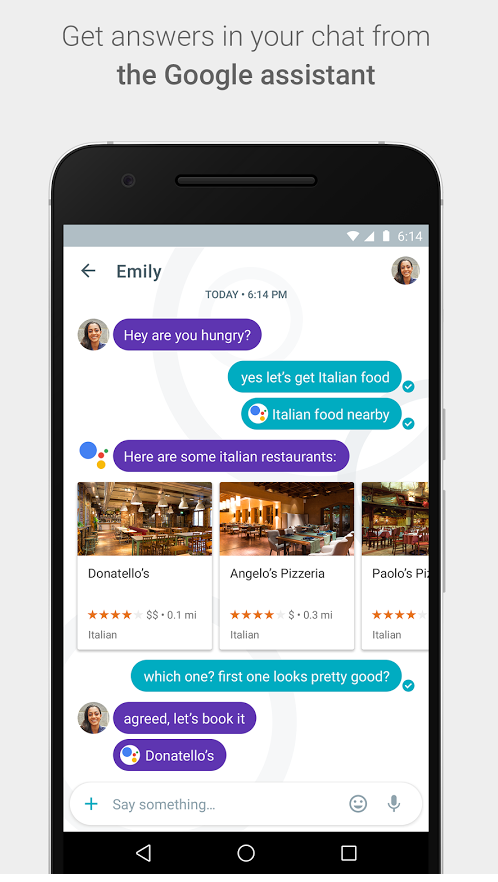
The second app is called Google Allo – a smarter, more feature-packed version of Whatsapp. With Allo, you get to make Google searches directly within the messaging app, get predictive reply suggestions, write in bigger or smaller font to simulate shouting or whispering to the other person, and many other features.

Allo Shout

Allo assistant


So when can you get your hands on these apps?


If you’re in the US, you’re in luck! Google Duo is already available on Google Play and the App Store, and for the rest of you, Google says that they will be available worldwide “in the next few days”.


There is no word yet on Google Allo’s launch date.


However, you can now pre-register for both Google Duo and Allo on Google Play, so that you get (presumably) a notification when these apps are available in your region. iOS users, you’ll just have to watch this space.


Let us know what you think about these two apps in the comments below!

Google Play basics series

Whether you’re new to smartphones or just making the switch to Android, our Google Play Basics series is meant to answer some of your most basic questions about accessing and using the Google Play store, questions you might be too afraid to ask! Check out our five part series below for getting started with Google Play!

Google Play Basics Part 1: Is Google Play free?

Google Play Basics Part 2: How to register with Google Play

Google Play Basics Part 3: Recover your forgotten password

Google Play Basics Part 4: How to fix server error RPC:S-5:AEC-0

Google Play Basics part 5: Send apps to your Android device from a PC

Google Play Basics part 6: Get a refund for an app purchased in Google Play

Google Play Basics part 7: remove or rename a device on Google Play

If you’ve got more questions about getting the most from your Android device, check out our Android Basics series here.

Google Play Basics Part 2: How to register with Google Play

Whether you’re new to smartphones or just making the switch to Android, this is part 2 in our Google Play Basics series for new Android users, meant to answer some of the most basic questions you might be afraid to ask. This time, we take you through registering for Google Play.

1. Opening the the Google Play app

Find the shopping bag icon on the screen and the Play logo. The icon should say Play Store.

2. Adding a new Google Account

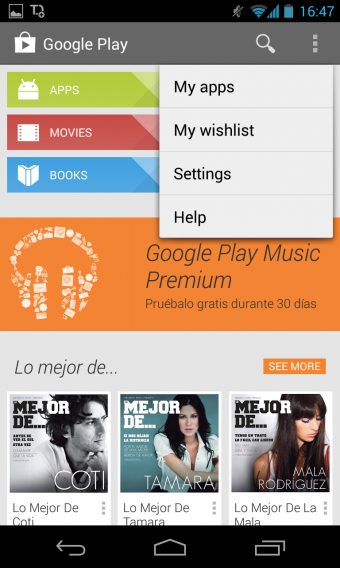
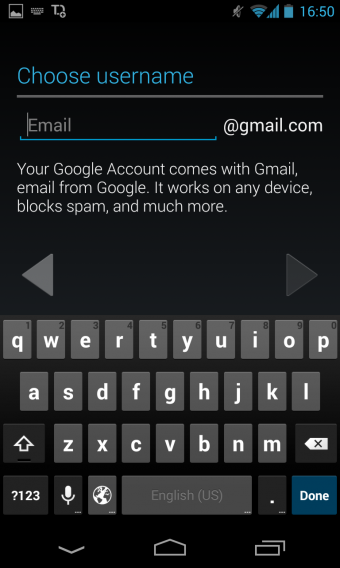
Click the icon with three dots in the upper right hand corner of the screen, and then click on Settings> Account> Add Account. If you don’t have a Google account (or if you don’t have Gmail or a blog on Blogger), opt for creating a new account by clicking on ‘New’. If you want to register with a Gmail account that you already have, click ‘Existing’.

3. Using your Google account to log into Google services

Once you’ve created a Google Account, you can use it to log into all Google services. Registration on Google Play requires the creation of a Google account, which also creates a mailbox in Gmail. You don’t have to use the Gmail service, but you do get a mailbox when you create the account. Just remember, you will need this email account to log in and out of Google services, so make sure that the email and password are memorable. There is a password recovery option in case you forget.

4. Adding credit card info

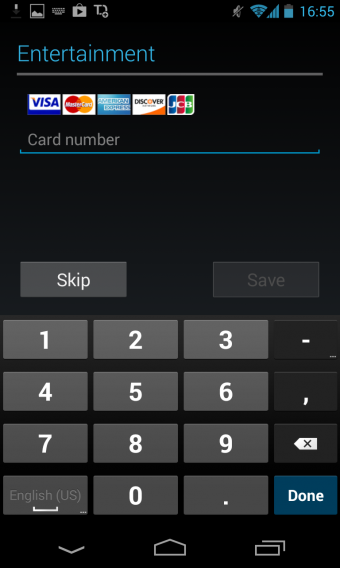
Adding credit card info isn’t necessary, and it might even be smart not to if you want to avoid charges, but it might be a good idea if you plan on buying a lot of apps and want to make the process a bit quicker. The Google server is secure so you don’t have to worry too much about inputting your credit card info.

And that’s it! You’ve created an account in the Play Store where you can now download games and applications for Android phones and tablets.

Have you encountered any problems during registration? Let us know in the comments below.

Read the other articles in our Google Play guide:

Original article written by Radek Grabarek, published on Softonic PL.

Google Play Basics Part 1: Is Google Play free?

Whether you’re new to smartphones or just making the switch to Android, this is the first part of our Google Play Basics series for new Android users, meant to answer some of the most basic questions you might be afraid to ask.


Is it free to have a Google Play account and use the Google Play Store?


Google Play is an online store where you can download games and applications for Android phones and tablets. But if it’s a ‘store’, can we use it for free? The answer: YES!

Google Play does include paid for games and applications; some cost as little as .99 cents, while others can run you up $25 or more. Having said that, you don’t have to buy apps or games in Google Play!

is google play free

Google Play has thousands of great games and apps that you can download completely free!

is google play free


What makes people think that Google Play isn’t free?


Creating a Google Account, needing to register for and download Google Play, is free, and there are thousands of free games and apps in Google Play. But it’s still a common misconception that you have to pay for Google Play. Why do so many people get confused? There are a few possible reasons.

First of all, downloading games and applications to your phone or tablet can cost a lot of money, and quickly, if you haven’t purchased a data package. How do you avoid additional charges from downloading the game itself?

  • Only download apps and games using Google Play when you’re connected to WiFi, like at home, at work, or at a coffee shop with free Wi-Fi access.
  • Purchase a data package from your mobile operator or change your existing plan to one that has relatively large data capabilities included in the contract.
  • Systematically check your level of data usage. If you buy 200MB and use it up quickly, even free downloads will cost you something.

If you only download apps and games via Wi-Fi at home and don’t want to expose yourself to the costs of downloading on 3G, make sure you turn off the function that allows app updates using data. Updates will only load when you’re connected to WiFi.

To do this, enter the Google Play store and in the upper right hand corner, tap the icon with three vertical dots, then select ‘Settings’. Now, click on the second option at the top and select ‘automatically update applications over Wi-Fi only’.

Another reason for having additional charges to your account? It could be that you’ve inadvertently agreed to pay for upgrades in free games or apps in order to unlock additional features, new levels or upgrade equipment.

Take into account that when someone asks you to upgrade, it usually costs (real) money. You will always get notifications and warnings that tell you your account will be charged, and its impossible for an app to charge you without your permission, so just be diligent in how you use these apps to avoid additional fees.

Do you have any questions about payments in Google Play?

Read the other articles in our Google Play guide:

Original article written by Radek Grabarek, published on Softonic PL.