9 tips to take Gmail control

These excellent tips will help you get more out of Gmail.

Gmail tips

With over 1.5 million users Gmail is by far the most popular email service on the planet. It is even more popular that Outlook and Yahoo Mail. It is a great program with lots of features and, as you’d expect with a Google product, it is constantly evolving. If you follow Softonic news, you’ll know just how often Google is adding new features like advanced search bar, canned responses, and email snooze and  mute . As well as Google adding new features, third-party developers are also able to create Chrome browser add-ons like a to-do-list app that also boost Gmail’s capabilities.

Where do you start though? If you’re trying to step up your Gmail game, take advantage of all it has to offer, and make your life easier in the process, where do you begin? Well, that’s where we come in. Today we’re going to look at some of the best Gmail features and give you some top Gmail tips and tricks to help you get the most out of your email provider.

How to use Gmail

Shortcut cheat sheet
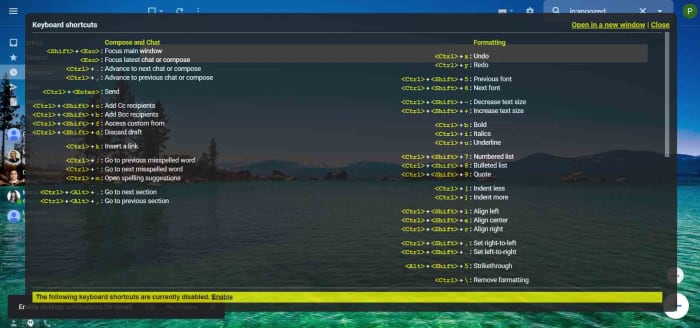
Gmail keyboard shortcut cheat sheet

A great place to start this list is the Gmail keyboard shortcut cheat sheet. There are a lot of actions you can perform on Gmail simply and quickly by pressing a certain combination of keys. This cheat sheet gives you a list of these keyboard shortcuts. To access it all you need to do is press Shift ?.

Unsend sent messages

Undo send on Gmail

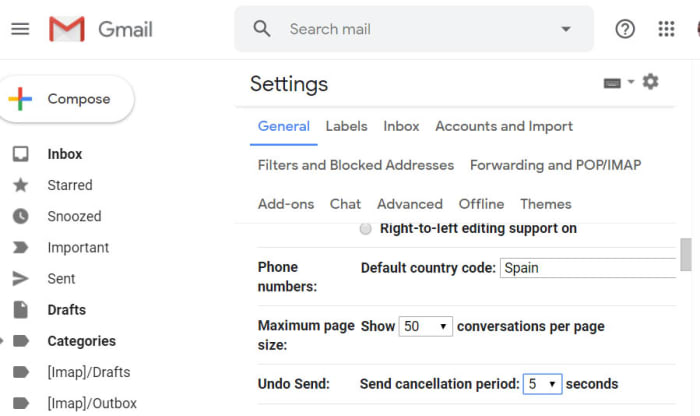
Did you know that you can actually give yourself a short window of opportunity to unsend Gmail messages you’ve sent. This is extremely useful, if you ever find yourself cursing your own existence when you realize you’ve forgotten to mention something important in the email you’ve just sent. To enable the Gmail unsend feature go to Settings then search in the General tab, and then tick the box next to Enable Undo Send. You can also set the time you’ll give yourself to reconsider at 5, 10, 20, or 30 seconds. Don’t forget to hit Save when you’re done and then keep an eye out for the Undo Send option when you send a new message.

Spelling mistakes
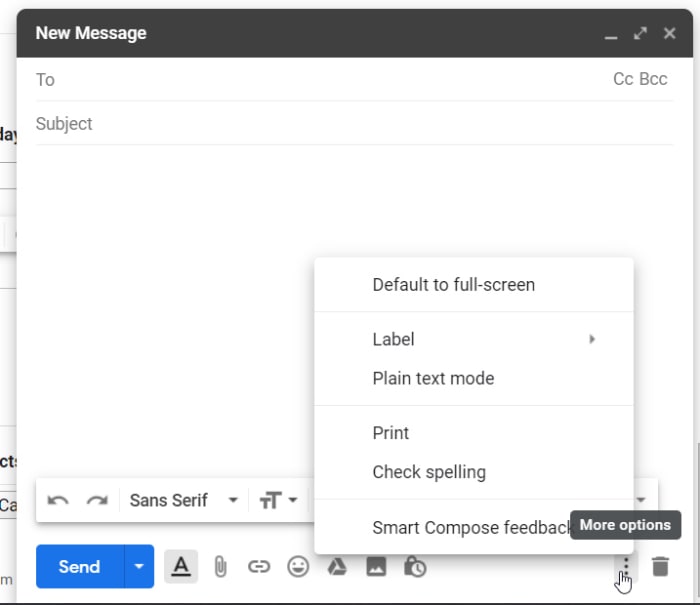
Check spelling on Gmail

Normally email messages are important messages, which means spelling mistakes are a big no no. Fortunately, Gmail has a feature that will highlight any spelling mistakes you’ve made so that you can easily change them. To use this feature all you need to do is click the ellipsis menu icon  in the bottom-right corner of your Gmail compose window and hit Check Spelling.

Infinite Gmail accounts

OK, so this trick doesn’t give you an infinite amount of Gmail accounts, but it does give you plenty to play around with, should you need to sign up to an online account more than once. Basically, full stops in your Gmail address don’t count for anything. This means if you send an email to emailaddress@gmail.com and another to email.address@gmail.com both emails will go to the same inbox. This means you can add full stops between every letter of your Gmail address to create a new email you can use to sign up to accounts with. This is also a good way of tracking who is selling your data as you can monitor which accounts have full stops in certain places and then compare that list to the email addresses you receive your spam to.

Schedule send
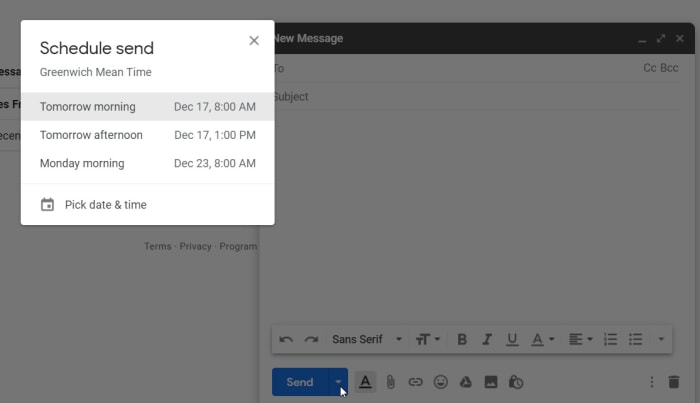
Gmail schedule send

Gmail’s schedule send feature is fairly new. You used to have to enable the feature using Gmail Labs, but now it is here for everybody to use and it couldn’t be simpler. To schedule an email to send at a later date all you need to do is hit the small down arrow that is next to the send button. This will open up the Schedule send option, which will give you the chance to send your email exactly when you want the recipient to receive it.

Add or remove inbox tabs
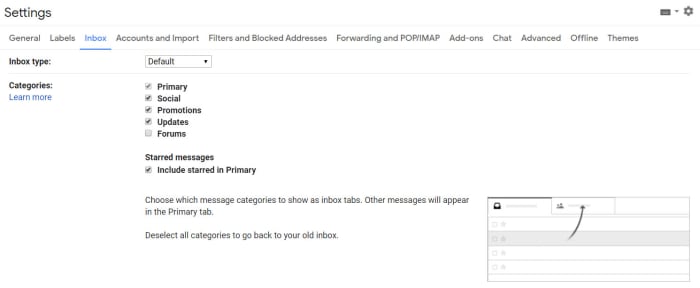
Gmail inbox tabs

The Gmail Inbox tabs are a great way of keeping on top of your incoming mail. If you’re toiling away to reach Inbox Zero, tabs can help you a great deal by automatically cutting out the emails you don’t really need to handle yourself. They’ll automatically be added to different tabs and so won’t class as primary emails. To customize your Gmail tabs go to Settings, then Inbox, and then hit Categories. Once you’ve activated all your tabs you can then drag and drop individual messages between them to help Google classify your incoming mail better.

Desktop notifications

You can set Gmail to send you a desktop notification every time you receive an email. To do so go to Settings, then General, and then Desktop Notifications. Once enabled, Gmail will send you a pop-up notification every time you’ve got mail.

Filter your newsletter signups

Gmail has a very cool feature that allows you to add words and phrases to your email address by putting a  sign after it. For example, if I was to send an email to myemail@gmail.com and myemail+softonic@gmail.com, both emails would go to the same inbox. This means I could sign up for various email newsletters and use the sign plus different categories to make it easier to search through my regular newsletters. Categories like News, Sports, Tech, etc. to help me search for particular types of content that are being pinged to my inbox.

Easy unsubscribe

Gmail unsubscribe

Email newsletters can be annoying. Tabs make it easier for you to keep on top of them, but still, they’re a real pain, especially the ones you can’t remember signing up to. The truth is you’re pressured into signing up for newsletters all the time these days. Want to buy some clothes online, sign up to an email; looking to find a local bus schedule, sign up online; want to do absolutely anything you could think of on the internet, yep, sign up online. Fortunately, however, Gmail has an elegant solution to this very modern problem. For every email you receive that has an unsubscribe button hidden away at the bottom, Gmail will create an Unsubscribe button at the top of the email next to the email address.

There you have some top tips for the Gmail app. For more great guides to Google apps and products like Google Drive, Google Calendar,  and Hangouts stick with Softonic.
Is WhatsApp safe? All you need to know

Let’s take a look at some of the potential security risks that can affect you when you’re using WhatsApp

Is WHatsApp safe

WhatsApp is a huge app. Over 1.5 billion of us have the app on our Android smartphones and Apple iPhones and we send tens of billions of WhatsApp messages between us every day. Now the Facebook-owned messaging app is famous for its end-to-end encryption but, let’s be honest, Facebook isn’t exactly the most trusted company in the world right now. This begs the question for WhatsApp users all around the world: is WhatsApp safe to use?

We talk a lot at Softonic about cyber security issues. We’re here to keep you safe when you’re online and with us, like so many of you, being regular WhatsApp users, we thought we’d spend some time going through potential security weaknesses you should look out for when you’re using WhatsApp.

How safe is WhatsApp?

WhatsApp bugs

Every now and then malware and spyware-like bugs can find their way into the WhatsApp code. These can leave you open to potential hacking, which we’ll look at in a moment, but they can also end up causing other problems that may end up hitting your wallet.

One such WhatsApp bug saw the app regularly trying to backup all app data using a cellular data connection. This meant that even when users didn’t have Wi-Fi connections, their phones were constantly uploading WhatsApp data to Google Drive and iCloud. Many users ended up footing a huge bill because of this bug, as the uploading continued long after they’d used up all the data from their monthly allowance.

WhatsApp hacks

Other WhatsApp bugs might affect WhatsApp security deliberately. Hackers often try to add malicious code to WhatsApp so that they can take control of the app. Worryingly, a recent WhatsApp hack created a security flaw that gave the hackers backdoor control of the user’s WhatsApp accounts and allowed them to post fake status updates. Yep, hackers were able to post status updates using the victim’s WhatsApp.

WhatsApp scams

Another WhatsApp security weak spot that you need to look out for is scam links and phishing attacks that you might receive via WhatsApp. As we’ve already mentioned, between us we receive billions of WhatsApp messages every day and many of these include links to third-party websites. Just like with emails, however, we need to be very careful with the links we click on WhatsApp.

Fake WhatsApp message about 1000GB of free data
FAKE!!!!

One recent WhatsApp scam sent a link promising 1000GB of free mobile data. It was all a scam though, with the link leading to a fake website that was designed to steal personal information, phone numbers, and user’s credit cards.

Fake WhatsApp scams

Over the years we’ve reported on a lot of fake versions of WhatsApp doing the rounds. Like with the types of scam described above, these are designed to steal personal information but can also be used to bombard users with ads in a bid to raise revenue for the hackers. There are two main types of these fake WhatsApp scams.

The first type of fake WhatsApp scam sees the scam app trying to look as much like the real version of the app as possible. One example of this is the Update WhatsApp Messenger scam, which security experts and cybersecurity researchers discovered in 2017. The app had an ad in the Google Play Store that was almost identical to the original WhatsApp’s ad. Downloading it, however, would force the user to see a lot of unwanted ads and prompts to download further scam apps.

Beware this Fake WhatsApp Update Scam

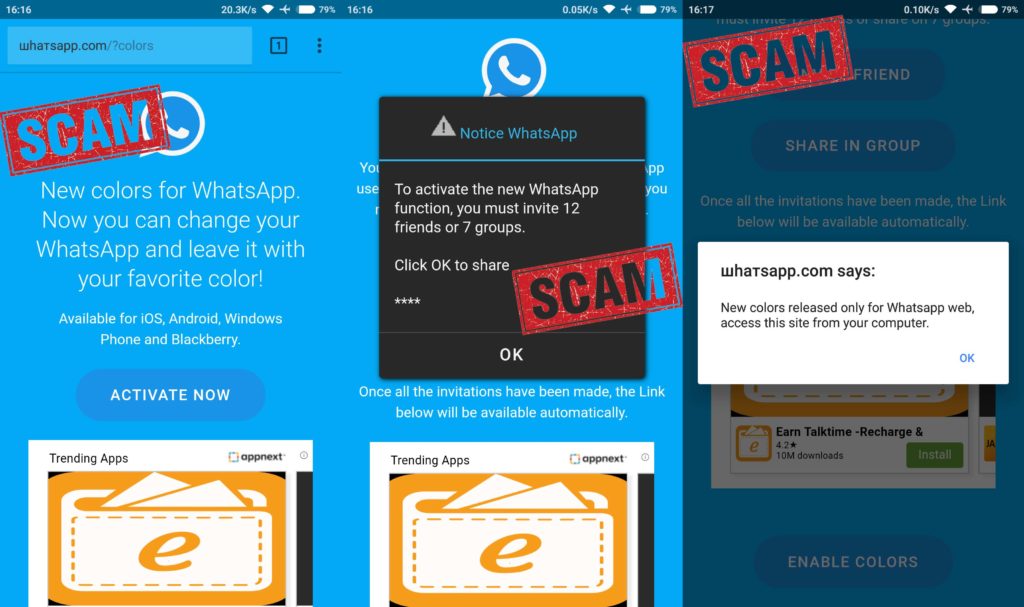
The other type of fake WhatsApp scam sees hackers trying to pitch their fake versions of WhatsApp as having new and improved features. Examples of this include the WhatsApp Gold scam, which has been distributed across WhatsApp a few times and the WhatsApp Colors scam, which promised the ability to change and set the background color of the app. Both were fake and were efforts to install adware on users’ phones.

WhatsApp’s Fake news problem

Another security risk that pops up again and again on WhatsApp is the app’s fake news problem. Fake news being spread across WhatsApp has had some truly catastrophic effects all over the world. People have been lynched in India and others were beaten to death following fake reports spread via WhatsApp that child abusers were traveling through parts of the country. The problem in India got so bad that law enforcement and government agencies were forced to intervene and force WhatsApp to take measures to address the problem.

Does WhatsApp spread fake news?

Elsewhere, fake news spread on WhatsApp in Brazil helped to win far-right politician Jair Bolsonaro the presidency. He’s since unleashed terrible forces that have seen huge swathes of the Amazon rainforest burn. Although, not on WhatsApp itself fake news spread in Myanmar using Messenger, another Facebook-owned messaging app, contributed to the Rohingya genocide. This is a very serious issue.

Unsecure chat backups

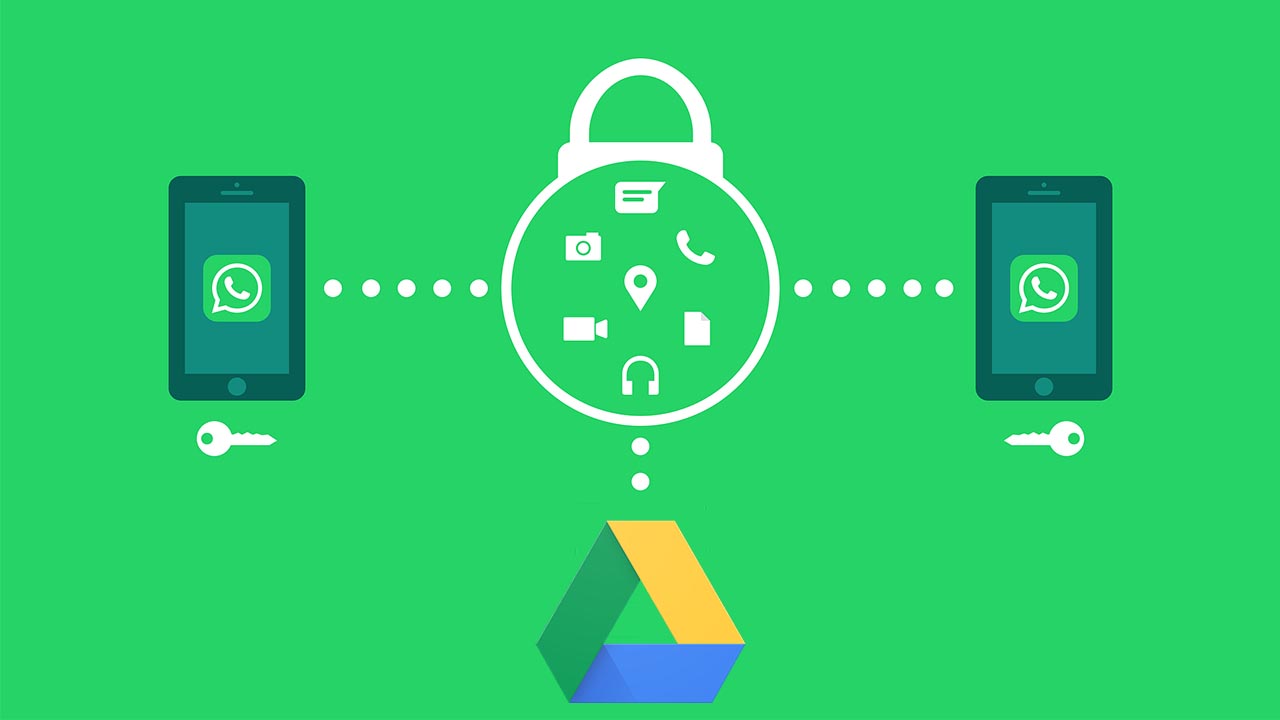
As we’ve already mentioned, WhatsApp is famous for its robust end-to-end encryption. All messages sent via WhatsApp are protected by the encryption, which makes it next to impossible for unwelcome eyes to see what’s been sent. That is, however, until they’re backed up. Recently, WhatsApp signed a deal with Google that allows users to back up all of their WhatsApp data using Google Drive for free.

The security risk here is that the encryption Google uses to protect Google Drive data isn’t as strong as that used by WhatsApp. When you back up your WhatsApp chats using Google Drive you make them more vulnerable to hacking. The other thing to consider here is that you’re also giving Google access to all your WhatsApp data. You’d better believe that Google knows how to use that too.

Wrapping up

We’ve gone through six potential security breaches that could affect users of the WhatsApp chat app. The key to safely avoiding all of them, however, is you. As we always point out in these security guides, you are your best line of defense against online cyber-attacks. You can easily defend yourself against all of these potential WhatsApp security problems if you use your common sense. Keep your app regularly updated, think twice about the dodgy links and messages you receive, and don’t believe anything that appears too good to be true.

How to know if WhatsApp is down and what to do

If you’re WhatsApp isn’t working, try these steps to get it working properly again.

There is an old adage that goes something like, “You never know how much you need something until it’s gone.” This certainly rings true for the WhatsApp messaging app. It is oh so easy to take the Facebook-owned messaging service for granted. It is free, it is always on, and it makes talking to anybody anywhere incredibly easy. The trouble is though, sometimes it doesn’t. In fact, WhatsApp goes down quite often just like other social media sites, like Facebook, Facebook Messenger, and Instagram. Furthermore, when it doesn’t work you don’t get a message explaining what is going on, it just doesn’t work.

If WhatsApp is not working on your smartphone, you’re likely confused. Is the problem local to your mobile app, is it a wider WhatsApp outage, or is it something to do with the service provider? These are the questions that’ll usually send iPhone and Android users to Google but worry not because Softonic is here to help. This is how to figure out why WhatsApp isn’t working on your iOS or Android device and how to fix it.

Why isn’t WhatsApp working?

Is WhatsApp down?

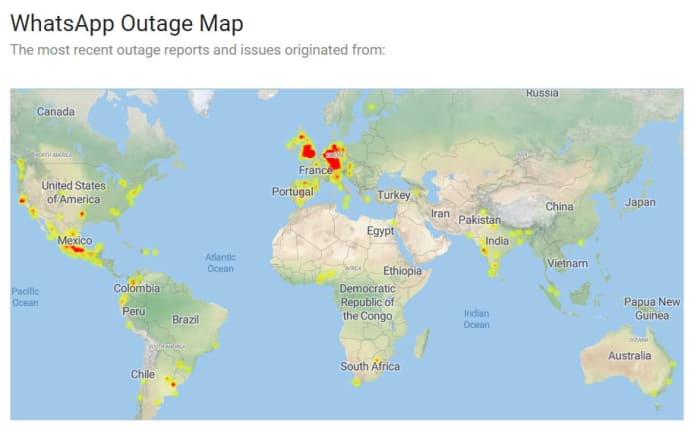
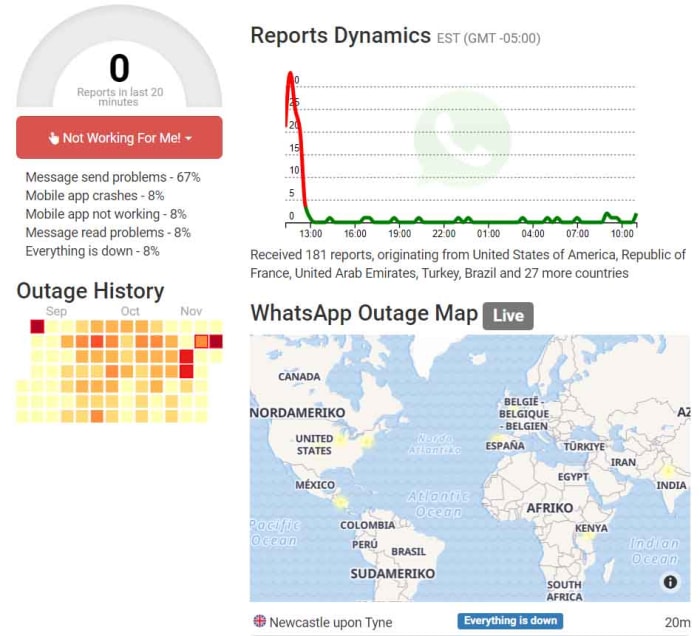
WhatsApp is a ridiculously popular program. It has over 1.5 billion users, which means there are quite a few different sites you can visit to find out whether you have a local WhatsApp problem or if WhatsApp itself is experiencing a more general problem. These sites include Is The Service DownIs It Down Right NowOutage Report, and Down Detector. If your WhatsApp isn’t working, these sites should be your first ports of call. If the problem is affecting the network, then these sites will let you know. You’ll get outage maps and up to date graphs showing reported problems.

WhatsApp outage map
Image via: Is The Service Down?

Unfortunately, however, if the problem is a wider WhatsApp outage, there is nothing you can do. You simply have to wait until WhatsApp is up and running again. Fortunately, however, when these massive issues arise the teams at WhatsApp HQ don’t usually take too long to resolve them. You can check out a list of historical problems that have affected the WhatsApp network here.

What if WhatsApp isn’t down?

If the above sites show that WhatsApp is working perfectly in your country or local area, then you’ll need to start looking into potential local problems that could be stopping your WhatsApp messages coming through. The first thing you should look into is your active internet connection. You can do this by checking your Wi-Fi and mobile data connectivity using your phone’s network and connectivity settings menu. If both of these are switched on but WhatsApp still isn’t working, you should try and see if the internet works for another app like Google Chrome or YouTube.

WhatsApp outage report
Image via: Outage Report

Switch it on and off again

If WhatsApp isn’t working but other apps like YouTube or Google Chrome are then there is a problem within the app itself. The first step you should take, should this be the case, is stopping the app completely. To do this you need to go to the Apps settings menu on your Android or iPhone, select WhatsApp, and then hit Force Stop.

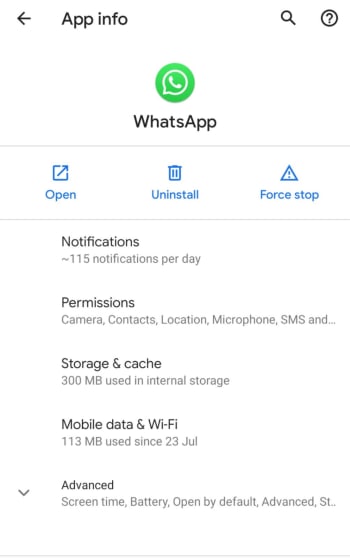
Forcing WhatsApp to stop will then make it possible for you to clear the WhatsApp cache, which may contain the bug that is stopping WhatsApp from connecting to the internet. To clear the WhatsApp cache, scroll down to the Storage & cache option in the WhatsApp App info page. Once you click that, you’ll see the option to Clear cache. After you’ve done that turn your phone off and then on again, and then launch WhatsApp to see if you’ve resolved the issue.

WhatsApp app info on Android

Update WhatsApp

If you’ve got this far and WhatsApp still isn’t working, you’re going to have to start taking more drastic actions. First, though, you should check you are running the latest version of WhatsApp by going to the Apple App Store or the Google Play Store. You need to find the list of all the apps you’ve bought and installed on your phone. When you’ve found it, scroll down until you find WhatsApp, and then select it. You should then see the version you are running and whether there is an update available.

If you are running the latest version of WhatsApp or if you update WhatsApp and it still doesn’t work, the next thing you can try is uninstalling the app and then reinstalling it. To do this, go to the WhatsApp App info page on your phone, using the method outlined above, and hit Uninstall. If you don’t want to lose all your app data including your chats and downloaded images etc. tick the box that says Keep app data before confirming the uninstall. Then, head over to the Google Play Store or Apple App Store and reinstall WhatsApp. This should install a clean and up to date version of WhatsApp.

Wrapping up

When WhatsApp goes down it can feel like you’re cut off from everyone and everything. We’ve walked you through all the steps you need to follow, should it happen to you. The key is finding out whether the problem is on your phone or whether there are actual WhatsApp servers down causing problems for millions of WhatsApp users at the same time. The sites listed above will show you about potential outages and will offer real-time maps showing all the different WhatsApp problems being reported at the same time as well as historical data.

If the problem is a local one, however, one of the other steps we’ve laid out for you should see you have WhatsApp working normally again. Hopefully, you won’t have to uninstall WhatsApp and reinstall it to resolve your issues, but you can always take the nuclear option should you need to. Just remember to save your app data, if you don’t want to lose all your chats.

Your 10 most burning WhatsApp questions, answered

10 WhatsApp questions and answers

Sometimes it can feel like WhatsApp was designed by a sadist. Honestly, the amount of drama that a messaging app can produce is ridiculous. Have they read my message? Can they see if I’ve read theirs? What a stressful nightmare!

Of course, it’s possible (and probable) that WhatsApp was designed with the best intentions, and that you’re freaking out for no reason. Although, on top of knowing when someone read your messages, there are plenty of other potential mishaps and confusion that the WhatsApp messaging service can produce for any discerning smartphone user.

Determined to clear up some of these mysteries, we’ve thoroughly investigated and compiled a list of the most frequent and distressing issues about how to use WhatsApp, that people Google, in a bid to help you keep your stress level at a minimum.

WhatsApp Messenger Download Now ►
8

1. Can I stop somebody knowing I’m on WhatsApp?

No.

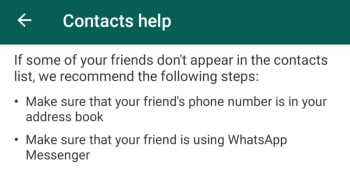
With WhatsApp it is all about the contacts you have in your phone’s contact list. Even when you block a contact, they’ll continue to have you in their contact list, if they still have your number in their phone book. The only way you won’t show up for the other person is if they don’t have your phone number saved in their phone.

WhatsApp Contacts Help

This means it has nothing to do with who you can see in your WhatsApp contact list as that doesn’t reflect the numbers, they have in their contact list on their phone. If they have your phone number, they’ll be able to see you have WhatsApp. As far as we’re aware, there is no way to delete your number from somebody else’s phone remotely.

If you don’t want somebody to know you’re on WhatsApp, don’t give them your number and don’t send them any messages.

2. Can I appear as invisible on WhatsApp?

Yes.

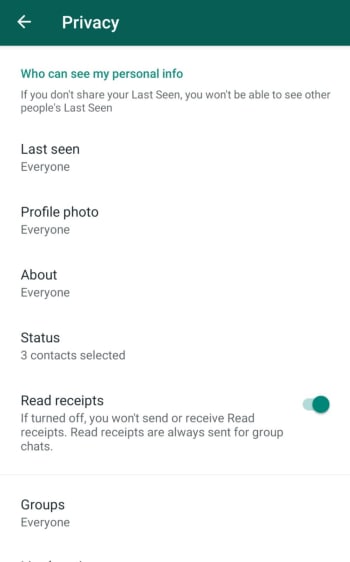
The WhatsApp FAQ page is quite clear. Unless you block a contact, there is no way to hide when you’re online or typing. You can, however, stop sharing your “last seen” status and read receipts that show when you’ve read a WhatsApp message. Doing this, however, will stop you from being able to see the corresponding statuses from your contacts.

WhatsApp Privacy Settings

To change these settings on both Android and iOS iPhones you need to open WhatsApp, then go to Settings, then Account, and finally land on the Privacy settings menu. You’ll then be able to toggle your privacy settings including when you were last online and who can see your profile picture etc.

3. If someone is given my old number, will they be able to download my messages and see my contacts?

No.

They won’t see contacts or be able to access old chats – that data is saved on your phone – but they can receive messages sent to your old number (without knowing who sent them).

WhatsApp gets its contacts from your phone book, so it’s unlikely that the person taking your old number will have the same contact. On the other hand, if the other person has WhatsApp installed, your friends will see that this person isn’t you.

To avoid any problems, WhatsApp recommends the following:

A) Post a status update with your new phone number.

B) Tell everyone you’ve changed your number using a broadcast message.

New WhatsApp Broadcast

C) Delete your account using the following methods:

Android phones: Settings > Account Info > Delete my account

Apple iPhone and iPad: Settings > Chat > Advanced > Delete my account

Deleting the account removes all chat history on your mobile, payment information, and participation in WhatsApp groups. It will make your account disappear.

4. Is WhatsApp free or paid for?

WhatsApp is free. The app used to have rolling free trial periods, but these long since been scrapped. Making money from WhatsApp is a problem that has dogged Facebook ever since it bought what is now the most popular messaging app on planet earth. Soon, however, we’ll see ads showing up on the WhatsApp Status page and there is also the new WhatsApp Business app, which charges businesses to use the platform to communicate with clients and customers.

WhatsApp Business Download Now ►
7

5. Is there a way to delete contacts forever?

Yes.

To delete contacts, simply remove them from your phone book. If you then want to stop that person messaging you at all, you’ll have to block them.

But remember, if they have you in their phone book, then they’ll still see you on their contact list.

6. Is there any way to tell if someone has read my messages?

Yes.

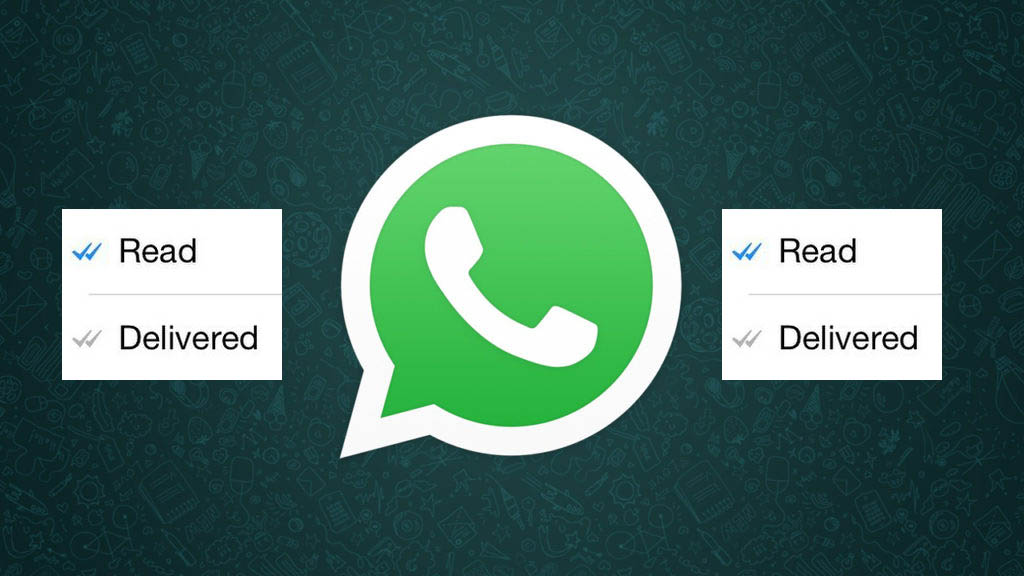
Theoretically, there is no way to know for sure if someone’s read your message, but the introduction of the double blue check mark indicates just that. Here’s a quick summary of what WhatsApp’s icons mean:

Clock: The message hasn’t left your phone yet, meaning there’s either a problem with data or Wi-Fi connection. You can delete the message before it’s sent.

Single grey check mark: The message has been delivered to the WhatsApp server. It’s left your phone but hasn’t yet been received by the other person.

Double grey check mark: The message has been delivered to the other person’s phone, but they haven’t necessarily read it yey.

Double blue check: A new icon that indicates that the message has been read (or at least opened in your conversation) by the recipient.

In addition, if you hold down on the message and tap Info, you’ll be able to see what time the message was delivered, and what time it was read. Remember though, that just because the message is ‘read’, doesn’t mean that the person has definitely read the message. Chances are they have, but they may also have left open your chat and gotten the message without actually reading it.

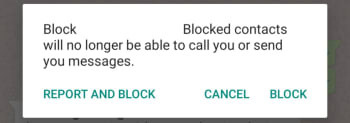
7. If I block a person, can they tell?

No.

A common symptom of blocking is that you can’t see the “last seen” or “online” status. As we’ve already seen though, this might be because they’ve deactivated those privacy settings.

Whatsapp Block contact

Another result of blocking is that messages are left with only one tick and never get a second, although this could also be due to other causes, like the phone being turned off or lost.

If you know it’s neither of these reasons, the chances that you’ve been blocked are high, but it’s still not 100%. If you really want to know, you’re going to have to try calling them or sending them a message.

8. Is there any way to silence a group and still receive messages?

You don’t need to.

When you mute a group, you’ll keep receiving the messages, you just won’t receive notifications when you get them.

To silence a group, just tap the menu button (on Android) or info (on iPhone) and press Mute or Mute Group. It’s a useful feature to prevent your phone from vibrating incessantly.

9. When you invite someone to a group, will they be able to read previous messages?

No.

When you enter a group, you can only see messages from the point you entered the group. You don’t get access to the chat history or any media sent before you joined the group.

10. If I delete a message or photo on my phone, is it deleted from the other person’s phone too?

No.

If only it were that simple. As it turns out, a message, photo, or sound sent through WhatsApp will be delivered as soon as the first green tick appears. There is a window, however, from when you send your message that WhatsApp will allow you to delete the message from your own phone as well as from the phones of anybody who received it. You have exactly 1 hour 8 minutes and 16 seconds to delete the messages, images, and sounds you’ve sent. After that you won’t be able to and they’ll be the recipients’ phones forever.

What is WhatsApp Web and how to use it on your pc

This is your complete guide to WhatsApp Web

WhatsApp Messenger is a great tool. It connects over 1.5 billion of us with free messaging and calls. Smartphones have come a long way too, and it’s easier than ever to type out messages on your mobile phone. It is still, however, much easier to type on your computer.

This makes WhatsApp Web, the desktop version of the Facebook-owned messaging app you can use on your Windows PC or Mac, an essential tool. If you’re wondering how to use WhatsApp on computer, we have the ultimate guide for you below.

What is WhatsApp Web?

Instead of sitting on your phone and chatting to contacts and friends, you can also use the WhatsApp Web version. It opens the messenger application on your browser or the downloadable WhatsApp client. You can then use a keyboard to type, which is faster. You’ll also have access to similar features. All messages synchronize with your phone.

How to use Whatsapp Web on your computer?

Now that you have a better understanding of what the program is, let’s see how to use WhatsApp on a laptop or computer.

How to log into WhatsApp Web

To run WhatsApp on your computer screen all you need is a modern web browser like Safari, Google Chrome, or Firefox and an Android or iOS smartphone that already has an active WhatsApp account. You then need to type https://web.whatsapp.com into the address bar of your web browser and as long as your PC has an active internet connection, you’ll be taken to the WhatsApp Web page. There you will find a QR code waiting for you to scan.

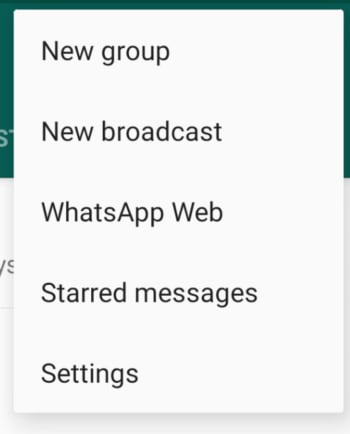
You then need to open WhatsApp on your Android or iPhone. If you don’t have the latest version of the app, you should update WhatsApp. Once you’ve opened the app, tap the horizontal ellipsis icon to open the WhatsApp Settings menu.

Then you need to tap the WhatsApp Web option and tap the icon in the top-right corner. This will open a QR scanner on your phone, which you then use to scan the QR code on the WhatsApp Web homepage. Once you’ve done this the web version of WhatsApp will be ready to go.

What can you do on WhatsApp Web?

Once you’ve followed the instructions above, your WhatsApp account will be linked to your web browser. You should see a list of all your WhatsApp messages down the left of the page and then when you click on one of them, you’ll see the chats screen on the right.

WhatsApp Web window

Although this looks a lot like WhatsApp on your mobile, WhatsApp Web has limited functionality compared to the iOS and Android versions of WhatsApp. You can send and receive text messages, images and videos, voice messages, documents, and WhatsApp contacts just like you can on your mobile phone. You can do all this in the same way you do it on your smartphone. You can also connect your WhatsApp account across multiple web browsers on multiple PCs, set up or mute desktop notifications, send GIFs and emojis like you can on mobile, view status updates, clear and delete messages, forward messages, and edit your profile.

What you can’t do, however, is call your contacts using voice or video calls or receive calls from them. Other limitations include being unable to send multiple messages at once via WhatsApp Broadcast, being unable to share your location, to post your own status updates, or to use WhatsApp Web on two PCs at the same time.

How to install WhatsApp Web on your PC

As well as using the WhatsApp Web app through your web browser, you can also install the desktop version of WhatsApp onto your PC. This will offer you the exact same experience as you’ll find on WhatsApp Web, but it’ll open in a dedicated program. To download WhatsApp desktop app on your PC, hit the download button below and follow the instructions.

WhatsApp for PC Download Now
8

How to set up WhatsApp Web notifications

Setting up notifications on WhatsApp Web couldn’t be easier. When you first log into your account you’ll notice a blue banner at the top of your chats. Clicking this button will bring up a dialog box in your web browser asking you to allow WhatsApp Web to show you notifications through your browser. Click Allow and your browser will notify you every time you receive a message.

WhatsApp Web notifications

You can also hit the horizontal ellipsis icon just above this banner and click Settings to open up the WhatsApp Web settings menu and then click the Notifications option. Here you can control whether your notifications will make sounds and also whether you’ll see previews of the messages you’ve received in your notifications.

WhatsApp Web tricks and tips

So, as you can see, although WhatsApp Web is a little limited compared to the mobile app, it still has plenty to offer. Not least because it is much easier to participate in long conversations using an actual keyboard rather than your smartphone. Furthermore, WhatsApp Web also has some very useful keyboard shortcuts.

These include pressing Ctrl + N to start a new chat, Ctrl + Delete to delete a chat, and you can scroll through your different chats by pressing Ctrl + ] to go to the next chat and Ctrl + [ to go to the previous chat.

Another trick for anybody who has more than one WhatsApp account is to set up WhatsApp Web on two different browsers on the same PC. You could do this using any modern browser like Chrome, Firefox, Opera or Edge. This also works, if you log into WhatsApp Web using a privacy protecting mode like Incognito mode on Google Chrome. This, however, will log out every hour, meaning you’ll have to repeatedly log back in should you need to use WhatsApp Web for an extended period. If you’re using WhatsApp Web on a public PC, you should always use Incognito mode as it’ll protect you, if you forget to log out.

How to log out of WhatsApp Web

How to log out of WhatsApp Web on desktop

As we’ve already mentioned if you use WhatsApp Web in Incognito mode, it’ll automatically log you out after one hour. If you’re not using WhatsApp Web in Incognito mode, however, don’t worry it is easy enough to log out yourself.

To log out from WhatsApp Web from your PC all you need to do is open the menu using the horizontal ellipsis icon that is above your chats and click Log out. This will then take you back to the QR code homepage you saw the first time you landed on the WhatsApp Web homepage.

WhatsApp Web how to log out on mobile

You can also log out from WhatsApp Web desktop devices using the WhatsApp app on your phone. To do this open the app and then open the Settings menu and then hit WhatsApp Web.

You’ll then see a list of all the devices that currently have an active WhatsApp Web connection to your account. Clicking these will then give you the option to log out. At the bottom of the list, you’ll also see the Log out from all devices button, which does exactly what it says it will.

How to stop the two blue ticks showing when you read a message! Read now
8

Is it possible to use Whatsapp Web without a phone?

There are various ways you can use Whatsapp Web on your computer without a phone. One technique is to install an app like TextNow to give you a number even without a mobile device. It lets you deal with verifying your number, but you’ll still need to scan the QR code.

There’s also a new Whatsabb Web beta that permits multiple devices to be linked to your number. It lets you use your app on your PC without keeping your phone connected. You’ll be able to connect four devices to your account.

And without scanning QR codes and Bluestacks?

The benefit of using Bluestacks for WhatsApp is that you don’t need to scan a QR code, as it accepts the platform as a mobile emulator. However, you can still use WhatsApp web without it in the new Beta version, but you’ll need to scan the code at least once for the PC to be connected to your phone.

Other WhatsApp guides

If you enjoyed this WhatsApp guide, you may want to check out these others:

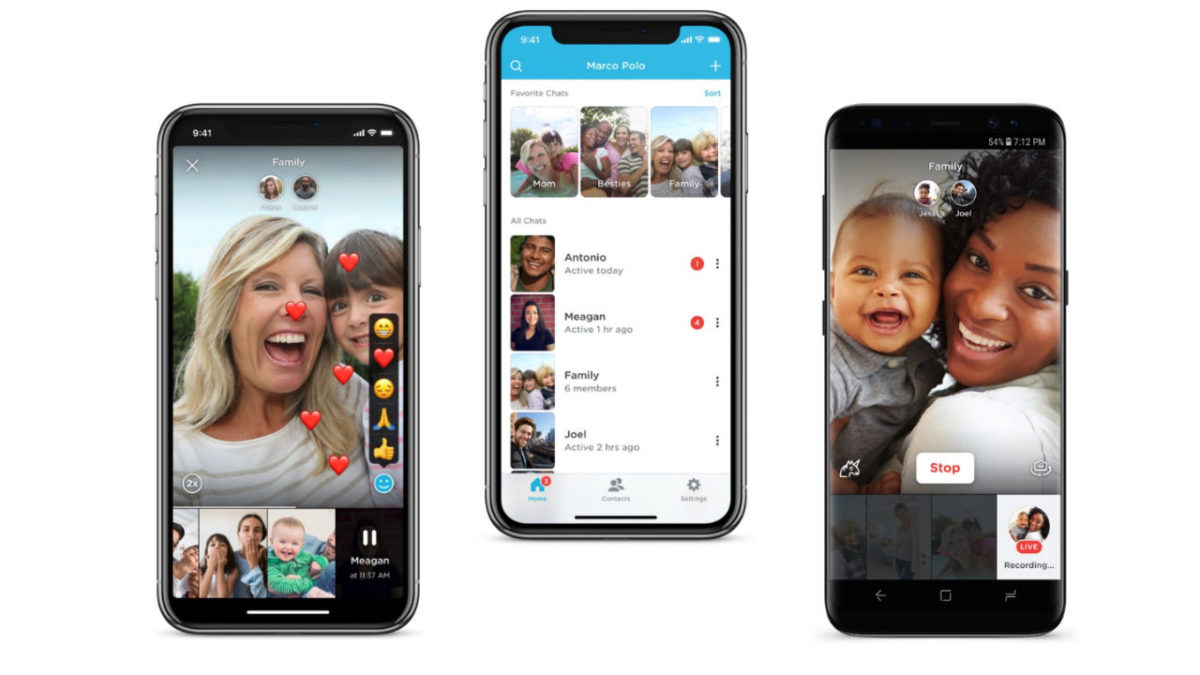
Video chat with Marco Polo App

Marco Polo is a video messaging app that works with Android and iPhone.

We’ve seen a lot of mentions of the app calling it a digital “walkie-talkie,” others have dubbed it “Snapchat for old people.”

Essentially, Marco Polo is a call-and-response app that allows you to record a video then send it to a friend. When someone receives a message, they can watch it on the spot or save it for later.

All video messages are pre-recorded, so it’s not a live video chat like Facetime or Skype. Messages won’t disappear or expire, as is the case with popular alternatives like Instagram Stories and Snapchat.

The website states that you can react in real-time, but that comment is a bit misleading, and the experience is more akin to texting back and forth versus video chatting live.

How Marco Polo works

Marco Polo allows you to import your contacts using their phone numbers, and once set up, you can add them to a “Polo” or chat.

When you first download the app, you’ll have the option to either import all of your contacts at one or add friends manually.

You can only add people you already have in your phone’s contact list, and no one has access to your account unless they know your phone number, making it easy to stay safe online.

Though the app asks users for permission first, gains access to your entire contact base, which may make some people uncomfortable. And, as you’ll see in this Reddit thread, some users have accidentally spammed everyone in their contacts.

And much like LinkedIn, you’ll also have the option to automatically invite everyone in your address book to join the app by sending them a text message link.

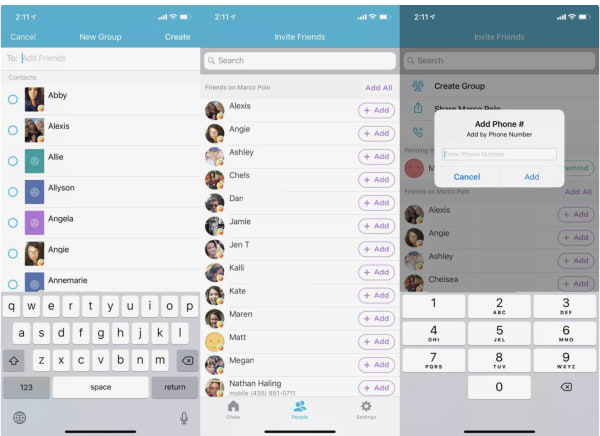
how to add contacts in Marco Polo app

Here’s a quick look at how to add contacts:

  1. Tap on the People tab found at the bottom of the screen.
  2. Check “Friends on Marco Polo” list to see if anyone you know already has a Marco Polo account.
  3. Then, hit Add+ to start a Marco Polo with one contact or you can select Create Group from the top of your screen to start a group chat.
  4. If you’d like to connect with a friend that isn’t showing up on your Friends list, you can send them a message using their phone number. Your friend will get an invitation to join Marco Polo.

How to send a video message

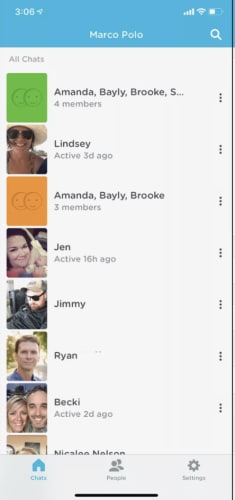
To send a Marco Polo video, you can start from either the Chats or People tabs inside the app.

The Chats menu displays your most recent posts, making it your best bet for responding to message threads. The People menu is best-suited for starting a new conversation.

marco polo chat screen

  1. Head over to your Chats menu, found at the bottom of the screen.
  2. Click on a group or individual contact to record your message.
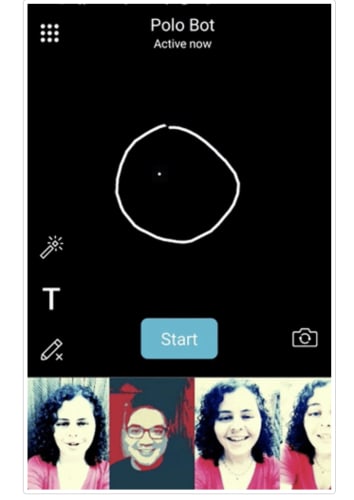
  3. This will open up the camera and you can start recording.
  4. You’ll also see a few options for adding effects to your video.
  5. Tap Start to begin recording your message.

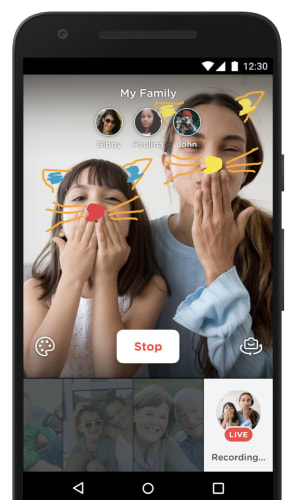
marco polo live

If you’d like to make things a bit more interesting, you can add the following elements to your video, as well.

    • T: Allows you to add text on top of your message.
    • Landscape Icon: Here, you can insert a photo and record audio to go with it.
    • Unicorn: This icon allows you to distort your voice.
    • Camera Flip: The default view in the app is selfie mode, camera flip allows you to get behind the camera and record your surroundings.

Add a doodle to your message

Marco Polo add doodle

To draw on top of your message, simply follow these steps:

  1. Open a conversation
  2. Tap on the Pencil icon, which can be found next to the Start button.
  3. Draw on top of your message with your finger.

Filters

If you’d like to add a filter to a video message, all you need to do is swipe left or right on the screen to make the change.

marco polo filters

Is Marco Polo worth checking out?

For the most part, people seem to like Marco Polo. Admittedly, the selling points like—it enables real conversations or it helps people not feel lonely–aren’t exactly measurable, but it’s kind of a neat way to connect with loved ones, getting more personal than a text.

We liked that user identities are based on phone numbers, so there’s no need to sign in with a Google account, or sync up to Facebook or Instagram.

The family-friendly branding—with imagery including military service people, grandparents, and groups of friends—position the app a wholesome, private way to keep in touch.

Marco Polo Download Free
8

Hold tight, there’s a brand-new Instagram app incoming

Threads will work alongside the main Instagram app and will give users the chance to automatically share basic information with close friends and send more typical messages too

We have lots of different social networks and lots of different social apps these days. Facebook, Snapchat, Instagram, WhatsApp, Twitter. The list could go on with each app having its own specialist feature or use. If you were to take Instagram out of that list and think about what it is good at above all else, you wouldn’t say its best use is staying in contact with your friends. Sure, you can send people messages on Instagram, but you know you’d be more likely to send a message on WhatsApp or messenger than you would be on Instagram.

Instagram Download Now ►
7

This could be about to change, however, as reports are coming in of internal testing at Instagram HQ of a brand-new companion app designed to keep you in constant contact with your closest friends.

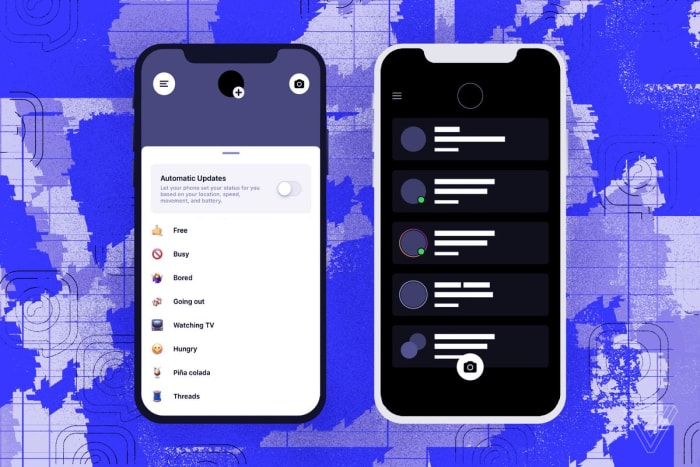
Threads will work alongside the main Instagram app and will give users the chance to automatically share basic information with close friends and send more typical messages too

According to journalists at The Verge, who’ve obtained leaked screenshots of the new Instagram app, Threads will allow you to automatically share information like your remaining battery life, internet connection speed, and location with your closest friends. The new Instagram app will also offer a more regular messaging app experience with features like text, voice, and video messaging all of which will have Instagram’s regular toolkit ready to make them look as fabulous as possible.

Image via: The Verge

This isn’t the first time Instagram has worked on a separate direct messaging app. The company also worked on an Instagram companion app called Direct, which, you guessed it, was supposed to make it easier for Instagram users to send direct messages to their friends. The thing is though, Direct never actually made it to general release with Instagram pulling the plug before the app made it to the app store. Direct messaging is still an internal part of the main Instagram app.

The key difference with Threads is the addition of the always sharing features that allow you to choose your closest friends who’ll then be ale to always see your live basic information. This automatic sharing will require you to opt-in to the service first, however, before Threads will start publishing your live information. You’ll also be able to view any of your closest friends’ recent Instagram Stories from inside Threads too.

Instagram's crackddown on sensitive content

According to The Verge, the main motivation behind developing Threads could be Instagram’s desire to match the impressive levels of engagement that Snapchat enjoys with its users. The average Snapchat user spends more time using the app than the average Instagram user does. Adding something like constant sharing on top of a regular messaging app experience could be a way for Instagram to try and drive up those engagement numbers.

What is missing in the report from The Verge though, is news of a release date for Threads. At the moment, there is no way of knowing when we might see the new Instagram receive a general release on iOS and Android. Indeed, with other Instagram companion messaging apps making it this far along the development path without being released, there is no way to guarantee it will ever be released at all. We’ll just have to wait and see.

Gmail’s new feature could help you relax more when on vacation

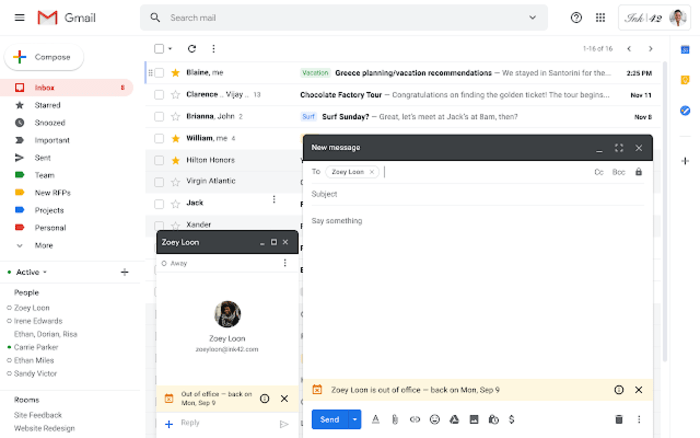
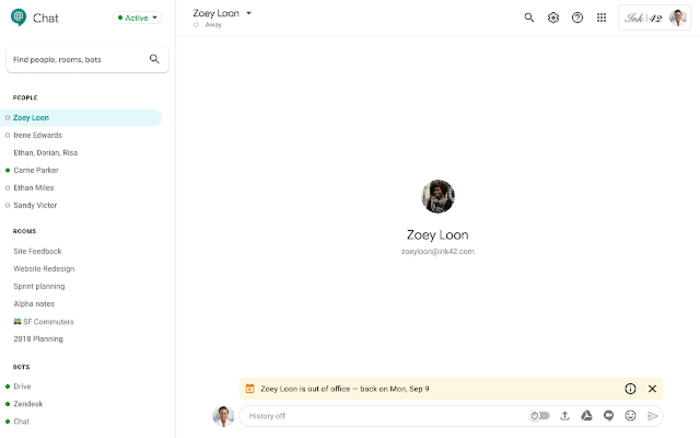
Gmail and Hangouts Chats will show you when somebody you’re trying to contact is out of the office BEFORE you send a message

Out of office. Those three words are supposed to protect us from all things work related whenever we’re on vacation. We set up our Gmail out of office dates, pen an automatic response that explains to people how long we’ll be away for and then, theoretically at least, we walk away from our inboxes. We might also use the out of office feature when we’re away from our desks for business related tasks but everything we’ve just said still stands. We don’t want to be distracted when we’re using out of office features.

The trouble with out of office though, is that it only kicks in once somebody has already sent us an email. They send us an email and they’re told we’re away, but we still receive the email. If our notifications are still switched on that email will ping away in our pocket.

If this sounds like an annoying an unsatisfactory solution for when you’re out of the office, you’ll be pleased to hear about a great new Gmail feature.

Gmail and Hangout Chats will show you when somebody you’re trying to contact is out of the office BEFORE you send a message

This is a very simple change for Google to make to Gmail. We already give the app all the information it needs to do this, it is just that now it will be displayed a little earlier. This is the type of eureka moment new feature that you can imagine everybody in the Gmail office thinking ‘Why didn’t I think of that?!?’

Image via: G Suite Updates

When it hits your Gmail account a small change will make a big difference. Whenever you put the Gmail address of somebody who has logged themselves as out of the office, you’ll see a banner at the bottom of the main text box telling you that the contact is out of the office and also letting you know when they’ll be back. The same goes for Google Hangouts, which will show the same banner in the same position.

Image via: G Suite Updates

The Google blog post, which recently announced this most common sense of new features says that all Gmail users should expect to see it within 1-3 days of September 16 this year, with Hangouts users seeing the same release schedule.

Combine this feature with Gmail’s recently unveiled scheduled send feature and you have a potent tool for both business and personal emails. Now, whenever you’re about to send an email to somebody who is away from their desk, you’ll be told when they’ll be back. Rather than sending the email anyway, you can simply schedule the email to go when you know they’ll be checking in on their inbox again. This stops the recipient from being disturbed wherever they may be and stops your email from ending up as one of a whole bunch that’ll be waiting for them whenever they log back in at the office. This feature helps everyone.

More WhatsApp and Facebook integration

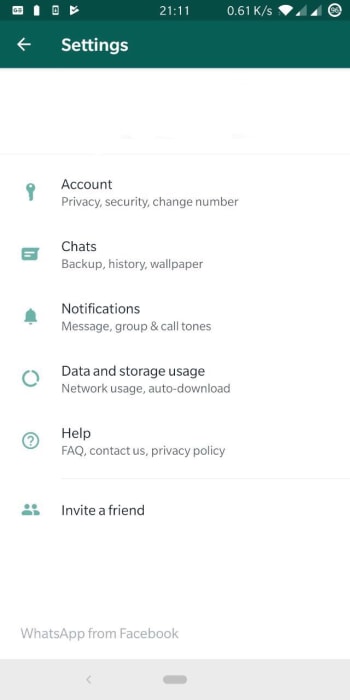
New “WhatsApp from Facebook” tab has been spotted in advanced WhatsApp beta code


WhatsApp and Facebook linkedA lot has been made in recent weeks about the integration that is going on between Facebook, Instagram, and WhatsApp. This goes way beyond the borrowing of app features between the three, like the recent news about a Boomerang feature coming to WhatsApp, which has been going on for years.

The big news is that behind the scenes, Facebook is working on integrating the code of all three apps so that users of each app can interact with each other, even if they don’t have an account on all three apps. Theoretically, when these big changes take place, a WhatsApp user will be able to send a message to an Instagram user from her WhatsApp account.

Obviously, this isn’t going to be the only major change and it has been becoming more and more apparent that Facebook plans to introduce these changes in a drip like fashion. We’ve already seen the share to Facebook feature land on the WhatsApp beta and now we have another little change coming in, designed to highlight how all three of these massive apps are linked.

New “WhatsApp from Facebook” tab has been spotted in advanced WhatsApp beta code

It wasn’t too long ago that serial tech tipster Jane Manchum Wong tweeted about an interesting little snippet she’d found in some Instagram code. Tucked away at the bottom of the settings menu were the words, “Instagram from Facebook”. It had been widely remarked at the time that Facebook had been exerting much more control over Instagram and the subtle new branding confirmed it.

screenshot of new WhatsApp branding
Image via: WABetaInfo

Well, in a worrying development for all WhatsApp fans, that very same branding has been spotted by the guys at WABetaInfo at the bottom of the settings menu. With everything else that has been going on, it would be naïve to expect that this is simply just a few hidden words and not a part of some bigger structural changes going on behind the scenes.

WhatsApp is for adults only

In other WhatsApp news, it also looks like WhatsApp is upgrading its terms of service to target underage users of the messaging app. The new terms of service target users in the European Union who are under 16 years of age and users everywhere else who are under 13 years of age. Once WhatsApp starts enforcing this change, it’ll be an adults only app in the EU and a teens and above app everywhere else.

Also, with the roll-out of the latest WhatsApp beta version 2.19.222, it is becoming clear that the Facebook-owned app is in fact working on a feature that will enforce the new terms of service and ban underage users. If you’re a WhatsApp user in the EU and you’re not yet 16, or anywhere else in the world and you’re not yet 13, it looks like your days on the app could be numbered.

WhatsApp Web is getting some nice image upgrades

Image Albums are coming to WhatsApp Web

WhatsApp on a computer

WhatsApp Web is a great way of staying in touch with your friends and family while using your computer. You open it up, zap the QR code with your phone, and then you’re away. I’ve a WhatsApp Web window open right now and I’m pretty sure, if you’re reading this article on your laptop or desktop PC, you do too.

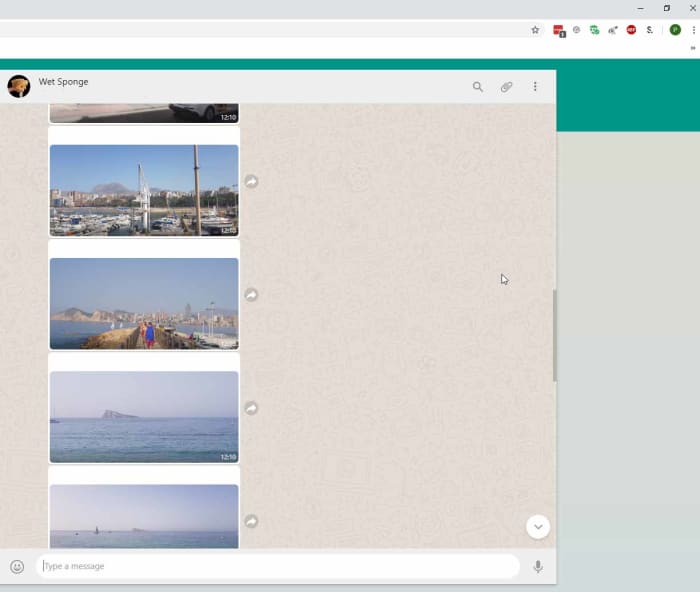
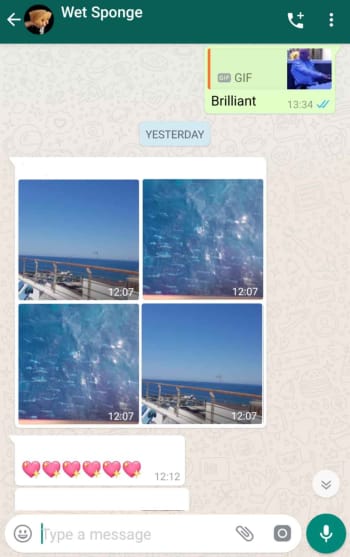
The only thing with WhatsApp Web though, is that isn’t as fully featured as the mobile app. I’m not going to get into the fact you need your phone to be on to use it; which rumor has it, WhatsApp is working to fix, I’m talking more here about viewing images on WhatsApp Web. When you receive a big batch of images all at once you can view them as an album on your mobile, but when you go to WhatsApp Web all you see is a stream of single images. This looks set to change.

8

Image Albums are coming to WhatsApp Web

There are two main problems with receiving a lot of photos at once and only being able to look at them one at a time. The first, is that it breaks up the chat. If you’re chatting to somebody about their holiday and they send you 57 holiday snaps with them all showing up individually, you’re going to have to do a lot of scrolling in between what was said before they were sent and what was sent afterwards. On mobile, this isn’t an issue as all those photos get grouped into an Album and you can see what was said before and after right there on the same screen.

whatsapp web album screenshot
This is annoying

The other main problem is downloading or sharing the images. If somebody has sent you a group of photos and you decide you want to keep or share them, it can be a painstaking process going through each of them and hitting the download or share button individually. Again, on mobile, this isn’t an issue and one click will download and share them all.

Whatsapp mobile album screenshot
This is less annoying

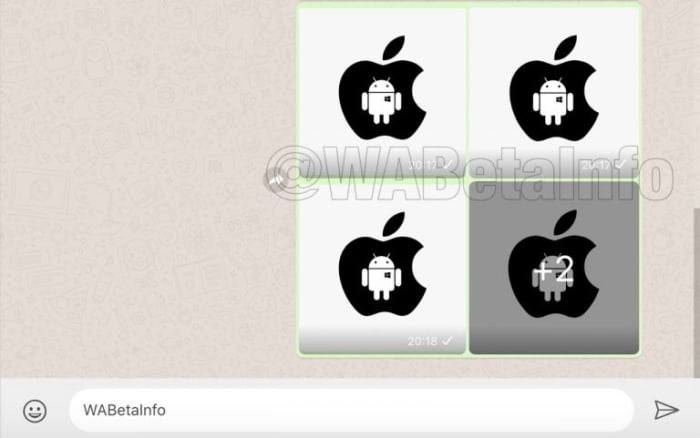
This is why it is good news that WhatsApp is developing an Albums feature for WhatsApp Web. Although not yet even available in the beta version of WhatsApp it has been spotted in some advance code by the team at WABetaInfo.

new whatsapp web album screenshot
Image via: WABetaInfo

The advance Albums feature for WhatsApp Web will work just like the Albums feature on WhatsApp for mobile. Whenever you receive multiple items at once, they’ll automatically be grouped together into an Album. Furthermore, you’ll also be able to share and download Albums entirely from WhatsApp Web, just like you can on mobile.

This is still a very advanced feature, however, that still has a lot of development ahead of it before it’ll get a general roll-out.