Meet Brave, the faster browser

Download and install Brave and enjoy private, secure and fast browsing

Brave Browser

If you’re reading this article on a browser that isn’t Brave, we’ll tell you right now – Brave probably would have loaded this page faster. Don’t take our word for it. Try it for free:

Browse the web up to 3x faster DOWNLOAD NOW ►
9
Enjoy private, secure and fast browsing with Brave.

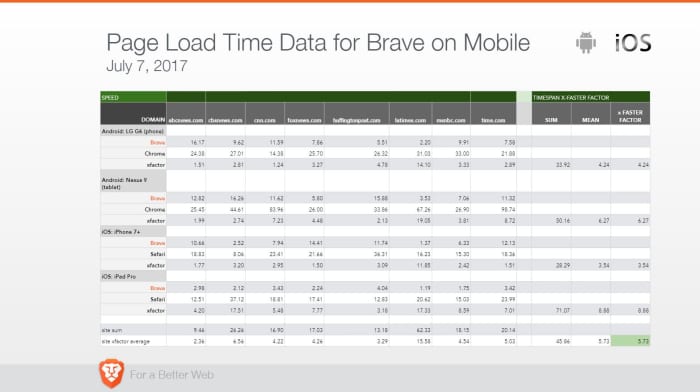
How fast is fast? On a laptop or desktop you’ll see load times anywhere from 50% to 100% faster. It’s even more noticeable on mobile devices, and you could be seeing pages load up to eight times faster than on your smartphone’s default browser (like Safari or Chrome). Check the stats yourself:

Brave mobile page load time data

Speed is about more than page load times

Brave loads pages faster than other browsers, but that’s not all that matters. Browsing eats up time in other, subtler ways: Pop-ups, advertisement videos, banners you have to scroll past – it all bogs down your experience. Brave’s default setting is to shield you from all manner of ads, trackers, banners, cookies, and pop-ups. That means all it has to load is the actual web content, not ads. It doesn’t require you to add additional plug-ins either, so the experience doesn’t get bloated. See it in action:

No bloatware and slimmer pages also means your device’s battery life will last longer than if you used Chrome on mobile. More battery life means fewer trips to recharge you phone, so you’ll be saving time on that front too.

Save time, save money

We probably don’t even need to mention it, but time is money. Since you’re paying for bandwidth you’re also paying for all the ads and slow page load times. When your browser isn’t eating up your bandwidth just to load obtrusive ads, you’re saving money as well.

Try Brave today

When you open a browser you’ve got a goal in mind. Everything that gets in the way of you and the content you’re seeking is unnecessary traffic. Download Brave and you’ll immediately understand why it’s gotten over 28 million downloads on Android alone. Download it here 100% free, and see what the hype is about.

Browse the web up to 3x faster DOWNLOAD NOW ►
9
Browse faster. Choose Brave.

Softonic is proud to partner with Brave. When you download from us, we may earn a commission.

Keep your messages private for free with Signal

Concerned about data privacy? Signal is the messaging app you’ve been looking for.

Hesitant to share your personal information over messaging or texting? You’re not paranoid – you’re probably right to be cautious. Privacy is a thing of the past. One of the best tools to keep your conversations private is a free little app called Signal.

7

What is Signal?

Signal is designed specifically for mobile devices and allows for free, worldwide, encrypted calls for your smartphone. It does so by using ZRTP for secure voice communication.

Signal helps you dodge those pesky SMS fees while communicating, and lets you share media and files as normal, and chat with groups in real-time. It requires no password, uses your existing phone number, and never accesses any of your conversations or stores any of your personal data.

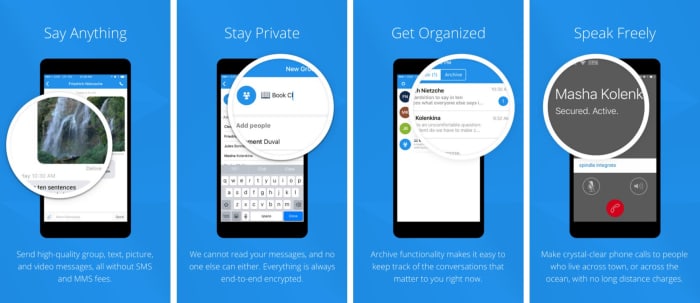
Signal app functions privacy

“Long before we knew that it would be called Signal, we knew what we wanted it to be,” said the company on their blog page. “Instead of teaching the rest of the world cryptography, we wanted to see if we could develop cryptography that worked for the rest of the world. We started Signal with the idea that private communication could be simple.”

As far as simplicity goes, using the app couldn’t be any easier: Installation is free, and the download time is quick. Once it’s done, you’re in the clear. The app’s Contact Discovery immediately displays which of your contacts are reachable with Signal, so you can carry on your conversations in private.

Why you need it

“As more and more of our lives happen online, data protection and privacy are critical,” explains the company’s Executive Chairman Brian Acton. “This isn’t just important for select people in select countries. It’s important for people from all walks of life in every part of the world. Everyone deserves to be protected. We created the Signal Foundation in response to this global need. Our plan is to pioneer a new model of technology nonprofit focused on privacy and data protection for everyone, everywhere.”

True to their word, the company has kept Signal free and open source. It’s the only app of its kind, and even goes as far as sending optional push notifications to conserve your battery life and still stay responsive.

“The best way to continue to ensure the universal availability of high-security and low-cost communications services like Signal is to do so through a foundation structure that is free of the inherent limitations of a for-profit company,” says Acton. “We’ve built a service used by millions, and software used by billions.”

The latest versions of Signal are available on Android, iOS, and Desktop. It also has an integrated link preview function and browser extensions for the Desktop client. Get it free today and let us know how it helps you manage your conversations. Stick with Softonic for more tips and tricks to keep your data private and secure!

Airport charging stations could give your phone malware

Think twice before charging your device in public.

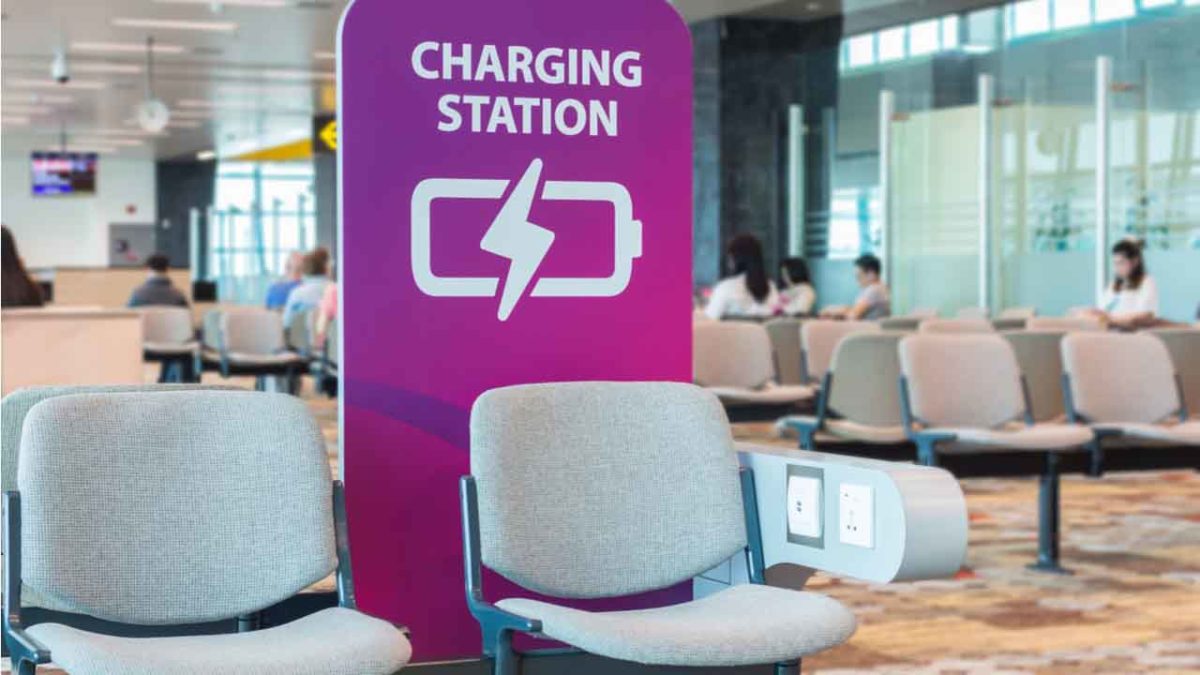
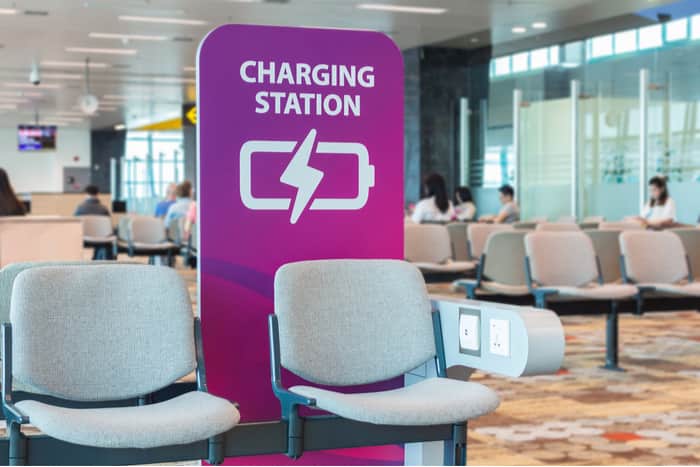
Airport charging station

By 2019, you probably know it’s not safe to hop on the internet without a safety net in place: Anti-malware protection, a firewall, a solid VPN, and a secure password manager. We create quintillions of bytes of data every day, and it’s easy to make an innocent mistake that puts it at risk. Now that innocent mistake can include plugging your phone into a charger at an airport.

It’s no secret that public Wi-Fi can be sketchy at best, and while it’s convenient to charge your phone at the nearest port, it’s not necessarily safe. Free public phone chargers can be used to secretly install malware on your device, malware that can eat up your data in a process called “juice jacking.”

What’s juice jacking?

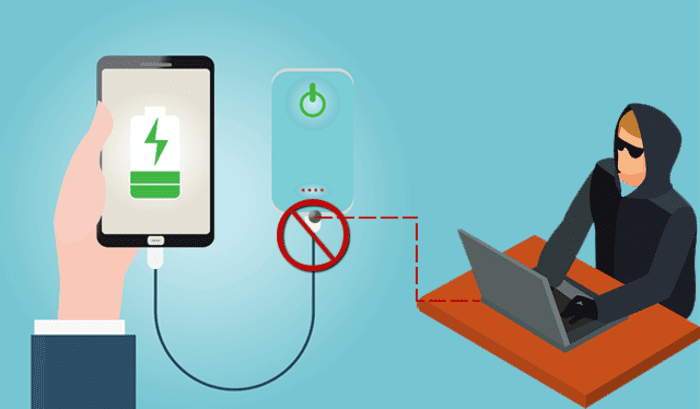
It sounds like tinfoil hat propaganda, but in reality, it’s an underrated but serious security threat. ‘Juice jacking’ was coined back in 2011, and refers to a hack attempt that uses public charging terminals to install malware on your device. It does so covertly via USB charging port, and it copies your phone’s data, pictures, and email into someone else’s hands.

juice jacking
Hackers can use public USB charging terminals to copy your personal data

“All they really need to do is load malware on the USB port,” explains IBM cybersecurity expert Charles Henderson. It’s unlikely you’ll even know it’s happened until it’s too late. “There’s really no way to tell,” says Henderson. “You really have to be extremely technologically savvy to detect such an attack.”

3 easy solutions to stay safe in airports

1. Use a portable charger

The best thing you can do is avoid airport charging terminals altogether. These days it’s not too hard to get your hands on a cheap, reliable portable charger. It’s a safe, convenient way to keep your phone charged and ready to go without putting your data at risk with a public outlet.

2. Use an electrical outlet instead

It should also be noted juice jacking can’t be done unless it’s via USB, so as long as you opt for an electrical outlet instead you’ll be safe.

3. Turn off your phone first

Lastly, if you’re in a situation where you’ve got no choice but to charge with a public USB port, completely powering off the device beforehand will prevent the download and transfer of your data.

Luckily, preventing your phone from being juice jacked is pretty easy. Just remember that any time you use public charging stations or Wi-Fi, your online activity could be at risk. Follow these easy steps, and stay informed!

What’s new with Google’s mobile redesign?

Google’s visual refresh aims to give you more information about where your searches will take you on the web.

Google design

You might not have noticed it but over the last few days, Google has been implementing a redesign for Google search results on mobile. The change isn’t big, which is why you probably missed it, but it does mark an important step for the search giant.

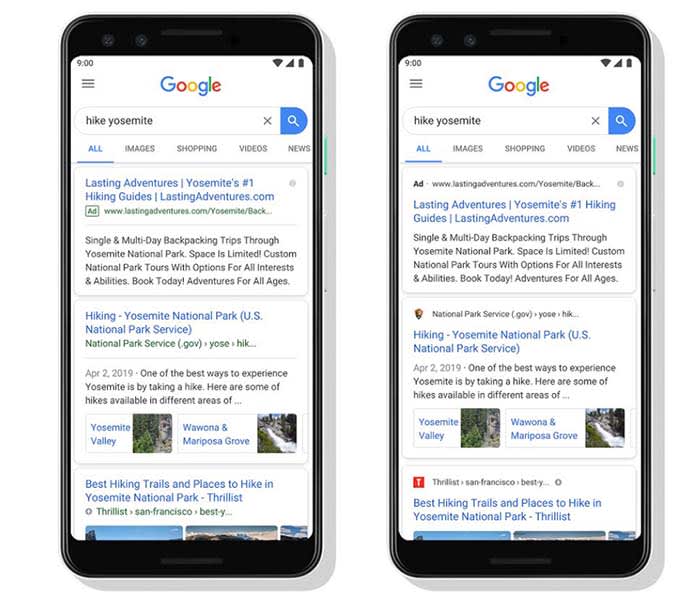
Google mobile redesign
Source: Google

Can you see the change?

It is tiny, but it is there. All search results are still displayed in a separate card, much like they are on the Google app. What’s new is the branding of the site at the top of the card. Each search result now comes with the logo and name of the website hosting the search result displayed clearly at the top. This branding is only small, but it is clear. Also, whenever Google is showing an ad in your search results it will clearly state “Ad” in bold.

Working on transparency

Google’s visual refresh aims to give you more information about where your searches will take you on the web.

According to a Google blog post, the search giant is trying to help you “better understand where the information is coming from and what pages have what you’re looking for.”

With the rise of disreputable information and even the gaming of certain search engines by those with a political agenda, this is an important move by Google.

When it comes down to it, search engines don’t actually offer us much information on the search results they show us. We type in our query and then they serve up the results they think answer it best.

Almost everything we see comes from the sites the search results link to. We basically click based upon headlines and descriptions that come from the sites themselves. The search results teach us very little about the sites writing those headlines and descriptions. This new move from Google is trying to address this by putting the websites’ branding at the top of each result.

small change big difference
It may only be a small change but it icould make a big difference.

As well as giving us more information about where on the web our search results will take us, Google’s mini redesign is also meant to open up new possibilities.

The blog post went on to say, “As we continue to make new content formats and useful actions available… this new design allows us to add more action buttons and helpful previews to search results cards, all while giving you a better sense of the web page’s content with clear attribution back to the source.”

Google has been working hard on implementing new features to search, including buying movie tickets and streaming podcasts. This way users don’t have to leave the results page. This new design allows users to do so by providing more information about how their queries are being processed.

Wrapping up

This is just a small change, but it should have a decent effect on how we use the web. It is more important than ever these days to be able to trust the information the internet serves up. If this redesign from Google helps us do so then, we have to see it as a positive move.

Google Lens offers great new features for dining out

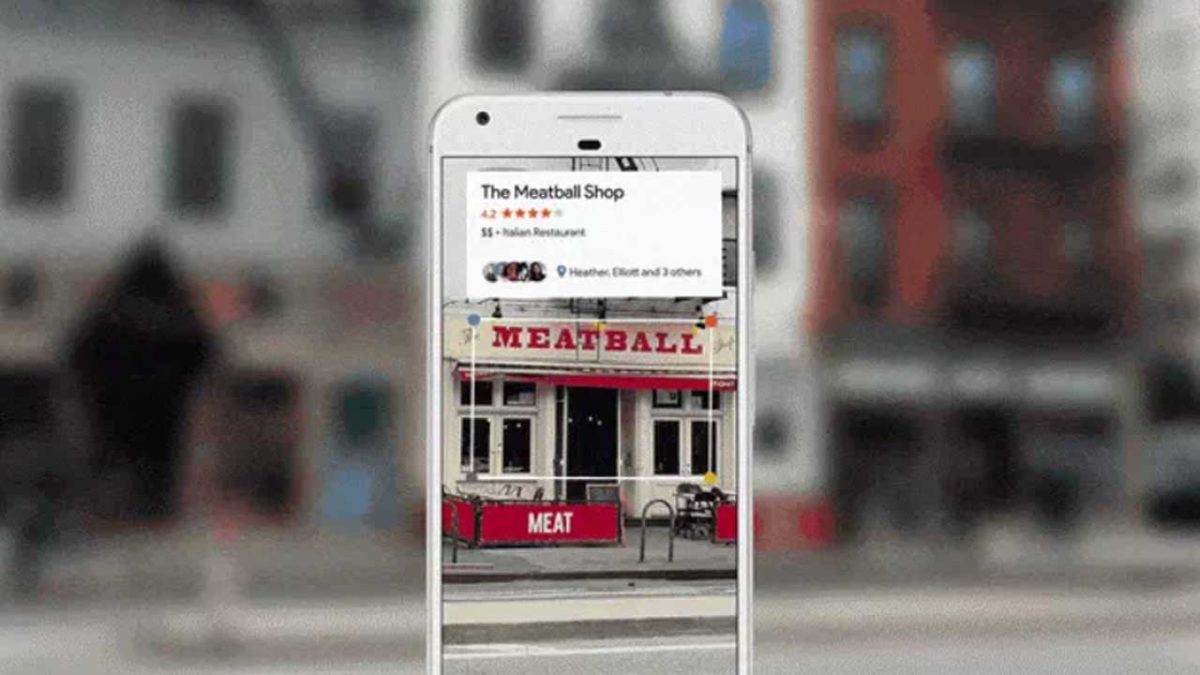
Google Lens is getting some great new “dining filters” to help us out in restaurants

Google Lens is one of those apps that blew us away when we first heard about it but has since sat dormant on all our phones. It is, of course, a logical move for Google to allow you to “search what you see” by simply pointing your phone’s camera at it. It is very impressive that Google’s AI can take contextual information from what it sees and perform a relevant web search to help you find out what you’re looking at. It is just not something we turn to very often.

Google Lens headerIn fact, the biggest use cases that go along with Google Lens relate to buying things you see when you’re not in shops or learning about things when you’re traveling. Not everybody is interested in these types of activities, however, which is probably why a lot of us don’t think of Lens that often. Google, however, is now adding new skills to Google Lens that’ll give it the power to help us in a much more popular activity: eating out in restaurants.

Google Lens is getting some great new ‘dining filters’ to help us out in restaurants

Not everybody wants to buy the latest clothes and gadgets and not everybody does a lot of traveling. Almost all of us, however, eat out in restaurants occasionally and these new Google Lens filters could help us decide what to eat. If you’ve ever felt rushed in a restaurant and didn’t know what to order, Google Lens can now help you out.

Google Lens screenshot

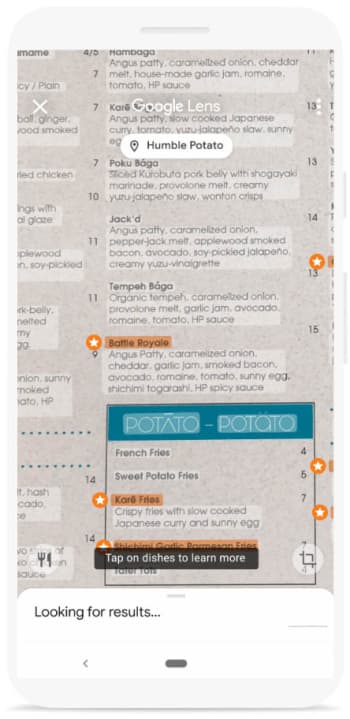
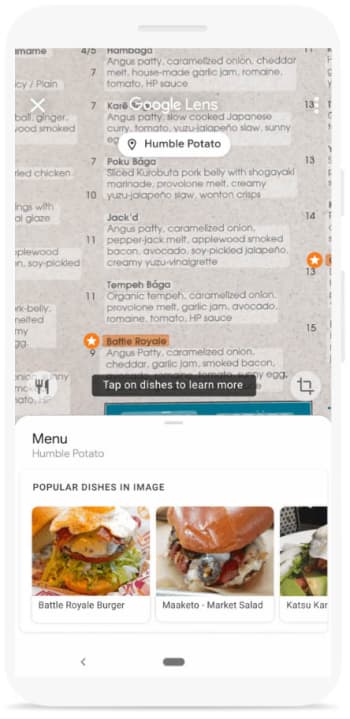
The first new Google Lens skill relates to the restaurant’s menu. If you point Google Lens at the menu, as long the restaurant’s name is visible, it will overlay the restaurant’s most popular dishes on top of what you see. You should see stars next to the restaurant’s most popular dishes and then tapping on them will show more information including pictures of what the dish looks like and reviews other patrons have written about them.

popular dishes

The other key dining-related skill that Google Lens is getting will help you out at the end of your meal. Once your waiter has brought you your bill, show it to Google Lens. Lens will then be able to calculate the tip you should leave and will even help you split the bill evenly, should you need to do so.

It is good to see Google Lens getting some more widely useful features. One of the main reasons Lens hasn’t really grabbed our attention is because it is often quicker to input the search query yourself than it is to wait for Lens to grab the information. Recognizing large amounts of text quickly, however, is one of Lens’ best skills so the new menu feature could offer a genuinely useful use case. The bill feature should be useful too if it works quickly enough.

What is going on with Huawei and Android?

Trade wars, national security, and 5G networks.

If you own a Huawei smartphone, you’ve probably been going through quite the emotional turmoil recently. Your choice of smartphone has seen you placed on the front lines in a trade war and potential futuristic cyber-war between the world’s two prominent superpowers.

The last few days, in particular, will have been particularly upsetting as it has looked like your smartphone could be cut off from official Google support, setting it adrift from the latest and greatest features but also, more importantly, nuts and bolts security updates. So, what exactly has been going on?

Trade wars, national security, and 5G networks

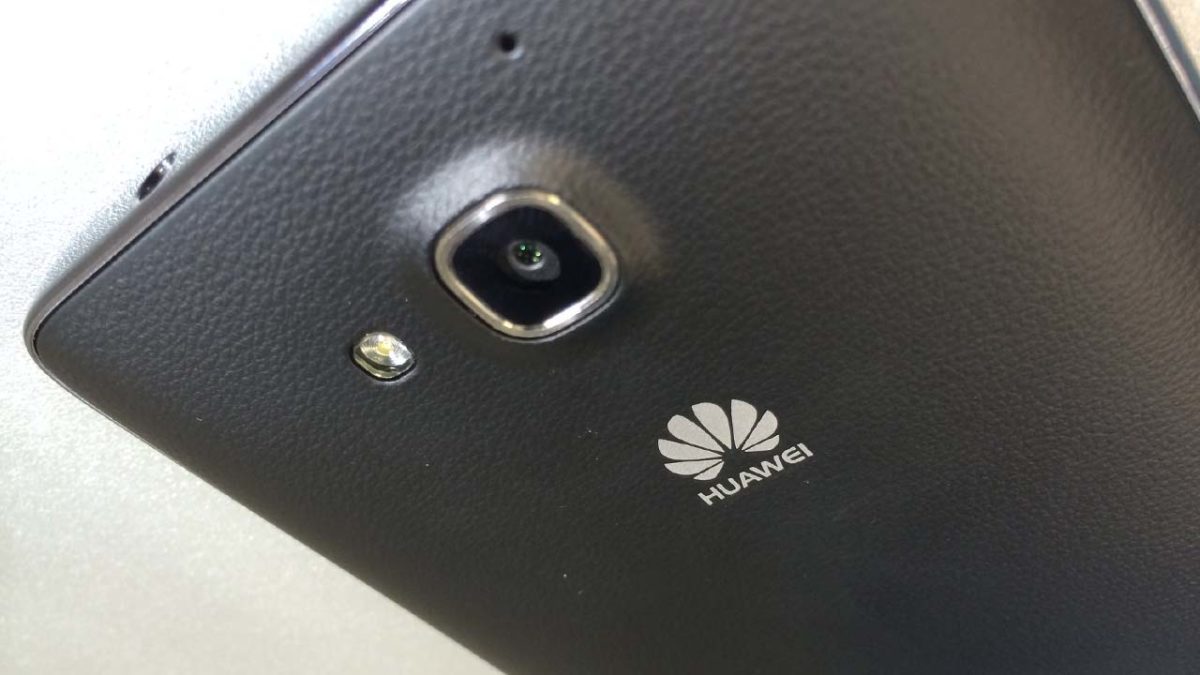
Phone with Huawei logo

In today’s hyper-globalized world, it isn’t often when your choices in the market can see you fall afoul a global trade war, but that is exactly what has happened to anybody who has bought a Huawei mobile. On Monday, in response to the U.S. Government blacklisting the Chinese technology behemoth, Google suspended all business with Huawei that required the transfer of hardware, software, and technical services.

For anybody unfamiliar with Huawei, the Chinese manufacturer has grown to prominence recently thanks to its competitively priced and impressively featured lines of smartphones. The likes of the P30, P30 Pro, Mate 20 Pro, and others including the budget-friendly Honor range have captured the market’s attention and won a huge global following.

Huawei phones come loaded with the manufacturer’s own mobile operating system called EMUI, but, like with almost all other smartphone manufacturers’, Huawei’s mobile operating system is based upon Google’s open source Android. When Google suspended all business with Huawei, it meant that Huawei phones would no longer be able to receive data from Google. Goodbye regular over the air updates. Why though?

Since Trump became the president, he has been pushing hard his “America First” narrative. China has been a major target of these initiatives as Trump sees his base as white American blue-collar workers. All those factory workers in China are doing jobs that, according to Trump, should belong to factory workers in America. He has hit China with tariffs and in the midst of all this, Huawei has become a prominent target for the Trump administration.

smart cities and 5 g networks

It isn’t all about trade though. As well as mobile phones, Huawei also builds other things that annoy the Trump administration; namely 5G networks. 5G is the next generation of mobile telecommunication networks. The increase in data speeds will be so significant that 5G networks will be able to facilitate things that until now have seemed impossible. Smart cities that can record and react to everything that goes on within them are on the horizon and the U.S. government is concerned that it could be Chinese technology that sits at the heart of it all.

The U.S. has been exerting pressure on its allies not to have Huawei install 5G networks in their countries and has even taken drastic measures itself, including putting pressure on Canada to arrest one of Huawei’s top executives to put pressure on the Chinese tech giant.

This latest move then, might shock due to its severity. Many analysts are saying the move could decimate Huawei’s mobile phone manufacturing business, but it definitely fits a pattern of behavior. Except, well, what about everybody who has bought a Huawei phone? This is where it gets a little complicated.

Over the last couple of days, there have been a number of developments. First off, Google has said, via Twitter, that Huawei phones will still be able to access services like Google Play, even while Google tries to comply with the U.S. government. Since then, Huawei has said itself that it will keep providing security updates to its customers. The best news, however, has come from the U.S. Commerce Department, which has granted a 90-day temporary license to Huawei that restores its ability to provide updates to its customers. This license does not allow Huawei to keep selling new Android phones, however, which shows that there are still major problems underlying the whole issue.

So, if you own a Huawei phone, you’re off the hook for the next few months at least. It doesn’t look like this issue is even close to being over though, so we can expect further developments on this in the future. Remember to stick with us to keep yourself up to date.

Google has a cool new app to help kids learn to read

Rivet listens to kids read out loud and can even help with pronunciation.

Google is most famous for web searches and its big-name apps like Gmail, Google Maps, and Google Chrome. Beyond its core products, however, Google casts a wide net developing and releasing apps that cover many different aspects of our lives. From cultural heritage preservation to online video game streaming, Google has a lot of apps that do a lot of things. We can now add Rivet, an app that teaches kids to read, to this ever-growing list of software. Rivet has just left the beta testing stage and is now available on Android smartphones, tablets, iPads, iPhones, and Chromebooks.

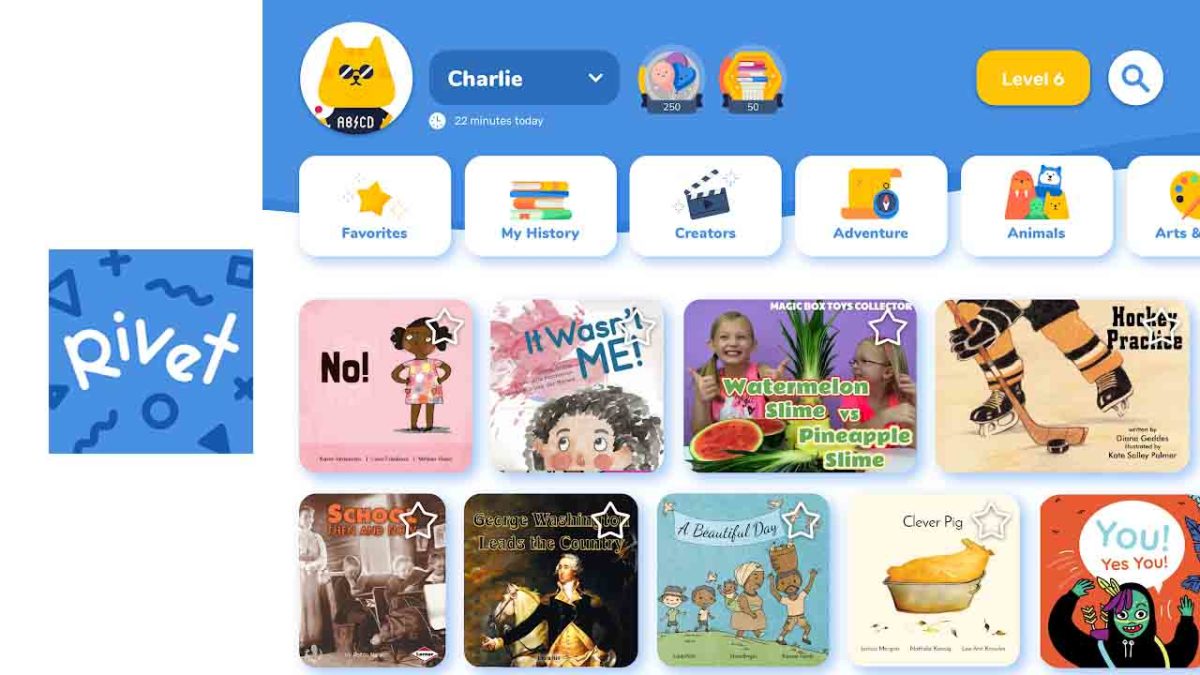
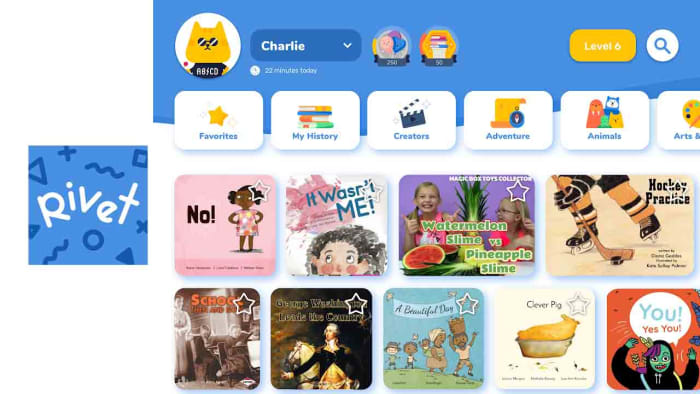
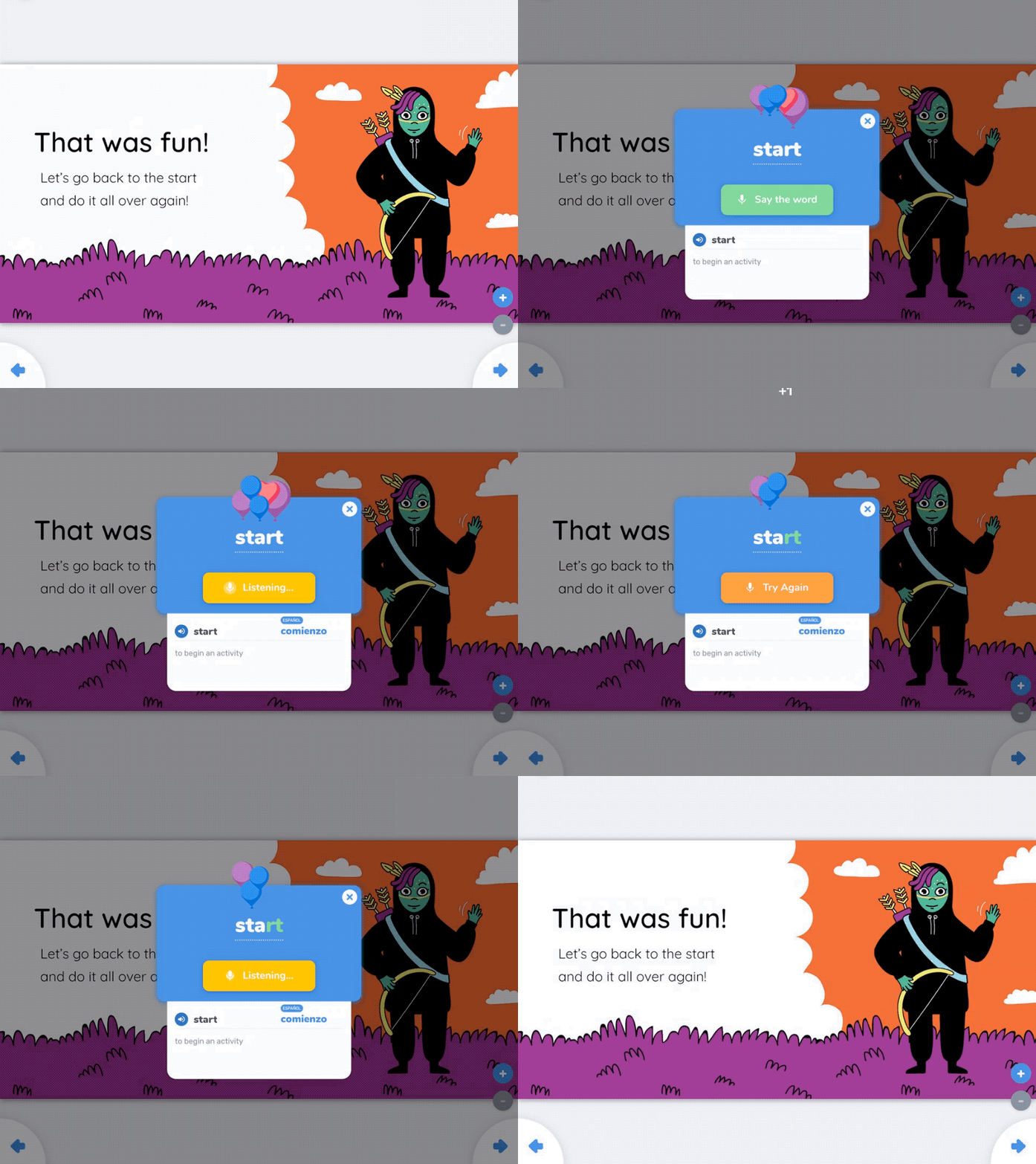
Rivet listens to kids read out loud and can even help with pronunciation

Rivet Library

Google makes a compelling case for the need for an app that teaches kids how to read. The search giant points out that struggling readers are, “unlikely to catch up and four times less likely to graduate from high school. Unfortunately, 64 percent of fourth grade students in the United States perform below the proficient level in reading.” You’d be forgiven for thinking we can all read just fine, but it doesn’t appear to be so. This is why Google has developed Rivet, to help kids learn to read at a young age.

Straight off the bat, Rivet has some very impressive stats, giving users access to over 2,000 free books split into categories like topic and reading level to help them learn to read. The blog post announcing Rivet’s release also promises that this number will keep growing as Google will continue to add books to it moving forward.

Image via: Google

On top of the large library, however, as you’d expect from a Google product, Rivet has some very interesting tech-based features that will help it get the job done. The app can listen to children reading aloud and then offer visual cues should it hear them pronounce a word incorrectly. The app also offers audio clips so that the children can hear words pronounced correctly and makes the whole process of learning to read and pronounce words properly feel like a game.

Image via: Google

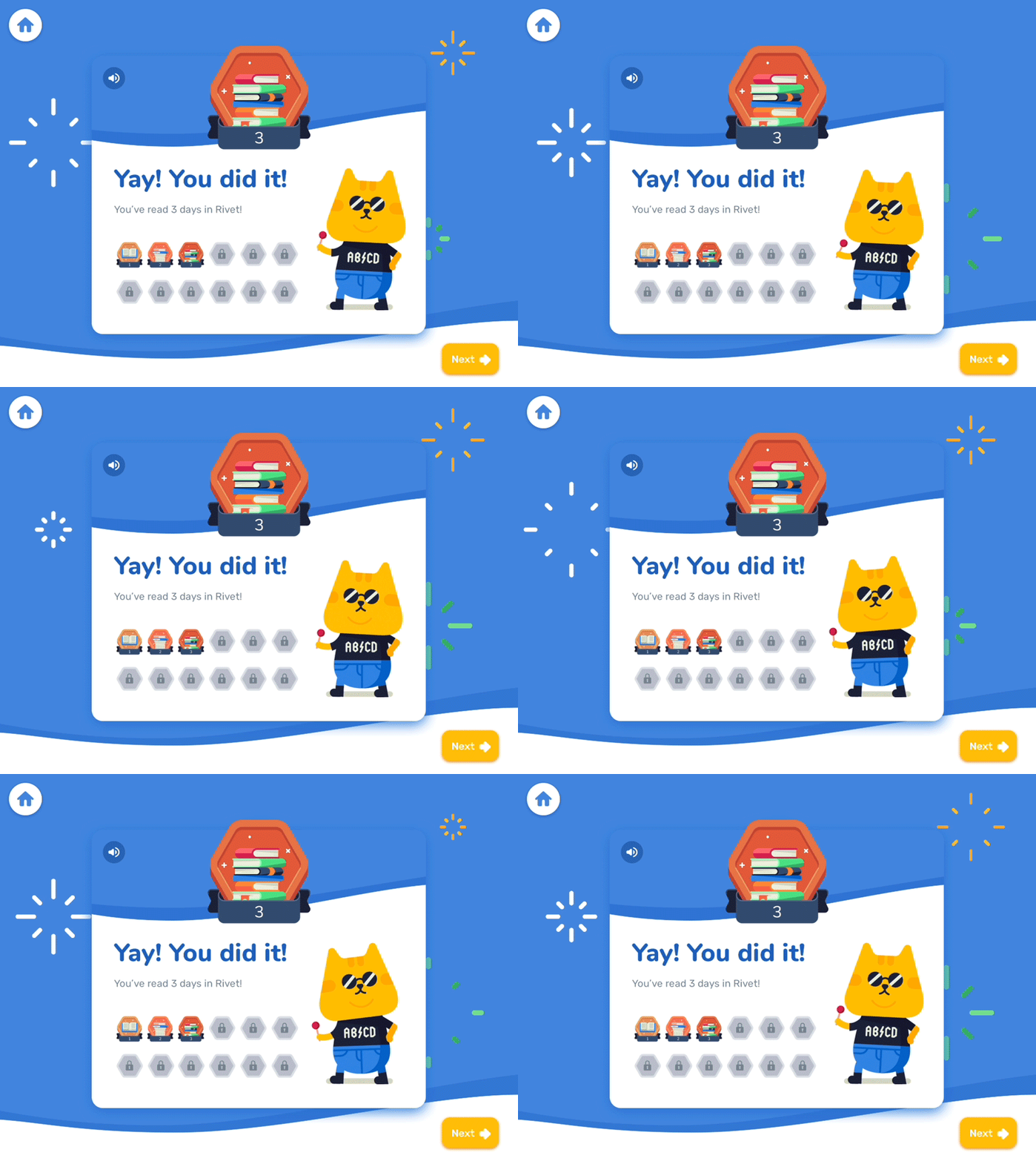
Another good Rivet feature is the Follow Along feature. When activated, Follow Along will read out full pages on a selection of books, just like a teacher would in class or a parent at home, and the child can follow the story via the words on the page.

Rivet is designed to give kids the ability to learn to read even if they don’t have somebody there to teach them. It does a good job of it too; the app helps when they get stuck and actively teaches them as they move up through reading levels.

The trouble is that the app only offers its teaching capabilities on a limited number of the 2,000 books in its library (for now). Not all the books have full audio support. Google is likely to work on bringing full support to more books in the future. If it can do that, it is highly likely that Rivet will help a lot of kids learn to read at a high level and develop strong reading habits.

How to set up voicemail on Android

This is how to set up voicemail on an Android phone.

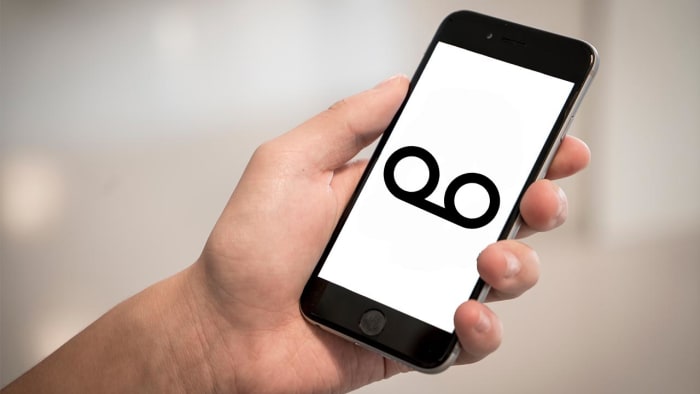
Voicemail on android

When you get a new phone, you should set up your voicemail. We know, no one really calls anymore. But if they do, it’s nice to have a personalized greeting. It will also keep you hooked up with your friends and family who are stuck in the pre-internet era. We’re looking at you, Grandma.

How to set up voicemail on an Android phone

According to Google, there are a number of ways to set up voicemail on your Android smartphone. We’re going to walk you through the simplest way to get your voicemail ready to go. This should work for all Android phones from version 6.0 (Marshmallow) and above.

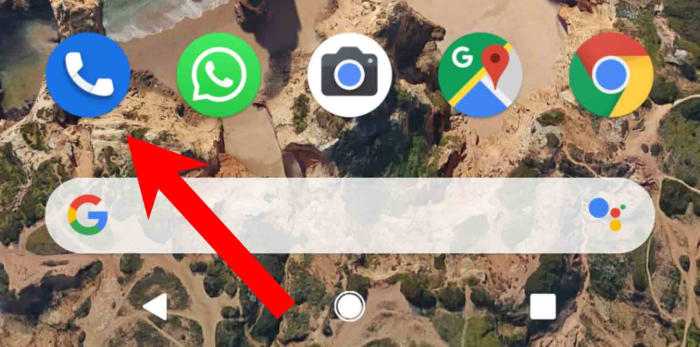
Step 1

Google Phone app

Unlock your Android phone and open the Phone app.

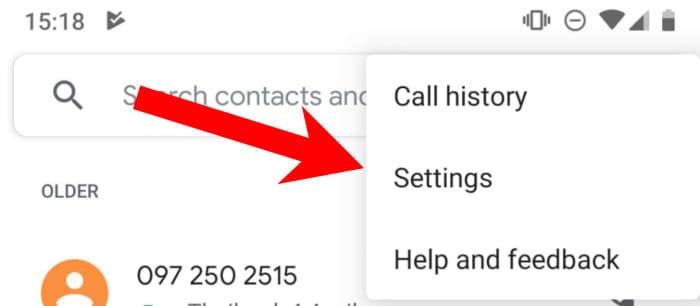
Step 2

Google Phone Settings

Hit the three vertical dot icon found in the top-right of the screen and then tap Settings.

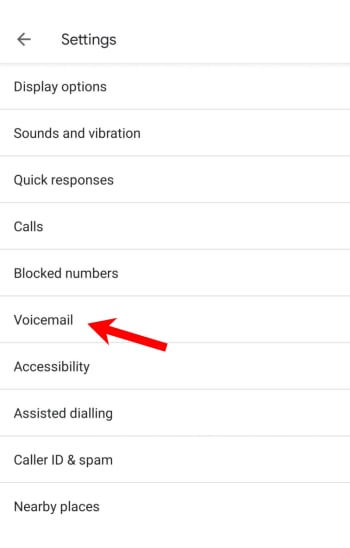
Step 3

Voicemail settings

In the settings menu tap Voicemail, which is about halfway down the list.

Step 4

Voicemail setup Android Google

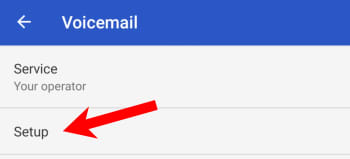
Hit Advanced, and then tap Setup.

Step 5

Voicemail number Android

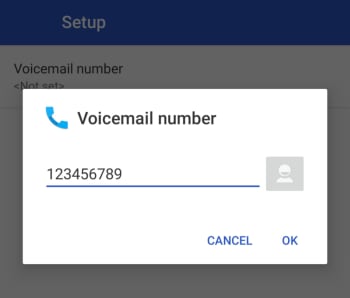
In the box that says Voicemail number type your mobile number and then hit OK.

Step 6

Android keypad voicemail key

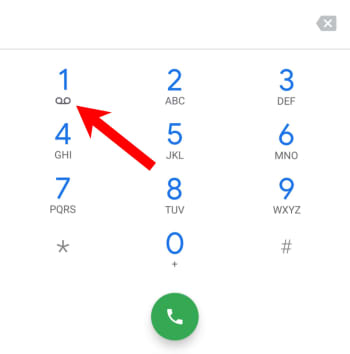
Go back to the Phone app’s keypad and hold down the number one key until it begins to dial. This should then call your voicemail.

Step 7

Follow all the voice prompts to set up all your voicemail settings.

Once you’ve done all this, you should be able to check on your voicemail by holding the 1 key on your phone app’s keypad. If you want to change any of your voicemail settings, like voicemail notifications, you’ll need to go your phone app’s settings menu, using the instructions laid out above, and make the appropriate changes.

Depending on who you are and how you use your mobile phone, voicemail can feel like an essential part of your setup or a bit of a relic that you don’t really pay attention to. It is worth having it set up though, as it is the default way most people expect to leave voice messages. Whatever your reason, we hope the above tutorial helps you do it quickly and without any complications.

How to change your mobile phone number

Want to change your number? Here’s how.

Getting a phone number

Whether you’re avoiding someone, or just trying to start over, changing your phone number can be a confusing process. Some service providers require you to go through a lengthy system to get your number changed.

Others are just a quick trip to their website. Either way, each provider has a different system that you have to go through to get your number changed. Here is a list of the most common service providers, and how to change your number with each one:

AT&T

Unless you want to change your area code, AT&T has a pretty simple process to get your number changed. Just go to their mobile number change site, log into your account, follow the prompts, and choose the number you want to change.

If you wish to change your area code, you may have to call AT&T’s customer support line or visit an AT&T store. You may be allowed you to change it online if you fit certain specifications.

Additionally, if you’ve been with AT&T more than 30 days, you will have to pay a $36 fee to change your number. If you’re within that 30-day activation time, then you won’t have to pay anything. However, you will have to call their support line or visit an AT&T store to change your number.

AT&T Mobile Transfer Free Download ►
7

Sprint

While Sprint has a few restrictions on changing your number, the entire process can be done on their site. First, you’ll need to sign in to your Sprint account. Then go to “My Sprint dashboard” and select “Manage Devices.”

There will be a blue question mark next to each number associated with the account. Click the question mark next to the number you want to change, then press “change phone number.”

You’ll be given a few options based on whether you want to change your area code or billing address. Once you’ve selected the option that fits your situation, you’ll be given a random new phone number.

There is no fee for changing your number at Sprint. Although, you’re only able to do it three times within 30 days.

My Sprint Free Download ►
7

Verizon

You can change your Verizon phone number from their online site or on their mobile app. Either way, you’ll have to be the account owner or account manager to change any numbers.

In the My Verizon mobile app, click “Devices” under the main navigation menu, and select the number that you want to change. Then click “Manage” and scroll down until you see “change mobile number.” Afterward, you’ll be given instructions on how to proceed.
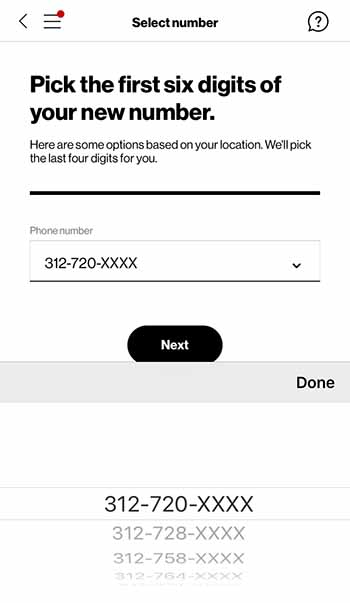
Verizon new number


If you decide to go through their online site to change your number instead, you’ll first have to go their mobile number change page. Then you’ll be prompted to sign in and select the mobile number you wish to change. Choose “Get new number” and then just answer the prompts that follow.

You’ll be able to select your area code and prefix when changing your Verizon number. However, the last four digits of your number will be randomly assigned to you. Additionally, there is no charge for changing your Verizon phone number.

My Verizon Free Download ►
7

T-Mobile

Unfortunately, unlike most providers, T-mobile doesn’t allow you to change your number online. You have to call their customer service center by dialing 611 or 1-877-746-0909.

From there, choose their service option and speak to a customer service representative. They will instruct you on how to proceed from there.

Your next bill will be charged a $15 fee.

Tmobile Tuesdays Free Download ►
8

MetroPCS

Just like T-mobile, MetroPCS requires you call their customer service line, 1-888-863-8768 to change your number. Once you get to a customer service representative, they’ll be able to help you through the steps

You most likely will have to pay a small fee as well, although this fee varies depending on your plan.

Other providers

Telephone lines

If your service provider is different then the ones listed above, you may still be able to change your number.

First, you should try seeing if they have the option on their site. Typically, this can be found in the preferences menu of your account details. If you’re unable to find information on changing your number through their site, then call their customer service center. A customer service representative should be able to help you. 

Also, you should be aware that switching providers will allow you to obtain a new number during that process. So, if you plan to switch providers soon, then it may not be worth changing your number right now. This is especially true if you’ll have to inform your contacts of your number change.


How to activate Messenger dark mode

How to activate Dark Mode in Facebook Messenger.

New Facebook Messenger Dark Mode
Image via: Facebook

Last month, we first told you about Facebook Messenger’s new Dark Mode. Facebook did make the feature available to all users but hid it behind a kind of secret code. To unlock it, you had to send a crescent moon emoji to one of your friends. Now though, Facebook has finally announced that the new feature is now built-in to the settings menu for all Messenger users.

How to activate Dark Mode in Facebook Messenger

To activate Dark Mode in Facebook Messenger all you need to do is:

Step 1

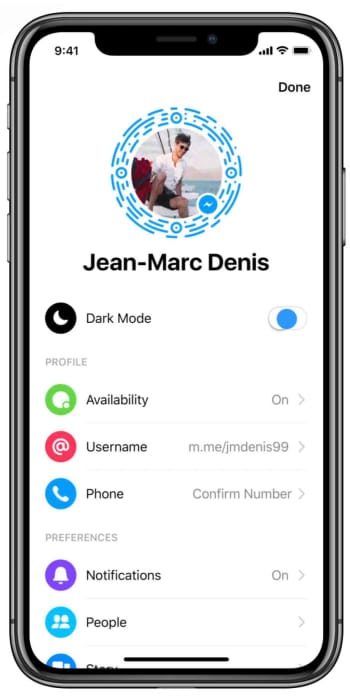
Open Facebook Messenger on your phone and tap your profile photo to access the Settings menu.

How to enable dark mode in Messenger

Step 2

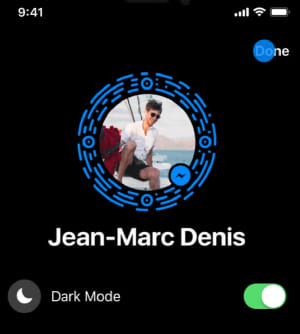
Tap the Dark Mode toggle button to switch it to the on position.

How to enable dark mode in facebook messenger

Step 3

Hit Done in the top-right of the screen and get on with whatever you were doing in Messenger.

How to enable dark mode in Messenger

Now that there is no secret Easter Egg activation to go through, activating Messenger’s dark mode couldn’t be simpler. The dark mode will be easier on your eyes, won’t glare so much when used at night, and according to research by Google, will save your phone’s battery if you have a device with an OLED screen.