
Avast crowned “Product of the Year” by top antivirus testing lab

Avast Free Antivirus named 2018’s best antivirus program, even beating premium competitors

avast logoKeeping ourselves safe online is a task that keeps getting harder. As the threats we face constantly evolve, mutate, and multiply, it becomes harder to recognize which programs can deal with them most efficiently. Threats like ransomware and massive breaches like Wannacry can leave us swimming in a sea of complex jargon when all we really want is two simple words. Safe and secure. Fortunately, there are specialist labs out there that put the top-ranking antivirus programs out there through rigorous testing so that it is easier for us to choose the right antivirus program for our needs.

Security Test Lab AV-Comparatives is a leading independent antivirus testing institution and is known for its thorough testing processes. Each year AV-Comparatives puts 18 Windows compatible antivirus programs through various stressful situations designed to test their ability to “protect against real-world Internet threats, identify thousands of recent malicious programs, provide protection without slowing down the PC, and remove malware that had already infected a PC.”
AV-Comparatives offers ratings for individual antivirus programs with those achieving advance scores across all categories receiving a “Top Rated Product” classification. The testing lab was happy to name a number of programs as Top Rated including the excellent offering from AVG. It is clear from the AV-Comparatives results, however, that one product stands out as 2018’s best antivirus program.

Avast Free Antivirus named 2018’s best antivirus program, even beating premium competitors

According to AV-Comparatives, the “Product of the Year” award is given to the antivirus product that consistently performs the best throughout the year. In this respect Avast was able to take home the prize as it performed well across the board, always scoring highly and often beating the competition in individual tests.
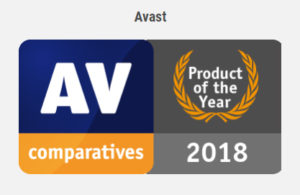
Avast free antivirus of the year

As well as scoring an Advanced+ score in all six tests, Avast won the Gold Award for Malware Protection, joint Silver for Malware Removal, and the Bronze Award on the Performance Test, which looked at how the antivirus programs work on lower-spec machines. On top of this Avast was also praised for its modern redesign and touch-friendly interface.

Avast Free Antivirus Download Avast
9

So does all this show that Avast is the right choice for you? The answer is yes and no. In its 2018 testing report, AV-Comparatives offers advice on choosing the right antivirus program. “There is no such thing as the perfect security program, or the best one for all needs and every user. Being recognized as ‘Product of the Year’ does not mean that a program is the ‘best’ in all cases and for everyone: it only means that its overall performance in our tests throughout the year was consistent and unbeaten.”
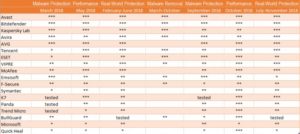
the best antivirus programs 2018
A look at the best AV programs of 2018

This means that your own online behavior will dictate which antivirus program is right for you. Even with this being the case, however, these tests give you clear evidence to match alongside your online habits. If you use the internet to download a lot of files and programs, then Malware Protection should be important to you. If you’re running an old or slow PC, you’ll want a program that scored highly on the performance tests. If, however, you’re a casual user, you’ll want a strong showing across the board and won’t focus on a certain aspect of online security. If that is you, you’re in luck because this year’s top-rated Product for AV-Comparatives is free.

Check out Avast Free Antivirus now to see why it’s AV-Comparatives top rated security program.
Avast Free Antivirus Download Avast
9

5 tricks to speed up Windows 10 start time

Follow these steps for a faster Windows experience.

windows

Windows 10 has a ton of cool features, but for some users, starting it up is a slow process.

This is especially true after continued use or on older computers. Luckily, with a few tweaks and simple maintenance you can speed up your startup process and resume using Windows 10 without so much waiting around. So without further ado, here are 5 ways to speed up  your Windows 10 start time:

Windows 10 Download now
7

1. The fast startup feature

Windows 10 comes equipped with a setting specially designed for faster startup times. The aptly named fast startup feature will prepare your computer on shutdown for the next time you power up, so you can get to work more quickly.

When this setting is enabled, upon shutdown, Windows will save the state of your device, including open programs and drivers.

It will preload that information so when your turn your PC on again, it can quickly boot it all back up. It’s similar to hibernation mode, so if you want to update your computer, you’ll have to disable this feature or hit restart.

To enable fast startup:

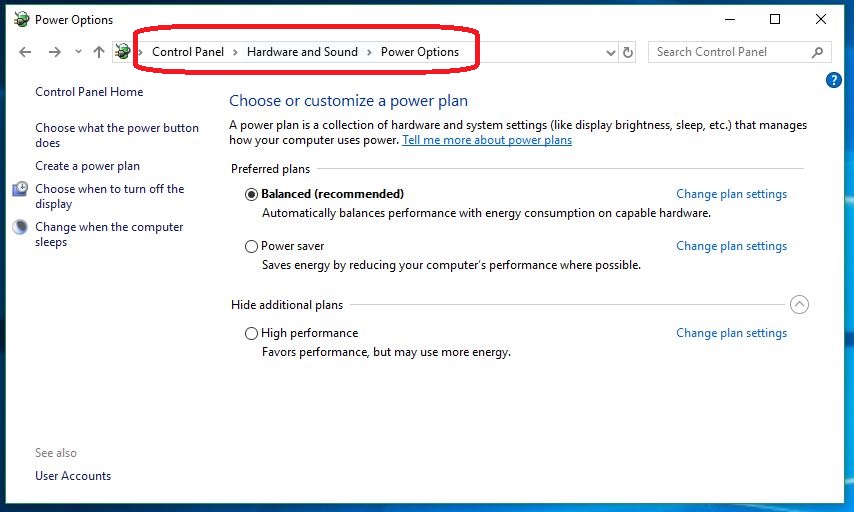
1. Open your Power Options

To do this, just hit the Win key and type ‘Control Panel.’ Open up the Desktop app. Sort by Large Icons and you’ll see Power Options:

You can also adjust those plan settings.

If you want to speed up your PC, you can also be sure Balanced or High Performance are set on this screen. Avoid Power Saver.

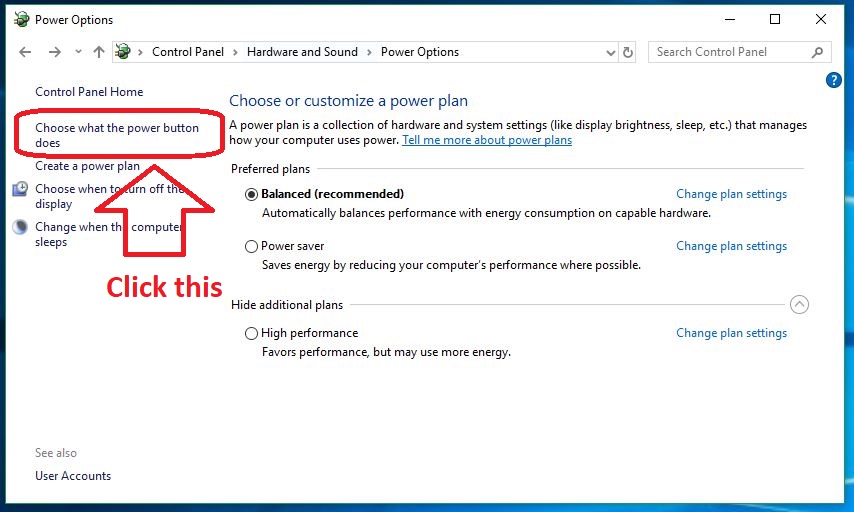
2. Choose what the power button does

On the left of this window is an option that says ‘Choose what the power button does.‘ Click it.

Adjust the settings here.

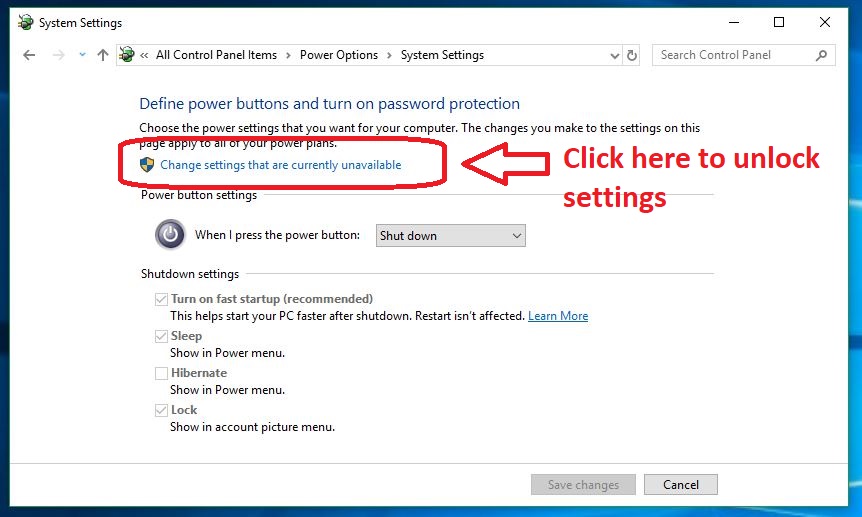
3. Unlock control

Now you’ll be on the screen where we’ll be changing the settings. Oftentimes these settings are locked. Simply click the Admin option to ‘change settings that are currently unavailable’ and you’ll be given control.

Don't forget your password!

If your Shutdown settings are blocked, you need to unlock them via Admin control.

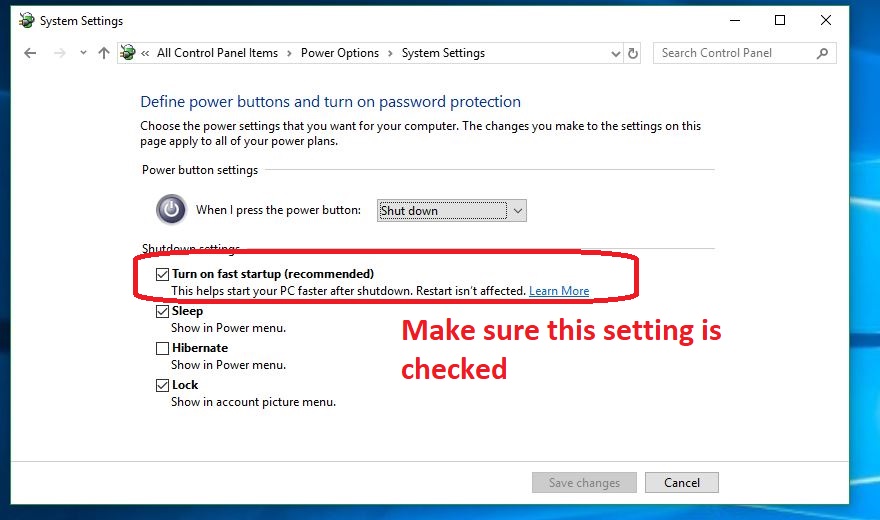
4. Enable ‘Turn on Fast Startup’

The top option under the ‘Shut down‘ drop-down should be ‘Turn on fast startup (recommended).’ Be sure to have this option engaged and you should notice faster boot times.

It's checked on by default.
You can also adjust Hibernate, Lock, and Sleep options.

2. Automatically open fewer programs

If your computer still takes a long time to boot up, it could be a sign that your computer is opening too many programs when it turns on.

If it automatically opens a lot of programs it has more work to do, which means everything’s going to take longer to get started. Luckily there’s a way to tell Windows not to bother opening specific programs on start-up.

How to open fewer programs on startup

1. Open Task Manager

You can open your Task Manager at any time by hitting Ctrl+Shift+Esc or by right-clicking the bottom bar of your screen and selecting Task Manager. You can also bring it up via the Ctrl+Alt+Delete menu.

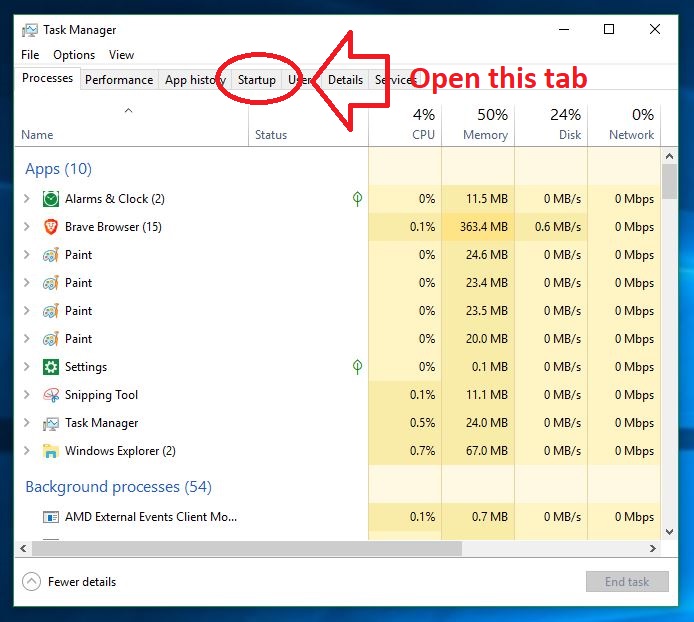
2. Open the Startup tab

‘Startup’ should be the fourth tab in your Task Manager. Open it to view all your Startup processes.

How many Chrome tabs do you really need open?
Another trick is to disable processes on this page.

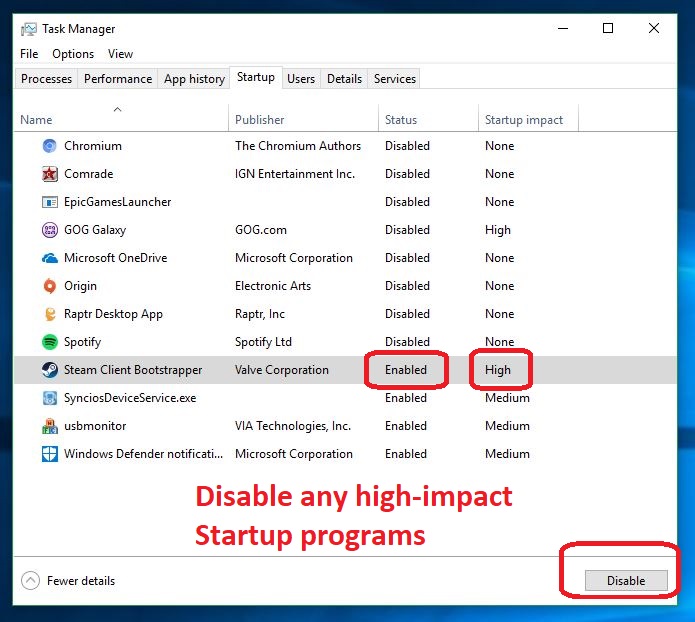
3. Disable unnecessary programs

On the Startup page you’ll be able to see any programs that are hogging Windows’ attention upon booting. Anything that you don’t want to be done automatically should be selected and disabled. You should notice a significantly faster startup time after doing this.

You can also manage the startup queue.
High-impact programs should be the first to go if you have to choose.

While you’re here, you can also manage the queue of which Publisher gets priority upon startup.

3. Clean up your files

Cleaning out space on your hard drive will make things easier on your computer, enabling faster startup times and more efficient operation. To do this, you can run Disk Cleanup or manually delete things you don’t need, often called bloatware.

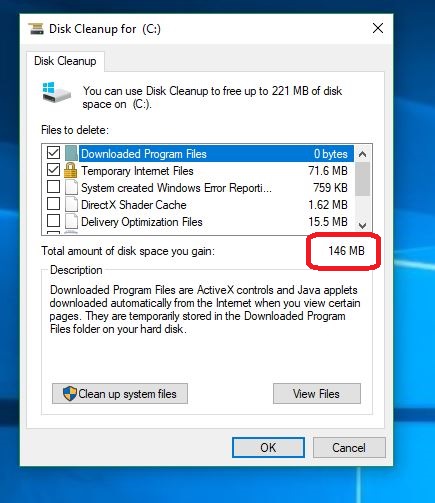
To run Disk Cleanup, just search for it, open it and hit OK. If you’ve never done this before, you’ll be surprised how much your PC will clean out.

Make your computer happier by deleting waste data.
We’ve seen this number as high as 4 GB.

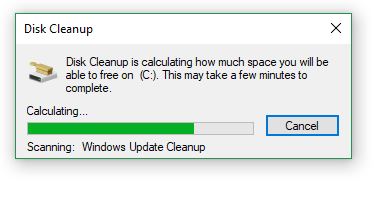
You can also choose ‘Clean up system files’ for the program to go through your computer and rid it of temporary files, installers and other unnecessary baggage.

The cleanup program should only take a few minutes.
The process is fast and is an investment towards a faster, lighter computer.

You can also uninstall specific programs by doing the following:

  1. Right-click the Start menu
  2. Select Control Panel
  3. Go to Programs
  4. Choose Uninstall a Program
  5. Select the unneeded programs and hit Uninstall

4. Shorten the Boot Menu timeout

When Windows starts up, you see the Boot Menu appear before the operating system loads. From this menu, you can choose startup options, such as Safe Mode.

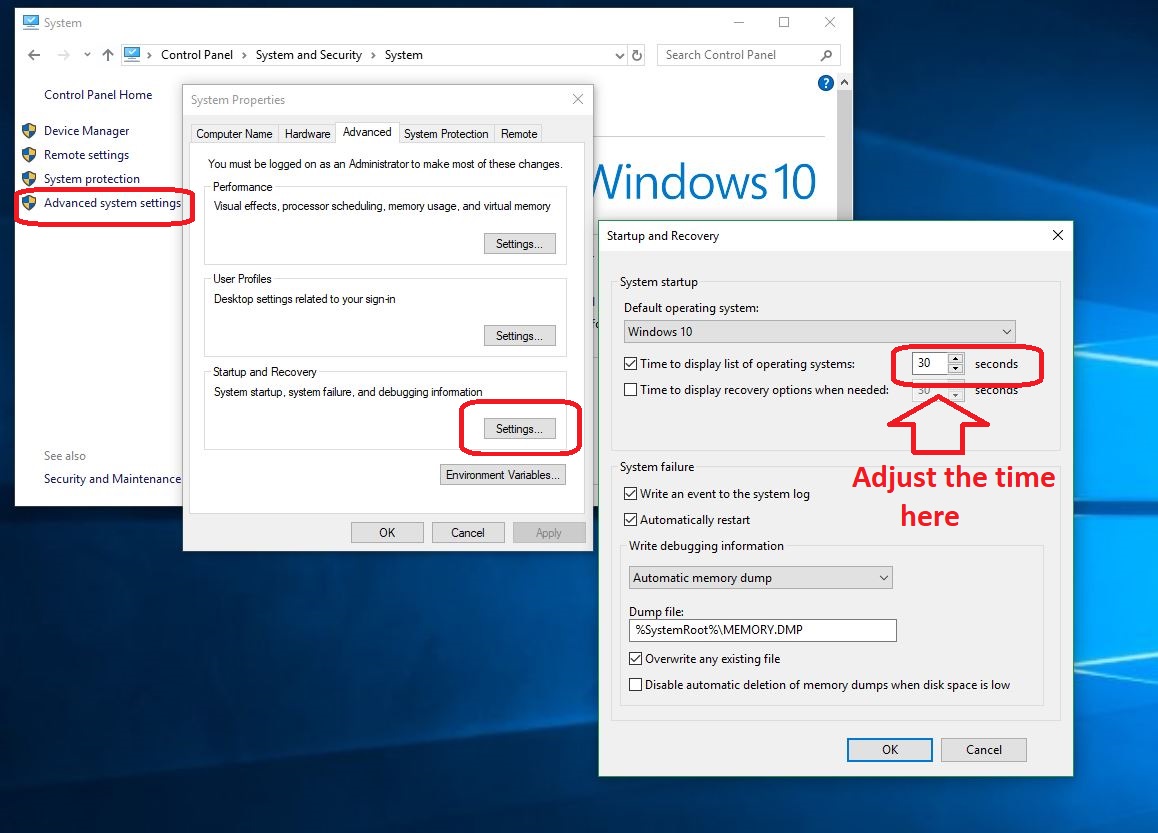
By default, the Boot Menu displays for 30 seconds. If you reduce this, you can cut down your startup time by a few seconds.

How to shorten the Boot Menu timeout

1. Open Control Panel

As before, to open your Control Panel all you have to do is hit the Win key and type ‘Control Panel.’

2. Open Advanced System Settings

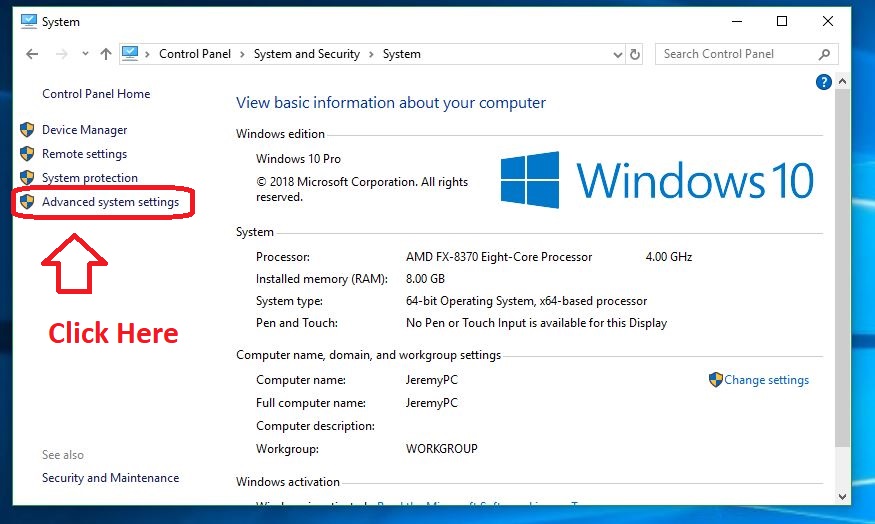
Click ‘System and Security,’ then System. On the left you’ll see ‘Advanced system settings.’ Click here.

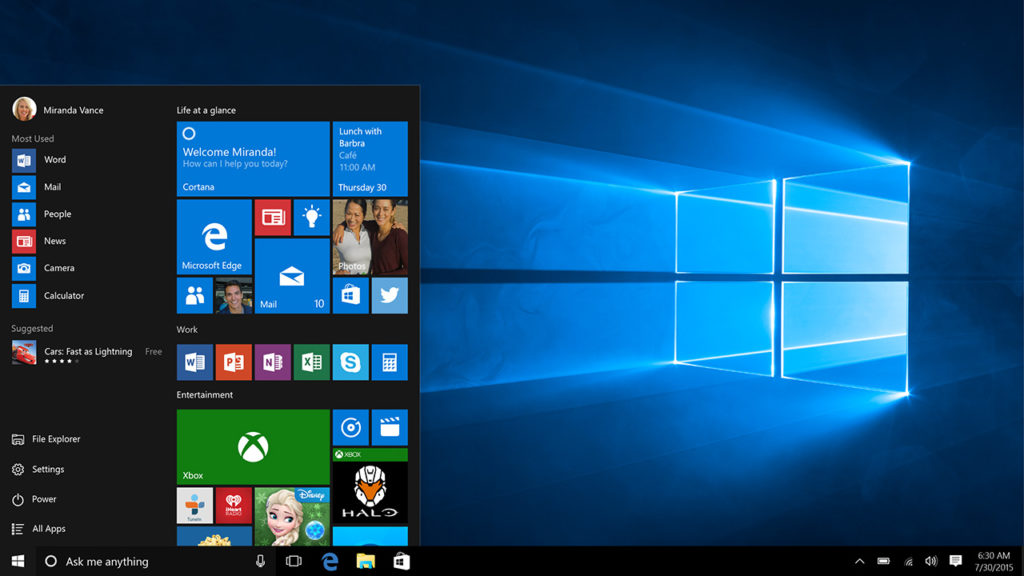
Advanced System settings appear on the left

3. Adjust the time

From the Advanced system settings screen, click ‘Settings’ under Startup and Recovery. From here you can lower the time to display the list of operating systems. Hit OK when you’re done.

It's especially worth your time if you've only got one OS to begin with!
Most people don’t know you can even do this.

5. Go Bare Bones

Windows 10 includes a number of special effects and features that are more for looks than anything else. If you’re more concerned about startup time than style, you can turn off options like drop shadows and thumbnails to speed things up a bit. Here’s how.

How to drop some features to speed up Windows 10

1. Head back to Advanced System Settings

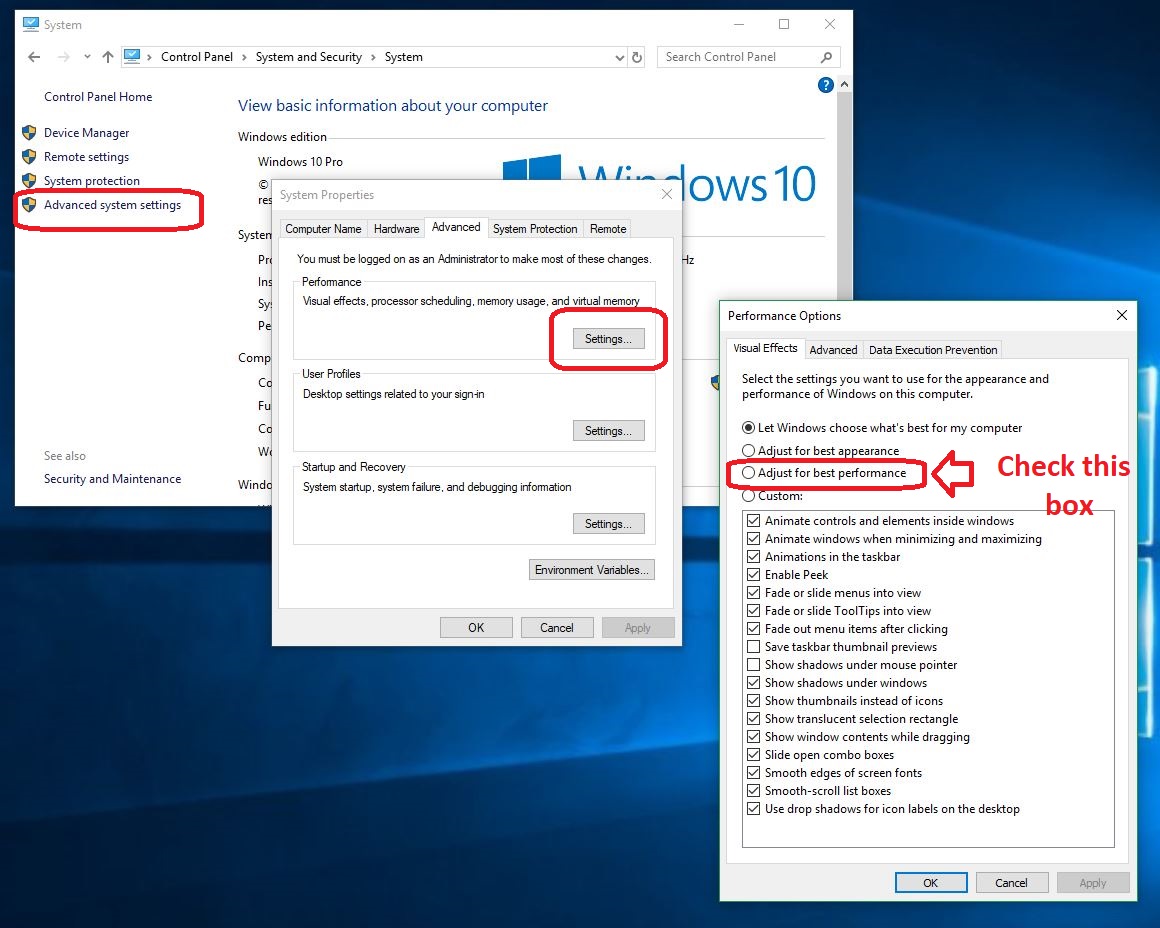
Open the Control Panel back up by pressing the Win key and typing ‘Control Panel.’ Click ‘System and Security,’ then System. On the left you’ll see ‘Advanced system settings.’ Click here.

2. Open the performance options tab

Click ‘Settings’ this time within the box that says ‘Performance.’

3. Adjust for best performance

The new window should allow you to handpick which visual effects Windows 10 will use. For the best performance all around, you should just check the box that says ‘Adjust for best performance.’

We care more that it's fast rather than pretty.
Turn off any of the superfluous bells and whistles here.

With the custom settings, you can also manually remove find other little features to turn off. Each item you get rid of will boost your PC’s performance by a little bit. Our recommendation is to simply deselect anything you think you can live without. Flashy stuff like transparent menus and tip notifications are cool, but don’t do much but bog you down.

If you try all of this and your computer still starts up slow, let Windows automatic troubleshooter program take a look around your computer and see if it spots any issues. It will then do its best to automatically fix them.

Using these tricks should help you speed up your startup time and get more done, while also taking care of your computer.

Microsoft’s new Windows operating system will look quite different

Windows Lite to have a redesigned Start menu and no Live Tiles.

New Microsoft Operating system

It is no secret that Microsoft is working on a brand-new Windows operating system. Windows Lite will be a stripped-down version of Windows 10, designed for use on machines that aren’t as powerful as some of the more top of the line computers on the market. If you think it sounds like Windows 10 S, you wouldn’t be wrong as Microsoft is trying to move in on Google ChromeOS territory. With demand for Google machines on the rise, Microsoft wants a piece of the action.

ChromeOS started its life as a browser-like experience, but it has grown to see useful new features added that make it a competent operating system in its own right. It is, however, still a much lighter piece of software than Microsoft’s flagship operating system. If Microsoft is to strip down Windows 10 to take on ChromeOS, it stands to reason that a few features will have to go. The first news about those features is starting to come through.

Windows Lite to have a redesigned Start menu and no Live Tiles

Microsoft first introduced Live Tiles with Windows 8. The idea behind them is that rather than being static app icons the Live Tiles can also show live information from the app. The Mail Live Tile could show information from that email you’ve just received while the Photos Live Tile might flick through some of the photos you took on your last trip.

Windows 8 was Microsoft’s shambolic first move into touch control. Live Tiles were supposed to be big touch-sensitive icons that would look good on a tablet and they also made their way onto the now defunct Windows Phone OS. With Windows 10 having a tablet mode, there is an argument that including Live Tiles in Windows 10 made sense.

The reality, however, has been that not many people take advantage of a feature that turns the Windows 10 Start button into a bloated over-sized beast. According to a report by Windows Central, Microsoft has internal documentation showing that users prefer pinning stuff to the taskbar rather than opening up the Start Menu and clicking on icons.

Microsoft itself hasn’t been paying too much attention to Live Tiles either. They haven’t been updated for quite some time, despite the fact Windows 10 is constantly receiving updates that users can’t avoid.

It makes perfect sense then for Live Tiles to be the first on the chopping block, if Microsoft is looking for features to cut from Windows 10. With the software giant pinning its hopes on Windows Lite being a more agile younger brother to Windows 10, features that nobody really uses will be easy targets. The tricky part will be when they have to start cutting things that Windows users know and love.

Which Windows 10 feature would you hate to see Microsoft cut for the release of Windows Lite?

Full Windows 10 experience coming to iPad

Windows Virtual Desktop no has mouse support for iPads

Use an iPad for Windows 10

Apple has been pushing their new iPad lineup as laptop killers. Apparently, iPads are no longer second devices, they are the only device you need. Pair up your new iPad with a Bluetooth keyboard and off you go. Unfortunately for Apple, even if the new iPads have the power needed to get any job done well enough, they still fall short on the software. Not the iOS, but the third-party software needed to do many jobs. A lot of it just isn’t available for iPads yet. There could be a new solution to this, however, but it might not be one that Apple will be too happy about.

Windows Virtual Desktop no has mouse support for iPads

The Windows Virtual Desktop isn’t new software, it has been around for about a year now, but its newest feature will have a big effect on its usability. In a recent tweet, Scott Manager, who is the MS Remote Desktop Service Group Manager, announced that mouse support will be coming to the Windows Virtual Desktop on iOS soon.

When mouse support does actually launch, iPad owners will be able to put the Windows Virtual Desktop on their tablet and use it as if it was a Windows PC. There are a few small caveats to bear in mind, however.

Mainly, not all Bluetooth mice will be supported. In the video he tweeted, Manchester was using a Swiftpoint GT mouse, which was designed specifically for use with Windows Virtual Desktop. MSPowerUser reports that there are plans to extend compatibility to more mice in the future, with Microsoft’s own range of Bluetooth mice being first on the list.

The other thing that you’ll need to consider should you be considering replacing your laptop with an iPad is that the Windows Virtual Desktop is a cloud-based service. It runs like a multi-user Windows desktop PC that is hosted on Microsoft’s Azure cloud. You connect to the service and then log in using your credentials. This means it isn’t too taxing on your local device, but it also means that you can only use the service when you have a reliable connection to the internet. No internet connection means no Windows Virtual Desktop.

This is an interesting development for both iPads and Windows 10. It offers the iPad a whole new world of functionality and potential customers, but in a way that Apple might not be pleased about. With Apple shares plummeting recently due to lack of demand for its hardware (mainly the new iPhones), the company is making a big deal about the services they offer, too. If people start using their Apple hardware with a Microsoft OS it is highly likely to affect which Apple services they use, too.

There is no word yet about an official release date for mouse support on the Windows Virtual Desktop for iOS.

Happy New Year Microsoft: Windows 10 is now the most popular desktop OS in the world

Windows 10 has overtaken Windows 7 as the world’s most popular desktop OS

Microsoft had a rough 2018. It wasn’t quite Facebook levels of crisis, but Microsoft definitely had a few wobbly moments last year. There was Google finding security flaws in the new Windows 10 S operating system, hackers exploiting an embarrassing truth about Microsoft Edge, the Windows 10 update debacle in October, the Windows 10 bug that hit its credibility with businesses, and to top it all off, Bing spent some of last year throwing out racist search results.

A new year has started, however, and Microsoft has some good news to focus on as it pushes into the new year. The software giant has finally hit one of its most important targets.

Windows 10 has overtaken Windows 7 as the world’s most popular desktop OS

According to figures from analytics firm Net Applications, Microsoft’s flagship OS has finally taken over from its older brother. The OS market share statistics from December has Windows 10 enjoying a 39.22% market share for desktop users and Windows 7 behind it on 36.9%. The last month of 2018 was the first month of Windows 10’s reign as the top dog.

The interesting thing to note here is that Microsoft has recently announced that it will be pulling official support for Windows 7. This is usually the death knell for an OS; users will no longer receive regular security updates that keep them and their devices safe. With 36.9% of all desktop users still using Windows 7, however, that still leaves millions of PC and Laptop users staring down the barrel of a gun. It’ll be interesting to see if these users move to Windows 10 when they finally jump the Windows 7 ship or if they’ll consider other desktop operating systems like Chrome OS or Linux.

Even though Windows 7 is another Microsoft operating system, the fact that Windows 10 has knocked it off the top spot is still good news for Microsoft. Having to provide support for an OS takes time, effort, and money. Since it first launched Windows 10 for free, Microsoft has been quite clear about its stated aim of having everybody using the same operating system so that it can focus its support efforts. Since then, Microsoft has made a couple of moves to push people onto Windows 10 including charging for support of Windows 7 devices. The OS market share statistics from December show that the market is moving in the direction Microsoft wants it to.

We should also take a moment to celebrate the length of Windows 7’s time at the top. It saved Windows from the disaster of Windows Vista and gave us all something to rely on when Microsoft was experimenting with touchscreens and botching Windows 8. Goodbye old friend. You served us well and we won’t forget you easily.

Microsoft gives you a little more control over Windows 10 updates

Microsoft to allow users to delay Windows 10 updates for up to 7 days.

windows 10 update control

What can we say about Windows 10 updates? On the one side we have the fact that Microsoft has released an OS that it promises to continually update for free. On the other, however, is the fact that Microsoft forces you to take the updates, often they don’t work, and they can come at inopportune moments and slow our devices down considerably.

Needless to say, the lack of control Microsoft gives users over Windows 10 updates has caused a lot of uproar among Windows 10 users. We’re glad then to be able to bring some good news to all Windows 10 users who’ve felt frustrated by the Windows 10 update process.

Windows 10 Download Windows 10
8
The latest and greatest version of Microsoft's operating system.

Microsoft to allow users to delay Windows 10 updates for up to 7 days

Delaying updates has been possible for Windows 10 Enterprise users for some time now. With IT managers often responsible for networks of multiple machines they need to check whether their systems will be compatible with all of the new features the update will bring and won’t be affected in any negative ways. It makes sense then for Enterprise users to have up to 35 days to delay their system-wide Windows 10 updates.

Thanks to a report by the site Thurrott, we can now report that personal users will soon have access to a limited version of the Enterprise delay feature. Thurrott has been looking at the beta version of the next Windows 10 update, which will likely be released in April of this year. They’ve found a new “Pause for 7 days” option in the Windows update page, which you can find by opening Settings, then hitting Update & Security, and finally clicking Windows Update. Unless you’re a member of the Windows 10 Insider Program you won’t find anything there yet, but that should change in April.

If you select the delay option, Microsoft won’t install any updates for a full week. That might not sound like much time but if you’re worried about how an update will affect your machine, it will give you time to investigate further. This will be easier as there will be Windows 10 users installing the update all over the world and reporting on how it effects their devices. After the seven days, Windows 10 will then update automatically, however, meaning you’ll have to take steps to counteract any issues you think your machine will have when it does so.

Continuously updating your OS is a good thing, as it means your device will always be up to date with the latest security patches. Microsoft’s disastrous 2018 Windows 10 updates would give anybody reason to pause before hitting update. This move allows users to delay updates a little longer, saving them from any bugs that may appear. The update will occur automatically after the delay, but if any serious issues arise during that time, Microsoft might pull the update altogether until they’ve worked out all the bugs, like they did in October.

Windows 10 bucks the latest trend

A future update to Windows 10 will include a “Light” mode

New Light Mode for Windows 10

The Windows 10 Insiders program may have been resolutely ignored when it told Microsoft that the Windows 10 October 2018 update wasn’t ready, but it is still positioned as the best place to learn about what may be coming to Windows 10 in the future. Accordingly, there is an interesting addition to the latest Windows Insider beta build for Windows Insiders.

Windows 10 Download Windows 10
8
The latest and greatest version of Microsoft's operating system.

A future update to Windows 10 will include a “Light” mode

Google has just announced that dark colors are much better for battery life on devices with OLED screens. That came as bad news for Google as it is currently in the process of implementing its Material Design update, which brings a lot of white into all of its apps. Dark modes are better for battery life and Google is changing all of its apps to be much lighter. D’oh! For Windows 10, this isn’t the case.

Windows 10 ships with a dark theme right out the box. You can change the color of the theme for Windows 10, and for apps open in the operating system, but that is about it. We now know, thanks to members of the Windows Insider Program, that we might soon have more options when it comes to customizing Windows 10.

windows 10 color alternatives
You can change the color of your theme, but there is no choice between a light and dark m ode

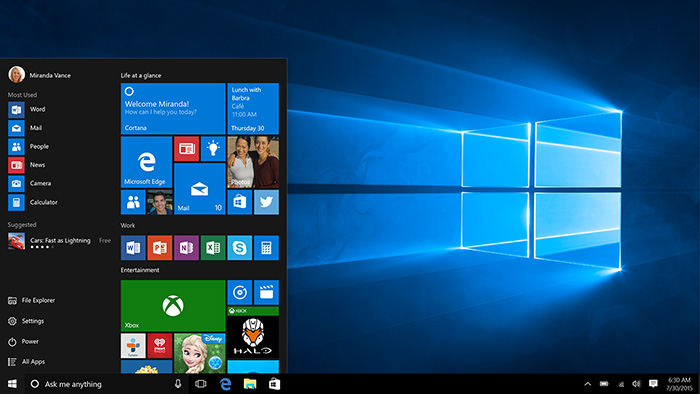
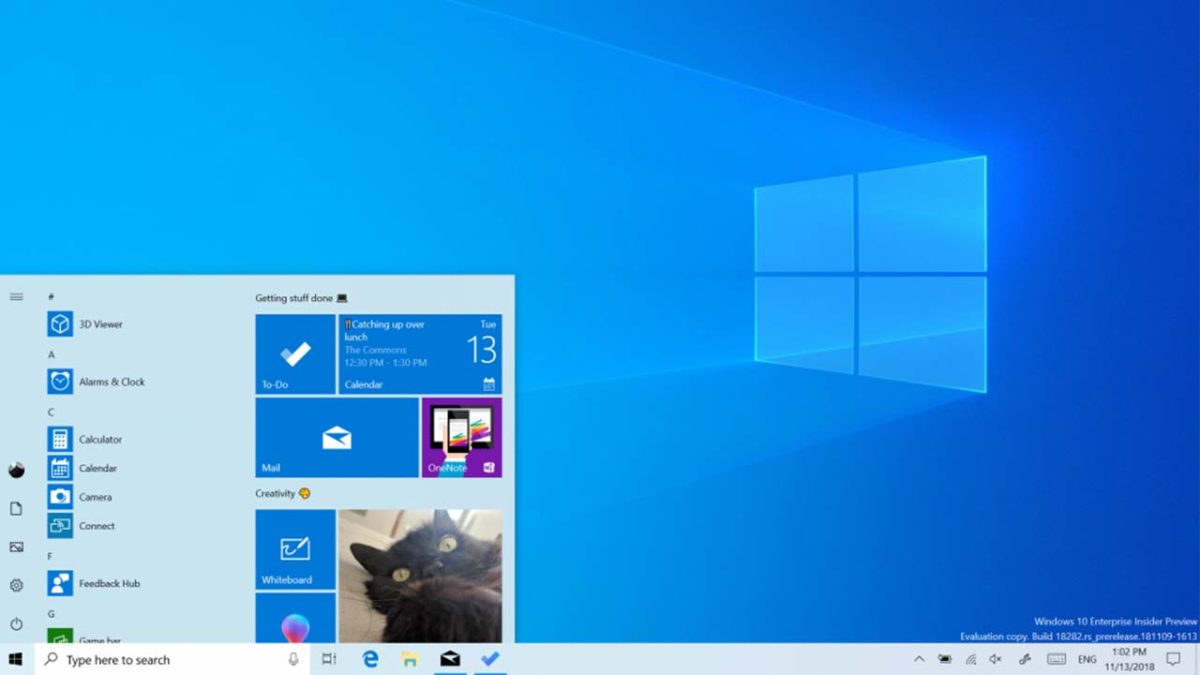
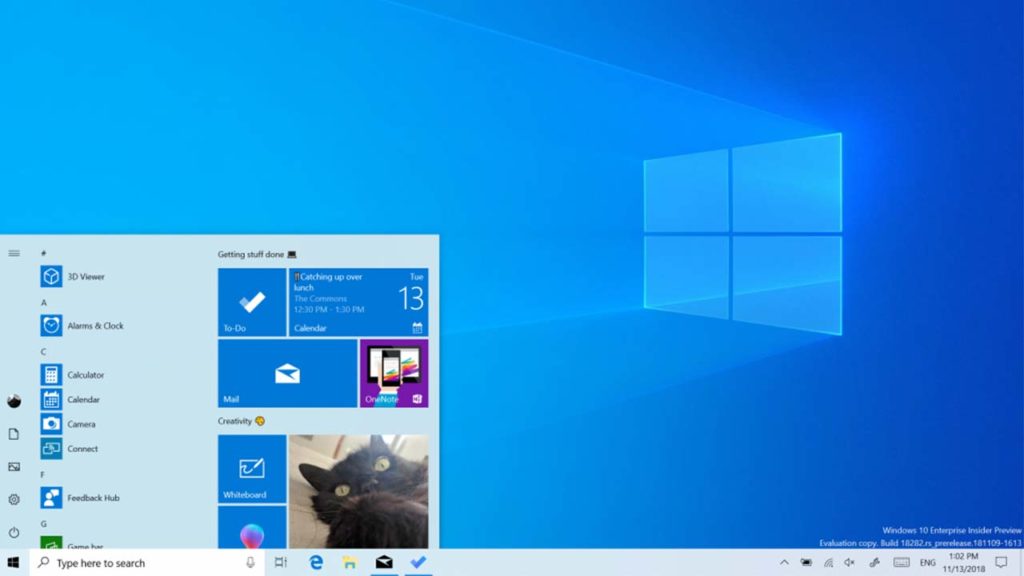
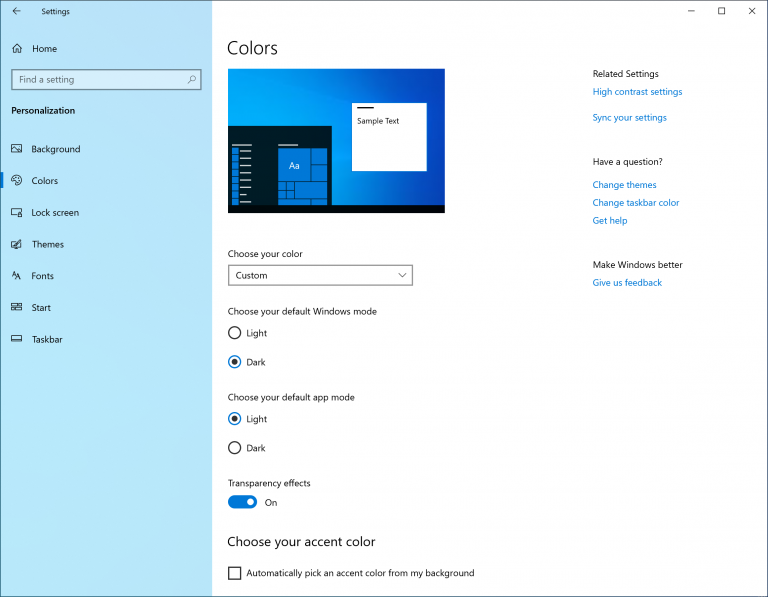
Leaked images show the ability to switch between a Light and Dark mode for both the Windows Operating System and individual apps. Opening up the Windows Settings menu, clicking Personalization, and hitting Colors will open up the new options. Selecting Light mode will make the ever-present Windows elements like the Start Menu, Action Center, and touch keyboard have a more semi-transparent white appearance. There is also a lighter version of the standard Windows 10 desktop background.

Via: Microsoft – The next update will introduce a “Light” mode for both Windows and Apps

Obviously, the issues that Google highlighted about mobile phone usage won’t affect Windows PCs as much, but it is still interesting to see both companies pushing in different directions at the moment. While mobile app developers are looking to add darker elements to their software, Microsoft decides to give Windows 10 users the choice to go with a lighter option.

What are your preferences? As we’ve mentioned before, many people decide to go dark, not for any practical reason, but purely for the aesthetics. At the end of the day, the choice between the light and dark on your laptop or PC will be just that, an aesthetic choice based on your personal tastes.

We learnt about the new “Light” mode for Windows 10 in the recent Insiders Preview from Microsoft. We’ll be going through all we can expect to see in Microsoft’s next update very soon. If you want to make sure you don’t miss that, sign up for our regular newsletter at the bottom of the page.

Yes, Windows 10 is automatically downgrading user licenses

Windows 10 users are being told their official copies of the OS are illegitimate and Pro users are having their licenses downgraded

Microsoft is in a strange place at the moment. Its Bing search engine has been churning out racist ads for certain innocuous search terms and it recently released an update to Windows 10 that started deleting user’s files and folders. After originally being pulled, the Windows 10 October 2018 Update has just started rolling out again, but another problem has been striking Windows 10 and Microsoft.

Windows 10 Download Windows 10
8
The latest and greatest version of Microsoft's operating system.

Windows 10 users are being told their official copies of the OS are illegitimate and Pro users are having their licenses downgraded

The latest in a long line of issues hitting the software giant comes from a warning that has been showing up on many Windows 10 users’ desktops when they log into the OS. Affected users are told that their copy of Windows 10 hasn’t been properly activated and, as such, is not officially licensed for use. It is still possible to use Windows 10 in this state but users face a barrage of messages telling them their software isn’t licensed and a permanent watermark reminding them so.

“Error: you are running Windows 10 Pro, but you have valid digital license for Windows 10 Home,”

For Windows 10 Pro users, the issue has been causing more serious problems as it actually affects functionality. The flaw is downgrading Windows Pro users to a Windows 10 Home license. Pro users often use their Windows 10 PCs across their business networks. The lack of Pro features including Remote Desktop, Enterprise Mode Internet Explorer, the Azure Active Directory, and the Windows Store for Business can come as a real blow to business and enterprise users of Windows 10.

The problem seems to come from Microsoft’s anti-piracy program, which, for some reason, has stopped working properly. According to reports on social media, it is targeting ex-members of the Windows Insider Program, which tests new features from upcoming updates, and people upgraded to Windows 10 Pro licenses from Windows 8 Pro.

Relevant threads relating to the issue have been set up on the Microsoft support threads and Microsoft has issued a response to the issue. “A limited number of customers experienced an activation issue that our engineers have now addressed… Affected customers will see resolution over the next 24 hours as the solution is applied automatically. In the meantime, they can continue to use Windows 10 Pro as usual.”

The issue seems to have caught Microsoft’s attention and support is on the way. If, however, you’ve fallen victim to this bug and you’re yet to see a resolution there is action you can take yourself. A number of users have suggested that the Windows 10 Activation Troubleshooter can help you restore your true and proper license for Windows 10.

Even if things are heading back to normal on this issue, it underlines the fact that something is not quite right at Microsoft and with Windows 10 in particular. It begs the question, what the hell is going on over there?

The next-gen feature that makes Windows Defender Antivirus even stronger

Microsoft Windows Defender Antivirus can now run in a sandbox, but what does that actually mean?

Why is it important that Windows Defender Antivirus can run in a sandbox?

Microsoft has really done an excellent job with the security features it has built into Windows 10. Windows Defender is now so well regarded that some experts say you don’t need a premium antivirus to protect your device, Defender is enough. Over the last few days, this claim has gained even more credibility as Microsoft has announced the introduction of a sandbox mode to Windows Defender Antivirus. Let’s take a look at what this actually means.

Windows Defender Free Download ►
7

What is a sandbox in an antivirus program?

A sandbox is a simpler way of saying a restrictive process environment. This means that Windows Defender can run itself separate from the rest of Windows. As antivirus programs often have high levels of permission on devices and access to key systems they themselves can end up being high value targets for hackers and thieves. Running separate from the rest of Windows provides an added layer of security as it means any successful attempt to compromise Windows Defender Antivirus does not put the rest of the system at risk.

According to Microsoft, the addition of a sandbox to Windows Defender comes from consultation with industry experts and wasn’t easy to achieve.  “Putting Windows Defender Antivirus in a restrictive process execution environment is a direct result of feedback that we received from the security industry and the research community. It was a complex undertaking: we had to carefully study the implications of such an enhancement on performance and functionality.” Although there have been no reported incidents of malicious code taking advantage of Defender’s high system privileges, Microsoft believed the possibility, as raised by the research community, was enough to warrant action.

The addition of a sandbox sets Windows Defender Antivirus apart from all other free antivirus programs. Microsoft claims Defender is the first complete antivirus solution.

For now, though, this new powerful feature is only available for members of Microsoft’s Insider Program, which is Microsoft’s beta testing community for new Windows 10 features. You may remember that it was members of the Insider Program who Microsoft ignored when they pushed out the recent October 2018 update that ended up deleting user’s files.

With a lot of bad stories relating to Microsoft hitting the news recently, like the recent Windows 10 update scandal, it is good to see Microsoft moving forward positively on a user protection issue. Not only is it good for the company’s image, ultimately, this is great news for all Windows 10 users who now have less of a security headache to deal with. As Windows Defender Antivirus moves towards being the complete antivirus solution some people have been calling it for some time now, users can breathe easier knowing their systems will be safe thanks to Microsoft’s efforts and a bit of a personal common sense.

Hackers find a scary new way to target new Windows 10 users

The Bing search engine is showing up malicious and dangerous ads for search terms like “download chrome”

Microsoft Edge is a good browser. It is miles ahead of the Internet Explorer it replaced and Edge even does well when compared against modern browsers like Google Chrome or Mozilla Firefox. For many users though, this won’t matter.  Years of familiarity with their browser of choice means they’re unlikely to change to a browser like Edge, which was quite late to the game. This means that whenever they buy a new PC or laptop, or update their operating system to Windows 10, the default Edge web browser has one task: to download Chrome. This is a problem.

The Bing search engine is showing up malicious and dangerous ads for search terms like “download chrome”

Windows 10 bug Microsoft Edge Google Chrome Download
Be careful if you’re going to use Microsoft Edge to download Google Chrome

The issue arises because we’ve all become accustomed to typing basic phrases into the address bar when we want something rather than typing in complete domain names. Hackers know that we’re like this and they set up traps accordingly. They can set up fake sites on authentic sounding domains like GoogleOnline2018.com and place legitimate sounding download files like ChromeSetup.exe. It all looks and feels fine until your PC falls victim to the malware these fake domains and files contain.

For more tips on avoiding phishing scams like this one check out our infographic below:

This exact scam is what almost tripped up Gabriel Landau. He bought a new laptop and opened up Microsoft Edge so that he could download Google Chrome. Fortunately, he stopped himself from downloading the fake ChromeSetup extension when he noticed that the digital signature was linked to Alpha Criteria Ltd. and not Google.

The real issue here is that this is a problem that Chrome and Firefox deal with automatically. The fake phishing sites, which show as normal on Edge, show warnings on both the Google and Mozilla browsers. Even worse for Microsoft is that this is not a new problem.

According to a How-to-Geek report, a similar issue on the Bing search engine was reported way back in April. Microsoft removed that ad, but the fact that an almost identical ad appeared over six months later means it hasn’t addressed the underlying issue. This lack of action is putting Bing users who are looking for Google Chrome at risk. Could it be spite?

In the same report, Microsoft responded to say, “Protecting customers from malicious content is a top priority, and we have removed the ads from Bing and banned the associated account. We encourage users to continue to report this type of content so we can take appropriate action.” This almost feels like an abdication of responsibility as it puts the emphasis on users to report false ads rather than on Microsoft itself to filter them out.

This is just one more issue in a long list of problems Microsoft faces at the moment. It is also likely to hit the credibility of Edge that, default search engine aside, is an otherwise capable web browser.

To protect yourself against this particular threat you are going to have to take action that Microsoft isn’t going to like. To download Google Chrome or Mozilla Firefox, click either of the two download buttons below.

7
7

If you do want to continue using Microsoft Edge, however, we recommend changing the default search engine from Bing immediately. Google is an obvious choice but there are plenty of other options out there.