How to turn off Windows 10 notifications

One of the best updates to Windows 10 is that it now has a powerful notification center. Like a cell phone, this operating system for PCs makes comprehensive analyses of everything on your computer. Thanks to this, you can configure basic processes every day using notifications. Now, if these messages annoy you – as in our case – we’re going to show you how to turn off Windows 10 notifications.

Simple as can be

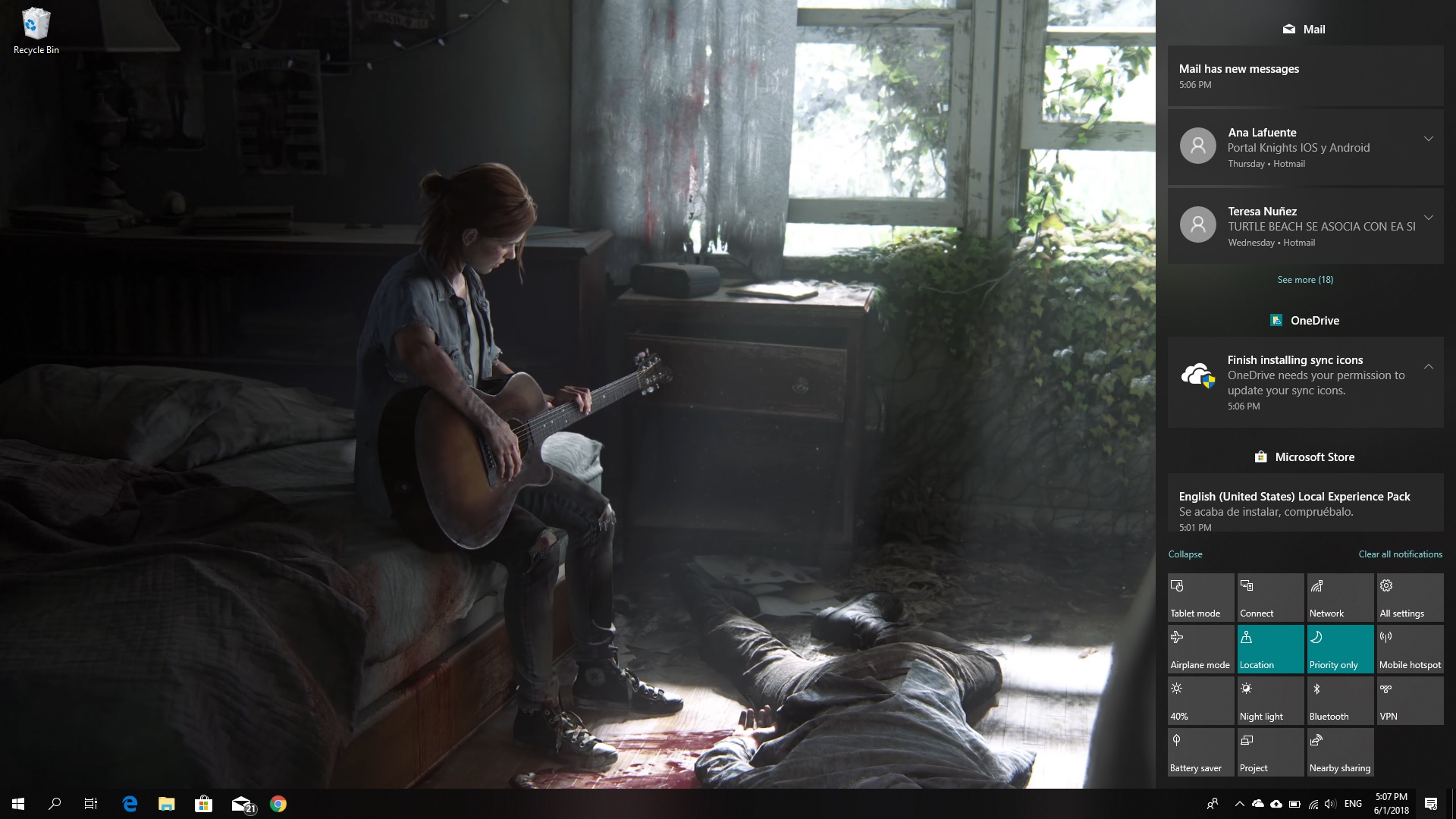
The first thing to keep straight is that notifications are located on the lower right. If you click on the specific icon, you’ll see a menu open with a large number of available options. Using our experience as an example, we chose “Quiet hours” within the notifications. This way, we made sure there were no notifications at night. It’s like the “Night mode” that smartphones have, but for PCs.

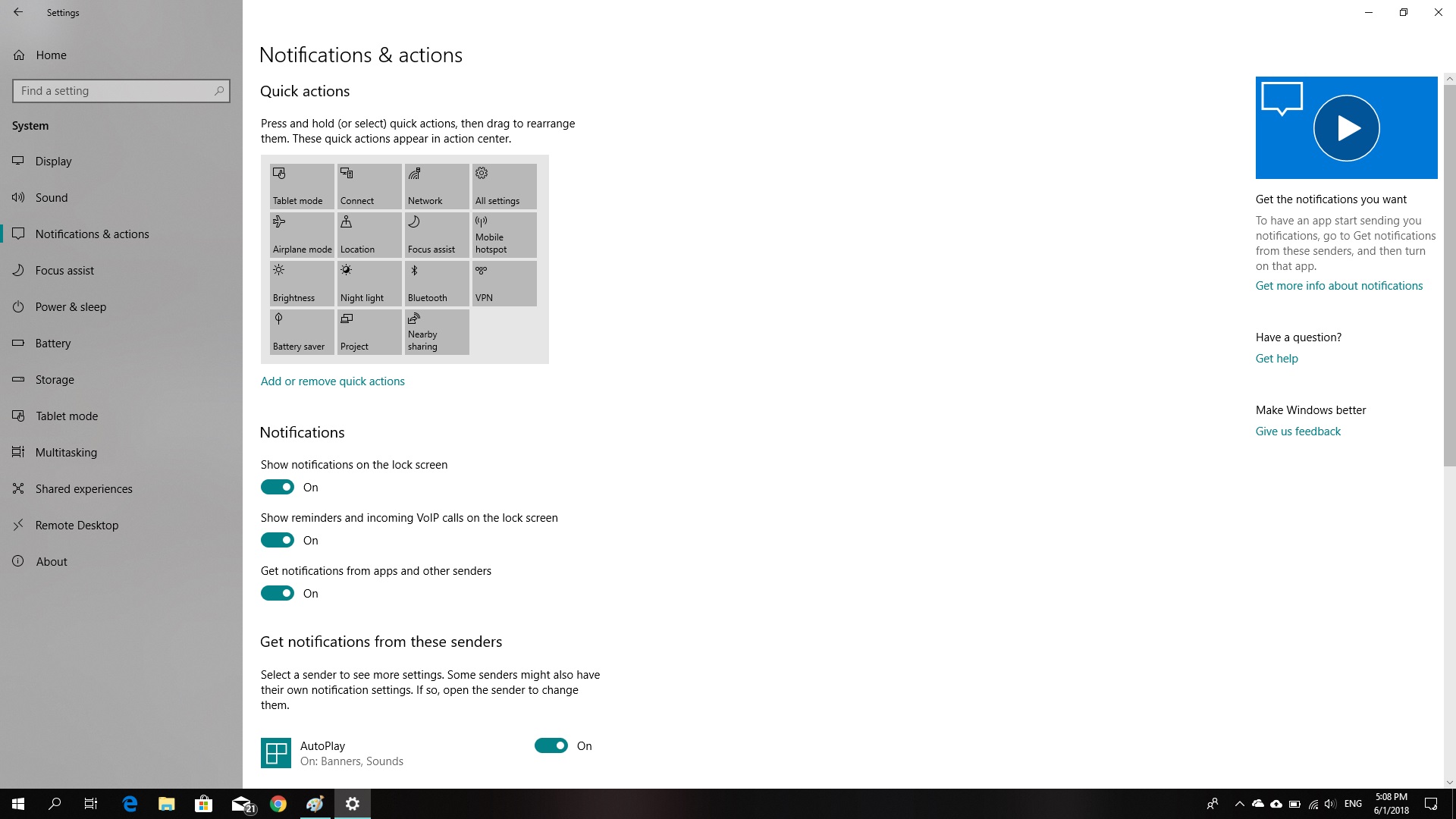
This may be the easiest way to prevent notifications; though it doesn’t turn them off, of course. If you want to do this, you have to click on the Windows key or “Start,” then “Settings,” go to “System” and click on “Notifications and actions” (Start -> Settings -> System -> Notifications and actions).

Once you’re inside Notifications, turn off those settings that annoy you (though our advice is that if you really want to get rid of them, uncheck all of them). So, uncheck the buttons “Get notifications from apps and other senders,” “Show notifications on the lock screen” and “Show reminders and incoming VoIP calls on the lock screen.” Once you’ve done this, your PC will be free from any notifications for the rest of its existence.

Remember that you decide what you want to see on your computer. Take advantage of this if you’re unsure about turning off all notifications for your PC.

What is Windows Hello?

When Windows launched Windows 10, the company set out to make the greatest possible leap forward. After a few years of having the operating system with us, there’s no doubt that the Redmond boys have kept their word: it offers good updates, performance, progressive web apps, and another detail: Windows Hello. Today at Softonic we’ll tell you what Windows Hello is, why you should use it, and how to activate it.

What it is and what it’s for

Windows is very concerned about user security and good proof of this is that Windows 10 comes with an antivirus called Windows Defender, the first introduced in its history. However, Windows Hello looks to enhance this security from the moment the system starts up.

“Windows Hello is a more personal way to sign in to your Windows 10 devices with just a look or a touch. You’ll get enterprise-grade security without having to type in a password,” says Microsoft’s page. In other words, Windows Hello is a way to unlock your device instead of entering a classic password or pin. To do this, the system uses your face, eyes and fingerprint to establish a pattern.

At the moment, gadgets such as Surface Pro 4, Surface Book, cell phones with Windows 10, Microsoft Band and most PCs with fingerprint readers can now use Windows Hello (as long as they have Windows 10, that is). Also, gradually more devices are incorporating this feature.

How to activate it

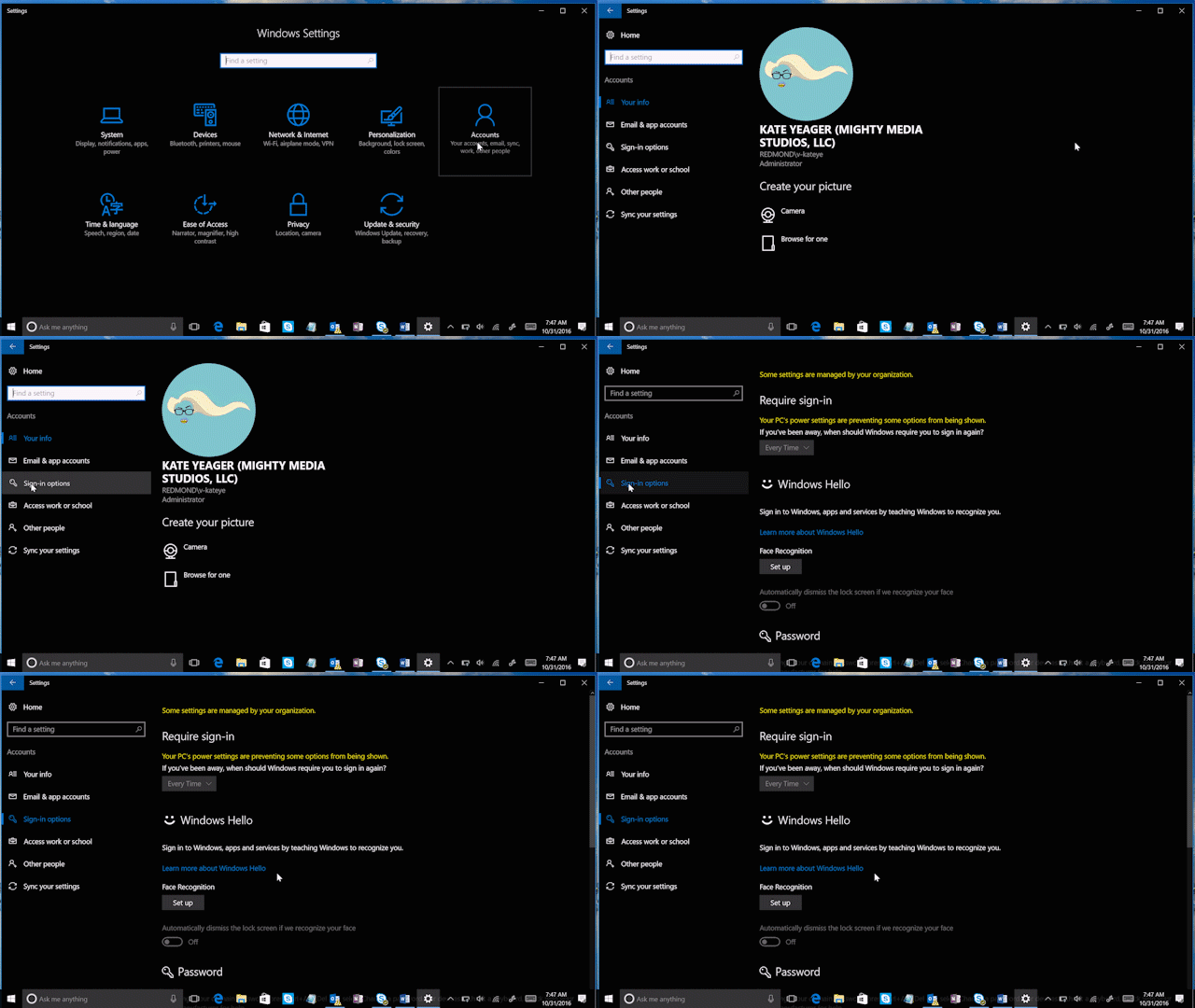
To activate Windows Hello, just click on the “Start” button (on the lower left) and go to the “Settings” icon  -> “Configuration.” When you see the corresponding screen, click on “Accounts.”

Of all the fields to choose from, go for the one that says “Sign-in options.” Click here and you’ll see that Windows Hello appears as a method to activate. Obviously, here you’ve got two possibilities: your device is compatible or it’s not. In our case, our device doesn’t have a fingerprint reader, but it does have a camera, so we can’t complete the process unless we get an external gadget for it (a little ridiculous, we think).

Check if your PC has the possibility of logging in with Windows Hello. If so, our advice is that you use it: you’ll have an extra layer of security.

All the Best Free Software for your PC

You spend hundreds of dollars on your brand new PC, and then what happens? You have to go and spend even more money on all the software you need, to do the jobs you bought the PC for in the first place. Never mind what you bought the PC for you have to buy programs just to protect your new PC from viruses and malware.

Well, do not worry because there is a lot of free software you can get your hands on to help you out. You can get free software for Windows 10 you can get free software like Microsoft Word, you can get free software for editing photos, you can get antivirus free software and even free software for video editing. You don’t need to spend a lot of money on expensive programs for your new PC. There are plenty of free programs for PC so let us have a look at some of the best now:

Best free programs for PC

1. Best antivirus free software: Avira Antivirus

Avira header

Avira Free Antivirus offers a broad range of security features that add up to offer the best free antivirus software you’re likely to find. As well as strong antivirus scan and protection facilities Avira offers some great features like safe shopping searches, system speed up and a VPN. This is the best free software download for PC you’ll find and one of the most important. To learn more about Avira Click Here, otherwise…

Avira Free Antivirus Download Avira
8

2. Best backup free software: Google Drive

Google Drive wants to be the Ultimate Backup and Sync Tool

These days you need to do more than just install a free antivirus program to keep yourself safe. Ransomware is a modern threat that sees your data being stolen and then held for ransom. This means if you’re going to download free software you need some to get some backup free software for your computer. Free software downloads like Google Drive are essential. Drive will give you 15GB of free space to keep all of your personal data safely backed up. You need it now!

Google Drive Download Google Drive
7

3. Free software like Microsoft Office: Libre Office

LIbreOffice header

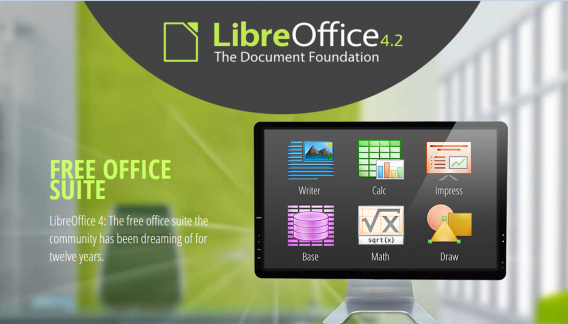
Almost everybody needs to use programs like those found in the Microsoft Office suite so a top priority must go to getting the free software download for PC of Libre Office. Libre Office is an open source productivity suite that rivals Microsoft Office and even has programs, like Math and Draw, that can’t be found in the expensive Microsoft offering. If you work in an office this is an essential free program to download.

LibreOffice Download LibreOffice
7

4. Media Player: VLC Media Player

vlcHEADER

One of the best free programs for PC is VLC Media Player. It is one of the most popular programs in the world and carries the codecs required to play almost every kind of video file. Once you’ve downloaded VLC you will be able to play almost any type of video you can find. As well as offering a complete video playback solution VLC has plenty of other features and you can check out 5 of the best here.

VLC Media Player Download VLC
8

5. Free software for photo editing: GIMP

Do you want the photos you share to be breathtaking - GIMP

If you want free software like Photoshop you should look no further than GIMP. GIMP stands for GNU Image Manipulation Program and it is almost as powerful as Adobe Photoshop. With this free software editing becomes possible for all. Whether you’re merely touching up an old image or creating a brand new one, GIMP offers you a complete set of tools to take care of whatever editing job you have in front of you. GIMP may be the best photo editing free software but we’ve also put a list together of 5 free photo editing programs. Check it out here.

7

6. Free software for video editing: Lightworks

5 Free Programs for Editing Videos lightworks

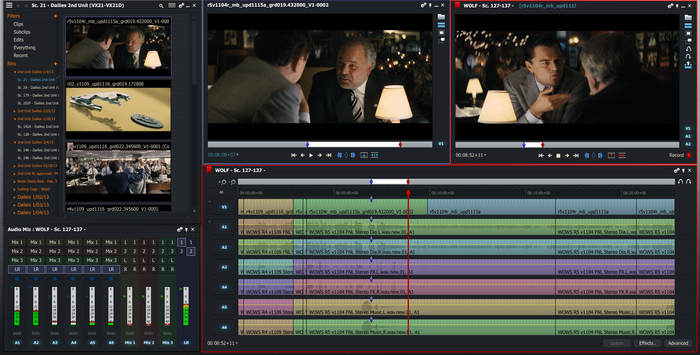
Lightworks is available on many free software download websites but you can get it right here. It is one of the best editing free software programs you can get and is used by professionals as well as amateurs. If you’re a budding video editor or director this is great free video editing program for you to download. For info on other free video editing programs click here.

Lightworks Download Lightworks
7

Follow me on Twitter: @PatrickDevaney_


How to unsubscribe from push notifications (Chrome, Firefox, Edge and Safari)

Have you accidentally given permission to receive notifications from a website or are you tired of getting notification requests? Below, we’ll tell you how to disable them according to the browser you’re using.

Google Chrome (laptop)

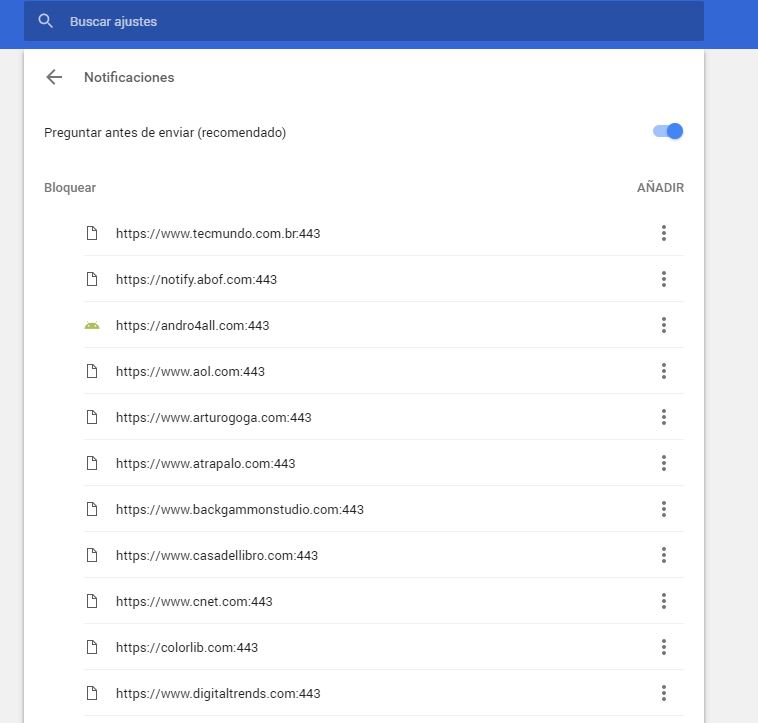
To disable Chrome notifications, copy this address chrome://settings/content/notifications and paste it in your browser. This way, you’ll go straight to the “Notifications” section of Chrome Settings.

461

If you want to stop receiving permission requests for notifications, disable the “Ask before sending (recommended)” option to “Block all.”

Want to block notifications for a specific website? You’ll see that you’ve got two options: “Block” and “Allow.” Under “Allow,” look for the web page you want to stop receiving notifications for, click on the three vertical dots beside it and then select “Block.” It’s that easy!

Google Chrome (cell phone)

Go to “Settings” (by tapping on the three vertical dots in the top right). Press “Web page settings” and then “Notifications.”

If you want to stop receiving permission requests for notifications, disable the “Ask before allowing websites to send notifications (recommended)” option to “Blocked.”

Want to disable specific notifications? Below, you’ll have two options: allowed and blocked notifications. Select one that is allowed and then the “Notifications” option to block it. Easy peasy.

Mozilla Firefox (laptop)

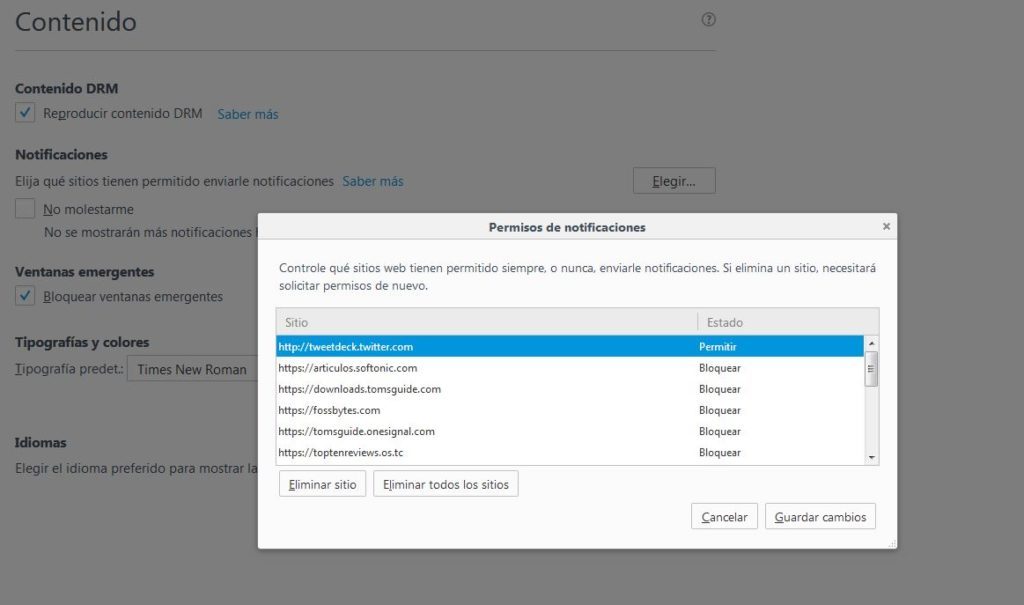
To disable notifications on Firefox, copy this address about:preferences#content and paste it in your browser to access the “Content” section of Firefox Options. Here you’ll see the “Notifications” subsection.

If you want to stop receiving so many permission requests for notifications and notifications themselves, enable the “Do not disturb me” option.

464634-1024x605

Want to block notifications for a specific web page? Click on “Select.” A list with all the notifications you’ve allowed or blocked to date will show up. Look for the website you no longer want to receive notifications from and select “Remove site.”

When you go to that page again, it will once again ask for permission to send you notifications (unless you’ve enabled the “Do not disturb me” option). Select that you don’t want to receive notifications. Case closed.

Unfortunately, there’s no easier way to block specific notifications on Firefox.

Mozilla Firefox (cell phone)

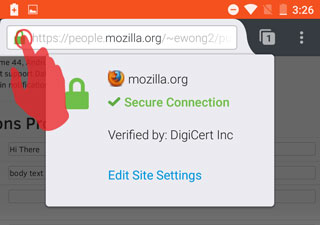
For now, there’s only one very basic way to disable notifications for this version of Firefox. You must go to the page that you want to disable notifications for and click on the Control Center (the green lock to the left of the URL).

2016-07-18-15-42-33-81e41b

Then select “Edit site settings.” Tap the white square to “check” it and then press “Clear.” This way, the website will stop sending you notifications unless you go back and give it permission.

Microsoft Edge (Windows 10)

To get started, click on the Over Edge section at the top right of the window. It’s a three-dot horizontal icon. Click Settings, and then click Advanced Settings.


Under Notifications, click Setup. Find the webpage you don’t want to be notified about and click the slider point to go to Disabled.

Apple Safari

To stop receiving notifications for a web page, go to “Preferences” and then click on “Notifications.” Look for the website on the list and select “Block.”

If you want to stop receiving permission requests for notifications, don’t leave the “Notifications” section; simply uncheck the box “Allow websites to ask for permission to send push notifications.”

9 tricks to use CCleaner properly – it does more than you think

If all you do with CCleaner is set it to automatically clean your system and then assume the job is done, then you are seriously wrong. You can endanger valuable information and slow your system performance if the program is not properly configured. And we all make this mistake, because very few people know how to use CCleaner properly – myself included. That is, until recently, because I have been reading a lot of tutorials to get myself up to speed (links at the end).

I have distilled my learning into 9 easy tricks to learn how to use CCleaner super effectively.

Download CCleaner

CCleaner does not do what you think

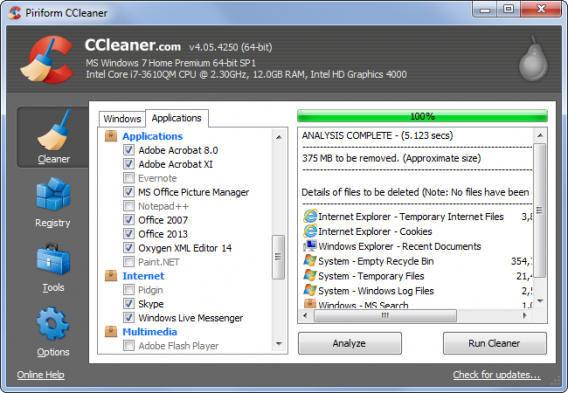
Many people believe that CCleaner is a maintenance tool that automatically improves the performance of their computer. Actually, CCleaner cleans your discs by deleting temporary files, or files that take up a lot of space. This frees up room on your hard disk, which can result in improved performance.

Why is it important to understand this? Because if you use CCleaner every day believing that your computer will run faster, you are mistaken; indeed, in many cases, it may run slower.

This is what you should do BEFORE cleaning with CCleaner

Before running CCleaner’s… cleaner… think of exactly what you want to clean. If you are not interested in deleting your cache and cookies, then set the program to ignore them. Alternatively, if you do not want others to spy your browsing history, then clean them frequently.

However, what happens if you clean your machine and it runs slower? This is because your computer needs some files to perform efficiently. If you delete these files with CCleaner, performance will suffer. If you visit some favorite pages every day, but clean the cache every few hours, you’ll find these pages take longer to load.

This brings me to my next point.

Protect the important cookies

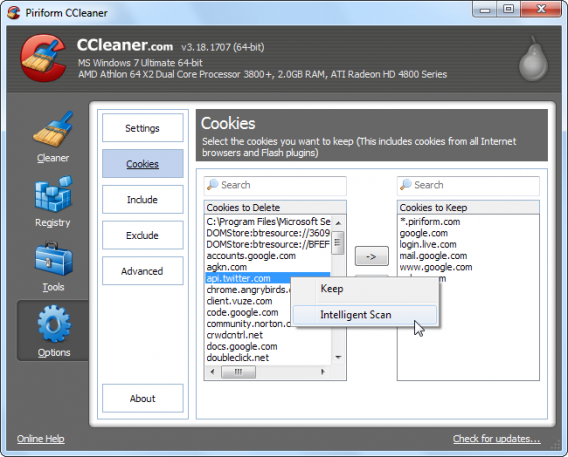
CCleaner deletes all cookies by default – but you may well want to keep some of them around to keep your browsing quick.

You have two options for this. On the one hand, you can use CCleaner’s Smart Scan to detect the cookies you use most and protect them from most common cleans (such as Google). Alternatively, you manually flag the cookies that do not want to be touched.

Do the same with programs

You can apply protection to programs and files. This feature is particularly useful if you find that CCleaner is obsessed with trying to eliminate a file that you actually want. You can exclude whole disks, folders, files, or records. You can also protect specific file extensions.

If you use Registry Cleaner often, you’re going to get in trouble

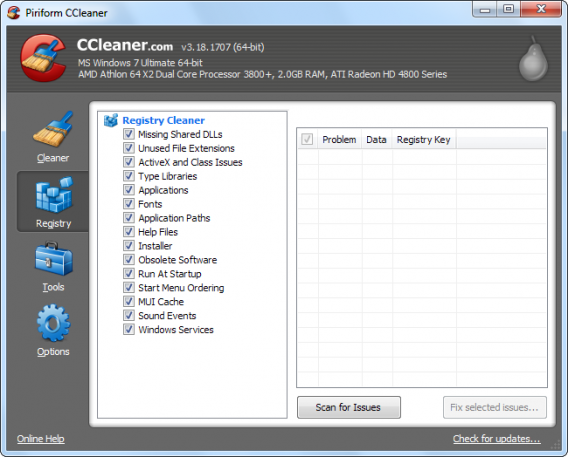
I do not recommend that you regularly use CCleaner’s Registry Cleaner. After all, who cleans their house every day? A clean registry can help if your system is damaged, but it doesn’t improve your performance under normal circumstances and – in some cases – it can be harmful. Leave this feature alone unless you have problems running a particular program.
Registry cleaner

This feature offers much more than its name suggests

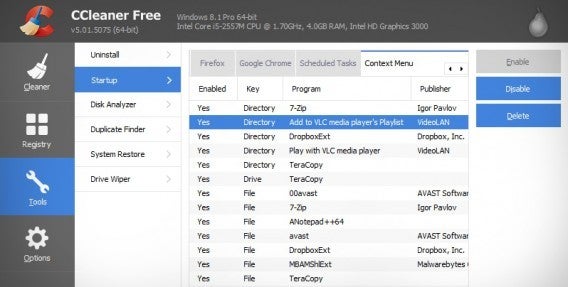
Startup is an optional tool that, in theory, lets you disable programs that run automatically when you start your computer. In this way, you can access and edit your PC boot process.

Startup

What few people know is that Startup allows you to disable or remove scheduled tasks and browser extensions. These options are already included by default in Windows, but you can have a look during one of your regular cleanings.

Breaking the myth of Cleaner Hard Drives

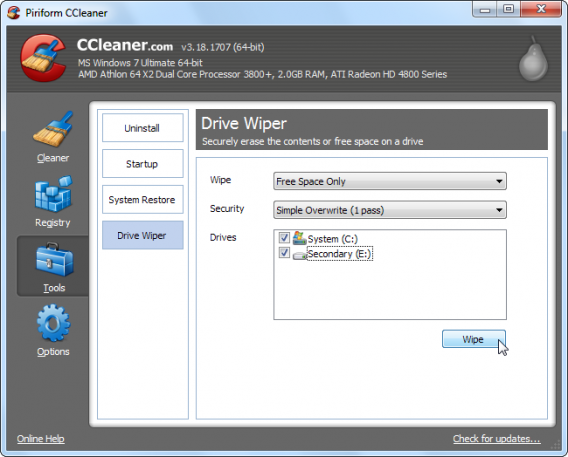
One of the great myths behind hard disk cleaners is that you need to perform multiple scans to get the drive really clean. But there is no need for this with CCleaner’s Drive Wipe, because it can clean your drive with a single click, completely removing unwanted files while leaving programs untouched.

Note that when you delete a file in Windows it doesn’t actually delete it; it simply removes the path to it so it can’t be seen by the system, freeing the space it occupied and allowing it to be overwritten. This allows files to be restored by those who know how. That does not happen with CCleaner, which overwrites old files as it deletes them. Great for security, but please be sure that you want to delete the selected files.

Forget this tool

CCleaner has many secondary tools, the most redundant of which is Uninstall Programs. This is totally dispensable and does not work as well as the Windows Uninstaller. There are better uninstallers out there, like Revo, which you can download from Softonic.

You see? You do not need to know everything about CCleaner.

… and finally, the Golden Rule

It doesn’t matter if you use CCleaner or another cleaning tool – never do any cleaning without making a backup of important files first. If the program deletes something important, the consequences can be catastrophic. Fortunately, with a backup or a restore point, you can recover the state of your computer in a couple of clicks.

Sources: TechRepublic, How To Geek (text 1, text 2, and text 3), Guiding Tech, Life Hacker

Related Stories

3 Productivity Hacks for Office 2007

How to clear the cache on Safari for Windows

Windows 10: The 45 most useful keyboard shortcuts

How to delete your browsing history and protect privacy in UC Browser

20 Windows processes you can kill to make your PC run quicker

In Windows, all processes are listed in the Task Manager. Among the processes that use the most resources, some are useful, while others run unnecessarily in the background. So, which processes can you easily eliminate to increase the speed of your PC? We’ll show you 20 processes that your PC doesn’t need.

We’ve divided the processes into 5 categories: quick starters, software updates, processes from hardware manufacturers, software processes and Windows processes. For each of these, you’ll find a short explanation.

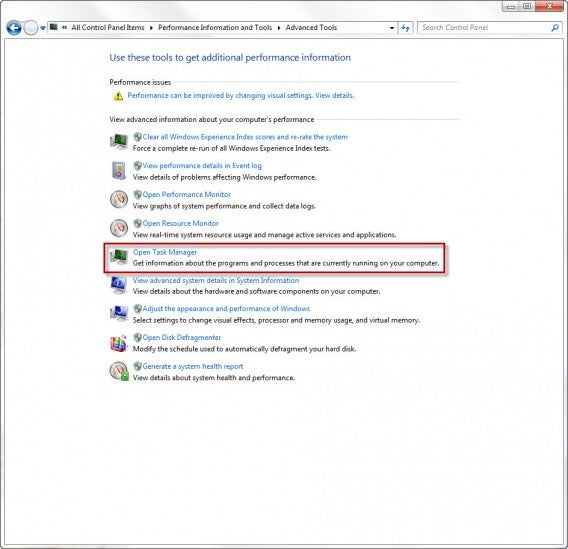
First, you’ll need to access Task Manager. Do this by going to Control Panel> All Control Panel Items> Performance Information and Tools> Advanced Tools> Open Task Manager. Alternatively, press CTRL + ALT + DEL and click on Task Manager.

Task Manager

Then, click on the tab that says Processes.

Quickstarter

Quickstarters preload parts of a program in case the user wants to open the program later. If you don’t open and close these programs often, however, the process can be eliminated.

  • reader_sl.exe is a part of Adobe Reader and stands for Adobe Acrobat Speed Launcher. It speeds up the launch of the reader, but isn’t actually necessary.
  • jqs.exe accelerates the launch of almost all software that works with Java. The Java Quick Starter isn’t really necessary.
  • Osa.exe enables some Microsoft Office programs in Windows XP to launch more quickly and anchors certain Office functions to the start menu. The Office Source Engine may be of interest to regular Office users, but probably not to others.
  • soffice.exe fulfills the same purpose as Osa.exe, but for the Office packages StarOffice and OpenOffice.

Software-Updates

Update managers periodically check whether a new version of the program is available. To save memory, you can change the update options in the program and regularly look for updates when you open it. In the meantime, you can simply end these processes.

  • AdobeARM.exe belongs to Adobe Acrobat and Adobe Reader. The process runs in the background and checks for updates to Adobe products.
  • AAM Update Notifier.exe comes with Adobe Creative Suite products. The process manages updates for multiple Adobe programs.
  • Jusched.exe actually stands for Java Update Scheduler. Once a month, the process checks whether there is a new update for Java, which is quite infrequent for a process that’s always running.
  • DivXUpdate.exe runs in the background and checks for updates to DivX Plus. You can simply terminate the updater; it launches automatically when you open any DivX program.

Processes from hardware manufacturers

Hardware manufacturers generally supply the appropriate software and drivers for their devices. Many nice additional features are automatically added on the computer, but in most cases they’re not used very often.

  • NeroCheck.exe searches for drivers that could trigger conflicts with Nero Express, Nero, and NeroVision Express. You can also start this service manually if necessary.
  • HKCMD.exe accompanies Intel hardware. The process allows the user to allocate any function to the keys, but also often leads to a sluggish system.
  • atiptaxx.exe/ati2evxx.exe comes with ATI video card drivers. The processes provide faster access to the graphics card settings on the taskbar or individual keys.
  • RAVCpl64.exe stands for Realtek HD Audio Manager. The process detects which audio devices are connected to your computer, including headphones or a microphone. Conveniently, the devices are also recognized without the process and will run anyway.
  • Nwiz.exe usually accompanies a NVIDIA graphics card. Anyone who uses NVIDIA nView functions needs the process. but it’s otherwise unnecessary.
  • CCC.exe stands for ATI Catalyst Control Center. For gamers and users with higher demands for the graphic settings on their PC, this is certainly interesting; for everyone else, it’s not necessary.
  • SynTPEnh.exe is used on many laptops and has drivers for touchpads, but Windows can provide these too. In addition, Synaptics TouchPad Enhancements is a known solution for stability problems.

Software Processes

In addition to updates, many programs offer useful and less useful services in the background. Anyone can decide for themselves whether they really need a button for each application in the start menu.

  • winampa.exe places Winamp to the right at the bottom of the taskbar and makes sure that no other programs with media content are linked.
  • iTunesHelper.exe/iPodService.exe works in the background for iTunes and QuickTime. If the process runs without these programs, it can be stopped safely – iTunes starts it automatically if needed.
  • OSPPSVC.exe comes with Microsoft Office 2010. The Office Software Protection Platform verifies that Office still has a valid licence.

Windows Processes

Windows also comes with a number of interesting, yet resource-intensive processes. Decide for yourself what to make of them.

  • Sidebar.exe makes the practical widgets on Windows 7 and Vista possible, but also eats up a lot of memory. Anyone who doesn’t use the widgets can stop Sidebar.exe.
  • wmpnetwk.exe searches the network for media files in order to populate them into Windows Media Player. If you don’t use the media player, or don’t want to search for new files, you can stop the service.

Here, you can find more processes and explanations

If you have more questions about processes and their functions, you can also consult various databases. Please note, most databases are compiled by users, so you should always consult multiple sources.

  • I am not a geek – about processes and their dangers
  • Neubert – with less content, and no search function
  • Searchtasks – with search function and recommendations on processes

[Original article by on Softonic.de]

The Best 24 Apps for Windows 10

One of Windows 10’s biggest features as an operating system is its flexibility moving between devices. Whether you are on your home computer, tablet, or phone, Window 10 is designed to offer a cohesive experience. Here is our pick of apps that offer you a great experience where ever you are.

Adobe PhotoShop Express

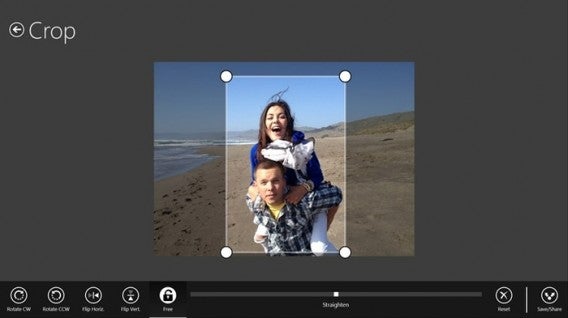
Adobe’s fantastic photo editing suite has long been the gold standard, and with PhotoShop Express they have managed to perfectly adapt the experience to touchscreen. The app allows you to quickly and easily tweak you pictures with options like red-eye removal, noise reduction, and a range of filters. The free version even lets you upload 50 photos a month to the cloud.

Download it here
Adobe Photoshop Express

AllRecipes

Cooking apps are a wonderful tool for any budding chef, and AllRecipies maybe the best of them all. With a fantastic clean layout, it’s easy to find, favorite, and read any recipe you want. Plus, I find the recipes on the app fantastic.

Download it here

AllRecipes

Age of Empires: Castle Siege

Constructing your town and army to pit them against other player’s armies and towns is becoming one of the biggest social gaming genres. However, Microsoft have used the trend to relaunch their beloved Age of Empires franchise with Age of Empires: Castle Siege. It has worked brilliantly, as the game offers more direct unit control than the competition, making it feel significantly more involved.

Download it here

Age of Empires

Angry Birds Space

Ah yes, those mad birds have been to many wild and wacky places – but to our mind space is the greatest. Angry Birds Space doesn’t add any new or weird abilities, it simply places you in space and forces you to deal with the physics and gravitational forces that apply in the cold dark vacuum that is most of the universe.

Download it here

Angry Birds Space

Asphalt 8: Airborne

Gameloft’s Asphalt series has long been mobile gaming’s go to arcade racing experience, and Asphalt 8: Airborne is just the latest, most over-the-top interpretation of this. Keeping the high-speed racing and crisp graphics the franchise is known for, the eighth installment adds high-flying ramps and aerial maneuvers to really take the action to the next level.

Download it here

Asphalt 8: Airborne

Crossy Road

Why did the chicken cross the road? Well, we are not sure, but probably to download Crossy Road. This endless take on the Atari classic Frogger uses simple taps and swipes to give you precise control of a road-running chicken as it desperately tries to navigate highways, rivers, and railway tracks without being turned into nuggets.

Download it here

Crossy Road

Cut the Rope 2

What makes physics intriguing as an element in puzzles? Is it that we feel we have an innate understanding of how it should work and the ways we fail fascinate us? Or is it simply that inside we all want to be part of some huge Rube Goldberg machine? Who knows, but it is what Cut the Rope 2 taps into as you slice your way through ropes to drop and swing candy into Om Nom’s gaping maw.

Download it here

Cut the Rope 2

Dropbox

You probably already have a Dropbox account, making the Dropbox app even easier to recommend. This cloud storage/sharing solution gives you 2GB of storage for free when you open an account. The app’s clean and simple design also allows you to easily find the files you want, with photos particularly well displayed in albums.

Download it here
Dropbox

Facebook

If you use Facebook, as I am prepared to guess most people reading this do, then it’s hard to ignore the usefulness of the official Facebook app. Providing a simple layout which allows you to easily access all of the social platform’s options whether you are using a touchscreen or a mouse, you probably need this installed.

Download it here

Facebook

Firefox

Firefox is already many peoples go to browser of choice thanks to its high-level of customization and fast surfing experience. Well, add to that the fact that Firefox offers full Windows 10 integration, and Mozilla’s browser could easily become the number one choice for internet on the Microsoft platform.

Download it here

Firefox

Flipboard

Flipboard is a magazine viewer that offers you a curated news-feed of your interests, all beautifully laid out to look like a magazine. It’s a far more compelling way of viewing the sites you regularly visit, particularly on mobile devices.

Download it here

Flipboard

Flow Free

So simple, so free, Flow Free is another of those puzzle games that can really take over your mind. You know you are in trouble when you start day dreaming about a game and solving puzzles you create for yourself while you’re meant to be work. If you have a job that demands your full attention, maybe don’t download this.

Download it here

Flow Free

Fresh Paint

Providing you with a full featured painting app, Fresh Paint is a fantastic way to unleash your creativity. What is so wonderful about Fresh Paint is its tactile nature as, alongside a standard color wheel it also allows you to mix your own colors on a digital palette before applying them to your canvas.

Download it here
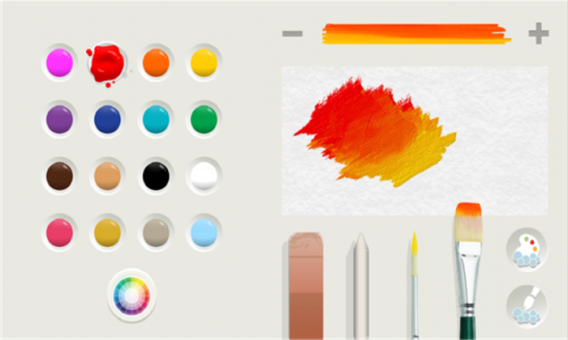
Fresh Paint

Frozen Free Fall

You can take your pick of match-three games, from Bejeweled to Candy Crush, they are all much of a muchness. However, I have struggled to let go of Frozen Free Fall. Well, I say that, what I really mean is that my friend’s daughter has struggled to let it go, so it remains installed on my phone.

Download it here

Frozen Free Fall

Jetpack Joyride

Escape mad scientists with a rocket pack. No, there isn’t much need to expand on Jetpack Joyride’s core concept to make it appealing. The only other thing you really need to know is that the simple controls and comical power-ups mean that it is, in fact, as fun as it sounds.

Download it here

Jetpack Joyride

Minecraft

If you absolutely have to have a game to launch on the same day as your new operating system, then none could be better than Minecraft. Whether this was a driving force behind Microsoft’s purchase of Mojang we will never know, but it certainly is not going to hurt the company to have the Minecraft Windows 10 Beta on its store front.

Download it here

Minecraft

Minion Rush

Endless runners are everywhere, and at this point you can get them in any flavor you fancy – from Spider-Man to Tomb Raider. Personally, however, I find it hard to resist the little yellow minions as they waddle their way through Minion Rush. The game itself is a fine example of the genre, and the minions make the perfect slapstick fodder to be on the end of every failed jump.

Download it here

Minion Rush

Modern Combat 5: Blackout

While Call of Duty’s mobile incarnations may all have been awful, that hasn’t stopped Modern Combat borrowing the idea of an extravagant modern military story. Modern Combat 5: Blackout offers everything CoD does, with a solid country hopping plot, loads of weapons, and a robust multiplayer mode that allows up to 12 players to compete together online.

Download it here

Modern Combat 5: Blackout

Nook

If you use your phone or tablet as a portable personal library, then Nook is the perfect app for you. With a huge library curated by Barns and Noble, and plenty of options to make your reading experience easy on the eyes, Nook is the app for bookworms.

Download it here
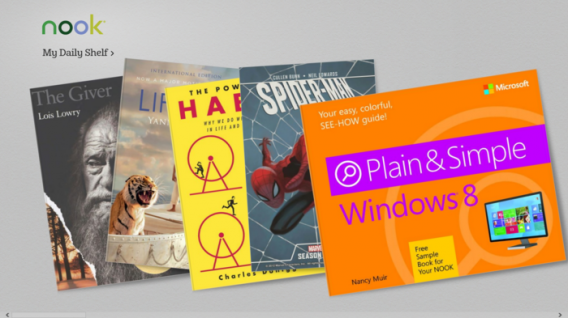
Nook

OneNote

In isolation, Microsoft’s note taking tool is just good. Add in a Microsoft 365 account, and all of the cross app and cloud storage options it opens up, and OneNote becomes a truly fantastic tool. Allowing you to edit across devices, great touchscreen support (such as the intuitive radial menu), and the ability to pull pictures from social media platforms like Facebook, OneNote is a must.

Download it here
OneNote

Pako

If you enjoyed the bit in GTA where you are trying to outrun a seemingly endless sea of police officers, then you are in luck, because that is all Pako is. Viewed from an isometric perspective, you must speed around the urban arenas trying to stay ahead of the cops for as long as possible. With a nifty 70s gangster movie motif, Pako is brilliantly playful.

Download it here

Pako

Skype

Even with every other messaging service starting to offer calls and video, Skype is still up there as the best ways to connect with friends and family around the world for free. Since its acquisition by Microsoft the service has continued to improve, and its cross platform functionality on Windows 10 makes it an even more flexible communication tool.

Download it here

Skype

Threes!

Threes! maybe one of the most perfectly conceived mobile games ever. Simple, fast, and skillful, trying to combine tiles of the same number together with simple swipes, while not boxing yourself into an impossible situation, is the kind of addictive challenge that can ruin whole afternoons.

Download it here

Threes!

Twitter

“Twitter is many people’s social network of choice. If you are one of these people, like me, you need this app. That’s 140 characters, right?”

Download it here

Twitter

Related Stories

Which Windows 10 version should I get?

What’s new in Office 2016 for Windows

Microsoft will fight Windows 10 piracy by giving it away this summer (update)

Technical Preview of Windows 10

Follow me on Twitter: @DoFuss
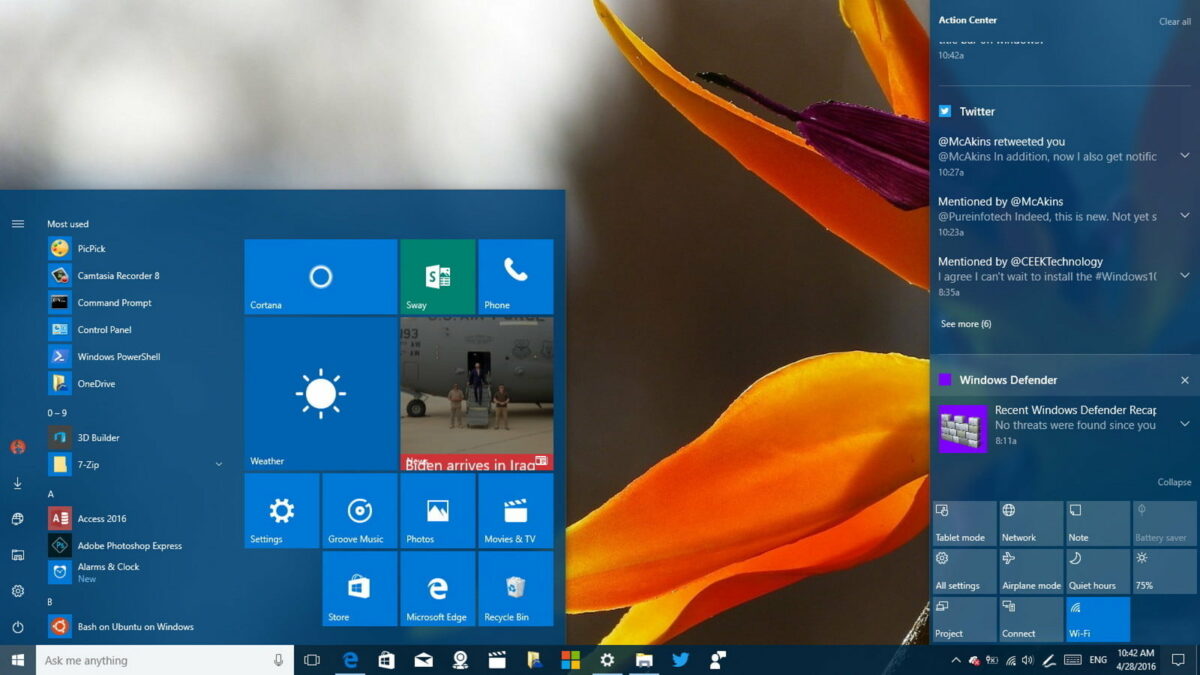
10 tips for customizing Windows 10

While the upgrade to Windows 10 should be smooth sailing, as with any new operating system you will have to tweak it to get it working just the way you like it

Windows 10 doesn’t allow for any radical customization yet, though that may change with future updates. Let’s see what you can do right away.

1. Disable or minimize ‘UAC’

UAC stands for User Account Control, and is one of Windows’ security systems. When you install a program that is trying to make system changes, it’s UAC pops up asking you if you’re sure.

User Account Control is not a bad thing, and you should keep it enabled. However, if you like to make changes to Windows 10 regularly, you probably don’t need bugging about it every time.

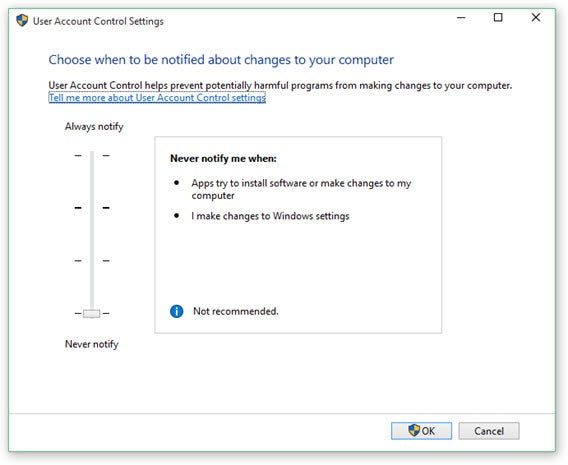
You can change how much UAC will ask for verification, luckily. Open the Control Panel, then User Accounts, and User Accounts Control Settings. Here you’ll find four levels of UAC:

Always notify.

This means you’ll be notified every time a program wants to make changes to your computer or you change Windows settings that require Administrator rights. When these notifications appear, your desktop will be dimmed and you’ll have to deal with it before continuing with other tasks. It’s the most secure, but also most intrusive setting

Notify me only when programs try to make changes to my computer

This will still notify you when programs want to make changes to your computer, but not if you personally make changes to Windows settings that require Administrator rights.

Notify me only when programs try to make changes to my computer (do not dim my desktop)

The same as 2, but your desktop will not be dimmed. This means you can continue working with other apps when UAC asks for your attention.

Never notify

This means you’ll never get UAC notifications. When you are logged in with an account that has Administrator rights, programs will be able to make changes to your computer without your knowledge. Therefore, you have to be careful what programs you run and install, as they will have the same rights and access as an Admin account.
2.Activate Cortana with a button

The default setting in Windows 10 for Cortana includes her search bar on the Taskbar, which takes up quite a bit of space.

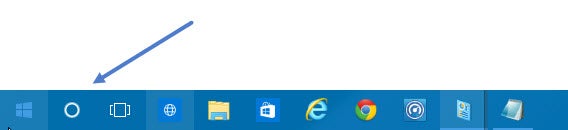
You can remove this by right clicking the Taskbar, and going to Search – Hidden. But you can keep Cortana on the Taskbar by right clicking, and choosing Find – Show Search Icon. This will leave a neat circular search button on the Taskbar, from where you can activate Cortana.

You can also set Cortana to wake with a voice command, ‘Hey Cortana’. This can be enabled in Cortana’s settings.

3. Use Classic Shell

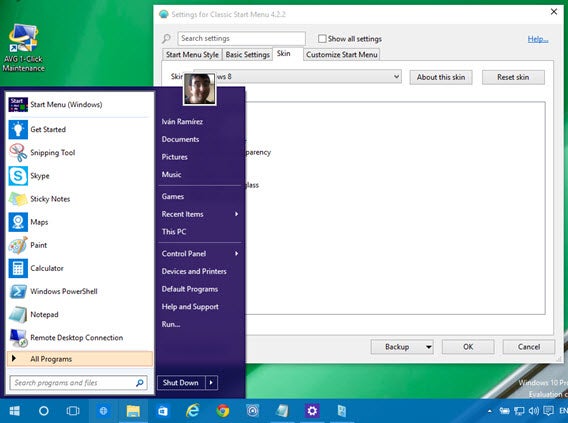
We’ve heard it a lot – the Start Menu is back in Windows 10. But it’s still not the one we pine for from Windows 7 and earlier. Classic Shell is an old program that for years has supplied excellent, high quality alternative Start Menus.

This Start Menu is very personalizable – you can make it look like Windows 8, 7, or even XP. The Classic Shell Start Menu is full of options. You can choose different skins, buttons, and menus… a wonder for customization fans.

4. Use the Start Menu without Tiles

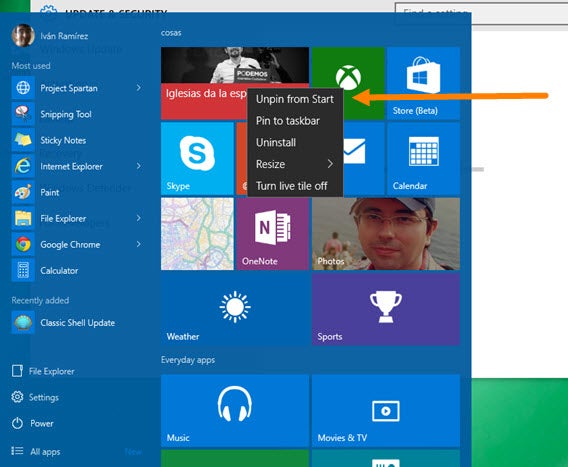
If you prefer not to install an extra program like Classic Shell, but you have little interest in the new style Modern UI apps, you can rid your Start Menu of these turbulent tiles.

Unfortunately, you cannot do this all at once. To remove tiles from the Start Menu, right click on each one and choose ‘disable live tile’. It takes a while, but once you’re finished you can resize the Start Menu to hide the empty space.

5. Change which sections appear in the Start Menu

While the Windows 10 Start Menu has relatively few options, it does at least let you choose what appears in it. Find this in Options – Personalize – Home.

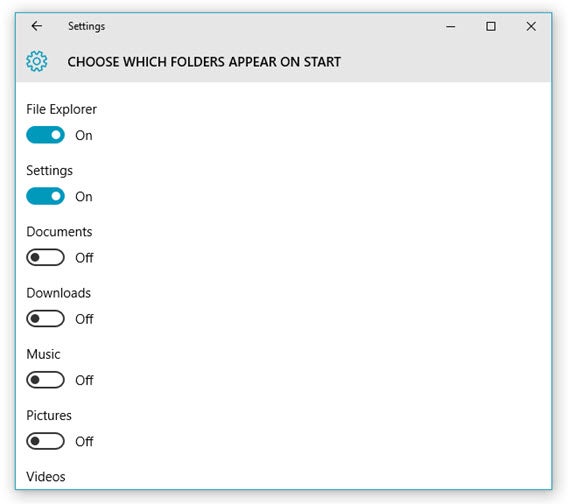
In the main window you can choose between your most used apps, newly installed apps, and recent documents. You can also click Choose Which Folders Appear on Start, which gives you a load more options for what you can see on the Start Menu.

6. Sign in Automatically

The login screen for Windows 10 may be very attractive, but if you’re the only person who uses a PC, it’s a little unnecessary.

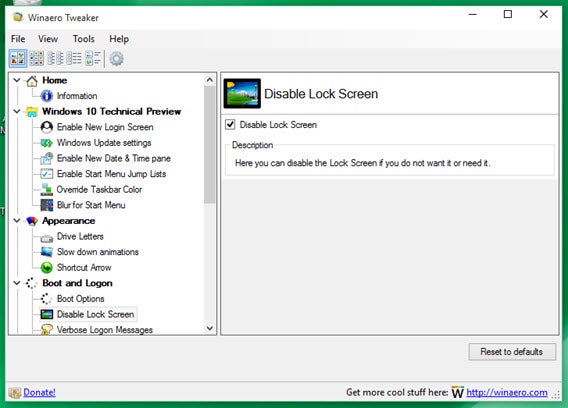
You can disable it with a little app called Winaero Tweaker, which gives you some additional startup options. Install the app, and go to Boot and Login – Disable Lock Screen. You can also do this with AVG TuneUp. With this app, look in Optimization – Modify Windows Settings – Security – Administration – Login. You’ll need to enter your password to deactivate the login screen.

7. Use an image as your password

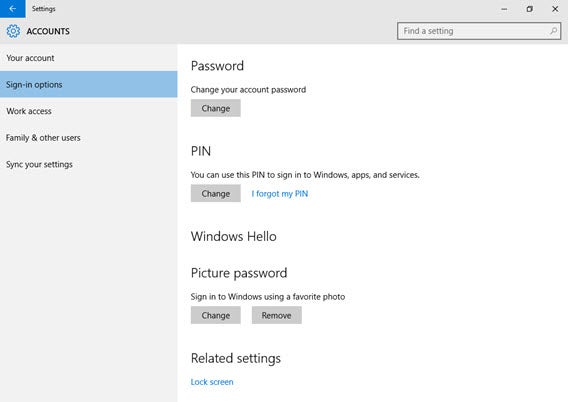
If you want to keep your PC secure, and maintain the login screen, there are still more ways you can alter it. Open Settings – Accounts – Login Options.

Here, you can choose different types of password. You can use a four (or more) digit numerical PIN, for example. More entertainingly, you can use an image. To do this, you’ll have to upload an image, and the ‘password’ will consist of clicks and swipes over it.

You could use your own face, for example, and set the password as clicks on your eyes and nose.

8. Customize File Explorer

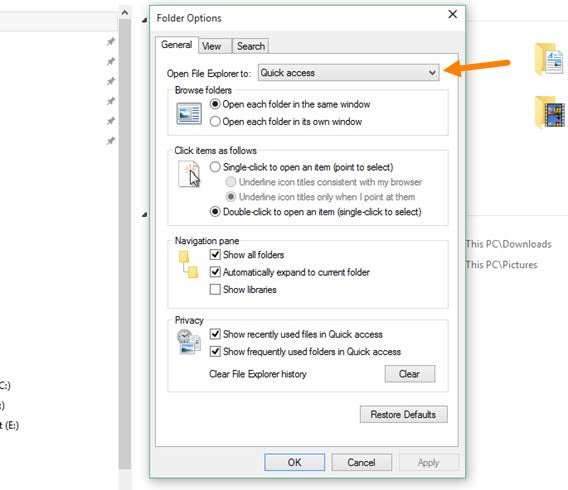
Every time you open a new folder in Windows Explorer, it will open Quick Access by default. This is the equivalent of Favorites in Windows 7. It’s not a bad option, but if you don’t use Quick Access and prefer instead to use the old ‘This PC’, you can.

Open an Explorer window, and choose Options from the Tools tab. In Folder options you can then set File Explorer to open in Quick Access or This PC mode.

9. Make changes to the Command Prompt

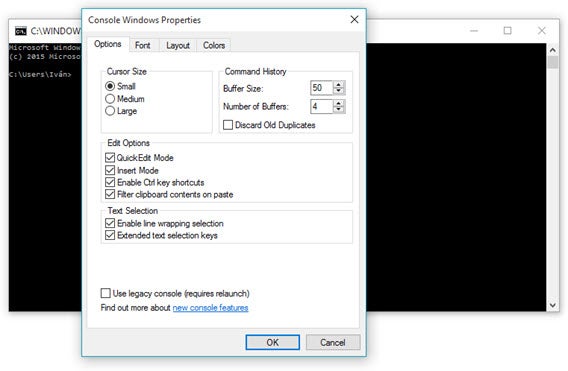
The what? Command Prompt is really only for the fabled advanced users, and moreover, the ones who wish to type their commands in MS-DOS. Windows 10 adds some more options for Command Prompt, including changing the opacity of its window.

To change this, right click on Command Prompt’s top bar and open Properties – Experimental. Here you’ll see a bar to change the opacity.

The Command Prompt now supports common shortcuts like Ctrl + C and so on, just like every other application, which makes it much easier to use.

10. Change the language

If for some reason Windows 10 is not in the language you want, just like in older versions you can change the system language, and it’s easy to do.

All you have to do is open Settings, then Time & Language. Choose the one you want, or if it’s not there, click Add a Language. Once added, clicking any language in your list lets you set it as default.

Remember, you can find all of our Windows 10 coverage here.

Top 10 internet accelerators


Image via: Pexels

With broadband now commonplace, internet accelerators have gone out of fashion somewhat with creaky old modems consigned to the bin. However, as broadband speed is often subject to wild variations depending on where you live, who your ISP is, how far you are from the telephone exchange etc, some people might find that there’s still a place for internet accelerators in their lives. Here’s a selection of the top 10 that cover broadband modems, dial-ups and network connections. None of these can guarantee to speed-up your connection and you should contact your ISP if you’ve got serious problems.

  • Throttle – Boost your internet speed by 200%
  • FastNet99 – Tweak DNS settings to increase your browsing speed
  • BeFaster – Optimise your speed online and offline
  • Modem Booster – If you’re still on a modem, this could increase speed by 300%
  • TweakMASTER Pro – Tweaks everything from DNS settings to dial-up modems
  • NetSpeeder – Optimises your TCP/UDP port settings