5 ways Microsoft Office is better than Google Drive

Why Google Drive isn’t always your best options.

Microsoft Office

Most of us have used Microsoft Office and Google Drive. But which one is better? The two offer a variety of features and benefits.

Below, get a closer look at why you may want to pay for Office even though you can get Google Drive for free.

5 ways Microsoft Office is better than Google Drive

1. Most people know Word

Word is the most commonly used word processing program today. Most people know how to use it. That means if you need to send a document to someone, chances are good they will understand how to open it up and use it if it’s in Word. Google Docs can be a bit tricky for those who don’t have much experience with it.

Microsoft Word 2016 Download Now ►
9

2. Google Docs offers fewer features

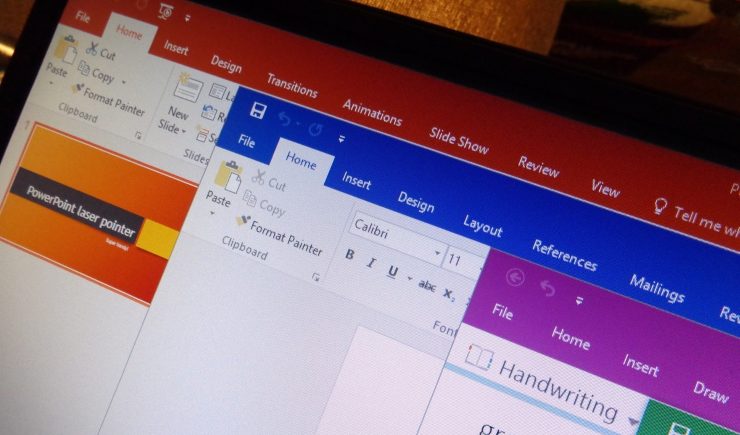
When comparing Microsoft Word and Google Docs, it’s easy to see that Docs has fewer features. For those who enjoy having the ability to handle unique layouts and embedding plenty of graphics, this is going to work in your favor. Adding an image can be difficult at best with Google Docs, but it takes only a minute when you are using Word.

3. Excel is easier than Sheets

Microsoft Excel and Google Sheets are fairly similar. You could easily get used to both options. One key factor that helps Excel stand out is its ribbon. It is very easy to access and use to create formulas. This helps to speed up the process for many people. For those who rely on Sheets, you may not notice much difference. However, it is easier to collaborate with others using Sheets.

4. PowerPoint rules

For those who are creating slideshows — whether they are for a classroom discussion or a company meeting — PowerPoint from Microsoft tends to be the better option overall. The program offers more features, and you can create a presentation from scratch within minutes.

5. Microsoft’s latest upgrade makes it easier to share

With the latest Microsoft Office version, individuals can collaborate more effectively. Your materials are all stored in the cloud, too, which means you have better access to them. This used to be the biggest downfall of Microsoft — it lacked cloud access and connectivity. That gave Google Drive the leg up for a long time.

6

When it comes down to it, either program is accessible and fairly easy to use. Microsoft is far more feature-heavy, though, and tends to be on the cutting edge of new tools.

5 awesome stress-relief apps to use right now

Breathe in, breathe out. Use these apps to silence your stress.

meditation and calm

Everyone faces stress. Whether you’re running late to class, waiting for an interview, or planning a wedding, stress impacts your life in a variety of situations. And while your phone may cause a lot of stress, the right app can help you unwind. Here are five apps that can help you get a handle on your stress, no matter how busy your schedule.

5 awesome stress-relief apps to use right now

Headspace Download Free
8
Headspace provides a vast variety of mindfulness services. In as little as 10 minutes, Headspace meditations improve users’ mood, concentration, and empathy. Headspace's clinically-proven services will provide you with new and improved stress management tools.
8
Is stress taking away your sleep? Try using Calm for stress-related sleep problems. In addition to meditation and relaxing music, Calm features gentle stretching exercises and even sleep stories. The app proves you deserve a healthy sleep schedule alongside your busy daily routine.
MINDBODY Download Now
8
MINDBODY promotes fitness and mindfulness to ease everyday stress. The software also alerts you to health and beauty professionals, such as salons and yoga studios. MINDBODY illustrates how stress relief improves everyone personally, physically, and professionally.
Buddhify Download Now
7
Buddhify relieves stress when you're on the go, even if you only have five minutes. Buddhify lets users customize their stress management techniques alongside prearranged routines. The app also encourages its users to spread mindfulness to others, a feature that extends stress relief beyond the individual. This approach validates the need to not only soothe yourself, but also other people.
6
Aura suits those who enjoy personal freedom in their stress management. You can enjoy a new meditation session each day as well as save older sessions for later use. Aura also allows users to choose the stress relief they feel at the moment. Aura demonstrates that stress relief includes anything from a light pick-me-up to a serious crisis.

People become more efficient and upbeat without excessive stress. As more stress relief apps appear, we all have more opportunities to find the best stress management program to use. Stress relief should serve as not only a useful tool for emergencies, but also as a crucial building block in enhancing daily routines. Try these apps and see how your life can improve with a few new smart routines.

5 affordable virtual reality products that you’ll love

VR doesn’t have to break the bank. Here’s how to have fun on the cheap.

virtual reality

In the past few years, hundreds of companies have come out with original products, games, and apps that offer simulated experiences to their users. Until recently, however, many of the headsets and motion sensor trackers on the market cost hundreds or even thousands of dollars, making them inaccessible to the general public for months at a time.

Since then, Google, Samsung, and freelance designers have all come out with products that users can afford at a fraction of the cost of an Oculus Rift or HTC Vive headset. Take a look at the budget-friendly headsets and accessories listed below.

5 affordable virtual reality products that you’ll love

1. Google Cardboard

Google Cardboard is the perfect headset for gamers and VR users who are just beginning to dabble in VR or only want to explore basic VR functions. The headset is compact, lightweight, and compatible with both Android phones and iPhones. It allows users to explore 360-degree videos from apps like VRSE and Jaunt, among others. Just clip your phone to the front of the device and use your thumb to navigate through your virtual environment.

2. Daydream View

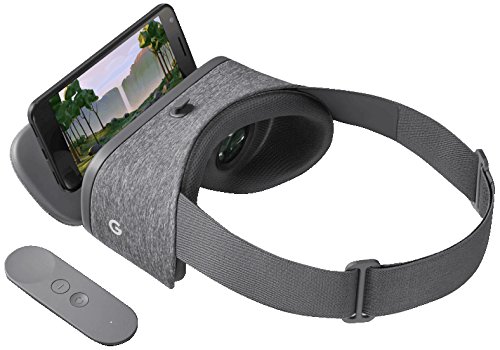
Yet another popular Google VR product is the Daydream View, a slightly higher-end headset (but still typically under $100). The headset works with certain Android phones and Google’s Pixel smartphones. It gives users the ability to navigate through virtual worlds such as those in apps from Major League Baseball, The New York Times, Netflix, J.K. Rowling’s “Fantastic Beasts,” and more. Users can also wander through art galleries and museum exhibits on Google Arts & Culture, or play any of the numerous games available on the app.

Google Arts & Culture DOWNLOAD FREE ►
9

3. Samsung Gear VR

This mid-range headset powered by Oculus can be yours for around $100. Plus, it comes with Samsung Galaxy smartphone capability, a remote that doubles as a gamepad, 101-degree field view, motion sensors, and over 1,000 apps and games available to users. This headset is versatile, offering a wide range of advanced design features that make the experience highly interactive without using external motion tracking devices tethered to the headset.

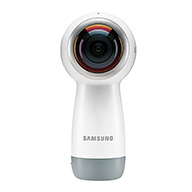
4. Samsung Gear 360 spherical camera

While the headsets above allow users to dive into worlds unknown, the spherical camera lets you create those worlds, with 180-degree horizontal and vertical cameras on both the front and back. Users can also create their own panoramic videos and photos, which offer a great starting point for those interested in creating VR-simulated environments in the future.

5. 3D print designs

If you already own VR hardware or software and want to expand your collection, be sure to check out websites like Thingiverse, where 3D print designs are available for DIY equipment that is compatible with Samsung Gear VR, Oculus Rift, Playstation VR, and more. Some of these headsets cost as much as $800. However, the sensory mounts, cable tethers, stands, and goggle fans are both affordable, printable, and make your VR experience more comfortable as you move around various environments.

How to save battery on your iPhone

Tips to make sure your phone always has juice when you need it.
iphone battery

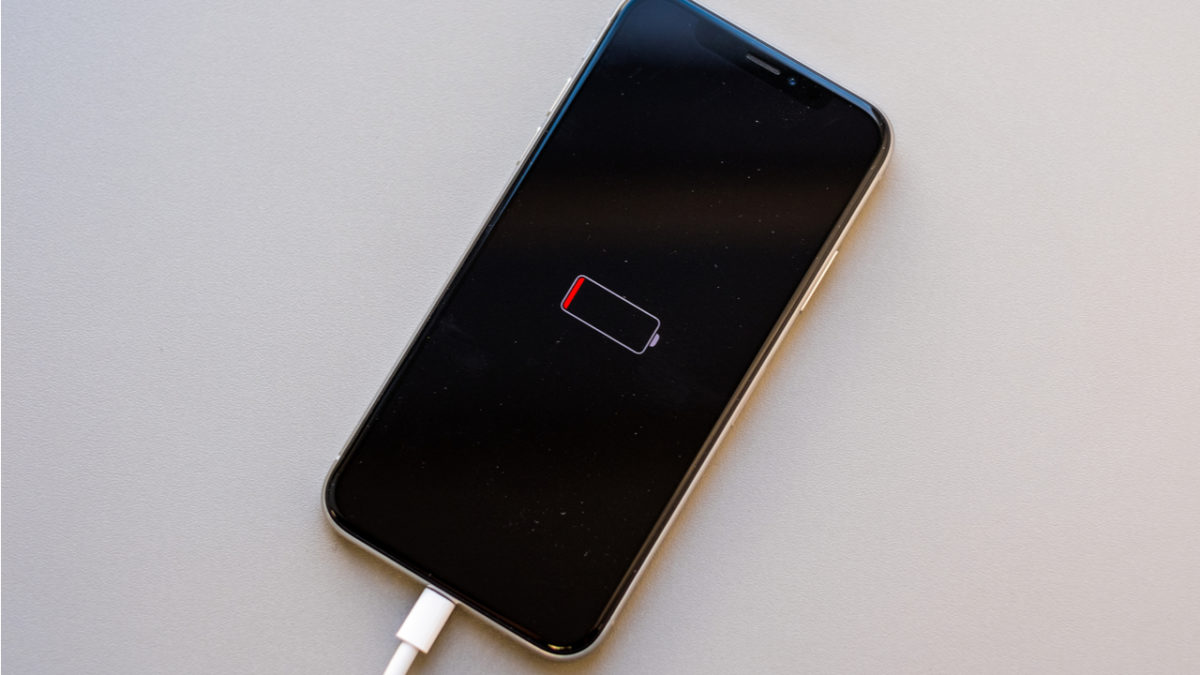
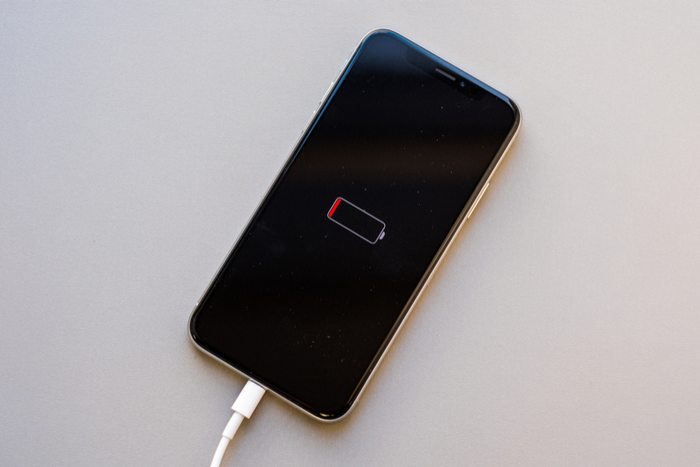
Is your phone quickly losing battery and you’re not sure why? If so, there are a number of ways you can help preserve your iPhone’s battery life.

How to save battery on your iPhone

Update your phone’s software

Although new software updates can affect your phone’s battery life negatively, you may also experience battery drain from failing to update your phone whenever a new update is released. This is a good first step to take if you’re experiencing battery issues. A software update can often resolve bugs, glitches, and phone performance problems. To see if you’re due for an update, go to Settings > General > Software Update.

Restart your iPhone

If your phone has started acting a little buggy, try turning it off and on again. You should restart your phone about once a week. This may help to resolve any minor battery life issues with your phone.

Check your battery usage

This is a fast way to determine what is killing your phone’s battery life so that you can start preserving it. To check in on how your phone’s battery is doing, go to Settings > Battery. If your software is up to date, you should be able to see stats on your battery life and information on your battery’s overall health. The stats will show you your phone’s peak usage times, how much time you’ve spent on your phone overall, your battery life’s performance throughout the day, and which apps consume most of your phone’s battery life. From here, you may decide that you want to cut back on your usage of certain apps or even your phone overall.

If you want to view your battery’s health, click Battery Health. From there, your phone will tell you if your phone is operating at peak performance and the percentage of your battery’s capacity. If your phone is older, you’ll likely experience a drop in your battery’s capacity. That just means you’ll need to charge your phone more frequently.

Adjust your screen’s brightness

The brightness of your phone screen can greatly impact your phone’s battery life. Luckily, some simple adjustments can often save you a lot of battery power. First, use your finger to swipe up from the bottom of the screen to access your phone’s control center. From there, you can easily adjust your phone’s current brightness levels by dragging the slider down. You can also access this feature in Settings > Display & Brightness.

Throughout the day, to save power, you may want to adjust your brightness manually every time you go indoors or outdoors. So the next thing you’ll want to do is turn off Auto-Brightness (or True Tone for newer models) so your phone doesn’t go overboard on unnecessary screen brightness. Despite Apple’s insistence that Auto-Brightness conserves your battery, it may actually do the opposite. The location of this feature differs depending on the phone model. First, try going to Settings > Display & Brightness to turn off Auto-Brightness. If you have an older model, go to Settings > General > Accessibility > Display Accommodations to turn off Auto-Brightness.

Change Background App Refresh settings

By default, your apps are set to automatically update with new information, even when you’re not using those apps. While you might want some apps (such as your email app) to receive real-time updates, you might not care about others. To change your settings, go to General > Background App Refresh. From here you can either turn the feature off for all apps or restrict background updates to Wi-Fi only. You can also turn off any apps you don’t need to refresh in the background, such as your unused Stocks app. You can also access Background App Refresh by clicking on each individual app in your phone’s settings.

Adjust your Auto-Lock

There’s no need to keep your screen on if you’re not using it, right? Make sure to turn your screen off when you’re done using it to save battery power. To be safe, you can also adjust your phone’s Auto-Lock feature to save your phone’s battery. To do this, go to Settings > Display & Brightness > Auto-Lock (or Settings > General > Auto-Lock if you have an older phone). Select the shortest amount of time possible. If your phone has the latest software, you should have the option to set Auto-Lock at 30 seconds. If your phone isn’t up to date, you’ll have the option to set it at one minute.

Turn on Low Power Mode

If you’re trying to conserve your phone’s battery for a few hours until you’re able to charge it, activate Low Power Mode. To do this, go to Settings > Battery. Then slide the bar to turn on Low Power Mode. Note that doing this will reduce the number of functions your phone can perform. For example, it will stop receiving new mail or updating your social networking apps in the background.
Google and Spotify team up to find you the perfect morning alarm tune

Wake up with your favorite Spotify song! Here’s how.

Making your own alarm ringtones can be a serious hassle depending on the method you choose. You may remember the days of making your own ringtone on a sketchy website, or trying to alter existing songs in iTunes to start playing at the right time and for the right length. And what happens when you get sick of that song? Then you have to go through the whole process again.

Wouldn’t it be easier if a streaming service like Spotify simply worked with your phone to provide you with the ringtones you want? Well, now Spotify offers just that. Recently, Google and Spotify joined forces to provide you with a more seamless way to integrate your Spotify playlist with your phone’s alarm clock.

Google and Spotify team up to find you the perfect morning alarm tune

Spotify merges with Google Clock

If you use the Google Clock app on Android, you may have noticed that the app was recently updated to include built-in access to Spotify. Without much effort, you can now choose a song, artist, album, or playlist from Spotify’s library to wake up to, right in the app. Think of it as the modern version of the clock radio or CD alarm clock of your childhood.

Google Clock Download Free
8

Which Spotify users can access this feature?

The Spotify alarm clock feature is available to all Spotify users, whether you have a free or premium account. You’ll also need to have the Spotify app on your Android phone. Make sure you’re logged in to your account and that you give Google Clock access to your Spotify account, too.

If you don’t yet have a Spotify account but you want to access this feature on Google Clock, consider signing up for a free account. Just don’t forget to download the app and sync it with Google Clock!

Spotify Download Free
8

Which songs can you choose from?

With Spotify integration, you can either wake up to the specific song of your choice or choose a playlist to wake up to. This can be your own playlist that you’ve created or else one of Spotify’s existing playlists. The service even offers playlists specifically for waking up in the morning. Spotify also offers the option to seamlessly continue listening to your playlist after you wake up.

A note for free Spotify account users: If you choose a playlist to wake up to, the song play within a playlist is random, just like the regular app. If you want to wake up to only upbeat songs, make sure you choose a playlist that meets your needs.

No matter which option you choose, waking up to the right song or playlist can make all the difference in how you approach your day. From the moment you open your eyes, you’ll feel empowered and ready to take on the day!

How to use search parameters in Gmail to find that one lost email

Here’s how to find that lost email in a hurry.

gmail

Sometimes, it can feel almost impossible to locate an old email. If you have thousands of emails in your inbox, it can take a long time to go through them all just to find that one email that mentions the time and place you’re supposed to meet someone.

Luckily, Google has some tools to help you finally track down that one long-lost email. Below are some of the ways you can use search parameters in Gmail to locate what you’re missing.

How to use search parameters in Gmail to find that one lost email

1. Find a specific sender

If you want to quickly locate all the emails from a specific sender, use from: in the search bar, followed by the contact you’re trying to locate. For example: from:joe.

2. Find a specific recipient

If you send a lot of emails, sometimes it can be hard to find the exact email you sent someone. To aid in your search, try searching for the recipient of your email. To do this, use to: in the search bar, followed by the contact you’re looking for. For example: to:sarah. You can also locate a specific recipient by their email address. To do this, type deliveredto: before the email address.

3. Find an email from different senders

Not sure who sent the email you’re looking for? Try searching for emails from two different people by using OR or { }. For example: from:joe OR from:sarah or {from:joe from:sarah}.

4. Find an email with a specific subject line

If you know that the email you’re looking for has a specific subject line, try searching for that. You can do this by typing subject: followed by what you’re looking for. For example: subject:meeting.

5. Find an exact phrase

If you remember that your lost email has a specific phrase or word, put quotation marks around the phrase that you’re searching for. For example: “meeting on Tuesday”.

6. Find an email with a specific attachment

If the email you’re looking for has a Google Docs, Sheets, Slides, or Drive attachment, try searching for that. To do this, type has:document, has:spreadsheet, has:drive, or has:presentation in the search bar.

You can also find an email with a specific attachment by searching the file type or name. To do this, type filename: before the type of file or file name. For example, you can search filename:pdf or filename:classreadinglist.

7. Find an email from a specific time period

If you know that the email you’re looking for is before or after a specific date, try using that in your search. To do this, use before: or after: before the date. For example: before:2017/06/30.

3 affordable, portable speakers that sound great

Take your music anywhere with these great speakers.

speakers

Have a party coming up but don’t want to invest in huge, expensive speakers? It’s time to consider your portable speaker options. Below, check out three of the best portable speakers you can buy now. These products will keep the tunes coming, whether you’re chilling at the pool or partying it up with friends. Best of all, they won’t break the bank!

3 affordable, portable speakers that sound great

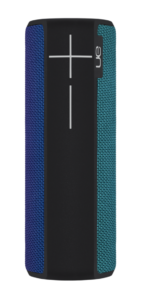
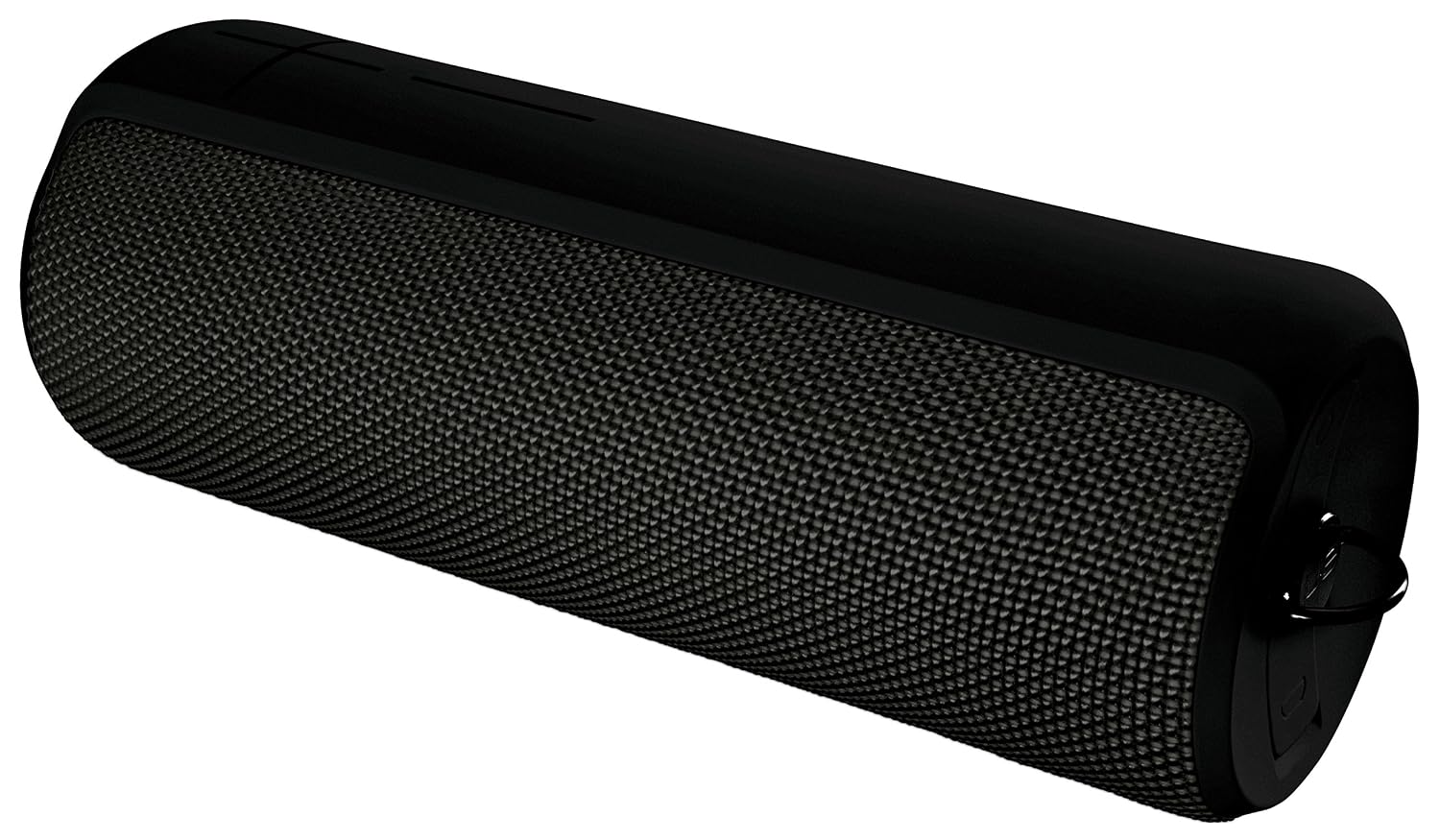
1. Ultimate Ears BOOM 2

Image from ultimateears.com

With a battery life of 15 hours and a wireless range of 100 feet, this speaker is perfect for any situation. The sound quality is pretty amazing, while the size is still quite small. You can easily fit this 1.2-pound portable speaker in any bag or backpack. If the size and sound quality aren’t enough for you, note that this speaker is also waterproof up to 30 minutes at a depth of about 3.2 feet. This feature will make the BOOM 2 a big hit at that upcoming pool party or during a fun day at the beach!

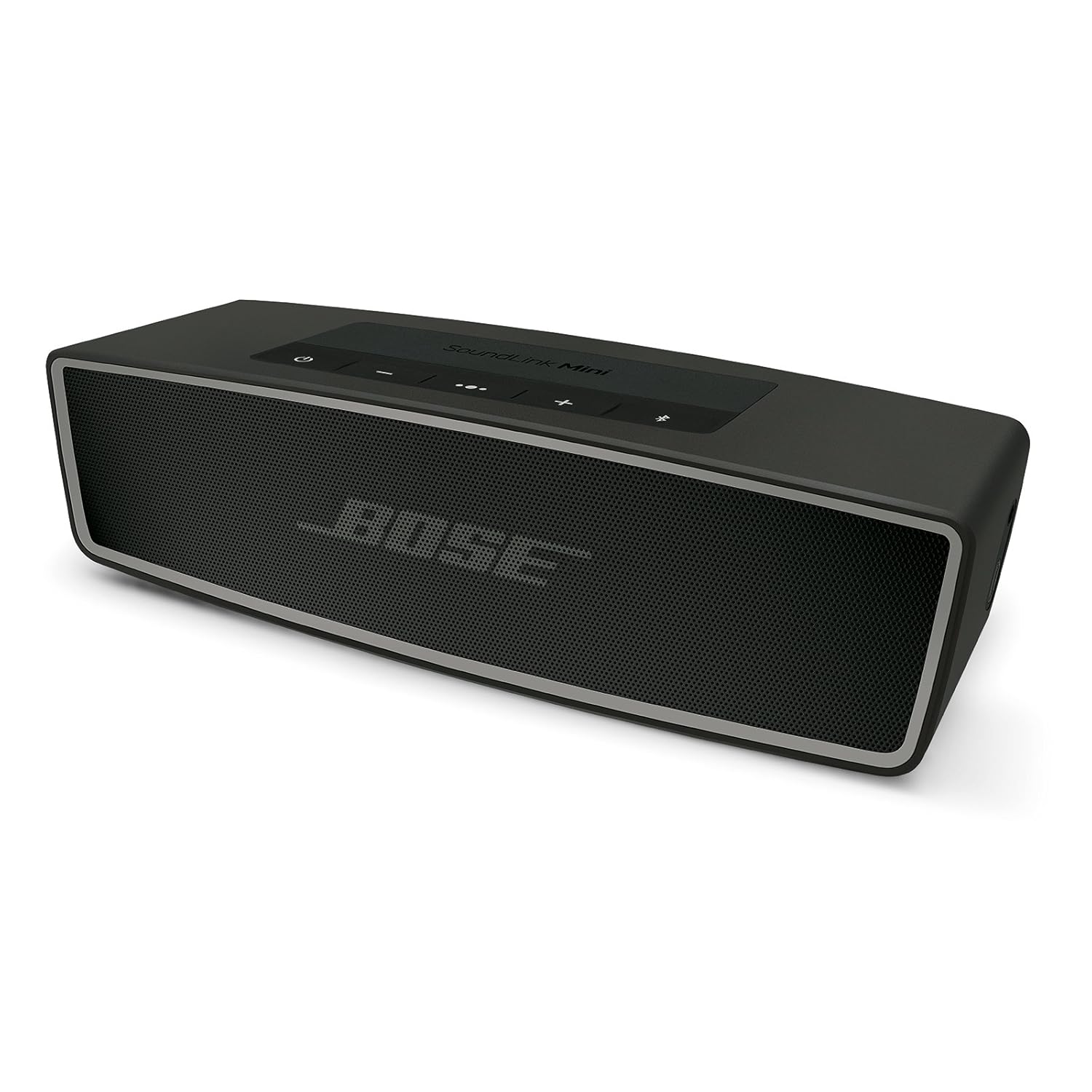
2. Bose SoundLink Mini II

Image from bose.com

Although this speaker is small, it really packs a punch when it comes to sound quality. Many people will tell you that the Bose SoundLink Mini II has some of the best sound quality for a portable speaker of its size. Another great feature? This speaker is wireless up to 30 feet, as it can connect to your phone through Bluetooth. No more messing around with awkward cords!

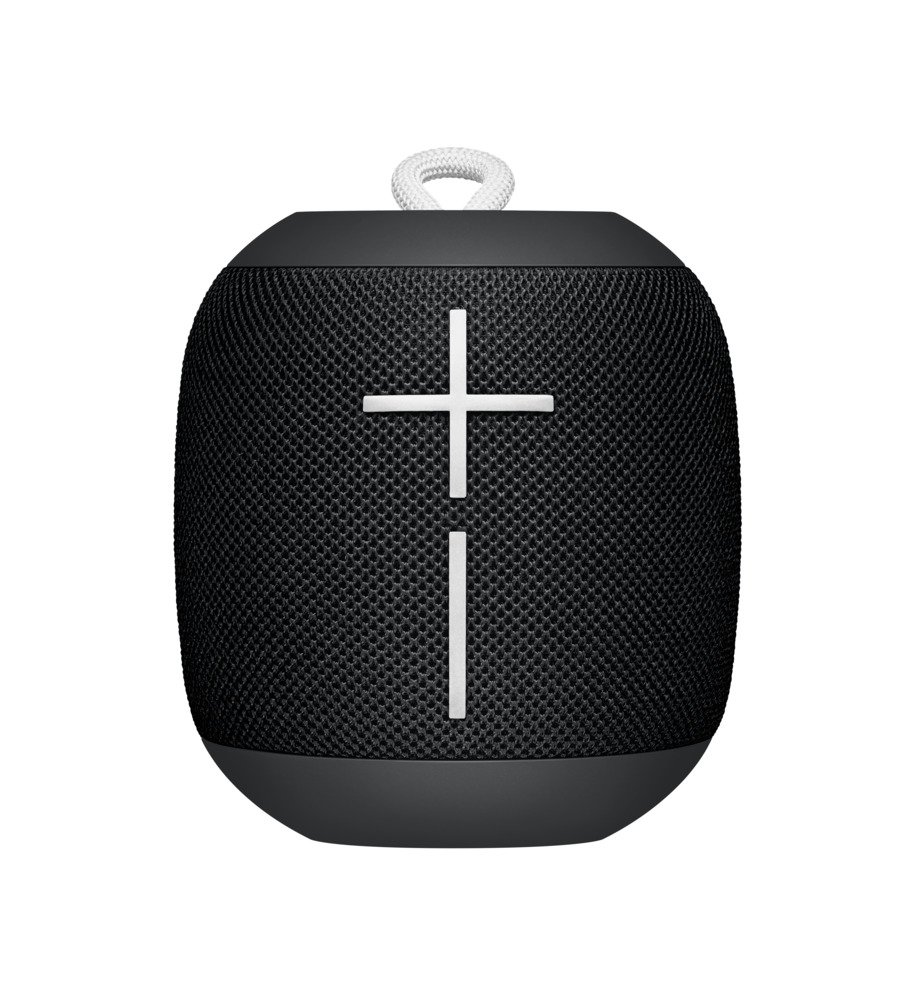
3. Ultimate Ears WONDERBOOM

Image from ultimateears.com

The smallest speaker on our list, the UE WONDERBOOM weighs in at just 0.93 pounds. This lightweight speaker is particularly ideal for anyone on the go. Because it has a 100-foot wireless range, the WONDERBOOM is ideal for any outdoor setting. It’s also waterproof under various conditions, lasts up to 10 hours, and outputs a 360-degree sound. No matter where you go, it’s easier than ever to play your favorite tunes.
If you’re seeking great sound quality and easy portability, any of these speakers are an excellent choice.

5 ways Google Drive is better than Microsoft Office

Trying to decide between Microsoft Office and Google Drive? Here’s what to consider.

Google Drive

When it comes to word processing, is Google Drive better than Microsoft Office? Some may say Office is the better option for word processing, but Google Drive does have a variety of benefits. However, you may not find them all as easily accessible as you do with Microsoft. If you have to choose just one, there are a few factors to keep in mind as you make your decision.

5 ways Google Drive is better than Microsoft Office

1. Google Docs is free

When it comes down to it, the price tag is often the top reason many people choose Drive and Docs over Microsoft products. It makes sense, of course, because this type of investment can add up over time. Unless you have a valuable reason to invest in Microsoft Office, it may not be worth it to you.

Google Docs download free
8

2. Collaboration with Drive is better

Let’s say you need to send a document to someone across the world. You want them to be able to see it and edit it while you are looking at it on your computer. With Drive, you can do this rather easily. In its latest version, Microsoft has updated many of its collaboration tools to make this process easier for you to manage. However, it is not as easy to do as it is with Google Drive.


Google Drive Download Google Drive
7

3. Drive is user-friendly

Another key reason to lean toward Google Drive? It’s just so user-friendly. If you grew up using Microsoft, you will find most of the features are about the same. You can easily interchange them, in fact. But, Google Drive is a bit easier to use overall when it comes to features and tools. The bells and whistles are easy to access and more manageable. If you are going to be using them heavily, you’ll appreciate this benefit.

4. Google Drive won’t clutter up your hard drive

When you use Google Drive to create files and spreadsheets, you don’t have to worry about saving your content to your hard drive. This may not matter to some people. But for those who need to keep space free while juggling lots of documents, Google Drive wins. That’s because all of your content is stored in the cloud.

5. Google Drive saves time

With Google Drive, you can instantly create a new document straight from your web browser. The best part? It works with any browser, not just Chrome. The only catch is that you need to be signed into your Google account to instantly create a document. To do this, type doc.new into your browser’s address bar to create a Google doc. For instant Slides or Sheets access, type sheet.new or slide.new.

In this case, Google Drive is the hands-down winner when it comes to managing your daily needs. Whether you use the program sparingly or process dozens of files a day, Drive makes it a bit easier.

How to update Microsoft Office with an Office 365 subscription

Make sure you’re running the latest version of all your Office products.

microsoft office 365

Office 365 is a cloud-based subscription service that gives users access to a suite of MS programs. This includes, of course, Microsoft Office. Office is the big dog in the world of productivity software, and it includes Word, Excel, PowerPoint, Outlook, Access, and Publisher, among many others. Microsoft offers new versions of Office every few years (with various updates and fixes in between). It can get expensive keeping up with the Joneses in terms of software. Office 365 allows you access to the most recent iteration of Microsoft programs without the need to buy each new version that comes along. You just pay for the subscription.

Ideally, your Office 365 subscription settings will be set to provide automatic software updates so you have the latest versions of your office programs as soon as they become available. If need be, however, you can manually install Microsoft Office updates. Here’s how.

How to update Microsoft Office with an Office 365 subscription

Updating from Office

These instructions are for updating MS Office from one of your Office programs (2013 or later).

  • Open up any Office app (such as Word, Excel, PowerPoint, and so on). Click on File, and then select Account (or Office Account in Outlook).
  • Go to Product Information and choose Update Options, and then select Update Now. If Update Now doesn’t show up, you may need to select Enable Updates from the same menu.

Office will check for and install any new updates and let you know when it’s finished via a “You’re up to date!” pop-up window.

6

Updating from the Microsoft Store

If you purchased Office 365 from the Microsoft Store, you can use the store to install updates to your Office programs.

  • First, exit any Office apps you have open on your device.
  • Enter Microsoft Store into the taskbar search, and then press Enter.
  • Click on the profile icon and ensure that you’re logged in to the account you want to update.
  • Click the ellipses (…) icon and choose Downloads and Updates.
  • Select Get Updates.

You will either be prompted to download the latest updates or you’ll get a “You’re good to go” message from the Microsoft Store to let you know there are no new updates available.

If you are using your company’s Office 365 account, the settings may block you from being able to install updates or change updates settings. Don’t be afraid to reach out to the tech support people at work if you’re having trouble with your company’s Office software. Similarly, get in touch with Microsoft’s support department if you are having update issues on your personal 365 account.

5 popular companies that already accept Bitcoin

Bitcoin is a cryptocurrency that is rapidly rising in popularity. Investing in Bitcoin could make you rich. Or it could be the dumbest mistake you’ve ever made. Because the value of Bitcoins frequently fluctuates similarly to the stock market, it can be a gamble both for investors and for businesses.

Most businesses don’t accept Bitcoin (yet), but several will. But before you start throwing around your cryptocurrency, it’s important to note that many of these companies (and others) drop Bitcoin support now and then.

5 popular companies that already accept Bitcoin

BITCOIN

1. Microsoft

Since 2014, Microsoft has allowed its customers to purchase from both its Microsoft stores and its Xbox stores with Bitcoin. So next time you want to purchase a game, you don’t have to charge it to your credit card. Also, Microsoft is adjusting Microsoft Excel to include Bitcoin in its currency calculations.

6

2. Dish Network

Those who subscribe to Dish Network can purchase its services with Bitcoin through partner BitPay. Accepting the cryptocurrency is a way to allow customers to pay in whatever way is easiest for them.

3. Overstock

Overstock has been accepting Bitcoin payments for several years now, and in 2017, they reported that they were making as much as $5 million per year in Bitcoin payments. They expect this figure to only grow thanks to recent investments in cryptocurrency technology.

4. Subway

It all started with a store in Allentown, Pennsylvania. The shop owner still had to convert Bitcoin to cash to pay the store’s bills, but it became a way to show acceptance for the cryptocurrency. So if you’ve got some Bitcoin to spare, you may be able to buy a sandwich for a fraction of a Bitcoin. Just be sure to check with your local Subway. Note: Very few Subways accept Bitcoin.

5. CheapAir.com

CheapAir.com has partnered with various payment processors over the years, and in addition to Bitcoin, it accepts the cryptocurrencies Bitcoin Cash (this is a different cryptocurrency than Bitcoin – confusing, we know), Litecoin, and Dash. However, it’s important to note that all cryptocurrency payments are final — so this isn’t a great option if you’re prone to cancelling reservations.