
5 money-saving tools for shopping online

Save money as you shop with these great options.

One of the best things about buying items online is that you can shop around to find the best deals. Of course, hunting down the lowest price on the products you need can still take a lot of time and effort. Good thing there are apps and websites that will do all the work for you. There are so many of them to choose from that you may have trouble narrowing it down. Here are five of the best tools to help you get the most from your money without having to spend all day comparing prices.

5 money-saving tools for shopping online

1. Groupon

Groupon connects you with killer deals in your city and around the internet. Sign up for daily deals on local food, entertainment, and more. If you haven’t used Groupon yet, here’s how it works: Choose from several limited-time deals, and pay for your purchase right there on the site. You’ll receive a voucher, which you can then redeem (on the website provided) when you want to get your goodies.

8

2. LivingSocial

LivingSocial works in pretty much the same way as Groupon. Join for daily deals, and browse the site for bargains and discounts on local food, drink, activities, and more. LivingSocial will also issue you a voucher, which you can store on your phone or print out. While it might seem redundant to use both Groupon and LivingSocial, it’s worth your time to check both of them regularly since each offers a different array of good deals.

LivingSocial download free ►
7

3. PriceGrabber

PriceGrabber is a nifty website that allows you to compare prices across the internet. Just enter the product you’re looking for into the search bar. You can also get super specific and type in the exact make and model of the product you want, or just enter a general term such as “digital cameras” or “cat pajamas.” You can also browse PriceGrabber’s extensive list of product categories to shop the deals.

4. PriceBlink

If you’re always on the hunt for a good deal, you need a tool like PriceBlink in your life. No need to check coupon sites like RetailMeNot for deals: PriceBlink is a browser extension that does all that work for you (and then some). Whenever you visit a retail site, PriceBlink will kick in and do its thing — which is to scan for any coupon codes, discounts, membership deals, free shipping offers, or any other ways to save money on the site. Plus, anytime you click on a product, you’ll get an alert if there’s a better deal on it somewhere else.

5. Honey

Another deal-finding browser extension, Honey will find you the best discounts at thousands of online stores. When you finish shopping and head to the checkout page, you’ll see a popup letting you know if there are coupons or discount codes available for your purchase. Honey will automatically combine coupons and codes if they are eligible. If not, it will apply the promotion that saves you the most. Visit Amazon with Honey installed and it will search through all the sellers to find you the best deal on whatever product you’re looking at.

5 formulas for Google Sheets you didn’t know you needed

Become a data wizard with these formulas!

google sheets

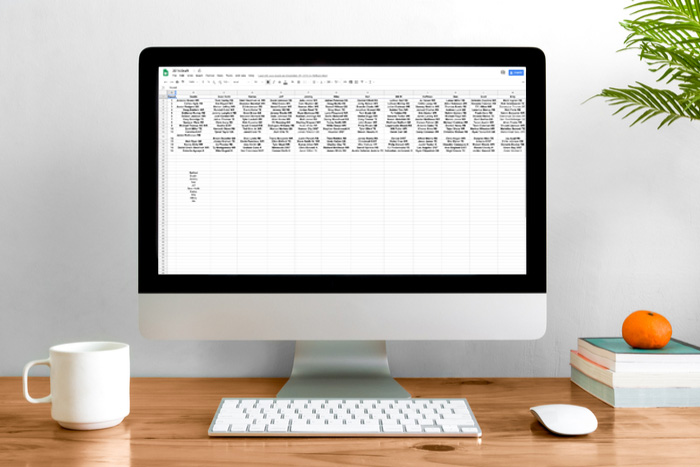
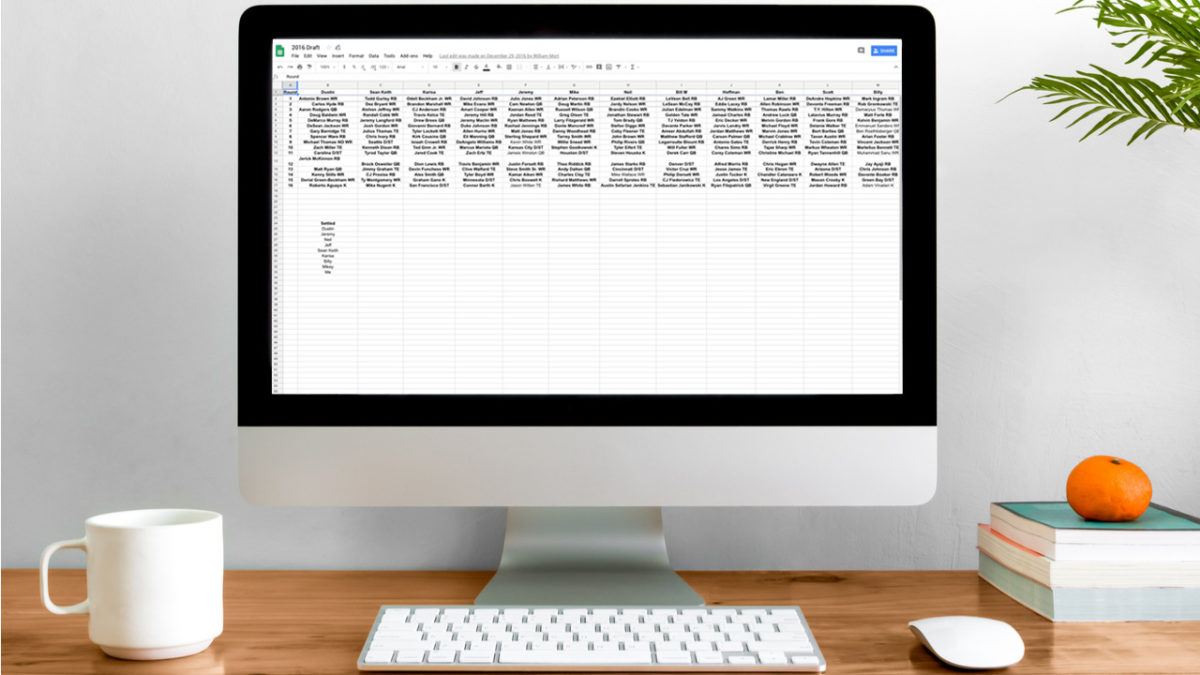
The Google Suite has changed the internet in many ways, with its handy features, convenient accessibility, and all-around usefulness. In particular, Google Sheets is a great way to collect and share data with others and to stay organized on the go without having to use Excel. What many may not know is you can find a wide range of formulas that make Google Sheets even more useful. Take a look at five of them below.

5 formulas for Google Sheets you didn’t know you needed

1. Array formula

The Array formula is a useful one because it can apply formulas in the best possible way to multiple cells. It has a single calculation that funnels results into multiple rows or columns. It’s efficient, and it also avoids the drawback of slowing down Google Sheets when users manually drag formulas across a wide range of cells. To use this formula, use the code ARRAYFORMULA(array_formula).

2. Importrange formula

While it may take a very long time to manually move data from one sheet or document to another in Google Sheets, there’s a formula that does all the work for you — and quickly! It will import data from a range of cells from a separate Google Sheet spreadsheet in the blink of an eye. All you have to do is use the following formula: IMPORTRANGE(spreadsheet_url, range_string).

3. Find formula

The Find formula is useful for searching for a string of text. To use this, use the formula FIND (search_for, text_to_search, [starting_at]). It’s as easy as that!

4. Substitute formula

Want to substitute a new text string in a Google Sheet doc without having to do it manually? It’s simple when you use this formula: SUBSTITUTE(text_to_search, search_for, replace_with, [occurrence_number]).

5. Countif formula

This formula is super handy if you have a set of data, and you want to know how many times a single number or block of text is repeated. For example, say you have a spreadsheet where people can RSVP “yes” or “no” to an event. If you want to know how many people said yes, instead of counting by manually, you can just use the formula, COUNTIF, with the range of cells and the value you want it to look for. (Note that if you’re looking for text, it needs to be in quotes in the formula.) It’s a great way to save time, and this way your count should update if one of the values changes.

This is just the beginning of the wide range of useful Google Sheets formulas you have at your fingertips. Start with these and enjoy the productivity boost!

How to get the most out of your Dropbox account

Get more storage, recover deleted files, and more!

dropbox

Dropbox is a useful tool for storing documents securely and in one place so that they’re easily accessible whenever they’re needed. Whether you’re dealing with personal files, business-related paperwork, or even those vacation pictures from that epic trip to Costa Rica, Dropbox is a great way to keep important pieces of information safe. But you may not be getting the most out of your Dropbox account. We’re here to change that.

Dropbox Download Free
7

How to get the most out of your Dropbox account

Increase storage space

While every Dropbox account comes with a complimentary 2GB of storage space, many believe that they have to pay to receive more available space. However, that’s not necessarily true. Add up to 16GB of free space (that’s a lot!) by inviting friends who don’t yet have a Dropbox account. For each friend that signs up, you get 500MB of free space.
Another way to increase storage space is to complete the Dropbox getting started guide. Finally, receive additional space for contributing to the Dropbox Community forum.

Sync folders efficiently

Through Dropbox’s feature Smart Sync, you can easily and efficiently access files on your desktop without having to download them. This becomes useful if you need to save space on your hard drive. The feature is only available for paid plans, though, so you’ll have to decide if it’s worth it for you.

Recover deleted files

Even if you deleted something only to discover that it’s still needed, Dropbox makes it easy to recover these files. The program keeps a 30-day history of all changes, making it simple to restore documents within that month-long window. (Dropbox Professional and Business accounts get up to 120 days.) This is also useful so you can see previous versions of files. Do so by selecting the file and clicking Version History in the menu on the right sidebar.

Stop sharing folders

While it’s both easy and common to begin sharing folders or join the folder of another person on Dropbox, it may be trickier to leave a folder or stop sharing it. However, it is possible.

To remove someone’s access, sign in to Dropbox.com and click Files. Find the folder you’d like to remove access to and click the ellipsis (…) by the name. Click the dropdown menu beside the member you want to remove, and then click Remove. You can leave the person a copy of the folder if desired.

To unshare a folder, sign in to Dropbox.com and click Files. Find the folder you’re looking for, click the ellipsis (…) by the name, and click Folder settings. Then, click Unshare folder. Decide whether to leave the person a copy and then click Unshare.

These tips and tricks make it simple to squeeze the most productivity possible out of a Dropbox account. Taking these steps makes an already useful tool that much better!

7 Google Chrome extensions you should be using

Take Chrome to the next level with these great extensions.

Google Chrome

The wide world of Chrome extensions makes surfing the web much better — and much more convenient. If you’ve ever used any extensions, you know how handy they can be. For that reason, we’ve rounded up some of our favorites below. Every Chrome user should download these extensions ASAP.

7 Google Chrome extensions you should be using

1. Cite This for Me

Especially great for freelancers and students, this extension makes it easy to find citations for information. With just the click of a button, you can quickly cite the web page you’re looking for in any of four citation styles.

2. LastPass

Sick of having to remember usernames and passwords for a host of different sites? So were the creators of this genius extension. This tool keeps login credentials together in one place in a secure way. Stop searching for that crumpled paper in the back of your desk and bring your passwords to the future.

3. Pocket

This is another smart extension that allows users to save web pages and articles for reading to synced devices, easily bookmarking them for later. You can even download articles for offline reading, making Pocket one of the best apps for any travel where you’re out of Wi-Fi range.

4. HTTPS Everywhere

Keep your web browsing secure by using this extension to keep information private and safe. It works by encrypting web usage to HTTPS all the time. Make your browsing secure!

5. Honey

In a world full of online shopping, this extension helps users save a few bucks whenever they’ve added items to a virtual cart. Honey automatically finds and tests coupon codes for thousands of online stores, making it easy to save money.

6. The Great Suspender

For those who always have a billion tabs and windows open on their screen, this extension freezes any tabs when they’re not in use. This step saves your computer’s RAM usage. The tabs automatically go live again once a user clicks on them. Download this and enjoy your faster computer.

7. Momentum

Everyone’s always looking for ways to be more productive, and this extension helps with that. Momentum replaces new tab pages with a personalized dashboard that holds to-do lists, the weather, and even visual aids to keep you inspired.

These extensions are just a few of the many, but they’re our top picks across the spectrum. Try out one (or more!) today to improve your Chrome experience.

5 smart thermostats to help you control your home’s temperature and cut your energy bill

These smart thermostats will pay for themselves in just a few months.

thermostat

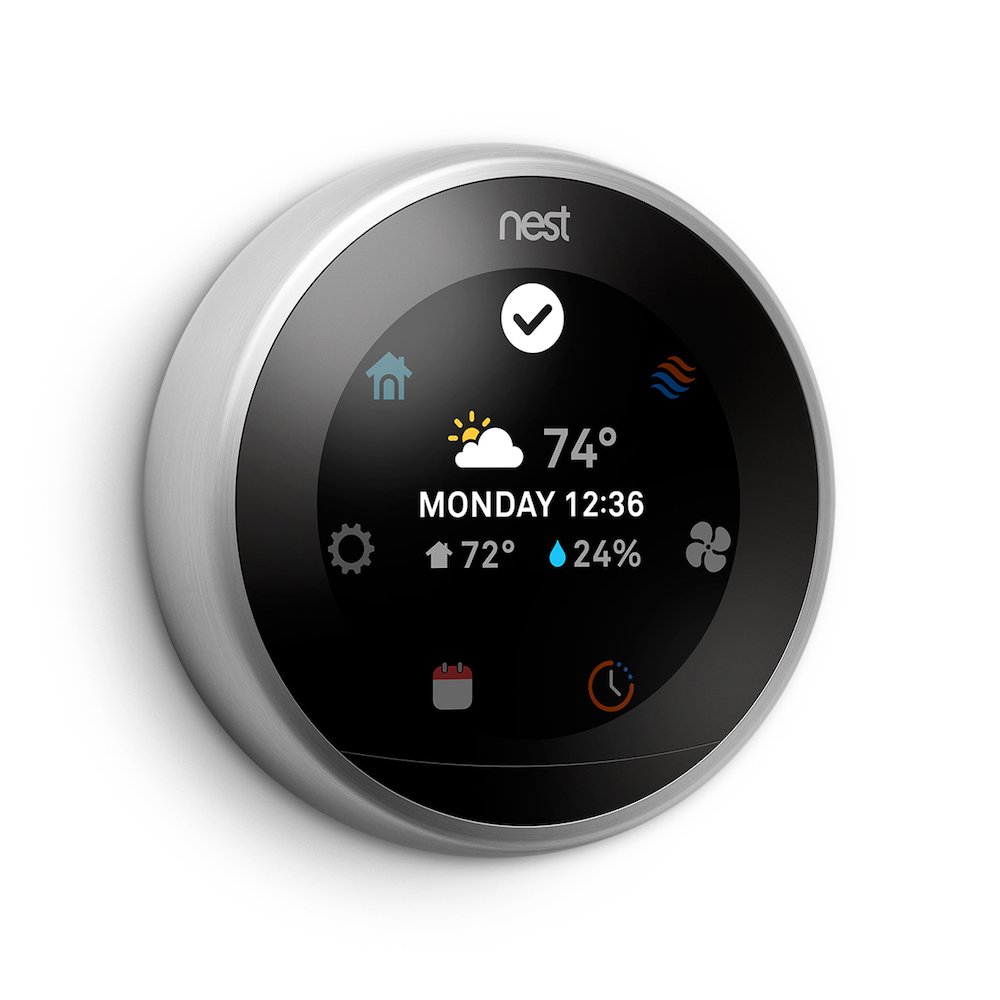
The world saw the first smart thermostat hit the mainstream market in 2011, when Nest released its Learning Thermostat. This innovative tool used Wi-Fi connectivity to program room temperature depending on homeowners’ schedules and the desired temperature inside their homes. Since then, smart thermostats have developed into highly effective tools for conserving both money and energy, generally saving 10 percent or more on energy bills every month for their users.

The technology is regarded as both sophisticated and environmentally friendly. But some smart thermostats have more advanced capabilities than others. Though our list is by no means comprehensive, below we’ve compiled a list of some of the newest and best smart thermostats available for purchase. Just follow our links to snag one from Amazon.

5 smart thermostats to help you control your home’s temperature and cut your energy bill

1. Nest Learning Thermostat (3rd generation)

Though competitors have recently been successful in releasing thermostats of equal quality, the Nest Learning Thermostat ranks high due to its easy-to-use interface, easy at-home installation process, and multi-stage compatibility with smart tech like Amazon’s Alexa and Google Assistant. The thermostat also includes geofencing: This feature detects when users’ phones have come within a certain distance of their homes and triggers the thermostat to turn on and begin cooling or warming a room.

2. Ecobee4 Alexa-enabled thermostat with sensor

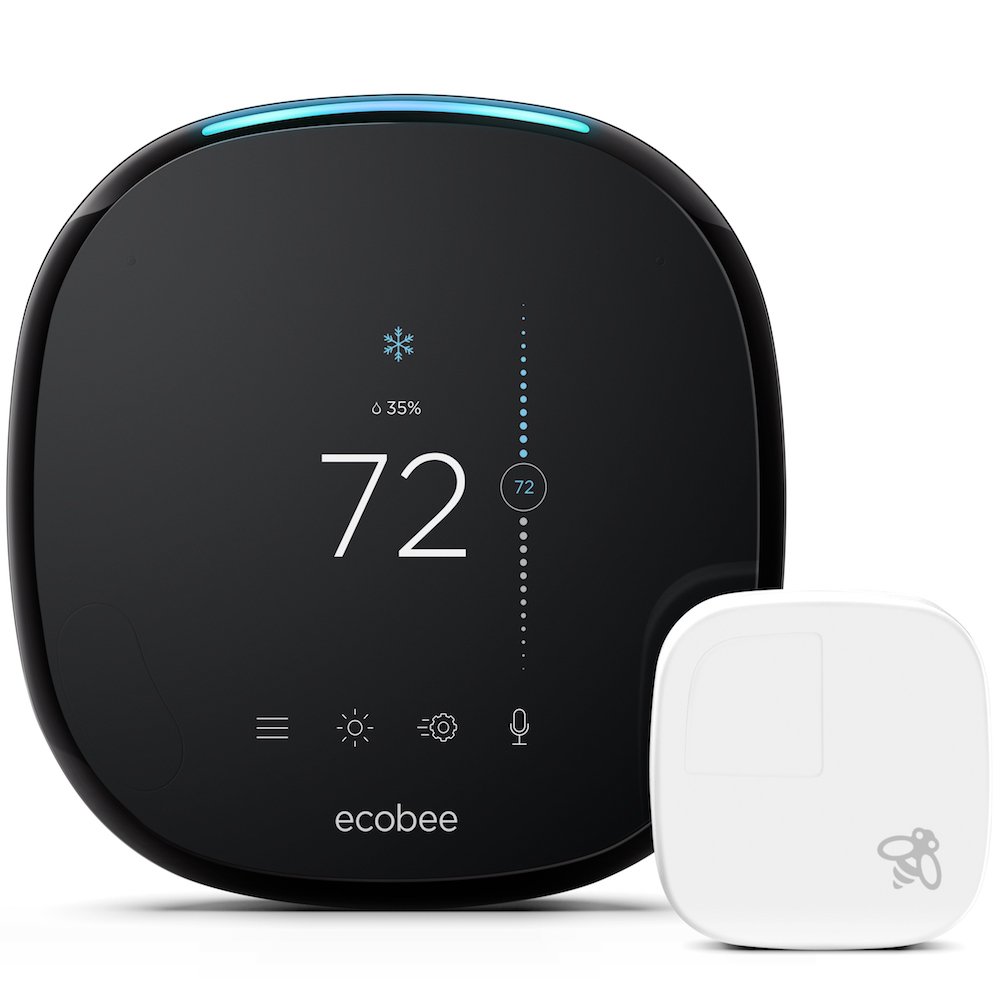
The Ecobee has all the same features as the Nest and then some, including a built-in compatibility with Alexa so homeowners can play music, listen to sports, and change the temperature by speaking aloud to the device. The Ecobee also has remote room sensors that can measure the temperature in a room and change it to the regular desired setting. This eliminates the need for a person to signal either nearby or on the app.

3. Honeywell Lyric T5 Wi-Fi thermostat

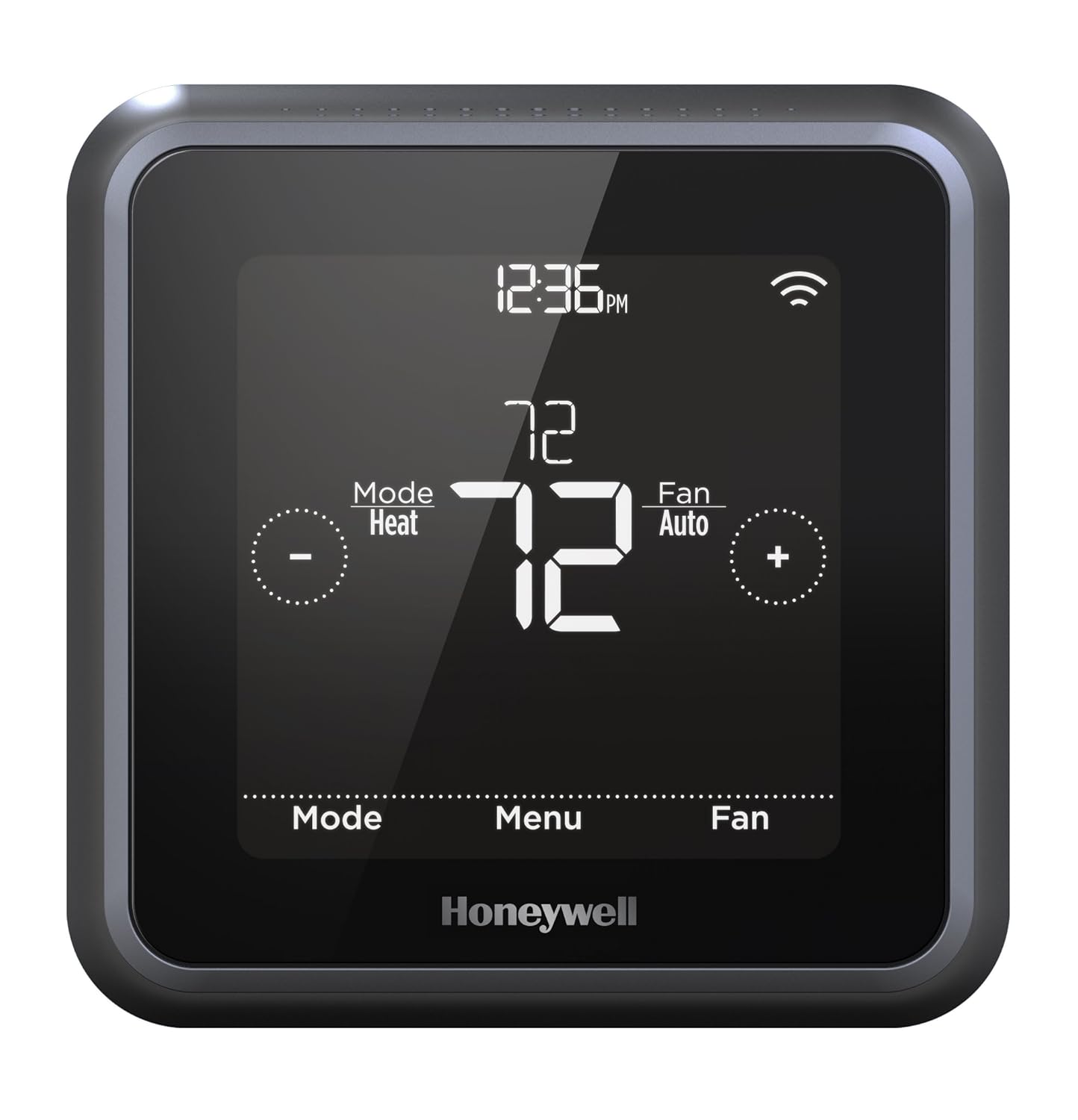
While this thermostat does not come with motion sensors, it does have built-in geofencing capabilities and can sync with Amazon Echo, Google Assistant, and Apple HomeKit. Users will also appreciate the sizable touch-screen display and low price.

From: Amazon

4. Lux/Geo Wi-Fi thermostat

Like the Lyric T5, the Lux/Geo thermostat is budget-friendly and includes important features like geofencing, smart speaker compatibility, and numerous scheduling options that can be controlled from a smartphone in a different location.

From: Amazon

5. Mysa Smart Thermostat

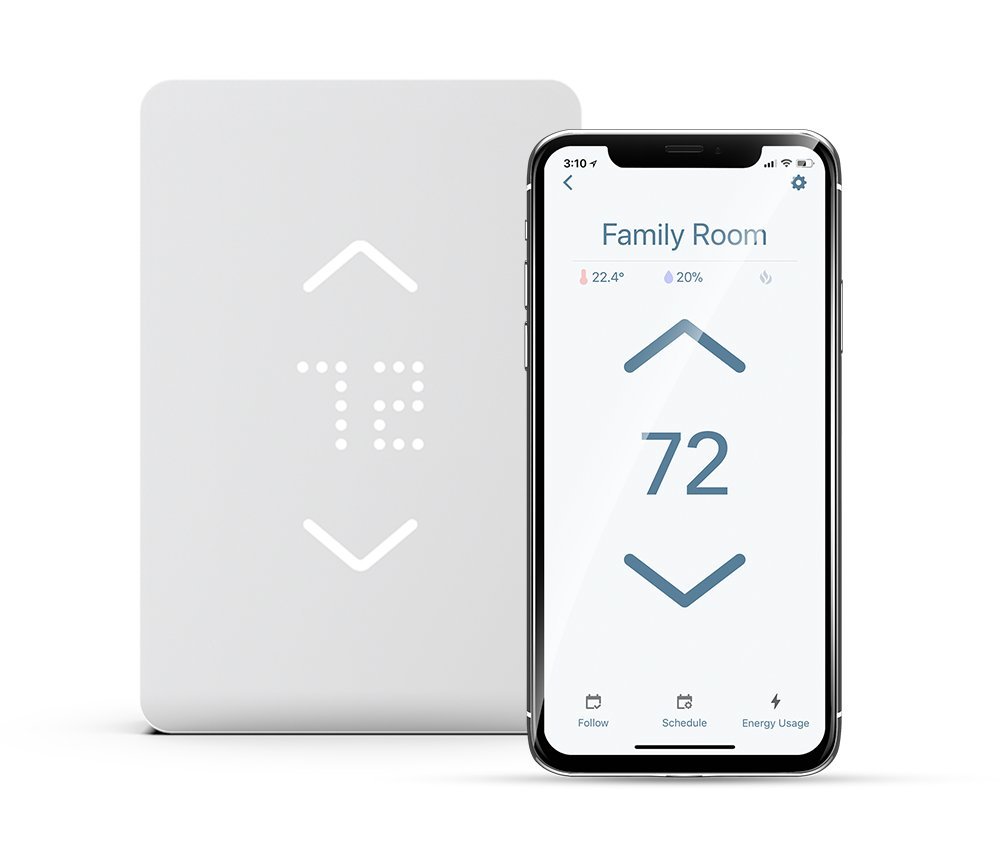
Though the Mysa Smart Thermostat didn’t make it onto many mainstream lists of 2018, the smart thermostat does weigh in as one of the only available HomeKit-compatible line voltage thermostats on the market. That means it can control baseboard heaters and fan-forced heaters. It is also a more affordable option.

If you’re thinking about investing in a smart thermostat, you should get familiar with your home’s wiring as well as the specific features you want in your device. In many cases, components like geofencing and motion sensors drive the price of the thermostat up. You may find that all you need is a simple device that can be controlled from a phone at a distance. Whatever you choose, look forward to saving money on your energy bill and living more comfortably in your own home after purchasing a smart thermostat.

How to send documents using WhatsApp

Use WhatsApp to share virtually anything!

whatsapp

WhatsApp is a useful and intuitive messaging tool — but there’s no denying that many of its features are underused. Why? Simple: Its users are too busy making use of its main services. Have you ever used it for document sharing? Though relatively few people take advantage of it, it is one of the most useful and easiest tasks to master.

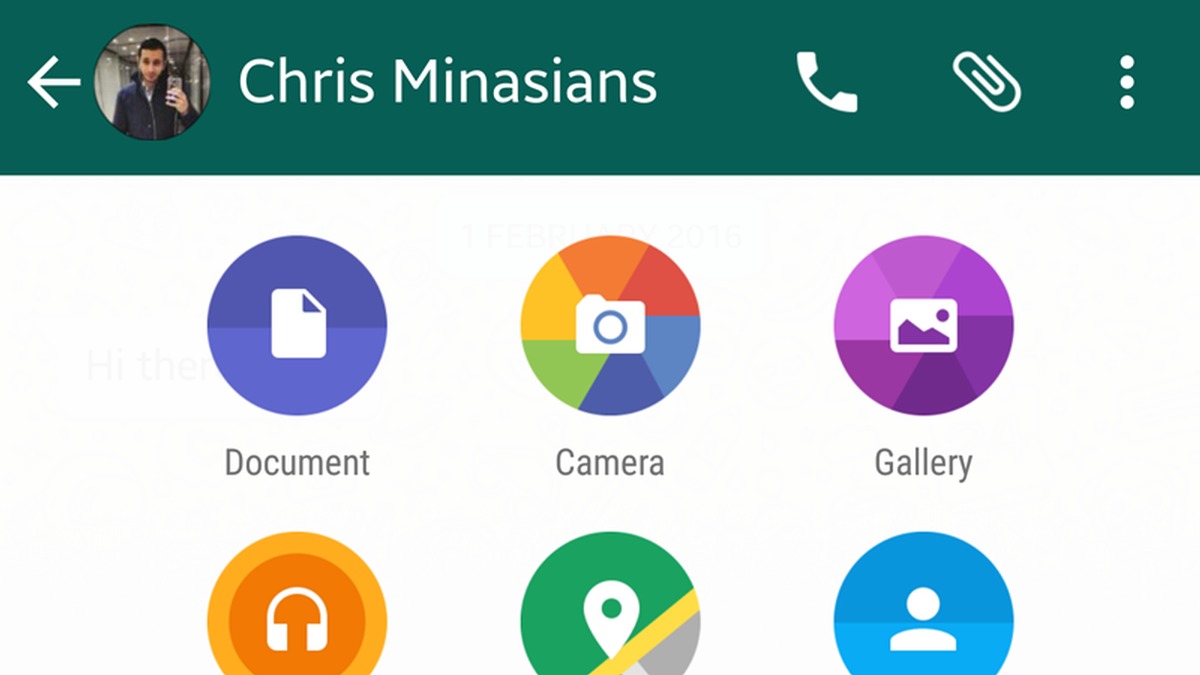
Sharing documents over WhatsApp can be done in four short steps. Once you’ve got a handle on these steps, the entire process shouldn’t take more than 30 seconds. (Note that these instructions are for sending docs in the WhatsApp mobile app. If you’re using the desktop app, you can simply use the attachment button at the top right of the screen. It looks like a paper clip, just like in most email applications.)

How to send documents using WhatsApp

1. Open or start a conversation (often referred to as a “chat”)

Open WhatsApp and select one of your conversations. If you wish to share a document with a person or group you have not previously communicated with on WhatsApp, first create a conversation with them.

WhatsApp Messenger Download WhatsApp ►
8

2. Tap Attach

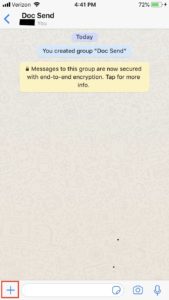
For iPhones: If the keyboard is closed, the “+” icon is at the bottom left corner of the screen. If the keyboard is open, the icon is right above it on the left side of the screen. On Android, tap the paperclip icon to attach a document.

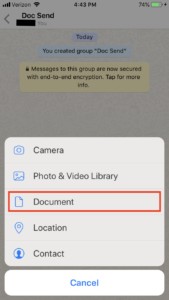
3. From the menu, choose “Document”

Once you have selected this option, at the top of your screen, another menu will appear for you to select the document you want to send.

4. Select the desired document to send and select send

Once you’ve chosen the document you want to send, click the “Send” button. The document should shortly be sent to your desired contact. Please note that depending on your internet reception, larger documents will take a longer time to send.

With these four steps in mind, sharing documents over WhatsApp should be straightforward and intuitive. Want to message slides to your colleagues the night before a presentation or send your feuding friends a scanned copy of the restaurant bill? You can do it quickly and easily, without the rigid and formal structure of email.

6 perfect apps for exploring new places

Before you head out on your next vacation, pack these apps on your phone!

travel

Traveling isn’t just a fun escape from your day-to-day life — it’s actually good for you. Research shows that people who vacation regularly are healthier and live longer than those who don’t. Traveling for pleasure can also improve your mood, inspire your creative side, and make you smarter.

If we’re being honest, though, traveling can also be stressful. Sure, there are plenty of apps that promise to help keep you sane — but not all of them are as helpful as they seem. However, these six apps really deliver on their promises. Try one out before your next trip so you can minimize the chaos of travel planning and focus on enjoying your well-deserved holiday.

6 perfect apps for traveling to new places

PackPoint Premium Packing List Download Now ►
7
Do you really need an app to help you pack your travel bags? Well, kind of. This simple app is actually very helpful. PackPoint creates a packing list depending on where you’re going, how you’re getting there, and how long you’ll be staying. You can customize your list based on factors such as what activities you’ll be doing, the time of year, and more. Don’t feel like making your own? Check out lists posted by other travelers heading to the same place you are.
7
GeoSure helps you stay on top of any health or safety concerns as you travel abroad. The app compiles data from multiple sources, including the World Health Organization, the United Nations, the Centers for Disease Control, and local agencies. This information is used to create a safety score based on factors such as crime, political unrest, environmental hazards, and other potential risks to your health and safety. Besides all the official stuff, GeoSure also helps you get the word on the street. You can tap into crowdsourced info about what’s happening right now in your travel destination, right down to the neighborhood you’ll be visiting.

travel apps

TripIt: Travel Planner Download Free ►
6
TripIt is one of many similar travel planning apps. However, it’s a standout because of its comprehensive features and user-friendly functionality. Instead of giving TripIt access to your inbox (which is the case with many comparable apps), you just forward your confirmation emails to them. TripIt will then use this information to create a detailed itinerary for you. This interactive itinerary includes the dates, times, confirmation numbers, maps, weather forecasts, and everything else you need to stay on track while you travel.
CalConvert: Currency Converter Download Free ►
7
It’s a calculator, it’s a unit converter, it’s ... both! Sure, you should always have a calculator available, but the conversion features are what makes this iOS app a must-have for world travelers. CalConvert can instantly show you the current exchange rate for over 150 currencies. Plus, you can use it to convert foreign units of measurement into familiar increments.
9
If your travel plans involve a road trip, GasBuddy wants to be your new best friend. This simple but useful app helps you find the best gas prices near you, no matter where you go. Available in Canada, Australia, and the United States, GasBuddy will also help you plan your fuel stops and calculate your travel cost.
Guides by Lonely Planet Download Free ►
7
If you’re on the hunt for Instagram-worthy attractions, Guides by Lonely Planet will help you find them. Along with the dreamy photos of gorgeous places near your destination, this app offers location-specific advice, information, and travel guides. Taking the kids? Get family-friendly itineraries. Thirsting for adventure? Find out where the biggest local thrills are. You can even book excursions and activities through the app.

No matter where you travel, be sure to take lots of pictures to make your friends jealous! And if you need tips to make sure those Instagram posts reach the widest audience, we’ve got you covered there, too.

How to personalize your Apple News feed

Make the Apple News feed better with these simple steps.

apple news feed

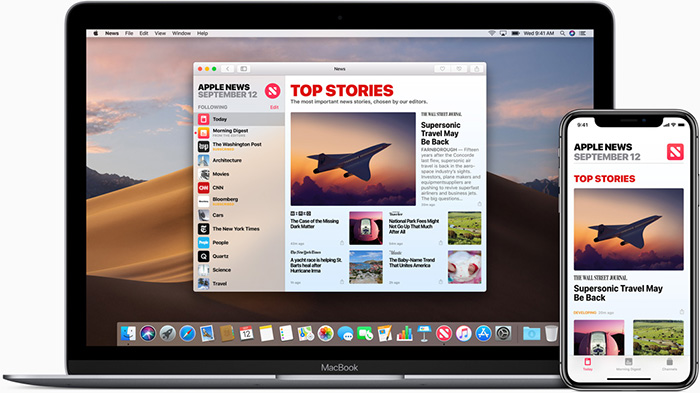
Everyone likes to receive news in different ways. Some learn about the latest headlines on Twitter, others prefer to watch their favorite station on television, and still others may go the old-fashioned route by reading a newspaper. But millions of Apple users rely on their Apple News feeds to stay up to date on world happenings.

While everyone has different preferences for how they consume the news, the same is true for the type of news that they are interested in reading. For that reason, Apple has made it easier for users to customize their news feeds according to their interests. Below, we’ll take a look at how to do just that.

How to personalize your Apple News feed

7 steps to personalizing your Apple News feed

1. Open up the Apple News app on your iPhone.

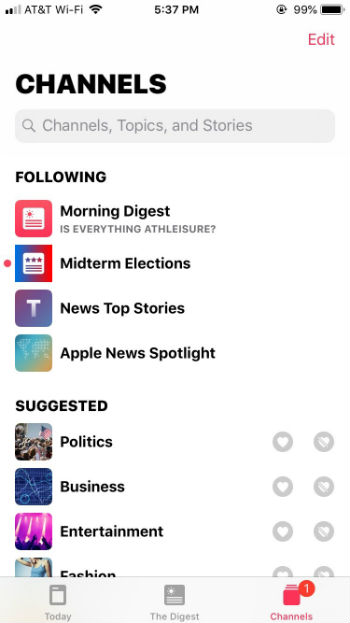
2. To personalize your news feed, click on “Channels” in the bottom-right corner. You’ll see a list of the channels you’re currently following, followed by a “Suggested” list of channels to follow.

If you don’t want to follow “News Top Stories” or “Apple News Spotlight,” click “Edit” in the upper-right corner and click the minus (“-”) button on the left side to remove them from your list.

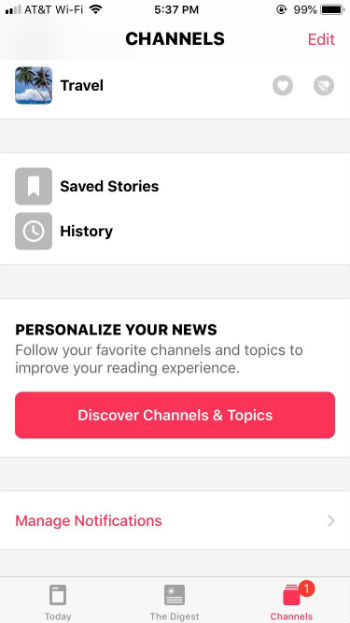
3. If you want to follow a suggested channel, click the heart icon next to the topic you’re interested in. If you’re not interested in a channel that the app suggests, click the icon with a crossed-out heart so that the app knows you don’t want to see channels related to that topic in the future. This channel will then be moved to “Blocked Channels & Topics,” which will appear at the bottom of the Channels section, right below “Manage Notifications.” From there you can easily remove a blocked topic if you clicked the crossed-out heart by accident.

4. If there’s a particular channel or news source that you want to follow that wasn’t in the suggested section, scroll down to the bottom of the Channels section to click on “Discover Channels & Topics.”

To follow a topic or channel, tap on the news channel that you’re interested in to “heart” it. Once you’ve selected all of the channels you’re interested in, they’ll show up in the “Today” tab on the bottom-left corner of the Apple News app. Scroll down and you’ll see an organized list of news topics from each channel you’re following.

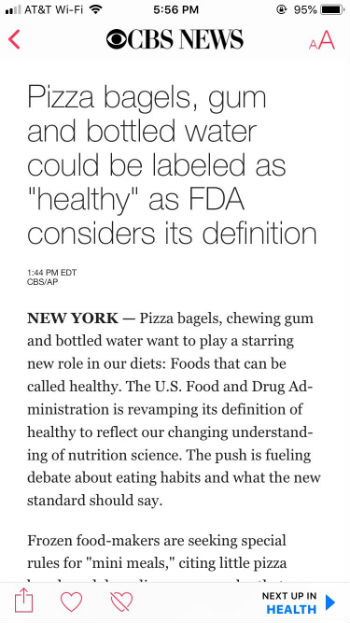
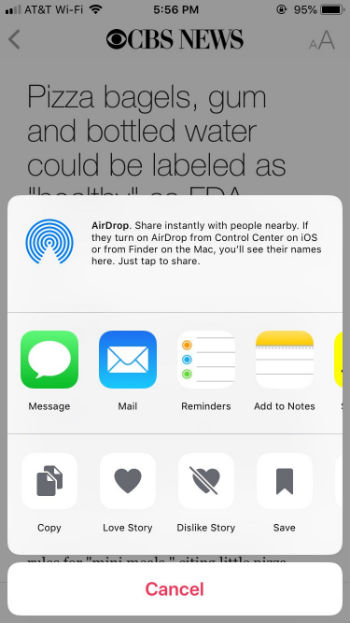
5. If you want to save an article to read later, you’ll want to click on the icon of a box with an upward-pointing arrow. You’ll see this icon to the right of a headline or in the bottom-left corner of the screen after clicking on an article (next to the heart icon).

Click the box icon and then select “Save.”

To view your saved articles or article history, go back to Channels and scroll down to “Saved Stories” and “History.”

6. The more you customize your Apple News app, the better it will learn your interests and behavior. To do this, click the heart icon (“love”) or the crossed-out heart icon (“dislike”) so that Apple News will be able to better personalize your news feed. You can also swipe left on an article headline to save, share, or “love” a story. Swipe right on a headline to “dislike” that topic (and see less of it), or report an article.

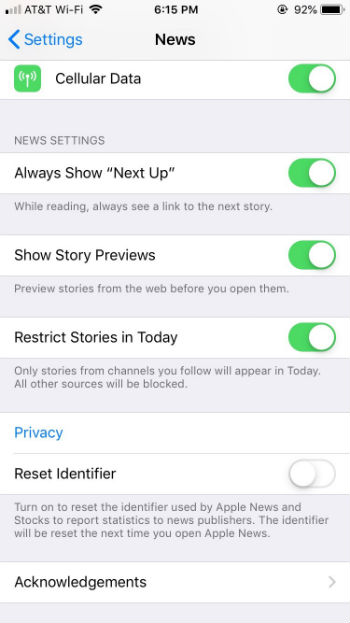
7. To change your Apple News settings, first close the app. Then, go to your phone’s settings and scroll down to Apple News. From there you can choose to see links to the next story, story previews, or restrict stories to only channels that you follow.


It’s as simple as that! If you’re looking for a better way to personalize your news experience, give Apple News a shot.

3 great apps for people who love puzzle games

Got a curious mind? These puzzle games are sure to satisfy you.

puzzle game

Good news for those of us who love puzzles games: There are several to choose from! But who has the time to try them all?

To help you narrow down your choices, we’ve gathered our three favorite puzzle game applications. Download one today and get started!

3 great apps for people who love puzzle games

Monument Valley Download Now
6
This is an amazing puzzle game that earns some major style points. Monument Valley is not your typical puzzle game: It actually tells the story of a lost princess. While you solve the puzzles and explore the new worlds, you're also helping the princess return home. Do you love puzzle games that not only look great but also ignite your sense of discovery? If so, Monument Valley is for you.
Prune Download Now
7
If you love to garden or relax when playing puzzle games, Prune is the perfect choice for you. In Prune, you trim tree branches so they can find sunlight and flowers can grow. The only catch: If you trim the wrong branches, your tree will fall into darkness and wilt away. With beautiful artwork and a relaxing soundtrack, Prune is a great puzzle game to play when you need to take a break and relax.
Rules! Download Free
8
Available for iOS devices, this puzzle game sounds a lot like what the name implies: It's all about following the rules. Your goal is to clear a set of tiles by very precisely adhering to the rules — for instance, you might need to remove tiles with animals first. The clock is ticking while you attempt each tricky level, and the only way to succeed is to make sure you don't break the rules. If you like visually appealing puzzle games that test your memory, you're sure to love Rules!

Whether you want to exercise your brain or relax after a long day, puzzle games are a great option. Any fan of these games will definitely get a kick out of these three fun apps.

How to find out who views your Instagram profile the most

Who’s Insta-stalking you? Here’s how to find out.

selfie

Wondering if your crush has been viewing your Instagram profile? (Or, God forbid, your mom?) Currently, Instagram lacks a feature that allows you to see who has recently looked at your page. However, with these tips and tricks, you can play detective and figure out who has likely looked at your Instagram profile the most!

How to find out who views your Instagram profile the most

Check your Instagram Stories

If your profile is public, anyone can view your Instagram Stories even if they don’t follow you. Also, people who view your profile are more likely to watch your Story. When you click on your Instagram Story, it will show you a list of users who have watched it.

Now that you can save Stories as permanent Highlights on your profile, it’s easy to go through each Story and see which names come up most. The people who view your Stories most frequently are very likely the same people who view your Instagram profile most often.

Instagram Download Free ►
7

Use a Third-Party App

If you download an app that offers insights, then you will have a better idea of who has been viewing your Instagram profile. Apps such as Followers Assistant and UnFollowers can track who follows or unfollows your Instagram account. Many also offer insights into who likes your photos most often, who comments most frequently, and who has blocked you. From this information, you can gain better insight regarding who tends to view your profile.

Followers Assistant Download Free ►
7
Unfollowers Download Free ►
7

You can find several apps that promise to tell you who views your Instagram profile most. These apps claim they simply collect data from your Instagram profile and calculate who has viewed your profile the most. Unfortunately, no app is able to do this, because the Instagram API does not share that information — so buyer beware.

Sometimes it’s frustrating to post photos on social media and not know who’s even seeing them. If you want to find out who is viewing your Instagram profile, try one of these two solutions.