New emojis coming to iOS: gingers, bald heads, and new animals

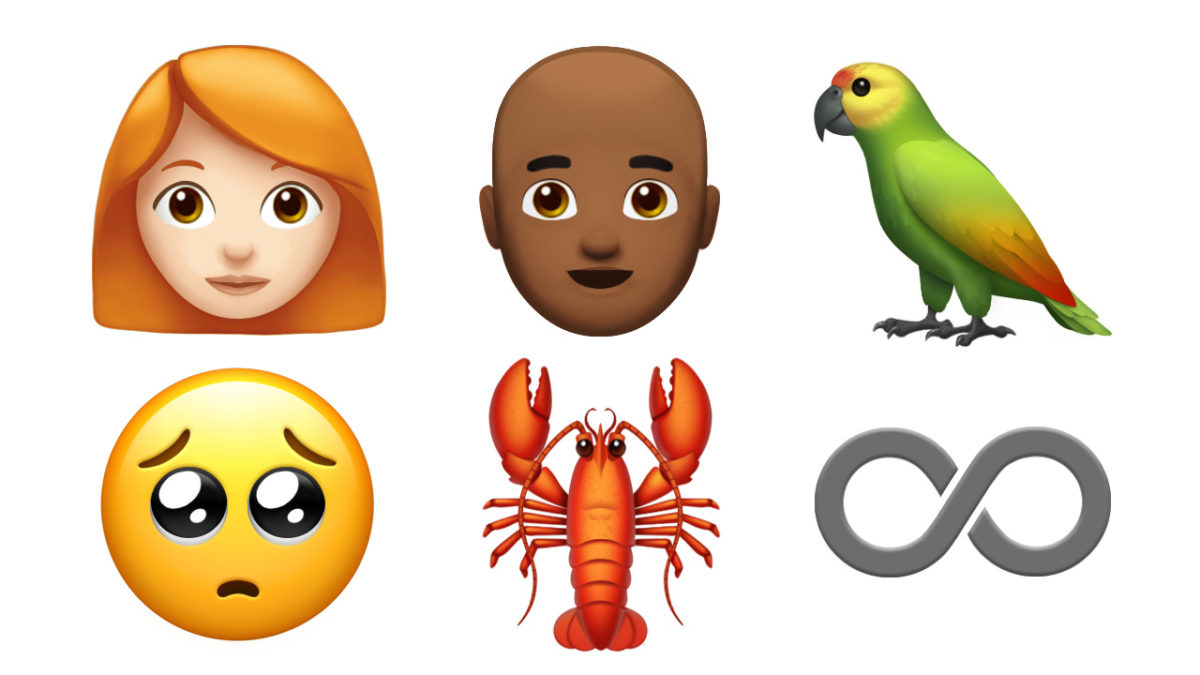
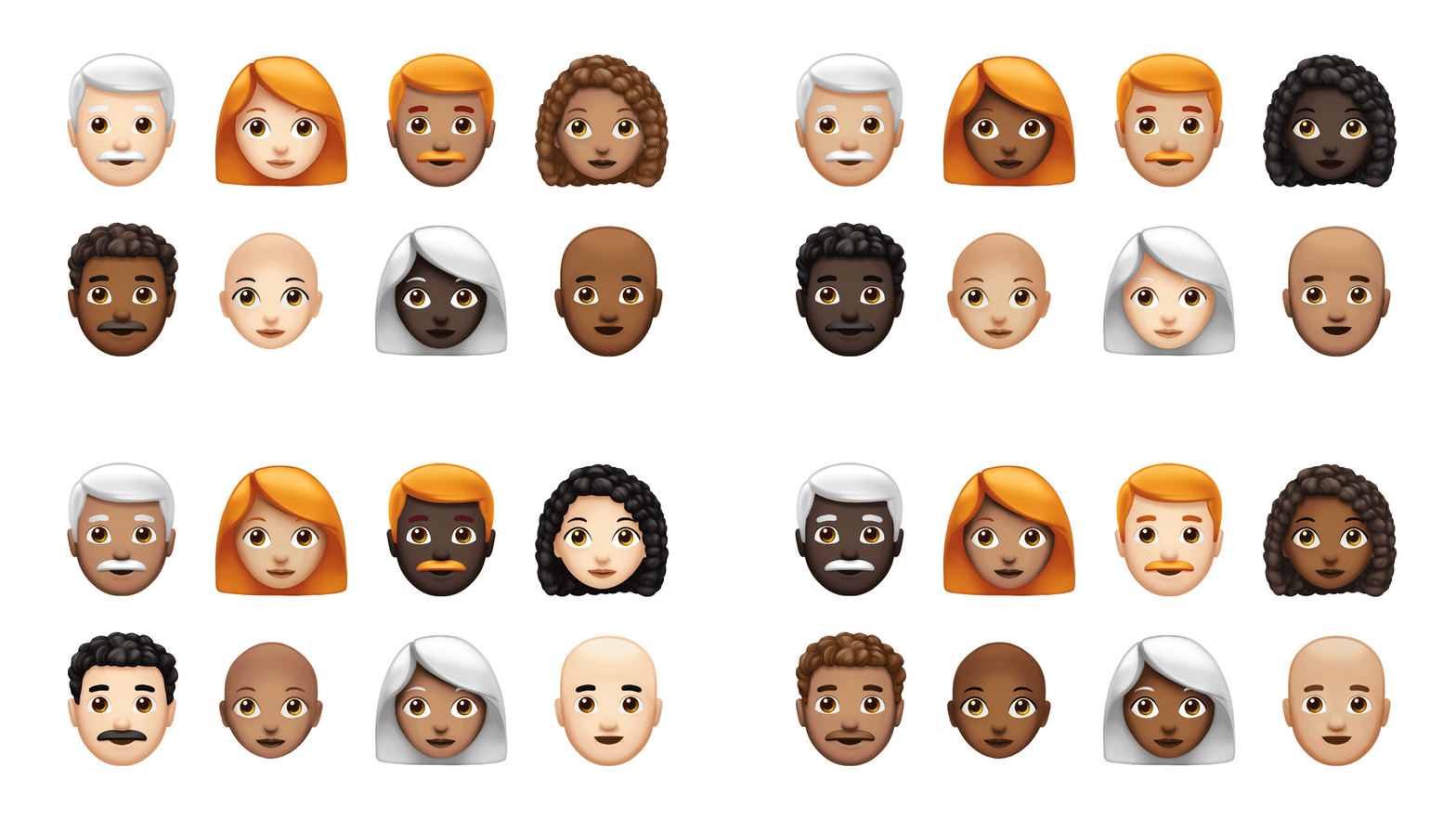
If you’re Michael Jordan or Bryce Dallas Howard, it’s time to party! Emojis that look more like you are on the way! Bald characters and gingers join more than 70 new emojis coming to iOS devices later this year in a free software update.

Red hair, curly hair, and gray hair are some of the new emojis on the way. And bald heads are included, so Vin Diesel and The Rock no longer have to use the old bald grandpa with the mustache to represent themselves.

New animals are also on the way, including a parrot, a lobster, and a kangaroo.

What emojis would you like to see next? Let us know in the comments below!


The indestructible iPhone!

Arvinder Naberhaus was enjoying a biplane flight with one of her friends a few days ago. As the plane flew over her childhood home she tried to snap some photos on her mobile and it flew out of her hand.

Sometimes things happen that defy belief. Not long ago, we told you about an iPhone X that still worked after it been dropped from the highest bridge in California. The screen was cracked but the fact that it still worked at all after being dropped 1,000 feet is a truly amazing thing. Well, an iPhone in Iowa has gone one better than that phone in California. It was dropped out of a plane and not did it still work, the screen didn’t even crack!

Arvinder Naberhaus was enjoying a biplane flight with one of her friends a few days ago. As the plane flew over her childhood home, she tried to snap some photos and the phone flew out of her hand. The pilot told her it would be gone forever, but Naberhaus was determined to try and find it once the flight had ended.

Once back on the ground she used the Find My iPhone app to find the phone’s location and headed off to find it. As she approached a yard, she suddenly heard her ringtone and rushed to find her phone face down in the grass. She picked it up and found not a single sign of damage. Naberhaus’s friend Donna Johnson, who was flying with her at the time spoke to WHO-TV about the moment they found the phone:

“I literally went into shock. I asked is this for real, is that the same phone and I said this is a miracle phone, you can’t drop a phone 1,000 feet and have it still work!”

The phone was completely unharmed when they found it in the tall grass!

It wasn’t long after they found the phone unharmed that it started pinging notifications for a meeting that Naberhaus had scheduled. A meeting she made on time.


How to connect to a printer on Mac

New printers these days generally connect to the internet, at which point they wait for a user to connect. If you have a Mac, these steps can help you whip out copies of your documents in no time.

1. First, when setting up your printer, make sure that it’s connected to the internet and secured in whatever fashion suits you best. It may remain unprotected for anyone nearby, or you can set Wi-Fi/passcode restrictions. Make sure to check the manual for your specific printer.

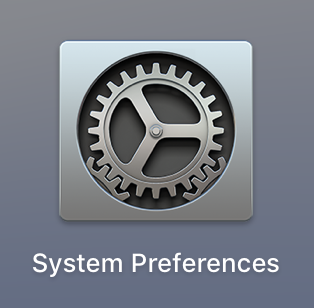
2. Open “System Preferences” on your Mac. This can generally be found on your taskbar and looks more or less like a gear (shown below). If you’re having trouble, type “System Preferences” in the Finder window, searching through the whole Mac.
3. Within System Preferences, search for the “Printers and Scanners” section, which is generally alongside “Trackpad” and “Sound”. The locations may vary between computers.
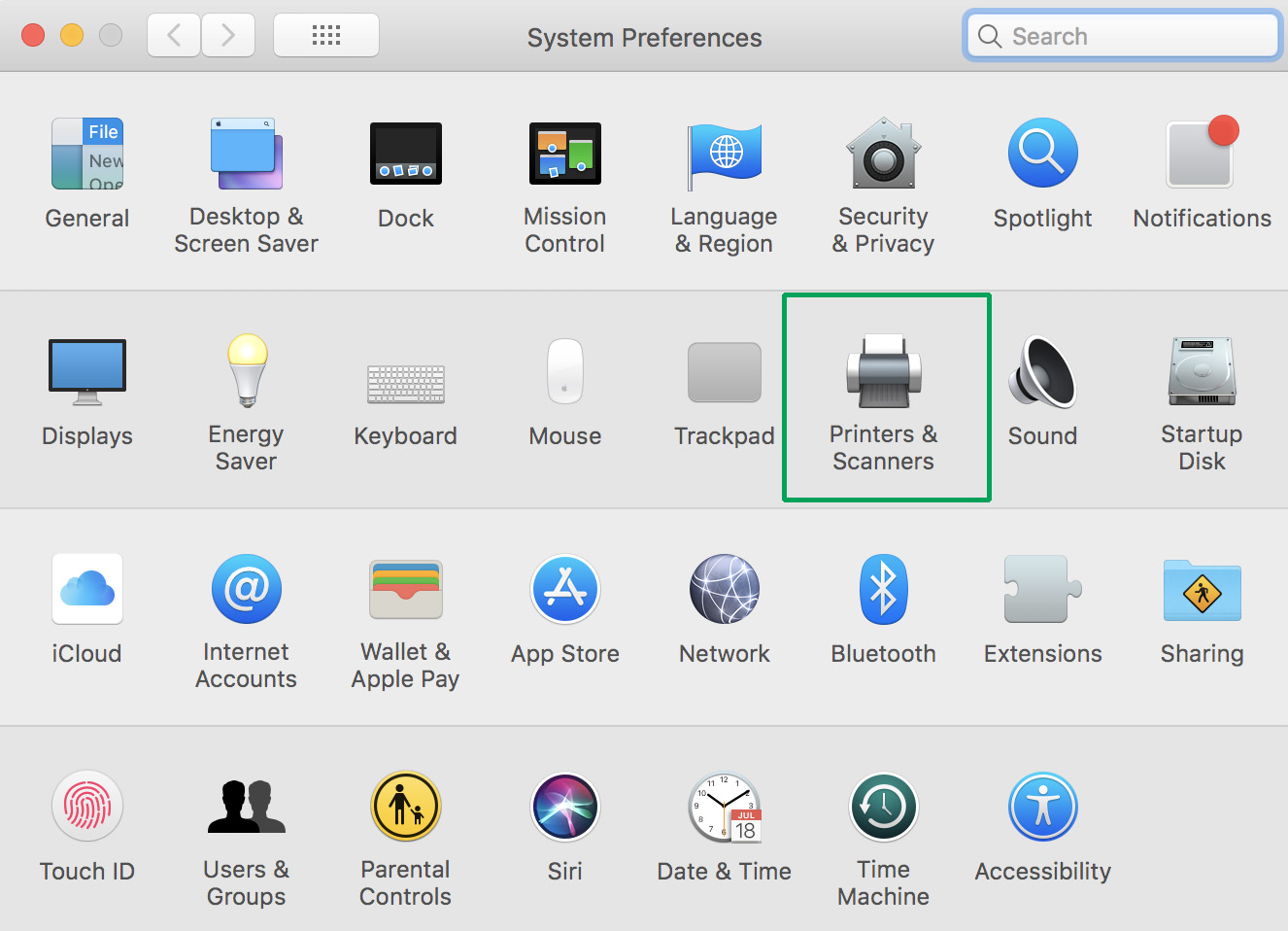
4. Within Printers and Scanners, you’ll see the printers your computer has connected to in the past, as long as they haven’t been purposefully removed. If you see yours here, click to select.
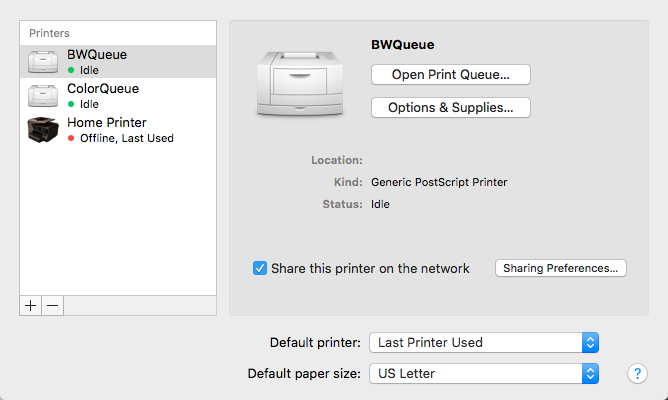
5. Not seeing yours? Select the “+” button at the bottom left of the printer window. This opens a new window, allowing you to select a default printer (in this case, the nearest usable printer), enter an IP address, or search for a new printer by name. As long as you know your printer’s description and have ensured it is connected to the internet, this process should go smoothly.

6. Select your printer. If it is your home printer, you may wish to designate it as your default. To do this, go back to the “Printers and Scanners” menu, which has “Default printer” bar at the bottom, which will allow you to select either one of your queued printers or revert to the last printer used.

A Few More Settings

Within the main Printers and Scanners screen, you may also see the “Print Queue”. This window, shown below, lets you know what print jobs your current printer is waiting to do. This is where to cancel those print jobs as well.
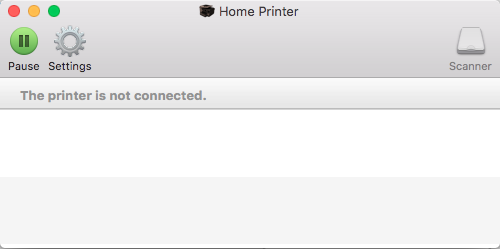
The “Options and Supplies” tab allows you to do two important things: name the printer and check the supply levels.

“Share this printer on the network” gives you the choice to let other computers use your printer, and gives a number of settings to delineate how and in what way that works.

Finally, below the default printer section, you can select “Default paper size”.  Generally, this will be set to US Letter (8.5 x 11 inches), but some printers are capable of doing more. If you’re mainly printing shipping labels on envelopes, this tab may make your life easier.

Troubleshooting

So, you’ve tried restarting both your computer and the printer, but nothing’s working. Here are a few possible problems, along with techniques to fix them:

  1. The printer lost internet connection. Sometimes, one device will lose connection with the internet before others. If that device is your printer, it may stop working and need to regain Wi-Fi before resuming the print job.
  2. Ink levels are too low. When this happens, the computer will generally let you know, but alert noises may be turned off. Make sure to check the printer to see your options, which are usually: A) Continue printing in grayscale. If your print job doesn’t require colors, the printer may offer to continue using black ink. However, this option may only appear on the printer’s screen and not the computer as well. B) Buy more ink. Once, we saw a home printer demand Magenta ink for a black-and-white document. If this happens, you may need to bite the bullet and grab more ink. Make sure to bring your old ink cartridge to the store to ensure you purchase the correct product.
  3. The print needs to be resumed. Once, a glitch happened on our Mac and we needed to restart the print, simply because our Print Queue (see above, under “A Few More Settings”) didn’t open when we started a new print, even after the computer was rebooted. After opening System Preferences, Printers and Scanners, and finally the Print Queue, the whole problem was solved by hitting the “Play/Restart” button.

We hope this guide helps. However, if your problem still isn’t fixed, you may need to try another source. More in-depth manuals are available online, for a start. If that doesn’t suit your need, consider calling or visiting an Apple store: their employees are known for knowledgeable and effective service.
 

Get any music onto your iPhone WITHOUT iTunes 100% free

iTunes is certainly the go-to method for adding music to your iOS device, but for the users who are looking for an alternative, CopyTrans is the easiest solution.

CopyTrans Manager DOWNLOAD FREE
7

Completely free, CopyTrans can be quickly and safely installed, and immediately allows the transfer of any .mp3 file from your PC or Mac directly to your iPhone music app. Magic? More or less.

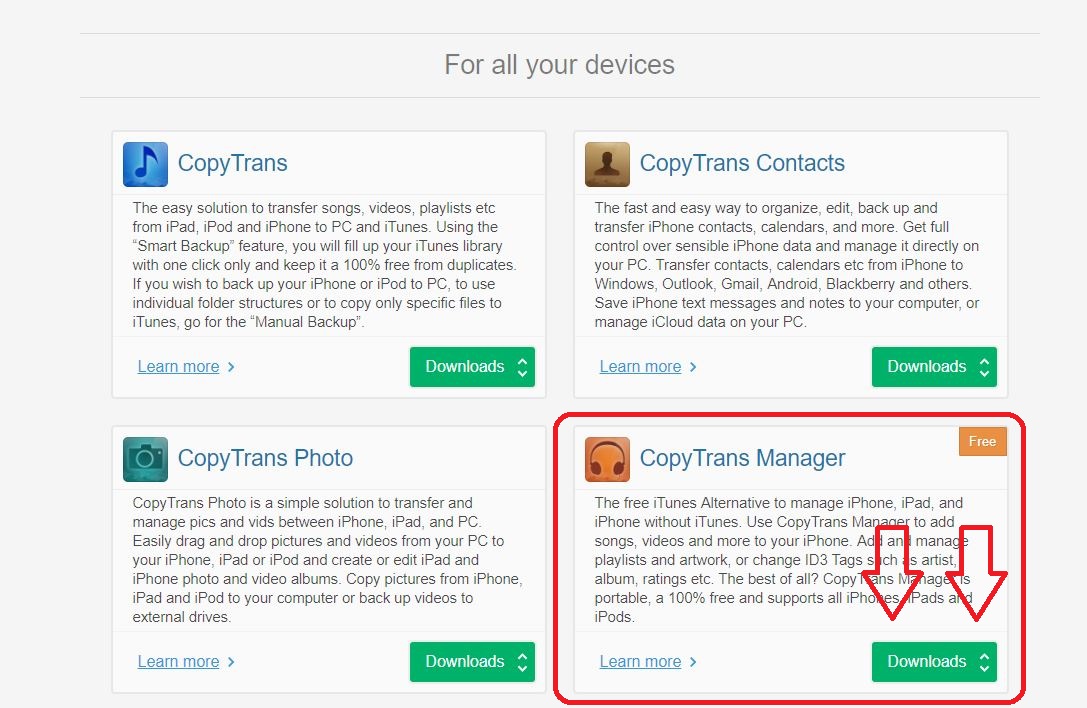
Clicking the button above will eventually take you to the software’s download page. Once here, don’t click the first green button you see. Scroll down a little to where it shows ‘CopyTrans Manager.’ This is the free option.

Next:

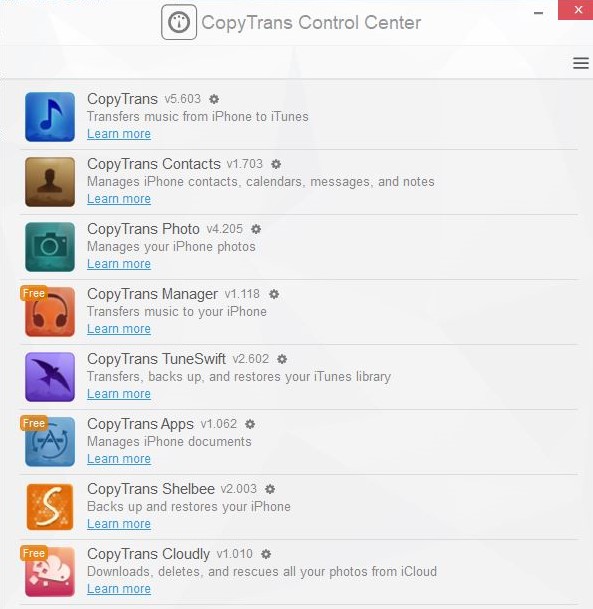
Once it’s downloaded, run the program and it should show the CopyTrans control list (above). CopyTrans Manager should be up top since that’s the one you’ve installed. Hover your mouse over it and click ‘start.’ This will open the transfer software you’ll be using.

CopyTrans will now ask you to connect you iOS device if you haven’t already. Go ahead and do so, and you should be ready to start adding tracks. If you receive an error message, here’s a simple and free workaround:

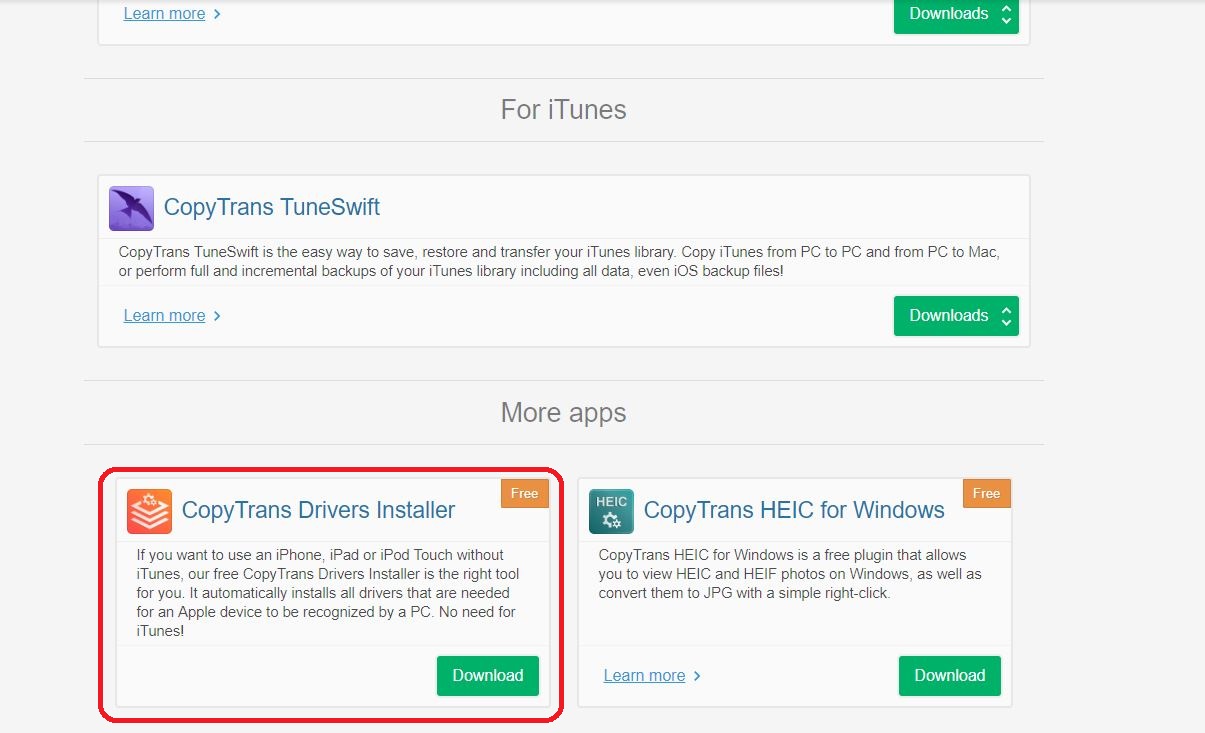
Go back to the CopyTrans website and scroll to the very bottom. There’s another free app called ‘CopyTrans Drivers Installer’ (pictured above). Run the automatic install and this should target and remove any dastardly fragments of iTunes on your iOS device that are preventing your PC from accessing your phone. Once this automatic driver editing process is complete, we can pick up where we left off.

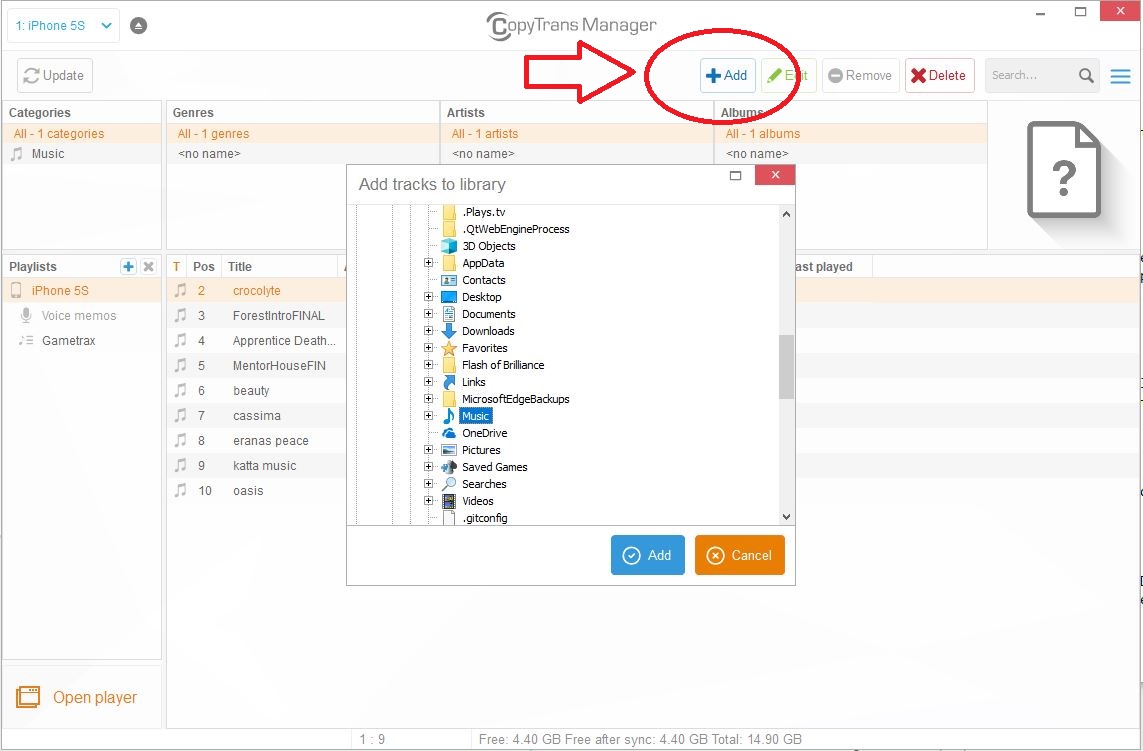
Adding tracks is as simple as clicking the ‘Add’ button on the top of Manager window. From here, simply navigate to where your music is stored (we recommend putting any tracks you want to add in an one easy-to-find folder so you can just navigate to it and select all your files at once) and click ‘Add.’ You should see the track(s) show up in the main window.

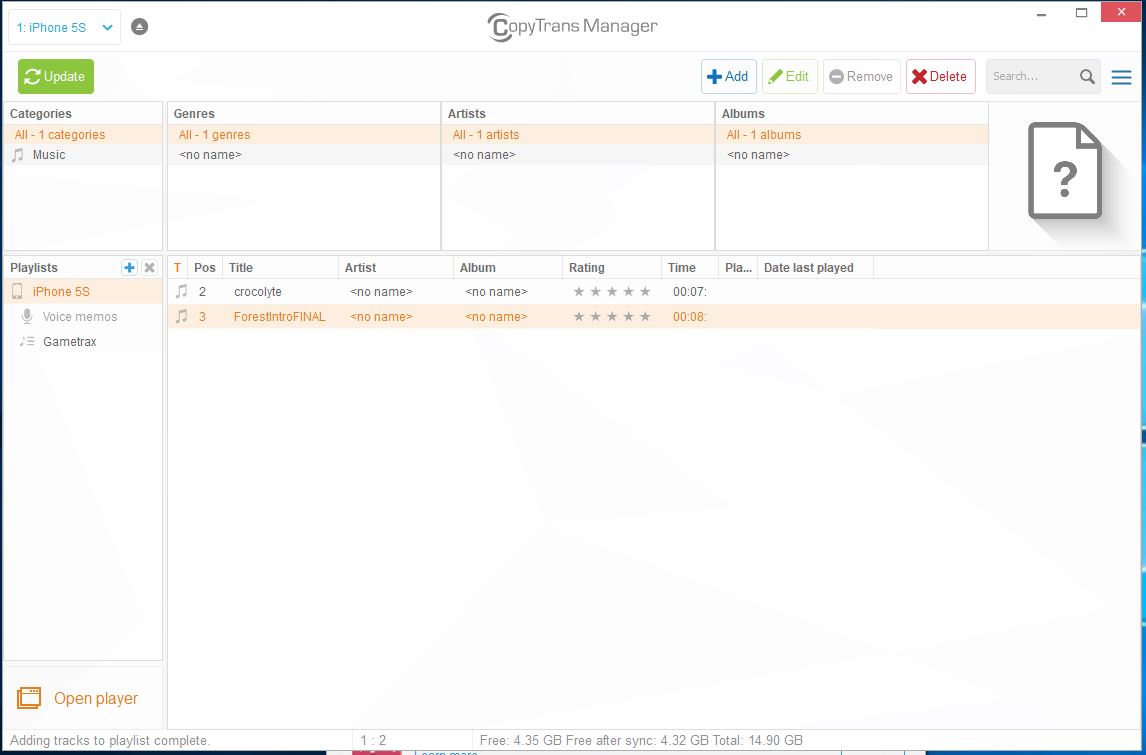
Once you have all the tracks you want to add in that window, click ‘Update’ in the top left corner. Let CopyTrans work its magic and bam! Next time you open your iPhone music app all the new tracks should be right there.

Enjoy your new free music!


5 Game Boy Advance games to revisit on your iPhone

If you’re anything like us, you spent countless hours of your childhood on your Game Boy Advance, straining your eyes and spraining your thumbs in search of the next secret level. With emulation, revisiting those classic games on your iPhone is now easier than ever. (Curious how to play retro games on your iOS device? Here’s how.)

The following list will highlight some GBA games that deserve your attention, whether it be for a nostalgic throwback or a fresh new experience. We made this list following two simple rules. First, no Pokémon games are included, because they are too obvious, and we wanted to delve deeper into the GBA library. Second, the games featured do not generally rely on fast button presses or quick reflexes. This is because the touchscreen controls of the iPhone can make action games difficult, hence slower paced games are much easier to play. Without further ado, here are 5 GBA games you should download for your iPhone:

1. Mario & Luigi: Superstar Saga

This quirky RPG stands out from its contemporaries through its unique gameplay and ridiculous story. Building off the foundation laid out by Super Mario RPG and Paper Mario, the game puts a fresh twist on the RPG formula. Players can use carefully timed button presses to both add extra oomph to Mario and Luigi’s attacks and protect them against their enemies. Speaking of enemies, the game features a lot more than just Goombas and Koopas. The game pushes the craziness of Mario’s world to its limit, most notably with bosses like Fawful, a neurotic, Engrish-spouting bean whose villainous monologues include such gems as “I HAVE FURY!” and “And this battle shall be the delicious mustard on that bread! The mustard of your doom!” This is a must play for fans of Mario or offbeat RPGs.

2. Kingdom Hearts: Chain of Memories

The first of many portable entries into the megapopular Kingdom Hearts series, Kingdom Hearts: Chain of Memories is a must play. The game combines card collecting with action and RPG elements to create a wholly new experience for the franchise. Players control Sora, who fights enemies in real time using a deck of cards that controls his actions. Decks are composed of Keyblade attacks, spells, and summons, which call upon famous Disney and Final Fantasy characters to aid in battle. Players travel between iconic Disney worlds, such as Neverland, the Hundred Acre Wood, and Agrabah. Taking place between Kingdom Hearts and Kingdom Hearts II, the game features the series’ trademark nonsensical and over-the-top storytelling. If you’re as massively hyped for Kingdom Hearts III as the rest of the world, don’t skip over this game.

3. Advance Wars

This criminally overlooked gem is one of the finest games to grace the Game Boy Advance. Players take control of various CO’s (commanding officers) and lead their armies to victory in this turn-based tactics game. Featuring a cartoonish story that is lighthearted without being corny, the game combines charm and accessibility with depth and replayability. A hallmark in strategy game design, the game is very easy to pick up but difficult to master. The game can be enjoyed in short bursts or extended sessions, making it a perfect fit for your iPhone.

4. Fire Emblem

This beloved strategy series was first released in America on the Game Boy Advance, and has since become one of Nintendo’s most popular franchises. Similar to Advance WarsFire Emblem features strategic, grid-based gameplay. However, Fire Emblem distinguishes itself with its greater emphasis on story. The stories featured are grand in scope, with fully realized characters and plots. Through the course of your adventure, you’ll probably become attached to the likable and varied cast of characters. Make sure you keep them safe in battle, however, as Fire Emblem features permanent character death. If a character falls in battle, they will actually permanently die, affecting the rest of the story and preventing them from being used in future missions. This unique, heartbreaking feature adds an element of urgency to an already stellar strategy game.

5. WarioWare Inc: Mega Microgame$

WarioWare is probably the most bizarre series we have ever played. The game features hundreds of “microgames”, minigames with simple objectives like “Dodge!” or “Jump!” that only last a few seconds. While we mentioned earlier that action games are not typically suited for the iPhone’s touchscreen controls, the simple and quick nature of the microgames work well with the touchscreen. The microgames range from straightforward to hilariously bizarre, giving you little time to process the lunacy before being thrust into the next game. Combine this endless variety with an insanely colorful and memorable cast of characters, and you get one of the GBA’s most unique and entertaining games.

Any classics you think we missed? Leave a comment below!


How to get Game Boy games on your iPhone in less than 10 minutes

Play some old school Game Boy Advance games on your favorite Apple device. It’s easy! Just follow these steps.
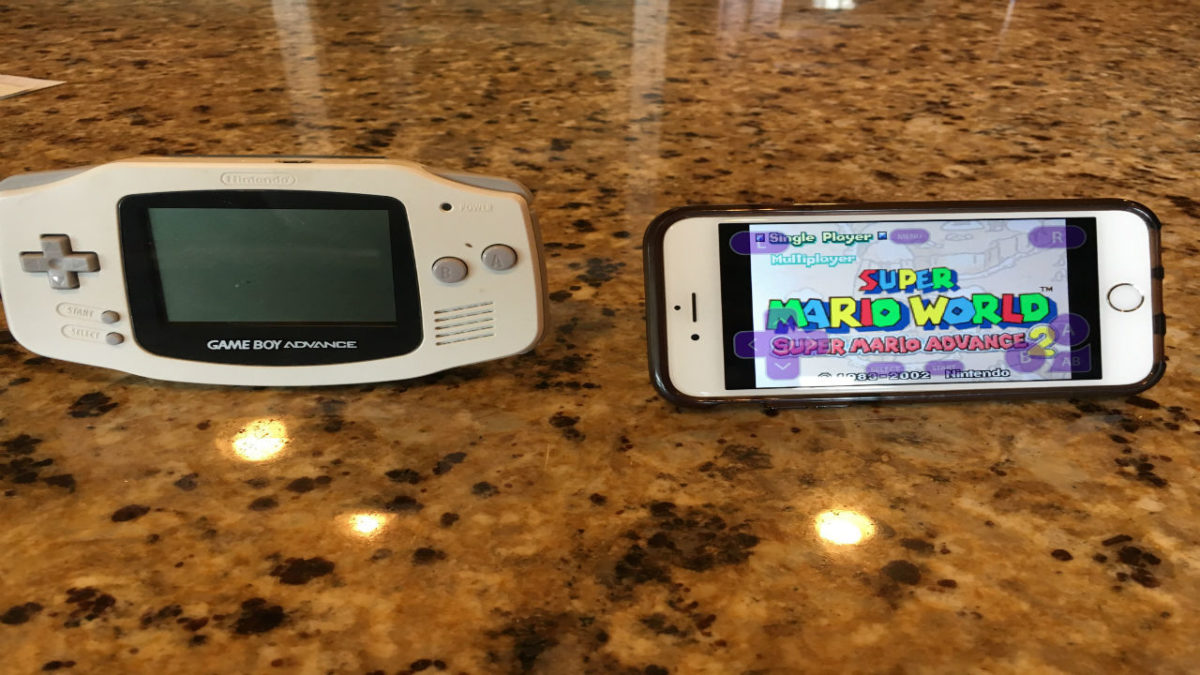
Seventeen years ago, Nintendo released the Game Boy Advance in America. The system sold millions of copies and was beloved by players throughout the world for its diverse and eclectic game library. Now, you can enjoy your favorite Game Boy Advance classics on your iPhone using an app called gba4ios. Installing this app is incredibly easy and requires no jailbreaking. This guide works with both iPhones and iPads, and will allow you to play Game Boy Advance, Game Boy Color, and Game Boy games on your device. The installation process is displayed with pictures below:
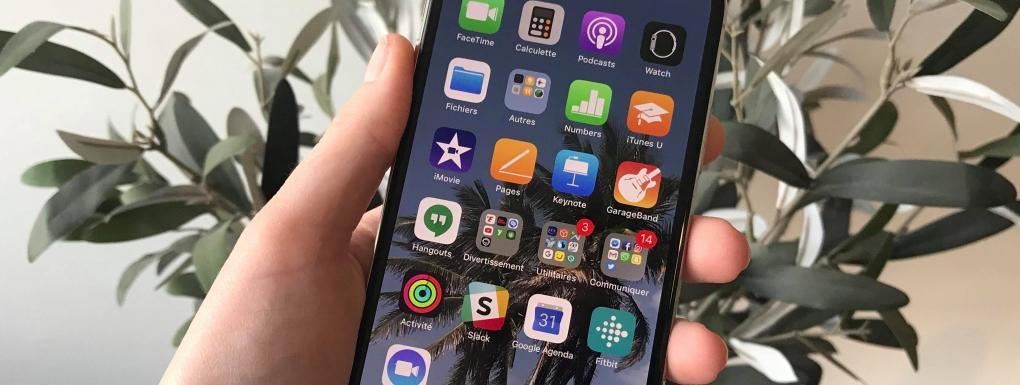
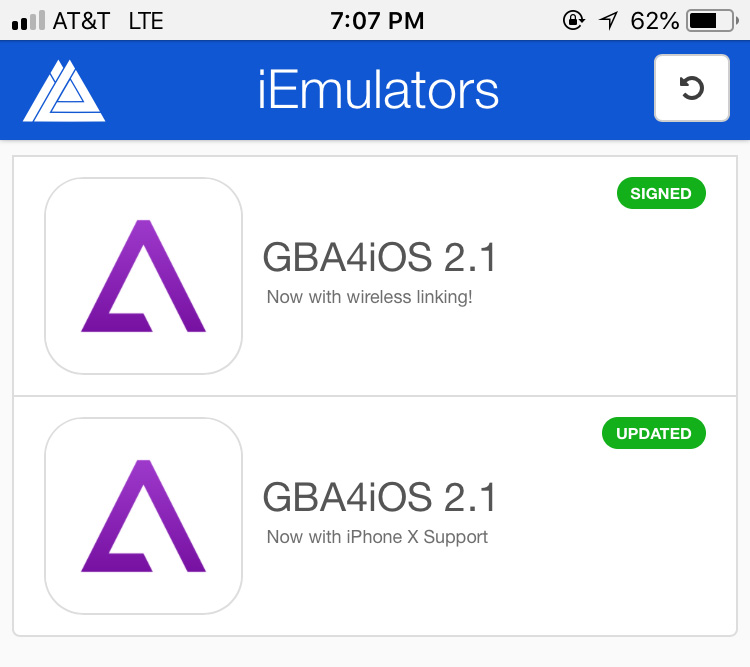
First, open your preferred browser on your iPhone and head to this link. You should see a screen like this. iPhone X users should choose the second gba4ios option, while all other users should choose the first. Once you tap an option, a button will pop up saying “Install”. Tap the install button, and gba4ios will download to your home screen like any other app would. However, you must first verify the app to use it. Fortunately, this is easy.

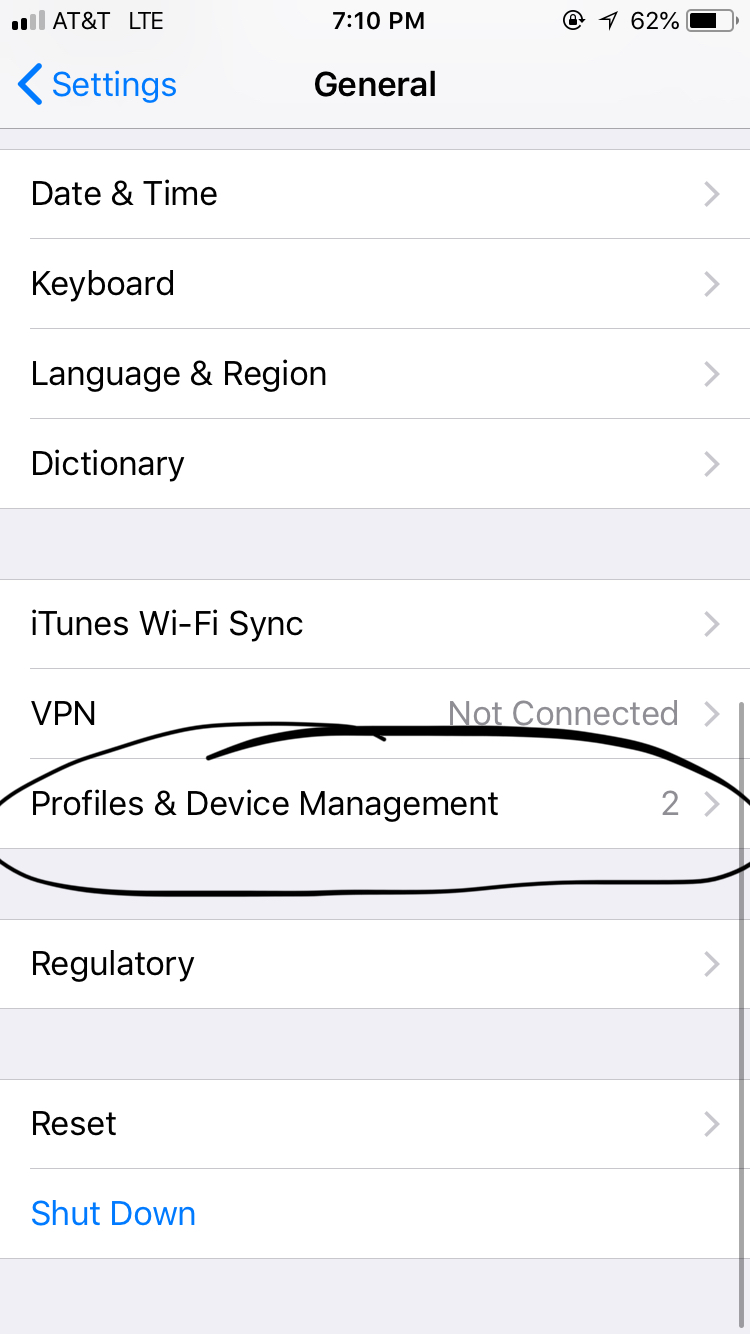
Go to your Settings app and select General. Once inside, open Profiles & Device Management. Inside there should be a profile underneath the Enterprise App header. Open this and the icon for gba4ios should be inside. Select the Trust option. This allows you to actually access and open the gba4ios app. Exit the settings app and open the gba4ios app from your home screen.

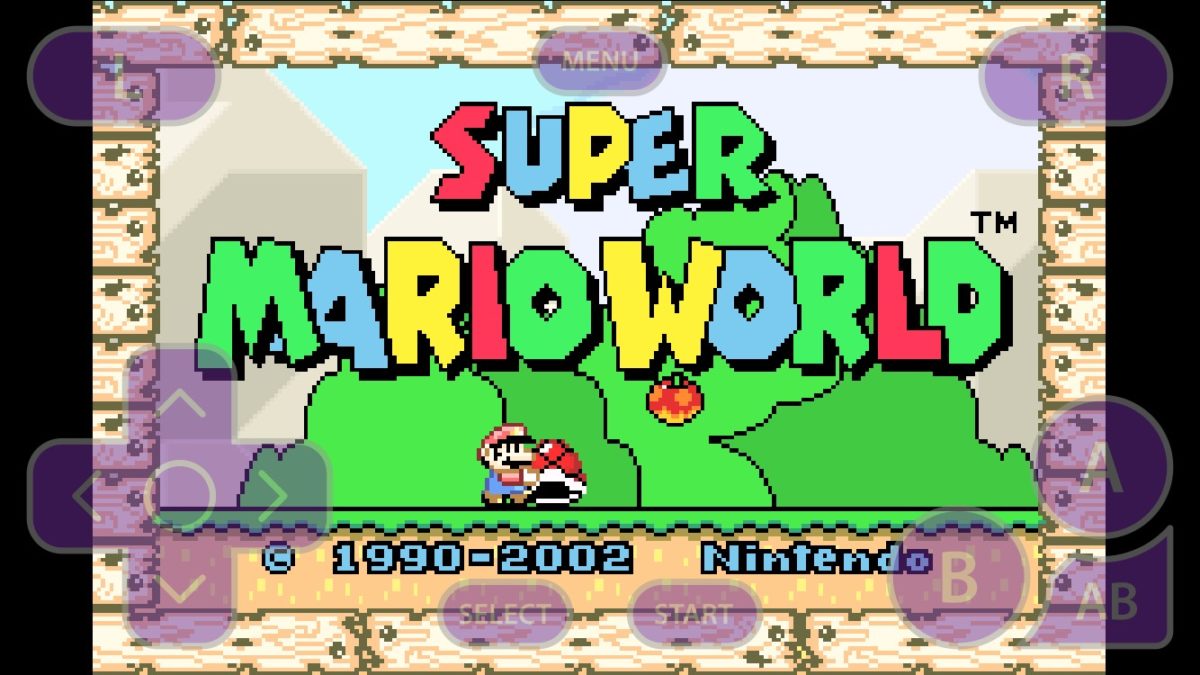
Once opened, your app should look something like this (note: We already downloaded a few games, which is why their titles appear). In order to download games, tap the magnifying glass icon in the top right. This will open a web browser within the app. Game Boy game files are called “roms”, so enter the name of the game you want into the search bar followed by rom (ex. “Super Mario Advance rom”). Numerous websites will then pop up. Choose one and download your rom. If done correctly, the title of the game will appear as shown above. Simply tap on the name of the game to play it.

And that’s it! You can now play Game Boy games on your iDevice.
 

Has Siri just highlighted cyber-security weaknesses at the heart of the British government?

Is Siri the most useless of all the AI assistants? Well, objectively speaking, probably, but Siri’s lack of practical use can lull iPhone users into a false sense of security. Despite a lot of Softonic tutorials on mobile security, it is easy to forget that once activated, Siri is always listening.

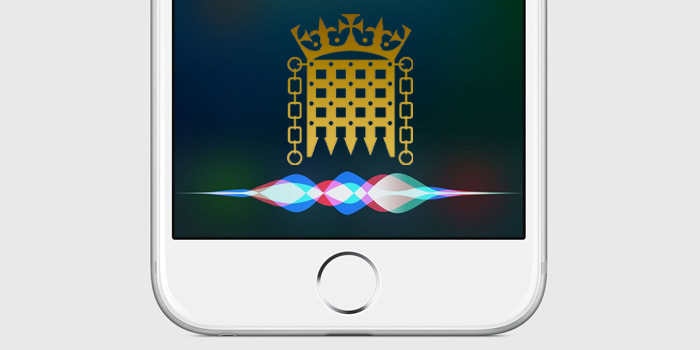
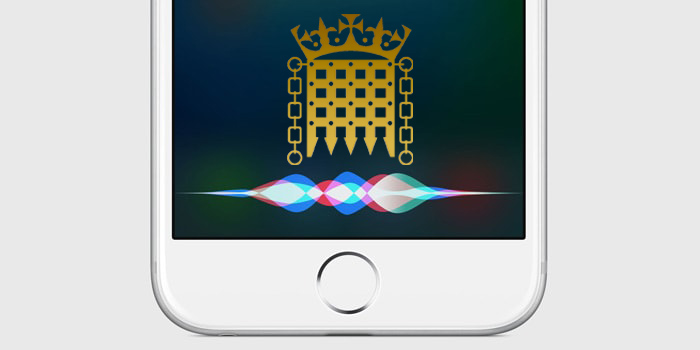
Siri listening to the UK Government
If Siri was listening in the Houses of Parliament, where else was she listening?

Although it isn’t ideal to forget that your PHONE could be listening to everything you say, most of us can get away with the oversight. If you’re the Defense Secretary of the United Kingdom, however, there are a lot of things that you or the people around you might be saying that you don’t want to a hackable device to hear. In the UK Parliament yesterday, UK Secretary of Defense Gavin Williamson was interrupted by Siri trying to answer a query while he was talking about Syria. Siri is set to “always listening” on his phone. Let that sink in. Siri is listening to everything that UK Secretary of Defense is saying.

So just how vulnerable is Siri and, accordingly, all of the classified secrets that UK Secretary of Defense has to talk about on a daily basis?

Well, in September, Chinese researchers discovered a shocking backdoor into voice assistants from Google, Amazon, Microsoft, and yes, Appl,e too. Called DolphinAttack, the vulnerability plays on the fact that digital assistants can hear frequencies that lay outside the range of human hearing. This allows attackers to issue normal voice commands at such a high frequency that it is inaudible to human ears.

DolphinAttack means that anybody within a few feet could be issuing silent commands to a smartphone’s digital assistant. The researchers didn’t just stick to basic commands either. Using only basic equipment, the researchers were able to get iPhone’s to make calls and even initiate FaceTime video calls. Incredibly, they were even able to make Alexa unlock IoT connected smart locks or redirect the navigation systems on Audi A3. If a user is wearing an Apple Watch, it allows these ultrasonic attacks to take place from further away.

The implications of such an attack could be severe for a man, like Williamson, with high-security clearance. Anybody passing him in the street could issue an ultrasonic command, which could open a certain website on his mobile browser. From there, the website could automatically install malware onto the phone that would open up the contents of the phone and possible communications to exploitation.

Siri is supposed to only respond to the voice of the user who trained it, but with convincing deep-fake technology becoming more and more prevalent it is easier than ever to reproduce somebody else’s voice. In this particular case, it doesn’t matter that Siri was responding to Williamson’s voice. As Jordan Peele adeptly demonstrates below, it wouldn’t be hard to fake him saying “Hey Siri,” and then feed the fake command through the ultrasonic processors.

It is all well and good laughing at Siri’s interruption in the House of Commons, and coming up with a witty response to make light of the embarrassing situation. Is there something more, however, that we need be seeing. Does Siri’s intervention highlight a worrying lack of insight into the implications of modern technology at the highest levels of the Conservative government in the UK? A lack of insight that could be putting the security of the British nation and her allies at risk? Is it a laughing matter if the man in charge of security for an entire country can’t even manage the security settings of his own mobile phone?


iPhone X: New video shows extreme drop test from a 1000ft-high bridge!

Are you ready for the most insane drop test of the day? A man decided to toss his iPhone X from the highest bridge in California to find out what would happen. This one might surprise you…

Most new technology fans are familiar with drop tests. In general, they help to determine the durability of smartphones in everyday situations, like being dropped from a few feet.

Pokémon GO Download Free
7

But on YouTube, where normal rules don’t apply, one brave soul chucked his iPhone X off a bridge 1,000 feet in the air. Why? Why not! Here’s how it went down.

Without a protective case, the iPhone X survived the fall, but sustained major damage: cracked glass, smashed battery, etc. But the most surprising thing is that the phone, including the touch screen, still worked.

The man behind the experiment even managed to recover the video taken by the falling iPhone X, which, like the iPhone 8, is available with a new official wireless charger. It was a silly little experiment, but let’s be honest, it’s fun to find out what such expensive smartphones are capable of withstanding!


Does Facebook want you to spend less time on Facebook?

Mark Zuckerberg has admitted that passive consumption of social media is bad. If you’re sitting at home alone and all you’re doing is scrolling through social media feeds hour after hour, it is bad for your health. Ideally, if Zuckerberg really does care about users of his various social networks, he’d want them to become active users who contribute to social discourse as well as just reading what others have posted. Recent Facebook innovations show a move in this direction, but there is a movement gathering pace in the tech world, and it has Facebook in its sights. That movement is the “Time Well Spent” movement.

Facebook Lite Download Facebook Lite
7

We’ve recently seen both Apple and Google bring in new features on their mobile operating systems that help people control the amount of time they’re spending on their phones. Apple’s new feature tracks phone usage and can even set limits. Google’s new control panel will show how much time you’ve been spending, which apps you’ve been spending it on, and will even recommend that you take breaks. It now looks like Facebook is testing out a similar feature.

The new Facebook feature, first spotted by engineer Jane Manchun Wong, is called Your Time on Facebook. Although it has only been seen in the code of an unreleased version of Facebook; if it is released officially, it will help allow you to see how much time you’re spending on the social network each day.

Facebook usage notifications
Facebook will start telling you how much time you’re spending on Facebook

Facebook confirmed to Tech Crunch that it will be rolling out this new feature, but is yet to talk of an official release date:

“We’re always working on new ways to help make sure people’s time on Facebook is time well spent.”

The interesting thing about the Facebook usage panel, leaked by Wong, is its simplicity. It offers only very basic metrics and makes no distinction between passive and unhealthy time on the site, and active participation, which Zuckerberg claims is better for both users and society. Hopefully, Facebook will improve its control panel, but if the control panel on Facebook-owned Instagram is anything to go by that is just wishful thinking.

(function(d,s,id){var js,fjs=d.getElementsByTagName(s)[0];if(d.getElementById(id))return;js=d.createElement(s);js.id=id;js.src=’https://embed.playbuzz.com/sdk.js’;fjs.parentNode.insertBefore(js,fjs);}(document,’script’,’playbuzz-sdk’));


iPhone X 2018: The model with LCD screen will increase production

Today´s news is all about the future iPhone X. According to recent rumors from the Wall Street Journal, Apple is placing all its bets on the LCD model and increasing its production.

The phone is expected to make a comeback, and with good cause: the iPhone X 2018 will be split into three different models. One equipped with an LCD panel, and the other two with OLED technology. However, it´s the first one that most interests us since, according to the Wall Street Journal, Apple has stepped up the pace on the production of these mobile screens, aiming to make it the most accessible model of this 2018 batch.

Such news would suggest that Apple predicts strong sales for the 2018 iPhone 8 with LCD screen. We are also talking about a sales price in the $800 ballpark.

We will undoubtedly see a decline in the price of iPhones with OLED screens, especially for those in 2019, when the technology becomes less expensive. The Cupertino-based company will be able to afford to do so once it no longer depends on Samsung (who recently had one of their phones burn a car).

As a reminder, the production cost of OLED screens for Apple by the Korean giant is around 100 dollars for each iPhone X. It would seem that the American manufacturer would do itself a favor by using LCD screens in the 2018 iPhone X, without mentioning all the users who would be attracted by the model’s more accessible price.