5 reasons to use Firefox over Chrome

When it comes to internet browsers, there are two clear leaders: Mozilla Firefox and Google Chrome. Each has its own quirks and it’s not unusual to use both for various reasons. However, if you only want to choose one right now, we’ll give you 5 reasons to use Firefox over Chrome.

7
Mozilla Firefox Quantum is a free, open-source web browser that offers numerous features and customization options. Its performance is excellent, and it's designed to protect your privacy.

Privacy

With the current mass hysteria regarding privacy, especially after Facebook’s scandals, having a browser like Mozilla Firefox is a complete guarantee of privacy. The program is open-source, so it doesn’t have a multinational company behind it trying to monitor our every movement. So, that’s a plus for Firefox.

By the way, we should add that the browser has important tools when it comes to privacy. They have small apps or extensions available that can be added to enhance privacy.

Consuming fewer resources

This is by far Google Chrome’s weak spot and where Firefox comes out on top: the resources it consumes. If you open the task manager while you’re using Google Chrome with a few tabs, pay attention to the processes. Almost certainly, you’ll have several fields dedicated exclusively to the Google browser. That absolutely kills performance.
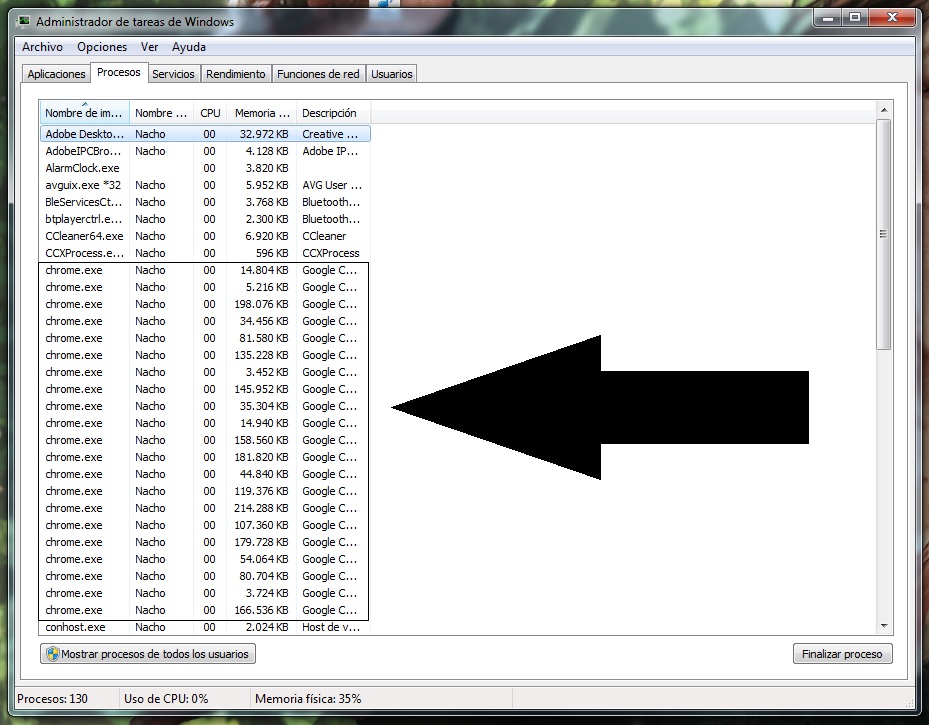
Both Firefox and Google Chrome have multiprocessing, but the difference is that while Google Chrome opens one process per tab, Firefox allows three tabs per process. This makes a subtle (but significant) difference.

Tabs

In the previous point, we mentioned that Google Chrome consumes lots of processes due to open tabs. Now, let’s talk about this at the design level. We like the format of Google Chrome more than Firefox, but it has a problem: when many tabs are loaded… it’s impossible to see each one. Mozilla, on the other hand, has a nice horizontal scroll that lets you always see what’s on screen.

Google could learn a thing or two about how the most famous fox on the internet handles tabs. 

7

Extensions galore

There was a time when Google Chrome was the leader in extensions. However, in recent years, it hasn’t completely kept its place. Firefox has managed both to offer the same (or more) extensions and also maintain high-quality thanks to its community following.

We should also add that many extensions are crossovers, so they will work between browsers problem-free.

Synchronization

We won’t mislead you: if there’s one good thing about Google Chrome, it’s that all of Google’s tools are masterfully interconnected. Luckily, Firefox has gone to work on this issue in latest versions and the synchronization between browsers now works reliably.

Thanks to this, all the content on your PC can be seen later on your cell phone (or other devices, of course). Also, you can use Google’s extensions to get more out of it.

Ultimately, your choice of browser is up to you, but if you’ve tossed Firefox aside for the last few years, it’s worth another look.

 

How to earn free stuff with Microsoft Rewards

There’s a rare thrill in getting something for nothing – especially from a big corporation. You feel like you’ve beaten the system; one that wants to drain every last penny from your wallet in return for those must-have goods.
So when you can legitimately earn free stuff from Microsoft by making some small changes to your online habits, it’s worth trying. You might not earn much, but every little helps, and it’s an opportunity to get a bit more value from your spend.

What is Microsoft Rewards?

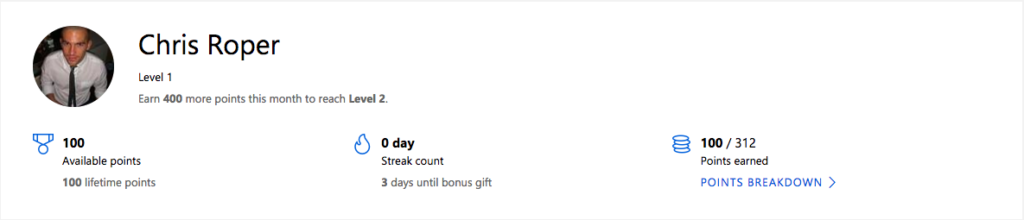
Microsoft Rewards is a lot like any loyalty program. It rewards you with points for using its products and services, such as shopping in the Microsoft Store, using its Edge browser, and searching with Bing. There are also other ways to earn, such as doing quizzes and clicking links, and you get 100 points just for taking the Rewards tour.

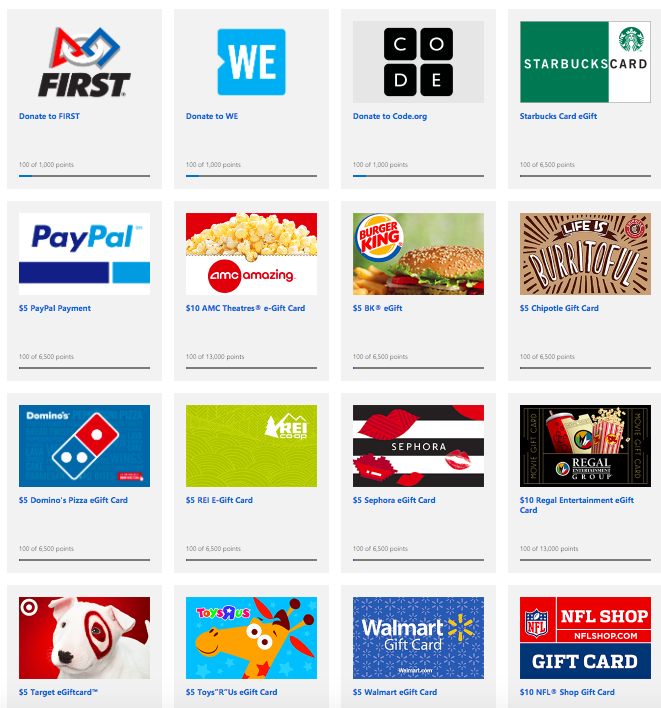
You can then redeem your points for sweepstake entries, gift cards, Xbox game passes, charitable donations, and much more. According to Microsoft, you need around 5,000 points to earn enough for a $5 reward. That sounds like a lot, but it’s actually quite doable when you realize how little you need to do to earn points.

How do you register?

Microsoft Rewards is free to join, but you must have a Microsoft account. So if you don’t have one, sign up now.

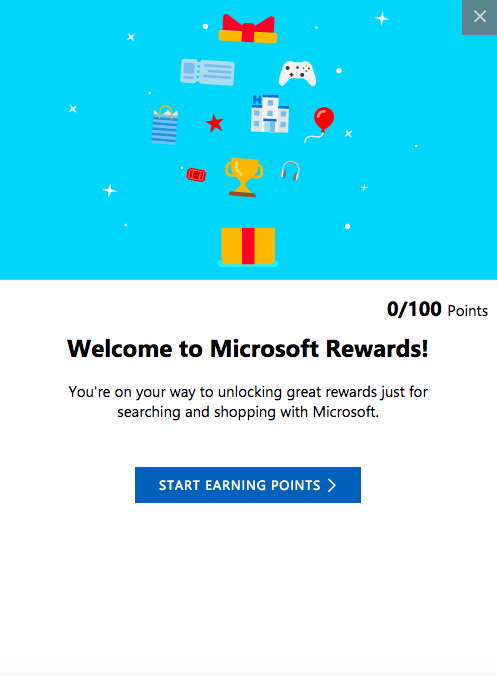
Once signed in, just head over to the Rewards tab. You’ll then get the “tour” as a series of pop-ups (like the one below) that explain how Rewards works, and at the end, you’ll receive 100 points. A nice little start to your pot.

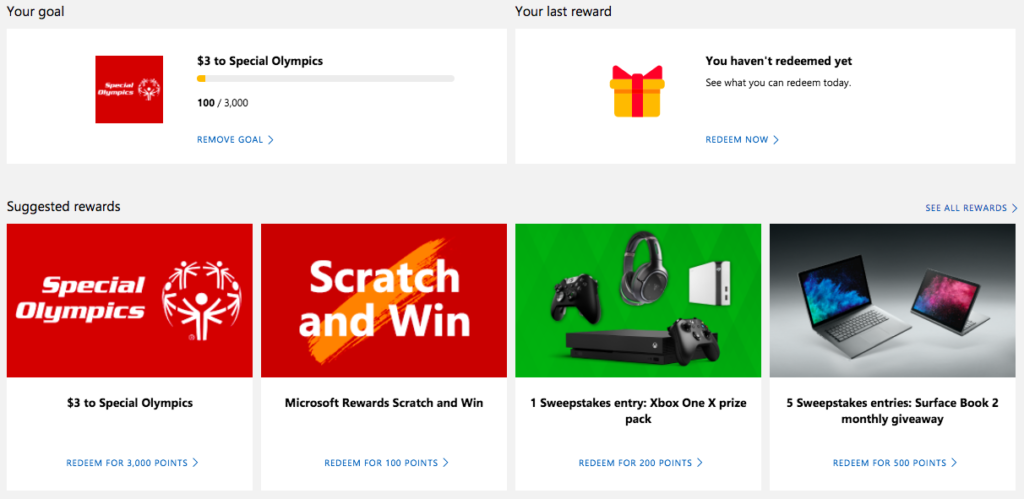
Before you look into earning points, you might want to set a goal first. This helps motivate you to earn points by setting a target for you to hit, which can be anything from a donation to your favorite charity or a shiny new Xbox One.

How do you earn points?

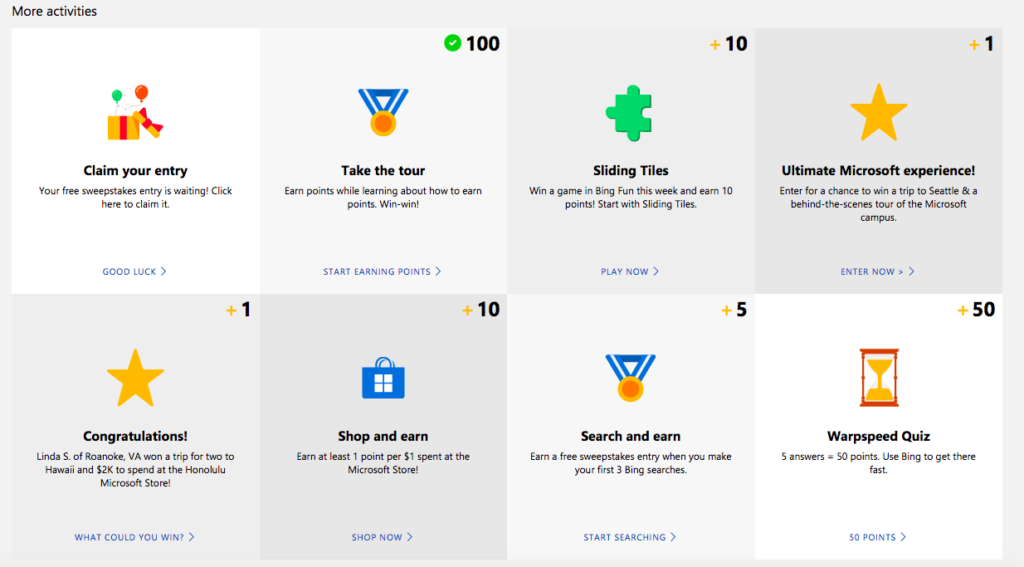
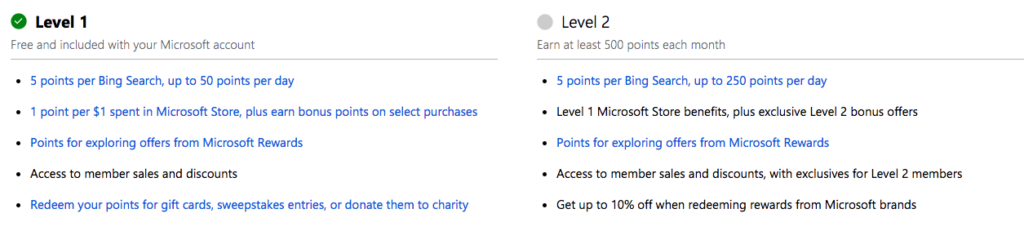
There are lots of ways to earn points. Two of the simplest are to use Microsoft’s Edge browser and Bing search. This might be a bit painful if you’re used to Chrome and Google, but are they also offering you free stuff? No? So, maybe it’s worth the switch.

Aside from using Bing and Edge, you can play games, enter competitions, and shop online to earn points.

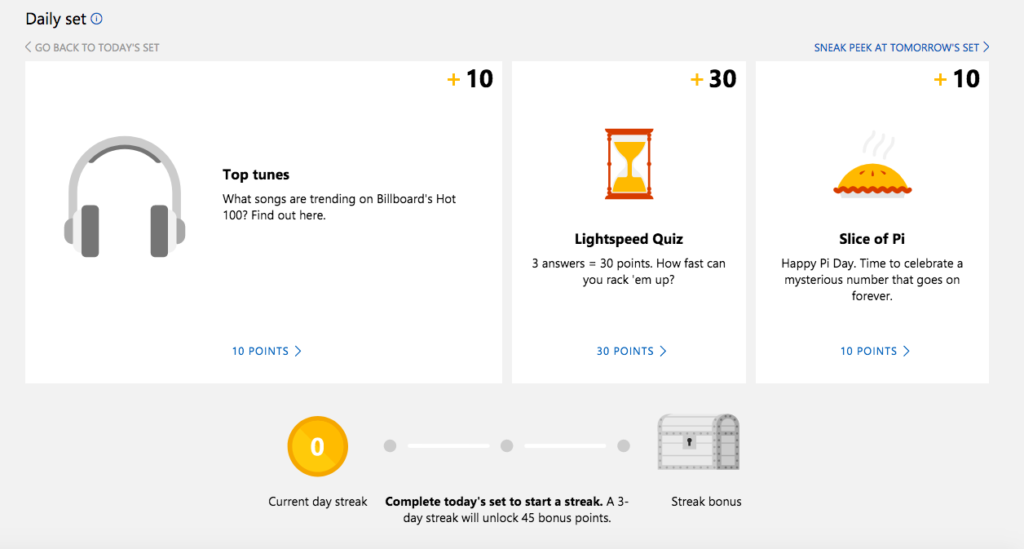
There’s also the Daily Set – three daily tasks that when done every day for a 3-day run, earn you an extra 45 points.

At the top of the “Earn” tab you’ll find your profile and points, so you can keep track of your progress.

Once you’ve gone past 500 points you’ll “level up” and be able to collect even more points for the same activities.

How do you redeem points?

Once you’ve reached your points goal, or earned enough to start swapping points for prizes, head over the “Redeem” tab. Here you’ll find a broad selection of treats to spend your points on, or you can donate the points to charities for an equivalent cash amount. For some charities, Microsoft will even match your donation dollar for dollar. Just click on what you want to redeem your points for and follow the instructions from there.

That sums up Microsoft’s Rewards program. It’s actually a very easy-to-use program – just make sure you’re always logged into your Microsoft account, otherwise your points won’t be registered.

Now you can search for jobs directly on Google

Google has done it again. By now, the only thing it can’t help you find is your lost car keys. In addition to turning up search results for movie showtimes, flights, and almost everything else you’d want to know, now you can check for job openings.

To job hunt on Google, just use words like “work” or “job” + the field or profession you’re interested in. This will give you related results in your location.

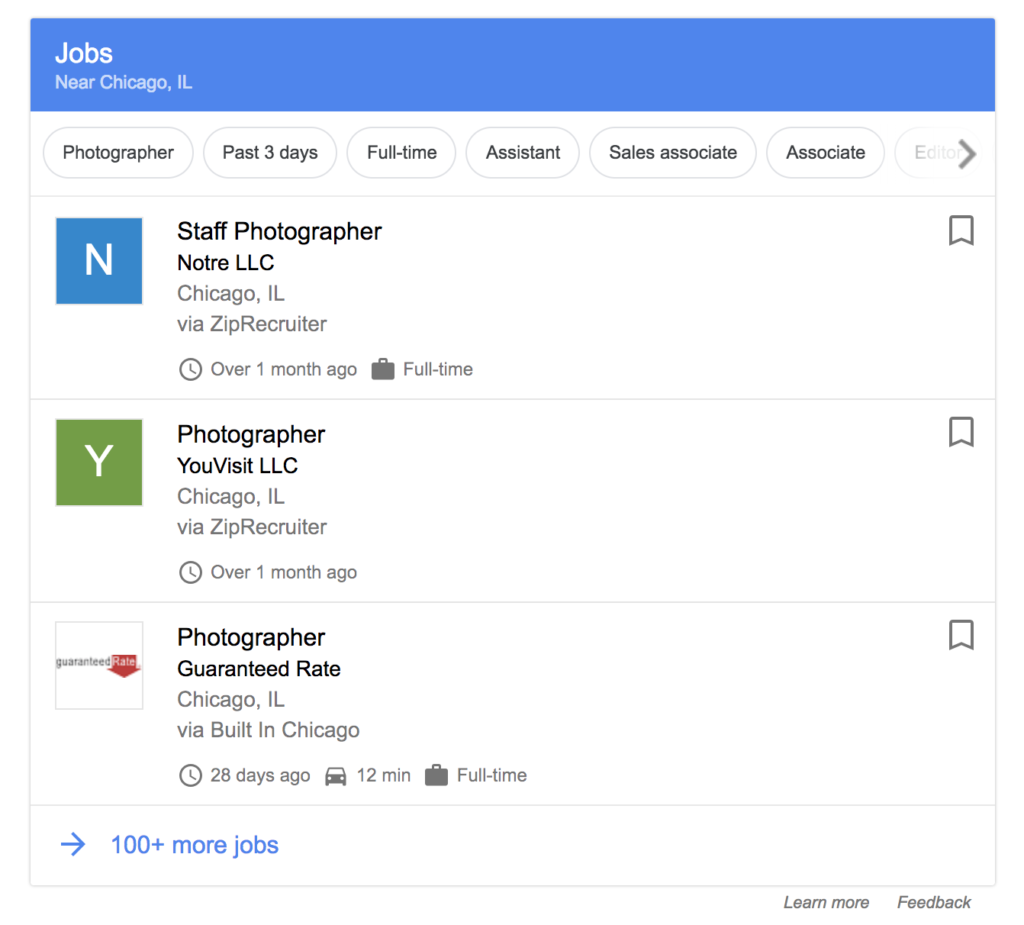
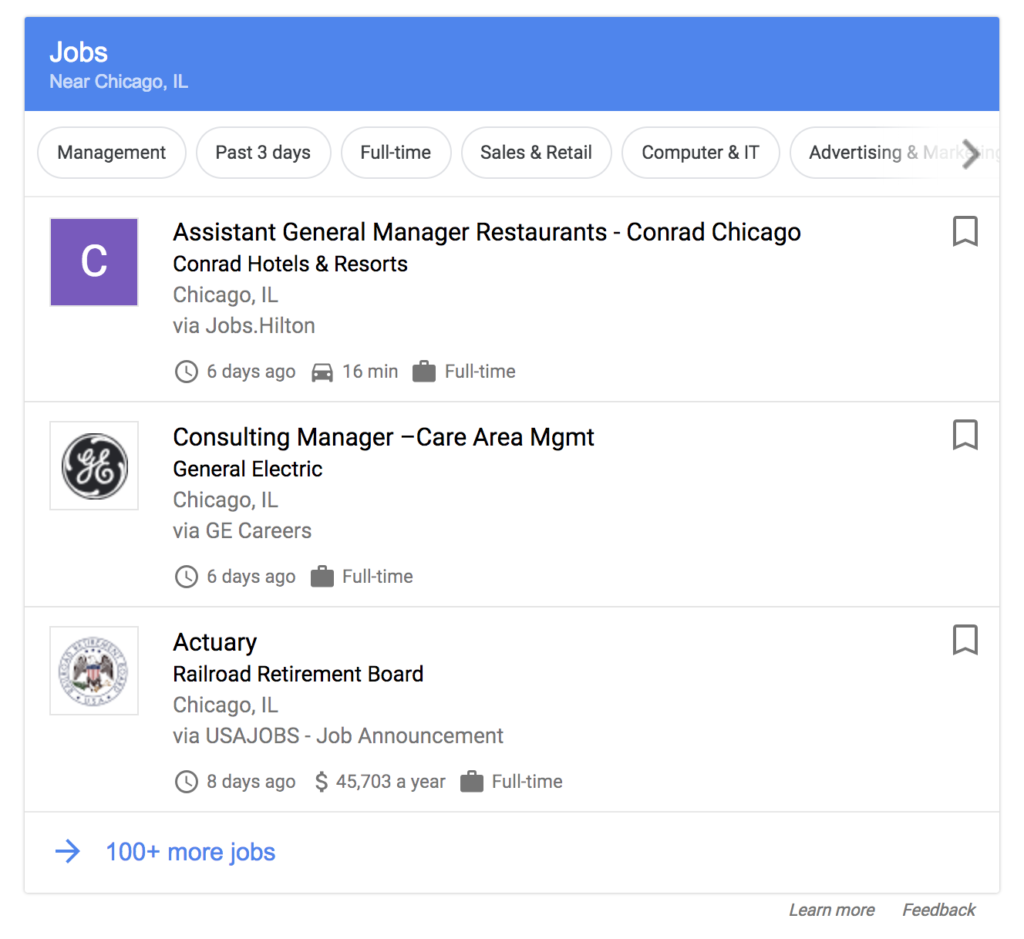
For example, I searched “photographer jobs” and Google showed me related job openings in the Chicago area:

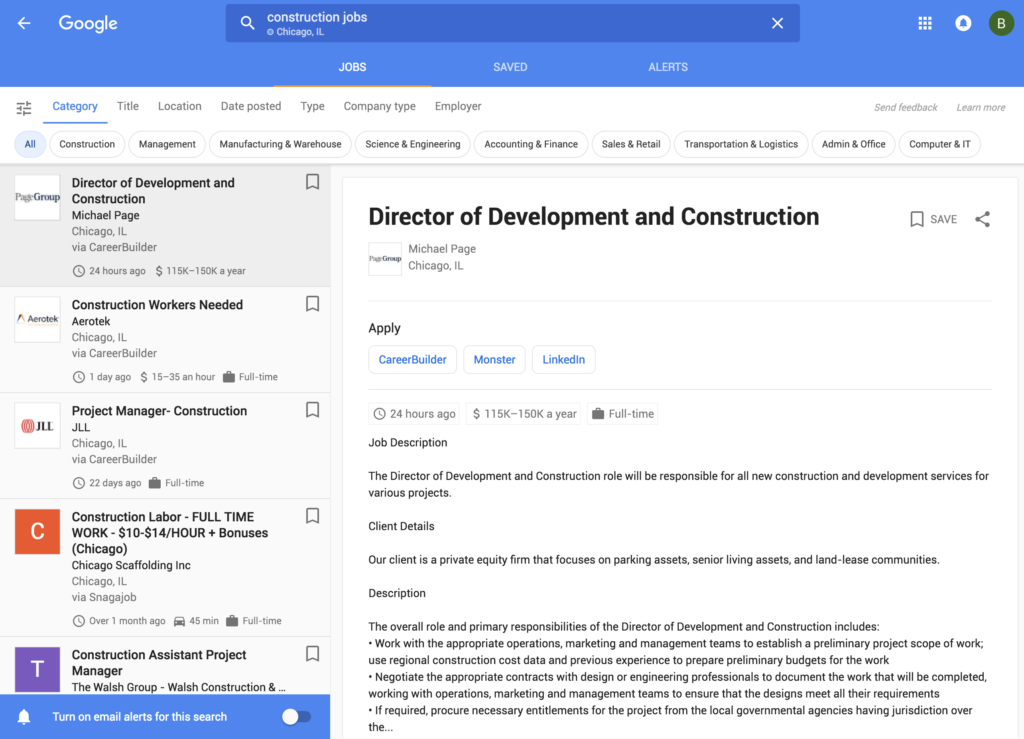
You can also do a generic search, like “jobs,” which will give you results of all kinds and filters to specify the sector and other info.

If we go to the detail page of any opening, we can read all the info, see other related openings and check openings with different filters.

We should note that Google’s solution doesn’t replace current job openings on platforms (such as Indeed, Glassdoor, and Linkedin), but rather aggregates all the info onto the same site, so you don’t have to go from page to page hunting for jobs.

This Google job search is similar to what Skyscanner does with flights or Trivago with hotels: it compiles different offerings from the most popular sites in the same place. So, to get more info on a job opening, Google will redirect you to the page where it’s posted.

What are your favorite online job hunting resources? Let us know with a comment below!

Look out for these dangerous Chrome extensions

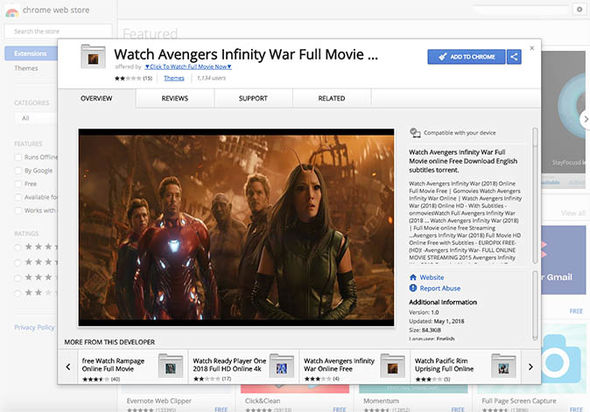
Chrome users beware. There are fake extensions in the Chrome store offering free movies that could cause you harm. If you see an extension offering films like Ready Player One or the Avengers, do not click on them. The promise of full access to HD and 4K versions are false.

Image via: The Telegraph

Anybody falling for this trick will find themselves redirected to a site called Vioos.co. Vioos looks like a streaming page but clicking on any of the videos on offer will take the user to another website called Zumastar. Zumastar then prompts you to create a “free” account that’ll you access to unlimited free movies, but this is just a scam to steal your data and infect your PC with malware.

Another possibility is being taken from vioos to EtnaMedia.net, which is blocked by MalwareBytes. MalwareBytes took action against the domain to halt suspected fraudulent practices. Users who found themselves on EtnaMedia.net reported charges to their credit cards without their knowledge or consent.

It is best to only download Chrome extensions from trusted developers and always think twice about clicking links.


Stop Google from spying on your browsing with Google Container for Firefox

Google Container is a new extension for Firefox that stops Google from spying as you browse.

This extension uses Firefox’s Containers technology. Containers are special tabs that isolate everything happening inside the rest of your browser. This technology enhances your security since it prevents pages within a Container from using cookies or buttons to find out other sites you visit.

Google also has its tricks for knowing where you browse. The official description of Google Container explains: “Clicking Google Share buttons passes information to Google about the website that you shared from. The same happens when you log into your Google account. Installing this extension deletes your Google cookies and logs you out of Google. You can log in and use Google normally when in the Google Container. If you click on a non-Google link or navigate to a non-Google website in the URL bar, these pages will load outside of the container.”

If you don’t want Google to “follow” you around when browsing, try Google Container. According to the site GHacks, it works without a hitch. Ready to try it? Click here to give it a whirl.

If they keep making extensions that isolate big names like Google and Facebook, maybe Firefox will turn Containers into an easy-access feature that lets users decide what exactly they want to isolate.

AI will soon stop Chrome from using all your device’s power

Google Chrome has a huge problem: it uses up too many resources even when you have only a few tabs open. As a result, your PC slows down, especially if it’s a laptop.

Chrome will soon consume fewer resources. This browser will use a type of machine learning system created by Google that detects tabs with a higher probability of being reactivated. At the same time, it will detect tabs with a lower probability of being opened. Chrome will disregard this info, consuming less memory.

In this case, if the user decides to open a tab that Chrome considered rarely used, the entire page will completely reload again. Google hopes this technology will gradually learn the user’s tastes to continue refining and avoiding such situations.

Google Chrome Download Free
7

What do you think about this new Chrome feature? Do you think it will be useful? Leave us a comment!

Source: Andro4all

New Opera mobile browser has some really cool features

Since their earliest inceptions, smartphones gradually got bigger and bigger. Standard smartphone screen sizes these days rock in at between 4.5–5 inches, compared to the 3.5-inch screen of the original iPhone. XL models, which are growing in popularity, push screen size even further as they creep towards the seven inches that used to be the exclusive domain of smaller tablets.

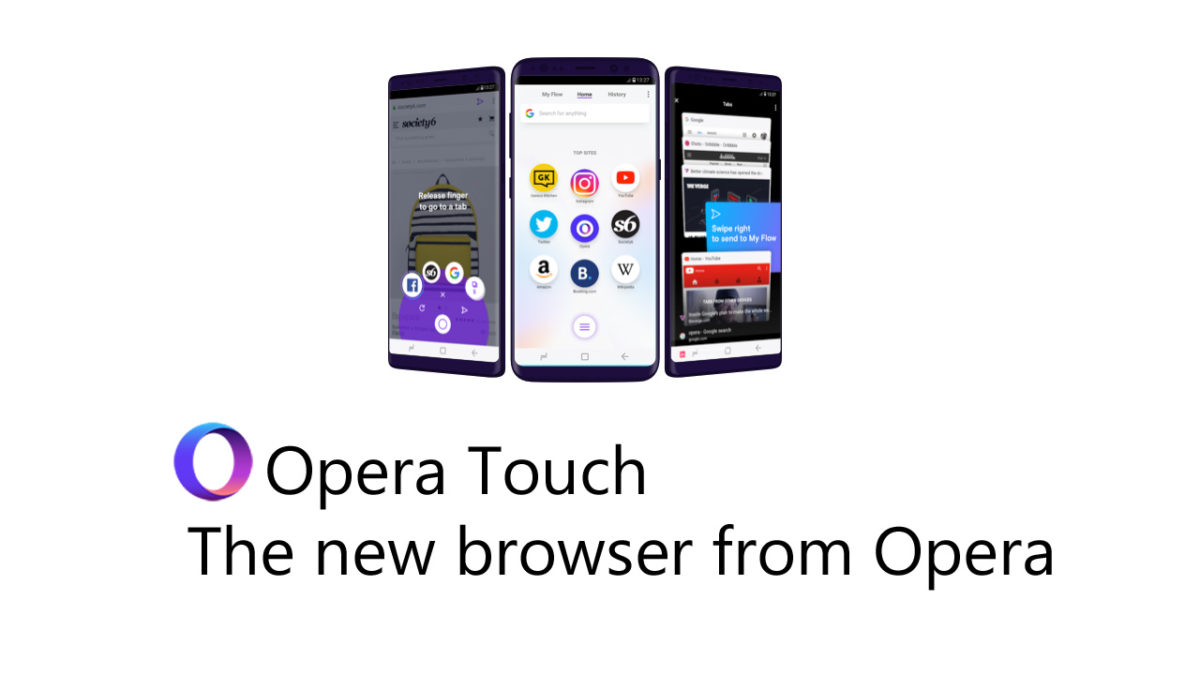
The bigger screens make it easier to get more done and they make playing games and watching videos a much more enjoyable experience. They can be harder to use, though, and any serious attempt to take advantage of all the space offered by these plus size touchscreens requires two hands. Opera wants to address this, and its latest browser, Opera Touch, aims to put the power of the web into just one of your hands.

Opera Touch Download Free
8

Opera Touch starts in Searching Mode, so you don’t have to click the URL address bar or the Google search bar at the top of the screen. You’re ready to search as soon as you open Opera Touch. The main innovation of Opera Touch, however, is what Opera is calling the “Fast Action Button” or FAB for short. True to its name, the FAB puts all of the controls you use most when browsing the web within reach of your thumb.

Image via: Opera

The FAB is always present in the center of the web page at the bottom of the browser. When you hold the button, it’ll give the option to open tabs, switch between tabs, or to close them. All you have to do is swipe across to the desired option with your thumb and then start browsing. The FAB also gives easy access to Google search if you want to perform more than one search per browsing session. Rather than holding your thumb on the FAB, a simple click will bring up your keyboard and the search bar.

Opera is a free web browser which functions in much the same way as Edge, Chrome or Firefox, but it has a handy free VPN feature which makes it stand out.

In a move to get people downloading the desktop version of its browser, Opera has also introduced a new Flow feature. If you have Opera installed on both your mobile and desktop, Opera claims you’ll be able to work seamlessly across both devices:

“You can now add images, links, videos and notes to yourself to your Flow and the other device will immediately see them. You can access them on your other device and the good part is that the Flow is encrypted, private and kept to yourself.”

Image via: Opera

Activating Opera Flow is similar to activating WhatsApp Web. You simply scan a QR code presented on the desktop version of Opera using the scanner on Opera Touch. Then you can slip from mobile to desktop and take whatever you were working on with you.

Opera Touch is available now on Android and will be available on iOS soon.

Google’s shiny new job search engine couldn’t be simpler

Source: Shutterstock

Finding a job can be tough, but Google wants to help make it easier, and the webmaster has finally launched its promised job search engine that should do just that. All you have to do to access it is type jobs or internships into a Google search bar.

There are plenty of great options for specializing your search too. You can search for specific types of jobs typing science jobs for example. You could also look for jobs near me, or you could look for jobs in a specific location by typing something like Washington jobs.

Once you click on the jobs tab, you’ll get more details about the types of jobs you’re after. These details include the date the job was posted, the industry, the type of work, the location, and the company type. You can then filter and sort your search results accordingly and sign up for job alerts based on your preferences.

The only thing you can’t do on Google jobs is apply for the positions you like. Instead, Google will send you to the original posting of the job so that you can apply directly to the company.

What are you waiting for?


How to unsubscribe from push notifications (Chrome, Firefox, Edge and Safari)

Have you accidentally given permission to receive notifications from a website or are you tired of getting notification requests? Below, we’ll tell you how to disable them according to the browser you’re using.

Google Chrome (laptop)

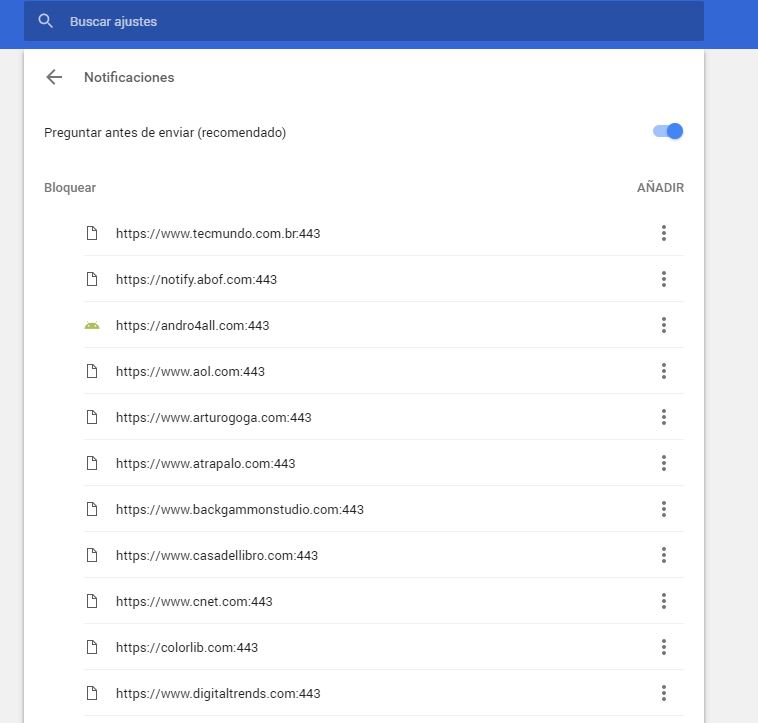
To disable Chrome notifications, copy this address chrome://settings/content/notifications and paste it in your browser. This way, you’ll go straight to the “Notifications” section of Chrome Settings.

461

If you want to stop receiving permission requests for notifications, disable the “Ask before sending (recommended)” option to “Block all.”

Want to block notifications for a specific website? You’ll see that you’ve got two options: “Block” and “Allow.” Under “Allow,” look for the web page you want to stop receiving notifications for, click on the three vertical dots beside it and then select “Block.” It’s that easy!

Google Chrome (cell phone)

Go to “Settings” (by tapping on the three vertical dots in the top right). Press “Web page settings” and then “Notifications.”

If you want to stop receiving permission requests for notifications, disable the “Ask before allowing websites to send notifications (recommended)” option to “Blocked.”

Want to disable specific notifications? Below, you’ll have two options: allowed and blocked notifications. Select one that is allowed and then the “Notifications” option to block it. Easy peasy.

Mozilla Firefox (laptop)

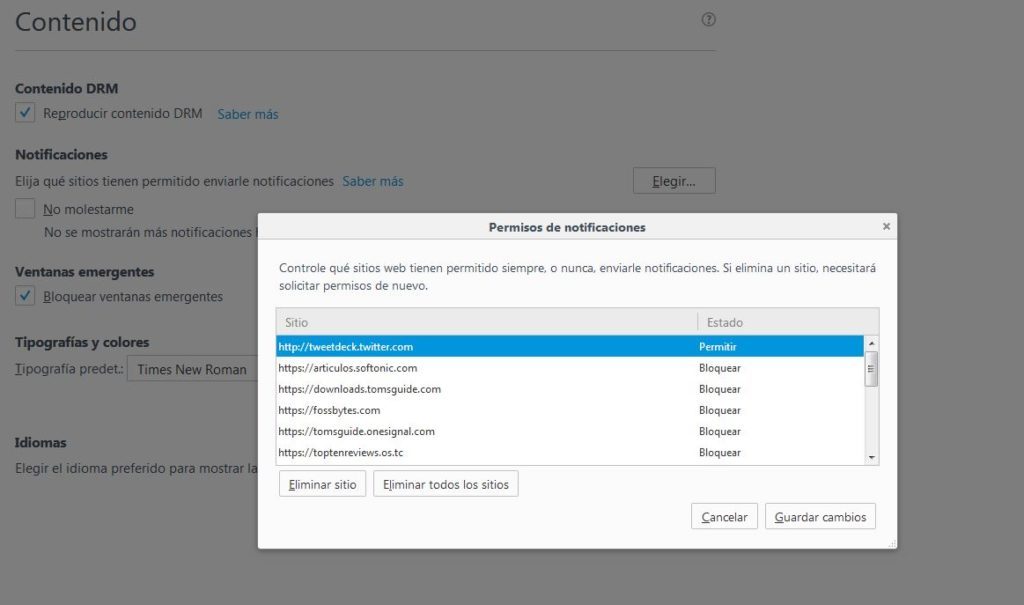
To disable notifications on Firefox, copy this address about:preferences#content and paste it in your browser to access the “Content” section of Firefox Options. Here you’ll see the “Notifications” subsection.

If you want to stop receiving so many permission requests for notifications and notifications themselves, enable the “Do not disturb me” option.

464634-1024x605

Want to block notifications for a specific web page? Click on “Select.” A list with all the notifications you’ve allowed or blocked to date will show up. Look for the website you no longer want to receive notifications from and select “Remove site.”

When you go to that page again, it will once again ask for permission to send you notifications (unless you’ve enabled the “Do not disturb me” option). Select that you don’t want to receive notifications. Case closed.

Unfortunately, there’s no easier way to block specific notifications on Firefox.

Mozilla Firefox (cell phone)

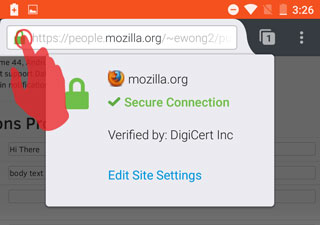
For now, there’s only one very basic way to disable notifications for this version of Firefox. You must go to the page that you want to disable notifications for and click on the Control Center (the green lock to the left of the URL).

2016-07-18-15-42-33-81e41b

Then select “Edit site settings.” Tap the white square to “check” it and then press “Clear.” This way, the website will stop sending you notifications unless you go back and give it permission.

Microsoft Edge (Windows 10)

To get started, click on the Over Edge section at the top right of the window. It’s a three-dot horizontal icon. Click Settings, and then click Advanced Settings.


Under Notifications, click Setup. Find the webpage you don’t want to be notified about and click the slider point to go to Disabled.

Apple Safari

To stop receiving notifications for a web page, go to “Preferences” and then click on “Notifications.” Look for the website on the list and select “Block.”

If you want to stop receiving permission requests for notifications, don’t leave the “Notifications” section; simply uncheck the box “Allow websites to ask for permission to send push notifications.”

How to display Unicode languages in Windows

Languages like Chinese, Korean, and Vietnamese, based on symbols as opposed to letters, can frequently run into display issues on Windows.

Displaying these language symbols requires a standard system called Unicode, which according to Wikipedia, “is a computing industry standard for the consistent encoding, representation and handling of text expressed in most of the world’s writing systems.” The standard includes a big set of languages including right-to-left scripts like Arabic.

If you want to display foreign languages in Windows, however, the operating system isn’t always the problem. Some programs aren’t designed to display different languages. On the web, browsers take encoding information from the website, but if the browser can’t read the correct information, then Unicode won’t display properly.

This doesn’t mean that you can’t display them though. To get Unicode to display in Windows and your browser only takes a few steps.

Windows Region Settings

A frequent problem is programs that don’t support Unicode, but making it work is actually quite simple.

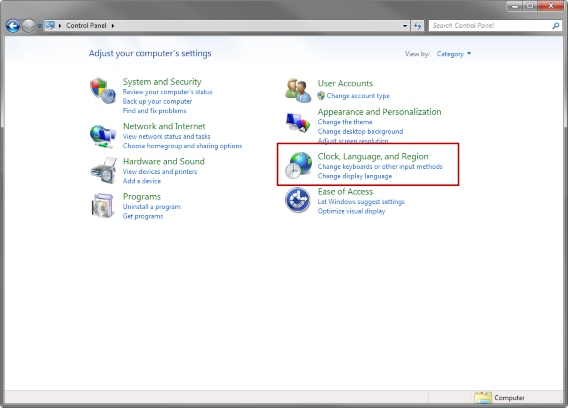
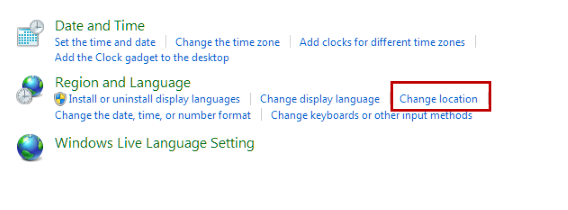
Go to Control Panel and locate Clock, Language, and Region.

windows control panel clock language and region

Select Change location.

Change location

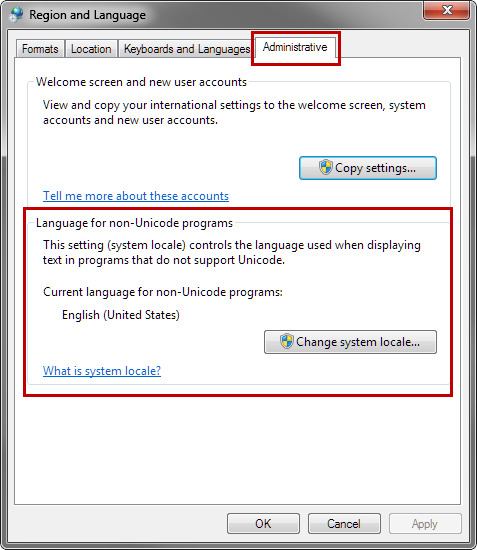
The Region and Language menu will open. Choose the Administrative tab. In this tab, you’ll see Language for non-Unicode programs. Select Change system locale. Note that you need to be the administrator to change the system locale.

Region and Language

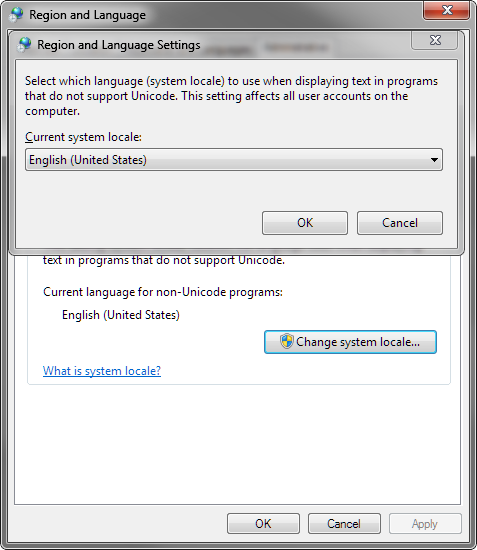
Choose the appropriate location for the language you want to display. You may need to restart Windows for the changes to apply. Now, you should be able to view the language that wasn’t previously displaying in the program.

Region and Language Settings

Generally, you won’t ever need to change this setting for recent programs, but older programs may have problems.

Check out the video tutorial below for changing language in Windows 8.

Default player


brightcove.createExperiences();

Google Chrome

If you upgraded to Chrome 64-bit, there may be a bug within Chrome that’s causing errors when displaying Unicode. I found this problem when trying to read Korean. The fix that appears to be working is disabling DirectWrite within the developer section of Chrome 64-bit.

If you’re using an older version, you may still have some problems, but here’s how to display Unicode within Chrome.

Auto-detect encoding in Chrome

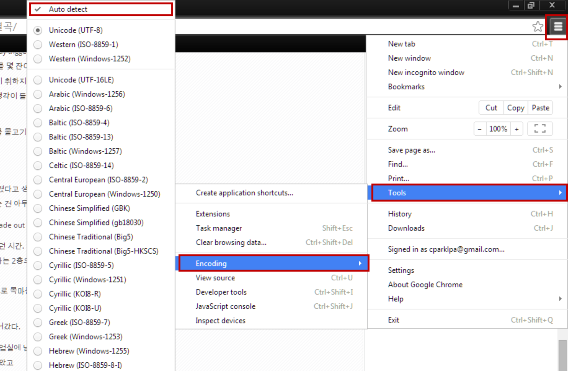
Chrome has built-in support for a lot of languages, and it can get annoying to switch between them. The best option is to set Chrome to Auto detect language encoding. Follow this flow to select the auto detect option:

Chrome Menu (three bars) > Tools > Encoding > Auto detect.

google chrome auto detect encoding

This can impact Chrome’s speed because it has to check every site you visit, but it shouldn’t get to the point where you notice a huge drop in performance.

Mozilla Firefox

Recent versions of Firefox don’t have direct options to control Unicode. Instead, the browser can allow sites to choose their own fonts. This is active by default, but here’s how to make sure the option is enabled.

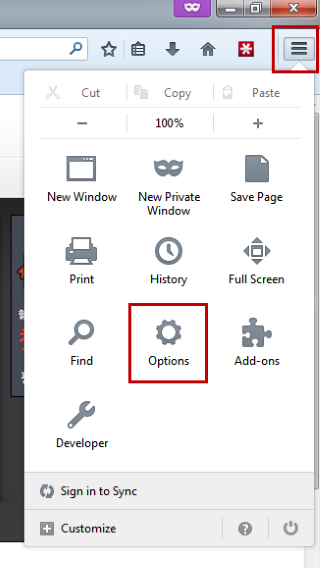
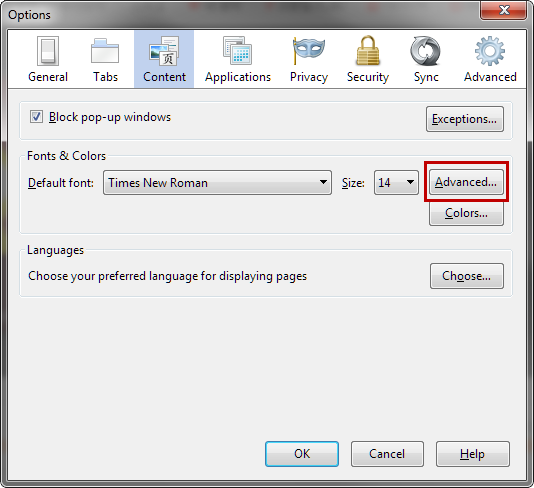
Select the options menu (three bars) and click on Options. Under the Content tab select Advanced.

firefox options

Under Advanced is the Fonts option, where you can set default fonts.

firefox options content advanced

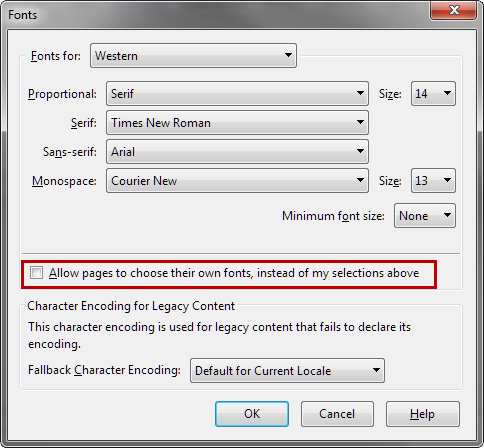
Under the set of fonts, check to see if Allow pages to choose their own fonts, instead of my selections above is selected. If that option isn’t checked, Firefox will display the fonts selected above that, which can make pages display incorrectly.

firefox options content advanced choose your own fonts

With the option selected, Firefox will display the site’s fonts. In the case of Unicode, Firefox should be able to display any Unicode fonts that exist.

Internet Explorer

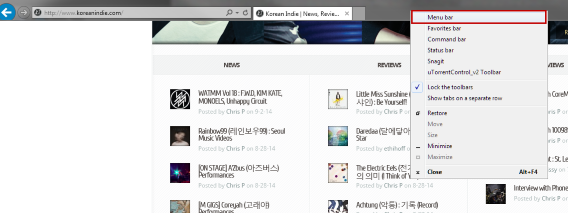
If you use Internet Explorer, then you have a similar option like in Chrome. You will need to use the Menu bar, which isn’t shown by default in Internet Explorer 11. Enable the Menu bar by right-clicking with the mouse in the header.

internet explorer menu bar

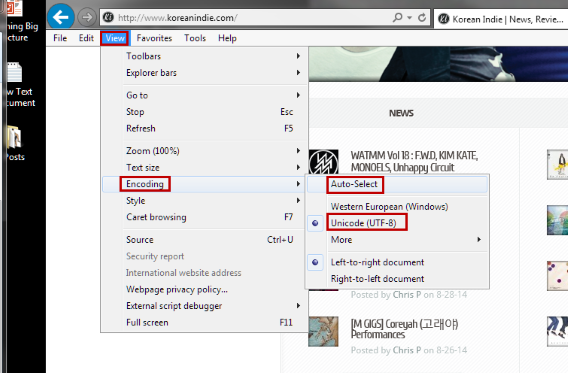
Click on View, then find Encoding. By default, Internet Explorer 11 has selected Unicode (UTF-8) and that should cover most languages. If you ever run into a problem, you can enable Auto-Select. This option will automatically choose the correct encoding for the page.

internet explorer menu bar view encoding auto select

Unicode compatible

Unicode isn’t something people think about if they view the same pages all the time, but if you know another language and browse other sites, you can run into this problem. Although most programs support multiple languages, and web browsers are designed with Unicode support, the problems can emerge with older programs or sites that don’t push the right information.

You shouldn’t have issues with Unicode if you’re running the latest software, but there are always possible problems like the case of Chrome 64-bit. Make sure that when you update your browsers, you check the settings to make sure they aren’t changed, or you could run into problems.

Related Articles

What you need to know about syncing photos in iCloud

Office Tip: access your Word, PowerPoint and Excel documents online

Stop ignoring Android app permissions

Follow me on Twitter: @chrislikesrobot