3 great privacy-focused web browsers

Chrome may not be your best bet for privacy. Check out these alternatives.

internet security

Hackers are more prevalent than ever today. The only way you can keep your personal information and data truly private is through being proactive with a privacy-focused web browser. Here are the top three web browsers that will help you keep your information private!

3 great privacy-focused web browsers

1. Tor

Tor is one of the most notable privacy-focused web browsers out there today. The web browser is built on a collection of hidden relay servers. Basically, the way it keeps your information private is through bouncing your connection between various distributed nodes. This means that your connection will be completely private.

However, it is important to note that this is a true privacy-focused web browser, and it will not protect you from malware or viruses. The only negative aspect of this web browser is that it can slow down your browsing. We’re not saying you have something to hide… but if you want to be completely anonymous when surfing the internet, then Tor is the best on the market.

2. Brave

Brave is great for anyone who wants a privacy-focused web browser that’s also quick. The problem with many other web browsers is that they can be slow in order to operate at full capacity. However, Brave has great speeds and can even custom block ads and trackers.

Browse the web up to 8x faster than Chrome and Safari. DOWNLOAD NOW ►
10
Enjoy private, secure and fast browsing with Brave.

The only downside to this browser is that it’s relatively new and may not be as fully developed as other privacy-focused web browsers. However, there is a great team of developers always working to improve the browser to ensure you will have a great experience while using it. Want to learn more about why Brave is a great choice? Check out these articles:

3. Firefox

Although many people may assume that Firefox is just your average browser, if you add some specific add-ons it can be great for privacy. If you add the extensions HTTPS Everywhere, NoScript, Windscribe, and uBlock Origin, they can make your Firefox browser extremely secure and private. Another great element of using Firefox as your privacy-focused web browser is that it has really good downloading speeds and won’t slow down your Internet browsing at all. In addition, Firefox’s latest version claims to use 30 percent less memory than the Chrome on Windows computers. This is a great web browser for someone who wants added privacy but isn’t an expert on browsers.

Overall, privacy is extremely important when selecting a web browser. Any of these three privacy-focused web browsers can help keep your information and personal data safe.

How to use Mailtrack to see when someone opens your email

Here’s how to know if someone read your email.

email

Do you find yourself wondering whether someone has opened the email you sent them? With the Mailtrack browser extension, you can find that out easily! The basic version of Mailtrack is free. But for just $5 a month (with an annual plan), you can get the pro version, which you can use for several different emails.

Stop feeling so in the dark. Follow these three simple steps to get Mailtrack so you never have to wonder again whether someone opened your email.

How to use Mailtrack to see when someone opens your email

1. Install Mailtrack

Mailtrack is a browser extension that works with many browsers such as Google Chrome, Firefox, and Opera. Also, Mailtrack is compatible with Gmail. Find it online at mailtrack.io/en.

2. Send an email

When you send an email with your Gmail account, Mailtrack will add a check mark next to the email in your Sent box. This check mark next to the email lets you know that the email has been successfully sent to the recipient. If the email bounces or cannot be delivered to the recipient, then the check mark will not appear next to it.

3. Check to see if your email has been read

Finally, once you send an email, you can sit back and wait to see if the recipient opens it. You will know it’s been opened because a second check mark will appear next to the first one and you’ll get a real-time notification.

If you’re looking for an easy-to-use email tracker, give Mailtrack a try.

What is the best web browser for you

Battle of the browsers: Which is best?

web browsers

Over the years we’ve seen many browsers come and go as the main source for internet exploration. While Microsoft and Apple dominate the field of operating systems, their browsers (Edge/Internet Explorer and Safari) tend to fall behind in usage compared to some other programs out there. If you’re struggling to decide between the top performing browsers, here is a simple and easy guide to help you learn the differences between them.

Guide to the best web browsers

Google Chrome

Chrome is widely regarded as one of the best browsers, and for good reason. It performs exceptionally well, and is able to connect the same account across multiple devices. However, its main benefit is its large variety of extensions. This allows for a highly customizable experience, and really can make Chrome perform any function you want for it too.

Google Chrome Free Download ►
8

The downside to using Chrome, however, is its high-RAM usage. For low spec computers, this can cause some performance issues, since Chrome will be using so much of the computer’s process power. It can be especially hard to run Chrome and other intensive programs at the same time on these computers. That makes it less optimal for people who use graphically intensive programs like video games.

Mozilla Firefox

In contrast to Chrome, Mozilla is one of the most RAM-efficient browsers for what it is capable of. While it doesn’t have quite the collection that Chrome does, it still allows for a pretty customizable experience with a competitively large amount of add-ons. Mozilla is also less likely to use your information as a marketing tool. So if that’s something that concerns you about Google, or other big companies, then Firefox is the way to go.

Mozilla Firefox Free Download ►
7

Opera

While you may not have heard of Opera before, it’s actually one of the top performing browsers, particularly for businesses. This is because it is able to provide a RAM-efficient and secure browsing experience with a built in ad blocker. It has many of the benefits that top-performing browsers have, while being able to provide the security of being a browser favored by a smaller community (and as such, less malware is prepared for it). The only real downside to this browser is that, it isn’t always able to open every site properly, like Microsoft browsers are able to. Despite this, the browser itself is constantly being developed, and slowly growing as an excellent choice.

8

Safari

Safari is often overlooked as a browser, since being an Apple product makes it less common among fans of Windows or Google. However, Apple is well known for its compatibility between its products, and Safari is no exception to this. If you have other Apple devices, then you can sync your Safari between them, which can really help organize your web browsing. Safari’s biggest benefit, however, is its content blockers. While ad-blockers are popular, Safari is able to block a variety a different content, such as cookies, in order to create a cleaner experience.

Safari Free Download
7

Despite this, Safari still lags behind Firefox and Chrome in extension capability. That’s not to say it lacks extensions altogether, but it is less compatible with many add-ons, compared to the other two.

Microsoft Edge & Internet Explorer

While these browsers are independent of each other, they are both owned by Microsoft, and function rather similarly. Microsoft Edge is the newer default program for all Windows computers. While it doesn’t have the extension capability that Chrome or Firefox have, it still runs at a reasonably high speed, and has integration with many Microsoft programs including Cortana. It, unfortunately, is not backward-compatible with other Windows operating systems, and can only be used on newer computers. Despite this, it’s an easy to use browser that is great for simple interactions.

Microsoft Edge Download now ►
6

Internet Explorer, on the other hand, is typically better for companies that use old programs that may not function well on other browsers. Consumers of these programs can also find Internet Explorer beneficial, since it’s able to run almost any site at a reasonable speed. Something that other browsers require extensions to do, or are unable to do at all. Despite this benefit, it’s unlikely to find many programs that won’t operate equally well on another browser, so Internet Explorer is typically not recommended compared to other popular browsers.

Internet Explorer Free Download ►
6


Based on this, it’s clear that Chrome is the best for customizability on high-end computers, while Firefox is the more RAM efficient choice. Opera is a good middle ground between these two, and perfect for older computers looking for a secure browser. Outside of those three, however, Safari, IE, and Edge each have their own benefits. Being able to open some sites, especially older ones, without needing to worry about functionality, is probably the biggest benefit of the Microsoft browsers, while Safari has a unique content blocker that is incredibly useful. Other than the typical browsers, there are a few more niche browsers that can be useful as well.

Brave

Brave has slowly gained its own following as being one of the fastest and most secure browsers out there. The biggest benefit of Brave is that its built-in adblocker replaces potentially dangerous ads with its own, so that it can bypass most sites that would prevent the use of an adblocker. It also runs faster than almost any other popular browser out there. Of course, this comes at the expense of extension-capabilities that the other browsers are known for.

Brave isn’t the only fast-growing browser. Midori is probably the best option for RAM-efficiency out there, and Tor Browser is perfect if you’re often using incognito mode (since it doesn’t track you the same way other browsers do). They aren’t as popular or customizable as the other browsers, but they are great at what they do, and definitely worth checking out.


Tor Browser Free Download ►
7

Secure Tor Browser comes to Android

Looking for a safer way to surf the web? Check out the new Tor browser

The Tor Browser is well known for being one of the most private browsers out there. Its main gimmick is its ability to prevent sites from gathering information through its browser. By doing this it becomes one of the most secure ways to use the internet. Currently, there is no mobile browser that has the same level of encryption ability as the Tor Browser for desktops. However, that is about to change with Tor’s newest release.

Previously, Tor had an app for both of the main operating systems: Onion Browser for iOS, and Orfox for Android. Each of these allowed for Tor connectivity but did not feature the same level of privacy that Tor does. In an effort to bring that privacy to mobile devices, Tor has released an alpha version of its service for Android.

Red Onion - Tor Browser Download
10

Tor stated that their main reason for doing this is to bring Tor’s privacy features to other parts of the world, some of which only have access to the internet through mobile devices. By creating a secure browser for these mobile devices, citizens of these countries don’t have to fear unsecured sites as often as they currently do.

Tor Browser for Android Alpha Free Download
7

With the full release of Tor Browser coming to Android sometime in early 2019, Tor has announced that it will stop Orfox services once browser leaves its testing phase. The alpha is currently available for free download.

Snapchat uses augmented reality to team up with Amazon

Snapchat and Amazon team up for an impulse buyer’s dream.

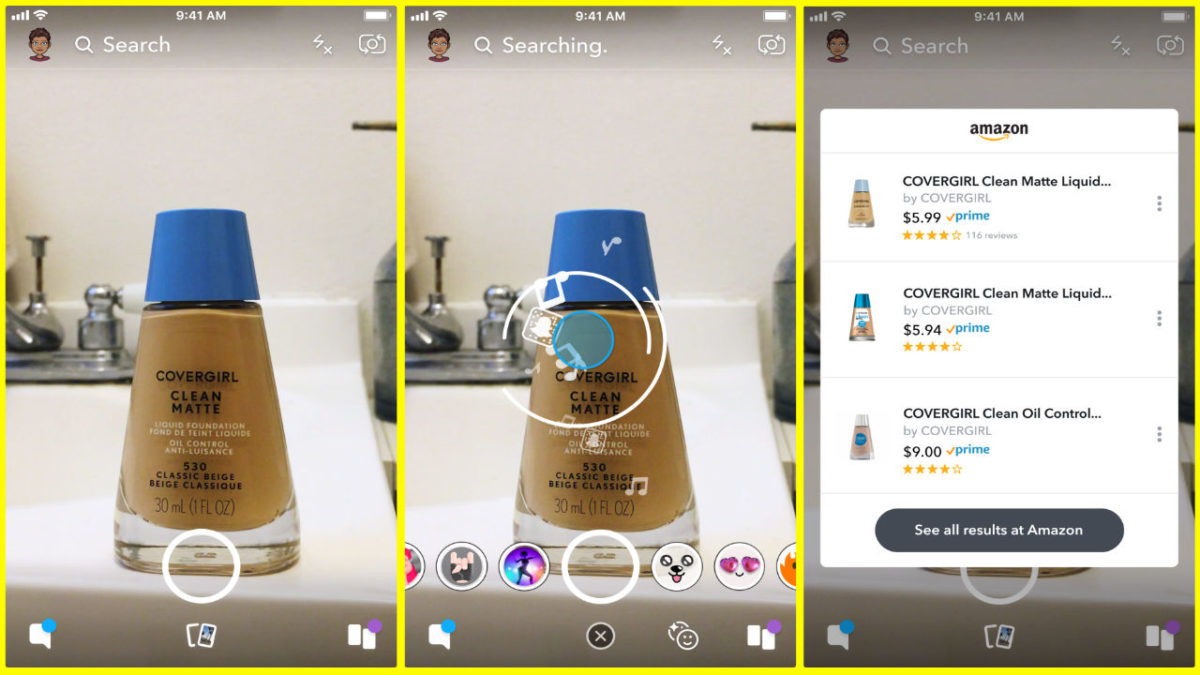
You ever wish you could just look at something cool and then buy it within a few seconds? There’s good news for you, my impulsive friend, as Snapchat has teamed up with Amazon, allowing Snap users to scan items using their phone cameras, taking them directly to their Amazon store page.

snapchat

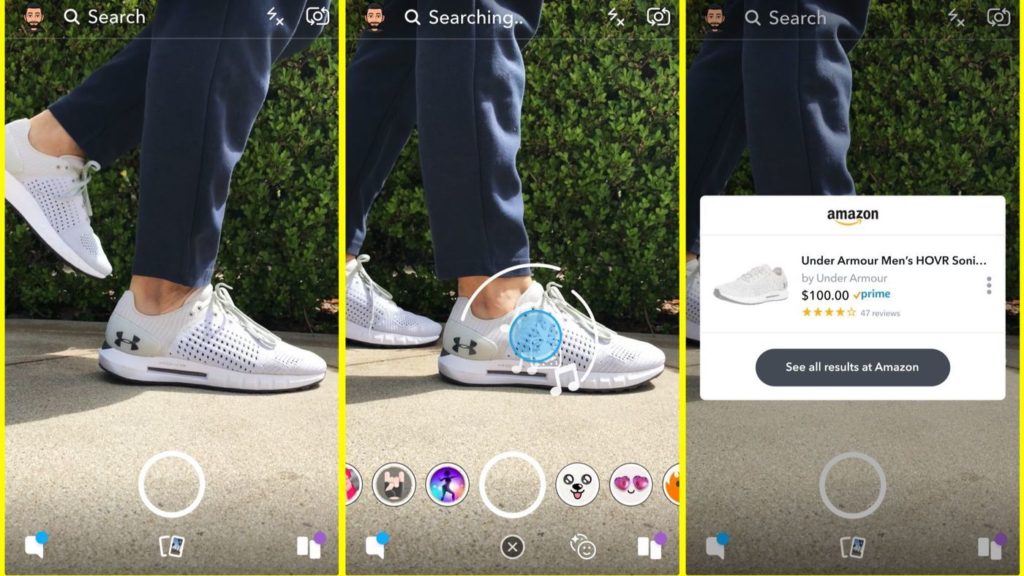
As shown in the picture above, scanning an item in Snapchat will bring up a window for its Amazon store page, displaying its price and a few related items. The technology combines augmented reality with Amazon’s machine-based visual learning software, which analyzes shapes, colors, and logos in order to identify products. Given the gigantic variety of items available to purchase on Amazon, this kind of software is no small technological feat.

Snapchat Download Free
8

Shopping features have been slowly added to popular social media apps for a while now, but haven’t really gained much momentum because they took too many extra steps. Snapchat and Amazon’s partnership is ingenious in that it only takes a tap or two to get to the product page, encouraging impulse buying and increasing profits. Ensuring impulse buying is especially important for Snapchat’s userbase, as its users tend to be younger and more prone to buying things en masse.

It is currently unknown what the financial details are in this partnership. Some believe that Snapchat will get referral money from Amazon when its users buy products, while others think that this may simply be a new feature that Snapchat hopes will allow it to gain new users and engage and maintain current ones.

This feature is slowly being introduced throughout the United States, and it will hit international users soon.

This free browser extension will save you money on more than 100 websites

You’re at the grocery store. You’ve got your cart full and are at the checkout lane when suddenly you hear a voice behind you. You turn. To your surprise, you see your friend rushing towards you, waving his arms with a fistful of coupons gripped in his hand.

That friend is Honey.

9

What is it?

Honey is a free extension for Google Chrome, Safari, Firefox, Opera, and Edge, and its sole job is to find any relevant or applicable coupons for what you’re purchasing. It then tacks them onto your order and saves you the money. Honey looks up those coupons quietly and automatically, and you’ll honestly forget it’s even there until you’re right at checkout.

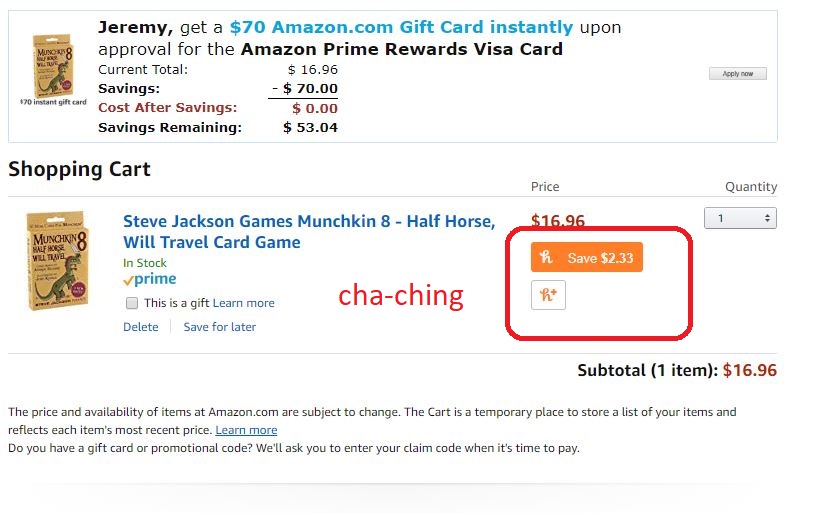
So what’s this like in action? Let’s say, for example, that you’re on Amazon about to order a new deck of cards. Browse until you find it, then add it to your cart as usual.

Amazon.com

Once you’re in the cart ready to buy them, a little Honey blurb (like the one pictured above) will appear directly below the item’s cost. Honey scans through any potential coupons pertaining to your order, and automatically shaves off the most money it can. Why spend extra money, right?

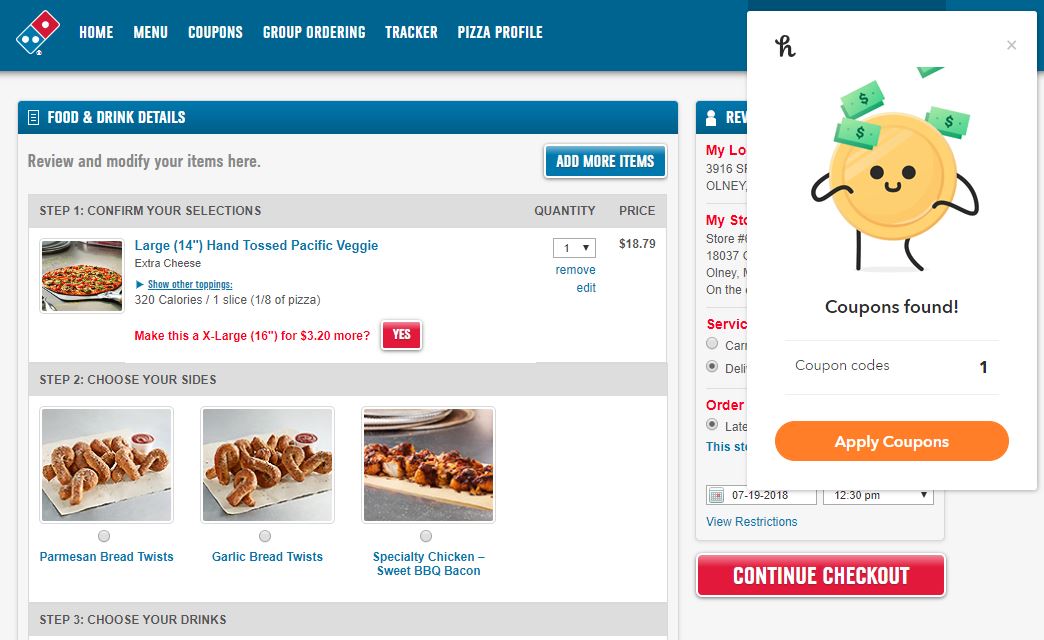
This isn’t just for Amazon.com either. Honey’s got you covered for discounts with over 100 online stores. That includes things like Gamestop, Safeway, Timex, Motorola, Vonage, even Dominos. If there’s a coupon for it, Honey will find it and instantly apply it.

How can you install it?

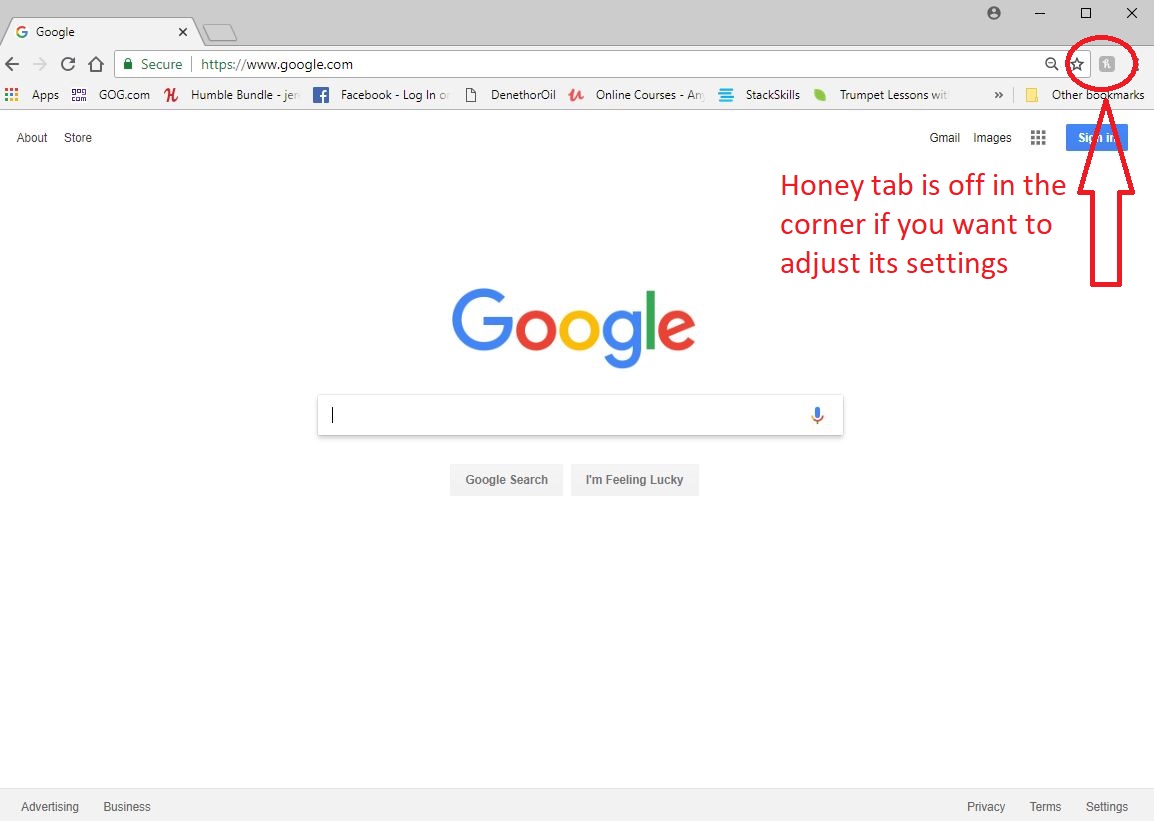
Right here. Go through the quick process and Honey will appear above your bookmarks bar in your Chrome browser. Once you see it, you’re done. If you so choose, you can click on the Honey icon at the corner of your browser if you want to see what stores are trending, or if you want to share codes that you find with the Honey community. Here’s a step by step on how to install the extension:

Once it’s set up, Honey does the work for you from here on out. No need to click anything extra or subscribe or anything.
This sounds too good to be true

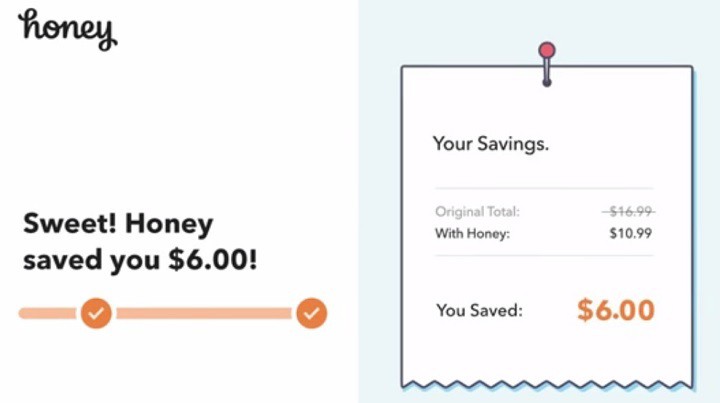
If you’re wondering how Honey makes any profit, here’s the short answer: In some cases, when you use a coupon code or earn Honey Gold, the extension earns a small commission from the store you’re buying from. Some of those earnings go to members.

https://windowsreport.com/honey-extension-shopping-coupons-online/

So there you have it. There’s a free extension available right now that’s always looking to save you money. Get out there and download it.


The new “Google WhatsApp” is already available on PC

So last year Google announced that it was giving the humble SMS app an upgrade. Not just any upgrade though, SMS was going to get the full-on messaging upgrade it needed to take on WhatsApp. Well now, Google’s messaging app is now available to download on PC.

8

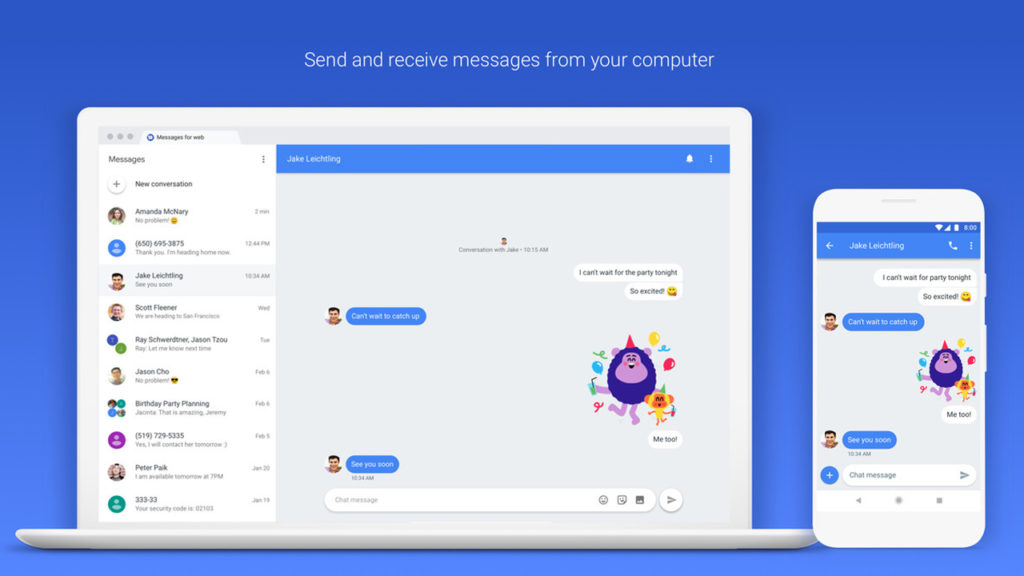
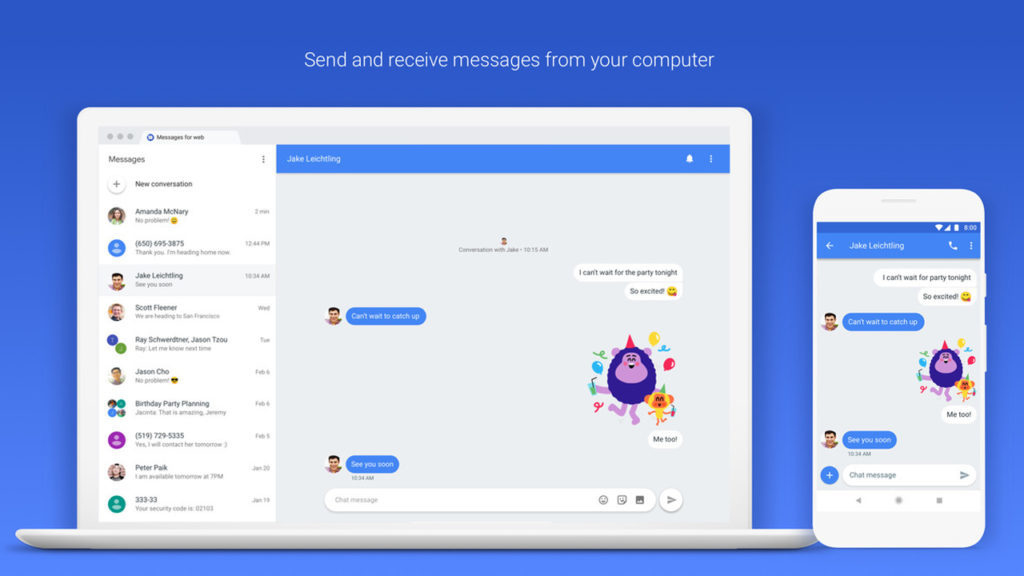
The PC version of Google messages works a lot like WhatsApp Web but is a reflection of the SMS app found on Android phones. It can send texts and photos to all of your contacts. As well as this, however, it’ll even allow users to send messages to email addresses using their phone number.

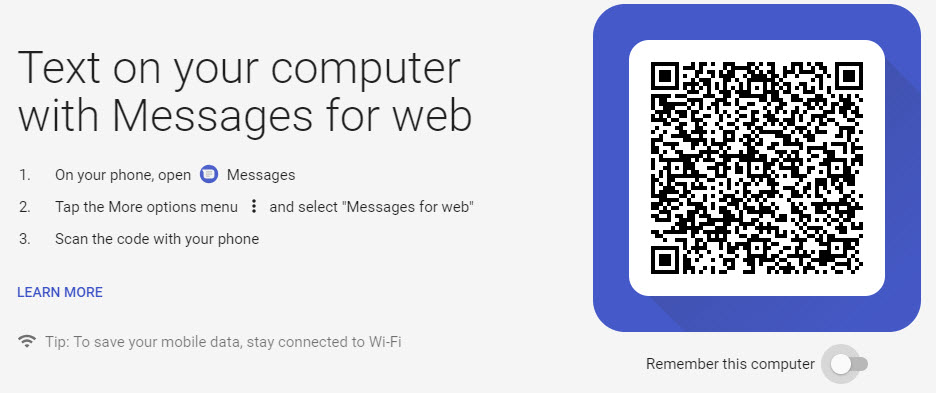
To use Messages on PC all you have to do is:

1. Check that you have the latest version of the Messages app installed on your smartphone. If you don’t click here to download it.

2. Once you have the app installed, open it, tap the three dots in the upper right corner, and then Messages for Web.

3. On your desktop, using any browser, go to messages.android.com.

4. Scan your QR code with your smartphone’s camera and you’re good to go.

Messages on PC does still have some shortcomings that you need to consider. You can send images, emojis, and stickers; but you can’t send GIFs like you can with the mobile app. It does, however, have a Dark Mode, which is exclusive to the web version.

It is worth remembering, however, that this app does send SMS, so you’ll have to be wary of your data plan if you don’t want to incur a lot of unwanted charges.

What do you think of this move from Google? Do you think you might give it a try and turn away from WhatsApp? Let us know in the comments below.


This amazing mobile web browser can help you unlock a YouTube Premium feature for free

There are lots of web browsers out there that you can get for your mobile, but we think we might have just found the best one. If you have an Android mobile, you need to download Kiwi browser. Let us tell you why.

There are lots of web browsers out there that you can get for your mobile, but we think we might have just found the best one. If you have an Android phone, you need to download Kiwi browser. Let us tell you why.

Like with Android, Google made the code that powers its Google Chrome web browser open source so that developers can use it to build their own web browsers. These are called Chromium browsers, and Kiwi is a Chromium browser that has some exciting features built on to the Google Chrome source code.

Kiwi Browser has some really impressive features

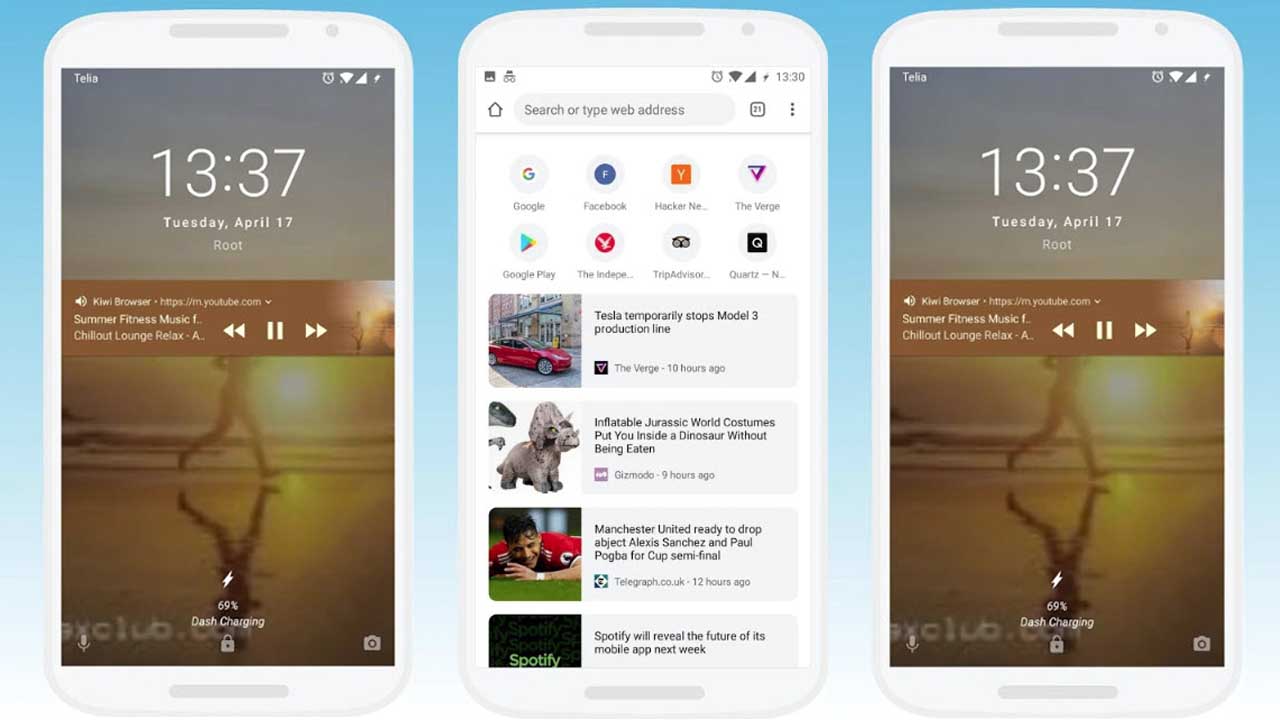
For starters, Kiwi browser is lightning fast. Speed was always one of Chrome’s biggest selling points, but Kiwi has taken it to another level. It is much quicker than Google Chrome. On top of the speed, Kiwi also has a built-in pop-up ad blocker, and it also sports a crypto-mining blocker. As we’ve mentioned many times, crypto-mining malware is on the rise. So it’s great that we have a browser that automatically blocks attempts to use all your phone’s processing power to make money for somebody else.

The most amazing Kiwi browser feature, however, is even more impressive due to the recent launch of YouTube’s two new paid subscription services, YouTube Premium and YouTube Music. Both services offer many cool features like downloads for offline viewing and listening; and exclusive access to singles, albums, and remixes. One of the most significant premium features, however, is background playing. If you subscribe to either service, you can have your YouTube music videos playing in the background while you are doing something else. Usually, this is impossible using the YouTube app or your web browser, but not with Kiwi Browser.

Kiwi browser has background play so you can have YouTube playing in the background while you are working away on something else, or just browsing the internet.

Other cool features include a Night Mode, which makes everything dark and there is an even cooler feature on the way. According to a Reddit thread, the developer is working on a feature that will allow users to place the address bar at the bottom of the page, rather than the top. This common-sense feature will make it a lot easier to browse the web with just one hand, considering how big some phones are these days.

Click here to download Kiwi Browser


What’s the best way to cut the cord?

It seems that cable and satellite prices are forever on the rise, but thankfully there are plenty of alternatives. If you don’t mind changing your viewing habits a bit, you could end up saving time and money by “cutting the cord” and consuming your TV entertainment over the internet.

It doesn’t mean you can’t watch live or network TV. On the contrary, there are lots of streaming sites dedicated to showing just that. So to help you decide how best to cut the cord, we’ve put together some options below. 

Network websites

At the simpler end of the spectrum, you can catch up on your favorite shows directly on network websites. There are usually limitations, such as needing to watch commercials, but it’s a fairly easy way of catching up on the best of NBC, ABC, FOX, and CBS.

PlayStation Vue

No, you don’t need a PlayStation. You can use a computer or your favorite streaming device. PS Vue lets you watch local channels, sports, news, movies, and more with customizable plans. You can add premium channels or subscribe to them separately and add them into your Vue account. Even channels like NFL Red Zone are available. There are no annual contracts or hidden fees, so it’s simple to switch or cancel your plan at any time. It also includes cloud DVR, so you can record live shows and watch them later, even from another device. Packages start at $39.99/month and if you’re not sure, you can give it a spin with a 7-day trial for free.

PlayStation Vue Mobile Download Free
8

Sling

Sling is widely available on TVs, phones, tablets, consoles, and computers. With packages that range from $20-$40, and mini-bundles that add sports, kids, news, and international stations, you get a super-customizable experience that means you only pay for what you want. There’s also a cloud DVR service that lets you record live TV to watch later, which is great for people on the move. Lastly, you can try before you buy: the service offers a 7-day trial so you can see if it’s right for you.

Sling TV Download Free
7

Philo

We know what you’re thinking and no, we’re not talking about Philo of Alexandria, the Hellenistic Jewish philosopher who lived in Alexandria in the Roman province of Egypt. We’re referring to a relative newcomer to the TV streaming market. Philo previously offered on-campus internet TV for universities, but has since launched a $16 per month streaming TV service for everyone.

Philo ditches sports in favor of low subscription fees, which may be a dealbreaker for you. However, its core lineup is large, with add-on packages for other channels, and the service also includes a 30-day DVR, plus options to pause live TV, and watch shows that aired in the past three days.

Hulu

Hulu is a joint venture between Disney, FOX, Comcast, and Time Warner, streaming TV series from each of its network and content partners. Most importantly, there’s a free service that anyone can use, but it’s only available on a PC, and you do have to watch commercials.

Hulu is a direct competitor of Netflix and Amazon, and has started producing its own content too, like critically-acclaimed “The Handmaid’s Tale.” It was also reported recently that the service will soon offer offline viewing and episode downloads, similar to Netflix and Amazon. This will also be available to free users, though you’ll still need to watch ads.

Hulu Plus Download Free
7

That completes our round-up of the best services to help cut the cord. Have fun picking the right one for you, or just get ’em all.


Error 404, etc: what the most common errors mean on Chrome, Firefox and other web browsers

Image via: Pexels

Error 404, error 401, error 500… Sound familiar? If you regularly browse online, you may have encountered them, since they are the most common errors that appear on Chrome, Firefox, Opera, and other web browsers. To help you out, we’ve made a list of the top errors and explained what they mean.

7

Before we get started, what’s an HTTP error?

HTTP errors occur when you want to go to a web address and the browser isn’t able to access it, which can happen for different reasons.

The most common types of errors start with the numbers 4 and 5. Although there are error codes that start with 1, 2 and 3, you’re unlikely to encounter them when browsing.

These error numbers are usually followed by a short explanation, but they don’t give you much information. So, we’ll give you the full scoop on each of them below.

What the most common HTTP errors mean

Error HTTP 404 (Not Found)

This error means that the page you want to access doesn’t exist at the moment. This may be because you incorrectly entered the web address or because the page owners deleted it. It’s possible that a page showing a 404 error won’t have one later on, which means it’s come back online.

Error HTTP 403 (Forbidden)

This error shows up when you try to access a prohibited web page, i.e. one that isn’t accessible to the public. For example, a database, a backend code (that programmers work with) or a page exclusively for subscribers.

Error HTTP 401 (Unauthorized)

This one is like the 403 error, but it happens when there’s an authentication failure (for example, on the form to access editing of a website). No page should ever show this error, unless it’s for internal use only and isn’t public-facing (for example, a company’s intranet).

Error HTTP 400 (Bad Request)

This error appears when the page you’re trying to access isn’t able to make sense of your request. This usually happens because of a client error or a web address with an invalid format.

7

Error HTTP 500 (Internal Server Error)

This refers to an error with the internal server you’re trying to access. It could involve different issues related to that server, such as incorrect configuration or an overflow of requests.

Error HTTP 503 (Service Unavailable)

The server can’t respond to the browser’s request because of too much traffic or maintenance. This is usually fixed after a few minutes, especially in the second case.

Error HTTP 504 (Gateway Timeout)

This error means the wait time to return the web page has run out. This may be due to a server error (for example, it’s gone offline) or because the web page has a code that never finishes executing and produces a loop.
Error HTTP 509 (Bandwidth Limit Exceeded)

This error indicates that the web page you want to access has exceeded its bandwidth. This primarily happens on web pages with a cheap “hosting” service that doesn’t allow large volumes of traffic.

So there you have it! May all your webpages load flawlessly and may you never encounter these numbers. And if you do, feel free to refer back here so you know why you’re disappointed.