9 out-of-this-world features on your favorite apps that NOBODY knows about

Our favorite apps are updated almost every week. The bad news is that these updates usually go unnoticed. Did you know that Facebook helps you look for public Wi-Fi? Or that Gmail can write your emails for you? So you don’t miss out on the best new features on your favorite apps, we’ve compiled the best updates in recent months. 

1. Gmail writes your emails for you

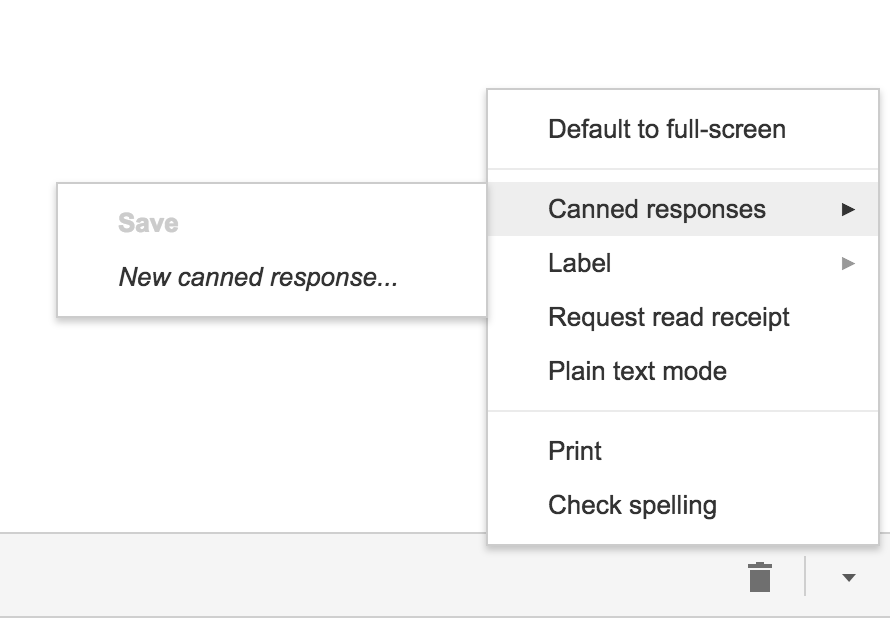
Gmail offers an option called “Canned Responses.” This feature saves messages or phrases that you use most often and suggests them when you draft an email, saving you time.

Want to enable this option? You have to go to the settings section in Gmail called Labs. Gmail Labs is a testing center with “far-fetched” experiments (according to Google) of all kinds. You can access Gmail Labs here.

The feature you’re looking for is called “Canned Responses” and all you have to do is click on “Enable” and then “Save Changes” at the bottom of the page. 

Next time you compose an email you’d like to save as a canned response, click the little triangle on the lower right-hand side of the screen. That opens a menu with an option for “Canned responses.” Just move over and click “Save” if you’d like to save that email so you can fire it off again someday.
You may have noticed a basic AI version of this at the bottom of messages you read on the Gmail app on your phone. They look like this:

2. Gmail’s most invisible feature

It’s unlikely that you’ve noticed this Gmail update because it’s designed to go unseen.

Haven’t you noticed lately that you’ve received fewer spam emails with suspicious links? Gmail has enhanced its ability to detect and delete this type of email even before it reaches your inbox. It’s not yet 100 percent foolproof, but it’ll keep you safer than before.

3. Make wish lists on Google Maps

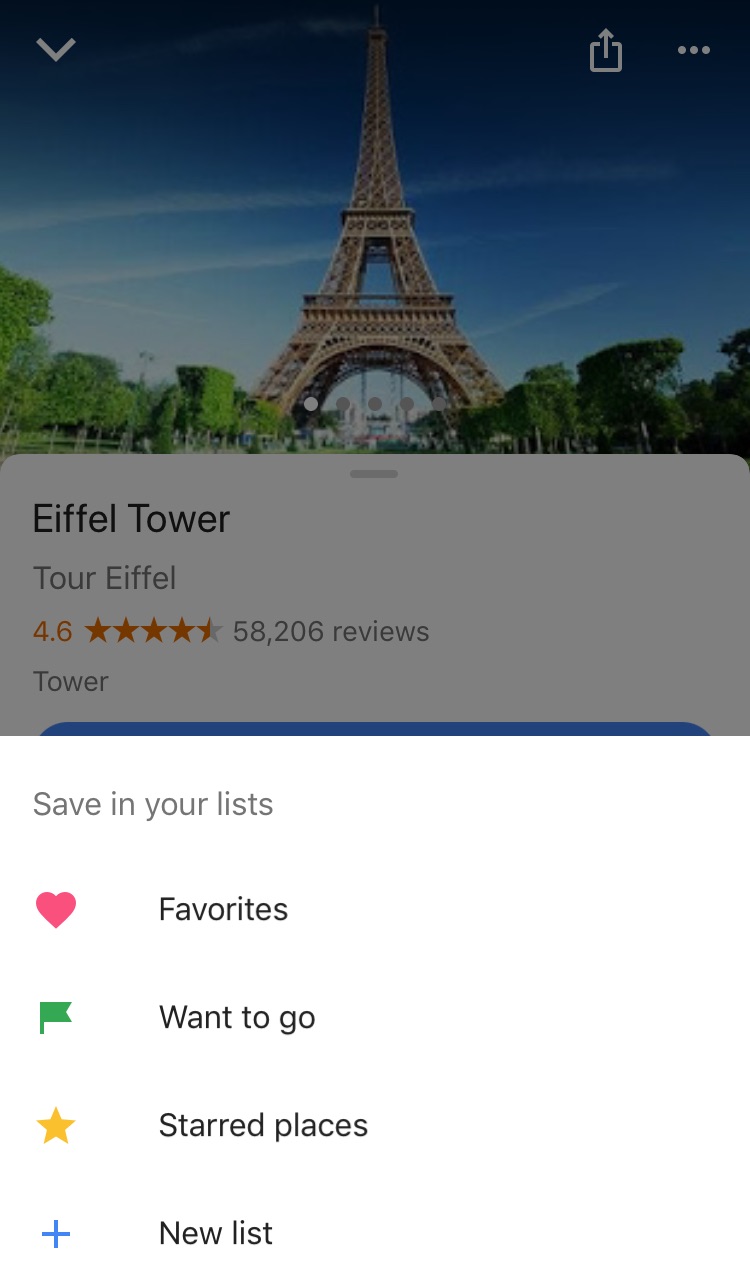
Google Maps lets you make lists of places you’d like to visit. Imagine that you’re planning a vacation to Paris. You can make a list of those museums, restaurants, and attractions that you’d like to visit. And you can share the list with those you’re traveling with. Or with anybody, for that matter!

Google Maps users are making the most of this feature to share recommended places or themed attractions. To use this feature, it’s as easy as pinpointing a place in the app, clicking “Save” and choosing the list with the green label that says “Want to go.”
4. Share anything with WhatsApp

WhatsApp lets you share any file type (mp3, videos…) between contacts provided that these files do not exceed 100MB in size. Instead of sending 100 photos one-by-one, why don’t you send them as a .zip file, for example?

5. WhatsApp gets their act together…kind of

It’s taken a while, but WhatsApp now has filters, like Instagram and the rest! At the time of writing this article, there are just five filters and they’re only available on iOS; no news on when they’ll arrive on Android.

6. Facebook helps you find Wi-Fi

Facebook has a relatively new feature called “Find Wi-Fi.” It’s a little bit hidden. First you have to click on the three horizontal lines on the lower menu bar. Click on “See More.” There you’ll find it and you can enable “Find Wi-Fi.”

After enabling it, Facebook will show you a map with the closest Wi-Fi hotspots as well as details about these hotspots, like which businesses they belong to.

7. Download movies and TV series from Netflix

Taking a plane somewhere? Bring your tablet packed with your favorite Netflix movies and shows! Not all Netflix offerings are available: pay attention to the download icon that appears on the TV series or movie listing. Amazon Prime also offers this feature.

8. Spotify Codes

Spotify has a feature called Spotify Codes. Have you noticed that below songs, playlists, and albums, there is a barcode in the shape of a sound wave? If you don’t see it, click on the three dots to access Spotify’s advanced options.

You can exchange these sound codes with your friends and they only have to open the Camera feature within Spotify for apps to scan them.

Also, Spotify Codes are an excellent way for artists to become known, as they can insert their codes on social media so the rest of the world can quickly access their songs.

9. Muting on Twitter

Got some people on Twitter who won’t stop spoiling your favorite TV series or spewing goofy conspiracy theories? Don’t want to block them because sometimes you talk to them and some of their Tweets are interesting?

Twitter now lets you mute whoever you want. Muting means that their messages will not appear on your feed, all without their knowledge. You’ll receive notifications if they mention you in a Tweet or if you receive direct messages from them. And you can check their Tweets when you feel like it.

Muting is as easy as clicking on the “down arrow” on one of their Tweets. You’ll see this option, among others.

Have you found any hidden features you’d like to share? Let us know in the comments!
 

Google confirms Gmail updates will be available to everybody next month

Google has been drip-feeding us news of its big Gmail update for a while now. It has also been running an opt-in trial of the new features via its Early Adopter Program (EAP). It seems that this trial has been going well as Google has confirmed in a blog post that the new features will be receiving a general availability (GA) launch next month. That means we’ll all have access to them by the end of July 2018.

A more detailed timetable of the, as laid out in the blog post, looks like this:

“In July 2018, G Suite admins will have the following options in the Admin console:

  • Immediately transition their users to the new Gmail. For a period of time, users will still have the option to opt out.
  • Allow their users to opt in to the new Gmail at the time of their choice. For a period of time, users will still have the option to opt out.
  • Wait approximately four weeks until their users are allowed to opt in to the new Gmail. For a period of time, users will still have the option to opt out.
  • This is the default setting. During this four-week period, users will not have the option to opt into the new Gmail.”

gmail black header

This means that come August all users will be able to opt in to the new Gmail system. The blog post goes on to say:

“Approximately 12 weeks after the GA announcement in July, any users who’ve opted out of the new Gmail will be automatically migrated to the new experience, with no option to opt out. Users who’ve already transitioned to the new Gmail will lose the ability to opt out.”

Which means once October rolls around, everybody will be using the updated Gmail and nobody will be able to opt out

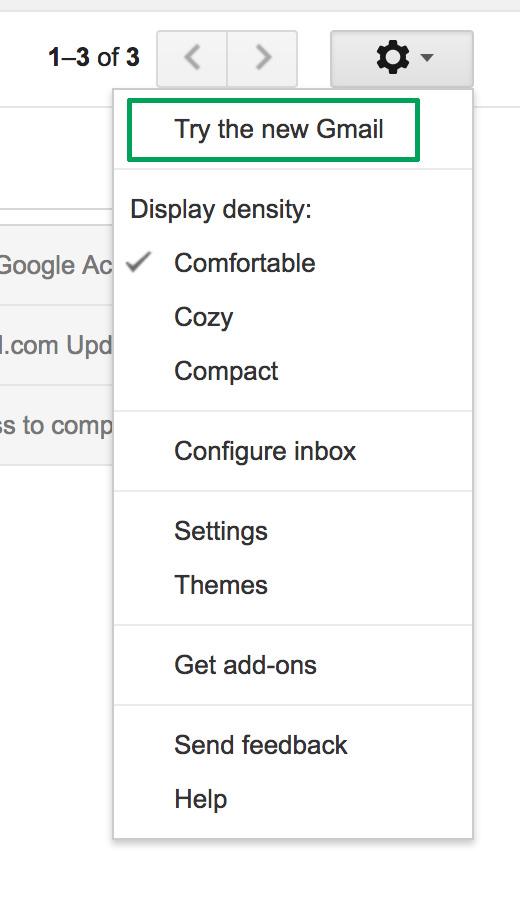
We’ve laid out all the best features of the new Gmail for you here, and even shown you how to try out the new system now. If you want to try out new email features including self-destructing emails, auto-response, reminders, and offline mode you can. All you have to do to give it a whirl is head to Gmail menu cog and click Try the new Gmail. If you don’t like it, you can go back, but make sure you pay attention to the timetable laid out above, as soon you won’t have the option.

Gmail’s best new features

At the end of last year, Google pledged that we would see a lot of new features for Gmail in 2018. This email service is the most popular in the world, so the Mountain View team has been working to offer new features. And now we’ve received the first of them. Here are Gmail’s best new features.

New design

Gmail has always been known for having a clumsy interface, typical of the last decade. However, we should clarify that it’s quick, easy and functional, so it’s understandable that Google doesn’t want to touch anything that works well… they just want to improve it.

Finally, the search company has added a new Gmail design. To enable it, just go to the gears icon at the top and click “Try the new Gmail.” The platform will reload after a few seconds and a short tutorial will appear explaining the new features.

Gmail now has a cleaner and more readable design, with rounded and not-so-rectangular shapes. It also added new features at the user experience level. For example, attached files in emails can be downloaded without having to open the email at hand (this is a big hit).

Offline mode

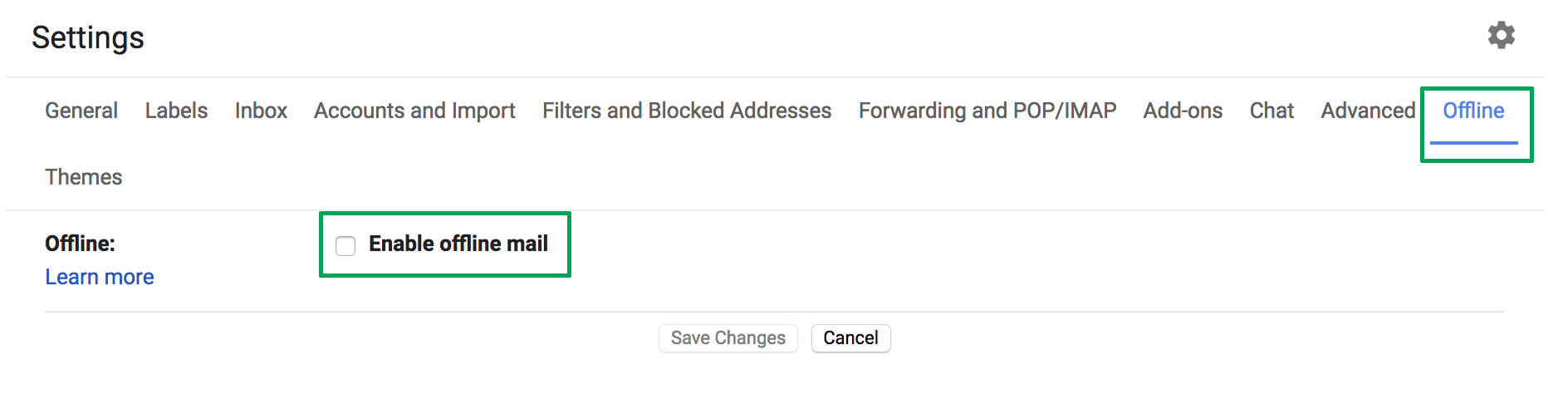
This is one of the greatest new features of this latest update, which the community has been requesting for some years now: offline mode. To get it, you must have the new Gmail design, so follow the steps in the previous point.

Once you’ve done that, enabling offline mode is very simple. Click on the settings icon and then the “Settings” option – redundant, we know. If you take a quick look, you’ll see a field that wasn’t there before, a box called “Offline.” Click there and enable the box “Enable offline email.” It will ask you how many days of messages you want to synchronize, so choose what’s best for you. Now you’re good to go.

Reminders

Maybe you haven’t responded to your email for a few days and have to do it. Now Google will remind you with a little yellow message. This feature even appears in emails that have already been read. The idea is that no message goes overlooked.

Auto-response

This was already introduced in past trial phase versions, but now, at last, it’s here: the auto-response. This feature involves Google’s AI suggesting what could be your short response to a message you’ve received. For this, the system displays some answers on the screen: you can then choose one and click send. Quick and easy.

Gmail Access now
8

Self-destructing emails

We’ll wrap up this list of new features with the best one for spies: self-destructing emails. Known under the name “Confidential mode,” this feature is activated once an email is sent and prevents that person from copying, pasting, resending or printing the text. Also, you can add a reading time limit. After this time, the email will no longer be available.

Google Drive relaunch: check out the new interface

Google has relaunched Google Drive with a new interface and design. Now, the cloud storage tool has a cleaner look and other aesthetic updates.

Some examples include: a more transparent background color, a new font, rounded corners… Many of the changes follow Google’s Material Design style guide.

In this sense, Google has gotten a makeover. A few days ago, Google surprised us with an important Gmail redesign, possibly its second most important app after Google Drive. Aesthetically, the new Google Drive looks exactly like the new Gmail, making Google products more consistent.

Google Drive Download Free
7

What do you think about the changes to Google Drive?

How to make your email accounts more secure

Email security is basically a joke these days. Just ask John Podesta. As we use our email addresses to log in to various services around the web, it’s vitally important to have maximum protection. Today we’re bringing you five tips to make your email accounts more secure.

Password

The key of every email account: the password. The more complex it is, the more difficult it will be to access. When security companies conduct annual studies, the statistics never lie: the most common password of users is “123456.” Don’t fall into this trap. Use capital and lowercase letters combined with numbers. A long password is harder to crack than a short one. Also, avoid using your birth date in a password.

Don’t put your email just anywhere

The second tip is as simple as not putting your personal email on social networks, forums or websites. Only give it to trustworthy people or those you would like to get in touch with. Remember that as more people know your email, the possibility of somebody trying to access it to rob you increases.

Disable HTML reading

This is a tip from security experts: if you’re not going to use HTML reading, the best thing is to disable it or avoid it. This format can be used in a harmful way to introduce malware into our email account. Once there, if we click on a wrong link… our PC will also get infected.

Beware of anything strange

Always look carefully at who the email sender is. In general, phishing and malware pages are known for imitating official sites. You may think it’s a bank, your insurance company, or a provider you trust, so you click the link… and surprise, it’s all fake.

Check each and every word of the email carefully. Likewise, keep an eye out if they request personal info, since it’s usually a telltale sign of deceptive senders.

…and files

If you’re careful with who the email sender is, it’s even more important to pay attention to all the attachments in an email. Attachments are usually the easiest way to deliver harmful files used to infect your system. For this reason, our advice is not to download anything unless you’re absolutely sure there’s no risk. Remember that you can also use an antivirus program on any downloaded file before opening it. Trust your gut and be a little paranoid. It’s hard to turn back time when you’ve blown a hole in your computer security.