The best review in the history of Google Maps is a micro-story about soccer and adultery

I traveled from Morón to arrive and they told me that the court was not available, that the sign this that the sign that, a lot of biribiri.

It is one of the most enjoyable exercises in the world: looking at the Google Maps reviews of random places and realizing that there are people wasting their talent for humor by dispensing justice on the Internet for free. From ‘If you want to die, you have to go to this kebab place, and in half an hour, you’ll be in the hospital’ to ‘The continental breakfast was continental because it came from another continent, lost somewhere in the Atlantic,’ laughter is guaranteed. But what we bring you today surpasses all expectations.

Google Maps DOWNLOAD

On Sundays, you abandon me for soccer

The story begins on Twitter, where Alejo, a user of the social network, was looking for a place to play soccer in Argentina, near Buenos Aires, specifically in the town of Morón. There he came across Mathias Alaniz’s review, who gave the field one star. Rightly so: ‘I traveled from Morón to get there, and they tell me the field was not available, that the down payment this, the down payment that, a lot of hocus-pocus.‘ A lot of hocus-pocus. Remember that, because indeed, there was a lot of hocus-pocus.

So far, so good. A valid complaint from a user who just wanted to play the Sport of Kings. The problem is that then it enters his private life: ‘Consequence: I arrive home earlier to find my wife fooling around with the neighbor.‘ And all, of course, because of the soccer field. It’s like one thing leads to another and…

Finally, Mathias ends with a laconic ‘Never again,’ which doesn’t make it clear whether he’s referring to his wife, soccer, or just life in general. That’s the hocus-pocus for you. It’s unknown if, at least, they gave him a couple of free days from the field for the inconvenience. In any case, you could say that, in the end, they scored a goal on him, right? Job well done.

Google Maps DOWNLOAD

Google Maps directs a driver off a bridge

At some point, it had to happen. While Google Maps has proven to be one of the most useful applications in the Google ecosystem, users have been sharing errors (usually anecdotal) generated by the company’s geolocation service for years, capable of guiding a pedestrian along the worst possible path or occasionally lagging behind, ignoring changes in signage or offering vehicles to climb stairs. Until now, it had never been a problem because it was obvious and the driver’s eye could easily differentiate them, but recently it has been seen that this is not entirely the case.

Maps++ DOWNLOAD

The correct information led him over a collapsed bridge

Google has been sued by a family due to incorrect information provided in the Google Maps app that led to the patriarch of the family’s death. Philip Paxson followed his GPS instructions in the darkness, on a day of heavy rain, through an unfamiliar neighborhood, unaware that the bridge they were supposed to cross had collapsed. Unable to escape from the car after it fell into the river, Paxson drowned on this “bridge to nowhere.”

Even though it is always advisable to reduce speed and proceed with caution in conditions of low visibility or wet roads, Google cannot entirely escape blame. The local residents had alerted the company that the bridge had collapsed in 2013, after which they contacted Google several times over the past 10 years. However, it does not seem that Google will be held entirely responsible for the incident, as the collapsed bridge should have been marked with warnings. Unfortunately, it appears that vandals removed the warnings that could have saved the man’s life.

Maps++ DOWNLOAD

Google has expressed its condolences to the family and stated its intention to provide the best possible information through Maps. Furthermore, the company is currently reviewing the lawsuit.

26 Tricks You Need to Know to Get the Most Out of Google Maps (Android)

Google Maps, and its lightweight version, Google Maps Go, are a real must on any Android phone. Although Google Maps has been with us for more than 10 years, it is still a reference among GPS applications, and it gets you out of many a tight spot every time you leave home. Don’t know how to get to your destination? Is it faster by car or public transportation? Is there a restaurant nearby? The answer to any question about your route or your location is Google Maps!

In today’s article, we’re going to share the most surprising and popular Google Maps tricks with you. This app is for much more than just checking routes and creating maps. Don’t believe us? Read on to find out!

First of all: Make sure you’ve updated Google Maps 

To ensure that all the Google Maps features are available and working on your Android smartphone, you should update the app to the latest version. Open Google Play on your phone or download the latest version of Google Maps quickly and conveniently below.

Google Maps DOWNLOAD
7

The best Google Maps tricks

1. Pin the addresses you use every day

One of the tricks we recommend you start using right away is to fill in “Your places” in Google Maps. You can set your home address and work address, which is really useful for finding alternative routes from your location to work or home.
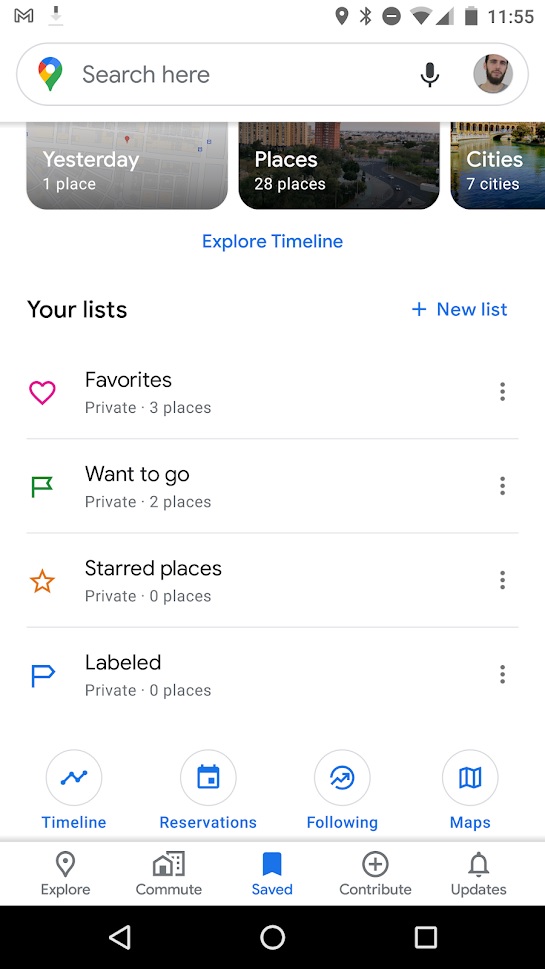
To set this information, simply open Google Maps and click the options menu (that’s the icon with the three horizontal stripes in the upper left-hand corner of the screen) or open the left side menu. Then click the “Your places” button followed by the “Labeled” tab. Now just fill in the fields for “Home” and “Work” to have quick access to routes between these two addresses.

2. Create shortcuts for your main routes

With Google Maps, you can create shortcuts to the main routes you use every day (going home or to work) so they’re ready to go on your home screen. This is especially useful to save time and always have your best route all set.

To create these shortcuts in your device’s home menu, first you need to have your address and work address set in “Your places.” If you don’t know how, check out the steps in the previous point.

Once you have that information on your phone, hold your finger on the Google Maps icon (on the Home screen) and wait for its menu to appear. You will see that under the classic options to remove from Home or uninstall an app, two icons appear: one called “Home” and another called “Work.” Drag these icons to a free space on your Home screen and, voilà, you have your shortcut!

3. Download maps offline

Before the advent of navigation apps, traveling meant buying expensive maps and knowing how to read them to avoid getting lost on the way to your destination. While this added a dash of adventure to travel, it was also cumbersome, and in the long run you spent more time getting your bearings than enjoying your vacation. With apps like Google Maps, paper maps have been rendered obsolete. You just need to connect to your phone and follow the route but… what happens when you dont have an internet connection?

Fortunately, Google Maps lets you download any of its maps for use offline. That way you don’t have to depend on the Wi-Fi network or pay expensive roaming fees to enjoy your vacation.
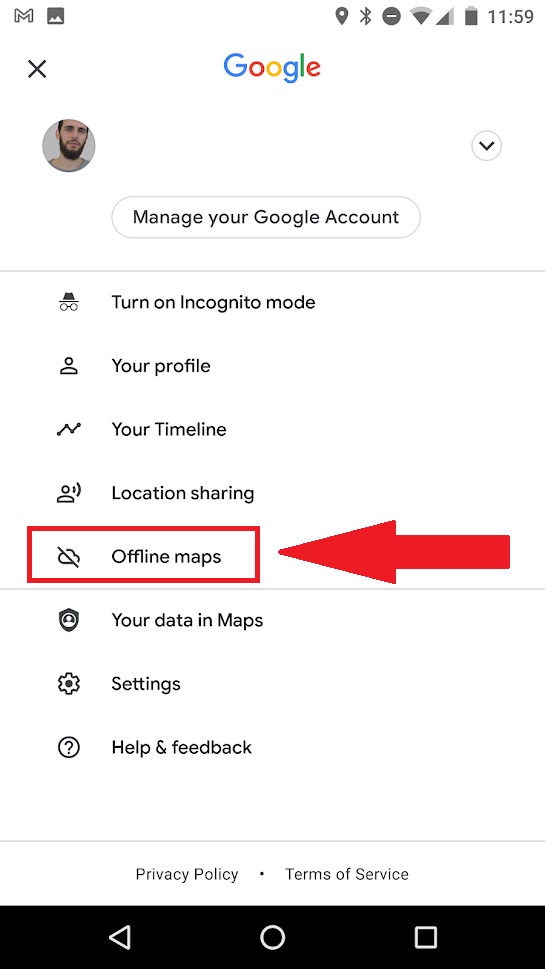
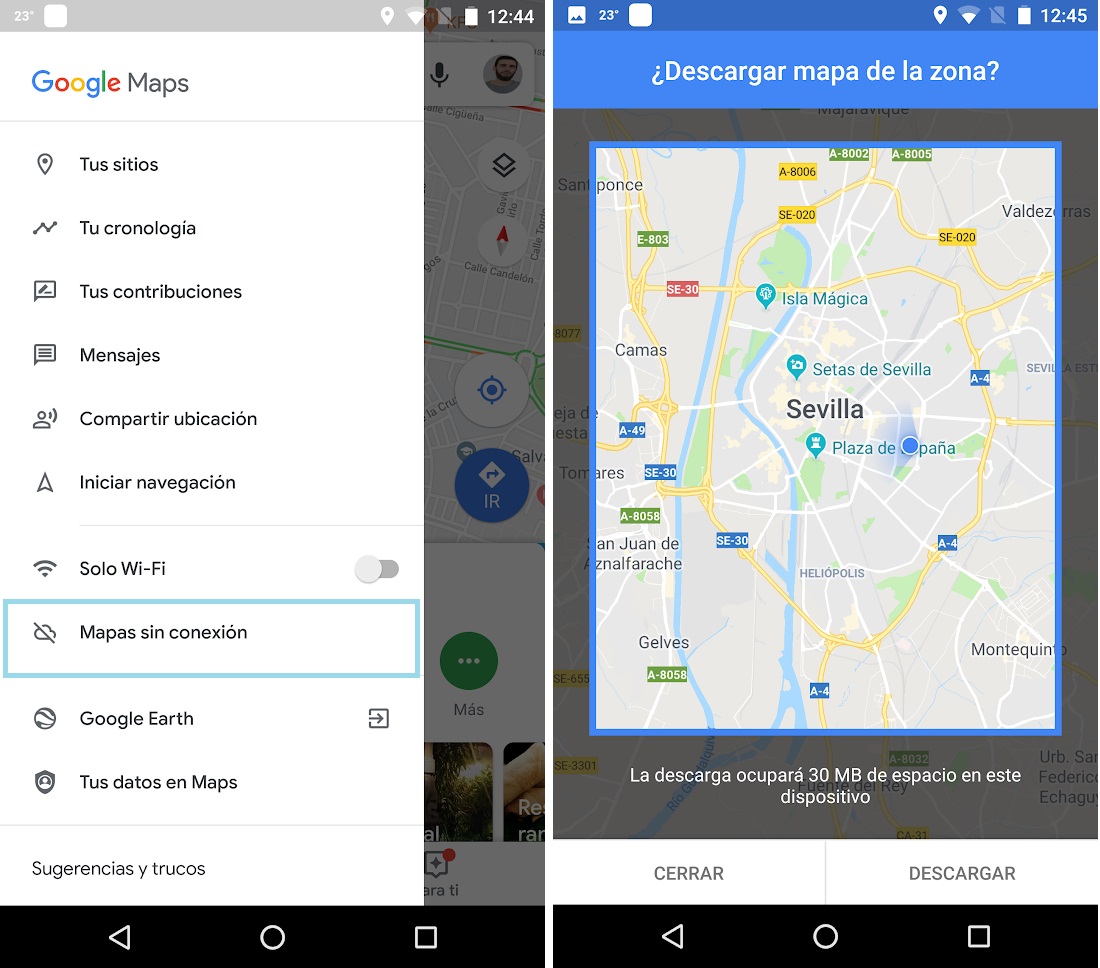
To download a map with Google Maps, just open the app and click on the main menu (the icon with the three horizontal stripes in the upper left-hand corner) or open the left side menu. Then click the “Offline Maps” option and select the area you’re interested in.

4. Create and share your own favorites lists

You know when you’re walking through a city and you see places, stores, restaurants, or views that you want to remember and visit some other time? You can keep them in your head, jot them down in a notebook, or if you’re one step ahead of the game, use Google Maps.

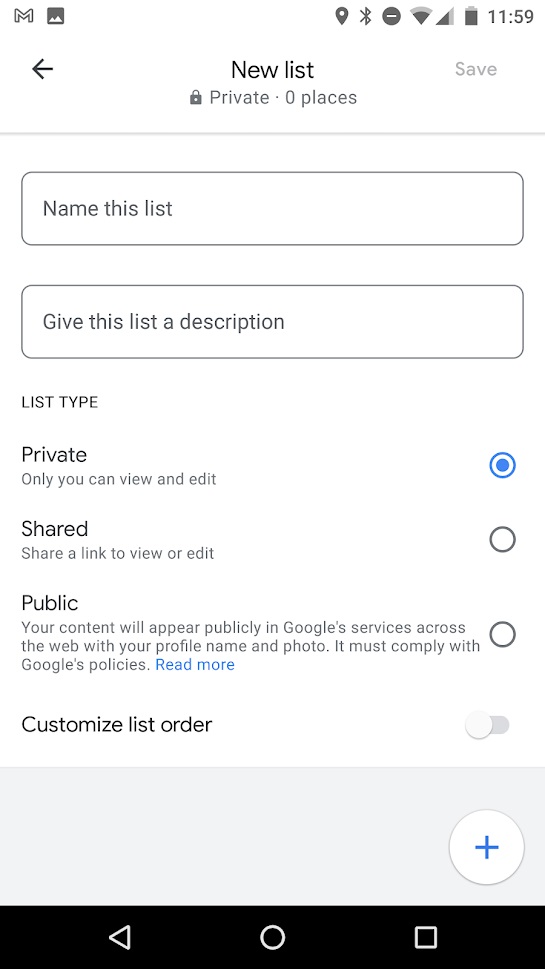
You can create lists of your favorite places in the city, save them, and even share them with other users from the Google app. Using this feature is incredibly simple. Just open Google Maps, go to “Saved” at the bottom of the screen, and then click “New List.

Google Maps will then ask you to name and describe your list as well as to choose whether you want to keep it private or share it. Once this is done you can select the locations you want on the map and save them.

5. Create stops on your route 

Not only does it create the fastest way to get from point A to point B, Google Maps also lets you stop between the two destinations. This is especially useful on busy days, if you are travelling and want to create your own tourist route, or if you simply need to drop the kids off at school before going to work.
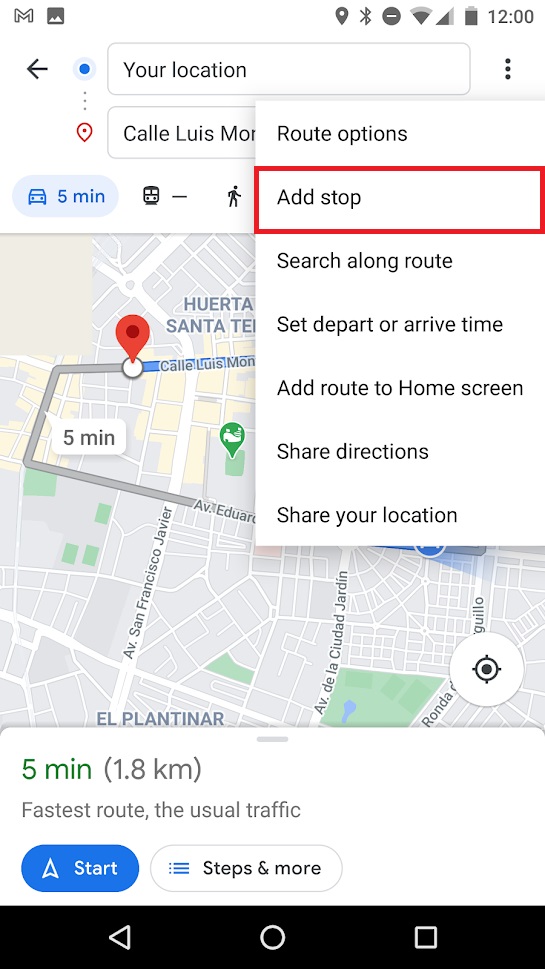
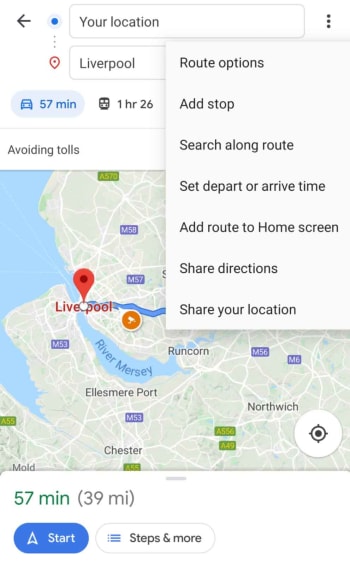
To create a route with stops on it, first create the initial route between your place of origin (A) and your final destination (B). Once Google calculates the best route, click on or tap the icon with the three dots in the upper right-hand corner of the screen and then on the option “Add stop.” Repeat this process with all the stops you need to make that day and wait for Google to recalculate the most efficient route to your destinations.

6. Add and correct information on the maps

As you explore a city, you’re likely to find places and establishments that are not marked on Google Maps. If you want to help the community and add new sites, simply hold the address on the map or choose it from your list of favorites, scroll down and click on the option “Add a missing place.” After that, Google will ask for more information about the business or location before reviewing it and adding it to the map.

The opposite can also occur: you go to a place that you discovered on Google Maps and unfortunately find it has closed, that a road has changed direction, or that it no longer exists. In these cases, you should send a comment to Google so that it can update its information and improve the app.

To correct any Google Maps information, go to its main menu (click on the icon with the three horizontal lines or slide the left side menu) and select the option “Send feedback.” Once you’ve done that, Google will ask you to provide the information to be corrected (a place is missing, the address is missing, a road is missing, some information is wrong, etc.). Fill in the necessary data and let Google take it from there.

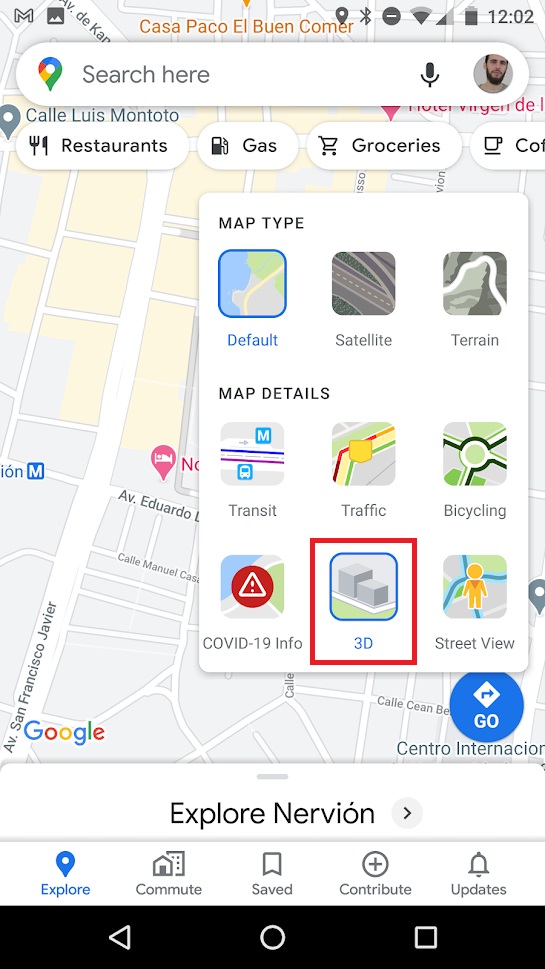
7. Get a three-dimensional view of the map

Everyone knows that Google Maps lets you look at maps in their 2D versions as well as with Street View but… Did you know you can also look at a three-dimensional or perspective version of it?

To activate Google Maps’ 3D map, all you have to do is open the app and place yourself in one of the cities where the option has been rolled out. Once there, click on the map icon (that’s the square icon on the right side of the screen) and select the “3D” option. After that, your 2D map will switch to a satellite view of the city.

To change the perspective, just press two fingers together on the screen and drag the map up or down to tilt and see the buildings in 3D.
8. Access Street View

Google Street View is undoubtedly one of Google Maps’ star features. You can get a 360º picture of the place you are going to, and it offers really useful information whether you are a virtual tourism fan or just want to know what the place you are going to looks like.

To access a Street View image from your Android phone, first you need to hold down the address on the map. Then Google Maps will show detailed information about that address. Now simply click or tap the icon with the photo of the location to access Street View.

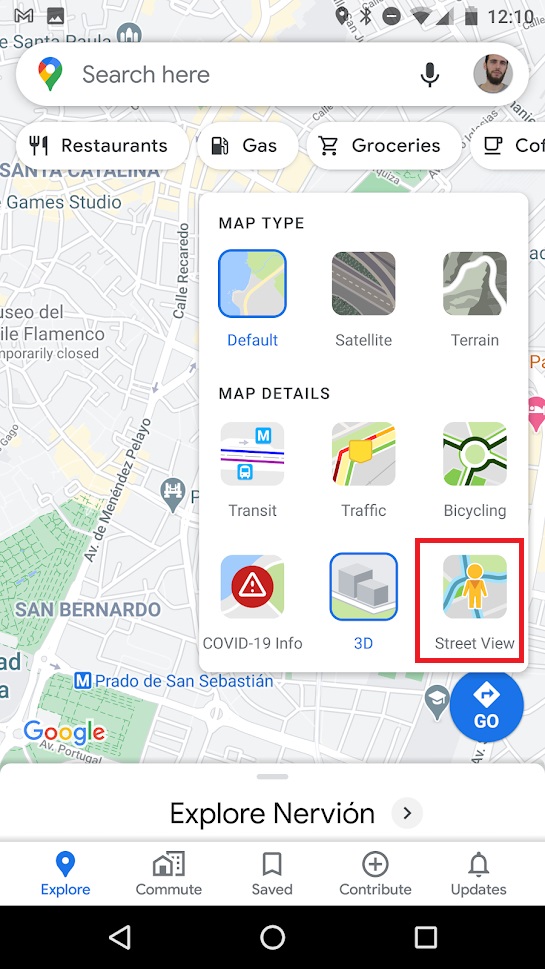
You can also click on the map icon in the top right-hand corner of the screen, select “Street View,” and then tap the place on the map that you want to check out.
9. Share a location

Google Maps offers two ways to share a location with your family and friends, depending on whether you want to share a meeting point or establishment on the map or you simply want to share your location in real time. Below we teach you how to do both.

  • How to share a location on the map

This option is perfect when meeting friends to sending the location of the restaurant, store, or café where you want to meet. All you need to do is tap on the establishment you want to share or, if it’s an unmarked location on the map, keep your finger pressed on it.

Once you’ve done that, a menu will pop up with the location where you can choose the option “Share.” You can then choose whether to share that location through your phone contacts or through apps like Facebook, WhatsApp, or Telegram.

  • How to share your real-time location

Google Maps also allows you to share your real-time location so your contact can find you easily. You’ll need to have your phone location tracking on and send a link to the person you want to share your location with.

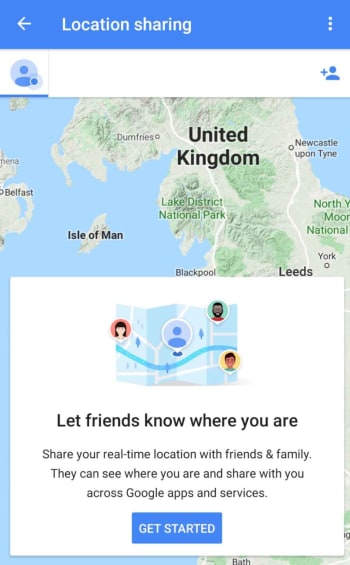
Just open Google Maps and open the application’s main menu (click on the three horizontal lines in the upper left-hand corner of the screen or slide the left side menu). Now tap the “Share location” option and give Google Maps permission to access your contacts. Finally select how long you want to share your location and choose the contacts you want to have access to that information. They’ll receive a link that will let them know where you are.

10. Calculate the distance between different locations

Have you ever been curious about the distance from your home to downtown or to the main buildings in the area? Google Maps lets you measure distances quickly and easily with just a few taps.

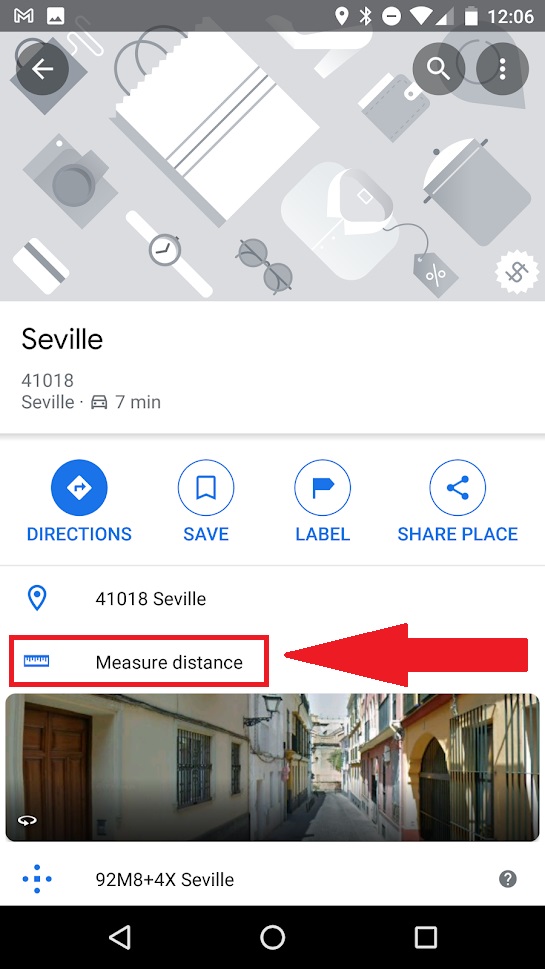
To calculate the distance from point A to point B, simply select a location on the map and the option “Measure distance.” This will take us back to the 2D map view, but this time you’ll have a dotted blue line that you can move around.

Mark the route you want to take and tap the “Add point” button every time you need to turn a corner. Once the route is finished, you’ll see the distance displayed at the bottom of the screen.
11. Save your parking spot

This is a great trick for us absent-minded people who park our cars and then forget where we left them. Google Maps gives you the option of saving the location of where you left your car so you can easily find it later. Want to know how?

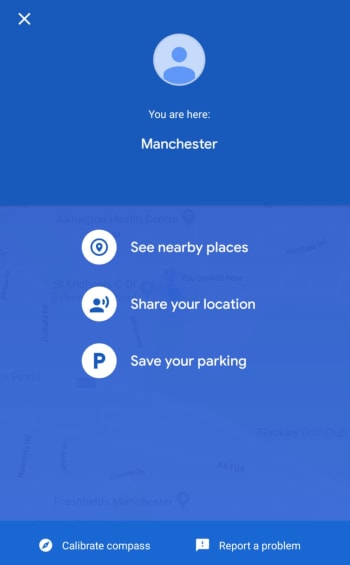
For this option to be available, make sure you have your phone’s location on. Once that’s done and you’ve parked your car, click the blue dot with your location on the map. This will open a new menu where you have to press the option “Set as parking location.”

Then you’ll see that a blue icon with the letter “P” pops up on your map marking where you left your vehicle. If you click on it, you can use the “Directions” to easily return to your vehicle.

12. Find out how hard parking is at your destination

In addition to providing us with traffic information, Google Maps also indicates if it’s going to be hard to find parking at your destination. Just choose the route you want. Right below the trip distance you’ll see how hard it will be to park there.

Google Maps divides how hard it is to find parking into three degrees:

  • Easy (blue) –Lots of parking available.
  • Medium (also blue) – Not easy, although there is parking to be found.
  • Limited (red) – Very hard to find parking in this area.

13. Avoid tolls, highways, or ferries

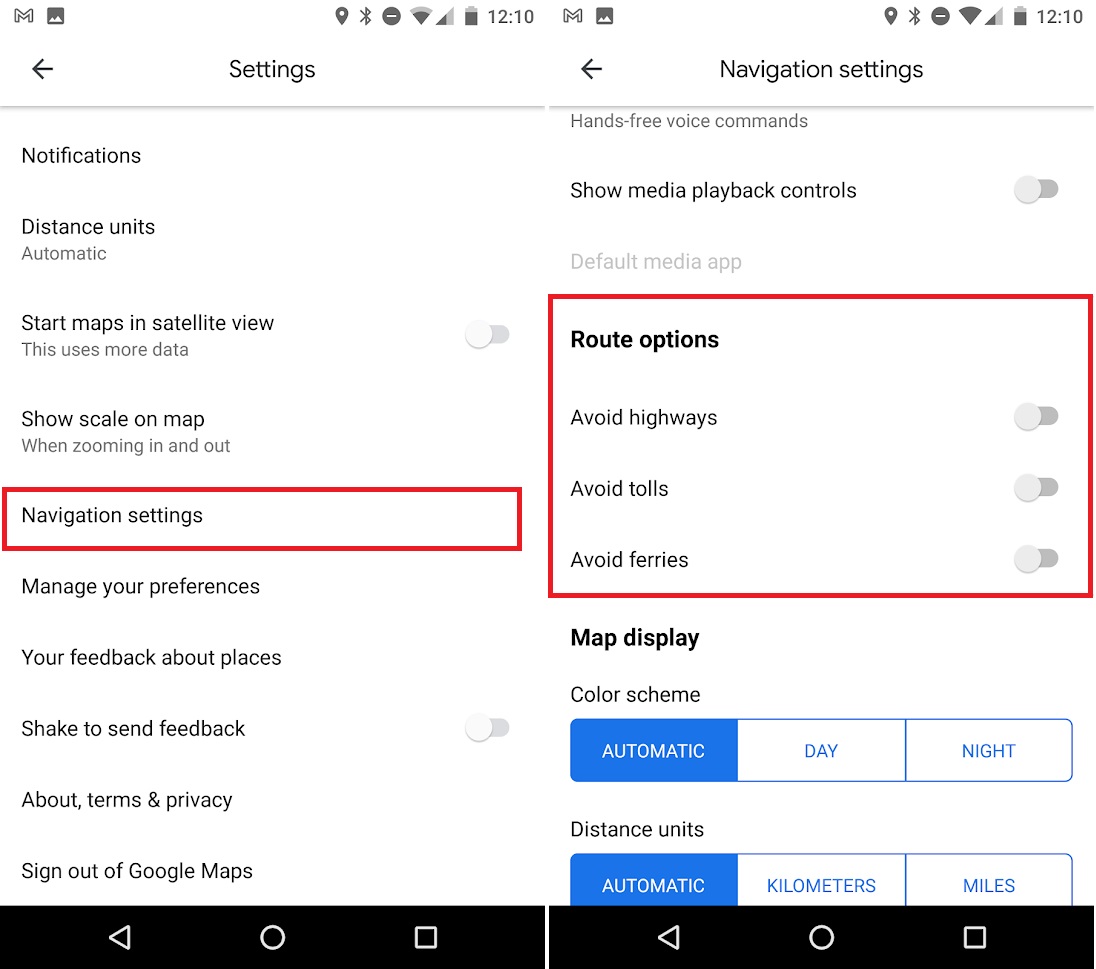
If you like to travel or take weekend trips but don’t want to spend a lot of money, Google Maps offers an interesting option in its directions settings. This allows you to avoid tolls, highways, or ferries and always look for alternative routes which won’t cost you a penny.

To access this service, first you need to input your starting and finishing points for your trip. Once you’ve done that and before starting out, access the route options by clicking the icon with the three vertical dots in the upper right-hand bar. Then select any of the three options (avoid highways, avoid tolls, or avoid ferries).
14. Locate speed cameras on your route

It’s good to have an idea of the speed cameras on your route to avoid any unpleasant experiences on your trip. First, plug in your route and, before getting behind the wheel, zoom in on the map and check the radars on the way. You’ll see that they are different colors depending on how much time has passed since they were confirmed. Click on each of them to find out if they are still active.

15. Check traffic

Traffic is definitely one of the most important aspects to keep in mind when choosing one route over another. By default, Google Maps chooses the optimal route to reach your destination, but it’s a good idea to check traffic yourself in case you want to save yourself some bumper-to-bumper time.

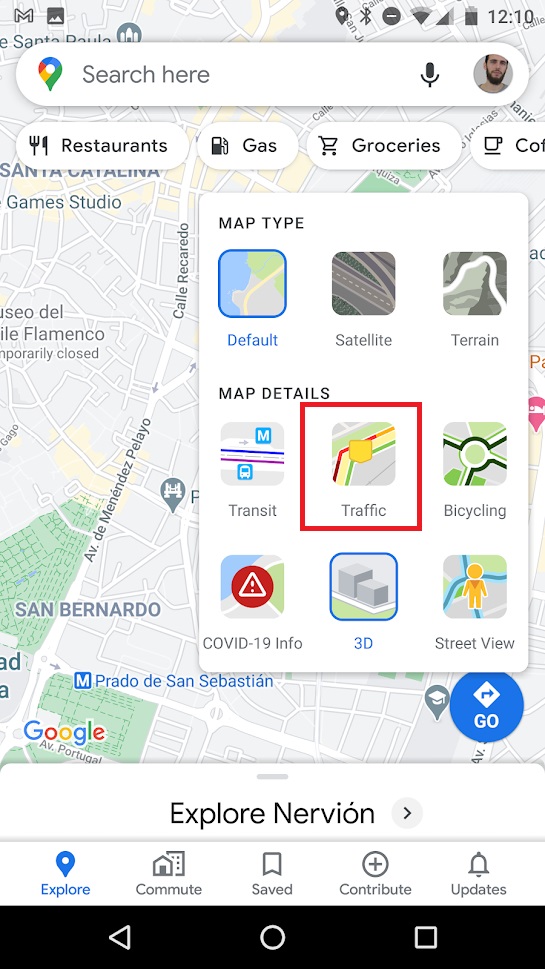
To find out about traffic using Google Maps, open the app, click on its map menu (it’s the icon with the three overlapping maps in the right-hand corner). Then select the “Traffic” option.

The map interface will change, and you’ll see colored lines on each street. Each of these lines will code traffic as follows:

  • Green – Traffic moving quickly
  • Dark red –Traffic slow

If you want, Maps can also give you the status of the traffic in real time (which appears when you activate the option) or typical traffic (if you want to plan a route in advance).
16. Find out how many places you’ve visited

Google Maps collects a ton of information about your trips, the places you visit, and how you move around the city. This data comes both if you have the location activated in your Android phone as well as from your search history.

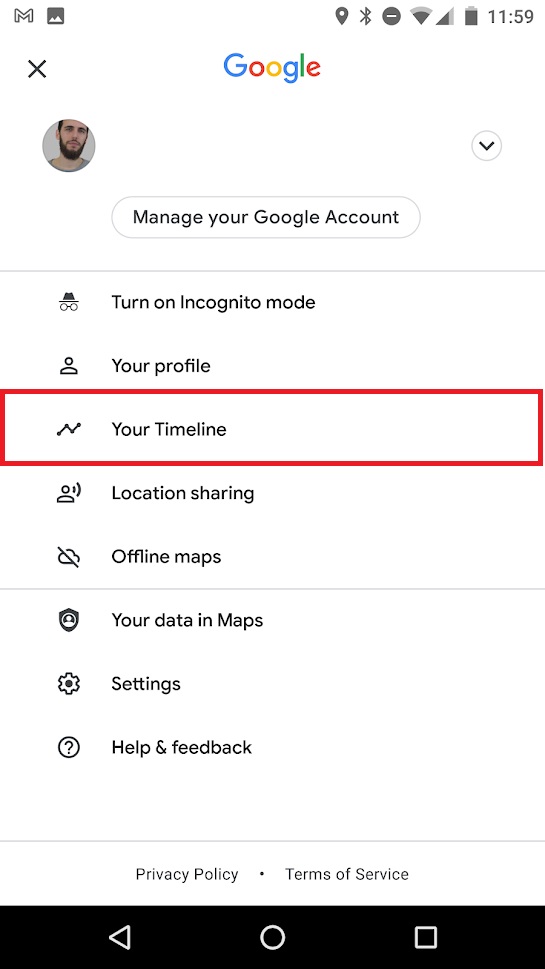
If you’re curious to relive a trip you’ve taken or just see where you’ve been throughout the year, we recommend you take a look at the “Your timeline” option. You can easily access it by opening the side menu of Google Maps.

From your timeline, you’ll have a detailed view by date of all your trips throughout the year, your stops, and the distances traveled. If you’re not all that pleased to see that Google knows so much about you, you can delete your location and search history, although be warned, it takes a while.

To do so, you’ll need to access the Google Maps menu (click on the three horizontal lines at the top left-hand side of the screen) or slide open the left side menu. Then go to the app settings and select the “Maps history” option. From this new window, you have to delete all the entries and searches you’ve made from the app one by one.
17. Listen to your favorite music while driving 

If you use Google Maps as a GPS in your car, you’re probably tired of constantly switching between apps to drive and listen to music at the same time. But you’re in luck, because Google Maps has added an option to use apps like Spotify on your phone while driving.

Spotify DOWNLOAD
7

To do so, open the Google Maps settings from the left side menu. Then click on “Navigation” and activate the option “Music playback controls.” Google will then show you the apps that can play music that you have installed on your phone. Select the one you like best and give Google Maps permission to use it.

Now  simply slide the screen up while driving to access the music controls of your chosen app without leaving Maps.

18. Use voice commands

As a user of a smartphone with an Android operating system, you can use Google Maps voice commands. These are especially useful for planning routes while driving, finding parking, or finding a gas station without having to stop driving.

To use Google Maps voice commands, simply have the application open and say “Ok, Google.” If you see that your phone is not responding, you can press the microphone icon and give the command you want. You can ask how far it is to your destination, if there are traffic jams, when the next turn is, what street you are on, etc.

19. Check out movie and show listings

Fans of moviestheater, and concerts will be happy to know that they can check out showtimes in the city right from Google Maps.

Simply click on the establishment you want, and you’ll see showtimes and upcoming events appear. This makes it uber easy to create plans with friends and organize a fun weekend.

20. Check the public transportation schedule

For many people, public transportation is the perfect way to get around the city and Google Maps know that. For that very reason, the application checks the schedules of your preferred mode of transport once you have established the route to take. All you have to do is choose your route, pick the type of public transportation you use, and Google will automatically show you the timetable.

21. Find services, establishments, and places of interest nearby 

In addition to being an excellent app to get efficiently from point A to B in the city, Google Maps is ideal for discovering new places. This is useful if you need to find a supermarket in the vicinity, a restaurant, an ATM, etc.

To start using this option, simply select where you are or your destination. Then type the type of service you want into the search bar. Then Google Maps will show you the services closest to that location.

22. Save memory and space on your phone with Google Maps Go

Google Maps Go

Google Maps is a powerful app, and if you’re one of those people who hasn’t changed your phone in years, it’s likely to start affecting your device’s performance. If your phone is slow when you have Maps open, but you don’t want to give up this excellent app, we recommend you download Google Maps Go.

This version of Google Maps is much simpler than the full version and takes up 100 times less space on your phone, so it won’t slow it down. It can handle all the basic features of Google Maps, like searching for routes, accessing traffic information and public transportation schedules, and offering directions to your destination.

Google Maps Go DOWNLOAD
9

23. Use Live View’s augmented reality

Live View en Google Maps

If you’re one of those people who gets lost even with a map, Google Maps offers an option that will get you to your destination in no time: Live View. It makes use of augmented reality to show you the way to go through your cellphone’s camera. You simply have to follow the arrows that appear superimposed on the street thanks to the magic of augmented reality.

To move through the city using Live View, first make sure you have the location services on. Then open Google Maps and click on the “Directions” button. Select your location and your destination and make sure to mark that you are going to walk there. You will see the “Live View” option appear at the bottom of the screen. Tap it and, after a short tutorial, you’ll see the route to follow through your phone’s camera.

24. Access the number of COVID-19 cases superimposed on the map 

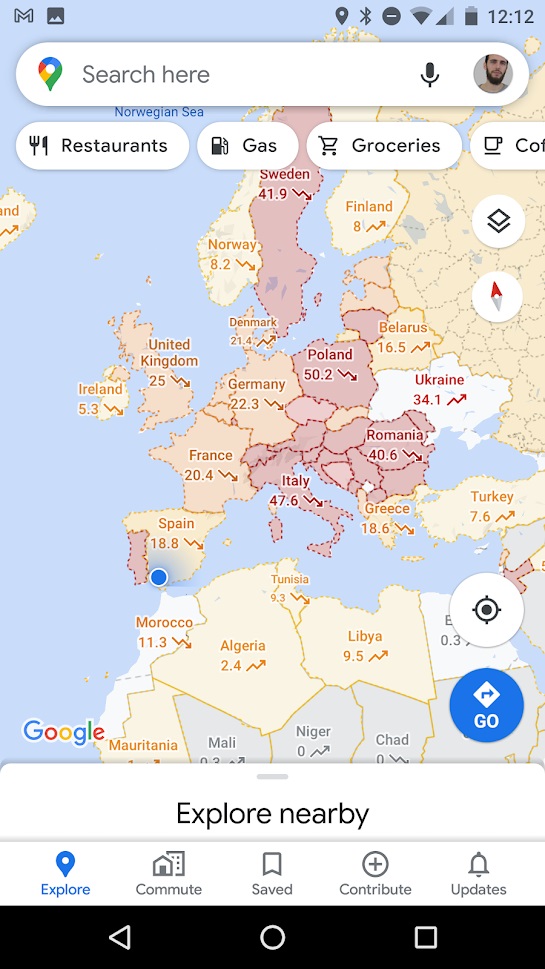
The COVID-19 pandemic has shaken the entire planet, and it is vitally important to know its status at all times. Google Maps has added an option that superimposes on the map the real time coronavirus data, showing the number of cases and whether they are growing or decreasing.

To access COVID-19 data on Google Maps, simply click the “Map Type” button on the right-hand side of the screen. This will open a menu whose options include “COVID-19 info.” After pressing this button, you’ll be able to check the coronavirus information for the cities and countries you choose.
25. Change the arrow icon to a 3D car

Icono de coche en Google Maps

If you use Google Maps a lot for car trips, you’re probably tired of seeing its famous blue arrow representing your hot rod. Did you know that you can exchange it for a nice little 3D car?

To change the appearance of the icon, simply start a driving route as you normally would and then click or tap the blue arrow. A menu will open up where you can choose the car model you want to represent yours.

26. Activate dark mode

Modo oscuro de Maps

One of the most requested features of Google Maps is to be able to change the app to dark mode. This option is gradually being rolled out among users. To turn it on, simply open up Google Maps settings and then click the “Appearance” option. Then select the dark theme to change the app’s interface.

If when you’re trying to activate the dark theme you see that this option does not appear in the app, don’t worry. As we said, Google is gradually rolling it out, and it will soon be available on your phone.

We hope our selection of tips and tricks for Google Maps has been useful. Do you know of any others that you think should be on this list? Tell us about them in the comments section!

8 tips to take advantage of Google Maps

These 8 tips and tricks for Google Maps will help you get the most of the app

Google Maps tricksGoogle’s suite of apps has come in and taken the legs out from under what we all considered to be modern life. Everything is different now. You don’t need to remember anything now because you can just Google it, life and death letters come at you instantly via Gmail, and you can now look at every photo you’ve ever taken or seen instantly using Google Photos. Today though, we’re going to look at another Google app that has massively changed the way we see and interact with the world; Google Maps.
Google Maps means we never have to remember place names or route directions, and it always puts us at the center of the world. You don’t need map skills to get to even the remotest of hidden away places and it’ll even tell you which lane you need to be in when you’re driving in a city you’ve never been to before. The Google Maps app can put all your places at your fingertips, show you where the nearest gas stations and ATMs are, help you with your daily commute, and even give you a decent street view of almost every street on the planet. Yep, having Google Maps on your Apple iPhone or Android smartphone puts a lot of power in your hands. Let’s have a deeper look then at how to use the best Google Maps features.

Google Maps Download
7

Google Maps tips and tricks

Download maps for offline use

Download a map on Google maps

You can download offline maps by going to the Google Maps menu in the top-left of the app and selecting Offline Maps. You then tap SELECT YOUR OWN MAP and navigate to the area you want to download. The other way to do it is to search for a place normally using the search bar, and then hit the description bar that appears at the bottom of the app. You’ll then see a download button, which will give you the ability to select the custom map you’re looking to download and save it to your device.

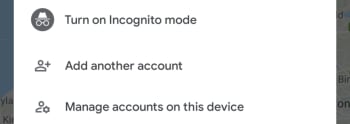
Turn on Incognito Mode

Incognito Mode on google Maps

Another feature of this modern world is always off privacy. All the big app developers have baked surveillance features into their products that constantly track our movements; literally so with Google Maps. Fortunately, however, Google Maps has an Incognito Mode, which will stop the app from saving your search and location history.

To turn on Incognito Mode all you need to do is tap your Google account Profile Picture in the top-right corner of the app and then hit Turn on Incognito Mode. You can turn it off again by following the same instructions.

Save where you’ve parked your car

Save your parking space on Google Maps

This little-known feature is a lifesaver if you’re constantly forgetting where you’ve parked your car. All you need to do to save your parking location is tap the blue dot on Google Maps before you walk away from your car. This will open up a small menu about your current location and one of the options you see will be Save your parking. Tap it to save your parking location. You’ll then see a notification in your Android phone, which will offer you directions to your car when you tap it.

Share your real-time location

Live Location Sharing on google Maps

Real-time location sharing is a popular feature these days with apps like WhatsApp and Facebook Messenger having their own version. Google Maps offers a comprehensive live location sharing feature too, however, that gives you control over how long you’ll be sharing where you are as well as who you’ll be sharing your location with.

To share your live location in real-time you need to select the Google Maps menu in the top-left corner of the app and then select Location sharing. You can then Add people who’ll have access to your real-time location and select how long you’ll share your location. You can then send your location via Google Maps itself or via several messaging platforms like Messenger and WhatsApp.

Quick zoom

This a simple tip that will make a world of difference when you only have one hand free. You can double-tap the map to zoom in partially and then continue to do so if you want to focus further on a particular area. For greater control, however, it is better to hold your finger or thumb down after the second tap. If you double-tap but then leave your thumb on the screen after the second tap, you’ll be able to zoom in or zoom out, if you simply swipe your thumb up or down.

Add stops to your directions

Add stop to Google Maps directions

If you need to go to more than one place, Google Maps can help you plan a route that’ll get you to all of them. To do so, all you need to do is ask Google for directions as you normally would and then hit the ellipsis menu icon in the top-right of the route options bar. In the menu that opens, the top option will be Add stop. You can use this option to add multiple stops and then rearrange the order of the stops by dragging each location up and down. When you have all the stops you need and they’re in the right order, click Finished and Google Maps will give your directions and open navigation mode, should you need it.

Google Maps chat

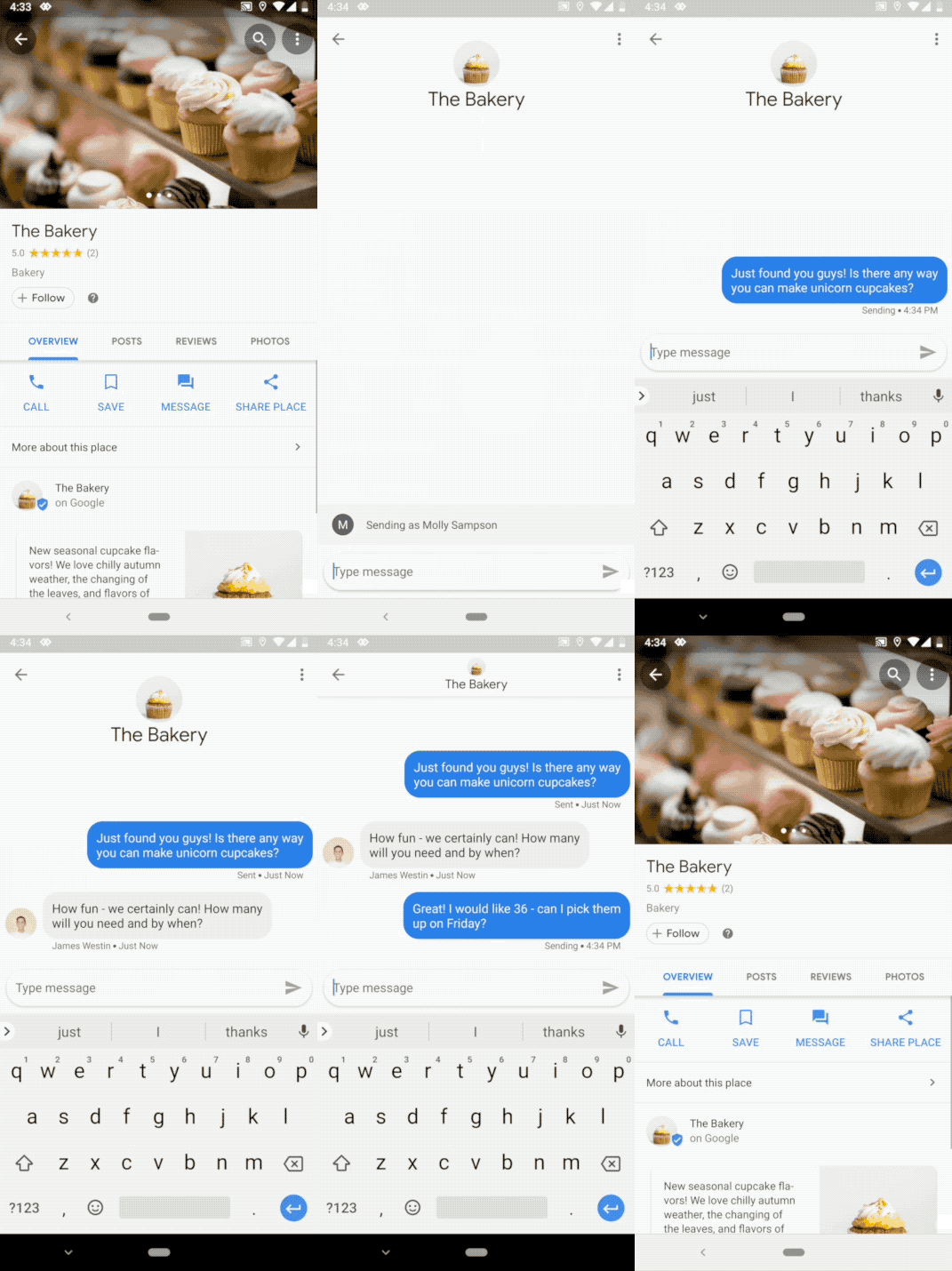
OK, this isn’t for chatting with your friends, you’ve plenty of other apps for doing that, but Google Maps does have a functioning chat feature. Google Maps chat is for talking to local businesses. If a business has enabled messages, you’ll see the new Messages tab, when you click on it in Google Maps. You’ll then be able to chat away with them as if you were friends.

Ask a question

Another good way of getting answers about locations and favorite places on Google Maps is to ask the community. To do so, all you need to do is select a location on Google Maps and then tap the description bar at the bottom of the app. If you scroll down, you’ll see the Questions & answers section, which will include a text box that you can use to ask questions. Other Google Maps users will then answer back over time.

Google Maps helps you find the best menu items

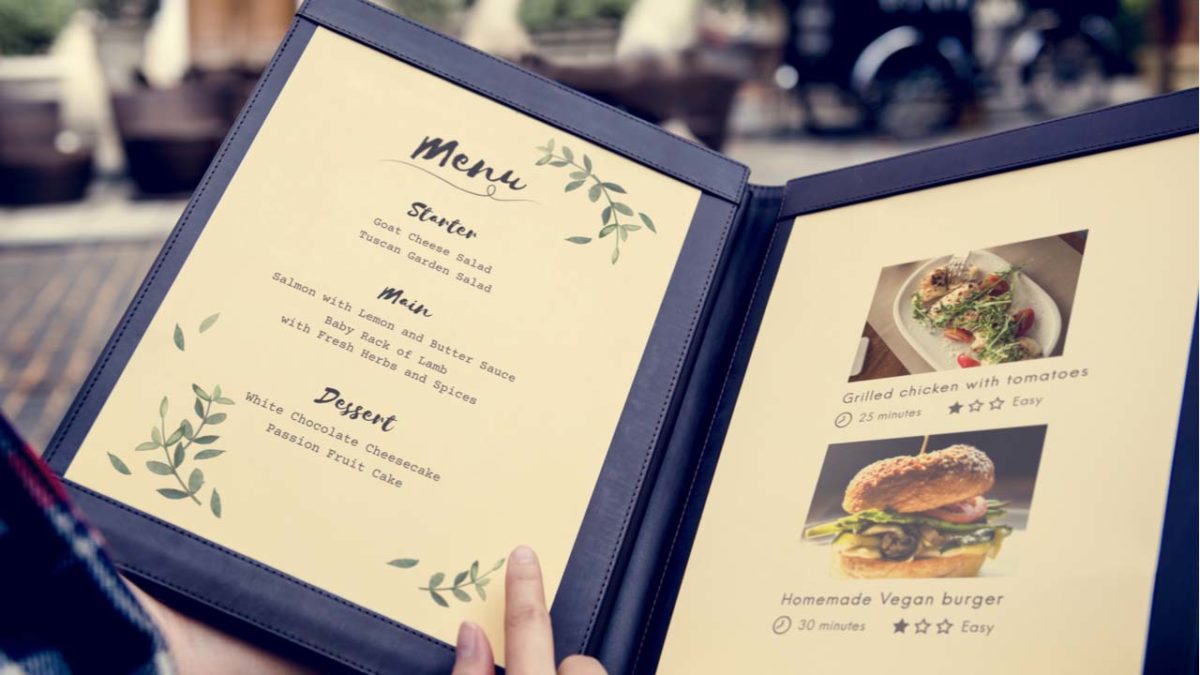
Need help picking out what to eat at a restaurant? Google can help!

Restaurant menu

With Google Translate, Google Earth, and this new feature for Google Maps, Google is rapidly becoming your most important travel companion.

When you’re trying out a new restaurant, it can be difficult to decide what menu items to try.

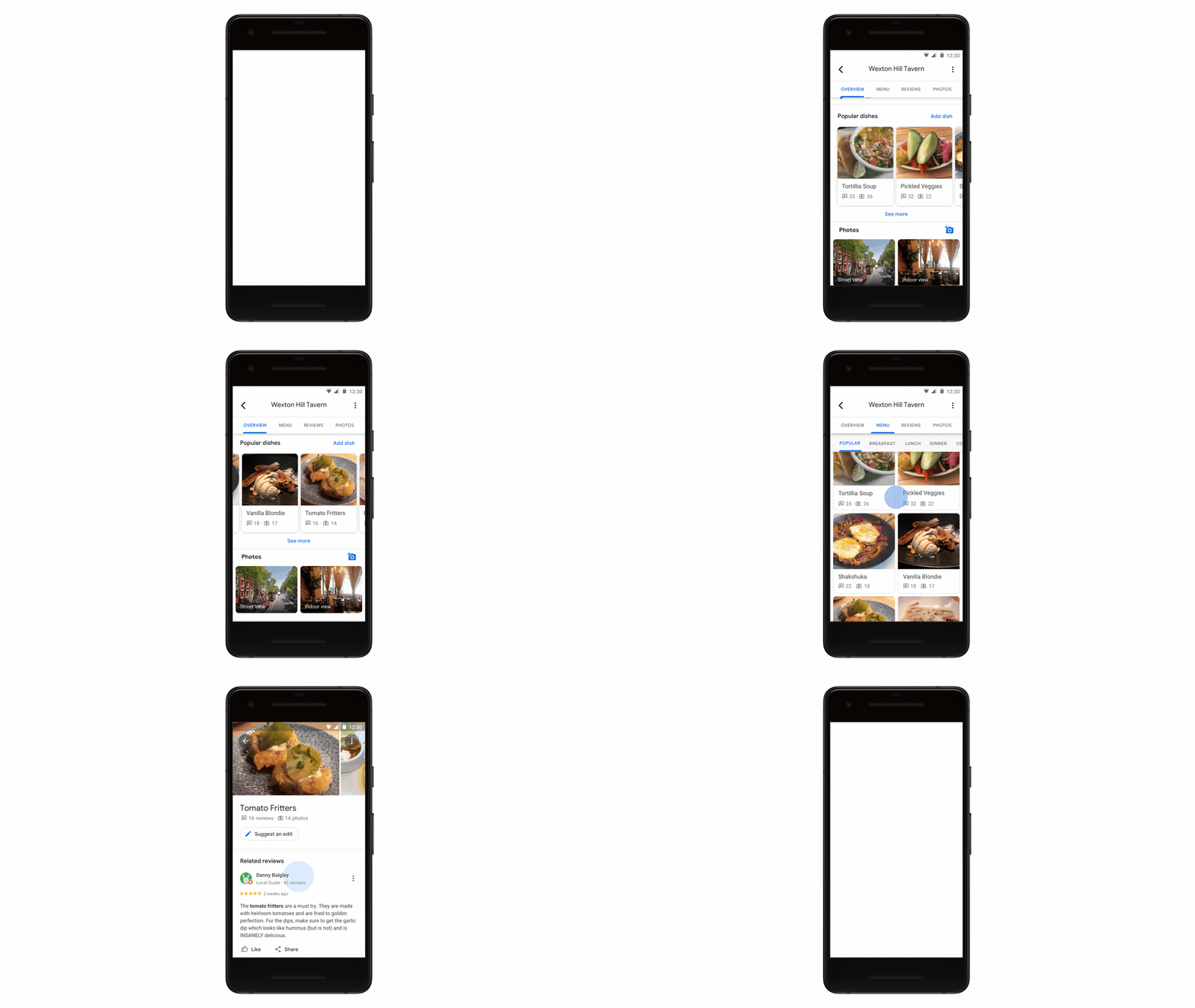
Luckily, Google Maps now has a new feature called “dish-cover” that helps you choose by laying out the most popular items on the menu.

Google Maps Download Now ►
7

To use the service, look up a restaurant on Google Maps. From there, scroll down to “Popular Dishes” below.

Google Maps gif
Courtesy of Google Blog

Along with listing out the popular menu items, you can now get photos of the food as well as reviews from restaurant patrons to help persuade or dissuade you.

Now, rather than looking up a restaurant on Google Maps, followed by checking the reviews on Yelp, dish-cover streamlines the whole process.

Also, if you are visiting a country that speaks a foreign language, Google Maps has you covered. The app will automatically translate the reviews for you to the language of your choosing.

Google Translate Download now ►
8

Google Earth Download Now ►
7

Now, you can also become a “restaurant critic” yourself. Next time you visit your favorite restaurant, snap a photo of your food, and tell other users why they should order it! 

The new feature is available today for Android users, and will be available for iOS users in the coming months.

Google’s new feature makes life easier for anybody with multiple accounts on Android devices

Google has introduced a swipe to switch account feature to Google Maps, Google Drive, and Gmail

Google’s search engine helped the Mountain View-based internet giant quickly rise to the ascendancy in the early days of the internet. Google was quicker than other search engines and always served up more reliable answers to queries. It wasn’t long though, before Google started branching out from web searches and the result now is a bunch of core products, which are among the most popular pieces of software ever developed.

Google programs like Gmail, Chrome, and Maps all have literally billions of users and other core products like Google Drive aren’t far behind them. At the heart of all these products, including the search engine that started it all, lies our Google accounts. Our accounts give us access to personalized versions of each core product. Yes, they do allow Google to collect data on our web usage, which is worth billions to the web giant, but our accounts also allow to have our own Google Drive allocation, individual Gmail inboxes, and keep a record of all the places we’ve searched for and been to while using Google Maps.

Most of us have reached the point now where we have more than one Google account too. Whether it be for work and personal use or more compartmentalized use of the Google products, like shopping accounts and travel accounts etc. it is becoming more and more common for Google users to have multiple accounts. It is good news for an awful lot of us then that Google is making it much easier for us to switch between accounts.

Google has introduced a swipe to switch account feature to Google Maps, Google Drive, and Gmail

Gesture control has been creeping in on Android for quite some time now. Google has been adding different gesture controls to try and replace the standard search and menu system. Although there are many more, my favorite and most used gesture control on my Pixel is the double tap of the power button to launch my camera app. It is easy, saves time, and means I take more pictures.

As always with most big tech innovations gesture control is supposed to shave precious seconds off our digital processes. The time we save searching through menus, can theoretically be used to do something else. The new swipe to change account feature does this quite well.

Switching between accounts is now easier on three of the core Google apps

The idea behind the new features is that rather than having to click on the account button in the top-right of your Google apps and then select the account you want to work with, you can simply swipe your finger up or down across it. This will move you between all the different accounts you have linked to your Android phone.

The new swipe to switch account feature will save you the grand total of two clicks every time you use it. That is reduced to one click though, if you count the swipe itself as a click. This might not sound like a lot but as is so often the case with these incremental feature upgrades soon you’ll be so used to using the new swipe feature that you’ll barely remember having to click through the account’s menu in the first place.

google maps
The swipe to change account feature landed on Google Maps first

Multiple reports have noted this new feature on Google Maps, Google Drive, and now most recently on Gmail too. The feature landed on Google Maps midway through August and then on Google Drive a week later. This means if you’re using the latest version of both apps, you’ll be able to swipe to switch accounts right now. The feature is much newer on Gmail, however, so you’ll have to wait until you’ve downloaded Gmail v2019.08.18 before you’ll have it on your email app.

Apple Maps is adding AR tech!

The world around you may soon become your GPS map!

Apple MApsGoogle Maps has long dominated the navigation app world. It has been miles ahead for years with a whopping 67% of all navigation app users choosing the Google app in 2018. To put it into perspective, that is more than six times the number of people who used the second most popular navigation app, Waze, last year. Yes, you read that right, Apple Maps isn’t even the second most popular navigation app. Apple Maps comes in third with only 11% of navigation app users saying they used it regularly.

It isn’t just a numbers game either. Google has regularly been boosting its Maps app with new features and is even working hard to turn Maps into much more than a simple Navigation app. This feature-led domination could be about to slip, however, as Apple has recently submitted a new patent application for a very interesting navigation feature new Apple Maps feature.

7

AR Navigation is coming to Apple Maps

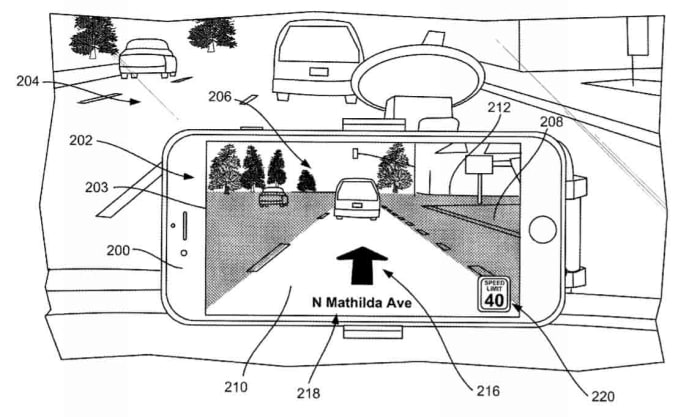
A recent report by Cult of Mac has unearthed a recent patent application from Apple regarding the Apple Maps app. The new technique, which Apple is calling “Navigation Using Augmented Reality” will require a driver to mount their iPhone on the dashboard of their vehicle in such a way that they can see the screen while the iPhone camera is able to see the road ahead unimpeded. If done correctly, the new feature could then revolutionize how that driver understands all subsequent navigation instructions.

Apple Maps AR patent
Source: Cult of Mac

Traditionally, when we’re driving, we follow our GPS assisted navigation instructions via an overhead map of our current location. This typically includes directional arrows, and sometimes symbols that represent upcoming junctions and signs. The recently patented technique from Apple would do away with this and replace it with a live image of the road ahead overlaid with the navigation instructions telling us where to go next.

Apple believes this way of doing things would make following the instructions much easier for the driver. The patent application summary says, “By superimposing the navigational layer over the captured images, the user can clearly and easily understand which lane to be positioned in without having to decipher how general symbols correlate with the real world.”

Google Maps AR navigation only works for walking directions
Google Maps only offers AR navigation for walking directions

Basically, it’s like a normal GPS map, but with the actual world in front of you as the map!

If you’re thinking that this sounds like the Google Maps AR navigation feature, we’ve reported on recently, you wouldn’t be wrong. Google Maps does already have an AR navigation feature. The key distinguishing factor here, however, is that the Apple Maps AR feature is designed for driving while the Google Maps feature only works for walking instructions.

Wrapping up

As to whether this single new feature will be enough to turn users away from Google Maps, remains to be seen. It is good, however, to see innovation coming from Apple again with new and interesting features seemingly on the way to its core products.


Have you tried Waze Carpool? It just got better

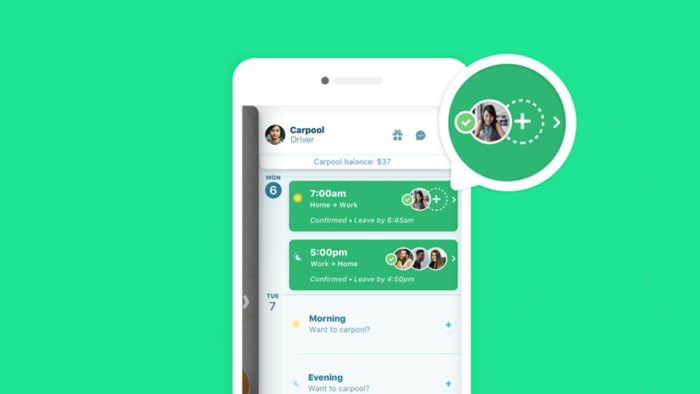
Waze now lets you add up to four other carpool riders to your journey!

Waze carpool feature

With all the new tools that are being added to Waze, it’s about time we got a decent carpooling option!

You may know Waze as that app Google bought a while back. It has since been taking features from to bolster Google Maps. Google is clear that Google Maps is still its flagship navigation program but understands that Waze offers something different enough to Maps to warrant a spot of its own in the Google Play Store.

Waze is a community-based navigation app. The mapping data shows us where we are and where we’re going. Also, Waze asks its users to tell each other what is going on during their journeys and then uses all that data to improve the routing options it offers. It now even tells users about upcoming toll prices. When Google recently added crowd-sourced speed trap alerts to Google Maps, the feature came from Waze, which had had it for years.

With Waze being built upon its community it will probably come as no surprise that the company has been dabbling with carpools for years now. Carpools are like the ultimate form of commuting community as it can help save time, money, and the environment. The Waze Carpool app first hit the scene in Israel back in 2015 and came to the U.S. last year. It is also available in Brazil and Mexico. The app has always been a little limited, however, with potential carpools being limited to two app users. This has now finally been expanded, turning Waze Carpool into a more complete ride-sharing app.

Waze Carpool Download Now
8

Waze now lets you add up to four other carpool riders to your journey

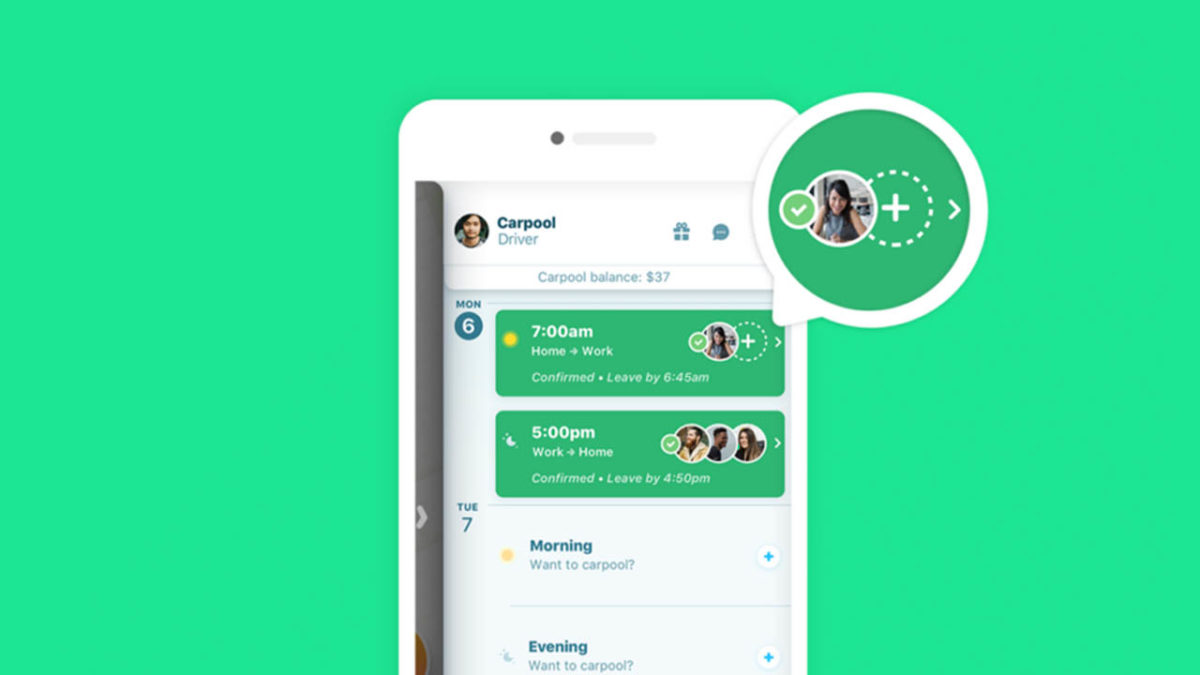
To use the Waze carpooling feature, you need to add your daily routine and schedule to the app. This way you have a number of set routes and rides that the app knows you’re likely to make. Then, each day when you confirm the rides you’ll actually be taking that day, the app will match you up with other users who are looking to make similar journeys.

You’ll be able to see how much extra time they’ll add to your journey and how much money you’ll be able to collect off them for adding them to your carpool. You can find all the details for signing up to Waze Carpool here.

Waze carpool
Source: Waze

The carpooling feature has just been boosted from two riders to four. This means you can now add up to four riders to your pool, potentially boosting the amount of money you can take per journey and even opening up the more express HOV 3+ carpool lanes.

Waze makes it clear in the blog post announcing the bump up to four riders, however, that Waze Carpooling is not supposed to be a moneymaker. It isn’t another Uber or Lyft. All prices added to carpooling journeys are adjusted so that they don’t exceed the price of the gas the journey needs or general wear and tear to the vehicle.

If you’re looking for help with your daily gas money, a bit of company during your daily commute, or just want to do your bit for the environment Waze Carpool could be the app for you.

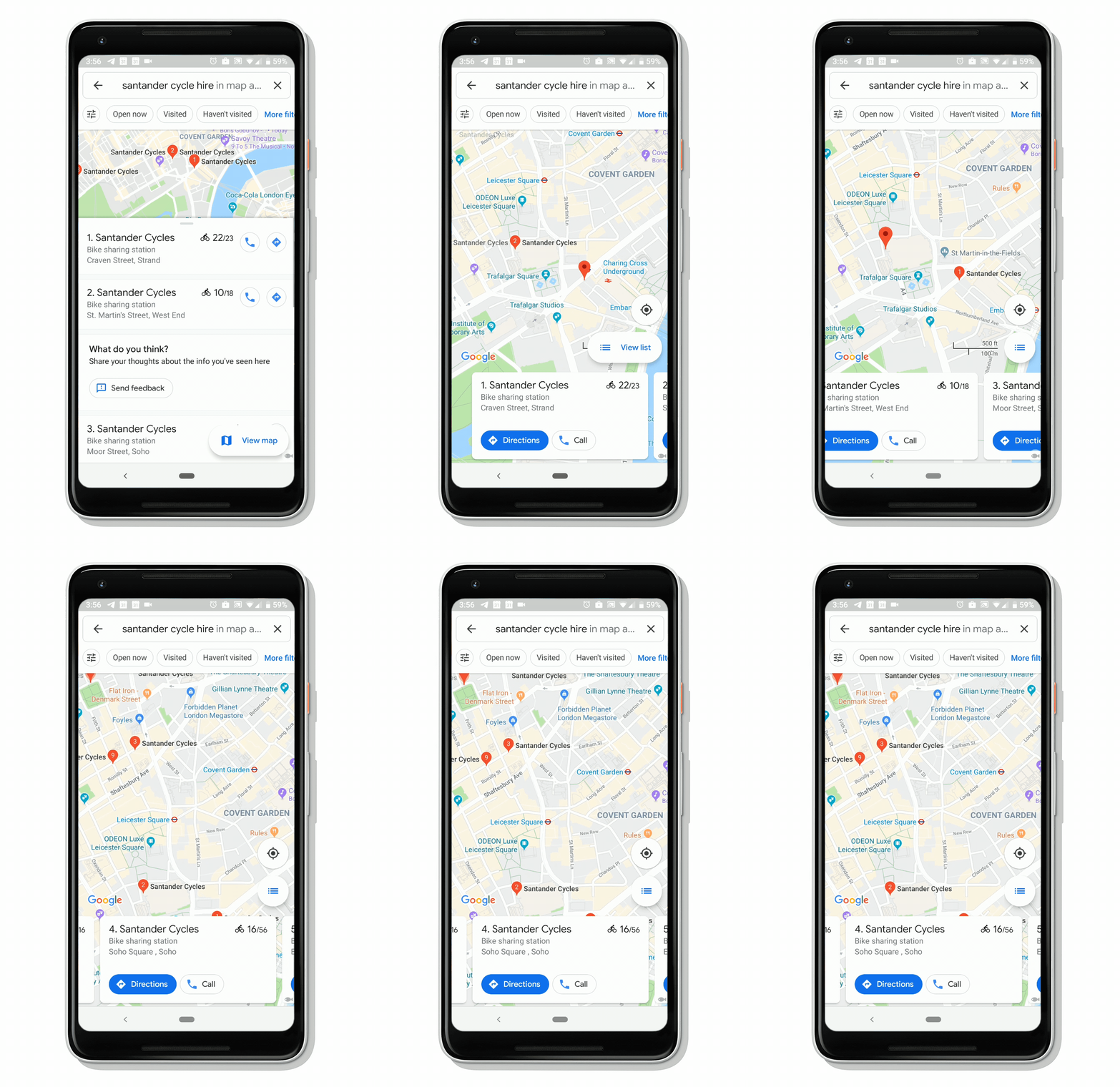
Google Maps to start showing bikeshare information

Google Maps now shows bikeshare info for 24 major cities!

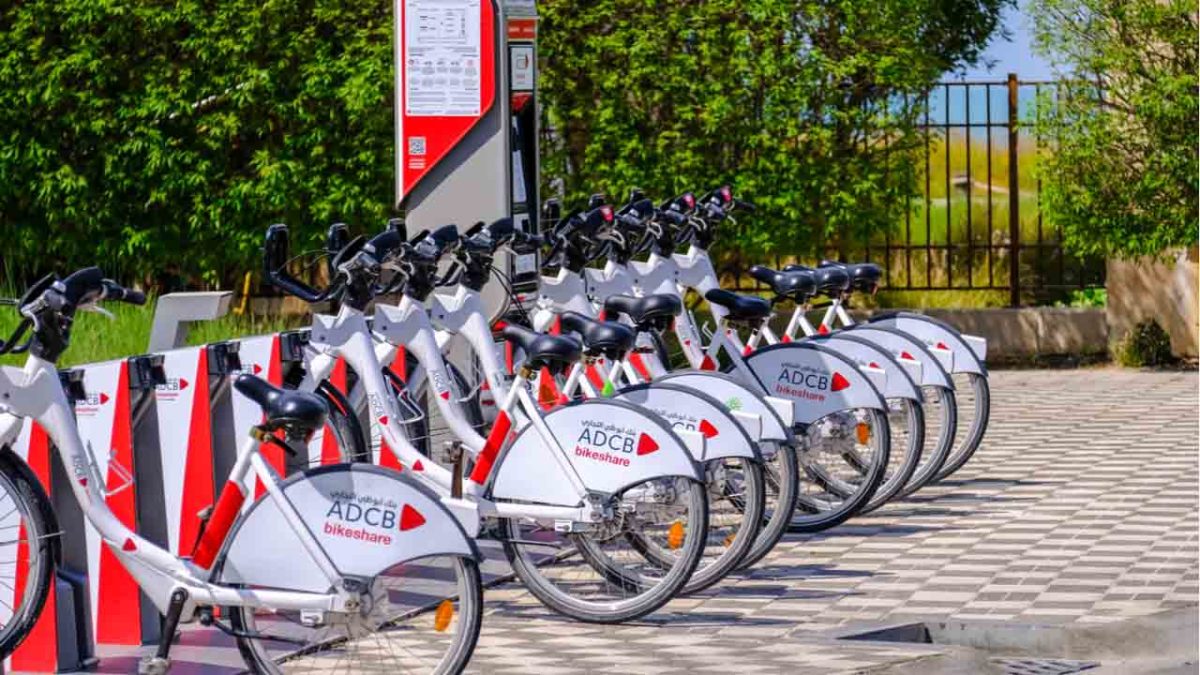
Bikeshare

If you live in a big city, you’ve probably taken advantage of bicycle sharing programs. They’re a great way to get around the city while avoiding traffic as well as a great way to get exercise.

Fortunately, Google Maps has made it easier to find bikeshare stations in big cities 24 cities in 16 countries. Starting today, you can see the total amount of bikes in a station with Google Maps in these cities in real-time. 

7

Google Maps gif
Source: Google

The cities include the following:

  • Barcelona
  • Berlin
  • Brussels
  • Budapest
  • Chicago
  • Dublin
  • Hamburg
  • Helsinki
  • Kaohsiung
  • London
  • Los Angeles
  • Lyon
  • Madrid
  • Mexico City
  • Montreal
  • New Taipei City
  • Rio de Janeiro
  • San Francisco Bay Area
  • São Paulo
  • Toronto
  • Vienna
  • Warsaw
  • Zurich

Bikeshare info was already available in New York City prior to this move by Google.

The new info will certainly come in handy for bikeshare users. Problems users face include: not knowing where to pick up a bike, getting there only to discover there aren’t enough bikes for their group, or going to return a bike only to see that all the docks are full. The new information in Google Maps can now alleviate all of these problems!

How to avoid fake businesses and scam companies on Google Maps

This guide help you spot fake businesses and scam profiles on Google Maps. Follow these steps to stay safe on Google Maps. This is how to avoid false business ads on Google Maps and and avoid Google Maps scams.

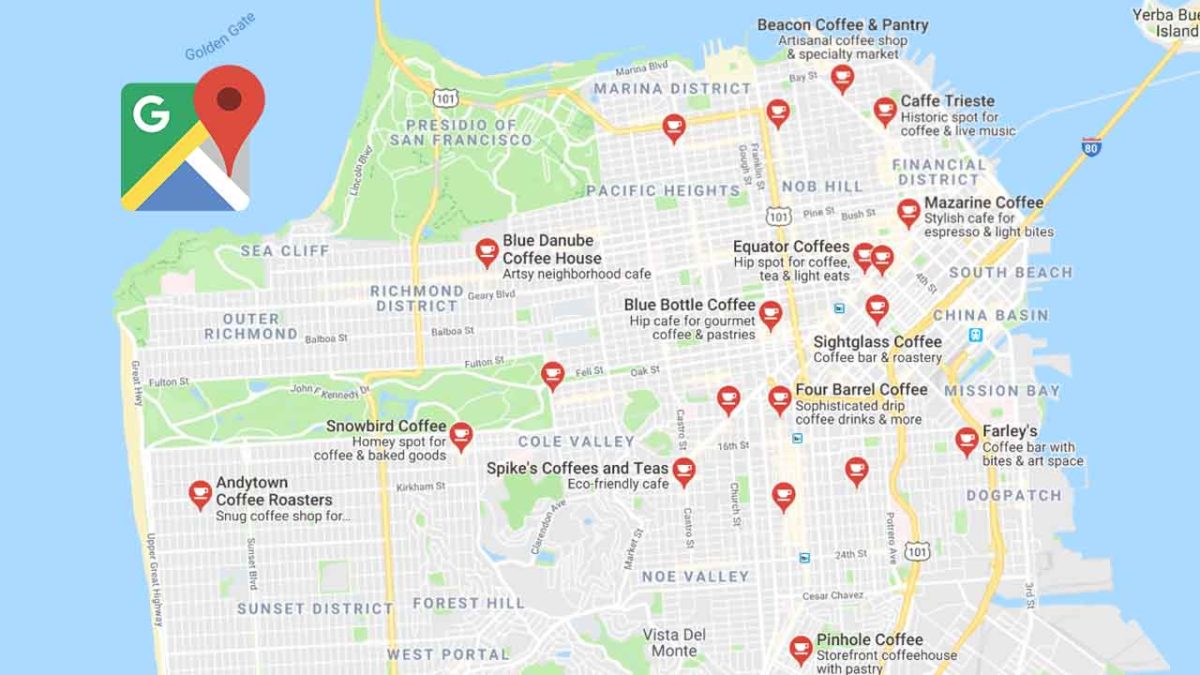
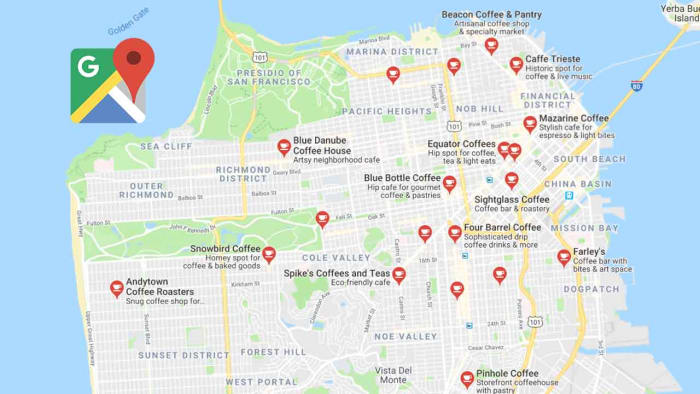
Google Maps with local businesses in San Francisco

These days, there are a lot of Google Maps scams that we need to worry about. The more Google Maps is useful for business, the more we’ll see scammers trying to take advantage of users heading there to find a product or service they need. We have to be careful.

We’ve seen Google Maps banking scams and we’ve seen false competitions offering fake prizes to try and trick us into handing over private and sensitive information. Unfortunately, it doesn’t end there.

A new report from The Wall Street Journal highlights a brand-new trick that we need to look out for. Fake business profiles. We now have to look out for false Google Maps business listings from fake companies. You can read more about this new type of scam here but for now, we want to show you how to stay safe on Google Maps when searching for a local business.

How to find businesses on Google Maps

The two most common ways of finding businesses on Google Maps are via the Google search bar or by searching for them directly on Google Maps.

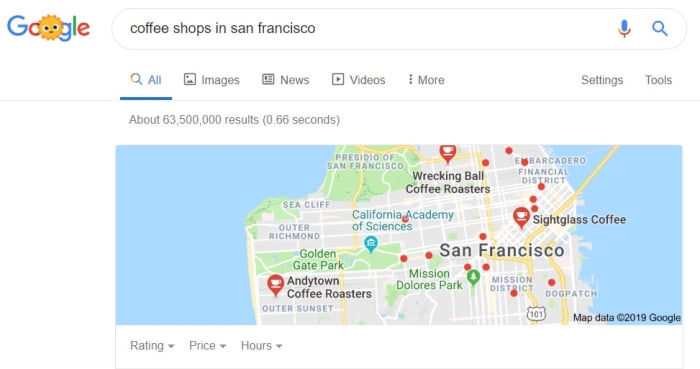
As Google’s search has evolved, results pages have become more and more advanced. Now, when searching for a particular business or type of business you don’t just receive a list of potential matches for your query. Instead, you’re also shown a map widget; clicking this widget will open Google Maps. You can then click on the business profiles of the businesses matching your query. This works both on desktop and on mobile.

Coffee shops in San francisco

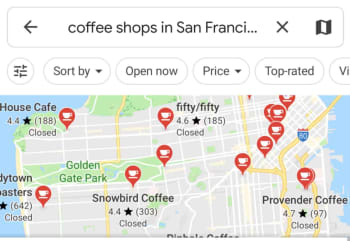
You can cut out the above step altogether by searching directly in Google Maps. Again, this can be done on both mobile and desktop devices and will show you a list of business profiles complete with dots showing their location on your map.

Coffee shops in San Francisco on mobile

A very Google problem

Google claims to have a rigorous vetting process to prevent fake businesses from being verified and finding their way onto Google Maps. Unfortunately, this doesn’t stop them all and quite a few get through. This means that you are your own strongest weapon in the battle to keep yourself safe.

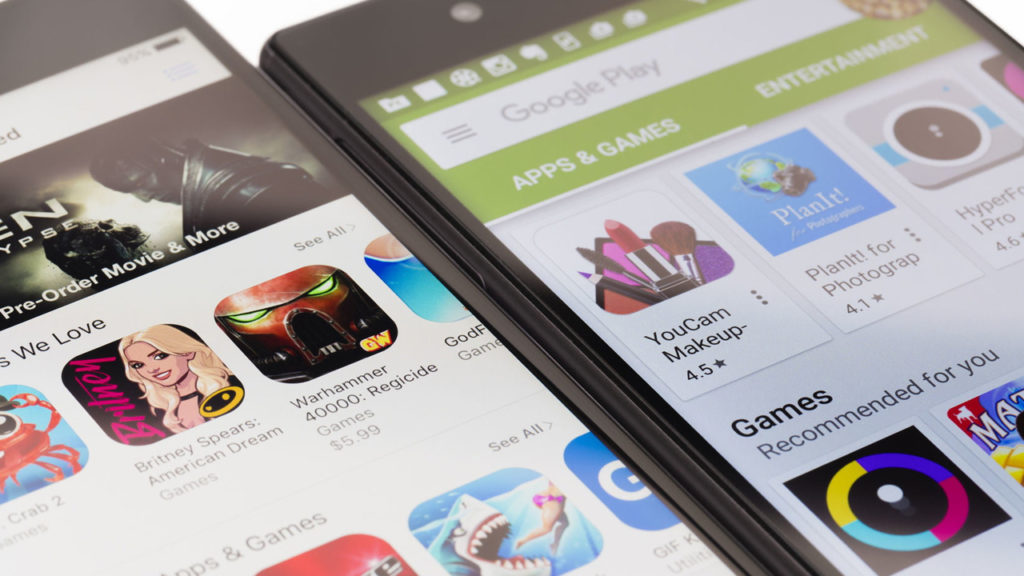
Google Maps’ fake business problem is a little like the Google Play Store’s fake app problem. There are too many submissions for them all to be verified individually and some scams break through the automated defenses. This means we can take a little of what we’ve learned from staying safe on the Google Play Store and use it to help us stay safe when looking for businesses on Google Maps.

How to spot fake businesses on Google Maps

There are a few rules we can follow to try and stay safe on Google Maps and avoid fake business listings. If you’re unsure about a Google Maps business listing, then follow the steps below to make sure you’re dealing with a legitimate business. If you’re still unsure, move on to another listing.

1. Always read the reviews

Google reviews of local business

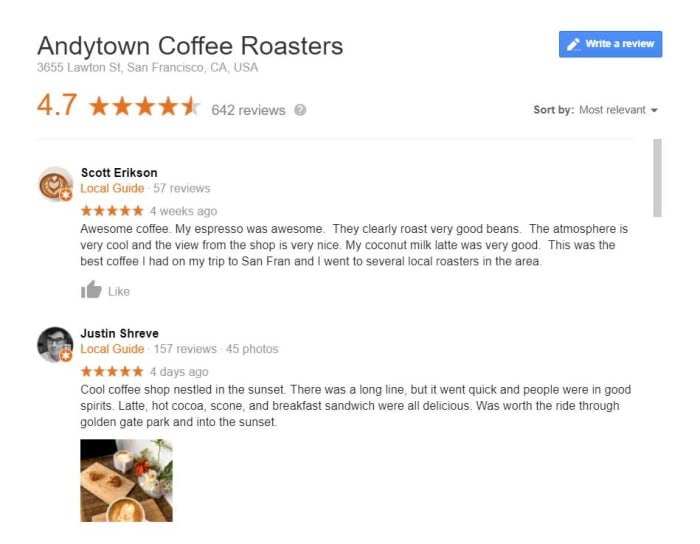
Just like on the Google Play Store, actual reviews from other users are your biggest ally. If the business profile you’re looking at is fake and has scammed other customers out of cash or worse, you can bet that some of those users will have left negative reviews saying so. This means you should try to stick to businesses that already have some positive reviews and make sure you read any negative reviews attached to the profile.

2. Check for a web URL and search the business name elsewhere

Local business research on Google Maps

Unfortunately, reviews can be faked, which means user reviews alone are not an airtight way of keeping yourself safe.

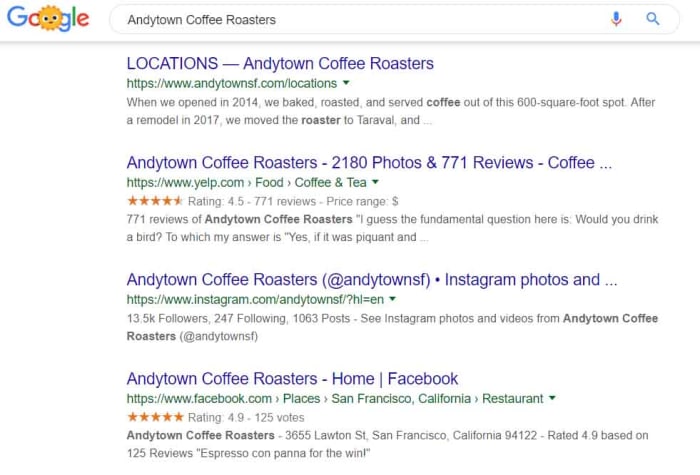
Check the business profile for a web URL and then check it out to see how legit it appears. If there is no URL, and even if there is, have a quick search for the business on Google and see if it is listed elsewhere. Legitimate businesses will usually be listed in a number of different places, including the likes of Yelp and Facebook. These listings should contain more than just a phone number and may even have reviews of their own. Facebook pages should have the date the page was first created and the number of Page likes or followers could give you a good indication of whether the business is real or fake.

There is a wealth of information out there that you can use to verify the businesses on Google Maps.

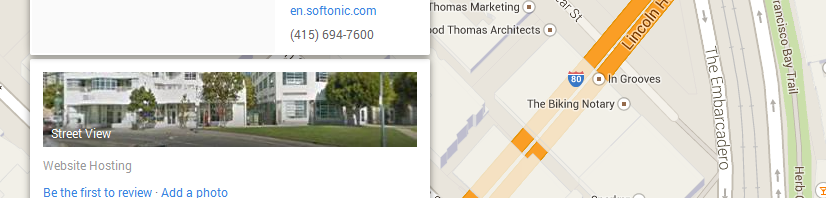
3. Use Google Street View

Enabling Google Street View on a local business

This is the least secure of all the steps laid out. Use this with caution and with the below caveats in mind.

By taking photos of roads all around the world, Google has given us an excellent tool for verifying many of the businesses we find online. When you see a business listed at a certain address you can open Street View on that address and see if the shop front at that address matches the business name on the profile. There are three things you need to remember when doing this, however.

First, not all businesses will have shop fronts you can use to verify the business profile you’re looking at.

Second, it takes a long time for Google to update Street View, considering how many streets there are around the world. This means the images you’re seeing might not be completely up to date.

Third, and most importantly, you have to think about the nature of this problem in the first place. Yes, a lot of the fake businesses on Google Maps will just be fake companies attached to false addresses, but some will be a little cleverer.

Some scam artists will see a local business that isn’t already listed on Google Maps and post a listing for that business but give their own contact details. This means you may see a business on Street View that matches the name of your profile that is still fake. Fortunately, as there is a legitimate business there, even if it doesn’t have an online presence, it will have a phone number. Search local business directories for the business name and make sure it matches the number listed on the Google Maps business profile before calling.

4. Follow your gut

Man unsure online
If you’re not sure, walk away.

Now that you’ve read through our some safety tips you know what to look out for when you’re looking for businesses on Google Maps. You’ll likely, however, only have followed the above steps, if something didn’t feel right about the business listing you were looking at. You were right to do this a this is the most important step.

Most of the time, scam artists online are relying on us cutting corners and being lazy. We’re not sure about something but we can’t be bothered finding something else. This is how you end up a victim.

If something doesn’t feel right, go through the checks above. If it still doesn’t feel right, walk away. As we said earlier, you are your own strongest line of defense. If you don’t try to keep yourself safe, your more likely to end up in danger.

5. Check back for more tips

Softonic logo

We will add new steps to help you stay safe when looking for local businesses on Google Maps when we learn them.

Above, you have a list of tips to stay safe while searching for businesses on Google Maps. We’ve taken these tips from what we’ve learned about the more established fake app problem on the Google Play Store. This has given us a good starting point, but we’re sure that the scams hitting Google Maps will evolve over time, just like they have on the Google Play Store.  As and when we discover new tips for avoiding fake businesses on Google Maps, we’ll add them to this list.

Also, if you’ve ever had any dealings with fake businesses on Google Maps, let us know in the comments below and we can also add what you’ve learned to the guide. We’re all in this together and until Google can guarantee it is able to filter out all scam companies, we’ll only be able to rely on ourselves to keep us safe.