What version of Android do I have?

Follow these steps to find out which version of Android you have.

Android is Google’s famous mobile operating system. Every time Google updates Android, it gives each new version a title named after a sweet treat that begins with the letter of the alphabet that follows the last version of Android. The latest version of Android is Android Pie, the version before Pie was Oreo, and the version that will follow Pie will be a sweet treat beginning with Q (all guesses on what that Q may end up as are welcome in the comments).
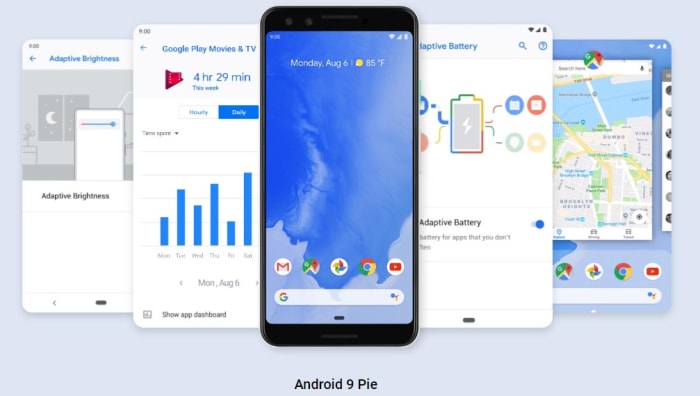
Android Pie the ninth version of the Google mobile operating system

Android Pie is also known as Android 9, and each time the number goes up so does the letter, as we’ve described above. This is a little confusing, however, as P isn’t the ninth letter of the alphabet. Why? In the early days of Android’s history, Google moved up a letter for every major update, even if the update wasn’t big enough to warrant a new number. For example, Android Kit Kat was actually Android version 4.4.

The letters used to go up quicker than the numbers

All this means if you have an Android phone, you could have one of many different versions of Google’s mobile operating system. With each version having its own unique features, it is worthwhile knowing exactly which version of android you have. Let’s look at how you can find out which version of Android your phone is running now.

This is how to find out which version of Android you have

To find out the version of Android you’re running on your smartphone, you need to:

  1. Go to the Settings menu on your Android smartphone.
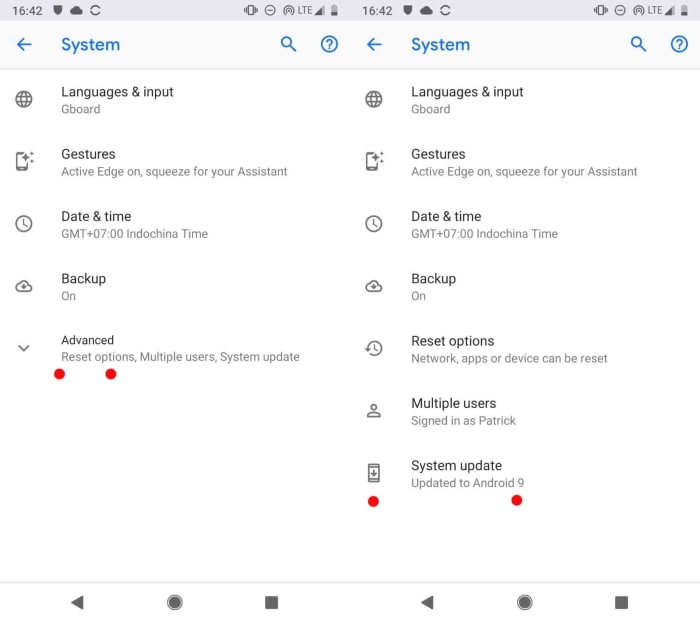
  2. Scroll down to the bottom of the page and tap System. Then hit Advanced, and finally System update.
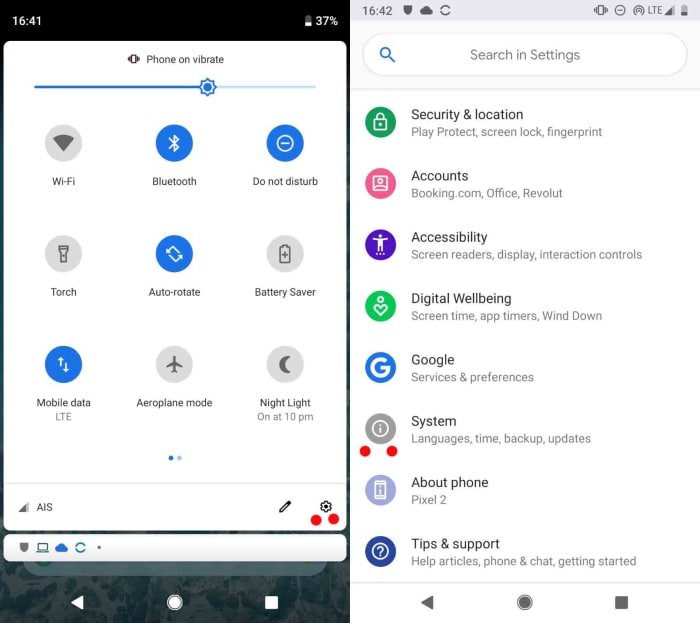
How to find out what Android you have

On the Google Android system support page for checking and updating your Android version it says that if you can’t see “Advanced”, you should click About phone.
How to find out what Android you have

  1. If you’ve followed the instructions above that apply to your mobile, you should now see which version of Android you have.
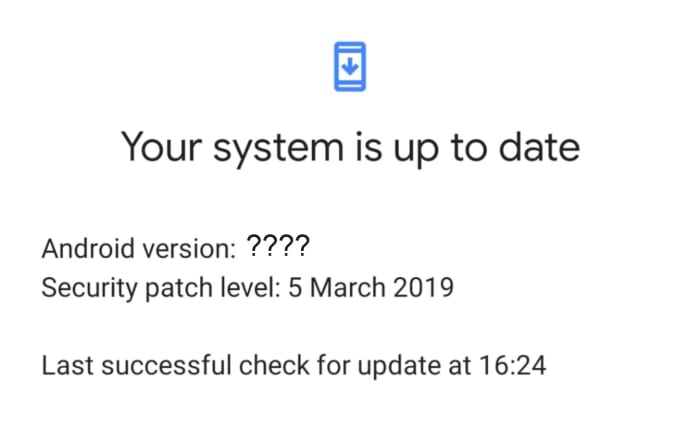
If you have a Pixel device, you will likely have the latest version of Android installed on your device. Pixels are Google’s own handsets, so they’ll receive updates as and when Google releases them. These updates usually come in October of each year, but you can find out more information on when and for how long your Pixel smartphone will receive updates here.

If you don’t have a Google smartphone, you’re at the mercy of your smartphone manufacturer. You’ll receive Android updates whenever they get around to taking the Google update and doing whatever they need to do to it before they can push it out to owners of their handsets. For more information, you’ll have to contact the company that built your Android smartphone and ask them when your update is coming. You’ll find links to all the support pages of the major Android smartphone manufacturers here.


No, your kid’s phone isn’t wrecking your family time

A new study shows that the phone isn’t decreasing your family time, but there’s a catch…

family on phones

Parents often worry that handing their kids phones or tablets will wreck the family dynamic. But new research suggests that being on a mobile device doesn’t keep you away from your family after all.

A study conducted by Oxford University and the University of Warwick found that having cellphones and other mobile devices didn’t impact the amount of time that families spent together. In fact, from 2000 to 2015 when there was a large increase in mobile devices and higher quality internet connections, time spent with family at home increased by 30 minutes per day. Good news, right? Well, there’s a catch…

Although there was a significant increase in family time, that 30 minutes was classified by researchers as “alone-together” time, meaning family members are together in the home and doing things alone instead of shared activities like having meals or watching their favorite shows together.

Even though families have voiced concern that mobile devices are behind a decrease in shared activities, the study found that this wasn’t the case as researchers reported that the increase of alone-together time did not have an impact on the amount of time that was spent doing those activities, like watching television as a family. This time remained unchanged and sat at around 90 minutes per day.

The Journal of Marriage and Family says that these are the rest of the findings from the study:

  • In 2000, on average, children and parents spent 347 minutes per day in the same location. Of this, 95 minutes was alone-together time and 84 minutes were spent in shared activities such as eating and watching TV
  • In 2015, on average, children and parents spent 379 minutes per day in the same location, an increase of 32 minutes. Of this, 136 minutes was alone-together time and 87 minutes were spent in shared activities such as eating and watching TV
  • In 2015, children and parents used mobile devices for 38 percent of total family time, 47 percent of alone-together time, and 27 percent of shared activity time
  • Older children (14-16) spent less time in shared activities with their parents and more time using devices, which was concentrated during alone-together time.

Researchers say that even though the time spent doing shared activities has not changed, because games, text messaging, and other things done on phones and mobile devices can be distracting during the activities, this could be why parents are feeling like family members are not as present during Sunday night TV time.

Since mobile devices are now an integral part of day to day life, the sharing of Dad’s hilarious reaction to an episode of “Game of Thrones” on Snapchat could actually be complementing family fun time. Take that, parents.

Best apps for teens and new drivers

Looking to help your teen become a safer driver? These apps will do the trick!

teen driver

It can be difficult getting your license if you don’t go to a driving school beforehand. Some teens don’t even have family members that they can practice with regularly before their test.

The past decade has helped with this a lot, though. There are now so many more resources for new drivers, including online state permit tests, and even websites dedicated to helping you past the regulations of your state’s driving test. Along with these are apps that provide similar information that can help you gain the abilities and confidence to successfully become a good driver. Many of these apps can also help parents learn about what they should be teaching their teen about the road. Here are some of the best apps for this:

Best apps for new drivers

8. Waze

Considered by many to be the best navigation app, you may not be using it much before you actually obtain your license, but once you have, it can become an essential part of your driving experience. Other GPS apps are considered somewhat inferior to the traffic tracking abilities of Waze. It is worth adjusting to this style of GPS use as early as possible.

7. Drivers Ed App

If you don’t plan on taking a Drivers Ed class, then this is your next best chance at preparing yourself for a road test. It takes everything you would learn in a class and reorganizes it into an easy-to-read mobile app. This makes it useful for teens who are struggling with only a specific part of driving. You won’t have to go through everything in Drivers Ed, and instead and just focus on the subjects you are having a hard time with.

6. DriveSafe.ly Pro

Unlike most helpful apps of this nature, DriveSafe.ly actually does cost a monthly fee. However, if you’re someone who needs to text/call and drive, then this app is a far easier and safer application for it than Siri or Google Assistant. It minimizes phone interaction, while still letting you text hands-free. While you shouldn’t make a habit of doing this, it can be useful in emergency situations.

DriveSafe.ly Download Free ►
8

5. TrueMotion Family

Formerly known as Canary, this app is definitely more for the parents of a new driver than the driver itself. It’s helpful if you don’t think your teen will be able to limit cell phone use or stick to the speed limit when you’re not in the car with them. This app is mostly dedicated for parents with children who have already obtained their license but may be unsure of how well they plan to use it. TrueMotion Family will alert you how often your teen is distracted while behind the wheel.

TrueMotion Family Safe Driving download free ►
9

4. DMV Genie Permit Practice Test

If you don’t have your permit yet in a state that needs one, then this is the perfect app for getting you started. It uses your specific state’s permit questions as a basis for the questions it uses. It is the best way to learn about your state’s road laws and get you on the right track to getting your permit.

DMV Genie Practice Test: Permit & Driver's License download free ►
6

3. DMV Practice Test 2019

Similar to the previous app, this practice test app focuses on preparing you for written exams, as well as the actual road test you will be taking in order to get your license. No matter what state you live in, it will provide detailed information on everything you need to know to pass your test so you can get your license with worry. This works especially well in conjunction with Drivers Ed.

DMV Practice Test download free ►
7

2. Do Not Disturb

In Europe, Toyota has released a special Do Not Disturb app for driving called Safe & Sound. Until this app is brought to America, however, you can use the regular Do Not Disturb app to schedule your driving time and prevent you from using your phone while you’re driving without having to mess with the actual settings in your phone. This is good if you often forget to put your phone on silent when you’re at driver’s ed.

DoNotDisturb download free ►
6

1. DriveSmart

This app will give you a detailed analysis of how well you are driving. It records data as you drive, keeping track of your speed and braking skills to give you a report on how well you are doing. It can also keep you less distracted by alerting you to various changes in your surroundings, such as speed limit changes.

DriveSmart download free ►
8

Once you’ve succeeded in becoming a better driver with the help of these apps, you’ll surely want to check out our Softonic Solutions page where we’ve listed the best apps for car management. These apps can help you find your car in a parking lot, and even navigate you through city traffic. Definitely worth checking out for both new and experienced drivers.

Free desktop and mobile wallpapers: Enjoy this treat from NASA

NASA is giving away some of the most stunning photos of earth ever taken

NASA Earth

The earth is such a beautiful and unique place. It can be easy to forget just how special it is. Earth’s natural beauty needs to be seen to be truly understood. But if your situation prevents you from seeing as much as you’d like in person, NASA has something special for you.

To celebrate Earth’s majesty, NASA has released a hardcover book filled with 69 of the best images of earth NASA has ever taken. There aren’t many people who will have seen the world like this. The book retails for $53 and will cost even more if you’re outside the U.S., but the good news is that NASA is giving away an electronic version of the book for free. These images will make some of the best desktop backgrounds we’ve ever seen.

NASA is giving away some of the most stunning photos of earth ever taken

NASA’s new photobook is called “Earth” and takes all the best satellite images the space agency has taken of earth through the years and packages them up for you. There are two ways to get your hands on the incredible images for free. You can either download the ebook as a pdf, epub, or mobi file here; or you can check out NASA’s interactive online version here.

The online version of NASA’s book is split into four categories. These categories are atmosphere, water, land, and ice and snow. Each will show you stunning images that tell earth’s 4.5 billion-year-old story and give you an insight into how NASA uses these types of images to learn how the earth has developed over that time.

NASA satellite imagery

All the images come with a short description explaining what they’re showing and also include a link to the full story of the image, which will give a much more in-depth explanation of what is going on and how NASA captured the image. If you’re looking for new desktop or mobile wallpapers, this is also where you’ll find links to the full high-resolution versions of the images. These large files will give you the opportunity to zoom in and look at the earth in much greater detail.

Photos of earth nasa satelites

Michael Carlowicz who works at NASA’s Earth Observatory had this to say in the book’s foreword, “NASA has a unique vantage point for observing the beauty and wonder of Earth and for making sense of it. Looking back from space, astronaut Edgar Mitchell once called Earth ‘a sparkling blue and white jewel,’ and it does dazzle the eye. The planet’s palette of colors and textures and shapes — far more than just blues and whites — are spread across the pages of this book.”

NASA satellite photos of earth's atmosphere

The book is designed to show just how beautiful the earth is as it is… “no matter what the human mind can imagine, no matter what the artist can conceive, there are few things more fantastic and inspiring than the world as it already is.” Check out the free ebook now and you’ll see that it does just that.

Land from space nasa photos

If you like these types of images, you should check out this extension for Google Chrome. It will show you a new satellite image from around the world every time you open a new tab.

Twitter news: We’re slowly moving toward an “Edit Tweet” button

Twitter is working on a way to “clarify” past tweets and give them new meaning

Even though Twitter has recently upped its maximum character count from 140 to 280, it is still a quick and lean social machine. Thanks to their short length, tweets can come and go at breakneck speed. The flip side of promoting a fast-flowing platform for streams of consciousness as well as factual news reporting is that people often get things wrong. You’ll commonly see tweets with spelling mistakes or bad grammar and you’ll even see tweets that just don’t make sense.

At the heart of all this apparent madness is the lack of an “Edit Tweet” button. People have been calling for such a button since what seems like the beginning of time, but Twitter has always remained steadfast in its refusal to add one. Recently, Twitter CEO, Jack Dorsey, said that the reason there was no edit button is because Twitter didn’t want to facilitate fake news by giving people the ability to change the tweets that first broke the story. He did, however, recognize that the issue needed addressing and it looks like he might finally be coming good on that promise. Sort of.

Twitter is working on a way to “clarify” past tweets and give them new meaning

Twitter CEO Jack Dorsey
Twitter CEO, Jack Dorsey

Speaking at a Goldman Sachs event in San Francisco on February 14, Dorsey again spoke about the ability to change old tweets, but what he said is not quite what everybody has been waiting for. When addressing the recent cultural scandals that have arisen from past tweets, like James Gunn being dropped by Disney for things he tweeted years ago, Dorsey said that Twitter was working on a way to allow people to clarify something they’ve said in the past. In this way, they could add more words to their old tweets to show that they’ve grown beyond the original comment.

This sounds suspiciously like a quote retweet, but Dorsey did go further to show how the feature would work differently. The Twitter CEO said, “How do we enable people to quickly go back… and to add some context and some color on what they might have tweeted or what they might have meant. By doing so you might imagine that the original tweet then would not have the sort of engagement around it. Like you wouldn’t be able to retweet the original tweet, for instance. You would just show the clarification, you would be able to retweet the clarification, so it always carries around with it that context.” He also went on to say that Twitter isn’t working on the feature specifically, but that those are the sorts of questions the social network is asking itself.

If we were to see a feature like the one Dorsey has described, it would give users the chance to take old tweets and turn them into something else, while the original tweet remained intact. The original text would still be visible but there’d be other text explaining what is going on in it. This would work just as well for clarifying spelling mistakes and bad grammar as it would for clarifying jokes you made back when you were in college.

As we’ve pointed out, there is still no news on whether this feature will make its way onto Twitter, but as soon as we hear more news, we’ll let you know.

Top 5 portable chargers

If you’re going to be away from electricity for a while, these great portable chargers will keep your devices topped off.

It’s 2019 and we all live on our smartphones. While battery life has improved tremendously from model to model, nothing lasts forever, and that can be a real problem for people who forget to charge their phones or are away from home for an extended period (which can be an unintended circumstance this time of year when weather is dicey). Seeing a battery level under 20% can be especially scary if you’re relying on your smartphone for GPS or for emergency phone calls.

A portable charger can be a literal lifesaver, but there are tons of models to sift through before you find the one that’s right for you. Lucky for you we’ve done the research so you don’t have to! Check out this list of our top five portable chargers.

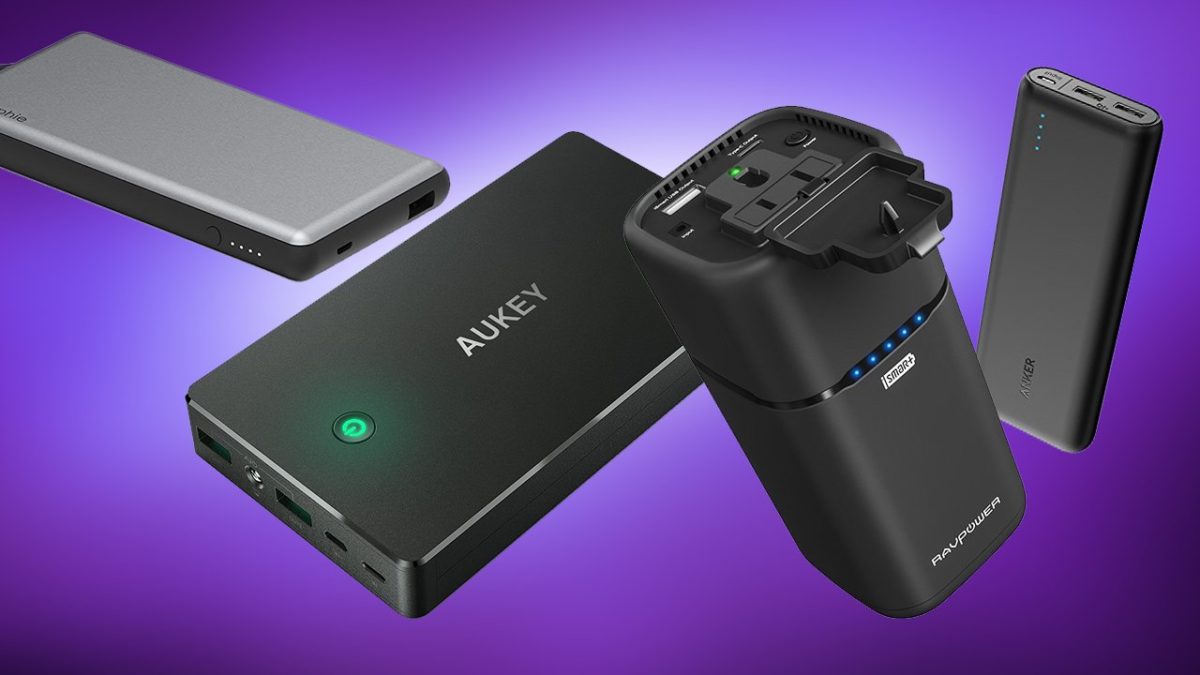
5 best portable phone chargers

5. AUKEY Power Bank 26500mAh

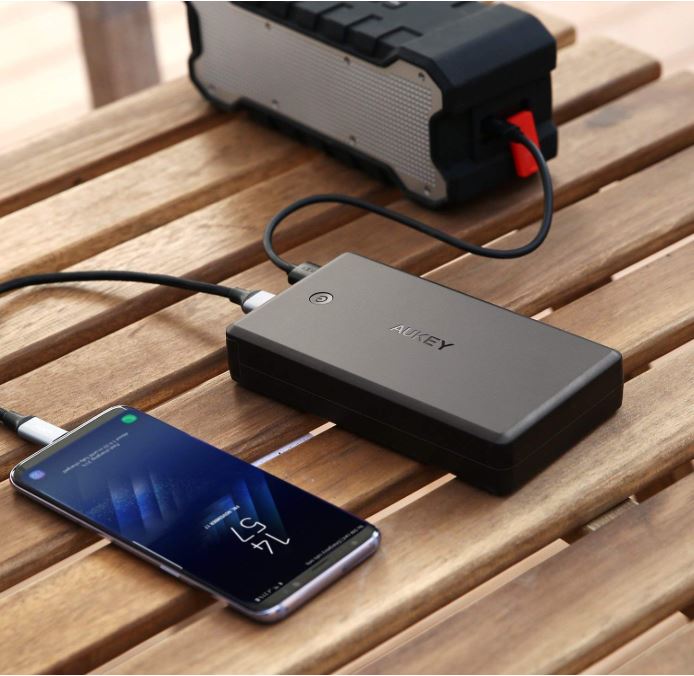
Aukey portable charger charging an iPhone
AUKEY supports lots of different devices, but it is pretty heavy.

This AUKEY Power Bank is a terrific model that’s compatible with a variety of devices, including Nintendo Switch, Android phones, iPhone XS (and XS Max), iPhone 8, and pretty much anything you can fit with a standard USB cable – which conveniently comes in the package. This device is four times faster than your conventional charger, but the increased battery size does make it a little heavy. is a little more expensive as a result. It’s also one of the more costly options on our list.

4. Tzumi – PocketJuice Endurance 8000

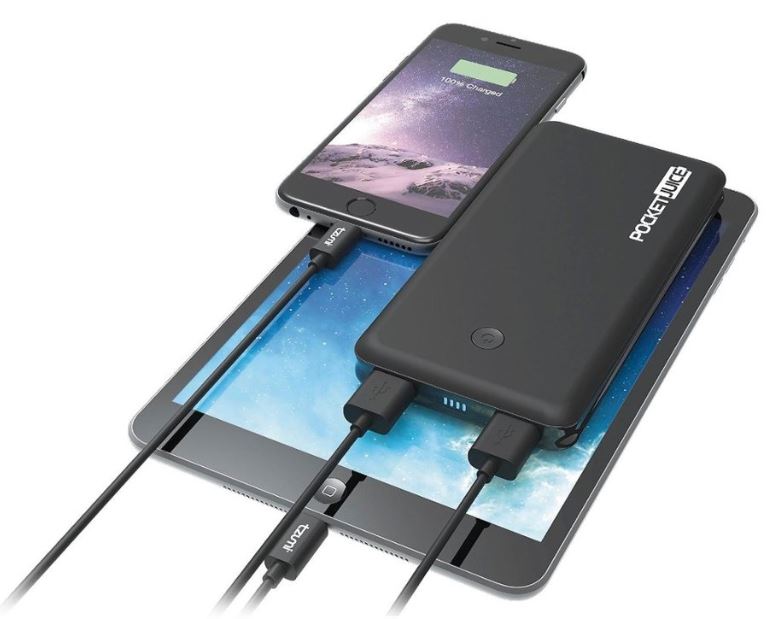
PocketJuice charger charging iPad and iPhone
The multiple ports on the PocketJuice allow for charging two devices at once.

Selling for a third of the price of the AUKEY Power Bank, the Tzumi is also a much lighter option, making it ideal to put in your pocket or toss in your purse before leaving the house. Like the AUKEY, the Tzumi is compatible with practically every USB-powered device, meaning your smartphone can stay connected and ready to work while you’re traveling or on the go. The 8000 mAh lithium-polymer battery pack will even see you through up to around four separate charges for your phone! Its two ports allow for two devices to be charged simultaneously, and the QuikChip technology regulates power discharge in order to keep your device from overcharging or overheating. Built with convenience and safety in mind, the Tzumi is high quality at a low price.

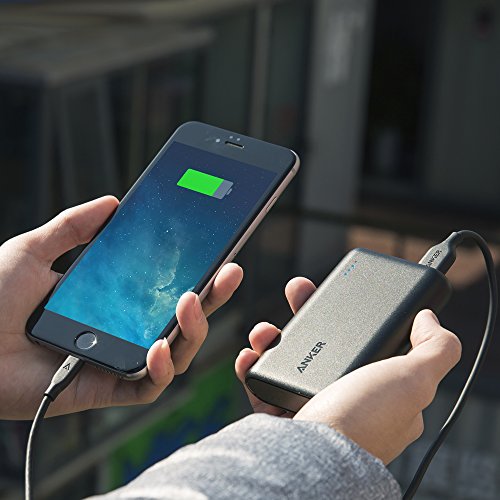
3. Anker PowerCore 10000 Portable Charger

Charging an iPhone with an Anker 10000 portable charger.
The Anker 10000 is about the size of a credit card.

One of the smallest and lightest models on the market, Anker delivers their usual great quality with this more portable device. Featuring a compact design, the Anker PowerCore 10000 is perfect for mobility and its 10,000mAh capacity is enough to charge your smartphone several times over – enough to power two whole phones with battery still to spare. Additionally, the PowerCore 10000 is integrated with a MultiProtect safety system to boost its security and reliability even further. The system boasts a combination of eleven safety features that work together to provide the ultimate protection for your devices and your charger. If you like the Anker brand (which we do) and want a less expensive model that provides peak power and accessibility on the fly, this is an excellent model.

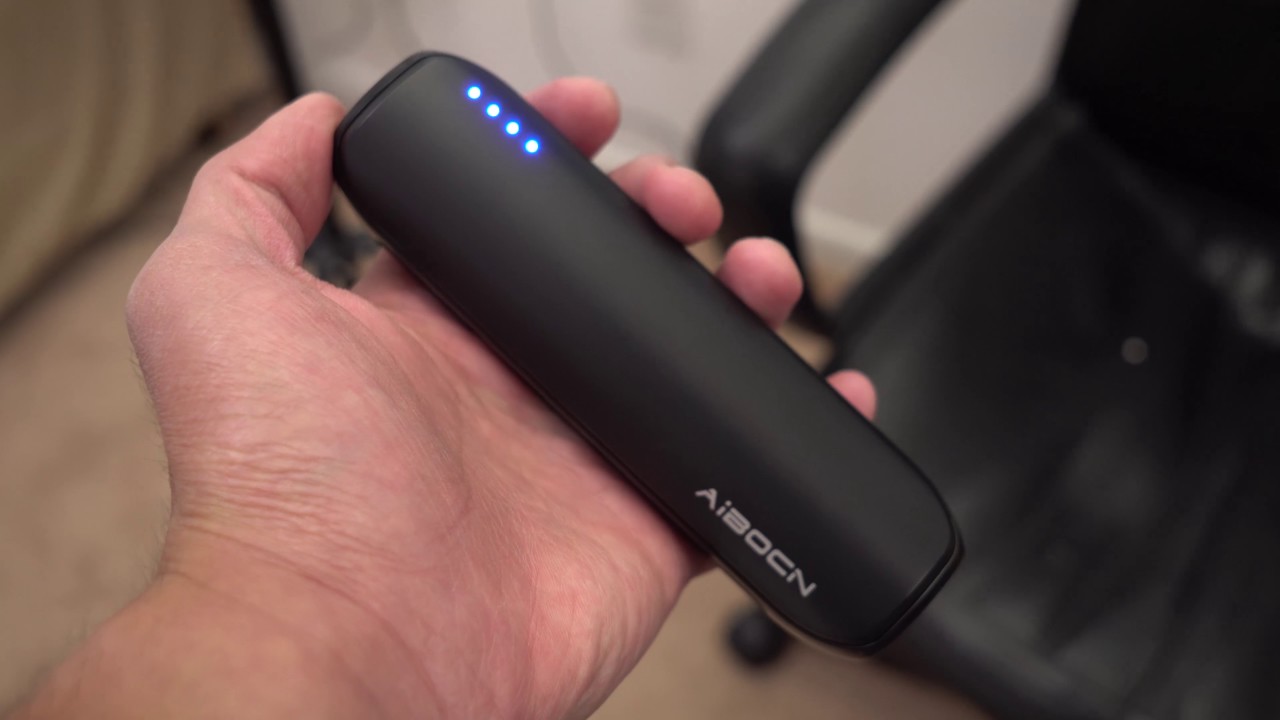
2. Aibocn 8000mAh Portable Charger

The aibocn portable charger is compact and ready on the go.
The Aibocn offers high-speed charging, portability, and user safety.

If you’re looking for ease of use, flexibility, and fast charging all at the lowest cost possible, the Aibocn is your number one choice. For under $20, the Aibocn 8000mAh gets the job done efficiently and consistently. The Venus power bank supports over three times faster charge speeds (for iPhone) than the normal 1.0A input backup charger, and supports Apple, Google, and Samsung products. Like the Tzumi (but cheaper), the Aibocn will also automatically shut down if a short-circuit or overload output occurs during charging.

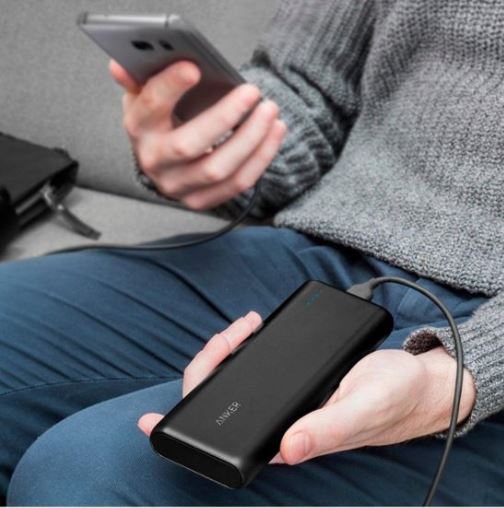
1. Anker PowerCore 20,000

Anker PowerCore 20000 charging smartphone
The Anker PowerCore 20000 is the king of quality, and our number one pick.

It should come as no surprise that Anker holds the highest place on our list, and the PowerCore 20,000 just might be the best they’ve got. To start off, the 20,100mAh battery inside is huge, meaning this will cap out your phone’s battery multiple times before needing a recharge. The charger totally refueled a Galaxy S8 in just 95 minutes, and did the same for an iPhone 8 Plus in 98 minutes. Not only that, but the battery was large enough to do so up to seven times, and the dual-port functionality allows for two devices to be charged at once. While it’s one of the more expensive models, you’re definitely getting the most bang for your buck with the Anker PowerCore 20,000.

So which charger is the best?

While the Anker is our personal favorite, it really comes down to what you’re looking for in your product. Do you favor heavy and pricey but worth its weight in quality? Or maybe something cheap and lightweight that you can use on the fly should you forget to charge your phone the night before. Let us know which charger is your favorite (or if it’s one we didn’t include in our list) and stay tuned for more gear, gadgetry, and great deals!

This article contains affiliate links, which means Softonic may receive some compensation if you choose to make a purchase.

5 best mobile apps for playing Magic: The Gathering

These great apps can make your next Magic game even more fun!

With the release of Magic: The Gathering Arena, playing Magic online has become easy and common for fans of the game. However, this isn’t the only program that Wizards of the Coast has given us to make our Magic experience better. There are many mobile apps from both Wizards and third-party publishers that make playing Magic significantly easier. It can be difficult to manage your decks and tokens without a little extra assistance. These apps help you organize both your decks and the battlefield so you don’t have to worry about managing everything yourself. There are even apps to help you practice Magic when you don’t have many partners to play with. Here are some of the best apps out there.

Best mobile apps for playing Magic: The Gathering

Practicing MTG – Magic Duels

magic duels

While Magic has two primary ways to play its game on PC, there is only one legitimate way to play the game on mobile. Magic Duels is an officially sanctioned Magic app that functions very similarly to Magic: The Gathering Arena. You can play full games of Magic on your phone with this app. Although there are a few more AI options in the mobile title, the game essentially follows the same pattern as Arena by making you spend in-game currency on packs to get new cards. Magic Duels also has Steam connectivity, which means you can play it on your PC as well.

All in one app –Magic the Gathering Portal

This app is currently unreleased but has been announced by Wizards of the Coast with a limited beta coming at some point in the near future. An official release date hasn’t been set yet, but once released, this app will be a one-stop shop for all things Magic related. You can use it to easily look up cards, manage life totals, and even put together tournaments. You can find out everything this app promises to offer in the official announcement page for the app.

The goal of Wizards seems to be that you’ll only ever need Portal and Duels to manage your decks and playtime with Magic. However, until Portal is released, you’ll likely want to check out these third-party apps:

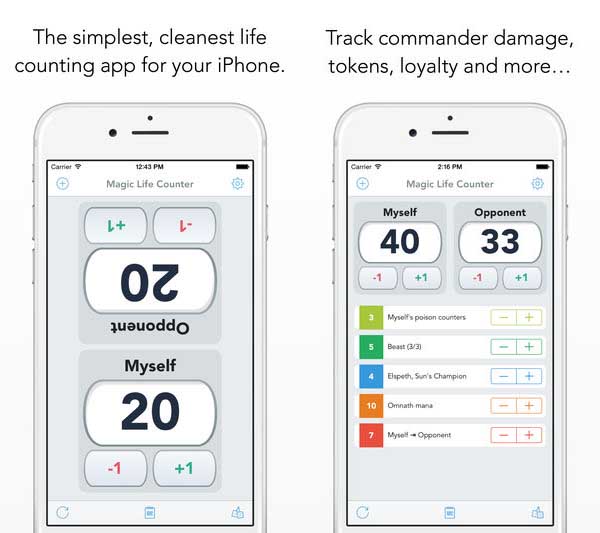
Playfield managment – Magic Life Counter

magic life counter

Currently, the Life Counter app is the best way to manage the battlefield without external items. As the name implies, this app’s primary job is to track the Life totals of each player. However, the app is capable of far more than just this. You can manage counters and buffs on the app as well. This way you won’t need any actual tokens to assist in your Magic games. It essentially is the precursor to Portal, since it will allow you to do all the same companion functionality aside from deck building and card-specific things. 

MTGLife Counter Free Download
7

Deck building – MTG Manager

MTG manager

There aren’t as many Magic deck building apps as one might expect, given how popular the game is. However, MTG Manager is probably the best free one available. This app lets you scan your cards so you don’t have to go searching through a compendium to find the exact card you have. It will then tell you everything you need to know about that card’s history, and even what tournament formats it is allowed in. You can also still search through their compendium, in case you are looking for information on a card you don’t have, and are putting together ideas for future decks. With this compendium and scanning feature, you can manage the cards you’ve added to the app into different decks. You can then edit and search through these decks however you see fit. An ideal setup for anyone who has too many decks to manage on their own.
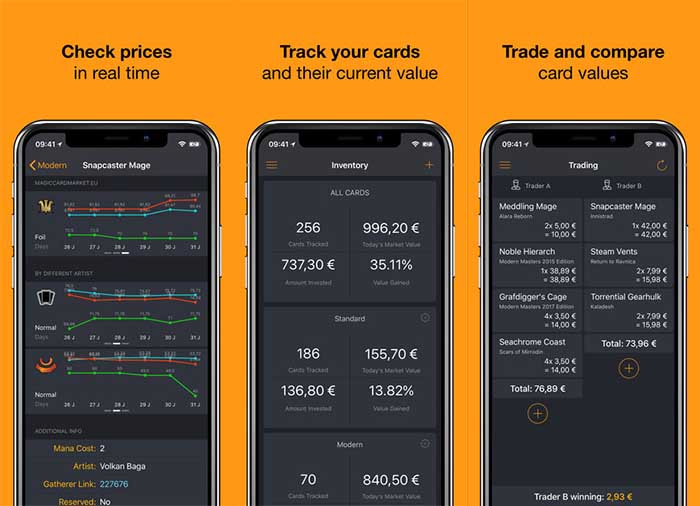
A premium alternative to MTG Manager is Decked Builder. This app has a small fee attached to it, but it provides an equally large compendium of cards, and an easier interface to follow.

Decked Builder Download
7

Tournament management – My Bracket

My Bracket

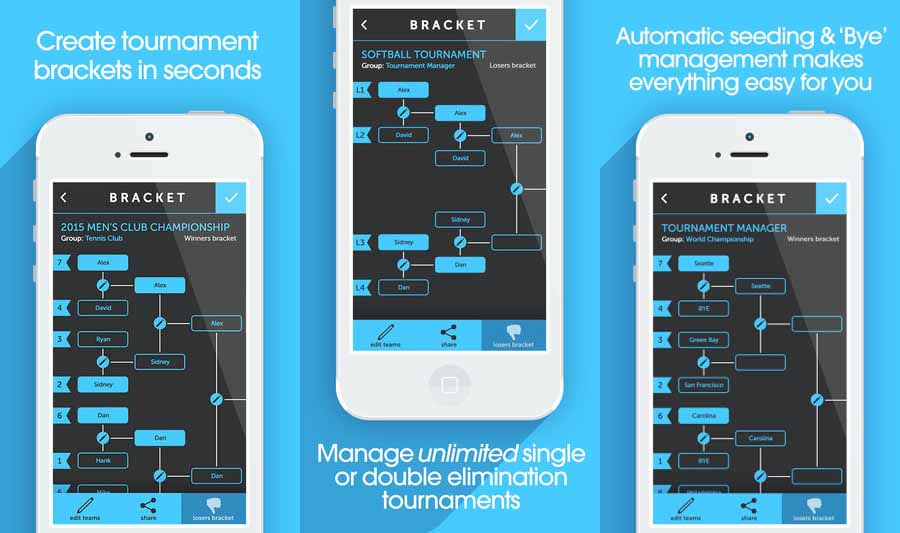
Despite being categorized as a “Sports” app, this is probably the best tournament app for Magic until Portal is released. It lets you completely customize your tournaments with options for multiple elimination rounds, reusable ladders, and easy readjustments. It also has one of the cleanest interfaces of any bracket app, which means you won’t have to worry about ads covering your screen the entire time you’re using it. Even though this app isn’t “Magic-specific,” it is currently the best app for planning a Magic tournament with your friends.

Each of these apps covers a different area of playing Magic. Whether you end up using all of them, or only a few, you’ll immediately notice these aspects of your Magic experience improving. Managing your deck and tokens can be a difficult process, especially for long-time Magic players who have hundreds of cards. Hopefully, these apps will help take the stress of card management out of the equation for you. And if you’re interested in learning about some online alternatives to Magic Duels, then be sure to check out our article on how to play Magic online. Or if you’re new to Magic, then you’ll definitely want to check out our guide to Magic playstyles to help you start building your decks.

Top 7 online resources for helping you get a new tattoo

Ready for some new ink? Here’s how to get the best body art.

tattoo

With tattoos becoming more accepted in the workplace, it’s no wonder we’re seeing a surge of tattoos among American. That said, finding the right tattoo parlor can be time consuming. On top of that, coming up with a tattoo design can be difficult if you’re not an artist yourself.

Thankfully, there are many apps out there that can not only find you the perfect tattoo parlor, but can even help match you up with an artist that will create the best design for you. Here are some of the best apps for helping you get a new tattoo. Some will help you with tattoo ideas, while others are perfect for finding the right tattoo parlor for you.

7 best apps to get the perfect tattoo

7. Tattoo Lettering Font

If you are looking for a lettering tattoo instead of a more visual one, then this app will be great for you. It can help you find the perfect font for whatever lettering you want. It lets you type out whatever you want, and try it in a variety of typical tattoo fonts. It’ll even let you view it in various sizes, which is helpful since not all tattoo styles are wearable at smaller sizes. 

Tattoo Lettering Font Free Download
7

6. Pinterest

Pinterest

While not a tattoo-exclusive app, this is one of the few forms of social media that provides a great source of inspiration and organizing visual ideas. This makes it a great resource for finding the right tattoo design for you. Not only that, but you can look at other people’s tattoo-dedicated Pinterests in order to get get some inspiration for your own.

Pinterest Free Download
8

5. Instagram


View this post on Instagram


A post shared by SATATTTVISION STUDIO (@yurisata) on Nov 5, 2016 at 12:25pm PDT

As an alternative social media to Pinterest, Instagram can be a great source of tattoo inspiration, with many people showing off their tattoos and designs under #tattoo. There are also many Instagram accounts dedicated to tattoo ideas that can open up new possibilities that you weren’t expecting. Plus, it’s a great place to show off your new tattoo once you’ve gotten it.

Instagram Free Download
9

4. Tattoo Maker

A great choice for an app if you wish to create your own tattoo, and you’re not artistic enough to fully design it yourself. This app can make the process much smoother and easier for you, as it lets you take from basic designs and concepts and build upon them with your own work. The best use for this app is if you already have a basic image for your tattoo design, but want to build upon it in some way. 

3. TattooNOW

Similar to Pinterest, TattooNOW provides a variety of tattoo ideas in an easy and convenient way. You can see hundreds of artists and designs, specifically geared towards your own ideas. Unlike Pinterest, this comes from actual tattoo artists, so you know you’ll be getting something that fits the aesthetic of having a tattoo. It also means that many other people have actually used these images for their tattoos as well, so the artist will have a good idea of where it could go on your body.

2. Tattoodo

If you’re looking for a tattoo parlor or artist, then this app will make it easy and convenient for you to find someone close to your area. You can even follow artists on this app to stay up to date on their new designs. While normally you would use Google or another search engine to find tattoo parlors in your area, this app limits the search results to create a much easier experience in finding the perfect location. You can find out everything you need to know about a parlor or artist in an easy and convenient app.

Tattoodo Free Download
7

1. InkHunter

Maybe you already have a design in mind, but you don’t know how it will look on you. This app lets you edit tattoos into photos to see what it would look like. It’s perfect for helping you decide on where to get a tattoo, and to make sure that it looks good when you do get it!

While these are some of the best apps for finding a tattoo parlor, not all of them will help you make that final decision on what to get tattooed. Our Softonic Solutions community has that covered for you, with their own list of great tattooing resources.

How to set up parental controls on iPhone and Android

Keep your kids safe with these simple steps.

Parental controls are important to set up when you want to give your child access to a mobile device. Not only can it prevent your child from doing something harmful or inappropriate, but it can also keep them from doing basic mistakes like deleting important apps. These parental controls can also free you up because you won’t have to worry about what they can access and when. Here’s an easy way to set these controls for Androids and iPhones.

How to set up parental controls on iOS and Android

Android instructions

Restricting a child’s Google Play access can be easy on Android devices. There are two ways to access parental controls on Google Play devices, depending on how you have set up your child’s device. The first way is if your child’s Google Play account is already linked to yours under Family Link. This makes things easy, as all you need to do is access your Family Link app on your device, click on your child’s Google Play account, then “Manage Settings” and “Controls on Google Play.” This will give you access to your child’s settings so you can restrict their account however you want. You actually don’t even need to do this on app, since you can access Family Link on a browser.

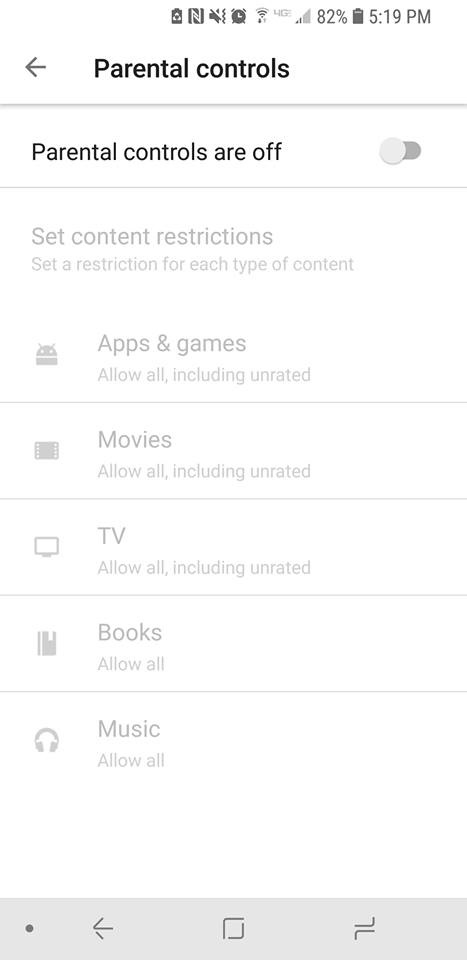
If you don’t have your child’s account linked to yours through Family Link, then you’ll have to go on their device itself, rather than being able to set it up on your phone or a browser. Once you’re on their device, you can go to “Settings” under the Google Play app and press “Parental Controls.” Once you switch them to on you’ll be prompted to create a PIN. This PIN will be how you access and manage the controls, so pick something that isn’t easy for your child to guess. Once it’s created, you can pick and choose the settings you’d like to set for the device.

Android parental controls

If you wish to restrict access to features outside of Google Play on an Android, then you will find each Android has different ways to go about this, depending on which model you are using. As such, it may be easier to use a third-party app for setting up your parental controls. There are many apps out there to use, but we recommend Mobile Fence. This app provides makes management of your child’s phone incredibly easy.

iPhone instructions

Apple has recently updated their terminology and process for setting up parental controls, so there are also two ways in which you may have to go about setting these parental controls.

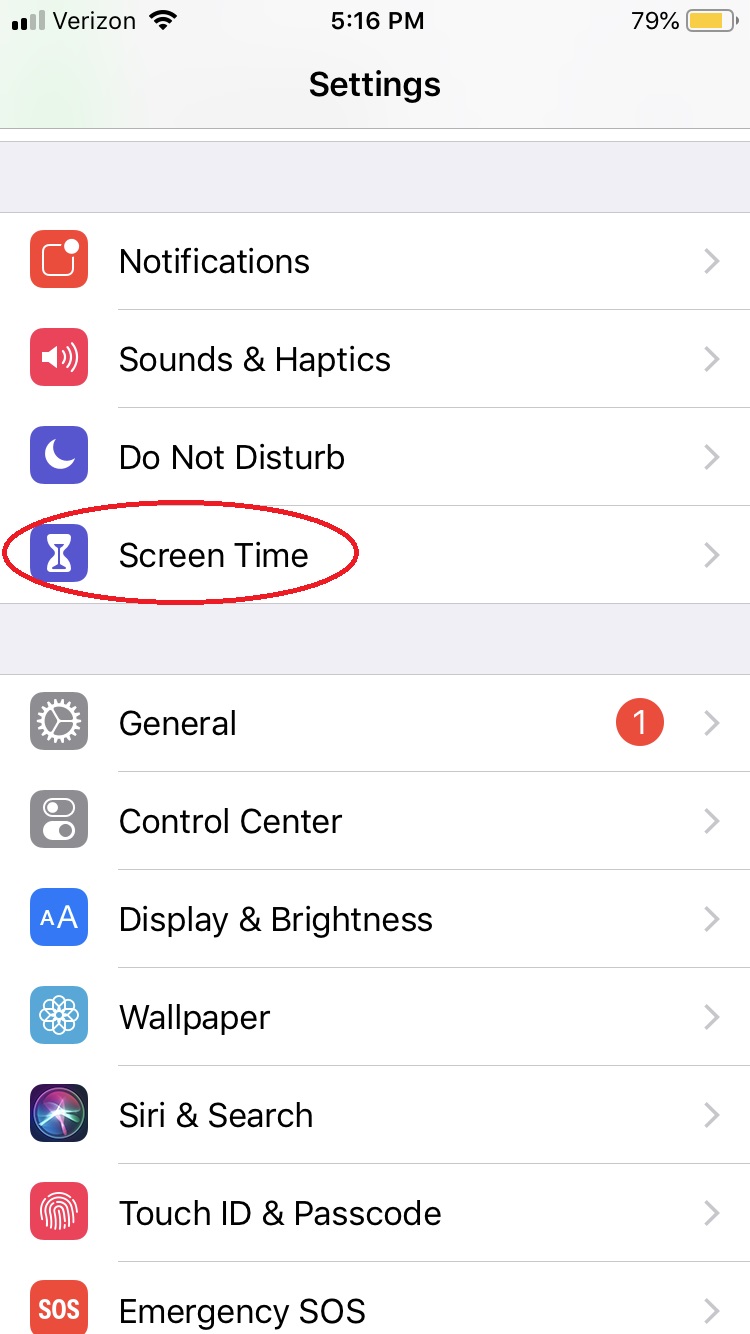
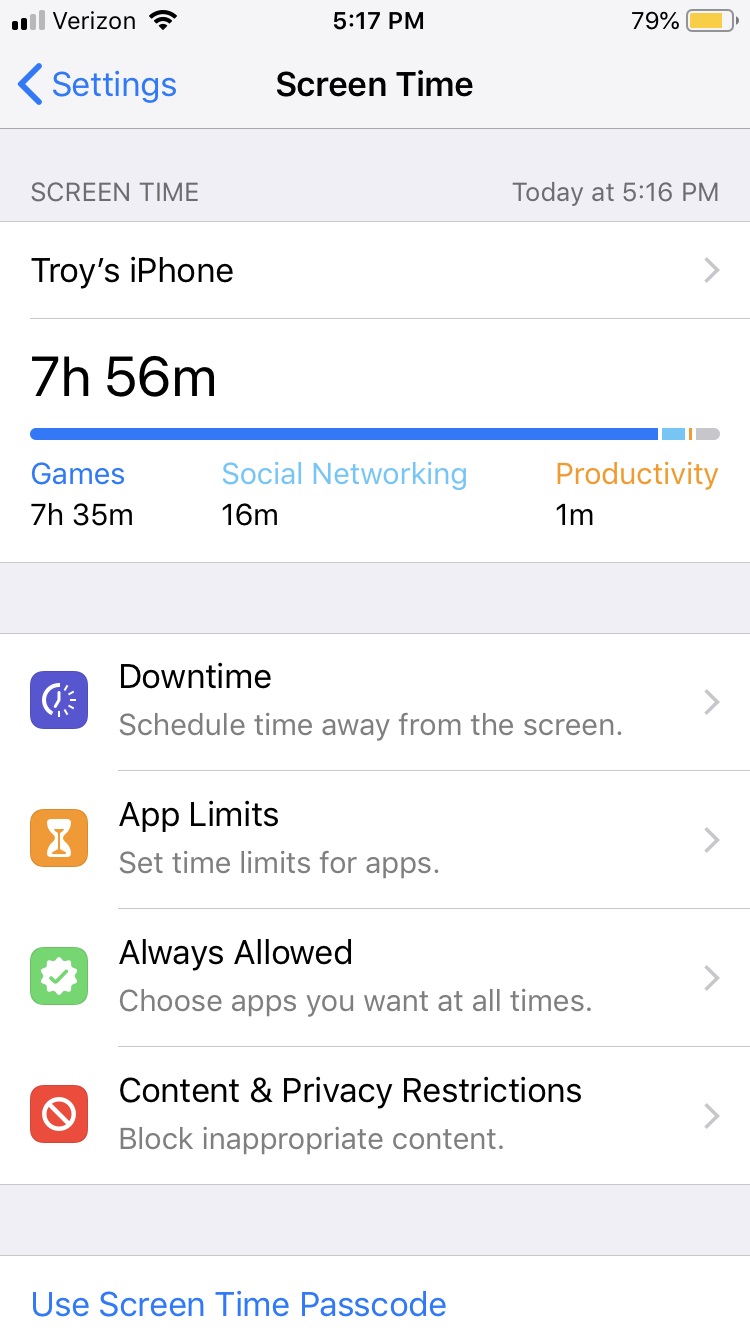
For iOS 12 and newer, under Settings there is a button titled “Screen Time.” 

Parental Controls iphone

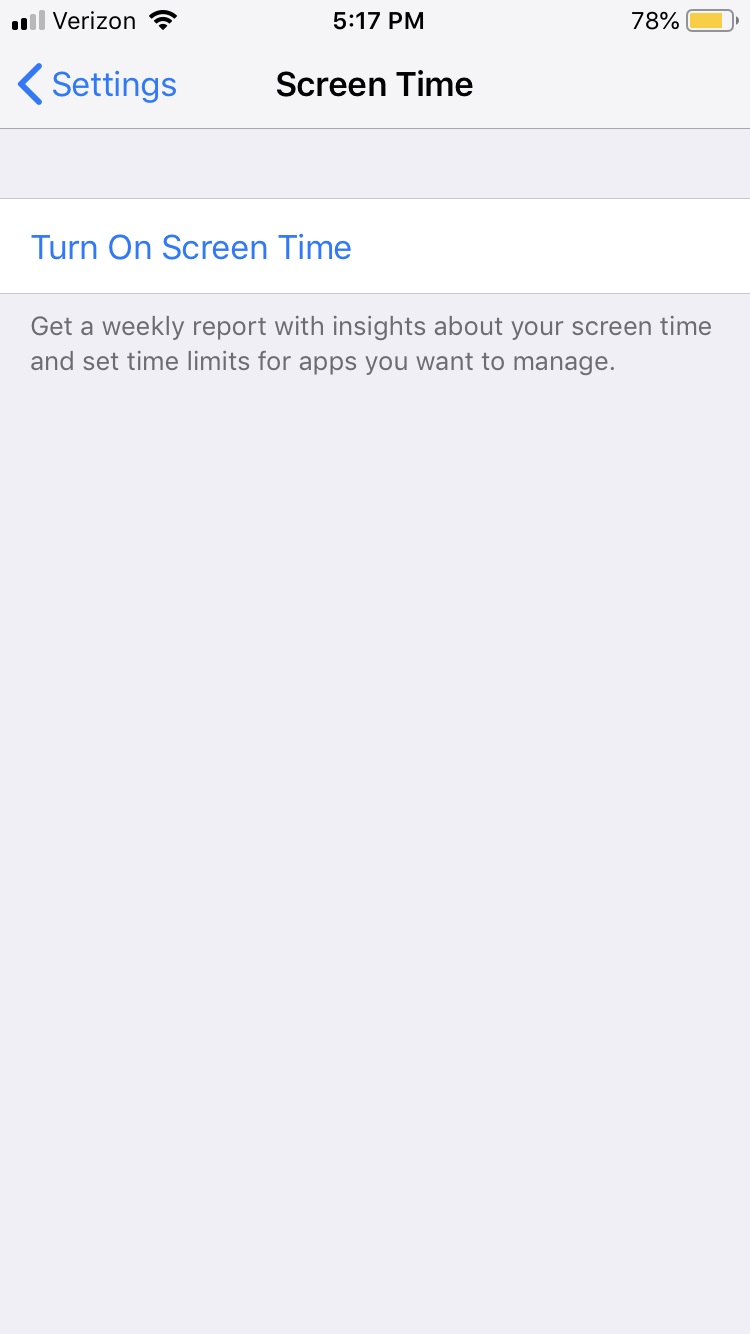
This is essentially the parental controls for Apple devices now. You’ll want to turn on Screen Time to monitor all activity on the phone and create any restrictions you want.

iPhone parental controls

Notable things you’ll want to check out in the Screen Time menu are: “Downtime,” which lets you turn off the phone at specific times; “Content & Privacy restrictions,” which let you block any specific activity or app from your child’s access; and “Set Up Screen Time for Family,” which will let you access your child’s Screen Time from your personal iOS device.

iPhone parental controlsAny iOS before 12 will have parental controls in the settings tab under “General” > “Restrictions.” Enabling restrictions will prompt you to create a passcode that you can use to disable those restrictions if you ever feel the time is right.

With these simple steps, you’ll protect your children and provide yourself a little peace of mind, knowing your little ones aren’t accessing the dark web and setting up an illegal Bitcoin gambling ring or whatever.

The end of Android? More big news about Google’s new operating system

You’ll be able to use all your Android apps on Google Fuchsia

Is Android being replaced

It was back in 2016 when Google started working on an operating system that many thought could be a replacement for Android. Since then, we’ve learned a few more details about the operating system Google is currently calling Fuchsia.

The OS is being built around Google Assistant control and compatibility, and has been seen running on a Pixelbook. This means it is now clear that Fuchsia won’t just be a straight-up Android replacement. Instead, Google is working on a unifying OS that will work across many different types of devices like Windows 10 is supposed to.

Although there have been plenty of leaks talking about how Google’s Fuchsia OS will work, it remains only a rumor that it will replace Android. As yet, there has been nothing official from saying Android’s days are numbered. Evidence is mounting, however, that Android is on the way out and it was only a few days ago that we were highlighting just how many times Google has removed Android from the name of some of its top products. There is now even more evidence that Fuchsia will be a replacement for Android.

You’ll be able to use all your Android apps on Google Fuchsia

A change has been found in the latest Android Open Source Project that indicates Fuchsia will be able to run Android apps using Android Runtime (ART). According to a report in 9to5Google, Fuchsia will use a special version of ART to ensure that Android users won’t lose all of their apps when they make the switch to Fuchsia. The report says that the new version of ART will be installable on Fuchsia devices, just like a normal app.

What remains unclear, however, is how Fuchsia will use the new version of ART once it is installed. Will users have to open it up to run their back catalog of Android apps or will they be able to keep one consolidated collection of older Android apps and newer Fuchsia apps? We’ll just have to wait for more news on this developing story. Sign up to our regular email newsletter by filling out the form at the bottom of the page to stay up to date on new Google Fuchsia news.

Of course, all of this still doesn’t confirm that Fuchsia will replace Android. All this evidence could simply indicate a new operating system that could work alongside Google’s current mobile OS. Google is yet to confirm that it is working on a single operating system to work across all its platforms from wearables to laptops, but there are clear signs for all to see. It looks like it is only a matter of time before we hear something official on this and when we have more news, we’ll let you know.