Download YouTube Videos in a Snap: Three Easy Methods

We bring you the solution to download any YouTube video without dying trying and fill your mobile with cat videos.

You’ve seen an amazing video of a cat dancing to Rihanna’s latest and you want to send it to all your friends. But of course, sending a link to YouTube looks a bit bad, and you know not everyone will open it. And you don’t want them to miss out on that feline hip shake. Don’t worry: we bring you the solution to download any YouTube video without dying in the attempt and fill your mobile with cat videos. We’d lie, but deep down we all know what we consume on the Internet.

Pay (or not)

You’re not going to like the first option, but get your wallet ready, because you’re going to have to subscribe to YouTube Premium. Yes, that thing where you get an ad every eight or nine videos asking you, please, to spend your money. Downloading videos as a premium member is very simple: click on “Download” under the video, select the quality and that’s it. In exchange for this simplicity, however, you pay 11.99 euros per month after the first free month. Keep in mind that right now there are 80 million subscribers, so don’t feel alone: there are also people who paid for WinRAR!

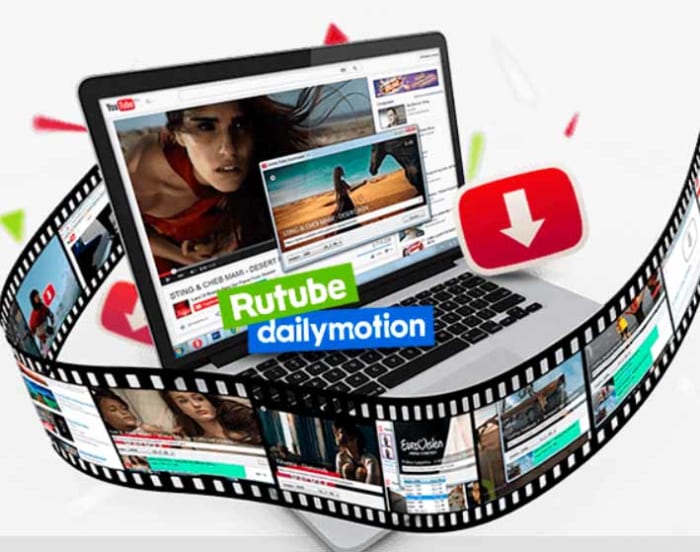
Another option is to download videos using browser extensions, installing the YouTube Video Downloader or a similar app, which, truth be told, leaves little doubt about its function. Installing it is a bit more difficult -but 11.99 euros per month cheaper-, so be careful: first, download the Chrome extension Foxified. Give it all the necessary permissions and you will find automatically and below the video a download button. It may take a while if you decide to download that half-hour compilation of UFO sightings, but in less than you think it will be downloaded to your mobile. You won’t be helping the authors, but your goal of having a video to pass on to your family will be accomplished.

Open Video Downloader DOWNLOAD
Aplicación gratis para descargar vídeos de plataformas online

But imagine that you don’t want to mess with Chrome extensions (or that you still use Edge, as if we were in the Middle Ages!). Then you can always download the Open Video Downloader app, which, once again, doesn’t hide its function either. Let’s see how to get that performance of Tu Cara Me Suena that you love so much because Eva Soriano and Lalachus are hilarious: After downloading Open Video Downloader, copy the address of the video, paste it into the app to put it in the queue, choose in “Preferences” the video quality or the video extension, click on “Download”… Et voilà!

You may have arrived here saying “Well, all right, but I downloaded the Doraemon Almond Tree song using a website and…”. Well, yes, there are web options, but if you don’t want to fill your computer with downloads you didn’t ask for and see how suddenly everything is full of ads, starting to doubt if Venga Monjas is so worth it, we recommend you to follow our previous recommendations. You’re welcome!

How to convert videos to different formats

Converting video files can sound intimidating but there’s nothing to be worried about. Here we’ll show you five ways to convert video formats.

Converting videos from one file type to another may sound like some sort of technical nightmare but actually. It is a lot easier than you’d think. There are a million and one reasons you might need to do it too. You may want to upload your video to the internet or maybe that video you took on your iPhone is too large as you now have a camera that can capture in 4K.

Whatever the reason doesn’t matter as there are a lot of great programs out there that can help you take a video saved as one format and convert it into another. We’ll now walk you through the best of them and show you just how easy it can be to convert video files.

Video converters

Unlike with pictures, there is no single file type for video that everybody uses. There is no JPG of video, and instead, there are many different video formats including MP4, AVI, MOV, WMV, MKV, MPEG, WebM, AAC, and FLV to name but a few. This is how to convert them all into each other.

iMovie

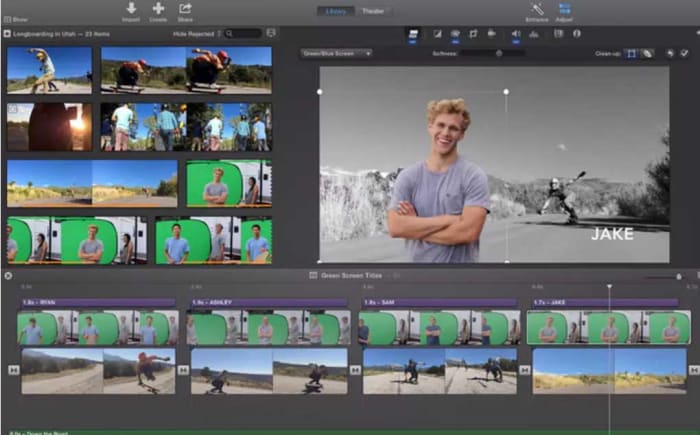
iMovie for Mac offers a rather robust entry-level video editing suite for all budding movie makers fortunate enough to have a Mac. iMovie has a plethora of cool features that will allow you to take your home movies and camera phone recorded videos and bring them all together into a polished final product.

Another of the key features iMovie has to offer is the video conversion tool. With this tool you simply need to import the video file of your choice and add the video to your storyboard. From there you need to hit Share and then choose File. This will then give you the option to save the video with a new name, new resolution, new quality, level, and a new file format.

iMovie Download now
7

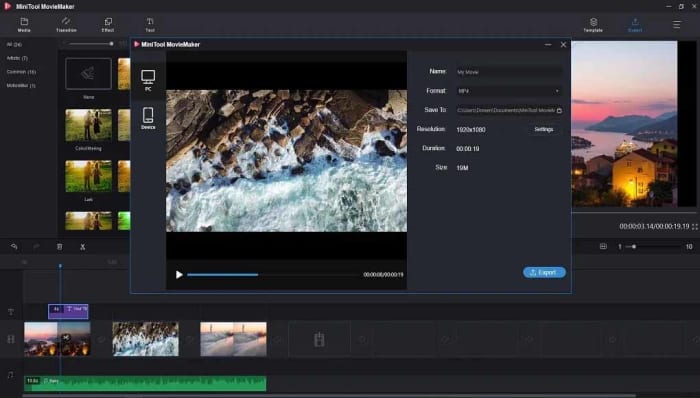
MiniTool Movie Maker

We like MiniTool Movie Maker here at Softonic because gives away a lot of great video editing features for free. Furthermore, as well as offering anybody looking to make their first movie the tools they need to do so, the app also lets you make your videos for free without having to display a watermark, like most other free video editing apps, do.

The video converter on MiniTool Movie Maker allows you to convert almost all different video file types and even gives you the option to edit the videos you’re converting too by adding various elements such as subtitles or filters. It is easy to use too. You simply import your video and set your target format and the app does the rest.

MiniTool Movie Maker Download now
9

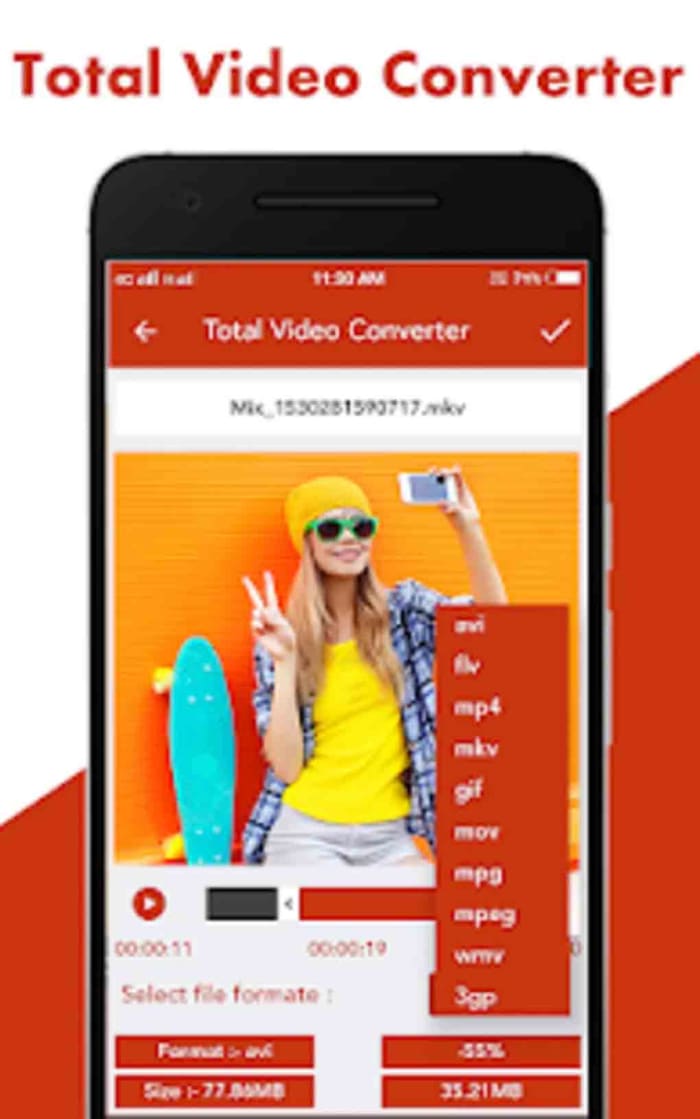
Total Video Converter

This app for Android offers a quick and simple video conversion solution for mobile users. There’s also a Windows version of the program and a version for Apple Macs too. Sadly, however, there’s no iOS version available at the moment so iPhone users can’t use this program to convert their videos.

Converting videos on mobile couldn’t be easier. When you open the app, it will automatically show you all the video files you have on your device. This means you don’t have to go searching around your device or copying and pasting files from one place to another. The app just shows you everything you need right there in one place. From there it is simply a case of selecting the video you want to convert and the format you want to convert it to and then hit Convert. The app will do the rest. The app converts files quite quickly and also offers a video player too so that you can watch the videos you’re converting too.

Total Video Converter Download now
8

Online Video Converter

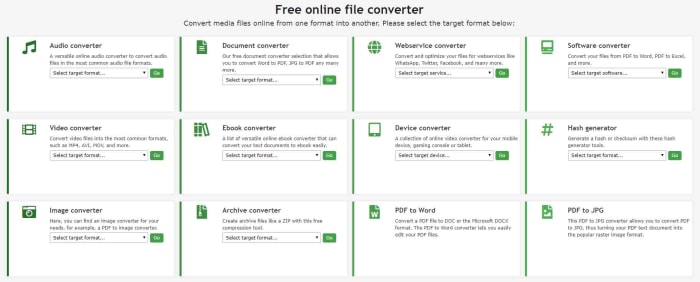
As well as showing you the best apps for Android, iPhone, Windows, Linux, and Mac for converting videos, we thought it would also be helpful to show you the best website for converting videos too. Online-Convert is an absolute beast of a site that will help you convert almost any type of file, not just videos. Here you can easily convert Word files to PDF and vice versa as well as easily converting software, images, eBooks, audio, and more.

We’re here though for video and the process couldn’t be simpler. All you need to do is go to the site and find the Video Converter box. There you need to open the drop-down menu and select the type of video file you want to convert your video into. Once you’ve done that, click Go, upload your video, and then hit Start Conversion. There are more advanced video conversion settings you can play around with, but these are optional. This method can be as simple or as complicated as you like.

VLC Media Player

VLC converter MP4

VLC Media Player is the internet’s favorite video and media player. It can play almost every type of video format and codec and barely breaks a sweat while other video players would struggle or simply crash. VLC is the don and always has been. VLC also offers a pretty robust video conversion solution too, which we’ve gone into in greater detail before.

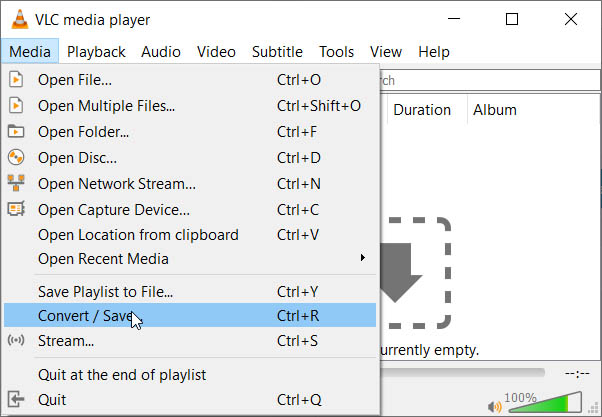
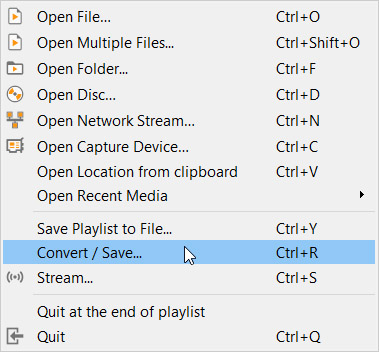
The video conversion process on VLC Media Player couldn’t be easier. If you open the program and go to the Media menu, you’ll see the Convert/Save button. You simply need to click this and then click the Add button to select the video file you want to convert. After that, you click Convert and select the destination of the converted file, the file name, and the new file type. As you’d imagine with VLC there are an awful lot of compatible file types here for you to choose from. From there it is as simple as hitting Start.

VLC media player download free ►
8

Super-powerful MiniTool MovieMaker is now free!

Download MiniTool MovieMaker: create top-notch videos has never been simpler. And even better – the software is completely free for a limited time!

All it takes is a quick scroll through an Instagram feed to realize just how important video has become in today’s world. In fact, according to advertising software provider, Wordstream, one-third of all time online is spent watching video content. Creating videos was once a task only reserved for the pros – but now, thanks to MiniTool MovieMaker, creating top-notch videos has never been simpler. And even better – the software is completely free for a limited time!

Free: Truly free!

You might expect that free video-creation software would come with certain limitations. But that’s simply not the case with MiniTool MovieMaker. Not only are there no limits on file sizes, no watermarks or ads, and no bundle upsell – but there’s a multitude of helpful features included. 

Easy-to use templates

When you start up the MiniTool MovieMaker software, you’ll be given a range of templates to choose from including “Our Love Story,” “Photo Album,” “Wedding Slideshow,” and “Travel.” Select one of these templates and you’ll be prompted to add the recommended number of photos, which will then be stitched into a professional-looking movie you’ll be instantly proud of. 

Once the photos are uploaded, you can change their order, as well as the duration any one of them remains on the screen in your creation. You can also change and edit the musical or narrative track that can accompany each video. 

Powerful tools

If you want to start a video project from scratch, you simply upload your content into the software and you can then add and edit musical tracks, build in great effects to enhance or artfully manipulate your photos, and control the transitions between each image.

On top of that, MiniTool MovieMaker comes with features usually only found in big-budget professional software like the ability to merge videos and change a video’s resolution, format and quality. 

 It’s also possible to use a variety of overlay templates to add text to any image, or to have your text appear on a graphic background to really grab the attention of your viewers. Text templates include those suited for credits, title slides and narration.

Drag-and-drop simplicity

While MiniTool MovieMaker puts pro-level tech in your hands, it remains easy to use thanks to a simple drag-and-drop interface. You simply drag in images, video clips, transitions and text slides to a running strip on the bottom of the page and you’re practically ready to debut your masterpiece!

Did we mention that it’s free?

Just in case you missed it – all of the features of the simple yet powerful MiniTool MovieMaker are completely free for a limited time. We’re not really quite sure how such an amazing opportunity came along – but we do know that’s it’s one you should take advantage of today!

Vegas Pro 18 Gets Faster, Easier and Smarter than Ever

Vegas Pro 18 now collaborates with proDAD Mercalli V5 Suite to give you the best video editing and production experience.

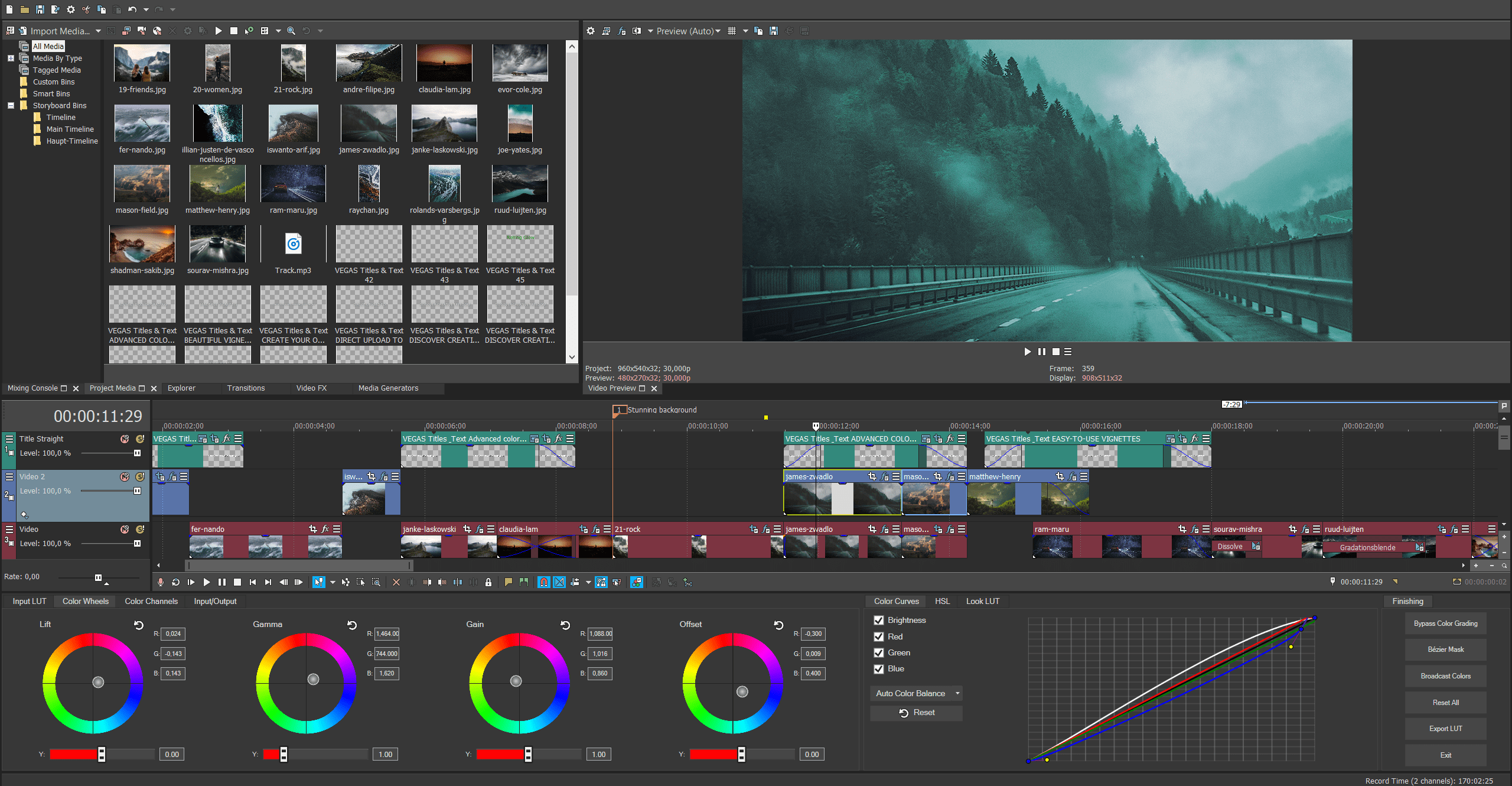
The “pro” in the title of the new Vegas Pro 18 video production software package really means two things. The first is that if you’re a professional video editor, the software has a mind-blowing array of tools that you’ll be able to use in order to get your clips looking exactly the way you want. The second is that if you’re an amateur, the software’s suite of tools – many of which are powered by AI – will have your videos looking professional-grade in no time. In either case, Vegas Pro has long stood as one of the top non-linear editing tools out there, and with the release of the 18th version, it’s gotten even stronger.

Vegas Pro 18 now collaborates with proDAD Mercalli V5 Suite to give you the best video editing and production experience. This real-time video stabilization and image optimization will save you up time and energy: no need for a thorough video analysis prior to stabilizing, your footage will be stabilized live on your timeline. This additional software with a value of $299 comes for free when buying the Vegas Pro 18. An offer not to be missed!

Fantastically Fast

Vegas Pro 17 was already super speedy, especially considering the large amounts of data NLE programs need to process. The new version ramps the speed factor up a bit more, thanks to the inclusion of more AI than ever before, along with smart, top-of-the-line hardware acceleration algorithms. The software has been retooled to make the most of your GPU and to also alert you when the drivers for your graphics card need updating.

These changes enable you to create, edit, and undo your edits nearly instantaneously – no more waiting for long stretches for effects to render or changes to take hold.

Creative Control

The newest release of Vegas Pro also includes some creative control features that truly makes the software stand out from the pack.

A new Style Transfer feature lets you turn your video into a masterpiece with a range of filters that mimic the world’s greatest artists and paintings. The Colorization feature analyzes your black and white work and lets you add a touch of color or deeply saturate the screen with full color. And speaking of color, this version of Vegas Pro includes enhanced color-grading abilities including tools to get skin tone perfect (and blemish-free), and an algorithm-powered option for adjusting the look of your work based on actual camera exposures.

The software also comes with the industry-leading Action VFX and Boris FX Continuum suite of effects that allow you to add particle flows, special effects like explosions and fire, and much more with one-click ease.

And lest you think the Vegas team forgot about sound, you’ll be happy to know that the new release features the integration of Sound Forge Pro 14, a powerful sound editor that lets you automatically remove background noise, enhance sound components you want to bring to the forefront and much, much more.

Quick Clean Up

In addition to creatively enhancing video, Vegas Pro 18 can also clean up clips that need a bit of help. A new Flicker Filter turns flickering fluorescent lights into steady beams with a click, a Video Noise Reduction feature gets rid of the grain that often afflicts clips shot in low light, and a Black Bar Fill Filter will take a portion of the video and use it to fill in the black bars that show up when clips are shot vertically instead of horizontally on a mobile device.

Easy Flow

One of the nice things about the Vegas brand is that the engineers behind it not only focus on better, faster features, but they also continue to improve their software’s interface. Vegas Pro 18 is no exception, so you’ll find an easy way to search for or bookmark your favorite plug-ins; quickly access the motion tracking feature; and organize your footage and clips into a cohesive library with collections of related assets and a tagging function that lets you easily find files.

Great Deal

As we said at the beginning, Vegas Pro 18 now comes with top-notch image stabilization software proDAD Mercalli V5 Suite. An offer not to be missed! If you’re serious about reaching a professional level in your video production pursuits, we would recommend this software at any price, but with this deal, it’s almost too appealing to pass up.

The best free video editing software of 2019

These are the five best free video editors available on the internet today. Check them out now.
Best free video editors

There are a lot of amazing video sharing platforms these days. Beyond the obvious ones like YouTube and Facebook, you have smartphone specific apps like Tik Tok and IGTV. This being the case, we’re not surprised you’re looking for some top-quality video editing programs. Simply filming the best video isn’t enough these days. You need to know how to edit videos too. If you want to stand out from the crowd, you need to edit your video files, make them look as professional as possible, and then make them available cross-platform to Windows, Android, or Apple Mac OS, iPhone, and iPad so that as many people as possible can see them .

As if editing video clips wasn’t hard enough already, getting your hands on a decent video editor can end up costing an arm and a leg. Therefore, we’re bringing you a list of all the best FREE video editors.

Best free video editing software

HitFilm Express

As you’ll probably imagine, a lot of the free video editing programs we’re going to include in this list will be related to more fully featured, yet paid for, versions of the same program. HitFilm Express is one such video editing tool that offers an impressive Pro version of the software for $299. The great thing about the latest free version of HitFilm Express, however, is that it has a lot of features that have come from past Pro versions. Let’s take a closer look.
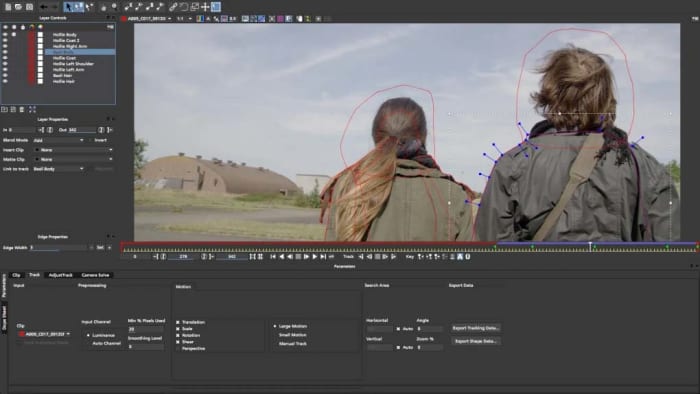
HitFilm Express

HitFilm Express uses a timeline editor interface and offers some user-friendly playback options that will help you out when you’re trying to edit your professional video. Impressively, a recent update also added the ability to edit 4K (4096 X 2160) footage, and even the ability to use the power of your GPU, with Nvidia and Intel support, to help with decoding. Other key features include 360 degree editing, special effects, video effects, multicam support, 3D effects, and GoPro support to name but a few. You’ll also be able to publish your videos into multiple output formats.

There are trade-offs, however. For a start, although you don’t have to pay for the free version you will have to ‘earn’ it. You’ll have to mention the developers on social media before they’ll give you access. On top of that, there are also some add-on features like animated text that you’ll have to pay for.

HitFilm Express Download now
8

VSDC Free Video Editor

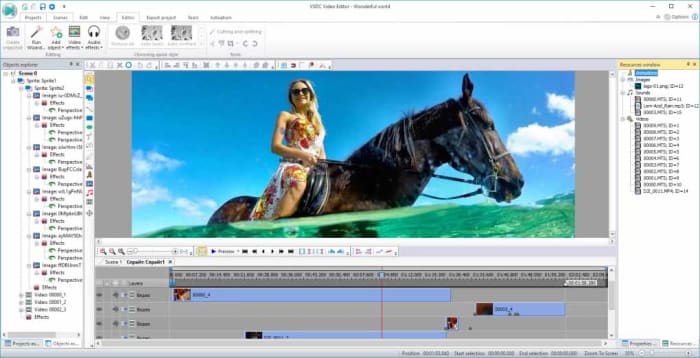
VSDC free editor

There is an awful lot you can do with the free version of VSDC Video Editor. There are many audio editing features, sound effects, and visual effects available for you to play around with. VSDC also offers green screen capabilities and there are a lot of cool Instagram-like filters that you can use to enhance your footage.

The downsides related to VSDC are mostly related to its interface. Its enhanced feature set make its interface rather complicated and a little daunting for beginners. There is a lot going on here. Fortunately, however, VSDC has a comprehensive YouTube channel filled with video tutorials for all the main features. There is also a paid real-time support service for free users that starts at $10. There is, however, a premium version of VSDC available, which is much cheaper than some of the other premium versions we’ve featured on this list.

VSDC Free Video Editor Download VSDC
7

Lightworks

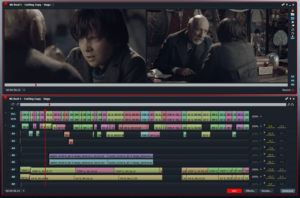
Want to make or share a great video? - Lightworks

Lightworks is a well-known video editor that offers comprehensive control over all the snips and cuts you’ll need to turn your home movies into Hollywood style blockbusters. Lightworks has been used to edit Hollywood movies including Martin Scorsese’s movie The Wolf of Wall Street.

Obviously, the free version isn’t as fully featured as the pro version, which costs $24.99 a month or $437.99 outright. With the free version you’ll only be able to export your movies to YouTube or Vimeo and only with a maximum resolution of 720p. You will, however, be able to import all video formats and use a wide range of the pro features, you’ll just be heavily limited in your video export file format options.

Lightworks Download Lightworks
7

Want to learn how to use VLC as video converter?

Blender

Blender is a rare thing of beauty among free video editing programs. Rather being a free version of a pro product, Blender is a completely free piece of software as it is open source. That means Blender is a community developed product that has been put together by developers all over the world. This isn’t just good because it means the software is free, it also means that new advanced features often come from video editors themselves who’ve noticed a shortcoming in the software’s capabilities.
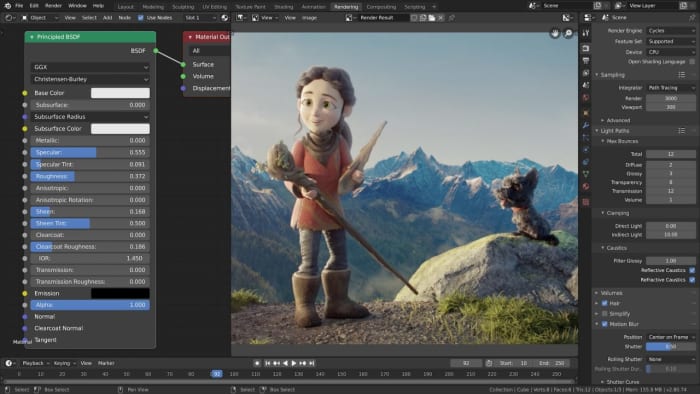
Blender interace

Cool features that come as standard with Blender include being able to Live Preview your work, which could be made of up to 32 separate tracks each capable of holding video, images, masks, effects, and audio tracks. Other key features include transitions, filters, and speed control.

As you’d expect from a community led program, however, Blender can be a little hard to take in at times and has quite the steep learning curve. There is no set manual explaining how everything works and you won’t be able to rely on official support channels. If you look hard enough though, you should be able to find all the help you need on the online Blender forums or YouTube.

Blender Download now
8

DaVinci Resolve

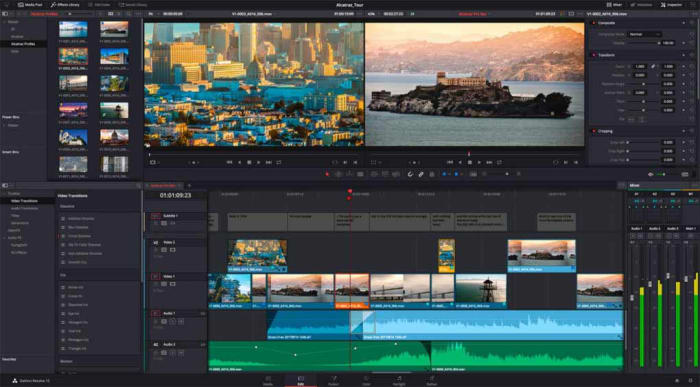
DaVinci Resolve

Like HitFilm Express, DaVinci Resolve has a premium version that comes in a $299. The free version of DaVinci Resolve, however, has some very capable features and should be more than enough for all amateur film makers.

DaVinci Resolve has a fully featured editing suite and offers high-resolution editing all the way up to Ultra HD and at an impressive 60 frames per second. Furthermore, it is much easier to use and has a more intuitive interface than the likes of VSDC. DaVinci also offers faster rendering times than the free version of HitFilm Express, which could give this the edge when you’re looking for a free video editing suite.

DaVinci Resolve Download now
8

We’ve outlined five of the best free video editors for you to download for free. Each represent a high level of editing features and could see you producing very professional looking results. We have assumed a certain level of video-editing ability here, with each program catering to video editors who already know what they’re doing. We’ve also not spoken about editing apps like Adobe Premiere Pro and Final Cut Pro, which target professionals.

If you’re just getting started with your new hobby and you’re just looking to make a few YouTube videos, we recommend looking for more beginner friendly programs like iMovie or Movie Maker. It is worth pointing out again though, that many of the programs we’ve listed do have online technical support channels, extensive YouTube tutorials, or community-based forums all designed to help you learn how to use your new tools.
VLC: All you can do besides play videos

Check out some of the best hidden features of VLC. Learn how to record audio, video, and your desktop and may other great features too.

VLC Media Player by VideoLAN is an absolute behemoth open-source digital media and video player. It is quite comfortably able to play almost all types of codecs, file formats, and media from MP3 files to MP4 and a whole host of other video format playlists. This is the thing though, whereas it is definitely important for a media player to be able to play video file types like MKV, MOV, and AVI; VLC Media Player can actually do so much more.

That’s why we’ve decided to put together a list of the 5 best hidden features of VLC. After reading our guide not only will you know about the best VLC features, you’ll also know how to use them. Let’s get started:

VLC media player download free ►
8

5 of the best hidden VLC tricks and features

How to use VLC to convert audio and video files

VLC Player offers a very competent option for anybody who needs to convert a media file from one format to another. If you’ve VLC Player installed on your Windows PC or Mac, you won’t need to purchase, download, or install any third-party software so that you can convert your media files. It doesn’t even require a special plugin. No more searching for solutions on Google, this is how to convert video.

VLC media menu

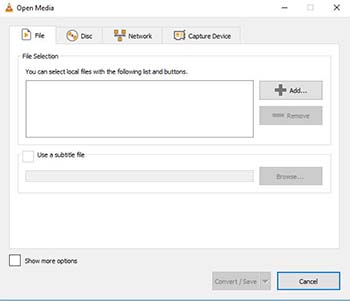
First you need to open VLC, then click on the Media dropdown menu, and finally hit Convert/Save. You’ll then need to select the videos or audio files you want to convert using the Add button. Then in the Destination file box put the folder you want your converted files to save to and what you want the files to be called. After that you choose the VLC file type by clicking on the spanner button and selecting from the dropdown menu. Once you’ve followed the above instructions all you need to do is hit the Start button to begin. There are also some advanced features you can take advantage of, and you can find out all about the advanced VLC file conversion features here.

How to use VLC to record video and audio

If you have a Windows 10 PC or a Mac, you will have a native camera app and sound recorder for taking photos and videos using your webcam and recording sounds using your microphone. That’s all well and good but you can do both on just one app; VLC. Furthermore, as we’ve just seen, VLC can also convert audio and video files easily meaning you can quickly and simply take your recordings and convert them into any video output or file type. These will then be good for use on all your devices from Android smartphones and tablets to Apple iPhones and iPods.

Advanced controls on VLC

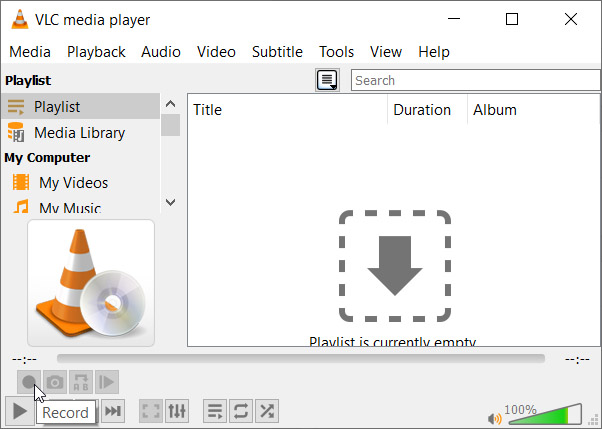
To record audio on VLC you need to activate Advanced Controls by clicking View in the top menu and then selecting Advanced Controls. This will display new controls in the bottom-left of VLC above the play button. To start recording sound all you need to do is press the Record button. To stop recording and save your file, simply press the Record button again.

Open Media on VLC

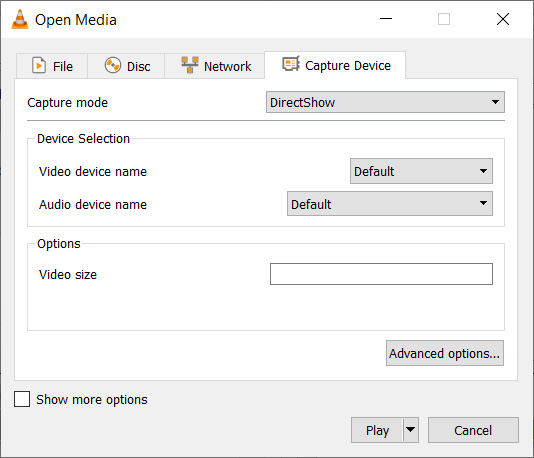
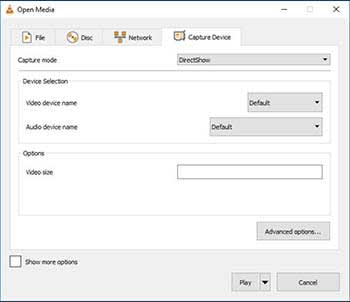
To record video on VLC using your webcam you need to go to Media then Open Capture Device. You now need to set Capture Mode to Direct Show and you’ll need to select your webcam from the options in the Video device name menu. If you want to record sound with your video, you’ll need to select your microphone from the Audio device name menu.

How to use VLC to record your desktop

Screenshots are an important part of the modern digital life we’re all living. Yes, you guessed it VLC does screenshots too, but we’ll get to that in a minute. VLC also offers the chance to record everything that is happening on your desktop rather than simply catching an instant.

Record desktop on VLC

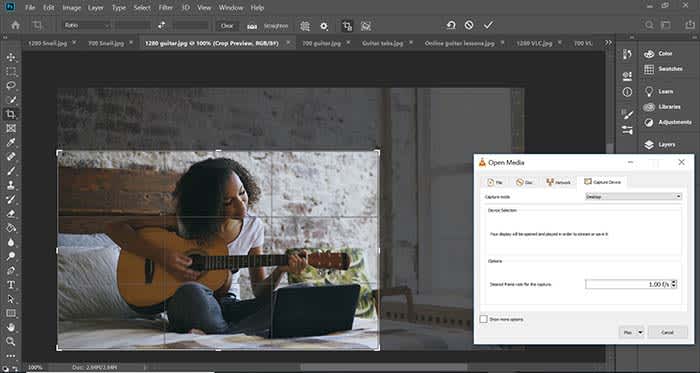
To record your desktop open VLC, hit Media in the top menu and then click Open Capture Device. You now need to change the Capture mode setting to Desktop and then select the framerate you want for your recording.  After that hit Convert so that you can select the file type your recording will save as and hit Start to begin. When you’re done recording your desktop hit Stop to save it.

How to screenshot on VLC

There are two ways to snap screenshots of videos using VLC. The first is to right-click and then select Video in the dropdown menu and select Take Snapshot. The other way to take a screenshot using VLC is to use the keyboard shortcut. On Windows or Linux press Shift + S and on Mac OS press CMD + ALT + S.

How to use VLC to rip DVDs onto your PC

DVDs used to be everything. When they first replaced VHS tapes their superior quality and sleek smaller form factor made them perfect for collections. If you’ve a huge DVD collection and want to save the movies and shows on your PC in case something happens to them or just because you never watch DVDs anymore, VLC can help you out.

Rip DVD on VLC

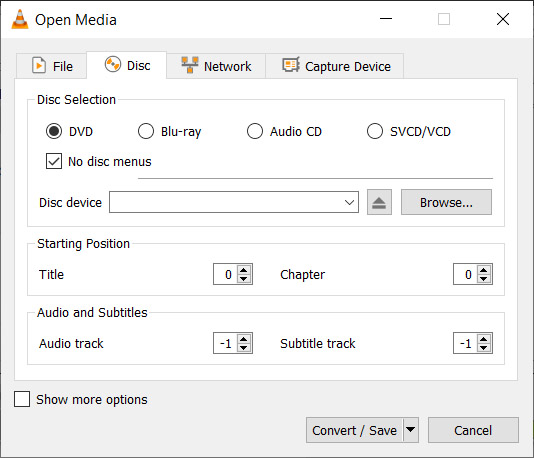
To rip a DVD using VLC insert the disc and then go to Media and then hit Convert/Save. Open the Disc tab and then choose the type of disc you’re ripping, which in this case is DVD. After that, check the No disc menus button and choose the desired Disc device where you want to save your DVD. Then hit the Convert/Save button and choose the file type you want to save your DVD as and then hit Start to begin the process.

Wrapping up

So, there you have five hidden VLC features that go beyond just playing media files. Now you know how to take advantage of some of the best VLC features. If you’d like to know more cool hidden VLC features, you’ll be glad to know that we’ve put together another guide to some of the best hidden VLC features, which you can read here. This guide includes how to listen to internet radio and podcasts using VLC and even gets into video effects.

VLC isn’t just great because it is a free open-source piece of software. It puts a lot of very powerful tools at your fingertips. We hope you enjoy using the tools we’ve highlighted in this guide.

Best apps to download audio and video from YouTube

If you want to download videos from YouTube or other video hosting websites, you should check out these great apps.

YouTube is an incredibly large video library. There are literally billions of videos you can watch on the YouTube app. You always, however, need an internet connection to watch them. YouTube allows you to stream videos but doesn’t allow you to download videos.

Well, that is not entirely true. YouTube does now give you the chance to download videos to your device so that you can watch them later, in a similar fashion to how you can download movies and shows on Netflix. Like Netflix, however, YouTube Premium costs money. If you want an official YouTube downloader, you need to pay for YouTube Premium.

Unofficially, there are many apps and programs out there that can help you download videos from YouTube. Google might not be too happy with you doing so, due to its ad-based revenue stream. If, however, you’re not going to share the videos once you’ve downloaded them, you shouldn’t fall foul of the law should you decide to use such tools to download YouTube Videos. Let’s look then at some of the best YouTube video downloader apps.

Best apps for YouTube video download (Android devices, iPhones, and Windows)

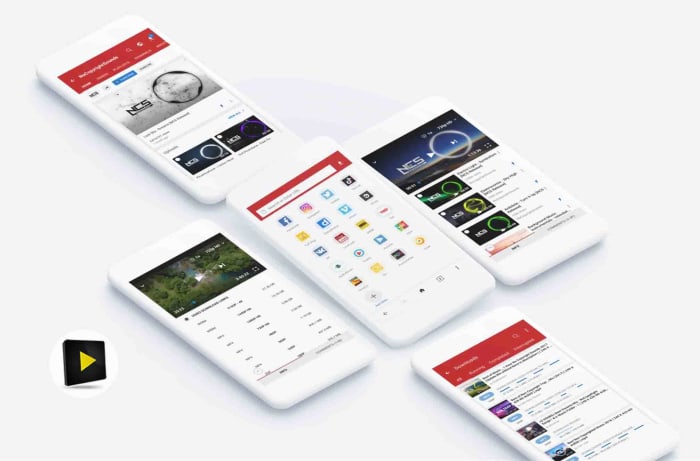
Videoder Video Downloader

Videoder app

The Videoder Video Downloader App is by far the best app for YouTube download for Android, according to Softonic users. It has been downloaded over 2 million times and has an impressive 9 out of 10 rating.

That popularity comes from Videoder being a free, reliable, and easy to use video downloading tool. Videoder makes downloading your online videos as simple as possible by showing a video search bar that allows to search for the videos you’re after rather than simply copying and pasting the url. This is great, if you don’t already know the YouTube video you’re looking for.

The app also gives you the chance to select the video’s resolution and download file format. This makes it great should you be trying to download YouTube videos to watch on another device like an iPod or a Mac. Videoder also offers great download speeds.

Videoder Video Downloader Download now
9

Vidmate

Vidmate

If Videoder is the best YouTube downloader app according to Softonic users, then Vidmate is certainly the most popular video downloader. With over 19 million downloads to its name and an average user rating of 8 out of 10, Vidmate is clearly helping people download YouTube videos easily and effectively, all over the world.

It gives you control over video quality and is great for downloading videos in SD, HD, 2K, and even 4K formats. As well as YouTube, Vidmate also makes it very easy to download videos from other sites like Dailymotion, Facebook, Instagram, TikTok, Vimeo, and Tumblr.

On top of its video downloading abilities, Vidmate also offers a video player, huge video libraries and playlists, and even access to live TV channels, which it can help you  watch for free.

VidMate Download now
8

TubeMate

tubemate header

TubeMate is a classic YouTube downloading app for Android that has been around since Android version 2.3. The app works a bit like a web browser, so it is very simple to use. All you do is open the app and then browse away as normal or paste the url of the video you’re looking to download into the address bar. Whenever the app detects a video on the page it’ll display a download button, which will list the various options like video resolution etc. when clicked.

TubeMate works with other video sites, not just YouTube, and comes with its own media player for watching the videos you’ve downloaded. The flip of using TubeMate, is that it might struggle with today’s videos that have much higher resolutions.

TubeMate Download now
7

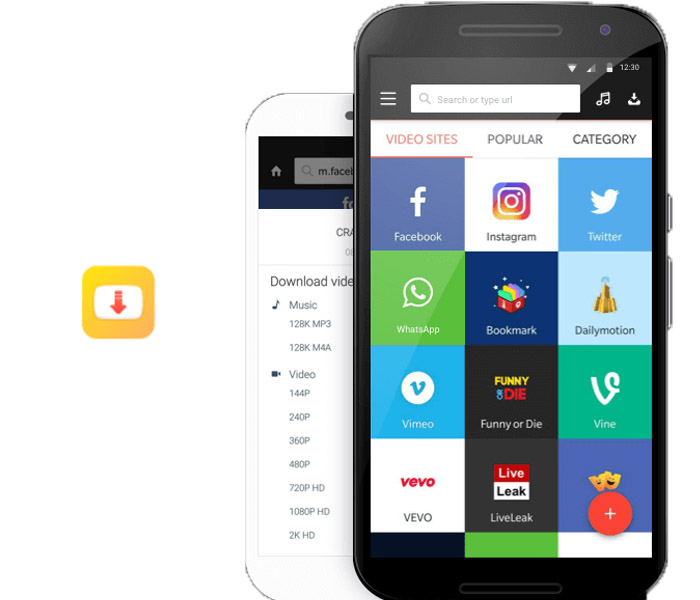
Snaptube

Snaptube

Snaptube is a great Android app that offers a simple way to download videos from YouTube. As well as offering extensive videos libraries for you to search through, Snaptube also offers YouTube batch downloads for your favorite videos. The new tool allows you to set up multiple YouTube video downloads at once. To use it though, you’ll have to first download the add-on YouTube Bulk Downloader.

Snaptube Download now
8

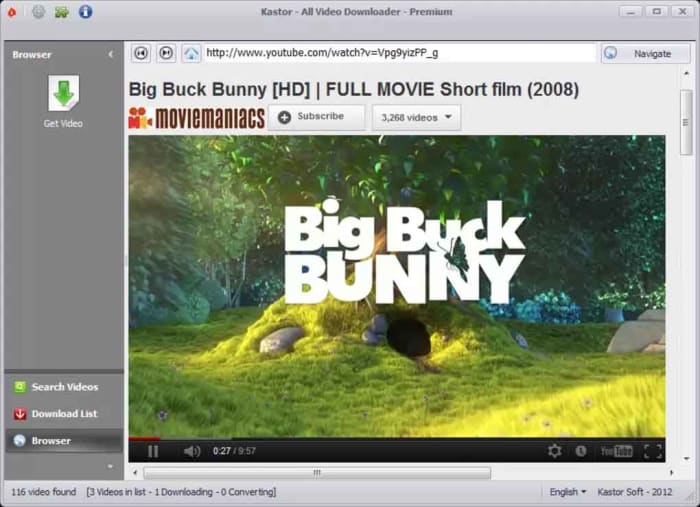
All Video Downloader

All Video Downloader

The All Video downloader app offers a competent option for downloading YouTube videos on Android. It allows you to both search for videos to download, and simply copy and paste their URL into the address bar. It also works as a video converter and offers many different video formats like AVI, WMV, MPEG etc., which can then be viewed on a plethora of different devices including the iPhone, iPad, and Android phones and tablets.

All Video downloader also gives you control over the size of your downloaded videos and will work on many different video hosting websites. It is limited, however, to only two video downloads at a time.

All Video Downloader Download now
6

Ummy Video Downloader

Ummy video downloader

The Ummy Video Downloader for Windows offers a great way to download video and audio from YouTube. It is very simple and easy to use and has a respectable 8 out of 10 rating from Softonic users. Ummy is designed to give you access to YouTube videos offline, which could come in handy, if you think you’ll be without internet connection for a prolonged period.

The app has a simple user interface and works by allowing you to copy and paste the url of the video files you’re after into a search field. You then have the option to specify the video and audio output format with choices including MP4, MP3 files, MKV, FLV, MOV, and AVI. If you’re downloading a video, you’ll also be able to specify the output resolution before hitting download.

Ummy Video Downloader Download Now
8

Wrapping up

As you can see there are lot of great free apps available online for downloading videos from YouTube. We’ve shown you six of the best apps available for downloading YouTube videos for smartphones like Android and the Apple iPhone, and even on a Windows PC too. What’s even better is that many of these apps also enable downloading videos from other video hosting sites too. That means many of the apps we’ve highlighted offer comprehensive video downloading solutions beyond just being able to save YouTube videos alone. As always, we’ll point out, however, that downloading videos from YouTube breaches the app’s terms of service and if you share any of the videos you download, you could also be guilty of trademark violation.

How to use VLC

VLC is the premier free tool for all of your audio and video files! Here’s how to use it!

VLC

No, that traffic cone on your buddy’s desktop doesn’t mean his computer is under construction.

It means that your friend is using VLC, the best free tool for playing and capturing video! 

VLC plays most media files as well as DVDs, CDs, VCDs, and many streaming protocols. This tool really comes in handy. More often than naught, your device’s default video player is less than optimal. Once the program finally opens, you have to wait for it to load the video, and then play it. This only works if your video player can even play video in that format in the first place. VLC can play just about anything, and it does so quicker than most other apps. 

VLC for mobile Download now ►
8

How to use VLC

Use VLC to play audio/video files

VLC open file

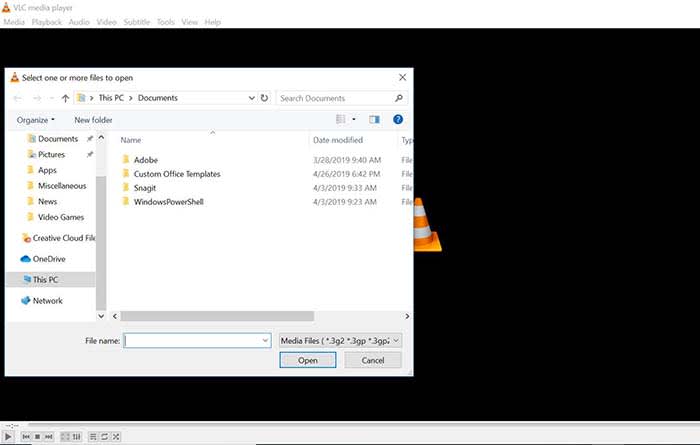
Playing a file with VLC is a lot like opening a photo in Photoshop. Either manually open the file by going to Media, and clicking Open File, or drag just drag the file onto the VLC window.

Keep a library of videos

VLC
Image courtesy of VLC

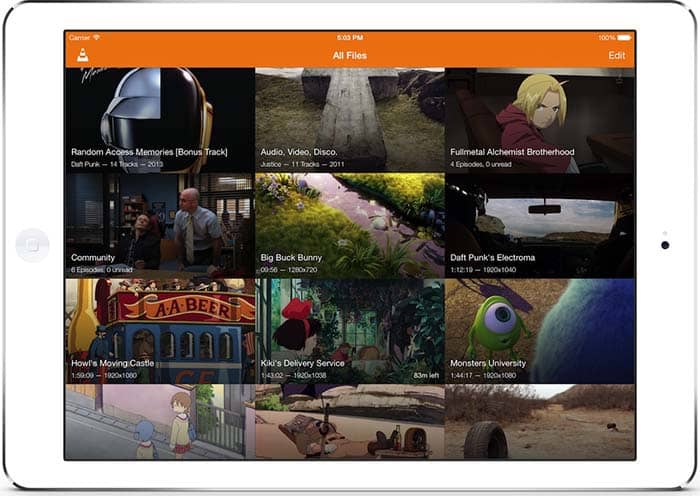
If you watch multiple videos on VLC, you have the option to keep a library of them to finger through at your leisure. Once you have several files loaded into VLC, you can organize them under All Files. Do you have a huge collection of anime? Organize them with VLC! Do you have a digital version of every movie in the MCU? Create a specialized folder for them!

Stream yourself

If you want to take a picture of yourself or record a video of yourself with a webcam, your device probably already has some built-in tools. However, it probably doesn’t have tools that help you stream yourself.
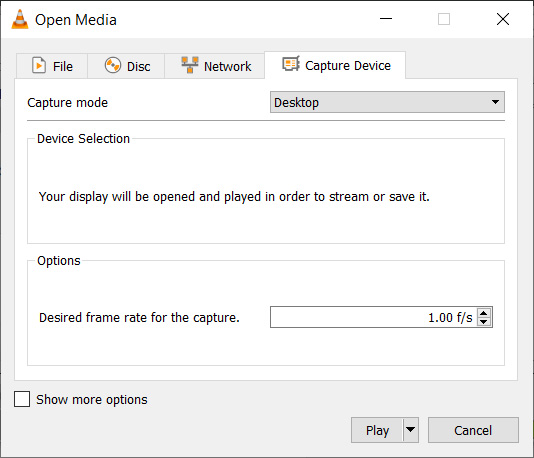
Go to Media and click Open Capture Device. Choose your preferred settings from here, and click the play button to start recording yourself. If you want to stream yourself, Go to Media and click Stream. A new window will pop up with streaming options.

VLC stream

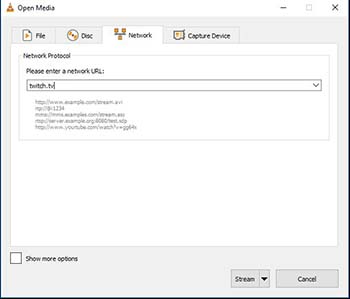
You can even throw in a URL to the website you will be streaming to.

VLC stream

Record your desktop

Capture photoshop tutorialLet’s say you’re a content creator and you need to record your desktop. VLC has the answer. Go to Media and click Open Capture Device. Now you can record your desktop and do it in whatever FPS rate your computer can muster.

All of a sudden, you have an option for recording your next “let’s play” or that Photoshop tutorial you were making for your YouTube channel.

Convert files

VLC convert

If you have an old video or music file that is in some weird format, you can actually change the format with VLC. Click on Media and choose Convert/Save. From here, you can add files and change their format with the option at the bottom of the window. Finally, those weird videos from high school that you recorded with an off-brand video recorder can be converted to MP4. Sure, you might’ve wanted that cringey video you made for a class to die, but now you can share the video with them on Facebook!

Edit audio/video files

VLC edit

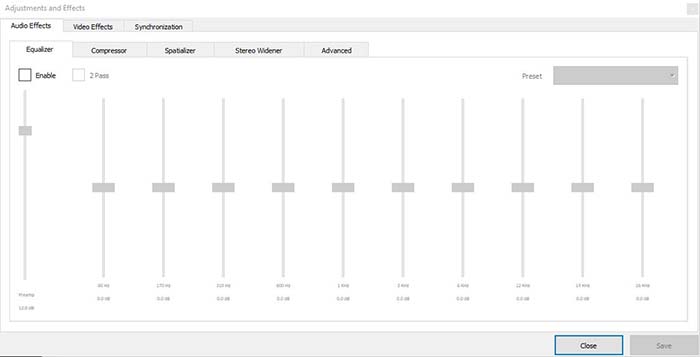
Ever take notes in class, but you can’t hear them because of background noise? Have you ever recorded a video of your friend, but it turned out too dark? VLC has tools to fix these issues and more! Go to Tools, and from there click on Effects and Filters. Here, you can edit audio and video files to make them as you see fit.

A quick note on the legality

VLC is meant to be used for audio and video files you legally own. It is not meant to be used for movies you illegally download or torrent from piracy sites. Also, the capture mode should not be used to rip videos from other sites.

Wrapping up

If you have a huge collection of video files that you want to watch/catalog, VLC is your best option. If you are looking for an easy to use program for streaming yourself, and recording your desktop, VLC is your best option yet again! It’s free to use, and a quick download. Basically, there’s no reason why you shouldn’t download it!

VLC for mobile Download now ►
8

How to rotate video in VLC

Need to rotate some video in VLC? Just follow these steps.

Rotate VLC

VLC Media Player is the top of the class in multi-format media playing, No matter what format you’re dealing with, the program is probably your answer. While VLC does the bulk of the heavy lifting for you, once in a while you’ll still get the odd video that’s playing upside-down or rotated weirdly. Never fear; we’ll show you how to spin it right!

Videos in VLC can be rotated, flipped and even transposed (which means rotate and flip simultaneously). VLC even has a neat tool that helps you rotate your video arbitrarily; you’re never locked into specific rotate coordinates. Best part? It’s right in your top toolbar, takes three easy steps, and can be done in seconds.

How to rotate and flip your video

1. Open Adjustments and Effects

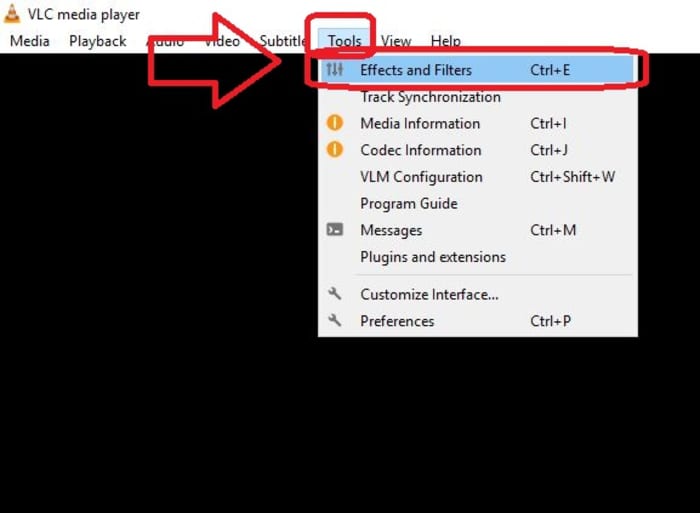
Click on the Tools tab on the top left of VLC. The top choice in the drop-down will be Effects and Filters. Click on that and it’ll open the window you need. Alternatively, you can just press CTRL + E when you’re in VLC.

VLC Effects and Filters

2. Open the Geometry tab

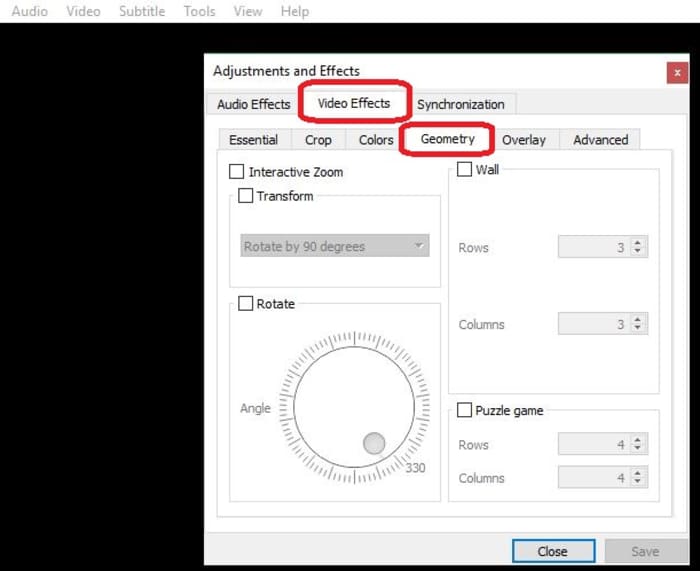
This window has a bunch of compressing tools, advanced options, and sliders that you can play with, but the rotating tool you need is nested under the Video Effects tab. Click on it, then open Geometry.

VLC Video Effects, Geometry

3. Choose how you want to rotate

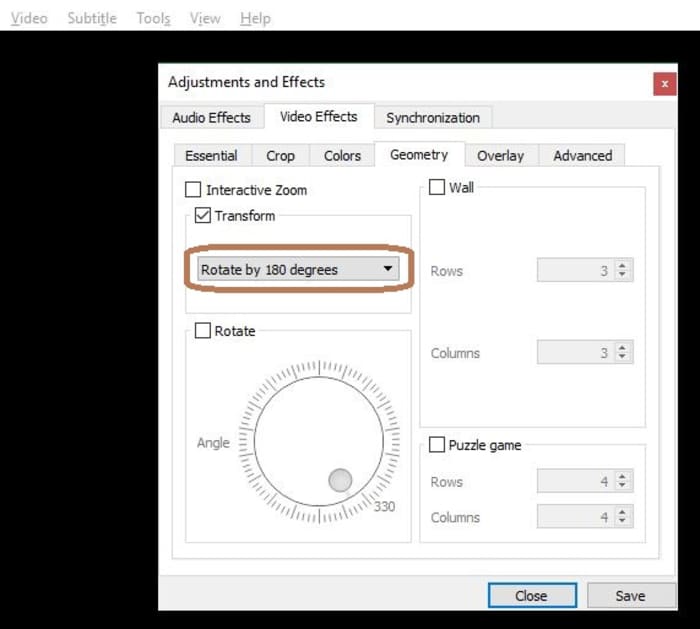
Now for the easy part. Check the box that says Transform, and you’ll unlock a drop-down that has seven different rotation options. Select the one you need and hit Save. When you open a new video, it will be rotated accordingly. If you want to disable the rotation, simply un-check the box.

VLC Adjustments and Effects, Rotate

Other options

“Rotate by 90 degrees” is straightforward enough, but there are other options you can select via the Transform drop-down. ‘Transpose’ will rotate your video 270 degrees clockwise, and then also flips it horizontally. ‘Anti-transpose’ does the same, but rotates by 90 degrees before the horizontal flip.

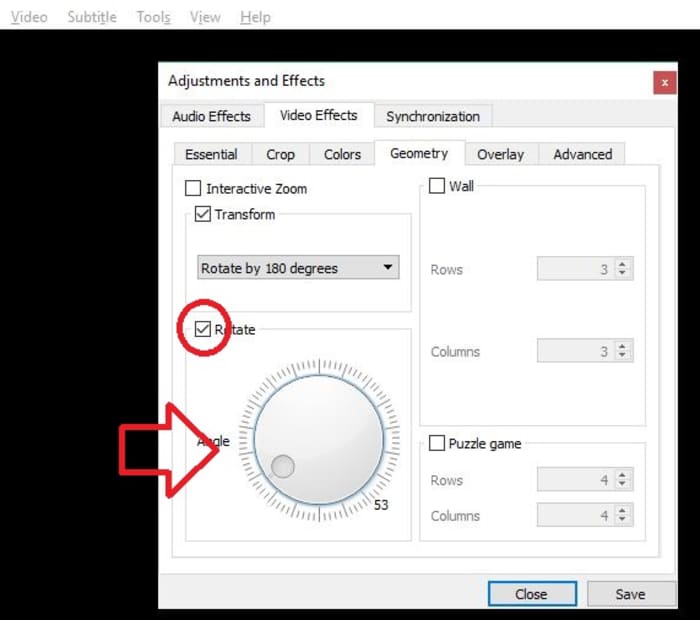
Lastly, you can also elect to rotate your video by smaller margins rather than locking in to a specific degree. To do this, check the Rotate box and move the Angle dial around to wherever you like.

VLC Rotate Angle dial

Pretty easy, right? Let us know in the comments below if you got the video figured out, and if there are any other VLC tips and tricks you’d like us to share.

VLC media player download free ►
8

7 underrated Instagram apps you need to know about

These apps can make your Instagram posts sizzle and pop off the screen.

Instagram enhancer

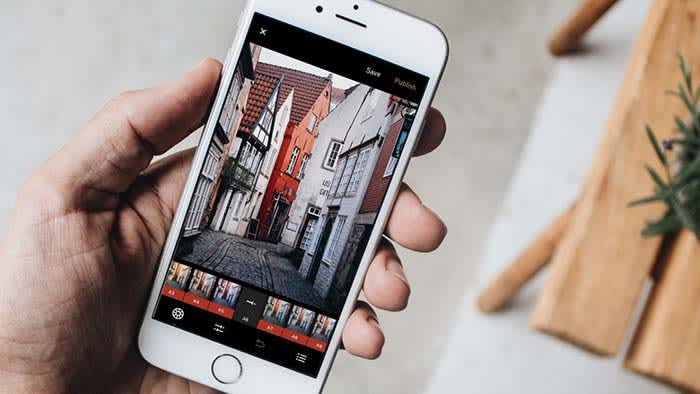
Facetune and VSCO are great and all, but today’s Instagram feed needs something a little more out of the box. You need more if you’re hoping to stand out in a sea of pitch-perfect pics and color-coordinated feeds.

Scroll through your profile for a few seconds and you’ll likely see a repeating stream of photos that feel eerily familiar.

Break the mold by downloading some new apps. From the artistic to the just plain rad — here are some under-the-radar app recommendations perfect for livening up your tired old feed:

7 underrated Instagram apps you need to know about

1. Enlight

Enlight Photo editor

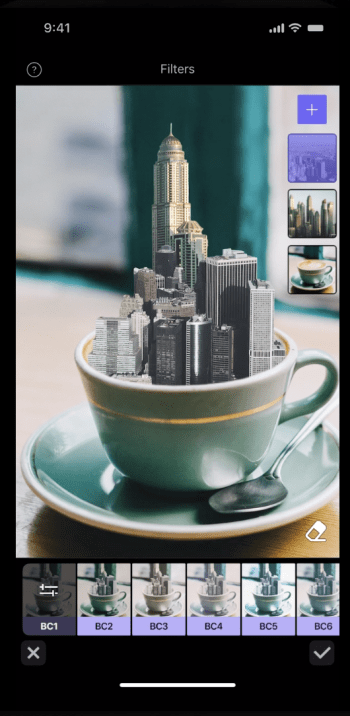
Enlight is a $4 iOS app made by the fine people who brought us Facetune. The app does way more than dress up your photos with stickers and overlays or just apply filters. Enlight exists to help you make capital-A Art. The app brings painting, sketch, and mixer effects to your smartphone — plus the usual presets and adjustment tools.
9

2. Pic Stitch

Pic Stitch collage maker

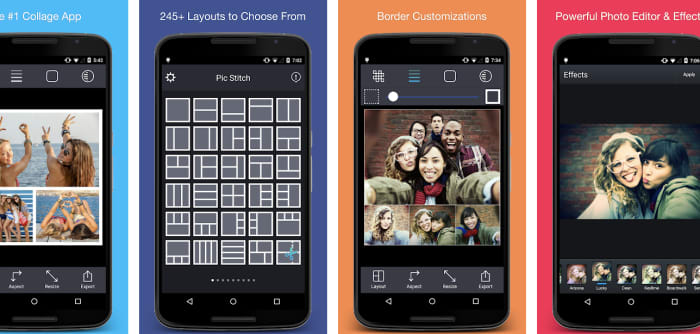
Pic Stitch is a layout app that comes with more than 200 layouts and a built-in photo editor. The idea is these collage layouts give you space to carefully consider how each photo fits into your feed. Gone are the days of amateurishly posting a bunch of pics from the same outing. Instead, Pic Stitch is an opportunity to organize your images in a way that’s both calculated and cohesive.

Pic Stitch Download Free ►
9

3. Artgram

artgram instagram editor

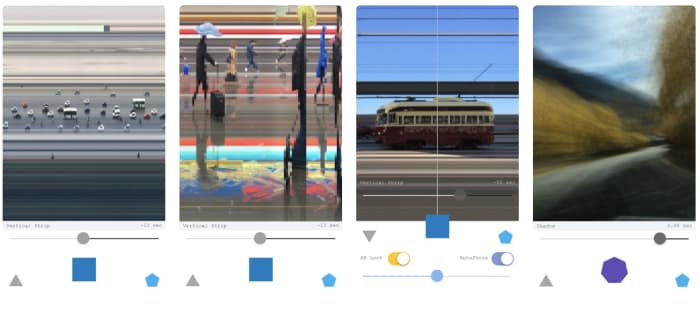
Artgram is a weird, experimental lo-fi app. It also makes some really cool-looking photos. Something of an art project, Artgram is a free download — available in the App Store alongside your usual sticker packs and face-editing tools. The app allows you to create these fragmented shots — streaked with lines or abstracted in some way or another.
7

4. Prisma

Prisma Instagram app

This one has been around for a few years — being named App of the Year by Google and Apple in 2016. However, it’s still a bit underrated in our opinion.

Prisma is a photo-editing tool that works to turn your photographs into paintings. Well, it sort of does that. The app comes with 300+ filters inspired by art movements and artists transforming your photos through a powerful AI.

Art-inspired filters kinda sound like the domain of Mac Photo Booth selfies. However, there’s a lot more to Prisma than turning yourself into a comic book drawing. Sharpen, crop, edit, and fine-tune your creations for photos that are less gimmick and more creative expression. Postmodernism at its finest, right?

5. Kapwing

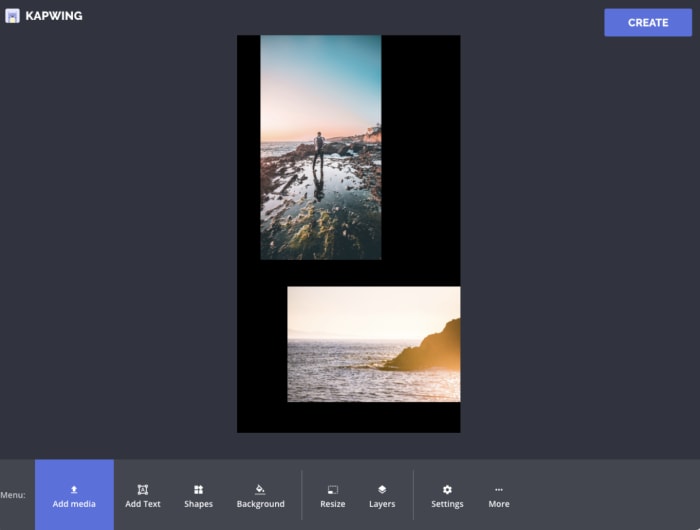
Kapwing app for Instagram Stories

Kapwing is a hand-curated selection of templates you can use to level up your Instagram Stories. The app is only available on iPhone and even then, it doesn’t feature the editing tools. Those tools are only available on the website. The templates are super simple — you’re not going to find complex story editing tools that you might find in tools like Over or Canva.
The idea is to give Stories users a framework for combining multiple images together within a single story. So, you might use this to create a slide-show style story, put together collages, or make memes.

7

6. Leetags
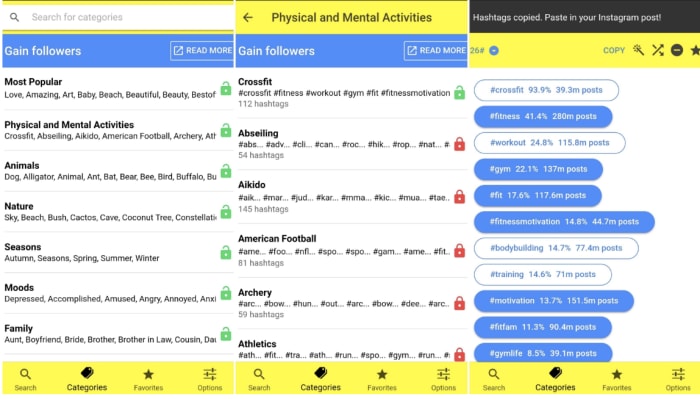
Leetag hashtag finder Instagram

Leetags is an Instagram app that helps you find hashtags, an important component of growing your following. Finding hashtags can be a tedious, overwhelming process if you don’t exactly know what you’re doing. Sort through hashtags by searching various themes: animals, nature, food, drinks, and so on.

Users might feel that the categories are fairly broad. And, that’s certainly true. However, when you’re searching for inspiration, this approach can help you generate ideas. That’s much easier than heading over to Google Trends with no idea what to post.

7

7. Unfold

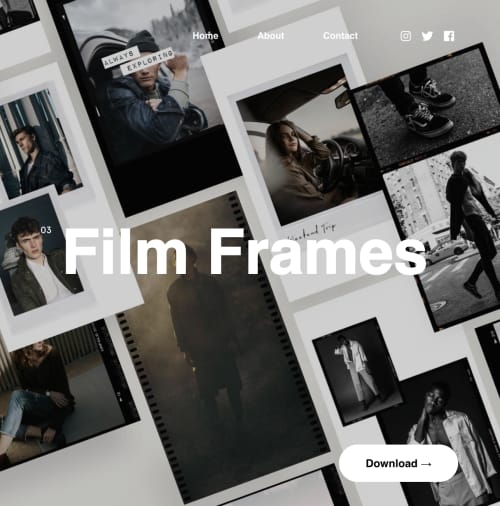
Unfold Instagram

Unfold is another app that makes it easy to create Instagram Stories built to engage. The selection of templates is top-notch, drawing inspiration from classic film, minimal photography, and more.

Add in text and export videos in hi-res. Unfold doesn’t come with a million features. However, you’ll have exactly what you need to create a beautiful collection of stories with an understated, artistic flair.

Become Insta-famous

These apps can help turn the ordinary into the extraordinary. Sometimes the tools in the Instagram app just don’t have the tools you need to fully express your creativity. Hopefully, these apps gave you the resources you need to turn your posts into showstoppers.

Instagram Download Now ►
7