What are VPNs and why should you use one

If you use the internet a lot, you’ll have probably already heard of VPNs. Over a short period, VPNs have gone from being thought of as obscure programs to extremely useful tools that can give anyone the freedom to surf the web with complete freedom and security and without a need for any sort of extensive technical expertise.

Do you want to know in more detail what exactly a VPN is and how you could use one? Well keep reading, let’s look at what VPNs are and why you should start using one from today.

What is a VPN?

Normally, when we access a webpage from a PC or mobile phone, our device sends various instructions through the router, seeking access to the webpage in question. These instructions head to the Internet Service Provider, which then carries them out before sending the result (the webpage) back to our device. What happens if we add an intermediary between both steps? This is when the VPN, otherwise known as your very own Virtual Private Network, comes into play.

What virtual private networks do is add one more step to your connection, acting as a tunnel between all the orders you send to your router or modem and your browser. This intermediate step made by the VPN encrypts all of your information, making it much safer.

In this way, using a VPN prevents anybody altering the data you send and receive, ensuring a more reliable and intrusive-proof connection.


Panda VPN Premium Download Now
10

Another great advantage of your VPN is that it can simulate a connection in different countries around the world. For example, imagine you are in Spain and that you are connecting to a VPN with a server in the United States: this means all the websites you visit will think you’re in the United States.

Using a VPN is as simple as downloading it and installing it on your PC or phone. Once done, you simply register and connect. From then on, it’ll encrypt everything you do on the internet.

Why do I need a VPN?

Encrypted data and connection from different countries are both very good, but how do these advantages translate into everyday use? Here we bring you four very practical uses for VPN networks:

1. Stay safe on public networks

Cafes, hotels, libraries, study centers … Today there are many places where you can surf freely, and without having to enter personal information. That’s great, but it also opens the door to cyber-attacks and threats. On public networks using a VPN is essential.

In public places, the VPN will act as an extra layer of security to avoid hackers accessing your data. Obviously, you should continue to maintain certain security measures when you access the internet via open networks, but adding a VPN will give your security a big boost.

2. Working remotely

If you have a profession that allows you to work from home (or from anywhere else for that matter), installing a VPN is a very good idea. Although you can access the different company services and servers as is, adding a VPN to the process is a good way to secure everything you do. With a VPN you will avoid sensitive company data being compromised or delicate transactions being altered or affected.

3. Online shopping and banking

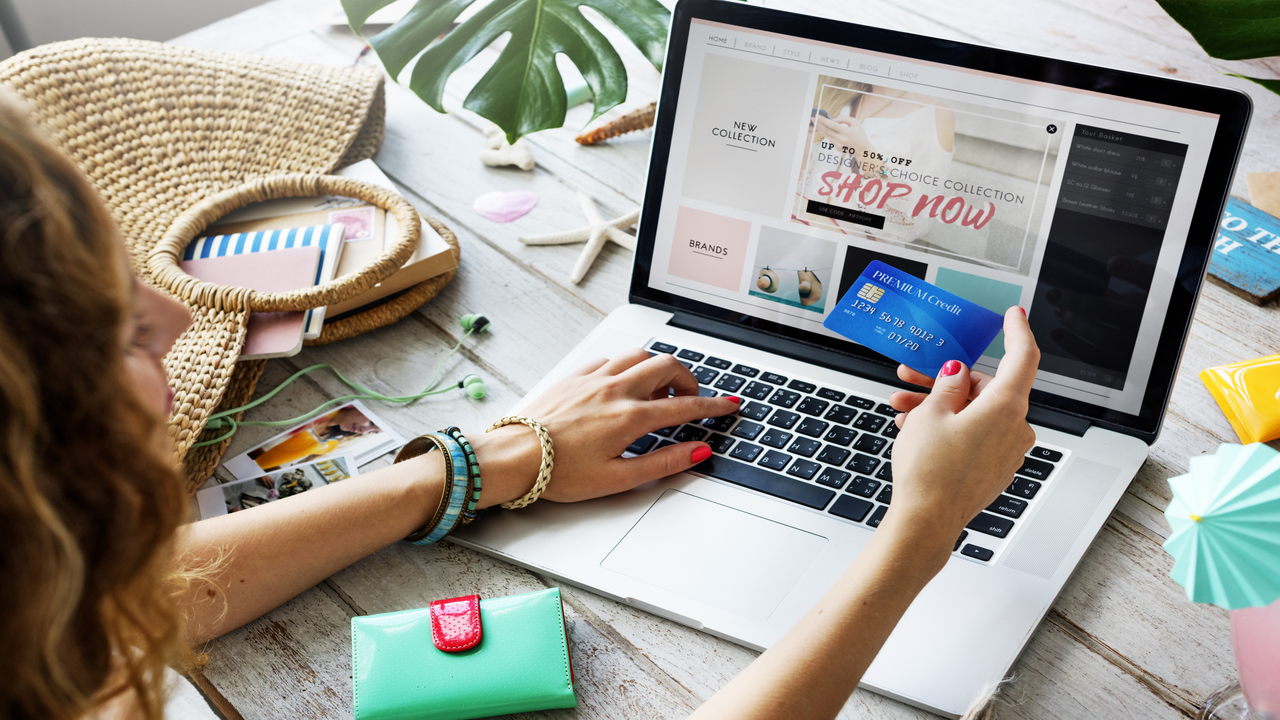
If you regularly buy things online or make online banking transactions, activating a VPN is a great idea. All these processes move very sensitive data, such as account numbers or other personal information. A VPN minimizes the risk that a hacker could hijack that data.

Another added value of using a VPN when shopping online is being able to browse stores that are not from your country. Maybe you’ll find the item you’re looking for at a lower price.
4. Workaround geo-location restrictions

Using a VPN allows you to visit websites restricted in your country. In some countries, especially in China, censorship is commonplace. So, with a VPN, you can visit censored websites without limitations.

Also, thanks to your VPN you can take advantage of services and content that might only be available in certain parts of the world. For example, the European Netflix or HBO libraries are different from the American libraries. Using a VPN with an IP from different countries gives you access to previously unavailable content.

Where to download a reliable VPN

There are a lot of different VPNs, available for free or with more premium features that come at a cost. Our recommendation is Panda VPN, which was recently launched by renowned antivirus developer Panda.

Panda VPN Premium Download Now
10

Using Panda VPN is very simple: you just have to install it through the link below and follow the instructions. Create a Panda account (if you don’t already have one), access it, activate your VPN and enjoy all the advantages of navigating without limits and with an added level of security.
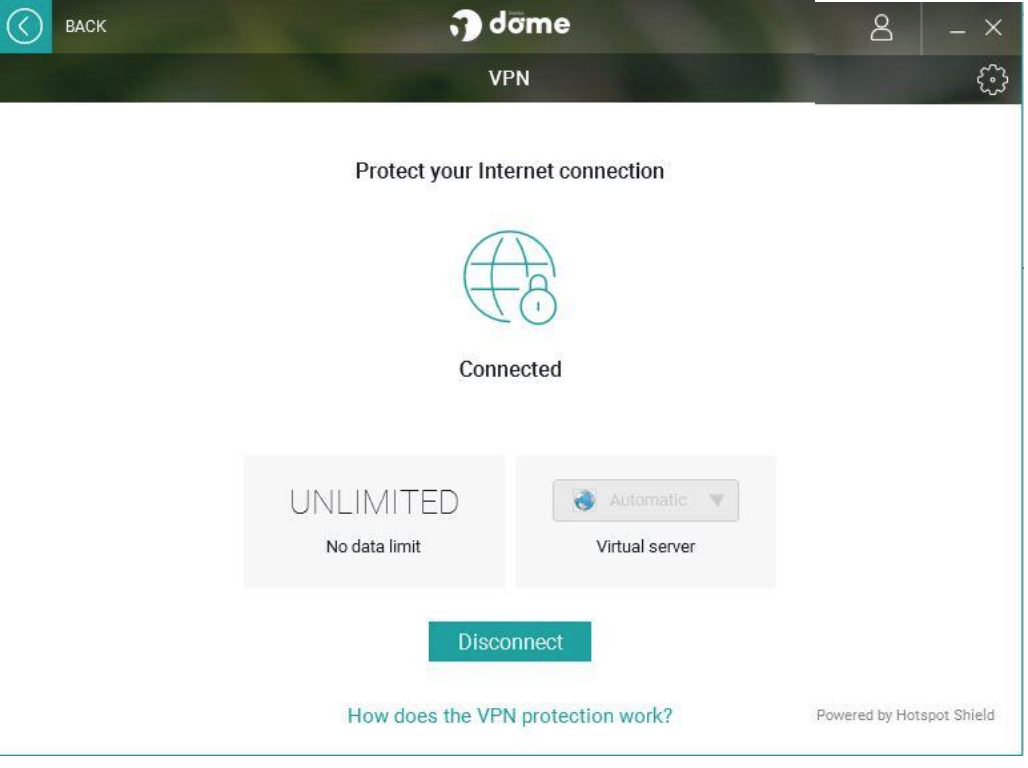
The free version, Panda VPN FREE, offers you access from one device, 150 MB daily transfer and a single default location.

If you want access to a more extensive VPN offering, you should try Panda VPN Premium. Panda VPN Premium allows you to access the web from many different locations, has unlimited data transfer, and can be used on up to five different devices.
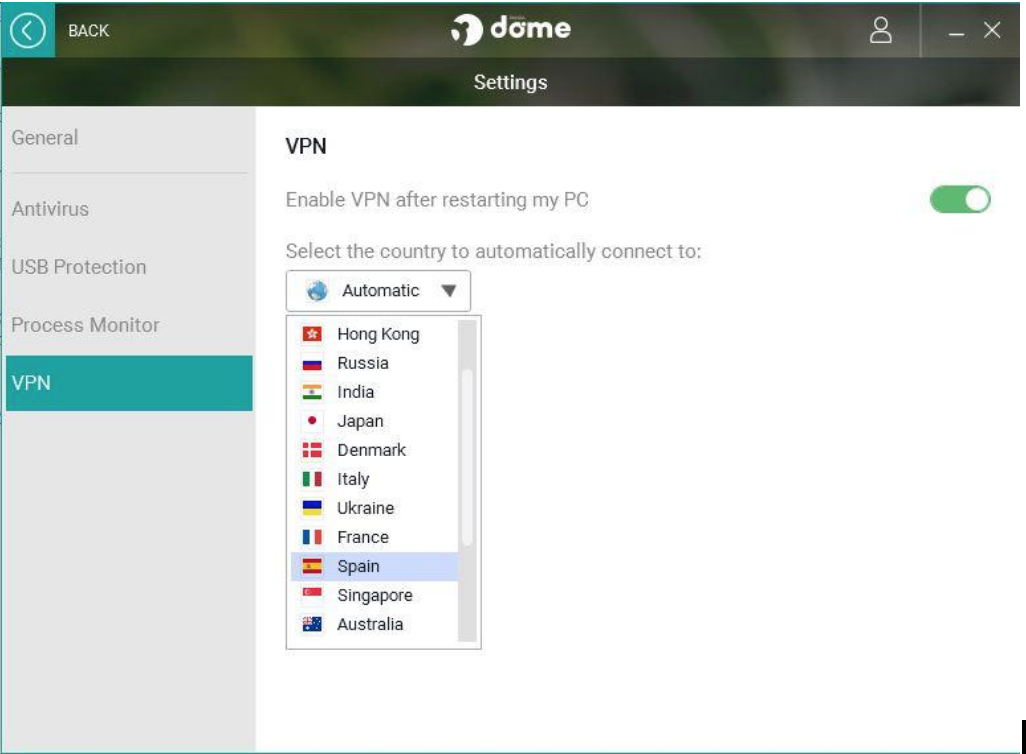
Furthermore, Panda VPN Pro also includes an antivirus that comes with the Panda guarantee.


 

Just how bad is the Facebook data breach?

Source: The Washington Post/Getty Images

It is getting to the point now where if you believe that Facebook is an innocent bit of fun, you’re likely a naïve child who is totally unaware that the world does not revolve around your own experience. Fortunately, however, children and young people, in general, are switching off from the social network behemoth as it staggers from crisis to crisis because mum and dad have made Facebook uncool.

The lame factor is the least of Facebook’s problems at the moment, however, as the latest crisis is so big that it could see head honcho Zuckerberg hauled in front of government officials to explain how his creation has reeked so much damage. This is, of course, the Cambridge Analytica crisis, which has seen millions of Facebook users’ details land in the hands of politically motivated actors, seemingly devoid of any moral compass and who are willing to use the data they’ve amassed in the service of the highest bidder.

Even if you’re a Trump supporter in the US or a Brexit supporter in the UK, the fact that Cambridge Analytica has been pitching to Russian Oil companies, likely under the auspice of Putin, should have alarm bells ringing. Thanks to Facebook, these people have been able to steal your data and are willing to sell it and the insights they’ve gained from it to the highest bidder, even if that highest bidder will act against your best interest.

The latest Facebook data breach is both shocking and awful and amounts to nothing short of a coup against democracy and freedom. Sort it out, Mark!

All the Best Free Software for your PC

You spend hundreds of dollars on your brand new PC, and then what happens? You have to go and spend even more money on all the software you need, to do the jobs you bought the PC for in the first place. Never mind what you bought the PC for you have to buy programs just to protect your new PC from viruses and malware.

Well, do not worry because there is a lot of free software you can get your hands on to help you out. You can get free software for Windows 10 you can get free software like Microsoft Word, you can get free software for editing photos, you can get antivirus free software and even free software for video editing. You don’t need to spend a lot of money on expensive programs for your new PC. There are plenty of free programs for PC so let us have a look at some of the best now:

Best free programs for PC

1. Best antivirus free software: Avira Antivirus

Avira header

Avira Free Antivirus offers a broad range of security features that add up to offer the best free antivirus software you’re likely to find. As well as strong antivirus scan and protection facilities Avira offers some great features like safe shopping searches, system speed up and a VPN. This is the best free software download for PC you’ll find and one of the most important. To learn more about Avira Click Here, otherwise…

Avira Free Antivirus Download Avira
8

2. Best backup free software: Google Drive

Google Drive wants to be the Ultimate Backup and Sync Tool

These days you need to do more than just install a free antivirus program to keep yourself safe. Ransomware is a modern threat that sees your data being stolen and then held for ransom. This means if you’re going to download free software you need some to get some backup free software for your computer. Free software downloads like Google Drive are essential. Drive will give you 15GB of free space to keep all of your personal data safely backed up. You need it now!

Google Drive Download Google Drive
7

3. Free software like Microsoft Office: Libre Office

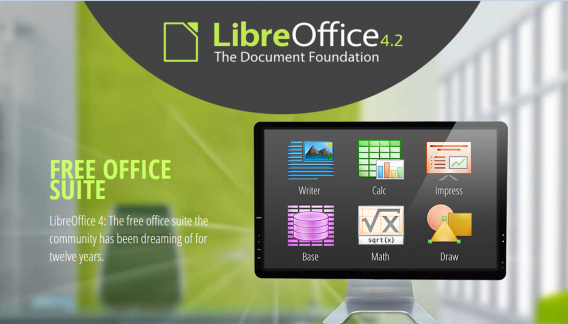
LIbreOffice header

Almost everybody needs to use programs like those found in the Microsoft Office suite so a top priority must go to getting the free software download for PC of Libre Office. Libre Office is an open source productivity suite that rivals Microsoft Office and even has programs, like Math and Draw, that can’t be found in the expensive Microsoft offering. If you work in an office this is an essential free program to download.

LibreOffice Download LibreOffice
7

4. Media Player: VLC Media Player

vlcHEADER

One of the best free programs for PC is VLC Media Player. It is one of the most popular programs in the world and carries the codecs required to play almost every kind of video file. Once you’ve downloaded VLC you will be able to play almost any type of video you can find. As well as offering a complete video playback solution VLC has plenty of other features and you can check out 5 of the best here.

VLC Media Player Download VLC
8

5. Free software for photo editing: GIMP

Do you want the photos you share to be breathtaking - GIMP

If you want free software like Photoshop you should look no further than GIMP. GIMP stands for GNU Image Manipulation Program and it is almost as powerful as Adobe Photoshop. With this free software editing becomes possible for all. Whether you’re merely touching up an old image or creating a brand new one, GIMP offers you a complete set of tools to take care of whatever editing job you have in front of you. GIMP may be the best photo editing free software but we’ve also put a list together of 5 free photo editing programs. Check it out here.

7

6. Free software for video editing: Lightworks

5 Free Programs for Editing Videos lightworks

Lightworks is available on many free software download websites but you can get it right here. It is one of the best editing free software programs you can get and is used by professionals as well as amateurs. If you’re a budding video editor or director this is great free video editing program for you to download. For info on other free video editing programs click here.

Lightworks Download Lightworks
7

Follow me on Twitter: @PatrickDevaney_


What you need to know about syncing photos in iCloud

What happens when you sync your photos using Photo Stream, the new iCloud Photo Library, or iCloud backup? Where do they go, what happens if you stop syncing, and what are your options?

Apple’s known for its generally easy to use OS X and iOS operating systems, but services like iCloud Backup, your Photo Stream, and the most recently added iCloud Photo Library (still in beta) can be a bit of a grey area for many iPhone owners (especially celebrities, apparently).

Sure, they may be useful features, but you might not want to save every photo you take in the cloud. Recent celebrity attacks may have come from a vulnerability in iCloud (albeit one that Apple already patched), but that doesn’t mean that you shouldn’t have some control over where your photos are going when they’re being sent to the ominous sounding ‘cloud’. Consider Photo Stream, iCloud Backup, and iOS 8.1’s newest addition, iCloud Photo Library, along with the alternatives, to see what’ll work best for you.

Photo Stream

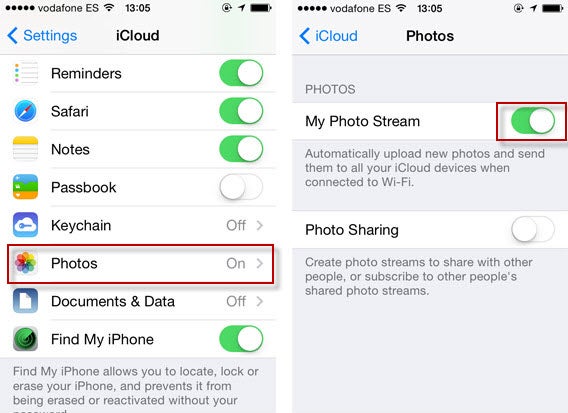
First thing to note: Apple is hoping you’ll replace your Photo Stream and Camera Roll with the consolidated iCloud Photo Library (I’ll explain more below), but it’s not mandatory. Secondly, your Photo Stream and Camera Roll are not the same thing. Your Camera Roll is in your iPhone’s local storage, while your Photo Stream contains photos synced across all your iOS devices via iCloud. Delete a photo from your Camera Roll, and it sticks around in your Photo Stream. The same is true for the reverse.

Your Photo Stream isn’t necessarily a traditional back-up though: if you have multiple iOS devices, you’ll be able to access your photos from every device, as long as your Photo Stream is turned on for both.

Photo Stream

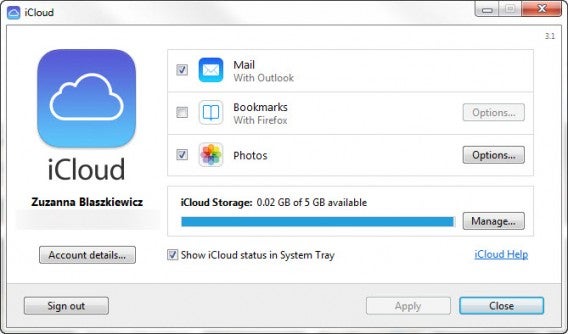
What some people might not know, is that you can access your photos via desktop too. If you’re using Windows, you’ll have to download the iCloud Control Panel, while Mac users can access their photos in a forthcoming OS x Yosemite update that’ll include a new photo app, a replacement for the soon to be discontinued iPhoto and Aperture.

iCloud

In your Photo Stream, your photos aren’t stored in the traditional sense of a cloud service with one central, online hub. Rather, photos are available only between devices and your desktop computer. Notably, your Photo Stream doesn’t save all your photos, only 1000 at a time, deleting older ones as space fills up.

iCloud Photo Library

With iCloud Photo Library (which is still in beta), you can now automatically sync all your photos from what was previously your Photo Stream and Camera Roll. The iCloud Photo Library will sync your photos across all your Apple devices, like Photo Stream. But unlike Photo Stream, which you can only access through the iCloud Control Panel, the iCloud Photo Library automatically stores the original, high-res photos in iCloud and resizes them for every device, making them accessible through iCloud.com. Again, it’ll also be accessible to Mac users through the forthcoming photos app. Another bonus is that any edit you make on one device will be automatically saved on all other devices.

You can activate the iCloud Photo Library by going to Settings > Photos and making sure it’s turned on.

iCloud Photo Library

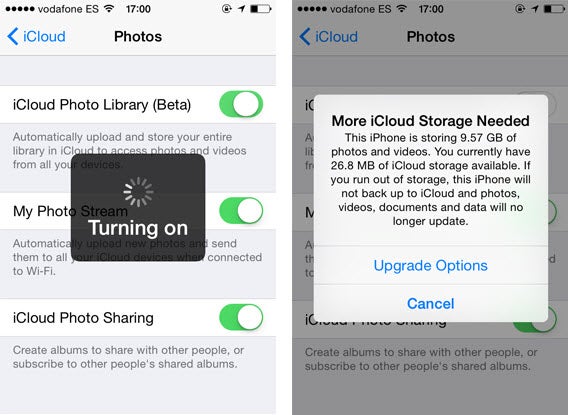
It seems like the perfect solution, considering that the Camera Roll doesn’t automatically sync photos, and Photo Stream only keeps up to 1000 photos or for 30 days, whichever comes first. The biggest caveat, of course, is that your iCloud backup only comes with 5GB of free storage, so if you have more than that and want to automatically backup all your photos, you’ll have to pay for additional storage.

Another downside is that it makes it more difficult to curate your photos because they’re all automatically backed up.

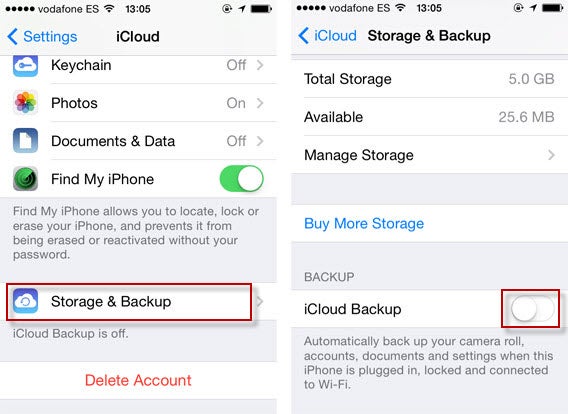
Storage & Backup

Backing up your device using iCloud is more comprehensive than simply the Photo Stream, letting you backup your accounts, documents, and basically your entire iPhone’s settings.

To access Storage & Backup, go to Settings, and then to iCloud. Keep scrolling until you reach Storage & Backup. If you scroll down, you’ll see the option for iCloud Backup, which automatically backs up your files and settings when your iPhone is charging and connected to Wi-Fi. To turn it off, simply swipe left.

iCloud Storage

Curiously, the iCloud Backup is actually less accessible than the iCloud Photo Library or Photo Stream. There’s no online resource for you to access the data that’s been backed up; it’s only accessible when you restore an iPhone and log into your iCloud account.

Doing an iCloud backup of your phone is not to be confused with the newly introduced iCloud Drive, which similar to other cloud storage services, can be accessed online and only saves files, documents, and photos, not the entirety of your iPhone’s apps and settings.

Notably, your iCloud Backup and your Photo Stream can be used independently of each other. You can turn on your Photo Stream without having the iCloud Backup enabled and access your photos, while turning on your iCloud Backup and turning off your Photo Stream will still give you backups of your photos, although it’ll be the ones from your Camera Roll. Using the iCloud Photo Library means they’ll sync and save everywhere. Either way, there is still cloud access to your photos.

Alternative solutions

I must admit, I don’t think iCloud is the best backup service for me, mainly because I’m limited to 5GB of free space, which barely scrapes the surface of my Camera Roll.

Still, whether you insist on using iCloud or not, there are ways to protect the photos on your iOS device.

Two-Step verification

Apple ID offers two-step verification, which sends an SMS code to your mobile device in order to manage your account. Setting it up can do wonders for your protection.

iTunes Backup

It may not be as easy or convenient as the cloud, but the old classic iTunes backup is always a good option. It might be easy to forget (I learned the hard way after getting into the habit of using an external charger without plugging my iPhone into my computer, forgetting to do a backup before attempting (and failing) to update to iOS 7.1.1, and subsequently getting all my data wiped without having done an iTunes backup in 4 months), but getting into the habit of plugging your phone into your computer and setting up automatic backup upon connection is definitely worth it. There’s also the option of setting up Wi-Fi Sync between your iPhone and PC connected on the same network.

Third-party storage services

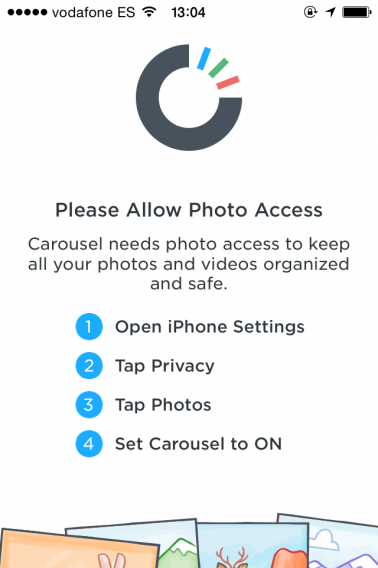
Most notably, Carousel by Dropbox will automatically sync all the photos from your Camera Roll. All you have to do is turn on the photo permissions for the app to have all your photos sync, giving you an actual storage space for your photos that can be accessed online. For added safety, you can encrypt files in cloud storage with services like Boxcryptor and Cloudfogger.

Carousel

Curate your photos

It’s not hard to understand why many people prefer the cloud as a storage space. It’s convenient, usually syncs automatically, can be accessed from almost anywhere, and can provide huge amounts of storage space at little or no cost. Despite known targeted celebrity attacks, it’s also generally safe.

Regardless, the best thing you can do is manage your personal collection of photos and where they’re stored. If you don’t want something out there in some hypothetical cloud, delete if from you Photo Stream, turn off your iCloud backup, or use two-step verification. That, or just use Snapchat.

If you want to know about cloud storage services, check out our article on creating the best backups for you.

Original article published on September 2nd, 2014.

Follow me on Twitter @suzieblaszqwicz

How to completely uninstall avast! Free Antivirus from a PC or Mac

It’s a good idea to use an antivirus software on your Mac or PC, but sometimes they can be a headache. Some antivirus applications are so integrated into the operating system that it leaves bits and pieces behind. In the case of avast! Free Antivirus, it can take a little bit more effort to make sure it’s fully removed if you want to install another antivirus program.

Sometimes the traditional methods of uninstalling an app doesn’t work. Luckily avast! has provided a handy tool to help you uninstall avast! Free Antivirus if the program is giving you error message or refuses to uninstall.

Here’s how to make sure you fully uninstall avast! Free Antivirus from your PC or Mac.

Uninstalling on a PC

First, you’ll want to try uninstalling avast! using the traditional method. Click on the start button and click on Control Panel.

uninstall avast control panel

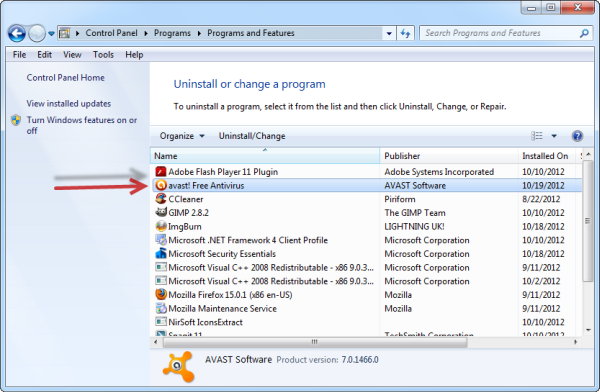
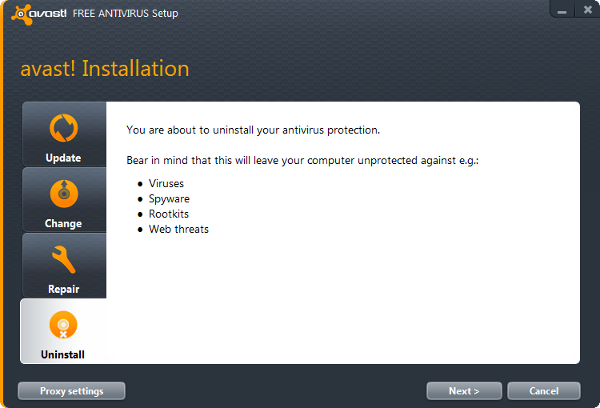
From the control panel, click on ‘Uninstall a program’ and then find Avast! in the list. Click ‘Uninstall/Change’ and avast! will prompt you with a setup menu. Choose ‘Uninstall’ at the bottom and click ‘Next.’

uninstall avast!

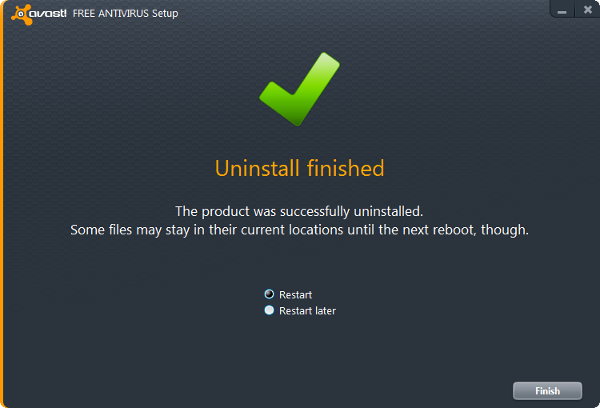
You’ll get a warning that “an attempt has been made to uninstall avast!” Confirm that you want to uninstall and it’ll start the installation process. You’ll have to restart your computer to fully uninstall.

reboot uninstall avast

Force uninstalling on a PC

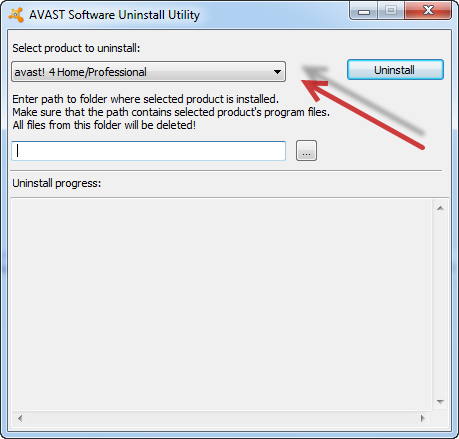
avast uninstall utility If you’re experiencing errors or a stubborn installation of avast!, try using the avast! Uninstall Utility. Simply select the avast! product you wish to remove. Click ‘uninstall’ and confirm you want to remove the program. If you’re getting an error message saying that the ‘self-defense module’ is preventing uninstallation, launch avast! and head over to the settings. Go to the ‘Troubleshooting’ tab and uncheck the box that says, “Enable avast! self-defense module.”
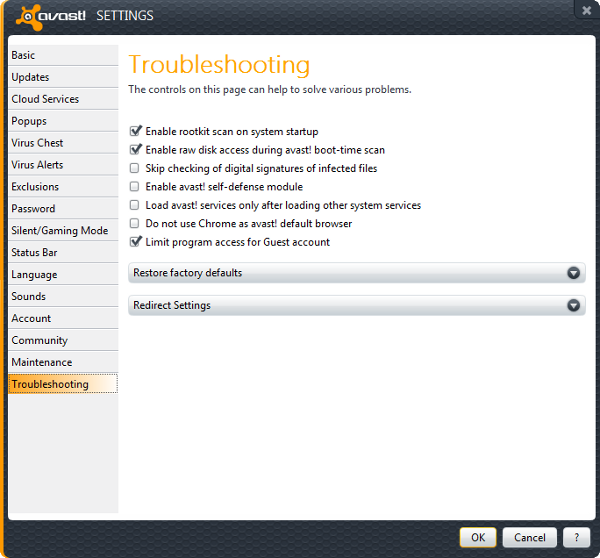

avast self defense module

This should allow the avast! Uninstall Utility to work.

Uninstalling on a Mac

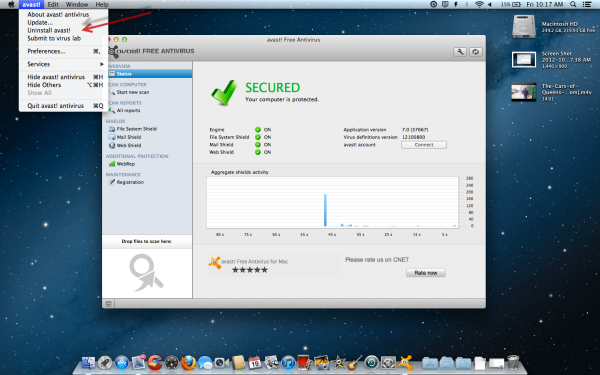
Uninstalling avast! on a Mac is much simpler. Launch avast! and click on the program name in the menubar. You’ll see an option to uninstall. Confirm you want to do this an the program will uninstall. You won’t even have to reboot!

uninstall avast! mac

There you have it. Hopefully this guide has helped those having trouble uninstalling avast! Don’t forget to install another antivirus program for your PC or Mac to stay fully protected.

How to: set a password with Winrar

Setting a password on a .RAR file couldn’t be easier, and it’s a great way to keep almost any type of file safe from prying eyes. Here’s how:

1. Open Winrar and browse to the files you want. If they’re saved all over the place, it might be an idea to move them all to one folder, and compress that. Give the folder an informative name so you can easily identify it later.

Continue reading “How to: set a password with Winrar”