Alexa and other smart assistants found to be vulnerable

AI voice assistant’s like Amazon’s Alexa and Google’s Assistant have seen their popularity soar over the last few years. This will only continue, but placing highly tuned distance microphones all over your home raises certain security issues. If they can always hear, does that mean that they’re always listening? The developers say no, and laud the security technology they’ve bundled into their AI, but researchers at a series of universities have found some alarming vulnerabilities.

The problem lies in the rapidly expanding number of voice assistant apps that are rolling out across the different platforms. Alexa and Assistant are the two biggest platforms and users can add third-party skills or actions to their voice assistant. These new apps are the raison d’etre behind the blog players developing voice assistants as a platform. They want to control a whole new marketplace.

As pointed out on the MalwareBytes blog, the researchers have discovered a particular vulnerability called voice squatting or masquerading:

“Voice squatting is a method wherein a threat actor takes advantage or abuses the way a skill or action is invoked. Let’s take an example used from the researchers’ white paper. If a user says, “Alexa, open Capital One” to run the Capital One skill, a threat actor can potentially create a malicious app with a similarly pronounced name, such as Capital Won. The command meant for the Capital One skill is then hijacked to run the malicious Capital Won skill instead.”

Users could inadvertently be invoking a harmful action from their voice assistant, simply because it sounds similar to the name of a legitimate action.

Voice masquerading takes this action even further. Rather than simply tricking users with similar sounds, voice masqueraders outright deceive. They pretend to be legitimate apps so that they can phish personal information from the unsuspecting user. If a malicious app pretends to be your bank, your most personal data immediately becomes at risk.

Another trick these fake voice apps use is to pretend to switch to another app or to offer a fake termination of an app, but then continue to listen in. Again this could be to phish information or to simply listen in and record what is going on around the smart speaker. Theoretically, this type of vulnerability could evolve an entirely new kind of ransomware with blackmail against the release of secret conversations being used to extort money from unsuspecting smart assistant users.

These two types of vulnerability are alarming, but they shouldn’t turn you off smart assistants altogether. MalwareBytes recommends that if you use a smart assistant, you need to really get to know the all-hearing product you’ve brought into your home. Understanding how the smart speakers work will help you protect yourself from potential attack. In the video examples shown above, a vigilant user would have noticed the discrepancies between the two responses to the voice command.
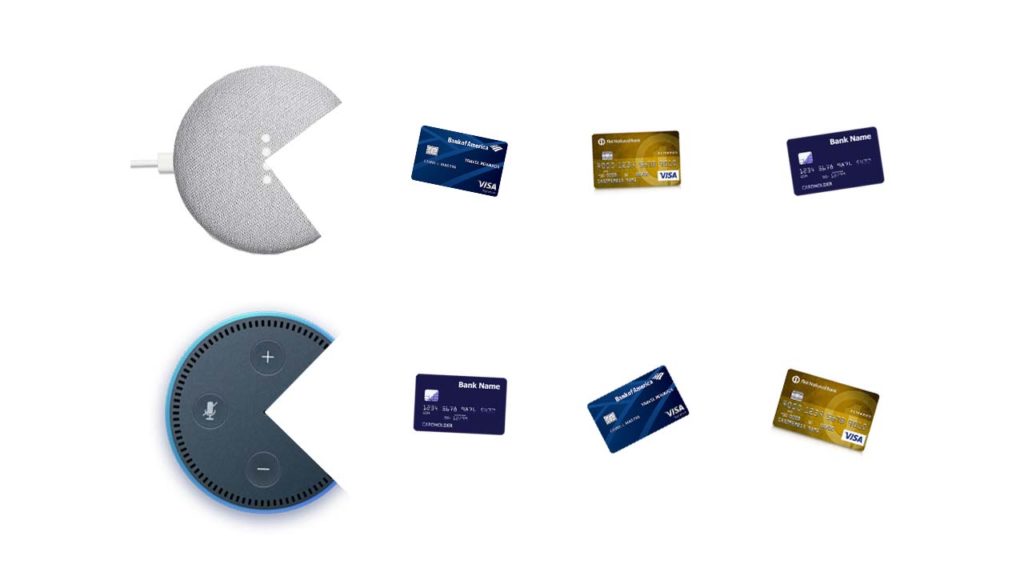
Your smart speaker could be eating up all your details

We talk a lot here at Softonic about spotting fake emails and web pages so that your information can’t be phished and then used against you. Malicious actors are now also using sonically activated means of tricking users, which will be much harder to spot. Also, as the technology develops, talking to these smart assistants will sound more and more like talking to an actual person. This will cause you to lower your guard, but you have to remain alert to potential threats against you.

As always with these types of security issues, you are the person responsible for your security. Your own vigilance is the best line of defense you have.
Facebook: Send us your nude photos to prevent revenge porn

Revenge porn is one of the big problems of the Internet today: an intimate photo you sent privately to your partner can, out of spite, end up in front of everybody on social media. Aware of how easy this is, Facebook has developed a system so users’ intimate photos can’t be uploaded to the social network. But it’s weird. Really weird.

To prevent an ex-lover from uploading your naked pictures, Facebook wants you to send them your naked pictures. You read that right.

If this interests you, get in touch with Facebook using a special form, now available in Australia, the United States, the United Kingdom and Canada. Next, Facebook will send you a one-time link for you to upload all those intimate photos that you want to prevent from being uploaded by other people to the social network. From each of these photos, an identifier will be extracted to prevent third parties from distributing your images: the moment they try, FB will block them on Facebook as well as on Messenger and Instagram. Also, you’ll be notified that somebody tried to do this.

Although the idea behind this method could work, the implementation is fairly odd. While Facebook promises that it doesn’t store the info of your photos and absolutely nobody will have access to them, the idea of handing them over requires a significant amount of trust, especially considering Facebook’s recent scandals surrounding the privacy of its users.

Would you trust Facebook to prevent revenge porn?

Source: Facebook Safety

Look out for these dangerous Chrome extensions

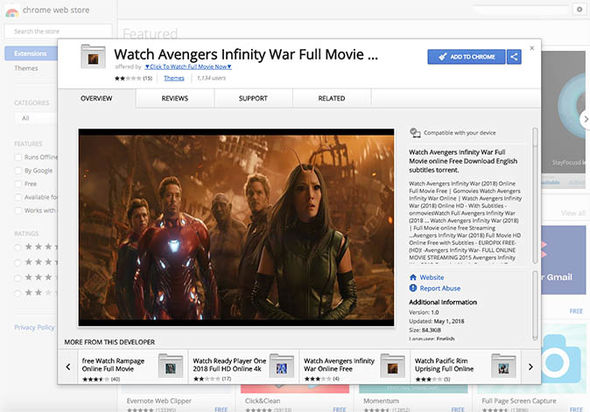
Chrome users beware. There are fake extensions in the Chrome store offering free movies that could cause you harm. If you see an extension offering films like Ready Player One or the Avengers, do not click on them. The promise of full access to HD and 4K versions are false.

Image via: The Telegraph

Anybody falling for this trick will find themselves redirected to a site called Vioos.co. Vioos looks like a streaming page but clicking on any of the videos on offer will take the user to another website called Zumastar. Zumastar then prompts you to create a “free” account that’ll you access to unlimited free movies, but this is just a scam to steal your data and infect your PC with malware.

Another possibility is being taken from vioos to EtnaMedia.net, which is blocked by MalwareBytes. MalwareBytes took action against the domain to halt suspected fraudulent practices. Users who found themselves on EtnaMedia.net reported charges to their credit cards without their knowledge or consent.

It is best to only download Chrome extensions from trusted developers and always think twice about clicking links.


What is Windows Hello?

When Windows launched Windows 10, the company set out to make the greatest possible leap forward. After a few years of having the operating system with us, there’s no doubt that the Redmond boys have kept their word: it offers good updates, performance, progressive web apps, and another detail: Windows Hello. Today at Softonic we’ll tell you what Windows Hello is, why you should use it, and how to activate it.

What it is and what it’s for

Windows is very concerned about user security and good proof of this is that Windows 10 comes with an antivirus called Windows Defender, the first introduced in its history. However, Windows Hello looks to enhance this security from the moment the system starts up.

“Windows Hello is a more personal way to sign in to your Windows 10 devices with just a look or a touch. You’ll get enterprise-grade security without having to type in a password,” says Microsoft’s page. In other words, Windows Hello is a way to unlock your device instead of entering a classic password or pin. To do this, the system uses your face, eyes and fingerprint to establish a pattern.

At the moment, gadgets such as Surface Pro 4, Surface Book, cell phones with Windows 10, Microsoft Band and most PCs with fingerprint readers can now use Windows Hello (as long as they have Windows 10, that is). Also, gradually more devices are incorporating this feature.

How to activate it

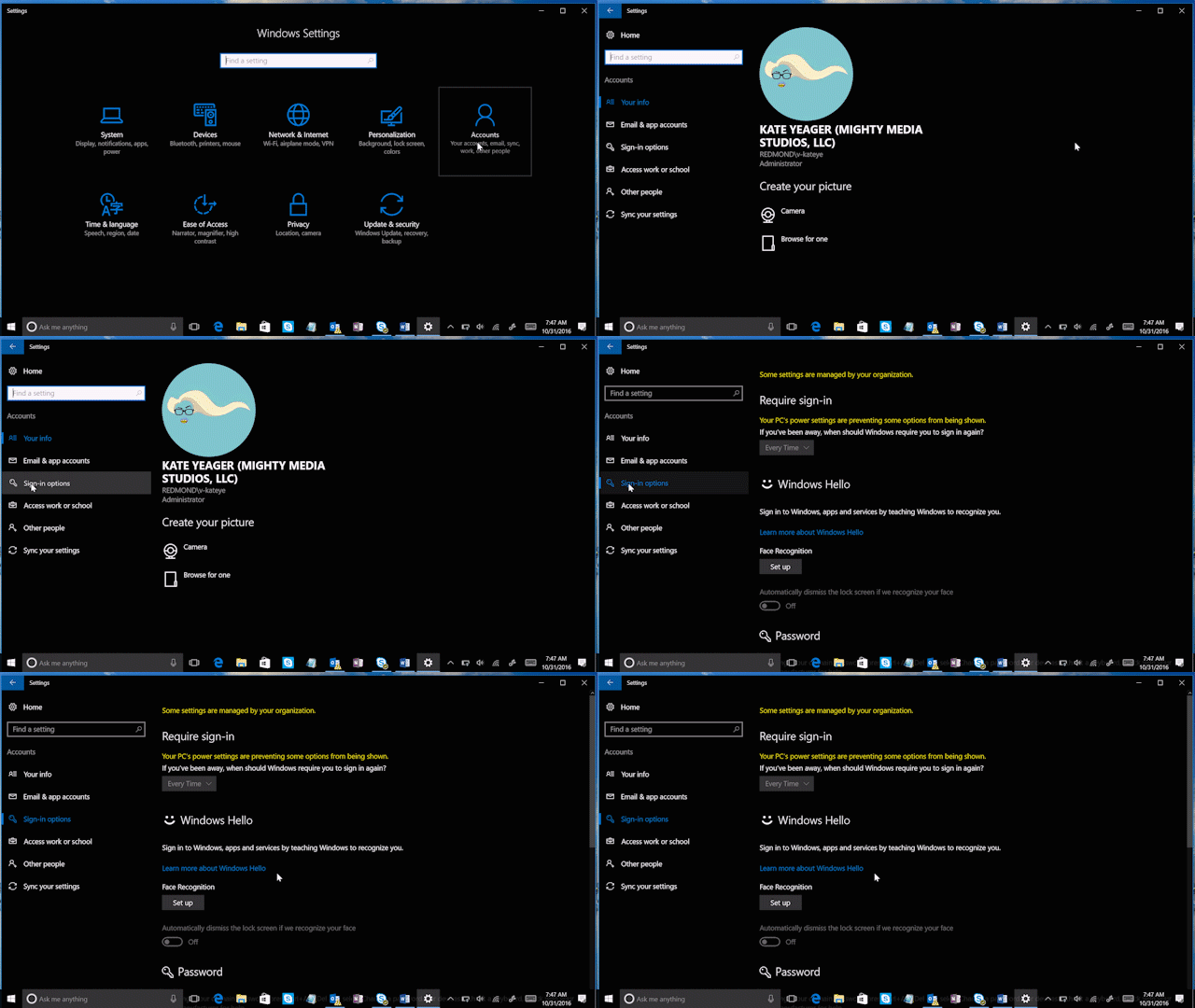
To activate Windows Hello, just click on the “Start” button (on the lower left) and go to the “Settings” icon  -> “Configuration.” When you see the corresponding screen, click on “Accounts.”

Of all the fields to choose from, go for the one that says “Sign-in options.” Click here and you’ll see that Windows Hello appears as a method to activate. Obviously, here you’ve got two possibilities: your device is compatible or it’s not. In our case, our device doesn’t have a fingerprint reader, but it does have a camera, so we can’t complete the process unless we get an external gadget for it (a little ridiculous, we think).

Check if your PC has the possibility of logging in with Windows Hello. If so, our advice is that you use it: you’ll have an extra layer of security.

How to set up two-factor authentication on Facebook

Two-factor authorization adds a much-needed extra layer of security in today’s ever-turbulent digital age. It adds an extra way of proving who you are should you access your online accounts in an unusual way. If you log in on a friend’s device, for example, or from an internet café, you’ll be prompted to authorize access to your account using a predefined method. Should your password be compromised, your account needn’t be, and because of this two-factor authorization is recommended by every security expert who is good at their job.

Facebook wants to make it easier for you to set up two-factor authorization on your Facebook account, so let’s have a look at how to do it now.

Until now, you’ve had to give Facebook your phone number to activate two-factor authorization, which itself comes with certain security implications. Now, however, you can use a third-party authentication app such as Okta or Google Authenticator. These apps generate instant verification codes that can then be used to authenticate who you are.

Google Authenticator Download Now
7

How to set up two-step authorization on Facebook

On top of this new feature, Facebook has added a simple step-by-step walkthrough guide that will get you set up with two-factor authorization. All you have to do is go to Settings in the Facebook app or on the desktop version. From there click on Security and Login and towards the bottom of the screen, you’ll find the Use two-factor authorization option. After that simply click Get Started and Facebook will walk you through the rest.

We can’t recommend enough that you activate two-factor authorization and take advantage of this new, easy to use security profile.

How to download all your Instagram data

Facebook’s privacy scandals have caused millions of users around the world to worry about their security on social networks. Many have gone to the extreme, deleting their profiles. If you’re thinking of doing this on Instagram, first let us show you how to download all your Instagram data in one click.

Instagram Download Instagram
7

What is downloaded

When we access this part of Instagram, the app gives us a file with all our uploaded photos and videos, as well as direct messages, comments, profile info and saved stories. In other words, Instagram has all your activity on the social network, which you can get nicely organized in a file. 

How to download it

Although you may think it’s been available for a while, this feature was launched on the social network relatively recently. To access it, you can either use the mobile app or the PC website. But there’s a key requirement for both: logging into your account (obviously).  

Once you’ve done that, go to this webpage. You’ll see this message: “We’ll email you a link to a file with your photos, comments, profile information and more. We can only work on one request from your account at a time, and it may take up to 48 hours to collect this data and send it to you.” Instagram stipulates a few days, depending on how much you’ve used the app. The more activity, the more difficult to collect all the data.

Once you’ve read the disclaimer, you’ll see that the “email” listed is the one you registered with on the social network. Click “Next,” enter your password and confirm “Request download.”

Ta-da. That’s it. In general, the file usually appears in your inbox within 24-28 hours, though as the previous message makes clear, it could take a month and a half. 

How to download all your WhatsApp data

You can find out everything WhatsApp knows about you. The latest beta version of WhatsApp (version 2.18.128) lets you download a transparency report, a document that the European Union has imposed on social networks and messaging apps. The normal version of your favorite app will have this report ready before May 25, which is the deadline the EU has determined for making this report available to users.

WhatsApp Messenger Download WhatsApp
8

Want to take a look at this report? Download the beta version of WhatsApp (from this link), click on the three vertical dots, then on Settings and Account. There, you’ll see the new option “Request info on my account.” Hopefully, you’re not in a rush because WhatsApp will notify you that the report could take between 1-3 days to complete. However, the first users to try it out say that the report takes a few hours to be sent over, not days.

While you wait for this report to arrive, don’t even think of making any drastic changes to your account, such as changing your number. In this case, the process of creating and sending the report will be canceled.

Once you receive the report, download it. You’ll then have a .ZIP file in your hands. Inside, there will be two folders: one in HTML format, the other in JSON. You only have to worry about the first: this one has all the info that matters and can be opened using any browser.

If you don’t want to download the report but you want to know what type of info it has about you, you’ll be relieved to know that the content WhatsApp stores isn’t as worrisome as Facebook. There is basic info on the user (cell phone number, device operating system), registration info (such as cell phone model), and the status of your settings.

How to scan APK files so you don’t get a virus on your Android device

Google takes the security of its online store very seriously. However, it’s often been blamed for allowing too much harmful content and potentially dangerous apps.

Last year, it launched the Google Play Protect service, a tool that helps provide an extra security layer. Although the problem has improved, the risk still exists. Today, we’re going to take your protection to the next level: we’ll show you how to scan APK files so you don’t get a virus on your Android device.

Preventing before fixing

Every time we install an APK app from outside the Google Play Store, we’re exposing ourselves to risk. You may know the manufacturer, but nobody is free from encountering problems with an app, whether you’ve downloaded it from the Google Play store or another website. Because of this, running a program analysis is a great solution.

Google Chrome Download Free
7

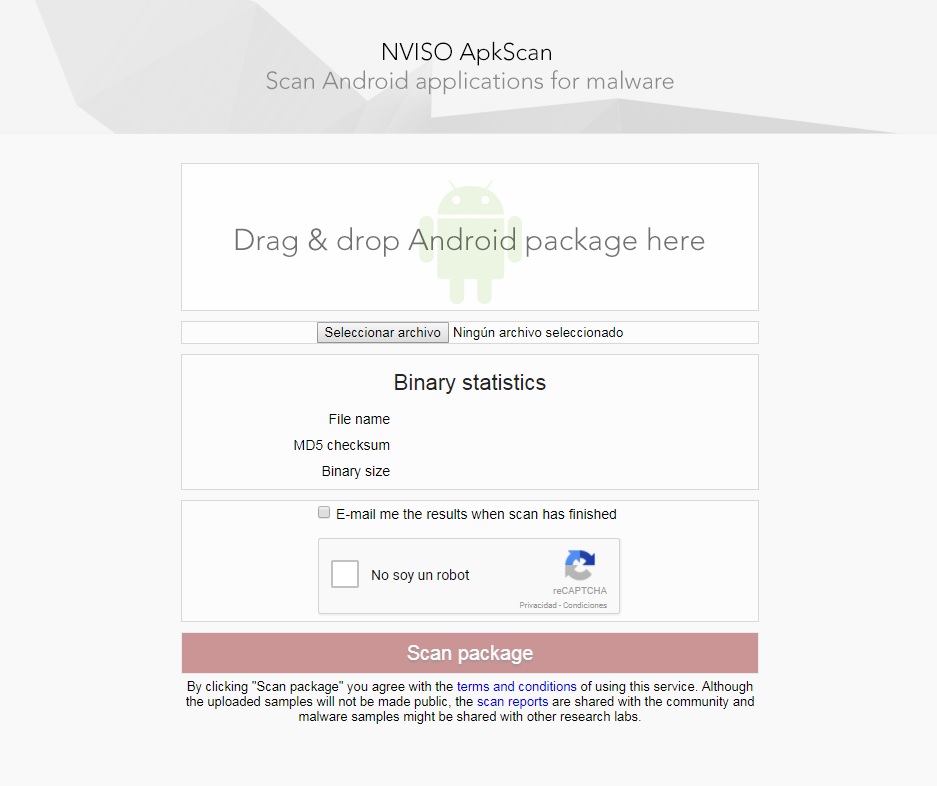
For this, we recommend NVISO ApkScan. This website is becoming a trusted resource in the online community. Why? Because it meets your needs perfectly: making sure there’s no virus in the app you want.

Using it is as simple as dragging the file into the box (or uploading it); the platform takes care of the rest. In addition, you can ask to be sent an email with the data of the analysis. Just check the box that appears above the captcha.

Once you click on the Scan package, be patient, since the analysis usually takes a few minutes. When finished, you have two possible options: one, it’s clean (you can install the app worry-free) or two, it’s infected. If the second happens, the tool will give you extra info.

Google Play Services Download Free
8

How to make your email accounts more secure

Email security is basically a joke these days. Just ask John Podesta. As we use our email addresses to log in to various services around the web, it’s vitally important to have maximum protection. Today we’re bringing you five tips to make your email accounts more secure.

Password

The key of every email account: the password. The more complex it is, the more difficult it will be to access. When security companies conduct annual studies, the statistics never lie: the most common password of users is “123456.” Don’t fall into this trap. Use capital and lowercase letters combined with numbers. A long password is harder to crack than a short one. Also, avoid using your birth date in a password.

Don’t put your email just anywhere

The second tip is as simple as not putting your personal email on social networks, forums or websites. Only give it to trustworthy people or those you would like to get in touch with. Remember that as more people know your email, the possibility of somebody trying to access it to rob you increases.

Disable HTML reading

This is a tip from security experts: if you’re not going to use HTML reading, the best thing is to disable it or avoid it. This format can be used in a harmful way to introduce malware into our email account. Once there, if we click on a wrong link… our PC will also get infected.

Beware of anything strange

Always look carefully at who the email sender is. In general, phishing and malware pages are known for imitating official sites. You may think it’s a bank, your insurance company, or a provider you trust, so you click the link… and surprise, it’s all fake.

Check each and every word of the email carefully. Likewise, keep an eye out if they request personal info, since it’s usually a telltale sign of deceptive senders.

…and files

If you’re careful with who the email sender is, it’s even more important to pay attention to all the attachments in an email. Attachments are usually the easiest way to deliver harmful files used to infect your system. For this reason, our advice is not to download anything unless you’re absolutely sure there’s no risk. Remember that you can also use an antivirus program on any downloaded file before opening it. Trust your gut and be a little paranoid. It’s hard to turn back time when you’ve blown a hole in your computer security.

Stop Google from spying on your browsing with Google Container for Firefox

Google Container is a new extension for Firefox that stops Google from spying as you browse.

This extension uses Firefox’s Containers technology. Containers are special tabs that isolate everything happening inside the rest of your browser. This technology enhances your security since it prevents pages within a Container from using cookies or buttons to find out other sites you visit.

Google also has its tricks for knowing where you browse. The official description of Google Container explains: “Clicking Google Share buttons passes information to Google about the website that you shared from. The same happens when you log into your Google account. Installing this extension deletes your Google cookies and logs you out of Google. You can log in and use Google normally when in the Google Container. If you click on a non-Google link or navigate to a non-Google website in the URL bar, these pages will load outside of the container.”

If you don’t want Google to “follow” you around when browsing, try Google Container. According to the site GHacks, it works without a hitch. Ready to try it? Click here to give it a whirl.

If they keep making extensions that isolate big names like Google and Facebook, maybe Firefox will turn Containers into an easy-access feature that lets users decide what exactly they want to isolate.