Stay hidden: iPhone 14’s private Wi-Fi setting thwarts online tracking

Privacy is an essential pillar in Apple devices and an aspect that is often overlooked when we connect to a specific Wi-Fi network.

Privacy is an essential pillar of Apple devices and an aspect that is often overlooked when connecting to a specific Wi-Fi network. When we connect to a network, such as our brand new iPhone 14, we share the MAC address of our network card with that network. This address is unique and immutable, which can allow us to be tracked.

Continue reading “Stay hidden: iPhone 14’s private Wi-Fi setting thwarts online tracking”

How to Quickly Protect your Computer from Wifi Outside?

Get-togethers are fun, especially when you have loved ones visiting for the holidays. Unsurprisingly, you’ll do everything to keep them comfortable by providing them with a nice play to stay, food, and anything they might need. Providing guests with a Wi-Fi password is one of the most common gestures expected by a host.

While you won’t have any trouble sharing yours, you must keep your network protected, so your system and any device connected to it are safe. If you’re wondering how to protect your Wi-Fi networks from threats, here are a few tips that’ll come in handy.

  1. Changing the Default Name and Password

    protect wi-fi

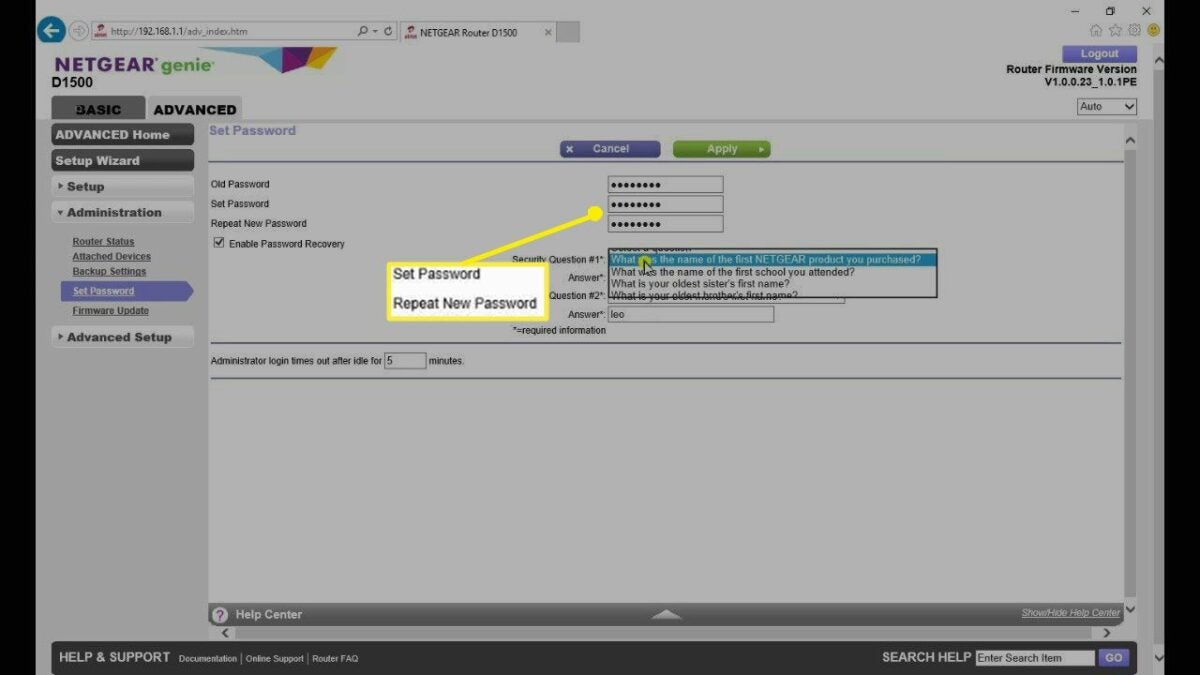
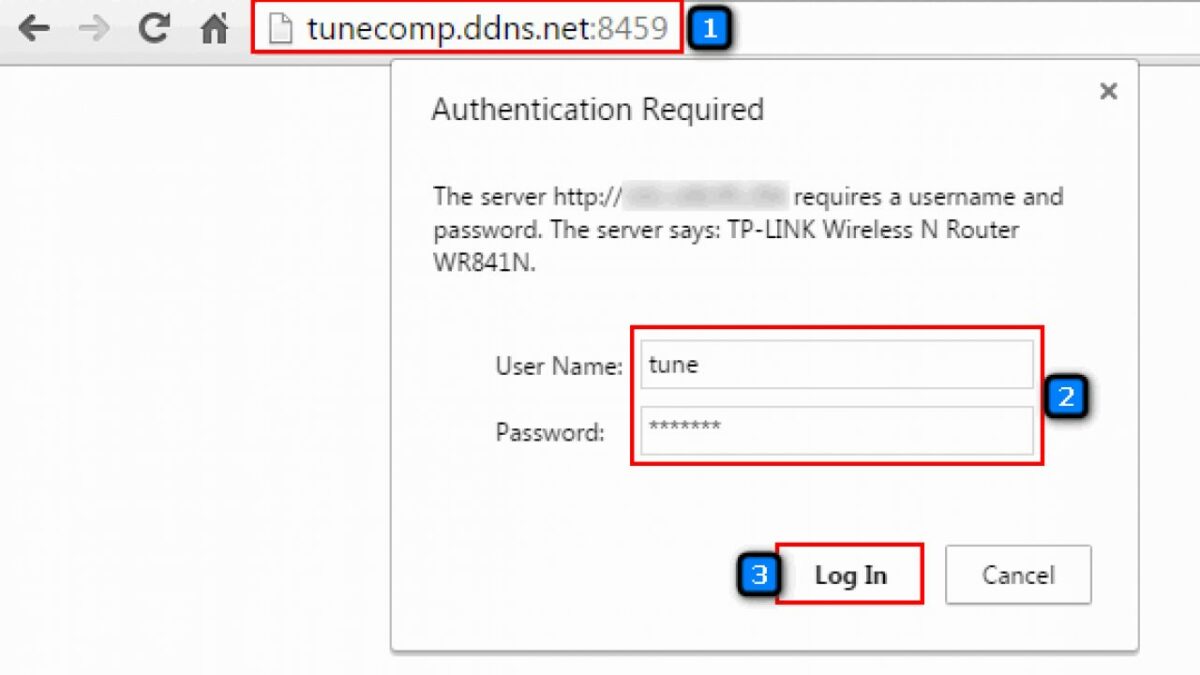
    One of the first things to do is change your network’s default name and password. The name is called the SSID, which stands for Service Set Identifier. This can be done by opening your windows command prompt. Type ipconfig and then press enter. This will give you the IP address for your system.

    Open a browser and type your IP address and then press enter. Enter the login credentials for your router and open your Wi-Fi settings. You can change the SSID and password in the settings. Always ensure you don’t enter personal information such as your date of birth or child’s name as the password. These are obvious passwords that can be predicted easily.

  2. Access to Your Network

    protect wi-fi

    While this may seem like a very obvious thing to do (or not do), avoid giving your Wi-Fi password to people you don’t know. The more people that have your password, the more vulnerable your network will be.

    A classic example would be giving your password to a private contractor working in your house. They may ask for your internet credentials while working at your place. If they need this, change the password (using the steps above) as soon as their work is done.

  3. Create a Guest Network

    protect wi-fi

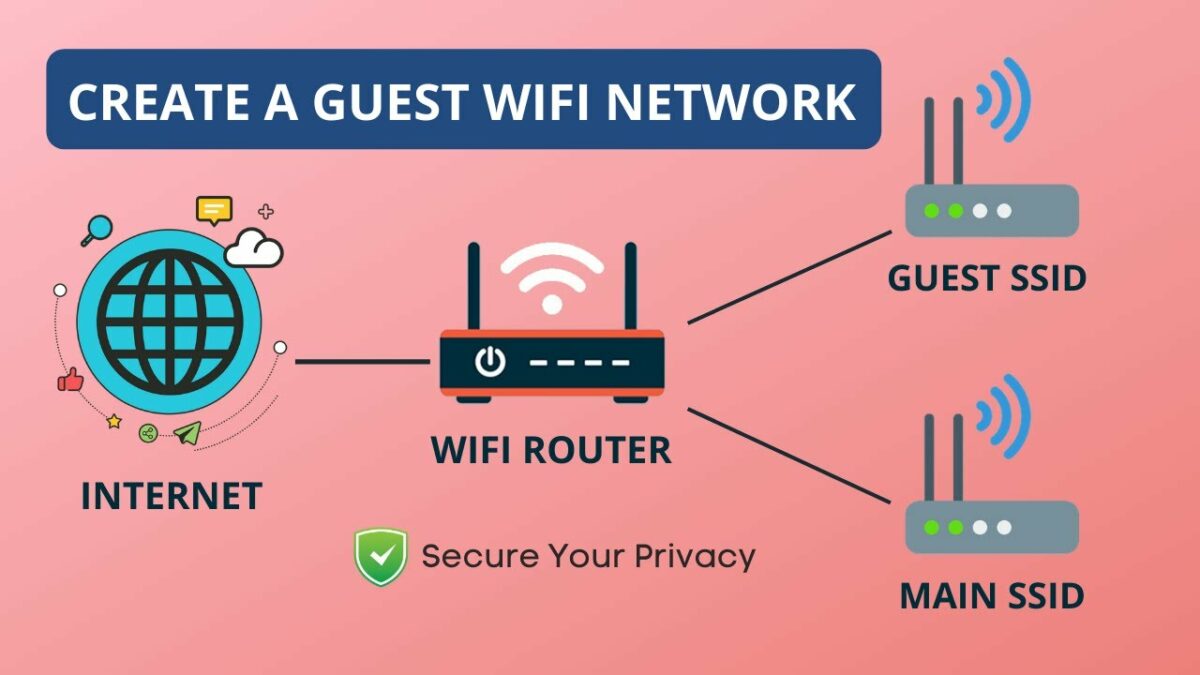
    Another way to protect your home network is by creating a guest network. A guest network is when you set up a separate network for guests. You can hide shared printers, folders, and storage devices. Most wireless routers allow you to create a guest network through the device settings.

  4. Place Your Router in the Middle of Your Home

    protect wi-fi

    This is a step we highly recommend because it can protect your Wi-Fi by limiting the range outside the house. If your device is kept closer to the door or in the corner of your home, it’ll have a longer range outside, and this can increase the potential threat to your computer and the network. The best part about this step is that it’s non-technical; once you’ve done it, you won’t have to worry about it.

    If you can’t place the device in the center of your home, try to keep it away from windows and doors so you can protect the connection as much as possible.

  5. Disable Remote Access

    protect wi-fi

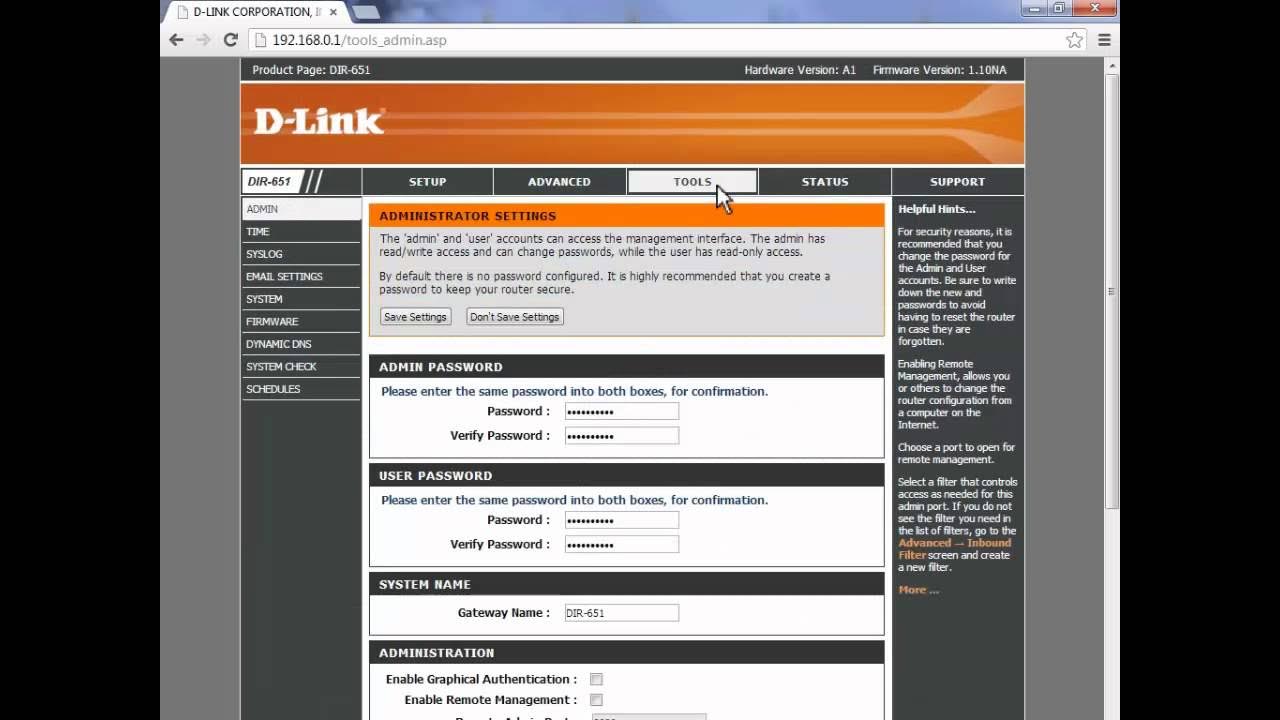
    Most routers allow remote access, which is a feature that’s always activated almost always. If you have your remote access enabled, it’s best to disable it unless it’s necessary for you to leave it on. Remote access is a feature that enables your Wi-Fi network to be accessible from anywhere. While this seems like a convenient choice, it’s also risky. This risk is even greater when you haven’t changed the wireless password or set one. Hackers tend to target networks that have their remote access enabled.

  6. Choose a WPA3 Router

    protect wi-fi

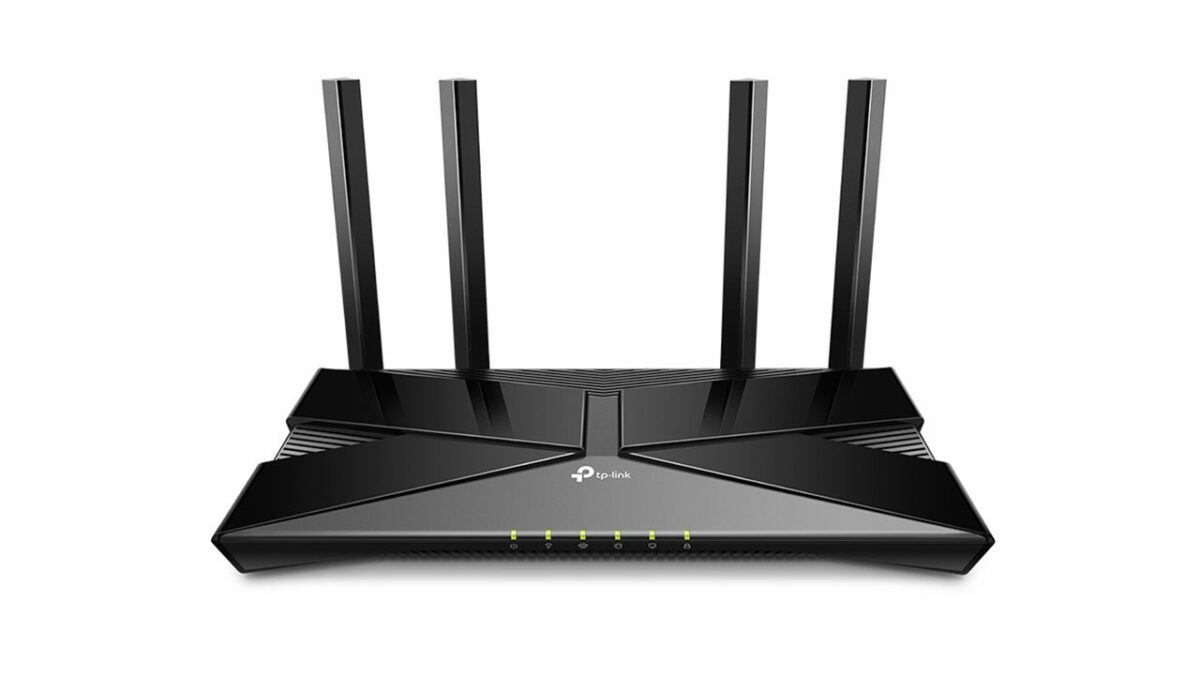
    A WPA3 router is one of the safest routers you can choose. It addresses almost all safety concerns one might have regarding wireless networks, thereby protecting your system in the best possible manner. If you haven’t already got a Christmas gift, this might be a great one before the holidays.

  7. Update Your Router’s Firmware

    protect wi-fi

    The firmware in your router is incredibly important, and without regular updates, it can get susceptible to virus attacks or even a hack. The best way to get it regularly updated is to keep the auto-update function on at all times. If you feel this hasn’t happened in a while, check manually to see if any updates are needed and get it done. If you don’t know how to update the router’s firmware, all you need to do is go to the website of the router company and check the process.

  8. Wi-Fi Network Encryption

    protect wi-fi

    Most routers (WPA2 & WPA3) come with an encryption option. This option can be accessed through your Wi-Fi settings. When switched on, it encrypts all sent and received between your channel and device.

    This prevents anyone from seeing what data you’re accessing. You only need to remember to reconnect all your devices once you enable this option.

  9. Router Firewall

    protect wi-fi

    Most modern-day routers come with hardware-based firewall settings. This helps prevent unwanted traffic from accessing your wireless network without your permission.

    Router firewalls are not enabled by default. They need to be activated manually. For this, you need to access your router settings with your IP address. Look under the router’s advanced settings for the firewall toggle. Please note that enabling this would slow down your internet speed. If you need high-speed internet, for example, when gaming, you can switch off the firewall and switch it on when done.

Security Inside To Stay Protected From the Outside

We hope this article gave you sufficient tips to secure your Wi-Fi network. Most of these methods are straightforward and don’t need any technical training or networking knowledge. Follow the steps provided in this article, and your home wireless network will stay secure.

Basic Wi-Fi Problems and How to Solve Them

Wi-Fi networks play a fundamental role in our lives. They’re the only reason we can connect to the internet on our devices without annoying wires. Many people no longer remember it, but years ago, accessing the internet meant having a tangle of wires in your house and a dial-up connection constantly taking over your phone line.

Wi-Fi logo

Home Wi-Fi has become our number-one ally for working, watching series and movies and even playing video games. You may not think about it much, but you probably spend most of your day using it. That’s why it can be quite upsetting when your Wi-Fi is on the fritz.

Is your Wi-Fi turning on but not connecting to the internet? Is it going slower for no reason? Are you having trouble connecting to the internet on certain devices? Not to worry! In today’s article, we’re going to walk you through steps to solve the most common problems with Wi-Fi networks. We hope you find it helpful!

I don’t have a connection, or I can’t access the internet from a certain roomRouter Jazztel

A fairly common problem with home Wi-Fi networks is not having an internet connection in certain rooms of your house. This is largely due to the router’s location in your home. Keep in mind that your Wi-Fi signal needs to travel through your walls to reach your devices. The more walls and obstacles those radio waves have to cross, the more frequently you’ll lose your Wi-Fi connection.

An immediate solution to this problem is to physically move your router to the center of your home. If it’s close to a wall facing the outside or a neighbor’s house, your connection will be much weaker. The closer it is to the center of your home, the stronger it will be.

Another easy fix is to buy a Wi-Fi repeater. These devices are cheap and amplify the distance your Wi-Fi signal can travel. You can find a nice selection of Wi-Fi repeaters on Amazon here.

My internet is slow

Hombre utilizando un portátil

Another frequent problem with Wi-Fi networks is when your uploading/downloading speed is much slower than it’s supposed to be.

To solve it, first determine your data’s data uploading/downloading speed by connecting your device directly to your router. To do so, you need an Ethernet cable and a free service like speedtest.net (click here). If your internet is slow when your device is connected directly to your router, the Wi-Fi is not the problem and you should contact your internet service provider.

If your internet connection is fast when your device is connected to the router but slow using Wi-Fi, it’s probably because your Wi-Fi channel is saturated by other networks. In these cases, we recommend going into your router settings and changing the channel.

Another potential solution is restarting your router with the factory settings. On most routers, you can do this by pressing a tiny button in the back with a paperclip for 30 seconds.

If none of these tricks work for you, your router is probably obsolete and needs to be replaced. In this case, we suggest contacting your internet service provider to request a new router.

One of my devices won’t connect to the internet

Mujer con portátil

It’s happened to everyone at least once: your phone or laptop fails to connect to the internet. This is often a minor and easily solvable problem. Just disable and enable your device’s wireless adapter. If the problem persists, restart your router or remove your network from your device’s list of saved networks and re-add it.

My internet slows down at certain times of day

Mujer con portátil

Sometimes your internet connection is much slower at certain times of day. Why is that? In most cases, it’s due to a nearby network interfering with yours because it’s using the same channel. An example of this would be a neighbor who comes home from work and starts downloading files or watching series through a streaming service.

To check, we suggest using a network analysis program to see if there is any interference on the channels. If you are a PC user, we recommend NetSpot, whereas if you connect to the internet on an Android device, check out Wi-Fi Analyzer. Both are free and you can download them below.

NetSpot

NetSpot DOWNLOAD
8

  • Wi-Fi Analyzer (Android)

WiFi Analyzer DOWNLOAD
8

I can’t find my Wi-Fi network

Mujer preocupada con portátil


You might be working and suddenly discover that you’ve lost your internet connection. When you try to reconnect, your network doesn’t show up on the list of networks detected by Windows. What gives?

Sometimes your Wi-Fi network might vanish because your router has rebooted. Before you panic, check to see if your router is connected to the internet or is displaying an error message (usually in the form of a red light). If everything seems okay, look for it again on your list of active networks. Otherwise, we suggest updating the drivers on your computer and restarting it.

If your network still fails to show up, connect your laptop to your router with an Ethernet cable and see if your internet works. If it doesn’t, you may need to replace your router.

My computer connects to the router but not the internet

Señal Wi-Fi

This classic problem has happened to everyone at least once: your computer connects to your router, but your router won’t connect to the internet. Fortunately, there is an easy solution, because this issue usually repairs itself automatically when you reset your router or disable and enable your device’s Wi-Fi.

If you follow these steps but your computer still won’t connect to the internet, try rebooting it. Otherwise, connect your laptop to the router with an Ethernet cable to make sure your router is working correctly.

My router is constantly disconnecting

Router Movistar

Is your router acting up? Do you need to restart it several times a day to get a semi-stable internet connection? Here’s what we recommend: instead of restarting it the usual way, do a full reset and reestablish the factory settings. You can do this by holding down the button in the back with a paperclip for a few seconds and waiting for the device’s lights to turn back on.

If your router is still on the fritz, it might be time to replace it. We recommend that you contact your internet service provider for help.

I forgot my Wi-Fi password

Contraseña de la red Wi-Fi

With the sheer number of accounts and online subscriptions we have these days, it’s easy to forget your Wi-Fi password. Don’t worry, because there are ways to recover or reset it, so you won’t go without internet for long. Keep reading to find out how!

If you’re trying to connect a new device to your Wi-Fi network but can’t remember your password, you can easily retrieve it from a computer that is already connected to the same network. On your PC, go to Control Panel and click “Network and Sharing Center.” Alternatively you can get to the same window by pressing the Windows key + R keyboard shortcut and then typing “ncpa.cpl.”

In the new window, you’ll see all the Wi-Fi networks you have saved on your computer. Click the one you need and select “Wireless Properties.

In Wireless Properties, go to “Security” and check the “Show characters” box. Your Wi-Fi password will appear in the “Network security” box. It’s that easy!
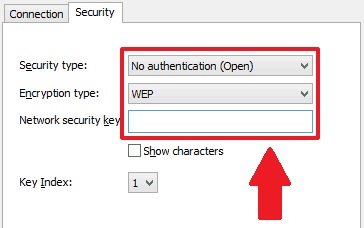
If you’re still lost, don’t worry. Below, you can find an illustrated guide that explains how to recover your password.

If you don’t have any other connected devices handy, you can reset your router by pressing the button in the back with a paperclip for a few seconds. Your router will revert to its factory settings, including the password. Then you can just use the router’s initial password, which should appear on a sticker on the bottom of the device.

There are unknown devices connected to my Wi-Fi network

ladrón de Wi-Fi

Recently you may have noticed that your home internet is running much slower and there are unknown devices connected to your Wi-Fi network. If so, it’s likely that one of your neighbors is stealing your Wi-Fi. In the guide below, we’ll walk you through the steps to find out if that’s the case.

More often than not, Wi-Fi theft happens because your password is easy to guess for anyone who knows you even just a little. In these cases, the best solution is to change your password.

We hope our basic guide to solving potential problems with your Wi-Fi has been helpful to you. Are you having some other problem with your Wi-Fi or router that we haven’t covered here? Tell us about it in the comments section and we’ll lend you a hand ASAP!
How to detect a Wi-Fi thief

These apps can keep Wi-Fi trespassers from slowing down your network.

Protecting Wi-Fi

Your Wi-Fi network at home is sacred. Allowing a friend to access to your Wi-Fi network is now the equivalent of letting them getting something out of your fridge.

When someone hijacks your Wi-Fi and slows it down, it is not only a breach of trust but a breach of privacy. However, we have the solution:

Two key applications

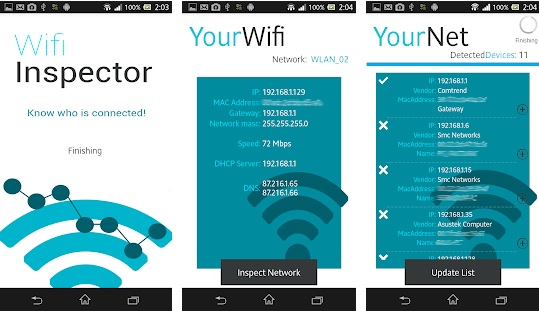
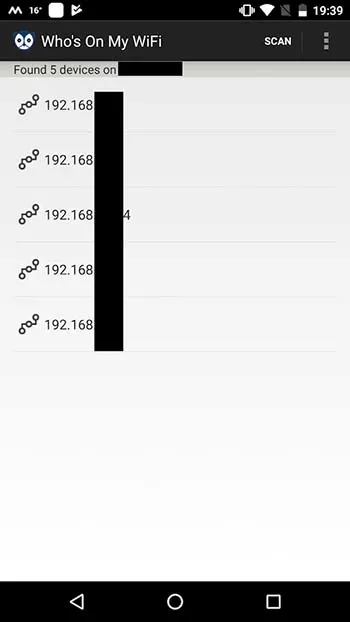
In order to find out if someone is accessing your network, we are going to use some applications: IP Tools Wi-Fi Analyzer and Who’s On My Wi-Fi.

IP Tools Wi-Fi Analyzer allows you to configure everything in the fabric of your internet connection. Likewise, it is also able to show if there are technical difficulties. You will know if there are connection failures as well. It also tells you which devices are currently connected to your network.

IP Tools: WiFi Analyzer Download now ►
9

In the case of Who’s On My Wi-Fi, the functions are more limited than in IP Tools Wi-Fi Analyzer. However, the name says it all. It sees who is on your Wi-Fi connection and takes the appropriate measures. We recommend downloading both applications, but we will use the latter to perform the analysis.

Who Is On My WiFi Download now ►
10

Open Who’s On My Wi-Fi and look for the network to which you are connected. In a matter of seconds, the application shows all the devices that are using your internet connection. From here, you can kick trespassers off your virtual lawn. You need to enter your network information to do so.

Who's on my wifi

Staying protected

Another way to do this is by changing the router password. Once you modify the password, that person cannot connect again.

You pay for your Wi-Fi connection with your hard-earned money, so you should get to decide who is using it. If someone is going to try and sneak into your system, don’t be afraid to virtually go “Gran Torino” on them. 

What Google Fiber is and how to get it

Looking to upgrade your internet access? Google Fiber might be the answer!

Google Fiber

If you don’t know what Google Fiber is, the name may sound like a line of new granola bars. Heads up: it isn’t.

Google Fiber brings relatively blistering fast Wi-Fi speeds via a cable connection to your home. If you’ve ever plugged your gaming device into a router to reduce lag while playing Fortnite, you’ve had a small taste of the benefits possible with a physical internet connection. Now, imagine the router itself directly tied to Google’s powerful network!

This program is fast, and the cost may not be for everyone. It’s only available in certain areas, called fiberhoods, but is gradually expanding.

Google Fiber Download now ►
7

What Google Fiber is and how to get it

How fast is it, really?

Internet speed

Well, as you might imagine, it’s really fast. Allow us to throw some numbers at you:

It goes at 1,000 megabits per second. Eight “bits” means one “byte,” so that’s 75 megabytes per second. Dang! One gigabyte equals 1,000 megabytes, right? Right. So, if your device can handle it, the download speed has the potential to reach 7.5 gigabytes per minute!

Now, mind you, this all comes on a physical landline, so you can also expect to avoid a lot of the normal issues attributed to Wi-Fi, like lag spikes and connection loss. The high speeds seen above will be more far more consistent than other options!

How does Google Fiber work?

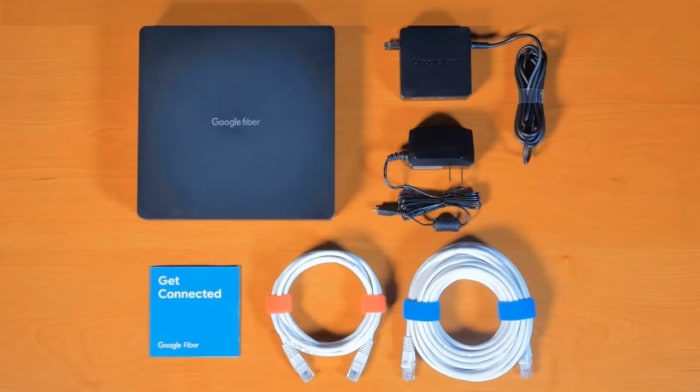
First, a Google Fiber technician will connect your house with a cable to ensure you’re properly linked into their system. This wire will be in a box known as a “fiber jack,” which is likely placed near your TV or living room.

From there, plug the internet box (router) into the fiber jack, and connect them both to power. From here, you can use a physical Wi-Fi cable to a device or simply connect to the wireless internet. Easy as that!

However, the availability of these services is dependent on your location. At this time, Google Fiber only extends to a few key cities where they’ve begun rolling out its web of connections.

Where is Google Fiber found?

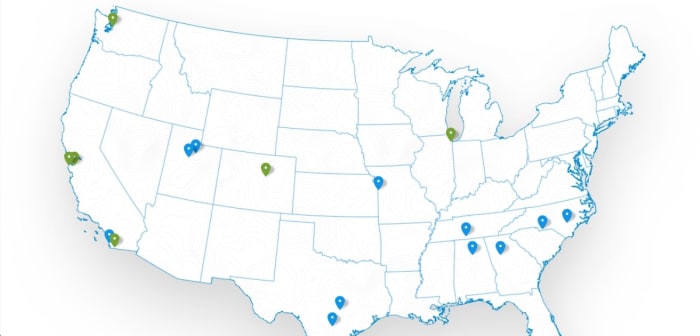
MapWith a physical connection, the initial speed of installation will be much slower than setting up a satellite dish (ah, there’s always a catch). This means there are only a few areas at this time where Google fiber can be found. In fact… there are only a few states.

If you want to know whether your area has been added to the “Fiber Cities,” visit their web listing to check.

Also, a heads-up: the blue dots on the map are full-access Fiber Cities, the green markers are locations that only serve apartments and condos. Google aims to benefit communities first, and are more likely to install a Fiber hub for a densely-packed group of people (it makes sense economically as well).

Who is it this for?

GoogleFiberKit

Recap: Google Fiber targets large areas, runs extremely fast, and takes more investment than other sources. With that being said, who should be looking to connect?

We highly recommend this service to anyone who could benefit from the speeds such as streamers who want to make sure they can deliver top-quality video to their fans.

Of course, we can still recommend the Fiber program to anyone in a Fiber area that can afford it. Google has competitive pricing, so you won’t be breaking the bank, and we’re confident their service will be excellent.

What does Google Fiber cost?

Prices

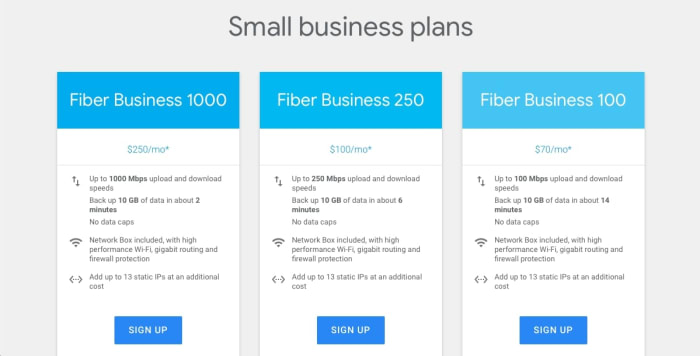
For any given plan type (Fiber, Fiber with TV, Business), there are three options: 100, 250, and 1000. It’s simple, really: the number represents how many megabits per second you can expect.

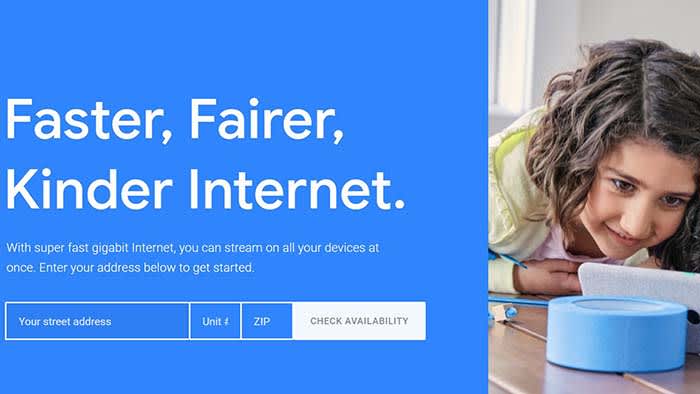
Unfortunately, Google requires you to enter your address for more information on pricing.

Luckily, for the curious readers, a page on howmuchisit.org has some answers. Normal Fiber costs $50-$95 dollars per month. With TV, you’ll see about $140-$160. Even better? You can change the prices any time, without being locked into a contract.

For comparison, you can check out other good providers like Verizon, Dish, and AT&T. For a few laughs, you can look into Cox, which offers faulty internet at $60 a month with a one-year binding contract.

Conclusion

Google Fiber is a new, powerful internet option from a well-respected company. We hope it sparks your interest in finding fiber optic Wi-Fi or at least gives you a better sense of how setting up a new provider works. If you’re looking to increase your internet speed, consider giving it a try!

How the newest Firefox keeps you safe

Firefox is more than just a browser. Here’s what it does to keep you safe!

If you’re looking for a browser to keep you safe, the latest version of Mozilla Firefox is here to watch your back. From password management to security alerts and beyond, Firefox makes safety and privacy their top priorities.

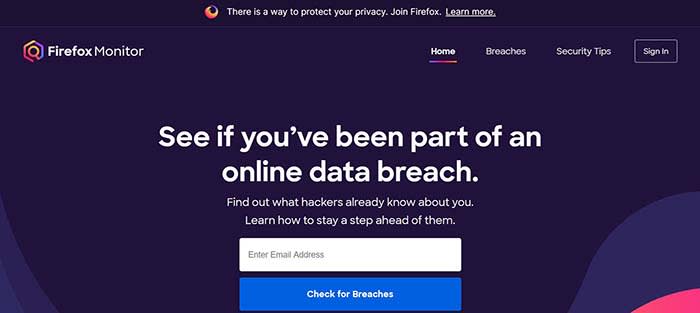
Firefox Monitor alerts you to data breaches

Firefox Monitor

It seems like there’s a new data breach every other day. Have you ever been concerned that you were involved in one, and that your data has been compromised? Firefox Monitor can help you find out!

Simply enter your email address, and Firefox Monitor will tell you if that email address was ever involved in a data breach. Also, when you join Firefox, you can save all of your email addresses in their system, and receive a notification if one is ever involved.

Firefox Lockwise safely saves and syncs your passwords across devices

Many of us have a system for keeping track of our passwords that’s probably less than ideal. Maybe we have a sticky note in the corner of our monitor with a list of them. Maybe we threw them into the notepad on our phone or computer. It could be we just think we have a good enough memory to remember them all. Either way, none of these methods are optimal.

That’s where Firefox Lockwise comes in handy. It keeps all of your passwords safely behind a firewall and autofills them in the login page when you give the okay. The best part? Lockwise can carry those passwords across devices so you’re never locked out or trying to find that Post-It note with the password you created for that site you haven’t visited in three years.

Send big files with Firefox Send

Firefox send

It’s happened to all of us: we have a large file we need to send, but we don’t have a flash drive nearby, and it’s too big to send via email. That’s where Firefox Send comes in handy. Firefox Send allows you to send a file up to 2.5 gigabytes in size just by joining Firefox.

Sync to your Android or iPhone

Maybe you have 12 tabs open on your desktop, but when you jump on your mobile device, you have to remember what those tabs were. Firefox solves that problem by syncing your sessions between desktop and mobile devices.

When you sign in on Firefox on any of your devices, your browser will be personalized the same way thanks to Firefox’s syncing feature. Even better: your sessions are protected by end-to-end encryption.

The newest Firefox is the best version of a trusted browser from a team that puts your privacy first. Give it a spin and see why these features are so groundbreaking!

Softonic is proud to partner with Mozilla. When you download from us, we may earn a commission.

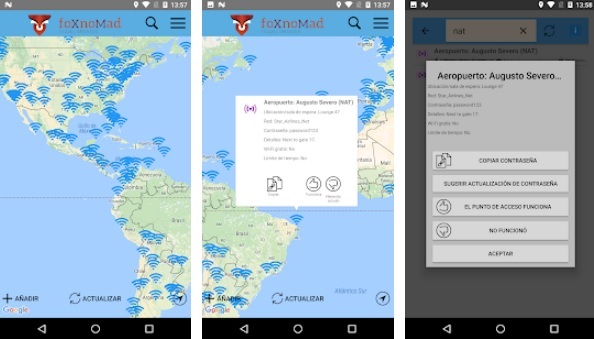
Wi-Fi Finder app leaks more than 2 million passwords

See how this threat could impact you.

Wi-Fi is like the keys to the universe these days. Many people even ask for the Wi-Fi password even before they’ve said hello. We all want it and we all need it, seemingly all the time. We need Wi-Fi so much that that there are a lot of apps out there, all designed to help us find it and connect to it. Unfortunately, not all these apps are as well made or secure as they should be and now it seems the inevitable has happened.

The app Wi-Fi Finder has leaked over 2,000,000 Wi-Fi passwords online

This is a bad app

Wi-Fi Finder has been downloaded by over 100,000 people and has collected over 2 million passwords. The app is designed to help users locate public Wi-Fi spots and then, in some cases, provide the required login details to help them connect to the network.

The way the app collects passwords is by asking users to upload their password lists to the central server. Theoretically, this makes all of the Wi-Fi hotspots they’ve ever signed into available to all users of the app. The flipside of this, however, is that the app can’t differentiate between home Wi-Fi networks and public hotspots. This means it is highly likely that all users who’ve uploaded Wi-Fi security credentials to the app have unwittingly uploaded the security details of their home networks to the Wi-Fi Finder password list too.

It gets worse for Wi-Fi Finder users, of which there are tens of thousands in the U.S., as the list of over 2 million Wi-Fi passwords has now been leaked online. As well as containing network names and passwords, the list also contains precise location data on where each network is. If you’ve uploaded passwords to that list, then not only is the name of your Wi-Fi network and the password needed to access it available online, but its exact location is available, too.

Potential issues that could arise from this kind of vulnerability include the spreading of malware across your home network and the takeover of smart devices like security cameras and AI augmented speakers. In practice, however, this type of action on a targeted and personal level would likely fall low on a list of priorities for a serious cyber-criminal or hacker.

The fact remains though. If you downloaded Wi-Fi Finder, you need to delete it and change your home Wi-Fi password immediately.

smashed cybersecurity
Common sense: If you’re not careful when you download new apps, you could be sabotaging your own cybersecurity.

Unfortunately, downloading apps safely requires vigilance and awareness. To avoid this type of thing happening to you, you should always check the developer behind the app you’re looking to download and also go through the permissions the app is asking for. Wi-Fi Finder asked for a startling number of permissions including locations, full contact lists, and even the ability to read, modify, and delete data. Asking for too many permissions is a dead giveaway that an app shouldn’t be trusted.

For more information on how to avoid downloading disreputable apps check out our tutorial below.

How to measure your internet speed

Tired of slow internet speeds? Launch this test to see where you’re lagging!

Internet speeds

After paying an obnoxiously high price for fast internet speeds, you hop on your laptop only to be subjected to painfully slow speeds. What’s going on?

Measuring the speed of our internet connection is important. Whether we think that there’s a problem or we simply want to check how it is at that precise moment, speed rules. We scoured the internet and found the best tool for measuring your internet speed, and what the data means. Luckily, our internet was running pretty fast.

How to calculate it

internet cables

To find out what speed we have in a specific moment, you must conduct a speed test. There are dozens of options, but Google has the easiest one to find. Google “internet speed test,” and just click the button at the top of this page.

The Google speed test works with Measurement Lab and transfers a data packet of fewer than 40 megabytes.

The process lasts less than 30 seconds and we recommend closing programs that are slowing you down. In addition, the test works better if the connection is via cable instead of Wi-Fi.

If you really want to make your computer run faster, we would recommend MacPaw. Don’t be fooled by the name, MacPaw products are available for both Mac and PC. 

What does each value mean?

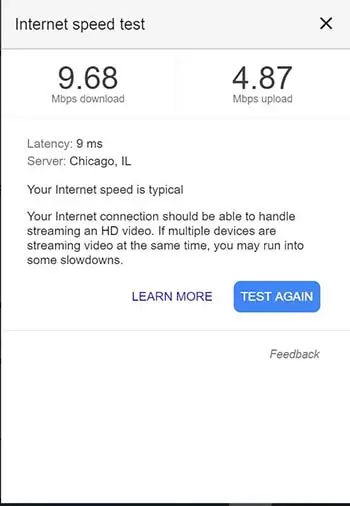
The speed test has two results: the download and the upload. The download refers to the speed data moves from the web to our computer.

Internet speed test

The upload, on the other hand, is the opposite process. Our PC is responsible for sending information through the network to the servers that are performing this speed test.

With the combination of both figures, you can get a decent idea of how fast your internet is performing.

What is latency?

Latency measures how quickly you get a response from the server. Low response times are important for real-time apps, like video calls and online gaming, according to Google.

Latency is expressed in milliseconds since the values ​​obtained are very small. However, latency can make a big difference. If you’re into online gaming, poor latency means your game will be very laggy. 

Try a VPN!

If you’re looking for a decent VPN service to try out on your computer, we would recommend Express VPN. By clicking this link, you can get 15 months of Express VPN for the price of 12!