The top 7 download managers

Sometimes downloading files in bulk can be a pain, but I’ve found the quickest, safest and sleekest download managers for you. What you’re looking for in a download manager is a program that will automate the process, relieve bandwidth usage, and organize how files are being downloaded.

Most of the apps we cover here offer features like download scheduling, automatic disconnect after download, batch downloading, and speed optimization. If you tend to install lots of new programs, games, or videos and music, it’s probably a good idea to set one up on your PC.

Flashget: The fastest of all download managers

FlashGet download manager

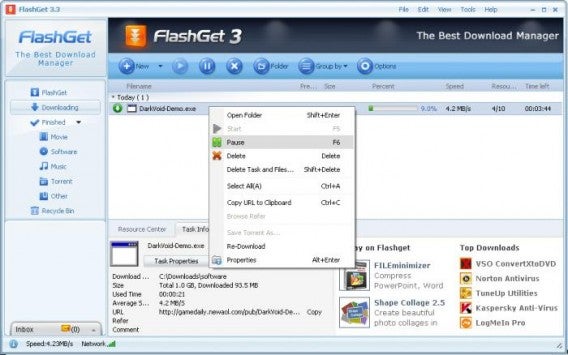
FlashGet promises download speeds of six to ten times faster than downloading normally through a browser. The program supports basically every download protocol including HTTP, FTP and MMS. This is one of our highest rated download managers, so check it out.

Download Flashget for Windows

Download Accelerator Plus:  Squeezes the best out of your Internet connection

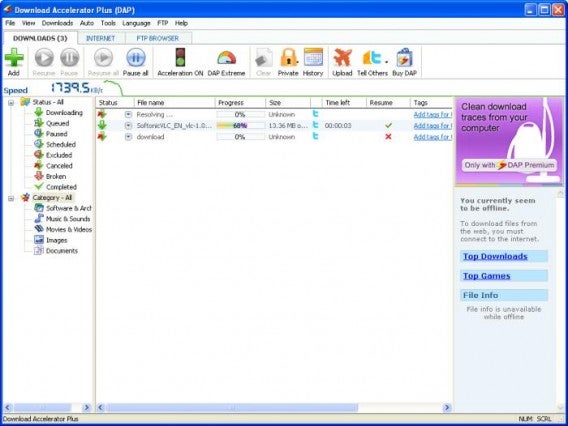
Download Accelerator Plus interface

Download Accelerator Plus has a ton of cool features. You can watch a video while you’re downloading instead of waiting for it to finish, and can convert videos into MP3 to be compatible with other devices.

Download Download Accelerator Plus for Windows

Internet Download Manager: Works with all major browsers

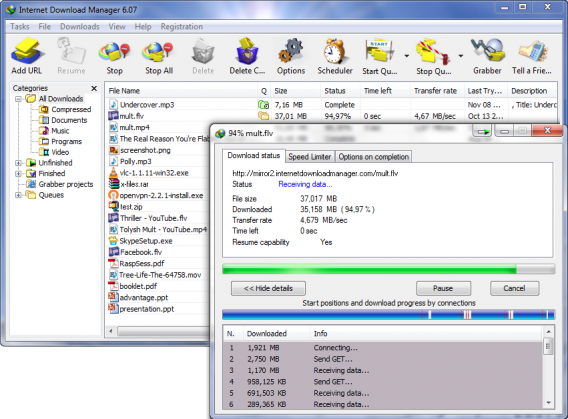
Internet Download Manager interface

Internet Download Manager has been around for a long time, but it’s still being supported for modern operating systems. The app works with Windows 8.1 and all the major web browsers. Beyond offering faster downloads an an interface to manage them all, it can pick up on downloads when your connection gets interrupted.

Download Internet Download Manager for Windows

Free Download Manager: A free and solid all around download application

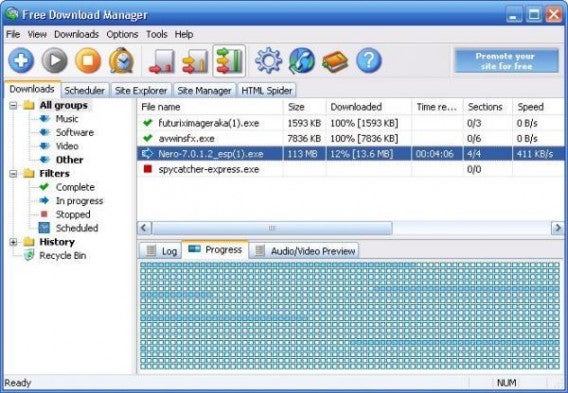
Free download manager

Free Download Manager works much the same as the other download managers, offering increased speeds and support for tons of download protocols like BitTorrent and FTP. This software is open source and available under the General Public License, meaning a community of developers can always improve it. The app even has a remote control feature that lets you view the list of active downloads from any computer.

Download Free Download Manager for Windows

Website Ripper Copier: Automatically download all content from a web page

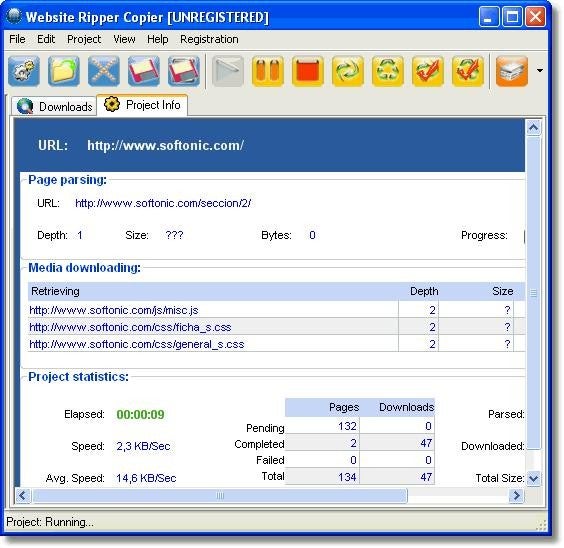
Website Ripper Copier

Website Ripper Copier is unique in that it lets you download entire websites for offline browsing or archiving. WRC offers pop-up free browsing and speeds up general browsing as well. The app is paid, but you can download a free trial before you make the commitment.

Download Website Ripper Copier for Windows

WebZIP: Collect web content to browse offline

WebZIP

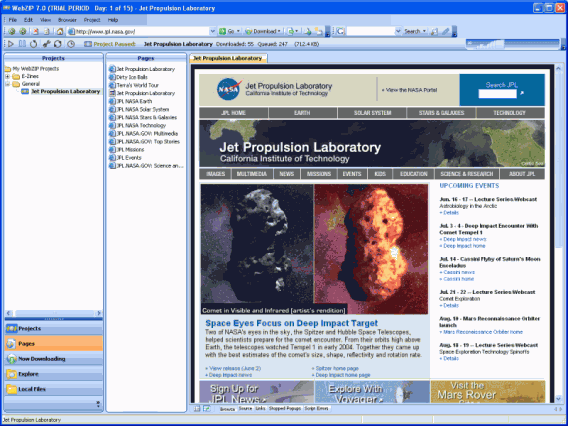
WebZIP is light on resources and basically runs on any computer. Save images, music, and other media files to keep for offline use. The app even downloads entire websites like Website Ripper Copier.

Download WebZIP for Windows

GetRight: Compact but fitted with all the necessary download features

GetRight downloader

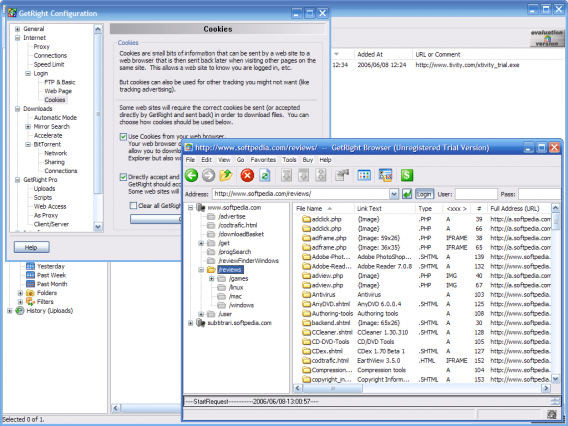
GetRight helps users with an unreliable internet connection continue their downloads where they left off, instead of having to start over from the beginning. Sometimes downloads can take hours, and having to restart from the beginning can be devastating. GetRight has automation tools to let you turn off your computer when downloads are done, saving you on your power bill. The app quickly hunts for items on the webpage for you to download.

Download GetRight for Windows

Whether you’re looking for speed, convenience, or organization, every download manager will have something for you. You can also check out the download managers now automatically available in most browsers like Chrome, Firefox and Safari for more options.

If you want to know how to safely backup all your files, then check out our guide for creating your own backup recipe.

Original article published on April 19th, 2007.

How to automatically update drivers in Windows 7 and 8

Windows is full of tips and tricks that can still be fairly elusive to the average Windows users. In this edition of our Windows Tip of the Week, I’ll show you how to automatically update all the drivers on your computer.

Drivers are programs that let your operating system properly communicate with the peripherals. Peripherals are devices connected to the system and include things like your keyboard, mouse, and your screen; all peripherals need this common language in order to work in sync with the rest of the equipment.

Unfortunately, drivers can become obsolete over time, and they may even start to cause problems. If you’ve bought new hardware or your operating system has been updated, it might be time to update your drivers too.

Caution

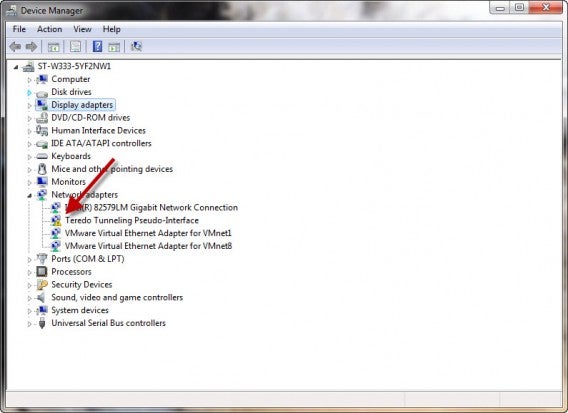
A yellow exclamation point usually indicates the need for an update.

There are different ways to update the drivers:

– You can use a program like Driver Genius or DriverBooster.

You can download the drivers from the official website of the peripheral, as is normally done with graphics cards.

– You can let Windows do all the work by automatically downloading the drivers.

This last option is what I’ll go through below.

How to update drivers in Windows 8

With the arrival of Microsoft’s latest operating system, Windows 8 drivers are no longer a real problem for users: Windows Update takes care of everything, at least for the most common drivers. If you’ve enabled automatic updates from Windows Update, drivers are included, so all the work is basically done.

How to update drivers in Windows Vista and Windows 7

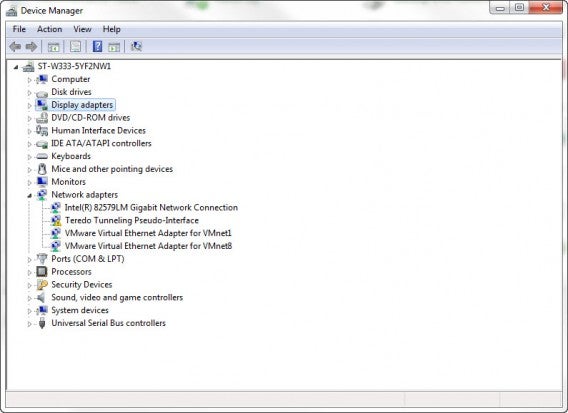
To update your drivers, go to Control Panel> Hardware & Devices> Device Manager. You’ll find the following window.

Device Manager

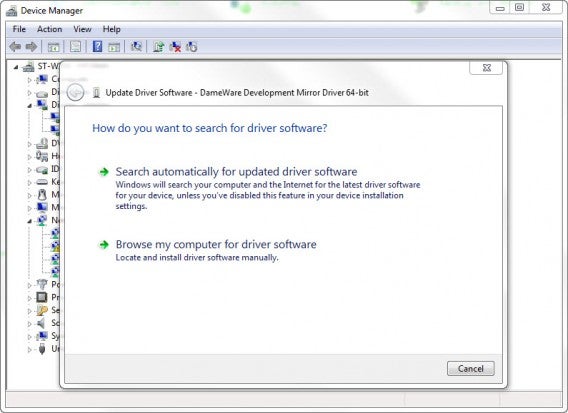
Go to the device you want to update, right-click on it, and choose Update Driver.

The ‘Search automatically for updated driver software’ option does just that: automatically updates the driver software. Windows will search for, download, and install the appropriate driver for you.

Search for Driver

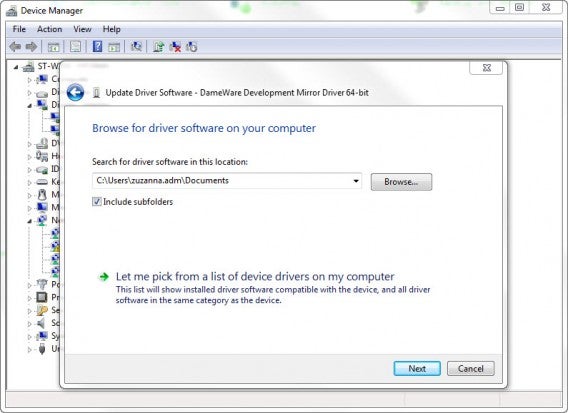
If you’ve already downloaded the driver, you can click on the second option, ‘Browse my computer for driver software’.

Find driver on your PC

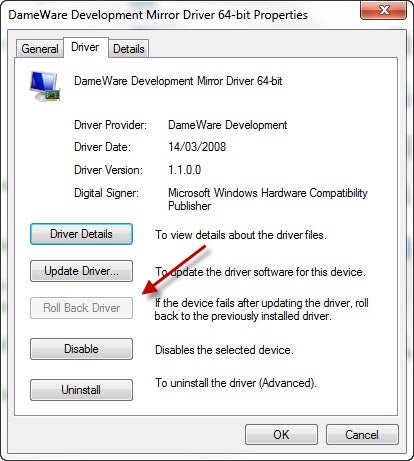
If you experience any problems with the new driver, you have the option to return to the previous state of the driver. To do this, right click on the device, go to Properties, and click the Driver tab. If you want to restore a previous version of the software, click Roll Back Driver.

Rollback Driver

Note, the option to Roll Back Driver will only be available if you’ve updated the driver.

Windows makes it pretty easy to keep your drivers up-to-date, but whether its automatic or manual, it’s now easier than ever to find, update, and roll back drivers in Windows.

Check out all the entries in our Windows Tip of the Week series.

Follow me on Twitter @AntoniNoguera

20 best free games for Windows 8

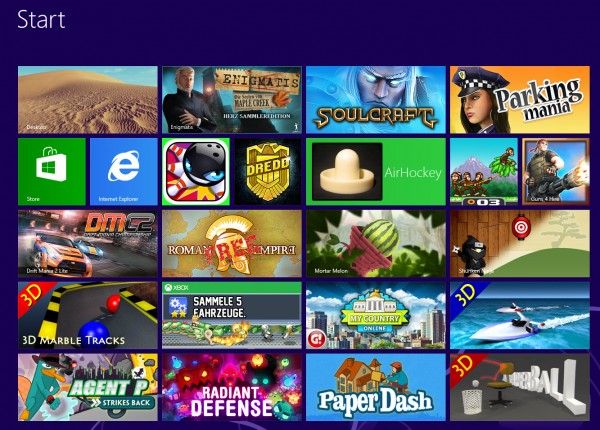
At first, there were only a few games for Windows 8, but half a year later, things are very different. Whether you’re looking for shooter, platformer, or realtime strategy game, there are lots on offer and among the (unfortunately) large number of bad games, you can find some real gems. Below is a list of games for Windows 8 that are just waiting to be played.

Windows 8 Games

Jetpack Joyride

In Jetpack Joyride, you use your jetpack to run and fly nonstop through a never ending landscape. Just like other endless runner games, the only difference is in the obstacles and gold coins you find along the way. Great graphics and a catchy soundtrack make for a light-hearted game that’s not too difficult.

Jetpack Joyride on Windows 8

Judge Dredd vs. Zombies

In Judge Dredd vs. Zombies, you have to defend Mega-City One from a zombie attack. Using different weapons, you clean out zombies from different areas over the various levels of the game.

Judge Dredd vs Zombies on Windows 8

Roman Empire

In Roman Empire, you take on the role of power-hungry Caesar. Your goal? To conquer Europe. You’ll have to vanquish neighboring villages, create alliances and make spur of the moment decisions.

Roman Empire on Windows 8

Monkey Flight

Fans of Angry Birds will enjoy Monkey Flight. Helped by special objects, the aim is to launch the monkeys so that they pick up the floating fruit.

Monkey Flight on Windows 8

Mortar Melon

In Mortar Melon, the aim is to throw watermelons from the left edge of the screen into a randomly positioned basket. This becomes more difficult when obstacles like rotating blades are added to the mix and the difficulty increases with each level.

Mortar Melon in Windows 8

My Country

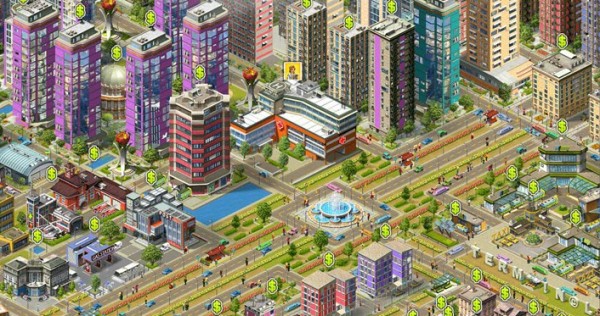
In this copy of SimCity, your mission is to build a bustling metropolis. You’ll have to build and place various buildings, roads, and other utilities to create the necessary infrastructure. If the people are happy, revenues will increase and your building plans will be safe, but if you don’t manage to organize the construction well, you’ll find that building flies out of control.

My Country on Windows 8

3D Boat Race

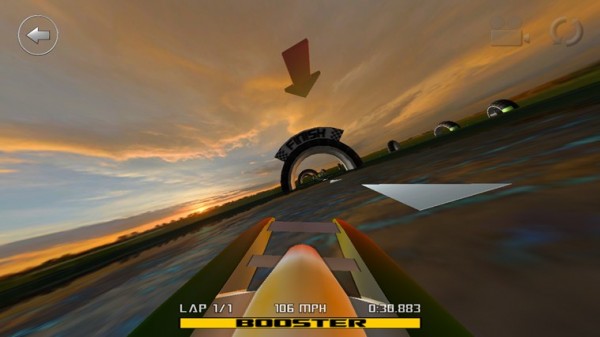
3D Boat Race lets you compete on the water in high speed boats. Arch-shaped goals show you the route to the finish.

3D Boat Race on Windows 8

Paper Dash

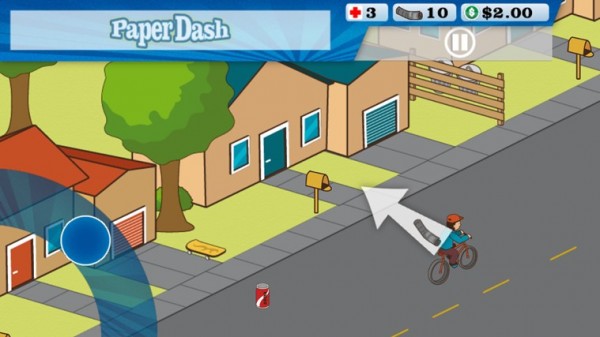
This game is a remake of the classic, Paperboy. The main character is a paperboy and you need to steer him around the obstacles that he’ll find on his route.

Paperdash on Windows 8

Parking Mania

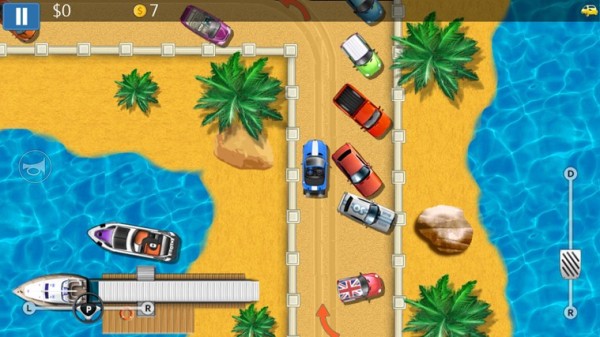
The noble art of parking is recreated in Parking Mania. The aim is to park your car in a particular space. Just as in real life, however, this isn’t always easy – there’s little room to maneuver and the best spots are already occupied by other cars. Along the way, you pick up coins and other bonuses.

Parking Mania on Windows 8

Radiant Defense

This is a colorful tower defense game. In your role as commander of a space station, you have to defend it against external attacks. Slow down your opponents by positioning defensive towers and walls.

Radiant Defense on Windows 8

3D Marble Tracks

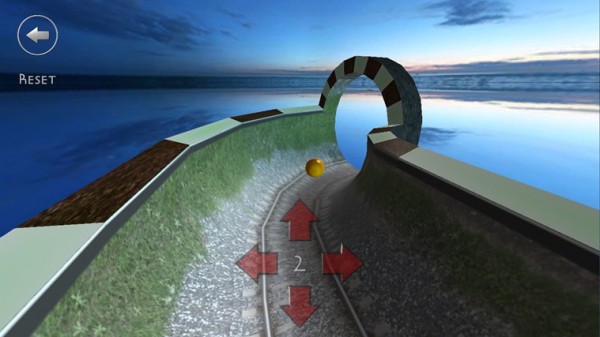
3D Marble Tracks is an interesting mix of mini golf, bobsled racing, and billiards. You’re going to need a lot of patience and a steady hand to get to the end!

3D Marble Tracks on Windows 8

Shuriken Ninja

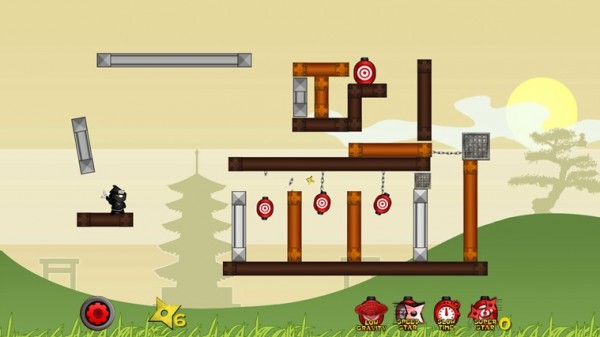
In this puzzle, you play the part of a ninja. Use your shuriken stars and throw them to create chain reactions so that they hit several targets at once.

Shuriken Ninja on Windows 8

SoulCraft

This time we have an action-packed role-playing game full of sinister characters. In Soulcraft, you fight your way through a colorful fantasy world as an angel, demon, or human being, building up your character by gaining experience in combat, weapons, and objects.

SoulCraft on Windows 8

Trick Shot Bowling

Trick Shot Bowling is a classic bowling game where you can choose to play against the computer or real opponents. Decide for yourself where to aim and how hard to bowl the ball so that you can create a particular effect.

Trick Shot Bowling on Windows 8

3D Paperball

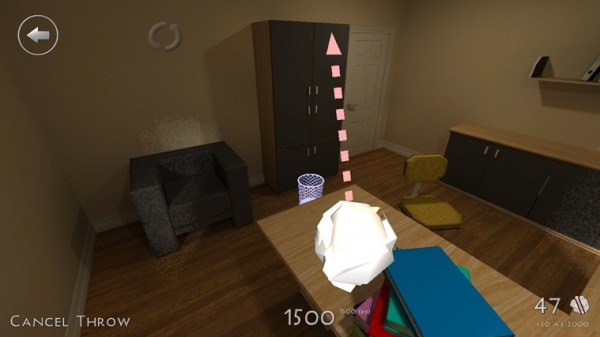
Throwing a screwed up ball of paper helps to release tension. In 3D Paperball, these paper balls are virtual ones and you can show off your basketball skills by hitting the trash can in various different scenarios.

3D Paperball on Windows 8

Agent P Strikes Back

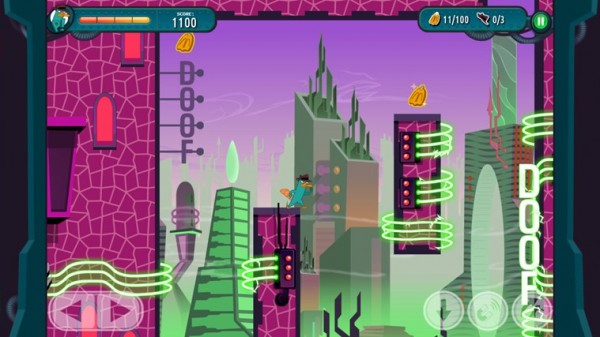
This fun adventure stars Perry the Platypus, a character from the animated series Phineas and Ferb. The idea of the game is simply to jump between platforms and defend yourself against a series of animals that Dr. Heinz Doofenshmirtz has released to wreak havoc.

Agent P Strikes Back on Windows 8

AirHockey

A good game for two people, AirHockey is classic game room entertainment. In Windows 8, the floating discs you play with become touch-sensitive controls.

Airhockey on Windows 8

Drift Mania Championship 2

Drift Mania Championship 2 is a fun racing game with good graphics and a catchy soundtrack that makes full use of the motion sensors built into your tablet.

Drift Mania Championship 2 on Windows 8

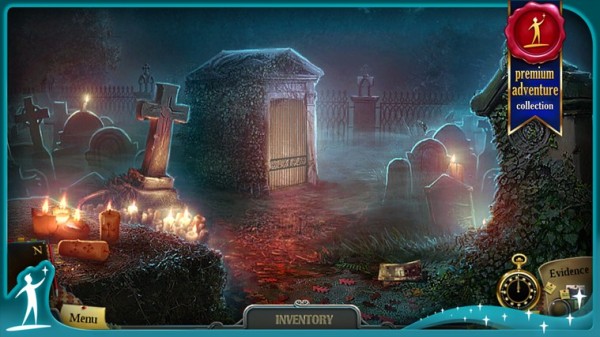
Enigmatis: The Ghosts of Maple Creek

The idea behind this game is a mystery and your job is to find the hidden objects and clues in the scene. The graphics are very good and full of details. The soundtrack also helps create an eerie and unsettling atmosphere.

Enigmatis: The Ghosts of Maple Creek on Windows 8

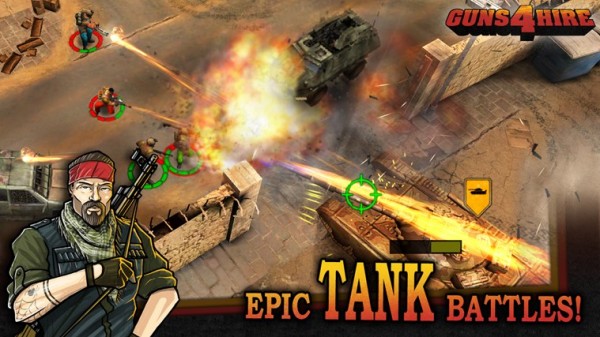
Guns 4 Hire

In this fast-paced action shooting game, characters are armed to the teeth. The control system is similar to that of Command & Conquer.

Guns for Hire on Windows 8

What do you think are the best games for Windows 8?

Original article by José María López on Softonic ES.

GTA V: How to change character

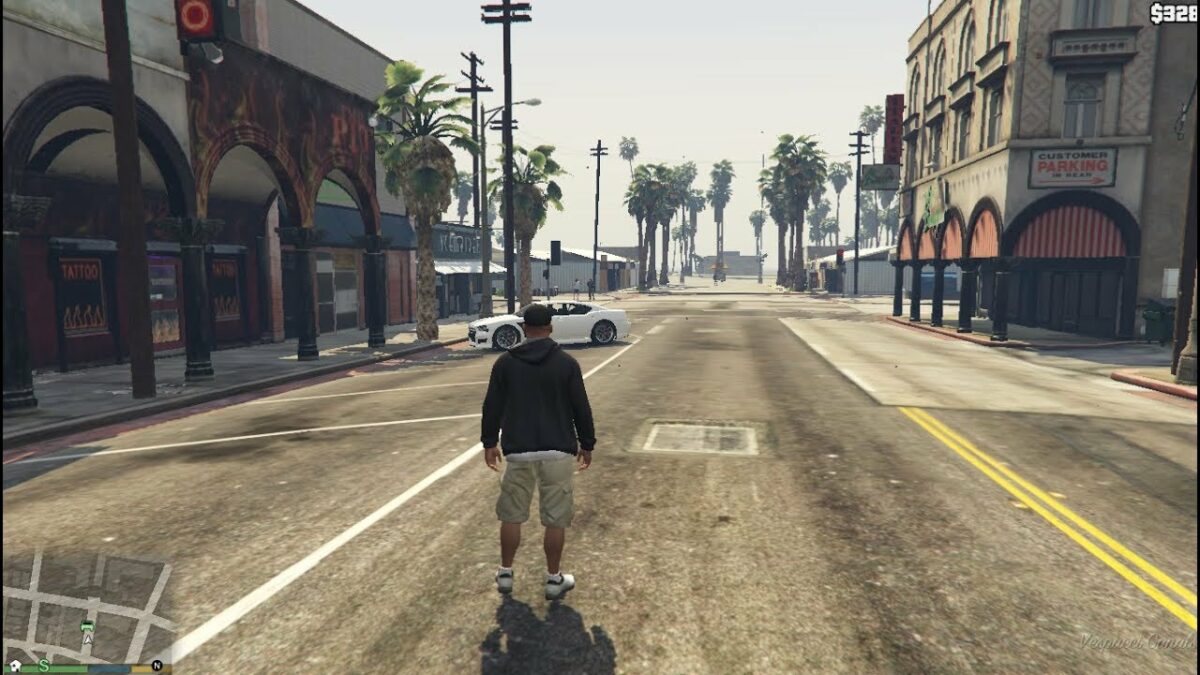
GTA V lets you play three different characters; Franklyn, Trevor, and Michael each have special abilities and you’ll need to switch between one and the other on a regular basis to carry out certain tasks. Let’s see how to master changing characters in GTA V.

How to change characters

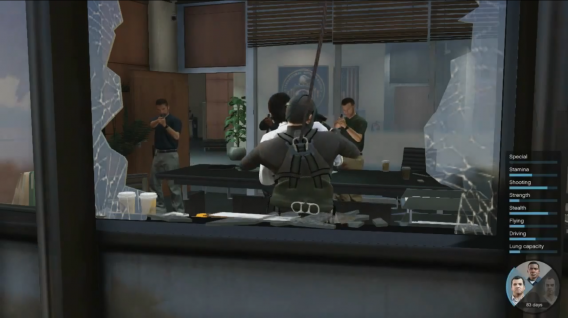
Press and hold the Down arrow key and then use the right (R) stick to select Michael (left), Franklin (Up) or Trevor (Right). The lower area will be reserved for your GTA Online avatar. Note that you can also play Chop, Franklin’s dog, by selecting the left sector!

GTA V A high-voltage mission…

The color codes

During GTA V missions, you’ll have to switch between one character and the another very quickly. Fortunately, a system of flashes of color will give you critical information about the status of each character. When a character must be selected, the picture flashes white. A red flashing light indicates that the character has been injured and needs you to help him. Finally, a translucent portrait indicates that the character isn’t available.

MORE GTA V…

Simcity Guide and tutorial: Best 10 Buildit Tips

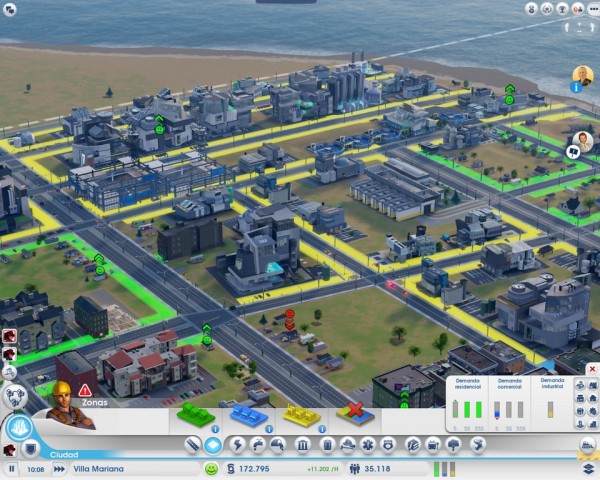
SimCity, the fifth installment of the city-building simulator from Maxis, appeared packed full of new features and options for managing your city. In fact, there are so many new features that you might feel a bit overwhelmed at the beginning.

In this simple SimCity tutorial, intended for those who aren’t familiar with the SimCity universe, I’ll give you ten basic tips and tricks to start effectively building your city so that you aren’t in danger of making the mistakes that so many first-time mayors make.

What is SimCity?

SimCity is a strategy video game that incorporates open-world settings. You’ll start with a piece of land, developing infrastructure to grow residential, commercial, and industrial entities. While the most popular version is on Windows, many people also enjoy the mobile version called SimCity BuildIt. As your city grows, you’ll need to handle natural disasters, crime, education, and many other factors.

What is the latest SimCity game?

The latest version of SimCity was released for Windows in 2013, and it was the last in the franchise due to critically negative reviews. In 2014, SimCity BuildIt hit mobile phones as a port, with most of the functionality changed and the necessity to collect resources from your buildings to upgrade them.

Best Simcity buildit tips

Let’s head straight into our SimCity tips and tricks to ensure your success as mayor of the town.

1. Good planning is important

When some people start a new SimCity game, they tend to construct highways and areas without pre-planning. Then, when it comes time to create intersections, they’re forced to demolish buildings, resulting in a decreased population or service. My advice: before you start building, do some minimal street and intersection planning. Then, you can start to reclassify areas.

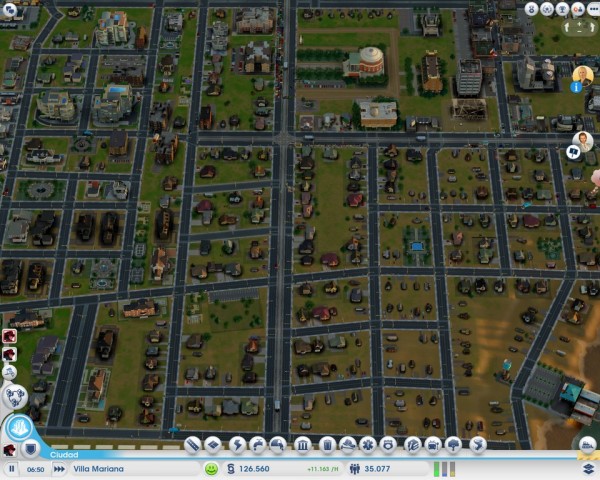
It’s easier to start in the middle of an area or in a corner, which will make it easier to expand. Also, keep in mind that although city plans with strange shapes are fun, it’s always easiest to start with a grid structure. If you’re not sure what I’m talking about, take a look at some big-city map and their central areas: streets set out in blocks are key.

Another tip is to have a large main avenue with narrower roads feeding off of it (or wider ones if you have the money).

2. Keep density in mind

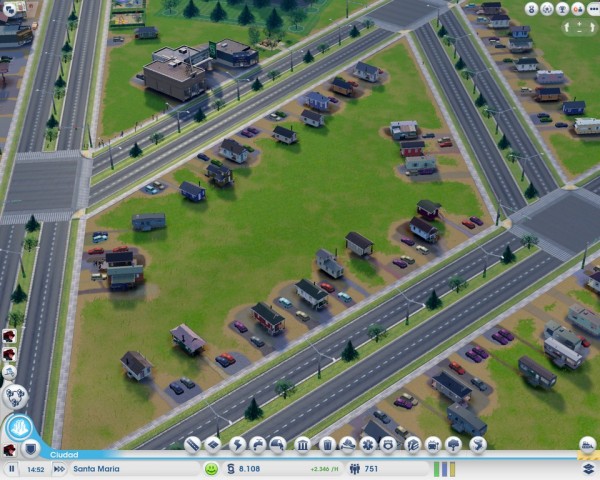
An important prerequisite for growing cities is room to expand. Although it may seem strange to place small buildings on a wide avenue or street, don’t get into debt putting more roads in the middle of these empty spaces!

It’s those empty spaces that’ll let your city’s inhabitants expand their homes, shops, or factories when things in the city improve. With a little patience and time, you’ll witness tremendous growth in your city without having to do too much.

3. Keep the city “clean”

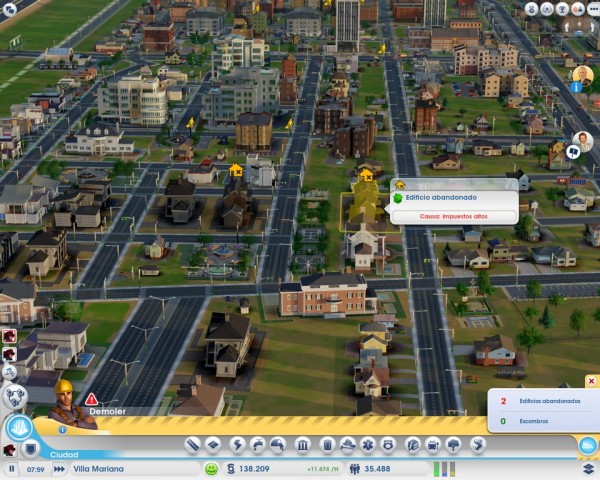
Keeping your city free of abandoned buildings or debris is as important as giving your city space to expand because these old buildings prevent new buildings from being constructed. To get rid of them, all you need to do is use the bulldozer on the land in question.

The game tells you when there are pieces of land like this, so you should check from time to time.

Another thing you should take into consideration: you can change the use of an area of ​​the city, maybe from residential to commercial, for example, but until you demolish the building that was there before, the change won’t apply.

4. Public transport is a good bet

Your citizens will need to get around your city, and typically they’ll use their cars, which will generate lots of traffic jams on the main avenues. To reduce traffic, as well as to avoid excess pollution, fill your city with public transport.

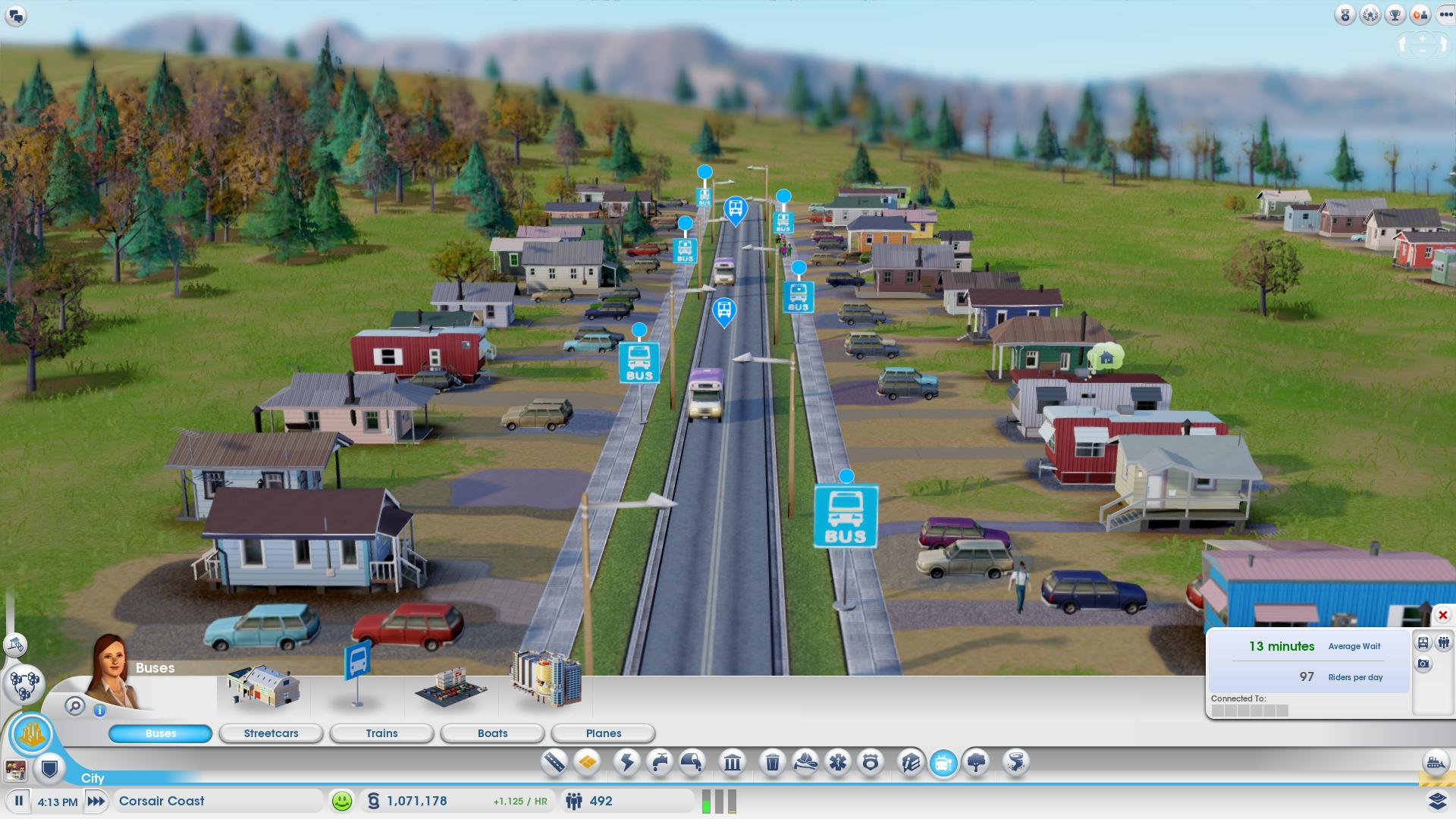
Start with bus stops: start with a main bus station, then place bus stops throughout the city. Bus stops are very inexpensive and will increase your population’s happiness, especially in lower and middle class areas. Also, when you expand your town, don’t forget to expand the bus station with more vehicles before people start complaining that they’re too full.

When things start to improve, you can choose to put in a train station, tram stops, a ferry, or even a local airport. But don’t run before you walk! Start with the bus: it’s good, it works and it’s cheap!

5. Industry: the further from homes, the better

Nobody likes having a factory next to their house, especially if there’s a potential for contaminants. We recommend that you don’t distribute industrial areas around the city, but rather, designate a plot of your land as an industrial area, and try not to go over this area. Ideally, they should be situated as far away as possible from residential areas, like in a corner for example.

6. Have lots of green space

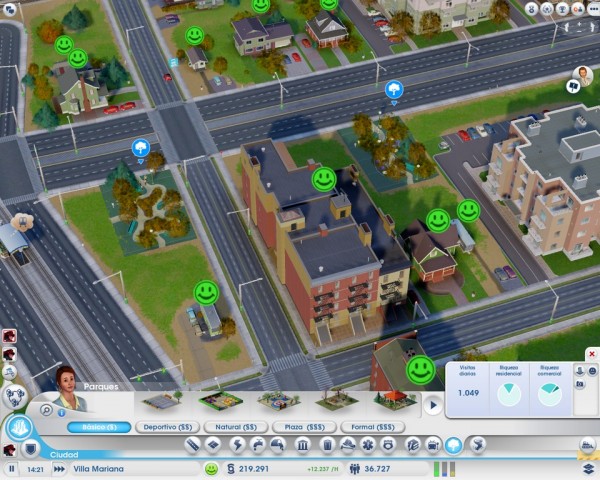
The cheapest way to please your residents is to build a nice environment to live and work in. People love to shop, but they love parks and green areas even more. Don’t be shy about filling your city with parks, areas for sports or other land for outdoor activities.

Parks are also a great antidote to factories. Even if you followed my advice in point 5, you may still have a residential area beside an industrial one. In this case, you might see some angry faces, but building a park next door will cheer them right up!

7. Maintain public facilities

Don’t take too long to build main public facilities like police stations, fire stations, hospitals, or schools. Remember though, keeping them up to date is just as important as building them in the first place.

Take note of complaints from inhabitants (keep an eye out for alerts over houses) and expand facilities when it’s convenient. If they tell you there’s a lot of crime, add a couple of squad cars. Health problems? Expand your hospital.

This practice also applies to public transport: if you receive complaints of it being overcrowded, consider whether it might be worth expanding your fleet of buses.

8. A good mayor isn’t afraid to borrow

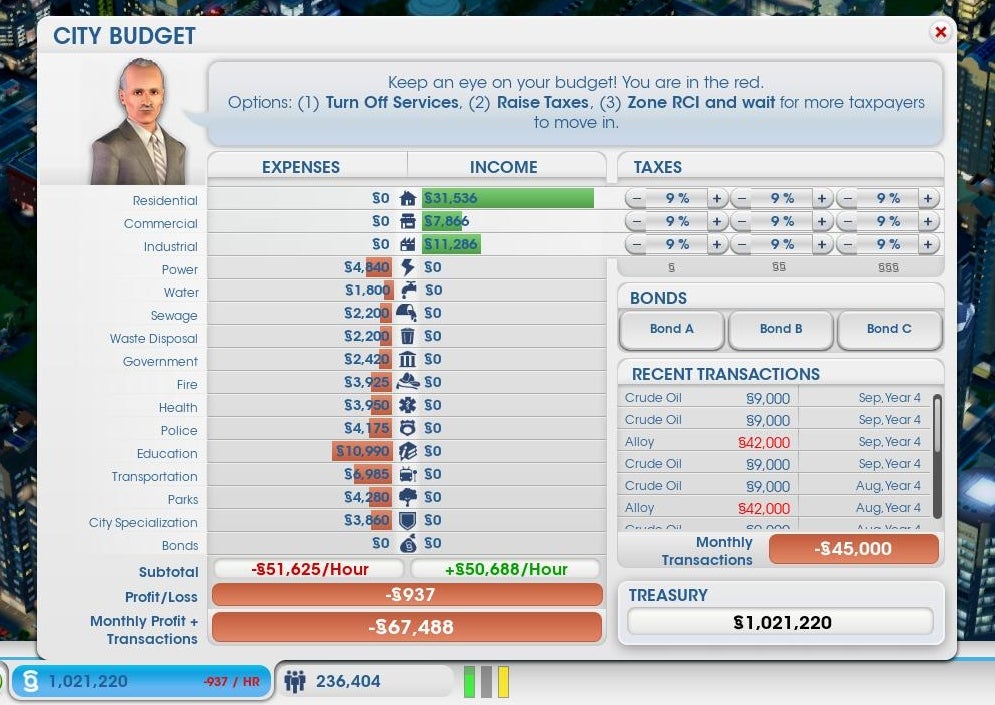
In real life, you want to avoid going into debt; in SimCity, things are a little different. When you start your game, you’ll want to build things, and the costs will soon pile up. If this is the case, don’t hesitate to get a bond.

A bond is a loan with interest that increases for each hour of play. Believe me, unless you’re a high roller, a small loan will be very easy to write off, because by starting to build, you’ll have more shopping areas, industry and residential taxes that will earn money to pay it back quickly.

Before drowning your citizens with stratospheric taxes, opt for a bond to start your expansion: people will be happy and won’t leave your city, which ultimately means greater prosperity and debts being paid off.

9. Collaborate with other cities

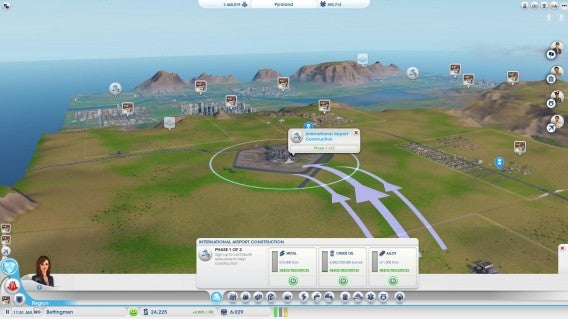
Whether you share with other users on your land or you own all the cities, don’t pass up the opportunity to collaborate. If you have a small town, it won’t hurt to buy resources in the neighboring city; it will provide extra income and you’ll avoid building plants that you might not need.

In addition, the game allows you to transfer funds between cities. To start your second city off, one option is to allow your biggest city to make regular cash donations.

10. Try to keep everyone happy…but use your head

Just like in reality, citizens in SimCity complain, and requests will appear in the game as small missions. Certainly, completing these gets you achievements and rewards, but remember, you can’t please everyone all the time.

Although you might have the money, at one point or another it won’t pay to expand a building or construct a facility. Before trying to be nice to everyone, use common sense – it’s the best way to create a thriving city.

Can you think of other tips for success in SimCity?

Now that you’ve read our SimCity tips and tricks, you can set off towards becoming the top mayor. We’re sure there are plenty more tasks you can attempt.

Originally written by Maria Baeta on Softonic ES.
How to sync your Android apps with a PC

You’ve bought a brand new Android phone and you’ve begun taking pictures, making videos, sending messages, and more. When your phone runs out of memory, what do you do?

The best way to free up space on your device is to back up your data. To do this, you need to have installed an application that syncs between your phone and a PC. For Android phones, this is no simple matter due to the variety of models and phone manufacturers.

Below is a list of popular applications for syncing between a PC and an Android phone:

Which flavor of Android?

Not all Android phones run the same operating system version. In addition, each phone manufacturer has its own application that allows the “phone to talk to the PC”. As a result, it’s really important to know what brand your device is.

If your phone is a less well-known brand, such as an LG, locate your installation CD or browse the manufacturer’s web site for the sync application – assuming the manufacturer has a web site, that is!

Samsung Kies

Samsung Kies is the official Samsung synchronization application. It works with all Samsung Galaxy S, Galaxy S2, S3, S4, Galaxy Ace and Galaxy Mini phones.

You download and install the Samsung Kies app on your PC and connect your phone using a USB cable. The application lets you transfer music, photos, videos and other files from your mobile phone.

You can also back up copies of your most important data such as your calendar, SMS messages, notes, and more.

In addition, some phones let you update your Android version using Samsung Kies.

Kies Air

Kies Air is an app for your Android phone or tablet. Basically, Kies Air copies files between any Samsung devices you own.

To synchronize data with your PC, just use a Wi-Fi connection, launch the Kies Air app and copy the code generated by the app into your PC browser.

From there, from there you can very easily copy images, videos, music and more.

LG PC Suite

LG PC Suite is the official LG application for managing and synchronizing the contents of your mobile device. The program is very straightforward and lets you easily copy everything you want from your LG device to the PC.

The cool thing about LG PC Suite is that the first time you run the program and connect your phone, a step-by-step wizard teaches you how to carry out the most important tasks.

All your content appears in an organized way that makes sense and is easy to manage.

HTC Sync

Although HTC phones are not as popular as some, HTC Sync works with HTC Sensation, Evo, Wildfire, Desire, Desire S, Z and other models of HTC phones.

The HTC Sync interface is very intuitive and makes it easy to synchronize data between your phone and your PC.

All content to be synchronized is divided into categories: contacts, notes, calendar, photos and music. Select one or more categories and the items are copied. It’s that simple!

Which application do you use to sync your Android data with your PC?

Original article written by Felipe Pessoa on Softonic BR.

How to play EA Sports Cricket on PC

EA Sports Cricket is one of the most realistic cricket games on PC although if you’re new to the game, learning how to control your player can be difficult. EA hasn’t been very quick at updating EA Sports Cricket unlike with FIFA. EA Sports Cricket 2007 was the last and most recent installment of the popular cricket series and gives you more control over the types of shot you want to play.

Here are the keyboard controls to play EA Sports Cricket.

Continue reading “How to play EA Sports Cricket on PC”

How to completely uninstall avast! Free Antivirus from a PC or Mac

It’s a good idea to use an antivirus software on your Mac or PC, but sometimes they can be a headache. Some antivirus applications are so integrated into the operating system that it leaves bits and pieces behind. In the case of avast! Free Antivirus, it can take a little bit more effort to make sure it’s fully removed if you want to install another antivirus program.

Sometimes the traditional methods of uninstalling an app doesn’t work. Luckily avast! has provided a handy tool to help you uninstall avast! Free Antivirus if the program is giving you error message or refuses to uninstall.

Here’s how to make sure you fully uninstall avast! Free Antivirus from your PC or Mac.

Uninstalling on a PC

First, you’ll want to try uninstalling avast! using the traditional method. Click on the start button and click on Control Panel.

uninstall avast control panel

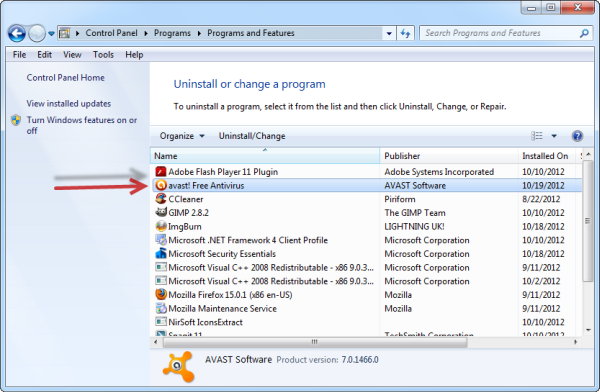
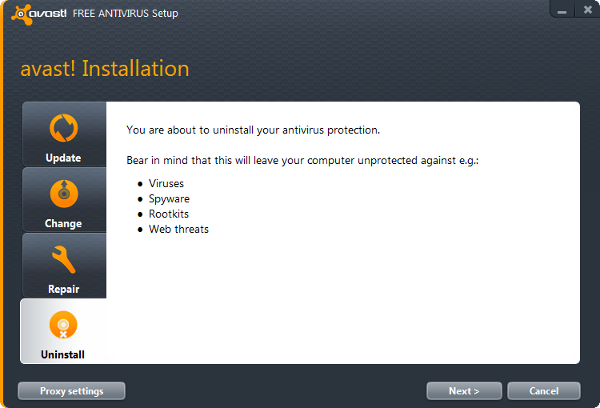
From the control panel, click on ‘Uninstall a program’ and then find Avast! in the list. Click ‘Uninstall/Change’ and avast! will prompt you with a setup menu. Choose ‘Uninstall’ at the bottom and click ‘Next.’

uninstall avast!

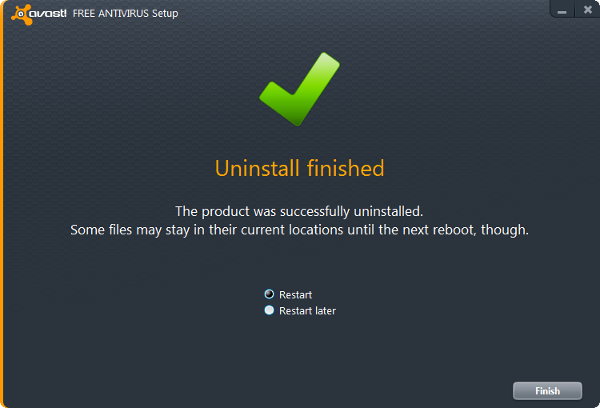
You’ll get a warning that “an attempt has been made to uninstall avast!” Confirm that you want to uninstall and it’ll start the installation process. You’ll have to restart your computer to fully uninstall.

reboot uninstall avast

Force uninstalling on a PC

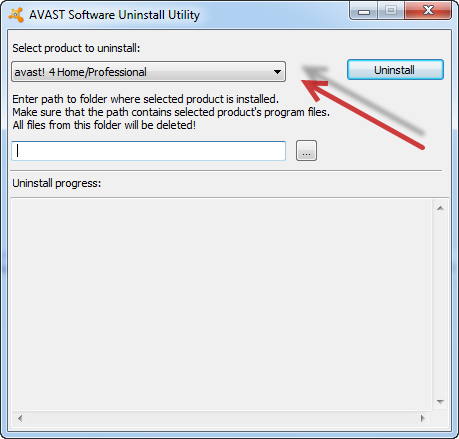
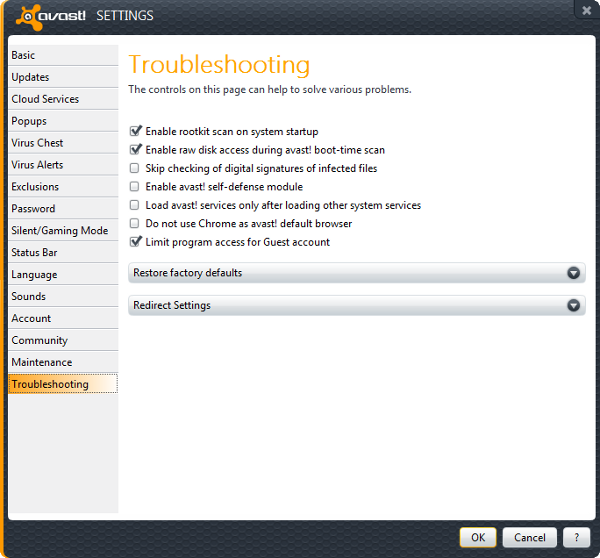
avast uninstall utility If you’re experiencing errors or a stubborn installation of avast!, try using the avast! Uninstall Utility. Simply select the avast! product you wish to remove. Click ‘uninstall’ and confirm you want to remove the program. If you’re getting an error message saying that the ‘self-defense module’ is preventing uninstallation, launch avast! and head over to the settings. Go to the ‘Troubleshooting’ tab and uncheck the box that says, “Enable avast! self-defense module.”

avast self defense module

This should allow the avast! Uninstall Utility to work.

Uninstalling on a Mac

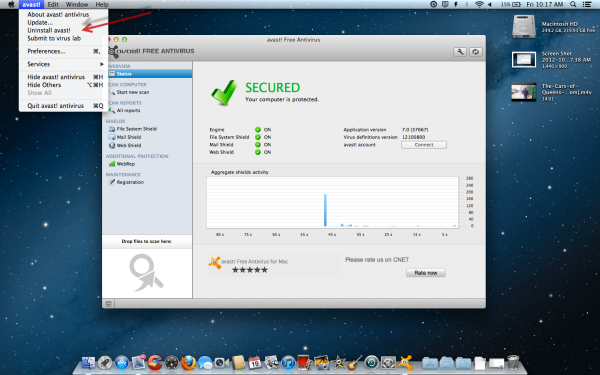
Uninstalling avast! on a Mac is much simpler. Launch avast! and click on the program name in the menubar. You’ll see an option to uninstall. Confirm you want to do this an the program will uninstall. You won’t even have to reboot!

uninstall avast! mac

There you have it. Hopefully this guide has helped those having trouble uninstalling avast! Don’t forget to install another antivirus program for your PC or Mac to stay fully protected.

How to: set a password with Winrar

Setting a password on a .RAR file couldn’t be easier, and it’s a great way to keep almost any type of file safe from prying eyes. Here’s how:

1. Open Winrar and browse to the files you want. If they’re saved all over the place, it might be an idea to move them all to one folder, and compress that. Give the folder an informative name so you can easily identify it later.

Continue reading “How to: set a password with Winrar”

How to setup a VPN for Minecraft with Hamachi

Playing Minecraft with friends is great, but playing with people you don’t know can ruin the fun. A solution is to create your own VPN server that only you and your friends can access. Theoretically, when creating a VPN network everyone will be able to play Minecraft in a server, hidden from the lurking eyes of other players.

The most common VPN software used is Hamachi. Hamachi is an easy to use VPN client that doesn’t require a lot of work to install and setup, but everyone who is planning on joining your secret match will have to install Hamachi. Just think of it as a rotating server between your friends.

Continue reading “How to setup a VPN for Minecraft with Hamachi”