How to turn on tracking prevention on Microsoft Edge

This is how to block trackers on Microsoft Edge

There ain’t no such thing as a free lunch, or at least so they say.

When we’re browsing free websites on free web browsers it is easy to think that the old adage doesn’t apply to you, when deep down you know that it most certainly does. The common form of payment we make is by seeing advertisements placed on the websites we visit. These subliminal payments are much more valuable to the “free” sites we browse, if they are more relevant to us. The companies make these ads more relevant to us by tracking our web behavior to learn more about who we really are.

Data is the new oil, is another one they say.

Not only is the lunch not free, you’re paying for it with something that is extremely valuable.  This new truth has led to a growing number of people wanting to block trackers when they’re surfing the internet. Recent revelations about Google Chrome showed a shockingly high number of trackers active on the browser.

6
The idea of Microsoft Edge is to be as fast, clean, and lightweight as possible to cope with the demands of different devices, whether it be a PC, tablet or phone.

Trackers are active on all browsers too, and now Microsoft has decided it wants to give Edge users a chance to disable trackers, so they browse the web without paying the heavy fee.

The Edge tracker prevention feature is still in testing, but let’s have a look at how you can activate it.

This is how to block trackers on Microsoft Edge

  1. For now, tracking prevention is only available on preview builds of Microsoft Edge. To use tracking prevention, you’ll need to download and install the Microsoft Edge Insider build version 77.0.203.0 or later.
  2. Open the Microsoft Edge Insider Build.
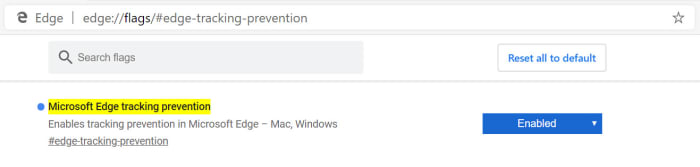
  3. Copy edge://flags#edge-tracking-prevention, paste it into the Microsoft Edge address bar, and hit enter.Microsoft Edge tracker prevention
  4. In the dropdown menu select Enabled and then click Relaunch Now.

Once you’ve followed the above instructions, you’ll tracking prevention enable on a special preview version of Microsoft Edge.

You can then adjust your privacy settings by copying edge://settings/privacy and pasting it into the Edge address bar.
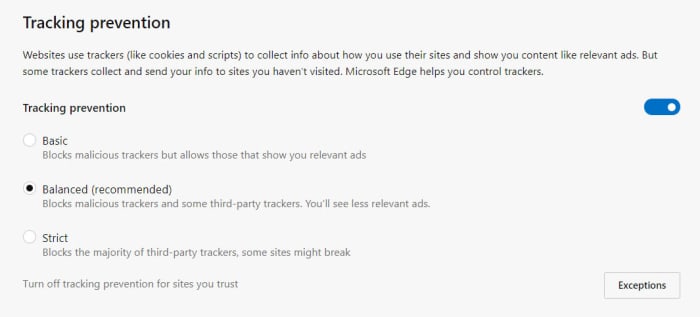
turn off trackingon Microsoft Edge

These preview versions are the first to receive new features as this is where Microsoft test new features before releasing them to the general population. This means that the browser might not be as stable as your regular version of Microsoft Edge.

These Insider builds are not just a good way for developers to test new features. They also offer a great way for you to test out experimental new features without having to mess around with the settings for your main browser.

Whether you want to allow websites to track your online behavior is up to you. Microsoft is testing out this new feature and is committed to bringing it to the full version of Microsoft Edge. If you’re unsure about whether you’d like to use it or not, why not take this opportunity to test out the new feature before it lands on the main app.

11 hidden Google Chrome features and extensions to know

If you’re like us, your Chrome browser is more than a portal to the rest of the web—it’s a picture of your online life.

Stores your settings, knows your habits more than your friends, family, or significant other. Scary, sure. But, convenient nonetheless.

Sure, the debate between which browser is best wages on—with the loudest voices being the Brave/Tor private browsing crowd—and the Chrome die-hards.

7
Chrome is a young, fast browser that can browse any web page. It supports all major technologies and standards such as HTML5 and Flash.

While Google’s security practices are, well, sometimes questionable, there’s no doubt that Chrome reigns supreme for a reason.

One of those reasons is its deep library of extensions, loaded up with everything from the silly to the practical, to the ultra-convenient.

Here, let’s have a look at the top picks:

1. Ghostery

Ghostery is a Chrome extension that reveals the invisible trackers, pixels, and bugs sites like Google, Facebook and more use to track your activity across the web.

2. Honey

Honey isn’t exactly secret-secret, but it’s a practical Chrome extension that isn’t yet on everyone’s radar.

3. Single-Click Autofill

Chrome’s autofill feature has gotten an upgrade in honor of Google Chrome’s 10th birthday. Autofill has always been convenient, but it hasn’t always been the most accurate. Now, you can enable a single-click

To fix your autofill settings to make them more relevant, you can head over to chrome://flags: enable Show Autofill predictions. This lets you turn autofill predictions into placeholder text based on the field type.

4. Grammarly

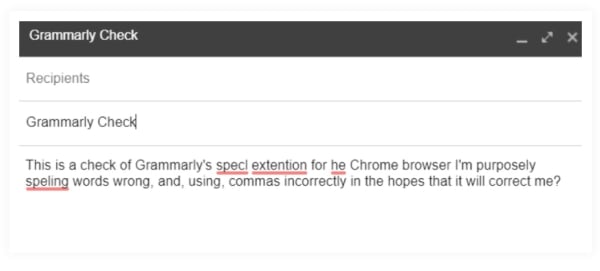
grammarly editsIf you do any writing for the web or on the web, Grammarly is a go-to tool, a lifesaver for helping you avoid the perils of sending error-laden emails, form submissions, and general red, underlined forms of text-based shame.

5. Omnibox Search

The Omnibox is a lifesaver if you’re the type of person who reliably has like 50 tabs open at any given moment. You can now use it to find a specific tab when you’ve got so many pages pulled up at a time by

Another cool way you can use Omnibox is to search through websites without having to navigate to them. Set this up by navigating to Settings > Search engine > manage search engines.

6. Omnibox search phrases

Omnibox has something called “Search Shortcuts” where you can set up personalized search phrases that allow you to pull up websites fast.

Here’s how you can set this up:

  • Open a new browser tab in Google Chrome
  • Right-click in the Omnibox and select “Edit Search Engines”
  • Next, a window will appear with 3 columns: Name of Site, Keyword for Site, and Web Address

7. HTTPS Everywhere

HTTPS Everywhere is an extension that encrypts your communications with many major websites, making your browsing more secure.

8. OneTab

Speaking of tabs, how many do you have open right now? We all like to think we’re that rare bird that is actually really good at multitasking, but the truth is, most of us are dead wrong.

The Stanford Researchers found that multitasking can even lead to permanent brain damage—which, of course is frightening. And, neuroscientist, Daniel Levitin says that multitasking drains our energy—fast, opening us to the risk of burnout.

In any case, bouncing around from tab to tab, losing track of information might be slowing you down. This handy guy promises to save up to 95% of your computer’s memory and even better, reduce tab clutter.

9. Actions for Gmail

actions for gmail

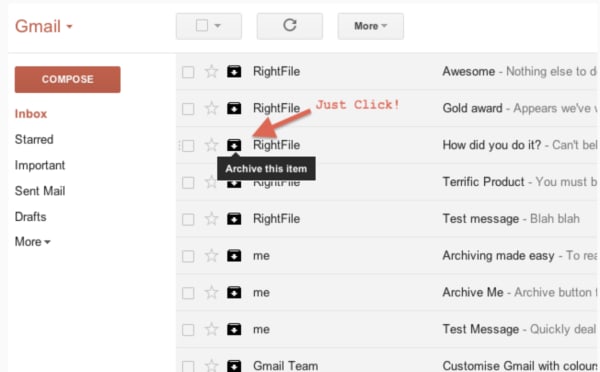
Actions for Gmail is a simple tool that stands to make life inside the inbox a little easier, one click at a time. Actions were just added to Gmail earlier this year,

Archive, delete, and mark unwanted messages as spam without opening an email or choosing from a drop down menu. Beyond the one-click actions, users can also manage calendar events, add notes to your to-do list, and track your looming deadlines.

10. Sales Navigator

Sales Navigator (formerly Rapportive) is a free tool that automatically digs up the essential intel anytime a new contact sends you an email. LinkedIn makes the extension and offers a free Lite version to people with a free account, or you can pay extra for the Premium version.

How it works is, after installing the extension, Sales Navigator presents a contact’s LinkedIn stats on the right-hand side of your Gmail.

This gives you the chance to add some context to your reply—which can be especially handy as a salesperson, freelancer, or heck, just someone who wants to know more about who is emailing them.

11. Noisli

noisli google chrome

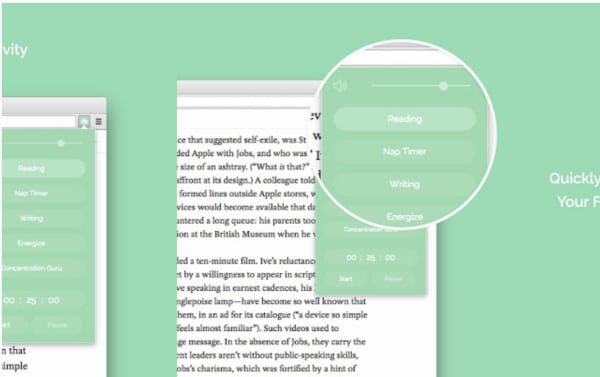
Noisli is a white noise app we’ve looked at in the past. It’s a super simple noise generator that allows you to create custom mixes so you can drown out your desk mates on your own terms. The extension makes it easier to access the tool, and you can set productivity timers, play your favorite mixes, and control the volume directly from the top bar.

Noisli Download Free
10

Wrapping up

Whether you’re trying to block out the sound of your coworker eating their lunch or make sure that all of your emails are spell-checked, there’s no doubt that Chrome is loaded with features and extensions designed to make your life easier.

Wunderlist vs. Todoist: which one is the best to-do list app?

If you’re overwhelmed with choices Wunderlist and Todoist are the two favorite apps in the space— a good place to start looking for the right tool to whip your work-life balance into place.

What should you look for in a productivity app?

That is the million dollar question. Organization is a personal and often sensitive topic. Some prefer something simple (a la Mac’s built-in task list or Gmail’s inbox-based option).

Others treat organizing like a complex multi-step process—think personal Trello cards that you drag from start to finish, checking off milestones as you cross them.

  • Do you like the calendar layout?
  • Does it integrate with your email, other apps?
  • How do you feel about the interface?
  • Does the “filing system” work for you?
  • Do you need habit tracking?
  • What about collaboration tools?

Here, we’ll compare the two rival to-do apps and see how they stack up.

Todoist

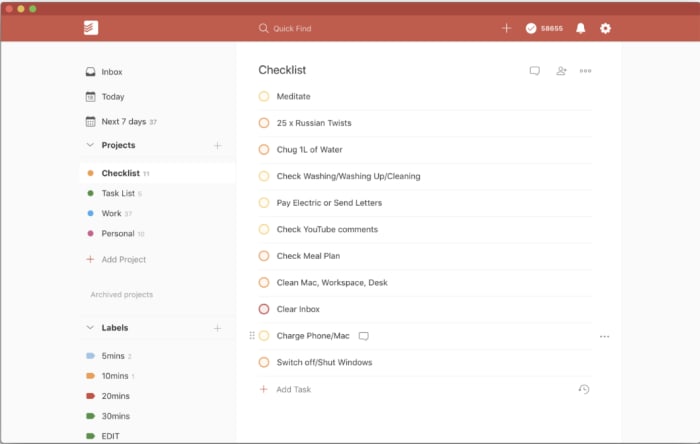
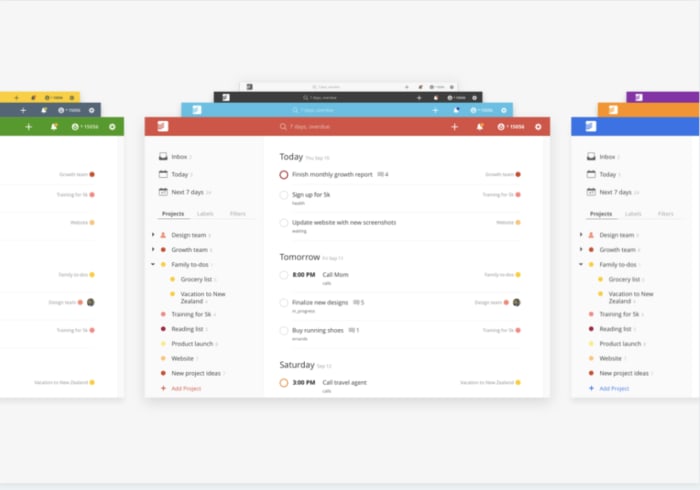
todoist home screen

Todoist leads the 17 million or so to-do apps (yes, really) you have to choose from. The reason being, it’s a dedicated to-do app with years of positive reviews backing its effectiveness.

Signing up is as simple as connecting by way of Facebook or Google and from there, you can start filling up your list. Set deadlines, assign priorities to tasks, and delegate work to others. Completing tasks is a matter of checking off a box.

If you want every feature, you’ll need to pay about $4 a month, or $29 for the full year. Which, if you like the lite gamification vibe, then it’s not a huge expense. Initially, it looks the app just presets a Gmail-esque task list.

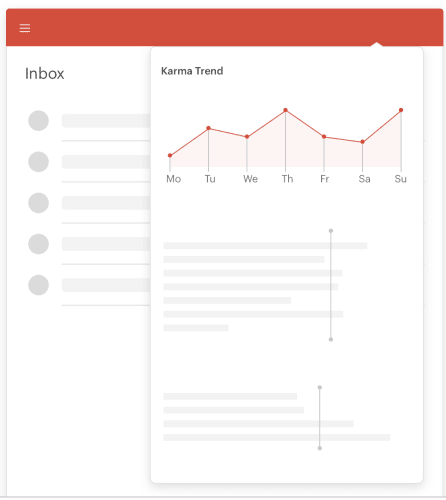
But, it gets better—for one, you can create projects and divide them up by task—checking off each small step on the road to completion. It also aims to build a habit-tracking element into the mix by offering “Karma Points” each time you complete a to-do.

todoist karma

The free version comes with the basic lineup of tools, but if you’re into it, we recommend springing for the Premium features.

The paid plan allows for more customization—you can filter based on criteria such as due date, project, label, assignee, or a combination. Search by using the @ symbol— to locate tasks within seconds— @pending, @email, etc.

The paid plan includes things like color-coded progress reports you can sort by week or month—this may or may not be relevant to you.

The benefit is, you’ll get an overhead view of how you spend your time, and you can feel good about yourself for sticking with an obligation for x days in a row.

Unfortunately, Todoist lacks a few basics. For example, there’s no traditional calendar view, which makes it a bit hard to plan ahead.

It does integrate with Google Calendar and iCal, so this might not be a huge issue.

todoist upcoming tasks

It would also be nice to see a Pomodoro timer integrated with the Karma Points system, but again, it’s not the end of the world.

Todoist Download Free
9

Wunderlist

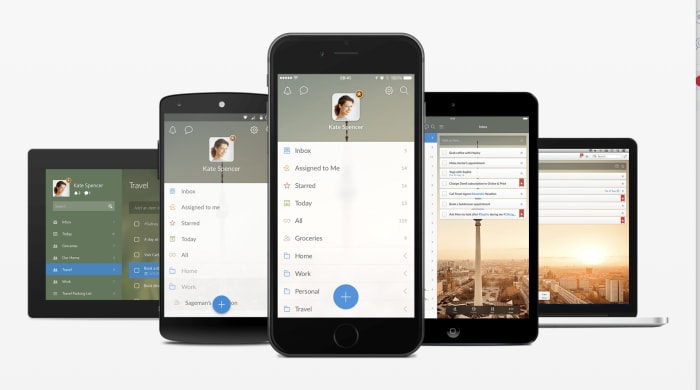
Wunderlist multiple devices

Wunderlist is similar to Todoist, another productivity app that’s been around the block a few times.

The app was acquired by Microsoft back in 2015, and merged with the company’s branded list-maker, Microsoft To-Do—but it seems that due to complaints from the fanbase, Wunderlist and Microsoft To-Do are separate apps these days.

If you’re looking for something free, Wunderlist might be the better option of the two. The platform no longer offers a premium option.

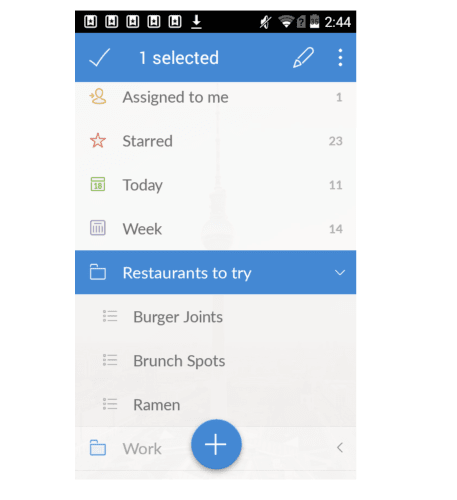
Each time you add a to-do list, you can label it—then access your lists in the app’s inbox.

This way household reminders won’t intermingle with follow-up reminders and tasks linked to larger projects.

Wunderlist keeps track of a lot of details, which is great. But, visually it’s pretty overwhelming. Some users might have trouble sorting through the lists and actually doing the tasks.

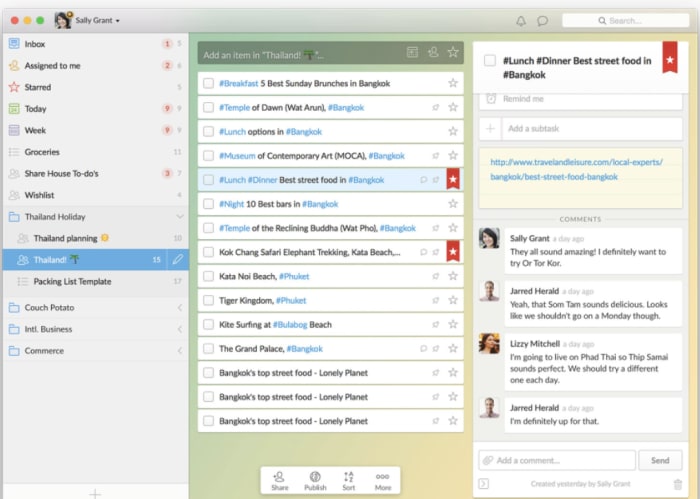
wunderlist list view

Wunderlist is a useful tool for those who do a lot of collaborating. Sure, Todoist has a delegation tool, but it’s part of the premium package. As you can see in the above image, users can select a task and review related communications or comment.

wunderlist to-do

Wunderlist is 100% free, so the built-in collaboration option makes it easy to share tasks with your spouse or roommates, or even coworkers if you’d prefer to keep a particular to-do outside of a more formal project management tool.

Wunderlist Download Free
7

What is the best to-do list app?

If it’s a question of Todoist vs. Wunderlist, it’s nearly a tie. The interfaces are slightly different, but in either case, you’re getting a simple to-do list app that works on web and mobile.

However, Todoist, in our opinion, may have a slight edge. At a glance, it didn’t seem that there were very many features, but after a little digging, we found Todoist can get as complex as you like.

The best travel apps for finding activities and things to do when planning a trip

The best travel planning apps for finding things to do when you’re researching and planning your next trip.

A suitcase a traveller's suitcase

Traveling is one of the most rewarding activities we can undertake. It enriches the soul, soothes the heart, and fills the mind with a world of exciting possibilities. The richness of the world and all it has to offer, however, opens up its own unique set of problems that any intrepid traveler needs to deal with. There are a lot of places to go and even more things to do when you get there, and there is no possible way you can know about all of them. Don’t worry though, the best travel planning apps can help you. We’re going to show you how to find things to do when you’re planning a vacation.

When you’re planning a trip, you need to research the towns and cities you’re visiting, the different parts of all the countries you’ll be traveling through. You can do this at home before you leave, or you can do it once you’ve hit the dusty road that leads to your destiny. Either way, there are some great digital tools that can help you discover the things you’ll want to do on your next adventure. These are the top travel apps for iPhone and Android to help you discover things to do on your next big trip.

The best travel planning apps

Useful travel apps #1 Culture Trip

Vulture Trip guides

Culture Trip is a relatively new travel app and website. Its simple mission is to be the go-to travel app for all intrepid adventurers. No matter where you go, Culture Trip wants to be able to show you something special that you’ll need to do. The app is split into locations and sections with comprehensive guides offered hundreds of towns and cities around the world, and a seemingly endless list of specialized local activities to do, foods, to taste, drinks to sample and people to meet in all of them. No matter where you’re going if you turn to Culture Trip, there is a good chance you’ll find something interesting to do that you didn’t know about before.


Useful travel apps #2 Wikipedia

Wikipedia app travel screenshots

The Wikipedia app might not strike you as a travel app, but it is one of the must have travel apps. The world’s encyclopedia offers you a fantastic way to learn about the culture, history, and buzzing contemporary scenes of all the places you’re planning to visit. When you’re up to speed with these you’ll easily be able to fill an itinerary of any length of time. On top of this the Wikipedia app also offers some pretty cool location services. If you activate them, you’ll be able to view a map that contains all the nearby places of interest that have been added to Wikipedia. This is an absolute gold mine and can help you out, if you find yourself visiting somewhere you haven’t already researched properly.


Useful travel apps #3 Visit a City

Visit a City travel guide app planning

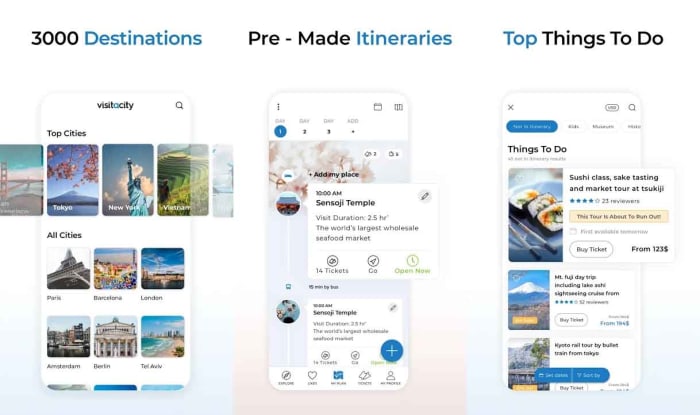
The excellent Visit a City travel app offers free access to over 3,000 travel guides for over 3,500 different locations. All you have to do is enter your destination and then the length of your stay and the app will serve you up a number of travel guides tailored to your stay in the place you’re visiting. Visit a City also offers a comprehensive ticket purchasing portal for local attractions and makes it easy for you to choose all of your top locations from the many thousands recommended on the app. The app also works offline, which will come in handy if you’re worried about hefty data roaming charges.


Useful travel apps #4 Trip Advisor

Trip Advisor app for travel planning

Trip Advisor is like the big daddy of all travel apps. For anybody who is looking for something to do on their next adventure, Trip Advisor’s strength comes from its community. A lot of Trip Advisor is geared around marketing operations for restaurants, hotels, and activities but you’ll find that what you’re really looking for is what other travelers have said about all these different types of places. You can simply type in a city on Trip Advisor and then see all the highest rated activities, voted for by other visitors. The Trip Advisor forums are also full of gold. As well as learning about strange and interesting things to do, you’ll also learn about the best, safest, and most reasonably priced way to do them.

Trip Advisor for Android Download now
7
Trip Advisor for iPhone Download now
7

Useful travel apps #5 Lonely Planet

lonely planet travel apps planning

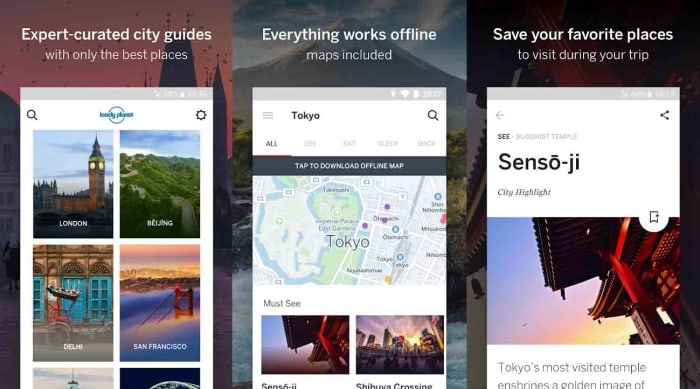
Lonely Planet is another well established name in the world of travel discovery. We’ll have all seen one on somebody’s bookshelf at one time or another and if you’ve ever traveled yourself there is a good chance, you’ll have had one stuffed in your suitcase or backpack. The Lonely Planet apps for traveling try to take that guidebook experience and cram it into your mobile phone. It is a little similar to Visit a City with expertly curated location guides, interactive maps, and various other top recommendations. This app is more for cities though, so if you’re venturing out into the country you might want to check in on Culture Trip, Wikipedia, or the Trip Advisor forums for some extra suggestions.

Guides by Lonely Planet for Android Download now
8
Guides by Lonely Planet for iPhone Download now
8

Useful travel apps #6 Your favorite Podcast app

podcasts are great for planning a trip

I’m opening a bit of a can of works here that may lead to an article in its own right. Travel podcasts are an excellent source of inspiration. On a recent trip to Colombia we ended up heading to the city of Pereira so that we could stay on a coffee plantation for a few days. It was a magical trip, and it all came from a recommendation we took from the Amateur Traveler podcast. Other great travel podcasts include Conde Nast, The Rough Guide to Everywhere, and the Indie Travel podcast. The trick though is to simply search for podcasts on the places you’re visiting to see if anybody has done a specific edition on somewhere that is on your itinerary. Another little tip, if you want to go the extra mile is to search for history podcasts on the countries you’re going to visit. Revolutions is an excellent podcast and will give you a lot of detail on the brutal things that went on in countries like Great Britain, France, the US, and Mexico.

Castro: Podcast Player Download now
9
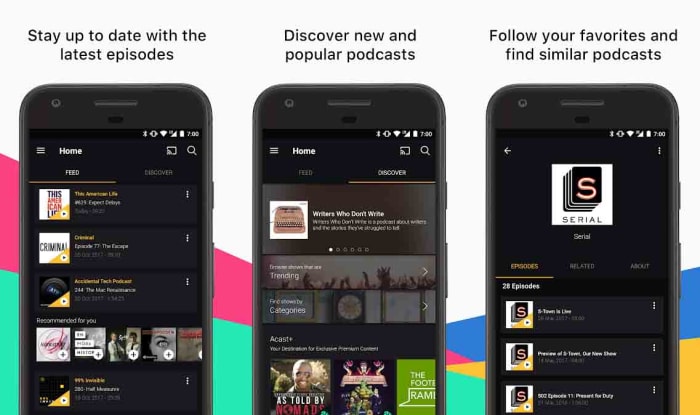
Acast - Podcast Player Download now
8

Complete guide to SHAREit

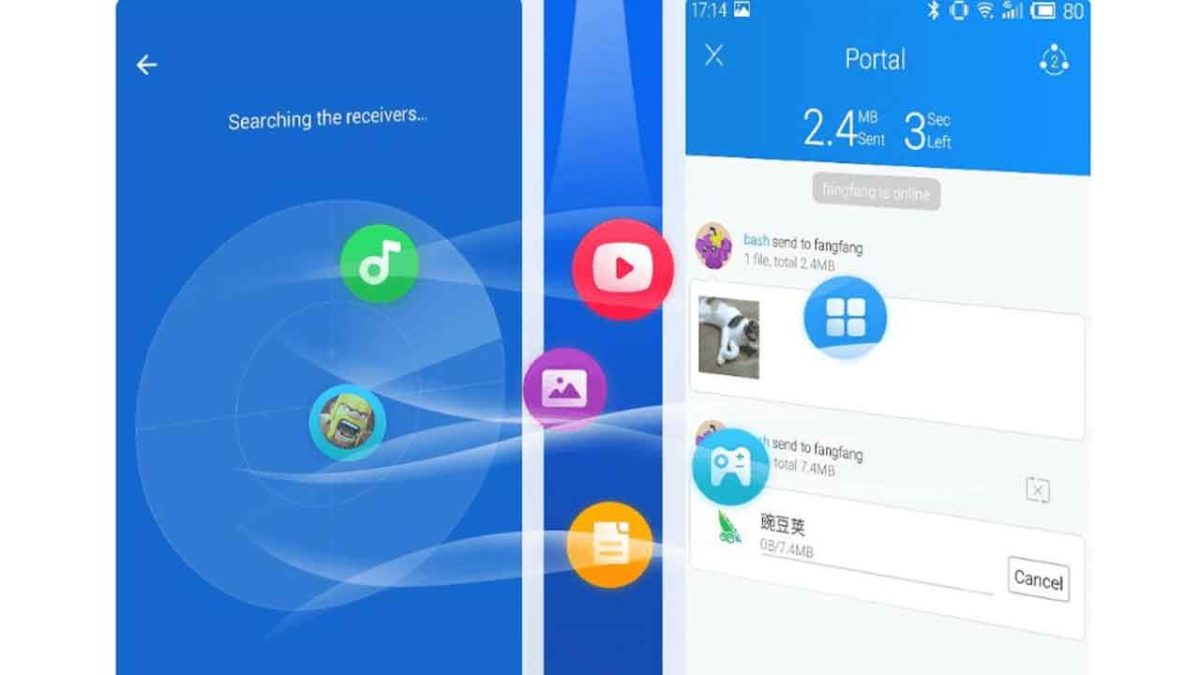
Data sharing apps like SHAREit have transformed the file transfer game, allowing users to transfer files through WiFi without a network connection.

The app’s key benefit is that it allows users to transfer large files to each other quickly–no cords, cables, or USBs required. Today, there are more features in the mix, a music discovery app, a place for finding video content, the list goes on.

Below, we’ll take a look at where the file-sharing app stands in 2019, and whether it’s still a good choice for those looking for a quick way to move files around.

So, what is SHAREit?

SHAREit runs on a technology known as WiFi Direct to support its file-sharing system. How it works is, it sets up a local WiFi network that allows people to share files back and forth—though there are some limits when it comes to range and how many users can access that network.

Users can control who can send and receive files over the signal.

There are some risks associated with transferring files in a public space over questionable WiFi connections, and it’s worth pointing out that the platform was found to have some significant security issues earlier this year.

One notable issue was, hackers could gain access to auto-fill data, Amazon web-service user key and the victim’s hotspot info in plain-text by with a simple curl command.

Still, the app boasts 500 million users globally, and the app is a convenient tool for users to share data, particularly in areas where mobile data transfers are both slow and expensive.

SHAREit Download Free
5

How to send files on SHAREit

To send files to another user, make sure you indicate that your device is the sender, then add the files you plan on sending by dragging and dropping them into the app.

Once sent, the receiver accepts files, and they’re saved in the device’s Downloads folder and My Files inside SHAREit. Photos typically save inside your Photos folder.

Both devices must have SHAREit installed and running during the transfer and be connected to WiFi.

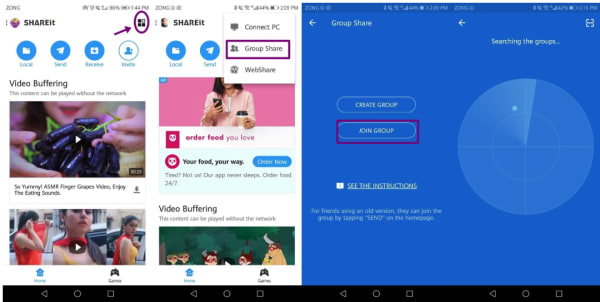
Group Share

SHAREit group share setup

SHAREit’s group feature allows you to receive files from multiple users at a time.

Users can join groups created by any user and receive files from members of your groups.

Here’s how you can get in on the action:

  • Launch the SHAREit app on your device.
  • Select the four boxes icon from the upper right corner and select Group Share from the dropdown.
  • Next, hit the Join Group button to search for nearby groups.
  • Click the avatar of the group you’d like to join to connect-the group creator will provide the hotspot password.

If you’d like to create a group of your own, you’ll press the Create Group button instead and wait for other users to join. Group creators can kick people out of the group, though it seems that there aren’t any limits on who can join.

Web Share

Web Share allows users to send files to someone who doesn’t have the app downloaded to their device.

The receiver gets a link that provides access to the file and can save them however they see fit.

Share Zone

Share Zone is a mobile feature offered on both Android and iPhone. It allows you to select files that anyone can see when they connect to the platform and works as this community library of sorts.

Add and remove files from the Share Zone by tapping on your avatar and navigating to Share Zone.

SHAREit goes beyond file-sharing

Even if you don’t need to send files back and forth regularly, SHAREit can still bring some value to the table. Recent updates have opened up more features like streaming, a media player, and a multimedia app.

Utility apps

SHAREit offers a handful of utility apps inside the main account. Here, you’ll find tools like CLONEit, a tool made for transferring your files, apps, and contacts from your old phone to a new one, without using up your mobile data.

SHAREit is part media discovery engine, too.

Okay, this is a bit weird, but there’s not a lot of information out there about how the media player works or whether or not people like this aspect of the platform or would rather see SHAREit stay in its lane.

Per Google Play, the app comes with “infinite” online watching and select offline watching. It also comes with a built-in music recommendation engine, plus GIFs, stickers, and wallpapers.

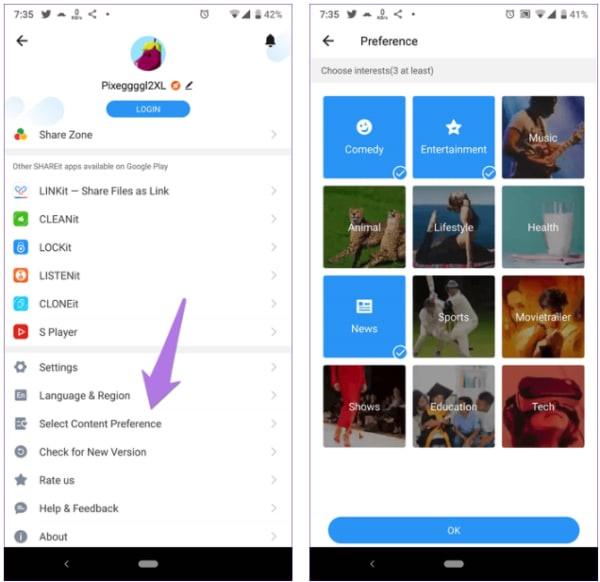
Content preferences

Even though SHAREit was designed for file transfer, the app is angling to become something of a streaming platform.  Inside the content preferences tab, you’ll have the ability to customize the content suggested by the app.

To set your preferences, simply tap your avatar and choose Change Content Preference. From there, you can pick from these rather broad categories and save your changes.

SHAREit content categories

Is SHAREit still worth a shot?

It’s honestly hard to say. It could simply come down to the fact that the app isn’t as popular in the US as it is in other countries, but there’s little information out there about how to make the most out of the platform–half of the developer blog posts amount to a brief mention of a new update or something equally useless.

What’s more, review sites from all over the web mention dip in quality in recent years. Android Police, Reddit, and the Play Store all have reviews that mention that the platform is too bloated and contains too many ads.

SHAREit Download Free
5

Best VR Apps for 2019

Virtual reality isn’t all video games. Sure, there are some rad games out there—but were you aware that the New York Times has been making VR content for the past few years? Or, that you even though there’s no iOS compatible headset, iPhone users can still visit another version of reality?

The current crop of VR apps on today’s market let you explore other worlds, get an art history lesson, watch someone jump out of a plane—or get a different take on your favorite YouTube clips.

Here, we’ll look at some of the top VR apps for Android and iPhone.

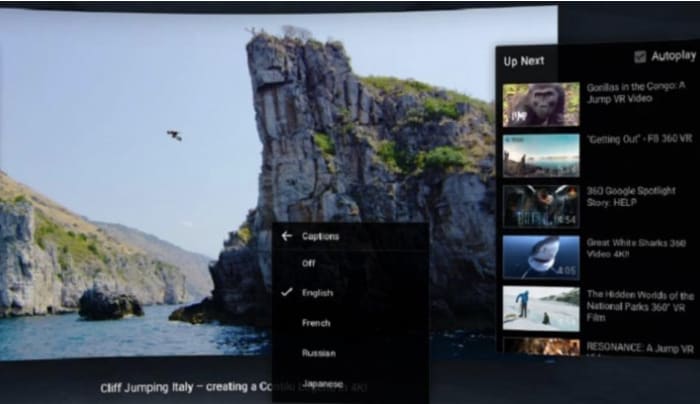
YouTube VR

YouTube VR App

YouTube VR is only available on Android, and you’ll need a Cardboard or a Samsung Gear to access the app by way of the Daydream app. But, it’s a pretty rad experience once all of the moving parts are in place.

The app brings a different perspective to the YouTube universe—you can explore all video content—from regular music videos to 3D 360 videos. The draw isn’t so much watching your favorite YouTubers perform up close and in 3D, that will get old fast.

Stick with the Virtual Reality Channel where you can experience skydiving, cliff jumping, and other thrill-seeking behaviors from the safety of your phone.

YouTube VR Download Free
9

NYT VR

New York Times VR App

Yes, the New York Times has a virtual reality app. It’s been around since 2015, and since then, they’ve created hundreds of immersive news reports that allow a glimpse into the lives of Syrian refugees or Iraqi forces or see what Pluto looks like.

NYT’s VR isn’t your standard news fare. Instead, the Times focuses on places you can’t usually go—tapping into VR’s explorative and empathetic potential.

NYT VR Download Free
8

Virtual Speech

Virtual speech app crowd example

Ever wondered what it was like to give a speech in front of a full auditorium? Need to conquer a fear of public speaking or prepare for an upcoming speech?

Virtual Speech aims to take your public speaking skills to the next level, presenting you with a virtual audience that mimics the sounds, yawns, and mannerisms of an actual crowd.

It doesn’t stop there. You can gradually increase the judgment level of the crowd, add in distractions, and amplify the sounds of rude audience members. At the end of your speeches, you’ll receive a score—for both verbal and nonverbal communication.

Google Arts and Culture

Google VR Art and Culture

Google Arts and Culture is the next phase in Google Art. They’ve revamped the educational resource and turned it into a VR experience where you can tour the museums of the world without having to shell out for plane tickets and museum admission.

Google has partnered with 1200+ international galleries, museums, and cultural institutions from 70+ countries. You’ll have the ability to take a guided tour of some of the world’s most famous museums and exhibitions, allowing the curious to get an art history lesson at any given moment.

There’s also the option to add works to your “personal collection.” Meaning, you can save favorite pieces and share them with family and friends.

Google Arts and Culture Download Free
8

Inception

Inception VR app

This isn’t the Inception film that inexplicably came with certain Android phones a few years back, no Leo, no confusing dream sequences.

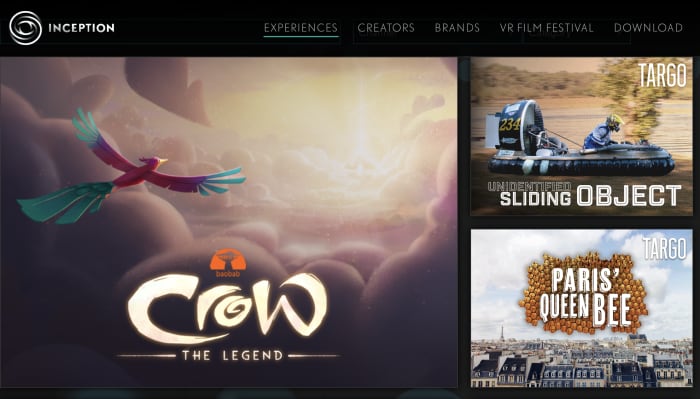
This Inception is an app that delivers a small collection of “experiences” which span a wide range of artists and aesthetics.

There’s a Dali experience (which, if you’re going to pick an artist cut out for the VR landscape, Dali’s your guy), a Mac Demarco video, and a Playboy Mansion tour.

In all—it’s an eclectic mix of art and entertainment that at the very least, should give you something to talk about.

Hidden Temple VR

Hidden Temple app

This immersive adventure game is pretty solid for a $3.99 cardboard download. Hidden Temple VR is a treasure hunting quest that takes place in the jungle—you’ll solve puzzles and riddles, and point and click your way through various temple corridors.

The game can be played with or without a VR headset, but the makers of the game say Google Cardboard delivers the best gameplay experience.

Hidden Temple VR Download Free
8

Fulldive VR

Fulldive VR

FullDive VR is a social-ish platform for Cardboard users and other VR headset owners. The app includes a whole mashup of different apps—from a VR web browser to YouTube content, a camera, and a marketplace where you can buy more apps.

The creators of this app have imported our favorite pieces of the web into a virtual universe. Additionally, FullDive also includes a social thread so you and your friends can bond over your experiences or just catch up on life.

Fulldive VR Download Free
7

Spring clean your computer with these digital tidying tools

Working on a messy desktop can hurt your productivity and slow down your computer, too.

Spring is on the horizon and perhaps it’s time to freshen up the old desktop. Spring cleaning isn’t just for clearing out the closets and airing out the house. Consider it a fresh start for your digital life, too.

We recommend starting with a deep clean–purging files, malware, and download remnants dragging down the system. From there, you’ve got a clean slate and can organize files whichever way best suits your workflow.

A few apps for freshening up:

CleanMyMac/CleanMyPC

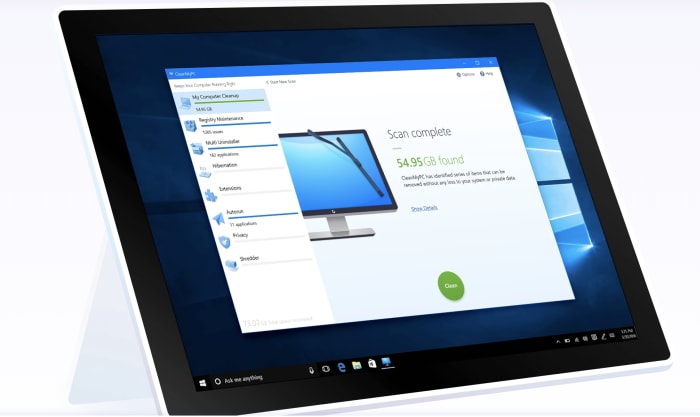
CleanMyPC app

CleanMyMac and CleanMyPC are MacPaw’s solution to cleaning out the cobwebs lurking in the corners of your computer. The tool removes malware, protects your privacy, and uninstalls file remnants and unwanted apps that slow down your system.

If that were all this app did, we’d already be impressed, but there’s more. CleanMyMac/CleanMyPC automatically updates all of your apps and makes sure the items you put in the trash don’t leave any bits and pieces behind.

CleanMyMac Download Free
7

App Cleaner and Uninstaller

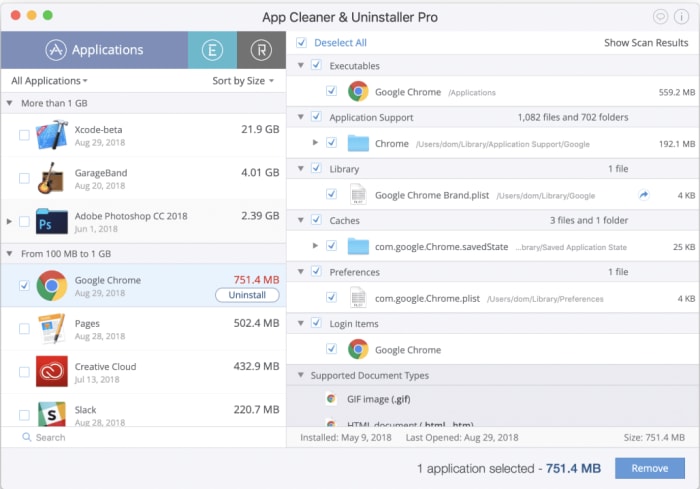
Nektony Cleaner Uninstaller

Nektony’s app is as straightforward as the name—the app cleans out any broken links, files, and anything left behind after you uninstall an app.

The cleaning tool gets rid of all unwanted apps, caches, support files, and wipes up the leftovers in a simple three-step process. Launch the app, select unneeded apps, and remove. Simple as that. From there, you’re ready to start fresh—and organize your files and folders better this time.

Razer Cortex Game Booster

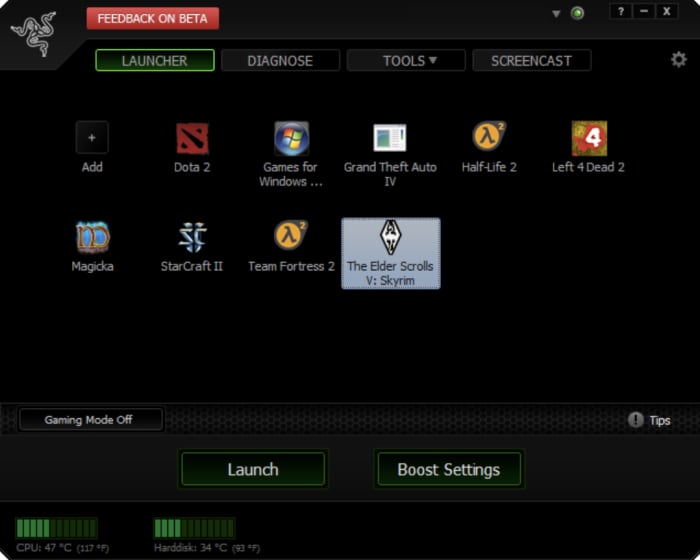
Razer Cortex booster file cleaner

This one’s for all you gamers out there. Razer Cortex: Game Booster cleans up your PC for faster performance, no more lags, or slow load times. Razer is a bit different than say CleanMyMac. The program allows you to choose a game, then launch it through the game booster. The program then closes any nonessential background programs, allocating more computing power to your game.

While the whole “optimized game boost” functionality is something we’re not 100% sure about, the system also cleans up the junk files associated with your Steam Downloads. With Razer, you no longer need to manually find and delete the support files that come with every game; it automatically trashes these files for you–kind of like your desktop equivalent of going paperless.

Razer Cortex Download Free
10

Apple Files

Apple Files file organizer

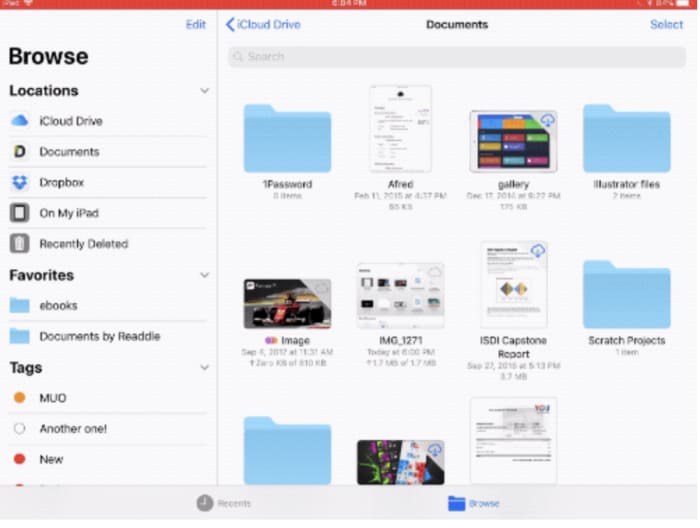
Apple Files is an app that replaces the older iCloud app with something that looks a lot like Finder. Files brings together all of your files into one place—not only on the device you’re using but all other Apple devices. While PC users can sit this one out, Apple Files is an easy way to keep your files in order and access them no matter where you are.

Beyond syncing up your photos and notes, the Files app connects to third-party accounts like Adobe Creative Cloud, Google Drive, and others.

Documents 6

Documents 6 organizer

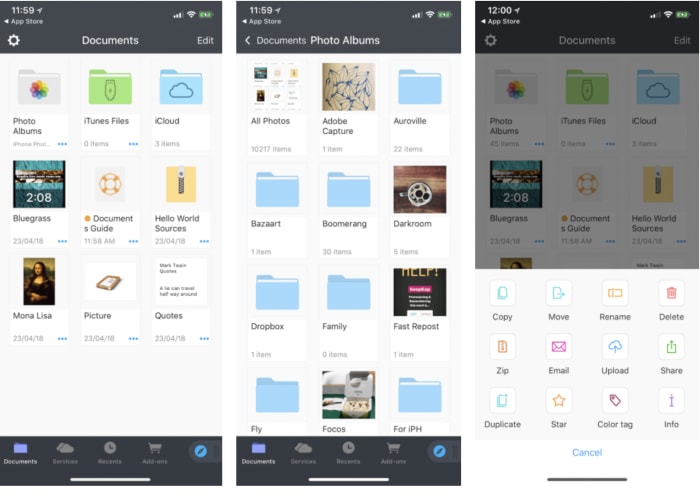
Documents 6 is a mobile hub for all of your files. Its main functionality is the ability to download files from the web and view them on your phone or tablet. It’s also an excellent way to keep your files organized so that you’re not left trying to figure out what’s essential and what can go this time next year.

Documents 6 works with all types of files formats from text and audio to videos, PdFs, and more. The app stores data locally on devices and syncs to the cloud when you’re connected online. This means you’ll have the best of both worlds—cloud-based convenience without the risk of losing data if you’re suddenly out of range.

And, it wouldn’t be a spring cleaning article if we didn’t mention organization tools. Documents 6 comes with a handful of labeling methods—color tags, stars, and more.

File Manager and Browser

file manager desktop clean

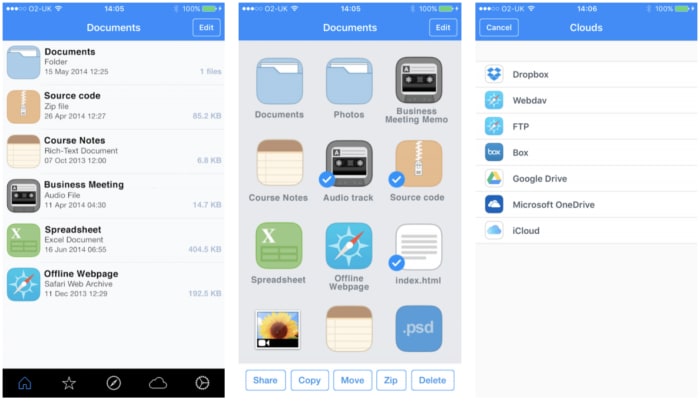
File Manager and Browser is less complicated than Documents 6, and it’s free. The app comes with a range of tools that make spring cleaning feel less like the chore that it is. It supports the Microsoft Office Suite, multiple clouds (i.e., DropBox, OneDrive), and functions as a sort of virtual USB drive.

This tool allows you to move, copy, and zip all kinds of files using WiFi, Bluetooth, or Facebook. It also comes with an integrated PDF Reader and a built-in search. In all, it’s a convenient way to manage your files with a minimal learning curve.

Browser and File Manager for Documents Download Free
9

New Driver Booster 7 will banish Windows error blues

Install the updated Driver Booster 7, the best driver updater to improve users’ PC performance and gaming experience.

Drivers are integral to the smooth running of your computer, enabling games and other applications to work with your Windows operating system so that you can do what you want when you want to do it.

But keeping up to date with the latest drivers required for all those apps and games is tiresome. It’s all too easy to overlook an essential update and before you know it you’re staring at the Blue Screen of Death, your gaming wrecked at a vital moment.

Happily, there’s an easy solution to these woes and that solution just got a huge upgrade with the release of IObit’s Driver Booster 7.

Available at IObit and Softonic, Driver Booster 7 provides full support for Windows 10, Windows 8/8.1, Windows 7, Windows XP and Vista.

So what’s the big deal?

Well, Driver Booster 7 has an expanded database of over 3.5 million device drivers. Within this vast stable are the likes of Intel graphics drivers, NVIDIA game-ready drivers and AMD Radeon™ Software Adrenalin Edition.

Install the Driver Booster 7 app, choose your preferences for automatic driver updates and your worries are pretty much over.

The program can update all outdated, faulty or missing drivers with just one click, so all-too-common driver malfunctions like nvlddmkm.sys, igdkmd64.sys and the dreaded DPC watchdog violation error should now be a thing of the past.

The new version also has a vastly enhanced scanning engine that achieves scanning speeds double the previous edition.

You’re also guaranteed peace of mind – all drivers in the Driver Booster 7 database are sourced from the official manufacturers’ websites and have passed both WHQL and IObit tests to ensure security and authenticity.

The app can become your computer’s best friend, fixing various issues that are all too common with Windows such as a lack of sound, network failure and poor resolution.

But unlike some of your friends, Driver Booster 7 isn’t high maintenance and doesn’t indulge in attention seeking – activate silent mode and you won’t receive any notifications from it while you’re in full-screen mode, whether that’s to play games or watch a movie.
Some new game components such as Microsoft Visual C++ 2019 redistributable, Microsoft .NET Framework 4.8 and Java Runtime Environment 10 have been added to Driver Booster 7 to enhance gaming performance.

Driver Booster 7 is the best driver updater to improve users’ PC performance and gaming experience,” said Bing Wang, Product Director at IObit. “More than 3.5 million drivers are fully supported and there’s no need to worry about compatibility. Driver Booster 7 will match the most suitable drivers for your computer’s hardware devices. It will also fix more Windows issues for a better user experience.”

To download Driver Booster 7, click here.

Is your web cam being hacked? Here’s how you can check

Hackers can gain access to your webcam through malware from spammy links, pop-ups, and pirated content. Or, maybe they find an “in” through one of those “tech support” scams. 

It sounds alarmist, right?

Not so fast. Webcam infections are the real deal, not just some conspiracy theory nonsense.

Unfortunately, it’s relatively easy for outsiders to access your computer and gather materials for blackmail or fraud.

In any case, it doesn’t hurt to give your webcam a little checkup every now and again.

Here are a few (easy) ways to make sure no one is watching you through your devices.

 Check the indicator light

The easiest way to check for spies is checking if that little blue or green light next to the lens is on.

You know, this thing:

is your webcam indicator on?

This is the most obvious giveaway that the camera is recording.

Since hacking victims might notice this right away, savvy hackers often disable the webcam light.

See if your webcam is running

The next thing you’ll want to do is go to your Task Master tab and click “Processes.” From there, you’ll look through the list, scanning for anything that uses the webcam utility.

Keep in mind that a running webcam utility doesn’t necessarily mean that you’ve been hacked. Restart your computer to see if your camera turns on automatically. If it does—consider changing the settings.

Look at the applications that use the webcam

Try running the webcam. If you get a message that says the device is already in use—it either means you’ve been hacked or there’s a program currently using the camera. From there, open Process Explorer (PC) and look through the programs that are using the cam.

Mac’s Mojave now lets you look at the apps connected to the camera and microphone. You’ll find these settings by navigating here:

System Preferences —> Security & Privacy. Select Camera and Microphone and check or uncheck the boxes that indicate permission.

Scan for unknown applications—After you’ve looked at the apps you know about, think Skype, Zoom, Google, you’ll want to check for any apps that you don’t know about. Are there any unfamiliar items that show up in your preferences list?

If you see a message that says your camera is in use and you’ve turned off the usual suspects, chances are, there’s an application controlling your cam. This could be a sign that you’ve downloaded a piece of malware that has taken control of your webcam.

Check the storage files—Another sign that someone has hijacked your camera is the presence of audio or video files you’ve never seen before.

Do a malware scan

Finally, you’ll want to run a malware scan. If the program finds any infections, write down the names to find out if any of them are linked to webcam hijacking.

And, some tips for staying safe

Install antivirus software

Prevention is the best medicine. Antivirus software is the flu shot of the tech world,  allowing you to inoculate yourself against webcam attacks.

Be careful that you choose a reputable program with advanced features—protection against viruses, malware, and spyware. While there are some good free options, you’ll want to make sure you read the reviews before downloading.

Get a VPN already

VPNs have become an essential tool for protecting your computer from hackers, as well as hide from your ISP.

VPNs also provide an added level of protection when you’re using public networks.

Cybercriminals often target users hanging around public hotspots like the airport, Starbucks, or the public library. You might not think about it, but those public networks with multiple guest accounts might be the mark of a fake WAP attack.

Basically, a hacker sets up a wireless router that looks like it comes from the local cafe—then uses that connection to steal sensitive data or get you to download malware—which, of course, could open your webcam to attack.

Monitor your cam activity

Look—if you’re not a big Skype user and avoid FaceTime calls like the plague—you might think that disabling your webcam is the way to go.

Instead, consider enlisting the help of a third-party monitoring app like OverSight to send you a notification when your webcam becomes active.

You’ll get the notifications any time someone uses the camera—so this means you’ll see the little push notifications when you log into Skype for a call, as well as the next time there’s a hacker peeping into your device.

Oversight Download Free
7

Wrapping up

The idea of someone secretly watching you through your computer sounds like the makings of a Mr. Robot episode or a misguided warning from your tech-averse mom.

Unfortunately, webcam hacking is real, and it’s a treat for anyone with a smartphone or laptop.

Staying safe means performing regular camera checks, installing a few good security tools, and of course, not clicking links in suspicious emails.

How to view private Instagram accounts

They were a place to share photos, videos, and updates with your family and friends. These days, there are more reasons to place that barrier between your profile and the general online public.

And, private accounts keep bots, strangers, and lurkers off of your profile, making for better user experience.

Others go private in an attempt to game the algorithm. Last summer, The Atlantic ran an article that reported an uptick in the number of meme accounts going private. The practice is an easy way to increase follower counts, as digital lurkers need to take the leap and follow if they want to view the content.

So, whether you’re a private account owner yourself or you’d like to look at a feed here and there without alerting the account holder, you might want to know how to view private Instagram accounts.

Instagram Download Now ►
7

Just send the request

The most legitimate way to view a private profile is to send the account owner a request. Which, of course, you’re thinking, “well, duh.”

But, so long as the account owner isn’t some ex you’ve been stalking, most people will accept your message, even if they don’t know you. If you’d really like to get in touch, try dropping a short message in the DM section.

If you’d like to get around this, there are a couple of options, but they’re either a little shady or not especially effective.

Investigate with their username

private instagram account

Searching by username doesn’t always work perfectly, but you may be able to find the information you’re looking for.

Sign into Instagram and type in the username of the person you want to look up.

Then paste the name into Google’s search bar. Now, this won’t automatically unlock any private accounts, but there’s always the chance that this user left a few digital breadcrumbs behind before switching their account to private mode.

There’s also the chance that this person has a public Facebook page or a LinkedIn profile (obviously do your research in incognito mode) you could check out instead.

Honestly, this method might not yield a wealth of information, but it beats asking for access when it could create an awkward situation.

Use an Instagram viewer site

There are countless sites out there that promise access to private accounts. Most are paid services, though, and they seem a little sketch. With names like Instaspy or Private Instaviewer, the idea is to provide access to accounts without having to follow a user — I.e., users won’t know that you’re stalking them.

Private Instaviewer presents itself in a way that makes it seem like a free service. Use the search bar, get a profile in return. That’s not exactly the case, though.

Private Instaviewer

Instead of being greeted with the usual RECAPTCHA box, you’re required to fill out some questions about your favorite candy. And then—you’ll have to fill out your name, address, and payment information.

Look, inputting your payment info is perfectly normal when you’re purchasing from a reputable website, but when software that exists for the sheer purpose of breaking into others’ accounts, they likely won’t care about protecting your info, either.

Ultimately, your best bet is to do a little sleuthing for free, or you know, bite the bullet and send a request.