Firefox team considers paid news product that would kill ads

A funding model that replaces ads as a revenue driver will ultimately protect user privacy

ad-free news across multiple platforms

If you’re one of those internet users who hates seeing ads, you might be interested in some of the moves the Mozilla Foundation has been making recently. Mozilla is the not-for-profit organization behind the popular Firefox browser that focuses on user privacy above all else.

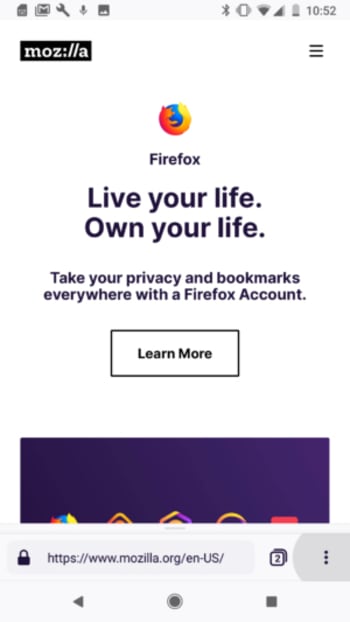
Mozilla recently introduced a new web browser called Firefox Preview, which makes it very easy for users to protect their data. The foundation has also been making other noises recently, about offering up an alternative to the current ad-based model that powers and pays for the modern internet. The Mozilla model would see us paying a subscription that would fund the sites we visit so that they’re not forced to show us ads when we do.

A funding model that replaces ads as a revenue driver will ultimately protect user privacy

An ad-free internet fits in with Mozilla’s wider privacy protection mandate as the biggest threat to our online privacy is the value our data holds for big tech companies. The more they can learn about us, the more targeted the ads they can show us, which in turn are worth more money towards their bottom line.

Mozilla confirmed the move towards a paid model a few weeks ago when Dave Camp, the senior VP of Firefox at Mozilla said in a statement, “A high-performing, free and private-by-default Firefox browser will continue to be central to our core service offerings. We also recognize that there are consumers who want access to premium offerings, and we can serve those users too.” Camp was responding to an earlier article in t3n.de where the CEO of Firefox said that the subscription model might arrive sometime by October. We’re now getting a look at what that new premium model might look like.

Preview logo
Firefox Preview is currently in the beta testing stage and puts user privacy front and center

Firefox has recently been testing a funding model in partnership with a news subscription startup called Scroll. The test gave users a chance to sign up to an ad-free news subscription for $5 a month. Scroll offers users a subscription to 12 media partners that include some big names like USA Today, Vox, and Buzzfeed.

The Mozilla test is no longer active, but it gave subscribers access to ad-free audio versions of their news stories as well as working with partnered content across different devices and from a variety of sources and platforms including native apps and social media.

Mozilla is no doubt poring over the data it has collected via its recent test as we move closer towards the October launch date the Firefox CEO talked of back in June.

It is worth noting that Apple offers a similar service for $10 a month, which hasn’t been too successful. If you’re looking for an-free internet though, Apple might not be a company you completely trust.

The Mozilla Foundation, on the other hand, has a solid reputation among web users and their version of an ad-free internet could be the one we see more of in the future.

Make sure you stick with us for more developments on this story, and others, as they happen.

New Firefox for Android is faster, more secure

Firefox Preview is available now in beta and claims to be twice as fast as the regular Firefox browser

What has been going on at Google Chrome HQ recently? The world’s dominant web browser, which just logged its 5 billionth Android download has been having a bit of an identity crisis these past few weeks. From the decision to kill ad blockers to the recent news that there are over 11 thousand cookies in Google Chrome tracking your every move on the web, it has never been more attractive for Chrome users to think about changing their web browser.

Step forward Mozilla with a reinvented version of Firefox for Android.

Firefox Preview is available now in beta and claims to be twice as fast as the regular Firefox browser

New Firefox Preview for Android

Speed is one of the main features that lay behind a positive web browsing experience. Fast loading times is one of the main reasons Chrome grew into the dominant position it now finds itself. Sure, there are other tricks web browsers can pull and tools they need to be able to keep us safe online, but speed usually trumps them all. If a website doesn’t load quickly enough, you go to another website. If this happens a lot, you download Chrome.

It could be Chrome’s impressive speeds that have the led the Chrome team to believe they could cut corners elsewhere. If this is the case though, they may need to reevaluate their recent decisions as Mozilla is now pushing a leaner and much faster version of Firefox called Firefox Preview. The beta version of Firefox Preview is available now to download here.

Image via: Mozilla

Although Mozilla has stripped down Firefox to prioritize speed with Preview, the foundation is still calling Preview a fully-featured web browser. As you would expect with a Firefox browser, privacy sits at the heart of Preview’s very being.

Taking the lead from Mozilla’s previous Firefox Focus browser, Preview has tracking protection enabled by default. If you prioritize privacy when you’re browsing the web, this gives Firefox Preview an 11-thousand-point lead over Google Chrome.

If we all prioritized privacy in this way, Firefox Focus would be the most popular browser on the planet and it isn’t. Focus hasn’t been a major success for Mozilla as even the most privacy-minded web users still want their web browsers to offer more than zero trackers. Firefox Preview then, is designed to find the sweet spot that could attract more web users. It has tracking disabled by default, has been stripped down to boost speed, but still has many of the core functions most web users look for in a browser.

Image via: Mozilla

Mozilla has even added new features to Preview to show that even though it is up to twice as fast as the regular Firefox browser, it still packs a feature-filled punch.

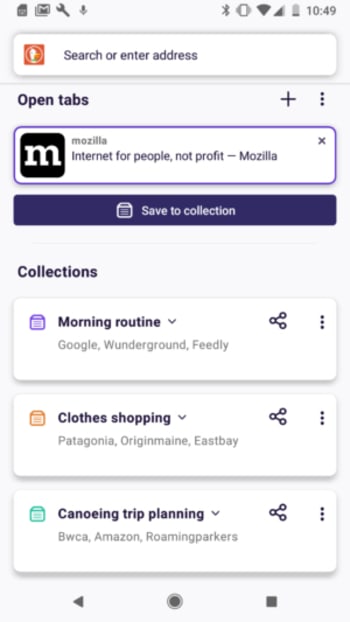
One such new feature is Collections, which will help users stay organized. The blog post announcing the new browser described Collections like this, “Make sense of the web with Collections, a new feature that helps you save, organize, and share collections of sites. Quickly save and return to tasks like your morning routine, shopping lists, travel planning and more.”

Firefox Preview download free ►
8

Firefox Preview is an evolution from past learnings the Mozilla Foundation has discovered from past projects. It is hard-earned experience that has guided the development of this latest new offering in the web browser market.  This means that Preview should see its fair share of success as it is based upon real user experience. If you couple this to the troubles going on at Chrome, we could see a fair few of the 5 billion make the switch. Of course, when something is so dominant and has been for so long, it becomes easier to deflect attempts to steal your crown.


Google Chrome has 11,000 cookies skimming your data

Chrome is sending your personal data to businesses and advertisers.

Stealing data

Switching browsers has never sounded better.

According to the Washington Post, more than 11,000 tracker cookies were found in Google Chrome. These tracker cookies were making profiles for companies and marketers to help advertise products to you. Interestingly enough, the writer discovered that all of them were blocked when he browsed with Firefox. 

How does Google track my data?

If you’re logged into Chrome, these tracker cookies are stealing and sending your personal data. However, even if you aren’t logged in, Google is still working to take your info. 

If you have an Android, Google is sending your location data whenever you make a search. Even if you have your location settings turned off, Google will send coordinates instead.

If you are logged into Gmail, Google will track your data just the same as if you’re logged into Chrome.

7
Chrome is a young, fast browser that can browse any web page. It supports all major technologies and standards such as HTML5 and Flash.

How to block and kill tracker-cookies on Chrome

Chrome tracking

If you are looking to clear out the tracker cookies Google has on you while you’re browsing the internet and block sites from tracking you, there is a way. However, please note that this will sign you out of most websites, so make sure that you remember your passwords!

On your desktop browser

  1. Open Chrome
  2. Click on the three vertical dots in the top right
  3. Go to Settings
  4. Click Advanced to reveal Privacy and Security
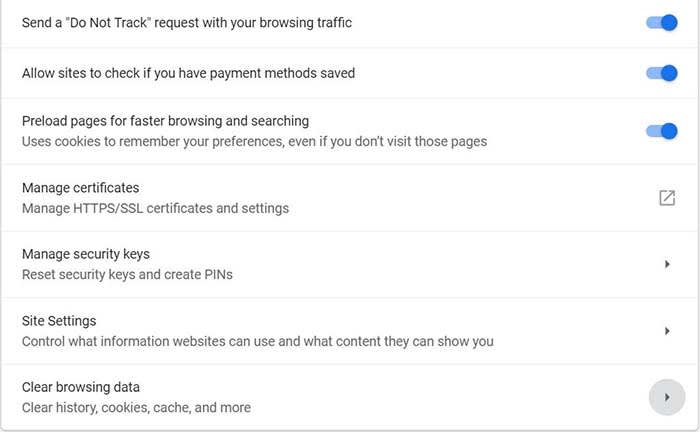
  5. Enable the option to send a “Do to track” request with your browsing traffic
  6. Scroll down further to the option to clear browsing data
  7. Choose how long you want to clear cookie data
  8. Select the option to clear cookies and other site data
  9. That’s it, you’re all done

On mobile

Chrome mobile

  1. Open the Chrome app
  2. Click the three horizontal dots at the bottom right corner
  3. Click settings
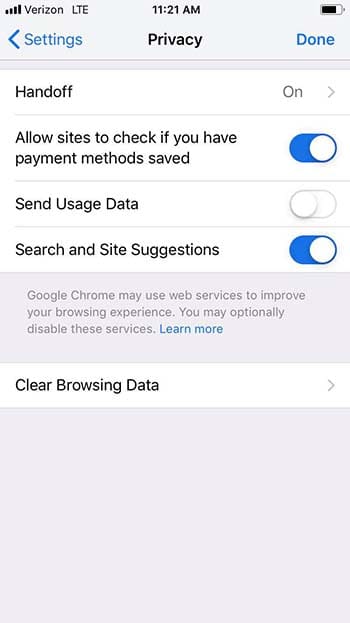
  4. Click privacy
  5. Select the option to not send usage data
  6. Go to Clear Browsing Data
  7. Make sure Cookies, Site Data is selected
  8. Click Clear Browsing Data
  9. You’re all set

Please note that not all websites will stop collecting data on you despite you requesting that they do not track your data. 

“Many websites will still collect and use your browsing data – for example, to improve security, to provide content, services, ads, and recommendations on their websites, and to generate reporting statistics,” according to Google.

What should I do?

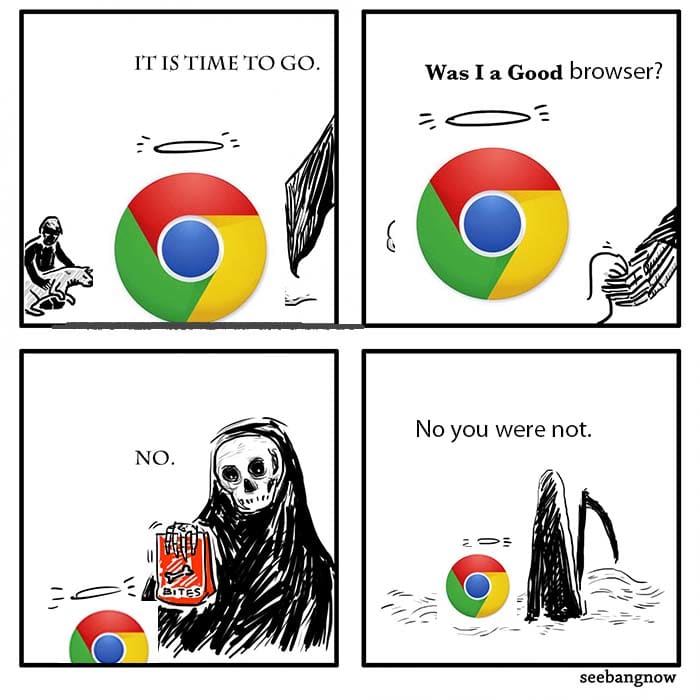
Chrome comic

This isn’t the first piece of despairing new info about Chrome to come out lately. Google recently announced that ad blockers essentially won’t work on Chrome unless you pay. 

That said, we strongly recommend choosing another browser if you want to keep your personal data safe.

The Brave browser has built-in ad blocking. You can also use your favorite Chrome extensions.

Enjoy private, secure and fast browsing with Brave.

Firefox has a whole host of tools that help keep you safe on the internet. From blocking cryptomining attacks to stopping invasive ads, there is no better time to start browsing with Firefox.

Chrome may have the largest market share, but they’re starting to flex that power in scary ways. It’s best to get familiar with a new browser now before something drastic happens that makes you regret hanging on too long.

How Firefox can help block invasive ads

Tired of seeing the same ads over and over again? Firefox can help you out!

It’s happened to all of us.

You’re on Facebook, and an annoying ad pops up. You switch over to Instagram and, sure enough, it’s there, too. Finally, you start surfing the web and that same irritating ad just keeps following you.

It turns out that this ad is following you because of something called fingerprinting. Through fingerprinting, a company makes a profile all about you. These profiles make it easier for marketers to send you tailored ads.

Luckily, Firefox is here to help with a feature that can add a layer of protection between you and the companies that want to profile you.

How Firefox can stop fingerprinting

To use Firefox to stop fingerprinting, just follow these basic steps:

  • Open Firefox
  • Click on the menu in the top right of the screen (it looks like three horizontal lines)
  • Click on “Content Blocking”
  • Scroll down to the “Custom” section
  • From the “Custom” section, check the box for “Fingerprinting”
  • You’re all set!

Firefox block

Wrapping up

Blocking fingerprinting with Firefox can cause some sites to break. But if you put a premium on privacy, the positives could outweigh the negatives. Fingerprinting tracks your data without your permission as well as slows down your computer.

If you’re tired of seeing these ads over and over again, Firefox and its features offer a cleaner, more private online experience.

Softonic is proud to partner with Mozilla. When you download from us, we may earn a commission.

How the newest Firefox keeps you safe

Firefox is more than just a browser. Here’s what it does to keep you safe!

If you’re looking for a browser to keep you safe, the latest version of Mozilla Firefox is here to watch your back. From password management to security alerts and beyond, Firefox makes safety and privacy their top priorities.

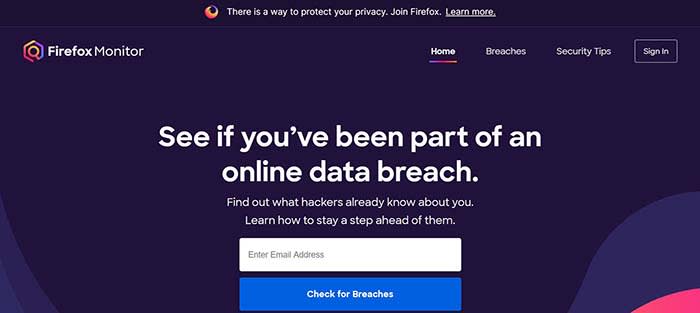
Firefox Monitor alerts you to data breaches

Firefox Monitor

It seems like there’s a new data breach every other day. Have you ever been concerned that you were involved in one, and that your data has been compromised? Firefox Monitor can help you find out!

Simply enter your email address, and Firefox Monitor will tell you if that email address was ever involved in a data breach. Also, when you join Firefox, you can save all of your email addresses in their system, and receive a notification if one is ever involved.

Firefox Lockwise safely saves and syncs your passwords across devices

Many of us have a system for keeping track of our passwords that’s probably less than ideal. Maybe we have a sticky note in the corner of our monitor with a list of them. Maybe we threw them into the notepad on our phone or computer. It could be we just think we have a good enough memory to remember them all. Either way, none of these methods are optimal.

That’s where Firefox Lockwise comes in handy. It keeps all of your passwords safely behind a firewall and autofills them in the login page when you give the okay. The best part? Lockwise can carry those passwords across devices so you’re never locked out or trying to find that Post-It note with the password you created for that site you haven’t visited in three years.

Send big files with Firefox Send

Firefox send

It’s happened to all of us: we have a large file we need to send, but we don’t have a flash drive nearby, and it’s too big to send via email. That’s where Firefox Send comes in handy. Firefox Send allows you to send a file up to 2.5 gigabytes in size just by joining Firefox.

Sync to your Android or iPhone

Maybe you have 12 tabs open on your desktop, but when you jump on your mobile device, you have to remember what those tabs were. Firefox solves that problem by syncing your sessions between desktop and mobile devices.

When you sign in on Firefox on any of your devices, your browser will be personalized the same way thanks to Firefox’s syncing feature. Even better: your sessions are protected by end-to-end encryption.

The newest Firefox is the best version of a trusted browser from a team that puts your privacy first. Give it a spin and see why these features are so groundbreaking!

Softonic is proud to partner with Mozilla. When you download from us, we may earn a commission.

How Firefox can help block cryptomining attacks

Is your computer constantly overheating? There might be a cryptominer hijacking your computing power.

Sometimes while you’re working on your computer, you wonder why the device is running so hot. It could be all that you’re doing is surfing Facebook, or getting something done for work, but your device feels like it could fry an egg, and the fan sounds like a helicopter propeller. This could be a sign that someone is hijacking your device to cryptomine.

Seriously, we’re not kidding.

About 2,000 power-stealing attacks happen every minute. Programs that steal your computing power are making attackers millions of dollars while your phone’s data usage bill climbs higher and higher. Basically, cryptominers are making money while you front the bill.
Luckily, Firefox has the tools for the job to help keep you safe from these attacks. If you’re not a Firefox user, this protection might just change your mind.

How Firefox can help block cryptomining

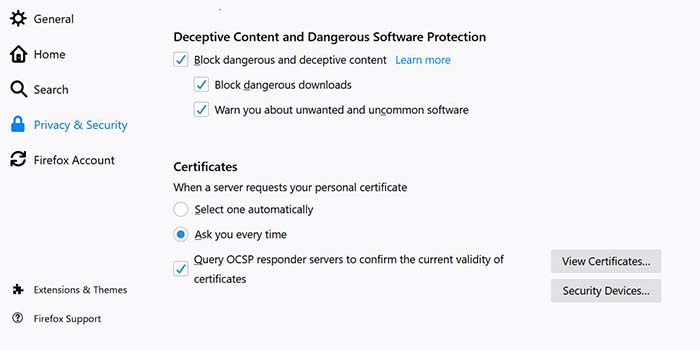
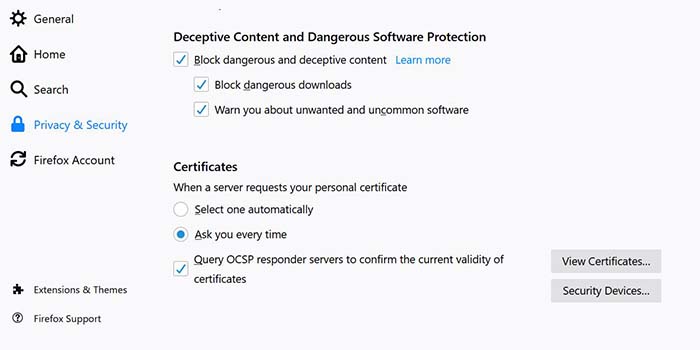
Firefox has partnered with the privacy company Disconnect. Together, they created a list of domains often used by cryptomining scripts. Firefox has given you the chance to block them. Simply select “Privacy and Security” from their menu. From there, scroll down and check the corresponding boxes.

Firefox block

Why you need to block cryptominers

Along with your ever increasing electricity and data bills, there are several reasons why you want to block cryptominers. By hijacking your device, they are rapidly draining your battery. Not only that, if it causes your device to overheat, it can do irreparable damage.

This activity could also pose a threat to the planet. Environmental researchers are concerned about the amount of resources being used up by cryptominers.

Protect yourself now

The bad guys are always working to take advantage of any gaps in your security. Downloading Firefox today can help prevent cryptominers from using your computer to make themselves rich.

Softonic is proud to partner with Mozilla. When you download from us, we may earn a commission.

How Brave eliminates common browser problems

Brave brings you fast, private browsing without many of the drawbacks of other browsers.

Brave

The internet has evolved into an essential component of our daily lives, and its use in American homes has increased by 400% in the past 20 years. According to the USC Annenberg Center for the Digital Future the number of hours we spend on the internet every week has risen from 9.4 (the statistic back in 2000) to 23.6. Overall internet penetration has increased from 67% to 92%. That’s all time that you’re spending on a specific internet browser, whether it’s Firefox, Chrome, Safari, Opera, or what have you. No matter your choice, it’s helpful to know the good, the bad, and the ugly of every choice out there. Not all browsers are created equally, so we’ve compiled a list of each one’s strengths and weaknesses:

Is it time for you to make a switch? Check out the stats below and decide for yourself!

1. Google Chrome
Google ChromePros:

With the monolithic Google behind its creation, it’s no surprise that Chrome is fast, efficient, and user-friendly. It’s got pretty much anything you’d need to make the most of the web, like quick answers in your address bar, one-click translations, and a wide variety of extensions and customization options.

Chrome will also automatically protect you from security issues like scamming and phishing, making it pretty safe to browse with, too. Just as Google is the most popular search engine, Google’s Chrome is currently the most popular browser. Chrome’s popularity has led to a surplus of extensions and websites catered to the browser, making it a highly customizable experience to boot.

Google Chrome Download now ►
7

Cons:

As powerful and popular as Chrome is, the browser is not without fault. In order for it to achieve its impressive speeds, Chrome needs to take extra resources from your PC:

Chrome splits every tab, plugin, and extension into its own process – that’s how it manages crashes so competently. The downside is that means it’s far more taxing on RAM since it’s duplicating tasks for each tab. Chrome is one of the ‘heaviest’ browsers and can get swarmed by bloatware, making it less than ideal for machines with limited RAM. There’s also the mounting suspicion of tying your data to Google, and if privacy is your concern you should likely look elsewhere.

2. Mozilla Firefox
FirefoxPros:

One of the earliest browsers out of the gate, Firefox brings to mind two things: Privacy and speed. While other browsers that capitalize on privacy do so at the cost of loading speed and/or heavier use on system resources, Firefox manages to succeed on both fronts, achieving a browsing experience that gives Chrome a run for its money.

Mozilla is a non-profit organization, meaning it’s got far less interest in mining and selling your data than, say, Google Chrome. Firefox also updates on the regular to bolster user privacy and ad-blocking. Its combined speed and safety put it at the top of TechRadar’s web browser ranking as recently as September 2018, claiming that Firefox has “retaken its crown” in recent months, and is now deserving of another look from avid Chrome users.

Mozilla Firefox Download Now ►
7

Cons:

Firefox is fast, but it’s not always faster than Chrome. This is mostly apparent on pages with tons of images or videos, at which point you’ll probably want to simply install an add-on or extension to either speed it up or block them. This brings us to Firefox’s second weakness: If you start installing extra plug-ins to customize your experience to the same extent as Chrome, Firefox will start to lag noticeably behind the competition.

Lastly, Firefox doesn’t have built-in support for Flash. Flash is notoriously dangerous, so this isn’t so much of an issue in 2018 when the internet is largely abandoning the platform. Even so, just like Apple got a negative response for removing the aux jack, we feel it’s necessary to mention any upgrades that leave old tech in the dust.

3. Microsoft Edge
Microsoft EdgePros:

Microsoft Edge the default browser for Windows 10. As such, it does a decent job of keeping in line with the speed, intuitive UI, and ‘clean’ aesthetic of many facets of Windows 10. Edge holds its own by modern web standards, and additionally offers a few capabilities you won’t get in other browsers: Webpage markup, integrated Cortana features, and a clean-cut reading mode.

Recent updates have also included a Tab Preview, Set Aside, ebook reading, and a handful of nifty extensions. Edge also no longer uses the infamous ActiveX, browser helper objects, or VBScript support that made Explorer slow as dirt. Edge is easily a significant improvement over Internet Explorer in terms of speed, accessibility, and compatibility. It also weighs substantially less than Chrome, meaning you’ll have a less bloated browser experience, albeit a more bare-bones one.

Cons:

Edge has struggled to achieve market share, mindshare, and positive reviews. The first three months of 2018, Microsoft Edge pulled a less-than-impressive 8% of the 1.2 billion visits to government websites from consumer and business PCs and Macs. This figure isn’t wholly reliable for another reason that Edge gets a lot of flak: The browser is not even available on any Windows OS older than 10, or if you’re using a Mac.

The real head-scratcher is why Microsoft feels the need to support multiple browsers for different Windows Operating Systems when they could just work to make Edge backward compatible. Doing so would certainly help give it some much-needed traction. For more reasons why you might find Edge disappointing, check out this article.

4. Opera

Opera browserPros:

Opera is as underrated as it is high-quality, and it’s certainly both of those things. Opera is a Chromium-based software, which means it’ll feel similar to Google Chrome when it comes to facets like rendering, and was the flagship for popular modern browser features such as private browsing and pop-up blocking. Opera also offers a free VPN that will replace your IP address with a new one, making it more difficult for ads to track your location and harass you.

Opera pushes a focus on privacy and like Edge offers a simple, intuitive layout, and has built-in messenger services like WhatsApp, Telegram, and Messenger, making it altogether a quick, smart, intuitive browser that go toe-to-toe with the competition.

Cons:

Opera doesn’t offer as many plug-ins as other browsers and it’s also lacking in parental controls (if such a thing matters to you). Occasionally the browser will also have issues playing videos or have trouble keeping pace with other browsers like Firefox.  Moreover, there’s no shining reason why a person would switch to Opera. It performs everything a browser should, but doesn’t really excel in anything either. For speed, people go to Chrome. For customization,they go to Firefox. With Opera, there’s little pull to use it when compared to the competition; most people have a strong reason for using one browser or another and being caught in the middle isn’t helping its case.

5. Safari
SafariPros:

Safari’s got the home field advantage with the Apple crowd. It’s the default browser for all the company’s products, mobile or otherwise, and Safari has become intertwined with the Apple experience. Apple does a solid job with security, and Safari is no exception. Browsing with Safari is a ‘better safe than sorry’ experience and can be further optimized quite easily to bump your protection even higher. Safari uses default pop-up blocking, which is always a huge plus.

If you’re an Apple user, Safari is still an excellent browser, even 15 years after its release. It’s already preloaded on all Apple products, so it’s at your disposal immediately and seamlessly works in tandem with all software produced by the company.

6

Cons:

If you’re not an Apple user, then Safari is useless to you. Microsoft products want as little to do with the competition as possible, so if you’re in with Microsoft you may never even use Safari. Besides the enhanced security options, there also isn’t a ton you can do to customize Safari, meaning that you’ll get a good, safe experience but not necessarily and adjustable one.

Why we like Brave
BraveIf you haven’t heard of Brave before, it’s likely because its first stable release just landed for iOS back in early August. The platform is now available on iOS, Android, macOS, Windows, and Linux. Who created it? Brian Bondy and Brendan Eich, who you’ll remember as the inventor of JavaScript and the co-founder of Mozilla (makers of Firefox).

Much like Firefox prioritizes user privacy, Brave automatically blocks any third party trackers, shutting down anything that might worsen your browsing experience such as third party cookies, pop-ups, and ads. None of that even makes it past the first line of defense. From that point forward, the rest is up to the user.

Brave is fast (up to eight times faster than the mobile competition), offers extensions that you’re familiar with, shields you from third party trackers, and because Brave blocks excessive third party requests, you’re actually saving money on your data plan. But then we get to the age-old dilemma of publishers and advertisers not generating revenue due to blocked ads.

Brave has an answer for that too:

How Brave solves the ad problem

Basic Attention TokenWith Brave, users can always select an ad-free browsing experience. However, Brave introduces a new private advertising platform that users can opt-in to and receive rewards for their attention. Users who elect to view ads earn Brave’s Basic Attention Tokens (BATs) which can then be used to support publishers and content creators, distributing your monetized attention how you see fit. You’ll then benefit from better ad-matching, and your data remains private.

Thirty percent of the ‘revenue’ gained from watching the ads goes to Brave, while the other 70% goes directly to the user. Should you choose to browse with Brave Rewards, your data stays private and you’ll still benefit from more accurate ad-matching and reception of Basic Attention Tokens. If this sounds like a feature you’d be interested in, you’ll be happy to know over 33,000 content creators and publishers are already registered receive tips and contributions from their users.

Softonic is proud to partner with Brave. When you download from us, we may earn a commission.
How to import Firefox bookmarks

Make your life easier by following these steps to sync your Firefox bookmarks. Learn How to import Firefox bookmarks.

Bookmarks on our browser are a necessity. Whether we are at home or our office, the first thing we do is open all our bookmarks.

When we get a new computer, we have to go through the drag of resaving all of our old bookmarks. With that hassle, we have to remember those obscure URLs and dig through emails to find that one oddball website that we need to do our job.

If you’re using Chrome, you can log into your Gmail account and your bookmarks will be synchronized. However,  Firefox users will have to first export the bookmark file or use its Firefox Sync function. If you do not know how to do it, we’ve got you covered:

Mozilla Firefox Free Download
7
Mozilla Firefox is a free, open-source web browser. Now with new features, faster and more secure.

How to import Firefox bookmarks

If you know how to export your bookmarks but you are not sure about how to make your browser import them, read on.

Importing bookmarks file

Importing the bookmark file in the browser is really simple. First, open Firefox and make sure that the menu bar is visible. If it does not appear, right-click on the top margin of Firefox and click on “Menu Bar.”

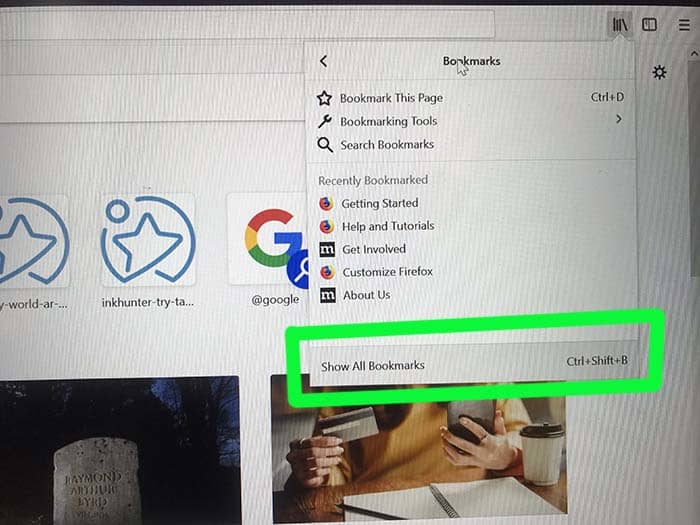
Firefox Show All Bookmarks

After that, click on Bookmarks and then on Show all bookmarks. Alternatively, you can press the Ctrl + Shift + B keys.

Import and backup

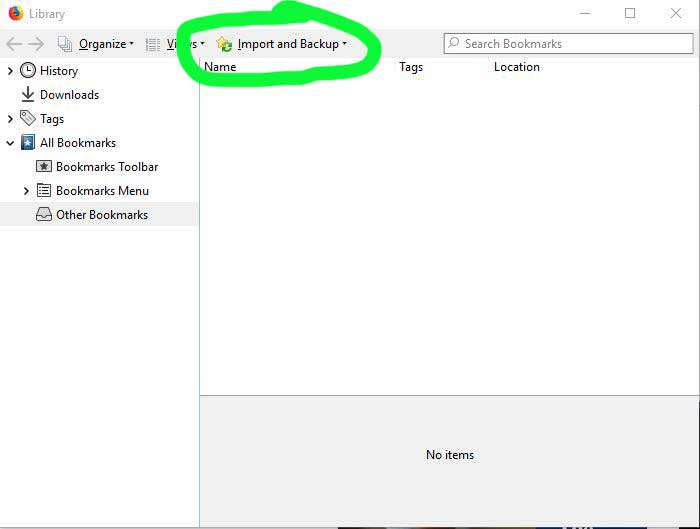
In the Library window that pops up, click on “Import and Backup” followed by “Import bookmarks.”

Select the bookmarks.html file and click “Open .” Once you have done these steps, you will see how your favorite bookmarks will appear in your Firefox browser.

Using Firefox Sync

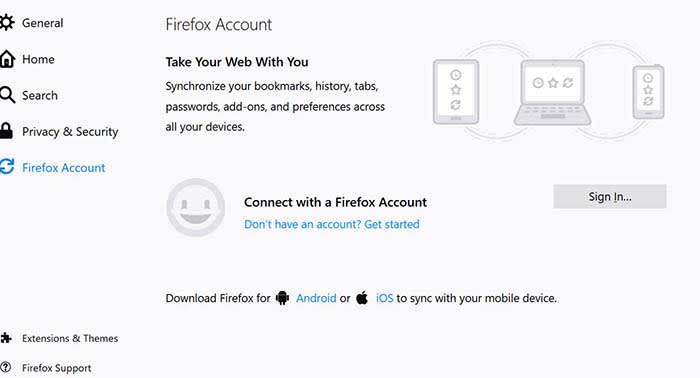
A second option to recover your bookmarks is using Firefox Sync. This function is really useful if we are looking to access our bookmarks from mobile devices or tablets. To use Firefox Sync, we must first make sure that our bookmarks have been synchronized with the browser account.

To do this, click on “Tools” and then“Sign in to Sync.” If you do not have a Firefox Sync account yet, follow the instructions on the screen.

Firefx Sync

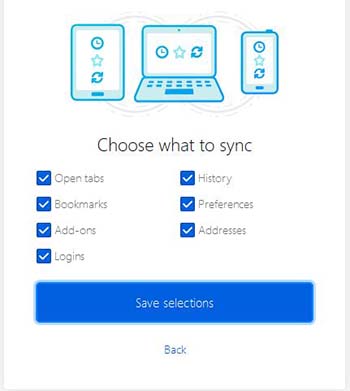
Once done, select the data you want to synchronize with your Firefox account and click on “Save settings.”

Choose what to sync

To import your bookmarks you will only have to connect your mobile, tablet or different PC to Facebook Sync. Click again on “Tools” and “Sign in to Sync” and finally click on “Connect.”

Enter your Firefox credentials and click on “Log in.” Once you have done these steps, your device will have synchronized with Firefox Sync.

Wrapping up

Using Firefox Sync has a lot of added benefits. If you add a new bookmark, you can sync it again, and the new bookmark will appear on the rest of your devices as well. 

Mozilla Firefox Free Download
7
Mozilla Firefox is a free, open-source web browser. Now with new features, faster and more secure.

Softonic is proud to partner with Firefox. When you download from us, we may earn a commission.
Firefox moves to prevent browser spam notifications

If you allow the wrong sites to send you push notifications you will end up receiving a lot of spam messages on your PC or spam notifications on your mobile

Desktop and mobile push notifications from your web browser are a great way to keep yourself up to date with all that is important to you. By signing up for notifications from your favorite websites, you give them permission to bring you all the latest and greatest news and updates direct to your PC or mobile, even when your web browser isn’t open.

Whether you want to stay up to date with all the latest news about apps, software, tech, games, and more like you can with Softonic push notifications or if you want updates any of the thousands of other legitimate websites offering push notification updates, you have the power. You give permission for the site to send you notifications, you receive the notifications, and then if you’re interested in whatever that notification is talking about, you can open the link, or if not, you dismiss it. Easy.

The problem, though, is that illegitimate sites will try to get in on the action, too. Yes, we’re talking about spam. Just like with emails, telephone calls, SMS messaging, and pretty much every other form of communication ever invented, push notifications are also subject to attempts to fill our lives with spam.

Dangerous spam o your desktop via push notification

If you allow the wrong sites to send you push notifications, you will end up receiving a lot of spam messages on your PC or phone

Push notification spam is all about permissions. Whenever you visit a site you like that offers push notifications, it will ask your permission to send you notifications in the future. Without this permission, sites can’t send you anything. Trouble is, we don’t only visit sites we’re happy to receive updates from and there are plenty of disreputable sites out there looking to make their owners a quick buck.

These dark sites are now utilizing push notifications as a way to bombard us with spam. A report by Bleeping Computer shows the types of tactics used to coerce users to sign up for push notifications they don’t want to receive. These include blocking the site content unless you click “Allow” on the push notification permission button, and creating specialized website messages that urge you to enable push notifications before you can access the website’s services. Any users who hit the “allow” button are bombarded with spam message after spam message promising everything from free cash to unbelievable celebrity gossip.

Examples of push notification spam
Image via: Bleeping Computer

The guys at Mozilla are all too aware of this push notification spam problem and they’re now introducing a test to see what will happen if it removes push notification subscription prompts altogether. The test is running on Firefox now; it began April 1 and will end April 29. The main section of the test will put the onus on Firefox users to allow sites to send them push notification subscription messages in by clicking on an icon in the address bar. Unless they take the action shown below, users will not see any push notification subscription messages.

Via: Mozilla

The issue for Mozilla is that whereas only 3% of users accept these subscription requests, 19% of users leave a site as soon as they see the request. There could be an argument that the subscription messages themselves are having an adverse effect on browsing behavior.

Once the test is over, Mozilla will use the data to decide how it will treat push notifications in the future. It could set it so that you have to activate push notification permission requests yourself by default, which would mean you’d never see them unless you changed the setting.

Whatever your relation to push notifications, this news could prove significant in the future. Push notifications can be annoying if you’re getting them from the wrong websites, but as long as you keep on top of your subscriptions, they can provide a great way to stay up to date with the things that matter to you most. This means as long as you know how to unsubscribe to the sites you don’t want to receive notifications from, there is no reason push notifications can’t be the useful tool they’re supposed to be. If Firefox decides to cut off permission requests altogether, it could be a case of cutting one’s nose off to spite one’s face.

3 great privacy-focused web browsers

Chrome may not be your best bet for privacy. Check out these alternatives.

internet security

Hackers are more prevalent than ever today. The only way you can keep your personal information and data truly private is through being proactive with a privacy-focused web browser. Here are the top three web browsers that will help you keep your information private!

3 great privacy-focused web browsers

1. Tor

Tor is one of the most notable privacy-focused web browsers out there today. The web browser is built on a collection of hidden relay servers. Basically, the way it keeps your information private is through bouncing your connection between various distributed nodes. This means that your connection will be completely private.

However, it is important to note that this is a true privacy-focused web browser, and it will not protect you from malware or viruses. The only negative aspect of this web browser is that it can slow down your browsing. We’re not saying you have something to hide… but if you want to be completely anonymous when surfing the internet, then Tor is the best on the market.

2. Brave

Brave is great for anyone who wants a privacy-focused web browser that’s also quick. The problem with many other web browsers is that they can be slow in order to operate at full capacity. However, Brave has great speeds and can even custom block ads and trackers.

Browse the web up to 8x faster than Chrome and Safari. DOWNLOAD NOW ►
10
Enjoy private, secure and fast browsing with Brave.

The only downside to this browser is that it’s relatively new and may not be as fully developed as other privacy-focused web browsers. However, there is a great team of developers always working to improve the browser to ensure you will have a great experience while using it. Want to learn more about why Brave is a great choice? Check out these articles:

3. Firefox

Although many people may assume that Firefox is just your average browser, if you add some specific add-ons it can be great for privacy. If you add the extensions HTTPS Everywhere, NoScript, Windscribe, and uBlock Origin, they can make your Firefox browser extremely secure and private. Another great element of using Firefox as your privacy-focused web browser is that it has really good downloading speeds and won’t slow down your Internet browsing at all. In addition, Firefox’s latest version claims to use 30 percent less memory than the Chrome on Windows computers. This is a great web browser for someone who wants added privacy but isn’t an expert on browsers.

Overall, privacy is extremely important when selecting a web browser. Any of these three privacy-focused web browsers can help keep your information and personal data safe.