The Best Alternatives to Gmail

Gmail is one of the world’s most popular email services. A sleek, user-friendly interface and seamless integration with the rest of Google’s products are its top strengths. But if you use Gmail for work or have concerns about your privacy and personal data security, you might be considering a more secure alternative.

Nuevo logotipo de Gmail

If you’re reading this article, you’re probably looking for a new email service to replace the “Big G.” But it’s not easy to find a platform that can stand toe to toe with Gmail in terms of services while protecting your privacy.

To lend you a hand, we have a roundup of what we consider to be the best email platforms of 2020. They’re easy to use and secure, so you’ll have total peace of mind about your data. We hope you find it helpful!

Why should I use an alternative to Gmail?

Hombre utilizando un portátil

Every day, millions of users trust in Gmail as their means of communication with the rest of the world. If you have a Gmail account, you’re probably well aware of the ease and countless advantages of this platform. However, although Gmail seems like the perfect email service, it has an Achilles heel: the privacy of your personal data.

As you may recall, back in 2018, Gmail faced one of its biggest privacy scandals. News outlets such as the prestigious Wall Street Journal reported Gmail’s practice of scanning your inbox to collect information about your tastes in order to display relevant ads. What’s more, Gmail allowed app developers to sift through your email so they could offer you a variety of deals. After this controversy, many Gmail users understandably lost all faith in Google and decided to switch services, choosing platforms that were more secure and respectful of their data.

But dubious privacy isn’t the only problem with your Gmail account. In terms of security, Gmail is not end-to-end encrypted, and this could be dangerous because third parties could get their hands on your emails. Finally, the platform only provides 10 GB of storage space for your email. That isn’t much, considering that you have to share it with the rest of Google’s services (Drive, Photos, etc.).

What features should I look for in a good email service?Mujer con portátil

Before we get to our favorite Gmail alternatives, let’s talk about what makes a good email service. Below are the key features that you should look for.

  • It should have end-to-end encryption- If you’re worried about security, make sure that all the messages you send are end-to-end encrypted. In other words, your intended recipient should be the only one who can read your message, and it shouldn’t be stored on any sort of external server. This is the same technology used by messaging services like WhatsApp.
  • It shouldn’t require you to provide personal data to open an account- Many email services are truly impressive but ask for an absurd amount of personal data when you try to open an account. If you value your privacy, think twice about providing all of the personal data that these online services request.
  • It shouldn’t have ads- Many free email services rely on ads for revenue. While they may seem harmless at first, they can become intrusive and annoying in the long run. What’s more, your email service probably shares your personal info, similar to Gmail, to tailor those ads to you.

The best Gmail Alternatives of 2020

1. ProtonMail

Proton Mail

Let’s start our list with ProtonMail, one of the best Gmail alternatives out there. As the website boasts, it’s one of the world’s most secure email services, as all of its servers are in Switzerland.

To start using ProtonMail, you just have to create an account on the website (click here). You don’t need to provide a lot of personal information, nor do you have to download anything to use it on your PC, because you can check your inbox directly from the website.

As for privacy, all emails on ProtonMail are end-to-end encrypted to protect their content. That said, keep in mind that the “Subject” line of your emails isn’t encrypted, so never write any compromising information there.

Finally, it’s important to mention that ProtonMail’s interface is clean and intuitive, making it a perfect option for IT geeks and newbies alike.

ProtonMail can be used on the website or the apps for Android and iOS, which you can download below.

  • ProtonMail for Android
ProtonMail (Android) DOWNLOAD
8
  • ProtonMail for iOS
ProtonMail (iOS) DOWNLOAD
8

2. Tutanota

Página oficial de Tutanota

Tutanota is another great alternative to Gmail, especially if you’re concerned about keeping your data safe. You may not be aware of it, but Tutanota was the service that pioneered email with end-to-end encryption. With millions of happy users around the world, this service is worth keeping in mind.

Not surprisingly, one of Tutanota’s main strengths is its end-to-end encryption system. With years of experience in the sector, it works incredibly well. Tutanota protects all of the data in your emails, and unlike ProtonMail, it can even encrypt your “Subject” line. But that’s not all: even your calendar is end-to-end encrypted!

Another advantage of Tutanota is that you won’t have to deal with annoying ads. This email service is fully funded by donations and premium subscriptions, so you can write emails to your heart’s content without unnecessary distractions.

Get your free Tutanota account on the website by clicking here.

3. GMX

Página web de GMX

GMX (Global Mail Exchange) is an email platform that may seem a bit basic at first glance, but this excellent service has no reason to envy the greats in the sector. It provides a truly secure email service, a spam filter, antivirus software and even a calendar.

Once you open your account with GMX (click here to do that), you’ll get a total of 65 GB of storage space to use however you want. If that isn’t enough for you, don’t worry, because the service allows each user to create up to 10 different accounts.

Another of GMX’s strengths is that it includes a cloud storage service. You can use it to save all of your files and photos, which you can even access from your phone. To do that, you’ll need the app for Android or iOS:

  • GMX Cloud for Android
GMX Cloud (Android) DOWNLOAD
8
  • GMX Cloud for iOS
GMX Cloud (iOS) DOWNLOAD
8

Although GMX has a somewhat dated interface, it’s perfect if you’re looking for a secure email service that offers a lot of storage space. You can download its application for Windows below.

GMX Mail DOWNLOAD
8

4. Outlook

Outlook

No self-respecting list of Gmail alternatives would be complete without mentioning its age-old rival, Outlook. Microsoft’s email service has more than 400 million users around the world, and in addition to being quite secure, it’s seamlessly integrated with the rest of the company’s products.

Analyzing Outlook, we can see that it’s very similar to Gmail. Featuring an attractive, user-friendly interface and multiple tools to improve your productivity (a calendar, notepad, a contact list, etc.), it’s designed for all Windows 10 users.

In short, if you use Microsoft’s operating system, you can’t go wrong with Outlook. Providing 5 GB of space for your email, it can be integrated with products such as Skype or OneDrive. Click here to register your Outlook account and download the app below.
Microsoft Outlook DOWNLOAD
7

5. Zoho Mail

To wrap up our list, Zoho Mail is an email service designed especially for companies and business, although it can also be used for personal email.

Zoho Mail’s excellent security features include end-to-end encryption and S/MIME message encryption. What’s more, as the website boasts, it’s a highly reliable service with a 99.9% uptime. That means you’ll never have to deal with your email server crashing again.

In short, Zoho Mail is a fast, user-friendly service. We highly recommend it if you have a business and are looking for an easy way to have an email address with your own domain.

You can visit the official website for Zoho Mail by clicking here and download the app for Android below.

Zoho Mail DOWNLOAD
8

We hope our roundup of alternatives to Gmail has been helpful to you. Do you know of any that we didn’t include on this list? Tell us about them in the comments section!
How to clean your Gmail inbox

These tips and tricks will help you organize your Gmail inbox and stay on top of spam and unwanted messages.

Gmail wallpaper

There is a digital movement out there called Inbox Zero. These crusaders, spurred on by a book by Merlin Mann, fight against the endless crap that bombards our Outlook, Yahoo Mail, and Google Mail inboxes on a daily basis. As our email inboxes fill up with spam, marketing, surveys, deals, and a million and one other emails that have been sent out en masse, the Inbox Zero movement tries to fight back with a mantra. That mantra is simple; keep your inbox at zero unread emails. This mantra sounds simple enough but in practice, it requires constant vigilance.

With so much nonsense coming our way every day you must work hard to keep on top of it. You can, however, make life easier for yourself by putting a few systems and processes in place that will do most of the work for you. Now, we are not high priests of the Inbox Zero movement but we do know a thing or two about Gmail so we can help you out. These are the best tips you need to clean up your Gmail inbox.

Tips to clean up your inbox

These tips and tricks for Gmail will help you keep your inbox clean and clear, making life so much easier. Read on to learn more.

Categories

Gmail categories

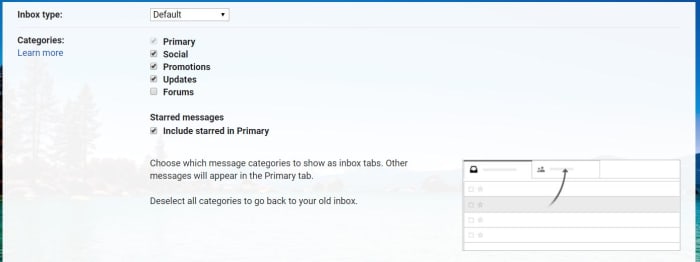
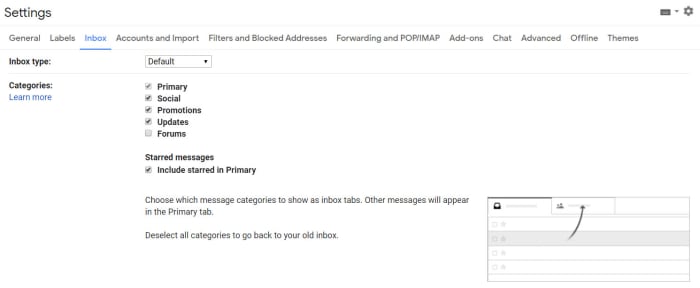
This is the easiest of the lot and will make the biggest difference straight away. Categories in Gmail are like tabs that sit at the top of your inbox. They automatically sort incoming emails into certain categories and then siphon them off to the correct tab. The Updates tab is by far the most useful tab, but it is not active by default. To activate it hit the Settings icon, click the Inbox tab, and then check the box next to Updates. You will immediately see the number of emails in your inbox slashed. You could also activate your Forums category too if you participate in a lot of online discussions.

The big sweep

To sweep your inbox refers to taking lots of emails and organizing them very quickly in a sweeping manner. The basics of sweeping your inbox involve creating folders for different years, months, quarters, etc. and then going through your inbox and putting all the emails you received from the subsequent time periods into their folders. This way, all your emails are still there, they are just hidden away nicely and immediately your inbox has a lot less clutter. The only thing you need to remember here though is that you should not create a folder for the current period of time you’re organizing by. That is because it is still active and so you want that to be your primary inbox.

Folders and filters

Unsubscribing to emails you do not want is a great way to massively reduce the amount of crap that will end up in your inbox. Unfortunately, however, there are plenty of spammers out there who do not care if you want to receive your emails or not. All thee spammers care about is whether or not you use your email account or not. They normally figure this out when you click any link on any email, they’ve ever sent you. This means you need to be extra careful what you click but it also means you will be receiving email you want no matter what.

Gmail filters

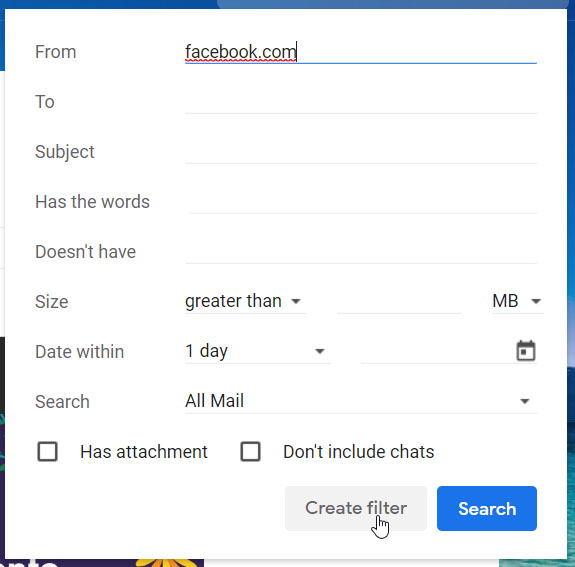
To fight against unwanted emails, you can set up filters that will automatically block emails from dodgy domains. To do this you need to click the arrow next to the search bar and then type the domain you want to block into the From text box. Once you have done this, hit the Create Filter button that is next to the search button. Once you have done this, you will then be given options for all the emails you’ve received from that domain. You will also be able to create the filter so that you don’t receive any more emails from the domain.

Delete emails from companies you are not interested in

This little trick will help you quickly get rid of all the emails you have received from Facebook or any other apps that constantly send you updates from their platform. What you need to do is use the * symbol alongside the domain. To delete all Facebook emails, for example, you search for *@facebook.com , and then Gmail will show you every email you have received from any email account attached to that URL. All you have to do then is select them all and hit delete.

The easy way to unsubscribe

unsubscribe

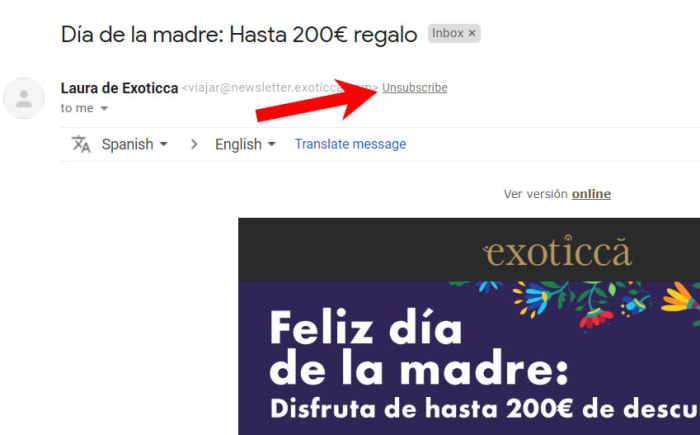
Another fantastic built-in feature that Gmail has is the Unsubscribe button. You may recall that promotional emails need to include an unsubscribe button that you can press should you ever decide you no longer want to receive them. Obviously, however, the companies sending you their emails don’t want you to unsubscribe so they make it difficult for you to find these buttons by hiding them away in the small print at the bottom of the email. Gmail fixes this, however, by taking any unsubscribe link and displaying it prominently at the top of the email next to the sender’s email address.

Set aside time each week

The last of our tips is not about an easy fix or clearing everything out with the click of a button. This is about discipline, which is what you will need if you want to maintain your zen-like clear inbox for more than a few days. Each week you need to give yourself some time to go through any unopened emails you have received during the week and action them accordingly. If it is an important email and you need to respond urgently, do it; if the email is unimportant, delete it. Whatever it is you need to do for each of the active emails in your inbox, do it. This may sound like a chore but over time you will develop a ruthlessness that will make this step easier and dare I say it, satisfying.

Tips to personalize your Gmail account

These tips and tricks will help you personalize your Gmail account.

Tips to pimp Gmail

Gmail like pretty much all other Google products is open to customization. You can take the default Gmail you get when you first downloaded it and change a lot of things about how the Gmail interface looks and feels. You can even customize the Gmail features. There’s plenty you can do straight away without having to download any extra new features, apps, Chrome extensions, or plugins.

Let’s look today then, at how to customize your new Gmail account and make it completely unique.

How to customize Gmail

Inbox layout

Inbox layout on Gmail

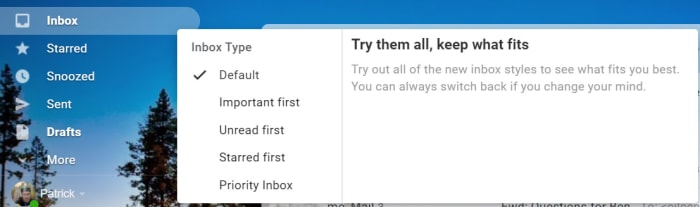
Google gives out some good information on customizing Gmail and the first step it says all users should use is a simple one. You can customize your inbox with a simple click of a button. When in Gmail you can hover your mouse cursor over Inbox and you’ll see an arrow appear that is pointing downwards. Clicking this arrow will open up a menu of all the different types of Inbox configuration Google offers. You can choose between showing DefaultImportant emails firstUnread firstStarred first, and Priority Inbox. Go through each of these and pick which one suits you the best.

This Google Guide will also give you more information about each setting and will also show you how to set up multiple Gmail inboxes.

Make your inbox bigger or smaller

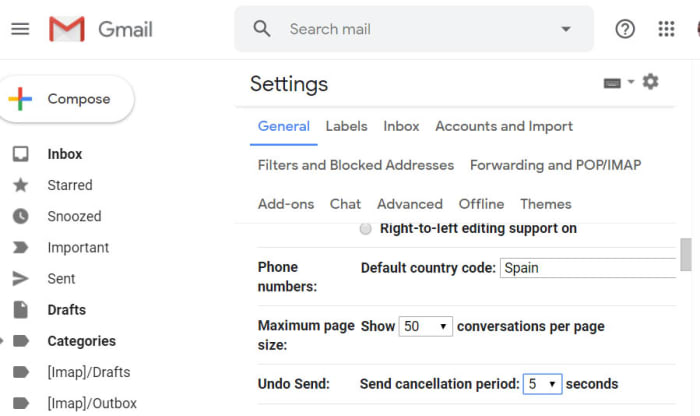
When you download and install Gmail, the default setting is to show 50 email conversations in your inbox. You can actually change how many emails your inbox shows by going to Gmail’s Settings and then searching through the General tab for the Maximum page Show option. Here you’ll be able to set your inbox to display 10, 15, 20, 25, 50, or 100 messages at any one time.

Gmail Themes

Gmail themes

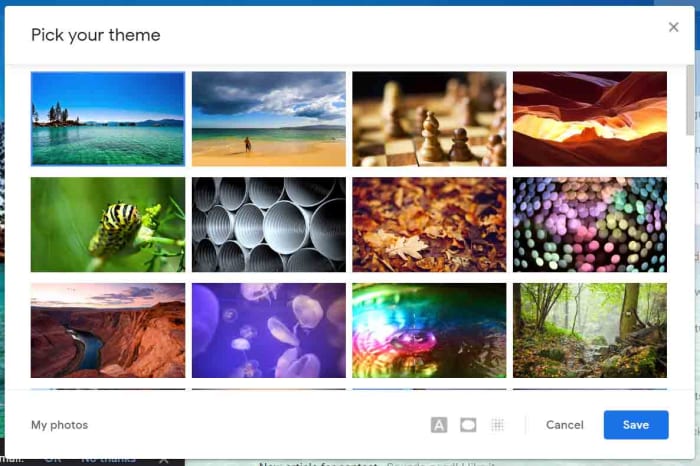
Another fairly simple Gmail customization you can make is to set a theme that will run throughout your desktop inbox. By clicking the Settings gear icon when in Gmail you’ll open a small menu that will include the Themes option. Here you’ll find all sorts of default images that Google has included for you to choose from. Straight off the bat, setting one of these images as your theme will set you apart from 99% of Gmail users who don’t change anything. If you click My photos, however, in the bottom-right corner you’ll be able to select one of your own photos and really be unique.

Hide the sidebar

Did you know that by clicking the hamburger icon (three vertical lines) in

the top-right corner of your Gmail desktop inbox you can hide the sidebar menu? You simply click the icon and the sidebar retreats to the side of the page, only showing the icons for the likes of your InboxSentDrafts etc.

Customize the sidebar

Customize the taskbar

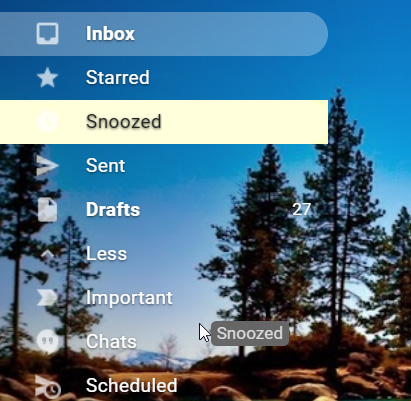
It is also really easy to customize the items in your sidebar. All you have to do is hold down the mouse cursor on a selected item and drag it to the position you want it be on the sidebar. This includes bringing up items that usually sit below the More tab or relegating items that usually sit above it.

Google Hangouts Chat

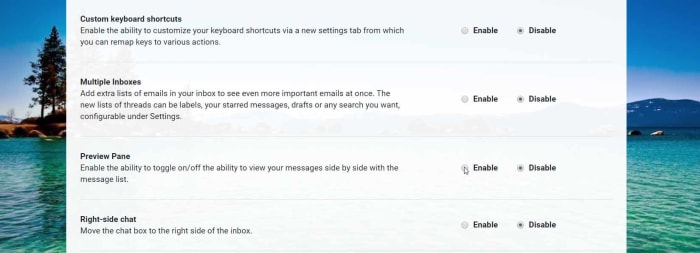
Another sidebar item you can customize is the Google Hangouts Chat window, which technically sits below the sidebar, but you know what we mean. You can move the Chat window to the right side of the app by going into the Gmail Settings menu and hitting the Advanced option. You’ll then see the Right-side chat option and if you click Enable and Save Changes when you reload Gmail the chat box will display on the right side of the app.

The other thing you can do with the Hangouts Chat window is remove it altogether if you never use it. To do this go into the Settings menu again, but this time hit the Chat option. Select the Chat off option, Save Changes, and then when you reset Gmail the Chat window will no longer be there.

Hangouts Chat Download now
6

Make Gmail look like Outlook

Preview Pane on Gmail

The default Gmail inbox has a list of the emails you’ve received complete with the title of who sent it, the subject line, and a little text from the body of the message. You can, however, change this so that your inbox looks a lot more like the inbox Outlook users see when they open their email client. You do this by activating the Preview Pane, which squeezes up the email labels described above and puts an email preview pane in the space this creates. You can then use this to see a preview of an email without having to open it.

To activate this, go to Settings, then Advanced, and then select Enable next to the Preview Pane option. You then save your changes and restart Gmail. If it doesn’t automatically launch with the preview pane enabled, click the preview pane toggle button, which you’ll find at the top of your inbox.

Customize your inbox Tabs

Gmail’s Inbox Tabs, which allow you to set up catch-all mini inboxes inside your inbox have proved a very useful innovation indeed. By automatically segmenting your email, Tabs make it much easier for you to deal with the important emails and ignore the annoying ones. You can actually go a little further with Tabs, however, and choose which ones you want to show in your inbox and which ones you don’t. Altogether you can choose from PrimarySocialPromotionsUpdates, and Forums. The only one you have to show is Primary.

Wrapping up

So, there you have a lot of ways to make some massive changes to your Gmail inbox. If you work through all of them, you’ll have a brand-new inbox experience that is totally unique. Also, by adjusting the features you think matter most to you, you’ll be able to tailor your inbox to your specific needs and really get the most out of Gmail.

How to stop Gmail spam forever

Follow these steps to block all spam emails from reaching your inbox.

Block Gmail spam

Spam is not only annoying it is dangerous. No, we’re not talking about the canned luncheon meat that you used to have nightmares about as a kid, we’re talking about the spam mail you get in your email inbox. Junk mail, as it is sometimes called, is annoying because it clogs up your inbox and makes it harder to find the emails that matter; and dangerous because it can often be carrying malware, viruses, and phishing scams.

You’d be forgiven then for wanting to get rid of spam forever and that is probably why you’ve ended up here. This is the Softonic guide to stopping spam mail forever. With these tips and tricks, you should be able to send everything to your spam folder and live a spam-free life. This is how to avoid Gmail spam.

How to block spam on Gmail

Spam blocker
This is not the spam we’re talking about

First things first. You’ll be happy to know that Gmail, like Outlook, already has a spam filter. It’ll search for incoming emails that look suspicious or that carry links to untrustworthy URLs. With the power of Google behind it too, it is pretty powerful. Unfortunately, however, some spam can trick the Gmail filter with canny subject lines, etc. and find its way into your inbox. This means to block ALL spam from your email list you’re going to have to take some extra steps. Let’s get started then.

Train your spam filter

Report spam on Gmail

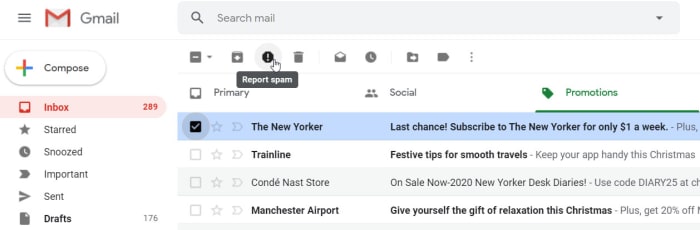
Like everything else from Google, your Gmail spam filter is always learning. It learns from everything it does, but it can learn most from you. You and your big human brain can look at an email and know immediately that it is spam. To help your spam filter do the same, don’t just delete the spam, report it. This way your spam filter will get a better idea of what spam looks like every time you make a spam complaint, and will then be more likely to spot it next time.

Keep your email address secret

OK, so this isn’t the most practical step you can take. If nobody knows your email address, then what good is your email service in the first place? Think of this as more of a general rule than a blanket ban. We’re constantly under pressure these days to hand over our email address whenever we want to use online services. This rule is designed to think twice about the websites you share your email address with. It is also a reminder to never post your email address on public forums and to hesitate every time you think of forwarding that spammy email content chain you received. If you’re careful enough, your email won’t ever end up on the contact lists of email marketers looking to send you spam messages.

NEVER open a spam email

We’ve already pointed out the security concerns that should be warning you off opening any spam emails that end up in your email inbox. The other big reason for not opening spam emails, however, is that they’re likely filled with trackers that will flag your email address as active whenever they’re opened or if elements like images are interacted with. Opening spam emails will lead to many more spammers sending you stuff that should only ever end up in your junk folder.

Only tick the boxes you MUST tick

Like we’ve already said, these days almost every online service and website will try and get you to hand over your email address so they can hit you with email campaigns. Then, when they get you to opt-in, they try to get you to double opt-in to other various email newsletters, and maybe even to give them permission to share your details with selected third-parties. Needless to say, if you don’t want spam, don’t allow them to share your email address with other companies. It’d also be in your best interest to only sign up to the newsletters you actually want rather than whatever they try and shove on you when they show you the terms and conditions. Only opt-in to what you have to and don’t be afraid to click that unsubscribe link whenever necessary.

Change your email address

This final trick for blocking all spam on Gmail might sound a little drastic but if you’re constantly being bombarded by nonsense spam email emails from Nigerian Princes or for cheap Viagra, it could be the best way to go. In truth, we’ve all had our email addresses for longer than we can remember so we’ve probably been bouncing all over the internet for years without even considering shielding our email address from prying eyes.

If you’re getting a lot of spam emails getting through your spam filters, follow the first rule we laid out. Report them so that your spam filter can adjust and do more to block out those unwelcome junk emails. Then unsubscribe to all the email marketing rubbish you know longer want to receive. If that still doesn’t work, you’re just going to have to bite the bullet and start again. Once you’ve done so, stick to the rules outlined above and you should be able to live a spam-free existence. Just make sure that when you’re sharing your new email address, you’re doing so in a responsible manner and not just blasting it all over the internet.

9 tips to take Gmail control

These excellent tips will help you get more out of Gmail.

Gmail tips

With over 1.5 million users Gmail is by far the most popular email service on the planet. It is even more popular that Outlook and Yahoo Mail. It is a great program with lots of features and, as you’d expect with a Google product, it is constantly evolving. If you follow Softonic news, you’ll know just how often Google is adding new features like advanced search bar, canned responses, and email snooze and  mute . As well as Google adding new features, third-party developers are also able to create Chrome browser add-ons like a to-do-list app that also boost Gmail’s capabilities.

Where do you start though? If you’re trying to step up your Gmail game, take advantage of all it has to offer, and make your life easier in the process, where do you begin? Well, that’s where we come in. Today we’re going to look at some of the best Gmail features and give you some top Gmail tips and tricks to help you get the most out of your email provider.

How to use Gmail

Shortcut cheat sheet

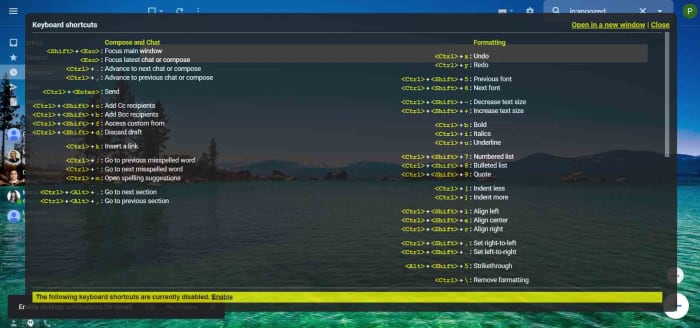
Gmail keyboard shortcut cheat sheet

A great place to start this list is the Gmail keyboard shortcut cheat sheet. There are a lot of actions you can perform on Gmail simply and quickly by pressing a certain combination of keys. This cheat sheet gives you a list of these keyboard shortcuts. To access it all you need to do is press Shift ?.

Unsend sent messages

Undo send on Gmail

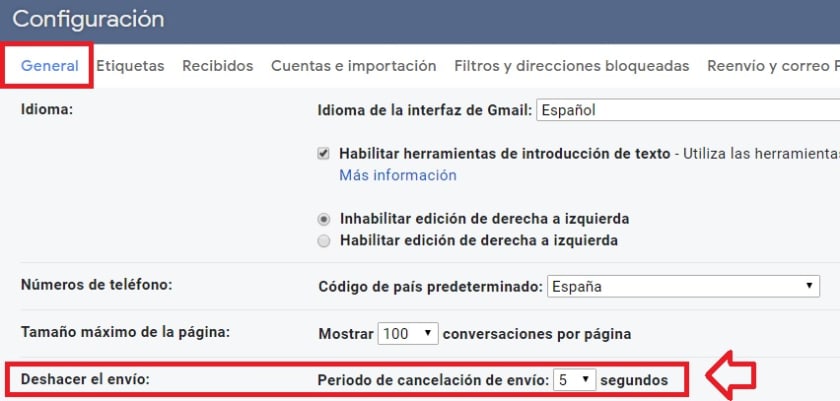
Did you know that you can actually give yourself a short window of opportunity to unsend Gmail messages you’ve sent. This is extremely useful, if you ever find yourself cursing your own existence when you realize you’ve forgotten to mention something important in the email you’ve just sent. To enable the Gmail unsend feature go to Settings then search in the General tab, and then tick the box next to Enable Undo Send. You can also set the time you’ll give yourself to reconsider at 5, 10, 20, or 30 seconds. Don’t forget to hit Save when you’re done and then keep an eye out for the Undo Send option when you send a new message.

Spelling mistakes

Check spelling on Gmail

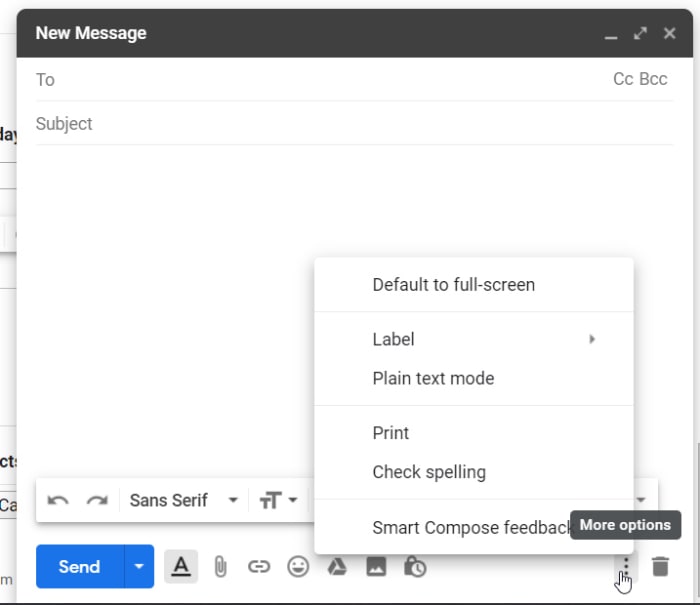
Normally email messages are important messages, which means spelling mistakes are a big no no. Fortunately, Gmail has a feature that will highlight any spelling mistakes you’ve made so that you can easily change them. To use this feature all you need to do is click the ellipsis menu icon  in the bottom-right corner of your Gmail compose window and hit Check Spelling.

Infinite Gmail accounts

OK, so this trick doesn’t give you an infinite amount of Gmail accounts, but it does give you plenty to play around with, should you need to sign up to an online account more than once. Basically, full stops in your Gmail address don’t count for anything. This means if you send an email to emailaddress@gmail.com and another to email.address@gmail.com both emails will go to the same inbox. This means you can add full stops between every letter of your Gmail address to create a new email you can use to sign up to accounts with. This is also a good way of tracking who is selling your data as you can monitor which accounts have full stops in certain places and then compare that list to the email addresses you receive your spam to.

Schedule send

Gmail schedule send

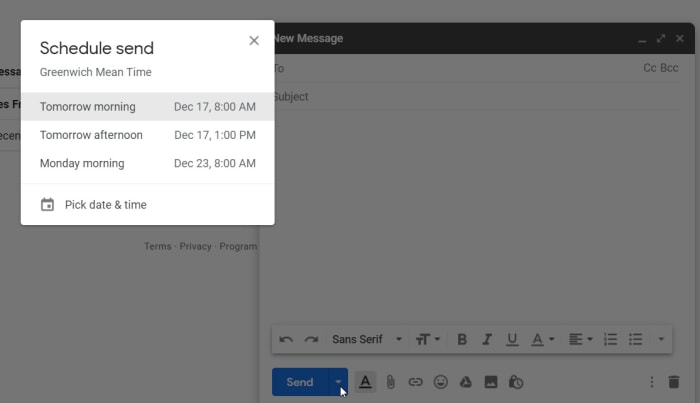
Gmail’s schedule send feature is fairly new. You used to have to enable the feature using Gmail Labs, but now it is here for everybody to use and it couldn’t be simpler. To schedule an email to send at a later date all you need to do is hit the small down arrow that is next to the send button. This will open up the Schedule send option, which will give you the chance to send your email exactly when you want the recipient to receive it.

Add or remove inbox tabs

Gmail inbox tabs

The Gmail Inbox tabs are a great way of keeping on top of your incoming mail. If you’re toiling away to reach Inbox Zero, tabs can help you a great deal by automatically cutting out the emails you don’t really need to handle yourself. They’ll automatically be added to different tabs and so won’t class as primary emails. To customize your Gmail tabs go to Settings, then Inbox, and then hit Categories. Once you’ve activated all your tabs you can then drag and drop individual messages between them to help Google classify your incoming mail better.

Desktop notifications

You can set Gmail to send you a desktop notification every time you receive an email. To do so go to Settings, then General, and then Desktop Notifications. Once enabled, Gmail will send you a pop-up notification every time you’ve got mail.

Filter your newsletter signups

Gmail has a very cool feature that allows you to add words and phrases to your email address by putting a  sign after it. For example, if I was to send an email to myemail@gmail.com and myemail+softonic@gmail.com, both emails would go to the same inbox. This means I could sign up for various email newsletters and use the sign plus different categories to make it easier to search through my regular newsletters. Categories like News, Sports, Tech, etc. to help me search for particular types of content that are being pinged to my inbox.

Easy unsubscribe

Gmail unsubscribe

Email newsletters can be annoying. Tabs make it easier for you to keep on top of them, but still, they’re a real pain, especially the ones you can’t remember signing up to. The truth is you’re pressured into signing up for newsletters all the time these days. Want to buy some clothes online, sign up to an email; looking to find a local bus schedule, sign up online; want to do absolutely anything you could think of on the internet, yep, sign up online. Fortunately, however, Gmail has an elegant solution to this very modern problem. For every email you receive that has an unsubscribe button hidden away at the bottom, Gmail will create an Unsubscribe button at the top of the email next to the email address.

There you have some top tips for the Gmail app. For more great guides to Google apps and products like Google Drive, Google Calendar,  and Hangouts stick with Softonic.

Google’s new feature makes life easier for anybody with multiple accounts on Android devices

Google has introduced a swipe to switch account feature to Google Maps, Google Drive, and Gmail

Google’s search engine helped the Mountain View-based internet giant quickly rise to the ascendancy in the early days of the internet. Google was quicker than other search engines and always served up more reliable answers to queries. It wasn’t long though, before Google started branching out from web searches and the result now is a bunch of core products, which are among the most popular pieces of software ever developed.

Google programs like Gmail, Chrome, and Maps all have literally billions of users and other core products like Google Drive aren’t far behind them. At the heart of all these products, including the search engine that started it all, lies our Google accounts. Our accounts give us access to personalized versions of each core product. Yes, they do allow Google to collect data on our web usage, which is worth billions to the web giant, but our accounts also allow to have our own Google Drive allocation, individual Gmail inboxes, and keep a record of all the places we’ve searched for and been to while using Google Maps.

Most of us have reached the point now where we have more than one Google account too. Whether it be for work and personal use or more compartmentalized use of the Google products, like shopping accounts and travel accounts etc. it is becoming more and more common for Google users to have multiple accounts. It is good news for an awful lot of us then that Google is making it much easier for us to switch between accounts.

Google has introduced a swipe to switch account feature to Google Maps, Google Drive, and Gmail

Gesture control has been creeping in on Android for quite some time now. Google has been adding different gesture controls to try and replace the standard search and menu system. Although there are many more, my favorite and most used gesture control on my Pixel is the double tap of the power button to launch my camera app. It is easy, saves time, and means I take more pictures.

As always with most big tech innovations gesture control is supposed to shave precious seconds off our digital processes. The time we save searching through menus, can theoretically be used to do something else. The new swipe to change account feature does this quite well.

Switching between accounts is now easier on three of the core Google apps

The idea behind the new features is that rather than having to click on the account button in the top-right of your Google apps and then select the account you want to work with, you can simply swipe your finger up or down across it. This will move you between all the different accounts you have linked to your Android phone.

The new swipe to switch account feature will save you the grand total of two clicks every time you use it. That is reduced to one click though, if you count the swipe itself as a click. This might not sound like a lot but as is so often the case with these incremental feature upgrades soon you’ll be so used to using the new swipe feature that you’ll barely remember having to click through the account’s menu in the first place.

google maps
The swipe to change account feature landed on Google Maps first

Multiple reports have noted this new feature on Google Maps, Google Drive, and now most recently on Gmail too. The feature landed on Google Maps midway through August and then on Google Drive a week later. This means if you’re using the latest version of both apps, you’ll be able to swipe to switch accounts right now. The feature is much newer on Gmail, however, so you’ll have to wait until you’ve downloaded Gmail v2019.08.18 before you’ll have it on your email app.

Gmail’s new feature could help you relax more when on vacation

Gmail and Hangouts Chats will show you when somebody you’re trying to contact is out of the office BEFORE you send a message
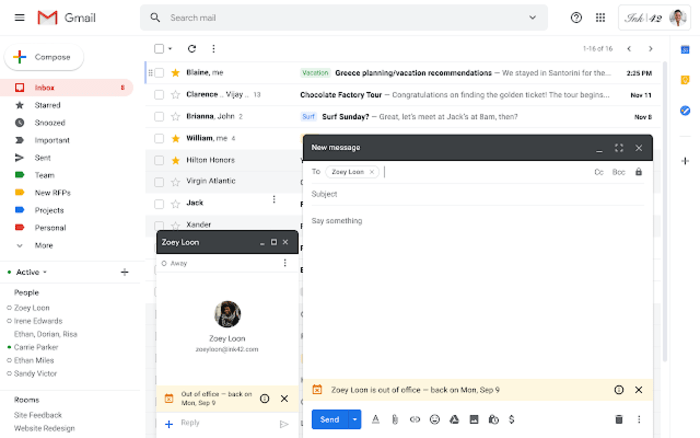
Out of office. Those three words are supposed to protect us from all things work related whenever we’re on vacation. We set up our Gmail out of office dates, pen an automatic response that explains to people how long we’ll be away for and then, theoretically at least, we walk away from our inboxes. We might also use the out of office feature when we’re away from our desks for business related tasks but everything we’ve just said still stands. We don’t want to be distracted when we’re using out of office features.

The trouble with out of office though, is that it only kicks in once somebody has already sent us an email. They send us an email and they’re told we’re away, but we still receive the email. If our notifications are still switched on that email will ping away in our pocket.

If this sounds like an annoying an unsatisfactory solution for when you’re out of the office, you’ll be pleased to hear about a great new Gmail feature.

Gmail and Hangout Chats will show you when somebody you’re trying to contact is out of the office BEFORE you send a message
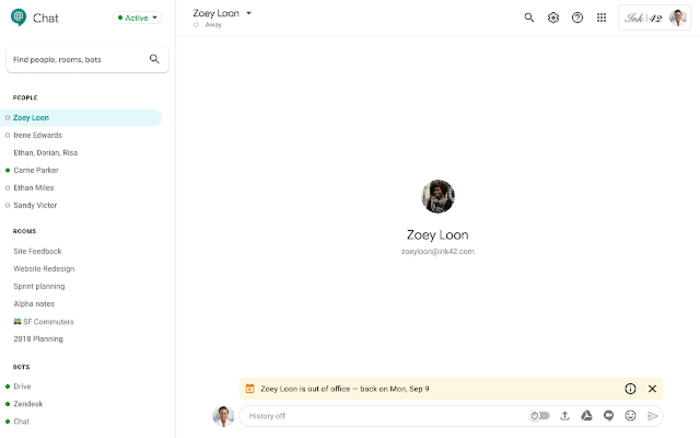
This is a very simple change for Google to make to Gmail. We already give the app all the information it needs to do this, it is just that now it will be displayed a little earlier. This is the type of eureka moment new feature that you can imagine everybody in the Gmail office thinking ‘Why didn’t I think of that?!?’

Image via: G Suite Updates

When it hits your Gmail account a small change will make a big difference. Whenever you put the Gmail address of somebody who has logged themselves as out of the office, you’ll see a banner at the bottom of the main text box telling you that the contact is out of the office and also letting you know when they’ll be back. The same goes for Google Hangouts, which will show the same banner in the same position.

Image via: G Suite Updates

The Google blog post, which recently announced this most common sense of new features says that all Gmail users should expect to see it within 1-3 days of September 16 this year, with Hangouts users seeing the same release schedule.

Combine this feature with Gmail’s recently unveiled scheduled send feature and you have a potent tool for both business and personal emails. Now, whenever you’re about to send an email to somebody who is away from their desk, you’ll be told when they’ll be back. Rather than sending the email anyway, you can simply schedule the email to go when you know they’ll be checking in on their inbox again. This stops the recipient from being disturbed wherever they may be and stops your email from ending up as one of a whole bunch that’ll be waiting for them whenever they log back in at the office. This feature helps everyone.

Google takes another step towards all systems dark

Google is working on a dark mode for its Gmail for Android app.

Gmail dark mode logo

Dark modes in your apps have been big news recently and we’re going to hear more and more about them as we creep towards the launch date of the next big Android update, Android Q. Google is working to implement a system-wide dark mode on Android Q, which means it is going to have put dark modes in all of its apps before Q comes out later this year.

We’ve recently seen Chrome go dark, Google Calendar and Keep, and even the Google search app itself has got the dark mode treatment. It is now the turn of another of Google’s biggest apps to turn to its darker side as Gmail users have been reporting that the dark mode option has started appearing on their version of the app.

Google is working on a dark mode for its Gmail for Android app

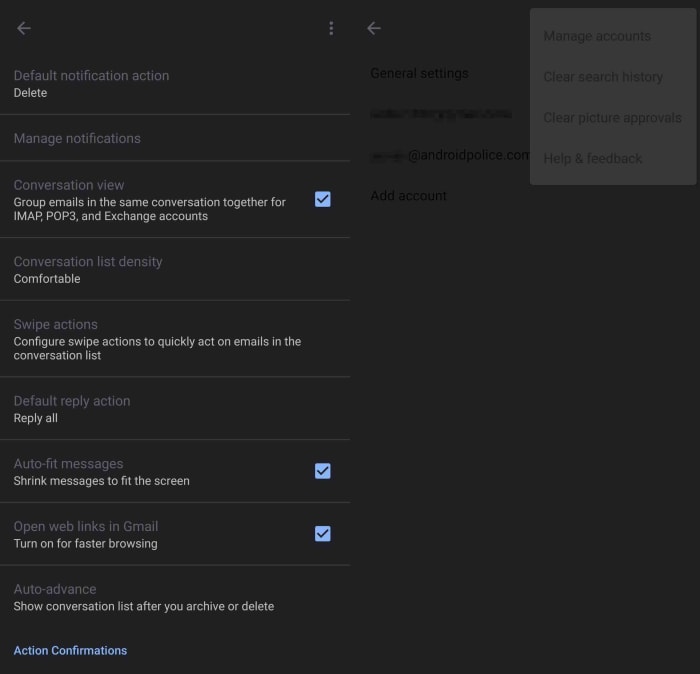
According to some users who’ve downloaded the latest Gmail APK, a basic dark mode has started to appear. The feature isn’t complete yet and only works in certain screens like the settings menu. In some screens, the options are barely visible as Google hasn’t even changed the text color yet, meaning the dark text hardly stands out at all against the dark background.

screenshots of Gmail dark mode

The screenshots above, published via Android Police,  show just how basic Gmail’s new dark mode currently is. There is clearly still a lot of work ahead for the search giant before one of its most popular apps gets a fully functional dark mode. This means it is highly likely that we won’t see an official release of the Gmail dark mode until later this year when Google releases, the as yet unnamed, Android Q.

As is always the case with this type of leak there is no official word from Google on this one. The screenshots are there though, so we know that the Mountain View-based company is working on the feature. It is just a matter of time then and we simply need to be patient.

What is Gmail’s dynamic email feature?

Google’s Gmail dynamic emails explained. What are dynamic emails?

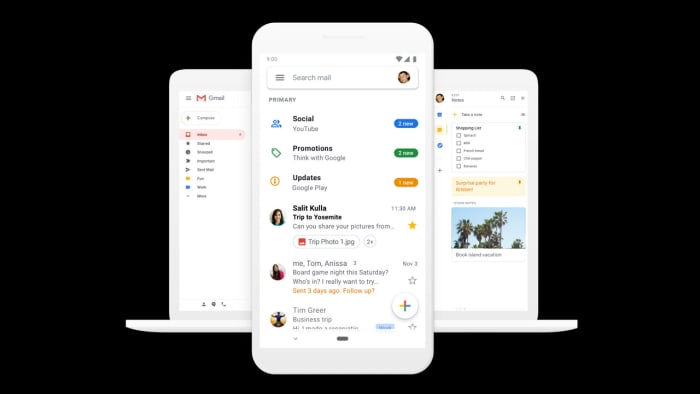
Gmail on laptop and mobile

Gmail is one of Google’s flagship products. It is used by over 1.5 billion people around the world and for years has been regarded as the best free webmail client available.

According to a recent G suite blog post, a rather huge step in Gmail’s evolution is coming on July 2. Dynamic emails promise to have a huge effect on the emails we receive. We’ve already covered Google’s plans for dynamic emails but with their general release now just a matter of days away, we thought it’d be a good idea to go through it all again.

Google’s Gmail dynamic emails explained

At the end of February, we told you about Google’s plans to add AMP (Accelerated Mobiles Pages) to Gmail. Basically, AMP is a new way of loading web pages specifically designed for mobile. The move is designed to make emails more fluid and able to update themselves over time, rather than remaining static. You can receive one of Google’s AMP emails and then when you check it again a week or two later, the information it contains could have changed.

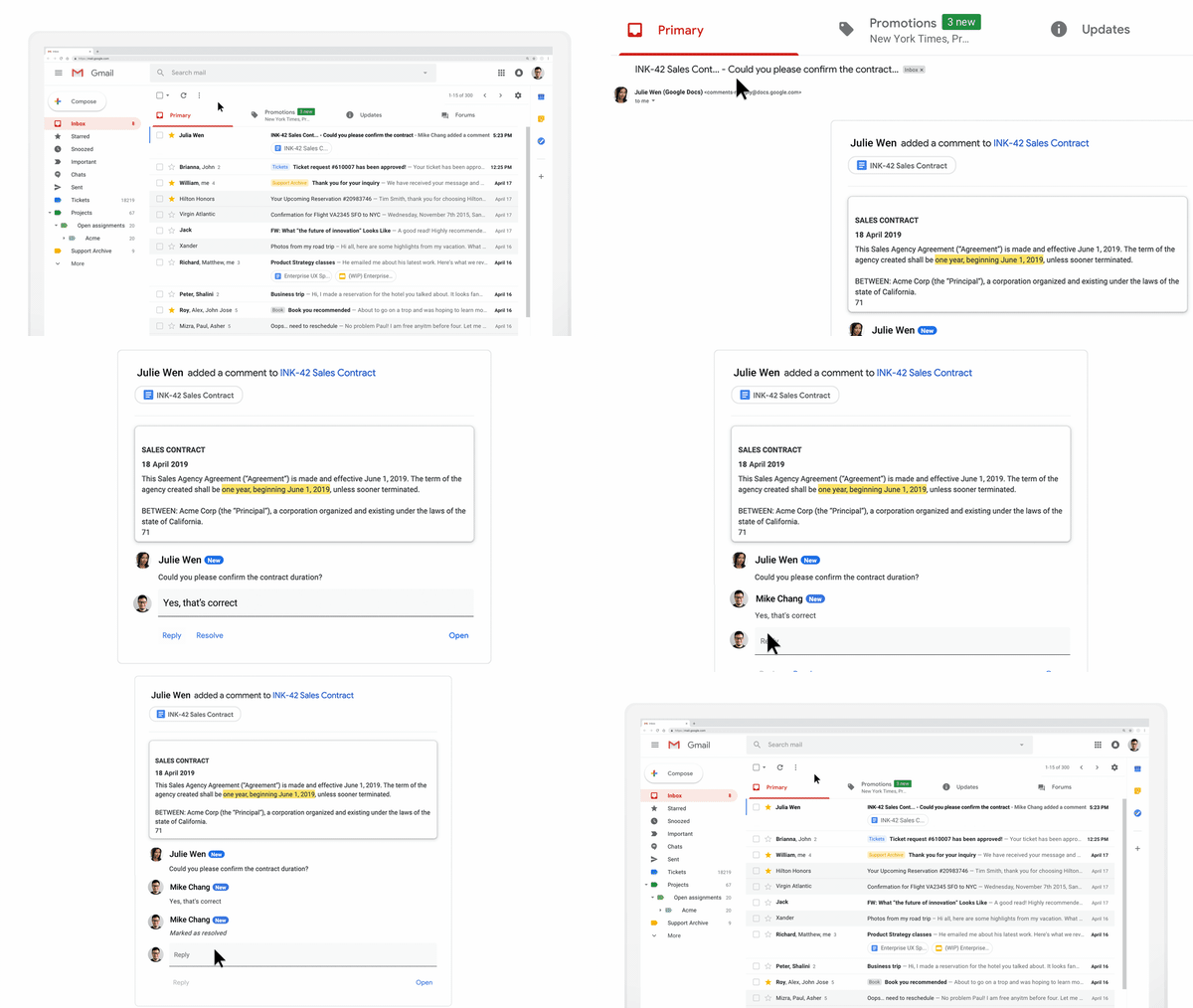
Then at the end of March, we gave you a bit more information about what these special types of auto-updating and even interactive emails could contain. Dynamic emails, as Google calls them can include shopping carts, surveys and forms, and many other types of interactive widgets. One of the particularly cool widgets Google was keen to point out was the Google Docs teamwork integration widget. Dynamic emails make it possible for you to comment on Docs you’re working on with others, which is a huge improvement on simply receiving an email every time you’re mentioned in a comment.

Image via: GSuite Updates

As is usually the case when internet giants make big changes, the main difference you’ll notice with dynamic emails is that you’ll be able to get a lot more done without having to leave Gmail itself. Google says, “With dynamic email, you can easily take action directly from within the message itself, like RSVP to an event, fill out a questionnaire, browse a catalog or respond to a comment.”

Google has promised to perform security and privacy vetting on all companies who want clearance for AMP support so that they can send dynamic emails. In fact, the company has already granted clearance to a number of companies including booking.com. Doodle, OYO Rooms, and Pinterest.

The fact that Google has already signed up a number of partners means that come July 2, when the feature will be enabled automatically for all users, you’ll likely receive a few dynamic emails from one of the pre-approved partners. Don’t expect too many though, as the vetting process needs to rigorous to allay privacy fears, so could take some time.

Google left a number of user passwords unprotected for 14 years

Due to an error from 2005, your password might have been left exposed.

Google password

Google announced in a blog post that they had stored a number of users’ passwords in plain text for about 14 years. The good news is that Google found no signs of a breach or misuse. 

When Google stores passwords, they go through a process called “hashing.” Hashing scrambles a password so that if someone were to get the scrambled version, they would have no idea what your actual password might be. The passwords in question were not hashed and were instead left in plain text. 

Google did not clarify how many user passwords were unprotected.

“We take the security of our enterprise customers extremely seriously, and pride ourselves in advancing the industry’s best practices for account security,” wrote Suzanne Frey, vice president of engineering at Google. “Here we did not live up to our own standards, nor those of our customers. We apologize to our users and will do better.”

7

How did this happen?

Back in 2005, Google made an error when creating their new password system. Google ended up fine-tuning their hashing system, and those passwords ended up making it to their hashing system. However, the error persisted.

While troubleshooting G Suite customer sign-up flows, Google discovered that the error was still there. A subset of some unhashed passwords remained in Google’s system for a maximum of two weeks at a time. Google has removed the error.

Google Docs Download free ►
8

Should I be worried?

Short answer: not really.

Google did not suffer a breach that led to your password getting stolen by a hacker. The company was careless in how it protected some of the passwords, but they have rectified the problem.