How to use Gmail’s new email scheduling tool

This is how to schedule an email on Gmail.

Gmail background

On April 1 Google announced that it was finally adding a “Schedule email” feature to Gmail. The feature has been rolling out since, but as there are over 1.5 billion Gmail users around the world, it is taking a while for everybody to get the update. Don’t worry though, it is coming and if you haven’t got it yet, you’ll have it soon enough.

Gmail’s new Schedule email feature will work on both personal and enterprise Gmail accounts and allows users to schedule emails up to a whopping 49 years in advance. Yep, if you think you’ll have the same email address in the year 2068, you can schedule an email to yourself to see how things are going in the future.

Gmail Access now
8

How to schedule emails on Gmail on the web

The new scheduling feature for Gmail is simple. So simple that it should kill off all those third-party apps and extensions that popped up over the years trying to fill the scheduling void that Google had left in Gmail. They’re simply not needed anymore. All you need to do to schedule an email using Gmail is:

Step 1

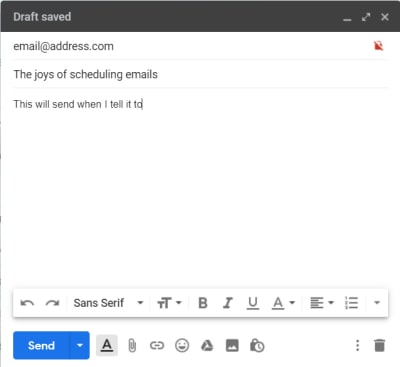
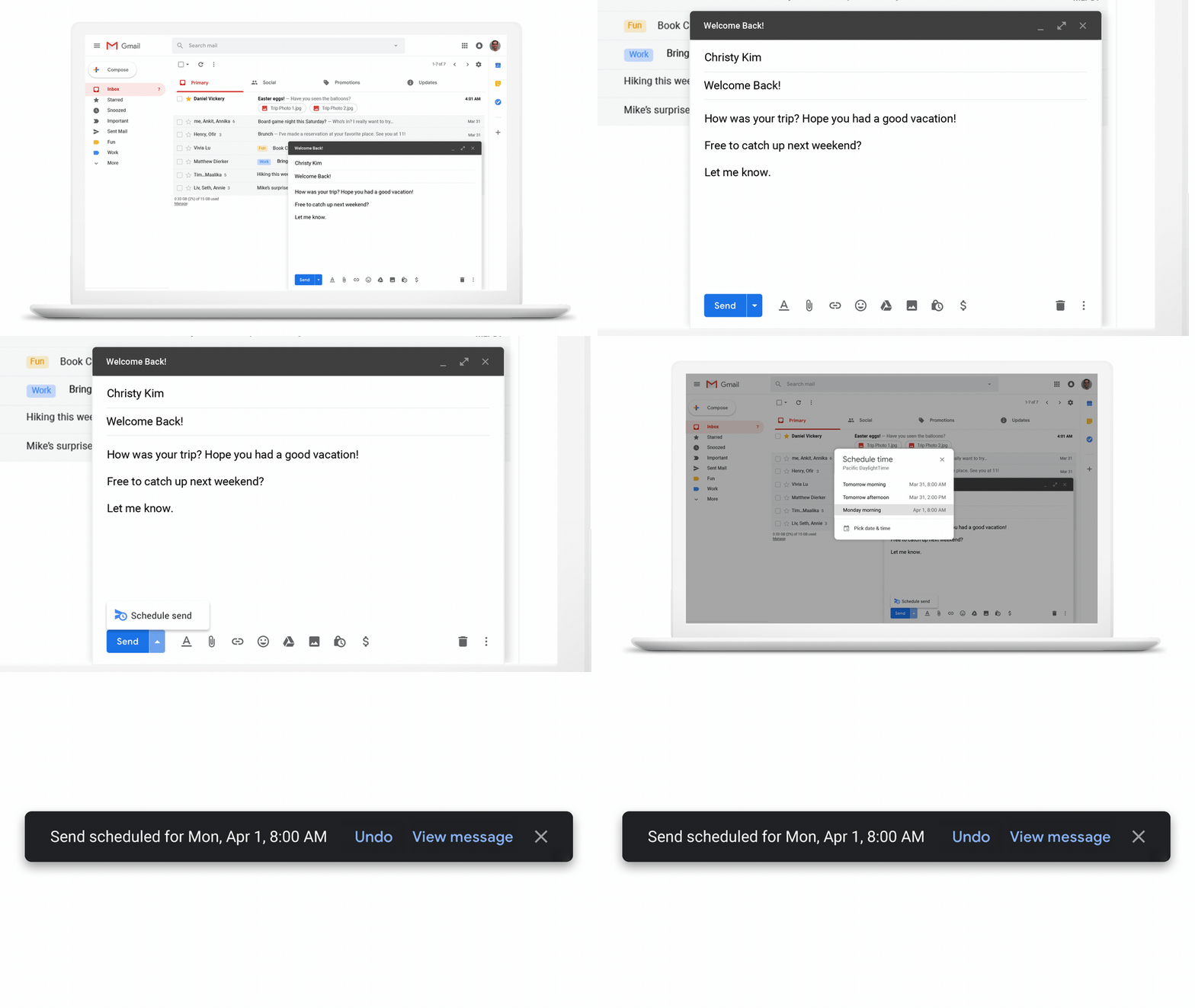
Writing an email on Gmail

Write out your email as you normally would.

Step 2

The new Gmail Send button with the schedule arrow

Then, when you’re ready to schedule it, click the small arrow icon next to the Send button.

Step 3

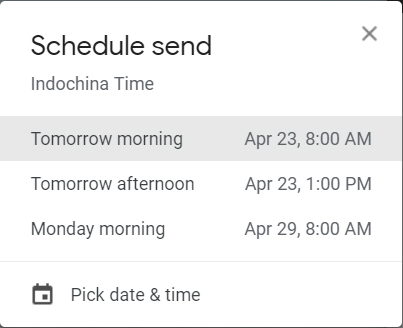
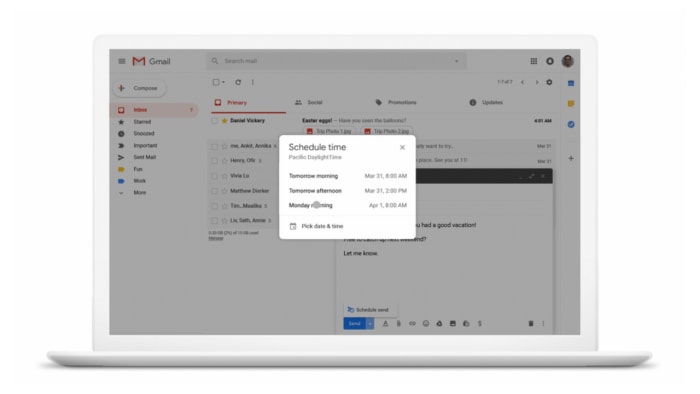
The new Schedule send menu for Gmail

Clicking Schedule send will bring up the menu that lets you decide when you want the email to arrive in the recipient’s inbox.

Step 4

Send scheduled for on Gmail

Once you’ve decided on the time and date, click Schedule send and rather than seeing the usual “Email sent” you will see the “Send scheduled for…” message including the time and date you’ve selected.

This is how to schedule an email on Gmail using the app on your phone

Step 1

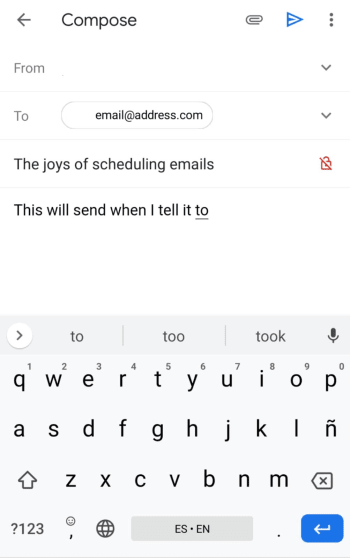
write an email gmail mobile

Write out your email as you normally would.

Step 2

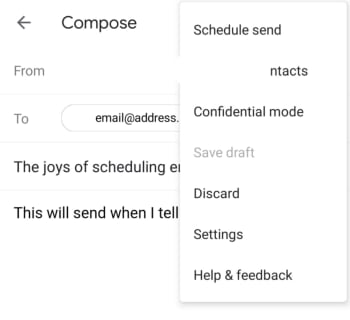
gmail schedule send mobile

Hit the three vertical dots icon next to the Send button and select Schedule send.

Step 3

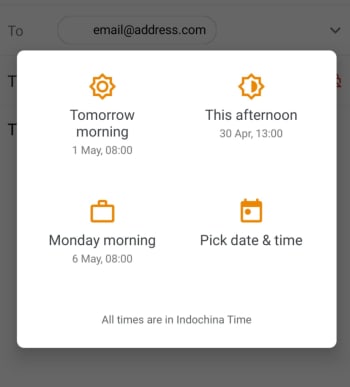
gmail schedule email mobile

This will bring up the menu that lets you decide when you want the email to arrive in the recipient’s inbox.

Step 4

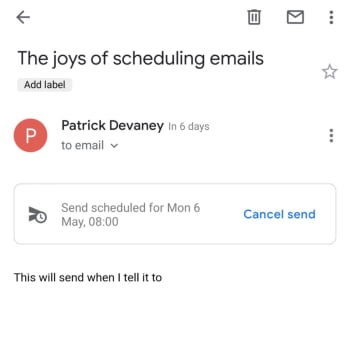
schedule an email using gmail on mobile

Once you’ve decided on the time and date, click Schedule send and rather than seeing the usual “Email sent” you will see the “Send scheduled for…” message including the time and date you’ve selected.

The new feature is also good if you’re the type of user who constantly notices mistakes once you’ve sent the email. Scheduling an email will save it as a draft, so if you always schedule your emails to send an hour after you’ve written them, you’ll be able to check everything a little later on before Google pings it off to the recipient.

To check an email that has been scheduled all you need to do is click Scheduled in the side menu and then select the email you want to check. You can then edit the email to change out any mistakes or delete it and cancel the send altogether. At this stage, you can also change the time and date the email is scheduled to send.

This Chrome extension makes Gmail easier to use

Simplify has been designed by one of Gmail’s former lead designers and cuts down all the clutter.

Simplify Chrome extension for Gmail

Gmail has a whopping 1.5 billion users worldwide, so Google has obviously done something right. If you ask any of those 1.5 billion users, however, we’re sure each of them would have their own little gripes as Gmail also has its fair share of problems. One of the major gripes would be that Gmail is too complicated.

There is good news though, for anybody out there who thinks Gmail has too much going on. If you only ever press a tiny fraction of the buttons you can see when you open Gmail, and don’t even know what half of the Gmail features are for, you might want to simplify Gmail, which you can now do thanks to a nifty little extension for Google Chrome.

Gmail Access now
8

Simplify has been designed by one of Gmail’s former lead designers and cuts down all the clutter

Between the years of 2005 and 2018, Michael Leggett was at the forefront of the tech world, working as a designer for both Facebook and Google. One of his major projects was working as a lead designer on Gmail. He’s since left the two titans of tech to work on a project that aims to reverse climate change, but he also has a pet project. In his spare time, Leggett has been working on an extension for Google Chrome that simplifies the Gmail interface on desktop.

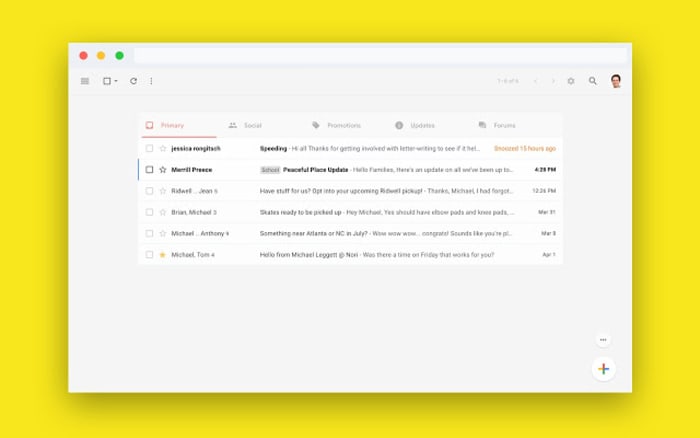
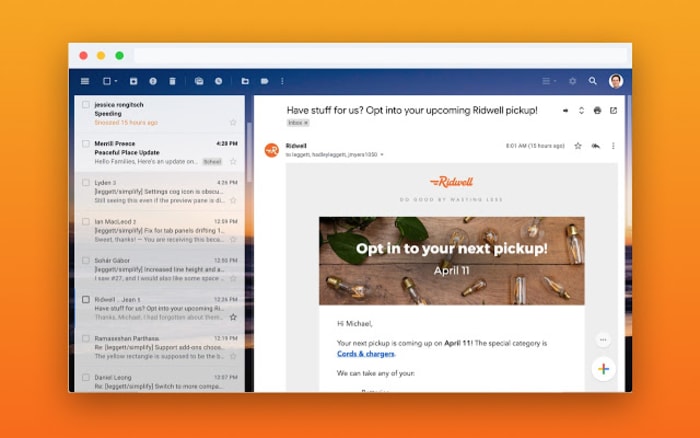
Rather imaginatively, Leggett has decided to call his extension Simplify, presumably because that is what it does. It takes the Gmail interface and makes it much simpler by moving around a few key features and making it easier to hide others that aren’t used much at all. The search bar has been moved up to the top-left of the screen, rather than going right across the top and all the sidebar options have been moved into drop-down and pull-up type menus. Another cool change is that Simplify moves the primary functions bar to the top of the screen rather the top of the inbox.

A screenshot of the new Simplify extension for Chrome
The sidebars can be removed altogether to offer a much cleaner interface

Another big deal about Simplify, considering it is an extension that works with your email inbox, is that doesn’t collect any data and won’t serve up ads. The Simplify page on the Chrome web store says, “Simplify is mostly some CSS plus a little Javascript to apply the CSS. There are no trackers. No data is sent or shared.” If you’re ever downloading anything that will have access to your online accounts, you need to make sure you’re not handing over too many permissions. That Simplify clearly states it won’t collect any of your data is reassuring.

A look at a simpler Gmail interface
Simplify states that it has no trackers and will not harvest any user data

All in all, Simplify is a solid extension for anybody who feels a little overwhelmed any time they open their Gmail inbox. If you miss the recently dropped Inbox, you should give it a try. You can add Simplify to your Chrome browser by clicking here.

Gmail finally allows you to schedule emails

Gmail now lets you schedule emails to arrive later.

Gmail recently became 15 years old and to mark the occasion Google was keen to point out all the growth that its email service has gone through in all that time. As well as trumpeting some of Gmail’s latest and greatest features, Google also introduced a new Gmail feature that will be a big help to most Gmail users. In fact, this is such a simple email feature, it is a wonder that it has taken Google this long to introduce it.

Gmail now lets you schedule emails to arrive later

Schedule email on Gmail

There are plenty of reasons to schedule an email to send later rather than as soon as you’ve written it. Did you know that Tuesday afternoon is the best time to send in a job application? What about emailing your boss or a colleague outside of work hours?

Whatever the reason, scheduling emails to arrive at a later time or date is an essential email feature. So much so that its absence from Gmail through the years has spawned a multitude of third-party apps and extensions that allow users to do it. From the Boomerang Gmail extension to the Schedule Email Google Chrome extension, for years, Gmail users have gone elsewhere if they wanted to schedule an email they’ve written rather than send it immediately. Google has finally moved to change this.

Boomerang for Gmail Download now
8

Google cited users’ digital well-being as the reasoning behind the overdue introduction of email scheduling. The blog post announcing the new feature says, “We understand that work can often carry over to non-business hours, but it’s important to be considerate of everyone’s downtime. We want to make it easier to respect everyone’s digital well-being, so we’re adding a new feature to Gmail that allows you to choose when an email should be sent.”

Image via: Google

The new feature has been rolling out for nearly two weeks now, but it still hasn’t reached everybody’s mobile phone. If you don’t have access to it yet don’t worry, it is coming.

As soon we have it, we’ll post a tutorial showing you how to use it. Word is, it is super simple and shouldn’t give you too many problems. The feature is being released in a way that you should receive it on your phone at the same time you gain access to it on Gmail via your web browser, too.

Gmail Access now
8

Gmail also used its 15th birthday to release some big stats and announcements about its new AI-fueled Smart Compose feature. According to Google, Smart Compose is already contributing over 1 billion characters to users’ emails every week. This number is due to leap even higher as the feature is also due to roll-out to iOS soon and will also be available in four new languages: Spanish, French, Italian, and Portuguese.

Google is introducing interactive emails for Gmail

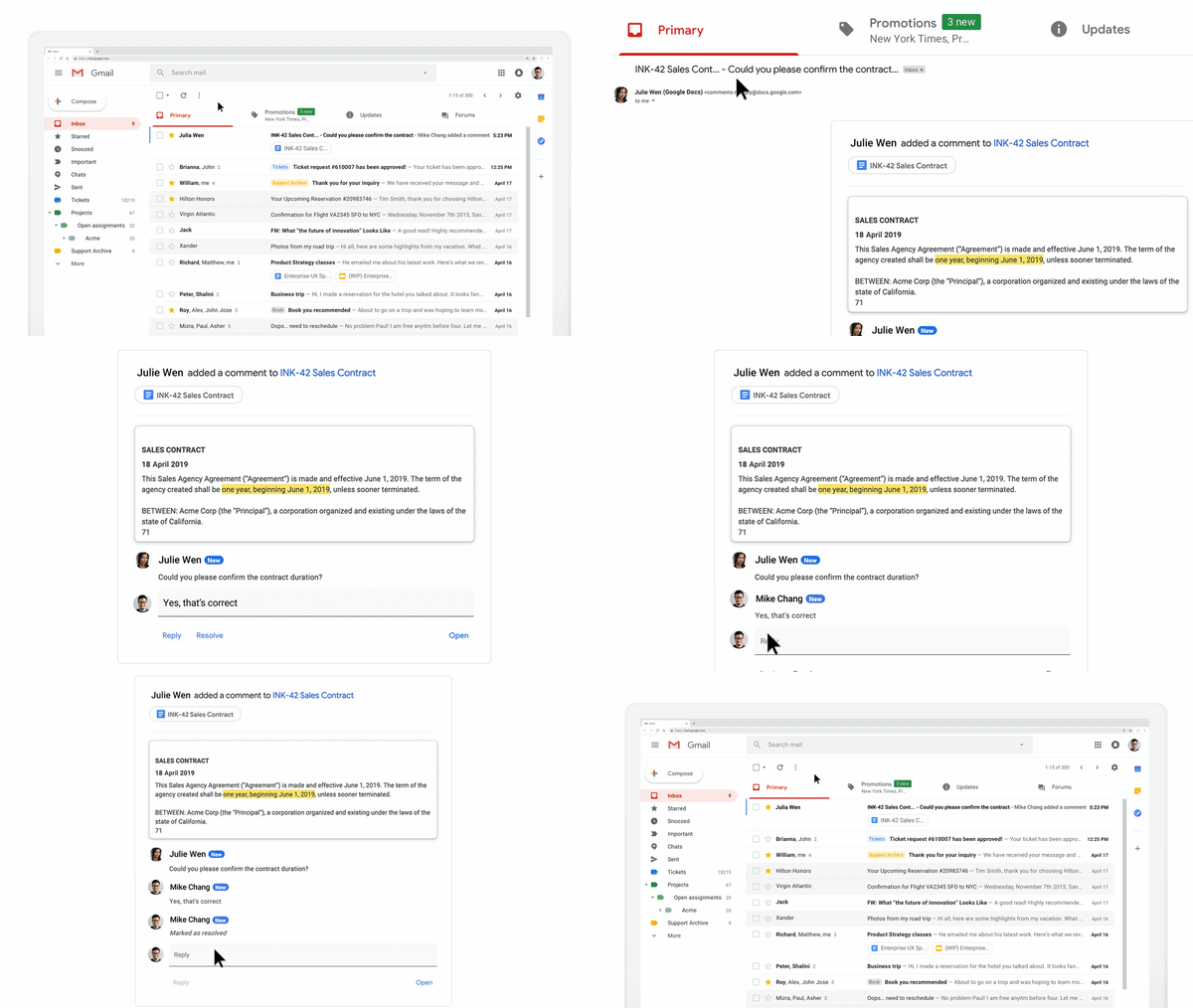
AMP will introduce shopping carts, surveys and forms, interactive widgets, and more to the emails in your Gmail inbox.

Last February,  Google first announced its plan to add AMP to Gmail. AMP, which stands for Accelerated Mobile Pages enables developers who follow Google’s guidelines to have their content accessed more quickly, allowing a chance to display better and more dynamic content. Now, more than a year after the first announcement, Google is finally releasing a beta of AMP for Gmail to its G Suite audience.

AMP will introduce shopping carts, surveys and forms, interactive widgets, and more to the emails in your inbox

Gmail interactive emails amp

What Google is calling dynamic email will have a major impact on the messages you receive in your Gmail inbox. In theory, that means you won’t have to leave Gmail to handle your business. As well as adding interactive elements, email content in dynamic emails will be able to update itself so that emails never become old.

8

According to the Google Keyword blog, which announced that AMPed up emails were finally landing on Gmail, “Your emails can stay up to date so you’re always seeing the freshest information, like the latest comment threads and recommended jobs. With dynamic email, you can easily take action directly from within the message itself, like RSVP to an event, fill out a questionnaire, browse a catalog or respond to a comment.”

Via: Google Keyword

The simplest example Google gave is of comments in Google Docs. Rather than receiving a notification every time somebody mentions you in a comment, the email will include an up to date thread where you’ll be able to comment yourself. This is much better than a simple link to the comment inside Google Docs.

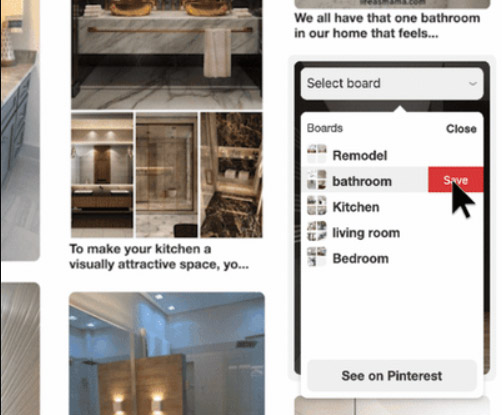
As well as introducing its own Google made widgets, Google was also pushing the third-party widgets that are already doing the rounds. These include widgets from the likes of Pinterest, booking.com, Doodle, and more.

Pinterest integration with AMP for Gmail
You can now save images to your Pinterest boards from inside an email.

Response to the introduction of AMP into Gmail is mixed. Where as it can’t be denied that the added functionality will help users in some situations, people are highlighting the heavy cost for the privilege.

As well as facilitating quick responses and adding web page like features to your inbox, AMP could limit your personal privacy and give advertisers and vendors a new place to bombard you with whatever they’re trying to sell. Many users on Reddit have already started repeating the old adage, “If it is free, then you are the product.” Another issue for Gmail’s new interactive emails could be complexity. Are emails supposed to be so complicated?

For now, the feature is available to users on desktop only, but Google was keen to point out that it will be coming to mobile soon.

What are your thoughts on interactive emails?

All the features of Gmail’s 2019 refresh

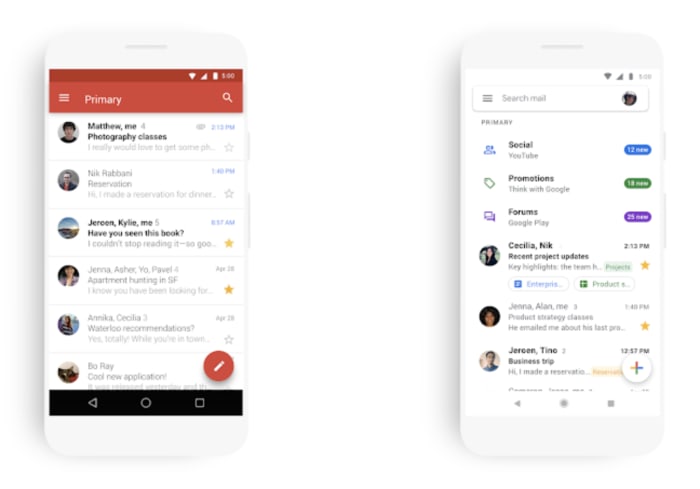
Gmail has a new look for 2019. What else is new?

Last year, we got email snoozing and a nudging feature where Gmail gently reminds you to follow up time-sensitive actions.

Arguably, Gmail’s best update of 2018, however, was smart reply, the AI update that literally finishes your sentences, so you can put minimal effort into your “just following up” replies.

This year, Gmail’s gone all white and made inbox clean up a little easier.

The 2019 updates aren’t quite as dramatic as last year’s, but they might help you focus.

Google says the new look is minimal use of color, designed to help you focus on the content you think is important, not that pesky red bar at the top (RIP??).

Gmail’s most recent changes

gmail

Why the whitewashing?

According to Google’s blog, the new look is part of an effort to make the full G Suite feel like a family of products, not separate apps.

So, on a visual level, we’re getting new design elements. For one, Gmail has made the switch to the Google Sans (or Pixel) font, ditched the familiar red bar, and replaced it with a minimalist search bar that promises not to get in the way.

Of course, it looks great — certainly in line with those work environment apps that give you a blank canvas so you can organize those digital thoughts. It’s amazing what taking away that red bar can do.

old gmail new gmail 2019

What else is new?

On mobile, Gmail offers a handful of new features that make it easier to review messages on your phone.

You can now look at photos or attachments from your inbox, without opening the originating message. The benefit is you’ll save some time. No more clicking through each entry in the thread to locate a specific document.

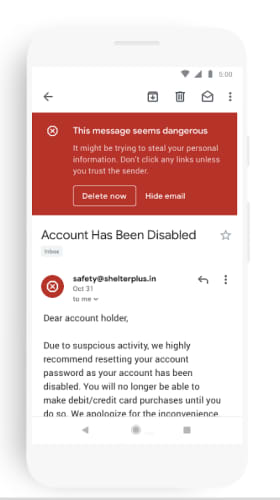
While Google has done away with its signature red bar, they are still using the color, but it’s more intentional. For example, a thick red bar warns you if someone is attempting a phishing attack.

gmail's bar now just for phishing alerts

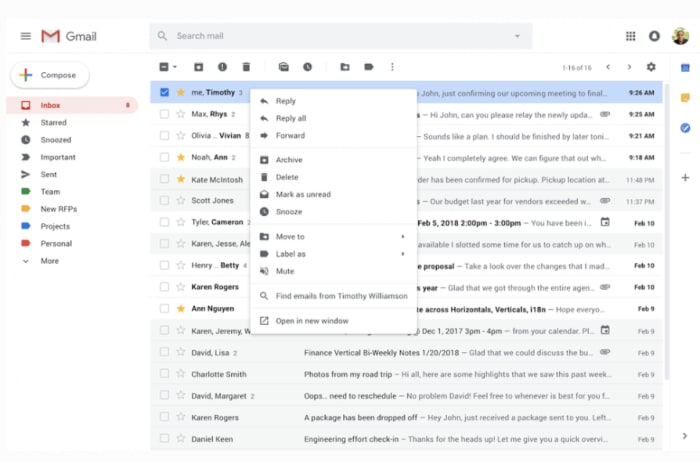
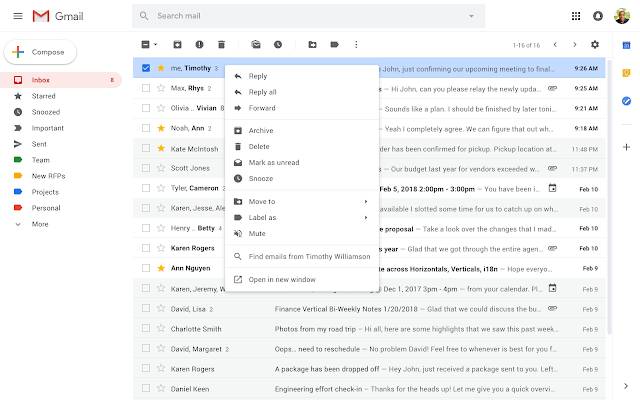
Right-click options expanded

gmail's expanded right click options

Aside from the bright white makeover, Gmail has added some convenient shortcuts that make it a whole lot easier to clean up the inbox.

As it stands, right-clicking on any given Gmail message only gives you three options: mark as unread, delete, and archive.

The limited menu has worked out fine for the past several years. However, the lack of options has been a slight annoyance since the birth of Gmail.

New options allow you to take more actions from the inbox without opening the message. A quick rundown of what you can expect to find now:

  • Reply to an email or forward it along to another user.
  • Search for all emails from a specific sender
  • Search for emails with the same subject
  • Add a label or move an email
  • Open multiple emails in new windows

Menu options change depending on whether “conversation view” is enabled.

Conversation view is the setting within Gmail that allows you to set whether emails of the same subject are grouped together — alternatively, you can keep this turned off, so emails appear in the order they were sent.

TL/DR: 2019 changes are small but positive

Gmail’s latest updates seem like small potatoes compared with the big deal offerings Google gave us last year. The new interface does have a different feel — but after you adjust to the shocking bright white, you’ll probably like it better.

After nearly a full decade of smartphone apps layered one on top of the next, we’re starting to feel overwhelmed by all of our tools. Google’s material redesign doesn’t mean much for functionality, but it does answer a small call for help — an uncluttered space where you can reliably get some thinking done.

As far as the mobile updates go — the right-click menu has been an annoyance since Gmail came on the scene. Less clicking around might not seem like much, but it’ll shave seconds off of your quest for inbox zero. Hey, it all adds up.

Gmail on Android can now write your emails for you

Gmail Smart Compose is now available on all Android devices.

Google is constantly trying to save us time. The internet giant does this by trying to shave seconds off the common tasks we perform every day. With over 1.5 billion Gmail users, the email client offers Google a great way to do this.

We first brought you news of Gmail’s Smart Replies way back in July 2017. Now almost two years old, Smart Replies have been helping Gmail users write simple email responses by offering three possible answers based on the text in the email they’ve just received.

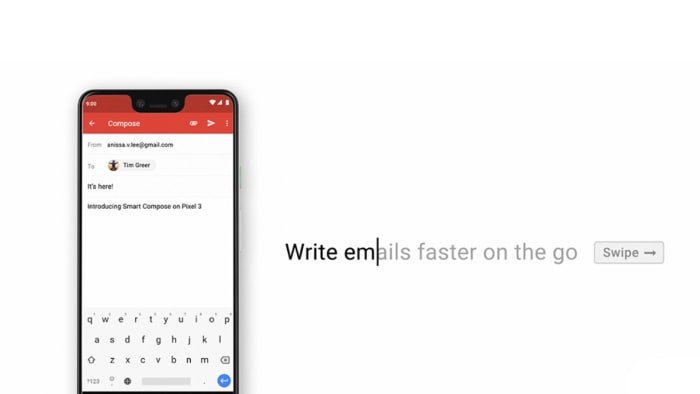
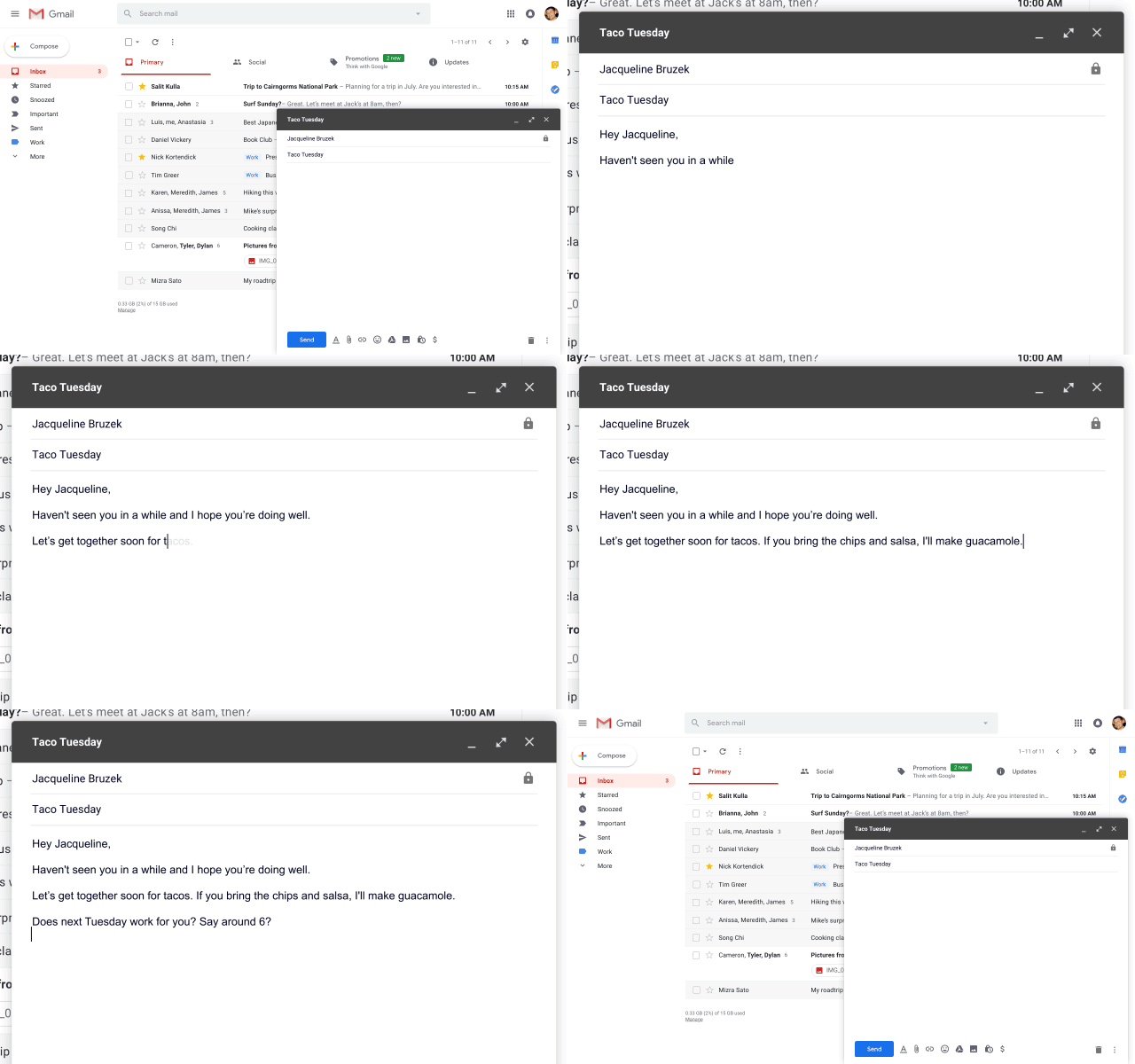
Then, back in May, Google first introduced Smart Compose to Gmail on desktop. Smart Compose is a much more contextually rich feature as it is there to help you write all your emails rather than simply offering possible responses. As you write your emails, Gmail is constantly trying to predict what you might be typing to offer you suggestions based on your email writing habits. This handy feature came to Google’s flagship Pixel 3 phone in October and now, the mobile roll-out of the Smart Compose feature has gone one step further.

Gmail smart control on Android devices

Gmail Smart Compose is now available on all Android devices

Smart Compose arrived on a select group of Android handsets; including the Pixel 2, OnePlus 6T, and Galaxy S9+, but the roll-out has now spread to all Android devices. If you have the Gmail app on your Android device, you should receive a message inside the app telling you that the feature is now active and showing you how to use it.

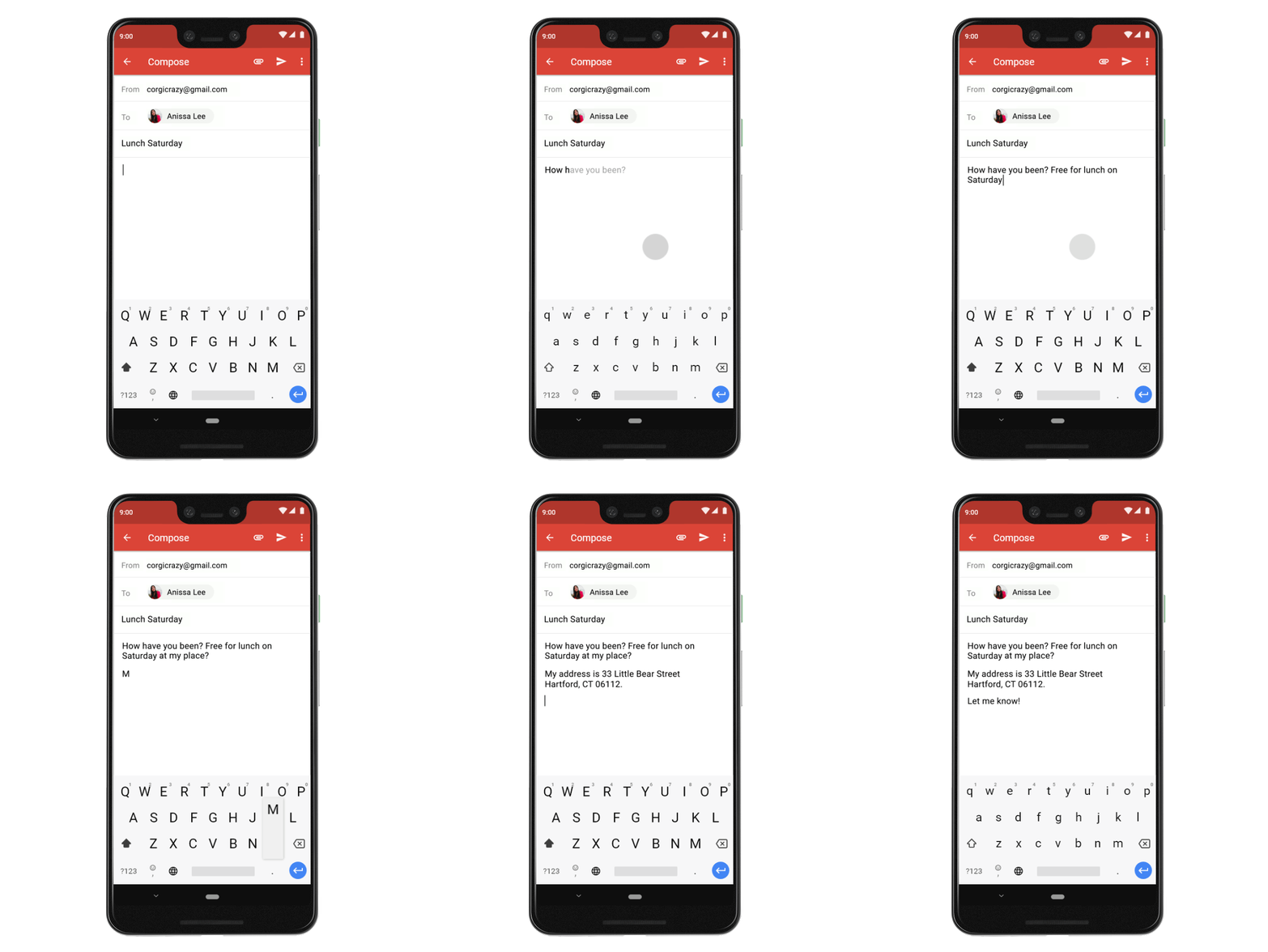
On desktop, the feature works by showing you the proposed text to complete your sentence and then gives you the option to press the Tab key or the right cursor key to fill in the words based on Gmail’s suggestion. On mobile, the principle is the same, it is just the execution that works a little differently. Whenever Gmail Smart Compose makes a suggestion you can accept it and include it in your email by swiping your finger right across the email you’re writing.

Features like Smart Replies and Smart Compose are two of the ways that Google is trying to leverage its huge AI advantage to boost its core products. AI, however, is not without its problems and Smart Replies has already seen its fair share of issues. It was only in November when Google had to pull gendered pronouns from Smart Compose as Gmail was making biased assumptions about which genders did which jobs.

How to disable Gmail Smart Reply and Smart Compose

If the above problems put you off these new AI-based features or if you simply don’t want to use them, you can disable them. To do so all you have to do is open the Settings menu and then uncheck the boxes next to both features.

Gmail update will make your email inbox much more functional

Gmail is overhauling and updating its right-click feature.

Gmail is the preferred email client of 1.5 billion people around the world. That means any and all changes to Gmail will affect, in one way or another, the lives of almost a quarter of all people on the planet. We’re very happy to fill you in on what is going to be a very positive change to the way Gmail works.

Gmail Access now
8

Gmail is overhauling and updating its right-click feature

I know what you’re thinking. That sub-headline is hardly a thing of rock and roll legend, but bear with me. At the moment, right-clicking in Gmail will only bring up a very limited four option menu. These are the Move to tab, Archive, Mark as Read, and Delete options. You can already see just how useful these features are in an email inbox context. They’re probably the most used email features, which is why Google likely chose them for its right-click menu in the first place. Having these features just one click away makes it a lot easier to stay on top of your inbox. Ask yourself though, why could right-clicking not do more?

It seems that is exactly what Google has been asking itself recently and now it looks like the internet giant has come up with a few answers. In a recent blog post, Google announced that it has begun a phased roll-out of a ton of new features for Gmail, including a new and improved right-click menu. Yep, it is all happening already. There is a chance the new features will already be available on your Gmail. If they’re not, all you’ll have to do is be patient. They’re on their way.

new improved right-click on Gmail
Image via: Google

Once the update hits your Gmail account, what can you expect to see? The new right-click menu will include a whole host of new options like Reply, Reply all, Forward, Archive, Delete, Mark as unread, Snooze, Move to, Label as, Mute, and Open in new window. These are all commonly recognized email tools, but you’ll also see a cool new feature, which will allow you to search your inbox for all emails written by the author of the message you’ve right-clicked on.

The Mark as read option is no longer on the right-click menu, which means now you’ll have to select the email you want to mark as read, using the tick box to the left of the message in your inbox. Then you’ll need to hit the Mark as read icon at the top of the page, just below the search bar.

All-in-all this is a small change, but it is one that could have a big effect on the productivity of a lot of people all around the world. Let us know if you think this will affect how you use Gmail in the comments below.

Gmail now blocks an extra 100 million spam messages every day

Google is winning the battle against spam 100 million emails at a time.

gmail

Google has been putting a lot of work recently into drowning out all of the annoying background noise we have to deal with as constantly connected and contactable citizens. The Google Phone app now automatically redirects unsolicited calls and the Google Messages app does the same with incoming SMS messages. Google is working hard to drown out spam emails too. Gmail has long been touted by the search giant for blocking 99.9% of all incoming spam emails. A recent blog post claims that the world’s leading email client is now stamping out an additional 100 million spam emails every day.

Gmail Access now
8

The news comes on the back of Google implementing TensorFlow to protect your inbox and detect the spam emails. TensorFlow is a new Google-developed open-source machine learning framework that works alongside Google’s current detection protocols. Google had this to say about how TensorFlow has helped Gmail find even more spam emails:

“We’re now blocking spam categories that used to be very hard to detect. Using TensorFlow has helped us block image-based messages, emails with hidden embedded content, and messages from newly created domains that try to hide a low volume of spammy messages within legitimate traffic.”

The interesting thing to note here is that although it sounds massive, 100 million spam messages a day isn’t actually that much in the grand scheme of things. Gmail has 1.5 billion users, which means blocking 100 million spam messages a day only stops a spam message getting through to one in 10 users on a daily basis.

Gmail spam blocker

Google is winning the battle against spam

As always, however, context is king in this situation. On its own, blocking a spam message a day for one in 10 users isn’t much at all. When you think though that these messages are extra on top of the 99.9% of all spam messages that Gmail allegedly blocks already then it becomes much more impressive. Being able to successfully target that 0.1% of spam messages shows that TensorFlow is able to work to a very high level of accuracy.

In fairness to Google, although 99.9% might sound like hyperbole, it has been a long time indeed since we’ve had to deal with spam messages making it through to our primary Gmail inboxes. Spam isn’t something that Gmail users have to deal with on a daily basis anymore. It is good to see though, that even if it is only a small problem Google is still working on rooting out those few fake or spam emails that still make their way into our inboxes.

Can anyone overthrow Gmail? A look at the competitors

Considering a new email address? Maybe Gmail isn’t the way to go.

email

Chances are, you and all of your friends have a Gmail account. With a whopping 1.5 billion users, there’s a clear market preference.

Outliers seem to be limited almost exclusively to business emails, which, chances are, are linked to a Gmail inbox. Or, of course, the biggest competitor, Outlook.

But, it got us thinking, is Gmail better than anything else, or is the ubiquity chalked up to branding and aesthetics, in the same way that Apple has the market cornered on phones?

Gmail, of course, comes with a long list of benefits. They’ve added some welcome changes like predictive email text, which learns from your communication habits over time.

And there’s the fact that the platform is one piece of the Google suite — access your documents, plug into your browser, and you’ve got this interconnected system of tools. Pretty useful, right?

Anyway, Google has long had an impressive cloud-based AI built into their solution — this is how they identify spam, tag your senders, and keep unwanted addresses from making their way into your priority inbox.

But, it’s worth pointing out that some of the competitors out there have pretty solid solutions themselves. Here’s a look at some of the competing tools.

Best Gmail alternatives

Zoho Mail
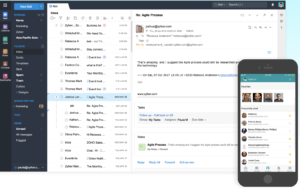
zoho mail screenshot

Zoho, maker of a ton of free and affordable business tools has provided free hosted email for over a decade. G Suite’s professional Gmail accounts are $5 and $10 per user per month, so small businesses might like the fact that Zoho’s solution allows you to have a professional email for free.

Some key features include integrations with Zoho’s tools, like the CRM, Office features, and cloud-based collaboration. The collaboration features might work better for companies that do most of their collaboration internally, as this is basically an alternative to Google Docs — which most people have.

That said, some users have mentioned that this isn’t necessary as reliable as Google, especially in a business context. Zoho comes with a lot of features and it could help you become more efficient over time.

Yahoo Mail
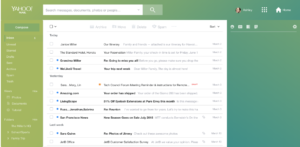
Yahoo Mail Inbox

Yahoo Mail has been around for a long time. We’d even venture to guess that you used this tool before switching over to Gmail.

After a 2013 data breach, Yahoo Mail added extra security and new features. It’s had trouble shaking its old-school reputation, but the new Yahoo Mail is actually pretty good.

Like Gmail, Yahoo offers three different inbox layouts and you can customize spacing, color scheme, and so on.

Compared to Gmail, Yahoo’s organization process is a little different. Where Gmail allows you to set up tabs — Primary, Social, Promotions (customizable) Yahoo opts to sort emails by photos, documents, coupons, travels, and tutorials. (Which is a little strange, but you do you, Yahoo.)

Yahoo also provides some decent filtering options, but Gmail is ultimately more useful — allowing for more filtering criteria.

Apple iCloud Mail

iCloud Mail

Apple’s email is free to anyone who signs up for an Apple ID. The iCloud mail has its fair share of fans, as its clean and simple, just like your iPhone and Mac.

Pros include 5GB of free online storage which spans calendars, backups, and documents: this includes everything — from photos to your email activity. You do have the option to buy more space, if needed. The app is ad-free, which could be a selling point in and of itself.

Unfortunately, iCloud Mail does not come with labels and search folders.

So this is not the best option for the Inbox Zero-obsessed users who file emails away as they work through the inbox. You also can’t access multiple email accounts from the web app, and mail is not accessible via POP.

Compared to Gmail, iCloud mail is pared down, ad-free, and feels like its designed for the no-frills user. iCloud won’t cut it for business — there just aren’t enough features. But, it’s a solid option for those who aren’t email power users.

Outlook
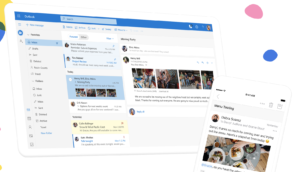
Outlook Interface

Microsoft’s Outlook is part of a suite of applications that allows you to stores emails, attachments, and organize your activities within your inbox.

Compared to Gmail, Outlook is the strongest competitor in the space. Microsoft offers integrations with the Office Suite, cloud storage, and an Immersive reader.

You can also open photos in the integrated photo viewer and save them to your OneNote Account. The platform integrates with Box, Google Drive, and Dropbox, and they turn blocking unwanted emails into an art form.

Both Gmail and Outlook offer 15 GB of storage free, however, Office 365 accounts offer 50 GB of storage. Labels and folders come down to a matter of preference. Outlook’s approach allows you to have labels and folders within the same system. Gmail’s labels are a way to sort emails into folders.

There’s always AOL, too

Interestingly, AOL is trying to work it’s way back on your radar—just in time for Web 3.0.

We recently came across a HubSpot article that mentioned AOL’s email offering has unlimited storage. Still, we wonder whether it matters that AOL isn’t exactly fashionable in this day and age. Honestly, the internet hasn’t been around long enough for us to know whether it’s possible for a former titan to reclaim its crown.

Final thoughts

In the end, we don’t know if Gmail is the best email hands down. But things like the organizational tools, spam filters, and all-around reliability make us unlikely to forego our existing addresses for an iCloud inbox or looking back at AOL.

It is clear that because we’re all so used to using Google’s tools for much of our internet activity, that it makes sense to want to maintain that seamless experience.

It’ll be interesting to see which email providers stick around and whether we’ll make space for anything new. Newcomers have an uphill battle ahead, to be sure.
 

How to use Mailtrack to see when someone opens your email

Here’s how to know if someone read your email.

email

Do you find yourself wondering whether someone has opened the email you sent them? With the Mailtrack browser extension, you can find that out easily! The basic version of Mailtrack is free. But for just $5 a month (with an annual plan), you can get the pro version, which you can use for several different emails.
Stop feeling so in the dark. Follow these three simple steps to get Mailtrack so you never have to wonder again whether someone opened your email.

How to use Mailtrack to see when someone opens your email

1. Install Mailtrack

Mailtrack is a browser extension that works with many browsers such as Google Chrome, Firefox, and Opera. Also, Mailtrack is compatible with Gmail. Find it online at mailtrack.io/en.

2. Send an email

When you send an email with your Gmail account, Mailtrack will add a check mark next to the email in your Sent box. This check mark next to the email lets you know that the email has been successfully sent to the recipient. If the email bounces or cannot be delivered to the recipient, then the check mark will not appear next to it.

3. Check to see if your email has been read

Finally, once you send an email, you can sit back and wait to see if the recipient opens it. You will know it’s been opened because a second check mark will appear next to the first one and you’ll get a real-time notification.

If you’re looking for an easy-to-use email tracker, give Mailtrack a try.