
7 fixes to make your Chrome run faster

These 7 tips will help you make Chrome go faster

Make Chrome go faster

If you’ve had more than a couple of Google Chrome tabs open at the same time, you’ve likely had to endure long waits for your web pages to load. It isn’t just your browsing experience neither. Chrome is such a RAM hog that it’ll slow down everything you try to do on your device. The Google Chrome browser is famous for slowing down Androids, iPhones, PCs, and Macs.

That’s why we’re here. We’re going to show you some of the best ways to make Google Chrome run faster. If Chrome is running slow on your PC, check out some of these little tweaks that could make Chrome faster for you.

7
Chrome is a young, fast browser that can browse any web page. It supports all major technologies and standards such as HTML5 and Flash.

How to make Google Chrome run faster

Close tabs
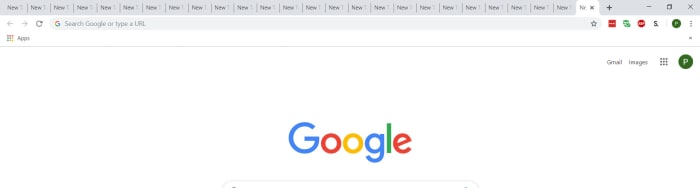
Too many Google Chrome tabs

The reason Chrome is so quick to slow everything down is that it needs a lot of memory to do its thing. Chrome is a famous RAM sink. This means that having multiple tabs open at once will multiply Chrome’s famous ability to hog up all of your system’s memory. You’ll have probably noticed that whenever Chrome takes longer to load pages you probably have more tabs open than you’re actually using. Closing these tabs will free up system memory and could get your web browser and computer running at full speed again.

Delete unnecessary Chrome extensions

Chrome extensions

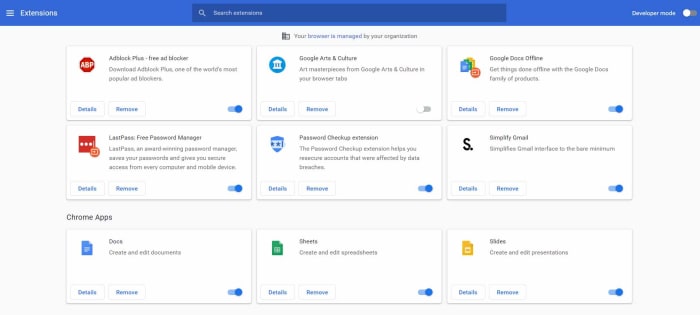
This one works in a similar way to tabs. If you have extensions that you’re not really using running in the background ,they’ll be using your system’s resources. This will slow Chrome but also other operations on your PC too. You might even have Chrome plugins installed on your Google Chrome browser that you can’t even remember installing in the first place. Get rid of them and see how much faster things start to work again.

To remove Chrome extensions type chrome://extensions/ into the address bar and hit Enter. You’ll now see a list of all the plugins you have installed on your version of Google Chrome. You’ll see a little toggle switch next to each of them telling you if that particular extension is active or not. All you need to do is hit Remove on every Chrome extension you don’t use, and Chrome will uninstall it.
Update Google Chrome

Google Chrome up to date

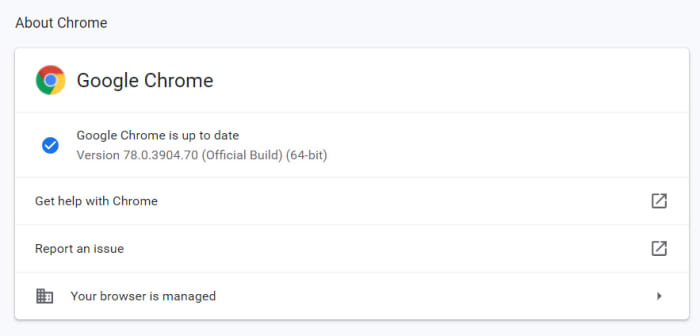
Chrome might be running slow for you because you’re not running the latest version of the Google browser. Chrome should keep itself updated, but often it won’t so you might have to update Chrome manually. There is no CTRL key shortcut to open Chrome Settings so to check if your version of Google Chrome is up to date you need to type chrome://settings into the address bar and hit Enter, or hit the three-dot icon in the top-right and click Settings. You then need to hit the About Chrome option. This will take you to the screen that will tell you whether you have the latest version of Google Chrome or not and give you the option to update.

Use the Google Chrome prefetch feature
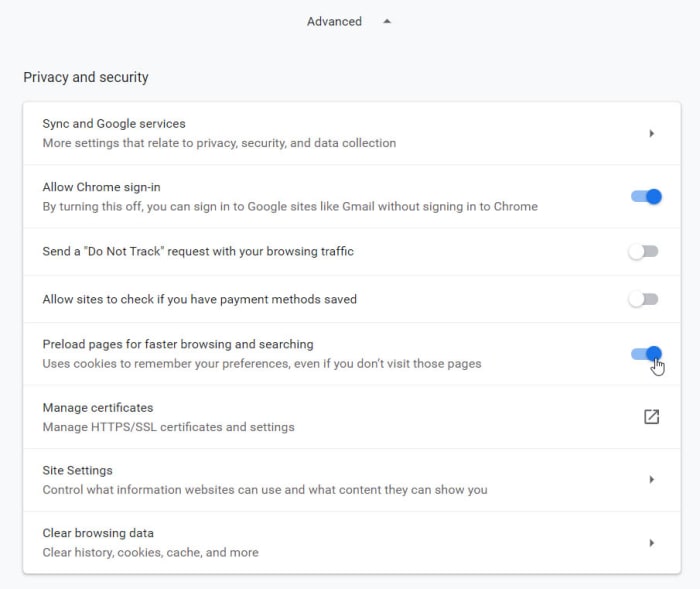
Google prefetch feature Chrome

Chrome has a prefetch feature that will make web pages load faster than they would on other browsers. Basically, prefetch will preload the web pages you’re visiting using cookies that Chrome has collected during previous visits. This allows you to browse through familiar web pages much quicker than usual.

To enable prefetch again type chrome://settings into the address bar and hit Enter. Then scroll down and hit the Advanced option to open up the Advanced settings menu. You’ll see the Privacy and security box is the first part of the new extended menu. You want to activate the toggle switch next to the Preload pages for faster browsing and searching option to enable prefetch.

Use the Chrome Software Removal tool
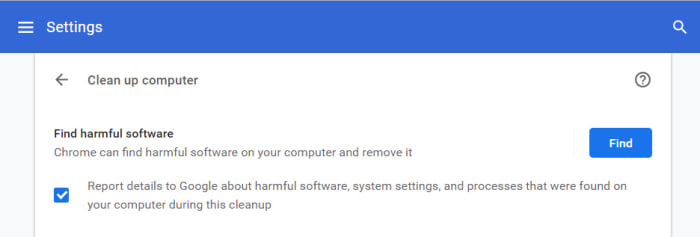
Chrome cleanup tool

Google Chrome on Windows has a pretty decent cleanup tool, which will help you get rid of any malware or potentially unwanted programs that could be causing Chrome to run slowly.

To run the Chrome cleanup tool, you need to once again open the Chrome settings menu and extend the Advanced settings menu. Then scroll right to the bottom of the page until you come to the Reset and clean up options. Hitting the clean up computer option will give you the option to Find harmful software. Hitting the Find button will search out for any potential problems and remove them.
Reset Chrome settings

Reset Chrome

All the system-wide searches in the world won’t find anything if the problem is in Chrome itself. Malware and viruses could have taken hold in your version of Chrome causing all manner of problems from serving up annoying ads in your Google searches to slowing Chrome down to a crawl. Get rid of any in-browser problems by resetting Chrome.

The Chrome reset button is found just above the Chrome cleanup tool. Navigate to the Advanced settings menu then to the very bottom of the screen and hit Restore settings to their original defaults to reset Chrome. Don’t worry though, it won’t delete your bookmarks. Once you’ve done this relaunch Chrome and when it loads it could be working more quickly.

Clear the Chrome cache data
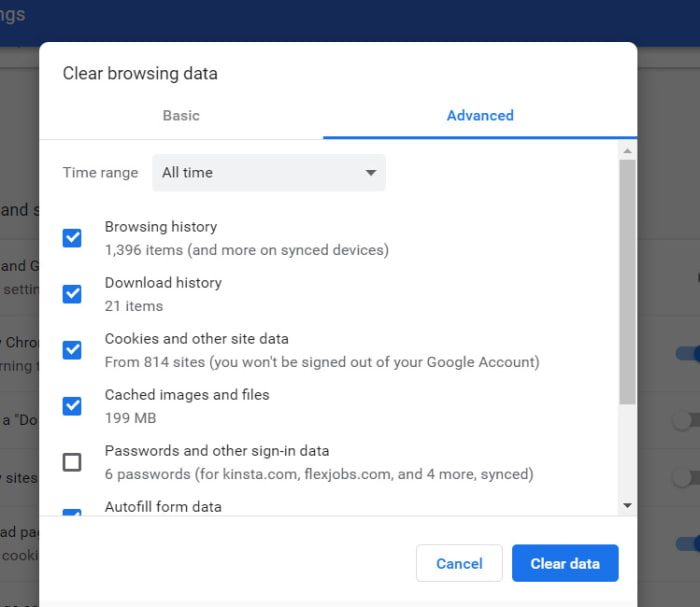
Clear Chrome cache

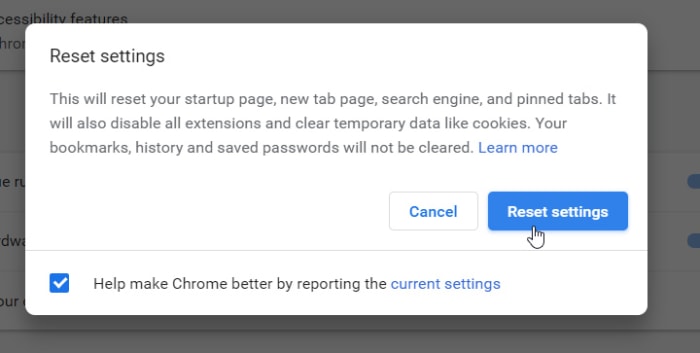
The reset option is like the nuclear option. It will reset your startup page, new tab page, default search engine, and pinned tabs. On top of that, resetting Chrome will also disable all your extensions, and clear your temporary data. Another option, however, that could make Chrome run faster without affecting so many other settings, is clearing your cache. This could make move more quickly as you could have cached images going back years hogging up your disk space, could, in turn, be slowing down Google Chrome.

To clear your cache, you again want to show Advanced settings and scroll down to the bottom option in the Privacy and security box. Here you’ll find the Clear browsing data option. You’ll be able to delete your Browsing history, Download history, Cookies, and Cached images and files among other options. If you’re PC doesn’t have much space, clearing out unnecessary files like this one could speed things up a little.

Wrapping up

We’ve shown you seven ways to make your Chrome browser run faster. All of these methods are carried out within Google Chrome itself. This assumes that the problem is to do with Chrome. It could be a memory issue, however, or you might not have enough space on your hard drive for programs to run as efficiently as they should. This means if the methods we’ve shown you today don’t work, you should run system-wide checks too, to try and find the problem. You can see a guide on how to make Windows run faster here.


Best 15 video downloader Chrome extensions

Best extensions for downloading online videos on Google Chrome

Google Chrome is the world’s most popular browser. Among its many outstanding features is that it supports add-ons or extensions that allow you to download all kinds of videos from just about anywhere. Many different extensions can do so.

In this article, we tell you about 15 of the best video downloaders for Chrome.

Video Downloader PLUS

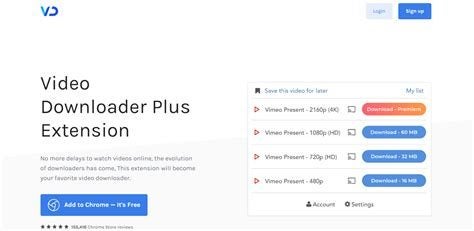
This excellent and popular Google Chrome extension allows you to save videos from almost any website onto your device. It can deal with any media type, including 3gp, .mp4, .wmv, .flv, .swf, and .mp3. It can even download several videos at once to save you time. It’s easy to use and completely free. 

Note that Google Chrome restrictions prevent it from downloading adult, illegal or copyrighted content or YouTube videos.

Video Downloader Plus DOWNLOAD
Best 15 video downloader Chrome extensions

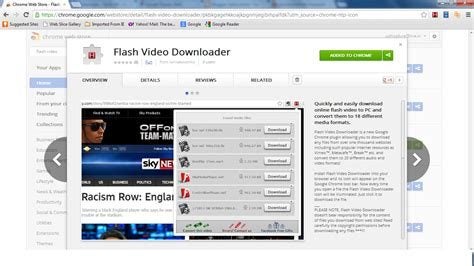
Flash Video Downloader

With Flash Video Downloader you can download nearly all media formats like flash, videos, and audio files from 99% of websites. No special skills are required as this downloader is one of the easiest to use.

Just click the extension’s icon in the browser and start downloading. It supports Mp4 Videos, Mov, Fly video, Webm and Facebook videos. It’s free, and the developers say it will never be a paid app. 

Flash Video Downloader DOWNLOAD

Video Downloader professional

Using Video Downloader professional allows you to download videos from many websites and select different resolutions to play them on. Or you can collect them in your video list without downloading them. You can also play MP4 videos on your TV using Google Chromecast. 

The extension locked the downloading of YouTube, Instagram, Dailymotion, Vk, and Tiktok videos because of Google Chrome restrictions. For those videos, use www.videodownloaderultimate.com.

Video Downloader professional DOWNLOAD
Best 15 video downloader Chrome extensions

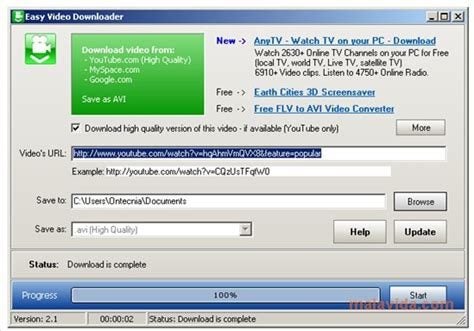
Easy Video Downloader

Easy Video Downloader is a Google Chrome extension that lets you quickly download video, audio and image resources from multiple web pages. It works by using internal and external browser download managers. 

Easy Video Downloader says it’s not responsible for the content you download. You must verify the copyright permission before downloading anything. Google, YouTube, and Chrome Store policies and restrictions will apply to videos you want to download from their sites.

Easy Video Downloader DOWNLOAD

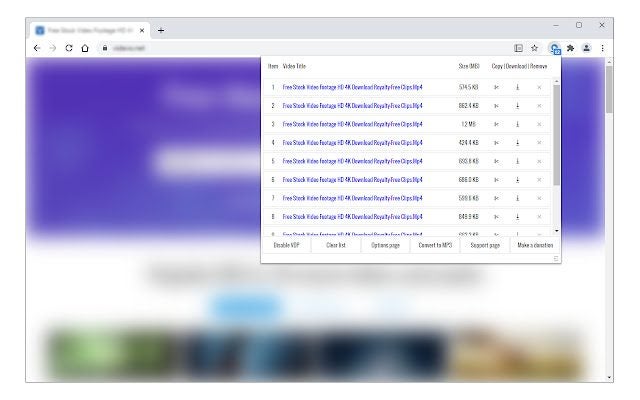
Video Downloader Prime

Video Downloader Prime is a Google Chrome extension that allows you to easily download popular video formats from your Google Chrome browser’s toolbar popup. This gives you an easy interface for downloading videos or copying them to your clipboard. 

You can see the number of videos on the page and then delete, add or disable them from the Options page. You can specify the minimum you want your videos to be.

Video Downloader Prime DOWNLOAD
Best 15 video downloader Chrome extensions

Twitter Video Downloader | Fast and Free

This Google Chrome extension for Twitter allows you to download Twitter videos and Gifs with just one click. It’s free, fast, and easy for anyone on Twitter to use. 

After you’ve installed the extension, you’ll see a Download button underneath every Twitter Tweet, which will link you to a video. Simply press Download under a Tweet and choose the quality of the video you want. The video will then download immediately, with no effort or fuss, on your part.

Twitter Video Downloader | Fast and Free DOWNLOAD
Best 15 video downloader Chrome extensions

Video Downloader for FB

To download videos from Facebook using this Google Chrome extension, go to Facebook.com on your computer’s desktop. Select the video you want to download and click it to open it on its own screen. Then refresh the screen. 

To save the video you have selected, press the Download button that appears on it. Save the video as an MP4 in HD or SD quality. Then it’s ready for you to watch whenever you like.

Video Downloader (Facebook) DOWNLOAD
Best 15 video downloader Chrome extensions

Video Downloader Pro

Video Downloader Pro will enable you to download any video you want from any site on the web. It’s fast, easy to use, and free. Simply click on the extension icon and see all the files available. Choose a file, and it will save on your device quickly. 

Due to Google Web Store policies, you cannot download YouTube Videos. But Video Downloader Pro can find and quickly download videos and music from 98% of web pages all over the Internet. 

Video Downloader Pro DOWNLOAD
Best 15 video downloader Chrome extensions

ZED: Zoom Easy Downloader

Zoom Easy Downloader is the easiest and fastest way to download Zoom videos. To get it, just click Add to Chrome on the top right of your screen. 

When you visit a page with a Zoom video, you’ll see a blue banner at the bottom of the page. Right-click on it. Then click Save link as, and you’ll download an .mp4 video. This software is from Zoomcorder.com. With it, you can record any Zoom video and watch it later. 

ZED: Zoom Easy Downloader DOWNLOAD
Best 15 video downloader Chrome extensions

Video Downloader for TikTok

Now you can download videos from TikTok with one click by using its Video Downloader. The software allows you to download photos and videos completely free of charge. 

All you have to do is go to any TikTok video or photo and click on the browser extension icon. This will make the download button available, and you’re ready to go! The downloader opens a world of excellent video content for you to save on your PC.

Video Downloader (TikTok) DOWNLOAD
Best 15 video downloader Chrome extensions

Free Video Downloader 

The Free Video Downloader allows you to save any video from any website onto your PC or another device. It’s one of the most popular download extensions in the Chrome Web store. You get an online downloader, player and playlist in one complete software package! 

Play the video you want and click the browser extension button to download it. You can download any MP4 files on the net. Just choose the size and quality when you save it. 

AVGO Free Video Downloader DOWNLOAD
Best 15 video downloader Chrome extensions

Downloader with Ant Download Manager

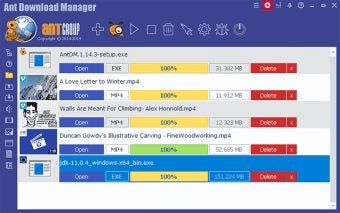
Ant (AntDM) is a free download manager and accelerator for Windows from Google Chrome. Using it, you can download videos automatically, manually and in batches. You can use it alongside the DLHelper, an auxiliary extension for Google Chrome that you can also get from your Chrome browser. 

The software contains no ads, spyware or malware. It has a companion application for downloading and merging streaming videos and supports YouTube, HTTP Live Streaming (HLS), Vimeo, and direct links to media files you want.

Ant Download Manager DOWNLOAD
Best 15 video downloader Chrome extensions

MuGet HTML5 video downloader

With the free MuGet HTML5 video downloader, you can download HTML5 videos embedded in pages. It works on many popular websites like Vimeo and generic HTML5 videos, and other popular video platforms. You can also download videos in MP4 and WEBP formats. 

Because of Chrome Webstore policies, the app doesn’t work on YouTube videos. But there are many other sites it works on, so you can download as many videos as you want whenever you like and enjoy them!

MuGet HTML5 video downloader DOWNLOAD
Best 15 video downloader Chrome extensions

Pincase-Pinterest Video & Image Downloader

Pincase is a free Pinterest video and image downloader available as a Google Chrome extension. You can use it to download whatever you like, including images, videos, GIFs, and story pins. It’s very easy to use and powerful, making downloading any material from Pinterest fast and trouble-free. 

It supports board, search page, main feed page, and self-owned pins, among others, and allows batch image downloads. It’s completely free to download and use. 

Pincase-Pinterest Video & Image Downloader DOWNLOAD
Best 15 video downloader Chrome extensions

TikFast – Free TikTok Video Downloader

TikTok is the world’s leading destination for downloading short-form mobile videos. TikFast, a Google Chrome extension, is a powerful TikTok download tool that allows you to download videos quickly and easily. 

It can, among other features, download TikTok videos in batches with no watermark, which most other tools are unable to do. Using TikFast, you can download videos from tiktok.com with just one click. It also downloads TikTok music as MP3 files. The extension is completely free.

TikFast - Free TikTok Video Downloader DOWNLOAD
Best 15 video downloader Chrome extensions

How to install Chrome extensions on Android

This guide will show you how to install Google Chrome extensions on Android

Chrome on Android

Google Chrome is a great browser. It is by far the most popular web browser in the world. One of the best features of Chrome is that you can add-on new features by installing Chrome extensions. There are thousands of different Chrome extensions out there doing all manner of task from blocking ads to remembering your password.

It is easy enough to install Chrome extensions on your desktop version of Chrome. Google has created a dedicated Chrome Web Store for finding what you need. There is no such store for Chrome on Android devices, however, which means you need to work a little harder to install extensions on Chrome for Android. That’s what this guide is all about. This is how to install Chrome extensions on Android.

7
Chrome is a young, fast browser that can browse any web page. It supports all major technologies and standards such as HTML5 and Flash.

Install Chrome extensions on Android

Not only is there no Chrome Web Store on Android, but the Android version of Chrome also doesn’t support extensions at all. Fortunately, however, Google developed Chrome as a part of its Chromium Open-Source project. This means that the code that built Chrome is available for other developers to use to build their own web browsers. Lots of developers have done so, creating Chrome-like browsers that offer different features to the main Chrome browser. Crucially, some of these Chromium-based browsers are compatible with Google Chrome extensions and some of them even work on mobile too.

Installing Chrome extensions on Android using Kiwi Browser

The first browser that will allow you to use Chrome browser extensions on Android is Kiwi Browser. Kiwi Browser for Android has some very cool features like a built-in pop-up blocker and ad-blocking features and security boosting crypto-mining blocker, which will stop hackers from hijacking your phone and using it to mine crypto-coins. Kiwi can also play YouTube videos in the background, which you can’t do on Chrome. We’re here for the extensions though, so let’s look at how to install Chrome extensions on an Android browser.

Kiwi Browser Download now
8

To install Chrome extensions on Kiwi for Android you need to download Kiwi Browser. Then open Kiwi browser and type “Chrome://extensions” in the address bar. Select developer mode and then enable Desktop Mode and go to the Chrome Web Store by typing chrome.google.com/webstore into the address bar.

If you follow the above instructions, you should then be able to search for Chrome Extensions on your Android mobile just as you would on Chrome for desktop. Once you’ve found the extensions you’re looking for, all you have to do is install them as you normally would and you’re good to go. The only catch here is that you then need to use Kiwi Browser instead of Chrome if you want to use the extensions. As we’ve already pointed out, however, Kiwi has some great features of its own and is based on Google Chrome anyway.

How to install Chrome extensions on Android using Yandex Browser

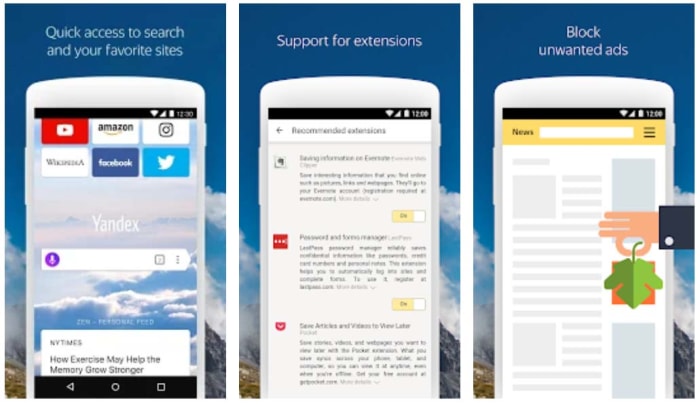
Another option for installing Chrome extensions on Android is to use Yandex Browser. Yandex is another popular web browser built from the Chromium code. Again, just like with Kiwi, Yandex also lets you use desktop Chrome extensions on your mobile browser.

Yandex browser

To install Android Chrome extensions using Yandex you need to download Yandex browser. Then open Yandex and go to the Chrome Web Store by typing chrome.gooogle.com/webstore into the address bar and hitting enter. All you have to do then is search for the Chrome extensions you want to use on your Android mobile and hit ADD TO CHROME.

Kiwi Browser Download now
8

Yandex offers an easier path for installing Chrome extensions on Android. It is very popular too and has a positive rating on the Google Play Store with over 1.5 million reviews.

Other options for installing Chrome extensions on Android

If you feel a little uneasy surfing the web on a lesser-known web browser, Yandex is developed by Яндекс, you might want to consider other options. Unfortunately, however, there aren’t any other reputable options out there. Kiwi and Yandex are the most trustworthy web browsers that allow you to install Chrome extensions on Android.
There could be good news on the horizon, however. Microsoft has recently taken the leap to Chromium too. The Microsoft Edge browser, which despite being well-reviewed never really achieved much success as an HTML independent browser, is currently being developed into a Chromium-based browser.

6
The idea of Microsoft Edge is to be as fast, clean, and lightweight as possible to cope with the demands of different devices, whether it be a PC, tablet or phone.

In fact, the beta version of the Chromium-based Microsoft Edge browser is available right now. Furthermore, it has also been confirmed that this new Microsoft web browser will support Chrome extensions as well as Edge plugins. This means that when the full version of the Chromium-based version of Microsoft Edge launches, you’ll still be able to use all your Chrome extensions on the web browser. If Microsoft then launches a mobile version of its new web browser, it would provide a much more reputable place for you to install your Chrome extensions.

Unfortunately, however, at the time of writing, Microsoft has no plans to launch its Chromium-based version of Microsoft Edge on iOS or Android. If this situation changes, however, we’ll be sure to let you know how to install your Chrome extensions on Android and iPhone using the new Microsoft web browser.

Wrapping up

As you’ve seen then, installing Chrome extensions on Android is a bit of a funny business due to the Android version of Chrome not officially supporting Chrome extensions. The Chromium code does, however, which is why we’ve been able to show you two great options for installing Chrome extensions on your smartphone.

As one of our main missions here at Softonic is to keep you safe when you’re online, we thought we’d raise the issue of the developers behind the apps we’ve mentioned. You can rest assured, however, that we wouldn’t have recommended them for this process if we weren’t sure that they were safe to use.

11 hidden Google Chrome features and extensions to know

If you’re like us, your Chrome browser is more than a portal to the rest of the web—it’s a picture of your online life.

Stores your settings, knows your habits more than your friends, family, or significant other. Scary, sure. But, convenient nonetheless.

Sure, the debate between which browser is best wages on—with the loudest voices being the Brave/Tor private browsing crowd—and the Chrome die-hards.

7
Chrome is a young, fast browser that can browse any web page. It supports all major technologies and standards such as HTML5 and Flash.

While Google’s security practices are, well, sometimes questionable, there’s no doubt that Chrome reigns supreme for a reason.

One of those reasons is its deep library of extensions, loaded up with everything from the silly to the practical, to the ultra-convenient.

Here, let’s have a look at the top picks:

1. Ghostery

Ghostery is a Chrome extension that reveals the invisible trackers, pixels, and bugs sites like Google, Facebook and more use to track your activity across the web.

2. Honey

Honey isn’t exactly secret-secret, but it’s a practical Chrome extension that isn’t yet on everyone’s radar.

3. Single-Click Autofill

Chrome’s autofill feature has gotten an upgrade in honor of Google Chrome’s 10th birthday. Autofill has always been convenient, but it hasn’t always been the most accurate. Now, you can enable a single-click

To fix your autofill settings to make them more relevant, you can head over to chrome://flags: enable Show Autofill predictions. This lets you turn autofill predictions into placeholder text based on the field type.

4. Grammarly

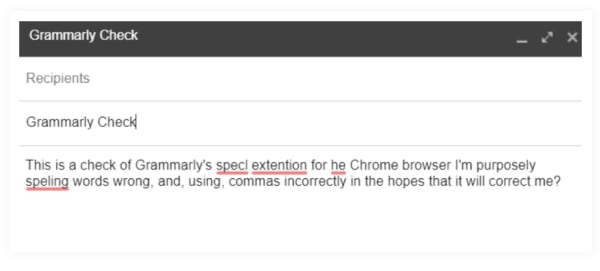
grammarly editsIf you do any writing for the web or on the web, Grammarly is a go-to tool, a lifesaver for helping you avoid the perils of sending error-laden emails, form submissions, and general red, underlined forms of text-based shame.

5. Omnibox Search

The Omnibox is a lifesaver if you’re the type of person who reliably has like 50 tabs open at any given moment. You can now use it to find a specific tab when you’ve got so many pages pulled up at a time by

Another cool way you can use Omnibox is to search through websites without having to navigate to them. Set this up by navigating to Settings > Search engine > manage search engines.

6. Omnibox search phrases

Omnibox has something called “Search Shortcuts” where you can set up personalized search phrases that allow you to pull up websites fast.

Here’s how you can set this up:

  • Open a new browser tab in Google Chrome
  • Right-click in the Omnibox and select “Edit Search Engines”
  • Next, a window will appear with 3 columns: Name of Site, Keyword for Site, and Web Address

7. HTTPS Everywhere

HTTPS Everywhere is an extension that encrypts your communications with many major websites, making your browsing more secure.

8. OneTab

Speaking of tabs, how many do you have open right now? We all like to think we’re that rare bird that is actually really good at multitasking, but the truth is, most of us are dead wrong.

The Stanford Researchers found that multitasking can even lead to permanent brain damage—which, of course is frightening. And, neuroscientist, Daniel Levitin says that multitasking drains our energy—fast, opening us to the risk of burnout.

In any case, bouncing around from tab to tab, losing track of information might be slowing you down. This handy guy promises to save up to 95% of your computer’s memory and even better, reduce tab clutter.

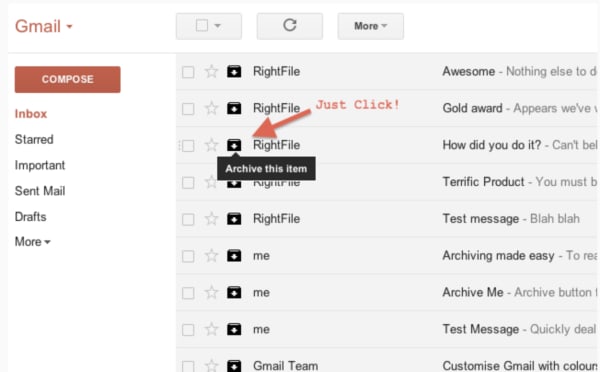
9. Actions for Gmail

actions for gmail

Actions for Gmail is a simple tool that stands to make life inside the inbox a little easier, one click at a time. Actions were just added to Gmail earlier this year,

Archive, delete, and mark unwanted messages as spam without opening an email or choosing from a drop down menu. Beyond the one-click actions, users can also manage calendar events, add notes to your to-do list, and track your looming deadlines.

10. Sales Navigator

Sales Navigator (formerly Rapportive) is a free tool that automatically digs up the essential intel anytime a new contact sends you an email. LinkedIn makes the extension and offers a free Lite version to people with a free account, or you can pay extra for the Premium version.

How it works is, after installing the extension, Sales Navigator presents a contact’s LinkedIn stats on the right-hand side of your Gmail.

This gives you the chance to add some context to your reply—which can be especially handy as a salesperson, freelancer, or heck, just someone who wants to know more about who is emailing them.

11. Noisli

noisli google chrome

Noisli is a white noise app we’ve looked at in the past. It’s a super simple noise generator that allows you to create custom mixes so you can drown out your desk mates on your own terms. The extension makes it easier to access the tool, and you can set productivity timers, play your favorite mixes, and control the volume directly from the top bar.

Noisli Download Free
10

Wrapping up

Whether you’re trying to block out the sound of your coworker eating their lunch or make sure that all of your emails are spell-checked, there’s no doubt that Chrome is loaded with features and extensions designed to make your life easier.

Google launches a bug bounty program

Google’s new Developer Data Protection Reward Program (DDPRP) is now targeting cases of data abuse and offers rewards of up to $50,000

The Google Play Store has been plagued with bugs, fake apps, phishing scams, and general malware for years. We’ve reported on an endless stream of malware discoveries in recent times with the stories falling either to security researchers who’ve discovered something not right or Google efforts to clean up some sort of mess.

With Google’s Android mobile operating system sitting at the heart of most of the smartphones on the planet, this prevalence of bad code is to be expected. It is even less of a surprise due to the open nature of the Android source code. Google wants anybody who can code to be able to contribute to the OS but unfortunately, that also opens it up to hackers and cyber criminals too.

It is in this environment that Google has recently announced the formation of a new program that will incentivize the reporting of bad code. This means it won’t just be relying on the good faith of the ‘good guys’ to out the behavior of the ‘bad guys.’

Google’s new Developer Data Protection Reward Program (DDPRP) is now targeting cases of data abuse and offers rewards of up to $50,000

The new DDPRP that Google recently announced in a blog post is now offering massive rewards to security researchers who can identify certain issues. The program is targeting cases of potential data abuse in apps that fit three categories. These are third-party apps that have access to the Google API, Android apps listed on the Play Store, and Chrome apps and extensions listed on the Chrome Web Store.

The blog post says, “In particular, the program aims to identify situations where user data is being used or sold unexpectedly, or repurposed in an illegitimate way without user consent. If data abuse is identified related to an app or Chrome extension, that app or extension will accordingly be removed from Google Play or Google Chrome Web Store.” Although the Android Developer’s Google blog post goes on to say that there will be no fixed table of rewards for certain types of discoveries it does make it clear that bounties will go up to $50,000.

This new Google initiative mirrors a recent move made by Facebook in the wake of the Cambridge Analytica scandal. Like Google, Facebook has an incredibly large user base and so when user data was leaked it was on an industrial scale and the consequences rocked Western democracy as we know it. Facebook recently extended its bug bounty program to include Instagram apps and now Google has also moved to offer rewards to developers and programmers out there with a nose for sniffing out foul play.

If you use Facebook on your Mobile you need to Beware of this Scam

Google hasn’t fallen victim to a huge infraction on the scale of the Cambridge Analytica debacle, that many analysts say Facebook is still reeling from today. As we mentioned earlier, however, it has been hit with multiple smaller scandals involving apps on the Google Play Store. With such huge numbers of apps being added to the store every day, freelancing out the bug hunting program is likely the most effective method of policing the platform.

As to whether the move will prove successful in the long run and result in fewer outbreaks of malware etc. remains to be seen. It is refreshing, however, to see a pro-active move from the mountain view company.

Google turns to Microsoft to help solve Chrome’s battery drain problem

Microsoft engineers flagged a fix for Chrome’s battery drain problem and it took Google less than a week to implement it

Chrome is the most popular web browser in the world by an absolute mile, but it isn’t without its problems. Open up more than a few Chrome tabs and you’ll soon find your PC slowing down to a crawl as Chrome hogs up all of your device’s RAM. Another big problem, Chrome users face is battery drain. When you’re using Google Chrome, your device is burning through battery life much faster than it usually would.

Chrome’s popularity, however, might have inadvertently served up a solution to this battery draining problem. Microsoft recently turned its Edge browser into a Chromium powered browser meaning all Edge developers and engineers are now working on the same open-source code that Google used to build Google Chrome. While doing so it looks like they might have discovered a fix to Chrome’s battery power woes.

Microsoft engineers flagged a fix for Chrome’s battery drain problem and it took Google less than a week to implement it

Chrome battery bad Edge battery goof

Those of you with good memories will remember the time we reported on the Microsoft Edge engineer who had to boot up Google Chrome in the middle of a presentation. The engineer was able to display the page he was looking for and continued on with his presentation but, nonetheless, the episode proved rather embarrassing for Microsoft to say the least. It now looks like Microsoft has finally had a chance to turn the tables as just a few months after they’ve moved Edge over to the Chromium ecosystem, the Microsoft team is having an effect on the Google Chrome browser itself.

The Microsoft engineers identified the problem behind the battery drain as being the excessive caching of data that Chromium browsers exhibit when handling media. According to a Chromium commit on the issue, “Keeping the disk active during this process increases power consumption in general and can also prevent certain lower-power modes from being engaged in the operating system. Since media consumption is a high-usage scenario, this extra power usage has a negative impact on battery life.” Caching data means the disk is active and is therefore a power-hungry thing to do. Any activity that does it is going to negatively affect your battery life.

The fix that Microsoft suggested involves the prevention of some data caching, which can effect the speed you can access certain types of media, but also detects when a power source is connected so that caching can continue as normal when battery usage isn’t an issue.

chrome experimental web browser canary
Google quickly added the Microsoft fix to its Chrome developer build

From when the Microsoft engineers first created the “caching” flag that enables the fix it took Chrome engineers less than a week to implement it themselves into the Google Chrome Canary build. This means there is a good chance it’ll soon make it into the regular version of Google Chrome, and we’ll all be able to save a bit of battery power the next time we boot up the Google web browser. Thanks Microsoft, we promise to try Edge again soon.

Will this Google proposal make the internet more secure?

Why does it matter how long SSL certificates last and websites have a HTTPS classification?

A webpage on a laptop

HTTPS is the go-to security standard for websites. It has become so ubiquitous that most major web browsers, including Google Chrome and Mozilla Firefox, label a website as “not secure”, if it isn’t HTTPS. For a website to receive a HTTPS classification it needs to have been granted an SSL security certificate by members of the CA/B Forum. This is a group made up of certificate authorities and web browser developers that have been authorized to hand them out.

At the moment, when a website receives an SSL certificate it lasts for 825 days. This means the website will be HTTPS and not labeled as not secure for 825 days. It seems that Google thinks this is far too long because at a recent meeting of the CA/B Forum in Greece, the web giant proposed that certificates only be valid for 397 days. This would cut their duration from around two years and three months to just over one year and one month.

Why does it matter how long SSL certificates last?

There are two distinct camps to note in discussions on SSL certificates and HTTPS classification. The first camp is the browser makers, of which Google is the most prominent of all. Most browser developers expressed support for Google’s proposal for SSL certificates having shorter durations. In fact, they’ve all been pushing for shorter length certificates for years. It was only last year when they tried to cut the amount of time an SSL certificate was valid from three years to one before eventually compromising on just over two.

The people they compromised with, the other distinct camp in all of this, is the CAs or certificate authorities as they’re known. To them shorter durations means more certificates, which translates into more cost for the industry. The CAs have seen the duration of SSL certificate validation cut from eight years to five, then again to three, before only last year being cut again to just over two years.

What difference does it all make?

If this all sounds like a bit of a soap opera, you’d be right. There are a number of security related issues related to the proposed change from Google. These include SSL certificates being given out in error and even the revocation process not being effective. When malware filled sites or pages displaying phishing scams are discovered to have an SSL certificate and HTTPS classification, it can’t be guaranteed that revoking that certificate will effectively reclassify the site as just HTTP and consequently not secure. Shorter certificates mean this problem would take care itself more quickly.

There is something else to it though, and that is about who is in control of HTTPS. There is a train of thought being laid out by internet security experts Hashed Out, that says it is all a power play from the browser makers. They simply want to exert dominance over the CA/B forum and show them who is boss.

If the above is true then, it would seem to indicate that whether or not this proposed change form Google will make the internet more secure or not is an entirely subjective matter. It could be more effective to fix the bad certificate revocation process rather than shortening the length of time SSL certificates remain valid.

The one thing we do know, however, is that there wasn’t a vote on the proposed change that Google would like to see come into play in March next year. This means we’ll all be on the edge of our seats until the CA/B Forum next gets together and thrashes something out.

Chrome’s new and improved Incognito mode is not as good as Google is making out

Researchers have discovered two tricks that make it possible for websites to detect when users are visiting in Incognito mode

With recent stories rolling out about the amount of tracking cookies Chrome has hunting you down and the move to block ad-blockers unless you pay Google, Chrome’s reputation has taken a bit of a beating recently. It has also been a somewhat badly kept secret for years now that Google Chrome’s Incognito mode is not as private as you would think it is.

Last month, Google moved to address this final point in what must have seemed like a desperate attempt to restore Chrome’s beleaguered reputation. The internet giant moved to close off a loophole that allowed web developers and sites to detect users who were visiting their pages while in Incognito mode.

The move was met with plaudits too, as it appeared to work. Unfortunately for Google, that apparent truth has evaporated as researchers claim to have discovered a way around it.

Researchers have discovered two tricks that make it possible for websites to detect when users are visiting in Incognito mode

Incognito chrome

A successful Incognito mode can be bad for websites in a number of ways. The clearest one relates to ad revenue. When websites can track your online activity, they can serve you up more personalized ads, which in turn generate more revenue.

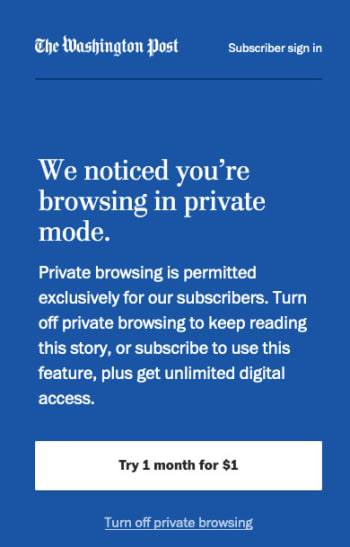
The other big one though, relates to media outlets offering a certain number of free page views before you have to pay. If you’ve ever seen a banner ad saying you’ve only three free articles left this month, then you’ve come up against this. A genuinely “incognito” mode stops these sites from knowing how many of your free articles you’ve read.

This all means that there is a real financial incentive to breaking through an Incognito Mode and it looks like it hasn’t taken long for researchers to bust through Google’s new and improved Incognito mode. Google announced that it had closed the previous loophole on July 18 and since then two security researchers have published ways for websites to detect somebody in Incognito mode.

wapo incognito mode screenshot

The first researcher, Vikas Mishra, noticed a painfully simple way to bypass the new and improved Incognito mode. He realized that Chrome caps incognito windows memory usage at 120mb while normal windows running normal web pages use a lot more memory than this. This means that any window that has a 120mb memory limit is likely to be in Incognito mode. Mishra even wrote a script that exploits this vulnerability.

The second researcher, Jesse Li, used a slightly more complicated measure. Li measured the different speeds of writing data to memory rather than disk using the two different browser modes and discovered a discrepancy that gives the game away.

When it comes down to it, Mishra’s breach is easily fixed by tweaking the amount of memory Incognito pages have access to and Li’s isn’t the easiest to implement. Whereas both researchers will likely be working at Google themselves sooner rather than later as a result of their discoveries they may not actually change too much stuff in the short to medium-term.

Google is already working on a fix to the problem, although, it has already noted that The New York Times is already exploiting one of the bugs, to detect people reading its articles in Incognito mode.

The problem in all of this, however, is that financial incentive we mentioned earlier. As long as invading your privacy will make companies money, they’ll keep trying to do it. In the long term this is a problem that isn’t going to go away until that fundamental issue is addressed.

Google Chrome is getting some very handy new video control features

Google is looking to add a Play/Pause button to the Chrome toolbar, which will control video being played on any of your open tabs!

Google Chrome logo play video button

Tabs are something of a universal nightmare these days. No matter what we’re online for, we always seem to end up with lots of tabs open at the same time. As well as the huge amounts of memory all these tabs consume, often slowing our devices down to a crawl, they also make finding what we’re up to rather difficult.

Then, there is the even more annoying problem that having multiple tabs open throws at us. Videos and auto-play videos. How many times have you been doing something on your PC, with some random soundtrack playing away in the background? One of those tabs has a video playing and now you have to stop what you’re doing and seek out the tab in question so you can carry on distraction-free. The more tabs you have open the longer this will take. If you’ve ever experienced this problem, you’ll be glad to hear of a little test Google is currently running.

7

Google is looking to add a Play/Pause button to control video on your open tabs

Google Chrome Canary
Google uses Canary to show the new features it is working on for Chrome

A brand-new feature called Global Media Controls (GMC) has been spotted in one of the latest versions of the Google Chrome Canary build. Google uses Chrome Canary to test out new features that are late on in the development stage. This means that there is a very good chance that all Google Chrome users could see GMC on their version of Google Chrome sometime soon. So, what are Global Media Controls exactly?

New Google Chrome Global Media Controls
Image via: Tech Dows

At the moment, GMC looks like a play button and is found in the Google Chrome control bar in between the user icon and the Chrome plugin switches.

The button activates a small pop-up window, which then offers media controls for all audio and video media currently playing on Google Chrome.

This means that when you have some unknown audio track coming from one of your open tabs, all you have to do is click the GMC button and take control of the media. Impressively, according to the guys at ZDNet, the new feature should be able to control media being played in other Chrome windows and not just tabs.

Google Chrome Canary Download now ►
7

Wrapping up

The new GMC controls will be added to the desktop versions of Google Chrome running on Windows, Mac, and Linux. However, there has been no word about Chrome OS. Unfortunately, however, there is also no official word about when the feature will land on the above platforms as it looks like Google still has some work to before the feature can be rolled out to all users. The GMC feature is still very buggy and often crashes. It is good to know that Google is working on solving such an annoying problem.

Google Chrome for Android has now been downloaded over 5 billion times

Google Chrome is now one of only five apps to have been downloaded 5 billion times.

Chrome logo Google

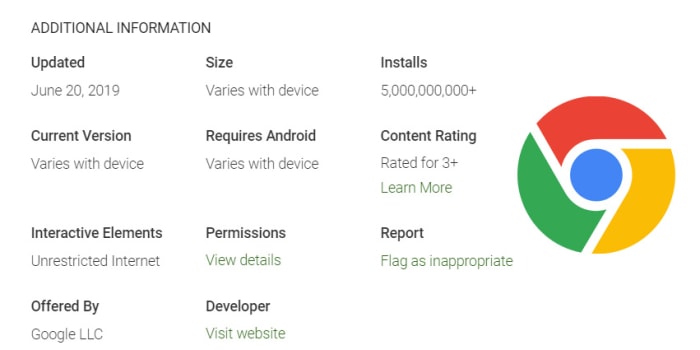
Chrome has been the biggest web browser on the planet for quite some time now. Everybody uses Google Chrome. You’re probably reading this article right now on Google Chrome either on your desktop or on your mobile phone. Chrome is available on both iPhones and Android smartphones, but it is Android where Chrome is used the most. If you head over to the Google Play Store right now, you’ll see just how popular Chrome is; it has just racked up its 5 billionth download!

7
Chrome is a young, fast browser that can browse any web page. It supports all major technologies and standards such as HTML5 and Flash.

Google Chrome is now one of only five apps to have been downloaded 5 billion times

From the humble beginnings of web search Google has grown to dominate the modern tech landscape. By making its mobile operating system software, Android, open source it has put its own apps at the heart of smartphones all over the world. Of the two major mobile operating systems, iOS and Android, Android has been adapted for more headsets including the many budget option Android smartphones available around the world.

A lack of a budget option from Apple means that many consumers don’t even consider Apple when they’re looking for a new phone. When the time comes, it is a question of which Android phone they’ll get rather than a choice between an Android or iOS-powered device.

Google Chrome is a great web browser, but it is Android’s dominance that has powered its ascension to 5 billion downloads. Chrome comes pre-packaged on all Android phones that offer access to the Google Play Store. This point is backed up when you look at the other four apps that have reached 5 billion downloads; Gmail, YouTube, Google Maps, and Google Search. Yep, all of them are Google apps and all of them come loaded alongside the Google Play Store.

This doesn’t mean that this isn’t a big deal though. Hitting 5 billion downloads, whether you’ve a leg up from Android or not, marks a significant milestone. There are only 7.5 billion people on the planet, so 5 billion downloads, theoretically at least, puts Chrome in the hands of two-thirds of every man, woman, and child on the planet.

Look at it this way. There are lots of other great browsers available on Android. Not least Mozilla Firefox, Opera, Brave, and Microsoft Edge. Each offer unique abilities for users with some focusing on privacy, others on speed, and Brave even offering a way to make money just by surfing the web. When you total all their downloads though, they come in way behind, stuck in the millions. Google Chrome has more Android downloads than all of them combined and still has extra zeros to spare.

This means that although there have been a few hiccups at Chrome HQ recently, and other browsers are looking to make more of a dent into Chrome’s dominance, there is still only one undisputed ruler of the web browser market. All hail Google Chrome.