Microsoft Edge gets a privacy boost

The next Microsoft Edge update will include tracking prevention

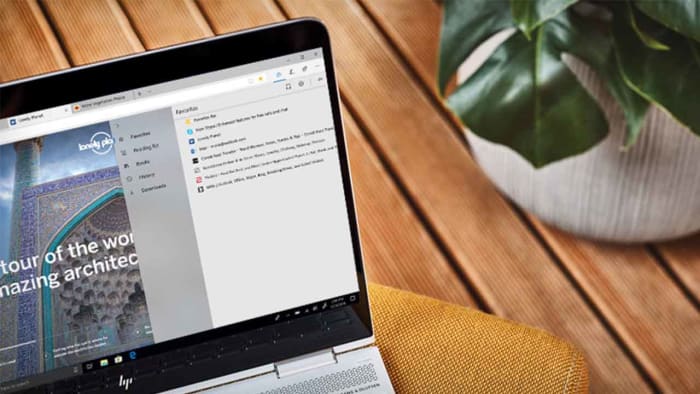
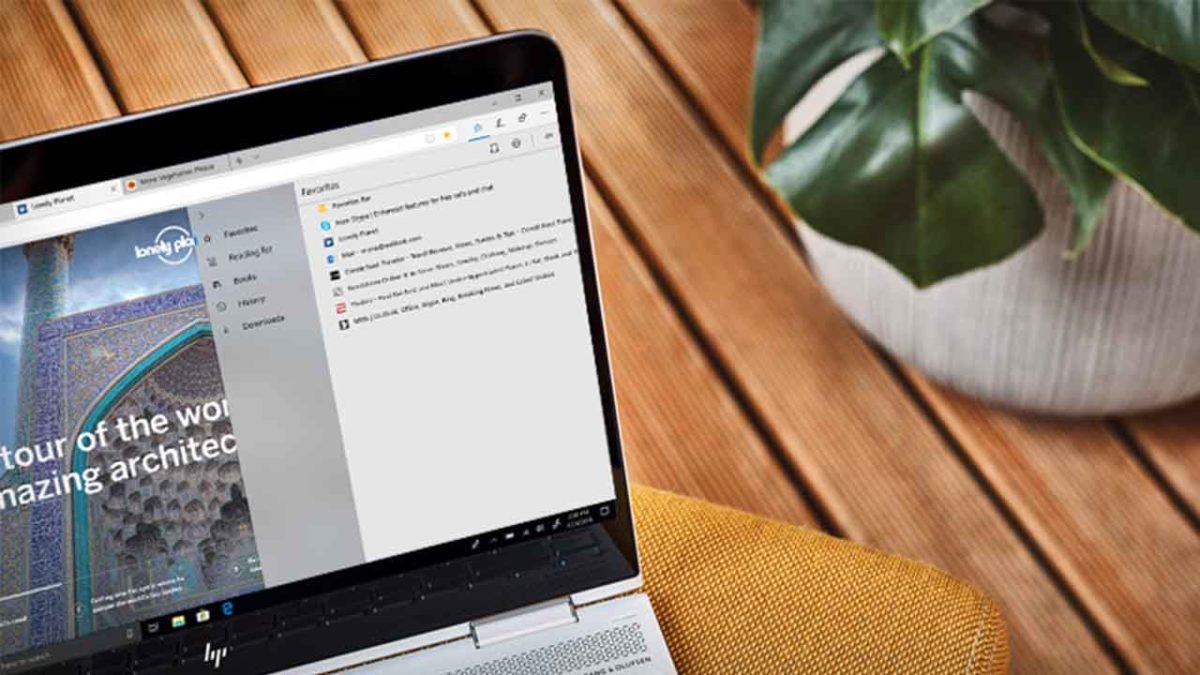
Edge browser on a HP laptop

Microsoft knows only too well about Google Chrome’s dominance in the web browser world. Just look at what happened to Microsoft’s more than competent web browser, Edge, that came packed with Windows 10. Despite being a capable browser, complete with unique features and handy loading speeds it barely made a dent into Chrome’s market share.

We recently commented on how Chrome coming pre-loaded on Android devices helped it notch up 5 billion downloads and assert market dominance. If only the same could be said for Microsoft Edge on Windows 10 devices. It got so bad that scammers were hijacking Bing search results for Google Chrome as the only time people were using Edge was to download the Google browser. This then led to Microsoft pulling the plug on a fully autonomous Edge browser and instead carrying  it over to the open source Chromium software that sits at the heart of Google Chrome. That’s right, Microsoft Edge is now built out of the same code that built Google Chrome.

Whereas this could sound like defeat for Microsoft it has made Edge a more competitive browser thanks to its compatibility with Chrome add-ons. Another factor is the familiarity to the Chrome experience. We often turn to other browsers but then find ourselves going back to Chrome in search of that warm feeling we get from something we’re extremely comfortable working with. In many ways this new similarity to Chrome allows more new Edge users to experience the different features that might give Microsoft’s web browser, well, an edge over Chrome.

The next Microsoft Edge update will include tracking prevention

Chrome has given its rivals a little room to maneuver against it recently. The move to ban ad blockers has caused a lot of unrest among the Chrome user base and a clear path for its competitors to offer something different to Google’s offering. The other big thing recently, however, is privacy with it coming to light that there are thousands of cookies active on Chrome, tracking every click you make and site you visit. You can disable tracking on Chrome, but trust has certainly been affected.

Most of the tracking is done for advertising purposes. It is why you always see ads that are based on sites you’ve visited recently. Some people think this is useful and that is how the tech giants try to sell it to us. They tell us to allow them to track our web behavior so that we’ll only see ads that are relevant to us rather just the random ads we’d see, if we stop them from tracking us.

Man spying on the world
Most websites will track your online behavior

There are many reasons people could be against having their web activity tracked, not least because big companies are hacked, and data is leaked all the time. It is these privacy focused users that Microsoft is targeting with the latest Edge update. Edge is getting new privacy protecting tools that will turn off trackers and, “When tracking resources don’t add meaningful functionality to the page, we may even block them entirely.” This could mean that certain tracking elements could be blocked by default as Mozilla is doing with its latest Firefox Preview browser.

Increased privacy could become a key battleground in the battle of the modern web browsers. Chrome has done a lot to annoy its user base recently so through offering something unique even while feeling similar to the Google browser, Microsoft might finally see Edge get the user numbers it always dreamt of. It might be time for Edge to do more than download Chrome.

Google Chrome has 11,000 cookies skimming your data

Chrome is sending your personal data to businesses and advertisers.

Stealing data

Switching browsers has never sounded better.

According to the Washington Post, more than 11,000 tracker cookies were found in Google Chrome. These tracker cookies were making profiles for companies and marketers to help advertise products to you. Interestingly enough, the writer discovered that all of them were blocked when he browsed with Firefox. 

How does Google track my data?

If you’re logged into Chrome, these tracker cookies are stealing and sending your personal data. However, even if you aren’t logged in, Google is still working to take your info. 

If you have an Android, Google is sending your location data whenever you make a search. Even if you have your location settings turned off, Google will send coordinates instead.

If you are logged into Gmail, Google will track your data just the same as if you’re logged into Chrome.

7
Chrome is a young, fast browser that can browse any web page. It supports all major technologies and standards such as HTML5 and Flash.

How to block and kill tracker-cookies on Chrome

Chrome tracking

If you are looking to clear out the tracker cookies Google has on you while you’re browsing the internet and block sites from tracking you, there is a way. However, please note that this will sign you out of most websites, so make sure that you remember your passwords!

On your desktop browser

  1. Open Chrome
  2. Click on the three vertical dots in the top right
  3. Go to Settings
  4. Click Advanced to reveal Privacy and Security
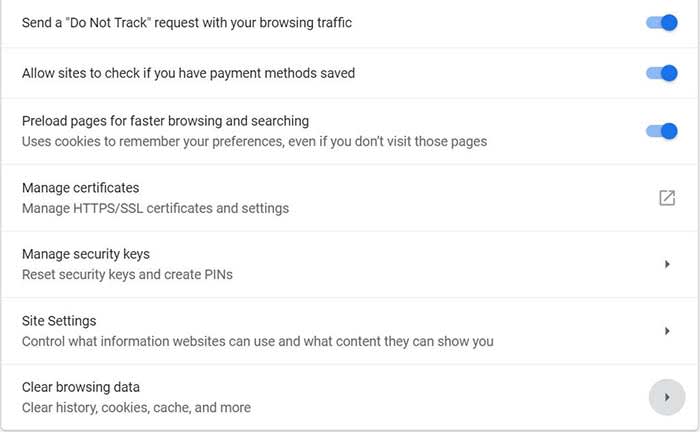
  5. Enable the option to send a “Do to track” request with your browsing traffic
  6. Scroll down further to the option to clear browsing data
  7. Choose how long you want to clear cookie data
  8. Select the option to clear cookies and other site data
  9. That’s it, you’re all done

On mobile

Chrome mobile

  1. Open the Chrome app
  2. Click the three horizontal dots at the bottom right corner
  3. Click settings
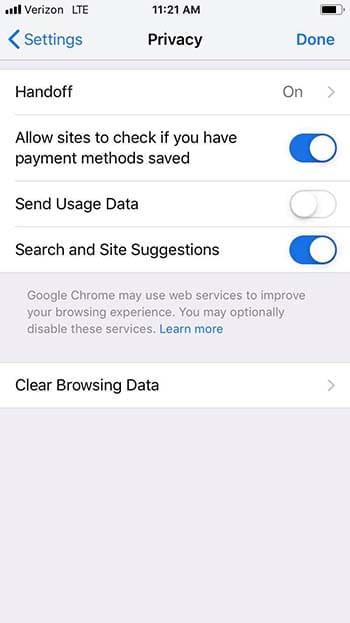
  4. Click privacy
  5. Select the option to not send usage data
  6. Go to Clear Browsing Data
  7. Make sure Cookies, Site Data is selected
  8. Click Clear Browsing Data
  9. You’re all set

Please note that not all websites will stop collecting data on you despite you requesting that they do not track your data. 

“Many websites will still collect and use your browsing data – for example, to improve security, to provide content, services, ads, and recommendations on their websites, and to generate reporting statistics,” according to Google.

What should I do?

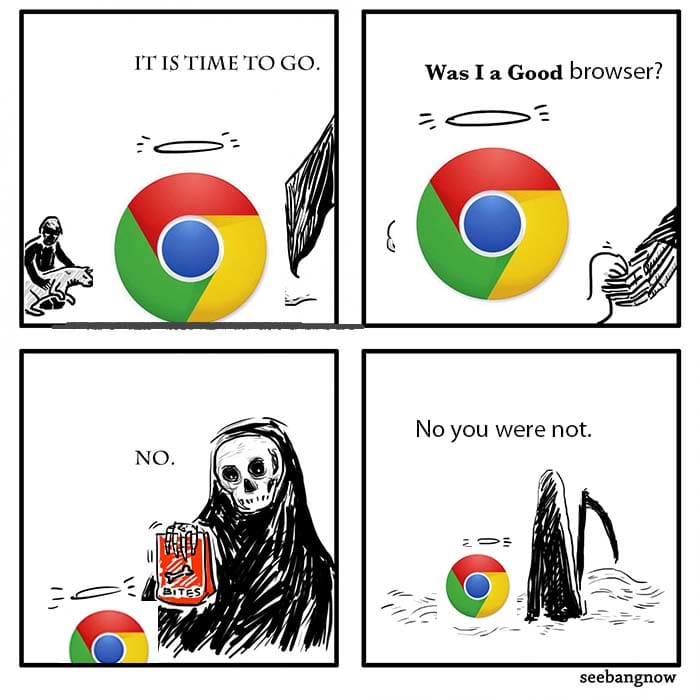
Chrome comic

This isn’t the first piece of despairing new info about Chrome to come out lately. Google recently announced that ad blockers essentially won’t work on Chrome unless you pay. 

That said, we strongly recommend choosing another browser if you want to keep your personal data safe.

The Brave browser has built-in ad blocking. You can also use your favorite Chrome extensions.

Enjoy private, secure and fast browsing with Brave.

Firefox has a whole host of tools that help keep you safe on the internet. From blocking cryptomining attacks to stopping invasive ads, there is no better time to start browsing with Firefox.

Chrome may have the largest market share, but they’re starting to flex that power in scary ways. It’s best to get familiar with a new browser now before something drastic happens that makes you regret hanging on too long.

New Google Chrome feature aims to tame tabs

Google Chrome on Android is redesigning the tab screen and introducing tab groups.

Google Chrome on a mobile phone

We all do it. Despite the fact that having lots of tabs open on Google Chrome can slows our devices down a lot, we all have a lot of tabs open all the time. Take a look right now, we bet you have at least five open if you’re on desktop and upwards of 10 if you’re on your mobile.

Ever since tabs were first introduced to modern web browsers, they’ve completely changed the way we use the internet. They have, however, remained very much in their original state. We open them up, we use them, we don’t, and if we need them later on, we can save them all as bookmarks. Despite their revolutionary initial effect, tabs haven’t really changed much at all. Until now.

7

Google Chrome on Android is redesigning the tab screen and introducing tab groups

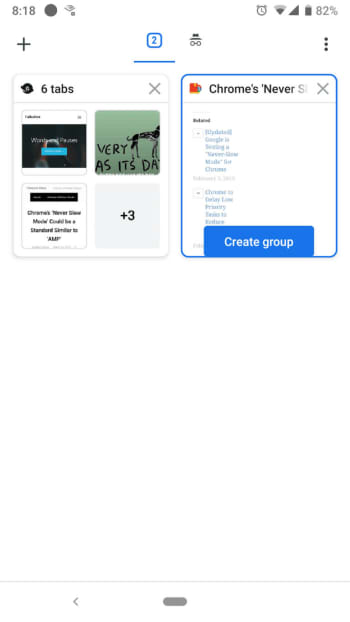
At the moment, whenever you hit the tabs icon in Chrome on Android, you’re presented with all your open tabs as individual cards. You scroll through them until you find the one you want and then when you find it you tap it and return to browsing the web. This is fine, but it quickly becomes tiresome scrolling through the cards, the more tabs you have open.

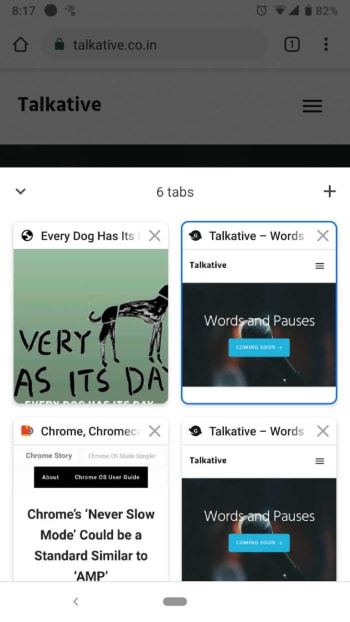
new tab groups on Google Chrome for Android

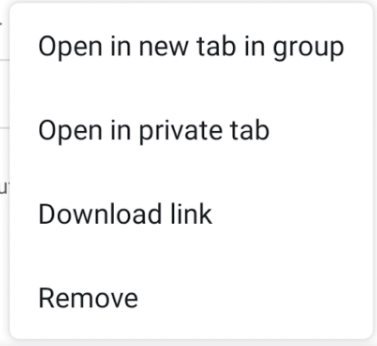
Google is looking to change this on Chrome for Android by adding a new option when you long press on a link. The “Open in new tab group” option will allow you to bunch together various tabs of your choice into groups. When you start a new group, you’ll see a new navigation bar appear at the bottom of the page, which will show all the tabs you’ve placed in the group as favicons. This should make it much easier to switch between them and allow you to start grouping tabs together based on common subjects.

Tab groups on chrome
Image via: Chrome Story

This means that when you click the tabs icon, you’ll no longer be taken to the card scrolling interface. Instead you’ll get a new display that shows all your open groups as in a similar fashion to how you see folders in other file exploring programs. Each group will show a preview of the first four tabs that are open in it, and as mentioned, favicons for the sites they’re on. Clicking on a particular group will then take you to an interface that looks more similar to the current tab card scrolling system, as you scroll through the tabs open in the group.

chrome tab groups screenshot
Image via: Chrome Story

Unfortunately, this new and very useful feature has only been spotted on the Android version of Google Chrome Canary, which Google uses to test advance new features. The feature is still a little rough around the edges, which means Google still has some work to do before we all get to use it.

Google Chrome Canary Download now ►
7

This all looks very promising, however, and seems set to see tabs again completely revolutionize how we use the web. Don’t be surprised if once this feature lands on your phone, you start to notice that you’ve many many more tabs open that you used to have.

Google: Pay us or your ad blocker won’t work on Chrome

Chrome’s new system hurts ad block programs and favors enterprise members.

Google Chrome

Manifest V3, a new development for Google Chrome, could spell disaster for ad blocking. 

Many ad blockers work by filtering content a certain way. When a blocker identifies an ad, it shoots it into space and you never see it. But Chrome could soon prevent those ad blockers from getting the information they need to work properly.

Google has responded to extension developers’ concerns over those changes to ad block on their forum page. However, their response came with a bit more concerning news.

“Chrome is deprecating the blocking capabilities of the webRequest API in Manifest V3, not the entire webRequest API (though blocking will still be available to enterprise deployments),” Simeon Vincent, Chrome extension developer at Google, wrote. “Extensions with appropriate permissions can still observe network requests using the webRequest API. The webRequest API’s ability to observe requests is foundational for extensions that modify their behavior based on the patterns they observe at runtime.”

Essentially what Vincent is saying is that some programs will still be able to block ads, but users would have to pay Google for that privilege. Ad blockers for free Chrome users wouldn’t work as well under the new configuration.

Back in January, Google proposed a change to Chrome that would hinder ad blocking programs such as AdGuard and uBlock Origin.

Basically, these programs blocked ads before they even popped up on the screen. The new Chrome development would stop the ad block programs’ requests since those are made before the ad is loaded onto the page.

uBlock Origin Download now ►
9

So what should I do?

If you enjoy an ad-free web-browsing experience, you have plenty of options.

The Brave browser is a logical choice. With its built-in ad blocking it can give you a nice, clean interface. You can also use your favorite Chrome extensions. And the Brave Basic Attention Token provides a way to support your favorite content providers.

Enjoy private, secure and fast browsing with Brave.

We can also recommend Firefox and Opera as great browsers with user-friendly features.

If you want to stick with Chrome, but you still want ad block, you can, but you may need to pay for Chrome Enterprise. In order to do so, you need to contact their sales team and fill out a form to make the request.

We can expect Chrome to take some backlash for this move, as they’ve already been getting it for nearly six months as it is. For current Chrome users, this might be the motivation you need to make the switch.

How Brave eliminates common browser problems

Brave brings you fast, private browsing without many of the drawbacks of other browsers.

Brave

The internet has evolved into an essential component of our daily lives, and its use in American homes has increased by 400% in the past 20 years. According to the USC Annenberg Center for the Digital Future the number of hours we spend on the internet every week has risen from 9.4 (the statistic back in 2000) to 23.6. Overall internet penetration has increased from 67% to 92%. That’s all time that you’re spending on a specific internet browser, whether it’s Firefox, Chrome, Safari, Opera, or what have you. No matter your choice, it’s helpful to know the good, the bad, and the ugly of every choice out there. Not all browsers are created equally, so we’ve compiled a list of each one’s strengths and weaknesses:

Is it time for you to make a switch? Check out the stats below and decide for yourself!

1. Google Chrome
Google ChromePros:

With the monolithic Google behind its creation, it’s no surprise that Chrome is fast, efficient, and user-friendly. It’s got pretty much anything you’d need to make the most of the web, like quick answers in your address bar, one-click translations, and a wide variety of extensions and customization options.

Chrome will also automatically protect you from security issues like scamming and phishing, making it pretty safe to browse with, too. Just as Google is the most popular search engine, Google’s Chrome is currently the most popular browser. Chrome’s popularity has led to a surplus of extensions and websites catered to the browser, making it a highly customizable experience to boot.

Google Chrome Download now ►
7

Cons:

As powerful and popular as Chrome is, the browser is not without fault. In order for it to achieve its impressive speeds, Chrome needs to take extra resources from your PC:

Chrome splits every tab, plugin, and extension into its own process – that’s how it manages crashes so competently. The downside is that means it’s far more taxing on RAM since it’s duplicating tasks for each tab. Chrome is one of the ‘heaviest’ browsers and can get swarmed by bloatware, making it less than ideal for machines with limited RAM. There’s also the mounting suspicion of tying your data to Google, and if privacy is your concern you should likely look elsewhere.

2. Mozilla Firefox

FirefoxPros:

One of the earliest browsers out of the gate, Firefox brings to mind two things: Privacy and speed. While other browsers that capitalize on privacy do so at the cost of loading speed and/or heavier use on system resources, Firefox manages to succeed on both fronts, achieving a browsing experience that gives Chrome a run for its money.

Mozilla is a non-profit organization, meaning it’s got far less interest in mining and selling your data than, say, Google Chrome. Firefox also updates on the regular to bolster user privacy and ad-blocking. Its combined speed and safety put it at the top of TechRadar’s web browser ranking as recently as September 2018, claiming that Firefox has “retaken its crown” in recent months, and is now deserving of another look from avid Chrome users.

Mozilla Firefox Download Now ►
7

Cons:

Firefox is fast, but it’s not always faster than Chrome. This is mostly apparent on pages with tons of images or videos, at which point you’ll probably want to simply install an add-on or extension to either speed it up or block them. This brings us to Firefox’s second weakness: If you start installing extra plug-ins to customize your experience to the same extent as Chrome, Firefox will start to lag noticeably behind the competition.

Lastly, Firefox doesn’t have built-in support for Flash. Flash is notoriously dangerous, so this isn’t so much of an issue in 2018 when the internet is largely abandoning the platform. Even so, just like Apple got a negative response for removing the aux jack, we feel it’s necessary to mention any upgrades that leave old tech in the dust.

3. Microsoft Edge
Microsoft EdgePros:

Microsoft Edge the default browser for Windows 10. As such, it does a decent job of keeping in line with the speed, intuitive UI, and ‘clean’ aesthetic of many facets of Windows 10. Edge holds its own by modern web standards, and additionally offers a few capabilities you won’t get in other browsers: Webpage markup, integrated Cortana features, and a clean-cut reading mode.

Recent updates have also included a Tab Preview, Set Aside, ebook reading, and a handful of nifty extensions. Edge also no longer uses the infamous ActiveX, browser helper objects, or VBScript support that made Explorer slow as dirt. Edge is easily a significant improvement over Internet Explorer in terms of speed, accessibility, and compatibility. It also weighs substantially less than Chrome, meaning you’ll have a less bloated browser experience, albeit a more bare-bones one.

Cons:

Edge has struggled to achieve market share, mindshare, and positive reviews. The first three months of 2018, Microsoft Edge pulled a less-than-impressive 8% of the 1.2 billion visits to government websites from consumer and business PCs and Macs. This figure isn’t wholly reliable for another reason that Edge gets a lot of flak: The browser is not even available on any Windows OS older than 10, or if you’re using a Mac.

The real head-scratcher is why Microsoft feels the need to support multiple browsers for different Windows Operating Systems when they could just work to make Edge backward compatible. Doing so would certainly help give it some much-needed traction. For more reasons why you might find Edge disappointing, check out this article.

4. Opera

Opera browserPros:

Opera is as underrated as it is high-quality, and it’s certainly both of those things. Opera is a Chromium-based software, which means it’ll feel similar to Google Chrome when it comes to facets like rendering, and was the flagship for popular modern browser features such as private browsing and pop-up blocking. Opera also offers a free VPN that will replace your IP address with a new one, making it more difficult for ads to track your location and harass you.

Opera pushes a focus on privacy and like Edge offers a simple, intuitive layout, and has built-in messenger services like WhatsApp, Telegram, and Messenger, making it altogether a quick, smart, intuitive browser that go toe-to-toe with the competition.

Cons:

Opera doesn’t offer as many plug-ins as other browsers and it’s also lacking in parental controls (if such a thing matters to you). Occasionally the browser will also have issues playing videos or have trouble keeping pace with other browsers like Firefox.  Moreover, there’s no shining reason why a person would switch to Opera. It performs everything a browser should, but doesn’t really excel in anything either. For speed, people go to Chrome. For customization,they go to Firefox. With Opera, there’s little pull to use it when compared to the competition; most people have a strong reason for using one browser or another and being caught in the middle isn’t helping its case.

5. Safari
SafariPros:

Safari’s got the home field advantage with the Apple crowd. It’s the default browser for all the company’s products, mobile or otherwise, and Safari has become intertwined with the Apple experience. Apple does a solid job with security, and Safari is no exception. Browsing with Safari is a ‘better safe than sorry’ experience and can be further optimized quite easily to bump your protection even higher. Safari uses default pop-up blocking, which is always a huge plus.

If you’re an Apple user, Safari is still an excellent browser, even 15 years after its release. It’s already preloaded on all Apple products, so it’s at your disposal immediately and seamlessly works in tandem with all software produced by the company.

6

Cons:

If you’re not an Apple user, then Safari is useless to you. Microsoft products want as little to do with the competition as possible, so if you’re in with Microsoft you may never even use Safari. Besides the enhanced security options, there also isn’t a ton you can do to customize Safari, meaning that you’ll get a good, safe experience but not necessarily and adjustable one.

Why we like Brave
BraveIf you haven’t heard of Brave before, it’s likely because its first stable release just landed for iOS back in early August. The platform is now available on iOS, Android, macOS, Windows, and Linux. Who created it? Brian Bondy and Brendan Eich, who you’ll remember as the inventor of JavaScript and the co-founder of Mozilla (makers of Firefox).

Much like Firefox prioritizes user privacy, Brave automatically blocks any third party trackers, shutting down anything that might worsen your browsing experience such as third party cookies, pop-ups, and ads. None of that even makes it past the first line of defense. From that point forward, the rest is up to the user.

Brave is fast (up to eight times faster than the mobile competition), offers extensions that you’re familiar with, shields you from third party trackers, and because Brave blocks excessive third party requests, you’re actually saving money on your data plan. But then we get to the age-old dilemma of publishers and advertisers not generating revenue due to blocked ads.

Brave has an answer for that too:

How Brave solves the ad problem

Basic Attention TokenWith Brave, users can always select an ad-free browsing experience. However, Brave introduces a new private advertising platform that users can opt-in to and receive rewards for their attention. Users who elect to view ads earn Brave’s Basic Attention Tokens (BATs) which can then be used to support publishers and content creators, distributing your monetized attention how you see fit. You’ll then benefit from better ad-matching, and your data remains private.

Thirty percent of the ‘revenue’ gained from watching the ads goes to Brave, while the other 70% goes directly to the user. Should you choose to browse with Brave Rewards, your data stays private and you’ll still benefit from more accurate ad-matching and reception of Basic Attention Tokens. If this sounds like a feature you’d be interested in, you’ll be happy to know over 33,000 content creators and publishers are already registered receive tips and contributions from their users.

Softonic is proud to partner with Brave. When you download from us, we may earn a commission.
This Chrome extension makes Gmail easier to use

Simplify has been designed by one of Gmail’s former lead designers and cuts down all the clutter.

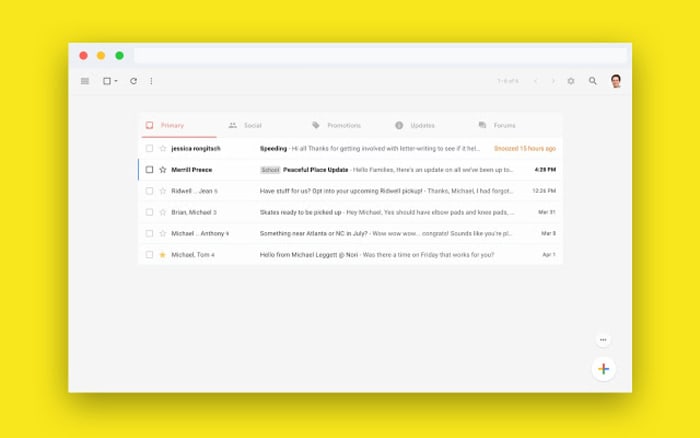
Simplify Chrome extension for Gmail

Gmail has a whopping 1.5 billion users worldwide, so Google has obviously done something right. If you ask any of those 1.5 billion users, however, we’re sure each of them would have their own little gripes as Gmail also has its fair share of problems. One of the major gripes would be that Gmail is too complicated.

There is good news though, for anybody out there who thinks Gmail has too much going on. If you only ever press a tiny fraction of the buttons you can see when you open Gmail, and don’t even know what half of the Gmail features are for, you might want to simplify Gmail, which you can now do thanks to a nifty little extension for Google Chrome.

Gmail Access now
8

Simplify has been designed by one of Gmail’s former lead designers and cuts down all the clutter

Between the years of 2005 and 2018, Michael Leggett was at the forefront of the tech world, working as a designer for both Facebook and Google. One of his major projects was working as a lead designer on Gmail. He’s since left the two titans of tech to work on a project that aims to reverse climate change, but he also has a pet project. In his spare time, Leggett has been working on an extension for Google Chrome that simplifies the Gmail interface on desktop.

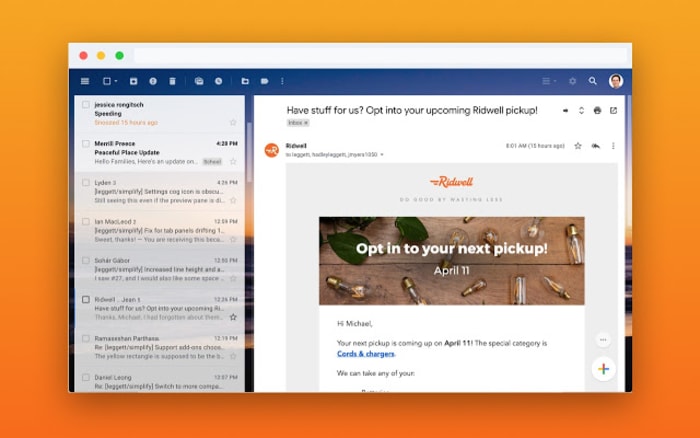
Rather imaginatively, Leggett has decided to call his extension Simplify, presumably because that is what it does. It takes the Gmail interface and makes it much simpler by moving around a few key features and making it easier to hide others that aren’t used much at all. The search bar has been moved up to the top-left of the screen, rather than going right across the top and all the sidebar options have been moved into drop-down and pull-up type menus. Another cool change is that Simplify moves the primary functions bar to the top of the screen rather the top of the inbox.

A screenshot of the new Simplify extension for Chrome
The sidebars can be removed altogether to offer a much cleaner interface

Another big deal about Simplify, considering it is an extension that works with your email inbox, is that doesn’t collect any data and won’t serve up ads. The Simplify page on the Chrome web store says, “Simplify is mostly some CSS plus a little Javascript to apply the CSS. There are no trackers. No data is sent or shared.” If you’re ever downloading anything that will have access to your online accounts, you need to make sure you’re not handing over too many permissions. That Simplify clearly states it won’t collect any of your data is reassuring.

A look at a simpler Gmail interface
Simplify states that it has no trackers and will not harvest any user data

All in all, Simplify is a solid extension for anybody who feels a little overwhelmed any time they open their Gmail inbox. If you miss the recently dropped Inbox, you should give it a try. You can add Simplify to your Chrome browser by clicking here.

Google Chrome is getting a secret Reader mode; this is how to access it

Chrome’s Reader mode has been spotted in the Chrome Canary, the experimental browser Google uses to test new features.

Web browsers are like windows to the online world. Through them, we see and access all the information that the internet has to offer. Unfortunately, however, the internet is also filled with distractions and ads, which means reading all the web has to offer isn’t as simple as it should be. This is why browsers like Firefox, Edge, and Safari have dedicated Reader modes. The main job of a Reader mode is to cut out all the clutter that comes along on every web page. Now, after years of waiting, Google is adding a Reader mode to Chrome on desktop, too.

Chrome’s Reader mode has been spotted in the Chrome Canary build, the experimental browser Google uses to test new features

Google Chrome in a book

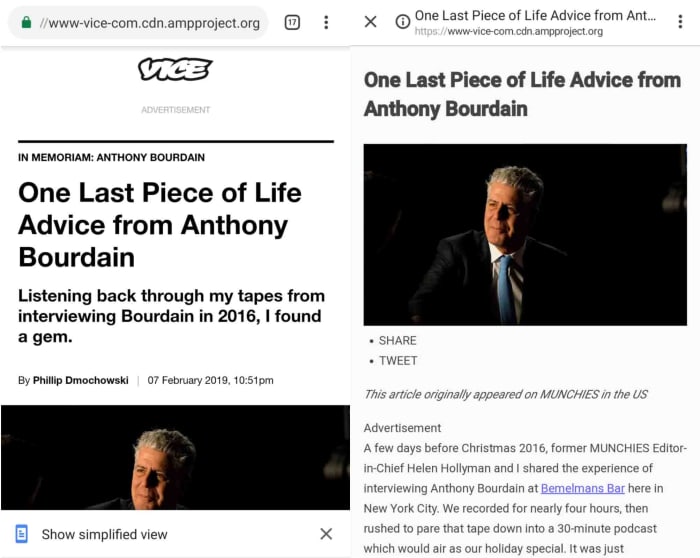
It isn’t really known why Google has waited so long to bring a Reader mode to Chrome for desktop. Google first introduced a Reader mode to Chrome on mobile back in March 2018. If you’re unfamiliar with the Chrome mobile Reader mode, it is called Simplified View and we’ll show you to use it. It now looks like Google is introducing a similar feature to Chrome on desktop (at least, that is what the Chrome Canary code indicates).

Google Chrome Canary Download now
7

First spotted by ZDNet, Chrome Canary users can use the new Reader mode right now. To activate the Reader mode, you first need to make sure you’re using the latest version of Chrome Canary, which is Canary V75. Then, all you have to do is enter “chrome://flags/#enable-reader-mode” into the omnibox, turn on the feature and then restart the browser. You then activate the feature by right-clicking on the page and hitting “Distill page.”

Image via: ZDNet

It looks as though Google is keeping the feature pretty basic, though, as there isn’t much to it, unlike the advanced Reader mode you can find on Firefox. The feature is available on Chrome Canary now, but there is still no news about when the feature will land on the regular version of Chrome that most users have on their PCs at home.

How to enable the Reader mode on Chrome for Android

Google Chrome mobile simplified view

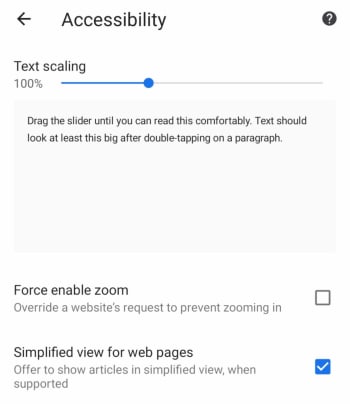
If you would like to know how to access the feature on Google Chrome on your mobile, you’ll be pleased to know that you can do it right now. The feature is called Simplified View, and this is how to enable it.

  1. Open Chrome on your Android smartphone and hit the three dots icon in the top-right of the screen.
  2. Tap Settings and then scroll down until you find Accessibility and then click it.Google Chrome on mobile accessibility menu
  3. Hit the Simplified view for web pages at the bottom of the screen and then get back to browsing the web.

Once you’ve done this, whenever you navigate to a new web page, an option will appear at the bottom of the page offering you the chance to load the page with a simplified view. Hitting this option will take out all the ads and hyperlinks and leave you with just the text, making it all much easier to read.

Chrome’s new dark mode has landed on Windows 10

This is Google’s most comprehensive dark mode for Chrome.

Google has been working on a dark mode for the Chrome browser for quite some time. The feature dropped for Apple fanboys last month when Google pushed it out to macOS and the feature is now being rolled out to Windows 10 users as a part of the Chrome 74 update. There is, however, a catch. Google is enabling the new dark mode for Windows, but it isn’t switching it on for all Chrome users just yet.

If that sounds confusing, don’t worry. Basically, what Google has done is to tie in the new Chrome dark mode to system-wide preferences and then not released it to all users. This means if you want to activate dark mode on Google Chrome, you’ll have to activate a dark mode in Windows 10. When you do this, Chrome will move to match it.

This is Google’s most comprehensive dark mode for Chrome

Dark Google Chrome

There has always been some sort of dark mode available to Chrome via theme support. Now, the official Google Chrome dark mode includes full implementation across the whole app including the context menus, tabs, and omnibox. When in dark mode, Google Chrome looks very similar to how it looks when you’re surfing in incognito mode.

If you have already updated to Chrome 74 then this might already be available on your Windows PC, as long as you have your system set to dark mode. To do this you need to right-click on the Windows taskbar and then hit Colors. From there you need to scroll down to Choose your default app mode and select Dark instead of Light.

dark mode setting for windows and google chrome
Image via: Google

Unfortunately, the feature has only been rolled out to a select group of Chrome 74 users, with a Chrome community manager laying it out on the Chrome support forums. “I can confirm that we are rolling out this feature to a small number of Chrome M74 users now, and that it will become more widely available in the near future.” If you don’t have access to this change yet, don’t worry, it is coming.

7
Chrome is a young, fast browser that can browse any web page. It supports all major technologies and standards such as HTML5 and Flash.

How to enable Google Chrome’s dark mode right now

There is another option, however, if you don’t want to wait for Google to push the feature to your version of Chrome. A couple of weeks ago we published a guide on how to activate the Google Chrome dark mode right away. All you need to do to activate Google Chrome’s dark mode is:

Step 1

Before opening Google Chrome, you need to right-click on the Chrome icon on your desktop and click Properties.

Step 2

Find the text box labeled Target. Then copy this line of text –enable-features=WebUIDarkMode –force-dark-mode and paste it into the Target field at the end of the text already in the field. This should be after it says Chrome.exe”.

Step 3

Click Apply and then OK.

After you’ve followed the above steps, you’ll be able to open Google Chrome in dark mode independently of the system-wide settings we mentioned earlier.

Meet Emma, the Chrome extension that scans LinkedIn profiles

What does Emma think about your career prospects?

Emma Ai

Another day, another algorithm that aims to “make hiring bias disappear,” by way of analyzing your work style.

In the past, we thought that smarts alone were the best way to predict on-the-job success. Today, there’s an understanding that success depends on a collection of things: being a team player, a leader, and someone who is flexible and creative.

Of course, we live in a time where optimization trumps everything. Brands need to bet on their best candidates and now rely on personality tests and behavioral analysis to help filter.

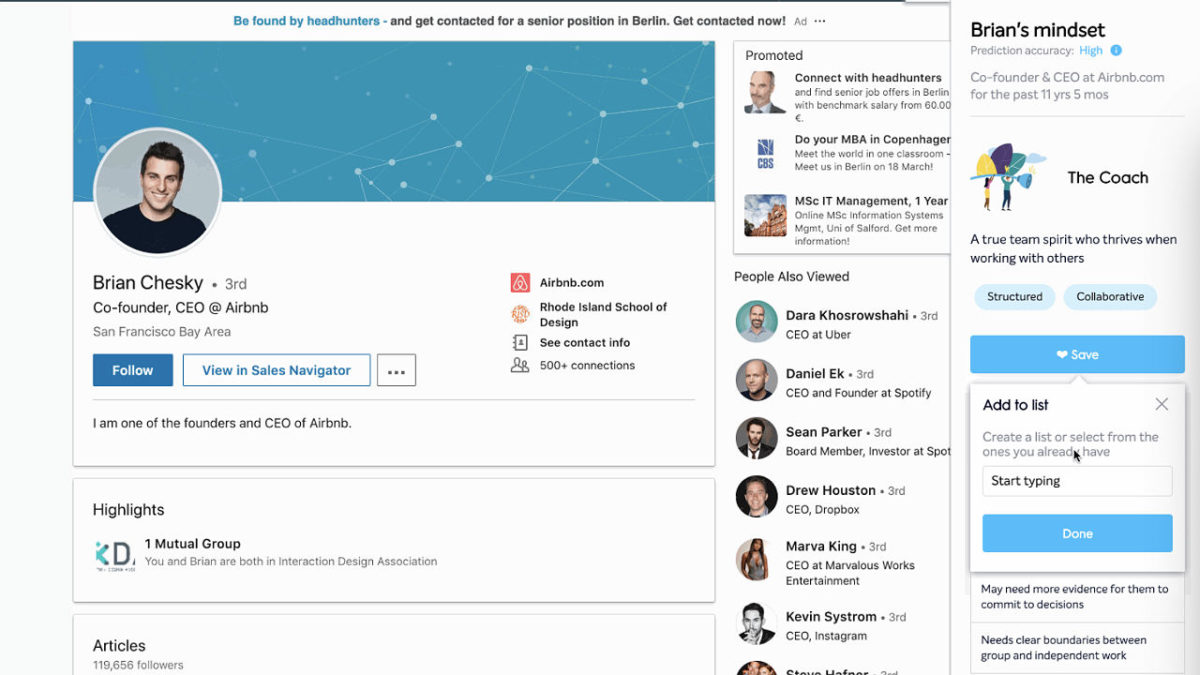
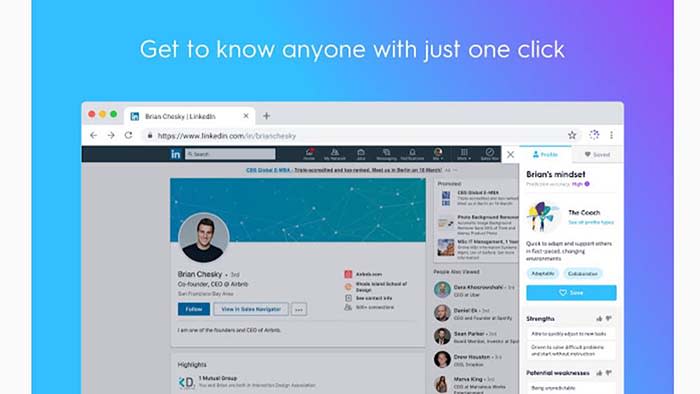
Enter, Emma. This is the latest offering from business intelligence firm, Bunch.ai. Emma is a Chrome extension powered by AI that analyzes LinkedIn profiles to learn more about a “person’s mindset, motivations, and work style.”

While it sounds a bit creepy, Emma provides some different insights than your standard big five personality test. Here’s a little more info:

What is Emma?

Job hunting

Emma is an extension of Bunch.ai’s AI-based hiring tools. Like some of the other platforms we’ve run into, it uses machine-learning algorithms to determine whether a person is likely to succeed in a job.

According to Bunch’s “about us” page, their technology looks for cultural signals within other workplace tools like Slack and JIRA. These insights are then used to “manage culture” and identify how specific teams work.

Recruiters and employers can then look for potential hires that fit in with their organizational culture through Emma. The idea is presented almost like a match-making approach, so companies can fill their offices with “results-driven” or “detail-oriented” staff.

Instead of asking potential hires to take a screening assessment, they can look at their LinkedIn profile, activate Emma, and identify a person’s strengths.

While the goal is to eliminate bias, we’re not so sure. Scanning for cultural words could lead to subtle forms of discrimination that leave out qualified candidates.

Anyone can use Emma to analyze LinkedIn profiles

What makes Emma unique is that you can use “her” insights as a recruiter, an employer, or as a way to gather intelligence.

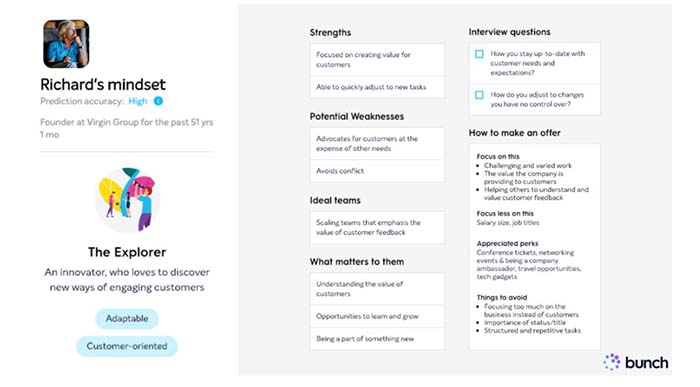
Emma uses your profile info to highlight strengths, weaknesses, and approach to work. She also sorts you into categories like “coach” or “sage.”

Or, you might be like Richard Branson, an “explorer,” who’s adaptable and customer-oriented.

Richard Branson

Overall, the breakdown is pretty appealing. Users can quickly identify personality traits by way of a sorting hat element. You can ask “am I a sage like Bill Gates or an explorer like Richard Branson?”

Does Emma violate GDPR?

GDPR

In case you’ve been living under a rock for the past couple of years, the GDPR is a regulatory measure passed last year in the EU designed to protect customers’ digital privacy.

Basically, GDPR dictates that any website that serves EU residents needs to obtain consent to add a user to their subscription list. It also must have a clear privacy policy that lets users know how their data will be used.

Sure while the extension doesn’t violate GDPR protocol, LinkedIn might not be happy with it. Emma actually violates their terms of service, as the AI technically scrapes data from the platform without the subject’s permission.
On Emma’s side, the company says that they aren’t exposing any information that you haven’t publicly shared. Instead, this is information that you’ve voluntarily shared on LinkedIn, so technically, there’s no violation.

This use of AI feels kind of iffy to us. On the one hand, Bunch.ai isn’t wrong. Insights come from information you’ve publicly shared, so there’s no technical violation. Still, this feels like the digital equivalent to that person who loves letting people know that they’re a body language expert.
Hey, it beats a traditional personality test

Personality test

Emma, according to the company website, isn’t out to put you in a box based on big five traits. According to this study, the only trait indicative of workplace success is conscientiousness — and that’s not necessarily true for every type of job.

For example, jobs that require out of the box thinking or creative problem-solving don’t necessarily depend on the worker’s ability to respond to every email ASAP.

We did like a few things about the tool. For one, the profiles break down user information in an appealing way. Also, insights are more about work style than highlighting the pros and cons of your Myers-Briggs personality results. And, it’s pretty cool that users can review their own data.

However, the consent issue kind of rubs us the wrong way. You might be fine publishing information about yourself. However, you might have reservations about a recruiter running your stats through an algorithm.

Users don’t need to ask for permission, either, so anyone can look up anyone else. While it could be useful, Emma is tinged with shades of that babysitter screening tool.

Scary Chrome message could suggest malware

The new “managed by your organization” message is all about policy management.

Google Chrome logo

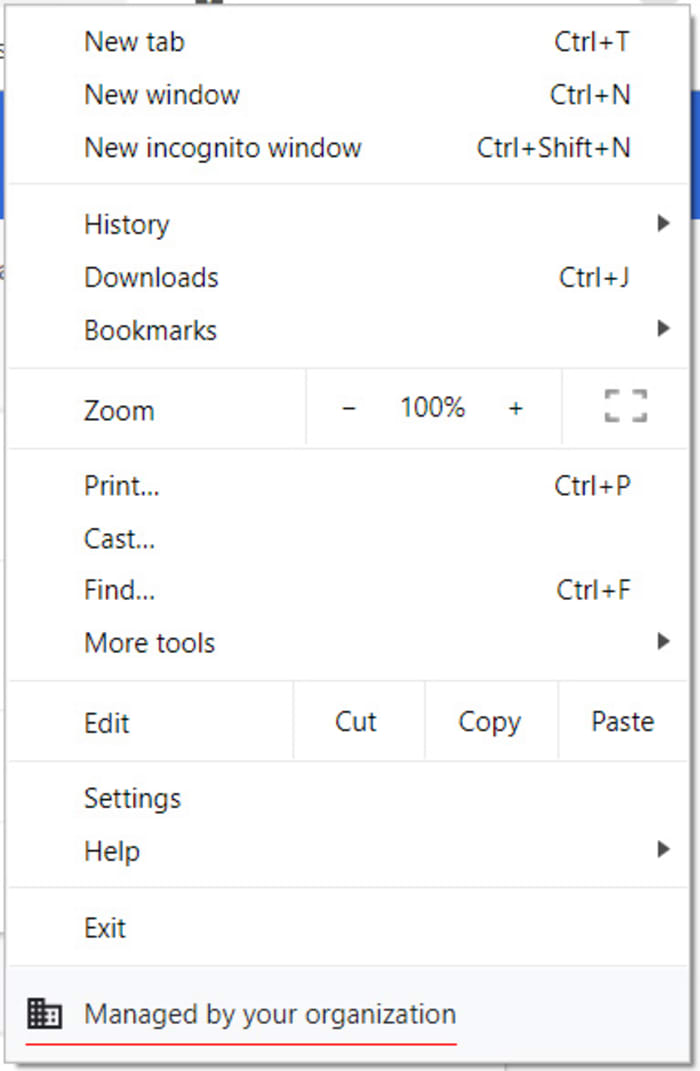
Google Chrome’s latest update, version 73, has started showing up a strange new message when users open the main settings menu by clicking the three vertical dots icon found in the top right of the of the browser. At the bottom of the settings menu, many users are reporting seeing a message saying, “Managed by your organization.” Let’s have a look at what this message means, particularly for personal users who aren’t a part of any organizations.

The new ‘managed by your organization’ message is all about policy management

Google Chrome 73 marks the first version of Google’s illustrious web browser that communicates Chrome’s policy management system. According to the Chrome help pages, Chrome policies can be set at the user level and apply whenever that particular user logs in to Chrome. They are the definitions that your particular version of Chrome works within whenever you’re using it.

new chrome settings menu message

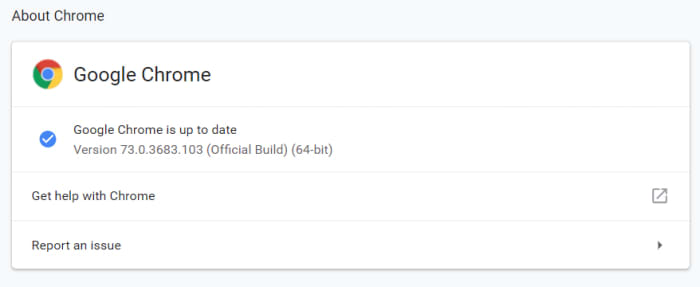
Policy selection is normally a network admin level issue, which means personal users won’t be familiar with it. Chrome 73, however, changes all this as now, whenever Chrome detects a policy in the registry, it will show the “Managed by your organization” message in the settings menu. If you don’t see the message, you either don’t have any policies registered or you don’t have the latest version of Chrome. To see which version of Chrome you have open the settings menu, hover the cursor over Help, and then click About Google Chrome.

The Google Chrome version page

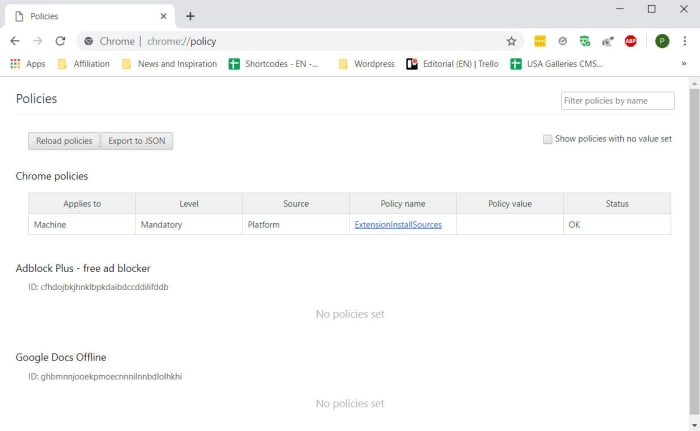
If this all sounds a little confusing, don’t worry. As well as administrators, Chrome policies can also be configured by software, which is why you might have one even without knowing where it came from. Most of these policies are harmless. I have one relating to Chrome extensions, which is why I see the Managed by your organization message.

The Policy Registry tab on Google Chrome

The problem, however, is that malware can also register policies to execute malicious commands when you use Chrome. As Bleeping Computer pointed out, malware could install a malicious extension, which could cause you any number of problems and security issues.

What to do when you see the ‘Managed by your organization’ Chrome message

This means that when you see the message, you shouldn’t automatically disregard it. Google has said that there is nothing to worry about when we see these messages, but it is also worth noting that Google also says it is worth checking on the policies you have registered with Chrome, should you see the message. To do this you need to open Chrome and type chrome://policy into the omnibox. Doing this will open the Chrome Policies tab where you’ll be able to see all policies registered with your personal version of Google Chrome.

Each policy should appear as a link you can click to go and see its support page. Clicking each link should inform you as to whether the policy is legitimate or malicious. If you find a policy you want to remove, you can find a tutorial on how to do so at the Chrome Support pages.