5 ways Microsoft Office is better than Google Drive

Why Google Drive isn’t always your best options.

Microsoft Office

Most of us have used Microsoft Office and Google Drive. But which one is better? The two offer a variety of features and benefits.

Below, get a closer look at why you may want to pay for Office even though you can get Google Drive for free.

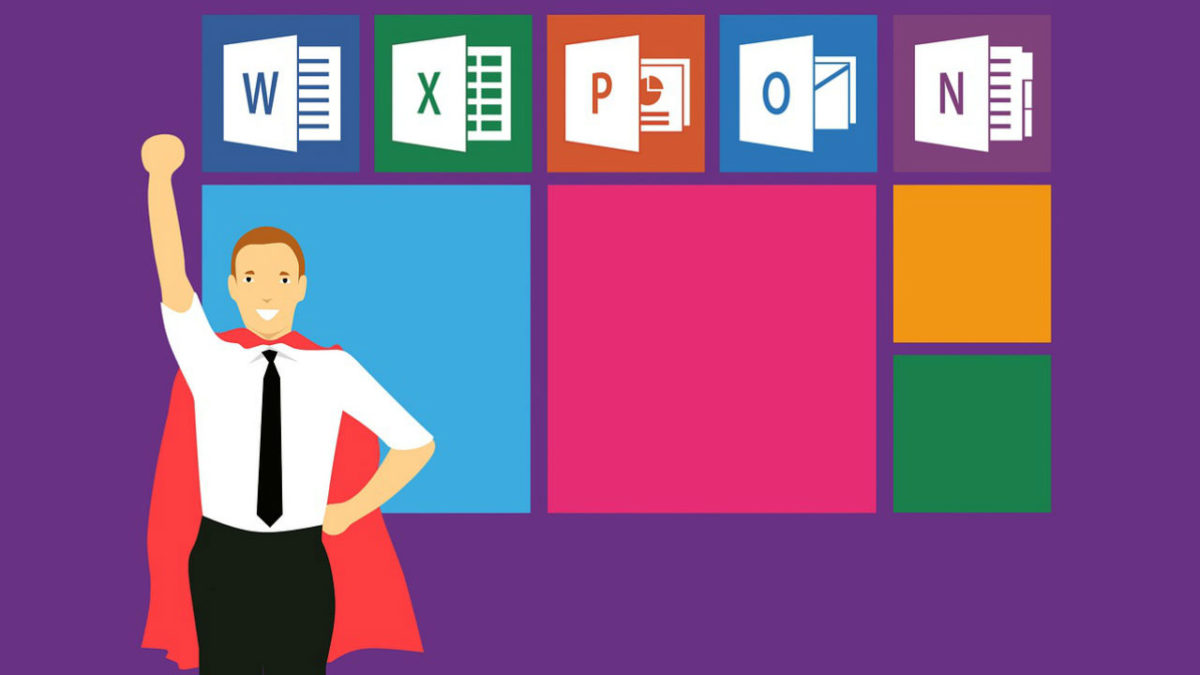
5 ways Microsoft Office is better than Google Drive

1. Most people know Word

Word is the most commonly used word processing program today. Most people know how to use it. That means if you need to send a document to someone, chances are good they will understand how to open it up and use it if it’s in Word. Google Docs can be a bit tricky for those who don’t have much experience with it.
Microsoft Word 2016 Download Now ►
9

2. Google Docs offers fewer features

When comparing Microsoft Word and Google Docs, it’s easy to see that Docs has fewer features. For those who enjoy having the ability to handle unique layouts and embedding plenty of graphics, this is going to work in your favor. Adding an image can be difficult at best with Google Docs, but it takes only a minute when you are using Word.
3. Excel is easier than Sheets

Microsoft Excel and Google Sheets are fairly similar. You could easily get used to both options. One key factor that helps Excel stand out is its ribbon. It is very easy to access and use to create formulas. This helps to speed up the process for many people. For those who rely on Sheets, you may not notice much difference. However, it is easier to collaborate with others using Sheets.
4. PowerPoint rules

For those who are creating slideshows — whether they are for a classroom discussion or a company meeting — PowerPoint from Microsoft tends to be the better option overall. The program offers more features, and you can create a presentation from scratch within minutes.

5. Microsoft’s latest upgrade makes it easier to share

With the latest Microsoft Office version, individuals can collaborate more effectively. Your materials are all stored in the cloud, too, which means you have better access to them. This used to be the biggest downfall of Microsoft — it lacked cloud access and connectivity. That gave Google Drive the leg up for a long time.

6

When it comes down to it, either program is accessible and fairly easy to use. Microsoft is far more feature-heavy, though, and tends to be on the cutting edge of new tools.
5 ways Google Drive is better than Microsoft Office

Trying to decide between Microsoft Office and Google Drive? Here’s what to consider.

Google Drive

When it comes to word processing, is Google Drive better than Microsoft Office? Some may say Office is the better option for word processing, but Google Drive does have a variety of benefits. However, you may not find them all as easily accessible as you do with Microsoft. If you have to choose just one, there are a few factors to keep in mind as you make your decision.

5 ways Google Drive is better than Microsoft Office

1. Google Docs is free

When it comes down to it, the price tag is often the top reason many people choose Drive and Docs over Microsoft products. It makes sense, of course, because this type of investment can add up over time. Unless you have a valuable reason to invest in Microsoft Office, it may not be worth it to you.

Google Docs download free
8

2. Collaboration with Drive is better

Let’s say you need to send a document to someone across the world. You want them to be able to see it and edit it while you are looking at it on your computer. With Drive, you can do this rather easily. In its latest version, Microsoft has updated many of its collaboration tools to make this process easier for you to manage. However, it is not as easy to do as it is with Google Drive.

Google Drive Download Google Drive
7

3. Drive is user-friendly

Another key reason to lean toward Google Drive? It’s just so user-friendly. If you grew up using Microsoft, you will find most of the features are about the same. You can easily interchange them, in fact. But, Google Drive is a bit easier to use overall when it comes to features and tools. The bells and whistles are easy to access and more manageable. If you are going to be using them heavily, you’ll appreciate this benefit.
4. Google Drive won’t clutter up your hard drive

When you use Google Drive to create files and spreadsheets, you don’t have to worry about saving your content to your hard drive. This may not matter to some people. But for those who need to keep space free while juggling lots of documents, Google Drive wins. That’s because all of your content is stored in the cloud.

5. Google Drive saves time

With Google Drive, you can instantly create a new document straight from your web browser. The best part? It works with any browser, not just Chrome. The only catch is that you need to be signed into your Google account to instantly create a document. To do this, type doc.new into your browser’s address bar to create a Google doc. For instant Slides or Sheets access, type sheet.new or slide.new.

In this case, Google Drive is the hands-down winner when it comes to managing your daily needs. Whether you use the program sparingly or process dozens of files a day, Drive makes it a bit easier.

4 Google Sheets hacks you might not know about

Make Google Sheets amazing with these 4 easy tricks.

google sheets

Google Sheets lets you create spreadsheets online for free. Plus, the program integrates seamlessly with other Google office programs like Google Docs and Google Slides. With Sheets, you can perform all the standard tasks you’d do with any other spreadsheet program. But there are also some lesser-known features and functions that make Sheets easier and more convenient to use.

4 Google Sheets hacks you might not know about

1. Back up your work easily

Having your Google Sheets files stored in the cloud is great because you can get to them from any device — as long as you have internet access. Another handy option is to back up all your spreadsheets to your hard drive. Just pull up your files and check the ones you want to save on your computer. Then, under the Actions menu, select Download. Here, you can add them all to a zip file that is conveniently stored on your computer for offline access. (Note that you can only backup 2GB at a time).

2. Take advantage of keyboard shortcuts

Keyboard shortcuts are a huge time-saver when working in Google Sheets. Who can remember all of them, though? Good news: It turns out you don’t have to make your own handwritten shortcut legend or have a photographic memory to take advantage of this option. Instead, how about a keyboard shortcut to show you all the keyboard shortcuts?

Just press “command + forward slash” on your Mac or “control + forward slash” on your Windows PC.

This will bring up the mother of all shortcut lists, displaying every keyboard quick-command available for Google Sheets.

Google Drive Download Google Drive
7

3. Easily change currencies

If you’re using Sheets to keep track of your budget or for any other financial information, you should know this little trick: If you want to make calculations using different currencies, just highlight the relevant cells and click on the “123” icon located on the toolbar. Next, select “More Currencies” and choose the currency you’re looking for. Pretty handy, especially if you do business with foreign clients or you’re planning a stay abroad.

4. Use Google Forms

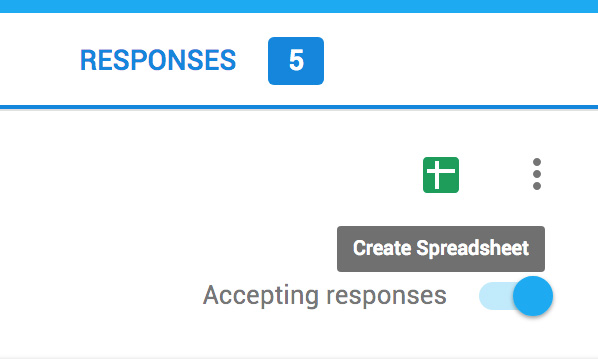
If you’re creating a survey, a sign-up sheet, or any other document that collects feedback from people, Google Forms is your go-to. Forms are simple to share and easy to use, and they always look professional thanks to Google’s handy templates. You can even embed them into your website. But what a lot of people don’t know is that the form results can be sent to Google Sheets. After your participants have filled out the form, the resulting data will automatically be added to your spreadsheet. To do that, just look for the green icon on the responses page. Click the icon and you can create a new spreadsheet or send the information to an existing sheet.

How to sort data in Google Sheets

Sorting data in Google sheets is easy. Follow us.

Google Sheets

Google Sheets is a relatively easy program when you start out. However, figuring out some of the more advanced features can be tricky. Below, we’ll explain how to sort your data in Google Sheets in just four easy steps.

How to sort data in Google Sheets

1. Open Google Sheets

If you want to sort your data, you’ll first need to open Google Sheets. You can access the program through your Google Drive. If you’ve never used Google Sheets before, keep in mind it is comparable to Excel (or any other spreadsheet program you may have used). After you have opened Google Sheets, simply select the sheet that has the data that you need to organize.

Google Drive Download Google Drive
7

2. Choose your column

The first step to sorting your data is to choose the column of data that you want to organize. Select the column by clicking on the letter at the top of it, right above Row 1. All the columns are organized by letters… so if you’re confused, just look for the row at the top of the screen that lists the letters in alphabetical order.

3. Open the menu

Hover the cursor over the letter of the column you’ve selected. A small arrow should appear to the right of the letter, on the far right side of the column. Click on this arrow to open a dropdown menu.

4. Sort your data alphabetically

Finally, if you want to sort the data alphabetically, click the SORT A–Z button or SORT Z–A button. After you have selected how you want to sort your data, the program will automatically put it in order in the spreadsheet.

Now that you know how to sort your data in Google Sheets, you can get started. Remember to wield this newfound power for good.

Google Drive’s new Priority feature uses AI to organize your files

Let’s take a closer look at Google Drive’s new feature.

With AI becoming more and more advanced by the day, suddenly living in a world like the one in “I, Robot” doesn’t seem so impossible.

Google is one of the most important tools for anyone who wants to search the internet for a new recipe, the name of a song, or to listen to music on their phone. It’s very hard to go an average day without having to use any of the many services that Google provides, especially in the workplace. In order to communicate with your coworkers and clients, you have to send hundreds if not thousands of emails every week.

Google Drive

In 2012, when Google Drive was launched, we were able to become even more organized since we could have access to a ton of documents and spreadsheets. We could even share them if we wanted to, and invite specific people to view and edit our files. With the new spellcheck algorithm, Google uses AI sort of how translation tools work: by taking improper English and recognizing errors to make suggestions as you type. If you have too many photos on your phone, Google Drive can help you with that, too. The service offers secure cloud storage. Now, Google takes organization to the next level with Priority.

Google Drive Download Google Drive
7

What is Priority?

Google Drive’s Priority function was teased at the Cloud Next 2018 conference. According to the G Suite Updates page, Priority is still currently in beta, but those lucky enough to have access to it will see it as the first option in the navigation bar when you open Drive. The point is to make it easier to find certain files and to handle the ones that need the most attention. AI will suggest the most relevant documents in your Drive, since most users only access 10 to 12 files at a time. It will let you know if someone added a new comment or share request, and you can do this all from the Drive’s UI.

Another cool feature of the Priority page is the workspaces. You can grab a few private files and view them from one place so that you can access them faster. You can add a file to the workspace manually or use Priority’s file suggestions.

Google says that the addition of Priority and its workspaces are another step in an effort to “help you spend less time searching for content and more time doing work on what matters.”

There are a few whispers about privacy concerns since we know that it uses your search history and preferences to judge what documents you’ll think are most important. We’ll have to wait until Priority is available to everyone to be sure, but just going off of the awesome functions that we saw in Google’s preview, we think it will really help with productivity.

The best ways to collaborate in Google Docs

Want to start collaborating with other people on a project in Google Docs? Follow these easy steps so every member of your team can join in.

Google Docs provides one of the best word processing tools for free. Likely, its one downside comes from the need to connect online… but this also leads to one of its greatest strengths: real-time collaboration.

Before online collaboration, word processing documents had to be sent via email or flash drive to the other members. Now, a group can work together at the same time with a few easy steps!

Google Docs download free
8

1. Create an Account

Working in Google Docs requires simply creating an account. If you have a Gmail already, there’s no need to worry: sign into Docs with your usual email and password.

In fact… if you’re signed in to Gmail you may be automatically taken to the welcome screen of your fresh Docs page!

2. Create a Document

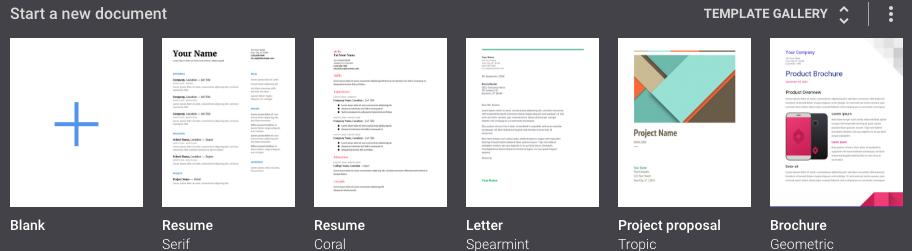
The top of the page should show various document types to choose from. Select any of these to start your new project:

If, instead, you see the “New” button shown below, you are in probably in Google Drive, not Google Docs. Don’t worry: Google Drive simply collects all your documents from Google Docs, Spreadsheets, and Slides. Aside from that, it performs most of the same functions.

That said, clicking the “New” button gives you the choice of creating a new word document, spreadsheet, or slideshow. Unlike Google Docs, it doesn’t offer pre-formatted templates.

3. In the Document, Hit the “Share” Button

The button should look something like this:

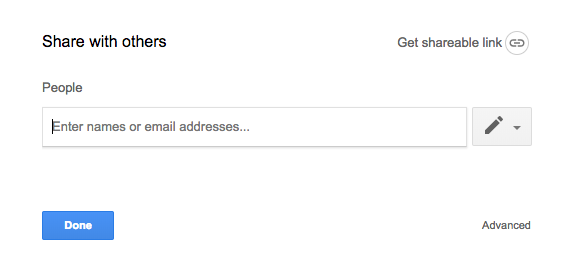
Tapping the button leads you to the share screen:

This is where you choose who to collaborate with. Any address can be entered, Gmail or not. You can choose whether or not that person can view, edit, or become the owner. Be careful with ownership, however: once ownership is transferred to someone else, you cannot get it back yourself.

4. Start Working

So, project invites have been sent! The email will include a simple and efficient link to the project. As long an account has editing privileges, the user can change things at the same time as others.

NOTE: you can tell when multiple users (or the same user on different devices) are viewing the document. An icon will appear at the top right for each device currently using the page.

Collaboration can now begin!

5. Moving Forward

From here on out, there are a few more tools that may be useful for your team.

First, the view mode:

Selecting this button allows you to choose whether you are editing, suggesting, or viewing. We’ll focus on suggesting: the suggesting option allows you to harmlessly enter changes which then appear as (pause for effect) suggestions! This can be useful for communicating in group projects.

If you need to leave a more detailed message, try the comment button:

Comments are attached to specific items – letters, words, or phrases – within the project.

Bonus Tip

You can add collaborators to a project or even an entire file from the main page of Google Drive as well. Clicking the “Add Person” button below pulls up the familiar “Share” window.

We wish you the best with your new project!


Do more, faster, with this digital toolkit

Every household needs a set of tools. You never know when you might need to tighten a screw or put up a shelf. With the right set of tools, you can do just about anything. The same goes for your computer. Your computer is a very capable machine, but it’s not perfect, and a digital toolkit helps you do more, faster, and without calling in an expert.

When your laptop screams “no!”, you normally have to scour the internet for a fix. Maybe you need to extract an archive in an obscure format, encrypt an important email, or recover lost data – whatever the reason, your machine’s native programs won’t always be enough, which is why a digital toolset can really come in handy.

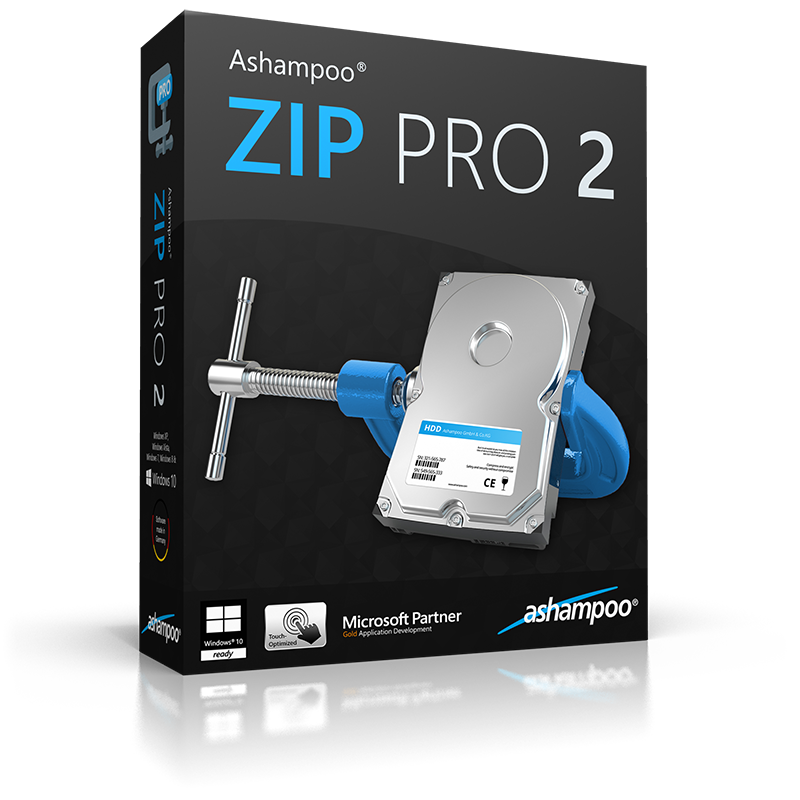
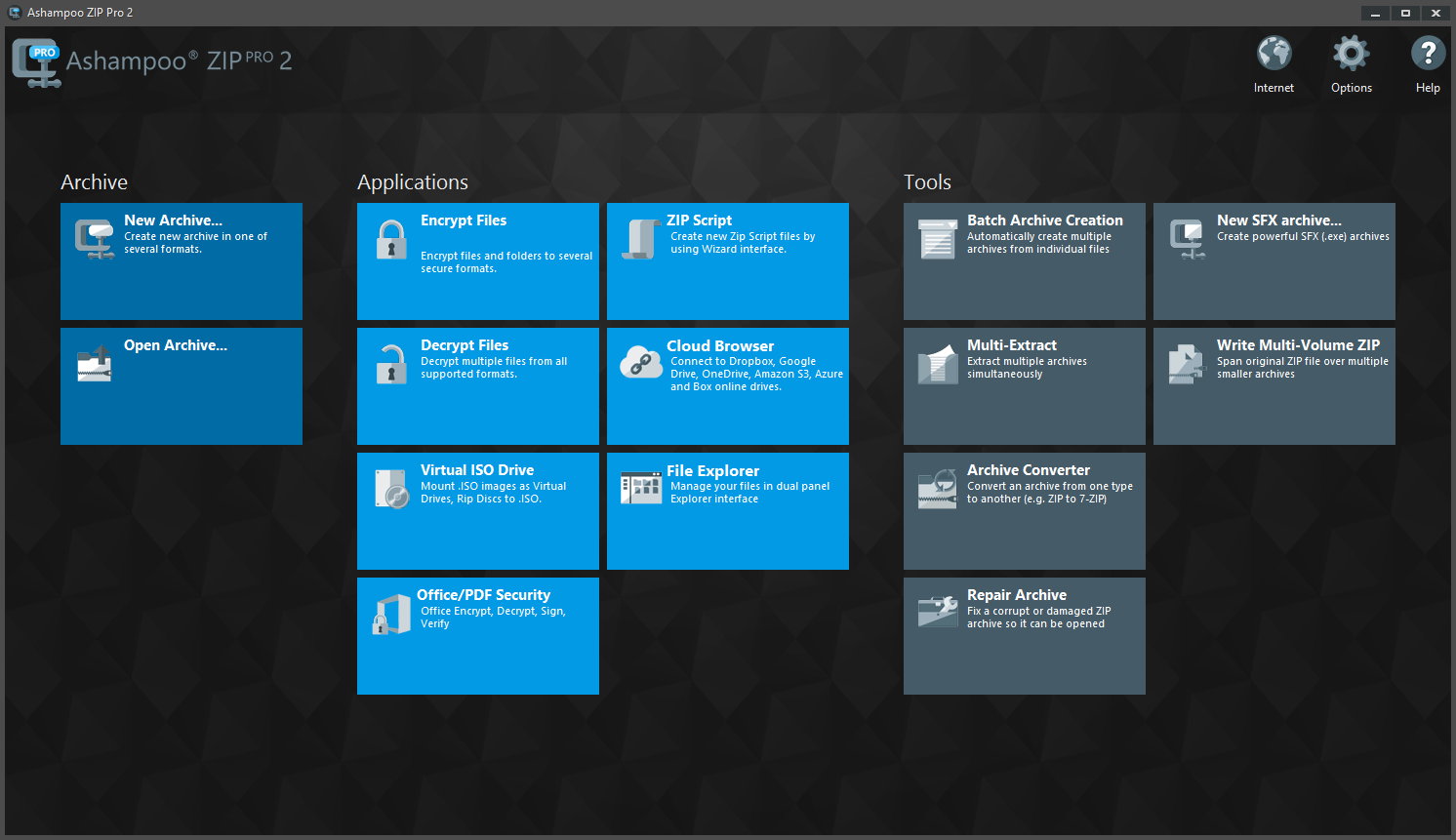
One of our favourite digital toolkits is Ashampoo Zip Pro 2. Why? First, it bundles lots of useful software in one tidy package, so you don’t need to download multiple programs and litter your desktop with separate icons for every little task you throw at your machine. Everything works within your operating system, so you can perform tasks on your files with a right-click alone.

Second, Ashampoo Zip Pro 2 is one of the most powerful file managers we’ve tested. It compresses, archives, and extracts virtually any file system, including .zip, .rar, and .tar. Compression is increasingly common now we share so much data on a daily basis, and although most machines support .zip by default, other formats are gaining ground. Zip Pro 2 ensures you can work with any file, and even upload them to DropBox, Google Drive, or OneDrive with a single click.

Zip Pro 2 also comes with its own version of file explorer, including split-view (like the old Windows Explorer), file preview, and CD/DVD burning tools. Speaking of physical media, if you want to create more space in your home by recycling old CDs and DVDs, just copy them to your computer with Zip Pro 2 and run them on the virtual mount. It works exactly as if the disks were in the drive. And if your media is damaged, Zip Pro 2’s recovery tool will repair and restore damaged files so you don’t waste money or time downloading replacements.

No digital toolset would be complete without robust security, and Zip Pro 2 is as tough as nails. Securing your data with 256-bit encryption, the same used by the US government, ensures sensitive data is for your eyes only. Add Zip Pro 2 to Outlook or MS Office applications and you can compress, sign, and encrypt all your digital property, without ever leaving the application.

if Zip Pro 2 were a real box of tools, you probably couldn’t lift it off the floor. But while it’s heavy on features, Ashampoo Zip Pro 2 is light on price: you can download it today for just $14.99, down 50% off the retail price of $29.99. We think that’s a bargain, and while these tools won’t fix your kitchen sink, they’ll make your digital life so much easier.

Things you didn’t know you could do with Google Drive

Are you familiar with Google Docs? If the answer is no, you’re missing out on one of the best services available today. Google has dozens of online tools. You don’t have to install anything on your PC. And best of all: they’re free, so you can use them just by having a Google account. And even if you’ve used the service, you may not know all the amazing tools you have access to. Today, we’re bringing you five things that you didn’t know you could do with Google Drive.

Microsoft Word 2016 Download Now
9

Compatible with Microsoft Word

If you’re used to Microsoft Word, never fear: you can open, edit and save Word files simply by using a Google Chrome extension. With it, you can convert documents from Word to Google (and vice versa) in a matter of seconds. The geniuses of Google have introduced excellent compatibility in their products, regardless of the file format. It’s a win-win situation.
No need to save

Google Docs save everything automatically. Every second. Even while you’re writing. If your laptop battery dies or your power goes out or your cat dumps your Big Gulp all over your PC, all the progress on your precious manuscript will be safe. 

Boost teamwork

With Google Docs, you can work as a team simply by adding email addresses of your colleagues. The best part? They can also write and edit in real time. So, maybe you’re working on one paragraph and your coworker on another. Each user appears in a different color, with everything well marked.  You can even leave notes in the margins for your colleagues to consider.

Google Drive Download Google Drive
7

Write from anywhere

Obviously, Google Docs is connected to the internet, so just by having an online connection, you can access the documents. Click on the corresponding folder and you’ll see your file (or files). So it’s easy to pull up all of your documents wherever you are. Make last-minute edits while you’re on the train or spruce up your resume while you’re stuck in the waiting room at your dentist’s office. As long as you’re online, you can be productive.

Add-ons

These are virtually unknown by users. Just like Google Chrome has extensions, Google Docs have add-ons. These take all the features of Docs to a whole new level. The possibilities are endless: formatting tables, instantly translating any phrase, or even adding fonts (beyond the default ones), and many more. Check out these add-ons and see how they can improve your end product. We promise that you’ll discover things you never knew about before!


Google Drive relaunch: check out the new interface

Google has relaunched Google Drive with a new interface and design. Now, the cloud storage tool has a cleaner look and other aesthetic updates.

Some examples include: a more transparent background color, a new font, rounded corners… Many of the changes follow Google’s Material Design style guide.

In this sense, Google has gotten a makeover. A few days ago, Google surprised us with an important Gmail redesign, possibly its second most important app after Google Drive. Aesthetically, the new Google Drive looks exactly like the new Gmail, making Google products more consistent.

Google Drive Download Free
7

What do you think about the changes to Google Drive?

All the Best Free Software for your PC

You spend hundreds of dollars on your brand new PC, and then what happens? You have to go and spend even more money on all the software you need, to do the jobs you bought the PC for in the first place. Never mind what you bought the PC for you have to buy programs just to protect your new PC from viruses and malware.

Well, do not worry because there is a lot of free software you can get your hands on to help you out. You can get free software for Windows 10 you can get free software like Microsoft Word, you can get free software for editing photos, you can get antivirus free software and even free software for video editing. You don’t need to spend a lot of money on expensive programs for your new PC. There are plenty of free programs for PC so let us have a look at some of the best now:

Best free programs for PC

1. Best antivirus free software: Avira Antivirus

Avira header

Avira Free Antivirus offers a broad range of security features that add up to offer the best free antivirus software you’re likely to find. As well as strong antivirus scan and protection facilities Avira offers some great features like safe shopping searches, system speed up and a VPN. This is the best free software download for PC you’ll find and one of the most important. To learn more about Avira Click Here, otherwise…

Avira Free Antivirus Download Avira
8

2. Best backup free software: Google Drive

Google Drive wants to be the Ultimate Backup and Sync Tool

These days you need to do more than just install a free antivirus program to keep yourself safe. Ransomware is a modern threat that sees your data being stolen and then held for ransom. This means if you’re going to download free software you need some to get some backup free software for your computer. Free software downloads like Google Drive are essential. Drive will give you 15GB of free space to keep all of your personal data safely backed up. You need it now!

Google Drive Download Google Drive
7

3. Free software like Microsoft Office: Libre Office

LIbreOffice header

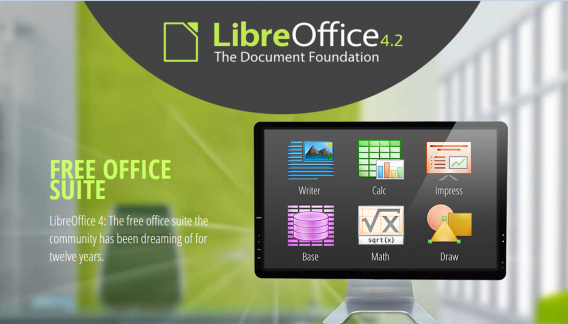
Almost everybody needs to use programs like those found in the Microsoft Office suite so a top priority must go to getting the free software download for PC of Libre Office. Libre Office is an open source productivity suite that rivals Microsoft Office and even has programs, like Math and Draw, that can’t be found in the expensive Microsoft offering. If you work in an office this is an essential free program to download.

LibreOffice Download LibreOffice
7

4. Media Player: VLC Media Player

vlcHEADER

One of the best free programs for PC is VLC Media Player. It is one of the most popular programs in the world and carries the codecs required to play almost every kind of video file. Once you’ve downloaded VLC you will be able to play almost any type of video you can find. As well as offering a complete video playback solution VLC has plenty of other features and you can check out 5 of the best here.

VLC Media Player Download VLC
8

5. Free software for photo editing: GIMP

Do you want the photos you share to be breathtaking - GIMP

If you want free software like Photoshop you should look no further than GIMP. GIMP stands for GNU Image Manipulation Program and it is almost as powerful as Adobe Photoshop. With this free software editing becomes possible for all. Whether you’re merely touching up an old image or creating a brand new one, GIMP offers you a complete set of tools to take care of whatever editing job you have in front of you. GIMP may be the best photo editing free software but we’ve also put a list together of 5 free photo editing programs. Check it out here.

7

6. Free software for video editing: Lightworks

5 Free Programs for Editing Videos lightworks

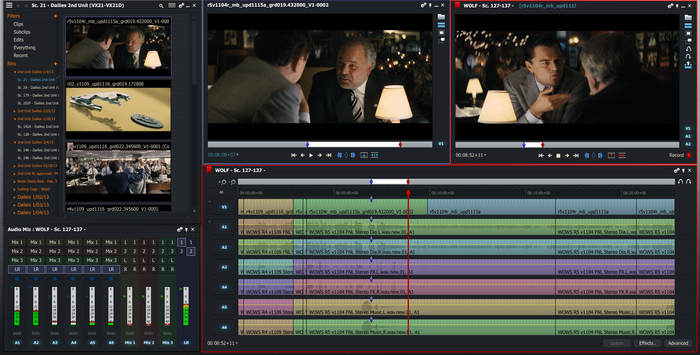
Lightworks is available on many free software download websites but you can get it right here. It is one of the best editing free software programs you can get and is used by professionals as well as amateurs. If you’re a budding video editor or director this is great free video editing program for you to download. For info on other free video editing programs click here.

Lightworks Download Lightworks
7

Follow me on Twitter: @PatrickDevaney_