The new Microsoft Office 2024 is now available on PC and Mac, and we know its price

When Microsoft 365 came into our lives, many of us feared that the future would be like this: subscriptions for everything, eliminating the traditional option of buying programs to own them, without the need to pay month by month. Microsoft seemed to be on board with this and tried it with Microsoft 365, even making the traditional version of Microsoft Office, which was released every few years with useful new features and an improved interface, disappear. Fortunately for everyone, as we will now see, Microsoft has backtracked with its Office 2024 and the option for users to buy the package is back […]

When Microsoft 365 came into our lives, many of us feared that the future would be like this: subscriptions for everything, eliminating the traditional option of buying programs to own them, without the need to pay month after month.

Microsoft 365 DOWNLOAD

Microsoft seemed to be on board and tried with Microsoft 365, leading to the disappearance of the traditional Microsoft Office mode that was released every few years and brought useful new features and an improved interface.

Fortunately for everyone, as we will now see, Microsoft has backtracked with its Office 2024 and the option for users to purchase the Microsoft tool package for a fixed price and for life is back.

Microsoft Office 2024 goes on sale for $149 and $249

Microsoft launches a new version of Office this week designed for people who do not want to subscribe to Microsoft 365. The standalone version Microsoft Office 2024 is now available for consumers and small businesses, and includes versions of Word, Excel, PowerPoint, OneNote, and Outlook for Mac and PC.

Office 2024 includes many of the updates that Microsoft has been offering to Microsoft 365 subscribers in recent years. The last time Microsoft released a standalone version of Office was in 2021, and this new version, Office 2024, includes improvements in the main applications, as well as changes in accessibility and the user interface.

Office 2024 has a new default theme, with the latest principles of Microsoft’s Fluent Design that match the visual changes of Windows 11.

Microsoft has also added accessibility-focused improvements to help Office users find potential accessibility issues in documents, slide presentations, workbooks, and emails. The biggest changes in Office 2024 are found in Excel, PowerPoint, and Outlook.

Office 2024 will be available in two different editions. Office Home 2024, priced at €149.99, includes Word, Excel, PowerPoint, and OneNote for PC or Mac. If you want Outlook, you will need to purchase the Office Home and Business 2024 version, priced at $249.99, which also includes the rights to use the applications for commercial purposes.

Microsoft is investigating a security issue that could reveal users’ passwords

Microsoft has reported a security advisory in Outlook that occurs after installing the security updates released in December. Known as CVE-2023-35636, this issue is classified as important and could allow the disclosure of NTLM hashes (which store passwords on devices), although its exploitation by cybercriminals is unlikely.

Microsoft 365 DOWNLOAD

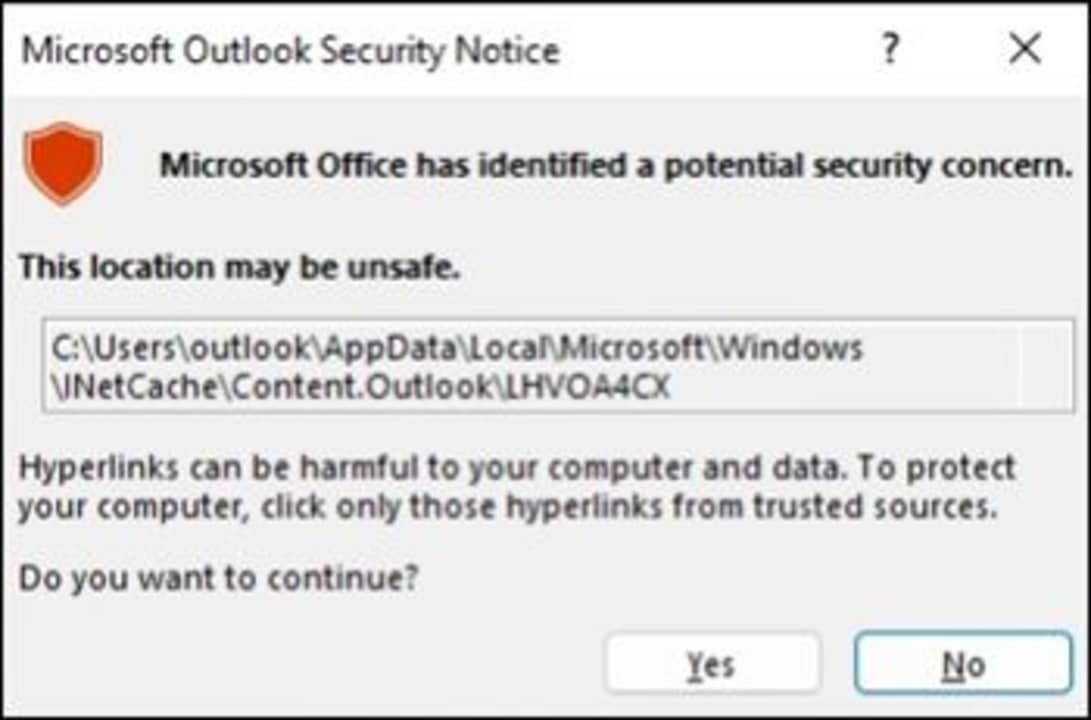
According to Windows Report, the error occurs when clicking on a .ICS file, displaying the following message: “Microsoft Office has identified a potential security concern. This location may not be safe.” However, the security warning or vulnerability itself does not pose a threat unless you open a specific file from an attacker.

Microsoft has also published a recommendation on how to stop receiving this message by changing a registry key. To do this, users must open the Registry Editor (by searching for it in the search bar) and go to the following path (without the quotes): “HKEY_CURRENT_USERsoftwarepoliciesmicrosoftoffice16.0commonsecurity”. Once there, we must look for the DWORD “DisableHyperlinkWarning” and change its value to 1.

Microsoft 365 DOWNLOAD

However, it should be noted that by changing this DWORD in the registry, all security warnings from Microsoft Office will be disabled, not just those for .ICS files. Microsoft is aware of this issue and claims that it will be fixed in a future update.

Filtered information and content about the upcoming Microsoft Office 2024 suite

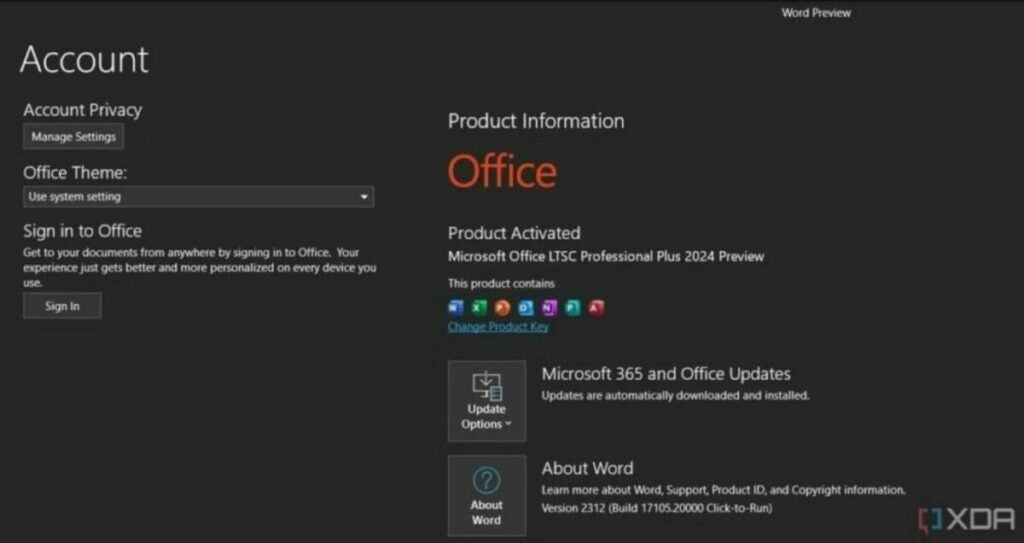
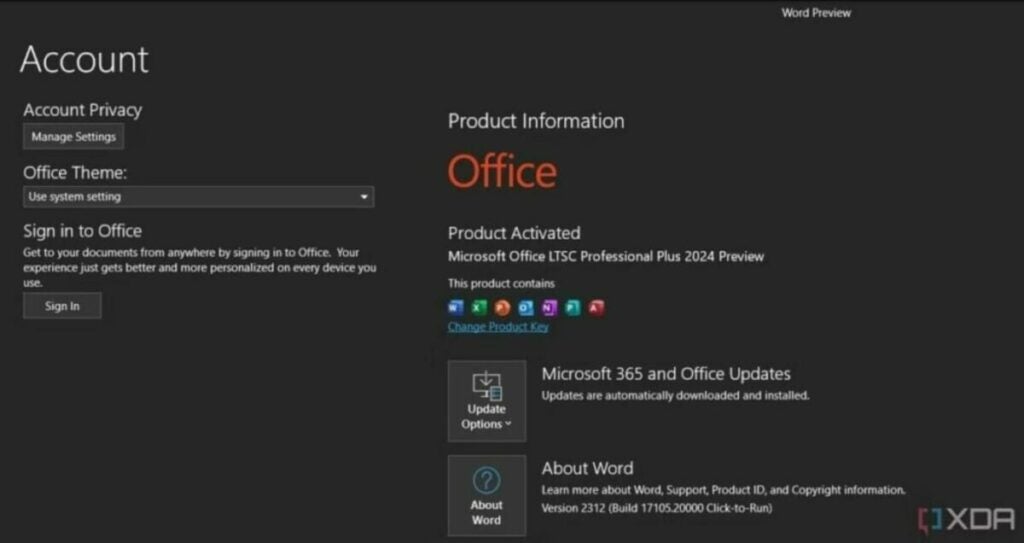
Microsoft Office 2024 has been glimpsed slightly through some screenshots, where certain details about the interface of this suite of productivity services provided by Microsoft can be appreciated. Among the significant changes is the shift from a subscription-based service to a one-time payment and lifetime subscription model.

This will be a major departure from the previous model, which was not very popular for both individuals and businesses. Taking note of this, Microsoft has adapted to the demands of its potential customers, and Microsoft Office 2024 will be available as a one-time payment option.

Microsoft Office DOWNLOAD

Leaked interface of Office and its trial version

This content, exclusively leaked by XDA, shows how Office 2024 will come with the usual services, such as Word, Excel, Outlook, PowerPoint, or Access, among others. And with the upcoming changes in its payment policy, the 2024 version will return to the path of Office 2021, the last version that involved one-time payments.

Microsoft 2024, therefore, commercially focuses on a very different path than what Microsoft Office 365 had been demonstrating, with subscription systems that, besides being unattractive, have caused them to lose users in favor of other services with better conditions, and even free alternatives.

A reference in office productivity within Office

Microsoft Word has been a benchmark in office software for decades. However, in recent years, the company had decided to gradually make this service, along with the rest, more exclusive, and currently, it can only be enjoyed with a subscription to Microsoft 365, causing the options to use this software to move away from the “legitimate” market or opt for free alternatives such as OpenOffice, Google Docs, or WPS Office.

The world of office software has not changed much in the last decades, but the surrounding services have enriched themselves to offer an increasingly complete experience tailored to the user’s interest. Office remains a highly attractive option for many companies, although it still hasn’t gained much popularity among individual users, who predominantly choose free options for their basic tasks.

Microsoft Office DOWNLOAD

The Python editor from Excel Labs is now available

Microsoft has been striving to improve its applications for quite some time. From generative artificial intelligence that may be introduced into Microsoft Paint to new applications planned for Bing, along with projects like Microsoft Copilot, the tech giant is focused on enhancing the user experience and providing users with more tools to reduce technological burdens. This philosophy has largely led the company to partner with the Python programming language, which can now be experimented with in Excel spreadsheets as an experimental feature.

One of the most useful Excel extensions

Although it’s not an add-on for everyone, Excel Labs, a part of Microsoft, has created a Python editor as an extension to its spreadsheet management tool. According to their blog, the Python Editor will display Python cells in the order of execution, along with the code’s result for each cell, assisting in debugging and understanding the code.

This editor supports a wide range of features typically found in Microsoft Visual Studio for Python development, such as Intellisense, code formatting, automatic code completion, and syntax highlighting. Similarly, the editor allows creators to write Python code and then move it around within the Excel application, enabling them to freely code in the editor and apply it directly within the application when they are satisfied with it.

As mentioned earlier, Excel Labs is an Excel add-in, so it’s not enabled by default in the program that everyone uses. To have it, you must first activate it through the “add-ins” option. Once you’ve done that, it should appear as usual, and you can select the Python editor in the upper right corner.

The Complicated Relationship Between Microsoft Users and Clippy AI

To understand Clippy we have to go back to March 1995. It lasted twelve more years!

We live in a time of artificial intelligences, home assistants, smartphones and promises of a future in which to make a Powerpoint you only need to ask Copilot, the new Microsoft Office AI. But before Copilot, Siri, Alexa and even Google, there was already an assistant that spread terror every time you wanted to write anything with its unstable suggestions: Do you remember Clippy?

Clippy, no, I don’t want to write a letter

To understand Clippy we have to go back to March 1995, when Microsoft launched Bob, an alternative interface for Windows 95, Windows 3.1x and Windows NT in which you navigated the length and breadth of a house using what you found instead of icons. For example, if you clicked on a pen and paper on Bob’s desktop, it took you to the word processor, and if you selected a clock, it took you to the calendar. They expected to sell millions worldwide. They sold 58,000 copies.

Microsoft was not going to give up so easily: Bob had been a resounding failure, but from its ashes was born Clippy, the text assistant of Office 97, a paper clip with eyes that advised users on different ways to improve the formatting of their text and opened up the exciting world of Office. Famous was his “You look like you want to write a letter” every time you typed two or three words, but it was not the only one of his suggestions.

The culprit behind Clippy’s existence was Kevan Atteberry, who told Vice how they prepared more than 250 attendees to select the ones that the audience of Stanford test groups and social psychologists liked best: Clippy was the best in every respect. The problem is that people ended up hating him…although Atteberry has a theory: it’s not because of how he looked, but because of what they made him say and do. “No matter which character became the default character, they would do the same things and probably be hated as well.”

Microsoft Office 2021 DOWNLOAD
8.75

And along with Clippy there was a whole host of characters that everyone wanted to ignore, from a red ball to a superhero dog to a robot and even a caricature of William Shakespeare. By the time the Office Assistant experiment ended with the release of 2007, there were 23, including some Mac exclusives or Asian editions (the Kairu dolphin).

The future may have a few surprises in store for us in 2023, organizing our mails automatically, preparing summaries and even conversing with us without asking us if we are preparing a letter, but a small part of us will always know that all this would not have been possible without a paper clip with eyes. Try explaining it to someone from generation Z without them looking at you like you’re speaking Chinese.

How Can I Use Office For Free Without Downloading it?

Microsoft Office suite’s latest iteration, Microsoft 365, features similar apps you are used to in your personal life, work, or school. However, the costs could become frustrating over time to access the apps when buying a Microsoft subscription which could discourage some from using Excel, Word, PowerPoint, and any other Microsoft programs. But were you aware that there are free ways to access Microsoft 365?

Microsoft Office 365 – Free for Teachers and Students

Did you know that if you are a teacher or student with an assigned school email address, you are most probably eligible for Office 365 access for free via Microsoft? You will have access to Microsoft Teams, OneNote, PowerPoint, Excel, Word, and any extra classroom tools.

If you browse over to Microsoft’s website, you only have to enter the school email address to get started for free with Office 365. In most cases, access is granted instantly, but there is a possibility that some institutions need to be verified.

Microsoft Office Free for The Rest of Us

Like most apps, anyone can get a free one-month trial, but that requires you to complete a payment option with your credit card details, and if you slip up and forget to cancel, you end up being charged a one-year subscription of $100. Not the position most of us want to find ourselves in these days!

However, I have good news for those that don’t require all the Microsoft 365 tools. You can still access Skype, Calendar, Outlook, OneDrive, PowerPoint, Excel, and Word apps free online.

And here’s how to get them:

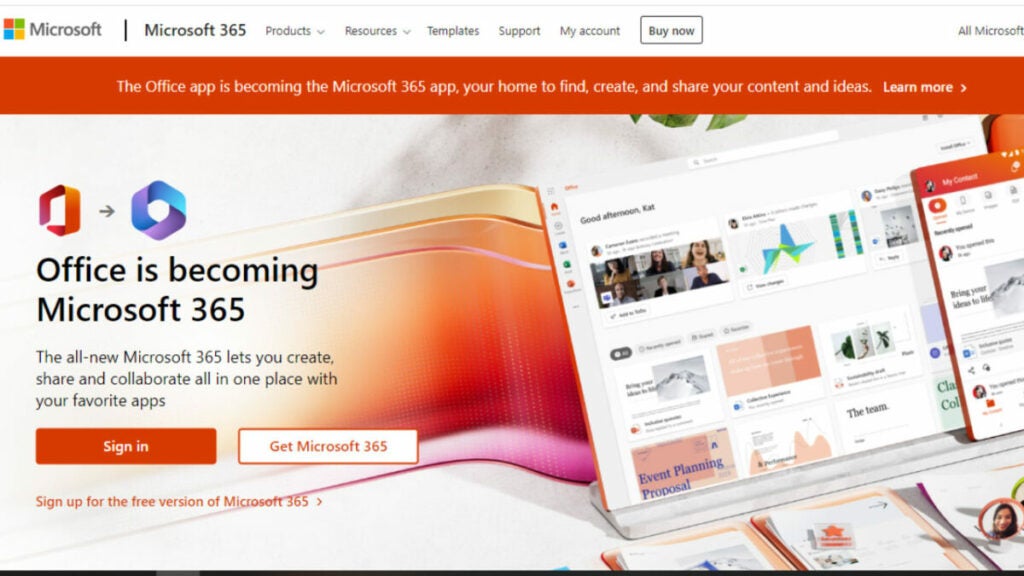
  1. You can go to Office.com
  2. For the free version, click sign up under the “sign up” button.
How to use Microsoft Office for free

  1. Create a Microsoft account for free, or log in to your one. If you have Xbox Live, Skype, or Windows, you should already have a Microsoft account.
  2. Decide what app you want to use, and you can save your work in your OneDrive.

What’s The Catch?

I know – you are probably wondering, “what’s the catch here?” I mean, why do you have to pay in the first place if you can access these office apps for free, right? Well, there are some limits to the functionality of the free app, such as you can only use it with an internet connection, and it is only available on the web browser.

The free apps provide fewer features than the complete Microsoft 365 suite versions. But don’t get discouraged. The free version has many benefits, such as collaborating in real-time and sharing work links. The free version is perfect if you require the basics of office apps!

7 tricks to use Microsoft Office free, without paying a cent

Ever wondered how to use Microsoft Office for free? Get instant access to several Microsoft Office versions without paying a cent. Learn how to do it here!

Microsoft office apps

Office for free? You want it, right? Microsoft Office remains the top dog of office apps. As good as the apps are, however, we understand that not everybody can afford to pay for them. We’ve covered here the best free Office alternatives, like Google Docs and LibreOffice, but we also know that some of you might want the real version of Office. Don’t worry though, Softonic has your back: put that credit card away (except for number 5) because here are 7 ways to get free access to the Microsoft Office suite on Windows and Mac.

6

7 tricks to get access to free Microsoft Office

1. Use Microsoft Office Online

Little by little, Microsoft has been growing the number of Office apps that you can use for free online. You’ve got Microsoft Word, Excel, PowerPoint, OneNote, Sway, Email, Contacts, Calendar, OneDrive and Docs.com all without the need to install Office on your hard drive. If you have a Microsoft account and a reliable internet connection, you can use these free office programs on a Windows PC, Apple Mac, or Linux using web browsers like Google Chrome and Microsoft Edge. Microsoft Office Online programs even offer some cool and unique features like real-time Skype chats while collaborating on documents with friends or colleagues.

Try out Microsoft Office online here, choose the app you want to use, and log into your Microsoft account. You’ll also find Office Online in the Products menu over at office.com.

You won’t get all the Office 365 features with Microsoft Office Online, but you will at least be able to edit documents

Office Online Download now
7

2. Use mobile apps

The Mobile office apps work just like the online versions we’ve already mentioned. The difference is that they’ve been optimized for mobile devices.

Here we’ve listed the available Microsoft Office mobile apps, which are available for free on Android:

Word

Microsoft Word for Android Download Now
8

Excel

Microsoft Excel for Android Download now
8

PowerPoint

Microsoft PowerPoint for Android Download now
8

OneDrive Cloud Storage

OneDrive for Android Download now
8

Outlook

Microsoft Outlook for Android Download now
7

OneNote

OneNote for Android Download now
7

SharePoint

For iPhone and iPad, it’s more difficult to list the mobile Office applications as there are different versions for both Apple devices. You can find the list of all Office apps for Apple devices, including those for the new iPad Pro, on Microsoft’s iTunes listing.

Again though, don’t expect the full Office 365 experience, but this free version of Office will allow you to do basic editing.

If you want to get Office 365, you’ll have to try one of the following methods.

3. Get Office from your school

If you’re a student or teacher, you may be entitled to an Office 365 education subscription. Enter your school email address hereYou’ll get Office software including Word, Excel, PowerPoint, Microsoft Teams, and OneDrive storage among other tools, totally free. If your school isn’t registered, let them know what they’re entitled to ASAP!

4. Persuade your boss

Huh? What kind of company doesn’t have Microsoft Office 365? If yours doesn’t, it could be time for you to step up. You’ll have to sell it though, and go through the numerous Office 365 options available and the benefits they’ll bring to the business. The important thing is that your company will foot the bill!

Microsoft Office for companies

5. Sign up for a free month trial of Office 365

Try out the Office 365 Home version. You’ll have a 1 month trial to experiment with the Office 365 personal package that includes Word, Excel, PowerPoint, Outlook… Also, the trial gives you access to 1TB of cloud storage on OneDrive.

Office 365 trial

Keep in mind, however, that to download the trial, you’ll have to enter a current debit or credit card number. When your one-month trial ends, you’ll automatically be charged for an Office 365 subscription so make sure you don’t forget to deactivate your account before the trial ends.

6. Sign up for a free trial of Office 365 ProPlus

Have you already finished your one-month free Office 365 personal trial? What about 30 MORE days? Well, here you go. Sign up here for Office 365 ProPlus. You’ll have to sign up for the Evaluation Center, but in our final trick, we’ll go into this in a little more detail.

Office 365 ProPlus

7. Try your luck with the TechNet Evaluation Center

Microsoft likes having users try out their products’ new features before officially launching them and this includes everything from DocX Word documents to Microsoft’s latest and greatest software innovations. This allows the software giant to resolve any software issues and problems, before they’re rolled out to all users.

Microsoft Office online - TechNet Evaluation Center

This is where Microsoft’s TechNet Evaluation Center comes into play. If you sign up, you can get free access to the products Microsoft needs testing. This usually means you’ll get to try them for 30-60 days. Sometimes, you might even cross paths with Office, like with the trial for the ProPlus version we just told you about.

Remember though, that the versions you’ll find in the Evaluation Center are still rough around the edges. You should expect all sorts of surprises!

What if you’ve used up all these options?

What happens if you’ve already used up all your free trials? Then you’ve got no choice but to buy Office (unless you’re satisfied with the online and mobile versions). Our personal recommendation is Office 365 Personal, which costs $69.99 a year or $6.99 a month.

If you don’t want to invest in the office package, don’t worry because there are other options out there! Try out these free alternatives to Microsoft Office and you won’t be disappointed.

LibreOffice: All the best extensions for the free Word alternative

These are the best LibreOffice extensions and templates you can download now to make your life easier.

Lbre Office

LibreOffice is a wonderful thing. A completely open-source, and therefore free, fully functional productivity suite. If you need something like the Microsoft Office suite, yet can’t afford a license or subscription, LibreOffice is what you are after. Like Microsoft Office, LibreOffice has a lot of cool new features and apps designed to help make your life easier. There are lots of programs that fall under the LibreOffice umbrella including LibreOffice Calc, LibreOffice Draw, and LibreOffice Impress.

As well as just built-in features, however, LibreOffice also offers access to an extensive library of useful extensions, add-ons, and plugins that offer even more functionality to LibreOffice users. That is what we are here for today. In this article, we are going to walk you through the best extensions for LibreOffice that will help you be more productive and how you manage them using the extension manager. Whether you’re working from home or heading into the office, this guide will help make your life easier.

LibreOffice Download LibreOffice
7

Best LibreOffice extensions

These LibreOffice extensions will make your life easier and help you get your work done quicker and more efficiently. Check yourself here, if you’re using OpenOffice and not LibreOffice. Although similar, these are different programs and you should head to openoffice.org for information on how to use OpenOffice.

The extension manager

The Document Foundation that set up LibreOffice has also set up a library of extensions for the software that you can find over at extensions.libreoffice.org. You can also download the extensions we’ve listed below using the links we’ve provided. You can then manage your LibreOffice extensions inside the LibreOffice apps by heading to the Tools menu and selecting the Extensions Manager.

AltSearch (Alternative Dialog Find & Replace)

altsearch libreoffice

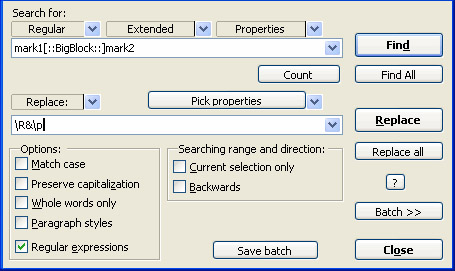
LibreOffice Writer does have a decent Find & Replace feature already, but it can prove frustrating at times. The AltSearch extension goes a long way towards remedying this situation by augmenting the native Fin & Replace feature with some added tools. The extension facilitates multiple searches at once and opens up the possibility to search for text in specialized elements of your documents such as bookmarks, notes, tables, footnotes, and endnotes.

Stop Begging

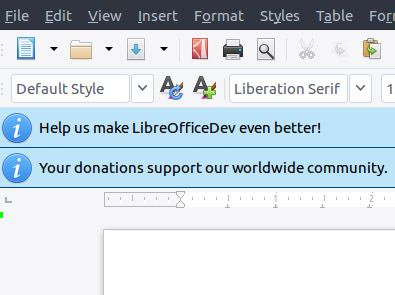
There is no doubt that LibreOffice couldn’t be what it is without support from a dedicated global following built up of developers and financial supporters. To maintain these levels of support, LibreOffice needs to constantly campaign for new supporters and one of the ways it does is by asking every user for support every 90 days. It is not much to have to deal with these requests but if it is too much for you, the Stop Begging extension will stop these requests from ever showing up again. We recommend you only download this extension after you’ve supported the Open Document Foundation and the LibreOffice project somehow.

Calendar Creator Template

calendar creator

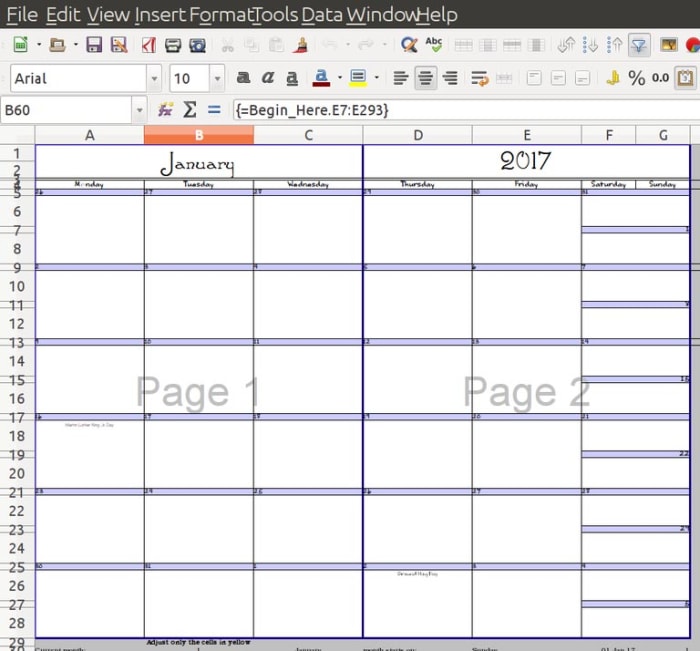
It’s not just extensions that you can download to augment your LibreOffice experience. There’s also an extensive library of LibreOffice templates that you can download for free and use on whatever projects you’re working on. This calendar Creator template is one such tool that makes it very easy for you to create weekly, monthly, and yearly calendars on printable sheets. You can also create single day calendars and automatically add events to your printable sheets when you add them to your document.

MultiSave

One of the frustrating aspects of working with LibreOffice is the Open Document Format that Writer saves your documents in. The open-source nature of the file does mean it can be used across multiple formats and programs but that isn’t the case straight off the bat. This is where the MultiSave extension comes in. With the extension installed you can easily save a document in different file formats at the same time including the Open Document Format, Microsoft Office format, and other useful file types like PDF.

Language Tool

Language Tool

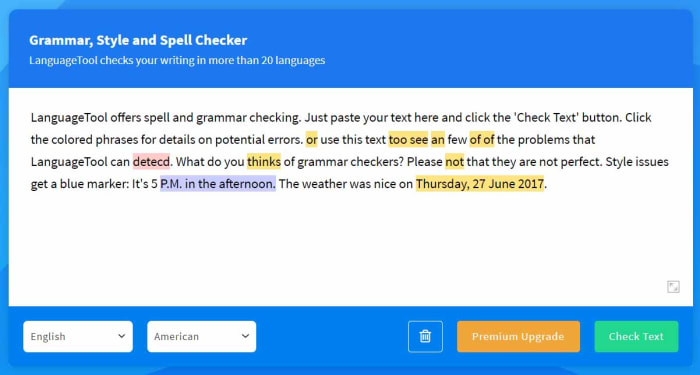
The Language Tool extension for LibreOffice offers grammar and proofreading support to LibreOffice users across a whole host of different languages. These languages include English, French, German, Italian, Spanish, and Russian. You can see all the different languages the extension supports on its homepage here. Please note, though, that the level of support the extension offers depends on the language.

Daily Planning Template

Daily planner

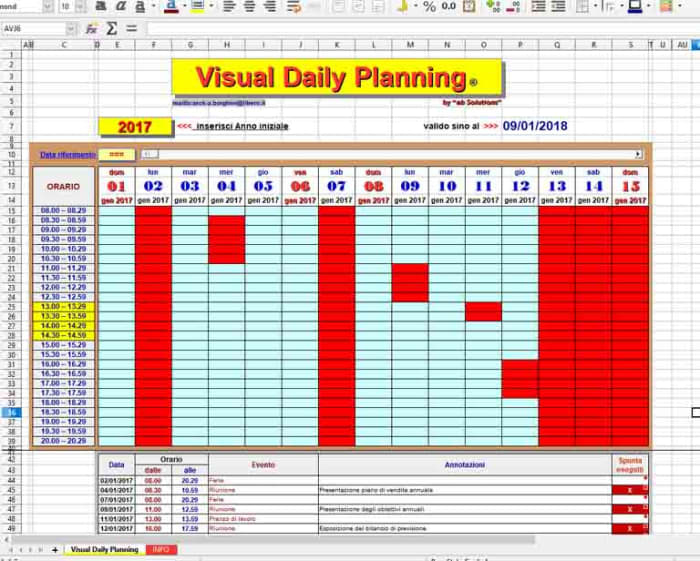
This Daily Planning Template makes it very easy for you to organize your time more efficiently. It compartmentalizes your day, breaking it up into individual timeslots that you can then allot to certain activities. You can easily add events to your calendar and control regular activities and appointments too.

Transcriber

The Transcriber extension for LibreOffice Writer is a great tool for anybody who has to interview people for the articles they write. Anybody who’s ever had to transcribe an interview will know how slow and frustrating the experience can be as you flip from one app to another or fiddle around with recording equipment. The Transcriber extension puts the playback buttons right there in the Writer app giving you quick access to the basic controls you need to control the audio as you write down everything that’s being said. It even offers keyboard shortcut controls too for quicker control.

Complete guide to MS Office format files

update microsoft office new icons

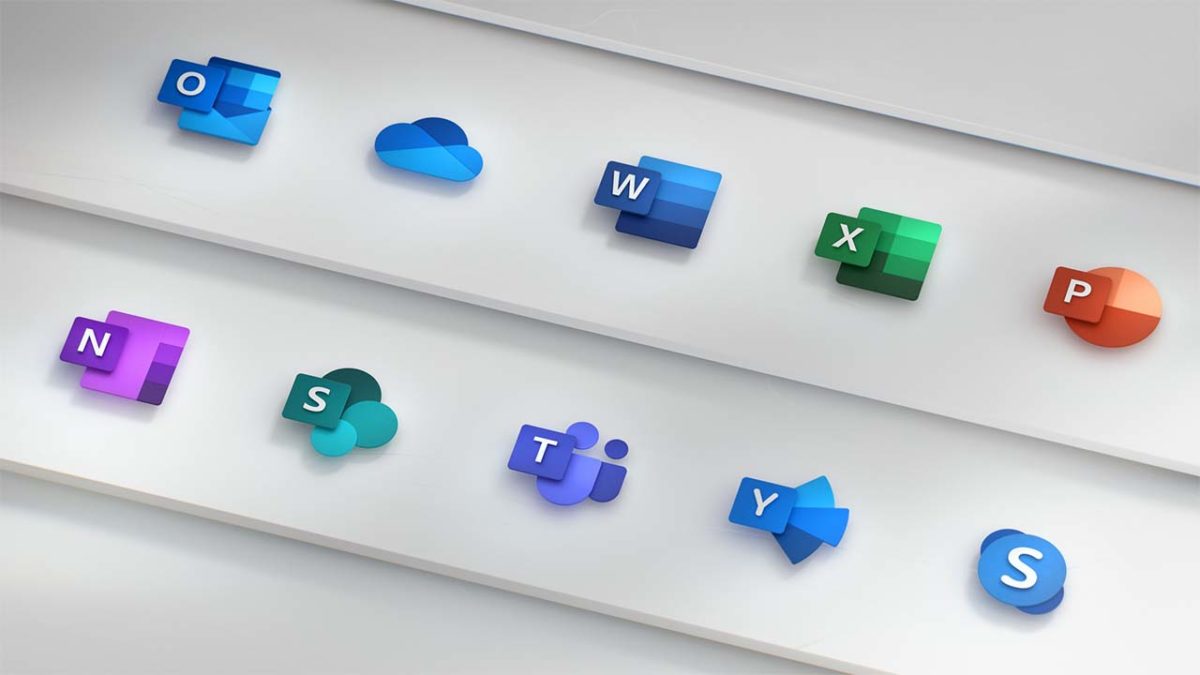
The Microsoft Office productivity suite has been around for a long time. Each Office application has evolved during all that time adding new features and tools and also, along the way, developing new file types both for the files that work with the programs and others that are at least compatible with the programs in one way or another. As you can imagine, over such a period of time this list of file types has grown to a formidable size and it can be hard to know what file works with what program and vice versa. That’s what we’re here to do today, walk you through all the different Microsoft Office file types and extensions for each of the main Office programs.

This is the fourth of our Microsoft Office guides this week. We’ve also covered productivity tips for Word, how to make infographics on PowerPoint, and the accessibility tools available across Microsoft Office programs. We’ll also be checking out Excel formulas so make sure you check that guide out too. For now, though, let’s get into Office file formats.

6

File extensions for Microsoft Office

Below is a list of all compatible file formats for Microsoft Word, Microsoft Excel, and Microsoft PowerPoint.

File formats supported in Microsoft Word
All file extensions for Microsoft Word

.doc – A document from Word 97 – 2003.

.docm – A Word Macro-Enabled Document. This stores Visual Basic for Applications (VBA) macro mode.

.docx – A Word document. This is the default Word document for anything post-Word 2003.

.dox – A Strict Open XML Document.

.dot – A template for Word 97 – 2003.

.dotm – A Word Macro-Enabled Template.

.dotx – A Word Template for anything post-2003.

.htm, .html – A Web Page, normally saved as a folder.

.mht, .mhtml – A Web Page, saved as a single file.

.odt – A OpenDocument Text, which is compatible across other OpenDocument compatible word processors.

.pdf – A Portable Document Format (PDF) file.

.rtf – A Rich Text Format file.

.txt – A Plain Text File that has no formatting.

.wps – A Microsoft Works 6 – 9 document.

.xml – A Word 2003 XML Document.

.xml – A Word XML Document for all versions of Word post-2003.

.xps – An XPS Document.

Microsoft Word Download Now
9

File formats supported in Excel

All file extensions for Microsoft Excel

.csv – A Comma delimited file that saves only the active sheet.

.csv – The same as above except for Mac.

.csv – The same as above but for MS-DOS.

.dbf – DBF 3 and DBF 4 files that can be opened in all versions of Excel 2013 and later.

.dif – a Data Interchange Format File that saves only the active sheet.

.htm, .html – A Web Page, normally saved as a folder.

.mht, .mhtml – A Web Page, saved as a single file.

.ods – An OpenDocument Spreadsheet that can be used across other spreadsheet programs compatible with the OpenDocument file type.

.pdf – A Portable Document Format (PDF) file.

.prn – A Lotus space-delimited Formatted Text file that only saves the active sheet.

.slk – A SYLK (Symbolic Link Format) file that only saves the active sheet.

.txt – A simple text file that saves the active sheet of a workbook as tab-delimited text.

.txt – The same as above but for Mac.

.txt – The same as above but for MS-DOS.

.txt – A Unicode Text file that only saves the active sheet.

.xla – An Excel 97 – 2003 Add-in file.

.xlam – An Excel Add-in file for all versions of Excel post-2003.

.xls – An Excel 97 – 2003 file.

.xls – An Excel 5.0/95 file.

.xlsb – An Excel Binary file for all versions of Excel post-2003.

.xlsm – An Excel Macro-Enabled file for all versions of Excel post-2003.

.xlsx – The default Excel file for all versions of Excel post-2003.

.xlsx – A Strict Open XML Spreadsheet.

.xlt – An Excel template for Excel 97 – 2003.

.xltm – A Macro-Enabled Excel template for post-2003 versions of Excel.

.xltx – A default Excel template for all versions of Excel post-2003.

.xlw – An Excel 4.0 file.

.xml – An XML Spreadsheet 2003 file.

.xml – An XML Data format.

.xps – An XPS file.

Microsoft Excel Download now
8

File formats supported in PowerPoint

All the file extensions compatible with PowerPoint

.bmp – A Device Independent Bitmap is a slide that is saved as a graphic to use on webpages.

.emf – An Enhanced Windows Metafile is a slide that is saved as a 32-bit graphic.

.gif – A GIF.

.jpg – A JPEG File Interchange File.

.mp4 – An MPEF-4 Video file.

.odp – An OpenDocument Presentation file that is compatible with presentation software that uses the OpenDocument file type.

.pdf – A Portable Document Format (PDF) file.

.png – A Portable Network Graphics Format file.

.pot – A PowerPoint 97 – 2003 template.

.potm A PowerPoint Macro-Enabled Template for versions of PowerPoint post-2003.

.potx – A PowerPoint template for versions of PowerPoint post-2003.

.ppa – A PowerPoint Add-in file for PowerPoint 97 – 2003.

.ppam – A Macro-Enabled PowerPoint Add-in file.

.pps – A PowerPoint 97 – 2003 show.

.ppsm – A PowerPoint Macro-Enabled show.

.ppsx – A PowerPoint presentation that opens in Slide Show view instead of in Normal view.

.ppt – A PowerPoint presentation from 97 – 2003.

.pptm – A Macro-Enabled PowerPoint presentation.

.pptx – A default PowerPoint presentation for versions of PowerPoint post-2003.

.pptx – A PowerPoint Picture presentation.

.pptx – A Strict Open XML Presentation.

.rtf – An Outline RTF presentation outline file that is saved as a text-only document.

.thmx – An Office Theme style sheet file.

.tif – A Tag Image File Format.

.wmf – A Windows Metafile slide that is saved as a 16-bit graphic.

.wmv – A Windows Media Video.

.xml – A PowerPoint XML Presentation.

.xps – An XPS Document.
The best accessibility tools for Microsoft Office

Microsoft has introduced many key accessibility features across all Office programs and this article will walk you through them.

We’re back today with another feature in our week-long look at all things Microsoft Office. Yesterday we looked at productivity tips for Microsoft Office and today we’re going through accessibility tools across all Office programs. Fortunately, Microsoft has put great effort into adding accessibility tools and assistive technology across the Microsoft Office suite to make it easier for anybody who needs assistance to get the most out of them.

The Office Accessibility Center

A lot of Microsoft’s accessibility features are actually built-in at the operating system level. This means if you’re using Office on a Mac, your Office programs will access the MacOS accessibility features. These can include things like changing background colors, various accessibility standards and accessibility resources, and alternative text arrangements.  The same goes for iOS users on iPhones and Android users on their smartphones and tablets. Of course, Microsoft has built a lot of features into Windows 10 too and we’ll look at some of those features below as well as Office specific features. If you’re not a Windows 10 user and you want to check out what accessibility features are available on your specific device, you should head over to the Office Accessibility Center.

Microsoft Office 2019 Download Now
8

Microsoft Accessibility tools

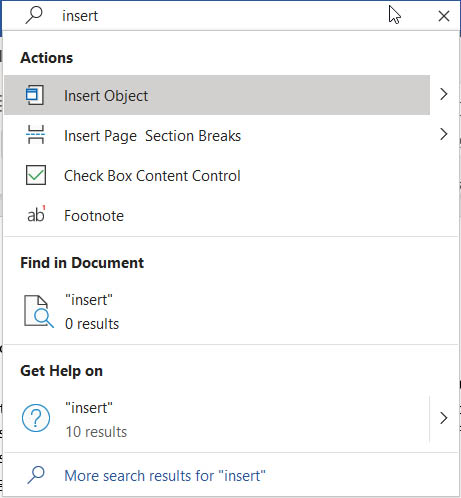
Tell Me

Tell Me on Office

Ever since Office 2016, there has been a very handy feature built-into Office programs that makes it much easier to perform actions on your documents. As Office programs have grown in complexity, they’ve also taken on more and more features and tools. Navigating through these can be a nightmare and for some can render them impossible to access or use. The Tell Me feature, which is presented as a search bar across the very top ribbon of whatever program you’re using or a magnifying glass if you’re using the Office program in a floating window addresses this perfectly. Basically, all you need to do is type in the action you want to perform and tell me will present you with it. This completely removes the need to go searching through menus and taskbars and makes everything much more accessible.

Keyboard shortcuts

Another key accessibility feature to follow on from Tell Me is the keyboard shortcuts Microsoft has built into all Office programs that make them possible to navigate and use effectively without the need to use a mouse. There are far too many Office programs for us to go through them all now but if you follow this link, you’ll find a list of all Office apps including Excel, Word, and OneNote and be able to find the keyboard shortcuts available for all of them.

PowerPoint Subtitles

Microsoft has its very own translator app just like Google. What’s very cool about the Microsoft Translator app though, is that it has also been adapted into a PowerPoint add-in called Presentation Translator. As well as all the neat translation tricks this plug-in can do across multiple languages, it can also generate live subtitles based on the presentation you’re giving; making your presentation much more accessible for audience members with hearing difficulties.

Narrator

Narrator is a Windows 10 screen reader app that can help you understand all the different elements on your screen at any moment and also help you navigate around them. There’s a lot that Narrator can do including working with touchscreen devices and helping you accordingly, scanning emails and large documents appropriately, and it can even work with braille. If the Narrator sounds like a feature you’d be interested in, you’ll be glad to know that it is already installed on your Windows device. You should follow this link though, to access Microsoft’s full Narrator guide and see just how it can help you when using Microsoft Office.

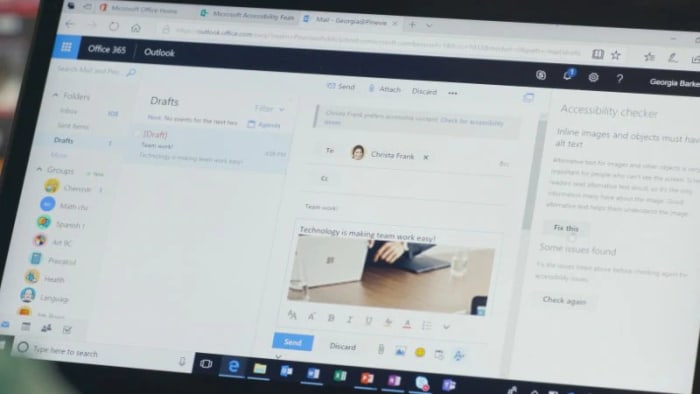
Outlook accessibility prompt

This is a very cool feature that promotes inclusivity in the workplace. You can set Outlook to prompt coworkers on your preferences for accessible content. As well as your preferences, the prompt also highlights Microsoft’s Accessibility Checker available in all Office applications, which can help solve any potential accessibility issues before they send emails in the first place. Sending accessible documents cuts out any potential issues before they arise and ensure everybody is included appropriately.
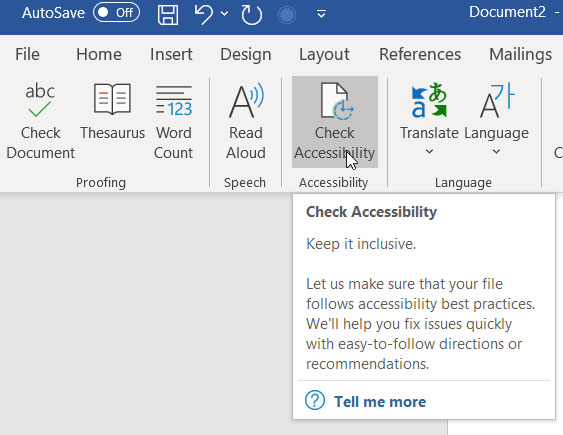
The Accessibility Checker

The Accessibility Checker on Office

This brings us to a very important tool in itself, the Accessibility Checker. Microsoft has built a special tool into all Office applications that will check documents you’re working on against potential issues that people with disabilities may face when accessing them. To check your document for accessibility issues first click the Review tab and then hit the Check Accessibility button. The app will then open a sidebar highlighting any potential issues that you need to deal with.

Office Lens

Office Lens is a very cool feature that people with visual impairments can use to help take information from written sources. In particular, the Immersive Reader feature of Office Lens will grab even the smallest text from any page and then read back the information to you. As well as reading the information aloud, Lens will also change the font size and word spacing to make it easier to read the text as well as listen to it.
Office Lens Download now
8

Dictate 365

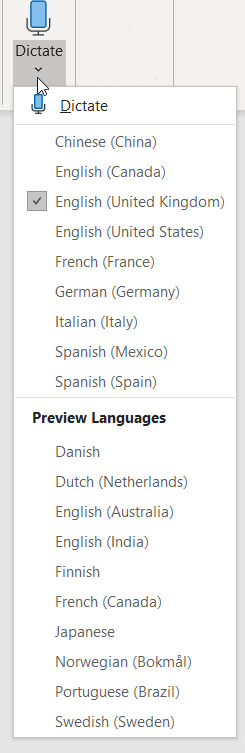
The Dictate 365 languages

A very cool new feature found in Microsoft programs is Dictate 365, which allows you to speak rather than type. This can be very helpful if you have mobility issues or find it difficult to use a keyboard for prolonged periods of time. Dictate 365 is available for Microsoft Word, Microsoft PowerPoint, and Microsoft Outlook on Windows PCs. What’s also impressive about Dictate 365 is that it works in over 20 languages and can provide real-time translation in over 60 languages. If there is one issue with the feature though, it is with punctuation. The dictation skill itself is very impressive but you have to verbally add punctuation marks as Office isn’t capable of adding them itself just yet.

To access Dictate 365 hit the Home tab and then select the Dictate option, which you’ll then see in the top-right corner of your screen.