12 essential Excel formulas: become an Excel pro

Is Microsoft Excel too complicated? It doesn’t have to be. Excel uses formulas to pull in information to a single cell from others around it. These works like Excel shortcuts making life easier. If you know the right formulas, Excel doesn’t have to be complicated at all.

Here are 12 Excel formulas that are easy to remember and easy to apply. Some are basic formulas but others are advanced Excel functions that may sound tricky, so the best thing to do is to follow each example as it comes and then apply it to Excel as you read through the article.

Microsoft Excel Download now ►
7

1. The sum (SUM)

This allows you to add several figures, just like in school. There are two ways.

The first allows you to add cells in sequence (columns or rows). Just put =SUM(first cell:last cell) in the cell where you want to display the result.

Variant: This formula also allows you to add up all the numbers in a particular data set (multiple column numbers and multiple rows), taking the “first cell” as the top left, and the “last cell” as the bottom right.

The second method allows you to add (unrelated) cells individually. Just put =SUM(cell1;cell2;cell3;cell4) in the cell where you want to display the result.

Example:

Excel sumTo add the contents of the column a eg. cell A1, enter =SUM (A1:A5) in the cell of your choice.

To add all the numbers in the pivot table, enter =SUM (A1:B5) in the cell of your choice.

To add only the cells with a negative number like in cell b2, enter =SUM (A1;B2;B5) in the cell of your choice.

2. The “If Function” sum according to a specific criterion (SUM.IF)

A table can come in the form of a list of several items, which aren’t necessarily related. If the list is long, it can be difficult to find all the identical elements to add them one by one. To do this, you can ask Excel to find all these specific cases and make the sum using the formula =SUM.IF(range_cells;”test”;sum_range). The “criterion” is the item type to be found in the table. The range_cells is the range of cells containing the relevant criterion. The sum_range is the range of cells where the numbers add up.

Example:
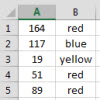
If Excel sumIn this example, the criterion to look for is “red”. To calculate the total of the “reds” only, enter the following formula: =SUM.IF(B1:B5,red”,A1:A5) in the cell of your choice.

3. The sum according to several criteria (SUM.IFS)

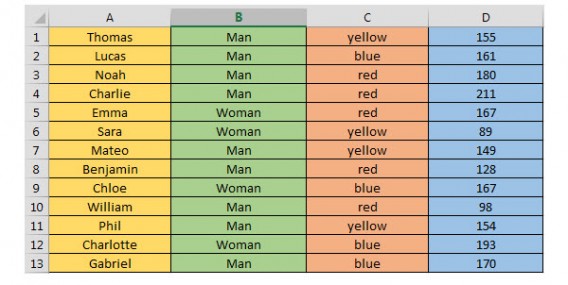
A table can contain a lot of information. Excel can add data based on multiple criteria using a special formula: =SUMIFS(sum_range;range_criterion1;criterion1; range_criterion2;criterion2;….). sum_range is the range of cells with the numbers to be added. range_criterion1 represents the range of cells containing the data with the first criterion, range_criterion2 being the second criterion, and so on. criterion1 is the first item type (criterion) to be found in the table, etc..

Example:
Excel table

To find the number of points earned by the men on the yellow team, enter the following formula: SUMIFS (D1:D13,C1:C13,C1,B1:B13,B1) in the cell of your choice.

Variation: You don’t have to select the first and last cell from the column exactly, you can select an entire column. Instead of B1: B13, just enter B:B.

4. The sum of events based on a criterion (NB.IF)

Within a range of statistics, it’s sometimes interesting to know how many times a given event is repeated in a column. For this, we use the following function: =NB.SI(range_cell;”criterion”). The range_cells is the range of cells containing the data. The criterion is the first criterion to be found in the table.

Example:

In the preceding table, you want to know how many women were involved in the game. Enter the following formula: =NB.SI (B1:B13, “Woman”) in the cell of your choice.

5. The sum of events based on several conditions (SUMPRODUCT)

This formula is used to extract a statistical answer to the question: how many times do these specific conditions occur in my table?

Answer: =SUMPRODUCT((range_criterion1=”criterion1″)*(range_criterion2=”criterion2″))

The range_criterion1 is the range of cells containing the data on the first criterion, the range_criterion2 corresponds to the second criterion, and so on. criterion1 is the first criterion to be found in the table, etc..

Example :

Taking the above table as an example, this formula allows us to say how many men were part of the yellow team. To do this, enter the following formula: =SUMPRODUCT((B1:B13=”Male”)*(C1:C13=”yellow”)) in the cell of your choice.

6. The sum of events between two specific values (SUMPRODUCT)

SUMPRODUCT is a statistical tool because it focuses on the number of times that certain conditions are met simultaneously. It allows you to find the number of times the figures are between two specific values, using the following formula: =SUMPRODUCT(range_cells>=minimum)*(range_cells<=maximum)).

The range_cells is the range of cells containing the relevant figures. Minimum and Maximum are the two values between which our search results will appear.

Example:

In our previous table, we must find the number of players who scored between 150 and 200 points. To do this, enter the following formula: =SUMPRODUCT((D1:D13>=150)*D1:D13<=200)) in the cell of your choice.

7. Average (AVERAGE)

We probably don’t need to give you the definition of average. It’s very simple to achieve with the following formula: =AVERAGE(range_cells)

Example:

Average Excel

To calculate the average of all these numbers –  in other words, the number that represents the typical value or mean of the figures, enter the following formula: =AVERAGE(A1:A6) in the cell of your choice. The range_cells is the range of cells containing the relevant figures.

8. Concatenate

The Concatenate formula is a simple string formula that will pull information from many different cells into one. A good example would be combining a person’s name, address, and date of birth into one column when previously the information had been spread across different cells.

To find. Concatenate you need to hit Formulas, then Text and Formulas, and then hit the Insert Function button. From there hit Category and Text. You’ll see it there as CONCAT.

9. The maximum and the minimum (MAX and MIN)

Where you have a wide range of data, it can be quite a task to look for the largest or smallest number. Fortunately, Excel has a formula that looks for you. It’s very easy to apply since it appears as follows:

=MAX(range_cells)

=MIN(range_cells)

The range_cells is the range of cells containing the relevant figures.

Variation: you can also apply the search to multiple cell ranges.

The formulas then become:

=MAX(range_cells1;range_cells2)

=MIN(range_cells1;range_cells2)

Example :

In the preceding table, you’re looking for the greatest numerical value. Enter the following formula: =MAX(A1:A6) in the cell of your choice.

If you want the smallest numerical value, enter: =MIN A1:A6)

As you might guess, this formula is particularly useful if you’re working with very large tables.
Excel Count Formula

10. Count up the number of cells with numbers (COUNT)

I don’t know why, but I always think of The Count from Sesame Street whenever I use this formula.

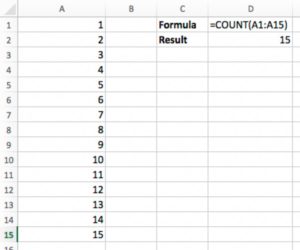
COUNT is a simple formula in Excel that simply counts up the number of cells in a given range that have numbers in them. Whereas the SUM function returns the total value of all the numbers in the range, COUNT is binary — it delivers a “1” if the cell has numerical contents and a “0” if it doesn’t.

This particular formula only works with numerical values. It’s cousin, COUNTA, does the same for all alphanumeric values in the cell and is ideal for testing whether cells in a range are “empty.”

Example Formula: =COUNT(A1:A20)

11. Get the Length of the Contents with LEN

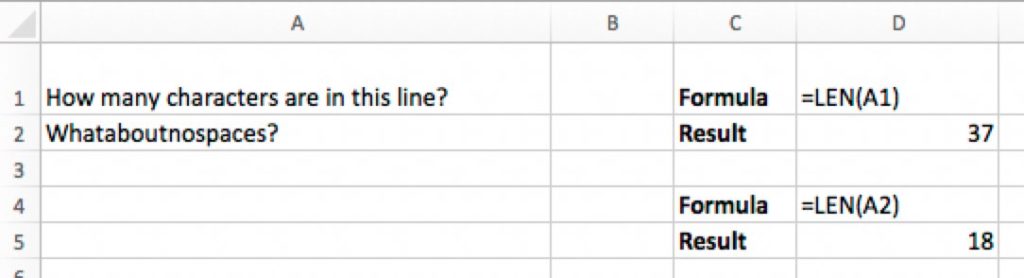
Need to get a character count of the contents of a particular cell? Here comes LEN to the rescue! LEN counts up the total number of characters in a given cell. Note that this includes spaces!

Example Formula: =LEN(A1)
Excel LEN Formula

12. Recognize dates (DATEVALUE)

Excel can recognize certain serial numbers in select cells as being dates. For example, today’s date or the current date, whatever they may be, will be saved as an Excel serial number. You can use the =DATEVALUE(…) in an empty cell to change date figures to the Excel serial numbers and vice versa. This is useful for making date calculations, and sorting and filtering dates.

In short

While they may seem quite tricky at first, these Excel formulas will save you a lot of time if you use the software on a frequent basis, so it’s worth becoming familiar with them.

Improve your productivity with these Microsoft Word tips

These top tips for Microsoft Word will massively improve your productivity and help you get more done.

Productivity tips for Microsoft Word

This week at Softonic we’re here for all the Microsoft Office users out there. Whether you’re an Office 2019 owner or Microsoft Office 365 subscriber is all the same when it comes to getting the job done. We’re here for all of you this week as we’ll be giving you top tips for PowerPoint, a guide to accessibility tools across all Office programs, tips on formatting Office files, and some essential Excel formulas. Today though, we’re looking at Microsoft Word as we try to boost your productivity with some top tips.

Word is the most successful word processing program there has ever been. For years, in fact, it was the only one that mattered. Then the cloud came along and programs like Google Docs shook things up a bit meaning that Word had to adapt or die. The Microsoft program did so admirably and today has a plethora of new features and tools that Word users from just a few years ago wouldn’t recognize. Let’s not waste any more time then and get straight into our productivity tips for Microsoft Word.

Microsoft Word Download Now
9

Tips for Word

Keep your documents safe and private

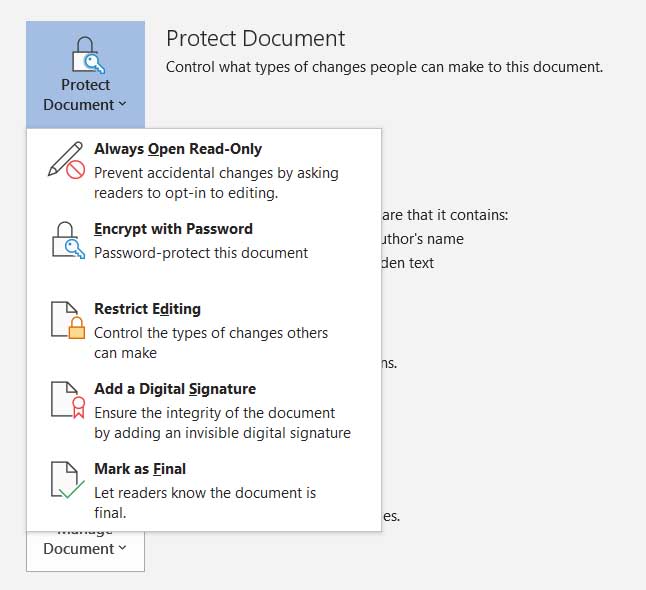
Protect Word documents

It is more important than ever to protect your digital documents as much as you can. Fortunately, Microsoft Word has a lot of features to help you do so including encrypting your written documents and protecting them behind passwords. You can also manage permissions for who can view and who can edit the documents you’ve created. To do so, Hit the File button and then click Info.

Quick highlight

This simple trick is very effective, and you’ll use it a lot once you know how to do it. To highlight an entire sentence in a single click simply hold the CTRL key as you click the beginning of the sentence. There is also a less refined version of this tip where you don’t hold the CTRL-key but simply perform multiple mouse clicks. A double click highlights a word and three clicks will highlight a paragraph. The final selection shortcut we have for you doesn’t even include mouse clicks at all. To highlight the entire document at once press CTRL + A at the same time. Be careful with this one though, and remember that the undo button is always there if something goes wrong.

The Word calculator

Calculate on Microsoft word

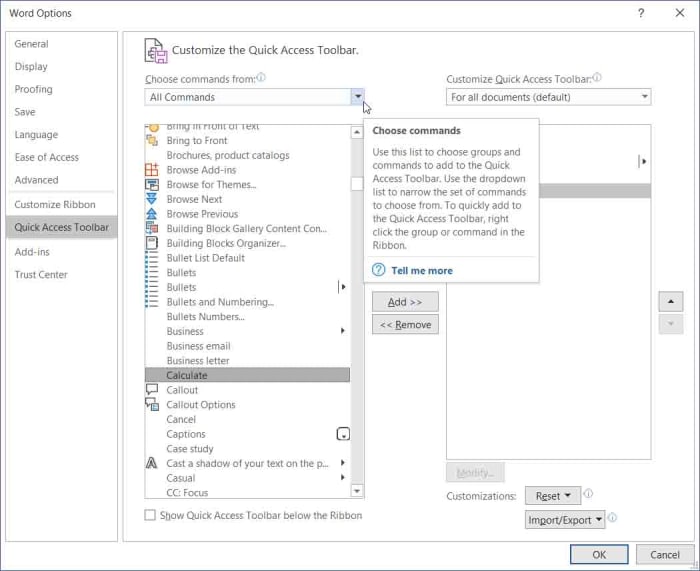
It’s a little-known fact that Word can do sums and math just like Excel can. You need to hit File, then Options, and then select the Quick Access Toolbar option in the menu on the left. You then need to click the drop-down menu called Choose commands from and select All Commands. Now in the list below find Calculate and hit Add. Confirm this by clicking OK  and then get back to work. You’ll now see a new blue button next to the Undo and Redo icons that will change color any time you type out and highlight calculations in your document. When it does this, click it and Word will show you the answer to your calculation where it normally shows you the word count of your document.

Word equations

Equations on Microsoft Word

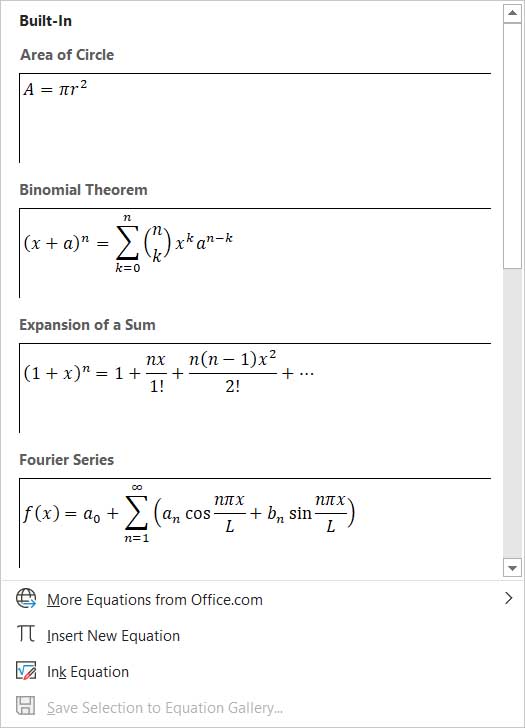
If you’re looking to add something a little more complicated than simple calculations to your document, then you’ll be glad to know that Word has a built-in equation feature for doing just that. To insert equations into your Word documents hit Insert and then Equation. Word will then show you a number of different equations that you can add to your document and then format as you wish.

Delete whole words at once

If you ever find yourself with lots of text that you need to delete, you’ll be interested to know that you can upgrade delete from a single letter at a time to a word simply by holding the CTRL key when you hit delete.

Assess the readability of your document

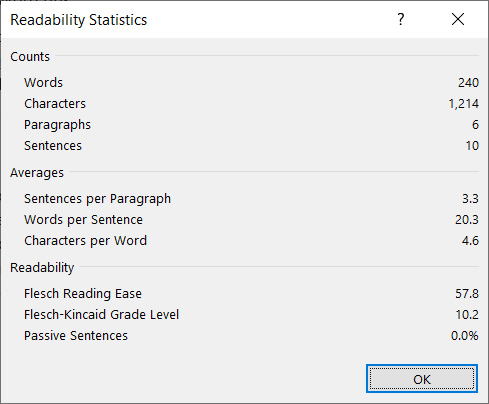
Word now has a readability tool that uses many different established lingual tests to provide you with readability statistics. The statistics are presented on a scale of 1 – 100 with the higher your score the easier your text is to understand. In the example shown below, the readability could do with a slight improvement as Microsoft recommends that you should aim for a score between 60 and 70.

Readability on Microsoft Word

To activate this feature in Word you need to click File, then Options at the bottom of the menu. You then want to hit the Proofing tab on the left and tick the box next to Show readability statistics in the Spelling & Grammar section of the menu. Then, whenever you ask Word to run a spell check by hitting the Review tab and then selecting Check Document, Word will show you the readability stats too.

The clipboard shortcuts

Copying, cutting, and pasting are very important features of Microsoft Word and pretty much any other program where the text is involved. Fortunately, Word has some handy keyboard shortcuts that make it very easy to copy and paste. To copy some text you simply need to hit CTRL + C when the text is highlighted; to cut text, you do the same but hit CTRL + X; and then to paste what you have on the clipboard you hit CTRL + V. This will save you a lot of time.

The search shortcut

Search on Microsoft Word

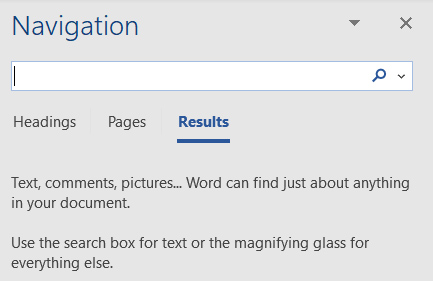
This one is useful for SEO editors or anybody dealing with large amounts of text in documents. If you need to search your document for a particular word or phrase, it can be a real pain scouring through all the written text in search of what you’re after. Instead, what you should do is hit CTRL + F, which will open up the Word search bar. Enter your word or term in there and Word will seek it out in the text and highlight every example it finds.

Office 2019 vs Office 365: Which is right for you

If you’re thinking of buying Microsoft Office, we’ll walk you through the two choices available. Office 365 v Office 2019.

Office 365 v Office 2019

It used to be that you wanted a program for your PC and you then bought it, installed it, and used it. Now though, things are different. It is very common for software developers to offer their programs as a part of a subscription service. This means that instead of paying for the whole product all at once you can pay a much smaller fee to access the program for a small defined amount of time. Consider Adobe, which now offers its highly desired Photoshop CC program for around $9.99 a month.

Microsoft Office has decided to go down this route with Office. Microsoft Office 365 is a relatively new product that offers all you’d expect from Office and more for either monthly or yearly subscription periods. This isn’t exclusive, however, as Microsoft still offers a complete standalone version of Office that you can own forever, which you buy for a one-off purchase price. We’re here today to help you decide which version of Microsoft Office is right for you.

Office 365 vs Office 2019

What you get with Office 365

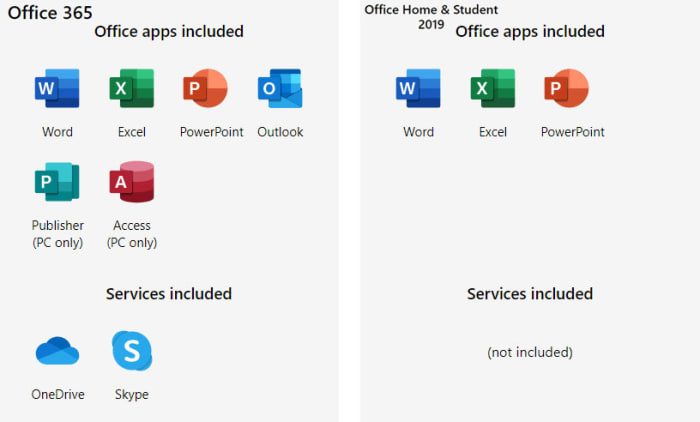
With Office 365 you get access to all Microsoft Office apps including Word, Excel, Access, Outlook, and more. We note, however, that all apps are available on Windows 10 but there are limits for Mac OS users. You’ll also get free upgrades to all those apps throughout your subscription. You will always have the most up to date version of all the Office applications; you will always have the new features. On top of this, you’ll also get access to Microsoft cloud services as a part of your subscription. This means you’ll get 1TB of cloud storage space on Microsoft’s OneDrive and you’ll unlock online collaboration features, perfect for shared assignments and teamwork, just like those found on Google’s Drive productivity programs. You’ll even get Skype minutes every month that you can use to call landlines and mobiles around the world.

Office Home v Office Personal

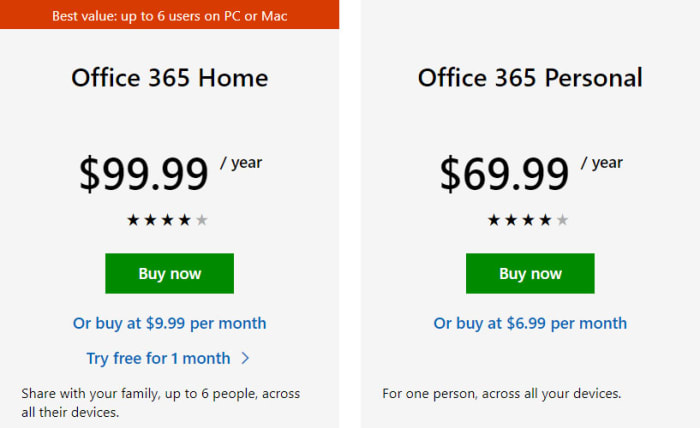
Another thing to consider with the Office 365 subscription plan is that there are two options. Office 365 Personal costs $69.99 a year or $6.99 a month and gives one user access to all Office apps across all their devices. Office 365 Home, however, gives the same app access to up to six people for $99.99 a year or $9.99 a month.

What you get with Office 2019

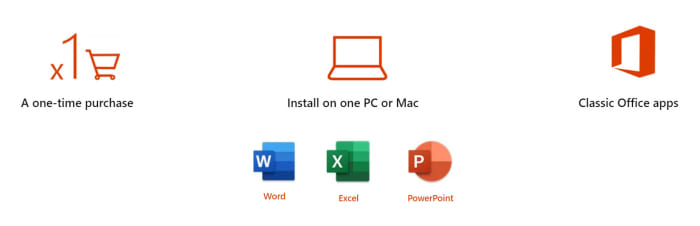
Office 2019 gives you a much more traditional way of accessing Office programs. For the one-time purchase of $149, you get to install the latest version of the Microsoft Office apps on a single PC. These apps will then never be upgraded but they will receive security updates from Microsoft HQ. Apps included in this subscription are Word, Excel, and PowerPoint. What you don’t get though, is access to the cloud services that come with Office 365.

Office 2019

If all that doesn’t sound like much compared to Office 365, you need to remember that with Office 2019 you own it forever. Normally, Microsoft updates Office every five years or so. This means that if you get Office 2019 early enough and Microsoft doesn’t start pumping out sizeable updates much faster than it has done in the past you can expect to get up to five years of use out of Office before it will receive a substantive update. That is up to $500 worth of Office 365 subscription payments.

Microsoft Office 2019 Download Now
8

Which version of Office is right for you

Now that we’ve been through what you get with both versions of Office, we can start dissecting which version is right for you. To do this, you’re going to have to start thinking about why you need Microsoft Office. Both products have a lot to offer but there are clear use cases that make one better than the other.

If you are a single user and you’re simply looking for a way to build word documents, spreadsheets, or presentations then Office 2019 will offer you the greatest amount of value. Although you get a lot more with the Office 365 subscription, you will simply end up paying more for features you don’t use. As you push into the second and third years of use from your purchase of Office 365, you’ll start to make money over anybody in a similar situation who decided to subscribe.

As far as we’re concerned, for every other type of personal user, that is to say, users who aren’t purchasing Office for their business, Office 365 offers better value. Microsoft is trying to entice as many of us as possible onto its new software as a service subscription model by bundling extra apps and some excellent features in with Office 365.

The value of Microsoft Office

Consider the 1TB of cloud storage space you’ll get included with any subscription. This offers a fantastic way to store and backup all your most important files as well as share large files such as photo albums and videos with friends and family. Even if you don’t use Office apps like Access or Publisher, you will find having this much cloud storage space on hand useful. The cloud services will also prove useful for students and the Skype calls will be a nice thing to have for anybody going on vacation or working/studying away from home.

This value is only amplified if you are the head of a household. As soon as you start adding users to an Office 365 Home account all the added cost you pay over the five-year life cycle of Office 2019 gets slashed. If you fill the maximum six users you get with a Home subscription, over the five-year period each will pay less than $100 for their subscription. This means they’ll all get the added value that comes with the 365 account for just 2/3 of the price of Office 2019.

Wrapping up

Going forward it is easy to see a future where Microsoft has pulled the traditional one-off purchase Office 2019 product from sale and simply offers Office 365. At the moment, although personal users can buy it, the product is aimed primarily at businesses that aren’t ready to transition to cloud-based products just yet. There is still value there for the personal user, however, but it is a particular type of user who’ll do better buying Office 2019. For everybody else, particularly groups of users, Office 365 is the way to go.

Best plugins for Microsoft Word

These Microsoft Word Plugins will help you save time and take care business.

We’ve recently been looking into the best templates for Microsoft Office applications and also particularly looking at the best templates for Microsoft Word. Templates aren’t the only tool available, however, to augment your Microsoft Word experience. Like with browser extensions plugins, or add-ins as their known for Office apps, can add particular features to your version of Microsoft Word.

There are many different types of Microsoft Word plugin so let’s go through some of the best available. A lot of these add-ins will also work on Excel, Outlook, and PowerPoint.

Microsoft Word 2016 Download Now
9

Plugins for Microsoft Word

In past versions of Office, add-ins used to be called Office apps and in many ways that describes them rather well. Mini Office programs that add specific features to your Office documents. Think about having to find a certain image or maybe signing an electronic document and you’ll get an idea of what Microsoft Word add-ins can do.

Where to find Microsoft Word add-ins

how to find add-ins for Word

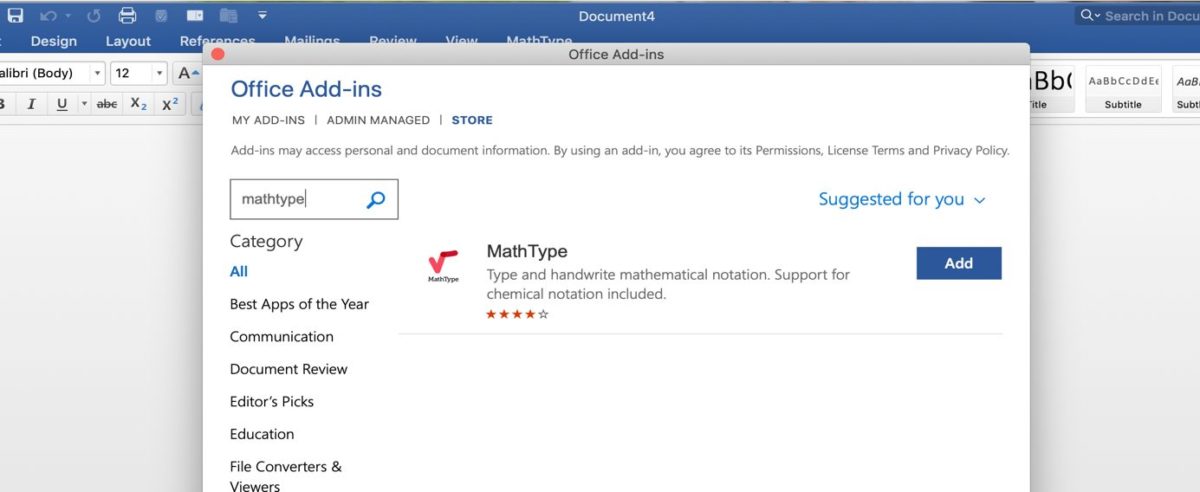
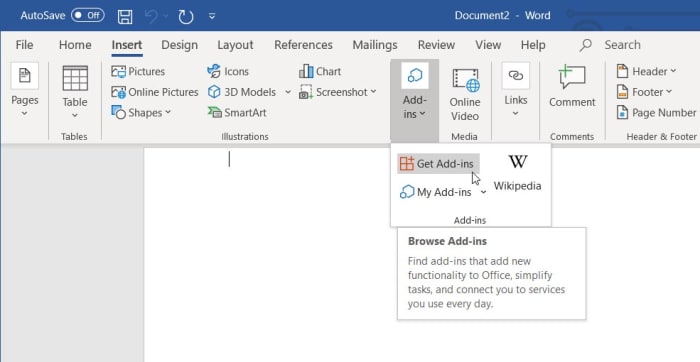
There is an official Microsoft Office store for add-ons that can be found in the Insert tab in the main menu ribbon that runs across the top of the latest version of Microsoft Word. If you’re running Word as a part of an Office 365 subscription, you’ll have the latest version and so once you’ve clicked on Insert you should see the Add-ins option. Clicking this will show you the Get Add-ins button, which will open the store when clicked.

Choosing the right add-ins for Word

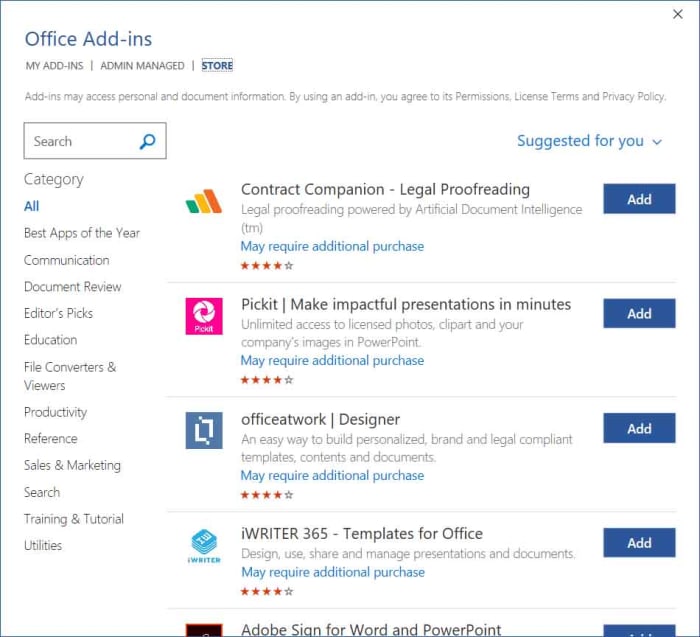
Office add-in store

Just like with any app or browser extension store, you need to tread carefully when installing add-ins on Microsoft Word. Not all add-ins will work as well as each other and some could even cause problems. This means you need to pay attention to the add-ins Names and more importantly Ratings.

The most useful plugins for Microsoft word

Wikipedia Word add-in

Wikipedia Word add-in

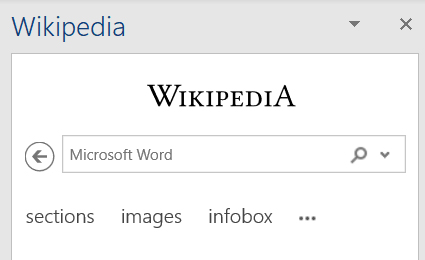
The Wikipedia add-in for Microsoft Word adds a handy encyclopedia widget to your word processing. You can search Wikipedia entries by typing into the search bar, which is found to the right on new documents or you can simply highlight text while the add-in is active, and it will automatically search for the highlighted text. Images and tables will be minimized but still form a part of the Wikipedia entry and can be opened up simply and quickly.

Wikipedia Word add-on Download now
9

Emoji Keyboard

Emoji keyboard add-in

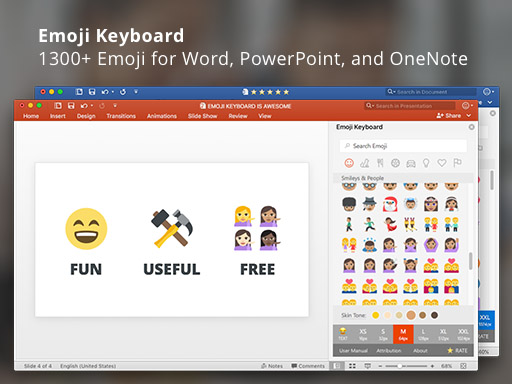
If there is one way that smartphones have greatly excelled over laptops and PCs in recent years it is through the seamless integration of emojis. On your phone, extensive libraries filled with all manner of different types of emoji lie just a simple tap away. The Emoji Keyboard add-in for Microsoft Word puts this capability on Windows PC and Mac too.

Emoji Keyboard Download Now
9

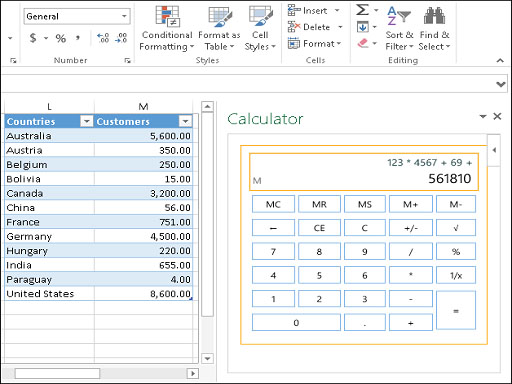
Handy Calculator

Word addin handy calculator

The Handy Calculator Word add-in is simple enough but very useful. It adds a basic calculator function to Microsoft Word that works right there in the app. There is no need to open a separate calculator program, which could save you time opening new apps and then flipping between them while you get on with your work. Also, as well as a regular calculator the Office add-in store at office.com has lots of different types of calculator add-in including a BMI calculator, a VAT calculator, and even more complicated tools like a benefit-cost analysis calculator.

Handy Calculator Download Now
9

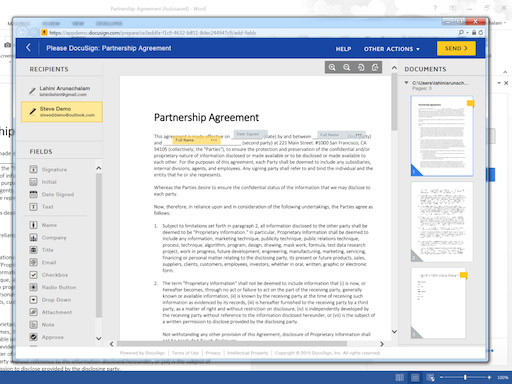
DocuSign for Word

Docusign word add in

Giving consent is simple enough on a physical document. You simply scribble out your signature and you’ve consented to whatever is written in the text on the document. It isn’t so simple on digital documents when you don’t have a pen and most people use standard input devices like keyboards. This is where the DocuSign for Word plugin comes in. It offers an easy, in-app way to add eSignatures to your Microsoft Word documents.

DocuSign for Word Download Now
9

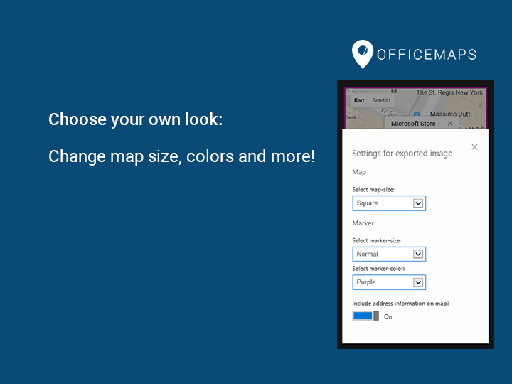
OfficeMaps

officemaps plugin

The OfficeMaps add-in for Word makes it very easy to add images of maps into your documents. If you’re making flyers, posters, invitations, or any other type of document that could benefit from having a map, this Word plugin will save you time and effort. All you need to do is search for the location in question and then add the map to your document.

OfficeMaps Download Now
9

Grammarly

grammarly for office

Grammarly works like an AI-augmented extension of Word’s in-built spelling and grammar checker. Although, the best Grammarly services require a paid subscription the free option still marks an improvement over the basic Word checker. It’ll also learn from you the more you use it.

Grammarly for Microsoft Office Download Now
9

Pexels

pexels word addin

Pexels is a library of free stock imagery that you can use for any document that you’re working on that need visuals. The Pexels add-in for Word adds this library to Microsoft Word so that you search the stock images without having to leave Word or open your web browser. Another Word add-in that offers access to an extensive library of free-to-use stock imagery is Pixabay Images.

Pexels Download Now
9

Icons by Noun Project

icons by noun project for word

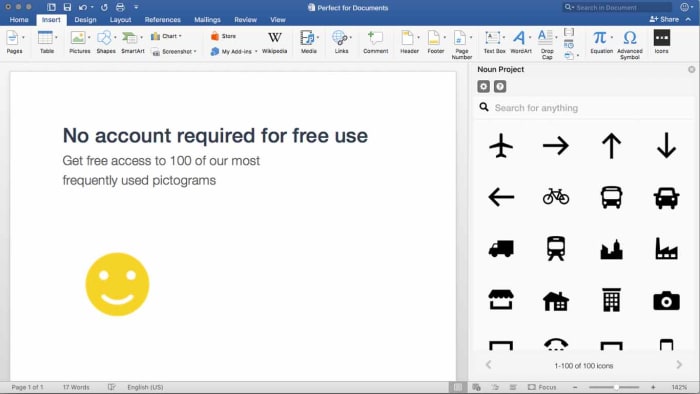
The final Word add-in we’re going to highlight today works a little like the Emoji Keyboard. The Icons by Noun Project Word plugin makes it very easy to add icons and symbols to your documents, which normally would be difficult to do using just your keyboard. With the Word add-in installed, all you need to do is search through the database of icons and then click the one you want to add it to your document.

Icons by Noun Project Download Now
0

Just like with browser extensions, Word plugins are built to help save you time, make life easier, and most of all keep you in the same app. We’ve highlighted our top Word plugins that will do all of those things. Some Word add-ins offer simple extensions to your Word experience but others, like the Emoji keyboard and Icons by Noun Project, offer elegant solutions to the new types of problems that have materialized since we started using smartphones as much as we use our PCs. Other good add-ins worth your attention are Font Finder, Consistency Checker, Myscript Math Sample, Woodpecker, and Abbreviation List.

We hope you like the Microsoft Office add-ins we’ve recommended and would love to hear about any add-ins you like, which we haven’t mentioned. Let us know all about them in the comments below.

Best templates for Microsoft Word

We’ve together a list of all the best places to find many different kinds of template for Microsoft Word.

The best templates for Microsoft Word

Templates are pre-formatted Microsoft Office files that make it easy for you to create professional-looking documents in no time at all. No matter the type of document you want to create; certificates, invoices, budgets, shopping lists, posters, flyers, etc., with templates all the design work is done for you. The only thing you need to do is put the information you want into the document at hand. Easy peasy.

There are lots of different types of Microsoft Office templates. There are templates for Excel and templates for PowerPoint etc. but the most popular Office app templates are for MS Word. There are more types of Word templates than for the other Office programs. Let’s take a look then at the best free Microsoft Word templates.

Microsoft Word 2016 Download Now
9

Free Microsoft Word templates

Microsoft Word templates for resumes

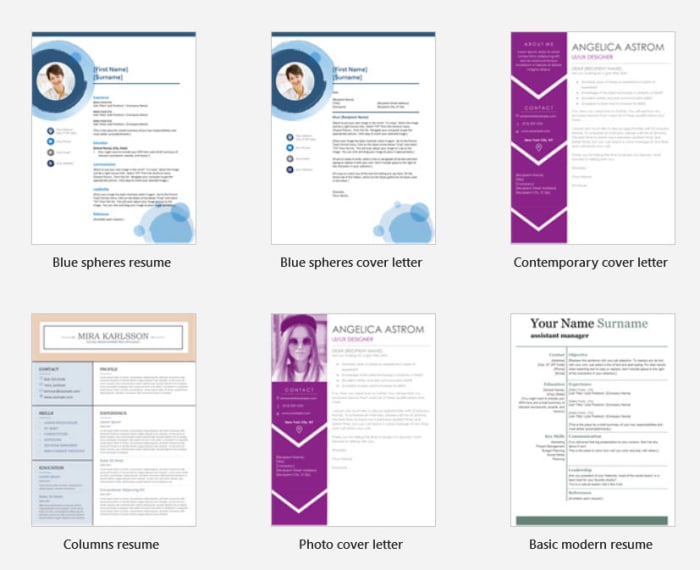
Resume templates are special Microsoft Word documents that are amazing tools for any aspiring job seeker. They make it easy for you to layout your employment history and education background in an eye-catching manner. There are a lot of great places to find free Microsoft Word templates for resumes online and below we’ve listed some of the best.

Resume templates for Word

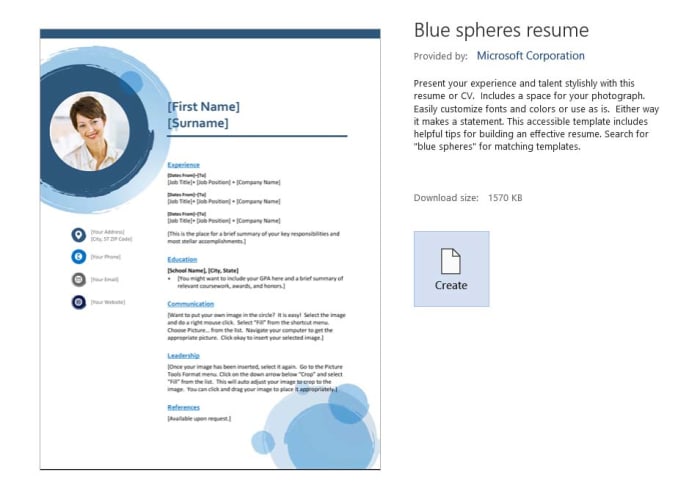
A great place to start is office.com, where you’ll find many professionally designed resume templates. At office.com you’ll be able to find many different types of resume template. It has options ranging from simple, more traditional resumes with basic text formatting to full color, modern marvels complete with imaging and innovative design principles. You can also find templates for cover letters too.

Another good source of .dotx Word templates for resumes is Go Skills. There you can choose your favorite from 50 resume templates. No matter the job you’re looking for, Go Skills should have the right type of resume.

The final source of free resume templates for Microsoft Word we’ll mention is freesumes.com. At freesumes you’ll have access to over 150 resume templates. All you have to do is find the right one for you, hit download, unzip the template file, and then open it as a new document.

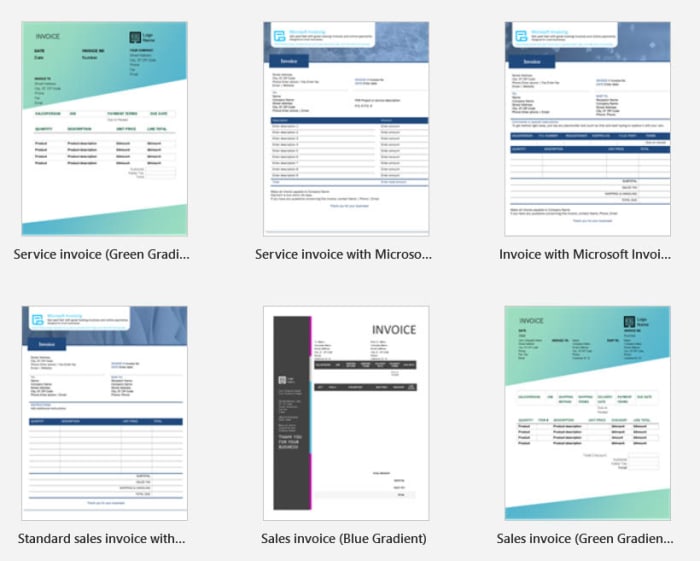
Microsoft Word templates invoice

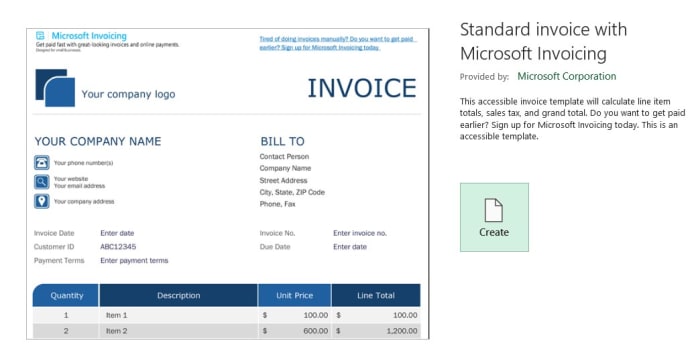
Again, you’ll find invoice templates for Microsoft Word at office.com, but let’s have a look at some of the other places where you’ll be able to find free Microsoft Word templates for invoices.

Microsoft word templates invoices

Smart Sheet is an excellent online source of many different types of Microsoft Office templates. As well as having invoice templates for Excel, Smart Sheet also has many different types of invoice templates for Word. There are different variations of blank invoices, past due invoices, and invoices for different types of business, like Freelance Writer invoices and Web Design invoices.

Another great template library for Microsoft Word is the Template Archive. There you’ll find 50 different service invoice templates for Word. These include simple text-only invoices but also more ambitious designs that give you the chance to add branding, color, or background imagery. If you’re looking for invoice templates because you’re starting your own business, you’ll be glad to know that Template Archive also has templates for business cards too.

Microsoft Word templates calendar

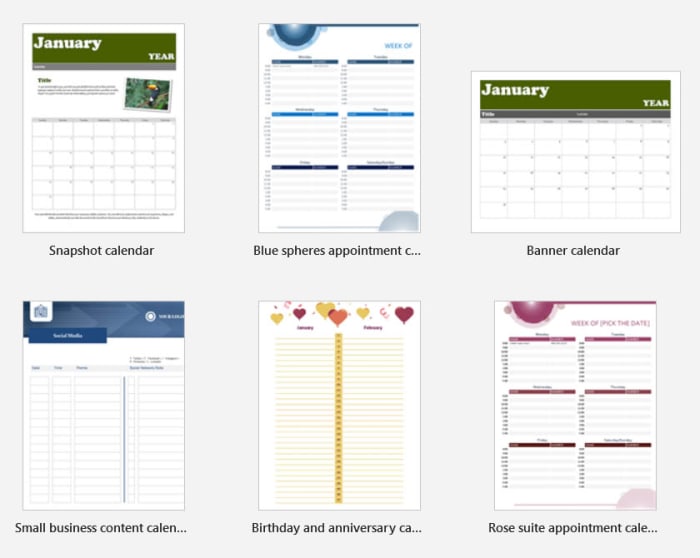
Personal calendars are fun to make, and Microsoft Word is an excellent tool for making your own calendars. Using templates makes it even easier by doing most of the hard work for you.

Calendar Labs has a lot of different types of printable calendar templates for Microsoft Word. Remember when you’re downloading your calendar template to make sure you download the right year as otherwise your days and dates will be off.

Word templates for calendars

Another good source of Word templates for calendars is Calendarpedia. The website looks like it could do with a modern design overhaul, but it has many different types of calendar templates from weekly schedules to 3-year calendars.

Microsoft Word templates for labels

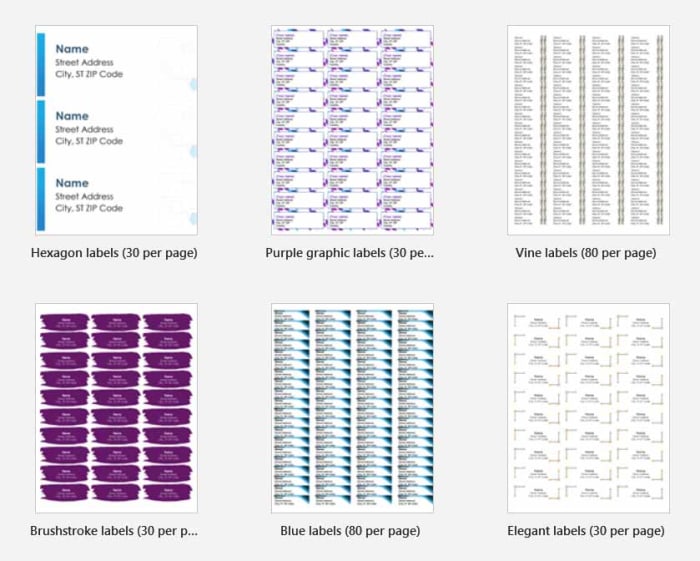
Making clear and easily understood labels on Microsoft Word is easy to do if you use the right templates. Fortunately, there are lots of great places where you can find them.

A good source for all things label-related is wordlabel.com. There you’ll find walkthroughs on how to create your own new template for labels using Microsoft Word, but also an extensive library of ready-made templates too.

word templates for labels

At Online Labels you’ll find over 350 different label templates that you can download and then use with Microsoft Word. Whether you need to print a single label or batches of thousands you’ll be able to find what you’re looking for at Online Labels.

Microsoft Word templates for brochures

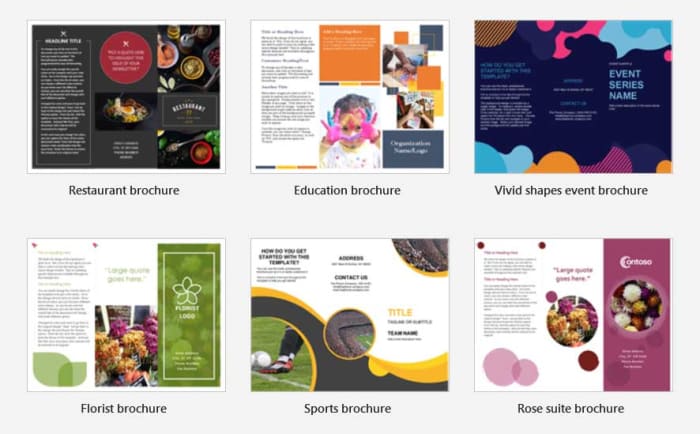
The final type of Microsoft Word template we’ll cover is templates for brochures. Many printing companies offer Microsoft Word templates for creating your own brochures so that you can then take them and have them printed. One such company, offering free Microsoft Word templates for brochures, is Printing for Less. On the Printing for Less website, you’ll find many different types of brochure templates, which you can download for free.

Word template brochures

Another great source of brochure templates for Microsoft Word is the Template Lab. If you’re looking for bi-fold or tri-fold brochure templates for Microsoft Word, you will find many interesting options at Template Lab. There are also other types of brochures like Accordion Fold and Z Fold brochures available too. Furthermore, the Template Lab also offers brochure templates for Photoshop and downloadable PDF brochure templates too.

Having recently brought you all the best sources for Microsoft Office templates and today shown you how to find all the different types of template available for Microsoft Word, we hope we’ve been able to help you out with whatever creative project you’re currently working on.

Templates offer a great way for you to give yourself a head start on that job you either need to do or aren’t feeling very motivated to begin. There is no reason to start with a blank document. With the right document template for Microsoft Word or any of the other Office programs, you’re already halfway done by the time you start the job. We hope we’ve helped you get there with this guide.

Best templates for Microsoft Office

This is where to find all the best Microsoft Office templates for Microsoft Office.

Microsoft Office templates

We don’t need to get into how good Microsoft Office is. It is by far the most popular productivity suite for Windows and Mac and has been for quite some time. Did you know though, that Office can be even better than it is when you first install it? Well, Office templates are pre-formatted documents that allow you to quickly add your particulars and create all manner of impressive documents from flyers, to posters, to resumes in a matter of mere minutes.

Now sure, Microsoft Office does come with some pre-installed templates but there are a lot more out there, you just have to find them. No matter what type of project you’re working on, we’ll walk you through some of the best sources of Office templates on the internet. When you’re done reading this guide, you’ll be able to do so much more with your Office 365 subscription.

6

Microsoft Office templates

Microsoft Office Online templates

Office online templates

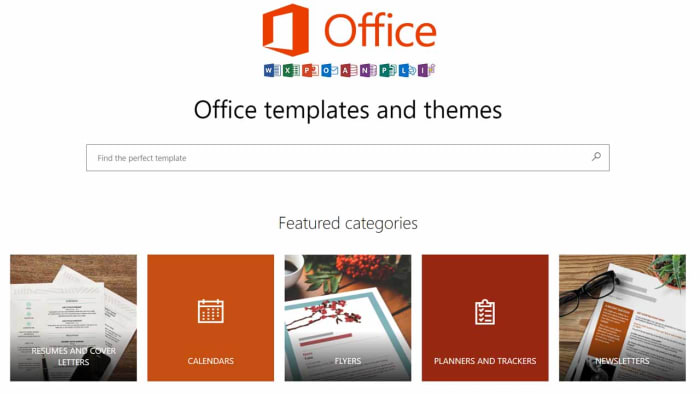
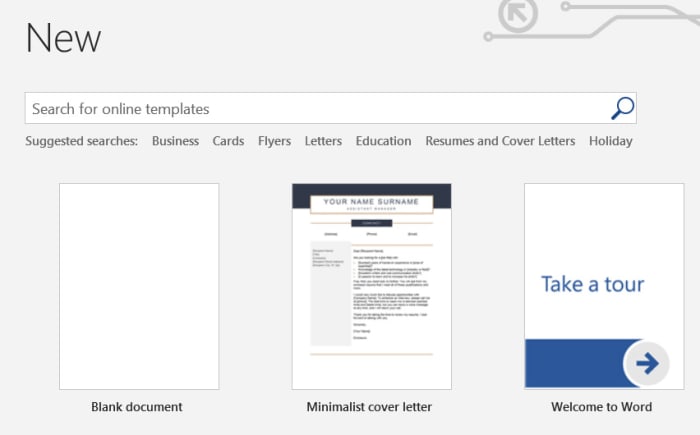
The first source of Office templates you should know about can be found right there within the Office apps themselves. You simply open up the particular Office app, if you’re looking for a Microsoft Office Template for Word then open Word or if you’re looking for Excel templates open Excel. Then you simply click New and you’ll see a search bar at the top, which says “Search for online templates”. From there you’ll be able to search for official Microsoft Office templates for resumes, cover letters, business cards, etc. simply by typing what you’re looking for.

Office Online Download now
7

Microsoft Office templates for Word

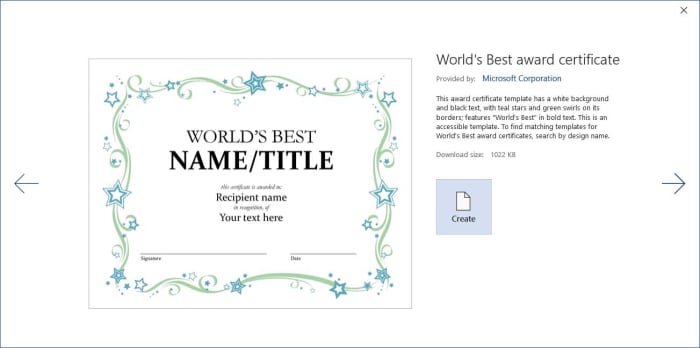
Without a doubt, Microsoft Word is the Microsoft Office program that people use templates with the most. On Word, you can get new templates for resumes, cover letters, calendars, invoices, newsletters, brochures, business cards, flyers, certificates, and more.

Microsoft Word templates

Unsurprisingly, with there being so many different types of Office templates available, there are lots of different places you can find them. Below you’ll find links to some excellent sources of Microsoft Word templates we’ve found online:
Template.Net has a wide variety of different types of Word templates including templates for newsletters, templates for cover letters and letterheads, templates for budgets, and even less common Word templates like for tracking baby growth or speciality brochures.

Layout Ready is another excellent source of Microsoft Word templates covering everything from Postcard templates to Business Card templates.

Microsoft Word 2016 Download Now
9

Microsoft Office Templates for PowerPoint

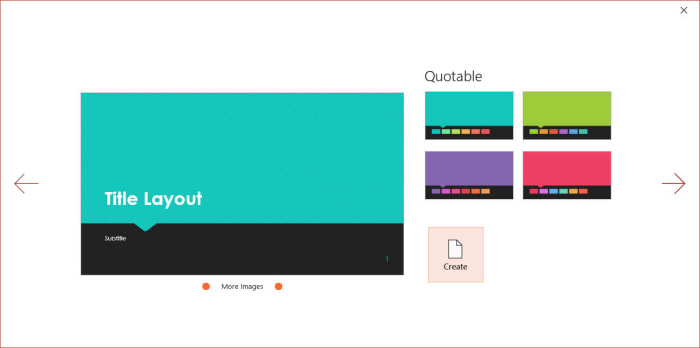
As if giving presentations weren’t hard enough already, creating edgy and eye-catching presentations on Microsoft PowerPoint comes with its own set of technical difficulties. PowerPoint templates, however, can take the sting out of building your presentations so that you can concentrate on your public speaking.

PowerPoint templates

Smart Sheet is a great place to download free Microsoft Office templates for PowerPoint. You’ll find Office temples for marketing plans, SWOT analysis templates, finance templates, marketing plan templates, and more. Downloads are free and couldn’t be simpler. You just find the PowerPoint template you want and hit download.

Microsoft PowerPoint for Android Download now
8

Microsoft Office templates for Excel

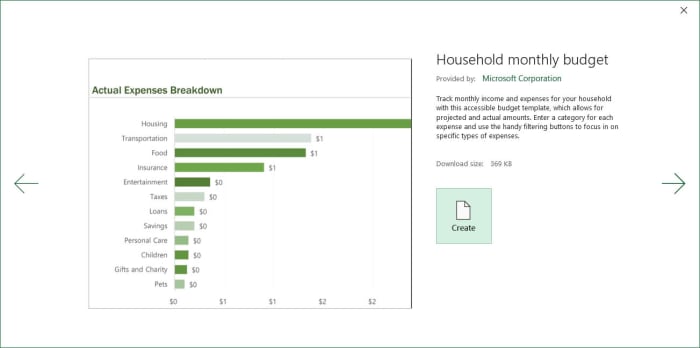
Although you’ll find a lot of the official Microsoft Office templates using the in-app method we laid out earlier, you’ll also be able to find more Office templates over at office.com. If you go to the Excel page at templates.office.com, you’ll find some excellent options that might not show up using the in-app method. No doubt you’ll have already seen a lot of the search results that come up, but you’ll find the odd hidden gem too.

Excel templates

Microsoft Excel Download now ►
7

Microsoft Office resume templates 2019

Now that we’ve gone through the main app-specific sources of Microsoft Office templates, let’s look at some of the particular types of template that you might need, and start with resumes.

Resume office templates

Resume templates are among the most useful. A good resume will help you stand out from the crowd whenever you’re applying for jobs. This is more important than ever these days as HR managers and recruiters often have to go through hundreds of applications for every position. This means they may only get to look at your resume for a few seconds at most.

The best resume templates are for Microsoft Word and you’ll find some excellent examples at Template Monster.

Microsoft Office templates for invoices

Invoices are another type of tricky document that you could save a lot of time on if you simply download free templates first and then fill in all the appropriate information correctly. You can create invoices easily enough using Microsoft Word or Microsoft Excel.

Invoice templates for office

For a good source of Microsoft Word templates for invoices check out Hloom, where you’ll find many different types of invoice templates. If you’d prefer to create your invoices in Excel, taking advantage of the more dynamic data capabilities offered by a spreadsheet, you ‘ll find some great options at Spreadsheet 123.

How to make your own Microsoft Office templates

You might not know this, but it isn’t that difficult to make your own Microsoft Office templates if you’re comfortable enough with design to think you can give it a go yourself. The process is a little different between each program but mostly the same.

To create templates in Microsoft Word, Microsoft Excel, or Microsoft PowerPoint all you need to do is layout the template in each program as you’d like it to be saved. It is important to remember here that you don’t want to save any text in your templates that you may forget to change later on. It is a good idea to use text like “Insert… here” for example.

When you’ve finished designing your template, instead of saving your work as a Word document, Excel document, or PowerPoint document you save it as a Word template that has a file type of .dotx instead of .docx, Excel template, or PowerPoint template. These will then be available to use next time you launch Microsoft Office.

Wrapping up

We’ve walked you through where to find the best Microsoft Office templates for the main apps and we’ve also looked at the places to find particular types of templates like invoice templates and resume templates. If you made it all the way through this guide, you’ll also know how to save your own templates for future use too. If you do end up making your own templates, we’d love to see the results. Share them with us in the comments below.

Microsoft Office for free? Try these great alternatives

You don’t need to pay premium prices to gain access to the premium features you expect from Microsoft Office. These are the best free alternatives to Microsoft Office.

Free Microsoft Office apps

If you’ve ever used your PC to do anything even remotely productive, chances are you’ve used Microsoft Office. The Microsoft productivity suite has always been the most popular suite of programs built to help you write documents, draw up spreadsheets, prepare presentations, and more. Microsoft Office is an institution.

As with most other established institutions, however, the Microsoft Office suite comes with a hefty price tag. The reliability that you get from an established productivity suite comes at a premium. If you balk at the idea of paying out for your productivity programs, then you’ll be glad to know that it doesn’t have to be that way. Let’s go through some of the best alternatives to Microsoft Office that you can use for free.

6

Microsoft Office alternatives for free

Google Docs, Google Sheets, and Google Slides

Google’s own productivity suite, linked to Google Drive, hasn’t been around as long as the Microsoft offering. It has, however, quickly gained a strong reputation for reliability and ease of use across multiple devices. Docs is a cloud-based suite of apps that uses the powers of modern web browsers to do all the heavy lifting. Although the programs are all online-first pieces of software they can all be made available for offline use too, so that you don’t have to worry about being connected to the internet before you start work.

You do need an account but once you have a Google account, which will give you access to Gmail and Google Drive’s cloud storage you’ll also then be free to use the Google Docs suite as you wish. Although many IT departments still rely heavily on the likes of Microsoft Word and Excel, Google Docs and Google Sheets offer amazing real-time collaborative capabilities making them perfect for team-based projects. This means Google Docs is the best free alternative to Microsoft Office for teams and IT managers should look into the enterprise level G Suite offering of the service.

Google Docs download free ►
8

SoftMaker Free Office

Free Office alternatives SoftMaker
Image via: SoftMaker

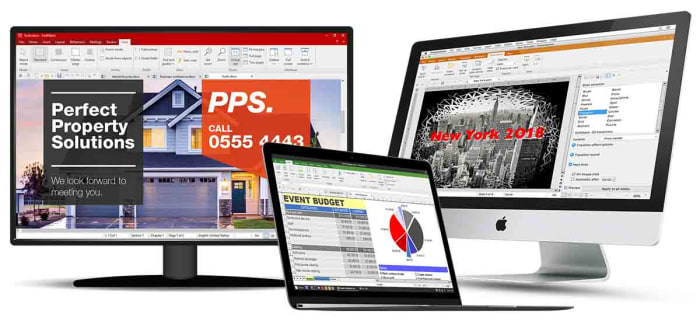
Free Office is the original free alternative to MS Office. The program has been around since 1987 and not only looks very similar to the Microsoft productivity suite, thanks to a recent update, it is also fully compatible with all Microsoft office files like DOCX and XLSX as well as many other file formats.

As the name suggests, Free Office is completely free to use, although you will have to register an account with the developer SoftMaker before you’ll receive your download link. It is available across multiple operating systems for Windows, Mac, and Linux users.

We recommend Free Office as the best free Microsoft Office alternative for anybody who is already used to Microsoft Office but no longer wants to pay for it.

SoftMaker FreeOffice Download now
7

Microsoft Office Online

Office Online

Another great option for former Microsoft Office users looking to take the strain off their wallets is Microsoft’s new online versions of the major Office programs. All are free to use. Microsoft Office Online gives access to cloud-based versions of Word, Excel, PowerPoint, OneNote and more. Although not as fully featured as the apps associated with an Office 365 subscription, this is still a great online office suite. It should be more than enough for most casual users who simply want a way to edit documents.

Office Online can be used across multiple operating systems using different web browsers like Microsoft Edge and Google Chrome. It can run with files stored locally on your PC as well as those stored on your Microsoft OneDrive. You will, however, need a Microsoft account before you can use Office Online.

Office Online Download now
7

Libre Office

Libre Office has been around in its current form since 2010 when it split from Free Office and has never failed to impress. Stemming from The Document Foundation, Libre Office is free and open-source software meaning it is worked on by a global community of collaborating developers.

With Libre Office, you’ll find comparable programs to Microsoft Word, Microsoft Excel, Microsoft PowerPoint, and more. You’ll also be able to run Libre Office on Microsoft Windows devices as well as Apple devices running Mac OS. Libre Office works on Linux machines too. There is also a Libre Office app for viewing your PDF files on Android devices and a plethora of add-ons to play around with too.

The only real downside associated with Libre Office is regarding compatibility with Libre files often experiencing formatting irregularities when viewed and edited in other programs.

LibreOffice Download LibreOffice
7

Open Office

Open Office by The Apache Software Foundation is another Microsoft Office alternative you can get for free that has a long history behind it. Open Office first appeared over 20 years ago and ever since, Apache has been updating, tweaking, and refining it. It is a great free office suite, offers strong alternatives to all of the core Microsoft Office programs, and can be installed on Windows, MacOS, and Linux.

Apache Open Office is similar to Libre Office in that it is open-source software, but it also shares Libre Office’s compatibility issues. Both use the open-source Open Document Format, which means you’ll be able to open versions of your Open Office documents on other programs but you might experience a few inconsistencies with the fonts and formatting.

Apache OpenOffice Download now
8

OfficeSuite

OfficeSuite apps

If you’ve owned an Amazon Kindle Fire or a Toshiba, Sony, or Alcatel device you might already be familiar with OfficeSuite by MobiSystems. All those devices come with OfficeSuite pre-installed. If you’ve never owned one of those devices before, and you’re looking for a free alternative to Microsoft Office or free word processing capabilities, it might be worth your time familiarizing yourself with what OfficeSuite has to offer.

OfficeSuite comes in a number of payment tiers with the basic offering being the free version, which gives access to a number of features. These include the ability to view and edit Word, Excel, and PowerPoint documents as well as being able to view PDF files. Admittedly, this is a very basic offering indeed, but it does meet the needs of many users and it’ll also give access to sharing platforms like Dropbox and iCloud. The main issue, however, is that basic users will be pushed heavily into taking out a paid subscription that will allow them to use OfficeSuite across their desktop, tablet, and smartphone.

OfficeSuite Download now
8
Final recommendations

We’ve been through quite a few free Microsoft Office alternatives for you to consider. As we’ve already pointed out we think that using Google’s online programs, like the word processor Docs and spreadsheet builder Sheets, offers the best experience for teams.

For anybody already used to the Microsoft Office layout, we’d recommend Free Office as developer SoftMaker has worked hard to make the experience as similar to that offered by Microsoft Office as is possible.

If you’re new to the game, however, and you’re looking for your first productivity suite, we’d recommend Libre Office. You can install it on your device for free and as well as offering reliable alternatives to the Microsoft Office programs, it also offers added apps like Math and Draw.

Other programs worth considering are WPS Office and Apple’s iWork.

4 free alternatives to PowerPoint

Tired of seeing the same presentation over and over again? Check out these PowerPoint alternatives!

Presentation

Whether for work or school, whenever we need to make a presentation, we often rely on the crutch that is Microsoft PowerPoint.

While PowerPoint is a great tool in the Microsoft Office Suite, we can’t help but think that it has gotten dull. Given the sheer amount of PowerPoint presentations we have all seen, whatever presentation we create just comes off as uninspired. 

Luckily, there are alternatives to PowerPoint that are free! We found some of our favorites. If you’re looking to spice up your next board meeting or your next presentation for class, these are all good options.

Microsoft PowerPoint Buy now ►
7

Alternatives to PowerPoint

Prezi

At about a decade old, Prezi is pretty well-known in the world of creating presentations.

To put it simply, Prezi makes your presentations look dynamic. It allows you to take a non-linear approach to your presentation so that you can jump in at any point.

Instead of your presentation being a straight line, Prezi makes it a spiderweb that you can journey through however you’d like.

PROS

1. It highlights the content very well.

2. It grabs your attention.

Cons

1. Expect to make a long presentation that will take a long time to make. If you were planning on just making around five slides, Prezi probably isn’t for you.

2. There is a learning curve. Watch others use it before you jump in to avoid headaches.

Google Slides

Yeah yeah yeah, Google has everything. Seriously though, if you don’t want to spend the dough on PowerPoint, Google Slides is basically the same thing, but it’s free. 

If you can work your way through a PowerPoint, you can work your way through Google Slides with no problem. To make things even better, you can also upload it right to Google Drive or Google Docs. 

Google Slides Download now ►
7

Microsoft Sway

We’re swapping one Microsoft product for another!

Sway is not PowerPoint by any means. You do not get some of the same functions you get with PowerPoint, so, for some, it can be a limiting experience. Then again, how often do you REALLY use all of the tools in PowerPoint’s toolbelt?

You can use Sway on both mobile and desktop. To make things even better, the presentation you create will stay in the cloud, so you don’t have to carry a USB around with you anymore.

Microsoft Sway Download now ►
8

PowToon

A big hurdle we all have to jump with our presentation is trying to figure out how to make it not boring. All of our hard work culminates into the presentation, so we want to make sure that our audience is going to pay attention. How do you make sure they listen? Add cartoons, of course!

PowToon adds comic characters and animations to make our presentations pop! It does a good job of keeping the tone of your presentation lighthearted, but still professional.

This obviously not the right format for every presentation. If you’re giving a presentation about something serious, you probably should avoid using PowToon. However, your average college presentation or work presentation could benefit from PowToon! 

8

Wrapping up

If you’re looking for basically a free version of PowerPoint, Microsoft Sway and Google Slides are going to essentially give you just that. However, if you are looking to go beyond what PowerPoint offers, PowToon and Prezi are top-shelf presentation tools.

Regardless of whichever program you choose, just remember that there is a world beyond Microsoft PowerPoint!

Top 6 Microsoft Excel alternatives for Mac and PC

Excel isn’t your only option; check out these alternatives!

Excel

Microsoft Office has been a business standard for a long time now. Despite how common it is, using it over and over again can get very dry. Also, if you have to pay for it yourself, Microsoft Office can be a little expensive. Because of this, many people have been looking for alternative options for both their business and personal use. Excel is one of the more complicated programs offered by Microsoft Office, so finding an alternative can be a difficult task. Thankfully, there are plenty of free and cheap options. 

Microsoft Excel Download now ►
7

Top 6 Microsoft Excel alternatives for Mac and PC

LibreOffice

While LibreOffice lacks a few formatting options when compared to Excel, it is offered as a free alternative to all Microsoft Office products. Since LibreOffice only offers the basic functionality of Excel, it isn’t often that you’ll see this program in a business setting, but it can make for a free program to use at home.

If you need something to help keep organized or to help with some basic number balancing, it’s a good option. LibreOffice is available for both Mac and PC.

LibreOffice Free Download ►
7

WPS Office

Another option available on both Mac and PC, WPS Office is not only a good alternative to Excel but Word as well! 

Most free spreadsheet programs will struggle to have complex programs but provide simple features that can be nice for smaller data management. WPS Office is the middle ground between most free programs and more powerful ones like Excel.

While it won’t be able to perform as complex features like Excel, it is generally a more user-friendly program. That being said, if you choose to pay for it, you will be able to get most of the complex features that Excel itself has.
WPS Office Free Download ►
7

Google Sheets

This may seem like an obvious choice, but the Google Suite provides completely free alternatives to all Microsoft Office products. That being said, Google Sheets has the added bonus over Excel that you are able to use it as part of a browser. Additionally, Google Sheets allows for real-time collaboration. All you have to do is invite other Gmail users to edit your work and they’ll be able to start on it with you right away. Once again, this is available on both Mac and PC. 

Google Sheets Free Download ►
8

Numbers

This one is Mac exclusive, but it is super helpful.

As with most Apple products, their spreadsheet program is well-known for being one of the most user-friendly and aesthetically pleasing spreadsheet programs out there. Workbooks are able to be saved and worked on in a variety of formats, allowing you to use practically any spreadsheet with Numbers. It also has many helpful and easy-to-use templates for those who may not be the most familiar with these types of programs.

Thinkfree

Thinkfree Office is often compared to Google Suite applications, as they are both provide free alternatives to Microsoft Office. Thinkfree’s spreadsheet application is much easier to learn than similar programs, like Excel, which makes it useful for those who are less tech-savvy. Unlike LibreOffice, it also provides a variety of formatting options, making it easily compatible with Excel itself.

Although Thinkfree is available for both Mac and PC, most online tutorials you will find online are in Spanish. If that proves to be a language barrier for you, this might not be your best option.

ThinkFree Download ►
7

Gnumeric

Gnumeric is an open-source spreadsheet program that can be used for easy and simple data management. However, since it is an open-source program, it can be customized to do practically anything. While it will start as one of the less complex spreadsheet programs, it can become one of the most powerful ones. It is great for both beginners and experts; however, it is not available for Mac. 

7

Wrapping up

If you’re a beginner with spreadsheet programs, you may also want to check out our Softonic Solutions’ Best Excel Tutorials to get some help on getting started. Many of these programs can be a bit complex. Let us know in the comments below about which program worked best for you! 

5 free alternatives to Word on Mac

Got a Mac? Need some word processing software? Try these 5 programs.

writing with a mac

In 2019, Microsoft Word is as much of a household name as Verizon FiOS, Sony PlayStation, or Colgate toothpaste. Everyone writes with Word, and it’s a staple for practically everyone with a computer.

Unless you use a Mac.

Is it possible to get Microsoft Office on a Mac? It is, but it’s probably not worth it since it’s really the only enticing program in the suite. Office is expensive, and it takes up 2.5 GB of space. Luckily, there is a selection of free and highly accomplished alternative word processing apps for Mac, some of which not only handle Word documents but that you may even find improve on Word itself.

5 free alternatives to Word on Mac

5. Celtx

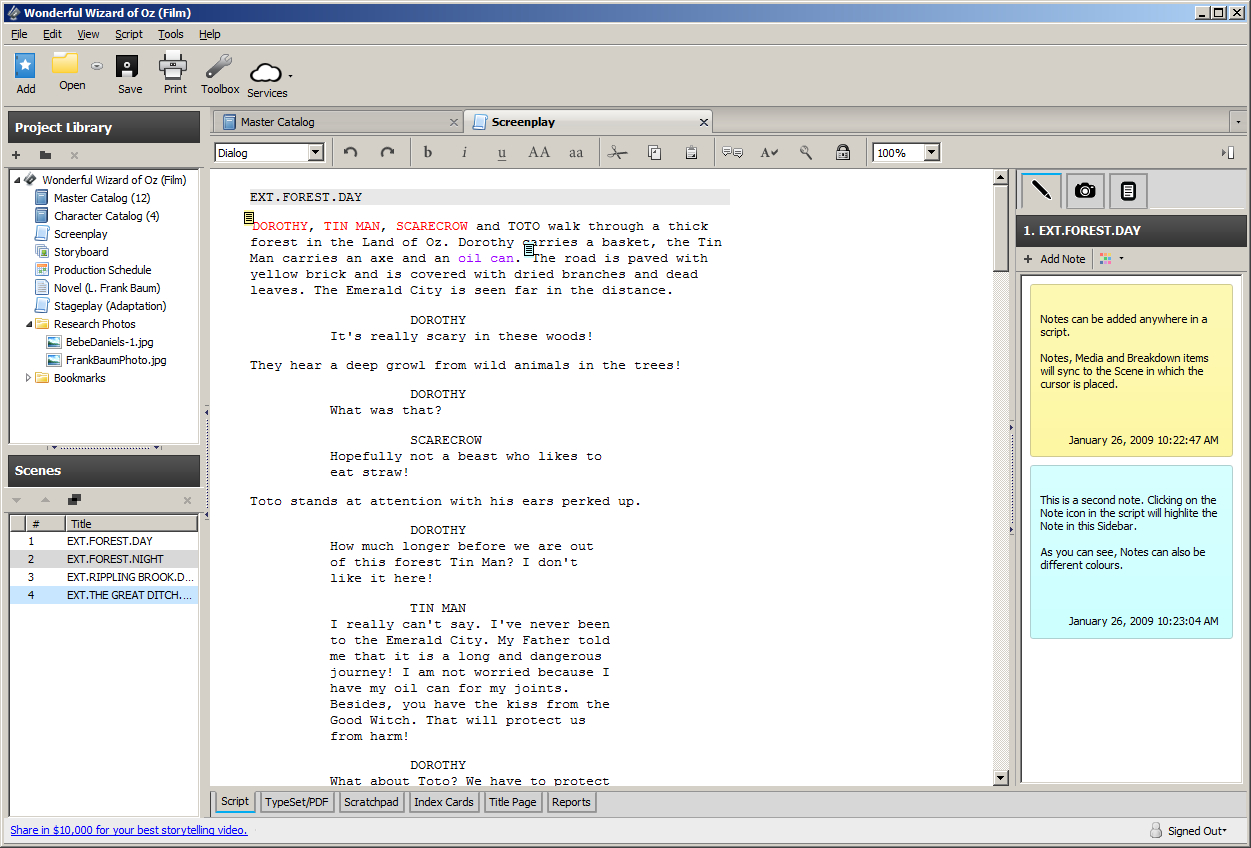
Tend to doubt Wizard of Oz was actually written with this software though.
Celtx is primarily geared towards screenwriting and TV production

Celtx is a free writing tool that’s geared mostly towards screenwriting, storyboarding, and organizing call sheets. Making an account is 100% free and all your work is saved on a cloud until you decide to download it (at which point it’s a .pdf). Available on Mac here, Celtx allows you to create properly formatted video scripts and screenplays, stageplays, audioplays, and comics. Not only that, it’ll sync up with your online studio so you can write anywhere, anytime and even share scripts with collaborators.

Celtx Script for Mac Download FREE ►
6

4. Blogo

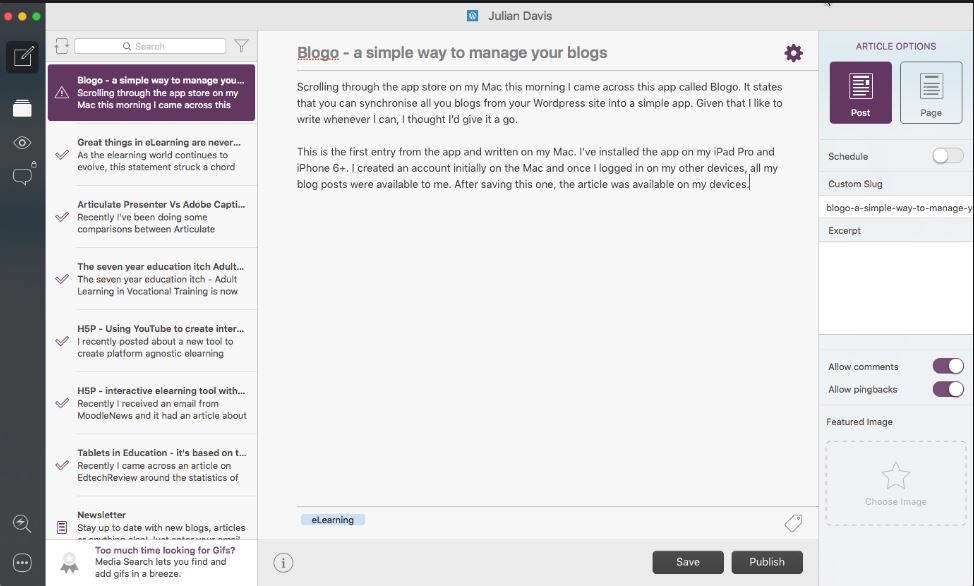
Makes sense considering its name, huh?
Blogo is an easy, free way to blog on the go.

Blogo is a clever app which allows users to blog right from your Mac desktop. It’s simple, distraction-free, and allows you to write even when not connected to the internet. You can use Blogo with self-hosted or WordPress blogs and the platform supports writing, editing, and rich text, but still allows for inline HTML. Blogo has a paid version which includes extra features such as Multiple blog management, integration with Evernote, enhanced social sharing functionality, and comment moderation, but odds are all you’ll really need is the free version.

Blogo for Mac Download now ►
8

3. Pages

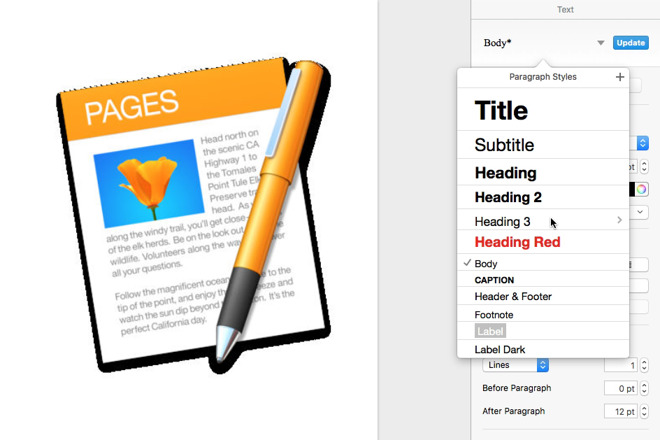
Pick different headings, subtitles - even footnotes
Create documents easily with a strong selection of slick templates

Pages is another free word processor for Mac that lets you create really beautiful documents. On top of that, the more recent versions have improved the typographical tools and are more integrated than ever with iOS and the iCloud. Users are even able to use Apple Pencil to add comments via iPad, or pen in illustrations – something that’s always been wonky on Microsoft Word. As always, Pages does a spectacular job of providing templates for easy document creation, and Placeholders also provide seamless integration with the Photos app for adding images.

Pages for Mac Download free ►
6

2. Google Docs

The best tool for collaborative writing.
Google Docs are free, accessible on any device, and allow for multiple users at once.

Google Docs are a professional option for virtually anybody in the world. All you need is a computer (Windows and Mac both work equally well) and you’re good to go.

You don’t even need a Google account to be able to access another person’s doc; you’ll simply appear as an anonymous author with a hovering cursor. That’s one of the coolest things about Google Docs – multiple users can work on the same piece at once, meaning that it’s both a collaborative document and a chat at the same time.

You can also add comments, embed media, insert hyperlinks, and alter the settings to allow for other readers to view, comment, or edit.

Google Docs Free Download ►
8

1. LibreOffice Writer

The program allows for pretty much everything Word does too.
LIbreOffice is pretty much a free version of Word, so it’ll make all your Windows friends jealous.

If you’re trying to mimic the experience of Microsoft Word then your best bet is LibreOffice Writer. It’s a 100% free office suite that looks and feels about as close to Word as you can get, and supports multiple formats, covering all the basics and then some.

Wizards allow for easy set-up of memos, letters, and even mail-merge documents, and the suite comes with a variety of useful tools for formatting and styling.

LibreOffice Writer also has additional tools for creating tables of contents and indexes for longer documents, with more available for download on their website.

LibreOffice Free Download ►
7

Agree with our list? Let us know in the comments below, and if you’re looking for more methods to open Word Documents on Mac, check out this simple way to do it.