Best Microsoft Office Updates for 2019

See the best new features of Microsoft Office!

Office

Microsoft Office is one of the most trusted productivity suites ever to be developed!

Among their services, you’ll find programs like Word, the go-to word processing environment for millions of users, PowerPoint, a presentation creator that has become a staple of business meetings and more, Excel, a spreadsheet organizer so popular it’s studied in college classes for the enormous range of uses, from personal finance to data analysis, and finally, Outlook, a personal information manager that acts as an efficient email, calendar, and organizer.

Chances are, you use one of these programs!

And if that’s the case, you should be aware of the recent 2019 update, which brought excellent new features along with updated logos. If you don’t check into them, the new features may fly under the radar. Give them a try, and they might become your new best friend!

Microsoft Office 2019 Download Now ►
9

Best Microsoft Office Updates for 2019

Microsoft Translator
Language

Compatible programs: Word, Excel, Powerpoint

It’s a wonder we haven’t seen this in other iterations of Microsoft Office! With a few clicks, you can translate text within your document to other languages, something we’ve had to use Google Translate for over the years. Luckily, there’s no need to go to the internet any more: you can perform the action from your laptop!

For most of the Office programs available, you’ll highlight your text of choice, go to the “Review” tab, then choose “Translate Selection” and select your language destination. After that, your request is fulfilled!

NOTE: Word allows you to translate an entire document! No need to select a piece of text, simply go to the review tab and proceed to translating. If you’re sending messages to people around the world, this can be a huge help. Still, we recommend asking someone who speaks the language to proofread, since translation errors can have huge consequences!

3D Models
Astronaut

Compatible programs: Word, Excel, Powerpoint, Outlook

Office now supports the inclusion of 3D models, which can be manipulated in the document in real time! Need a reference in Word? No problem. Want to show off your SolidWorks creation for a college course? Absolutely!

Thankfully (amazingly, really), this works much like inserting graphs, clip art, and more: simply go to the “Insert” tab. Near the shapes and icons tabs, you’ll now discover an option to include 3D models.

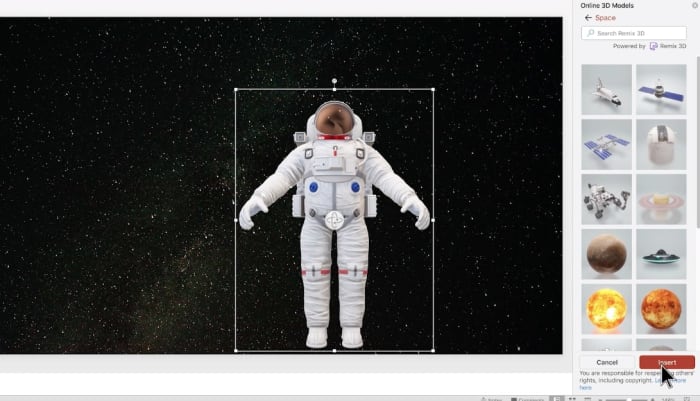
Not only that, Office took their idea one step further: as with other Inserts, you already have a small library of models available for insertion. If you’re teaching a group of students about space, the astronaut seen in the picture above will be available with the click of a button, along with other cool files!

VISUALS, oh yeah!
Icons

Compatible programs: Word, Excel, Powerpoint, Outlook

It’s about time we could use emojis!

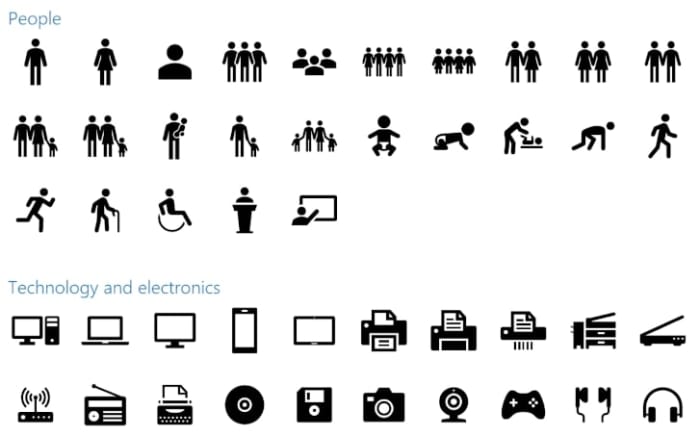
Except, these aren’t simply emojis: these are Scalable Vector Graphics (SVGs). That means they can be infinitely sized up and down without any pixelation, or loss of focus. Also, you can recolor them as you wish and add graphic effects with relative ease.

Once again, like 3D models, you’ll find a large bank of them in the Insert Tab at your disposal.

Inking
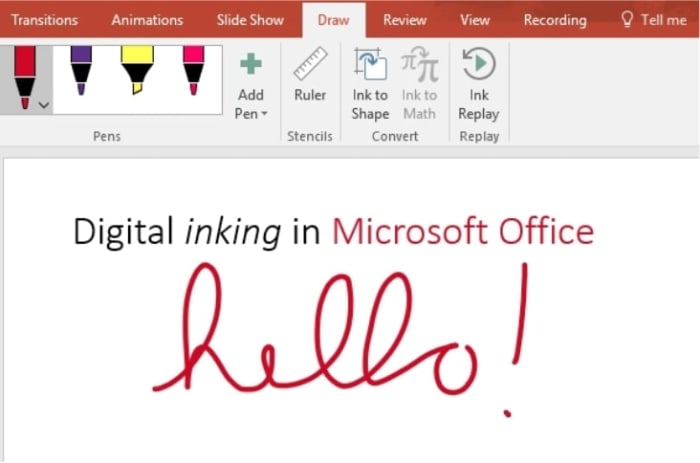
Hello!

Compatible programs: Word, Excel, Powerpoint

Finally, we can draw on these files!

The new drawing tools allow you to choose from a number of different pens and markers, with a good range of colors and effects available. The applications are limited only to your imagination: use them for grading papers, highlighting segments, adding personal notes, and more!

We should note: with the limited brush and color options, this isn’t going to replace Procreate, Photoshop, or other art programs. Yet…

Precision Select
Excel

We needed this feature in Excel for a long, long time.

Before precision selection came around, you had to choose the exact area of rows and columns, on the first try. If that didn’t work, you were required to reselect from the very beginning, and anybody that has dealt with Excel knows that spreadsheets can sometimes become ENORMOUS and difficult to work with.

With the new change, you simply hold the CTRL button and re-click any undesired spaces. Boom: they’re unselected!

This is one small step for Excel, but one giant leap for Excel users.

Learning Tools
Word

Word’s new Learning Tools could fill a whole page by themselves: there are a large number of small details and changes that could revolutionize the way you use this processing program. Let’s talk about a few:

  • Page Color. If that sounds like code for “Dark Mode,” you’re exactly right! Word no longer forces you to use a glaring white screen, you can choose a number of options along the grayscale, making the viewing process far easier at night (and less annoying for others in your room).
  • Read Aloud. Personally, we don’t use this option much, but we recognize the potential for fans of audible feedback! If you’re looking to have your page read back, it’s now a possibility.
  • The Rest. Change column width to improve focus and comprehension, alternate text spacing for easier reading, and even break words into syllables for better recognition and pronunciation!

NOTE: some of these text tools aren’t available yet for certain languages and versions of Word. But it’s only a matter of time…

Morph
Powerpoint

PowerPoint 2019 includes a number of animation features that make it easier to shape and move objects during a presentation; you can change size, composition, and color.

Frankly, it isn’t the most revolutionary alteration on this list, but combined with the inclusion of new SVG icons, there is a good range of applications for a discerning, creative user.

Time Zone Specificity
Outlook

Finally, Outlook has a small detail added that we really enjoy: time zone-specific event logs! True: this might be completely worthless most of the time, for most people. But, hey…

For anyone that commutes to work, plans to go on vacation soon, or has an important business trip in another part of the world (the type of person most likely to use Outlook anyway), this could be a huge help! All to-do notifications are linked to the time zone in question, so you never have to worry about making it to that important meeting.

And that’s nothing to thumb your nose at, folks.

Conclusion

If you want to see the entire retinue of updates to Microsoft Office 2019, visit their page here to get the full list. There are a lot of great things coming down the line! Keep in mind: they have the potential to enhance how you use Office, as long as you give them a try!

Dive in, take a chance; there are great new tools to love.

Microsoft Office 2019 Download Now ►
9

(Final side note: wondering what separates Office 365 and Office 2019? Users with 365 are part of Microsoft’s subscription service, which means the 2019 version will simply be an update for them until (potentially) the 2020 update releases. Now you know!)


Most helpful Microsoft Word keyboard shortcuts

Check out every keyboard shortcut you will ever need in Microsoft Word.

Keyboard shortcuts

We all think we are masters of Word, but we all could be a little better.

Keyboard shortcuts allow you to save time and effort when accessing specific functions of the program. They’ll help you improve productivity and create your documents even faster.

Best keyboard shortcuts for Microsoft Word

In Word, you can find the complete list of all the default keyboard shortcuts in the program. However, there are too many and trying to learn them all in one sitting is impossible.

For this reason, below you have a table with our favorite shortcuts. These can teach you how to select all, minimize a window, save, copy, delete, etc.

Make sure you bookmark this article so you don’t need to memorize all of these.

Let’s get started:

The most used Word keyboard shortcuts:

Chances are, you know about these. However, it’s never a bad idea to refresh your memory. 

  • CTRL + C: Copy
  • CTRL + X: Cut
  • CTRL + V: Paste
  • F7: Check spelling and grammar
  • CTRL + B: Apply bold to selected text or activate bold
  • CTRL + I: Apply italics to the selected text or activate italics
  • CTRL + U: Apply underline to selected text
  • CTRL + Z: Undo last action
  • CTRL + Y: Redo last action
  • CTRL + N: Create a new document
  • CTRL + O: Open a document
  • CTRL + W: Close a document
  • F12: Save as
  • CTRL + S: Save
  • CTRL + F: Search
  • CTRL + P: Print

The ones you probably don’t know about:

Let’s go one step further. These are the ones you will be glad you know when it comes time to write the 50-page term paper.

  • CTRL + E: Center a paragraph
  • CTRL + J: Justify a paragraph
  • CTRL + L: Align a paragraph to the left
  • CTRL + R: Align a paragraph to the right
  • CTRL + H: Opeh the find and replace dialog bax
  • Tab: Tab a paragraph
  • CTRL + 1: Define a single line spacing
  • CTRL + 2: Define double line spacing
  • CTRL + 5: Define a line spacing of 1.5 lines
  • CTRL + 0: Applies or removes 12 points of space above the current paragraph.
  • CTRL + Q:  Removes paragraph formatting that isn’t part of the style assigned to a selected paragraph.
  • CTRL + Delete: Delete a word to the left
  • CTRL + Enter: Insert a page break
  • CTRL + F4: Close the active window
  • CTRL + F12: Display the “Open” dialog
  • CTRL + SHIFT +<: Decrease font size
  • CTRL + SHIFT +>: Increase the font size
  • CTRL + SHIFT + Arrows: Select until the end of a word
  • SHIFT + F3: Change the letters to uppercase or lowercase
  • CTRL + SHIFT + L: Apply bulleted list
  • ALT + CTRL + D: Add the date
  • ALT + CTRL + N: Switch to Normal view
  • ALT + CTRL + I: Activate or deactivate the Preview
  • ALT + CTRL + O: Open Outlining tab
  • ALT + CTRL + C: Insert the copyright symbol
  • ALT + CTRL + R: Insert the registered trademark symbol
  • ALT + CTRL + T: Insert the trademark symbol
  • SHIFT + F3: Change uppercase or lowercase
  • SHIFT + Enter: Insert a line break
  • SHIFT + Right arrow: Select a character to the right
  • SHIFT + Left arrow: Select a character to the left
  • CTRL + Home or CTRL + End: Select until the end of a line

Armed with these shortcuts, you should be able to write more efficiently. Enjoy your new free time!

Microsoft’s Clippy briefly reemerges before being banished to the nether-realm

Microsoft briefly brought Clippy back and then sent him packing again

Nostalgia is a funny thing. It pops up in the strangest of places and has us pining after the strangest of things. Microsoft Clippy, Office’s chirpy paperclip assistant, last seen around the turn of the millennium, is one such strange exercise in longing. Why we pine after a shape-shifting paperclip with basic ask-and-response skills is something that sits outside of common logic and reason. There are plenty of us who do though, and yesterday, for a brief moment at least, it looked as though an old friend was on the comeback trail.

Microsoft briefly brought Clippy back and then sent him packing again

Clippy featured image

You have to feel for poor old Clippy. He was quite popular back in the day and it must have looked like he was due another day in the sun when Microsoft was searching for a character to front its AI assistant project. The poor fella’s hopes were dashed though, when Microsoft instead went with Cortana, the Master Chief’s ever-present AI friend and assistant from the hugely popular Halo series. Clippy still holds hard feelings against whoever leaked the project’s Cortana code name to the press, thus setting the wheels in motion for Cortana to front the project permanently.

Last week will have been a new low for the 90s era “AI” assistant because, as they say, it is the hope that kills you.

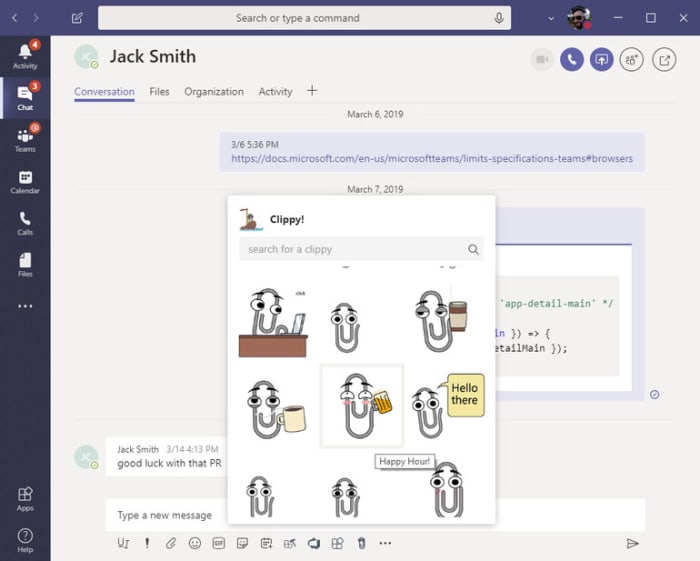
A screenshot of Clippy on Microsoft Teams
Image via: Microsoft Teams

Last week, a Clippy sticker pack appeared for Microsoft Teams on Microsoft’s Office GitHub page. The stickers were available to Teams users who could download and import them, then add pictures of Clippy to their chats and conversations. It looked as if these sticker packs could have been the beginning of a new era for Clippy. It really did look like we would finally be seeing the Clippy we always wanted to see.

As the guys at Ars Technica so keenly pointed out about the platform where the Clippy stickers appeared, “Teams, an interface that’s conversational and text heavy, is the perfect venue for a new Clippy.” He wouldn’t have needed the headline slot that belongs to Cortana, just a small corner of the Microsoft ecosystem to do his thing and respond to our questions and turn himself into an envelope or whatever. Teams was the perfect place for Clippy and that was where he appeared. It all fit together nicely.

Then it all came crashing down. According to a Microsoft statement released to The Verge, “Clippy has been trying to get his job back since 2001, and his brief appearance on GitHub was another attempt… While we appreciate the effort, we have no plans to bring Clippy to Teams.” Before Clippy had even had a chance to make a name for himself, Microsoft’s “Brand Police” had taken down the GitHub page offering the Clippy sticker packs. His chance was taken away in the blink of an eye.

People liked having Clippy back

That brief moment of light, however, could be the dawn of a new day for the little guy. Back when he lost out on the Cortana gig, it was a press leak that set off a wave of public support and petitions, which eventually led to Microsoft sticking with Cortana for the AI assistant position. There is a chance yesterday’s brief appearance on Teams could have a similar effect for Clippy.

Bring back Clippy

Teams users aren’t happy that Clippy has been taken away from them. They’ve even started a petition asking for Clippy to be brought back. If you stand with them and if you stand with Clippy, you can sign the petition to bring him back here.

Windows 10 has a new free Microsoft Office app

Microsoft has released a brand-new version of Microsoft Office, which will give Office 365 users a new way to connect the work they do online and offline.

Microsoft Office

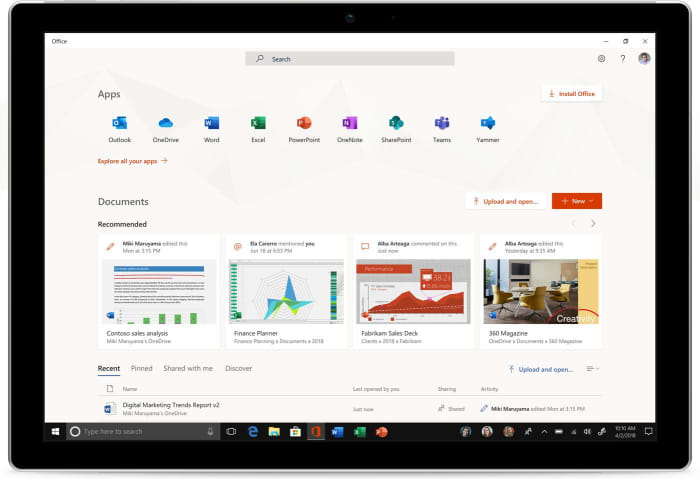
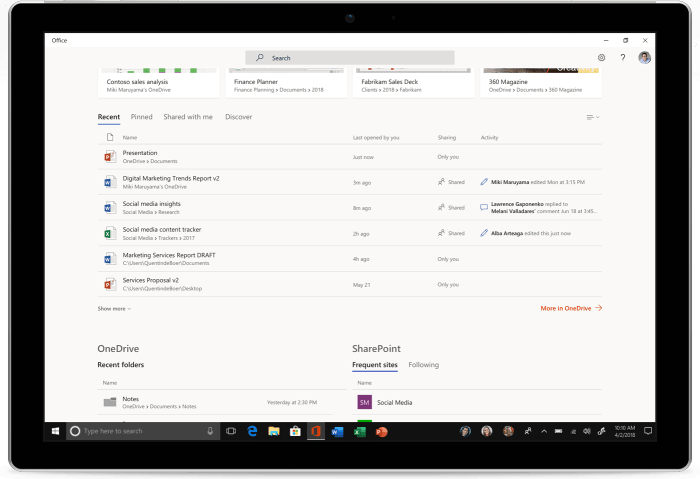
Microsoft has released a brand-new version of Microsoft Office, which will give Office 365 users a new way to connect the work they do online and offline. The new office app is a progressive web app (PWA) and works like an app version of Office.com. If you have Windows 10 version 1803 or later, you’ll be able to try the new app, as it is only from version 1803 that Windows 10 is compatible with PWAs.
6

All your office apps right there at your fingertips

Microsoft is aiming the Office app at business and enterprise as it gives companies the ability to add branding to their office apps. It also gives users the ability to access other third-party apps via the new Office app. The app is available to individuals, however, and still has plenty to offer the personal user.

New Microsoft Office app screenshot

The key features for individuals revolve around the link the app provides between online and offline work and the ability to pin Office to the taskbar, putting all of your office apps right where you need them. The Office app will automatically open any office programs like Word or Excel locally, if they’re installed on the PC. If the program being accessed isn’t available locally, however, it will launch the web version of the app as found on Office.com. The same goes for files, too. It will act as a bridge between files stored on the PC and files found in OneDrive or SharePoint.

Microsoft has demoed the new app on YouTube. The demo shows the new Office app able to work on a device in airplane mode as it has enough content in the cache to load app icons and recommended documents.

The new Office app is designed to replace the My Office app, which comes pre-installed on all Windows 10 devices. If you still have the My Office app on your PC, you should see it automatically update in the next few weeks. If you want to get your hands on the app in the meantime, however, or if the automatic update doesn’t happen, you can download and install the app from the Microsoft store.

Office app screenshot

Although this new Office app is free, it doesn’t actually give you access to any of the popular office apps like Word, Excel, PowerPoint, Outlook etc. It is simply a way to manage these programs and you will still need to have paid to access the office programs or have an ongoing Office 365 subscription to use them. If you’d like to check out some free alternatives to Microsoft Office check out our guide below.

Top 7 online tools to improve your writing

Use these tools to master grammar, punctuation, and more!

writing

Whether you’re a professional writer or simply writing for fun, writing assistant tools are useful for virtually everyone. From mobile apps to browser extensions, there are hundreds of tools out there, each with its own unique uses. Here are some of the best ones for making your writing more professional.

Top 7 tools to make your writing better

7. Whitesmoke

Whitesmoke

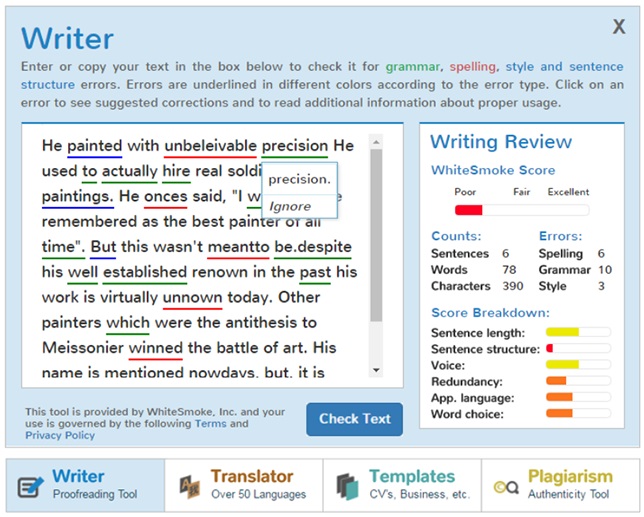
Whitesmoke works as an extension to your word processor, and essentially an upgrade to the basic grammar check that is pre-built into the processor. While most grammar checks simply tell you what’s wrong, Whitesmoke is a sophisticated program that will help you rewrite your work to create sentences with more substance. Their website also contains educational videos on various grammar subjects to improve your overall writing skills.

WhiteSmoke Writer Executive Download Now
7

6. Evernote

Have you ever struggled through a mountain of windows and browser tabs, looking for a little note you wrote down? This extension lets you have your notes right next to your work as you’re writing. This means you can keep track of multiple things without needing to sift through a variety of tabs and windows to look at all of them.

EverNote Free Download
8

5. EasyBib

Easybib

While this app is perfect for students, it can be used by anyone who finds themselves struggling with citations. This is a great app for avoiding plagiarism, as it helps you create in-depth bibliographies for your work. While you may not always need citations in your writing, it is important to make sure you’re not stealing someone else’s work.

EasyBib Bibliography Creator Free Download
7


4. Just Not Sorry

Just not sorry

A Gmail extension specifically created for professionals. If you find yourself using words like “just,” “very,” and “sorry” too frequently, then this extension is a great way to change the tone of your emails, so you don’t sound unprofessional. It finds synonyms for these common fluff words, so you aren’t overusing them.

Just Not Sorry -- the Gmail Plug-in Free Download
7

3. Grammarly

Similar to Whitesmoke, Grammarly is a browser extension and mobile app that will help check your grammar and spelling in your everyday life. It is a natural upgrade from autocorrect that anyone can use, as it will also check the grammar of your sentences, instead of just the spelling. We use it here at Softonic, and it’s saved us from some embarrassing situations.

Grammarly Lite Free Download
8

2. LibreOffice

LibreOffics is a free alternative to Microsoft Word that comes in both desktop and mobile forms. This can really save you a lot of money if you don’t want to pay for Word. It contains virtually all the same functionality (besides being able to run Word documents themselves), without the pesky fee.

LibreOffice Free Download
7

1. Diaro

Diaro

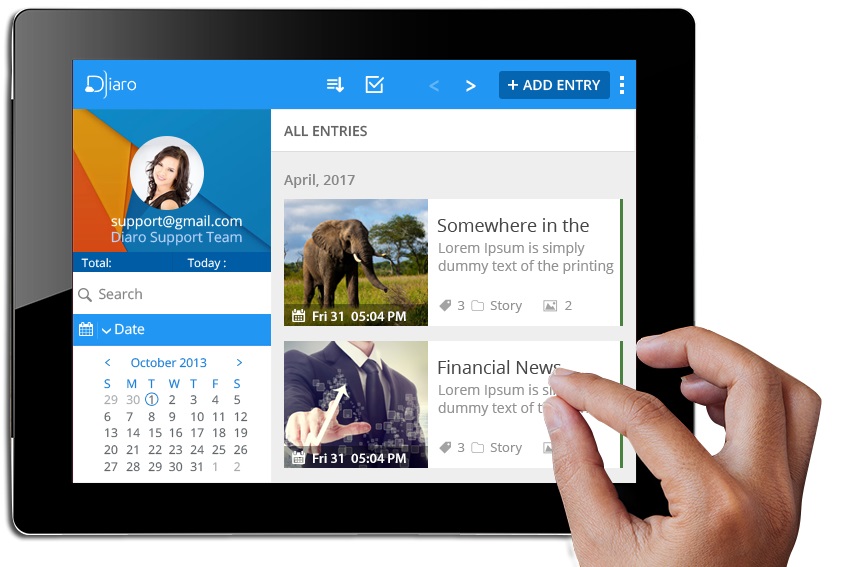
This journal app works similar to a mobile version of Evernote, as it is a perfect way to keep track of any information you have, pulling it up on short notice. It allows for an easier organization format than the pre-built notes app. As the name implies, you can also use this app as a virtual diary, making it easy to document important parts of your day and life.

Diaro - diary, journal, notes Free Download
7

While many of these are their own application, a good portion of them work as extensions to everyday programs like Microsoft Word, and Google Chrome. These aren’t the only great extensions out there, so be sure to check out our list on the best Chrome extensions to improve all aspects of your browsing experience.

5 ways Microsoft Office is better than Google Drive

Why Google Drive isn’t always your best options.

Microsoft Office

Most of us have used Microsoft Office and Google Drive. But which one is better? The two offer a variety of features and benefits.

Below, get a closer look at why you may want to pay for Office even though you can get Google Drive for free.

5 ways Microsoft Office is better than Google Drive

1. Most people know Word

Word is the most commonly used word processing program today. Most people know how to use it. That means if you need to send a document to someone, chances are good they will understand how to open it up and use it if it’s in Word. Google Docs can be a bit tricky for those who don’t have much experience with it.

Microsoft Word 2016 Download Now ►
9

2. Google Docs offers fewer features

When comparing Microsoft Word and Google Docs, it’s easy to see that Docs has fewer features. For those who enjoy having the ability to handle unique layouts and embedding plenty of graphics, this is going to work in your favor. Adding an image can be difficult at best with Google Docs, but it takes only a minute when you are using Word.

3. Excel is easier than Sheets

Microsoft Excel and Google Sheets are fairly similar. You could easily get used to both options. One key factor that helps Excel stand out is its ribbon. It is very easy to access and use to create formulas. This helps to speed up the process for many people. For those who rely on Sheets, you may not notice much difference. However, it is easier to collaborate with others using Sheets.

4. PowerPoint rules

For those who are creating slideshows — whether they are for a classroom discussion or a company meeting — PowerPoint from Microsoft tends to be the better option overall. The program offers more features, and you can create a presentation from scratch within minutes.

5. Microsoft’s latest upgrade makes it easier to share

With the latest Microsoft Office version, individuals can collaborate more effectively. Your materials are all stored in the cloud, too, which means you have better access to them. This used to be the biggest downfall of Microsoft — it lacked cloud access and connectivity. That gave Google Drive the leg up for a long time.

6

When it comes down to it, either program is accessible and fairly easy to use. Microsoft is far more feature-heavy, though, and tends to be on the cutting edge of new tools.

5 ways Google Drive is better than Microsoft Office

Trying to decide between Microsoft Office and Google Drive? Here’s what to consider.

Google Drive

When it comes to word processing, is Google Drive better than Microsoft Office? Some may say Office is the better option for word processing, but Google Drive does have a variety of benefits. However, you may not find them all as easily accessible as you do with Microsoft. If you have to choose just one, there are a few factors to keep in mind as you make your decision.

5 ways Google Drive is better than Microsoft Office

1. Google Docs is free

When it comes down to it, the price tag is often the top reason many people choose Drive and Docs over Microsoft products. It makes sense, of course, because this type of investment can add up over time. Unless you have a valuable reason to invest in Microsoft Office, it may not be worth it to you.

Google Docs download free
8

2. Collaboration with Drive is better

Let’s say you need to send a document to someone across the world. You want them to be able to see it and edit it while you are looking at it on your computer. With Drive, you can do this rather easily. In its latest version, Microsoft has updated many of its collaboration tools to make this process easier for you to manage. However, it is not as easy to do as it is with Google Drive.

Google Drive Download Google Drive
7

3. Drive is user-friendly

Another key reason to lean toward Google Drive? It’s just so user-friendly. If you grew up using Microsoft, you will find most of the features are about the same. You can easily interchange them, in fact. But, Google Drive is a bit easier to use overall when it comes to features and tools. The bells and whistles are easy to access and more manageable. If you are going to be using them heavily, you’ll appreciate this benefit.

4. Google Drive won’t clutter up your hard drive

When you use Google Drive to create files and spreadsheets, you don’t have to worry about saving your content to your hard drive. This may not matter to some people. But for those who need to keep space free while juggling lots of documents, Google Drive wins. That’s because all of your content is stored in the cloud.

5. Google Drive saves time

With Google Drive, you can instantly create a new document straight from your web browser. The best part? It works with any browser, not just Chrome. The only catch is that you need to be signed into your Google account to instantly create a document. To do this, type doc.new into your browser’s address bar to create a Google doc. For instant Slides or Sheets access, type sheet.new or slide.new.

In this case, Google Drive is the hands-down winner when it comes to managing your daily needs. Whether you use the program sparingly or process dozens of files a day, Drive makes it a bit easier.

How to update Microsoft Office with an Office 365 subscription

Make sure you’re running the latest version of all your Office products.

microsoft office 365

Office 365 is a cloud-based subscription service that gives users access to a suite of MS programs. This includes, of course, Microsoft Office. Office is the big dog in the world of productivity software, and it includes Word, Excel, PowerPoint, Outlook, Access, and Publisher, among many others. Microsoft offers new versions of Office every few years (with various updates and fixes in between). It can get expensive keeping up with the Joneses in terms of software. Office 365 allows you access to the most recent iteration of Microsoft programs without the need to buy each new version that comes along. You just pay for the subscription.

Ideally, your Office 365 subscription settings will be set to provide automatic software updates so you have the latest versions of your office programs as soon as they become available. If need be, however, you can manually install Microsoft Office updates. Here’s how.

How to update Microsoft Office with an Office 365 subscription

Updating from Office

These instructions are for updating MS Office from one of your Office programs (2013 or later).

  • Open up any Office app (such as Word, Excel, PowerPoint, and so on). Click on File, and then select Account (or Office Account in Outlook).
  • Go to Product Information and choose Update Options, and then select Update Now. If Update Now doesn’t show up, you may need to select Enable Updates from the same menu.

Office will check for and install any new updates and let you know when it’s finished via a “You’re up to date!” pop-up window.

6

Updating from the Microsoft Store

If you purchased Office 365 from the Microsoft Store, you can use the store to install updates to your Office programs.

  • First, exit any Office apps you have open on your device.
  • Enter Microsoft Store into the taskbar search, and then press Enter.
  • Click on the profile icon and ensure that you’re logged in to the account you want to update.
  • Click the ellipses (…) icon and choose Downloads and Updates.
  • Select Get Updates.

You will either be prompted to download the latest updates or you’ll get a “You’re good to go” message from the Microsoft Store to let you know there are no new updates available.

If you are using your company’s Office 365 account, the settings may block you from being able to install updates or change updates settings. Don’t be afraid to reach out to the tech support people at work if you’re having trouble with your company’s Office software. Similarly, get in touch with Microsoft’s support department if you are having update issues on your personal 365 account.

Beginner’s guide to file formats

What’s better: mp3 or wav? jpg or png? Here are some common file formats and what they mean.

If you’re not a graphic designer, you may not fully understand the difference between a .jpg, and a .png file. In fact, there are many file types and file formats that aren’t fully understood by the general public. Here’s a quick and easy guide to understanding some of the most common file formats, and when to use them.

Beginner’s guide to file formats

Lossy vs. Lossless

The main difference between most file types is how they choose to compress information. “Lossy” files remove parts of a file in order to shrink it exponentially, while “Lossless” compress information without removing any.

For example, JPEGs remove unimportant information from an image in order to shrink the file size, while PNGs just compress similar parts of an image. By doing this, JPEGs can achieve much smaller file sizes since they are “Lossy” and discard parts of the actual file. On the other hand, PNGs are still fairly large files but are able to uncompress the image and recreate the original image in its entirety since they are “Lossless” and remove none of the original file.

Image files

Image Files

Besides simply being lossy or lossless files, most file types have unique ways of compressing images or data. Here are some common image file types and how they work:

JPEG: A common lossy image format that is valued for its ability to create small file sizes. It does this by removing information from an image that it deems unnecessary (an example of this would be the loss of transparency from an image file being converted to JPEG). They are best used in photographs where this information is less necessary, or when you a much smaller file size and are willing to sacrifice some of the information loss

PNG: A common lossless image format that compresses image patterns. By doing this, PNGs are able to be converted back into the original image (something that a lossy format, such as JPEG, can’t always do). PNGs are useful for a variety of graphically intensive functions, such as transparency, and color depth. However, because they still retain much of the original image, they tend to be larger files than some other common image formats.

GIF: Typically an animated lossless group of images. They have a very limited color palette of only 256 colors (compared to other file types having over a million), which makes them better suited for simple images rather than ones with complex colors. GIFs are useful for color-limited logos that require less space than a file as big as PNGs, but have sharp-edged line art that might be removed from using a JPEG. They are also useful for short animations.

Raw image files are camera files that have not been converted to another type yet. As such they are essentially the full original image with no compression.

Sound files

Sound Files

Similar to image files, sound files feature a variety of file types that are primarily based around how compressed they are. Here are some of the more common ones:

MP3: These files are lossy and typically very small. They download and load faster than other file types, and are typically found on computers and internet sound files, such as through iTunes.

WAV: These files are lossless and significantly larger than MP3 files. They are best used when premium quality sound files are necessary, such as on DVDs, radio, or Flash animations.

Like with image files, there is also a raw sound file format known as RAW Audio. This format features no compression. These typically need some level of conversion before certain audio reader programs can use them.

Document files

document files

While other file types are typically defined by their compressed information, document files are valued for other properties. Specifically, what can read them, and how easy they are to edit:

PDF: Adobe System’s document type that is primarily used to deliver fully completed documents. Unlike .docs, PDFs can be opened by anyone, since Adobe’s Acrobat is free. These documents also retain all of their original information when being converted to this format. The downside to them is that they are harder to edit than .docs. As such, they are best used to send completed documents, rather than ones that need to be edited, since they retain the full quality of the document, but are hard to edit themselves.

Adobe Reader Free Download
7

DOC: Microsoft Word’s document file type. These documents are easier to edit than PDFs, though they may sometimes lose information when files are converted to .doc. Also, these documents are unable to be opened and edited with much more than Microsoft Word, making the program a must for anyone primarily using this document type.

Microsoft Word 2016 Download
8

RTF: While PDFs and DOCs typically require specific program types to open them, Rich Text Format files are readable by a large variety of programs. They cannot use macros, which are embedded document tasks that you can create in other common document formats. RTFs are best used for sending documents to recipients who may not use Adobe or Microsoft Word.

Text files are the document version of “RAW Audio” or “Raw image” files. These files feature unformatted text and typically come from text-editor programs such as Microsoft Notepad.

Of course, there are more file formats than just these, but these are the ones you’re most likely to encounter in your everyday life. Other file formats aren’t as common, especially for people who aren’t working in the field of formatting those types of files (e.g. if you’re not a graphic designer, you’re unlikely to see .psd files very often).

How to convert files into pdf

Converting files to the standard PDF format can be difficult. This is how to create PDF files.

Converting files to the standard PDF format can be difficult. This is how to create PDF files.

PDFs allow us to send documents exactly as they are with confidence. When we send a PDF we know that the file can’t be altered, will arrive complete, the data it contains is secure, and the recipient will be able to read all of the information easily. PDFs are great for CVs, cover letters, reports, spreadsheets, and if you need anything printing, converting the file to PDF will make the printing process much simpler and remove any chance of the print coming out badly.

How to convert files to pdf

PDFs then are like digital photocopies of whatever it is we are doing. You can’t create documents as PDFs. You first have to create your document in another program and then convert the file to PDF. In this way, you’re able to continue working on your project and convert your work to PDF at various stages of development, right up until the work is complete. This begs the question, however, how do you convert files into PDF?

The complete PDF solution

If you open a PDF on almost any PC or Mac chances are it will open in Adobe Acrobat. It is not an exaggeration to call Adobe Acrobat the king of PDF programs. You would find it much more difficult to open and view PDF files if it wasn’t for the free version of Adobe Acrobat you likely have. Adobe Acrobat can do so much more, however, than just open PDF files. Adobe Acrobat is the best tool for converting files to PDF as well as a whole host of other features for creating, editing, and managing PDF files.

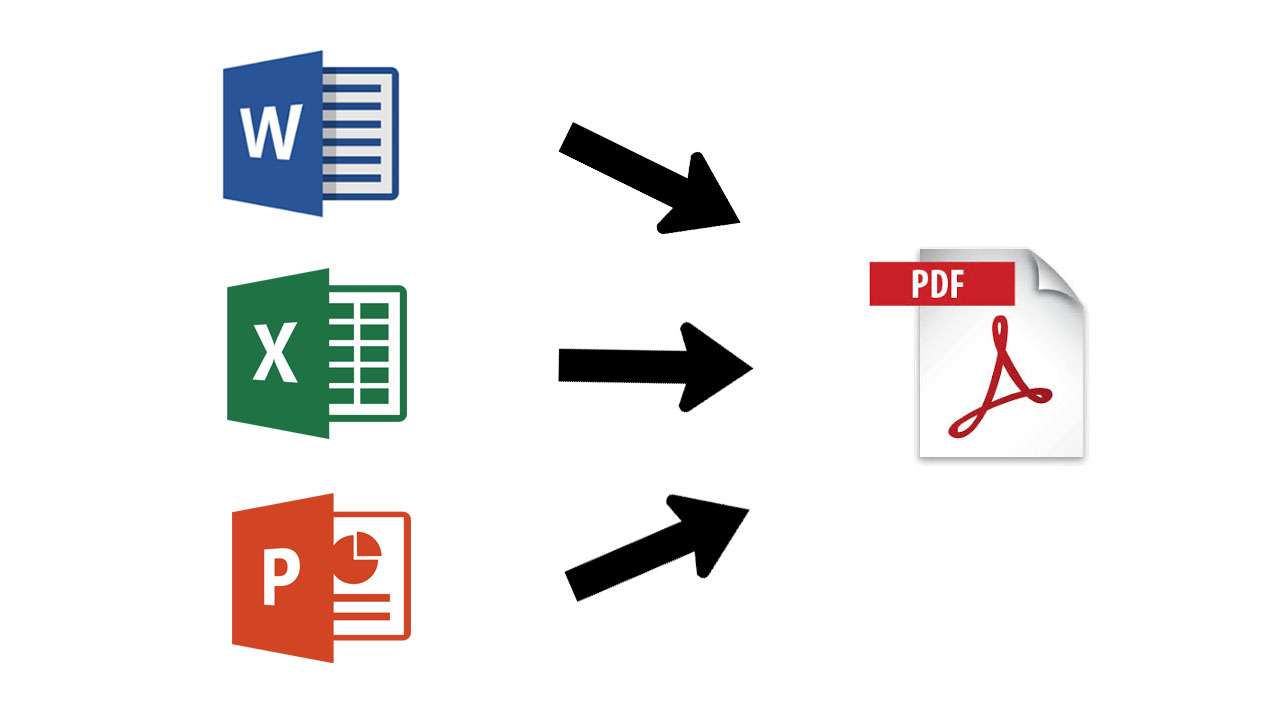
To convert a file to PDF using Adobe Acrobat is quick and simple. All you need to do to convert a Word, Excel, or Powerpoint file to PDF is:

  1. Open the Office file you wish to convert
  2. In the Adobe ribbon, click Create PDF.
  3. Select Protect PDF in the resulting dialog box.
  4. You can then decide whether add a password to encrypt your PDF file.

When complete all you have to do is Click OK, give your PDF file a name and save it in the desired folder.

Adobe Acrobat Pro DC Try Now
9

Do more than just convert files to PDF

Acrobat Pro can do much more than easily convert Microsoft Office files from your browser or mobile device, into PDFs. It can also send a PDF version of photographs, merge multiple files into a single PDF file, and protect your PDF files with passwords and permissions. Acrobat Pro even gives you the option to edit paper documents as PDFs and media like audio and video to your PDF files. You can see a complete list of the extensive PDF related features offered by Acrobat Pro below.

Without a doubt, Adobe Acrobat offers the most reliable and secure way of converting files to PDFs. A subscription to Acrobat Pro offers the best way to convert files into PDF and back again. It also offers a rich feature set, centered on all the different problems that may need a PDF solution. Acrobat Pro offers an easy solution for slipping between creating, editing, and viewing PDF files. If you’re looking for the best way to convert a file to PDF, you should check out Adobe Acrobat Pro

If you have a PDF that needs converting now, why not try Adobe Pro DC today.

Adobe Acrobat Pro DC Try Now
9