The Best Chrome Extensions to help you focus and avoid distractions

These five Chrome extensions will help you concentrate more and avoid distractions.

Since the beginning of time, humans have been distracted from completing essential tasks, having a detrimental effect on their daily productivity.  In this modern world, progressing technologies play an increasing role in making us more efficient workers, but lots more distractions have appeared too.  With just one wrong click, your attention wanders away from a productive session, and precious minutes are wasted as you get lost in the endless web of mind-numbing links that is the internet.

As well as this being a massive problem in the traditional workplace, the most challenging place to keep tabs on your productivity is while remote working.  More and more people are making use of workspaces to get away from the physical distractions at home.  But the biggest distractions of all reside in the tools you use to meet the deadline set by your employers.

Smartphones and the internet have long been touted as the biggest distractions in our daily lives, and Google Chrome is one of the most popular browsers used in any life situation. So, let’s take a look at some of the best Chrome extensions out there to help you remain focused on the task and put an end to your procrastination.

7

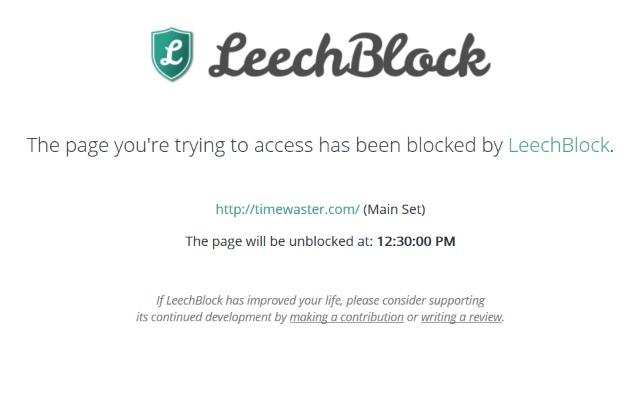
Leechblock NG

One of the most common types of productivity apps in the Google Chrome store is site-blocking extensions. They allow you to pick out addictive sites that distract you from your daily goals and block you from accessing them when you are trying to focus on your work. This helps you to avoid temptation, boost your willpower, and make use of your time more effectively.

Leechblock is one such Chrome extension that will help you take back control of your attention span and get on with the task at hand.

Block Site – Website Blocker for Chrome
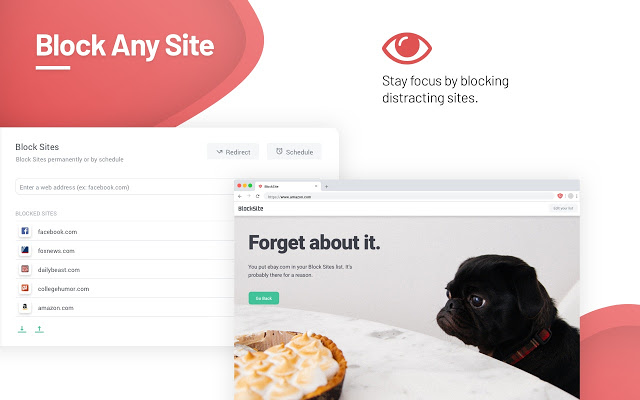
With over 25,000 reviews and a 4.5-star rating, this Chrome add-on seems to be popular with the most accomplished procrastinators.

Block Site is another distraction-blocking Chrome extension, and with a few simple clicks, your productivity levels will be through the roof.  You will also be amused by the delightful images displayed when your concentration wanes, and you try to click on one of the sites in your blocked list.

Apart from the ease of blocking distracting sites, Block Site also has an abundance of other impressive features.  There is Work Mode, a Pomodoro technique timer to help you set blocking times, and a scheduling feature to help you manage your time effectively.  Other features include password protection, uninstall prevention, and an adult content blocker to boot.

A great download, but be careful, you may end up addicted to blocking sites that much that you will have no fun sites left.  Block Site is also available on Apple and Android devices and Mozilla Firefox.  It is a free app but does contain some in-app purchases

Rescue Time for Chrome
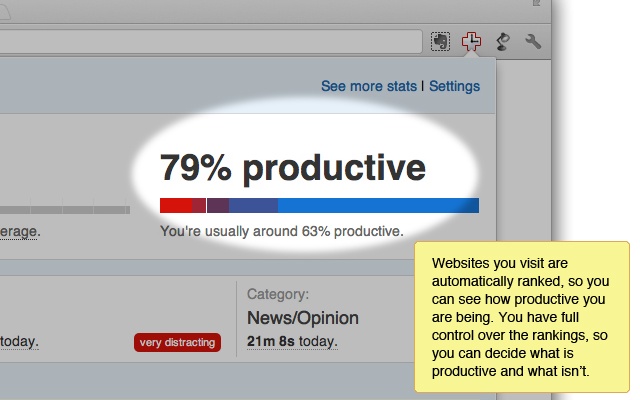
We have just covered an app that helps you block out sites that you think will negatively affect your productivity, but what if you are unaware of some other distracting sites that are interrupting your workflow. Well, this is where  Rescue Time comes in, another neat Chrome extension that tracks the websites you visit and presents them in an easy to understand graphical display.  To accomplish this, it automatically categorizes the sites you visit in your digital day and ranks them on a productivity scale to show you exactly which sites are distracting you the most.  It can also detect when you are away from your device and disable tracking to improve accuracy.  If you prefer not to have your browsing tracked, you can easily pause Rescue Time or delete it at any time.

Rescue Times allows you to quickly see exactly what you have been doing day to day and adjust your online habits to stay focused on the tasks at hand.

Rescue Time is available on Apple and Windows devices, as well as Android and iOS.  If you download the client onto other devices, it can track the apps you use and gain a more detailed picture of how you spend your priceless work time.  It is available as a free download for Google Chrome, but full functionality is $9 per month or $72 a year (4 free months), with a 14-day free trial.

News Feed Eradicator for Facebook
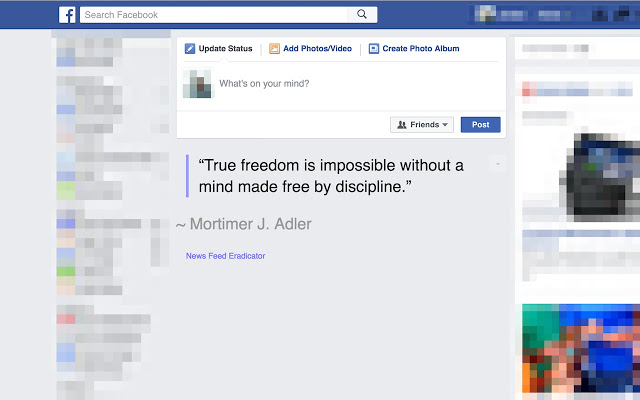
One of the most common distractors known to humanity has to be Facebook.  Since Facebook burst onto the scene in 2004, it has become the most prominent social media site in the world.  While Facebook is actively trying to reduce the amount of clickbait in its newsfeed, there are plenty of clickable items that will test your willpower.

The beauty of News Feed Eradicator for Facebook is that it replaces your news feed with an inspirational quote to keep your mind focused on work, instead of getting lost in a world of news feed nonsense.  Another fantastic feature of this extension is the ability to edit quotes and even add your own motivational phrases. Adding a few amusing jokes could also be a cheerful injection into your working day.

This extension is available free on Google Chrome and is also available on Mozilla Firefox.

Remove YouTube Recommended Videos and Comments

Another social media giant is ever-expanding YouTube.  Who hasn’t clicked on a link and got lost in the bottomless pit of recommended videos made readily available to you.

Maybe all you want to do is watch a short YouTube video as part of your research on a particular project, but with the plethora of distractions presented to you, you can’t muster the self-control and end up deviating from your plan.  Help is at hand with this Chrome extension as it will actively hide related videos, video suggestions, user comments, and other recommended distractions from the YouTube page.  This enables you to confidently navigate to YouTube without the worry of being sidetracked by useless media and messing up your tight schedule.

This is available as a free extension on Chrome and Firefox.
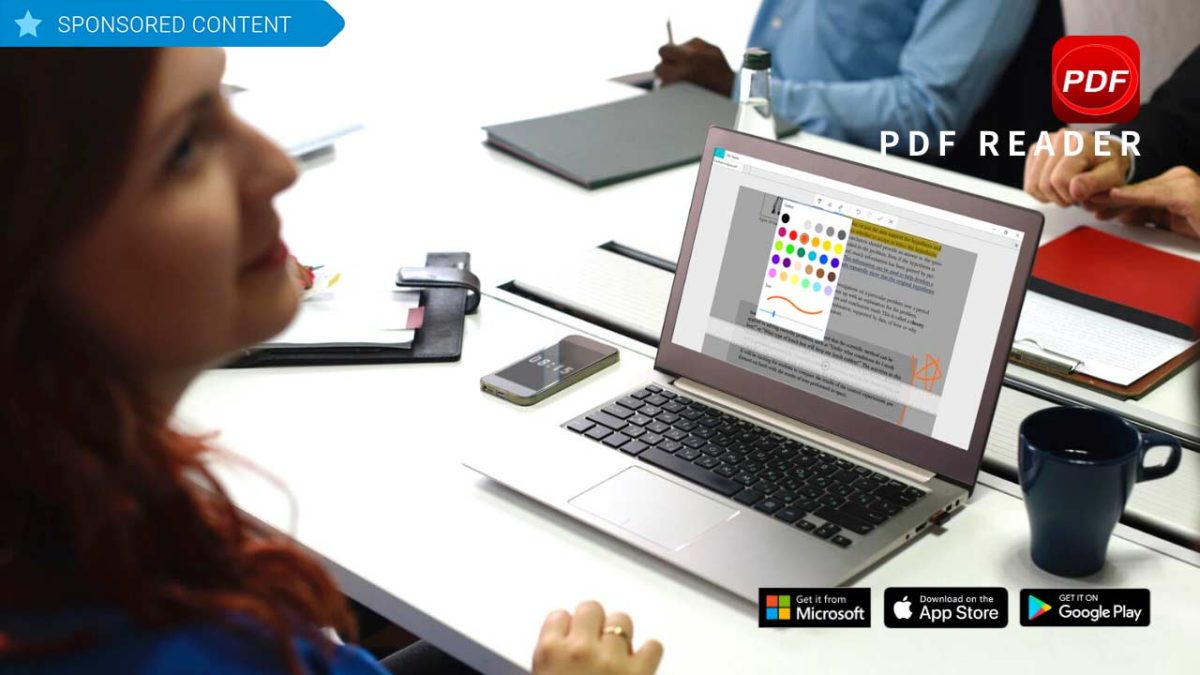
PDF Reader is packed with every PDF editing, creating, and converting tool you could wish for

Even though PDFs were first created by Adobe in 1992, many other software companies have since built programs that work with the file type. So while you were once forced to use only Adobe’s software to work with PDFs, now you can choose from among dozens of both free and paid programs to do the same thing. This allows you to find just the right solution for your needs and budget. 

Chances are pretty good though that the software you choose will be PDF Reader by Kdan Mobile Software. With more than 60 million downloads worldwide, it is one of the leading PDF manipulation tools on the market, and for good reason. 

Every PDF tool you could possibly need

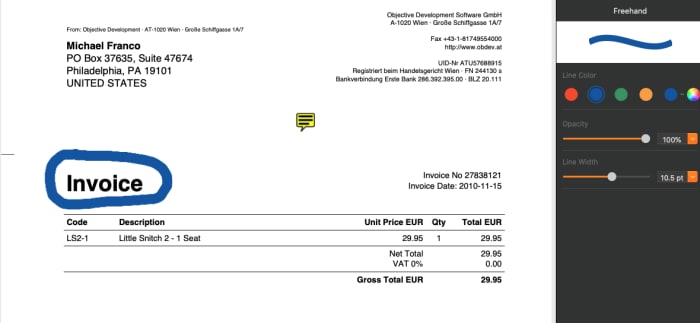
Want to move text around in a PDF? Increase the font size of a particular line? Change the spelling of a word? Use a freehand drawing tool to mark it up? Sign it using your finger, your trackpad or your mouse? PDF Reader has you covered. It does all of this and much, much more

One of the ways in which PDF Reader distinguishes itself from the competition, is just how intuitive it is to use. Colorful icons at the top of the screen help you find the right tool for nearly any task, and then drag-and-drop functionality makes it a breeze to move things wherever you want them. 

PDF ReaderYou can add images, tables, form fields, buttons, stamps and shapes with ease. What’s more, the formatting toolbar that appears at the side of the screen lets you adjust the size, color and opacity of many items you drop into your document like lines and highlights. And, as you’d expect with any PDF processing software, you can also add sticky note comments, as well as cross out, underline and highlight text. A hideable thumbnail panel on the left lets you easily navigate and rearrange pages. 

A nice additional feature of PDF Reader is the inclusion of a “night mode,” which makes the software easier on the eyes when using it in dimly lit conditions.

PDF Reader

Robust file management

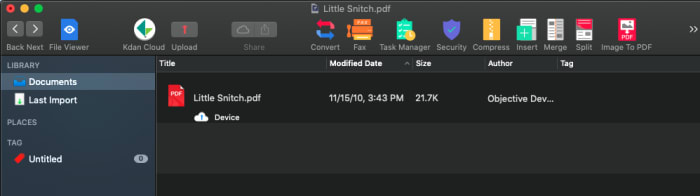
Another way in which PDF Reader stands apart from the competition is with its impressive file-management system. By hitting a toggle button at the top of the screen, you enter the file-management area where you can tag and organize any files you add.

PDF ReaderHere is where you can also import practically any other file type to create a PDF; compress your files; add or delete pages; merge different files into one PDF; adjust security settings; and even fax or email your document right from the program. When you want to save a document, you can do so with easy conversion tools that turn your PDF into a Microsoft Office, iWorks, ePub or text or image files with a click. 

Free vs Paid

The free version of PDF Reader might be satisfactory for many users. You can mark up any PDF, add comments and notes, insert form elements, password protect documents; and use the freehand signing tool. It’s a much more robust software package than what is offered in Adobe’s free PDF software. 

However, if you want even more functionality, upgrading to the paid version might be a good bet. Upgrading moves you to Kdan’s Document 365 subscription for $5/month billed annually, which works across all operating systems including iOS, Android, Mac and Windows 10. 

Upgrading also adds in all of the really fun features including: converting PDFs to ePub, Microsoft Office, HTML, JPEG and PNG files; using OCR scanning to allow text to be edited, moved and deleted; adding backgrounds and watermarks; splitting and saving PDFs; encrypt and decrypt PDF files; sending files as faxes; and converting your PDFs to a wide range of other file types. 

Fortunately, you can download a free, fully-functioning 7-day trial of the software to see just how many features you’ll use before choosing the version that’s right for you.

New PDFelement 7: An easy, affordable way to unlock the power of the PDF

PDFelement 7: Create, edit and manipulate PDFs the easy, affordable way. Free for iOS and Android!

As the world continues to go paperless, it’s more crucial than ever that you have access to a software program that can handle the most common file type used to share statements, contracts, and other documents: PDF. While you can always use Adobe Acrobat from the company that created PDFs, you might find that the price tag is a little too high or that the software is a little too complicated.

Enter PDFelement, now in its seventh release, which provides you with every PDF tool you could possibly want at a much more reasonable price, and with an interface that will have even novices creating, changing, and marking up PDFs like pros in no time.

Edit all aspects of a PDF

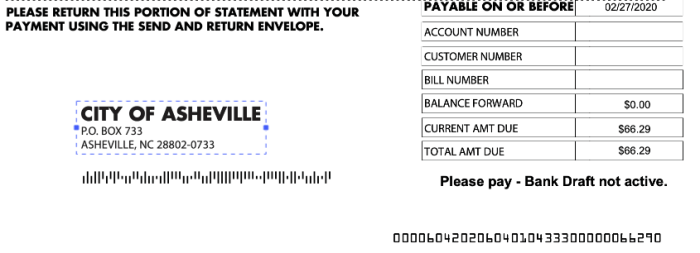
One of the most frustrating parts of working with PDFs has been the inability to edit them; PDFelement 7 eliminates this concern. The software basically turns a PDF into a word processing document. You’re able to move text around and alter its font, color and more; permanently hide text or images using the “redact” feature; add text and images; add signatures; and, turn any part of the document into a hyperlink.

PDFelement

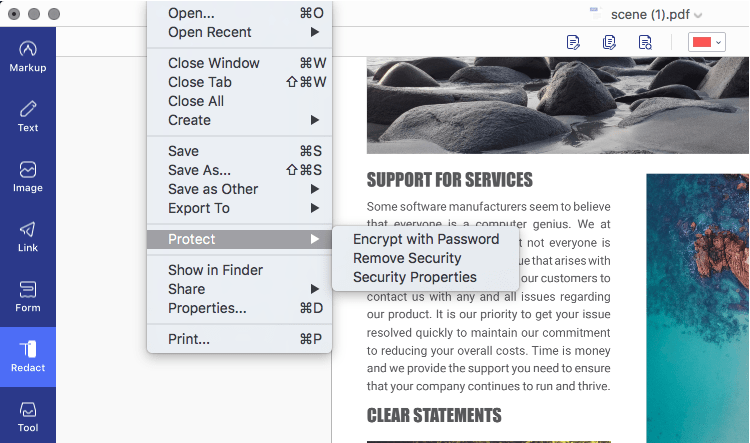
Once your document is edited, you can use the extensive PDF protection tools to secure it. Applying password encryption, redacting confidential data, restricting print, edit, and other permissions are quite simple and have its own section in the File menu (Mac version) or in the top toolbar in the Protect tab (Windows version).


Create PDF from or Convert PDF to a range of sources

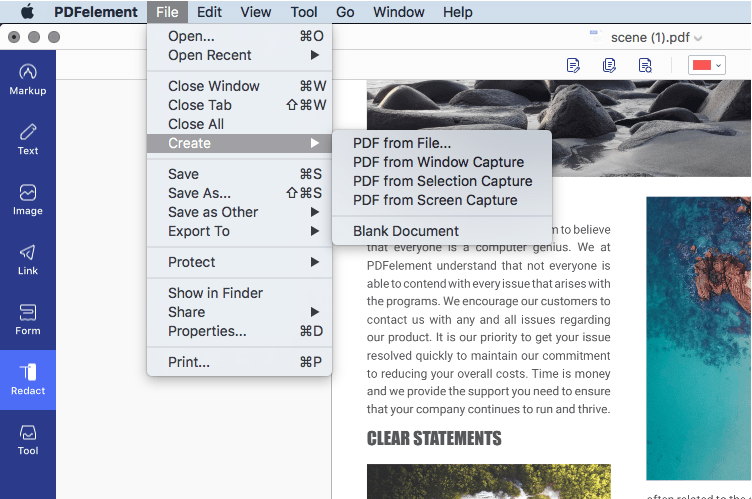
PDFelement 7 not only lets you fully manipulate existing PDFs, but it allows you to convert other document types to create PDFs, as well as letting you start completely from scratch. To do this, you can start with a blank document, or the software can create a PDF from a screen capture, a window capture, or a selection capture, as well as from any image file, Microsoft Office file, scans, a connected scanner (scan to PDF) or HTML code.


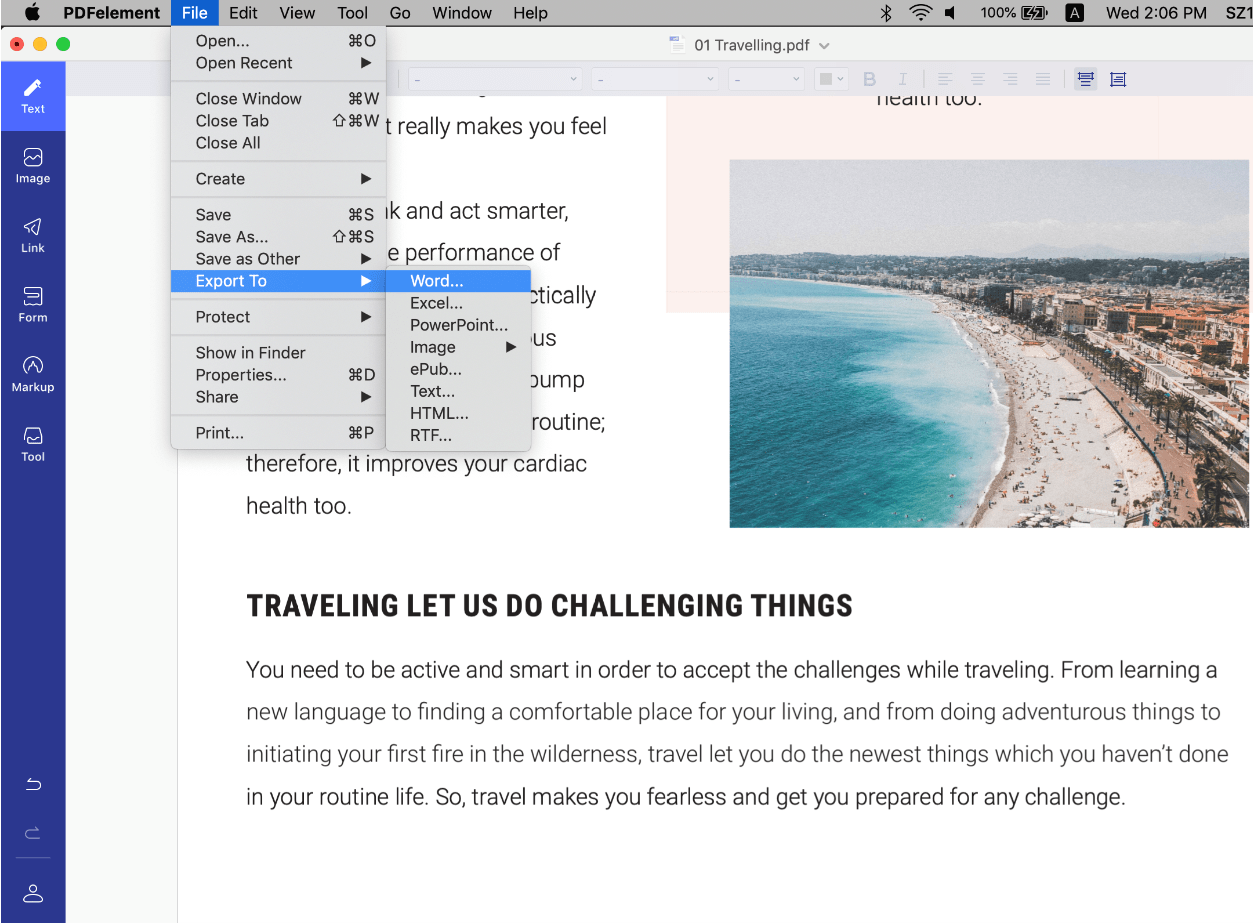
The Convert PDF function in PDFelement 7 is a powerful tool for communication because not everyone has a premium PDF editor. Some stakeholders in a particular process may require the information in a different format, such as Excel or a plain text file. In such cases, the improved conversion engine makes sure that the output file preserves the integrity of the source PDF. The output and input file options are extensive in PDFelement 7, including Excel, Word, PPT, HTML, EPUB, Text, and other file formats, making it a holistic document management software.


Simplified, intuitive navigation

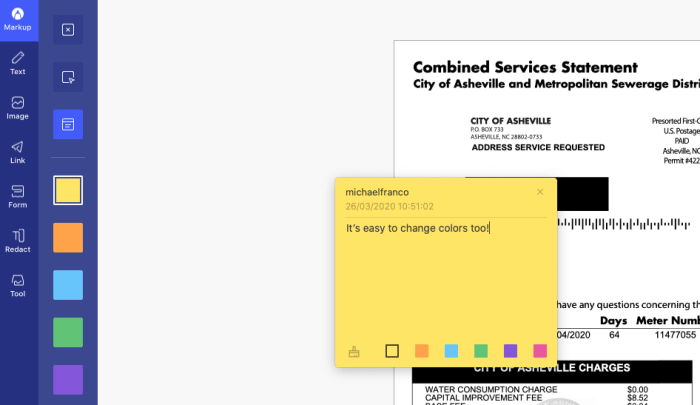
Working with PDFelement 7 is impressively easy. When you begin moving around images, altering text and marking up the file using a range of tools including sticky notes, text callouts, highlights and much more, you’ll view PDF files in an entirely new light. And the software is also quite intuitive.

PDFelement

A toolbar on the left lets you decide how you want to annotate PDFs: Markup, Text, Image, Link, Form, Redact, and Tool. Once you select the appropriate one, an additional formatting toolbar on the top of the screen lets you fine-tune your work. Down the right side, you’ll find simple document-navigation tools.

Create forms, change backgrounds and more 

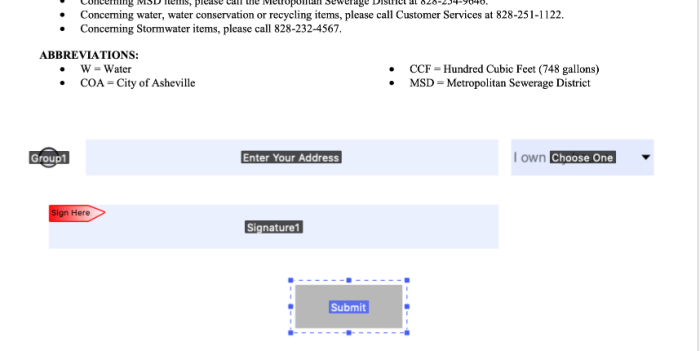
As if all of those features weren’t enough, PDFelement 7 has a few other tricks up its sleeve that allow you to truly transform PDFs from being one of the most clunky file types to work with to one of the easiest. First among those is the ability to create or add forms to any document. The software allows you to insert fillable text fields, selectable drop-down windows and radio buttons, and a field requesting a digital signature that is legally binding.

You can also convert non-interactive content into fillable PDFs, have the software automatically recognize form fields, extract data and images, and a lot more.

PDFelements
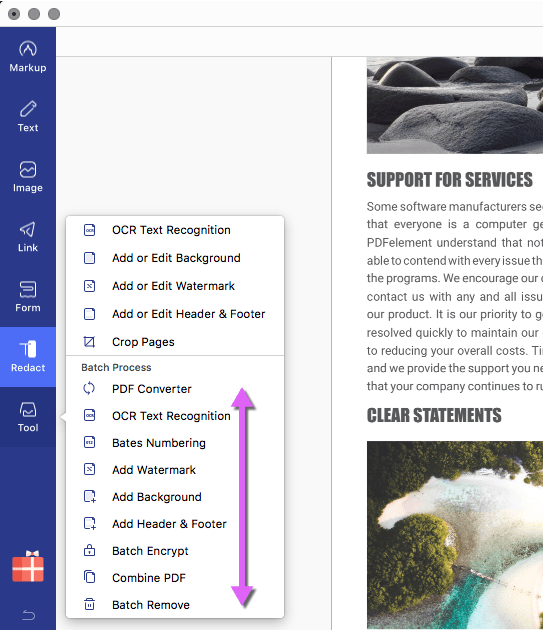
Additionally, under the “Tools” section, you’ll find a range of extra goodies, including the ability to add a watermark or change the background, add a header or footer, and combine multiple PDFs into one file. But the standout feature in this section is the OCR scan function, which makes all the text in a PDF searchable or editable, per the conversion setting you choose. The OCR functionality works across 29 languages.

In PDFelement 7 Pro, you also have several Batch Process options for conversion, encryption, watermarking, OCR, merging PDFs, and so on. These allow you to handle large workflows containing hundreds of documents and process them in an automated queue instead of doing it manually, one by one.


Besides the macOS system, PDFelement is also available on these OS platforms: Windows, Android, and iOS. Plus, you can get the PDFelement for iOS and Android for free.

Extensive Product Support

Wondershare, the creator of PDFelement, offers full backup for its key PDF productivity product. This includes video tutorials, online help tools, an extensive knowledge base, user guides, and a live chat service in case you need immediate help, it will be more helpful to find the solutions.

Save up to $60 on PDFelement Pro

PDFelement allows you to download a free version of the software that lets you use nearly all of the program’s functionality. The only caveats are that files are saved with a watermark and there are some conversion caps/limits. Nevertheless, every basic PDF function is free to use.

For $79 per year (a savings of $40), you can upgrade to a Pro version, which includes complete functionality – or for $69 per year, you can snag the Standard version, which eliminates the OCR function, the ability to turn scanned PDFs into editable PDFs, the ability to add and edit form fields and digital signatures, and several other features. In our opinion, the upgrade to Pro is well worth the extra $10. Furthermore, you can also opt for a lifetime license so you don’t have to remember to renew your subscription every year or every month.

Improve your productivity with these Microsoft Word tips

These top tips for Microsoft Word will massively improve your productivity and help you get more done.

Productivity tips for Microsoft Word

This week at Softonic we’re here for all the Microsoft Office users out there. Whether you’re an Office 2019 owner or Microsoft Office 365 subscriber is all the same when it comes to getting the job done. We’re here for all of you this week as we’ll be giving you top tips for PowerPoint, a guide to accessibility tools across all Office programs, tips on formatting Office files, and some essential Excel formulas. Today though, we’re looking at Microsoft Word as we try to boost your productivity with some top tips.

Word is the most successful word processing program there has ever been. For years, in fact, it was the only one that mattered. Then the cloud came along and programs like Google Docs shook things up a bit meaning that Word had to adapt or die. The Microsoft program did so admirably and today has a plethora of new features and tools that Word users from just a few years ago wouldn’t recognize. Let’s not waste any more time then and get straight into our productivity tips for Microsoft Word.

Microsoft Word Download Now
9

Tips for Word

Keep your documents safe and private

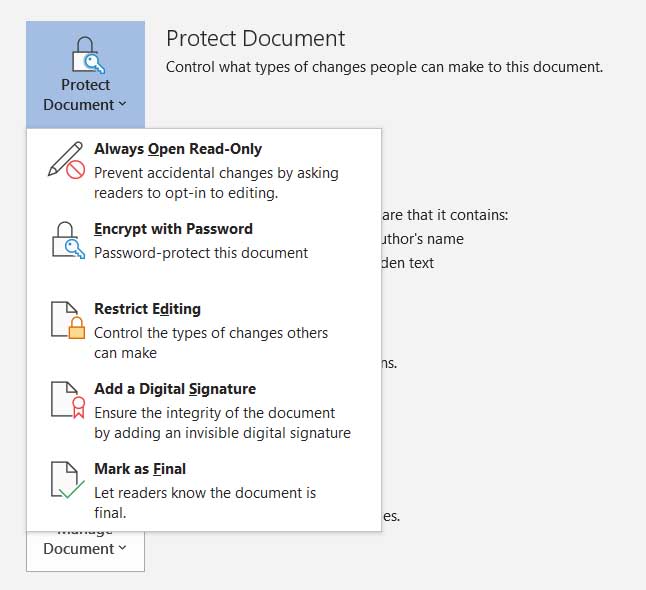
Protect Word documents

It is more important than ever to protect your digital documents as much as you can. Fortunately, Microsoft Word has a lot of features to help you do so including encrypting your written documents and protecting them behind passwords. You can also manage permissions for who can view and who can edit the documents you’ve created. To do so, Hit the File button and then click Info.

Quick highlight

This simple trick is very effective, and you’ll use it a lot once you know how to do it. To highlight an entire sentence in a single click simply hold the CTRL key as you click the beginning of the sentence. There is also a less refined version of this tip where you don’t hold the CTRL-key but simply perform multiple mouse clicks. A double click highlights a word and three clicks will highlight a paragraph. The final selection shortcut we have for you doesn’t even include mouse clicks at all. To highlight the entire document at once press CTRL + A at the same time. Be careful with this one though, and remember that the undo button is always there if something goes wrong.

The Word calculator

Calculate on Microsoft word

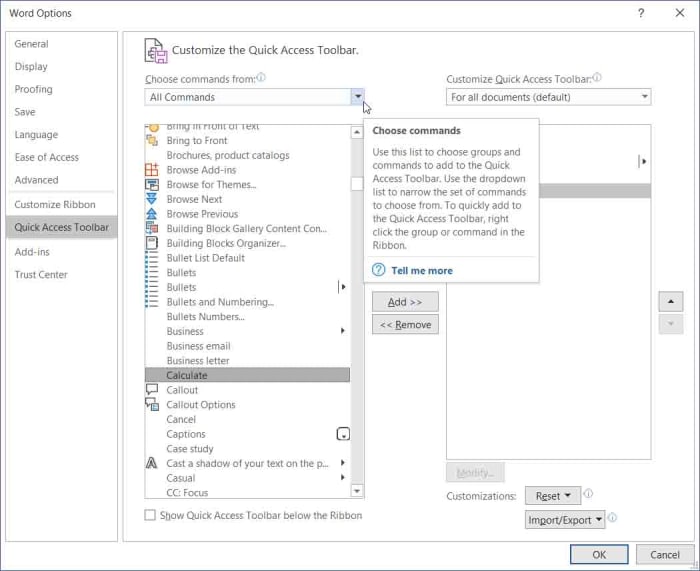
It’s a little-known fact that Word can do sums and math just like Excel can. You need to hit File, then Options, and then select the Quick Access Toolbar option in the menu on the left. You then need to click the drop-down menu called Choose commands from and select All Commands. Now in the list below find Calculate and hit Add. Confirm this by clicking OK  and then get back to work. You’ll now see a new blue button next to the Undo and Redo icons that will change color any time you type out and highlight calculations in your document. When it does this, click it and Word will show you the answer to your calculation where it normally shows you the word count of your document.

Word equations

Equations on Microsoft Word

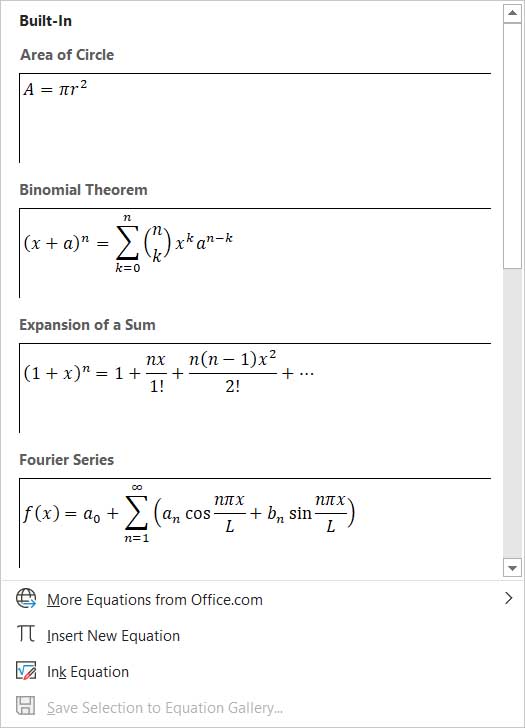
If you’re looking to add something a little more complicated than simple calculations to your document, then you’ll be glad to know that Word has a built-in equation feature for doing just that. To insert equations into your Word documents hit Insert and then Equation. Word will then show you a number of different equations that you can add to your document and then format as you wish.

Delete whole words at once

If you ever find yourself with lots of text that you need to delete, you’ll be interested to know that you can upgrade delete from a single letter at a time to a word simply by holding the CTRL key when you hit delete.

Assess the readability of your document

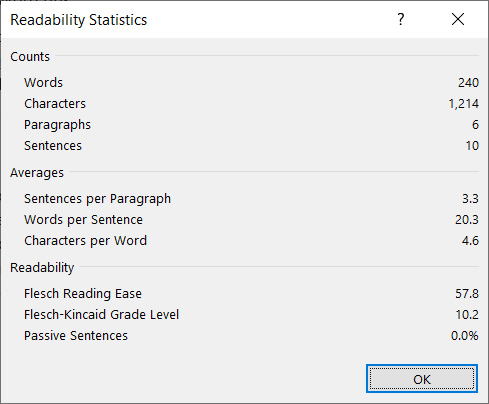
Word now has a readability tool that uses many different established lingual tests to provide you with readability statistics. The statistics are presented on a scale of 1 – 100 with the higher your score the easier your text is to understand. In the example shown below, the readability could do with a slight improvement as Microsoft recommends that you should aim for a score between 60 and 70.

Readability on Microsoft Word

To activate this feature in Word you need to click File, then Options at the bottom of the menu. You then want to hit the Proofing tab on the left and tick the box next to Show readability statistics in the Spelling & Grammar section of the menu. Then, whenever you ask Word to run a spell check by hitting the Review tab and then selecting Check Document, Word will show you the readability stats too.

The clipboard shortcuts

Copying, cutting, and pasting are very important features of Microsoft Word and pretty much any other program where the text is involved. Fortunately, Word has some handy keyboard shortcuts that make it very easy to copy and paste. To copy some text you simply need to hit CTRL + C when the text is highlighted; to cut text, you do the same but hit CTRL + X; and then to paste what you have on the clipboard you hit CTRL + V. This will save you a lot of time.

The search shortcut

Search on Microsoft Word

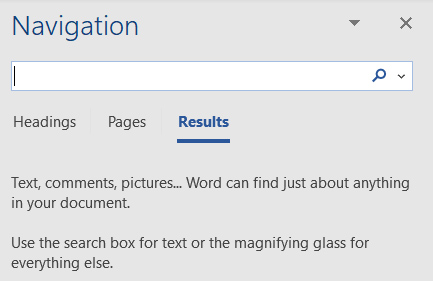
This one is useful for SEO editors or anybody dealing with large amounts of text in documents. If you need to search your document for a particular word or phrase, it can be a real pain scouring through all the written text in search of what you’re after. Instead, what you should do is hit CTRL + F, which will open up the Word search bar. Enter your word or term in there and Word will seek it out in the text and highlight every example it finds.

Coronavirus: Do you have to stay at home? These online resources will help you with remote working or spending time at home

Tricks, apps, and help to make this period at home more enjoyable for you, whether at work, at school or in your leisure time.

In recent weeks, COVID-19 or the novel Coronavirus has been gradually spreading throughout the world. While you shouldn’t panic, you should follow all the recommendations of official agencies, such as the WHO or your country’s government.

Even if you aren’t sick, you may have been advised to stay home for reasons of prevention. And this may mean you have to do some remote work, which, if you aren’t used to it, isn’t always easy. To help you out, we’ve put together several articles with tips for working remotely, along with some apps (mostly free) to make it easier for you to do your job effectively.

Are you a student and your classes have been canceled or you can’t physically go to school? Then go to the next section, where we have compiled resources to help ensure that these weeks when you won’t be attending classes are not wasted.

Also, at the end of this piece, you’ll find resources to help you make sure that those all those hours spent at home aren’t as boring: we’ve got free games, resources on where to watch movies for free, and even where to download ebooks for free. Countless hours of entertainment!

Resources and tips for remote working

Have you already started working remotely? Take a look at all these articles.

Resources for students

Take advantage of these class-free weeks to advance in your school work, so the return won’t be so rough.

Fun in the face of forced confinement

If you’re avoiding going out because of the Coronavirus outbreak, you may spend many hours a day bored, due to home confinement. Distract your mind with all these free resources: games, books, movies and more.

Games

Streaming

Reading


Best data recovery programs for Windows 10

If you’ve lost a file or program, this guide will help you find it and tell you three of the best data recover programs you can use on Windows 10.

Best data recovery programs for Windows 10

Sometimes, the worst happens. For one reason or another, that file you need or want to access is gone. You might have deleted it accidentally and then realize you need it back; it doesn’t really matter. You need it and it’s not there. You need to recover a lost or deleted file. You’ve looked everywhere for it, including the Recycle Bin, and it’s not there. What do you do?

First things first. Don’t panic!

OK, now you’re not panicking, read on. We’re going to walk you through all the different steps you need to follow to get your file back and tell you about all the great programs available that can help you do so.

The latest and greatest version of Microsoft's operating system.

Recover deleted files on Windows 10

Before you begin

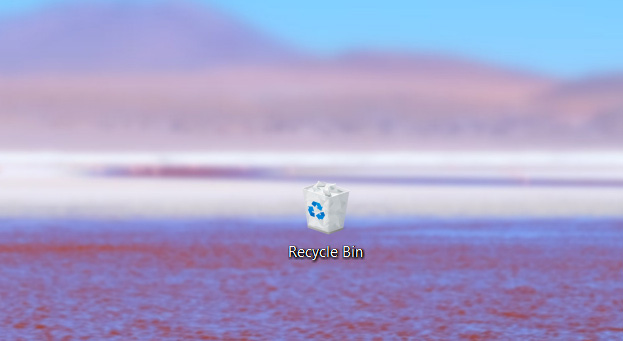
As you’re not panicking, you’ll be composed enough to take a few steps before you try to recover your lost files. For a start, it might not actually be deleted, and it is worth your time looking for that lost file. The obvious first place to look is the Recycle Bin where many accidentally deleted files end up. If your Recycle Bin has many files in it, you can save time by typing the name of the file into the search box in the top-right corner of the window. If your file is there, all you need to do is right-click on the icon and select Restore.

Windows 10 Recycle Bin

If your file isn’t in the Recycle Bin, copy and paste the search term you just tried and head over to your File Explorer. In the menu on the left, you’ll see various drive locations on your PC. You want to select This PC and then paste your file name in the search box in the top-right of the Window. If your file turns up, it hadn’t even been deleted in the first place, just moved. If both these methods came up short, your file is no longer on your PC. There’s one final search you can do, however, before you try to restore it.

These days, cloud storage services are prevalent. You can get a couple of gigabytes worth of free storage with Dropbox, 15GB free with Google Drive, and if you subscribe to Office 365, you get a whole terabyte worth of free space on Microsoft OneDrive. If you have a cloud subscription service, it is worth your while checking there to see if your lost file has been backed up.

The best data recovery programs for Windows 10

If you’ve got this far, then you need to recover an important file that you can’t find. Don’t worry though, because there are some excellent file recovery programs available that will help you search through recently deleted files and if needed, delve deeper into the depths of your system and recover what they find there.

EASEUS Data Recovery Wizard

EASEUS

EASEUS is a data recovery tool that works both on Microsoft’s Windows 10 operating system and Apple’s Mac OS. Although there are premium features you’ll need to pay for, the app also has some excellent free tools that will help you get your files back. Furthermore, the free version of EASEUS is easy to use meaning it won’t be too complicated a process getting your hands on your lost file again.

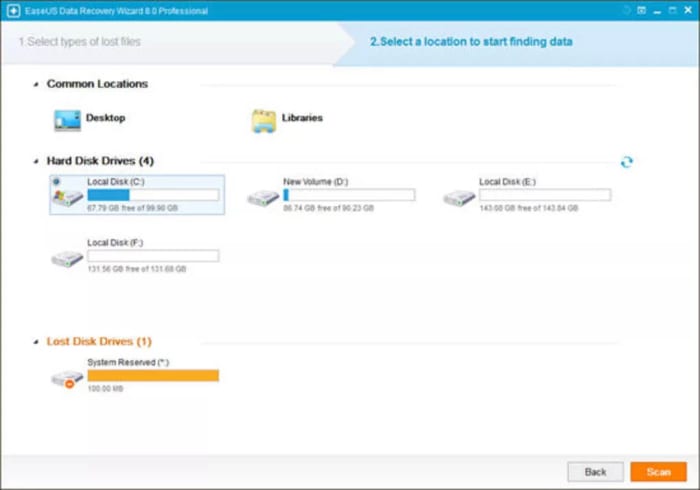
When you launch EASEUS you’ll see a list of available discs it can recover files and programs from. EASEUS is able to recover files from many different types of disc including internal and external hard drives, SD Cards, memory cards, USB drives, and more. You simply select the disc you want to look at and hit Search. EASEUS will then display all the files from that location that have been deleted. There are further options you can explore but overall, EASEUS is easy to use and effective.

EASEUS Recovery Download now
7

Recuva

Recuva

Recuva is another data recovery program that has both free and premium options. Recuva can help you recover all types of deleted files from different types of drive, similar to those offered by EASEUS. A nice feature of EASEUS is that it allows you to set a recovery file location rather than simply sending the file back to where it came from.

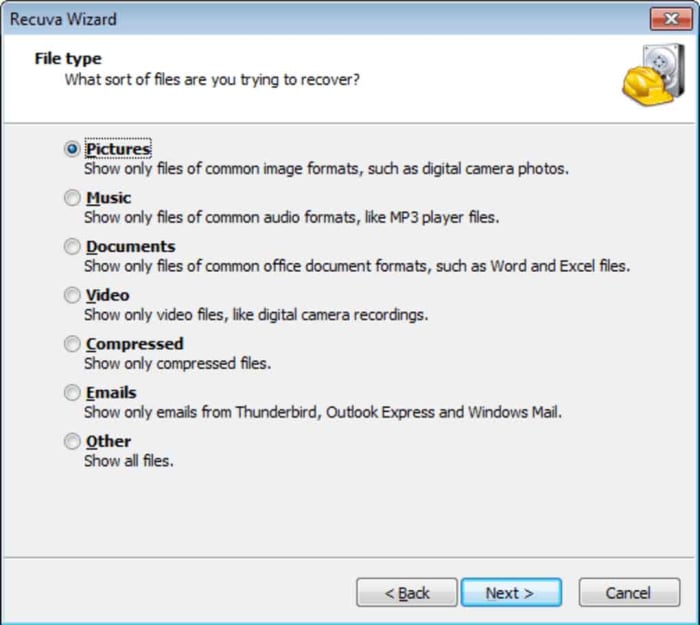
With Recuva, when you access the list of deleted files from your searched location, you’ll see a rating for each file. This rating refers to the chance that Recuva will be able to recover the lost file. The ratings include ExcellentPoorVery Poor, and Unrecoverable.

Recuva Download now
8

DiskDigger

DiskDigger

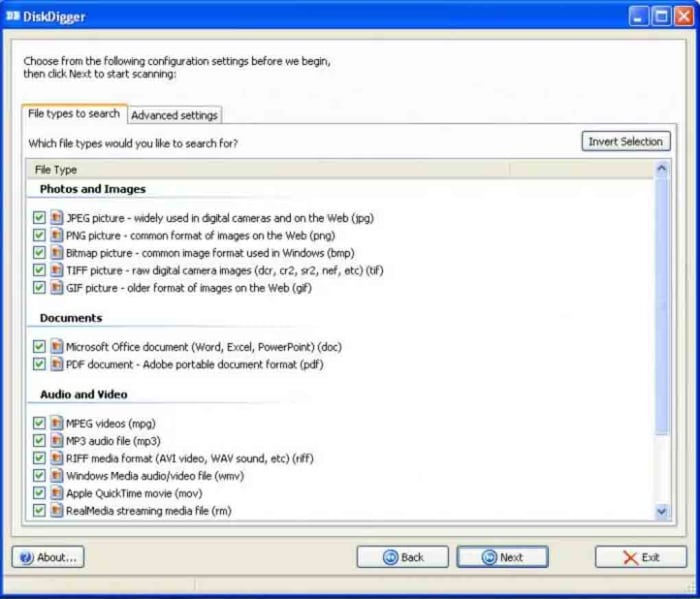
The third and final recovery program we’re highlighting today is DiskDigger. DiskDigger is a free program that offers many options, although a search function isn’t one of them. This means that even though you will be able to recover lost files, you will have to scroll through all the deleted files found on a particular drive to find them. This can be a time-consuming process.

DiskDigger can recover many different file types, which shouldn’t be sniffed at for a completely free program. These include images, videos, documents, XML files, and even GIFs. Like with the earlier programs, Disk Digger also makes it possible to recover files from a variety of discs and drives including internal and external magnetic hard drives and SSDs, USB flash drives, and SD Cards.

DiskDigger Download now
7
Wrapping up

So, there you have three excellent examples of data recovery software that offer you varying levels of data recovery capabilities for free. If we had to recommend a single program, we’d likely choose Recuva.

It is possible to recover lost files because what actually happens when you delete a file is that it is the path to the file that is deleted, rather than the file itself. You can’t see it, but it’s there and will remain so until it is overwritten by another file. The Recuva ratings, we mentioned earlier, give a good indication of how long the lost file has been in its current state and whether any of it has been overwritten. Generally, they can be relied on and this is why it is our favorite program.

New year new iPhone? You need these essential apps for 2020

These are all the essential iPhone apps you need in 2020.

Must have iPhone apps

Is there anything as exciting as getting a brand-new iPhone? Just on looks alone they’re incredible little machines. Beautiful to look at and solid to hold, they’re a marvel of modern desire. Particularly when paired with an Apple Watch. Obviously, however, iPhones are so much more than how good they look. The newer iPhone models are very powerful mobile devices offering a world of possibilities to anybody lucky enough to have one in their pocket. Owning one isn’t enough, however, if you truly want to unlock the iPhone’s true potential. To do that you need the best apps.

This why we’re here today. When you first unpack your iPhone it only comes with basic iOS apps. We’re here today to tell you about the most important new apps you need to download on your iPhone. These are the best iPhone and iPad must have apps on the app store.

Essential iPhone apps 2020

Social media and messaging apps

We’ll start off our list of must-have iPhone apps with all the social media apps that no modern smartphone should be complete without. Of course, you need Facebook, Instagram, and Twitter, which represent the old faithful veteran social networks. Newer to the game, however, but no less influential is Snapchat and the biggest upstart of them all is Tik Tok. Each app offers something different to offer.

7
Instagram Download Now ►
7

Once you’ve got your social networks installed on your iPhone’s home screen, you need to start thinking about messaging apps. Yes, iMessage is a fantastic app but if you’ve any friends who don’t have iPhones themselves, you’re going to have to diversify your messaging capabilities. WhatsApp is the biggest messaging app on the planet with Facebook Messenger not far behind.

WhatsApp Messenger Download Now ►
8

Google Maps

When it comes to GPS navigation, Google is the king of kings. Both Google Maps and Waze, which is also owned by Google are better than the Apple Maps mobile app that comes pre-loaded on your iPhone. Installing Google Maps on your iPhone will give you fantastic navigation capabilities as well as reliable public transport information. In short, you’ll get the best GPS app available.

Google Maps Download Google Maps
7

Google Chrome

Google Chrome

As well as Google Chrome, we’re also going to recommend Mozilla Firefox here and Microsoft Edge. Chrome is by far and away the most used web browser on the planet. It is a fast and reliable browser, which is why it is so popular. Mozilla Firefox is also reliable but is also the perfect web browser for anybody who is worried about their online privacy. Microsoft’s Edge browser is the newest of the three recommendations and offers a decent compromise between what you get with Firefox and what you get with Chrome. If you like the sound of both of them, download Microsoft Edge.

7
9

LastPass

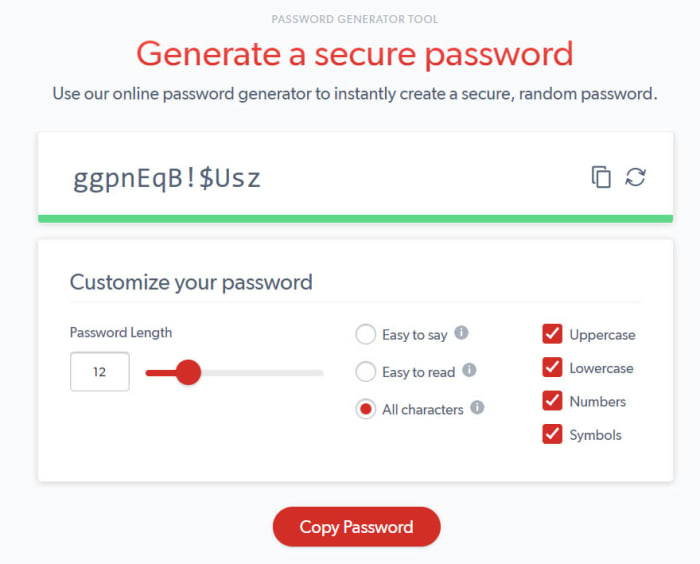
LastPass offers you the best free password manager and as such is a must have app. We have more online accounts than ever before and if you’re to stay secure when browsing the web, every single one of them needs a strong and unique password. In reality, this is an impossible task. You probably can’t come up with so many unique passwords and you definitely can’t remember them all. This is why you need a password manager and with LastPass syncing all your passwords across up to three of your devices, this is the one you should get.

8

Google Photos

Photos colorize blank and white images

Another Google app makes our list here, but it can’t be denied that Google Photos is the best photo app available today. Photos allows you to back up all of your photos under 16 megapixels to cloud storage and then access them whenever you have an active internet connection. This means you can then free up space on your iPhone by deleting the photos that have been backed up. On top of this Google Photos also uses all sorts of AI bells and whistles to automatically organize your photos, make them easier to find, edit and optimize them, and share them with friends and family.

Google Photos Download Google Photos
7

Snapseed

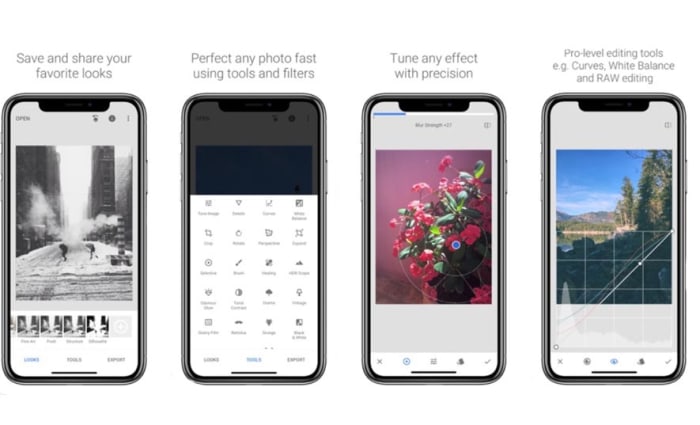
If you’re a keen smartphone photographer, you might want to go beyond the basic edits offered by Google Photos. Snapseed is a fantastic photo editing app that offers extensive features that rival those found on many premium apps. It is easy enough to use for beginners to make impressive edits to their shots and advanced enough for those who are more comfortable playing around with the nuts and bolts of images to get them exactly how they want them. This is the photo editing app you need on your iPhone.

9

Evernote

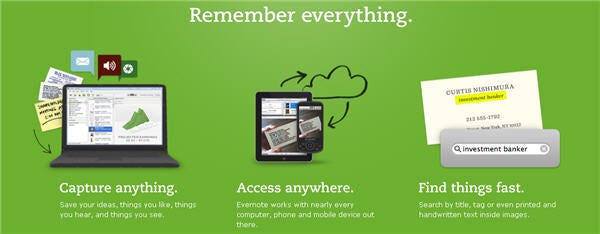
Evernote is a fantastic note taking app that gives you the power to easily create to-do lists and other notes to yourself and then sync them across all of your devices. Evernote can even scan handwritten notes and allows you to add multimedia elements like photos and audio clips to your notes as well as links and web pages. This is a very useful app.

7

Netflix

If you have a Netflix subscription, you need the Netflix app. It is as simple as that really. Why would you not download the app, why would you stop yourself from being able to download movies and shows to your phone so that you can then watch them when you’re not connected to Wi-Fi without having to worry about using up all your mobile data.

8

Spotify

This is the same as Netflix. If you have a Spotify subscription, download the app now and get all your favorite tracks and playlists even when you’re offline. Come to think of it, this works the same with Deezer, Apple Music, and Google Play Music. If you’ve a subscription, download the app.

8
Deezer Download now
7
Apple Music Download Now ►
7
Apple Music Download Now ►
7
Google Play Music Download now
8
Wrapping up

So, there you have some of the most essential apps you need to download right now on your Apple iPhone. We could have gone deep on Google apps but tried to limit it to just a few. You could also look at Gmail, Google Drive and all its attached apps like Google Docs, and Google Translate. On top of these, there are plenty more fantastic iPhone apps like Dropbox, Dark Sky, Skype, and Amazon out there for you to download. With this list, however, we just wanted to give a good foundation that you can then build on yourself.

New year new computer? You need these essential apps going into 2020

These are all the essential apps you need to download and install on your new Windows PC.

Must have software for Windows 10

New years are perfect for new beginnings. The new year also comes just after Christmas too. Both these facts mean many of us are going to be starting 2020 with a brand-new Windows PC. Whether a Christmas gift, a January sale bargain, or an attempt to start afresh at the beginning of the new decade doesn’t matter. New computers are exciting for their possibilities, but out the box, they’re kind of grey. They come with basic software only and, as such, can’t actually do that much.

That’s where we come in with today’s guide. Today we’re going to walk you through all the must-have free software for your new Windows PC. If you’re a Mac OS or iOS iphone user come back later and Android smartphone users can check out their essential apps here. Everybody else, however, let’s get started.

Essential programs for a new computer

Your web browser of choice

Fortunately, the Windows 10 operating system comes with an excellent default web browser. Microsoft Edge is miles ahead of the old Internet Explorer, and offers some excellent unique features too like being a PDF reader, and giving you a very good Reader mode that cuts out all the clutter on the web pages you visit and turns the text into something more resembling a page out of a book. Very cool.

7

With web browsers though, it is very much horses for courses with everybody having their own preference. Google Chrome is the most popular by far offering fast load speeds and ton of available plugins, although it is also a RAM hog that can slow your new PC down to a crawl, if you have too many tabs open at any one time. Mozilla Firefox is big for privacy enthusiasts, offering you complete control over your own data. Opera is built with the same code as Chrome but has added different features, which means you can pick and choose the features your web browser has while maintaining the core offering you get from Chrome. Incidentally, Microsoft Edge is also based on the Chrome code now, which is something you might want to consider.

Security

malwarebytes

As soon as you’re connecting to the internet, you need to start thinking about your cyber-security. Windows Defender, which ships with Windows 10 is a decent antivirus program that is user-friendly and does a pretty good job of keeping Windows users safe. You might want to think about backing it up, however, with a powerful secondary antivirus software that can run as a specialized scanner. The free version of Malwarebytes is a great option for this as it is able to search out malware more effectively than Windows Defender. You can then leave Windows Defender to actively protect you in real-time and periodically scan your hard drive using Malwarebytes to make sure nothing has slipped through the cracks.

Malwarebytes Download now ►
8

Once you’ve got your system locked down tight, the only real threat to your cyber-security is you. Secure passwords are both a nightmare to come up with and a nightmare to remember. You need a unique password for each online account you have so it is basically impossible to remember them all. This is why you need a password manager to help you securely lock down all your accounts. Last Pass is the best free option as it will automatically generate secure passwords, store them using strong encryption, and then fill them in for you whenever you log into an account. Last Pass is great too because it’ll sync across three devices.

8

Productivity

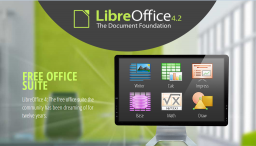
LIbreOffice header

PCs are important tools for work as well as being fun for games. What’s great these days is that you can get your hands-on excellent productivity programs for free. Libre Office gives you a completely free alternative to the Microsoft Office suite including free alternative programs for Microsoft Word, Microsoft Excel, Microsoft Access, and more. There is no good reason for you not to download Libre Office on your new PC right now.

LibreOffice Download LibreOffice
7

Bonus appGoogle Drive also gives you access to Google’s free productivity programs including Google Docs and Google Sheets. Importantly, however, Google Drive gives you free access to 15GB of Cloud storage space, which you can then use to sync all of your media files and documents cross-platform to your multiple device or to share them with others.

7

Design

The other productivity aspect you may need your PC to take care of is design. Fortunately, however, there are some excellent free options here too. If you’re a professional graphic designer or a student looking to break into the industry you should download and install GIMP onto your new PC. GIMP is an open-source program that offers complex and advanced design tools and features that rival those found on Adobe Photoshop. If you’re more of an amateur looking for a simpler setup that will still allow you to get quite a lot done, you should download Paint.NET.

8
Paint.NET Download now
8

Bonus app – Screenshots are becoming more and more important in today’s increasingly connected social world. Whether you’re looking to include something you’re looking at in your design work or simply show a friend something funny you’ve seen, Greenshot is an excellent free tool for capturing what’s on your screen at any given moment.

Greenshot Download now
9

Media – Videos, Movies, and TV shows

There are lots of options here for programs to watch movies and TV shows on. The way we listen to music has changed, however, so we’ll come to that in a moment. With video, there are lots of different file types and codecs that you need your media program to be able to read. If a program can’t read all of them, you need to download another one. Fortunately, the indomitable VLC Media Player is all you’ll ever need in this respect. When you have it on your Windows PC, there’ll be no video you can’t watch.

VLC media player download free ►
8

Your music streaming app of choice


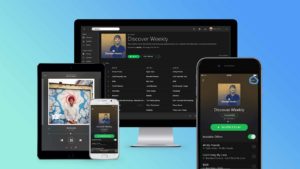
In years gone by, this section would have included the likes of Winamp. Now though, most of us listen to music through our streaming subscriptions. Sure, we have subscriptions for movies and TV shows, but the music subscription services are mostly complete meaning there literally all we could ever need. The top apps are Spotify, Deezer, Apple Music, and Google Play Music. Whichever you use, download it now.

8
Deezer Download now
7
Apple Music Download Now ►
7
Google Play Music Download now
8
Wrapping up

If you’ve got this far and you’ve downloaded all the apps we’ve said, your new PC is now a powerful beast that is ready to go. Of course, there are more programs you can download and install like Skype, Dropbox, Steam, CCleaner, and One Drive; but we’ve just started you out here with the essentials.

New year new mobile? You need these essential Android apps going into 2020

These are all the essential apps you need to download on your new Android phone.

Essential android apps

Everybody loves getting a new phone. Smartphones are fun and exciting because more and more they’re becoming powerful beasts with processing power that rivals that found on laptops and huge amounts of RAM that make even the most resource reliant apps work smoothly. When you get a new phone though, it is like a blank slate. Sure, an Android phone can do almost anything but when you take it out of the box, it is limited to whatever basic apps that came with it.

This is why today we’re going to walk you through all the best apps you need to install on your Android device. Check out our list of essential Android apps.

Android must-have apps

Core Features and Social Media

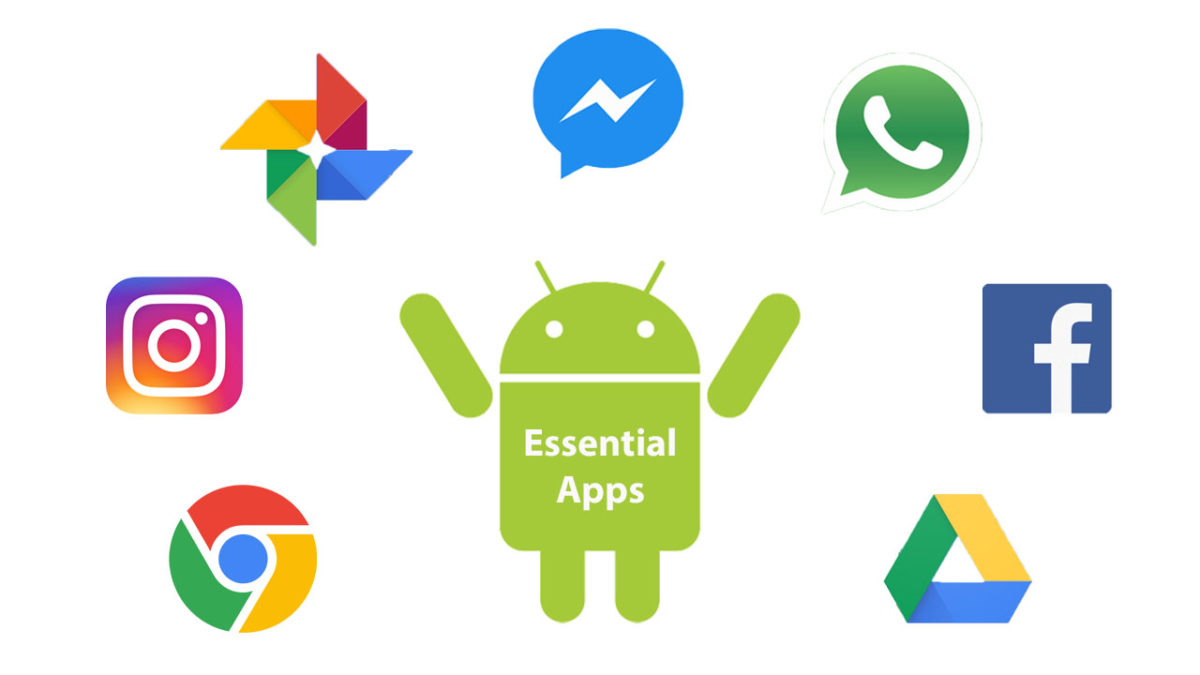
There are a lot of essential apps these days that could be described as offering your new Android phone its core features. Google apps like Gmail and Google Chrome will likely come pre-loaded on your phone offering you an industry-leading email client and web browser. Even Google Maps provides a core mobile function these days. Other core apps, however, include messaging apps, which could be WhatsApp and Facebook Messenger,or Telegram for more private users. Another core feature could be video calls offered by Skype.

WhatsApp Messenger Download Now ►
8

Finally, what is an Android smartphone in today’s modern world without a plethora of social media apps, each offering exclusive access to their own hip networks? You know your new phone needs apps like Facebook, Instagram, Snapchat, Twitter, and Tik Tok.

8
Instagram Download Now ►
7
8
9

LinkedIn

You could say that LinkedIn is just another social network, but you could also say that helping you find and stay in work elevates it above the triviality that we often attach to the other forms of social media. LinkedIn isn’t for fun, which sets it apart from other social networks. Either way, you really should have LinkedIn installed on your Android smartphone.

7

Google Drive

Syncing across multiple devices is important for pretty much every type of file. More than ever these days we start a job on one device and finish it on another. This is made possible by storing our files and folders on the cloud and then accessing them from wherever. The best service you can get for this on your Android phone is Google Drive. As well as the cloud storage, Google Drive also comes with a suite of apps you can download onto your Android phone. These include Google Docs for word processing, Google Sheets for making spreadsheets, Google Keep for note-taking and lists, and Google Photos for storing and viewing every photo you’ve ever taken across all of your devices.

7

MiXplorer

A key app that is often overlooked by Android users is a competent file manager app. A good file manager will allow you to organize your device files and give you greater control of and access to key folders like Downloads and Photos. As Android allows for much greater customization than Apple’s iOS for iPhone, a file explorer allows you greater control and also greater security when playing around with your phone’s OS. We used to love ES File Explorer Pro, but that is no longer available on the Google Play Store. Now, however, we love the MiXplorer file manager, which does everything we’ve already mentioned and also gives Android users another key feature that is missing from their phones; a Recycle Bin for recovering lost files.

MiXplorer Silver File Manager Download now
10

LastPass

We can’t recommend LastPass enough. These days you need a password manager if you’re going to secure all of your online accounts properly and LastPass gives you the best password manager you can get for free. LastPass’s free version will sync your passwords across three devices meaning it’ll secure logins on your desktop/laptop/Mac, mobile, and one other device. This is very important because most free password managers only work on one device, which means you’ll need to switch the passwords between devices manually and this is much less secure.

8

Snapseed

We mentioned Google Photos earlier, which itself comes with rudimentary photo editing capabilities. Snapseed, which is also by Google offers much more, however, and is completely free to download. As well as basic cropping and rotating, Snapseed will also give you the chance to make advanced edits and put all sorts of cool filters and adjustments onto your photos. If you’re serious about your social media presence or just want your photos to look as good as they should, download Snapseed now.

9

Google Podcasts

Podcasts have become an essential part of modern life. They basically allow you to choose all of your favorite radio shows that you can then listen to whenever you want. Android users used to have to download third-party podcast apps like Acast and Castro and, of course, they still can although their free but not really free status can be annoying. Google, however, has now brought out its own podcast app imaginatively called Google Podcasts, which is free and has almost every podcast series you could ever search for.

Google Podcasts Download now
9

Netflix

OK, this one is subjective. Not everybody has a Netflix subscription, but enough people do for us to include it on our list. Downloading the Netflix app will enable you to download movies and shows that you can then watch later when away from your Wi-Fi connection. This means you get your fix without hitting your network mobile data allowance.

8

Spotify

Spotify feature

Again, this is another subjective one. Not everybody has Spotify; you could just as easily have DeezerApple Music, or Google Play Music. Which one you have doesn’t matter as although there are differences between them, they’re not so big. Download whichever app you’re subscribed to and instantly your phone is better than any iPod or MP3 player you’ve ever owned.

8
Deezer Download now
7
Apple Music Download Now ►
7
Google Play Music Download now
8
Wrapping up

With all the best Android apps we’ve outlined today your mobile device is ready to go. You could download these apps and no others, and your phone would still be a powerful machine capable of everything modern life demands of it and you. Obviously from here, there are plenty of other apps you can download too if you’re a big shopper get the Amazon app for example and there are a whole host of alternative apps to the Google options we’ve outlined. These include the Microsoft Android apps including OneDrive and other apps like Evernote and Dropbox. We just wanted to give you and your new phone a solid foundation to build on.

Tips and tricks to make your Android battery last longer

These tips will help you keep you Android battery lasting longer.

Battery saving tips on Android

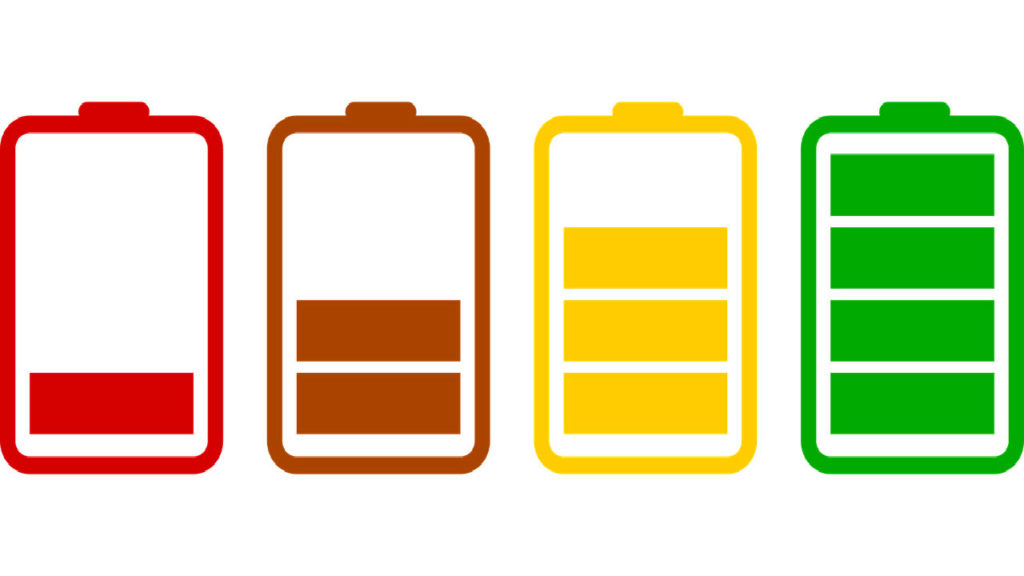
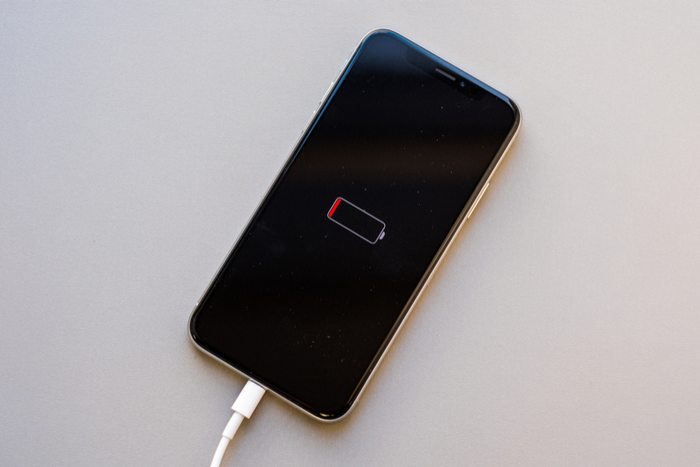
Poor battery life is the problem that smartphone manufacturers, both iPhone and Android, just can’t fix. Sure, there are phones these days that look more like tablets and contain massive batteries that might last a day and a half but that is no real solution, is it? A bigger battery just isn’t practical for many users, which means most of us are limping home at the end of the day trying to squeeze out every last bit of juice we pumped into our phones overnight.


This being the case, we thought we’d bring you some tips to help you make your Android phone’s battery last longer. If you’ve ever been frustrated by a lack of power or annoyed by your phone turning into nothing more than a cold, dark slab of glass and metal, read on. This is how to make your android battery last longer.

How to make your battery last longer on Android

#1 Control your screen brightness manually

The biggest drain on your phone’s battery life is your screen. It is big, it is bright, and it is on every single time you use your Android mobile phone. Brightness is key here and can make a big difference to how long your battery will last. Rather than relying on the adaptive brightness setting that will automatically change your screen brightness depending on how well lit your surroundings are, manually set your screen brightness to the lowest possible setting you can handle.

#2 Use the dark mode

Android 10 introduced a system-wide dark mode. If you select this setting, the background Android color scheme will turn black with letters showing white; rather than the other way around. This will also happen for all core Google apps like Gmail and Chrome. This helps save your battery because Google has proven that OLED screens require less power to display darker colors than they do for lighter colors. If you don’t have Android 10 on your device don’t worry. Many apps have their own dark modes, which you can set individually.

#3 Use the battery saver mode

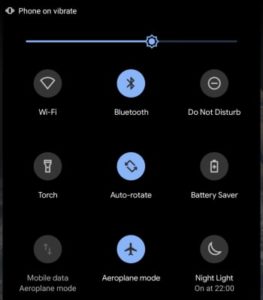
Your Android device is complex, can do many things, and is often running many complex actions in the background. Some of these are crucial to your device’s basic functions and others aren’t, but all place a strain on your battery. This means when you need to prioritize battery life you can deactivate all of these minor background functions. OK, this sounds like a laborious task but fortunately, Google has included a power-saving mode in Android for quite some time now that does exactly this. All you need to do to activate it is drag down the Quick Access Settings Menu from the top of your home page and tap Battery Saver.

#4 Deactivate keyboard sounds and notifications

Android phones with touchscreen keyboards try to mimic real keyboards by playing a small sound and producing haptic feedback. Both use battery power; deactivate sound and vibrate now. To do so go to your phone’s Settings menu, then hit Sound, and finally Advanced. Here you’ll see the toggle options for sounds and vibrations.

#5 Limit your phones antennae

Your phone can make calls, connect to Wi-Fi networks, pair with Bluetooth devices, and may be able to make other types of connections too. These antennae all need power when they’re active and you don’t actually need to be using them for them to be active. If you’re not connected to Wi-Fi, your Wi-Fi antenna is searching for Wi-Fi networks etc. If you’re not using an active connection deactivate the antenna. You’ll be amazed how much longer your battery will last when you’re in Airplane mode. The obvious caveat, however, is that you won’t be able to receive calls or messages etc.

#6 Prioritize Wi-Fi

If the idea of turning off all the ways your phone can connect to the world sounds crazy, don’t worry, we understand. If you must always maintain an active connection, prioritize Wi-Fi. Connecting over Wi-Fi uses a lot less power than maintaining a network connection so whenever possible use Wi-Fi and deactivate Mobile data.

#7 Uninstall your unused apps

As we’ve already mentioned, your phone is always running processes and actions in the background. The more apps you have on your home screen the more of these background processes you’ll be running. A simple battery saving tip then, is to delete all the apps you never use. Do so and you should notice your battery lasting a little longer at the end of the day.

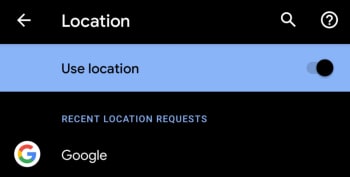
#8 Disable location services

Location Services on Android

Another big phone battery drain comes from location services. Just like with your device’s antennae, location services will be scanning away in the background collecting data that you don’t even need. Sure you’ll need your GPS at some point, but why not just activate it then? Disabling your phone’s location services will save you power you may need later on.

#9 Get rid of Live Wallpapers and Widgets

It is all well and good for modern operating systems to offer cool and exciting features like wallpapers that move and integrated widgets, but while batteries are so puny you should think twice before using them. They eat up precious battery power that you might need at the end of the day. Use a static wallpaper and deactivate your widgets to limit your battery usage and save that power.

#10 Deactivate Google Assistant

Strange behavior from Google Assistant

We’ve mentioned this many times today but here we go again; anything that is always working is always using your battery. That means when Google says its AI Assistant is always listening then yes, it is always using your phone’s battery too. If you want to save that power, we’ll tell you how. Strap yourself in though, because Google doesn’t make this easy.

First you need to open the Google app and then open the More tab. Once you’re there, select Settings, hit Assistant, and then scroll all the way down to the bottom of the menu. There you’ll see your phone’s name. Tap this and you’ll finally come to the switch that allows you to Deactivate Google Assistant on your phone.