
Best apps to clean and optimize your Android

These are all the best Android apps for cleaning and optimizing your smartphone and tablet

Android optimizer apps

Google’s Android operating system is great for many reasons. Now in its tenth version, it is chock full of advanced mobile features, works flawlessly, and is even optimized to work well on lower-powered low to mid-range devices. Furthermore, it is free, and when you combine all of the above you see just why the number of global Android users dwarfs the number of users walking around with Apple iOS-powered iPhone’s in their pocket.

The thing is though, sometimes our Android phones need a bit of a tune-up. We use our phones all the time, which means things can slow down, the internal storage can get clogged up, and apps stop working as well as they should do. If this has happened to your phone, don’t worry. You don’t need to start thinking about buying a new phone just yet. We’re here to show you the best Google Play cleaning apps that will help you clean and optimize your Android smartphone

Best Android cleaner apps


CCleaner
CCleaner for Android

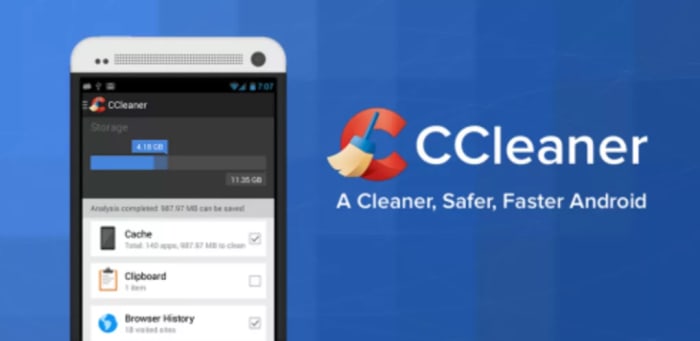
CCleaner by Piriform is famous for being one of the best PC maintenance programs available today. This Android version of the highly acclaimed software also has a lot to offer too. The app can clear your device’s cache files, your browser history, and other temporary files including those found in your download folder. There is also an app manager feature, and tools for staying on top of your device’s CPU and RAM usage, internal storage levels, and temperature. A handy battery saver feature will also boost your phone’s battery life. Although it might not have a massive effect on your device’s performance, CCleaner also allows you to delete your call and SMS histories quickly and simply.

CCleaner Download Now
8

Virus Cleaner 2019

Virus Cleaner

Hi Security Lab’s Virus Cleaner 2019 – Antivirus, Cleaner, & Booster is a very popular and very efficient file cleaner Android app that will help you keep on top of your device’s performance and security. Powered by McAfee, this Android app offers plenty of optimization features including File Scan, Deep Scan, and an added Scheduled Virus Scan, which will automate your security procedures. Virus Cleaner also comes with an App Lock feature and a Notification Cleaner. The app does offer in-app-purchases but with so many core features available for free it is easy to see why this app has been downloaded over 100,000,000 times with over 1.6 million Android users giving it a positive review.

Virus Cleaner 2019 Download now
8

Norton Clean

Norton Clean

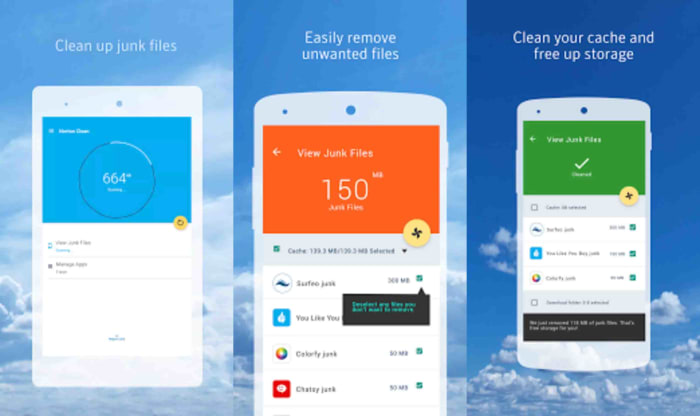
Norton is famous for its antivirus software that protects everything from Android smartphones to Apple Macs and iPads. Norton Clean, however, is a specialized app that deals exclusively with cleaning and optimizing your Android phone. The app will clean your device’s system cache, get rid of old APK files, and will get rid of your phone’s general junk too. It also comes with an app manager that will help you clear out those unused apps that are bogging your Android system down. This app is simple but effective.

Norton Clean Download now
7

All-in-One Toolbox

All-in-One toolbox

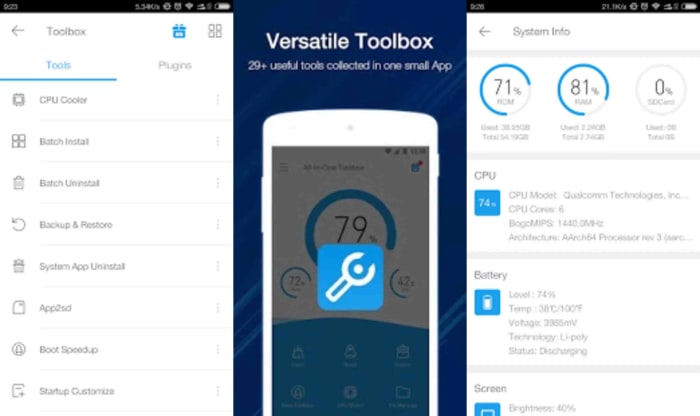
If you’re looking for an app that does more than just the basics then the All-in-One Toolbox from AIO Software could be what you’re after. As well as offering a one-click booster feature that will clean your cache, analyze your apps, and free up system memory; it comes with many other great features that will help you optimize your Android device’s performance. AIO also gives you a file manager, an app manager, a task killer, and a CPU cooler tool that will help you manage the apps you have running in the background. The only real problem with this app is that with so much going on it could have been designed a little better. It isn’t the easiest app to use but by offering so many ways to optimize your phone’s performance, it is definitely one to consider.

All-in-One Toolbox Download now
8

Clean Master

Clean Master for Android

Cheetah Mobile’s Clean Master Android app is another excellent phone cleaner app for anybody looking to make their Android phone work a little better. The Junk Files tool makes it very easy for you to optimize your Android device by cleaning out the app cache, getting rid of temp files, and deleting duplicate files. Clean Master also comes with a powerful Phone Boost feature, which will have your phone running more quickly and smoothly with a single tap. An additional feature to consider is Clean Master’s app manager that not only allows you to monitor app performance but also enables you to move apps to your SD card and back up APK files.

Clean Master Download now
8

DFNDR Antivirus and Cleaner

Android DFNDROur final app for cleaning and optimizing your Android smartphone is DFNDR by PSafe. DFNDR is another incredibly popular antivirus app that has seen well over 100,000,000 installs on Android devices with millions of positive reviews to go with them. DFNDR will keep you safe from viruses, malware, adware, and spyware threats and will also work to protect your private and personal data. This extensive app also offers a robust junk cleaner and other optimizer features that will enable all Android users to clean and optimize their device performance and get them working as effectively and efficiently as possible.


DFNDR Download now
10

How to solve the most common Android problems

These are all the solutions you’ll need to solve the most common Android problems

Android problems and solutions

Google has some of the most popular apps in the world. The likes of Chrome and Gmail have billions of users but they’d be nothing without another crucial piece of Google software. Google’s mobile operating system, Android, has secured its place as the most dominant operating system of all time. There are literally billions of Android smartphones in use right now all around the world, which massively dwarfs the number of Apple iPhone users. Most of us are Android users and when most of use something there is a good chance that a lot of us will be experiencing problems when we do.

These common problems are what today’s article is about. We’re here today to help you fix some of the most common Android problems. Google can help you fix certain Android problems like fixing an installed Android app or how to fix Android problems connecting to a Wi-Fi network, but we’ve had to figure out the solutions for a lot of these problems ourselves. Don’t worry though, they all work. This is how to solve common Android problems.

The most common Android phone problems and solutions

Frozen Android mobile device

We’re going to start today’s guide with a classic problem that has affected all electronic devices and a classic solution that has worked throughout the ages. If your Android phone has crashed, frozen, or if your screen is unresponsive, the best thing you can do is reset it. Yep, our first solution is to turn your Android phone on and off again.

To hard reset your Android phone all you need to do is hold the power button down until you see the screen go blank and then see the Android loading screen appear again. You’ll need to wait about 20 seconds. This should reboot your Android device and have it working as normal again. If your device froze after you dropped it, however, you might have a bigger problem. Also, if the problem persists, one or more of your apps might not be working properly.

Android apps not working properly

reboot to Android safe mode

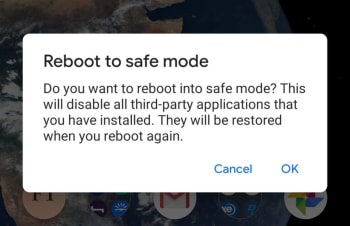
If your phone is stuck in a reboot cycle or is constantly crashing, freezing, or running slower than it normally should, you may have installed an app that is causing you problems. In order to test for this, you should restart your Android device in Safe Mode. Safe Mode will boot your Android phone with all your third-party apps disabled. This means you can check whether your phone works properly without them and then uninstall the problem apps, normally your new apps, and start again, if it doesn’t.

Android power menu

To reboot your Android device in Safe Mode, hold down your power button until the Android power menu appears. Then hold your finger down on the power off button until you see the Reboot in safe mode option. When you’ve done this, your phone will boot in airplane mode and you’ll see a little note in the bottom-left of your screen telling you your device is being run in Safe mode. Have a play around making calls etc. to see how your phone works with all third-party apps disabled.

Android phone needs resetting

If you still experience problems when running your device in Safe Mode you will need to perform a factory reset. You can do this by going to Settings, then Backup & Reset, and finally Factory Data Reset. Don’t do this, however, unless you’ve first tried finding the problem using Android Safe Mode.

Battery life problems

Battery storage issues

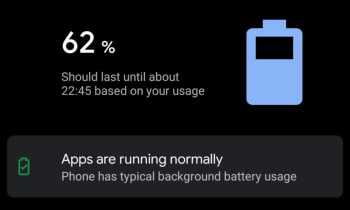
Battery drain issues affect almost every single smartphone user on the planet. It is just a fact of life that smartphone batteries aren’t big enough. There are, however, a few things Android users can do to alleviate battery problems. The first is Android’s Battery Saving mode, which you can find in the pull-down menu on your home screen. This will automatically limit many of your phone’s background settings that use up all your juice.

Battery Saver

Another big drain on your phone’s battery life will be your screen brightness. If you’re trying to get your phone to last to the end of the day have your screen brightness set as low as possible. If you don’t need them, turn off Bluetooth and Wi-Fi too. The other big change you can make is to disable Location services.
Android running slow/Low storage space

The most common reason Android phones run slow is because they’re running out of storage space. If your phone allows it, you could use an SD card to boost your internal storage, but you can try two software fixes to your memory issues too. Normally, these issues will be caused by having too many apps installed on your phone or too many photos saved. You can solve the former problem by uninstalling all the apps you no longer use. Another good trick for clearing up space on your Android phone is downloading a cleaning app like Clean Master, which will hunt out stray files in your cache and wipe them from your phone’s memory.

Clean Master Download now
8

You solve too many photos problem by installing Google Photos and using the auto backup feature. Google Photos knows when your phone is running low on space and will prompt you to backup your photos to the cloud and free up the local space on your device. You’ll then still be able to view your photos as normal whenever you have an active internet connection.

Google Photos Download Google Photos
7

Android running hot

If your Android phone is running too hot, you could have either a software or hardware related issue. If the problem persists when using a certain app, try updating or reinstalling the app to the latest version to see if this helps solve the issue. If it doesn’t, try searching through the Google Play Store comments and reviews for the app to see if anybody else has reported a similar problem.

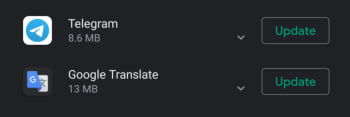
Update apps

The problem could be related to Android itself, however. To check for this, Google your exact Android version with the phrase Overheating to see whether there is a history of a similar problem affecting other users. If nothing you find helps and your phone continues to overheat, you should think about taking your phone to a professional as there might be a hardware problem causing the overheating.

Can’t download Android apps

Google Play Store cache

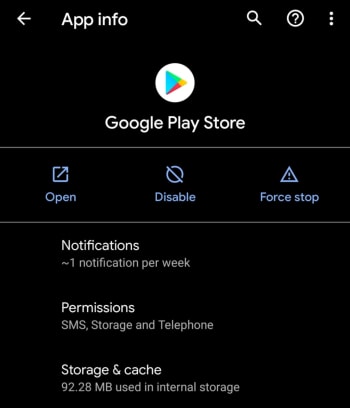
If you’re having problems downloading apps from the Google Play Store, there is a good chance the problem is that your Google Play Store app has a corrupt cache. To fix this problem go to the Google Play Store app settings menu by holding your finger down on the app and hitting the info button that appears. Then hit the Storage & cache option and tap Clear Cache.

Over 60 Google Docs templates

We’ve put together links to some of the best Google Docs templates as well as some of the best place to find more.

The best templates for Google Docs

The Google Drive suite of productivity apps has taken the world by storm. Google Docs is kind of like the hip younger brother of Microsoft Word. It is free for a start, if you’ve got a Google account, but then it also has lots of modern new features like the fact you can use it anywhere on your web browser, it makes it really easy to collaborate on different projects, and you can even get down to business using the Google Docs app on your phone.

Being the younger brother, however, means that it isn’t as refined as Word and that it doesn’t come with as many potential add-ons and templates as you can get with Word. We’re here to tell you today, however, that when it comes to Docs templates the Google upstart is catching up with Microsoft Word. There are plenty of great Google Docs templates already available online and today we’re going to walk you through the best of them.

Google Docs download free ►
8

Templates for Google Docs

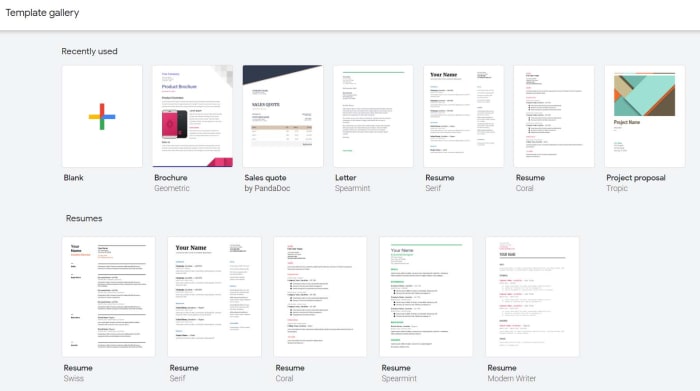
The Google Doc Template gallery

Google Docs actually has its own template gallery that you might not have noticed before. When you open the Google Docs homepage, you’ll see at the top next to the Start a new document icon a few example templates that you could use. These include templates for resumes, letters, and project proposals. Above these you’ll also see a small button labelled Template Gallery. Clicking this will open up the Google Docs template gallery that has 54 different templates for you to choose from. These include resume templates, letter templates, business letter templates, recipe templates, brochure templates, and newsletter templates among others.

This gallery isn’t an exhaustive list, however, so we’ll push on to recommend you some more great Google Docs templates. The other great thing about Google Docs, is that when you open one of our recommended templates it’ll go to your recent documents meaning it’ll be there next time you open Google Docs.

Google Docs templates resume

resume template

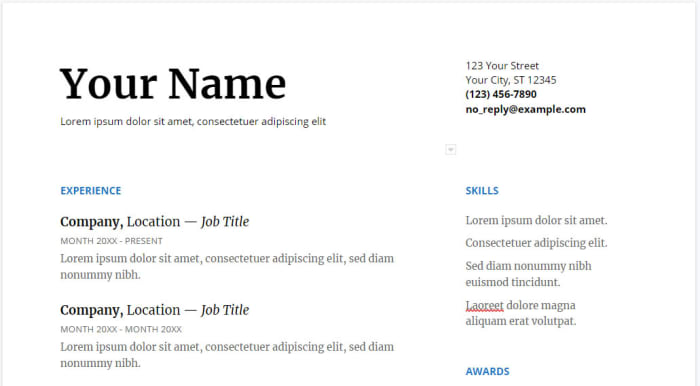
There are plenty of fantastic Google Docs resume templates out there that will help you lock down that job you’re after. With recruiters often having to go through hundreds of CVs and resumes it is more important than ever to have a resume that will stand out from the crowd. That is where these great free resume templates for Google Docs come in handy. You could try this Smart and professional resume template or go for something a little cleaner. Other options include this colorful resume template that contrast blue against white and this bold resume design that will catch anybody’s eye.

7

Google Docs templates cover letter

Cover Letter Google Docs template

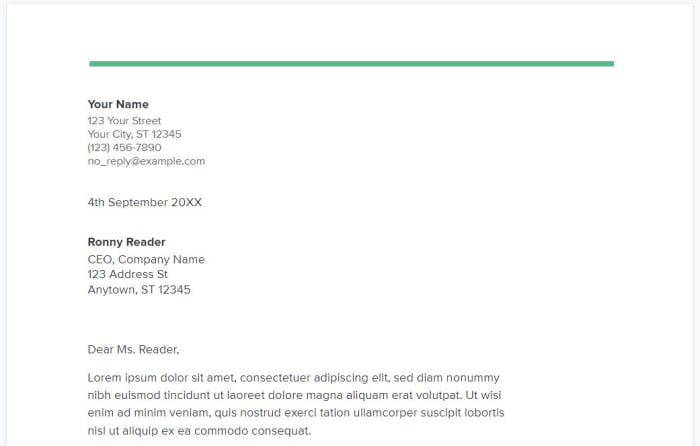
To go with that jazzy resume, you’re going to need an eye-catching cover letter. Fortunately, we’ve got some great cover letter templates for you. You could pair up the clean resume template from earlier with this minimalist cover letter design that looks very clean and clear. If you went for the blue and white resume earlier then this striking cover letter template could work well for you. Obviously, you’ll have to play around with fonts and job titles a little, but these are a great starting place.

Google Docs templates invoice

invoice templates for google docs

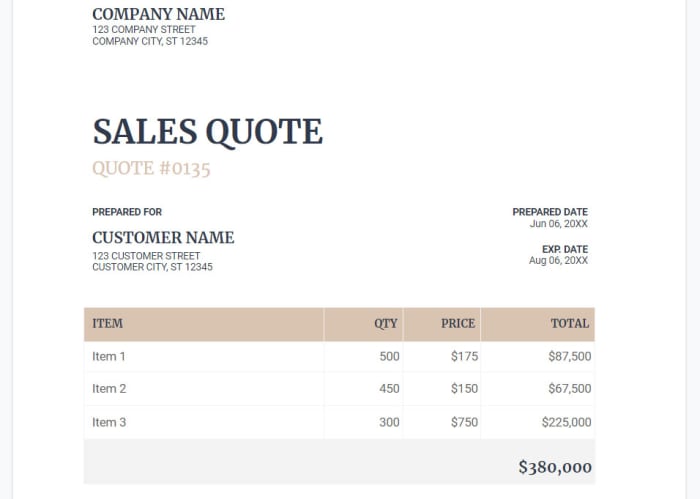
If you run your own business or if you work as a freelancer, chances are you’re going to have submit invoices regularly. This means having a reliable source of invoice templates is a must, unless you constantly want to have to draw them up from scratch every time you need one. Fortunately, you’ll be able to find a lot of invoice document templates for Google Docs at Superside. Another great place to find invoice templates is at Invoice Simple. As the name suggests, Invoice Simple specializes in helping you sort out all your invoicing issues. This means you’ll also be able to find invoice templates for Google Sheets as well as Google Docs.

Google Docs templates brochure

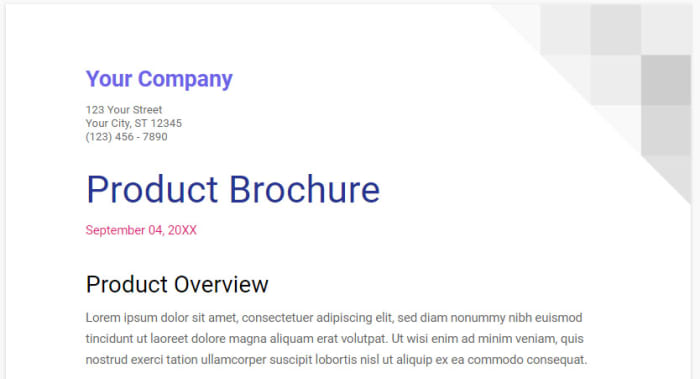
brochure template on Google Docs

Brochures are another key ingredient of the modern business. Whether you print them out and distribute them physically or share them digitally online doesn’t matter. A well designed and organized brochure is one of the key marketing and communications tools of the modern world. Again, there are lots of great templates here for you to take advantage of should you want to create a template using Google Docs. You’ll find some excellent Google Docs brochure templates at Envato Tuts+ and for more excellent options check out Template.net.

Google Sheets Download now
8

Google Docs templates business cards

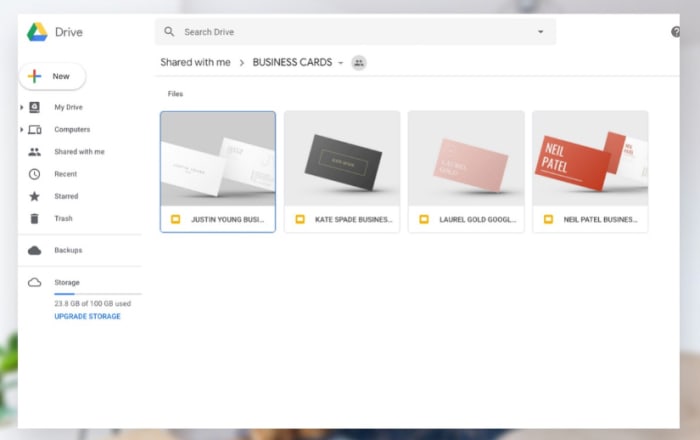
business card templates

Another staple of the business world here. Business cards have been given out by professionals for centuries. Handy little pieces of cards that carry all your major contact details are practical in the extreme sense. OK, these days they have websites and email addresses on them, but the basics are the as they ever were. For some excellent premium business card templates check out the Stand Out Shop. You will have to pay the Stand Out Shop templates but you’ll find some great free options at Every Last Template.

Google Docs template calendar

Google Docs calendar template

If you’re looking to create a calendar using Google Docs, you probably won’t be surprised to hear that Calendar.com has an excellent guide that will walk you through the process. If, however, you’d like to get your hands on some Google Docs calendar templates that will do most of the hard work for you then you should check out Smart Sheet, which has all sorts of different types of calendar templates for both Google Docs and Google Sheets.

The best Black Friday deals

These are all the best software deals you’ll find this Black Friday.

When Black Friday comes around, we’re inundated with limited-time special offers for all sorts of products like headphones, wearable tech, charging cases, video games, SSD hard drives, smart home devices, and iPads. With so many deals from the likes of Amazon, Walmart, Best Buy, Newegg, and Samsung, however, it can be hard to know where to start. Well, at Softonic, we’re specialists in software so you can trust us to bring you the best Black Friday sale software deals. Let’s get into it then, these are the best Black Friday deals for software and online subscriptions.

Disclosure: Softonic may receive a referral fee if you click or buy any of the products featured here.

The best Black Friday software deals 2019

ExpressVPN

Virtual Private Networks (VPNS) allow you to mask the IP address of your Microsoft PC, Macbook, iPhone, or Android phone and encrypt all of your internet data. They have become essential for anybody who wants to surf the web safely. Add to that the fact that VPNs open up global content that would normally be locked due to your geographic location and you quickly realize that you need a powerful VPN on your machine.

The problem with VPNs, however, is that many of them are not that reliable. This is simply not the case with ExpressVPN though, which is widely regarded as the best VPN in the business. An ExpressVPN subscription will give you reliable access to over 3,000 servers round the world allowing you to protect your data and simulate your location in over 160 locations spread across 94 countries. If that sounds like something you want, act now to get three months free subscription to ExpressVPN.
Express VPN Save $$$ Now
10

Adobe Creative Cloud

If you’ve never heard of Photoshop, then you must have been living in a cave or something. Photoshop and all the other programs in the Adobe Creative Cloud design suite are the best in their class. No matter your design job, the Adobe Creative Cloud will give you the best tools available to get it done.

Now’s your chance to get yourself a full subscription to the Adobe Creative Cloud package with massive savings of 40% off the normal price for all and 80% for students. Take advantage of early Black Friday savings that could end up saving you hundreds of dollars every year.

iObit

iObit Black Friday deal

Keeping yourself safe online is a tough job these days. Online threats and more advanced types of malware hit the internet all the time. As well as online threats, as software gets more and more complicated we can experience inexplicable slowdowns on our PCs. This is why it is more important than ever to have a robust cybersecurity suite protecting you every time you’re online and to keep your PC working as well as it should.

With that being the case, you do not want to miss out on the eye watering  discounts that iOBit is offering on its line of PC optimization and protection software. You can save up to 80% on complete packages of iObit cyber security software. iObit is also giving away $60 worth of software for free with every purchase made. Check out these deals now and save yourself some money.

iObit Special Offer Save Save Save
10

MacPaw CleanMyMac

CleanMyMac black Friday deal

MacPaw’s CleanMyMac optimization suite offers the industry standard that all other Mac cleanup programs try to match. CleanMyMac makes it a quick and simple process to clear up space on your Mac and get your Apple Mac back to its best. With MacPaw’s amazing Black Friday deals, you can save 30% on a CleanMyMac subscription. You need to act fast, however, as MacPaw discounts are rare, and it won’t be Black Friday forever.

CleanMyMac Clean for less
10

CCleaner

CCleaner Professional is a veritable institution in PC optimization. It has been around for years and is well-known for offering a quick, safe, and reliable disk cleaning service. Regularly regarded as the most efficient tool for identifying gigabytes of erroneous files and delivering noticeable boosts to your PC’s performance every time you use it. If your PC needs a boost, act now and save 50% on a CCleaner subscription.

CCleaner Click to Save
10

Sony Vegas

If you’re a video editor you need a feature packed video-editing suite offering full video production capabilities, audio editing, special effects, and more. Sony Vegas has all of these and more. If you’re an Instagram or YouTube video blogger then you should think seriously about this Sony Vegas Black Friday deal. Act now and you could save yourself hundreds of dollars and massively upgrade your video-making capabilities.

Sony Vegas Save $$$
10

Norton Antivirus

Norton Antivirus

Our final Black Friday deal comes from Norton Antivirus, which is offering savings of up to $60. Protect yourself from threats including ransomware, malware, spyware, and more.  Norton will also protect your identity from potential hacks and  potential online scams and phishing attempts. Act now to save a massive $40 and protect your PC or Mac for an amazingly low $19.99. Protect up to 5 devices with the full Norton package and save a massive $60. Don’t wait to stay safe and save money.

Norton Antivirus Protect and Save
10

Best Chrome productivity extensions

You’ll get more done with these productivity extensions for Google Chrome

Best Chrome productivity extensions

Chrome extensions are wondrous little things. You can simply head to the Chrome Web Store, search through thousands upon thousands of options, and then bake in a brand-new feature to your web browser and augment your browsing experience. These extensions can do pretty much anything from boosting your Gmail experience to adding Evernote like features to Chrome. We’ve had a look at the best VPN Chrome extensions to protect your web traffic and today we’re going to go through the best Chrome extensions to help boost your productivity.

You should also check out our little guide on how to get Google Chrome extensions on your Android devices here.

Best Chrome extensions for productivity

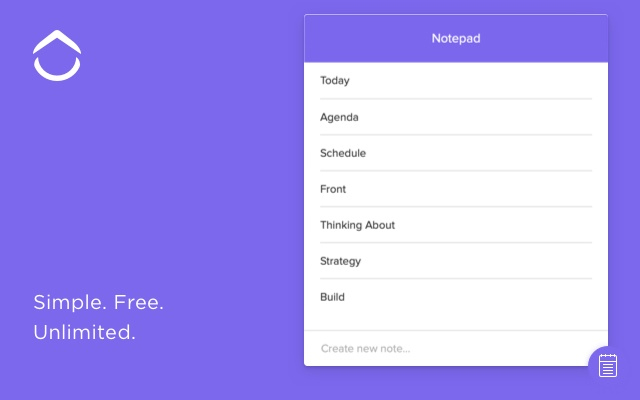
Notepad by Clickup

Notepad Chrome extension

OK, so productivity is a rather broad category that could contain many different types of tools and plugins. We’re going to start with the Notepad browser extension by Clickup, which adds a simple yet incredibly useful feature to your web browser. Notepad gives you single click note-taking abilities on all the web pages you visit. Want to note something down about that offer you saw on Amazon? No problem. You need to leave yourself a reminder or come up with an actionable to-do list based on the research you’ve been doing? Absolutely fine. Notepad gives a simple and elegant solution that augments the internet by adding something you didn’t even know you needed.

Clickup

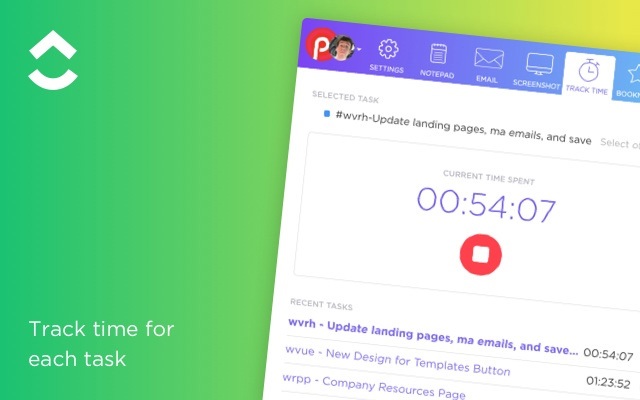
Clickup Chrome extension

Notepad is actually a part of Clickup, which is an award-winning to-do list app that has a Chrome extension that is available for free. If you’re looking for a way to organize your workflow then Clickup is the tool you’re looking for. The Chrome browser extension links flawlessly with the full Clickup app and makes it very easy to create new lists and projects, bookmark websites, and take screenshots. Another excellent feature of the Clickup extension is its time tracker. You can use Clickup to monitor the amount of time you’re spending on different websites. This could be used in a “Digital Wellbeing” kind of way to help you wean yourself off your social media addiction and get back to work, or to track the time you spend working on projects to later add to your invoices.

RescueTime

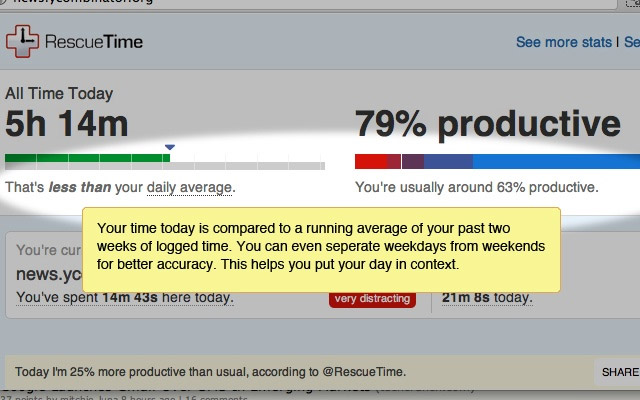
RescueTime Chrome extension

The RescueTime extension is another Chrome extension that will try to keep you working productively rather succumbing to reckless procrastination. All you do is tell the RescueTime extension which sites are productive, and which are not. Then at the end of each week, RescueTime will give you a report on how much time you’ve spent productively. Prepare yourself, you might spend a lot of time doing stuff you shouldn’t!

Trello

Trello Chrome extension

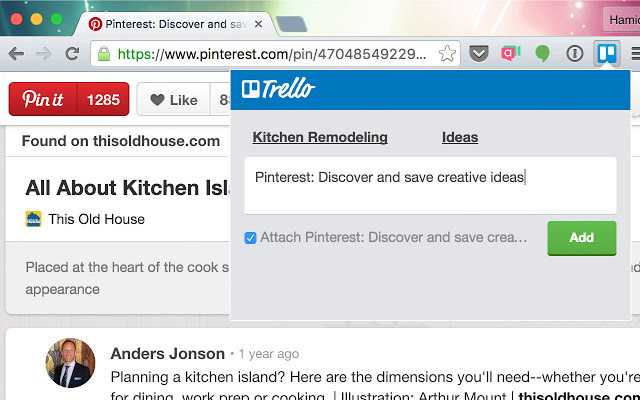
Another excellent project management extension is the Trello plugin for Chrome. The Trello extension syncs flawlessly with your Trello account, allowing you to make Trello cards quickly without having to head over to the Trello site itself. The extension also grants swift access to all your active Trello cards and boards.

Loom

Loom Chrome extension

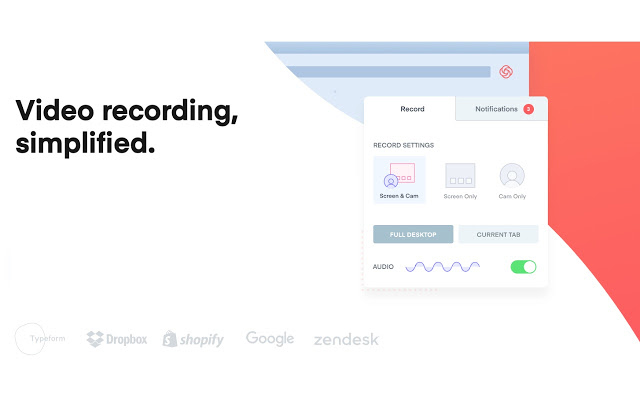
Loom is another extension, like Notepad, that gives you a tool you never even knew you needed. With Loom you can easily log into your device’s webcam, record a quick video message, and then easily share it with anybody else who you might want to see it. It is an excellent extension for anybody working in a team, who needs to quickly and concisely get across messages of more than a few words.

CrxMouse Gestures

Grx Mouse extension

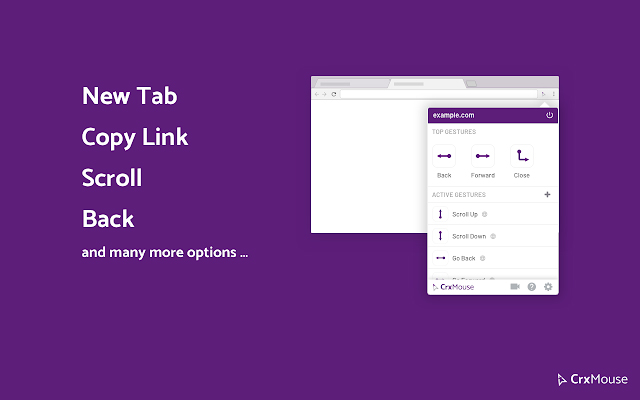
Often the latest and greatest tech innovations from the big players like Apple and Google do no more than shaving a second or two off the common tasks that we carry out every day. In this respect, the CrxMouse Gestures Chrome extension is something that deserves a lot of respect. CrxMouse creates keyboard shortcuts for your mouse. When installed on Chrome you’ll be able you navigate the web much quicker using certain mouse gestures that’ll enable you to perform many actions like opening and closing tabs, copying links and text, going back and forwards through your history, etc.

Pocket

Pocket extension

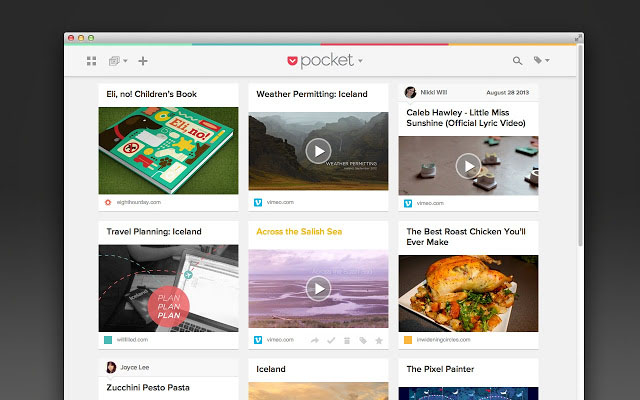
Pocket works a little like Notepad in that it helps you make notes about the web pages you’re visiting. The difference, however, is that it is a copy and paste clipping board. If you see something you think you might need a little later on all you need to do is save it in your Pocket and it will be there when you need it.

OneTab

OnetabChrome plugin

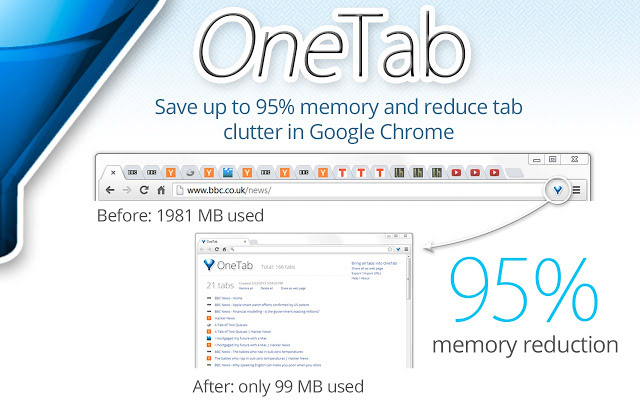
If there is an easy criticism to hurl at Google Chrome, it is the massive amount of memory it needs to function properly. Open tabs are one of the main causes of Chrome and system slow down. The more tabs you have open the closer you are to running out of memory and slowing your machine down to a crawl. OneTab has been designed to solve this very problem. If you can’t get any work done because your Windows PC or Apple Mac is running excruciatingly slowly, OneTab will quickly compress all of your open tabs into a single page. This way your system memory will be free, yet you’ll be able to access all your tabs quickly should you need them.

Instant Dictionary

Dictionary extension for Chrome

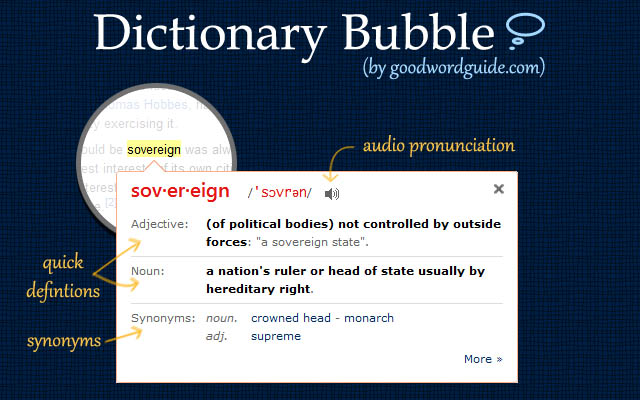
The Instant Dictionary extension gives you quick access to dictionary definitions for any and all words you find on the internet. Once installed on Chrome all you need to do is highlight the word you’re stumped by or double-click it. You’ll then get a floating definition box unless the extension can’t find one, in which case it’ll offer a Google search in a new tab.

Last Pass

Last Pass Chrome extension

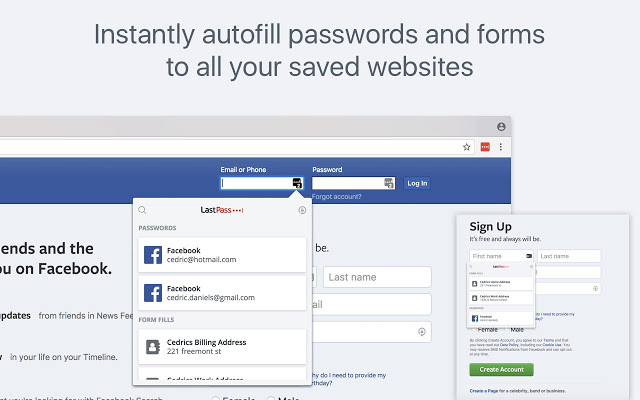
Our final extension works with a very good and free password manager. Last Pass will create secure passwords for all of your online accounts and will store them securely for you. Then whenever you try to log into these pages, the extension will automatically fill in your security details. Last Pass will also link your account with your phone and log into all your apps and mobile websites for you too. This will keep you safer and save you time.

Wrapping up

There you have 10 useful extensions for Google Chrome that will make you much more productive when you’re online. All are free and won’t use up too much system memory, which means you likely won’t have to worry about your computer slowing down too much if you install them. Other great Chrome productivity extensions worth checking out are Web Clipper, Stayfocusd, Grammarly, Google Drive and Google Docs, Todoist, Noisli, OneNote, and Ad Blocker Plus.

7 fixes to make your Chrome run faster

These 7 tips will help you make Chrome go faster

Make Chrome go faster

If you’ve had more than a couple of Google Chrome tabs open at the same time, you’ve likely had to endure long waits for your web pages to load. It isn’t just your browsing experience neither. Chrome is such a RAM hog that it’ll slow down everything you try to do on your device. The Google Chrome browser is famous for slowing down Androids, iPhones, PCs, and Macs.

That’s why we’re here. We’re going to show you some of the best ways to make Google Chrome run faster. If Chrome is running slow on your PC, check out some of these little tweaks that could make Chrome faster for you.

7
Chrome is a young, fast browser that can browse any web page. It supports all major technologies and standards such as HTML5 and Flash.

How to make Google Chrome run faster

Close tabs

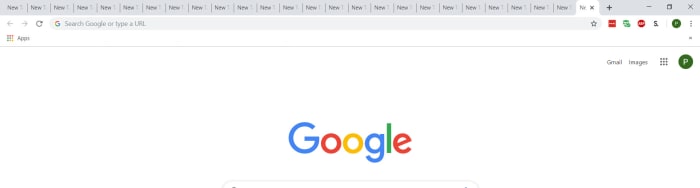
Too many Google Chrome tabs

The reason Chrome is so quick to slow everything down is that it needs a lot of memory to do its thing. Chrome is a famous RAM sink. This means that having multiple tabs open at once will multiply Chrome’s famous ability to hog up all of your system’s memory. You’ll have probably noticed that whenever Chrome takes longer to load pages you probably have more tabs open than you’re actually using. Closing these tabs will free up system memory and could get your web browser and computer running at full speed again.

Delete unnecessary Chrome extensions

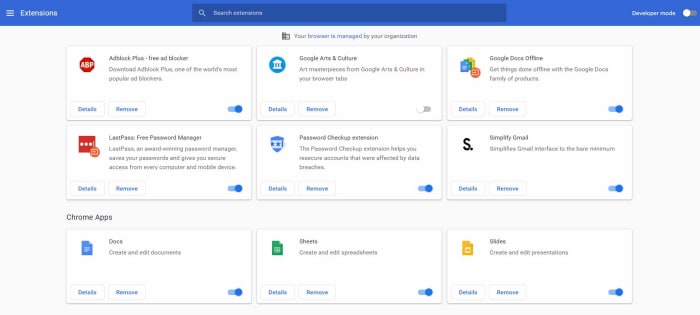
Chrome extensions

This one works in a similar way to tabs. If you have extensions that you’re not really using running in the background ,they’ll be using your system’s resources. This will slow Chrome but also other operations on your PC too. You might even have Chrome plugins installed on your Google Chrome browser that you can’t even remember installing in the first place. Get rid of them and see how much faster things start to work again.

To remove Chrome extensions type chrome://extensions/ into the address bar and hit Enter. You’ll now see a list of all the plugins you have installed on your version of Google Chrome. You’ll see a little toggle switch next to each of them telling you if that particular extension is active or not. All you need to do is hit Remove on every Chrome extension you don’t use, and Chrome will uninstall it.

Update Google Chrome

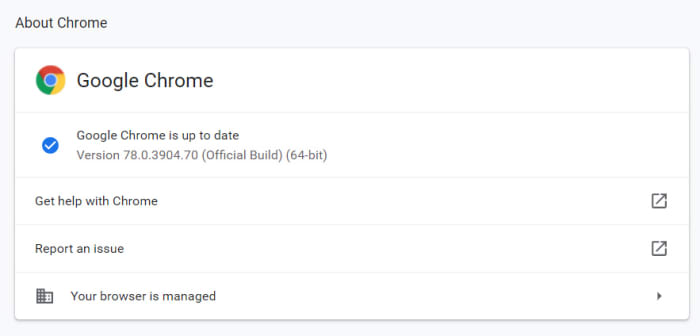
Google Chrome up to date

Chrome might be running slow for you because you’re not running the latest version of the Google browser. Chrome should keep itself updated, but often it won’t so you might have to update Chrome manually. There is no CTRL key shortcut to open Chrome Settings so to check if your version of Google Chrome is up to date you need to type chrome://settings into the address bar and hit Enter, or hit the three-dot icon in the top-right and click Settings. You then need to hit the About Chrome option. This will take you to the screen that will tell you whether you have the latest version of Google Chrome or not and give you the option to update.

Use the Google Chrome prefetch feature

Google prefetch feature Chrome

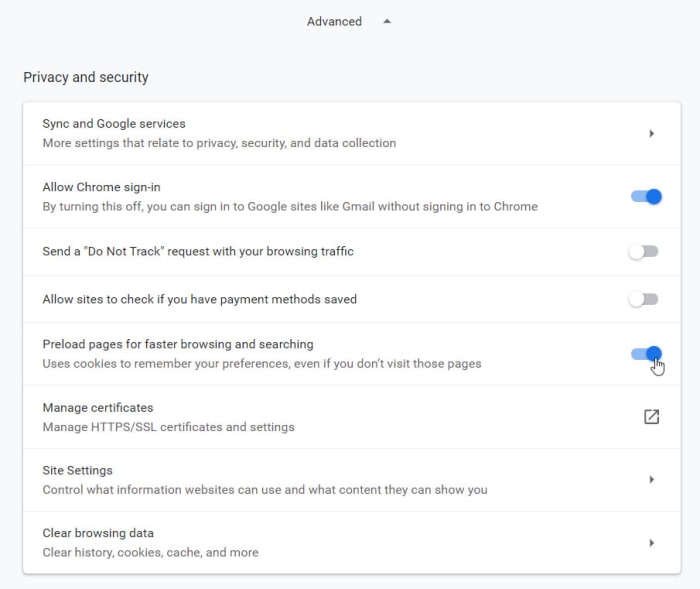
Chrome has a prefetch feature that will make web pages load faster than they would on other browsers. Basically, prefetch will preload the web pages you’re visiting using cookies that Chrome has collected during previous visits. This allows you to browse through familiar web pages much quicker than usual.

To enable prefetch again type chrome://settings into the address bar and hit Enter. Then scroll down and hit the Advanced option to open up the Advanced settings menu. You’ll see the Privacy and security box is the first part of the new extended menu. You want to activate the toggle switch next to the Preload pages for faster browsing and searching option to enable prefetch.

Use the Chrome Software Removal tool

Chrome cleanup tool

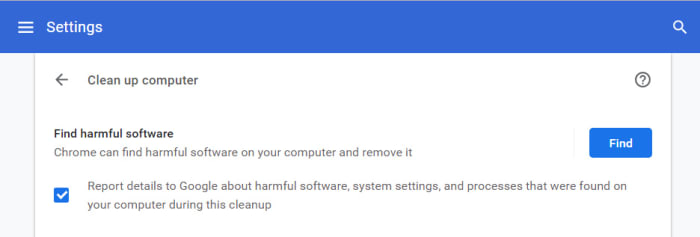
Google Chrome on Windows has a pretty decent cleanup tool, which will help you get rid of any malware or potentially unwanted programs that could be causing Chrome to run slowly.

To run the Chrome cleanup tool, you need to once again open the Chrome settings menu and extend the Advanced settings menu. Then scroll right to the bottom of the page until you come to the Reset and clean up options. Hitting the clean up computer option will give you the option to Find harmful software. Hitting the Find button will search out for any potential problems and remove them.

Reset Chrome settings

Reset Chrome

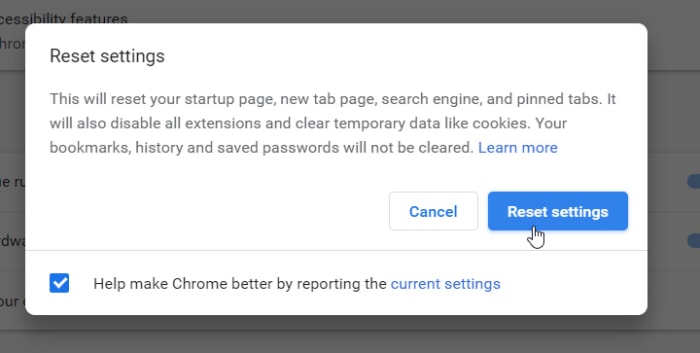
All the system-wide searches in the world won’t find anything if the problem is in Chrome itself. Malware and viruses could have taken hold in your version of Chrome causing all manner of problems from serving up annoying ads in your Google searches to slowing Chrome down to a crawl. Get rid of any in-browser problems by resetting Chrome.

The Chrome reset button is found just above the Chrome cleanup tool. Navigate to the Advanced settings menu then to the very bottom of the screen and hit Restore settings to their original defaults to reset Chrome. Don’t worry though, it won’t delete your bookmarks. Once you’ve done this relaunch Chrome and when it loads it could be working more quickly.

Clear the Chrome cache data

Clear Chrome cache

The reset option is like the nuclear option. It will reset your startup page, new tab page, default search engine, and pinned tabs. On top of that, resetting Chrome will also disable all your extensions, and clear your temporary data. Another option, however, that could make Chrome run faster without affecting so many other settings, is clearing your cache. This could make move more quickly as you could have cached images going back years hogging up your disk space, could, in turn, be slowing down Google Chrome.

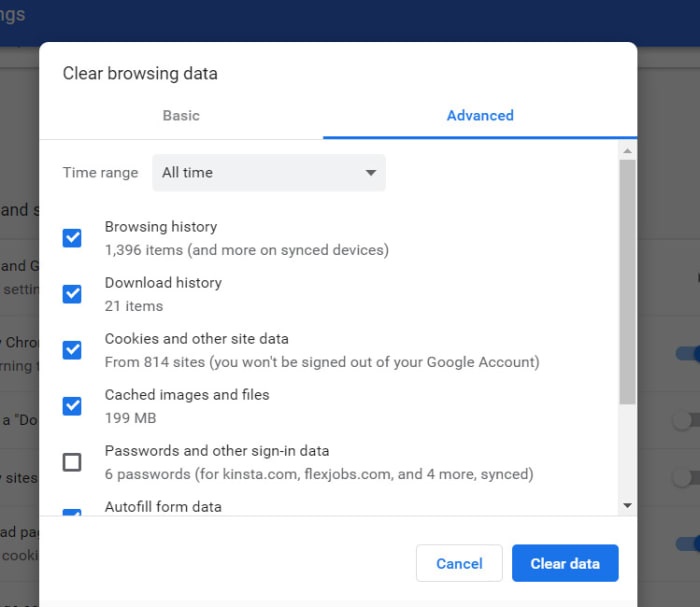
To clear your cache, you again want to show Advanced settings and scroll down to the bottom option in the Privacy and security box. Here you’ll find the Clear browsing data option. You’ll be able to delete your Browsing history, Download history, Cookies, and Cached images and files among other options. If you’re PC doesn’t have much space, clearing out unnecessary files like this one could speed things up a little.
Wrapping up

We’ve shown you seven ways to make your Chrome browser run faster. All of these methods are carried out within Google Chrome itself. This assumes that the problem is to do with Chrome. It could be a memory issue, however, or you might not have enough space on your hard drive for programs to run as efficiently as they should. This means if the methods we’ve shown you today don’t work, you should run system-wide checks too, to try and find the problem. You can see a guide on how to make Windows run faster here.
How to install Chrome extensions on Android

This guide will show you how to install Google Chrome extensions on Android

Chrome on Android

Google Chrome is a great browser. It is by far the most popular web browser in the world. One of the best features of Chrome is that you can add-on new features by installing Chrome extensions. There are thousands of different Chrome extensions out there doing all manner of task from blocking ads to remembering your password.

It is easy enough to install Chrome extensions on your desktop version of Chrome. Google has created a dedicated Chrome Web Store for finding what you need. There is no such store for Chrome on Android devices, however, which means you need to work a little harder to install extensions on Chrome for Android. That’s what this guide is all about. This is how to install Chrome extensions on Android.

7
Chrome is a young, fast browser that can browse any web page. It supports all major technologies and standards such as HTML5 and Flash.

Install Chrome extensions on Android

Not only is there no Chrome Web Store on Android, but the Android version of Chrome also doesn’t support extensions at all. Fortunately, however, Google developed Chrome as a part of its Chromium Open-Source project. This means that the code that built Chrome is available for other developers to use to build their own web browsers. Lots of developers have done so, creating Chrome-like browsers that offer different features to the main Chrome browser. Crucially, some of these Chromium-based browsers are compatible with Google Chrome extensions and some of them even work on mobile too.

Installing Chrome extensions on Android using Kiwi Browser

The first browser that will allow you to use Chrome browser extensions on Android is Kiwi Browser. Kiwi Browser for Android has some very cool features like a built-in pop-up blocker and ad-blocking features and security boosting crypto-mining blocker, which will stop hackers from hijacking your phone and using it to mine crypto-coins. Kiwi can also play YouTube videos in the background, which you can’t do on Chrome. We’re here for the extensions though, so let’s look at how to install Chrome extensions on an Android browser.

Kiwi Browser Download now
8

To install Chrome extensions on Kiwi for Android you need to download Kiwi Browser. Then open Kiwi browser and type “Chrome://extensions” in the address bar. Select developer mode and then enable Desktop Mode and go to the Chrome Web Store by typing chrome.google.com/webstore into the address bar.

If you follow the above instructions, you should then be able to search for Chrome Extensions on your Android mobile just as you would on Chrome for desktop. Once you’ve found the extensions you’re looking for, all you have to do is install them as you normally would and you’re good to go. The only catch here is that you then need to use Kiwi Browser instead of Chrome if you want to use the extensions. As we’ve already pointed out, however, Kiwi has some great features of its own and is based on Google Chrome anyway.

How to install Chrome extensions on Android using Yandex Browser

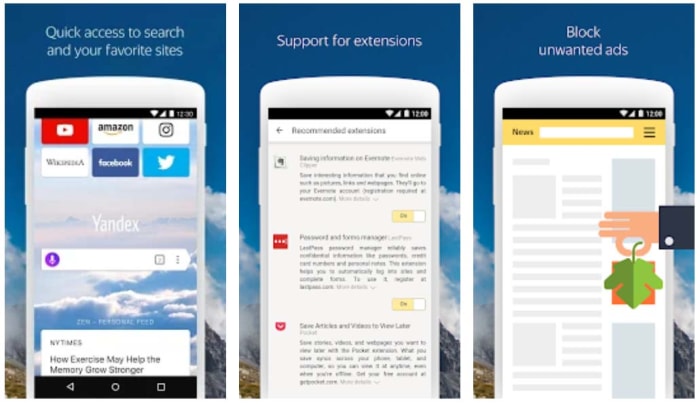
Another option for installing Chrome extensions on Android is to use Yandex Browser. Yandex is another popular web browser built from the Chromium code. Again, just like with Kiwi, Yandex also lets you use desktop Chrome extensions on your mobile browser.

Yandex browser

To install Android Chrome extensions using Yandex you need to download Yandex browser. Then open Yandex and go to the Chrome Web Store by typing chrome.gooogle.com/webstore into the address bar and hitting enter. All you have to do then is search for the Chrome extensions you want to use on your Android mobile and hit ADD TO CHROME.

Kiwi Browser Download now
8

Yandex offers an easier path for installing Chrome extensions on Android. It is very popular too and has a positive rating on the Google Play Store with over 1.5 million reviews.

Other options for installing Chrome extensions on Android

If you feel a little uneasy surfing the web on a lesser-known web browser, Yandex is developed by Яндекс, you might want to consider other options. Unfortunately, however, there aren’t any other reputable options out there. Kiwi and Yandex are the most trustworthy web browsers that allow you to install Chrome extensions on Android.

There could be good news on the horizon, however. Microsoft has recently taken the leap to Chromium too. The Microsoft Edge browser, which despite being well-reviewed never really achieved much success as an HTML independent browser, is currently being developed into a Chromium-based browser.

6
The idea of Microsoft Edge is to be as fast, clean, and lightweight as possible to cope with the demands of different devices, whether it be a PC, tablet or phone.

In fact, the beta version of the Chromium-based Microsoft Edge browser is available right now. Furthermore, it has also been confirmed that this new Microsoft web browser will support Chrome extensions as well as Edge plugins. This means that when the full version of the Chromium-based version of Microsoft Edge launches, you’ll still be able to use all your Chrome extensions on the web browser. If Microsoft then launches a mobile version of its new web browser, it would provide a much more reputable place for you to install your Chrome extensions.

Unfortunately, however, at the time of writing, Microsoft has no plans to launch its Chromium-based version of Microsoft Edge on iOS or Android. If this situation changes, however, we’ll be sure to let you know how to install your Chrome extensions on Android and iPhone using the new Microsoft web browser.

Wrapping up

As you’ve seen then, installing Chrome extensions on Android is a bit of a funny business due to the Android version of Chrome not officially supporting Chrome extensions. The Chromium code does, however, which is why we’ve been able to show you two great options for installing Chrome extensions on your smartphone.

As one of our main missions here at Softonic is to keep you safe when you’re online, we thought we’d raise the issue of the developers behind the apps we’ve mentioned. You can rest assured, however, that we wouldn’t have recommended them for this process if we weren’t sure that they were safe to use.

Photoshop for free? The best free alternatives

You don’t need to fork out lots of cash to get Photoshop like editing features. These are the best free alternatives to Photoshop

Best free photoshop alternatives

Adobe Photoshop’s established position as the number one image editing and photo-editing program for Windows and Mac is so strong that many people don’t even bother searching for alternative options. It is Photoshop or nothing. It doesn’t have to be that way though. Many Photoshop features are pro-level features, which means many of us will never know or understand how to use them. Furthermore, there are plenty of alternative photo editing programs out there that can do all the basic editing you need to do.

It isn’t just about getting simplified versions of Photoshop neither. There are great alternative programs out there that can offer comparable tool sets to that offered by the Adobe program. Oh yeah, we forgot to mention. A lot of these alternatives to Photoshop won’t cost you a penny. They’re completely free. Let’s not waste any more time then, these are the best free alternatives to Photoshop.

Free alternatives for Photoshop

GIMP

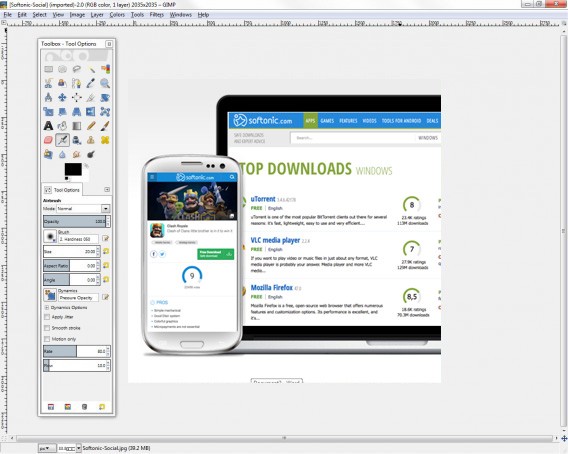
We’re starting off with a big dog here. GIMP, which stands for Gnu Image Manipulation Program is the most fully formed and arguably most well-known Photoshop alternative there is. GIMP is like an open source Photoshop developed by a global team of volunteer developers to work on Microsoft Windows, Linux, and Apple Mac. It has an extensive set of features to rival what even Photoshop has to offer and can edit a wide range of file formats including RAW files. This means GIMP is a pro-friendly alternative to Photoshop with features like layer masks and filters enabling photographers and graphic designers to get their work done. GIMP is also a customizable photo editing software as users can download add-on packs to add the extra features they need.

8

PIXLR

Pixlr

The PIXLR editor is an interesting photo editor because it is browser based, which means you can use in on all platforms via a modern web browser like Google Chrome or Mozilla Firefox. Impressively, despite this PIXLR offers a photo editing experience that rivals and indeed betters many of the downloadable alternatives. The PIXLR image editor also has a very similar layout to Photoshop meaning you’ll likely pick it up quickly, if you’re used to using the Adobe program. PIXLR also comes as a mobile app for Android and iOS iPhones and iPads.

PIXLR Download now
8

Squoosh

free photoshop alternative by Google

Squoosh is another browser-based photo editing program, although it offers a much more limited set of features than PIXLR or Gimp. Designed by the Google Chrome Labs team, Squoosh is designed to help you convert and optimize your images for publication across a wide variety digital platforms. If all you need to do is resize your image or make basic changes to the color palette then Squoosh is a good option that won’t intimidate you with a huge number of unknown features and buttons.

Paint.NET

Do you want the photos you share to be breathtaking - Paint.net

Another good free alternative to Photoshop that isn’t overly complicated is Paint.NET. If you’re an amateur photographer or if you’re looking for an image manipulation tool for a one-off project, then Paint.NET could be the option you’re looking for. That is unless you have a MAC as Paint.NET is only available on Windows. Paint.NET has a much gentler learning curve than GIMP while still offering, via plugins, access to a wide range of features including filters, masks, and layers.

Paint.NET Download now
8

Krita

The Best Free Alternatives to MS Paint krita

Like GIMP, Krita is another piece of open-source editing software. Krita works on Linux, Windows, and Mac but offers a lighter experience than GIMP even though it has received a lot of new features in recent years. Krita features include the ability to create and edit HDR images, which is a rather advanced feature and a wide array of brush customizations. This makes Krita a great program for digital illustrators.

Krita Download now
8

SumoPaint

Sumo Paint

SumoPaint is a very popular and very capable alternative to Photoshop. One limitation, however, is that it can’t work with the standard Photoshop PSD file. SumoPaint has all the usual features including text gradients, brushes, and whatnot and works with many different types of images including JPEG, BMP, GIF, and TIFF.

Sumo Paint Download now
9

PicMonkey

PicMonkey is another online photo editor that aims for the more socially-minded users. The interface is very simple and makes it very easy to perform basic edits and add text overlay and filters. PicMonkey isn’t going to rival Photoshop but it does offer simple editing mechanics and so isn’t too hard to get into. You can download it as an app on Android or iPhone and it also has a Google Chrome extension too.

PicMonkey Download now
8

Inkscape

Inkscape

A much more professionally minded piece of software built with graphic designers in mind is Inkscape. Inkscape is great for illustrators as it is optimized to work with vector images. Inkscape provides a great way to transform photos into vector images but it also has a range of more customary features like cropping and cutting and pasting. Technically, Inkscape is more of an alternative to Adobe Illustrator rather than Photoshop but it is still worth a mention.

Inkscape Download now
7

Photopea

Photopea

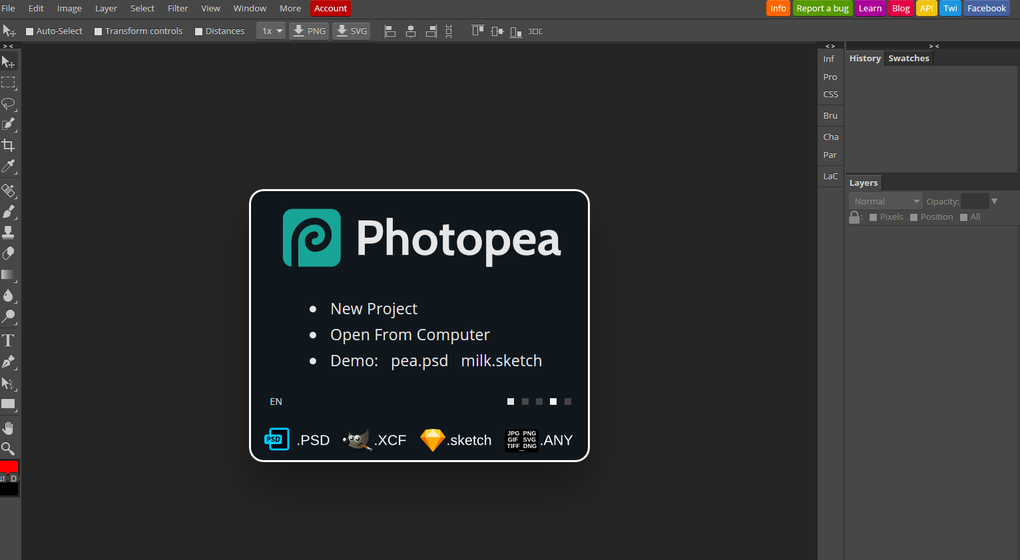
Our final entry into this list is Photopea, which is another online photo-editing tool. Photopea looks very similar to Photoshop and even works with the standard Photoshop PSD file meaning you could work across the two platforms if needs be. Photopea also has many advanced features like vector graphics support and advanced layering meaning it is a credible alternative to Adobe Photoshop. The main problem, however, is that the program is funded by ads. This means you’ll either see a lot of ads that will encroach on your work surface or you’ll have to pay a $9 per month subscription to get rid of them.

Photopea Download now
8
Wrapping up

There you have 9 great free alternatives to Photoshop. The important thing here is to consider what type of photo editing project you need to work on. If you’re looking for a program to perform basic image editing for social media then a program like Squoosh, PicMonkey, or Paint.NET could be all you need. If, however, you need a more rounded experience that you could use professionally, you should definitely look into the likes of GIMP, Krita or PIXLR.

Best plugins for Microsoft Word

These Microsoft Word Plugins will help you save time and take care business.

We’ve recently been looking into the best templates for Microsoft Office applications and also particularly looking at the best templates for Microsoft Word. Templates aren’t the only tool available, however, to augment your Microsoft Word experience. Like with browser extensions plugins, or add-ins as their known for Office apps, can add particular features to your version of Microsoft Word.

There are many different types of Microsoft Word plugin so let’s go through some of the best available. A lot of these add-ins will also work on Excel, Outlook, and PowerPoint.
Microsoft Word 2016 Download Now
9

Plugins for Microsoft Word

In past versions of Office, add-ins used to be called Office apps and in many ways that describes them rather well. Mini Office programs that add specific features to your Office documents. Think about having to find a certain image or maybe signing an electronic document and you’ll get an idea of what Microsoft Word add-ins can do.

Where to find Microsoft Word add-ins

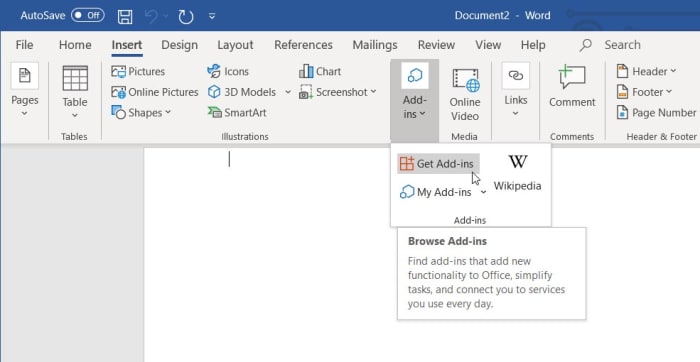
how to find add-ins for Word

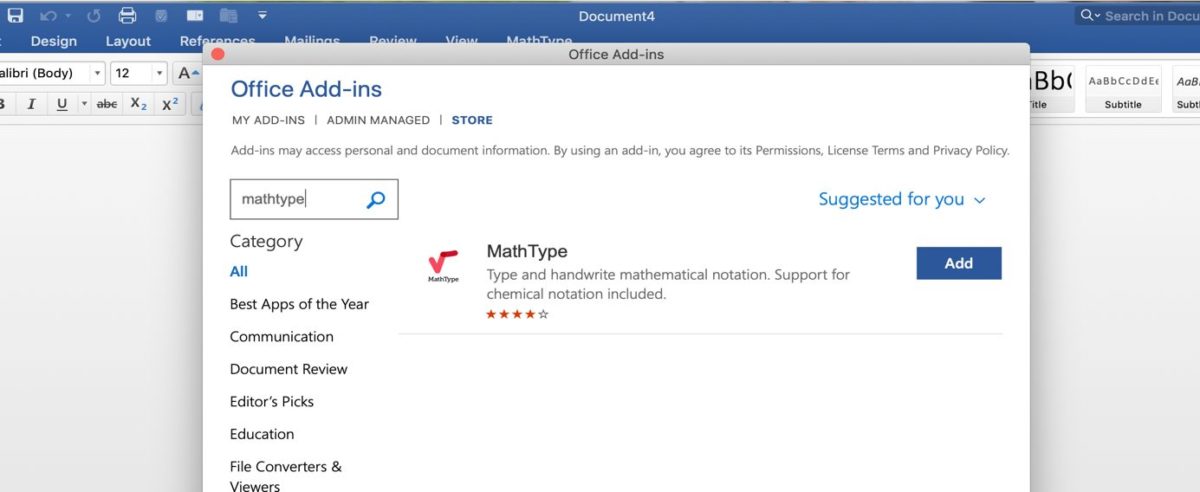
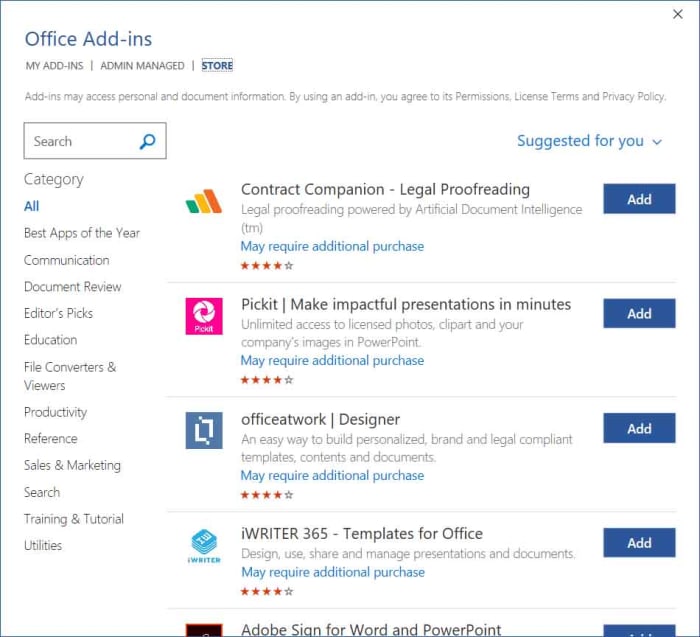
There is an official Microsoft Office store for add-ons that can be found in the Insert tab in the main menu ribbon that runs across the top of the latest version of Microsoft Word. If you’re running Word as a part of an Office 365 subscription, you’ll have the latest version and so once you’ve clicked on Insert you should see the Add-ins option. Clicking this will show you the Get Add-ins button, which will open the store when clicked.

Choosing the right add-ins for Word

Office add-in store

Just like with any app or browser extension store, you need to tread carefully when installing add-ins on Microsoft Word. Not all add-ins will work as well as each other and some could even cause problems. This means you need to pay attention to the add-ins Names and more importantly Ratings.

The most useful plugins for Microsoft word

Wikipedia Word add-in

Wikipedia Word add-in

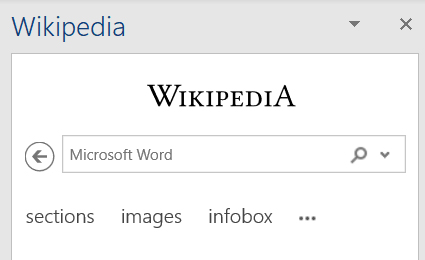
The Wikipedia add-in for Microsoft Word adds a handy encyclopedia widget to your word processing. You can search Wikipedia entries by typing into the search bar, which is found to the right on new documents or you can simply highlight text while the add-in is active, and it will automatically search for the highlighted text. Images and tables will be minimized but still form a part of the Wikipedia entry and can be opened up simply and quickly.

Wikipedia Word add-on Download now
9

Emoji Keyboard

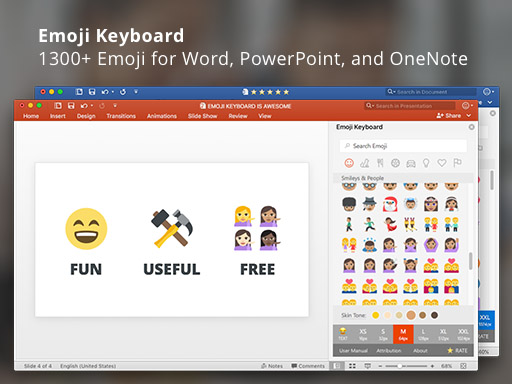
Emoji keyboard add-in

If there is one way that smartphones have greatly excelled over laptops and PCs in recent years it is through the seamless integration of emojis. On your phone, extensive libraries filled with all manner of different types of emoji lie just a simple tap away. The Emoji Keyboard add-in for Microsoft Word puts this capability on Windows PC and Mac too.

Emoji Keyboard Download Now
9

Handy Calculator

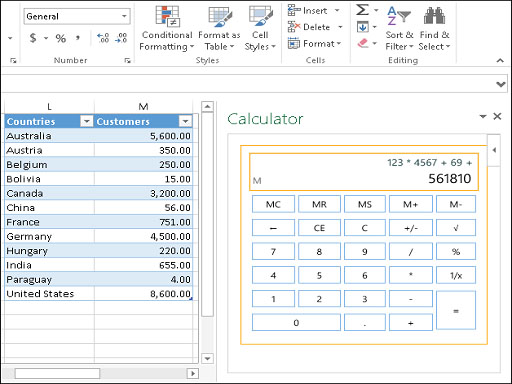
Word addin handy calculator

The Handy Calculator Word add-in is simple enough but very useful. It adds a basic calculator function to Microsoft Word that works right there in the app. There is no need to open a separate calculator program, which could save you time opening new apps and then flipping between them while you get on with your work. Also, as well as a regular calculator the Office add-in store at office.com has lots of different types of calculator add-in including a BMI calculator, a VAT calculator, and even more complicated tools like a benefit-cost analysis calculator.

Handy Calculator Download Now
9

DocuSign for Word

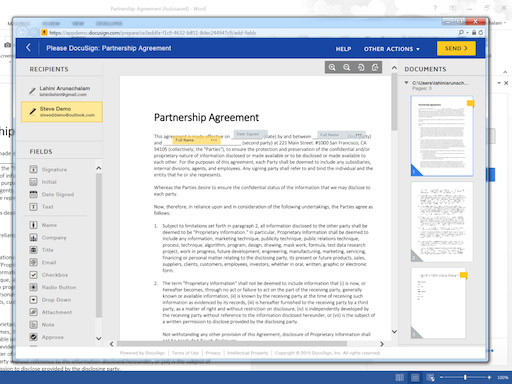
Docusign word add in

Giving consent is simple enough on a physical document. You simply scribble out your signature and you’ve consented to whatever is written in the text on the document. It isn’t so simple on digital documents when you don’t have a pen and most people use standard input devices like keyboards. This is where the DocuSign for Word plugin comes in. It offers an easy, in-app way to add eSignatures to your Microsoft Word documents.

DocuSign for Word Download Now
9

OfficeMaps

officemaps plugin

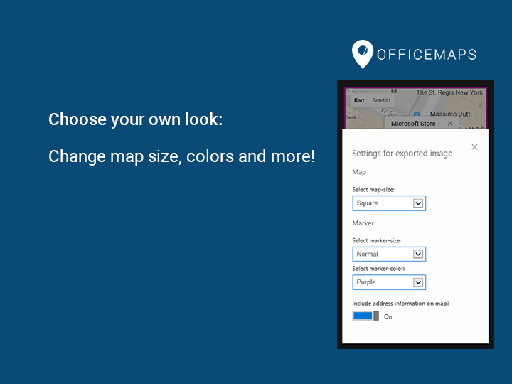
The OfficeMaps add-in for Word makes it very easy to add images of maps into your documents. If you’re making flyers, posters, invitations, or any other type of document that could benefit from having a map, this Word plugin will save you time and effort. All you need to do is search for the location in question and then add the map to your document.

OfficeMaps Download Now
9

Grammarly

grammarly for office

Grammarly works like an AI-augmented extension of Word’s in-built spelling and grammar checker. Although, the best Grammarly services require a paid subscription the free option still marks an improvement over the basic Word checker. It’ll also learn from you the more you use it.

Grammarly for Microsoft Office Download Now
9

Pexels

pexels word addin

Pexels is a library of free stock imagery that you can use for any document that you’re working on that need visuals. The Pexels add-in for Word adds this library to Microsoft Word so that you search the stock images without having to leave Word or open your web browser. Another Word add-in that offers access to an extensive library of free-to-use stock imagery is Pixabay Images.

Pexels Download Now
9

Icons by Noun Project

icons by noun project for word

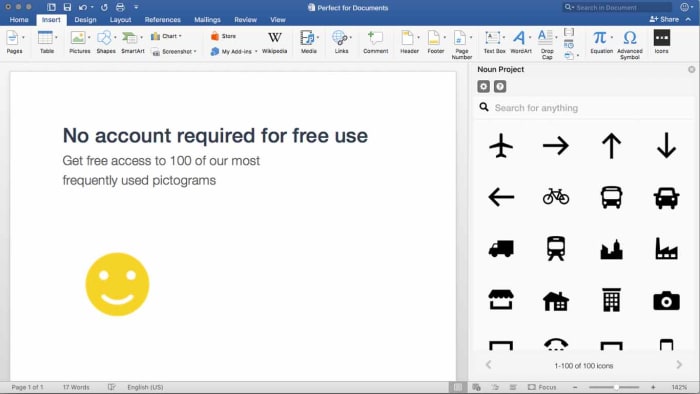
The final Word add-in we’re going to highlight today works a little like the Emoji Keyboard. The Icons by Noun Project Word plugin makes it very easy to add icons and symbols to your documents, which normally would be difficult to do using just your keyboard. With the Word add-in installed, all you need to do is search through the database of icons and then click the one you want to add it to your document.

Icons by Noun Project Download Now
0

–

Just like with browser extensions, Word plugins are built to help save you time, make life easier, and most of all keep you in the same app. We’ve highlighted our top Word plugins that will do all of those things. Some Word add-ins offer simple extensions to your Word experience but others, like the Emoji keyboard and Icons by Noun Project, offer elegant solutions to the new types of problems that have materialized since we started using smartphones as much as we use our PCs. Other good add-ins worth your attention are Font Finder, Consistency Checker, Myscript Math Sample, Woodpecker, and Abbreviation List.

We hope you like the Microsoft Office add-ins we’ve recommended and would love to hear about any add-ins you like, which we haven’t mentioned. Let us know all about them in the comments below.

Best templates for Microsoft Word

We’ve together a list of all the best places to find many different kinds of template for Microsoft Word.

The best templates for Microsoft Word

Templates are pre-formatted Microsoft Office files that make it easy for you to create professional-looking documents in no time at all. No matter the type of document you want to create; certificates, invoices, budgets, shopping lists, posters, flyers, etc., with templates all the design work is done for you. The only thing you need to do is put the information you want into the document at hand. Easy peasy.

There are lots of different types of Microsoft Office templates. There are templates for Excel and templates for PowerPoint etc. but the most popular Office app templates are for MS Word. There are more types of Word templates than for the other Office programs. Let’s take a look then at the best free Microsoft Word templates.

Microsoft Word 2016 Download Now
9

Free Microsoft Word templates

Microsoft Word templates for resumes

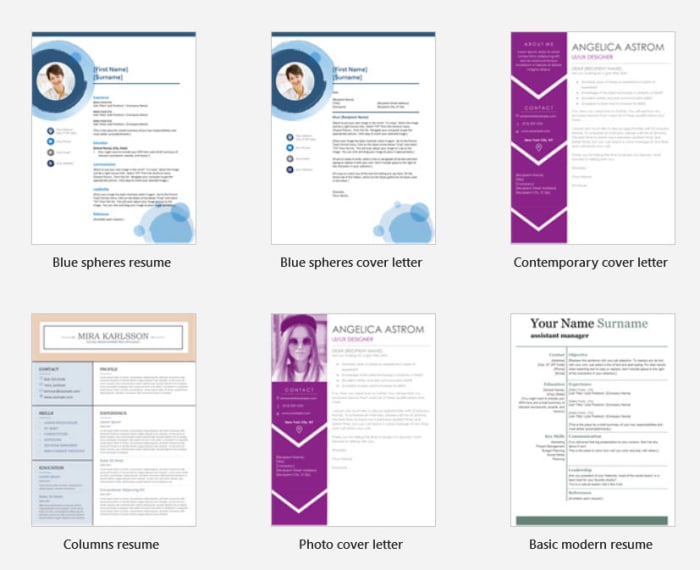
Resume templates are special Microsoft Word documents that are amazing tools for any aspiring job seeker. They make it easy for you to layout your employment history and education background in an eye-catching manner. There are a lot of great places to find free Microsoft Word templates for resumes online and below we’ve listed some of the best.

Resume templates for Word

A great place to start is office.com, where you’ll find many professionally designed resume templates. At office.com you’ll be able to find many different types of resume template. It has options ranging from simple, more traditional resumes with basic text formatting to full color, modern marvels complete with imaging and innovative design principles. You can also find templates for cover letters too.
Another good source of .dotx Word templates for resumes is Go Skills. There you can choose your favorite from 50 resume templates. No matter the job you’re looking for, Go Skills should have the right type of resume.

The final source of free resume templates for Microsoft Word we’ll mention is freesumes.com. At freesumes you’ll have access to over 150 resume templates. All you have to do is find the right one for you, hit download, unzip the template file, and then open it as a new document.

Microsoft Word templates invoice

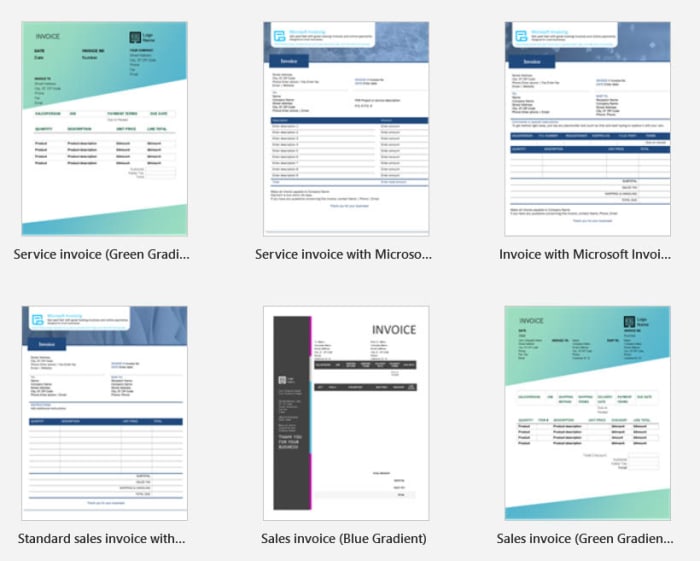
Again, you’ll find invoice templates for Microsoft Word at office.com, but let’s have a look at some of the other places where you’ll be able to find free Microsoft Word templates for invoices.

Microsoft word templates invoices

Smart Sheet is an excellent online source of many different types of Microsoft Office templates. As well as having invoice templates for Excel, Smart Sheet also has many different types of invoice templates for Word. There are different variations of blank invoices, past due invoices, and invoices for different types of business, like Freelance Writer invoices and Web Design invoices.

Another great template library for Microsoft Word is the Template Archive. There you’ll find 50 different service invoice templates for Word. These include simple text-only invoices but also more ambitious designs that give you the chance to add branding, color, or background imagery. If you’re looking for invoice templates because you’re starting your own business, you’ll be glad to know that Template Archive also has templates for business cards too.

Microsoft Word templates calendar

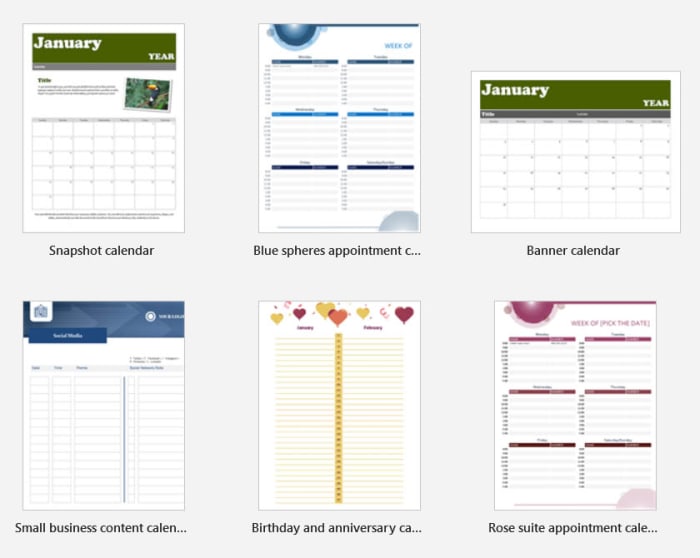
Personal calendars are fun to make, and Microsoft Word is an excellent tool for making your own calendars. Using templates makes it even easier by doing most of the hard work for you.

Calendar Labs has a lot of different types of printable calendar templates for Microsoft Word. Remember when you’re downloading your calendar template to make sure you download the right year as otherwise your days and dates will be off.

Word templates for calendars

Another good source of Word templates for calendars is Calendarpedia. The website looks like it could do with a modern design overhaul, but it has many different types of calendar templates from weekly schedules to 3-year calendars.

Microsoft Word templates for labels

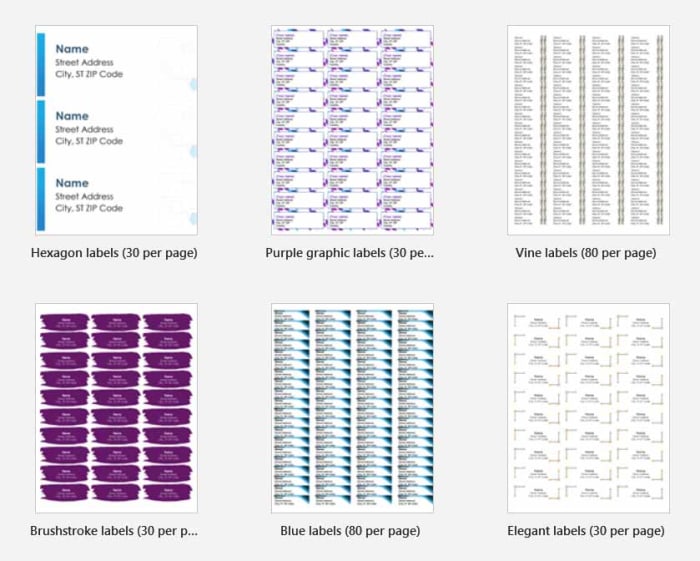
Making clear and easily understood labels on Microsoft Word is easy to do if you use the right templates. Fortunately, there are lots of great places where you can find them.

A good source for all things label-related is wordlabel.com. There you’ll find walkthroughs on how to create your own new template for labels using Microsoft Word, but also an extensive library of ready-made templates too.

word templates for labels

At Online Labels you’ll find over 350 different label templates that you can download and then use with Microsoft Word. Whether you need to print a single label or batches of thousands you’ll be able to find what you’re looking for at Online Labels.

Microsoft Word templates for brochures

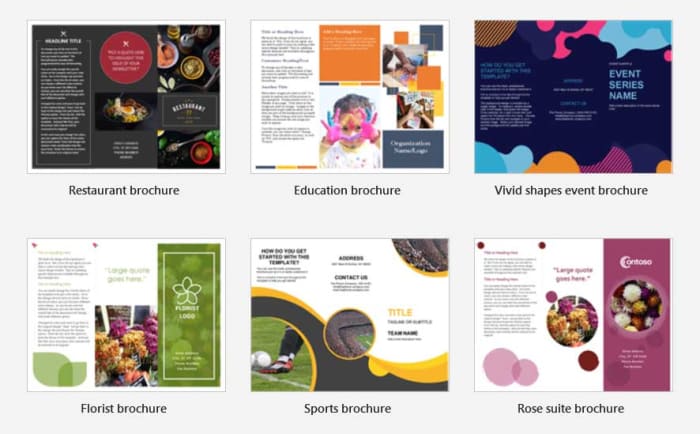
The final type of Microsoft Word template we’ll cover is templates for brochures. Many printing companies offer Microsoft Word templates for creating your own brochures so that you can then take them and have them printed. One such company, offering free Microsoft Word templates for brochures, is Printing for Less. On the Printing for Less website, you’ll find many different types of brochure templates, which you can download for free.

Word template brochures

Another great source of brochure templates for Microsoft Word is the Template Lab. If you’re looking for bi-fold or tri-fold brochure templates for Microsoft Word, you will find many interesting options at Template Lab. There are also other types of brochures like Accordion Fold and Z Fold brochures available too. Furthermore, the Template Lab also offers brochure templates for Photoshop and downloadable PDF brochure templates too.

–

Having recently brought you all the best sources for Microsoft Office templates and today shown you how to find all the different types of template available for Microsoft Word, we hope we’ve been able to help you out with whatever creative project you’re currently working on.

Templates offer a great way for you to give yourself a head start on that job you either need to do or aren’t feeling very motivated to begin. There is no reason to start with a blank document. With the right document template for Microsoft Word or any of the other Office programs, you’re already halfway done by the time you start the job. We hope we’ve helped you get there with this guide.