
How to avoid dangerous Chrome extensions

Chrome extensions just like apps and websites are vulnerable to attack and exploitation. This guide will show you how to avoid the dangerous extensions and stick to the safe ones.

How to avoid malicious Chrome extensions

If you use Google Chrome on a Microsoft PC or Apple Mac, it is over 99% certain that you’ve installed and used at least one Chrome extension. Chrome extensions are those magical little add-ons that can perform all manner of task from simply blocking ads to checking your passwords against databases of known hacked passwords and websites. So far, so good.

It isn’t all sunshine, lollipops, and rainbows with Chrome browser extensions, however, because just like with every other type of digital program or service, hackers and cyber-criminals target Chrome extension users too. Not all Chrome extensions are safe with possible risks including being lured into phishing scams and fake web pages, having your data stolen, or even ending up on the wrong end of a ransomware demand. This means it is important to know how to avoid dangerous Chrome extensions.

7

This is how to avoid malicious extensions on Google Chrome

Much like with apps from the Google Play Store, there are a number of steps you can take to make sure the Chrome extensions you’re downloading are safe. Google does have a verification system for the Chrome Web Store like it does for the Play Store, but sometimes fake extensions get through. Fortunately, however, as the Chrome Web Store and the Play Store are quite similar, there are lessons we can learn on one and apply on the other.

Only download extensions from the official Chrome Web Store
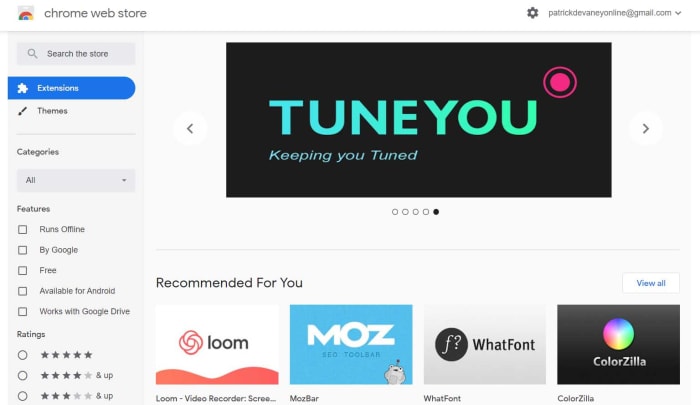
Official Chrome Web Store

Although fake extensions do find their way onto the Store, there are many reasons why it should be the only place you go to download extensions. The way the store is set up forces developers to share information about themselves and also gives other users the chance to comment on the validity of the extension you’re thinking of downloading. If you download an extension from somewhere else, not only are you massively increasing the likelihood of downloading something malicious straight off the bat, you’re also denying yourself the chance to run through all the verification steps we’ll outline below.

Check the developer
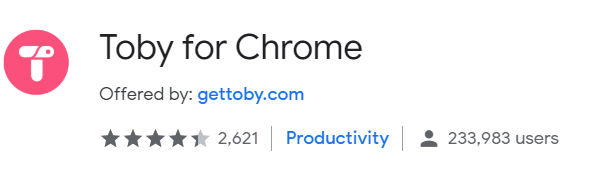
Developer screenshot on Chrome web store

The developer of any extension will have to post their name next to it. This will also link to any other extensions they might have made. If you have doubts about a certain extension or if it is promising something that is too good to be true, check the developer. If the developer doesn’t have any other Chrome extensions on the Web Store, this should set alarm bells ringing. If the developer does have other extensions check them out. You should do this to well-known extensions too as there are many fake extensions on the Web Store too.

Read reviews
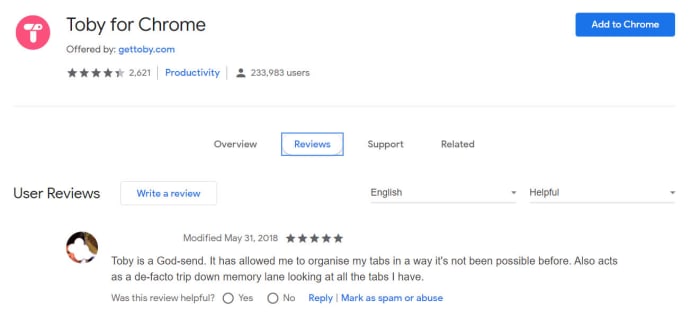
Reviews on Chrome Web Store

You should do this on the extension you’re thinking of downloading but also look at reviews for any other Chrome plugins the extension’s developer has made too. User reviews offer an invaluable resource to any security conscious individual. If you see things like Didn’t do what it was supposed to… or This is a virus… then you know to stay away. Generally, reliable extensions will have ratings of 3.5 stars or above across many hundreds or sometimes even thousands of reviews.
Check out the permissions

Check permissions on Google Chrome Extensions

Small print is a massive hole in our online security. More often than you’d think, we give cyber-criminals the permission they need to access all the information they’re after. In fact, many fake extensions end up in the Chrome Web Store with the sole mission of having users give all sorts of crazy permissions. When you’re downloading a Chrome extension look at the permissions it is asking for. If it is asking for permissions that don’t really fit the task it is supposed to carry out, think twice about installing it.

Regularly check your extensions are working normally

Developers sell Chrome extensions all the time. This means that the extension you installed, loved, and forgot about years ago may now belong to somebody else. Normally, when an extension is sold it is for monetization purposes. Basically, people buy extensions that have a lot of users and then turn them into adware. To stop yourself falling victim to this check your extensions. You should also check the most recent reviews as these will be most likely to reflect any major changes that will have occurred since you first installed the extension.

Do you really need the extension?

The other thing about extensions is that they’re very easy to install. This means you may have installed many extensions you don’t actually need. When you’re about to install a new Chrome extension, pause to think about whether you actually need it. If you’re convinced you are, then run through the checks outlined above and then if it passes, install it.
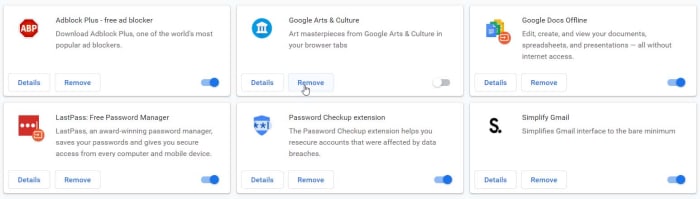
Delete unused extensions on Chrome

This isn’t to say you can’t download extensions for a bit of fun. As long you’ve checked an extension you can download it for whatever reason you wish. The key thing to remember here is that due to the previous point, having extensions that you don’t actually use installed on your Chrome browser leaves you open to potential exploitation. Download and use the extensions you need but if you have any you never use, get rid of them.

Wrapping up

So, there you have it. Chrome extensions are vulnerable to exploitation just like everything else that we can download and install onto our devices. Fortunately, however, if you stick to downloading and installing your Chrome extensions from official channels, there are plenty of ways you can verify the validity of the extensions you’re considering downloading. This means that the first and most important step to avoid dangerous Chrome extensions is to only ever download them from the Chrome Web Store. If you do that, you’ll always have a few simple steps to carry out to keep yourself safe online.
Why Chrome uses so much RAM and how to make it use less

This all you need to know about why Google Chrome uses so much RAM and what you can do to reduce Chrome’s RAM usage.

If you’ve ever used Google Chrome, you’ve probably seen your Windows PC or Mac slow down considerably. This is because Chrome is famous for using a lot of RAM. If you go to your Task Manager right now, you’ll likely see that Google Chrome is using more of your system’s RAM than any other program.

Today we’re going to walk you through why that happens and then show you some tricks you can use to help cut down on Chrome’s RAM usage so that your browser and system can work efficiently. As smartphones like Android handsets and Apple iPhones and iPads work a little differently to desktop PCs, we won’t be looking at them with this article.

7

Why does Chrome use so much of your computer’s RAM?

Chrome uses RAM in just the same way as any other app, program, or piece of software. It uses your system memory to store various processes while it performs the tasks that you and the websites you visit set it. This means that if you were to open Chrome on its own it wouldn’t actually require that much RAM, not much more than other web browsers like Microsoft Edge or Mozilla Firefox anyway. It is only when you start browsing the internet that Chrome’s bumper RAM requirements quick in. Modern websites have more fluid and interactive elements than ever before, with each requiring a lot of processes and therefore a lot of memory to perform. This is then amplified when you consider how we use the internet these days.

More Tabs = More RAM

Too many tabs open

We now think nothing of having a lot of websites open at the same time using Chrome tabs. The thing we don’t consider, however, is that every open Chrome Tab needs about 50MB of RAM to operate normally. Yes, that does say MB, which is so 90s I know, but look at how many Chrome tabs you have open right now. Ah, now you understand. It is easier than ever to browse multiple web pages at once and when your Chrome memory usage is going up in multiples of 50 things add up fast.

How to reduce the amount of RAM the Chrome browser uses

Chrome’s experimental features

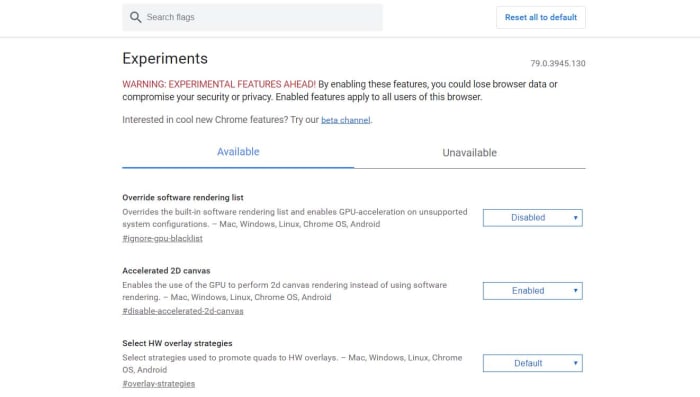
Google Chrome has a number of experimental features called Flags. These Flags might be what the Chrome team is planning to introduce with future Chrome updates, or they might just be pet projects of individual team members. Some of them have been designed to help Chrome users limit Chrome’s memory consumption. You can access the Google Chrome Flags menu by copy and pasting chrome://flags/ into Chrome’s address bar.

The best Chrome Flag to help you reduce Chrome’s RAM usage is Tab Freeze. When enabled, Tab Freeze will suspend all eligible Chrome tabs that have been inactive for more than five minutes. They’ll reload when you open them again, but until that time they’ll sit dormant and won’t use any of your system’s RAM.

Extensions Toolbar Manager is another Chrome Flag that you should think of installing if you have many different extensions on Chrome performing many different tasks. Extensions can be process heavy, which means the more you have the more pressure they place on your system. The thing is, however, you might not them to perform their processes all the time. Enabling the Extensions Toolbar Manager Flag will shrink all your extensions icons into a single menu. This will then make it much easier to disable them when you’re not using them so that you can use the RAM for something else.

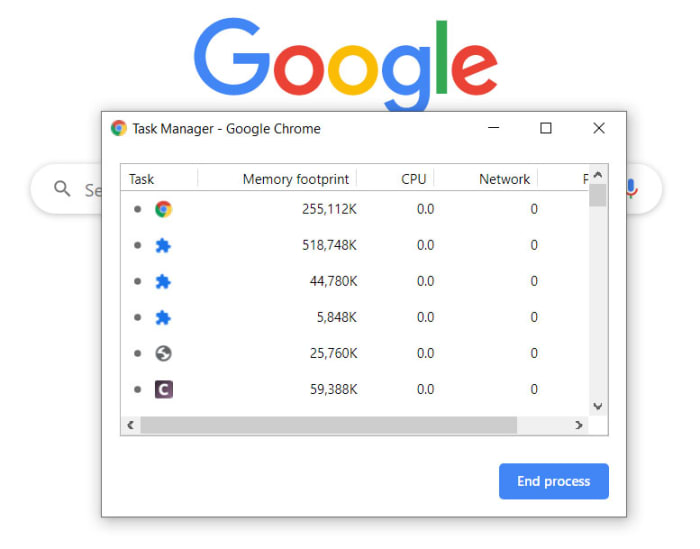
The Chrome Task Manager

Just like Windows has one, Google Chrome has a Task Manager too. You can activate the Google Chrome Task Manager by opening Chrome and then hitting the Shift + Esc keys at the same time. Unfortunately, that hotkey only works in Windows, so if you’re using a Mac, you’ll have to go into the Window menu.

The Chrome Task Manager

Once you have the Chrome Task Manager open, you’ll be able to see each individual task that Chrome is running and shut down the ones that are hogging up all your RAM. If you have extensions that use a lot of RAM and your system is struggling, get rid of them. Another you’ll be able to do here kills any open tabs that might be using too much RAM also. Sometimes tabs might not be working exactly as they should, or the content they’re displaying may be putting excess strain on your system resources. The Task Manager will show you exactly how much system memory each tab is using and if one of them is using a lot more than the rest of them, close it.

Chrome Browser Extensions

If you find that the Chrome Flags haven’t done enough and you’re still having problems even though you know how to access the Chrome Task Manager, then maybe you should head to the Chrome Web Store and think about installing some Chrome extensions that will help you manage and reduce Chrome’s RAM usage better.

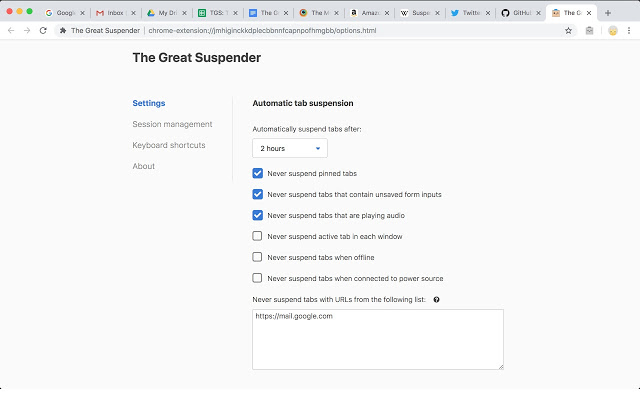
The Great Suspender is a fantastic Chrome plugin that will deliver effective results quickly. It works by giving you a number of options including setting time limits for how long tabs can remain inactive or unused before the extension will freeze their operation. When the tabs are frozen they’ll no longer put a strain on your system’s resources, which should see an upturn in performance, if you’re pushing your system’s limits. The tabs will appear dimmed when inactive and will then simply reload again when you open them up again.

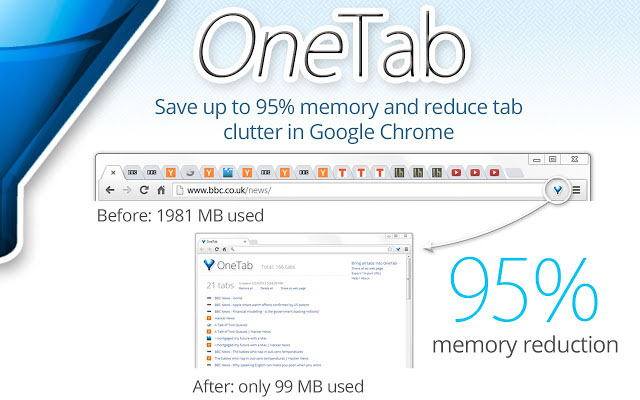
One Tab is another great Chrome extension that promises a massive 95% memory reduction against Chrome browsers that don’t have the extension installed. When activated all open tabs are shrunk down to a single tab, which then shows a list of all tabs. They’re all right there ready to go, they’re just not using all your system’s RAM anymore.

Wrapping up

Now you know why Chrome uses so much RAM and how to reduce its RAM usage. It is important to note, however, that you should only really limit Chrome’s RAM usage if it is causing a problem. If you have RAM to spare while Chrome is running full blast and it isn’t affecting your browsing experience, leave it that way. If not, which will happen more and more if your device has 8GB of RAM or less work your way through the tricks outlined above?

All the best apps to track your favorite TV Shows

Keep on top of all your favorite movies and tv shows with these top tracker apps.

Best TC Show Tracker apps

You could almost say that we’re overrun with TV shows these days. There’s just so much new content hitting streaming sites like Netflix, Amazon Prime, and HBO Now that sometimes we can end up feeling a little lost. This is even before you have to consider regular TV that simply airs TV shows whenever the hell it wants to. You either watch them or you miss them, it’s that simple.

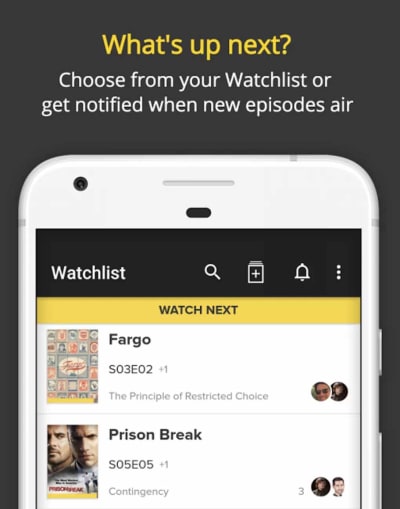
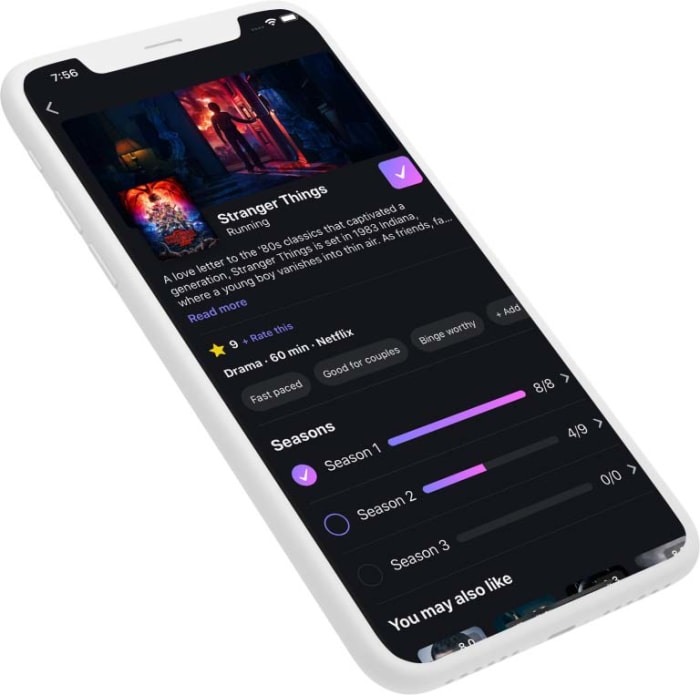
So, yes, we are living in a golden era of TV and video, but it’s easy to feel like you need help keeping on top of all the excellent content that’s available. Well, that’s where TV trackers come in and today, we’re going to walk you through all the best apps that will help you track your favorite shows. These are some of the top picks. Head on over to Binge.co for a complete list of TV Tracking Apps.

Best TV Show tracker apps

Trakt

Trakt tracker

You could say that Trakt is the ultimate TV tracking app because it works across a whole host of platforms including Kodi, Plex, Netflix, VLC, Android, iPhone, and Windows as well as many more. Strictly speaking, however, it isn’t an app but rather the code that powers many other apps.

Trakt uses what it calls Scrobbling to automatically track your TV shows if you watch using one of Trakt’s integrated platforms. You’ll also find features that allow you to rate what you’re watching and debate and share your views with other users too.

Next Episode

This fantastic app is available on both Android and iOS. It isn’t an app version of the classic track from Dr. Dre’s massive 2001 album, but it is something just as good. Next Episode has an easy to use interface and offers personalized recommendations based on your viewing preferences. Next Episode also brings in a social aspect to things by making it possible for you to track what other users of the app are watching too.

Next Episode for Android Download now
8
Next Episode for iOS Download now
8

Just Watch

Just Watch is a website and mobile app that offers comprehensive listings for pretty much every single streaming service you can imagine. It is easy to use with all listings being just a click away, and comprehensive breakdowns of content into categories including genre, age rating, rating on IMDB and Rotten Tomatoes, and release year. All content is then laid out in a simple timeline showing when each title was added to the streaming service.

What’s also great about Just Watch is that you can sign up and create an account to access even more features. The best of these, without doubt, is the ability to answer questions about your viewing tastes so that Just Watch can then make better recommendations about new content you should watch.

Just Watch for Android Download now
8
Just Watch for iOS Download now
8

TeeVee 3

TeeVee 3 is a fantastic looking app for iOS iPhone and iPad that really makes the shows you’re keeping track of pop out the screen. The best feature TeeVee 3 offers anybody who is looking to track their favorite shows is the ability to export shows to the Apple Calendar. What’s even better is that once you do so, the app will then block all spoilers from future show descriptions.

TeeVee3 Download now
8

TVTime

TV Tracker app

Both Android and iPhone users can download TVTime and get their hands on a great TV tracking app that also gives them the ability to review the shows they’re watching and read other user reviews too. Users can also find articles about their favorite shows, as well as podcasts and related videos. The main crux of the app, however, is the ability to build yourself a Watch List that TVTime app can then track for you. The app also allows you to see shows that are coming soon to various networks and streaming services.

TV Time for Android Download now
7
TV Time for iOS Download now
7

Series Addict

As you’d expect from the name, Series Addict is a great app for anybody who can’t stop watching their favorite shows. It looks great and brings you detailed overviews of your shows, as well as an easy to set up personal TV Guide that will tell you where you’re up to with all your favorite shows and what episode you should watch next. Unfortunately for all iPhone and iPad users, however, Series Addict is only available on Android smartphones.

Series Addict Download now
9

Seriesguide

If you want to keep track of which shows you’ve watched and which you haven’t, you can’t go wrong with Seriesguide. The app is well designed and easy to navigate meaning it isn’t difficult getting yourself set up and all your favorite shows into the system. You can then keep track of all the episodes you’ve watched and even rate them and leave comments if you connect your app to trakt.tv. Seriesguide also allows you to keep an eye on upcoming releases.

SeriesGuide Download now
7

Hobi

hobi app tv tracker

With so many big apps in this list offering all sorts of super features and interconnectivity, we’re glad to add a much smaller, more lightweight, and easier to use the option in Hobi. You download Hobi onto your iPhone or Android smartphone, you tell it all the shows you like, and then it sends you notifications whenever new shows are about to air. You can also take control of Hobi notifications and tell the app exactly how long in advance you want to know about upcoming apps.

Hobi for Android Download now
8
Hobi for iOS Download now
8
Wrapping up

It can seem like technology is getting ahead of us and making it more difficult than ever to keep on top of our favorite TV Shows. The truth, however, is that there has never been so many tools available for TV fans to track their shows so that they know exactly when they’ll get to see the shows they love. We’ve outlined eight fantastic apps that will allow you to easily stay on top of your TV viewing.

Essential apps to customize your iPhone without jailbreaking it

These apps will give you control over your iPhone operating system

Iphone personlization apps

When you open your iPhone or iPad for the first time you can’t help but be impressed. They look amazing and they have a really premium feel in your hand. It’s the same when you turn them on. Everything just works and you can do whatever you need to do smoothly and easily. For some people though, the experience you get straight out of the box just isn’t good enough. Not even on newer iPhone models like the iPhone X, which have the latest version of iOS 13. If you’re one of those people, this guide is for you.

Today we’re going to walk you through all the apps you can download for your iPhone that will give you a unique experience. You won’t need to jailbreak your smartphone neither. These apps are all available on the App Store and offer some great customization options to iPhone users without the need to take any drastic jailbreaking actions or voiding any warranties. Let’s get started.

Pimp Your Screen - Custom Themes & Wallpapers Pimp Your Screen - Custom Themes & Wallpapers Download now
8

Home Screen Maker

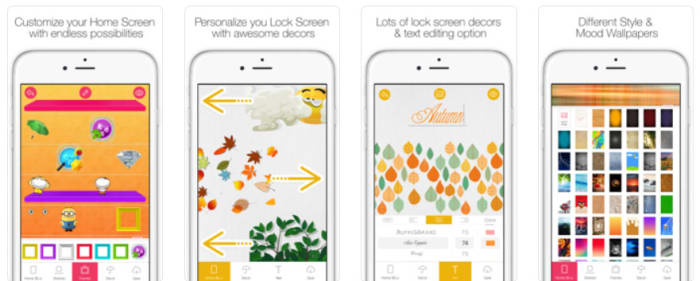
This is another app that allows you to make big changes to how your iPhone looks and feels. Home Screen Maker lets you make custom home screen layouts for your iPhone and gives you an awful lot of control over your home screen. Whereas Pimp Your Screen gives you some fantastic pre-made options, here you get the chance to build your own. What’s also great though, is that Home Screen Maker also offers plenty of ready-made themes too, which you can get via in-app-purchases.

FexyHome - Style your home screen FexyHome Download now
8

Icon Skins Builder

Icon maker on iPhone

This is a great app that offers something a little different to Home Screen Maker. It brings a new element to the idea of putting your apps on shelves as it gives you 3D shelf options and also gives you the chance to put peripheral items on your shelves that will sit next to your app icons. This is a cool idea that has been well executed.

Icon Skin Builder Download now
8

Magic Screen

We have another great home screen customization app here, but Magic Screen brings something extra to the game as it gives you an extensive toolset for customizing your lock screen too. With Magic Screen you can customize text, draw your own shapes and designs using your finger, and even add widgets such as a calendar widget for keeping on top of things without having to unlock your iPhone.

Magic Screen Download now
8

Ringtones for iPhone

ringtones for iphone

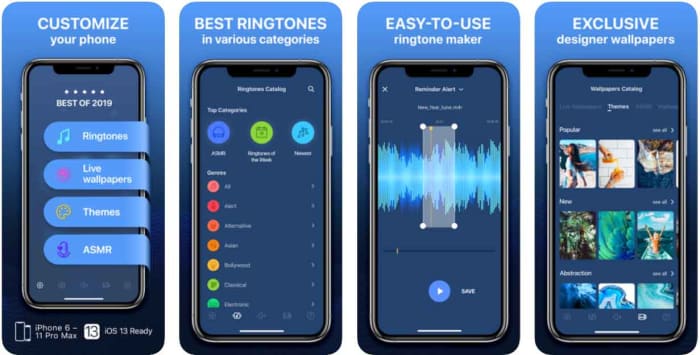
So, now that you’re well versed on customizing how your iPhone looks let’s get into controlling how it sounds. There is no better app for making your own iPhone ringtones and sounds than Ringtones for iPhone. This app has a lot of great features. You can turn any song you have on iTunes into a ringtone and you can even record your voice or a friend’s voice and then convert that into a ringtone too. If you want your iPhone to sound unlike any other iPhone out there, this is the app for you.

Ringtones for iPhone Download now
8

Gboard

Gboard is a fantastic keyboard option for iPhone that gives you the default keyboard Android users get on their phones. It includes cool options like drag typing, which allow you to type words out by dragging your finger across the letters of the word rather than tapping them individually. This offers a whole new element to your Apple iPhone that will make your iOS device feel completely different to other iPhones.

Gboard Download now
8

SwiftKey

SwiftKey for iPhone

SwiftKey was the original app that introduced drag typing before Google also incorporated it into Gboard. As well as offering this new way of typing, however, SwiftKey also gives you lots of different style options for your keyboard including colors and fonts for the letter keys. As the keyboard actually takes up quite a lot of space on your screen, this offers you an extra element of control over the aesthetics of your device.

Swiftkey Kyboard Download now
9
Wrapping up

So, there we’ve been through quite a lot of different customization options for your iPhone. Unfortunately, Apple doesn’t give you quite as many customization options as you’ll find on Android but there’s still plenty for you to look into. Since iOS 11 there have been more options becoming available like GIF keyboard shortcuts, party keyboards, and a dark mode but the truth remains that Android has many more customization options.

Tips to personalize your Gmail account

These tips and tricks will help you personalize your Gmail account.

Tips to pimp Gmail

Gmail like pretty much all other Google products is open to customization. You can take the default Gmail you get when you first downloaded it and change a lot of things about how the Gmail interface looks and feels. You can even customize the Gmail features. There’s plenty you can do straight away without having to download any extra new features, apps, Chrome extensions, or plugins.

Let’s look today then, at how to customize your new Gmail account and make it completely unique.

How to customize Gmail

Inbox layout

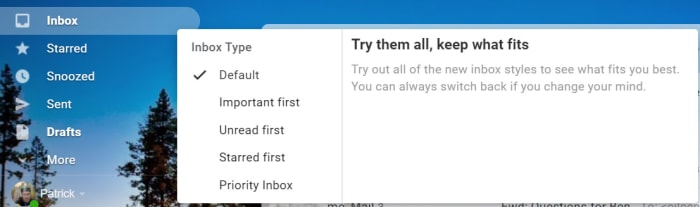
Inbox layout on Gmail

Google gives out some good information on customizing Gmail and the first step it says all users should use is a simple one. You can customize your inbox with a simple click of a button. When in Gmail you can hover your mouse cursor over Inbox and you’ll see an arrow appear that is pointing downwards. Clicking this arrow will open up a menu of all the different types of Inbox configuration Google offers. You can choose between showing DefaultImportant emails firstUnread firstStarred first, and Priority Inbox. Go through each of these and pick which one suits you the best.

This Google Guide will also give you more information about each setting and will also show you how to set up multiple Gmail inboxes.

Make your inbox bigger or smaller

When you download and install Gmail, the default setting is to show 50 email conversations in your inbox. You can actually change how many emails your inbox shows by going to Gmail’s Settings and then searching through the General tab for the Maximum page Show option. Here you’ll be able to set your inbox to display 10, 15, 20, 25, 50, or 100 messages at any one time.

Gmail Themes

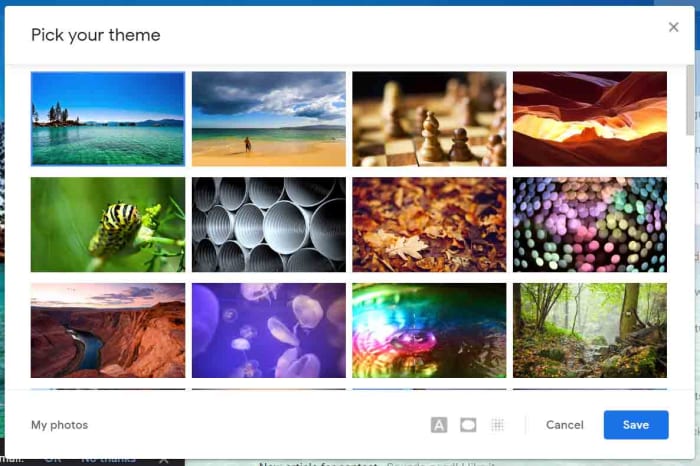
Gmail themes

Another fairly simple Gmail customization you can make is to set a theme that will run throughout your desktop inbox. By clicking the Settings gear icon when in Gmail you’ll open a small menu that will include the Themes option. Here you’ll find all sorts of default images that Google has included for you to choose from. Straight off the bat, setting one of these images as your theme will set you apart from 99% of Gmail users who don’t change anything. If you click My photos, however, in the bottom-right corner you’ll be able to select one of your own photos and really be unique.

Hide the sidebar

Did you know that by clicking the hamburger icon (three vertical lines) in

the top-right corner of your Gmail desktop inbox you can hide the sidebar menu? You simply click the icon and the sidebar retreats to the side of the page, only showing the icons for the likes of your InboxSentDrafts etc.

Customize the sidebar

Customize the taskbar

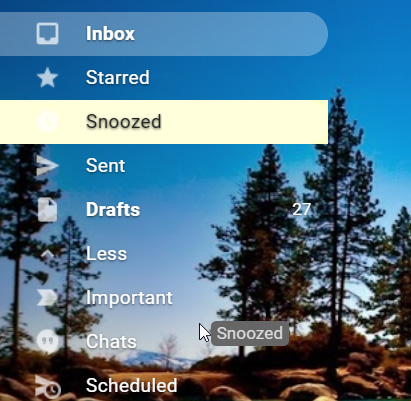
It is also really easy to customize the items in your sidebar. All you have to do is hold down the mouse cursor on a selected item and drag it to the position you want it be on the sidebar. This includes bringing up items that usually sit below the More tab or relegating items that usually sit above it.

Google Hangouts Chat

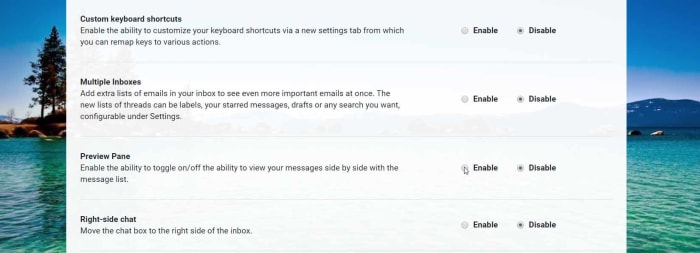
Another sidebar item you can customize is the Google Hangouts Chat window, which technically sits below the sidebar, but you know what we mean. You can move the Chat window to the right side of the app by going into the Gmail Settings menu and hitting the Advanced option. You’ll then see the Right-side chat option and if you click Enable and Save Changes when you reload Gmail the chat box will display on the right side of the app.

The other thing you can do with the Hangouts Chat window is remove it altogether if you never use it. To do this go into the Settings menu again, but this time hit the Chat option. Select the Chat off option, Save Changes, and then when you reset Gmail the Chat window will no longer be there.

Hangouts Chat Download now
6

Make Gmail look like Outlook

Preview Pane on Gmail

The default Gmail inbox has a list of the emails you’ve received complete with the title of who sent it, the subject line, and a little text from the body of the message. You can, however, change this so that your inbox looks a lot more like the inbox Outlook users see when they open their email client. You do this by activating the Preview Pane, which squeezes up the email labels described above and puts an email preview pane in the space this creates. You can then use this to see a preview of an email without having to open it.

To activate this, go to Settings, then Advanced, and then select Enable next to the Preview Pane option. You then save your changes and restart Gmail. If it doesn’t automatically launch with the preview pane enabled, click the preview pane toggle button, which you’ll find at the top of your inbox.

Customize your inbox Tabs

Gmail’s Inbox Tabs, which allow you to set up catch-all mini inboxes inside your inbox have proved a very useful innovation indeed. By automatically segmenting your email, Tabs make it much easier for you to deal with the important emails and ignore the annoying ones. You can actually go a little further with Tabs, however, and choose which ones you want to show in your inbox and which ones you don’t. Altogether you can choose from PrimarySocialPromotionsUpdates, and Forums. The only one you have to show is Primary.

Wrapping up

So, there you have a lot of ways to make some massive changes to your Gmail inbox. If you work through all of them, you’ll have a brand-new inbox experience that is totally unique. Also, by adjusting the features you think matter most to you, you’ll be able to tailor your inbox to your specific needs and really get the most out of Gmail.

Telegram: The best groups and channels in English

Check out or guide for finding new Telegram groups and then all our favorite Telegram Channels for you to join.

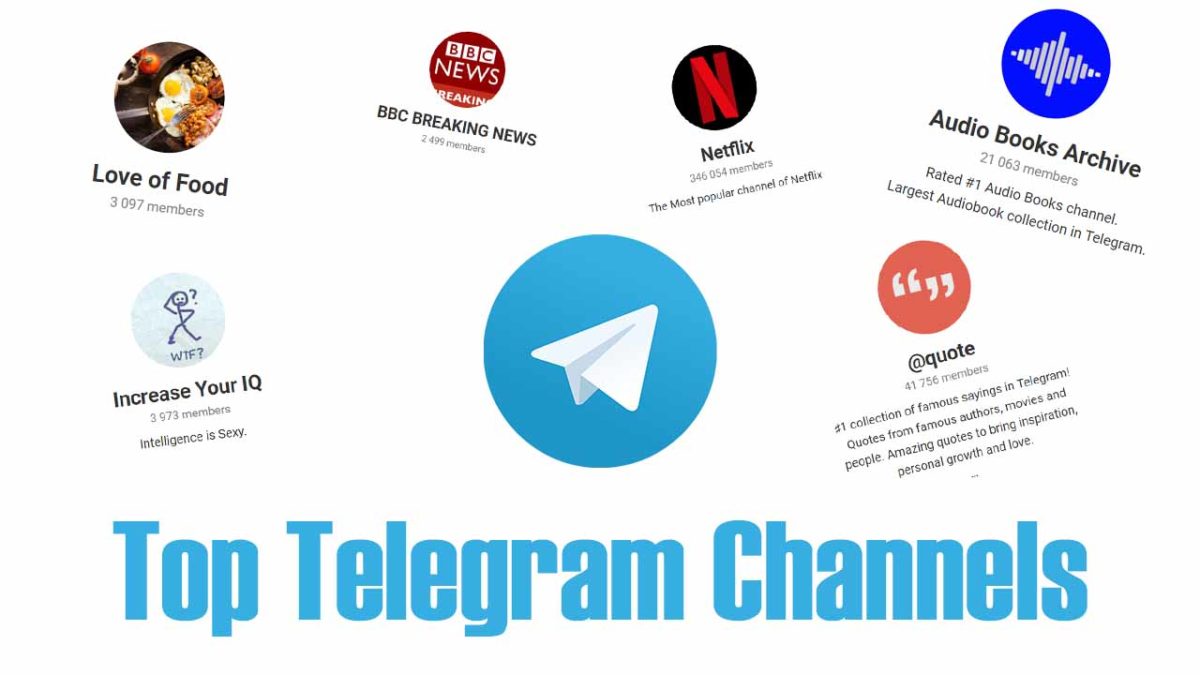
Top Telegram Channels

Telegram channels are fantastic tools for broadcasting information to lots of people at once. You can set up a new channel and then add an unlimited number of subscribers, with people also able to join your your channel via an invite link known as a channel link. This sets them apart from WhatsApp Broadcast messages, which need to be built up using personal contacts by the user looking to broadcast the information. You can also start public or private channels and other channels are manned by Telegram bots that post automatically.

With Telegram channels being such useful tools for sharing information to lots of people at once, it follows that they’re also great places to receive high-quality information too. There are lots of public channels out there sharing all sorts of information like news, sports, upcoming movies you need to see, motivational talks, cryptocurrency information, and pretty much anything else you could think of. Today, we’re going to walk you through some of the best Telegram Channels you should join.

8

How to Find Telegram Channels

First off, let’s show you various ways to find Telegram Channels on your own. The easiest way to do so is to search for Telegram Channels in the Telegram app. Telegram has a very useful search bar that not only allows you to search through your messages but also through available channels too. This is the easiest way to look for Telegram Channels, but it isn’t the best and you’d do better to search elsewhere, if the Telegram search bar doesn’t find what you’re looking for. The main thing to remember when searching for channels using the Telegram search bar is to be specific with your search terms.

Another great way to find Telegram Channels is searching on social media. Places like Reddit offer lots of discussion on the best Telegram Channels, which means there are plenty of forums and pages like r/TelegramChannels where you’ll find plenty of interesting Telegram Channels that have been posted by other users.

The Reddit channel for Telegram channels

Finally, there are sites out there like TelegramChannels.me that are dedicated to listing and categorizing all the different Telegram Channels you can join. On top of these sites there are also editorial sites like Softonic that will offer their top picks of Telegram Channels, like we’re doing today with this article. Let’s crack on then and get into the best Telegram Channels.

Reddit: The Official App Download Free ►
8

List of Telegram Channels

Wallpapers Central

Telegram Wallpaper channel

Like we started off by saying, there are Telegram Channels for everything, so we thought we’d start with something to catch you off guard. This channel isn’t about news or information or anything like that. This Telegram Channel shares new backgrounds and wallpapers that you can then save and use on your own mobile Android or iOS device. Simple and effective.

Love of Food

Nothing has taken the internet by storm quite so much in recent years as food porn. Is there anything more satisfying than images and videos of incredible dishes. All the best food these days comes with oozing, melting cheese and is probably better to look at than it is to actually eat. That is what this Telegram Channel serves up, food you eat with your eyes.

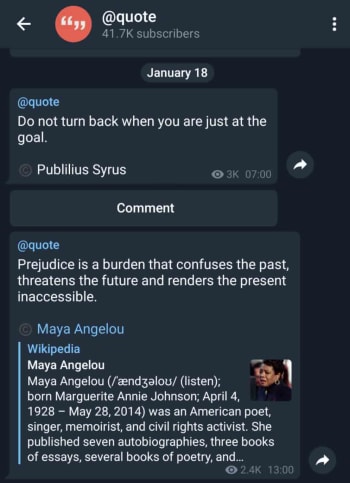
Quote

quotes on Telegram

This very simple Telegram will send you regular famous quotes from global luminaries and celebrities. Some of these will be funny and some will be inspirational. Others though, will be neither and then every now and then you’ll get the odd song lyric thrown in too.

Magazines & NewsPapers in PDF

This channel does exactly what its title suggests. It updates regularly and gives you PDF versions of many different newspapers from all around the world. What’s also great about Telegram Channels is that you can also search back through posts that were made to the channel before you joined. This means you can access all the newspapers and magazines that have ever been added to this channel no matter when you join.

You can search through posts in Telegram Channels by clicking the ellipsis menu icon in the top-right corner of the channel.

Netflix

Netflix on Telegram

The Netflix Telegram Channel is a pretty standard corporate affair that sends out information from the company’s marketing department. It is useful, however, if you have a Netflix subscription, for learning about upcoming programs and movies that are about to land on the streaming platform.


BBC Breaking

The BBC Breaking News Telegram channel will share with you all news that the BBC adds to its rss news feed. This means it is a quick, simple and effective way to keep yourself up to date with all the breaking news that is going on around the world.

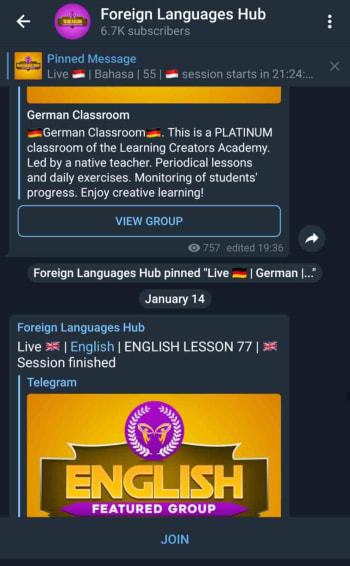
Telegram Worldwide Language Hub

learn languages on Telegram

This channel acts like a central conduit for all language learners and language learner groups that are currently active on Telegram. If you’re a student of any language, join this channel and put yourself in contact with like minded students and teachers who will be able to help you along on your language learning journey.


Audio Books Archive

As we already mentioned, you can search back through channel posts that were made before you entered the channel. This means Telegram Channels can also be effective libraries containing archives of information that have been built up over time. This channel is exactly this. It is the biggest archive of audio books you’ll find on Telegram.

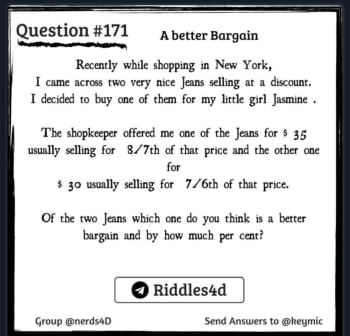
Increase Your IQ

Great riddles and puzzles

The Increase Your IQ Telegram Channel is here to bring you regular riddles that will give your brain a decent work out. These don’t come through every day, which means you can have this channel set up for push notifications and you won’t be bothered too much. What you’ll get is the occasional message including a tough riddle that will get you thinking outside the box.

This lady’s cat

This Telegram channel has been created by a lady who thinks her cat is cute and that everyone should know it. Yep, the A pic of my cat everyday forever has been posting pictures and videos of this lady’s cats for years. The channel isn’t as active as it used to be, but then you can search back through all the old posts to see this lady’s in all its glory.

How to know if somebody has blocked you on Facebook, WhatsApp, and Instagram

This is how to find out if somebody has blocked you on Facebook, WhatsApp, and Instagram

Have I been blocked on social media

Do you want to know? That’s the question you should be asking yourself now. You’re here because you want to find out who has blocked you on either Facebook, Instagram, or WhatsApp. Maybe you think they’ve blocked you on all three. We’re going to show you how to find out, which means this is your last chance to ask yourself. Do you really want to know?

Have you taken a second? You want to go on. OK, let’s do this then. Let’s go through how to find out if somebody has blocked you on social media. We won’t be able to get them to unblock you, but at least you’ll know what’s going on.

How to know who blocked me on Instagram

Have I been blocked on Instagram?

If you get blocked on Instagram, you won’t receive any notification telling you it has happened. All that will happen is that the person will disappear from your feed and you won’t see any new posts from them. Now of course, this could just be a case of them not posting anything, but if your suspicions have been raised and you think the person may have blocked, you’ll be glad to know that there are a few ways you can find out.

Instagram Download Now ►
7

The first thing you need to do on iOS iPhones or Android devices is search for the account on the Instagram app. Then, if you can’t find the person’s profile page, then there is a good chance you’ve been blocked. If, however, you find that the account is set to public, but you can’t see their profile picture, post count, following or follower count, and it says No Posts Yet, you have definitely blocked.

If you’re using a Windows PC or Mac, you need to type www.instagram.com/… and add the account name you think might have blocked you after the dash. If the page says, Sorry, this page isn’t available then again, it looks like you’ve been blocked. They might have deleted their account but chances are they’ve blocked you.

You can confirm that you’ve been blocked by looking for an Instagram account you know the person follows and looking through their posts. If you see that they’ve commented on any of the posts, then you know you’ve been blocked.

How to find out who blocked me on Facebook

Like on Instagram, to find a Facebook user who has blocked you you’re going to have to do a little digging. The first thing you need to do is search for the friend who you think has blocked you using the Facebook Search bar at the top of the page or app. You then want to click the People tab to remove stuff like pages and groups from your search results. If you can’t see the person’s profile image or account in the results, there is a good chance you’ve been blocked.

7

When you’re not friends with somebody on Facebook you can see some of their profile in your search results. If a person has blocked you, however, they won’t turn up in your search results at all.

If you’ve done all that and you still think you’ve been blocked, you can confirm your suspicions by going to a mutual Facebook friend’s account and searching through their friends list. If you find them, you haven’t been blocked. If you can’t, you’ve either been blocked or they’ve deactivated their whole account, which, you know, might not actually be you fault alone.

The other way to try and confirm you’ve been blocked is to search out any past communications between you both. When you find them; whether they be birthday greetings, direct messages, or whatever, you won’t be able to see their profile picture, if you’ve been blocked.

As you’re probably guessing, none of these methods can tell you definitively 100% whether you’ve been blocked or not. They can give you a very good idea, but nothing certain. To know for certain there is only one foolproof method, but it might actually be worse than being blocked. The only way to know for certain if somebody has blocked you on Facebook, is to ask them.

How to find out who blocked me on WhatsApp

Have I been blocked on WhatsApp?

Much like with Facebook and Instagram, WhatsApp doesn’t have an official way to discover who has blocked you. Not to worry though, as with a little digging you can get a very good idea of whether you’ve been blocked or not.

WhatsApp Messenger Download Now ►
8

The first thing you can do to see if you’ve been blocked by a contact on WhatsApp is search out their profile and open it. What you’re looking for here is their profile picture. If you know that you used to be able to see their profile picture but now you can’t, there is a very high chance that they’ve blocked you on WhatsApp. Of course, there is a chance that they’ve simply deleted their profile picture.

The other thing you can do is send some messages to the contact and then keep an eye on the message ticks. If the messages stay with only one tick for a long period of time, then there is a very high chance you’ve been blocked. If your had two grey ticks, they’d simply be ignoring them, but one tick means the messages aren’t even getting to their phone,  so you’ve probably been blocked. You could confirm this by asking a mutual friend to send them a message and seeing how many ticks their messages get.

Wrapping up

So, there you have guides for finding out who has blocked you on Facebook, WhatsApp, and Instagram. The only certain way to do so is to ask the person and see what they say. If you’re not up to task, however, the methods we’ve outlined above will give you a pretty good idea. The important thing to remember though, is that no matter how important you think this is, you will be able to get over it, if the person has actually blocked you. There’s always a way back and there will always be another chance for a brighter tomorrow. No matter what your investigations find, you’ve got this, friend.

How to record your calls: Skype, Hangouts and WhatsApp

Here is our guide for recording audio and video calls on Skype, Hangouts, and WhatsApp

How to record video calls skype whatsapp hangouts

Recording conversations that take place over voice or video calls is no longer the reserve of spy movies and dodgy cops. Now, anybody can do it and it is easier than ever. Think about it, pretty much all types of long-distance conversation are easier than ever so it makes sense that recording them would be too. Just think, thanks to Skype, WhatsApp, Google Hangouts, and other programs too, you can now video call friends, family, and colleagues all over the world for free.

Now there could be many reasons why you want to record your calls. You could be interviewing somebody for a podcast or need a record of certain important information. As we always say here at Softonic, we’re not concerned about the why. We’re here to help you with the how. Without further ado then, let’s get started on how to record video calls on WhatsApp on Apple and Android devices, and Hangouts and Skype on a Windows PC or Mac.

How to record video calls on Skype

Skype has a call recording function built into the app as standard. This means that recording your Skype calls is as simple as pressing a couple of buttons. There is no need to install any third-party apps.


The Skype video call function only works for Skype-to-Skype calls. The other thing you need to consider is that, in the interests of privacy, all participants in a call will be notified that somebody is recording the call, as soon as they hit record. The recording will then be posted in the call chat box once the call ends or the recording function is switched off. You can record Skype calls for up to 24 hours, with longer calls being broken up into multiple files, and all recordings will be saved to the cloud meaning you don’t need to worry about local storage space on your device. Once the call has been posted to the calls chat box, you’ll have 30 days to download the recording.

This is how to record audio and video calls on Skype

1 – During your Skype call hit the ellipsis (three vertical dots) menu icon to open the Options menu.

2 – On Skype for desktop you’ll see a button labelled Start recording. Hit this to begin recording your call. If you’re using Skype on a mobile device, look for the button with a circular record icon next to the words Start recording. Pressing this will begin the recording.

How to record video calls on Google Hangouts

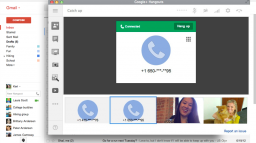
google hangouts calling

Google Hangouts also has a built-in call recording function, which means you won’t need to install any third-party apps or programs to record calls. The problem, however, is that the function is only available for certain types of G Suite subscriptions. This means it is only available for G Suite Enterprise and G Suite Education users. If this applies to you, follow our instructions below. If it doesn’t, scroll down to the instructions we’ll give on recording WhatsApp calls and calls from other video call apps where we’ll tell you how to record calls using a third-party screen recording app.

Hangouts Download now
6

This is how to record calls on Google Hangouts

1 – Start or join a video call either by clicking the meeting link or going to Hangouts and hitting the VIDEO CALL option.

2 – Once all members of the meeting have joined the call, click the ellipsis menu icon in the bottom-right corner of the screen to open the options menu.

3 – Hit the Record meeting option at the top of the menu and wait for your recording to start. To finish the recording hit the ellipsis menu icon again and then press Stop recording.

NB – Like with Skype, all members of the call will receive a notification telling them the call is being recorded. The call will then be saved on the Google Drive of the meeting admin in a folder called Meet Recordings. The admin will also receive an email containing a download link.

How to record WhatsApp video calls

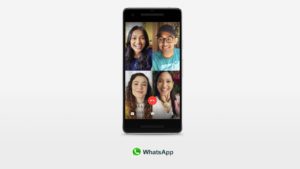
Whatsapp group video calls 4 people

To record a video call on WhatsApp you’re going to need to download a third-party video call recorder app that will record everything happening on your device’s screen. If you have an iPhone running iOS 11 then your phone already has a screen recording feature. If not, then you need to download a screen recording app and we recommend Go Record: Screen Recorder as an excellent option. If you are using WhatsApp on an Android phone, we recommend you download and install ADV Screen Recorder.

It is worth noting that once you have either of the apps we’ve listed or are using an iPhone running iOS 11 or above, you can follow the instructions below to record calls on any video call apps you have on your mobile device.

WhatsApp Messenger Download Now ►
8
Go Record: Screen Recorder for iPhone Download now
7
ADV Screen Recorder for Android Download now
8

This is how to record calls on WhatsApp

1 – Open your screen recorder app or feature.

2 – Minimize the app and then open WhatsApp too.

3 – Start your video call with your selected contact/contacts.

4 – Open up your screen recording app and hit the record button.

5 – Go back to your call and have your conversation as you normally would. You can end the recording any time by going back to your app and terminating the record function.

NB – This method for recording calls is a little more discreet than the two official methods outlined above for Skype and Hangouts. There are no automatic notifications sent here so it could be a good idea to let everybody who is involved in the call know that you’re recording the conversation. The other thing to consider with this method is that your recording will be saved in among all the other recordings you make with your screen recording app. This means it would be a good idea to immediately rename your call recording so that it doesn’t get lost in all the other video files.

All the best new features that came to social media in 2019

These are all the major changes that came to social networks in 2019.

Best social media features 2019

It wasn’t long ago that social media didn’t even exist. Then MySpace came along and before too long Facebook changed the world. Now, well the world is chock full of social networks offering us all sorts of different types of connections to people spread out all over the world. As to whether this is a good thing or not, we’re not going to get into and we’re definitely not going to comment on whether the world is a better place now than it was then.

What we’re here for today is to talk about the nuts and bolts of the aforementioned social networks. Each year, social media platforms, mobile apps, and websites get brand-new features and today we’re going to tell you about all the best new social media features that landed in 2019.

New social media features 2019

Google+ gone forever

We’ll start our 2019 list with the opposite of an update. With so many social networks knocking about, not all of them catch on. Google+ was one such social platform that failed miserably. In April 2019, Google put its mistake to bed forever by deleting all Google+ pages and profiles permanently. Although it never really felt like it was here anyway, it’s definitely gone for good now.

Greater control over Facebook notifications

Facebook is like that annoying friend that just won’t quit. You look away and then you hear a ping drawing your attention back again. There’s actually a lot of science behind Facebook notifications that have defined social media marketing strategies around the world. Traditionally certain types of video content have been more likely to register a ping on your Facebook, and Facebook Group messages have been more likely to trigger a push notification. In 2019, however, this changed when Facebook introduced greater controls over your own notifications. You can now clear everything and control what will reach out and try to grab your attention.

The Twitter desktop redesign

2019 saw Twitter completely redesign its desktop social networking interface. The navigation bar is now on the left-hand side of the page and includes Bookmarks, Lists, Messages, Notifications, and the brand-new Explore option, which works like an updated search page showing trends etc. Your profile is also found at the bottom of the navigation bar just above the Tweet button. The Trends for you and Who to follow sidebars are now on the right of the screen giving you easy access to influencers and trending current affairs.

Facebook Dating

Facebook Dating

In September 2019, Facebook finally launched Facebook Dating to help you find your soul mate. If you think about who you are as a series of data points with your soul mate matching up more data points than anybody else on the planet, then Facebook Dating is probably the best way for you to find love. Let’s face it, whether you want it to or not, Facebook probably knows more about you than even your own mother so why not put your love life in its hands? If everything else has failed in this regard, try Facebook Dating now.

Snapchat considers bringing in permanent snaps

OK, this isn’t an actual update, but it is so major that we thought we’d add to it our list anyway. In 2019, reports started circulating that Snapchat is considering introducing permanent snaps rather than the here one minute gone the next content that made the social media network what it is today. If Snapchat goes ahead with this change, it will completely change what it means to be a Snapchat user.

Instagram now hides likes

Instagram has been taking a lead on protecting its users with massive pushes against online bullying across the network and also efforts to protect the mental health of Instagram users. The biggest such move Instagram made in 2019 was removing the like counter from Instagram posts. Users can still see how many likes their own posts get, but the rest of the world remains oblivious. Instagram just became a little bit less about comparing yourself to others.

Twitter allows users to hide replies to tweets

A similar move to protect users came from Twitter, which has increasingly attracted criticism for not preventing abuse on the network. Users can now choose to hide replies to their tweets, which cuts out a potential new avenue for incoming abuse. The hope is that by protecting users in this way, Twitter users will feel emboldened to share more across the network.

LinkedIn live streaming

LinkedIn Live Launches Beta

It might not be as fun as Facebook or Tik Tok, but LinkedIn is still a social network. With its primary focus being on fostering professional networks rather than social ones the introduction of live video streaming has added a whole new element to LinkedIn. As well as the obvious marketing capabilities, professional live streaming can now cover events such as training courses and industry seminars.

Why am I seeing this Facebook ad?

Another feature that Facebook has given users better control over is ads. Now, when you see an ad on your news feed you can hit the ellipsis menu icon in the top-right corner of the ad and then select the Why am I seeing this ad? Option to open up a new menu that gives you control over your ad preferences. This new menu allows you to hide ads from that particular advertiser as well as control the influences that are behind the ad choices Facebook shows you. Of course, you can’t stop Facebook showing you ads altogether, but you can try to make the ones you do see a little less annoying.

All the best new features your web browser got in 2019

Google Chrome is the most popular major web browser. Here we walk you through all the biggest new features that landed on Google Chrome in 2019.

The best new browser features 2019

Modern browsers like Mozilla Firefox, Microsoft Edge, Safari, Opera, and of course Google Chrome are monster programs that can do amazing things. The days of Internet Explorer are long gone. You only have to consider the fact that Google used its web browser Chrome to develop a whole new operating system that runs Google powered laptops called Chromebooks, and rivals the likes of Windows and MacOS. This incredible feat has been made possible by Google’s policy of continually updating the Chrome browser.

It can be hard to keep up with all these updates, however, as they just keep coming. What use is a shiny new updated feature, if you don’t even know that it’s there. Well, that’s what we’re here for today. We’re going to walk you through all the new features that came to the Google Chrome web browser in 2019.

7

New Chrome features 2019

The Google Chrome web browser received a massive 7 updates in 2019 with the first, Chrome 72, landing in January and the last, Chrome 79, arriving just before the new year in December. Let’s look at all the best new Chrome features that these updates brought with them.

Default Flash blocker

Default Flash blocker

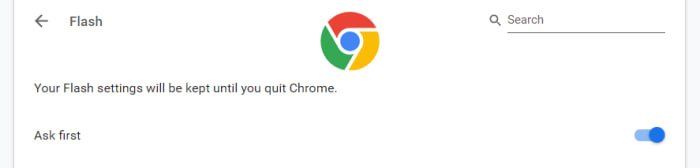
Google has already said that it will remove the Flash plugin from Chrome towards the end of 2020. In 2019, however, Google put the impetus on users to activate Flash in Chrome by making the browser block the plugin by default. You can set the browser to ask you before blocking it, however, on each site you visit. To do so copy and paste chrome://settings/content/flash into the Chrome address bar.

Password checkup tool

Google has integrated a former Chrome plugin directly into the browser, meaning it is now available for all Chrome users. The feature will scan your passwords and then check them against known databases of leaked passwords. Basically, if any of your accounts and passwords have fallen victim to any of the massive data breaches you hear about all the time, Chrome will now tell you. To activate this feature copy and paste chrome://flags/#password-leak-detection into the Chrome address bar.

Send tabs to other devices

Send tabs to other devices on Chrome

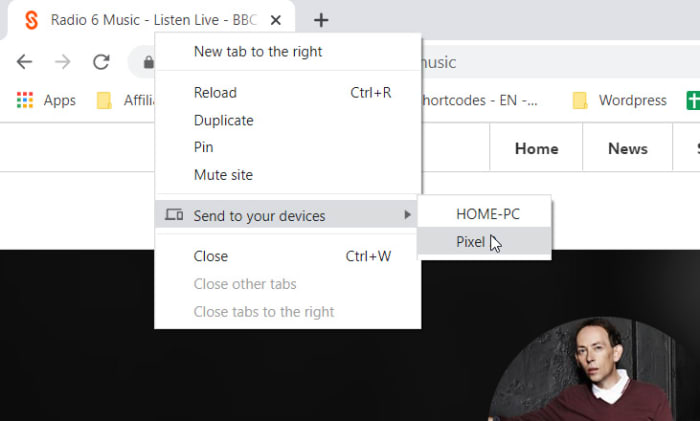
Chrome 77 introduced an interesting feature that allows users to send tabs to other devices that use the same Google account on Chrome. If you use the same Google account on Chrome across different devices, you can now right-click on any of your open tabs on Chrome for desktop and hit the Send to your devices option to see a list of devices you can share the tab with.

Copy and paste across devices

Another cool Chrome Sync feature that was introduced in 2019 is the clipboard synchronization feature across multiple devices. This new feature means you can copy something on one device and then paste it on another that is using the same Google account for Google Chrome. This feature came with Chrome 79, which means both devices will need to be updated to Chrome 79 before it will work. If you have two devices that qualify, however, you’ll be able to right-click anywhere on the webpage and then select Copy to (your device’s name).

Chrome backgrounds and themes

Chrome backgrounds and themes

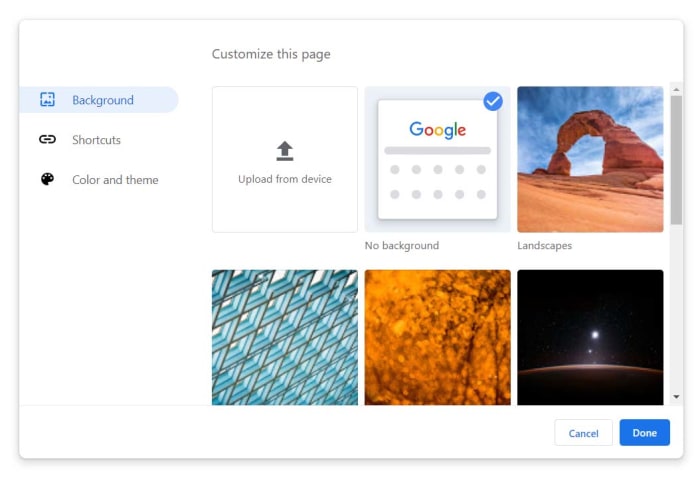
Another cool feature that landed with Chrome 77 is the Customize button you’ll find in the bottom-right corner of the Chrome homepage. Clicking this will give you a series of different customization options including BackgroundColors & Themes, and Shortcuts. You can decide on the shortcuts Chrome will show on the homepage, pick from a whole host of interesting background images, and set different themes and color schemes for the browser.

The Dark Mode

Google split the Chrome Dark Mode roll-out over two separate updates with the Mac Dark Mode coming with Chrome 73 and the Windows Dark Mode coming with Chrome 74. Both operating systems now support Chrome’s Dark mode but there are no controls for this on the web browser itself. Instead, Chrome simply copies your system OS color scheme meaning if you’ve set your Mac or Windows system to run in Dark Mode then your Chrome browser will do too. The Chrome support page here shows you how to do so.

Tab info cards

Tab info cards

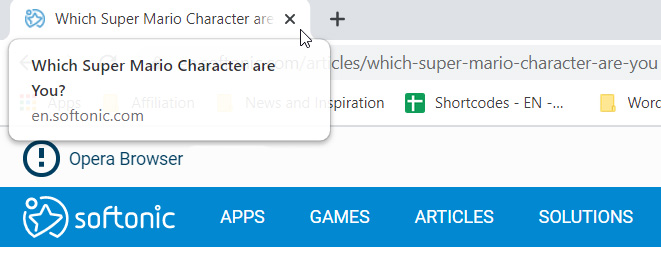
A small but useful change is the introduction of tab info cards. All you need to do here is hover your cursor over an open tab and Chrome will show you the name of the site open on the tab, and its URL.

Dodgy site warning

Chrome’s password protection features were updated again when Chrome 79 landed. Chrome now offers real-time protection and will warn you whenever you enter your passwords on sites that are suspected of phishing.

Hardware support for media controls

Hardware media controls

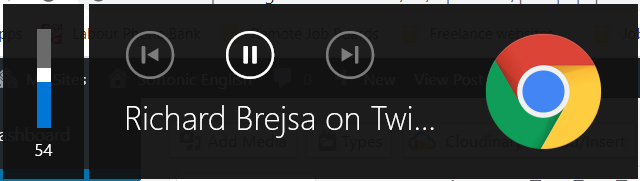
Chrome now supports media control buttons on any hardware you have connected to your device. This means if you have a keyboard with a Play/Pause button, you can now use that button to control playback on any media that is active in Google Chrome. The same goes for other controls and other types of hardware such as headphones etc.

Tab freezing

This updated feature might not sound too exciting, but it will actually make a big difference for laptop users. Basically, Chrome now automatically freezes tabs that you’ve had running in the background for a while. Chrome will no longer load ads or perform other CPU heavy tasks in tabs you’re not using, but will instead pause them and then resume them when you open them again. This is to put less pressure on your device’s CPU and then, accordingly, make your laptop’s battery last longer.

Password manager

Chrome password manager

Chrome 75 introduced the built-in password manager to Android and iOS devices meaning Chrome can now generate and store strong and unique passwords for you every time you open a new online account. This is an incredibly useful and essential feature as any time you duplicate a password across different accounts you leave yourself vulnerable to hacking.