What updates can we expect for WhatsApp?

A new WhatsApp update has been added to the Google Play Beta program. The guys over at WABetaInfo have put together a little breakdown of what we can expect once the features being tested in the beta version get a wider rollout. There is still no Sticker availability but it looks like WhatsApp are working on a Double Sticker function for future updates. Other cool functions added via the new update include a Location Sticker, a Dismiss as Admin feature, and Priority Messages. Let’s take a look.

WhatsApp Messenger Download WhatsApp
8

Location Stickers allow you to add a signpost to your favorite places to your WhatsApp messages. There are two different styles of Location Stickers, which you can check out below.

Image Via: WABetaInfo

Dismiss as Admin is aimed at WhatsApp group messages. The new feature gives group admins the power to demote other admins without having to remove them from the group. Until now, kicking other admins out of the group entirely was the only way to remove their admin privileges. To dismiss an admin, hold your finger on their name in the group chat menu. The option should then pop up in the drop-down menu.

Image via: Gadgets 360

High Priority gives you more control over the push notifications. If you enable High Priority, then your incoming WhatsApp notifications will be pinned to the top of your notification center. This feature will only be available on phones with Android version 5.0 or higher. To enable High Priority, open Settings and then tap Notifications. High Priority should be at the top of the screen if you have the latest beta version of WhatsApp installed on your phone.

Are you a member of WhatsApp’s beta testing program? If you’d like to try out the latest WhatsApp features before everybody else gets their hands on them, you should give it a try. We’ll be posting a guide to accessing beta versions of apps, games, and programs soon, so remember to keep checking in with us.

Just how bad is the Facebook data breach?

Source: The Washington Post/Getty Images

It is getting to the point now where if you believe that Facebook is an innocent bit of fun, you’re likely a naïve child who is totally unaware that the world does not revolve around your own experience. Fortunately, however, children and young people, in general, are switching off from the social network behemoth as it staggers from crisis to crisis because mum and dad have made Facebook uncool.

The lame factor is the least of Facebook’s problems at the moment, however, as the latest crisis is so big that it could see head honcho Zuckerberg hauled in front of government officials to explain how his creation has reeked so much damage. This is, of course, the Cambridge Analytica crisis, which has seen millions of Facebook users’ details land in the hands of politically motivated actors, seemingly devoid of any moral compass and who are willing to use the data they’ve amassed in the service of the highest bidder.

Even if you’re a Trump supporter in the US or a Brexit supporter in the UK, the fact that Cambridge Analytica has been pitching to Russian Oil companies, likely under the auspice of Putin, should have alarm bells ringing. Thanks to Facebook, these people have been able to steal your data and are willing to sell it and the insights they’ve gained from it to the highest bidder, even if that highest bidder will act against your best interest.

The latest Facebook data breach is both shocking and awful and amounts to nothing short of a coup against democracy and freedom. Sort it out, Mark!

App snitches on sexting kids  

Source: Getty

Keeping kids away from texting explicit content and photos to each other isn’t just a parental prerogative – it’s also a great business opportunity.

That’s what SafeToNet’s founder figured after being appalled by some of the content kids were viewing and exchanging – and intrigued by the business opportunity that represents.

Put his new app on your child’s phone and it will block any incoming photos it deems too saucy and disable the device’s camera.

It will also lock the phone if Junior’s texts are a bit too risqué for its algorithm. And if the little tyke tries it again, the app will tip you off.

SafeToNet should be available in April for a monthly subscription fee. Let’s see just how quickly the kids can get around its restrictions.

Android Go makes your old mobile so much better

Source: Android Authority

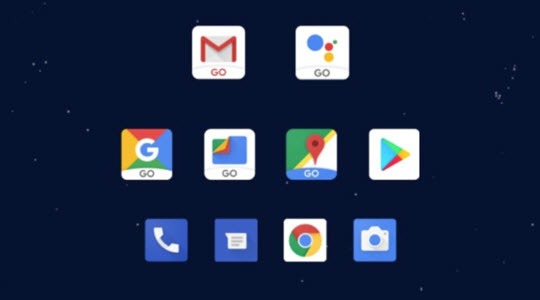
The rollout of Google’s line of Go apps, designed to run on older mobile devices, continues at a pace. As well as, Android Oreo (Go Edition), which makes Android run better on phones with less than 1GB Ram, and takes up less space than the full version of the OS, Google has rolled out some Go versions of its apps. These include YouTube Go, Gmail Go, Maps Go, Assistant Go, and Files Go, which will even recommend apps that you don’t need anymore.

It isn’t just Google either. Facebook has released lite versions of its Facebook and Messenger apps, and now Microsoft is getting involved too. Microsoft owned Skype is now optimized for use on slower and older mobiles, and even on mobiles running much older versions of Android, all the way back to Android 4.03.

With such innovation designed to squeeze performance out of older devices, more and more people will have reliable access to internet services and might be time to start thinking about what to do with all those old devices you have lying around the house.

Snapchat ignores complaints, huge losses and  pays CEO $638 million

Source: Steve Jennings/Getty

Snapchat’s redesign has been grabbing the headlines for all the wrong reasons – not least because off-again, on-again fan of the platform Kylie Jenner made her feelings about the changes clear on Twitter.

This probably wasn’t why Snapchat stock bombed $1.3-1.6 billion straight after, but bomb it did. A more credible reason might be the company’s $720 million loss last year.

Another factor could have been the never-profitable company basically telling 1.2 million users who hated the app’s makeover where they could go.

Or perhaps it’s the fact that CEO Evan Spiegel made $638 million last year, over three times Google’s top execs and almost five times Apple’s chief. No wonder many are asking – WTF?

Facebook ignores experts’ warning and rolls out Android app for six-year-olds

Source: Getty Images

Okay, so the headline’s a little misleading – Messenger Kids is for children six and above. And Facebook has only ignored the advice of the experts it hasn’t paid off.

So that’s fine, then.

But most of the experts who haven’t received funding from Zuckerberg’s Panopticon think that the new app will lead to a more miserable childhood for many, and have told Facebook so in no uncertain terms.

The girls and boys of Menlo Park are keen to get kids hooked on their brand, as you currently need to be 13 to join Fakebook. Also, the platform is increasingly being rejected by younger people, and Messenger Kids is no doubt a ploy to help reverse that trend.

Hold the phone! You can now use WhatsApp with a landline

The launch of WhatsApp Business has given the messaging service a completely new dimension. WA Business gives companies and customers an official and secure way to communicate with each other and in the coming months and years; we’ll see all sorts of entrepreneurs using this new facility to sell us their wares. WA Business also brings with it an interesting new function; it allows you to hook up your WhatsApp account using a landline number instead of your mobile number.

Although WhatsApp Business is designed for use by businesses, anybody can download the app. You will still need a mobile phone to run the app but you’ll be able to register your landline number instead of the number associated with your SIM card.

WhatsApp Business Download WhatsApp Business Now
7

Once you’ve downloaded WhatsApp Business all you have to do is tell the app that you won’t be registering your mobile number but rather your landline. Normally WhatsApp sends an SMS to verify your number but for landlines, you’ll have to select the Call Me option.

After you receive the call and verify your number, you’ll be able to use WhatsApp Business with your landline number the same you use WhatsApp with your mobile number.

Follow me on Twitter: @PatrickDevaney_

WhatsApp Messenger Download WhatsApp
8

A Secret WhatsApp Web Trick That’s Perfect for Gossips

Are you a bit of a gossip? Do you love knowing anything and everything that is going on in all your friend’s lives? Well, if you are, you might be interested in this little trick for WhatsApp Web. This trick, which only works on the browser version of WhatsApp, allows you to discover exactly when a message has been read. It could be particularly useful for group messages.

There are two ways you can check the time that each contact has read a message.

The first involves double-clicking the two blue ticks of the message in question. This will open a window where you can see who has read the message and at what time.

The second consists of pressing the button that appears above the date the message was sent and clicking message information. This will show the same window from before.

So there you have two quick and simple ways to find out who has read your message and when, and you don’t even have to get your phone out of your pocket to use them.


New Google Apps to Take On Skype, Facetime and Whatsapp

Google’s solution for free mobile calls and messaging was introduced to us earlier this week and is positioned to take on the likes of Apple’s Facetime, Microsoft’s Skype and Whatsapp.

Google Duo

The first of the two apps is Google Duo, a video-calling application that, unlike Facetime, is available on both Android and iOS. This means that you’ll now be able to make free calls to all your friends and family, regardless if they’re using an Android or iOS device.

The one feature that Google hopes will get you very excited about is Knock Knock. Not found on rival apps, Knock Knock lets you preview who’s on the other end of the call, and lets you decide if it’s worth getting out of that meeting to pick up.


Google Allo

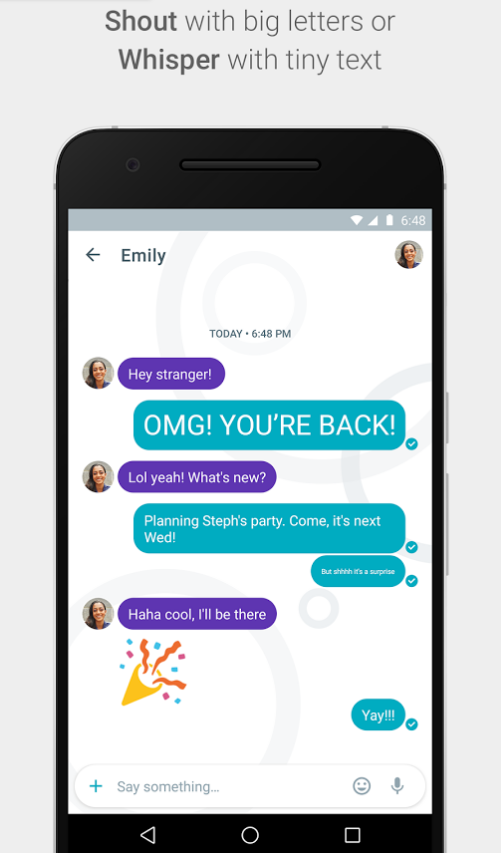
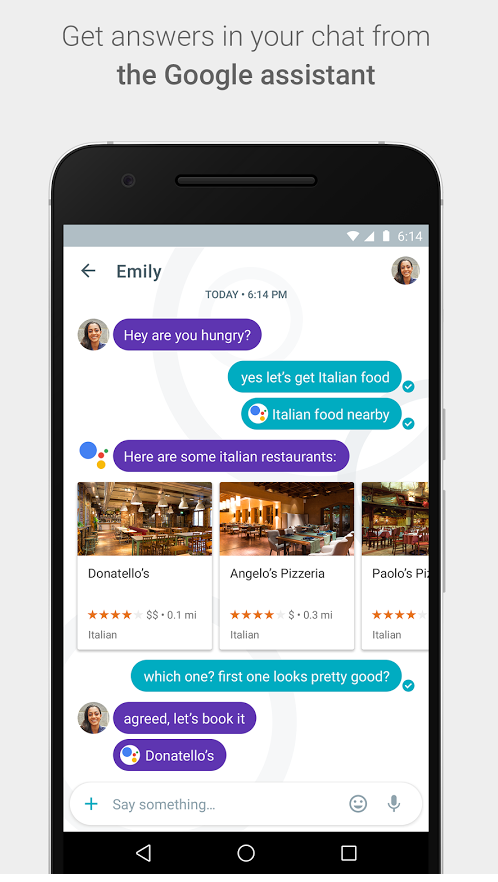
The second app is called Google Allo – a smarter, more feature-packed version of Whatsapp. With Allo, you get to make Google searches directly within the messaging app, get predictive reply suggestions, write in bigger or smaller font to simulate shouting or whispering to the other person, and many other features.

Allo Shout

Allo assistant


So when can you get your hands on these apps?


If you’re in the US, you’re in luck! Google Duo is already available on Google Play and the App Store, and for the rest of you, Google says that they will be available worldwide “in the next few days”.


There is no word yet on Google Allo’s launch date.


However, you can now pre-register for both Google Duo and Allo on Google Play, so that you get (presumably) a notification when these apps are available in your region. iOS users, you’ll just have to watch this space.


Let us know what you think about these two apps in the comments below!

How to use WhatsApp on Windows


WhatsApp offers a great way to chat with friends for free from your phone. But did you know you can also use WhatsApp on a Windows PC?

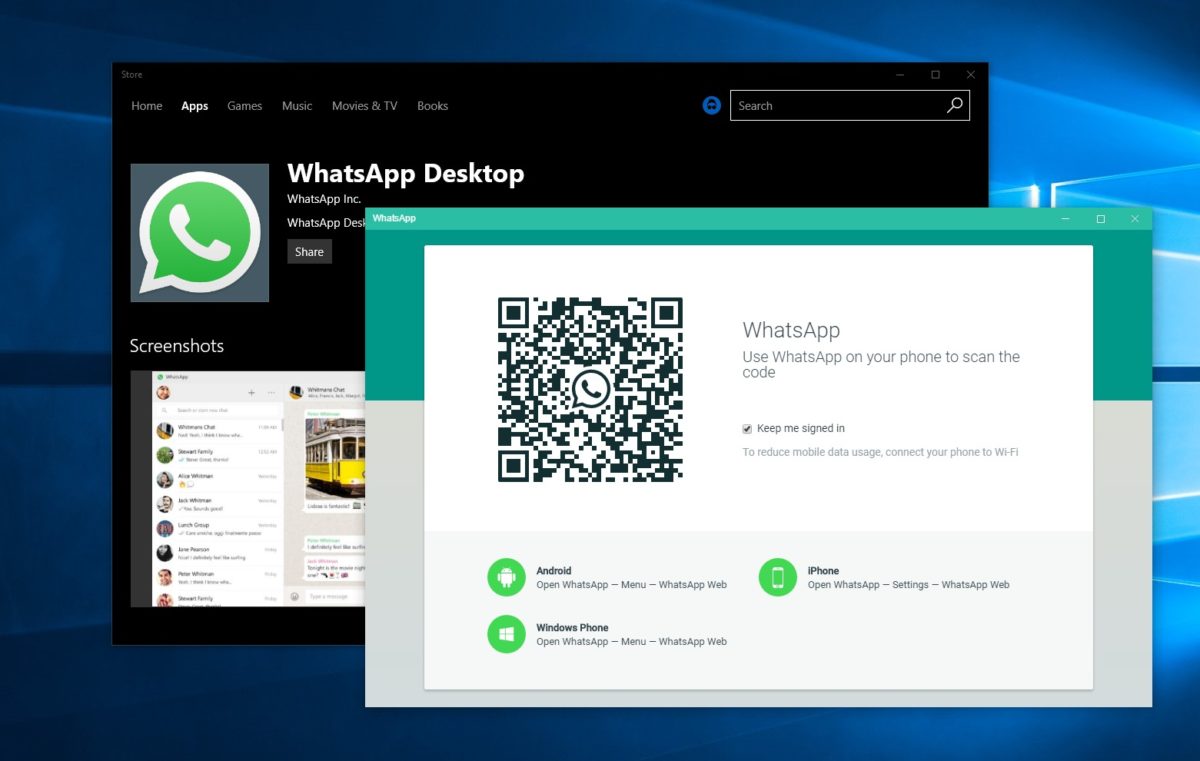
Using the BlueStacks App Player for Windows, it’s possible to install WhatsApp on your computer. This gives you the ability to send and receive WhatsApp messages without having to pull your phone out of your pocket.UPDATE: WhatsApp has come out with an easy way to chat from your computer. It’s called WhatsApp Web and you’ll need Chrome, Firefox, or Opera and the latest version of WhatsApp for Android, BlackBerry, and Windows Phone. Learn more about WhatsApp Web and how to use it here. If you prefer to download WhatsApp on your computer, have a look at WhatsApp for PC instead!

[materials]–>

How to install WhatsApp on a PC

To get WhatsApp on your computer you first need to download and install BlueStacks App Player. This is a free program that emulates Android applications on your PC. You can use it to run many Android apps and games through a windowed interface on your computer. Don’t worry, it’s very easy to use, as you’ll see.

The next thing you’ll need is a mobile phone number. This is used to verify your account and the app looks at your mobile phone contacts to find out which are using WhatsApp. If you already have WhatsApp installed on your phone it won’t work, since you can only run one instance of the app per phone number.

<!–[/materials]

–>

[body]–>

Setting up BlueStacks

Once you’ve installed BlueStacks App Player you’re ready to get WhatsApp onto your Windows PC. Here’s how it’s done:

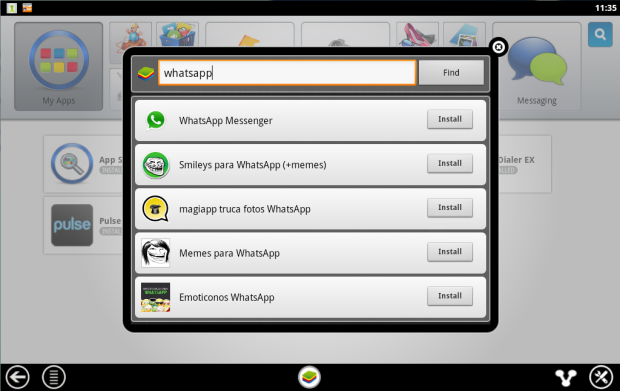
1. Click on the App Search icon in BlueStacks and perform a search for “WhatsApp”. Click Find.
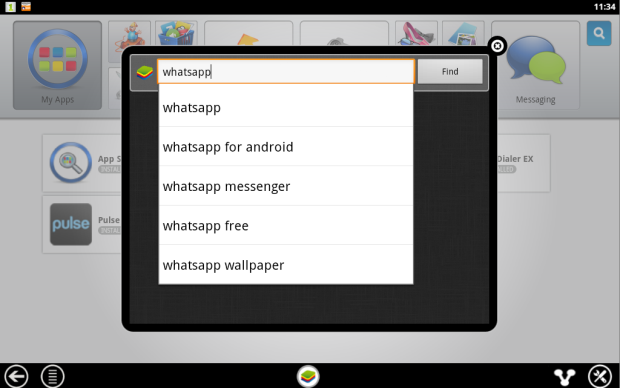
2. In the results list you should see WhatsApp Messenger as the top result. Click Install.
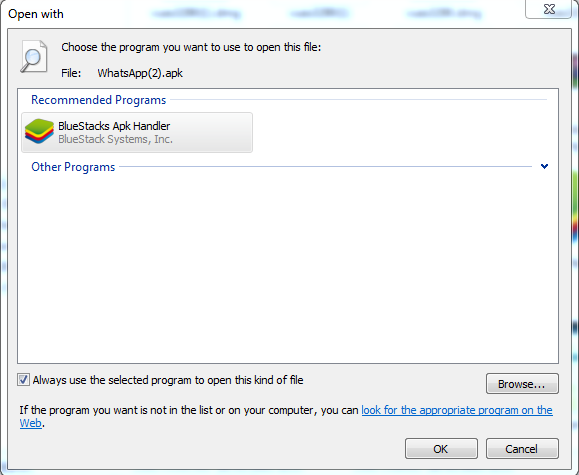
3. If you can’t find WhatsApp Messenger in the BlueStacks search, or if it won’t install, go download the WhatsApp APK file from the official site. Right click on the icon once downloaded, select ‘Open with…’ then choose BlueStacks Apk Handler. Click OK and WhatsApp will be installed in BlueStacks.
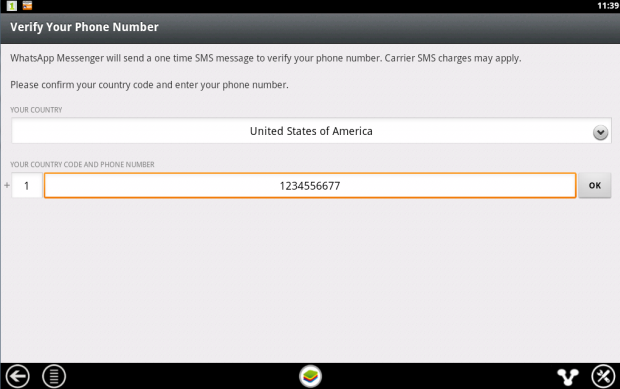
4. Once installed, clicked the WhatsApp icon in BlueStacks to launch it. When you run it for the first time you’ll be asked to verify your phone number. Select your country followed by the phone number you want to use for WhatsApp.
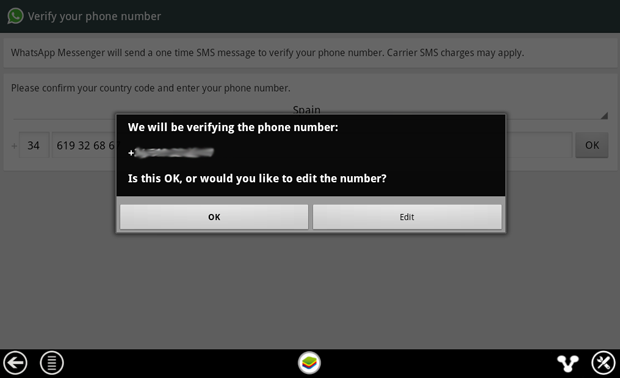
5. When confirmation of your number comes up, make sure the number is right then click on OK to proceed.
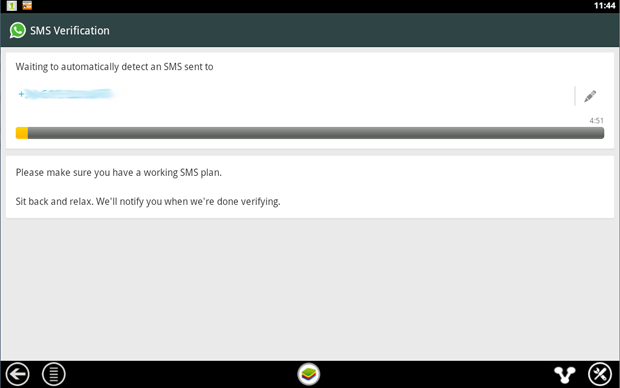
6. WhatsApp will now attempt to send you an SMS verification message. This will fail but you need to wait until it’s finished anyway.
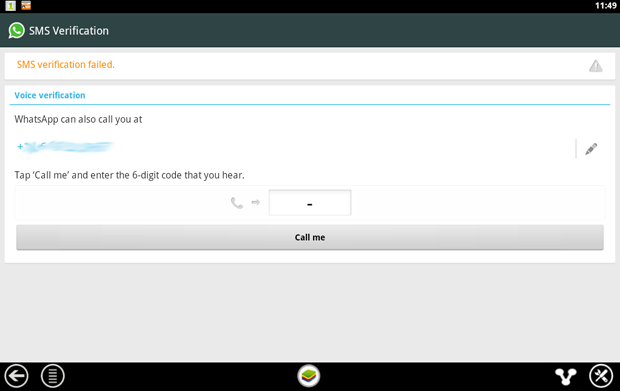
7. When the SMS verification fails, you’ll be given the option to be contacted by phone with the verification code. When you click the Call me button your phone will ring after a few seconds and a recorded message will read you the code. Type this code into the space provided.
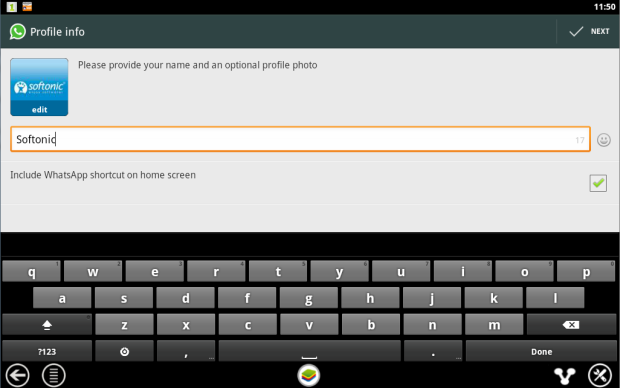
8. When you’ve correctly entered the code you’ll be prompted to set up your profile information. Enter a name and add a profile picture if you like.
9. You’ll be reminded that WhatsApp is free to try for a month, after which time you need to pay on an annual basis.
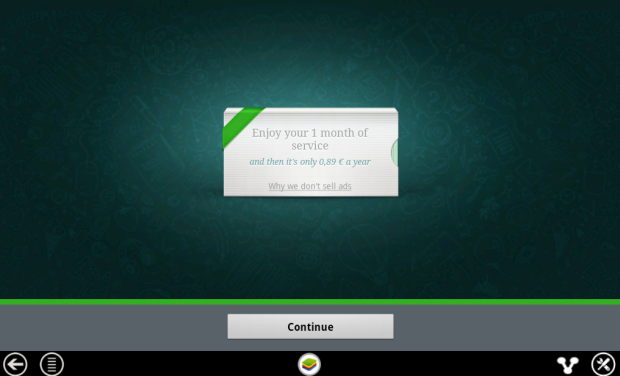
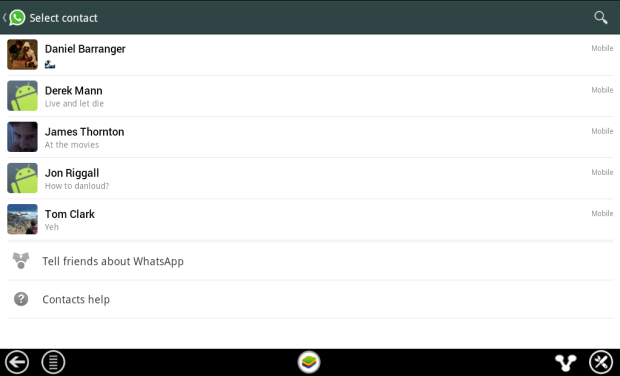
10. After clicking Continue your WhatsApp contacts list will be loaded. This is based on your phone contacts (on the number you used) who have WhatsApp installed. Click on a contact to start chatting to them.
11. Now you can chat away to your contact on WhatsApp, in just the same way as you would on a mobile device. You can switch between the keyboard and emoticons using the icon next to the message input box.
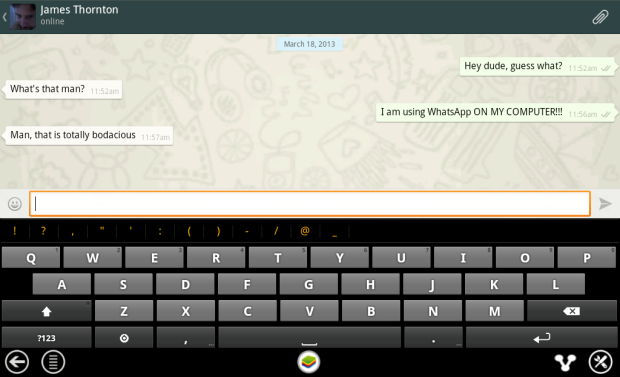
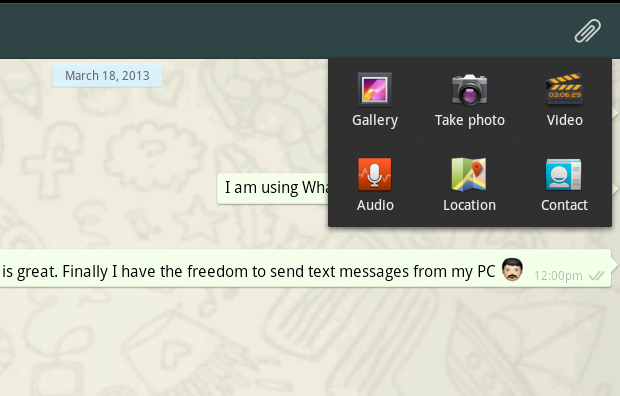
12. It’s possible to use some of the file sharing features of WhatsApp on your PC. In our tests we were able to send photos, video and audio. To send files using WhatsApp click on the paper clip icon in the top-right corner.

<!–[/body]

–>

Conclusion

There you have it! That’s how you can run WhatsApp on your PC. While it might be a work-around, it performs well and will tide most users over until WhatsApp decides to release a desktop client.