Quick and easy guide to VPNs

In just a few years’ time, people have begun to use VPNs outside of work en masse. Whether it’s to protect user privacy, ensure user anonymity, or access geo-blocked content, VPNs are all the rage, and it’s no wonder!

With the rise of scams and dangers on the internet as well as the arrival of a plethora of attractive platforms that offer series and movie streaming, everyone’s itching to use a VPN. Do you know exactly what they are and what they are used for?

VPNs on a laptop

Forget about the long and complicated technical articles, because today we’re going to take a quick and easy look at what a VPN is and how you can use it.

What is a VPN?

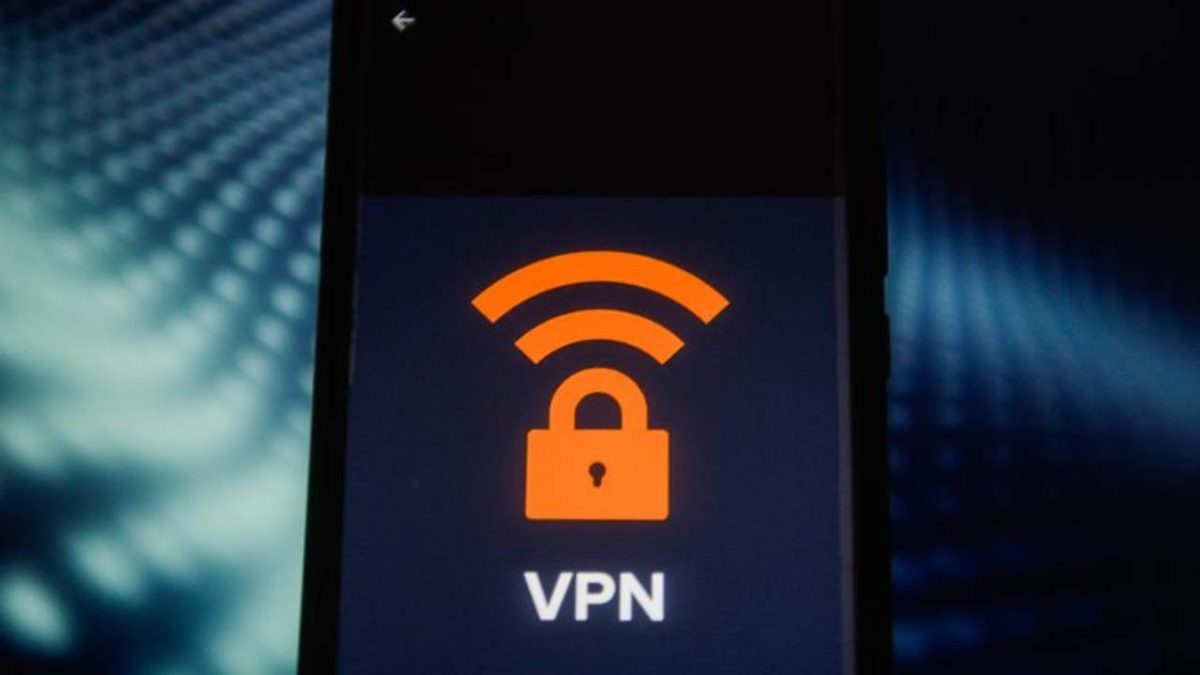
This is the million-dollar question that everyone asks but that very few know how to answer without taking the reader on a merry-go-round. A VPN is, as its name suggests, a Virtual Private Network. Its purpose is to protect all the data coming into and going out of your computer. Don’t worry, we’ll explain this process to you in the easiest and most straightforward way possible.

How do VPNs work?

When you connect to browse the internet or, for example, right this instant, while you’re reading this article on Softonic, your computer sends and receives data to show you the requested information. The usual way is simply that your PC sends the data to your internet provider, and they return the requested information back to your computer. When you connect directly to your provider and then to the internet, the data you send is not encrypted, so you share things like your geographical location and your searches over the network. That’s why your searches always appear customized to the language of your region, or you magically see ads on topics you’ve been browsing online for over the past few days.

What happens when you use a VPN? Easy. After accessing your internet provider, the VPN will redirect you to a server located in the part of the world you have chosen, and you will use its IP to run searches and receive information. On top of that, the VPN will encrypt all your searches, so your provider won’t have a record of what you search for online.

If it’s still a little unclear, take this simple example. Imagine that you are going to connect to the internet from your apartment in Barcelona to run a search on picnic tables. To do so, you connect to the internet through your provider and Google will appear by default as Google Spain (because thanks to your IP, it will know where you are). Once you’ve done that, you look for information about a good picnic table and when you don’t like any of them, you do something else. The next day, you go online again and since your connection wasn’t encrypted, Google automatically shows you ads for picnic tables.

What would happen if you used a VPN? The first step would be exactly the same. Your PC would connect to the internet server, but from there it would go to the VPN server in the geographical location of your choice, the US, for instance. This time Google would appear as Google USA because it would see the VPN server’s IP. And all the data that you shared with your browser and the internet from that moment on would be encrypted. That way, when you reconnected to the internet, none of your searches would be recorded by your internet provider.

What’s a VPN good for?

In the beginning, VPNs were mostly used by big firms and always in a work environment. That’s because a VPN creates a secure local network that allows all workers to connect, whether they are at the same location or working from home without the danger of data spills or a hacker taking control of a company computer remotely.

Today, VPNs are still used by companies but also from the homes of internet users like you and me. There is much to be said in their favor, like the fact that:

You can browse safely and completely anonymously

woman using a laptop

One of the main reasons people use VPNs is that they allow you to surf the internet with an extra layer of security. This is because the server chosen encrypts the data, making it harder for third parties to intercept or store it. This is especially useful if you recall that we live in an era where online scams abound. A VPN offers you anonymity in your searches: they can’t be traced. Your privacy and that of your data is respected.

You can access geo-blocked content

Netflix catalog

Have you ever huffed and puffed because Netflix USA has that series you really wanted to see and it’s not in the Spanish catalog? VPN to the rescue. In just a few seconds, problem solved. Simply connect to an American server through the VPN, open Netflix, and you’ll be offered your pick of the US catalog. Since the VPN takes the IP of the server you choose, you can access any service that has been blocked due to your geographic location.

You can use an open Wi-Fi network securely

woman working on a laptop at a cafe

If you are one of those people who connects to the internet using Wi-Fi in places like cafés, libraries, or airports, you know that there’s always a measure of security risk. Any data you share over that Wi-Fi network can be intercepted by a hacker who is also on that network, and believe us when say that it’s not rocket science and more common than you might imagine. If you use a VPN the situation changes dramatically, because it can encrypt all the data you release onto that open network, making it safe from any malicious user.

Are free VPNs safe?

If you’ve started doing some research on VPNs, you’ve probably already noticed that there are free VPNs as well as subscription-based ones. Are both options equally safe? Unfortunately, the answer is no. While free VPNs have the attraction of costing nothing of course, they manage to pay for themselves by putting your data and security at risk.

A recent study found that up to 38% of free VPNs on the market install malware on devices to show you ads that they can monetize. Not only are they annoying, but most of the time they will redirect you to dicey pages where you could put your computer as well as your data in danger.

malware

Another disadvantage of free VPNs is that they sell the data they collect during your sessions online to third parties. That’s how they make the VPN available for free, and even if it works, you may run into the downsides of sharing your data.

Finally, one of the big problems with free VPNs is that they can even take away your bandwidth and sell it to third parties. You don’t have to go very far back to remember the case of the free VPN Hola. It sold the bandwidth of its users, who ended up unknowingly taking part in a botnet attack on 8chan. That’s why using a free VPN will not only eat into your connection speed and privacy, but your computer may end up being an accomplice to illegal activities.

For that reason and many more, it’s always advisable that if you want to use a VPN, you opt for a paid subscription. They only cost a few bucks a month and offer a fast, secure service with an array of advantages.

What are the best VPNs on the market?

After reading this article, you may want to use a VPN either to surf the internet more safely or to be able to access content blocked in your region. There are a number of VPNs on the market, but not all of them are equally fast or able to protect your computer with the same level of reliability. To make your search easier, we’re going to recommend some of our favorites.

1. ExpressVPN

ExpressVPN interface

ExpressVPN is a truly all-purpose VPN. It is not only extremely fast but also capable of protecting your data thanks to its 256-bit encryption system. With over 3,000 servers in more than 160 regions, ExpressVPN is the perfect choice for accessing geo-blocked content, playing games online, or downloading without slowing down your connection speed. On top of that, it works perfectly on both desktops and laptops as well as on mobile phones and tablets.

ExpressVPN DOWNLOAD
9

2. NordVPN

Hotspot Shield

NordVPN is the best choice for any user who wants to use a VPN but is concerned about their data security. It has a 2,048-bit encryption system and some of its servers even have DDoS protection. This ensures that your computer and data never fall into the wrong hands. In figures, NordVPN has over 5,500 servers in more than 55 locations around the globe. This is also another highly versatile VPN, because you can use it on your desktop or laptop as well as on your handheld devices.

NordVPN DOWNLOAD
9

3. Hotspot Shield

Hotspot Shield

Last but not least, we would like to recommend Hotspot Shield. Do you remember when we talked about how open networks can put your computer at risk? With this VPN you can use them in complete safety. Hotspot Shield uses a military-grade AES encryption system that keeps your data secure at all times. On top of that, Hotspot Shield has a really simple and incredibly intuitive interface. Just press a button and you’re connected to the Internet from the server of your choice – it’s that easy!

Hotspot Shield DOWNLOAD
8

If you’re interested in more options, feel free to take a look at our complete list of the best VPNs the market has to offer. This one is really comprehensive, and you can use it to access exclusive discounts of up to 80% off your subscriptions.

We hope that this article helped you learn a bit more about what VPNs are and how they work. Have you ever used one? Let us know how it went!

How to clean your Gmail inbox

These tips and tricks will help you organize your Gmail inbox and stay on top of spam and unwanted messages.

Gmail wallpaper

There is a digital movement out there called Inbox Zero. These crusaders, spurred on by a book by Merlin Mann, fight against the endless crap that bombards our Outlook, Yahoo Mail, and Google Mail inboxes on a daily basis. As our email inboxes fill up with spam, marketing, surveys, deals, and a million and one other emails that have been sent out en masse, the Inbox Zero movement tries to fight back with a mantra. That mantra is simple; keep your inbox at zero unread emails. This mantra sounds simple enough but in practice, it requires constant vigilance.

With so much nonsense coming our way every day you must work hard to keep on top of it. You can, however, make life easier for yourself by putting a few systems and processes in place that will do most of the work for you. Now, we are not high priests of the Inbox Zero movement but we do know a thing or two about Gmail so we can help you out. These are the best tips you need to clean up your Gmail inbox.

Tips to clean up your inbox

These tips and tricks for Gmail will help you keep your inbox clean and clear, making life so much easier. Read on to learn more.

Categories

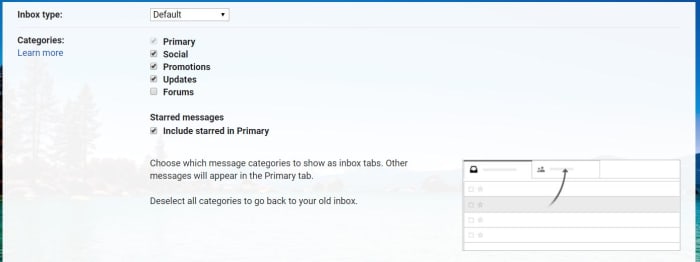
Gmail categories

This is the easiest of the lot and will make the biggest difference straight away. Categories in Gmail are like tabs that sit at the top of your inbox. They automatically sort incoming emails into certain categories and then siphon them off to the correct tab. The Updates tab is by far the most useful tab, but it is not active by default. To activate it hit the Settings icon, click the Inbox tab, and then check the box next to Updates. You will immediately see the number of emails in your inbox slashed. You could also activate your Forums category too if you participate in a lot of online discussions.

The big sweep

To sweep your inbox refers to taking lots of emails and organizing them very quickly in a sweeping manner. The basics of sweeping your inbox involve creating folders for different years, months, quarters, etc. and then going through your inbox and putting all the emails you received from the subsequent time periods into their folders. This way, all your emails are still there, they are just hidden away nicely and immediately your inbox has a lot less clutter. The only thing you need to remember here though is that you should not create a folder for the current period of time you’re organizing by. That is because it is still active and so you want that to be your primary inbox.

Folders and filters

Unsubscribing to emails you do not want is a great way to massively reduce the amount of crap that will end up in your inbox. Unfortunately, however, there are plenty of spammers out there who do not care if you want to receive your emails or not. All thee spammers care about is whether or not you use your email account or not. They normally figure this out when you click any link on any email, they’ve ever sent you. This means you need to be extra careful what you click but it also means you will be receiving email you want no matter what.

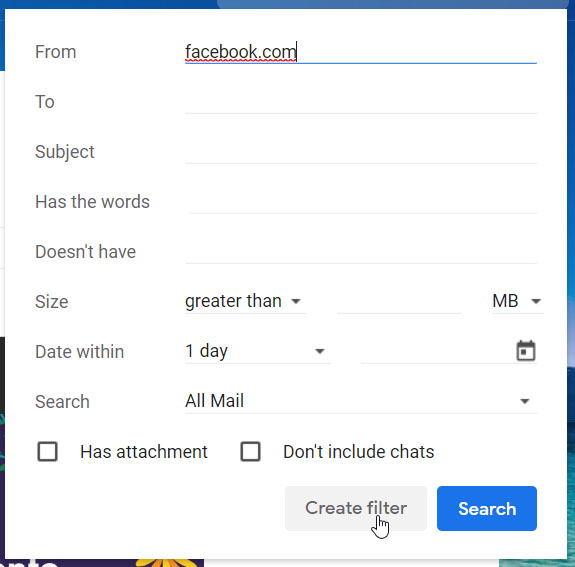
Gmail filters

To fight against unwanted emails, you can set up filters that will automatically block emails from dodgy domains. To do this you need to click the arrow next to the search bar and then type the domain you want to block into the From text box. Once you have done this, hit the Create Filter button that is next to the search button. Once you have done this, you will then be given options for all the emails you’ve received from that domain. You will also be able to create the filter so that you don’t receive any more emails from the domain.

Delete emails from companies you are not interested in

This little trick will help you quickly get rid of all the emails you have received from Facebook or any other apps that constantly send you updates from their platform. What you need to do is use the * symbol alongside the domain. To delete all Facebook emails, for example, you search for *@facebook.com , and then Gmail will show you every email you have received from any email account attached to that URL. All you have to do then is select them all and hit delete.

The easy way to unsubscribe

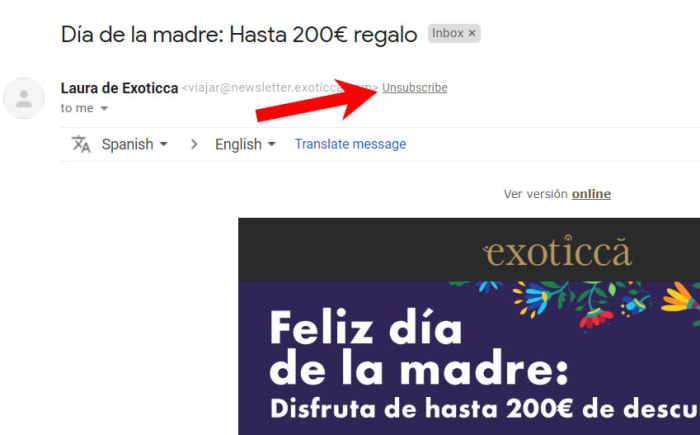
unsubscribe

Another fantastic built-in feature that Gmail has is the Unsubscribe button. You may recall that promotional emails need to include an unsubscribe button that you can press should you ever decide you no longer want to receive them. Obviously, however, the companies sending you their emails don’t want you to unsubscribe so they make it difficult for you to find these buttons by hiding them away in the small print at the bottom of the email. Gmail fixes this, however, by taking any unsubscribe link and displaying it prominently at the top of the email next to the sender’s email address.

Set aside time each week

The last of our tips is not about an easy fix or clearing everything out with the click of a button. This is about discipline, which is what you will need if you want to maintain your zen-like clear inbox for more than a few days. Each week you need to give yourself some time to go through any unopened emails you have received during the week and action them accordingly. If it is an important email and you need to respond urgently, do it; if the email is unimportant, delete it. Whatever it is you need to do for each of the active emails in your inbox, do it. This may sound like a chore but over time you will develop a ruthlessness that will make this step easier and dare I say it, satisfying.

Softonic Special Deal: Get 1 month of Ghostery Premium FREE

There’s been something of a gap in the software security world. It’s easy to find VPN (virtual private network) providers that help mask your location as you surf, but don’t necessarily stop you from being tracked when you’re not tunnelled into a remote location. And there are privacy apps that shield you from trackers, but don’t provide a VPN option. 

Stepping into this gap is Ghostery Midnight, an enhanced offering from long-respected tracker-blocking company, Ghostery – and they’re now offering a special trial discount to Softonic readers. To redeem, simply create your account here using your credit card and code GHOSTYTONIC, and you’ll get one month of Ghostery’s Premium tier free which unlocks all the advanced features and VPN in Midnight. The regular price is $14 per month, but you can cancel during this trial period at any time. 

How Midnight works

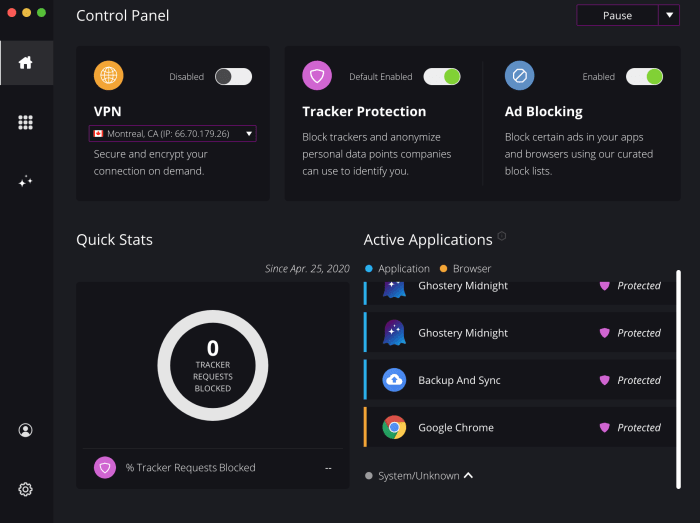
Like Ghostery’s free browser plug-ins and light version of its software, Midnight is fast and easy to install and super simple to navigate. Once loaded on your computer, it automatically gets to work blocking ads and trackers not only in any browser you launch, but also on any app on your computer that connects to the internet.

This is a key difference between Ghostery’s free version and Premium version of Midnight. When you go free, you’ll only have basic browser protection, typically by installing the plug-in on each browser you use. But Midnight offers you device-level security in a very user-friendly way. Load it, run it, and relax – it will do all its work efficiently in the background.

Its quiet operation is a welcome relief from other ad-blockers that continuously pop-up with notifications telling you how many trackers it’s blocked. Ghostery provides this information as well, but only when you want to dive in and see it through the main dashboard. 

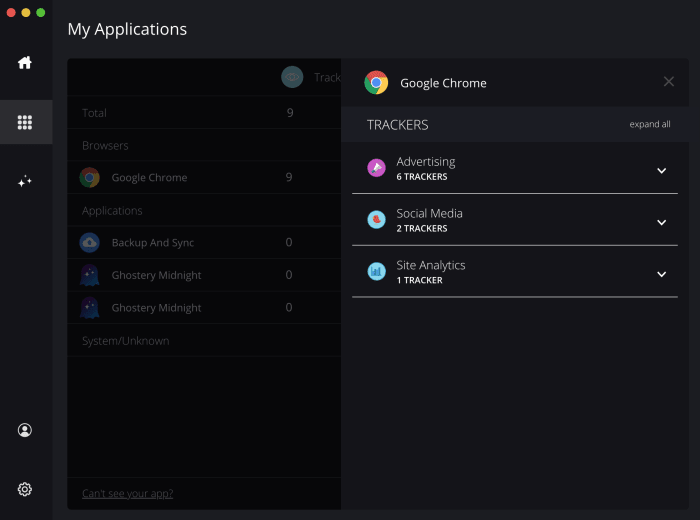
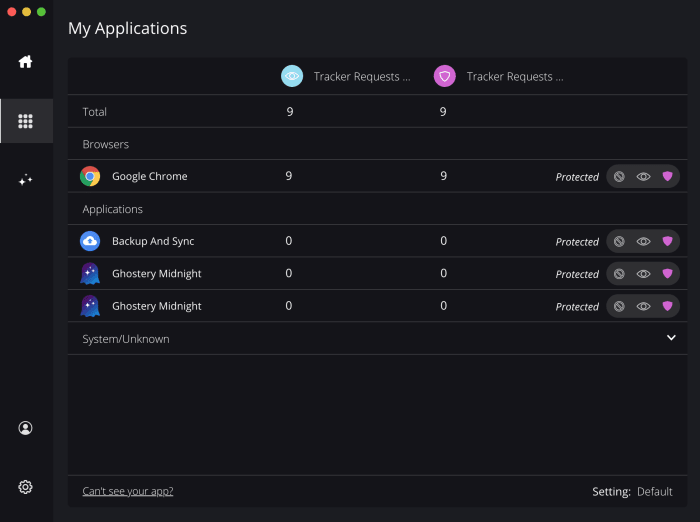
Ghostery MidnightFrom that same dashboard, you can toggle overall tracker and ad-blocking protections, as well as select any running apps you’d like to exclude from Midnight’s protection. Clicking on individual apps also provides you with the stats on how much and what specifically was blocked such as advertising, social media trackers and site statistics trackers

Ghostery MidnightGhostery Midnight

A handy “pause” switch lets you suspend Ghostery Midnight for 30 minutes, one hour or 24 hours. This is helpful if you’re having trouble following a link through which you’ll be tracked, but one that you want to access nonetheless. 

Added bonus

As we mentioned, what makes Ghostery Midnight truly impressive is its easy built-in VPN service. As the third toggle switch on your dashboard, it’s as easy as one click to turn the service on and off. Once toggled on, a drop-down window lets you choose between servers in six locations: Montreal, Singapore, Frankfurt, London, and Los Angeles and Atlanta in the US. While this isn’t nearly as many servers as offered by the top VPN providers, the benefit here is that you have all your privacy options in one place. And truthfully, most users can be perfectly happy using just a handful of VPN servers.

The deal

As a Softonic reader, you can access one full-featured month of Ghostery Midnight free when you use the link below to sign up, along with code: GHOSTYTONIC. You’ll need to create an account with a credit card, but you can cancel at any time. After your trial period, the monthly subscription would cost $14 per month. 


Best Chrome extension alternatives to incognito mode

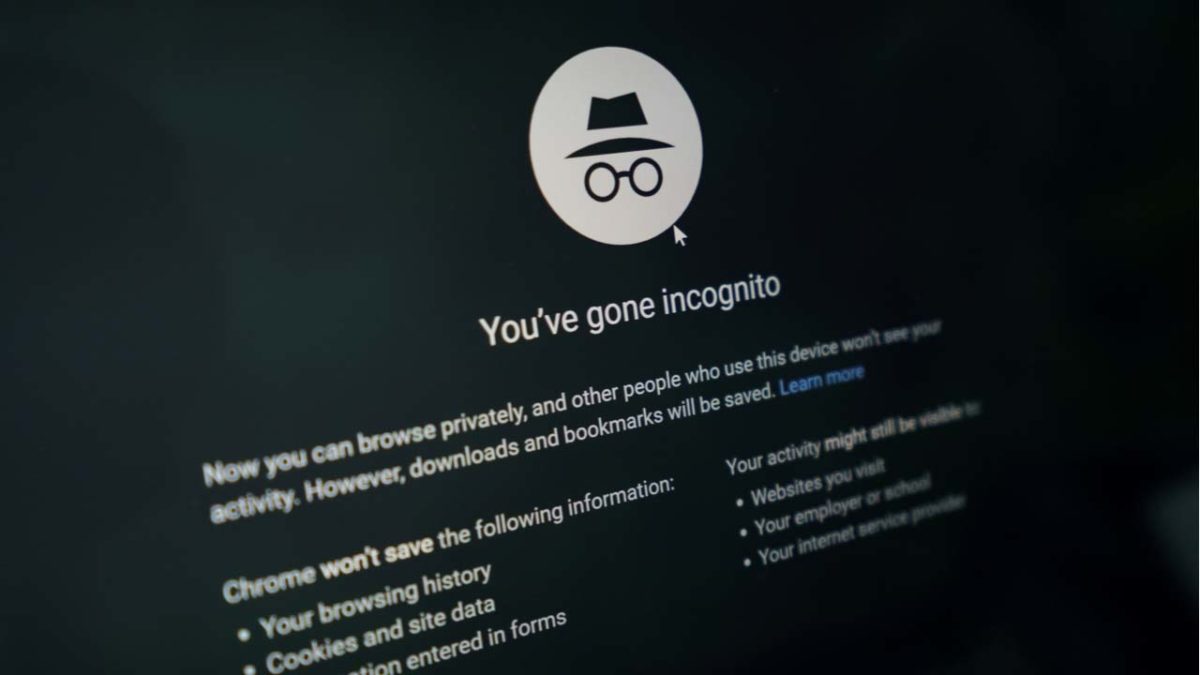
Incognito mode has saved our hides over the years, but are there better solutions.

Incognito mode

Some of us would rather crawl into a hole and die than have our friends and family see our browser history. Luckily, the incognito mode has had our backs.

Incognito mode is an incredibly useful tool for hiding your browser activity, but also for the security measures it provides. Many Google Chrome users use this function to protect themselves from a variety of online threats.

7

While incognito mode provides a great option for browsing, there are a few Google Chrome extensions you can use to provide the same or better privacy:

Ghostery

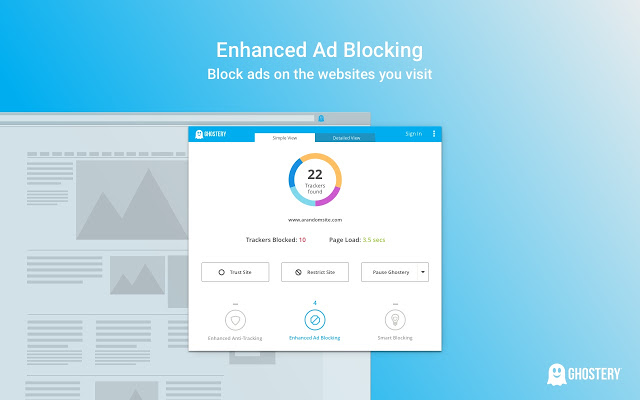
Ghostery is a free anti-tracking extension. It runs in the background to see if sites are tracking any of your information. When it finds a site that’s tracking you, it’ll block the information from being tracked and alert you.

It’ll also speed up your web browsing because each web page will spend less time trying to track your information.

Ghostery
7

HTTPS Everywhere

HTTPs Everywhere

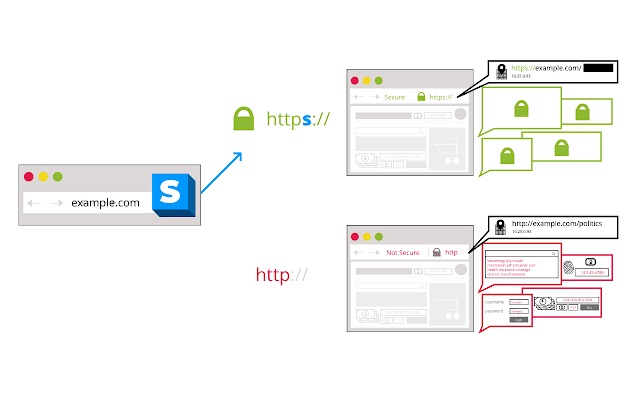
Most sites have an HTTP version to open them, but not all sites have an HTTPS version. Typically, your web browser will open the HTTP version (which is the unsecured version) by default.

HTTPS Everywhere makes your browser check for an HTTPS version of a site first. That way, if it’s available, you can have a secure connection to the site without needing to worry about any invasive malware.

HTTPS Everywhere Free Download ►
8

Vanilla Cookie Manager

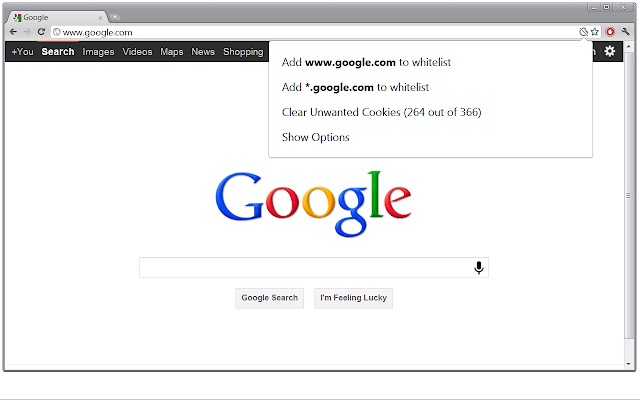
This extension can be used to speed up your computer, as well as protect yourself from potentially dangerous cookies. Since cookies are necessary to run certain sites, it lets you fully manage the cookies that each site is trying to place on your computer.

It will also tell you whether these cookies are tracking your information or not. You will have a good understanding of how they work before you decide whether you want to block them.

Vanilla Cookie Manager
Vanilla Cookie Manager Download now ►
7

DuckDuckGo Privacy

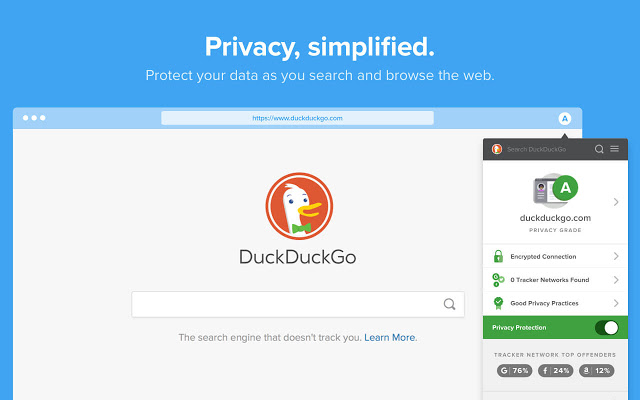
This extension provides an alternative search engine to Google. While Google records your search results and your information, DuckDuckGo will let you search completely as if you were in incognito mode.

It even gives you a privacy grade for each website you visit, letting you see how secure each one is. You can also use this extension to force open HTTPS versions of sites.

DuckDuckGo
DuckDuckGo Privacy Browser Free Download ►
7

Hide Incognito Mode

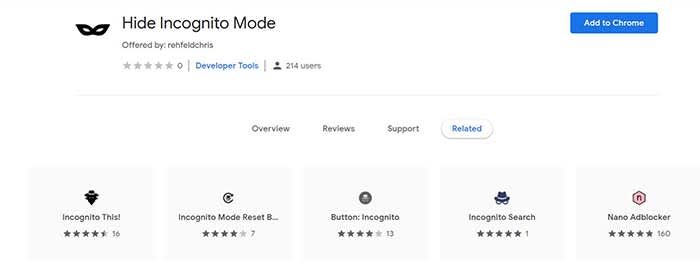
While this isn’t exactly an alternative to incognito mode, it will fix one of the main problems people have with it. Some sites are able to detect when you’re in an incognito window and will prevent you from viewing their site until you’ve switched. This extension lets you bypass these security measures so you can continue your incognito browsing.

Hide Incognito Mode
Hide Incognito Mode Download now ►
7

Another alternative

If you’re worried about privacy, you might consider switching browsers entirely. Chrome isn’t really your best bet for that. Firefox is a great alternative. You could also try Brave, which offers you everything you love about Chrome with much better privacy, built-in ad blockers, and more.

Wrapping up

These are just a few of the fantastic extensions you can use on Google Chrome. If you haven’t been using any until now, you may want to check out our list of the best Chrome extensions for Windows. Each of these privacy extensions can enhance your browsing experience, but so can dozens of other extensions as well.

Is the free version of Ad Guardian Plus all you need for surfing sanity?

If you’ve ever shopped for an item online and then had an ad for that same item appear on practically any site you visit, then you’ve experienced the complicated world of online tracking. At their best, browsers that track your movements across the web can serve up ads that are relevant to your interests. But more often, ads are major annoyances – sometimes advertising the very thing you just bought.

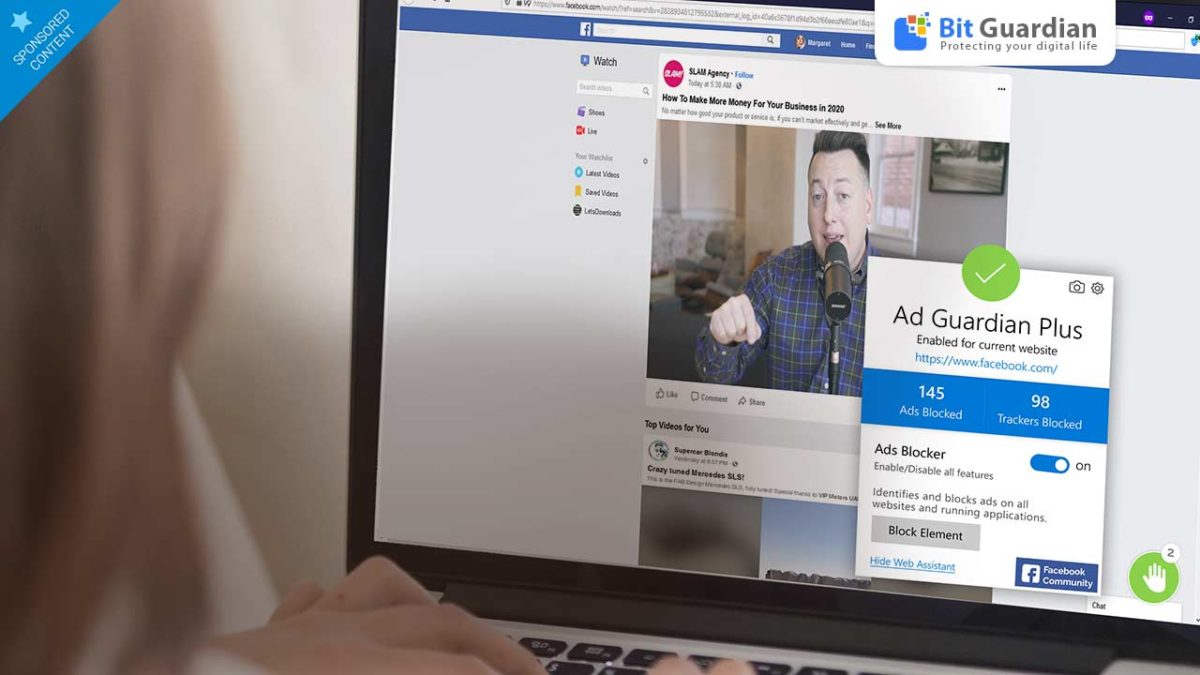
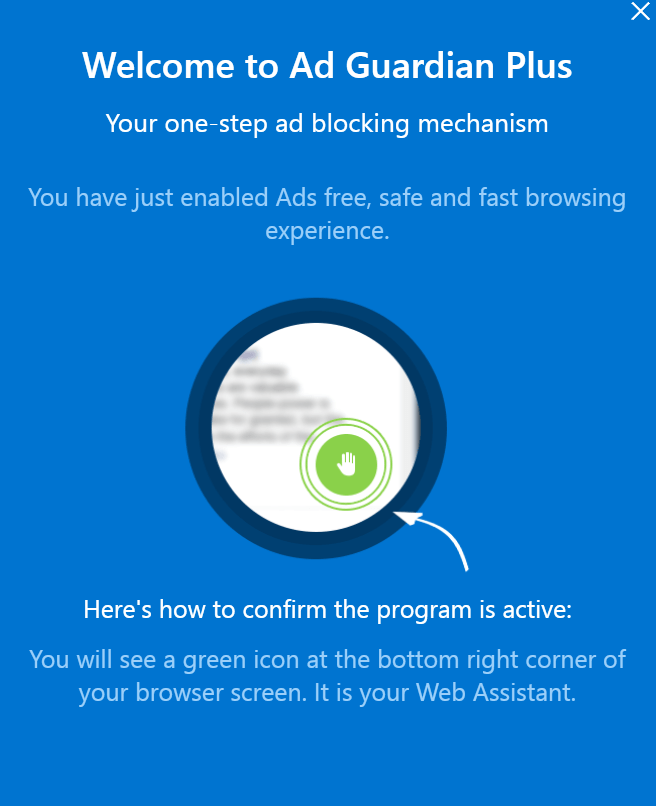
Ad Guardian Plus is a lightweight yet powerful Windows-only solution to swatting trackers and ads off your devices. BitGuardian, the company that developed the software offers a free and several paid versions of Ad Guardian Plus. Here we’ll tell you what you need to know to choose the right version for your online lifestyle.

The free version

While you can read our complete review of Ad Guardian Plus here, what you need to know is that the software offers free-for-life cross-browser ad blocking. Unlike plug-ins that need to be installed on each browser and device you use, Ad Guardian Plus works at the network level. You install it once on your machine, then no matter which browser you use, you’ll be protected from sites serving up ads, which can often slow down your browsing experience. 

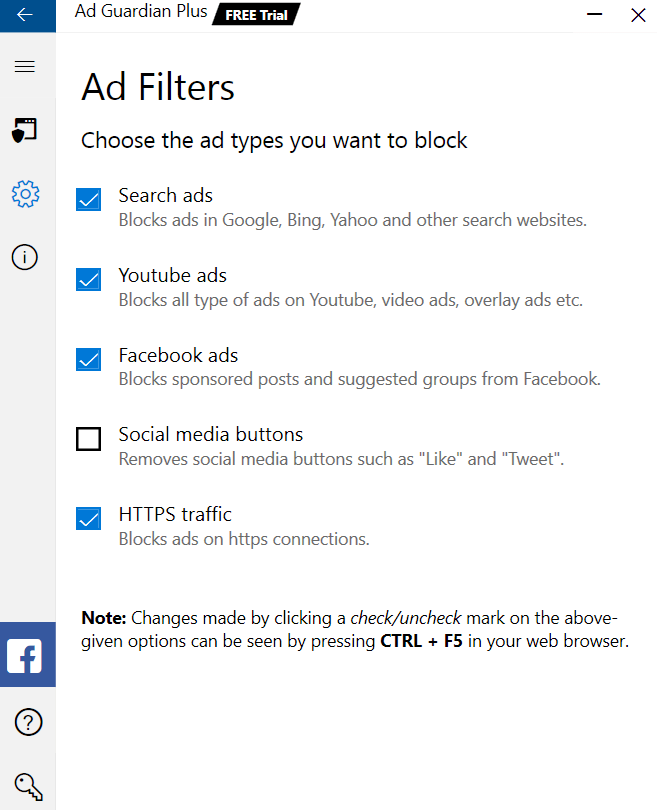
Ad Guardian PlusAmazingly, this function of the software is completely free. After you install the software package, Ad Guardian Plus gets to work in the background, automatically doing its job blocking ads. Installation is quick, hassle free, and simple. You can tailor which ads you’d like to block and even let the software know if there are sites on which you don’t want it to function.

Ad Guardian Plus

Paid Versions

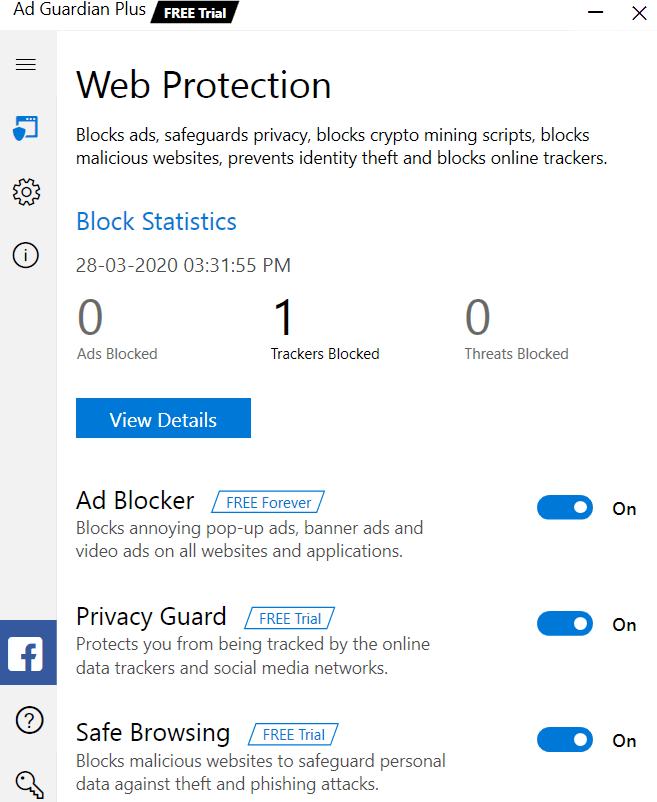
Stepping up to the Basic version of Ad Guardian Plus will get you Privacy Guard. This function adds an extra level of browsing protection by blocking trackers from social media sites, YouTube, and any other website you visit. This means that aggressive marketers won’t know which sites you frequent, what you’ve liked on Facebook, what videos you’ve watched, or what you’ve shopped for.

This Basic level of subscription, which costs $9.25 for a month-by-month payment plan, also adds on Safe Browsing, a function that blocks suspicious websites and protects you from malicious activities like phishing and data theft. You also get a 60-day money-back guarantee and email support.

Ad Guardian Plus

Stepping up to a Standard Plan ($5.25/month billed in six-month intervals) adds 24/7 live support

Going for the Premium level of subscription ($3.25/month billed as one annual payment) throws in a free copy of McAfee Internet Security, which is top-level privacy protection software.

Summary

So, which plan is right for you? 

If you’re a casual internet user who’s not too concerned about tracking, and you’re careful with how you share your personal information online, the free version may be just fine for you. In fact, we can’t think of any reason why you shouldn’t add that version to your PC right now

If you are a bit more worried about your online privacy and don’t necessarily want your browsing habits shared with marketers and corporations, moving up to the Premium plan simply makes sense. Not only is the average monthly price the lowest of all options, but the protection is top-notch, especially when you consider the inclusion of McAfee Internet Security, a $75 value.

Perhaps the best strategy is to download the free trial version of Ad Guardian Plus, which lets you try all the features it offers free for a full week. Then you can decide exactly what you’d like to keep and what, if anything, you’re willing to do without. 

Best Android apps to create avatars

These apps will help you make your own fun avatars to use as your profile image on all your social media and messaging apps

Android avatar apps

We live in a modern world where information and data flow freely. We can post videos online, talk to relatives on the other side of the planet, and communicate quickly and easily with many friends at once in group chats. In such a world, do you really think a mere username or phone number is enough? These days, if you want an online identity that says something about you before you do, you need an avatar.

Today we’re going to walk you through some of the best apps you can download on your Android phone to help you make your own avatar. With a well-designed avatar, you can display your personality without showing off your actual face. As well as being fun to make, avatars can also help keep you safe online. Let’s get started then. These are the best Android avatar maker apps

The best Android apps to make avatars

Boomoji

Boomoji for Android

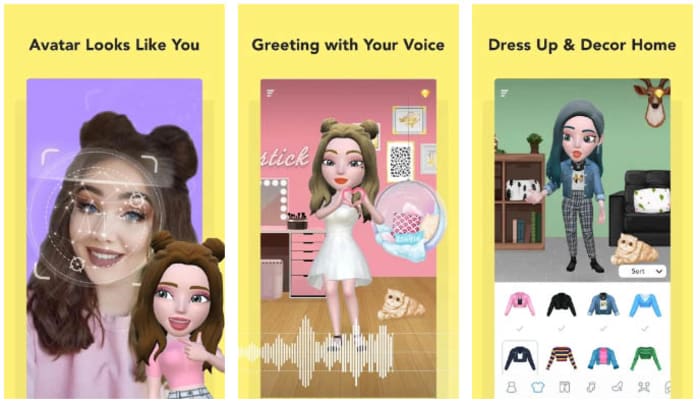
Boomoji could be the best avatar maker app on our list. This app will actually scan your face through a selfie and then build a 3D avatar that looks just like you. So far so good, but Boomoji goes even further by allowing you to then tailor the resulting avatar even further. You can tweak things like hair color, hair style, eye color, skin tone, and more.

Boomoji is so much more than an avatar builder though. Once you’ve built your avatar you can then use the app to film mini animated avatar movies using in-app scenes with your avatar and also your friend’s avatars as the stars. The app also has AR features, which means you can see what your avatar looks like in the real world too. On top of all of that, Boomoji also has a massive collection of animated stickers and emojis and games too, which you play as your avatar.

Boomoji Download now
9

FaceQ

FaceQ is a great little app that you can easily lose hours to. This app is about creating cute, cartoon avatars and it easy to use, even if you can’t draw. You simply choose your gender and then model on various other facial features like eyes, nose, lips, and stuff like hair and eyebrows too. You can also tailor things like clothing and emotions, and you can play around with the background and add text, if you’d like. The other cool thing about FaceQ is that it is free and doesn’t show you ads.

FaceQ Download now
8

SuperMii

SuperMii

If you’re an anime or comic book fan, then you might want to check out the SuperMii app. SuperMii gives you all the usual avatar customization options but does so in a bright and vibrant anime style. This is definitely one of the edgier avatar creator apps we’re featuring today. As well as designing the facial features, SuperMii also gives you the power to control facial expressions too. There’s also a lot of other cool features here for you to play around with.

SuperMii - Make Comic Stiker Download now
8

Bitmoji

If you want to download one of the most popular Android avatar apps, you should look at Bitmoji. What’s cool about Bitmoji is that it can connect with a lot of apps straight out the box, which means it is very easy to use your avatar across all your online services. You’ll no doubt already be familiar with the Bitmoji avatar style if you use Snapchat. What’s even better is that you can link the app to your Gboard keyboard app, which means you can easily add your avatar to third-party apps, with the simple press of a button on your on-screen keyboard.

Bitmoji Download now
9

Androidify

Androidify

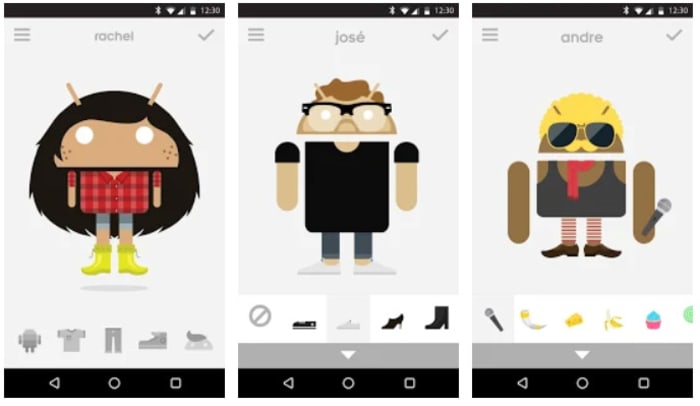
Androidify adds an interesting new aspect to your avatar creation. Basically, Androidify gives you the chance to create an avatar out of the Android logo. You can take the logo from the little green alien looking robot everybody knows and loves, and then really go to town giving it a makeover. Think cameras, smartwatches, hipster outfits, and all manner of weird accessory from smoker’s pipe to rubber duck. What’s even better about this app is that it comes from Google directly, which means it is completely free to use, doesn’t have any in-app purchases, and won’t show you any ads.

Androidify Download now
7

Cartoon Maker

The final app we’re featuring today is Cartoon Maker, which is another app that focuses on creating fun avatars with comic-like features. This is a little similar to what FaceQ offers. If you go with this avatar app, you won’t be trying to recreate something that looks just like you, rather you’ll be picking an app that will help you show off a fun and outgoing side of your personality.

Cartoon Maker - Avatar Creator Download now
8

Wrapping up

You’ve now got some really great options for creating yourself a unique and personalized avatar to use on your online accounts. If you’re a parent who is worried about their children using online social media apps like Facebook and Snapchat or messaging apps like WhatsApp, the apps we’ve outlined above could offer you some peace of mind. Furthermore, as well as offering you a way to allow your children to access the internet, these apps will also give you a fun activity to do with your kids too, as you design their avatar together.

How to stop Facebook from spying on you

This how to stop Facebook tracking your online behavior.

It is possibly the worst kept secret in tech that Facebook is spying on you. Mark Zuckerberg is keen to know absolutely everything about you, he is prepared to go to some pretty shameful lengths do so like tracking people’s smartphones who don’t even have the Facebook app, and then when he gets your personal data he’s not exactly careful with what he does with it or who he shares it with. Everybody remembers the Cambridge Analytica scandal. Yep, this is all known and this probably why you want to stop Facebook tracking you and collecting your private data.

That is why we’re here today. It is possible to stop Facebook spying on you and by the end of this article you’ll know how to do it. Let’s get started.

How and why Facebook tracks your data

Facebook makes more money, the more information it knows about you. The more accurate the data, the higher price they can charge advertisers to access it. That is why Facebook doesn’t just track people who actually use Facebook. Sure, Facebook is very good at tracking Facebook users by their Facebook accounts, likes and sharesFacebook cookies, and then also tracks users across other apps it owns like Instagram and WhatsApp.

Money
This is what it is all about

Facebook goes further than this though, giving third-party websites what it calls a Facebook Pixel, which allows the site owners to analyze the effectiveness of their ad campaigns. Facebook of course, uses this data too meaning it has data on anybody visiting any sites with a Facebook Pixel. This all means it is difficult to stop Facebook tracking your data, but, importantly, it can be done.

How to block Facebook tracking your data

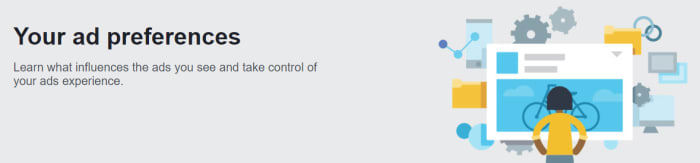
Opt out of ads

Your web behavior follows you around wherever you go. Advertisers want to get their hands on this so that they can show you relevant ads for products that your behavior tells them you want or need. This is the basic formula that pays for the modern internet as we know it today. You can opt out of this ad tracking relationship, however, by using certain online tools that are different depending on where you are around the world. Doing so will put up a block to the tracking that Facebook carries out. You’ll still get Facebook ads, they just won’t be target ads based on you data.

opt out of ads to stop Facebook tracking you

If you’re in Europe, you can opt out of advertising based on your web behavior by going to the European Interactive Digital Advertising Alliance homepage. If you’re in the USA, you can opt out by heading over to the Digital Advertising Alliance. The name of the organization Canada is the same as it is the USA; click here to go to the Canadian Digital Advertising Alliance.

As we’ve just mentioned, however, this underpins the whole of the modern internet so don’t expect this process to be easy. Stick with it though, and you will get it done.

Browser plugins

Your browser is Facebook’s main tool for tracking your online behavior. This means you can set up your browser to be your first line of defense. You can use third-party plugins to add certain protections that will block tracking protocols.

Limiting scripts

One such protocol that you can limit to better protect your privacy is the scripts. Scripts can alert advertising trackers to your presence whenever you log on to a website. This means if you block a website’s scripts, you can prevent the advertising trackers from knowing you’re there.

uBlock Origin

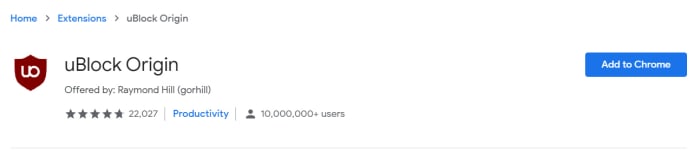
An excellent free plugin you can install on ChromeFirefoxOpera, and Safari for free is uBlock Origin, which gives you the option to block scripts across all sites and then white list sites you can trust. Another fantastic little plugin you can use is Privacy Badger, which is very easy to use. If you’re reading here about advertising trackers and scripts and thinking you’re out of your league, then this is the plugin for you. Privacy Badger makes it very easy for you to control which scripts track what. It is important you get this right because many basic web functions rely on scripts so blocking the wrong ones could be like shutting off the internet.

Automatic cookie deletion

Another type of plugin you can download will address a problem you probably know more about. Cookies are much more well known than website scripts. Cookies remember the choices and actions you make on certain websites and Facebook can then read these to get an understanding of your online behavior.

If you’re a Firefox or Microsoft Edge user, you can set your browser to automatically delete your third-party cookies every time you close your web browser. You can find a guide on how to do this for both browsers here. If you’re a Chrome user, however, there is no such option. Fortunately, though, there is a browser plugin you can download for Chrome, imaginatively called Cookie AutoDelete that will do the trick. Install it and set it up on your Chrome browser to fight back against Facebook.

Dedicated privacy-protecting browser

Another great option for making it much more difficult for social networks like Facebook to track your online activity is to use a browser that is dedicated to protecting your privacy. This will mean ditching Google Chrome, as Google is perhaps the only other company on the planet that is as good as Facebook is at tracking your data. In this regard, we strongly recommend the Brave browser, which is committed to protecting your privacy.

Brave does not collect any user data, unlike Chrome, and comes ready-made to block third-party and advertising cookies. This means you don’t have to worry about which security plugins or addons to install as all the functions are already a part of the Brave browser. Brave is actually trying to readjust the modern internet model that we described earlier and push web developers to rely less on advertising by offering something called Brave rewards instead. If this mission is successful, you won’t need to block Facebook tracking as it won’t be such a lucrative business anymore. What’s even better about Brave is that it is based on the opensource Chromium code that built Google Chrome meaning it also works with your Chrome browser plugins too.

How to recover deleted files from your Android

This is how to recover lost and deleted files on your Android phone and to protect yourself against future losses.

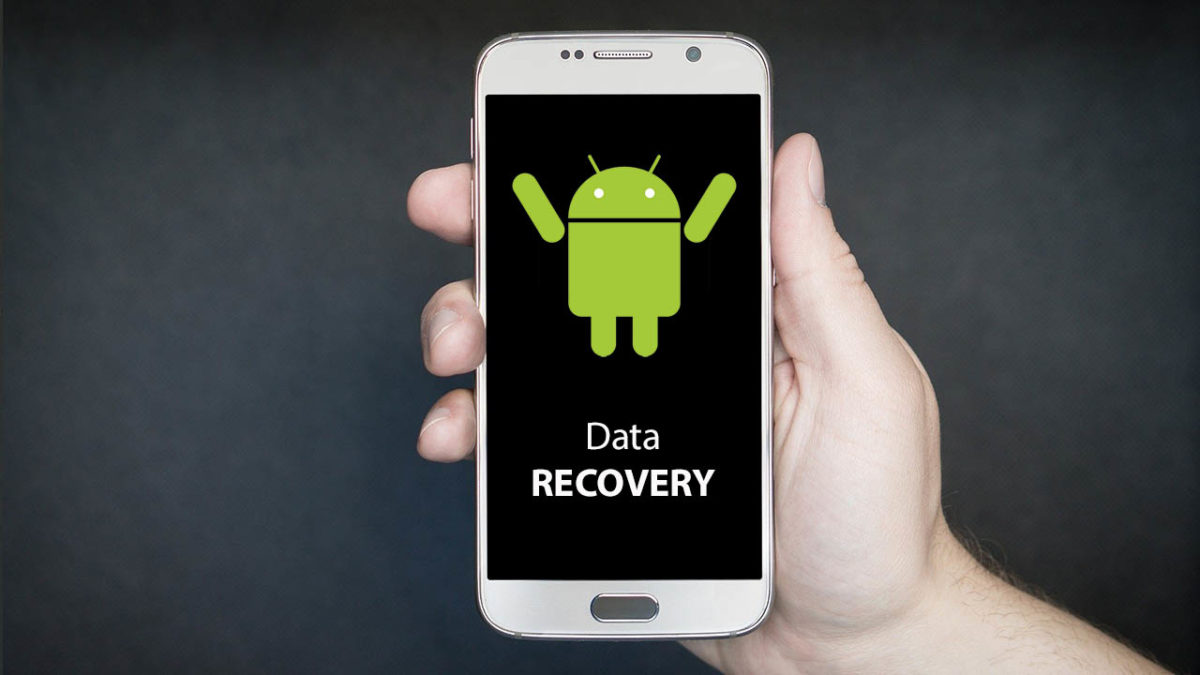
Android data recovery

We’ve all been there; we’ve all done it. Accidentally deleted some files that we weren’t supposed to delete. Apart from staring blankly at where they used to be, what can we actually do about this common mishap? On your Windows PC it isn’t that big of a deal, you simply go to the Recycle Bin and Restore the files you deleted. Then they’ll magically reappear back where they were before you deleted them. Android data recovery isn’t that simple, however, because there is no Recycle Bin type feature that stores your lost data.

Don’t worry though, all is not lost. You can recover deleted files on your Android smartphone and we’re going to show you how to do it. There are a few ways to restore deleted files and then there are a few steps you can take that will protect your files in the future. Let’s look then, at how to recover deleted files on Android.

How to recover deleted files from Android

When you delete a file on your Android mobile phone it isn’t completely erased from your device. Instead the actual file remains on the phone’s internal memory and what happens is the marker for the file is removed from your device. Android phones do this because it is quite difficult to actually remove files from a hard drive; if you wanted to do it yourself, you’d need to use a file shredding app. When you delete a file then, it is the marker that goes making the space the file was taking up “free” again, with the actual file only being overwritten, if new files are installed. This is good news for anybody who has deleted a file by accident. If this is you, you must remember that you shouldn’t install any new files or apps before you attempt to recover your “deleted” file as the new installs might overwrite the old data.

How to recover deleted Android files using a PC

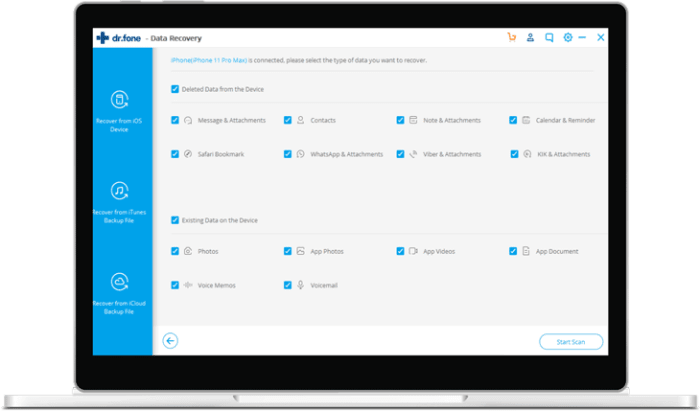
dr.fone Android recovery

What this all means is that you can recover deleted files, it just means that you’re going to have to delve into your Android phone’s internal storage to do so. To get your deleted data means using specialized recovery software and most of these programs require you to connect your Android phone to your PC with a USB cable.

The most successful Windows PC program recovery tool for Android lost files is dr.fone – Data Recovery (Android). There’s also an iPhone version. The program is compatible with over 6,000 different Android devices and can recover photos, videos, deleted contacts, text messages, and call logs, among other things. You can download dr.fone using the link below. It is a premium tool, but it does offer a free trial. Click the link and then follow the on-screen instructions to try and get your files back.

dr.fone Recovery for Android Download now
6

How to recover deleted Android files using an Android app

DiskDigger

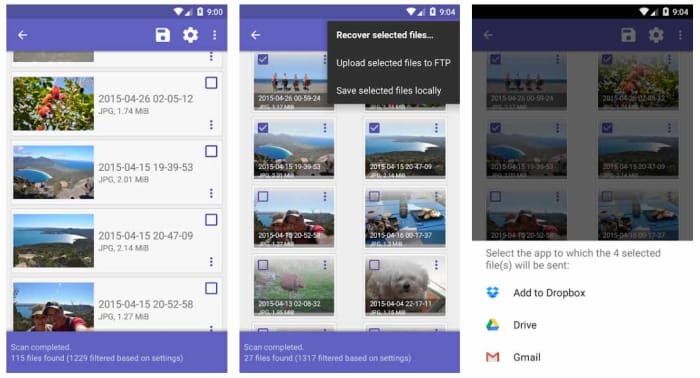
DiskDigger and DiskDigger Pro are two Android recovery apps that can help you recover your accidentally deleted files from your Android smartphone. DiskDigger is great for photo recovery and can perform a limited scan for deleted photos and then recover JPG and PNG files that are still stored in your device’s cache or as thumbnails. The undelete app is simple to use although there is a more advanced scan that can recover more photos from your Android internal memory and memory card if your Android device has been rooted.

DiskDigger Undelete Download now
8

DiskDigger Pro is a premium Android data recovery tool that can recover more file types from your Android phone’s internal memory. These file types include images, videos, documents, music, and more and they can be recovered from the internal memory or an SD Card. Unfortunately, however, DiskDigger Pro only works with rooted devices so if you haven’t rooted your Android device, you’re going to have used another method like dr.fone.

DiskDigger Pro Download now
8

Recover files on Android: Prevention and backups

As you’ve seen from the solutions, we’ve outlined above including connecting your Android phone to a Windows PC and rooting your device, important file recovery on Android is a bit of a pain. Fortunately, however, there are certain apps you can download and steps that you can take that will keep you ahead of the game.

Download a file manager app like MiXplorer

Often file explorer apps for Android have their own Recycle Bin features, which means you can easily recover any files you accidentally delete. One of the best of these is the ES File Explorer Pro app, but this is no longer available on the Google Play Store due to some shady behavior from its developer. Another great option though is MiXplorer, which enables you to set an Undo feature that sets up a “recycle/trash” feature.

MiXplorer Silver File Manager Download now
10

Google Photos

Let’s face it, most of the files you have on your phone are photos and videos you’ve snapped yourself using your phone’s camera. The good news here is that if you use Google Photos, these will automatically be backed up to the cloud. This is a great feature because it allows you to free up space on your Android phone by deleting all the photos and videos that have already been backed up. You’ll then still be able to view them whenever you have an active internet connection. You need to use Google Photos as your default photo app.

The other great feature about Google Photos is that it has a Bin feature. Although your Google Photos automatically backs up your photos and videos, it doesn’t automatically protect them from accidental deletion because deleting a photo on your phone will also delete it from your Photos account. They will just go to the bin though, so if you have lost photos or videos accidentally, head to the Bin on Google Photos and recover them. Easy peasy.

Google Photos Download Google Photos
7

Use WhatsApp

WhatsApp has signed a deal with Google that allows you to backup all your WhatsApp messages using Google Drive for free. This deal has no limits meaning that should you lose any of your messages, you’ll always have backups.

WhatsApp Messenger Download Now ►
8

This holiday season, let Santa in, but keep the spies out

Shopping online can bring a lot of great gifts right to your door. But with all that increased surfing, it can also bring something else you don’t want to your computer: spyware.

Some spyware can be relatively harmless – like adware or cookies that track your surfing and purchase history for marketing purposes, such as serving you relevant ads. But spyware such as Trojans and system monitors can watch everything you do at your computer and harvest personal details including social security numbers, credit card numbers and more.

Defeat the mighty Trojans

Trojans generally arrive on your computer via a download link that you’ve clicked. For example, you might get a notice that your browser is out of date and needs to be updated. When you click on the link however, you’ll actually download spyware onto your system that can be very hard to detect. What’s worse, Trojans can continue to download more malware once they settle onto your system.

If you don’t have an antivirus program to identify them, the most likely way in which you’ll notice their presence is through system slow downs and frequent crashes. Other telltale signs include unusual icons in your toolbar that you’ve not seen before or error messages that seem unrelated to your activities.

Every click you make

System monitoring software is often masked as freeware and will log every keystroke you make, every site you visit, and every program you run. Again, caution is king when deciding what to download to your machine. Even if a site looks reputable, be smart when clicking on a download that seems too good to be true, or one that appears on your machine as a pop up.

If you suspect that your computer has been infected with spyware, you really only have one choice for removing it: aggressive antivirus and antispyware software. Just like spies in the real world, spyware is created to avoid detection, so without the right software to sniff it out, it could run on your computer indefinitely.

Avast Free Antivirus is one of our top picks for preventing, detecting and removing spyware. With continuously updated databases and algorithms, this software is tops in keeping your computer clean and your data safe.

Of course, you can also take steps on your own to limit your exposure to spyware by ensuring that your browser, operating system, and software have the latest updates and security patches; setting your browser security and privacy levels higher; using extreme caution if you frequent file-sharing sites; and not clicking on pop-up ads.

Once you’ve run your antispyware software and know what type of threats existed on your computer, you may want to contact your financial institutions to change credit cards and account numbers if it turns out that your personal data was at risk. You might also want to freeze your credit through national monitoring services to thwart identity theft.

Taking these steps should ensure that your online holiday shopping will deliver gifts Santa would be proud of, while keeping the spies out in the cold.

Don’t gift your credit card number to a scammer this holiday season

So far, 2019 has smashed records for online shopping as people embrace the ease and relative security of making purchases electronically. Unfortunately, this also means that scammers such as phishers are also out there in record numbers trying to score a gift of their own: your credit card number. Here’s how to keep your data private and stop them in their tracks.

Know your phish

Phishing, which is the term for when someone uses fraudulent methods to gain access to your personal data, generally originates from an email – perhaps even from an organization that you already do business with. But here’s the catch. Phishing emails need to get you to a website where you will be asked to fill in personal information – something reputable organizations simply don’t do. So if you receive such an email, beware.

During the holidays you might even receive an email asking you to confirm your order details, which seems like a logical request. But even if you follow the link asking for this information and the website you arrive at looks like you’d expect, be extra cautious if you’ve already provided your shipping address and credit card information to an online retailer. If you’ve done it once, you don’t need to do it again.

Remove the disguise

One easy-to-find telltale sign of a phishing scam has to do with the link you’re being asked to follow. It’s very easy for scammers to create a link that seems legitimate, but that actually masks its real destination. Let’s say you see a link that reads “paypal.com” in an email. It looks legitimate, and that is indeed a correct web address for the company. To see where the link really leads however, simply hover your mouse over it. The true address will pop up in a small box. If it’s not what you expect, DON’T CLICK!

Protect yourself

Lastly, no one should be online these days without some kind of antivirus software securing your private details. Avast Antivirus Free has consistently been one of our top picks because it offers protection rarely seen in a free package. Avast Antivirus comes loaded with technology that will not only scan your email for dangerous attachments, but it will warn you that a site is unsafe if you’ve unwittingly clicked a link in a phishing email so that you can steer clear.

Additionally, Avast beefed up its anti-phishing efforts recently by incorporating robust artificial intelligence (AI) coding into the software. This cutting-edge technology not only compares links to known phishing sites, but it goes much deeper.

By using computer vision to analyze the composition of a site and determining if a site might be stealing images from another, phishing scams are more readily uncovered. Plus, the AI also investigates sites based on their ranking in search engines. Because phishing sites are not usually online long enough to be indexed by search engines, finding out a page’s ranking adds to the information gathered, allowing the software to warn you – with extreme accuracy – when a site is to be avoided.