WhatsApp shows that talking to yourself can be normal

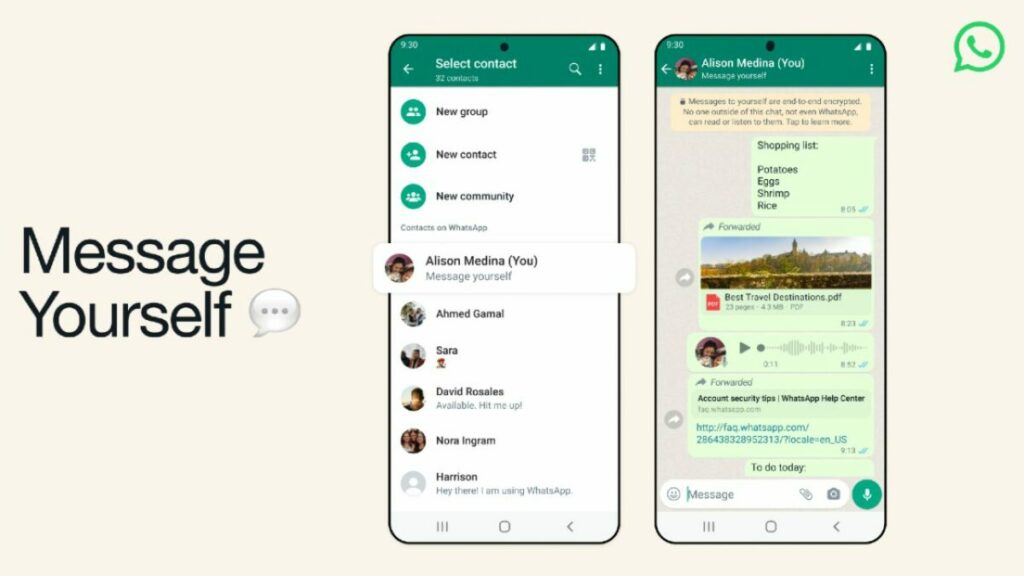
Do you know the saying that talking to yourself is a sign of madness? Even in the wizarding world of Hogwarts, speaking to yourself is never a good sign, according to Hermione. Yet, what do you do if you want to save a quick note when you don’t have time to write it down? WhatsApp is finally addressing this issue by letting you message yourself.

This feature became available in Beta testing sometime in October, but WhatsApp is finally rolling it out to everyone on Android and iOS. If you check your contacts, you should see your number right at the top with the word (You) beside it. When you tap on it, you’ll be able to send a voice note, images, URL links, and so much more.

I can’t express to you how happy I am about this new WhatsApp feature. There have been so many times in the past when I sent my friends or partners links or notes so that I could copy or check them later when I had more time. Now, they don’t have to be inundated with these random messages with me talking to myself anymore.

whatsapp message yourself

Sure, most phones have voice recorders, or you can use apps like Notion to make an audio note. However, going back in later or finding that file can become irritating. This new WhatsApp feature is more convenient, and it’s a nice way to tell yourself to have a nice day. You can also share secrets with yourself if you really need to get something off your chest.

I can already see me sending myself WhatsApp notes about new things I need to add to my novels or things I need to buy at the shop. Say goodbye to those notes on your phone or fridge as you talk to yourself in a healthy, more acceptable way. The only time you should worry is if you reply to your own messages and spark conversations with your other personalities.

WhatsApp will soon be a multi-device platform

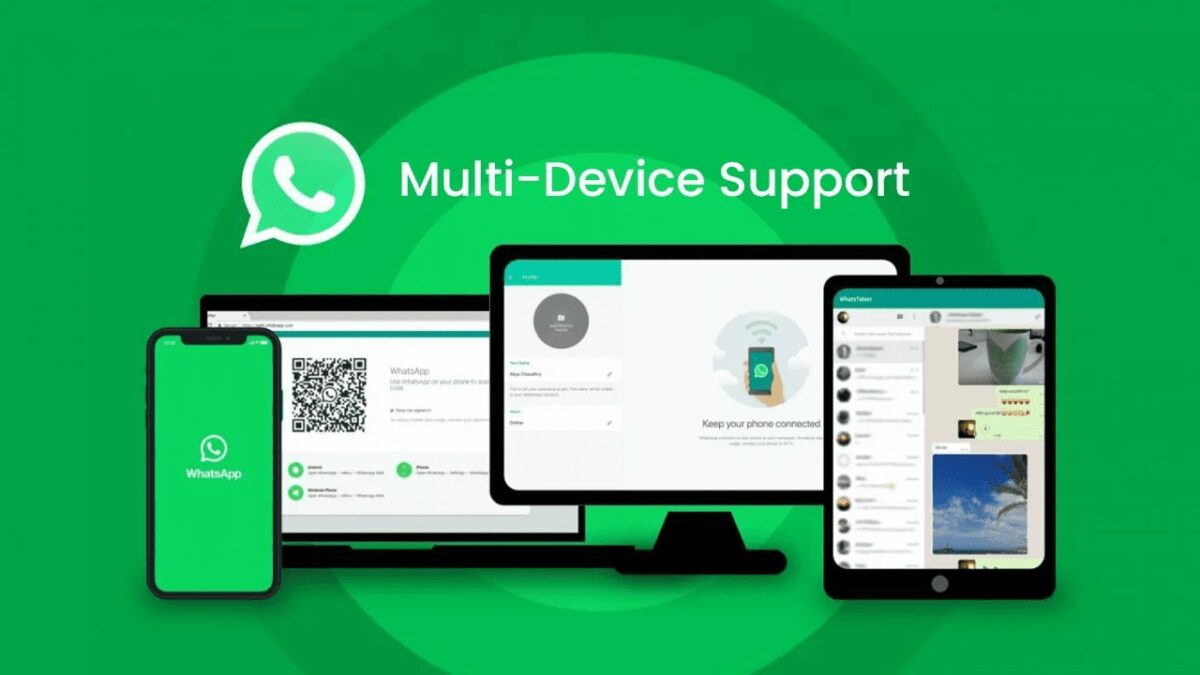
Meta is working on a Companion Mode feature for WhatsApp. The feature is currently in its initial rollout phase, and some users within the beta test program will already have a version of the feature to test. It might not be as cool as talking to yourself on WhatsApp, but it will help.

WhatsApp DOWNLOAD

If you’re unfamiliar with Companion Mode, it basically lets you link your WhatsApp account to multiple devices. ‘After linking your WhatsApp account to a new mobile phone, your chat history will be synced across your linked devices. Since this is a beta version, some features may still not be available, for example, the ability to view live locations and manage broadcast lists and stickers.’

Another cool feature is that, according to WhatsApp, you’ll be able to ‘link up to 4 devices at once so you may also link more than two mobile phones to your WhatsApp account. In addition, your personal messages and calls are still end-to-end encrypted even if you use WhatsApp from a linked mobile phone: when someone sends you a message, it is sent to all your devices so encryption is always preserved.’ 

Previously, we explored whether WhatsApp was ruining its simplicity with so many features. This feature is another one to add to the list of reasons why people might go back to using something simpler. Even though many people do have multiple devices to run the app from, the utility already has a feature that lets you do this. Linking a PC, for example, to your mobile WhatsApp app is already a way to use WhatsApp on multiple devices. Do we really need more features cluttering up this messaging platform? 

WhatsApp will soon be a multi-device platform

One interesting use case for this feature is that it may make transferring files from your PC to your phone and vice versa even easier. However, you’re already able to do this with the Link a New Device option. So, again, is this ‘novel’ feature really necessary? 

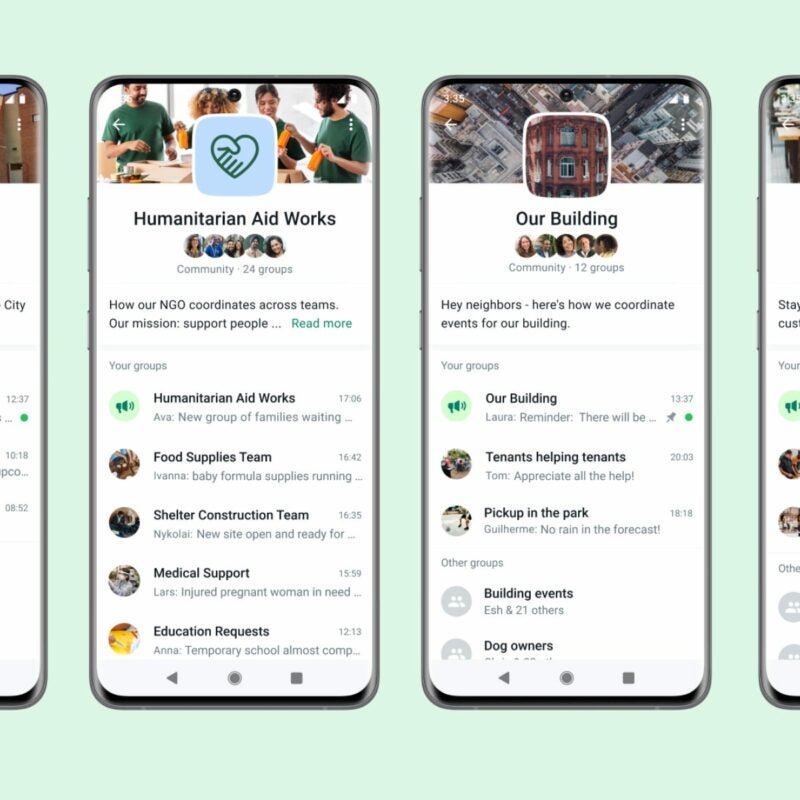
Features like this are bound to change the way that users interact with WhatsApp. With the inclusion of stories, enhanced Groups functionality, and WhatsApp avatars, the formerly humble means of communication is becoming more and more like Meta’s social media monstrosities, Facebook and Instagram. It’ll be interesting to see how all of these new additions change WhatsApp and impact the people who currently rely so heavily on this app for communication.

Is Whatsapp losing sight of its purpose?

WhatsApp has introduced a brand-new feature into its Groups function. Right about now you’re likely thinking, ‘but wait, I’ve heard this before. You wrote about it last week.’ Indeed I did. However, there’s another new feature coming to WhatsApp groups. Within the coming months, groups above a certain size will automatically be muted.

WhatsApp DOWNLOAD

 Of course, Meta doesn’t say what the threshold of being considered a large enough group is. Although, WhatsApp did just recently update its maximum group participant count to 1024. Even though this is a relatively handy feature if you belong to groups that exceed a certain number of participants, aren’t all these WhatsApp updates getting a little bit much?

So many features have been added to the WhatsApp Groups ecosystem lately that it’s bound to feel almost overwhelming to the average user. It’s not only the WhatsApp Groups function that’s been hit with a barrage of updates and new features lately, either. It’s the entire WhatsApp ecosystem. What started out as a humble messaging service has turned into a fully-fledged social media utility. The app that used to be for merely communicating with family members and close friends has become yet another way to put up the classic facade of perfection associated with social media. An even bigger leap firmly into the realm of conventional social media comes in the form of WhatsApp Communities. 

Are WhatsApp Groups getting out of control?

While loading an app with features typically drives its demand up against that of its competitors, WhatsApp seems to be moving in a direction closer to the industry within which Meta almost has a monopoly. WhatsApp may be more advanced and feature-rich than its competitors like Signal and Telegram, but at what point do average Joe and Jill decide that all they really wanted out of WhatsApp was a simple messaging system? 

In a time where more and more people move towards the idea of a simpler life, free of all the stress and anxiety that social media seems to bring wherever it goes, there seems to be a hole opening up in the communication market again. A hole that, ironically, none of the tech giants seem to be aware of or looking to fill. This hole is for simple communication, like in the days before the internet went mainstream and humanity started living out its entire existence under the public scrutiny of social media. 

In the meantime, WhatsApp continues to add more features as if that somehow adds more worth to the app. There are new Avatars in the testing phase, and you can decide who sees your WhatsApp status. Are all of these upgrades necessary? We’ll let you decide.

The Truth about Spying in Video Chat Apps

In recent months, the COVID-19 pandemic has forced us to make widespread use of a variety of video chat apps. They have enabled us to connect face-to-face with our friends and families and to attend classes, work meetings, and even job interviews without leaving our homes. These apps are great for staying in touch, but are they secure?

We are living in the information age, and hackers and cybercriminals are well aware of the amount of personal data we share through video chats. That’s why privacy should be a concern whenever you install an app on our device. Nobody wants to be spied on or see their personal data fall into the wrong hands.

Lupa en teléfono móvil

In today’s article, we’re going to talk about security in video chat apps. We’ll analyze the most popular ones to identify vulnerabilities and give you some tips to prevent unpleasant experiences.

Are video chat apps secure?

Like any app, or even the operating system on your device, video chat apps are not 100% secure. We don’t mean to say they are potentially dangerous, but they can have security holes and vulnerabilities that could be used for malicious purposes. You have probably heard of the notorious case in which Zoom was accused of leaking personal data to Facebook, including the data of users who didn’t have an account on the social media platform. Another case was far worse, also involving Zoom, and it concerned a vulnerability in its UNC links that allowed hackers to steal their victims’ Windows credentials.

Although these two examples concern Zoom, many other video chat apps have been found to have similar problems. Does that mean you should stop using them? No, but it does mean you need to choose your video chat app carefully instead of blindly following the trends. Always do your research before installing an app that could compromise your privacy and that of your data.

What problems could I have if I use an unsecure video chat app?

Actividad hacker

As we mentioned, most video chat apps have security holes that can cause a headache or two. Here are some of the typical problems that can be caused by these vulnerabilities:

  • They can undermine your privacy and that of your data– Some video chat apps don’t encrypt the data you share, which means hackers can hear whatever you say or access any files you share. They can even distort the message you are transmitting.
  • They can change the access to your video chat– Security holes often prevent you from controlling who can access your conversation or meeting. That’s why there have been so many cases of online trolls “bombing” video conferences and even taking over calls that are underway.
  • They can create fake problems with your computer– Another security hole makes it seem like you’re having problems with your PC’s microphone or camera, and as a result, you inadvertently hand over control of them to third parties.
  • They can take control of your PC– In the worst-case scenario, hackers can use vulnerabilities in video chat apps to gain full access to your computer. Fortunately, these problems are less common, and the vast majority of video chat apps are immune to them.

How can I protect myself during a video chat?

Chico haciendo una videollamada

Before you have a video chat, it’s important to take a few simple steps to ensure your cybersecurity. That way, you’ll protect your privacy and data and enjoy your video chats with total peace of mind.

  1. Make sure your video chat app is up-to-date– As we stated above, video chat apps have vulnerabilities that are repaired every time these apps are updated. Regardless of whether you use a mobile or a desktop app, make sure it is always the latest version.
  2. Always protect your meetings with a password– If you are hosting an online work meeting or conference, never forget to add a password and activate a waiting room. That way, you can make sure that the only participants in your meeting are invited guests.
  3. Switch off your guests’ microphones and cameras– In addition to the above, if you’re going to give a chat, don’t forget to mute the microphones and switch off the cameras of your guests.
  4. Beware of uninvited guests– If you are hosting a work meeting, do a headcount to make sure that you have no unwanted visitors. This is frequent at large conferences: it seems like someone who’s not supposed to be there always manages to sneak in.
  5. Be mindful of who you’re chatting with– Never share sensitive information with someone you don’t know or trust 100%.
  6. Don’t video chat with strangers– Never accept a video chat invitation from someone you don’t know, and avoid using features available on some apps such as random video chat.
  7. Don’t click on any links you receive– As a general rule, you should never click on any links you are sent during a chat. They could redirect you to a malicious website that uses the security holes in your video chat app to gain access to your computer.
  8. Activate two-step verification– If the app you’re using has two-step verification, activate it. This makes it harder for hackers to gain access to your accounts.
  9. Never make video calls on open Wi-Fi networks– Avoid using public or open Wi-Fi networks, because you run the risk of hackers intercepting your conversations.

Are the most popular video chat apps secure?

WhatsApp

Logo de WhatsApp

WhatsApp is one of the world’s most popular messaging apps for texts, phone calls, and video chats. One might think that since it now belongs to Facebook, it might not be secure. However, all chats, voice messages, and video chats on WhatsApp are 100% encrypted, so only you and the person on the other end of the line can access their content. In fact, the company can’t even access your content. WhatsApp uses the Signal Protocol system from Open Whisper, one of the best in the world, for encryption. WhatsApp is therefore a secure app for video conferencing. If you’re interested, you can download it below.

  • WhatsApp for Android

WhatsApp (Android) DOWNLOAD
8

  • WhatsApp for iOS

WhatsApp (iOS) DOWNLOAD
8

Zoom

Logo de Zoom

Zoom has been the star app of the COVID-19 confinement season. It has allowed families separated by the pandemic to stay in touch and students to attend classes from home. However, it’s not an airtight app. In fact, Zoom has been at the center of multiple security-related scandals in recent months. Fortunately, the company has been updating the app systematically and fixing each vulnerability detected, although it’s likely that some have yet to be identified. That’s why if you use Zoom, it’s a good idea to take the security steps above.

  • Zoom for PC

Zoom Meetings DOWNLOAD
9

  • Zoom for Android

Zoom Meetings (Android) DOWNLOAD
8

  • Zoom for iOS

Zoom Meetings (iOS) DOWNLOAD
8

Messenger

Logo de Messenger

Messenger is Facebook’s messaging and chat app. You can use it to chat with friends on the social media platform or on the convenient mobile app. Although Messenger wasn’t a very secure app in the past, it has since gained a number of features that protect your privacy. Among them are Secret Conversations, which are 100% encrypted in a similar way to WhatsApp. Therefore, when configured correctly, Messenger is a relatively secure app.

  • Messenger for PC

Messenger (PC) DOWNLOAD
7

  • Messenger for Android

Messenger (Android) DOWNLOAD
8

  • Messenger for iOS

Messenger (iOS) DESCARGAR
8

Google Duo

Logo de Google Duo

Google Duo is the perfect app for video chat fans who are concerned about privacy. It encrypts calls by default, so only the person you’re chatting with can see or hear you. In addition, the app is optimized to run smoothly regardless of the kind of connection you are using. Google Duo is therefore one of the best apps to guarantee privacy in your video chats.

  • Google Duo for Android

Google Duo (Android) DOWNLOAD
8

  • Google Duo for iOS

Google Duo (iOS) DOWNLOAD
8

Snapchat

Logo de Snapchat

Snapchat is one of the most popular apps for young people and teens all over the world. Users of this social media platform can share all kinds of multimedia content and have video chats. Among its biggest attractions are its many filters and fun effects that can be added to these video chats. Although videoconferences on Snapchat are said to be encrypted, they rely on symmetric key encryption within the app itself. This makes them very vulnerable to potential hacker attacks. If you want to have a confidential video call, it’s best to avoid Snapchat.

  • Snapchat for Android

Snapchat DOWNLOAD
6

  • Snapchat for iOS

Snapchat DOWNLOAD
6

We hope our article has helped you to protect your video chats. Do you use any apps that we didn’t include on our list? Tell us about them in the comments section!

Comparing the Top Video Chat Apps

They’ve been around for years, but these days, video chat apps have become absolutely essential. They let you connect in a much warmer way than a text or a phone call, because there’s nothing like seeing the other person and chatting face-to-face. Many messaging apps now have integrated video chat, while other apps have been developed exclusively for this purpose. Do you know which one is best for you?

Mujer haciendo una videollamada

In today’s article, we’re going to compare the most popular video chat apps for PC and mobile devices. We hope it helps you to choose the best app to meet your needs. Let’s have a look!

WhatsApp

Logo de WhatsApp

  • Available for: Android, iOS, Windows Mobile.
  • What you need: A smartphone with a SIM card.
  • Contact info it needs: Your contact’s phone number.
  • Types of calls: Audio and video.
  • Group chats?: Yes.

Messenger

Logo de Messenger

  • Available for: Android, iOS, Windows Mobile.
  • What you need: A Facebook account.
  • Contact info it needs: Your contact’s Facebook account.
  • Types of calls: Audio and video.
  • Group chats?: Yes.

FaceTime

Logo de FaceTime

  • Available for: iOS or MacOS.
  • What you need: iPhone or Mac with Apple ID.
  • Contact info it needs: Your contact’s email address or Apple ID.
  • Types of calls: Audio and video.
  • Group chats?: Yes.

Zoom

Logo de Zoom

  • Available for: PC, Mac, Android, iOS.
  • What you need: A registered Zoom account.
  • Contact info it needs: Meeting ID, Zoom account, meeting URL.
  • Types of calls: Audio and video.
  • Group chats?: Yes.

Skype

Logo de Skype

  • Available for: PC, Mac, Android, iOS.
  • What you need: A Microsoft account or Skype account.
  • Contact info it needs: Skype user ID.
  • Types of calls: Audio and video.
  • Group chats?: Yes.

Google Duo

Logo de Google Duo

  • Available for: PC, Mac, Android, iOS.
  • What you need: A Google account.
  • Contact info it needs: Your contact’s Google account.
  • Types of calls: Audio and video.
  • Group chats?: No.

Which video chat app is the most reliable?

One of the most important qualities of any video chat app is a stable connection that won’t crash. Unfortunately, it’s common for these apps to have perfect video quality but be out-of-sync with your internet connection, so they lag, drop calls or constantly freeze.

All of the above-mentioned apps offer decent stability; that is, you can have video chats without significant glitches where audio or video are concerned. Google Duo and FaceTime definitely stand out as the most stable, because regardless of whether you’re using Wi-Fi or your phone’s data plan, they are incredibly smooth.

Skype is also reliable, and we have never found it to freeze. That said, its smooth connection is due basically to its inferior video quality. Similarly, Messenger has significantly lower video quality than the rest of the apps, especially in group chats. The least-reliable option is WhatsApp, because it can sometimes freeze for a few seconds. That said, its performance is still more than satisfactory.

The best: Google Duo (Android and Windows) and FaceTime (iOS, MacOS).

Which video chat app is the best to use on my phone?

Since it’s so convenient, you’ll probably want to use your phone for video chats. Although the above category already gives you an idea of the best app for phones, there’s one factor that it doesn’t consider: what happens when you’re not connected to Wi-Fi? Unless you have an unlimited data plan, you need to be sure that a video chat won’t eat through all your data. That’s why it’s also important to determine which app consumes the least data.

After testing the apps on our list, we found that they use, on average, 10 MB per minute during video chats. Some are very data-hungry, such as WhatsApp, which uses 20 MB, while others are more moderate consumers and therefore more advisable for phones. Again, this is the case of Google Duo and FaceTime, which use 7 MB and 4.5 MB, respectively. That’s why we recommend both for video chats using your phone’s data plan.

The best: Google Duo (Android and Windows) and FaceTime (iOS, MacOS)

Which app is the best for group chats?

This time the answer is easy, because it only depends on how many people you want to invite to your video chat. Below are the numbers of participants allowed by each app.

  • WhatsApp- eight participants.
  • Messenger- 50 participants.
  • FaceTime- 33 participants.
  • Zoom- 100 participants in the free version, 1,000 in the paid version.
  • Skype- 50 participants.
  • Google Duo- It doesn’t allow group calls.

As you can see, most of these video chat apps make it possible to have group chats. Again, one of the best options is FaceTime because it allows a large number of participants and is very reliable. The only drawback is that you and your contacts need to be Apple users. Otherwise, Messenger and Skype are your best bets, because both are reliable and smoother than WhatsApp. Finally, we recommend Zoom for group chats, classes, and conferences.

Which video chat app is the most secure?

Another key point when having video chats is to make sure the app doesn’t have security holes and your data won’t be intercepted by third parties.

Among the apps we’ve mentioned, the safest is definitely WhatsApp, because your entire conversation is encrypted on both devices using the Signal Protocol system from Open Peer. Another standout is Google Duo, which uses the same encryption system to prevent potential hackers from stealing your data.

Messenger, on the other hand, is a safe app, but if you want 100% encrypted conversations, you have to activate Secret Conversations mode. Finally, we don’t recommend using Zoom for video calls about any important or personal matters, or if you’re planning to share confidential data. This app has run into some serious security issues, and although it has gotten much better, it still has a lot of room for improvement.

The best: WhatsApp and Google Duo.

Which app is the best for video chats with filters?

Filters are one of the most in-demand features because they make video chats so much fun. By adding real-time effects to our conversations, they can lighten up the mood when we’re chatting with family and friends. We looked at the apps on this list to find the best video chat filters, and only three have them: Google Duo, Skype, and Messenger.

Google Duo offers lots of original, creative filters that will make you the center of attention, for example, a dinosaur, a flower, or an adorable cat. Skype also has a decent number of video filters: you can add hearts or floating teddy bears, or distort your face in funny ways. Finally, Messenger deserves special mention, because this app has a huge collection of filters that are constantly updated. For this reason, we consider Messenger to be the best of the main video chat apps when it comes to filters.

The best: Messenger.

Which video chat app should I choose?

There is no quick answer to this question. To choose the best video chat app, you need to stop and consider the kind of video conferencing you want to do (calling your parents, a virtual conference, a meetup with a group of friends, etc.). Then it’s important to think about the device you’ll be using for the video chat (desktop, laptop, phone, tablet, etc.), and finally, the kind of connection you’ll be using (cable, Wi-Fi, phone data plan, etc.). This will make it easier to identify the perfect app to enjoy your video chats to the fullest.

Where can I download the most popular video chat apps?

Once you’ve decided which video chat apps to use, it’s important to download them from their official websites, Google Play, the App Store, or a trusted website. Below you can find the links to download all of the video chat apps we have analyzed in this article. All of these downloads are verified and completely safe, so don’t be afraid to install them on your device.

WhatsApp

  • WhatsApp for Android

WhatsApp (Android) DOWNLOAD
8

  • WhatsApp for iOS

WhatsApp (iOS) DOWNLOAD
8

Messenger

  • Messenger for PC

Messenger (PC) DOWNLOAD
7

  • Messenger for Android

Messenger (Android) DOWNLOAD
8

  • Messenger for iOS

Messenger (iOS) DOWNLOAD
8

FaceTime

  • FaceTime for Mac

FaceTime (Mac) DOWNLOAD
6

  • FaceTime for iOS

FaceTime (iOS) DOWNLOAD
8

Zoom

  • Zoom for PC

Zoom Meetings DOWNLOAD
9

  • Zoom for Android

Zoom Meetings (Android) DOWNLOAD
8

  • Zoom for iOS

Zoom Meetings (iOS) DOWNLOAD
8

Skype

  • Skype for PC

Skype (PC) DOWNLOAD
8

  • Skype for Android

Skype (Android) DOWNLOAD
8

  • Skype for iOS

Skype (iOS) DOWNLOAD
8

Google Duo

  • Google Duo for Android

Google Duo (Android) DOWNLOAD
8

  • Google Duo for iOS

Google Duo (iOS) DOWNLOAD
8

Don’t forget to keep your device secure by updating your video chat app regularly to fix any security holes it might have.

We hope you’ve found our comparison of the best video chat apps useful. Do you use an app that isn’t on our list? Tell us about it in the comments section!

Softonic Picks: The Best Apps for Videocalls

Video calls have gone from being a sporadic source of fun to completely essential since the arrival of coronavirus. They have helped us feel closer to our loved ones while in confinement, adding much-needed social interaction to make our daily lives more bearable. Although we’ve moved into the “new normal,” video calls are here to stay, having become the most popular way to call our family and friends.

Joven haciendo una videollamada

Whether you want to have a face-to-face meeting with a distant colleague or tell your parents how much you love them, you’ll need a good video calling app. You’ve probably seen tons of video calling apps in the Google Play Store, but they don’t all work the same way. Some are designed for work meetings, while others are for two-person calls, group calls, etc. Which one should you choose?

In today’s article, we’ll look at a selection of what we consider to be the best video calling apps of 2020. We hope you find it helpful!

Zoom

Logo de Zoom

Zoom has been a revolutionary app during the coronavirus pandemic. It can be used for video calls between two people, but if desired, you can host group meetings with up to 100 participants in the free version. This makes it perfect for online classes or meetings with a large number of attendees. Zoom has a user-friendly interface, and as the chat host, you’ll receive an ID number to be shared with the rest of the participants.

During chats, you can adjust your display to see only the speaker, or a mosaic view with all of the participants’ faces. Zoom is an easy app and it’s free to use. Also, it has versions for PC, Android, and iOS. Want to try it?

  • Zoom for PC

Zoom Meetings DOWNLOAD
9

  • Zoom for Android

Zoom Meetings (Android) DOWNLOAD
8

  • Zoom for iOS

Zoom Meetings (iOS) DOWNLOAD
8

WhatsApp

Logotipo de WhatsApp

These days, it would be hard to find anyone who doesn’t have WhatsApp installed on their phone. So it is understandably one of the most popular apps for video calling. As you probably know, this messaging app is perfect for sending texts, photos, and voice notes. What many people don’t realize is that WhatsApp is also an excellent app for making audio and video calls. Just open WhatsApp like you usually would, tap on your contact, and tap the video camera icon in the upper right corner.

Once your video chat begins, up to eight contacts can participate in it. WhatsApp is a convenient way to make video calls without bugging your contacts to install a new app, because, let’s be realistic, who doesn’t have WhatsApp on their phone?

  • WhatsApp for Android

WhatsApp (Android) DOWNLOAD
8

  • WhatsApp for iOS

WhatsApp (iOS) DOWNLOAD
8

Messenger

Facebook Messenger logo

If you’re a Facebook user and you chat with family and friends through its messaging app, you’ll be interested to know that you can also use it to make video calls. Messenger lets you make voice or video calls with one or more contacts on your Friends list. In fact, you can host video calls for up to 50 people via its new service: Messenger Rooms.

Messenger’ video calling system is really easy to use. Just tap the camera icon in the upper right corner. Also, these video chats have fun filters and special effects that are updated every week. What are you waiting for? Download it today!

  • Messenger for PC

Messenger (PC) DOWNLOAD
7

  • Messenger for Android

Messenger (Android) DOWNLOAD
8

  • Messenger for iOS

Messenger (iOS) DOWNLOAD
8

Google Meet

Google Meet logo

Google Meet is Google’s latest foray into the world of video calling. It’s perfect for users of the Google suite, that is, Gmall, Drive, and Calendar. To access it, you only need a Gmail account, which is completely free. Get yours by clicking here. Google Meet offers video chats for up to 250 participants at the touch of a button. You can access them from the Gmail desktop version and through its convenient app for Android devices.

The way it works is very similar to Zoom. Create a meeting and share the link with the participants, all from Gmail’s convenient interface and without having to install any sort of plugin. Google Meet is especially good for work meetings and group video conferencing. To try it, click “Start a Meeting” in the lower left corner of your Gmail, or download the version for Android and iOS phones and tablets.

  • Google Meet for Android

Google Meet (Android) DOWNLOAD
8

  • Google Meet for iOS

Google Meet (iOS) DOWNLOAD
8

Skype

Logo de Skype

Skype was a true pioneer in the field of online voice calls and video conferencing. It is therefore one of the most stable services with the best performance in the market today. Although there are tons of ways to make video calls nowadays, Skype has the great advantage of being a multiplatform program. In other words, whether you use Windows, Mac, iOS or Android, you can make calls over Skype.

As for usability, Skype is especially convenient for group and work-related calls. This video calling service can be integrated into the Office 365 environment. We highly recommend it for job interviews.

  • Skype for PC

Skype (PC) DOWNLOAD
8

  • Skype for Android

Skype (Android) DOWNLOAD
8

  • Skype for iOS

Skype (iOS) DOWNLOAD
8

Google Duo

Logo de Google Duo

If you’re not entirely sold on Google Meet and would prefer a program for phone-to-phone video calling, try Google Duo. This app is very similar to FaceTime, the only difference being you don’t need an iPhone to use it… and it’s available for both iOS and Android devices!

Google Duo uses your phone number and lets you make free voice and video calls to anyone on your contacts list. The app has a feature called Knock-Knock that you can use to find out who’s on the other side of the camera before accepting the call. Another thing to keep in mind is that Google Duo lets you host group video calls for up to 12 people. Interested in trying it?

  • Google Duo for Android

Google Duo (Android) DOWNLOAD
8

  • Google Duo for iOS

Google Duo (iOS) DOWNLOAD
8

Houseparty

Logo de Houseparty

Houseparty is a fun app you can use to throw virtual parties without leaving your house. Every Houseparty user has a “house,” that is, a video-chat channel that users can visit, coming and going as they please.

Every channel allows up to eight visitors simultaneously, and it’s fun and easy to have little get-togethers with friends. What’s more, Houseparty features fun games you can play as a group, such as trivia or one where you have to finish the song lyric. It’s fantastic for hosting fun video chats with your friends.

  • Houseparty for PC

Houseparty (PC) DOWNLOAD
8

  • Houseparty for Android

Houseparty (Android) DOWNLOAD
9

  • Houseparty for iOS

Houseparty (iOS) DOWNLOAD
8

Snapchat

Logo de Snapchat

Snapchat is especially popular with young people. Besides being an excellent video calling app, it’s a social media platform where you can share photos and all kinds of multimedia content. Among Snapchat’s unique features are the funny filters you can use on your video calls. But that’s not all: Snapchat lets you make video calls with up to 16 people. It’s perfect for young people.

  • Snapchat for Android

Snapchat DOWNLOAD
6

  • Snapchat for iOS

Snapchat DOWNLOAD
6

FaceTime

Logo de FaceTime

FaceTime is an excellent app for making both video and voice calls. You can make one-on-one or group calls with a total of 32 people at the touch of a button. Although it’s a great app, it has a big problem: FaceTime is only available for Mac and iOS users. So if you’re a Windows person or you use the Android operating system, you won’t be able to download it.

  • FaceTime for Mac

FaceTime (Mac) DOWNLOAD
6

  • FaceTime for iOS

FaceTime (iOS) DOWNLOAD
8

Slack

Logo de Slack

Slack is a communication platform that has really taken off in recent years, especially in professional environments. Besides having chats with your coworkers and sending files, Slack lets you make two-person video calls. We should point out that if you use the app’s free version, you can’t make group video calls. Still, it’s a highly versatile app that you can use on both Android and iOS devices.

  • Slack for PC

Slack (PC) DOWNLOAD
6

  • Slack for Android

Slack (Android) DOWNLOAD
10

  • Slack for iOS

Slack (iOS) DOWNLOAD
10

WeChat

Logo de WeChat

Our final pick is WeChat, a versatile app that offers hundreds of options for users. One of its strong points is that it can be linked to your social media accounts, so you can upload photos or videos directly to your account without leaving the app.

Moreover, it has interesting features like Shake, which lets you find users in your area who want to chat and make video calls. WeChat lets you make voice and video calls to individuals and groups. And it’s free! Interested in trying it?

  • WeChat for PC

WeChat (PC) DOWNLOAD
8

  • WeChat for Android

WeChat (Android) DOWNLOAD
8

  • WeChat for iOS

WeChat (iOS) DOWNLOAD
7

We hope you found our selection of video calling apps useful. Do you have a recommendation that isn’t on our list? Tell us about it in the comments section!

These apps are draining your battery

Does your smartphone battery hardly ever last a full day? These five apps are killing your battery.

Smartphones are amazing and there is absolutely no doubt that the phones we have today are much better than the phones we had just a few years ago. That is not true, however, for the batteries that power them. Battery life is the same as it ever was. Mobile phone manufacturers haven’t been able to move beyond a simple truth. For more battery power, you’re going to need a bigger battery. It really is that simple. You can’t have more power without having a bigger phone and phones are about as big as they can get.

As a phone owner, however, there are things you can do to help squeeze a bit more power out of your Android or iPhone’s battery. Yep, you should be familiar with your device’s battery saver mode and of course things like screen brightness, Bluetooth and Wi-Fi usage, and battery health will have an effect too, but you also need to know that certain third-party apps will be placing a massive strain on your battery usage. If you delete these apps, you will immediately notice a difference. Let us show you then, the apps that are draining your battery.

Biggest battery draining apps

All the apps below are draining more than their fair share of battery. If you regularly find your phone dying before the end of the day, consider deleting any of the following apps that you have installed on your Android or Apple mobile device.

Facebook

Mark Zuckerberg doesn’t just want all your private data, seemingly, he wants all of your battery power too as he owns the top three apps to make it into our battery draining list. Facebook, however, is by far and away the biggest of the lot though, and deleting Facebook from your phone will have the biggest effect of any action we’ll recommend you today.

The main reason behind Facebook’s excessive battery drain is that it is constantly trying to spy on everybody all over the world. This means that the app on your phone is constantly tracking what you do and constantly trying to notify you about what everybody else on your network is doing. Think about it, Facebook is always running in the background, it syncs and updates whenever it wants to, and it is constantly updating contacts and software. This means you can limit Facebook’s power usage by turning off all internal notifications for the app. Or you can just delete it altogether.

Facebook Messenger

Hot on the heels of Facebook is Facebook Messenger. You know that app that extra Facebook decided you had to download as it was no longer ok to send messages to your friends using the Facebook app. Yeah that app that you shouldn’t even need but do because a global corporation forces you to download it. That app is a massive battery hog that is likely causing your phone to run out of battery long before it needs to.

The reasons for this are much the same as they are for Facebook. Messenger is a busy app, constantly buzzing away in the background and using a lot of your phone’s hardware in the process. Fortunately, for anybody looking to save battery without losing access to the biggest social network on earth, you can download the Lite versions of Facebook and Facebook Messenger, which will use a lot less power than their bigger siblings.

WhatsApp

WhatsApp

We’re now at number three on our list and as you can see, we’re still talking about a Zuckerberg-owned app. WhatsApp is an incredibly useful app, so much so, that it is the most popular messaging app in the world. That comes as no surprise too, when you consider that you can use WhatsApp to text and call your friends and family, make video calls, easily send photos and videos, and effortlessly create messaging groups with lots of different people. Not too bad at all for a free app.

The catch, however, is that WhatsApp uses a lot of battery power. The internet modem on your smartphone is one of the most power-hungry pieces of hardware it has. By sending all your messages and transferring all your social data over the internet rather than the phone antenna, you’re placing more of a strain on your device’s battery. The real kicker here, though, is that there’s no real alternative. If you want WhatsApp to use less of your battery, you’re going to have to use it less.

Google Maps

Just like with your data, the other big guilty party when it comes to hogging your battery power is Google. In particular, out of all the Google apps, Google Maps is the one that is using the most of your juice. Google Maps needs a lot of data to accurately keep you up to date on your whereabouts. As we mentioned above, more data means more power.

To limit the amount of power that Google Maps needs you need to go into Settings on your mobile and then scroll down until you find the Google Maps option. Once you’re there select Location and adjust to While Using the App. Another quick battery-saving measure you can do is turn off notifications too.

Snapchat

Snapchat makes it onto our list today by being guilty of a number of the crimes we’ve mentioned above. Basically, Snapchat is always on and constantly tracking and looking for something to notify you about. On top of that, Snapchat is constantly tracking your location so that it can tell your friends where you are and what you’re up to.

As you’ve probably guessed, the best way to stop Snapchat hogging all your battery is to delete it from your phone altogether. If you don’t want to do that, however, you can limit certain features and functions. You need to go into the Snapchat app and open Settings and select the Who Can… option and hit My Location. When you’ve done that hit Ghost Mode and you should start to notice your battery lasting a little longer at the end of the day.

All the new WhatsApp features from 2019

These are all the biggest features that came to WhatsApp in 2019.

WhatsApp is the biggest smartphone messaging app on the planet with over 1.5 billion active users. Being free no doubt has a lot to do with WhatsApp’s massive popularity but there are a lot of cool features behind WhatsApp’s success too. The Facebook-owned app is constantly updating itself and adding new features that make it better than it used to be.

It can be hard keeping up with WhatsApp updates, however, which is why today we’re going to walk you through all the cool new features the app got in 2019. This is strictly about features that did land on the messaging platform in 2019, so we won’t be talking about features that still on the horizon like the much talked about dark mode or anything else that is still only in the beta version of WhatsApp.

WhatsApp Messenger Download Now ►
8

All WhatsApp updates for Android and iPhone from 2019

Reply Privately

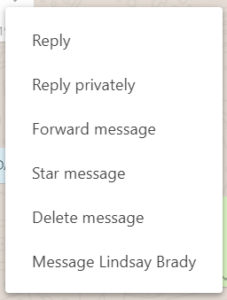
At the beginning of 2019 iPhone WhatsApp users had the new Reply Privately feature added to their app. The new feature is a WhatsApp Group’s feature and allows users to privately respond to a message they received in a group chat. You can use Reply Privately by opening the settings menu for any group chat message and selecting the Reply Privately option. Doing so will open your private chat with the user and start with a quoted reply to the message in the group chat. The feature is now live for Android users too.

Frequently forwarded label

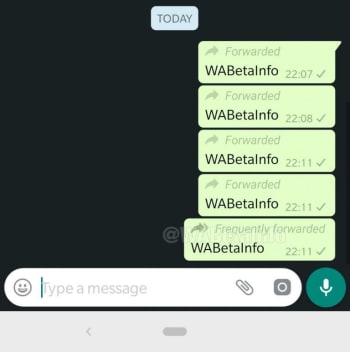
WhatsApp has been battling a fake news problem that has had some terrible repercussions around the world. One such fake news fighting measure introduced in 2019 was an updated Frequently Forwarded label that is now added to messages that have been forwarded more than five times. Another similar measure prevents users from forwarding messages to more than five users at any one time.

Fingerprint authentication

Fingerprint security

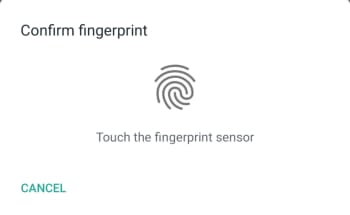
Another WhatsApp feature that came to iPhone first but is now available on Android devices too is fingerprint authentication. Users can now set WhatsApp to lock automatically and then only be opened again using an authorized fingerprint. Apple fans can also use Face ID to unlock their WhatsApp, if their iPhone has the feature.

New Group Privacy Settings

New WhatsApp group privacy settings

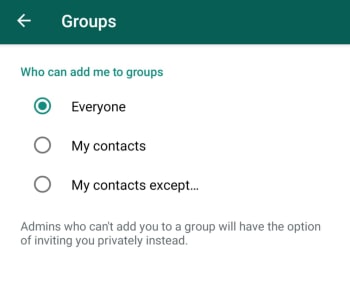
WhatsApp also updated its Group Privacy Settings in 2019. The update is designed to give you more control over the groups you’re added to by allowing you control which of your contacts can add you to a group. To take advantage of this new feature you need to go Account, then Privacy, and then Groups. Here you’ll find the My Contacts Except… below Everyone and My Contacts. Using this new option will allow you to block contacts you have saved on your phone from adding you to new group chats.

Consecutive voice messages

This is a small update, but it is one that makes hands free use much easier. When you receive multiple voice notes consecutively in a single chat WhatsApp will automatically play them one after the other. You won’t have to tap the play button every time one note finishes, and you want to move onto the next one.

Share WhatsApp Status Updates to Facebook Stories

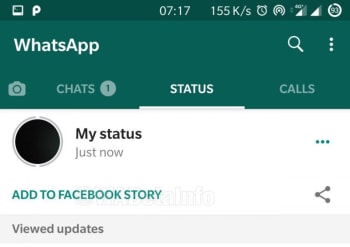
2019 was the year we learned about Facebook’s grand plan to merge Facebook, WhatsApp, and Instagram. Each will remain its own separate app offering its own separate experience, but it’ll be much easier for users of each app to communicate with each other across them. The first major step in this direction, which we saw in 2019 was the ability for users to share their WhatsApp Status Updates to their Facebook Stories. Now, whenever a WhatsApp user posts a Status Update a new button will appear under the Status tab, which gives the option to share the update to Facebook. It really is a brave new world.

Netflix trailer support for iOS

WhatsApp users on iOS have a handy new feature that allows them to watch Netflix trailers from right there in the chat window. When they receive a compatible Netflix link in a WhatsApp message and click on it, the video will start playing in a large thumbnail window like it does whenever you click on a YouTube link. Unfortunately, for Android users, this feature isn’t live on Android and there is no indication that it will roll out any time soon.

Improved Picture-in-Picture (PiP) mode for Android

The official name for the video thumbnail outlined above is WhatsApp’s Picture-in-Picture mode, commonly referred to as PiP. When PiP was first launched on Android it was limited to single chats. If you received a compatible video link in a chat, you could click it and then view the video while you continued chatting away. If you left that chat, however, your PiP video would disappear. In 2019, WhatsApp updated this feature and you can now switch between different chats while continuing to watch your PiP video. The feature also landed on WhatsApp Web and desktop in 2019 too. As always, however, the feature has been live for iOS for quite some time already.

Group Calls on Android

Group Chats on Android now has a new button that makes it very easy to launch a group call. When you click the icon, which is found in the top-right corner of the chat you’ll see a new pop-up window appear, which allows you to choose the participants of the group call. You can then select up to three participants and decide whether it will be a group video call or a group voice call. This feature is also available for iOS users too.

Wrapping up

As we started out by saying, WhatsApp is a constantly evolving messaging app, even if it feels like it never really changes. With the core feature simply being a way to contact your friends and family it can be easy to miss the new updates if you’re happily chatting away in the same way you always have. We’ve outlined above all the biggest changes to come to the main app in 2019 and avoided WhatsApp beta. There were other smaller updates too, but as long as you know about the features we’ve outlined above you’ll be up to speed with all the important features.

Is WhatsApp safe? All you need to know

Let’s take a look at some of the potential security risks that can affect you when you’re using WhatsApp

Is WHatsApp safe

WhatsApp is a huge app. Over 1.5 billion of us have the app on our Android smartphones and Apple iPhones and we send tens of billions of WhatsApp messages between us every day. Now the Facebook-owned messaging app is famous for its end-to-end encryption but, let’s be honest, Facebook isn’t exactly the most trusted company in the world right now. This begs the question for WhatsApp users all around the world: is WhatsApp safe to use?

We talk a lot at Softonic about cyber security issues. We’re here to keep you safe when you’re online and with us, like so many of you, being regular WhatsApp users, we thought we’d spend some time going through potential security weaknesses you should look out for when you’re using WhatsApp.

How safe is WhatsApp?

WhatsApp bugs

Every now and then malware and spyware-like bugs can find their way into the WhatsApp code. These can leave you open to potential hacking, which we’ll look at in a moment, but they can also end up causing other problems that may end up hitting your wallet.

One such WhatsApp bug saw the app regularly trying to backup all app data using a cellular data connection. This meant that even when users didn’t have Wi-Fi connections, their phones were constantly uploading WhatsApp data to Google Drive and iCloud. Many users ended up footing a huge bill because of this bug, as the uploading continued long after they’d used up all the data from their monthly allowance.

WhatsApp hacks

Other WhatsApp bugs might affect WhatsApp security deliberately. Hackers often try to add malicious code to WhatsApp so that they can take control of the app. Worryingly, a recent WhatsApp hack created a security flaw that gave the hackers backdoor control of the user’s WhatsApp accounts and allowed them to post fake status updates. Yep, hackers were able to post status updates using the victim’s WhatsApp.

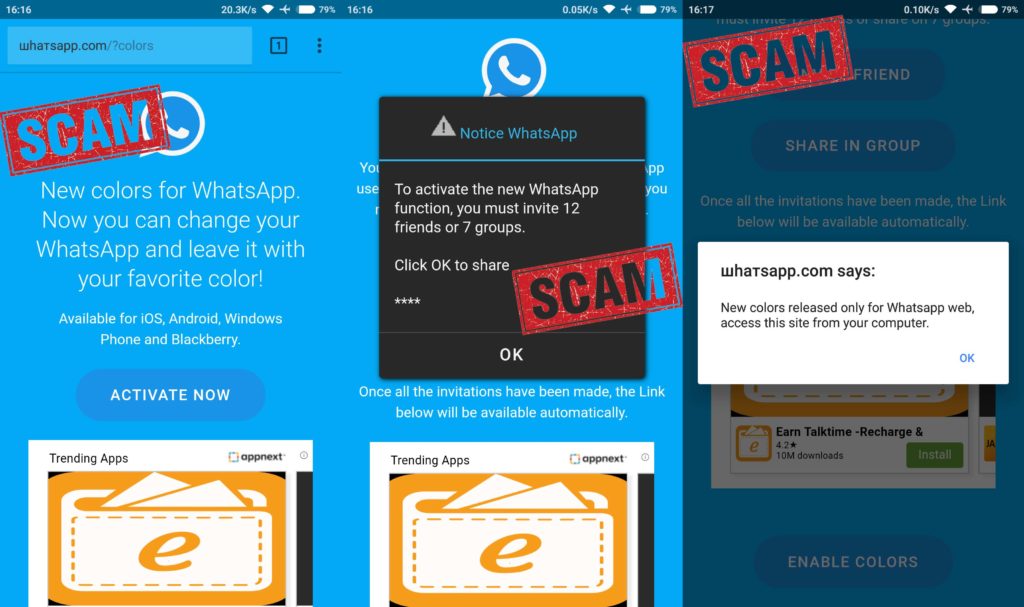
WhatsApp scams

Another WhatsApp security weak spot that you need to look out for is scam links and phishing attacks that you might receive via WhatsApp. As we’ve already mentioned, between us we receive billions of WhatsApp messages every day and many of these include links to third-party websites. Just like with emails, however, we need to be very careful with the links we click on WhatsApp.

Fake WhatsApp message about 1000GB of free data
FAKE!!!!

One recent WhatsApp scam sent a link promising 1000GB of free mobile data. It was all a scam though, with the link leading to a fake website that was designed to steal personal information, phone numbers, and user’s credit cards.

Fake WhatsApp scams

Over the years we’ve reported on a lot of fake versions of WhatsApp doing the rounds. Like with the types of scam described above, these are designed to steal personal information but can also be used to bombard users with ads in a bid to raise revenue for the hackers. There are two main types of these fake WhatsApp scams.

The first type of fake WhatsApp scam sees the scam app trying to look as much like the real version of the app as possible. One example of this is the Update WhatsApp Messenger scam, which security experts and cybersecurity researchers discovered in 2017. The app had an ad in the Google Play Store that was almost identical to the original WhatsApp’s ad. Downloading it, however, would force the user to see a lot of unwanted ads and prompts to download further scam apps.

Beware this Fake WhatsApp Update Scam

The other type of fake WhatsApp scam sees hackers trying to pitch their fake versions of WhatsApp as having new and improved features. Examples of this include the WhatsApp Gold scam, which has been distributed across WhatsApp a few times and the WhatsApp Colors scam, which promised the ability to change and set the background color of the app. Both were fake and were efforts to install adware on users’ phones.

WhatsApp’s Fake news problem

Another security risk that pops up again and again on WhatsApp is the app’s fake news problem. Fake news being spread across WhatsApp has had some truly catastrophic effects all over the world. People have been lynched in India and others were beaten to death following fake reports spread via WhatsApp that child abusers were traveling through parts of the country. The problem in India got so bad that law enforcement and government agencies were forced to intervene and force WhatsApp to take measures to address the problem.

Does WhatsApp spread fake news?

Elsewhere, fake news spread on WhatsApp in Brazil helped to win far-right politician Jair Bolsonaro the presidency. He’s since unleashed terrible forces that have seen huge swathes of the Amazon rainforest burn. Although, not on WhatsApp itself fake news spread in Myanmar using Messenger, another Facebook-owned messaging app, contributed to the Rohingya genocide. This is a very serious issue.

Unsecure chat backups

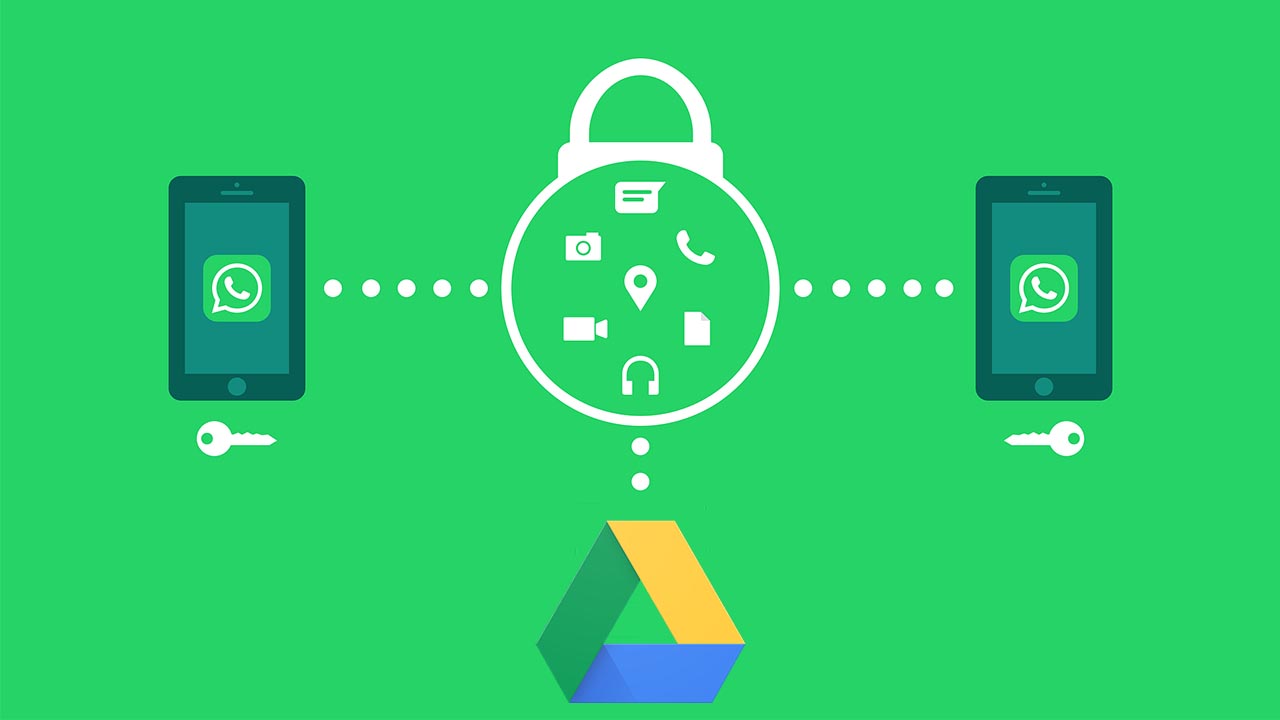
As we’ve already mentioned, WhatsApp is famous for its robust end-to-end encryption. All messages sent via WhatsApp are protected by the encryption, which makes it next to impossible for unwelcome eyes to see what’s been sent. That is, however, until they’re backed up. Recently, WhatsApp signed a deal with Google that allows users to back up all of their WhatsApp data using Google Drive for free.

The security risk here is that the encryption Google uses to protect Google Drive data isn’t as strong as that used by WhatsApp. When you back up your WhatsApp chats using Google Drive you make them more vulnerable to hacking. The other thing to consider here is that you’re also giving Google access to all your WhatsApp data. You’d better believe that Google knows how to use that too.

Wrapping up

We’ve gone through six potential security breaches that could affect users of the WhatsApp chat app. The key to safely avoiding all of them, however, is you. As we always point out in these security guides, you are your best line of defense against online cyber-attacks. You can easily defend yourself against all of these potential WhatsApp security problems if you use your common sense. Keep your app regularly updated, think twice about the dodgy links and messages you receive, and don’t believe anything that appears too good to be true.

How to know if WhatsApp is down and what to do

If you’re WhatsApp isn’t working, try these steps to get it working properly again.

There is an old adage that goes something like, “You never know how much you need something until it’s gone.” This certainly rings true for the WhatsApp messaging app. It is oh so easy to take the Facebook-owned messaging service for granted. It is free, it is always on, and it makes talking to anybody anywhere incredibly easy. The trouble is though, sometimes it doesn’t. In fact, WhatsApp goes down quite often just like other social media sites, like Facebook, Facebook Messenger, and Instagram. Furthermore, when it doesn’t work you don’t get a message explaining what is going on, it just doesn’t work.

If WhatsApp is not working on your smartphone, you’re likely confused. Is the problem local to your mobile app, is it a wider WhatsApp outage, or is it something to do with the service provider? These are the questions that’ll usually send iPhone and Android users to Google but worry not because Softonic is here to help. This is how to figure out why WhatsApp isn’t working on your iOS or Android device and how to fix it.

“

Why isn’t WhatsApp working?

Is WhatsApp down?

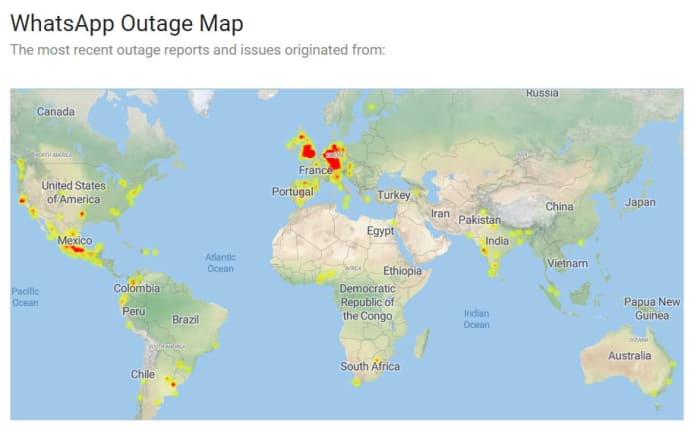
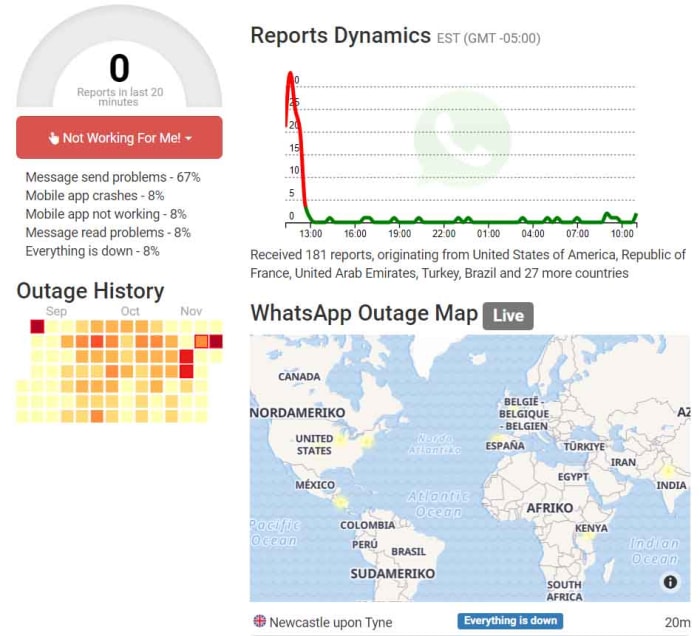
WhatsApp is a ridiculously popular program. It has over 1.5 billion users, which means there are quite a few different sites you can visit to find out whether you have a local WhatsApp problem or if WhatsApp itself is experiencing a more general problem. These sites include Is The Service Down, Is It Down Right Now, Outage Report, and Down Detector. If your WhatsApp isn’t working, these sites should be your first ports of call. If the problem is affecting the network, then these sites will let you know. You’ll get outage maps and up to date graphs showing reported problems.

WhatsApp outage map
Image via: Is The Service Down?

Unfortunately, however, if the problem is a wider WhatsApp outage, there is nothing you can do. You simply have to wait until WhatsApp is up and running again. Fortunately, however, when these massive issues arise the teams at WhatsApp HQ don’t usually take too long to resolve them. You can check out a list of historical problems that have affected the WhatsApp network here.

What if WhatsApp isn’t down?

If the above sites show that WhatsApp is working perfectly in your country or local area, then you’ll need to start looking into potential local problems that could be stopping your WhatsApp messages coming through. The first thing you should look into is your active internet connection. You can do this by checking your Wi-Fi and mobile data connectivity using your phone’s network and connectivity settings menu. If both of these are switched on but WhatsApp still isn’t working, you should try and see if the internet works for another app like Google Chrome or YouTube.

WhatsApp outage report
Image via: Outage Report

Switch it on and off again

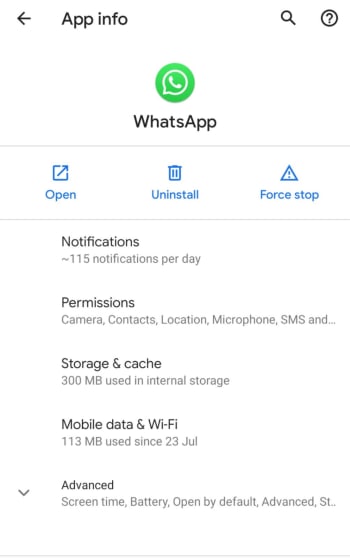
If WhatsApp isn’t working but other apps like YouTube or Google Chrome are then there is a problem within the app itself. The first step you should take, should this be the case, is stopping the app completely. To do this you need to go to the Apps settings menu on your Android or iPhone, select WhatsApp, and then hit Force Stop.

Forcing WhatsApp to stop will then make it possible for you to clear the WhatsApp cache, which may contain the bug that is stopping WhatsApp from connecting to the internet. To clear the WhatsApp cache, scroll down to the Storage & cache option in the WhatsApp App info page. Once you click that, you’ll see the option to Clear cache. After you’ve done that turn your phone off and then on again, and then launch WhatsApp to see if you’ve resolved the issue.

WhatsApp app info on Android

Update WhatsApp

If you’ve got this far and WhatsApp still isn’t working, you’re going to have to start taking more drastic actions. First, though, you should check you are running the latest version of WhatsApp by going to the Apple App Store or the Google Play Store. You need to find the list of all the apps you’ve bought and installed on your phone. When you’ve found it, scroll down until you find WhatsApp, and then select it. You should then see the version you are running and whether there is an update available.

If you are running the latest version of WhatsApp or if you update WhatsApp and it still doesn’t work, the next thing you can try is uninstalling the app and then reinstalling it. To do this, go to the WhatsApp App info page on your phone, using the method outlined above, and hit Uninstall. If you don’t want to lose all your app data including your chats and downloaded images etc. tick the box that says Keep app data before confirming the uninstall. Then, head over to the Google Play Store or Apple App Store and reinstall WhatsApp. This should install a clean and up to date version of WhatsApp.

Wrapping up

When WhatsApp goes down it can feel like you’re cut off from everyone and everything. We’ve walked you through all the steps you need to follow, should it happen to you. The key is finding out whether the problem is on your phone or whether there are actual WhatsApp servers down causing problems for millions of WhatsApp users at the same time. The sites listed above will show you about potential outages and will offer real-time maps showing all the different WhatsApp problems being reported at the same time as well as historical data.

If the problem is a local one, however, one of the other steps we’ve laid out for you should see you have WhatsApp working normally again. Hopefully, you won’t have to uninstall WhatsApp and reinstall it to resolve your issues, but you can always take the nuclear option should you need to. Just remember to save your app data, if you don’t want to lose all your chats.