A Secret WhatsApp Web Trick That’s Perfect for Gossips

Are you a bit of a gossip? Do you love knowing anything and everything that is going on in all your friend’s lives? Well, if you are, you might be interested in this little trick for WhatsApp Web. This trick, which only works on the browser version of WhatsApp, allows you to discover exactly when a message has been read. It could be particularly useful for group messages.

There are two ways you can check the time that each contact has read a message.

The first involves double-clicking the two blue ticks of the message in question. This will open a window where you can see who has read the message and at what time.

The second consists of pressing the button that appears above the date the message was sent and clicking message information. This will show the same window from before.

So there you have two quick and simple ways to find out who has read your message and when, and you don’t even have to get your phone out of your pocket to use them.


New Google Apps to Take On Skype, Facetime and Whatsapp

Google’s solution for free mobile calls and messaging was introduced to us earlier this week and is positioned to take on the likes of Apple’s Facetime, Microsoft’s Skype and Whatsapp.

Google Duo

The first of the two apps is Google Duo, a video-calling application that, unlike Facetime, is available on both Android and iOS. This means that you’ll now be able to make free calls to all your friends and family, regardless if they’re using an Android or iOS device.

The one feature that Google hopes will get you very excited about is Knock Knock. Not found on rival apps, Knock Knock lets you preview who’s on the other end of the call, and lets you decide if it’s worth getting out of that meeting to pick up.


Google Allo

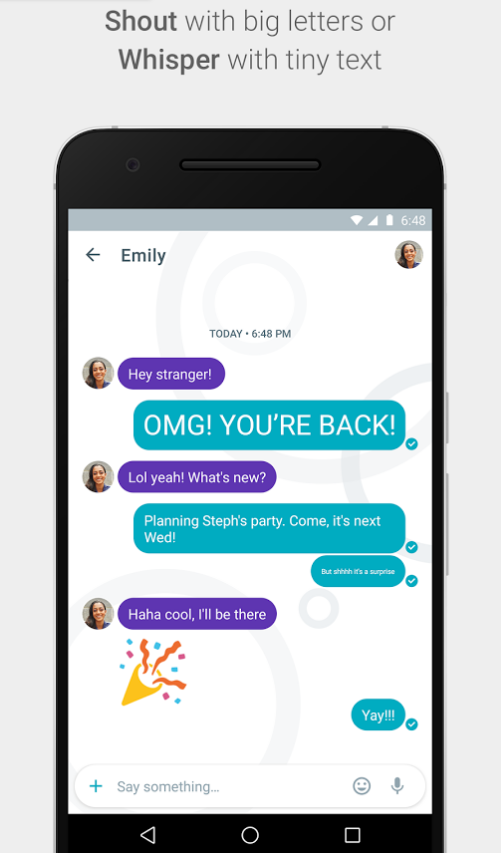
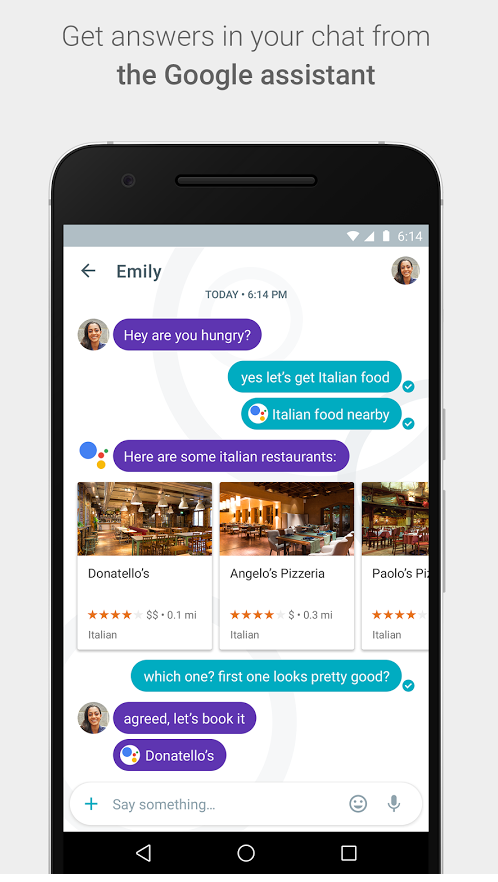
The second app is called Google Allo – a smarter, more feature-packed version of Whatsapp. With Allo, you get to make Google searches directly within the messaging app, get predictive reply suggestions, write in bigger or smaller font to simulate shouting or whispering to the other person, and many other features.

Allo Shout

Allo assistant


So when can you get your hands on these apps?


If you’re in the US, you’re in luck! Google Duo is already available on Google Play and the App Store, and for the rest of you, Google says that they will be available worldwide “in the next few days”.


There is no word yet on Google Allo’s launch date.


However, you can now pre-register for both Google Duo and Allo on Google Play, so that you get (presumably) a notification when these apps are available in your region. iOS users, you’ll just have to watch this space.


Let us know what you think about these two apps in the comments below!

How to send WhatsApp messages that self-destruct

WhatsApp hasn’t yet (officially) launched the feature that allows you to send messages that self-destruct after a certain time, however there is a very simple trick that can allow you to do it now!

By simply installing an app called “Kaboom” (very onomatopoeic), you have the ability to send all types of messages, including photos and links that automatically delete themselves (take note, they don’t actually explode), just after your contact has read them.

How to send self-destructing messages on WhatsApp

1. Install the Kaboom app onto your device. (Android | iOS)

2. Create the message you wish to send.

Open the app to write a message, or take/attach a photo

write

3. Set the timer!

Here you can select how long you want the message to be available for, and how many times you want it to be accessible (should you choose to send it to more than one person, for example).

expiration

4. Share the message where you want

Kaboom won’t actually paste a message into your WhatsApp, but instead send a link to the information you have sent. This means you can use it for many other messaging platforms such as Facebook, Twitter – whatever you like!

share

Take into account that Kaboom doesn’t have the ability to notify you if the contact has taken a screenshot of it or not, so as always, send messages wisely!

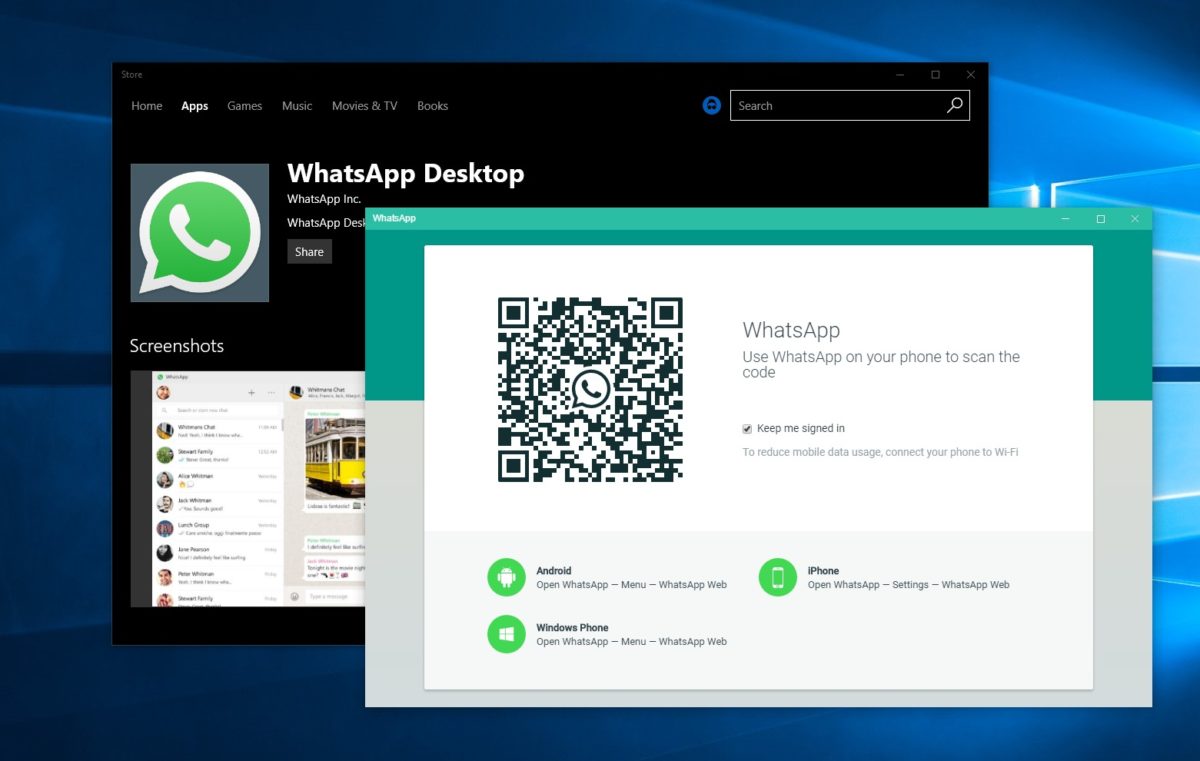
Did you know that WhatsApp for Windows and Mac operating systems is here? Download WhatsApp for PC

How to use WhatsApp on Windows


WhatsApp offers a great way to chat with friends for free from your phone. But did you know you can also use WhatsApp on a Windows PC?

Using the BlueStacks App Player for Windows, it’s possible to install WhatsApp on your computer. This gives you the ability to send and receive WhatsApp messages without having to pull your phone out of your pocket.UPDATE: WhatsApp has come out with an easy way to chat from your computer. It’s called WhatsApp Web and you’ll need Chrome, Firefox, or Opera and the latest version of WhatsApp for Android, BlackBerry, and Windows Phone. Learn more about WhatsApp Web and how to use it here. If you prefer to download WhatsApp on your computer, have a look at WhatsApp for PC instead!

[materials]–>

How to install WhatsApp on a PC

To get WhatsApp on your computer you first need to download and install BlueStacks App Player. This is a free program that emulates Android applications on your PC. You can use it to run many Android apps and games through a windowed interface on your computer. Don’t worry, it’s very easy to use, as you’ll see.

The next thing you’ll need is a mobile phone number. This is used to verify your account and the app looks at your mobile phone contacts to find out which are using WhatsApp. If you already have WhatsApp installed on your phone it won’t work, since you can only run one instance of the app per phone number.

<!–[/materials]

–>

[body]–>

Setting up BlueStacks

Once you’ve installed BlueStacks App Player you’re ready to get WhatsApp onto your Windows PC. Here’s how it’s done:

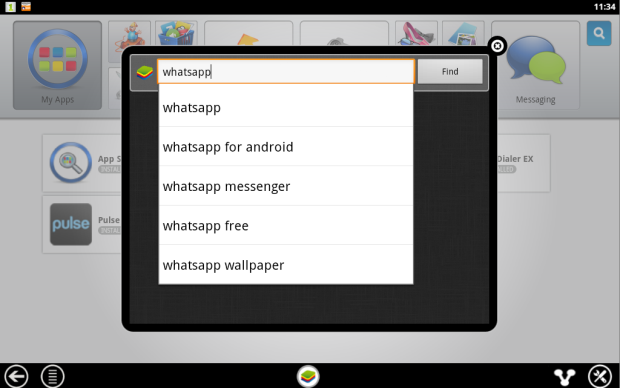
1. Click on the App Search icon in BlueStacks and perform a search for “WhatsApp”. Click Find.
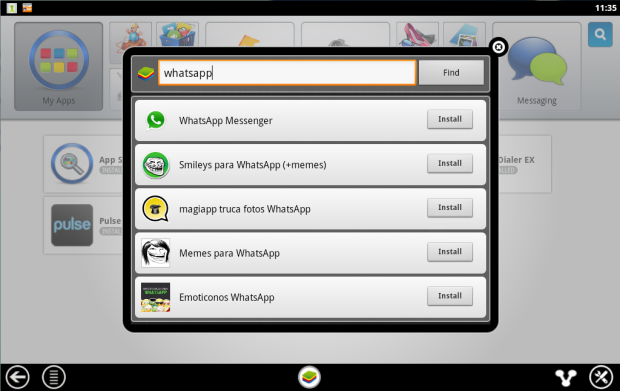
2. In the results list you should see WhatsApp Messenger as the top result. Click Install.
3. If you can’t find WhatsApp Messenger in the BlueStacks search, or if it won’t install, go download the WhatsApp APK file from the official site. Right click on the icon once downloaded, select ‘Open with…’ then choose BlueStacks Apk Handler. Click OK and WhatsApp will be installed in BlueStacks.
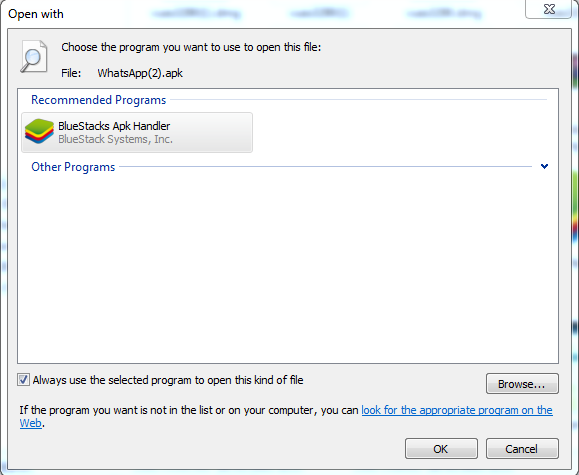
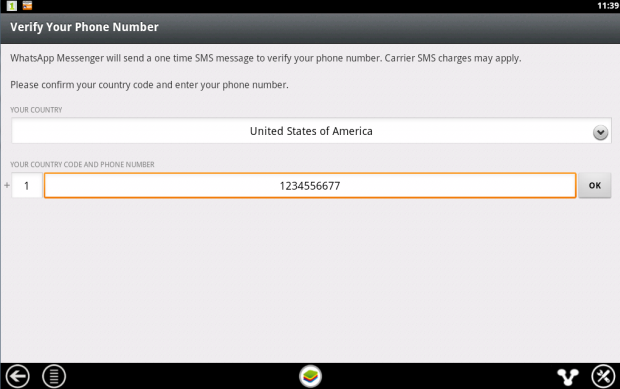
4. Once installed, clicked the WhatsApp icon in BlueStacks to launch it. When you run it for the first time you’ll be asked to verify your phone number. Select your country followed by the phone number you want to use for WhatsApp.
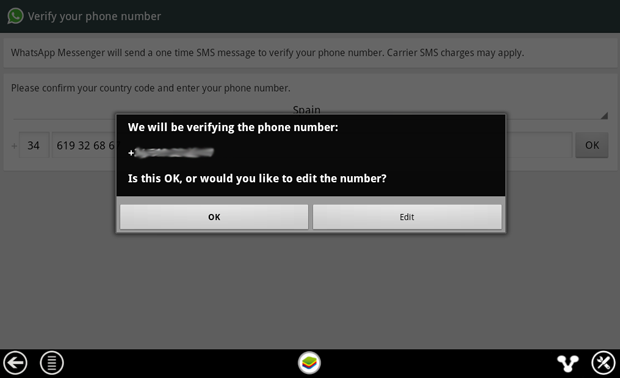
5. When confirmation of your number comes up, make sure the number is right then click on OK to proceed.
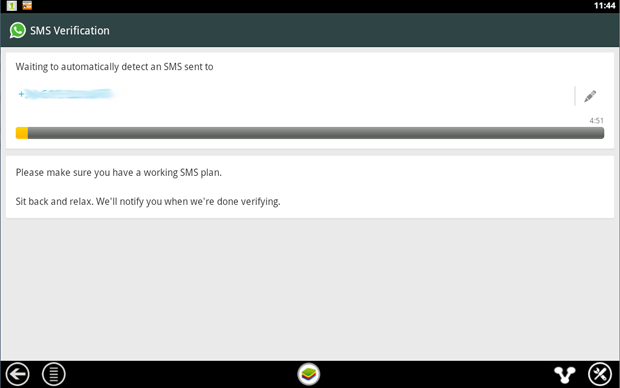
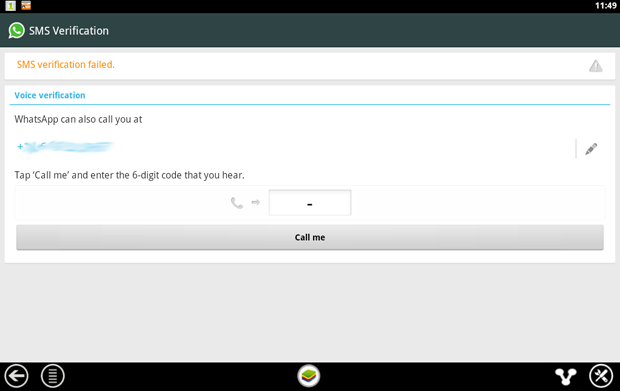
6. WhatsApp will now attempt to send you an SMS verification message. This will fail but you need to wait until it’s finished anyway.
7. When the SMS verification fails, you’ll be given the option to be contacted by phone with the verification code. When you click the Call me button your phone will ring after a few seconds and a recorded message will read you the code. Type this code into the space provided.
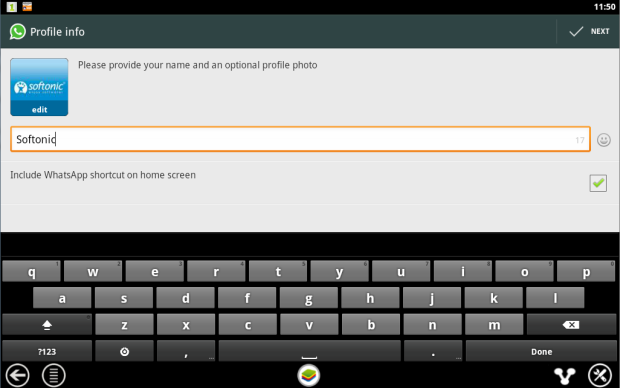
8. When you’ve correctly entered the code you’ll be prompted to set up your profile information. Enter a name and add a profile picture if you like.
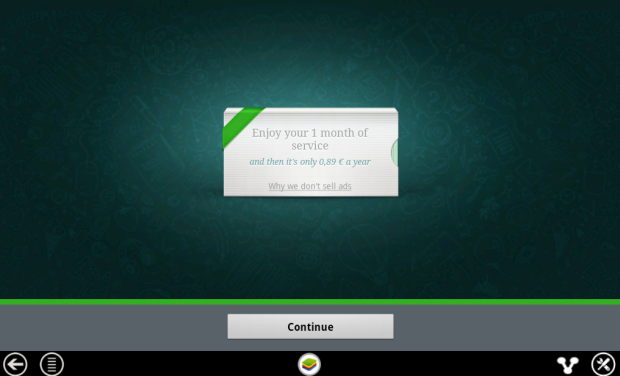
9. You’ll be reminded that WhatsApp is free to try for a month, after which time you need to pay on an annual basis.
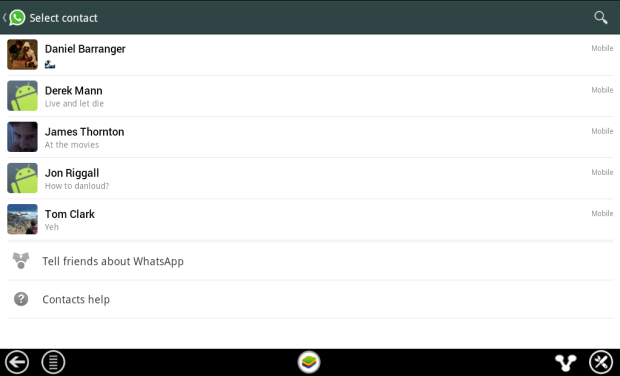
10. After clicking Continue your WhatsApp contacts list will be loaded. This is based on your phone contacts (on the number you used) who have WhatsApp installed. Click on a contact to start chatting to them.
11. Now you can chat away to your contact on WhatsApp, in just the same way as you would on a mobile device. You can switch between the keyboard and emoticons using the icon next to the message input box.
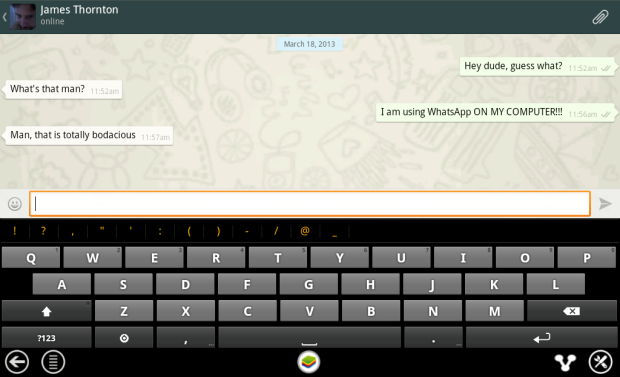
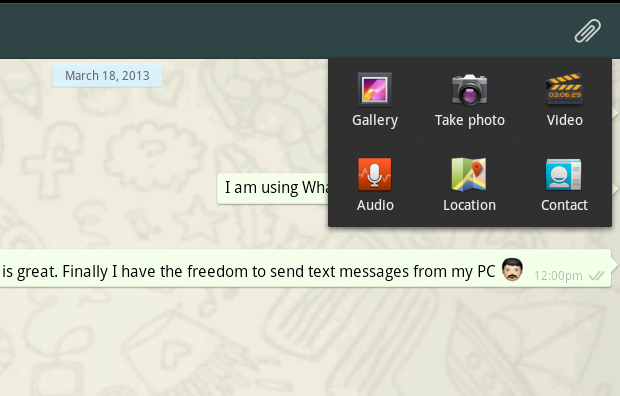
12. It’s possible to use some of the file sharing features of WhatsApp on your PC. In our tests we were able to send photos, video and audio. To send files using WhatsApp click on the paper clip icon in the top-right corner.

<!–[/body]

–>

Conclusion

There you have it! That’s how you can run WhatsApp on your PC. While it might be a work-around, it performs well and will tide most users over until WhatsApp decides to release a desktop client.


Decrypting WhatsApp’s blue double check (and other icons)

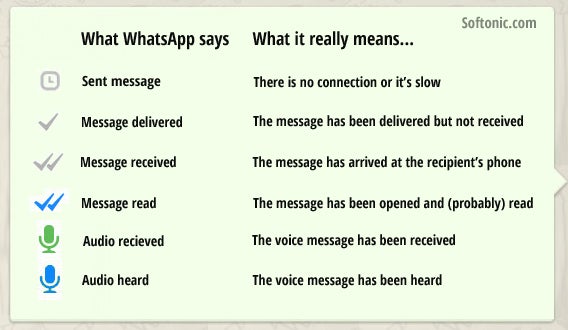
The blue double check mark indicating ‘read’ messages in WhatsApp has gotten a lot of attention since it’s debut last week. But it’s also got a lot of people confused. Didn’t the double check mark already mean that? Well, no, and you’re probably not the only one having trouble making sense of all of WhatsApp’s icons.

Before you start freaking out over people not responding to messages, and to make things a little less confusing, we’ve made a handy guide to WhatsApp icons to help you understand exactly what each icon means.

What do WhatsApp icons mean?

WhatsApp Icons

Timestamps for read and received messages

On top of showing status icons, WhatsApp lets you know at exactly what time someone has read and received a message. This is particularly useful in group chats, where WhatsApp only displays the grey check.

To know who’s read the message and at what time, press and hold down on the message and click on Info for iPhone, or click the small info button on Android. You’ll get a new Window which shows exactly who has read the message, and when.
Be careful with the double blue check

Seeing the double blue check doesn’t necessarily mean the message has been read. It could be that the person left the conversation open, and then switched to another conversation or closed the app without actually having read or noticed the message.

The moral of the story here is, if someone hasn’t responded to your message, don’t freak out: people get easily distracted.

Related Stories:

WhatsApp is testing a ‘message read’ blue double tick (Update)

10 WhatsApp features you might have missed

How to restore deleted WhatsApp chats on Android

Original article written in Spanish on Softonic ES.

Follow me on Twitter @remoquete

iPhone: how to send an MP3 via WhatsApp

Want to send a music file with WhatsApp for iPhone? For Android users it’s easy to send a song via WhatsApp, because it’s the operating system itself that offers the option. For iPhone users, it’s another matter.

WhatsApp for iOS allows you to send pictures, videos, contacts and geographic location…but not music. Fortunately,  sending an MP3 via WhatsApp for iPhone is still possible. All you need is the help of a free app that offers an Open With option. There are a few of these, but iZip seems to be the most suitable for our purpose.

Here, I’ll take you through how to send an audio file with WhatsApp for iPhone.

How to send audio files using iZip

1. Install iZip on your iPhone. Open the program.

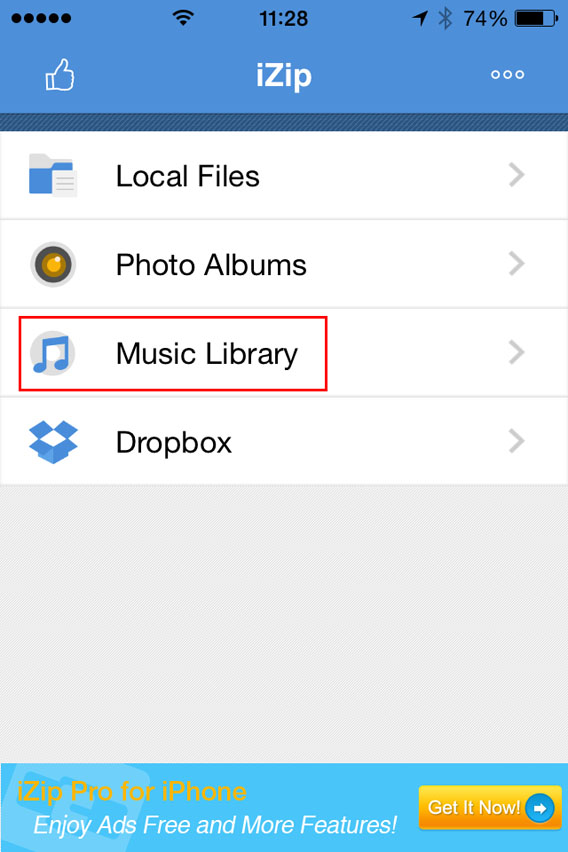
2. Select Music Library.

Select Music Library from the menu

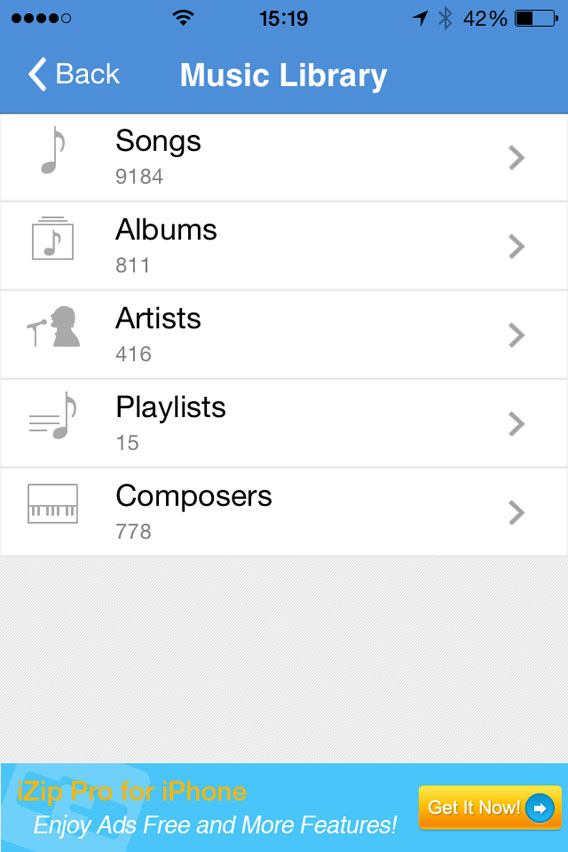
3. Open a folder (e.g. Albums).

Select a folder in the Music Library

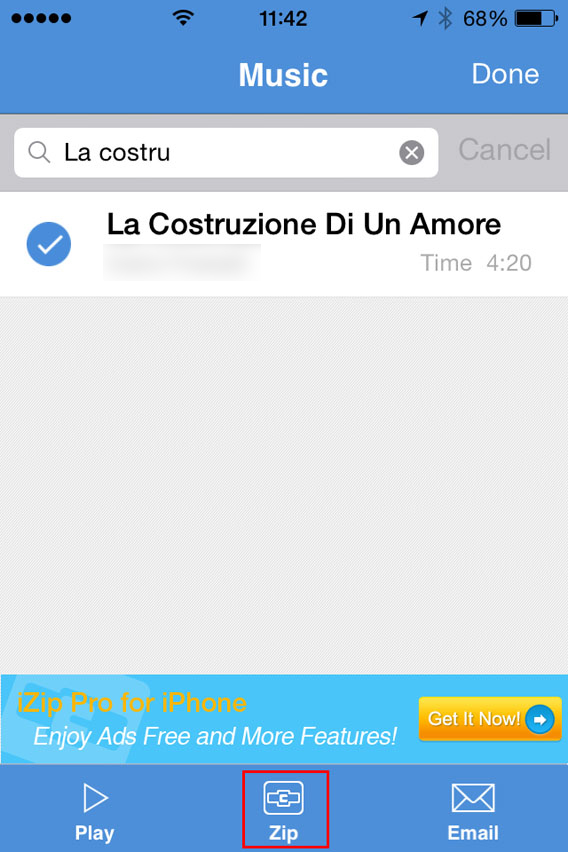
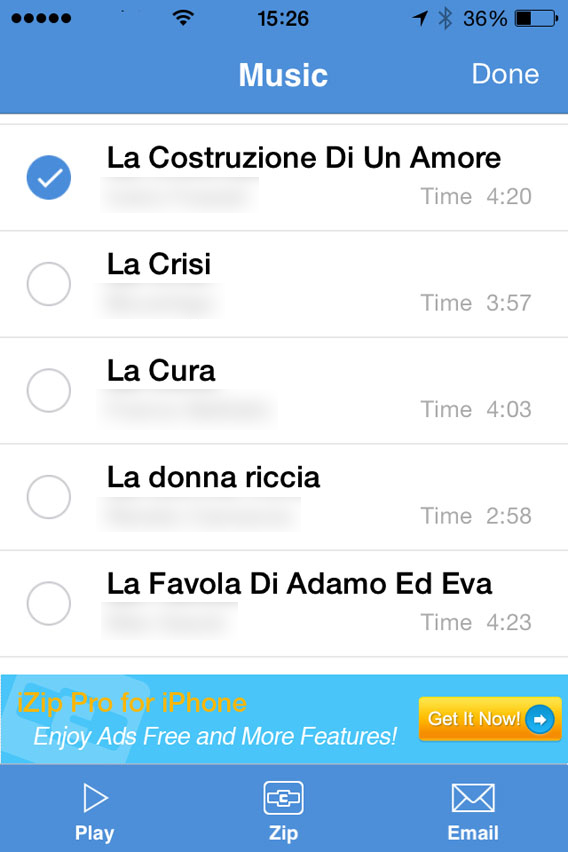
4. Tap Select in the top right of the screen and choose the song you want to send with WhatsApp. At this point, Select will be replaced by Done.

Select the song you want to zip

5. Tap the Zip button at the bottom center of the interface. The app will compress the file.

Select the song and then zip

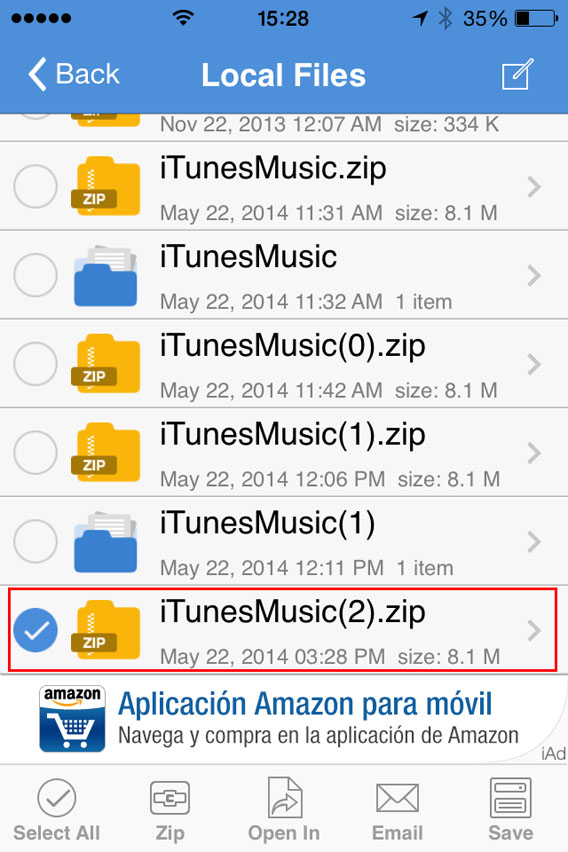
6. This will open the folder Local Files. From there, you can select the ZIP file you just created.

Select the ZIP file you just created

7. You’ll be asked Would you like to extract all files? Tap OK .

Do you want to unzip the file

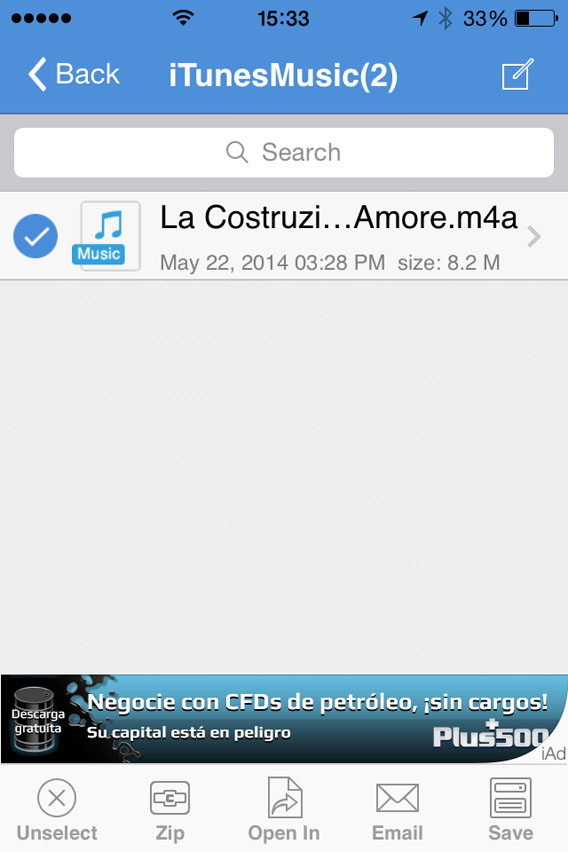
8. This automatically creates and opens a folder in Local Files with the decompressed song. Then select the file .

Select the file to be opened with

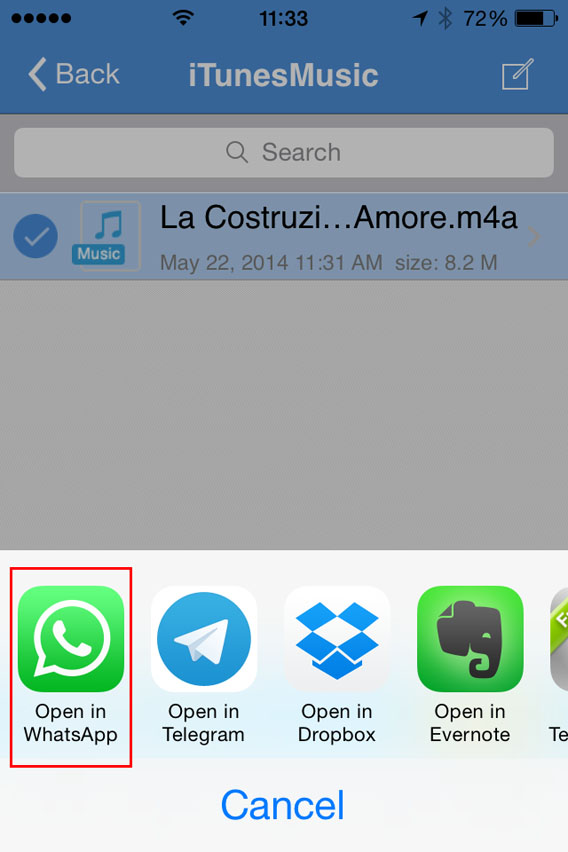
9. Now, tap Open In (at the bottom center of the screen) and, from the choices that appear, select Open in WhatsApp.

Select Open in WhatsApp

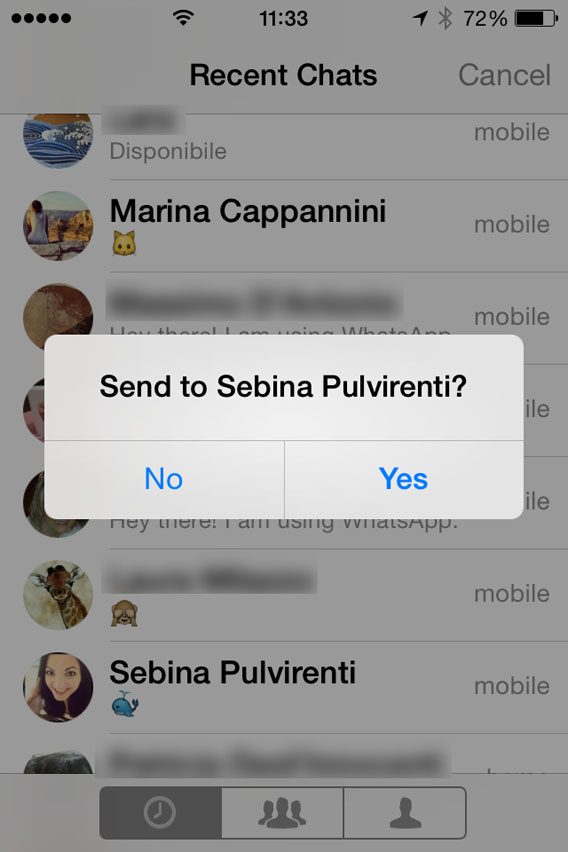
10. It will open WhatsApp automatically. Select the user you want to send the MP3 to, and when it asks you to Send to [contact name], click on Yes.

Confirmation sending files to contact

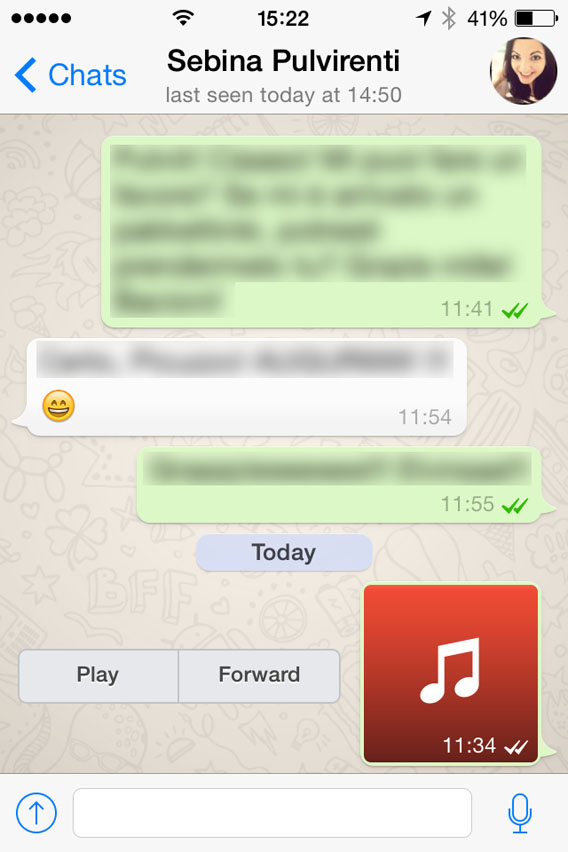
At this point, the file will load and send. When the recipient receives it, you can listen to it by tapping the Play icon next to the music file.

Listen to the file received

Beware of copyright

This method lets iPhone users exchange music via WhatsApp, even if the procedure is a bit more complicated than for Android users.Remember, however, that sharing music files protected by copyright laws is illegal, so only send audio or music that can be freely shared.

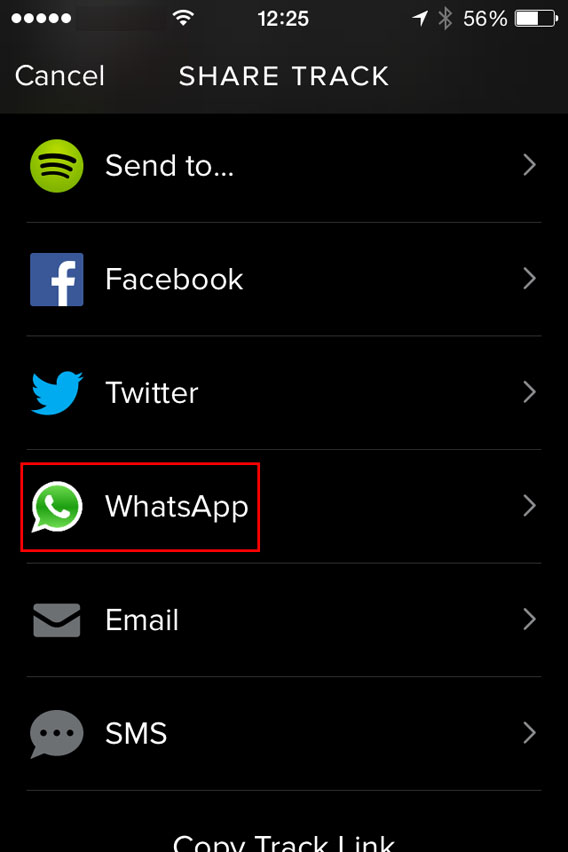
One last tip: if you want to share a new song with a friend, instead of sending the file, you can share it with them via Spotify. To do so, just find the song you like, tap the menu with the three dots next to it, and select WhatsApp.

Spotify - Share with Whatsapp

Then, select the contact, confirm you want to send it, and you’re done. Simple, fast, safe and totally legal.

If you’re looking for other tricks for using WhatsApp, look for them in the index of our comprehensive guide to WhatsApp.

How to block contacts on WhatsApp

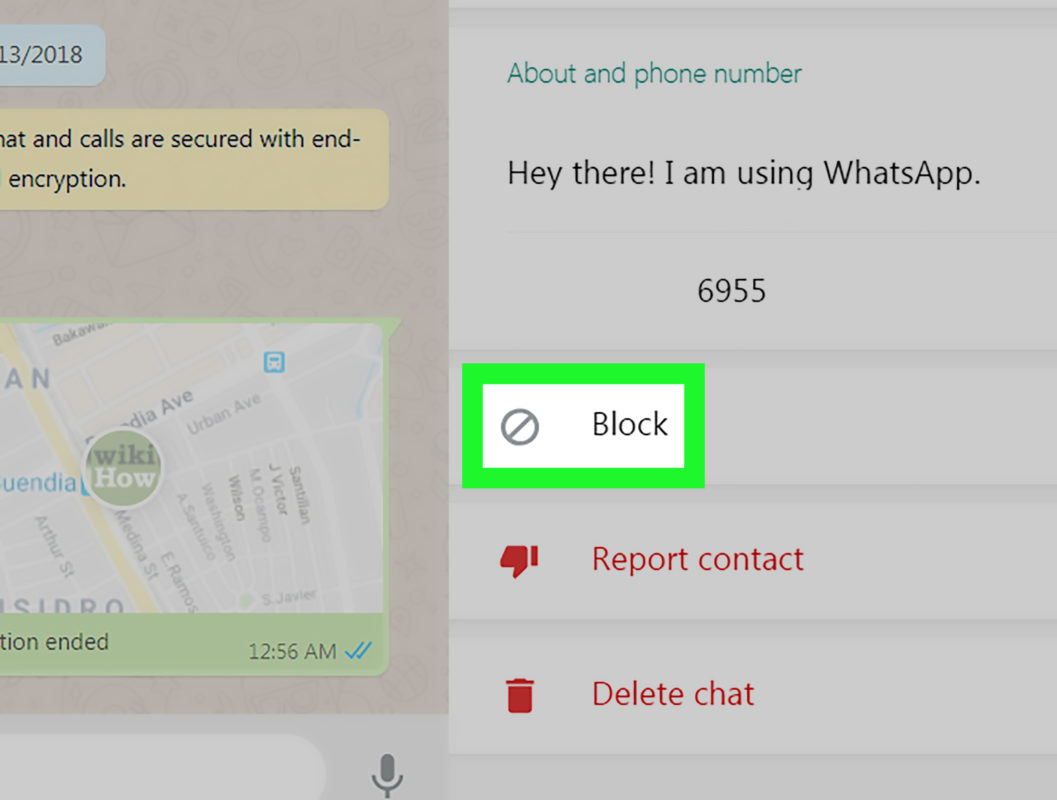
As WhatsApp‘s user base continues to grow with more and more people jumping on the bandwagon, it’s inevitable that that annoying person you probably least want to chat with has gotten the app too and won’t stop sending you messages. Many people ask if there’s a way to block contacts from one of the most popular chat programs.

The answer: yes. You can block people from contacting you on WhatsApp. We’ll take you through, step-by-step, how to block WhatsApp contacts using an Android device as as an example (but don’t worry, it’s a very similar process on most devices).

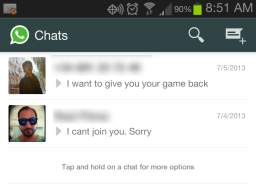
1. Open WhatsApp to the main screen and select the chat with the contact you wish to block:

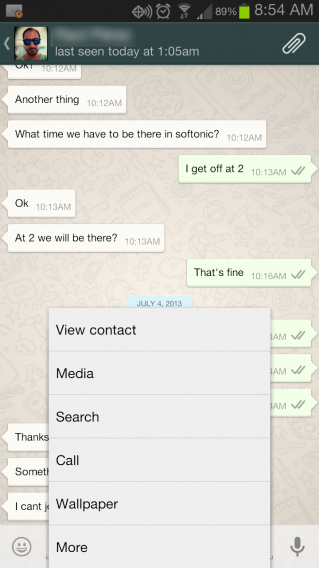
2. Tap the Menu button on your phone and select More:

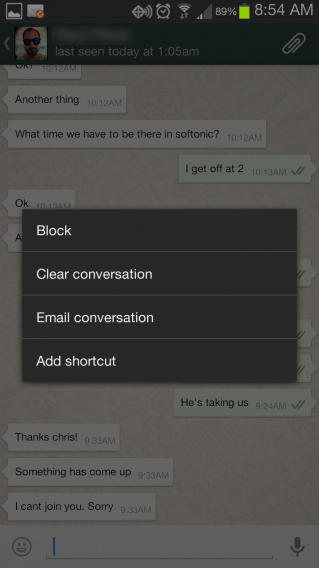
3. The first item on the list is Block. Want to get rid of that annoying contact? Simply tap Block:

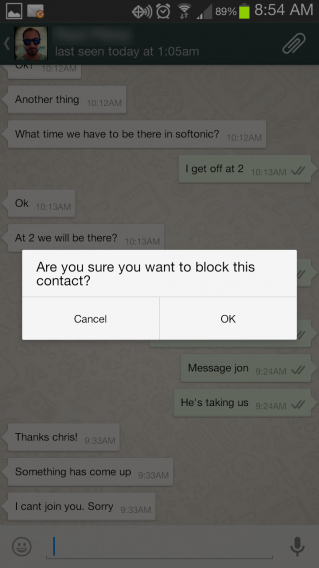
4. WhatsApp asks if you really want to block that contact. If you’re sure, then confirm the action:

And that’s it! Now you can chat without unwanted interruptions. How many contacts have you blocked using WhatsApp? Comment!

Check out some of our other guides for using WhatsApp
How to recover deleted WhatsApp chats
10 WhatsApp features you might have missed
How to send a voice message using WhatsApp

Original article written by Felipe Pessoa for Softonic BR.