Your 10 most burning WhatsApp questions, answered

10 WhatsApp questions and answers

Sometimes it can feel like WhatsApp was designed by a sadist. Honestly, the amount of drama that a messaging app can produce is ridiculous. Have they read my message? Can they see if I’ve read theirs? What a stressful nightmare!

Of course, it’s possible (and probable) that WhatsApp was designed with the best intentions, and that you’re freaking out for no reason. Although, on top of knowing when someone read your messages, there are plenty of other potential mishaps and confusion that the WhatsApp messaging service can produce for any discerning smartphone user.

Determined to clear up some of these mysteries, we’ve thoroughly investigated and compiled a list of the most frequent and distressing issues about how to use WhatsApp, that people Google, in a bid to help you keep your stress level at a minimum.

WhatsApp Messenger Download Now ►
8

1. Can I stop somebody knowing I’m on WhatsApp?

No.

With WhatsApp it is all about the contacts you have in your phone’s contact list. Even when you block a contact, they’ll continue to have you in their contact list, if they still have your number in their phone book. The only way you won’t show up for the other person is if they don’t have your phone number saved in their phone.
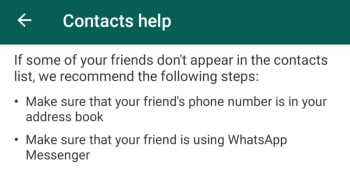
WhatsApp Contacts Help

This means it has nothing to do with who you can see in your WhatsApp contact list as that doesn’t reflect the numbers, they have in their contact list on their phone. If they have your phone number, they’ll be able to see you have WhatsApp. As far as we’re aware, there is no way to delete your number from somebody else’s phone remotely.

If you don’t want somebody to know you’re on WhatsApp, don’t give them your number and don’t send them any messages.

2. Can I appear as invisible on WhatsApp?

Yes.

The WhatsApp FAQ page is quite clear. Unless you block a contact, there is no way to hide when you’re online or typing. You can, however, stop sharing your “last seen” status and read receipts that show when you’ve read a WhatsApp message. Doing this, however, will stop you from being able to see the corresponding statuses from your contacts.
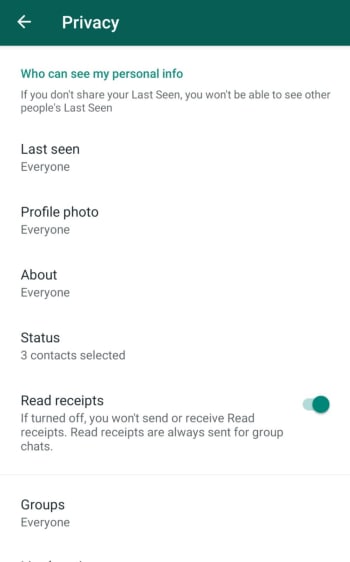
WhatsApp Privacy Settings

To change these settings on both Android and iOS iPhones you need to open WhatsApp, then go to Settings, then Account, and finally land on the Privacy settings menu. You’ll then be able to toggle your privacy settings including when you were last online and who can see your profile picture etc.
3. If someone is given my old number, will they be able to download my messages and see my contacts?

No.

They won’t see contacts or be able to access old chats – that data is saved on your phone – but they can receive messages sent to your old number (without knowing who sent them).

WhatsApp gets its contacts from your phone book, so it’s unlikely that the person taking your old number will have the same contact. On the other hand, if the other person has WhatsApp installed, your friends will see that this person isn’t you.

To avoid any problems, WhatsApp recommends the following:

A) Post a status update with your new phone number.

B) Tell everyone you’ve changed your number using a broadcast message.
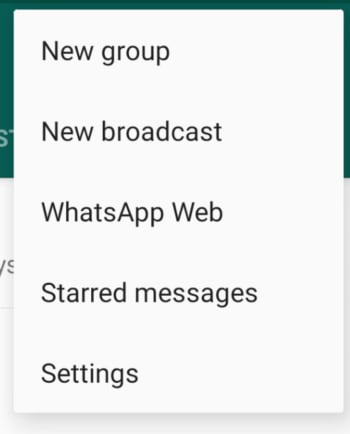
New WhatsApp Broadcast

C) Delete your account using the following methods:

Android phones: Settings > Account Info > Delete my account

Apple iPhone and iPad: Settings > Chat > Advanced > Delete my account

Deleting the account removes all chat history on your mobile, payment information, and participation in WhatsApp groups. It will make your account disappear.

4. Is WhatsApp free or paid for?

WhatsApp is free. The app used to have rolling free trial periods, but these long since been scrapped. Making money from WhatsApp is a problem that has dogged Facebook ever since it bought what is now the most popular messaging app on planet earth. Soon, however, we’ll see ads showing up on the WhatsApp Status page and there is also the new WhatsApp Business app, which charges businesses to use the platform to communicate with clients and customers.

WhatsApp Business Download Now ►
7

5. Is there a way to delete contacts forever?

Yes.

To delete contacts, simply remove them from your phone book. If you then want to stop that person messaging you at all, you’ll have to block them.

But remember, if they have you in their phone book, then they’ll still see you on their contact list.

6. Is there any way to tell if someone has read my messages?

Yes.

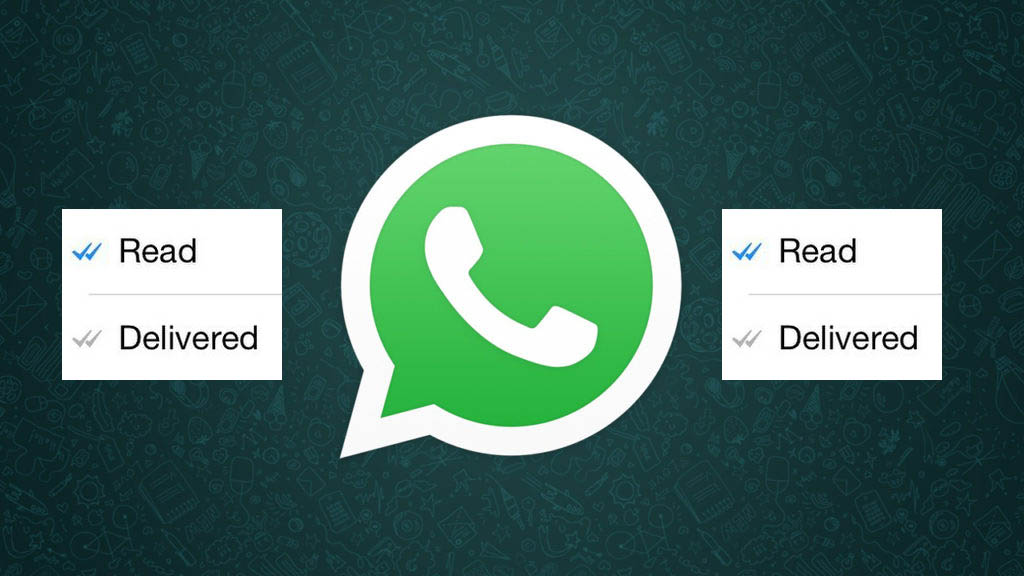
Theoretically, there is no way to know for sure if someone’s read your message, but the introduction of the double blue check mark indicates just that. Here’s a quick summary of what WhatsApp’s icons mean:

Clock: The message hasn’t left your phone yet, meaning there’s either a problem with data or Wi-Fi connection. You can delete the message before it’s sent.

Single grey check mark: The message has been delivered to the WhatsApp server. It’s left your phone but hasn’t yet been received by the other person.

Double grey check mark: The message has been delivered to the other person’s phone, but they haven’t necessarily read it yey.

Double blue check: A new icon that indicates that the message has been read (or at least opened in your conversation) by the recipient.

In addition, if you hold down on the message and tap Info, you’ll be able to see what time the message was delivered, and what time it was read. Remember though, that just because the message is ‘read’, doesn’t mean that the person has definitely read the message. Chances are they have, but they may also have left open your chat and gotten the message without actually reading it.

7. If I block a person, can they tell?

No.

A common symptom of blocking is that you can’t see the “last seen” or “online” status. As we’ve already seen though, this might be because they’ve deactivated those privacy settings.
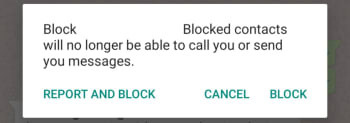
Whatsapp Block contact

Another result of blocking is that messages are left with only one tick and never get a second, although this could also be due to other causes, like the phone being turned off or lost.

If you know it’s neither of these reasons, the chances that you’ve been blocked are high, but it’s still not 100%. If you really want to know, you’re going to have to try calling them or sending them a message.

8. Is there any way to silence a group and still receive messages?

You don’t need to.

When you mute a group, you’ll keep receiving the messages, you just won’t receive notifications when you get them.

To silence a group, just tap the menu button (on Android) or info (on iPhone) and press Mute or Mute Group. It’s a useful feature to prevent your phone from vibrating incessantly.

9. When you invite someone to a group, will they be able to read previous messages?

No.

When you enter a group, you can only see messages from the point you entered the group. You don’t get access to the chat history or any media sent before you joined the group.

10. If I delete a message or photo on my phone, is it deleted from the other person’s phone too?

No.

If only it were that simple. As it turns out, a message, photo, or sound sent through WhatsApp will be delivered as soon as the first green tick appears. There is a window, however, from when you send your message that WhatsApp will allow you to delete the message from your own phone as well as from the phones of anybody who received it. You have exactly 1 hour 8 minutes and 16 seconds to delete the messages, images, and sounds you’ve sent. After that you won’t be able to and they’ll be the recipients’ phones forever.
What is WhatsApp Web and how to use it on your pc

This is your complete guide to WhatsApp Web

WhatsApp Messenger is a great tool. It connects over 1.5 billion of us with free messaging and calls. Smartphones have come a long way too, and it’s easier than ever to type out messages on your mobile phone. It is still, however, much easier to type on your computer.

This makes WhatsApp Web, the desktop version of the Facebook-owned messaging app you can use on your Windows PC or Mac, an essential tool. If you’re wondering how to use WhatsApp on computer, we have the ultimate guide for you below.

What is WhatsApp Web?

Instead of sitting on your phone and chatting to contacts and friends, you can also use the WhatsApp Web version. It opens the messenger application on your browser or the downloadable WhatsApp client. You can then use a keyboard to type, which is faster. You’ll also have access to similar features. All messages synchronize with your phone.

How to use Whatsapp Web on your computer?

Now that you have a better understanding of what the program is, let’s see how to use WhatsApp on a laptop or computer.

How to log into WhatsApp Web

To run WhatsApp on your computer screen all you need is a modern web browser like Safari, Google Chrome, or Firefox and an Android or iOS smartphone that already has an active WhatsApp account. You then need to type https://web.whatsapp.com into the address bar of your web browser and as long as your PC has an active internet connection, you’ll be taken to the WhatsApp Web page. There you will find a QR code waiting for you to scan.

You then need to open WhatsApp on your Android or iPhone. If you don’t have the latest version of the app, you should update WhatsApp. Once you’ve opened the app, tap the horizontal ellipsis icon to open the WhatsApp Settings menu.

Then you need to tap the WhatsApp Web option and tap the + icon in the top-right corner. This will open a QR scanner on your phone, which you then use to scan the QR code on the WhatsApp Web homepage. Once you’ve done this the web version of WhatsApp will be ready to go.

What can you do on WhatsApp Web?

Once you’ve followed the instructions above, your WhatsApp account will be linked to your web browser. You should see a list of all your WhatsApp messages down the left of the page and then when you click on one of them, you’ll see the chats screen on the right.

WhatsApp Web window

Although this looks a lot like WhatsApp on your mobile, WhatsApp Web has limited functionality compared to the iOS and Android versions of WhatsApp. You can send and receive text messages, images and videos, voice messages, documents, and WhatsApp contacts just like you can on your mobile phone. You can do all this in the same way you do it on your smartphone. You can also connect your WhatsApp account across multiple web browsers on multiple PCs, set up or mute desktop notifications, send GIFs and emojis like you can on mobile, view status updates, clear and delete messages, forward messages, and edit your profile.

What you can’t do, however, is call your contacts using voice or video calls or receive calls from them. Other limitations include being unable to send multiple messages at once via WhatsApp Broadcast, being unable to share your location, to post your own status updates, or to use WhatsApp Web on two PCs at the same time.

How to install WhatsApp Web on your PC

As well as using the WhatsApp Web app through your web browser, you can also install the desktop version of WhatsApp onto your PC. This will offer you the exact same experience as you’ll find on WhatsApp Web, but it’ll open in a dedicated program. To download WhatsApp desktop app on your PC, hit the download button below and follow the instructions.

WhatsApp for PC Download Now
8

How to set up WhatsApp Web notifications

Setting up notifications on WhatsApp Web couldn’t be easier. When you first log into your account you’ll notice a blue banner at the top of your chats. Clicking this button will bring up a dialog box in your web browser asking you to allow WhatsApp Web to show you notifications through your browser. Click Allow and your browser will notify you every time you receive a message.

WhatsApp Web notifications

You can also hit the horizontal ellipsis icon just above this banner and click Settings to open up the WhatsApp Web settings menu and then click the Notifications option. Here you can control whether your notifications will make sounds and also whether you’ll see previews of the messages you’ve received in your notifications.

WhatsApp Web tricks and tips

So, as you can see, although WhatsApp Web is a little limited compared to the mobile app, it still has plenty to offer. Not least because it is much easier to participate in long conversations using an actual keyboard rather than your smartphone. Furthermore, WhatsApp Web also has some very useful keyboard shortcuts.

These include pressing Ctrl + N to start a new chat, Ctrl + Delete to delete a chat, and you can scroll through your different chats by pressing Ctrl + ] to go to the next chat and Ctrl + [ to go to the previous chat.

Another trick for anybody who has more than one WhatsApp account is to set up WhatsApp Web on two different browsers on the same PC. You could do this using any modern browser like Chrome, Firefox, Opera or Edge. This also works, if you log into WhatsApp Web using a privacy protecting mode like Incognito mode on Google Chrome. This, however, will log out every hour, meaning you’ll have to repeatedly log back in should you need to use WhatsApp Web for an extended period. If you’re using WhatsApp Web on a public PC, you should always use Incognito mode as it’ll protect you, if you forget to log out.

How to log out of WhatsApp Web

How to log out of WhatsApp Web on desktop

As we’ve already mentioned if you use WhatsApp Web in Incognito mode, it’ll automatically log you out after one hour. If you’re not using WhatsApp Web in Incognito mode, however, don’t worry it is easy enough to log out yourself.

To log out from WhatsApp Web from your PC all you need to do is open the menu using the horizontal ellipsis icon that is above your chats and click Log out. This will then take you back to the QR code homepage you saw the first time you landed on the WhatsApp Web homepage.

WhatsApp Web how to log out on mobile

You can also log out from WhatsApp Web desktop devices using the WhatsApp app on your phone. To do this open the app and then open the Settings menu and then hit WhatsApp Web.

You’ll then see a list of all the devices that currently have an active WhatsApp Web connection to your account. Clicking these will then give you the option to log out. At the bottom of the list, you’ll also see the Log out from all devices button, which does exactly what it says it will.

How to stop the two blue ticks showing when you read a message! Read now
8

Is it possible to use Whatsapp Web without a phone?

There are various ways you can use Whatsapp Web on your computer without a phone. One technique is to install an app like TextNow to give you a number even without a mobile device. It lets you deal with verifying your number, but you’ll still need to scan the QR code.

There’s also a new Whatsabb Web beta that permits multiple devices to be linked to your number. It lets you use your app on your PC without keeping your phone connected. You’ll be able to connect four devices to your account.

And without scanning QR codes and Bluestacks?

The benefit of using Bluestacks for WhatsApp is that you don’t need to scan a QR code, as it accepts the platform as a mobile emulator. However, you can still use WhatsApp web without it in the new Beta version, but you’ll need to scan the code at least once for the PC to be connected to your phone.

Other WhatsApp guides

If you enjoyed this WhatsApp guide, you may want to check out these others:

3 hidden features on WhatsApp

Check out these tips to become a pro at using WhatsApp!

WhatsApp

WhatsApp has so many features that sometimes, useful ones go unnoticed. Today, we’re looking at three great options that you might not have known about.

WhatsApp Messenger Download Now ►
8

3 hidden features on WhatsApp

1. Send higher quality photos

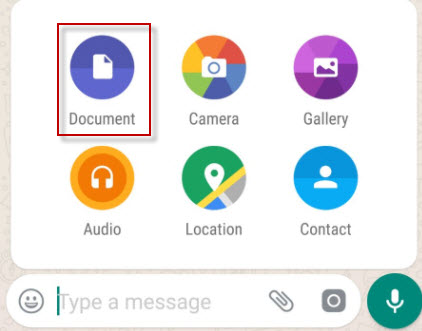
Normally we send photos through the “Gallery” option, but that compresses them so that they occupy less space. If you want to send photos in maximum quality,  send them through Document.

Documents

2. Pin chats

Chats in WhatsApp are sorted by last received message, but there is a way to set a chat so that it always appears among the first ones.

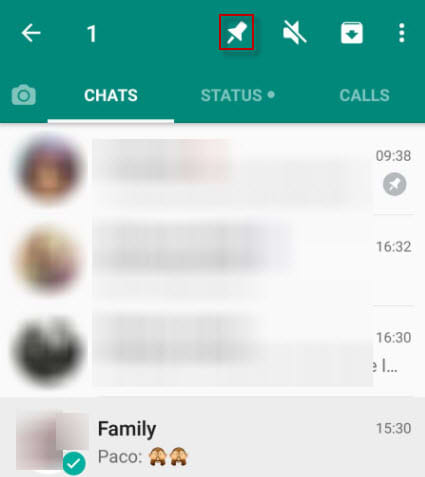
To pin a chat, go to the main WhatsApp window and keep your finger pressed on it. Then tap on the thumbtack to pin it. Want to unpin one? Repeat the process. You can pin up to three chats at a time.

Pin chats

3. Mark messages as favorites

Quite often, friends send us funny messages or useful information that we’d like to look up whenenever we want to see it. You can save them in a separate notebook or, better yet, favorite them. 

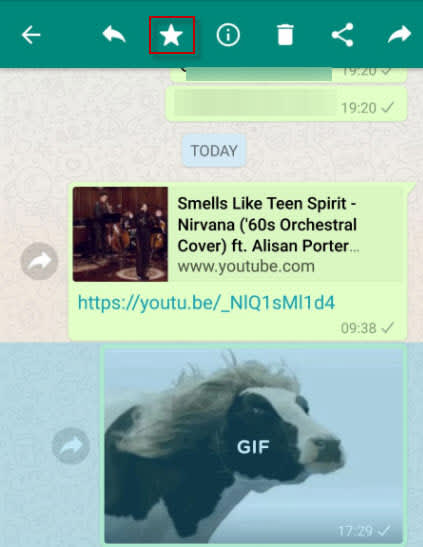
To do this, touch the message you want to highlight then touch the star icon.

Favorite messages are saved in the corresponding chat under the general information of the group. Search for “Featured Messages” and you’ll find them there.

whatsapp cowWrapping up

We hope that at least one of these tips changed how you will use WhatsApp. With the ever-increasing popularity of WhatsApp, we hope that there will be more cool hidden features to talk about in the feature.

More WhatsApp and Facebook integration

New “WhatsApp from Facebook” tab has been spotted in advanced WhatsApp beta code


WhatsApp and Facebook linkedA lot has been made in recent weeks about the integration that is going on between Facebook, Instagram, and WhatsApp. This goes way beyond the borrowing of app features between the three, like the recent news about a Boomerang feature coming to WhatsApp, which has been going on for years.

The big news is that behind the scenes, Facebook is working on integrating the code of all three apps so that users of each app can interact with each other, even if they don’t have an account on all three apps. Theoretically, when these big changes take place, a WhatsApp user will be able to send a message to an Instagram user from her WhatsApp account.

Obviously, this isn’t going to be the only major change and it has been becoming more and more apparent that Facebook plans to introduce these changes in a drip like fashion. We’ve already seen the share to Facebook feature land on the WhatsApp beta and now we have another little change coming in, designed to highlight how all three of these massive apps are linked.

New “WhatsApp from Facebook” tab has been spotted in advanced WhatsApp beta code

It wasn’t too long ago that serial tech tipster Jane Manchum Wong tweeted about an interesting little snippet she’d found in some Instagram code. Tucked away at the bottom of the settings menu were the words, “Instagram from Facebook”. It had been widely remarked at the time that Facebook had been exerting much more control over Instagram and the subtle new branding confirmed it.

screenshot of new WhatsApp branding
Image via: WABetaInfo

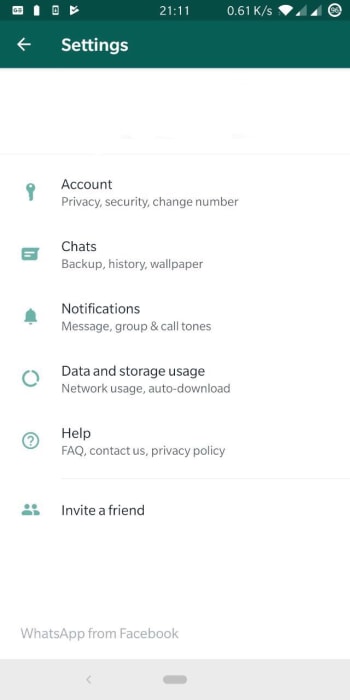
Well, in a worrying development for all WhatsApp fans, that very same branding has been spotted by the guys at WABetaInfo at the bottom of the settings menu. With everything else that has been going on, it would be naïve to expect that this is simply just a few hidden words and not a part of some bigger structural changes going on behind the scenes.

WhatsApp is for adults only

In other WhatsApp news, it also looks like WhatsApp is upgrading its terms of service to target underage users of the messaging app. The new terms of service target users in the European Union who are under 16 years of age and users everywhere else who are under 13 years of age. Once WhatsApp starts enforcing this change, it’ll be an adults only app in the EU and a teens and above app everywhere else.

Also, with the roll-out of the latest WhatsApp beta version 2.19.222, it is becoming clear that the Facebook-owned app is in fact working on a feature that will enforce the new terms of service and ban underage users. If you’re a WhatsApp user in the EU and you’re not yet 16, or anywhere else in the world and you’re not yet 13, it looks like your days on the app could be numbered.

WhatsApp Web is getting some nice image upgrades

Image Albums are coming to WhatsApp Web

WhatsApp on a computer

WhatsApp Web is a great way of staying in touch with your friends and family while using your computer. You open it up, zap the QR code with your phone, and then you’re away. I’ve a WhatsApp Web window open right now and I’m pretty sure, if you’re reading this article on your laptop or desktop PC, you do too.

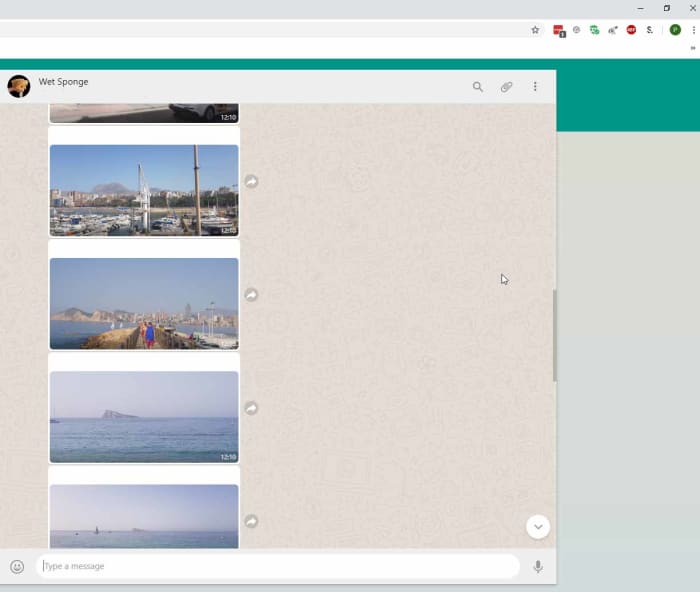
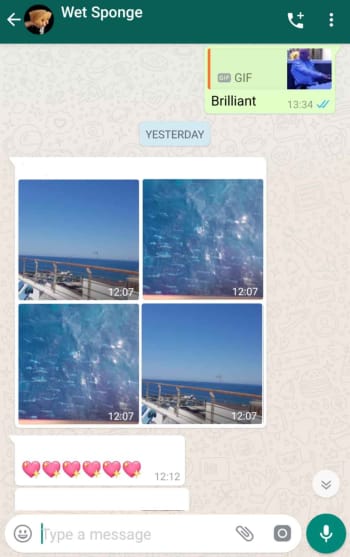
The only thing with WhatsApp Web though, is that isn’t as fully featured as the mobile app. I’m not going to get into the fact you need your phone to be on to use it; which rumor has it, WhatsApp is working to fix, I’m talking more here about viewing images on WhatsApp Web. When you receive a big batch of images all at once you can view them as an album on your mobile, but when you go to WhatsApp Web all you see is a stream of single images. This looks set to change.

8

Image Albums are coming to WhatsApp Web

There are two main problems with receiving a lot of photos at once and only being able to look at them one at a time. The first, is that it breaks up the chat. If you’re chatting to somebody about their holiday and they send you 57 holiday snaps with them all showing up individually, you’re going to have to do a lot of scrolling in between what was said before they were sent and what was sent afterwards. On mobile, this isn’t an issue as all those photos get grouped into an Album and you can see what was said before and after right there on the same screen.

whatsapp web album screenshot
This is annoying

The other main problem is downloading or sharing the images. If somebody has sent you a group of photos and you decide you want to keep or share them, it can be a painstaking process going through each of them and hitting the download or share button individually. Again, on mobile, this isn’t an issue and one click will download and share them all.

Whatsapp mobile album screenshot
This is less annoying

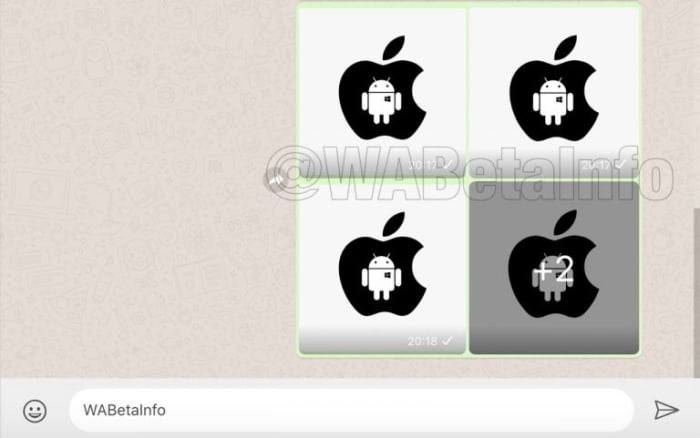
This is why it is good news that WhatsApp is developing an Albums feature for WhatsApp Web. Although not yet even available in the beta version of WhatsApp it has been spotted in some advance code by the team at WABetaInfo.

new whatsapp web album screenshot
Image via: WABetaInfo

The advance Albums feature for WhatsApp Web will work just like the Albums feature on WhatsApp for mobile. Whenever you receive multiple items at once, they’ll automatically be grouped together into an Album. Furthermore, you’ll also be able to share and download Albums entirely from WhatsApp Web, just like you can on mobile.

This is still a very advanced feature, however, that still has a lot of development ahead of it before it’ll get a general roll-out.

WhatsApp will offer a Boomerang video feature

WhatsApp is developing a boomerang feature.

New WhatsApp features are a bit like the buses. You’re waiting for one for ages and then two come along at once. The dust has barely settled on the Fingerprint lock feature for WhatsApp on Android that we’ve just published and we’re already here again to tell you about another interesting feature coming our way. This is a feature WhatsApp users won’t have seen before, but if you’ve ever used Instagram, you’ll no doubt be familiar with it already.

WhatsApp Messenger Download Now ►
8

WhatsApp is developing a boomerang feature

WhatsApp logo inside the Instagram logo

Instagram’s Boomerang feature is simple enough but has proven very popular. It allows you to record a short video and then play it in a loop. Not a regular loop, but one that plays like a boomerang. The video plays from start to finish, and then plays backward from finish to start before then repeating the process ad infinitum.

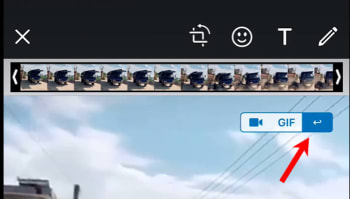
It has now been reported by WABetaInfo that WhatsApp is working on a Boomerang feature of its own. The feature will be available in the small Video Type panel that at the moment allows the choice between sending a video as a video file or first converting it into a GIF. The only caveat is that Boomerang videos will only be possible on WhatsApp if the video is less than seven seconds long.

WhatsApp gets a
The new WhatsApp Boomerang button

WhatsApp’s new Boomerang feature is still in the very early stages of development, however, so at the moment it isn’t even available to advanced users of the WhatsApp beta program. According to the WABetaInfo report, however, the WhatsApp Boomerang feature will come first to WhatsApp on iOS and will then follow on Android. Although the report does specifically say that it will come to both iOS and Android, there is no mention on when either version will see a release.

As we always like to point out when we report on these advance beta version feature releases, we can’t guarantee any sort of timeline. To give you an idea of how long these things can take, we first broke the story we’ve just published on the new Fingerprint lock for Android back in January and that only came to the beta version of WhatsApp for Android this week. This means that the general release of this feature to all versions of WhatsApp could still be a way off.

If this all sounds too tantalizing for you, and you want to try out these advanced new features as soon as is humanly possible, don’t worry. We’ve prepared a handy guide that points out how you can sign up to the WhatsApp beta program. To read it, click the link above.

If you think you’d like to try out advance features on many of the other pieces of software, apps, and programs we feature on Softonic, we’ve got you covered there, too. Check out the link below to find out how to sign up to the beta programs for many, if not all, of your favorite programs.

WhatsApp on Android gets fingerprint lock

WhatsApp has already started rolling out Fingerprint lock feature the members of the Android WhatsApp beta program

It has been a while since we’ve been able to tell you about a significant WhatsApp development. After an endless stream of incoming updates, things recently slowed down. Well, finally we can bring you news of a very interesting update, although it isn’t exactly a new one. We first told you about WhatsApp’s plans to add fingerprint identification to the Android version of the app back in January, and we can now tell you that the feature is finally about to land.

WhatsApp has already started rolling out Fingerprint lock feature the members of the Android WhatsApp beta program

Fingerprint security

Fingerprint authentication landed on the beta version of WhatsApp for iOS months ago and is now finally making the leap to Android too. Once enabled, users will be able to secure their WhatsApp chats behind fingerprint authentication. There is also an option to hide content shown in system notifications behind the fingerprint lock feature too.

WhatsApp Messenger Download Now ►
8

The feature lands for all Android beta users who’ve updated their WhatsApp to version 2.19.221. The only catch is that you’ll have to be using an Android phone running Marshmallow or later and, rather obviously, your phone will need a fingerprint sensor.

How to use the new Fingerprint lock feature on WhatsApp for Android

Once you have the latest version of WhatsApp installed on your Android smartphone, you’ll have to activate it and confirm your fingerprint before you can use it. This is what you’ll need to do to activate the WhatsApp fingerprint lock.

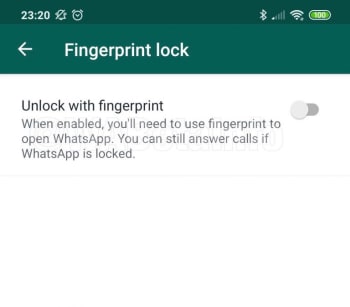
1. Open the WhatsApp Settings menu and then tap Account and then Privacy. You’ll then see the new Fingerprint lock option.

fingerpint lock whatsapp
Image via: WABetaInfo

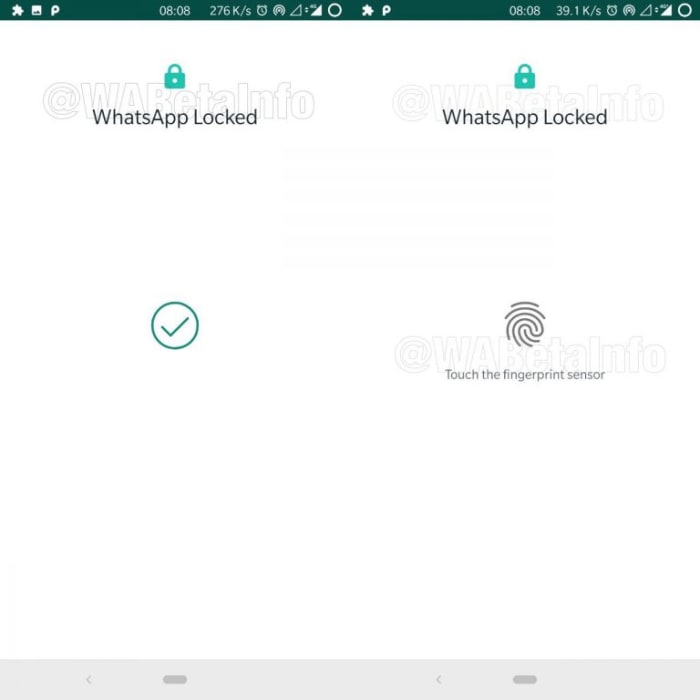
2. Open Fingerprint lock and then enable Unlock with fingerprint.

whatsapp fingerprint scanner
Image via: WABetaInfo

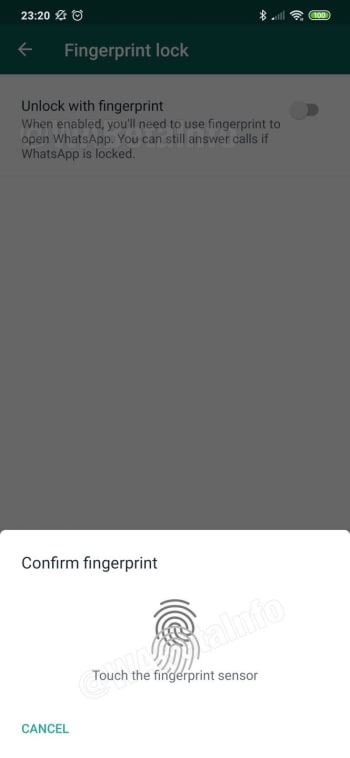
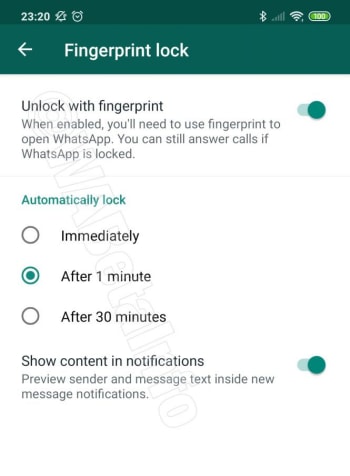
3. Confirm your fingerprint using your phone’s fingerprint sensor. This will then open up some different options for the Fingerprint lock feature including how quickly you want WhatsApp to lock after each use and whether you want WhatsApp to show message content in your system notifications.

whatsapp fingerprint options
Image via: WABetaInfo

4. Configure each setting and then test the feature works by closing it.

Image via: WABetaInfo

The above steps will enable the WhatsApp Fingerprint lock when it lands on your version of WhatsApp for Android. The feature, however, doesn’t actually add an extra layer of security to your WhatsApp chats, on top of the regular lock you have protecting your phone.

The fingerprint data you use to lock your WhatsApp is actually the same fingerprint data you use to unlock your device. The WhatsApp fingerprint lock will be useful, however, if you ever pass your unlocked phone to somebody else but don’t want them to be able to read your chats or listen to your voice messages.

iPhones can be hacked just by receiving a text

This bug can allow hackers access to all of your personal data just by receiving an iMessage!

iPhone

We’ve all had close calls when it comes to getting our phones hacked.

Sometimes we click on a malicious link while browsing the internet. Sometimes we download a shady app that is sending data in the background. All of these things typically boil down to our own human error whether it be from lack of knowledge, or taking a chance on a shady app. However, it was recently discovered that an iPhone can be hacked simply by receiving an iMessage. This has brought more attention to a  relatively new type of hacking tool known as “interaction-less” bugs.

Should I be worried?

At the Black Hat Security Conference this week, a Google Project Zero researcher showed that there are “interaction-less” bugs in iMessage that hackers can exploit to gain control. Once hackers gain control, they will be able to access your personal data on your phone.

You can click here to see the researcher’s full slideshow presentation. 

The bugs were found by looking for flaws while reverse engineering iMessage. The researcher, Natalie Silvanovich, did not find any similar bugs in Android phones. However, throughout the years, she and her team have found similar bugs in apps like WhatsApp and FaceTime. 

What should I do?

The best thing you can do is to make sure you are updating your phone whenever you can. According to Silvanovich, Apple has already patched six of these bugs in updates. 

You should also run regular virus scans on your phone to make sure that you are virus-free. We highly recommend using Malwarebytes since it is both free and efficient.

Malwarebytes Download now ►
8

You can also block texts from unknown numbers so that you won’t hear from them again. To do this, follow these steps:

1. Go to the Messages app

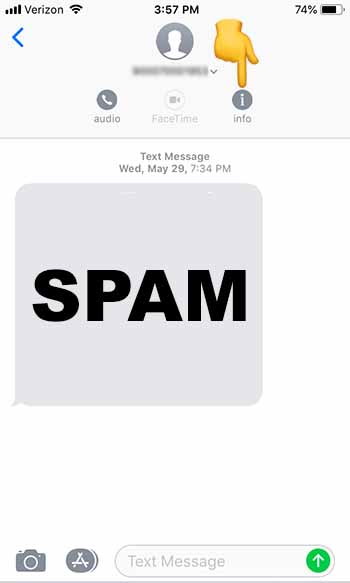
2. Tap on the spam message you received to open it

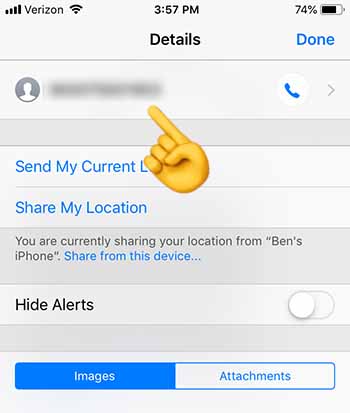
3. Tap at the top of your phone until the “Info” button appears.” Tap “Info”

Click info

4. Tap on the number at the top of the screen

Click number

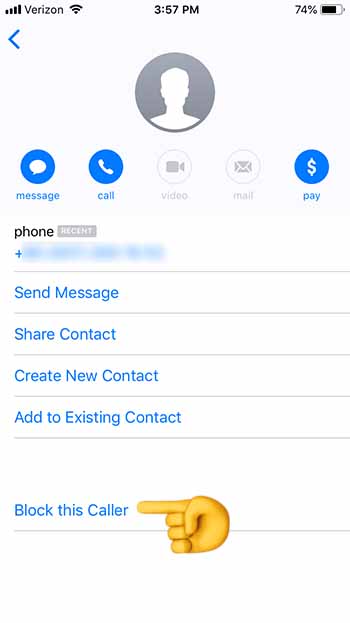
5. Scroll down to the bottom, and tap “Block this Caller”

Block this Caller

6. You should stop receiving texts from this number altogether

If you do receive a shady text from an unknown number, you should block the caller, and then run Malwarebytes. Once you’re done, check and make sure that your phone is up to date.

Wrapping up

Although there is virtually no chance that your up-to-date iPhone will be hacked through this method, the question now remains: “How did Apple leave this vulnerability in the first place?” If you’re spending hundreds of dollars on an iPhone, you should rest assured that it won’t be easy for a hacker to access your personal data. Just recognize that your security depends on your vigilence.

New WhatsApp bug could let hackers talk for you

New tool exploits vulnerability in WhatsApp to allow third parties to manipulate your chats and talk on your behalf.

People fighting over a WhatsApp account

WhatsApp’s popularity is unquestionable. With over 1.6 billion monthly active users it is the most popular messaging app on the planet by quite a margin. This is great because it means most, if not all, of your friends and family are on WhatsApp, too. But there’s a problem: such a huge user base is also going to attract hackers and cyber-criminals.

We’ve covered a plethora of WhatsApp related scams here at Softonic. From fake versions of WhatsApp to dubious links being sent out across the network promising deals and freebies that are too good to be true, we’ve seen lots of different types of WhatsApp scam. Unfortunately, however, today we have to tell you that it doesn’t look like the scammers will be running out of ideas any time soon. There is another WhatsApp that you need to be aware of.

New tool exploits vulnerability in WhatsApp to allow third parties to manipulate your chats and put words in your mouth

At a recent cyber-security conference in Las Vegas, called Black Hat, cyber-security specialists from  Check Point Software Technologies demonstrated a new tool that allows hackers to intercept and manipulate user chats on WhatsApp. The tool enables hackers to fool the WhatsApp quote tool to make it look like users have said things that they hadn’t.

Speaking to the BBC, Check Point researcher, Oded Vanunu said, “It’s a vulnerability that allows a malicious user to create fake news and create fraud… You can completely change what someone says… You can completely manipulate every character in the quote.”

Vanunu also indicated that the tool can change the name of the sender who the quote is attributed to. This means a hacker could completely make up a quote and then put your name, or the name of another WhatsApp user, next to it.

On its own this thought is frightening enough. Somebody could do some real damage to your reputation and personal relationships, if they were able to accredit false quotes to your name. The potential problem is magnified, however, when you think of all the problems fake news has been causing on WhatsApp.

Fake newspaper whatsapp
Image via: Check Point Research

We’ve seen as many fake news WhatsApp scandals as we have WhatsApp scams. From causing riots and lynching in India to pushing false narratives in Brazil that have seen a far-right candidate take the presidency, WhatsApp has been dealing with a fake news global epidemic for quite some time. The messaging giant has taken steps to halt the spread of false information, but this latest tool could make that job even harder.

The good news, however, is that the vulnerability the tool exploits is now common knowledge so, hopefully, WhatsApp will already be working to close it. This is all another reminder of how precarious our digital security is and just how serious things can get, if we don’t stay vigilant when we’re online.

India’s government wants to read your WhatsApp messages

The Indian government wants WhatsApp messages to be linked to users.

whatsapp

If you’re a WhatsApp user in India, your messages might be compromised.

Two petitioners have requested India’s high court to link WhatsApp users’ accounts with their Aadhaar. Aadhaar is a 12-digit unique biometric identity number that everyone in India has to identify them. Aadhaar is pretty controversial in India as some believe it allows the government to track their every move. 

WhatsApp Messenger Download Now ►
8

Why should I care?

government surveillance

The petitioners want WhatsApp users linked to their Aadhaar so that users who cyberbully or defame other users can be held accountable. Linking users to their Aadhaar would significantly weaken WhatsApp’s encryption. 

Users are worried that weakening WhatsApp’s encryption would cause a domino effect that would extend to other apps as well. The mindset is if this can happen to WhatsApp, one of the most popular apps in the country, it can happen to any app.

WhatsApp is supposed to be a place for private conversations, but adding this link would mean that every message has a record associated with you and your phone number. 

Why is this happening and what is WhatsApp doing?

Fake news

The problem is that the petitioners aren’t the only ones fighting for this change in WhatsApp, the government of India is trying to weaken its encryption as well. 

India’s IT minister Ravi Shankar Prasad said that traceability will be WhatsApp’s job. The government has tried to get WhatsApp to allow messages to get traced back to users, but has been denied each time. With the support of the petitioners, this time the Indian government might be too loud for WhatsApp to ignore. 

Much of this was sparked by an event last year when a hoax was spread through WhatsApp about child abductors running rampant in India. This lead to several people being lynched in the chaos. People who helped spread the hoax could have potentially been tracked down and prosecuted if they were linked to their Aadhaar.  

WhatsApp has responded to the issue and is working to fight misinformation from spreading throughout the app. Recently, they unveiled a feature that would tell users if a message was forwarded more than five times. The idea is that if a message was forwarded more than five times, it is probably being sent on a massive scale, and maybe with malicious intent.

What’s going to happen?

First off, it is important to note that this is not necessarily an India-only issue. Weakening WhatsApp’s encryption could potentially have consequences for users in other countries.

WhatsApp has to take every user in every country into consideration before making this decision. They also have to consider the users in India that don’t want them to make this change. Whether WhatsApp and the Indian government reach a compromise is something we will have to wait to see. Until then, if you’re a WhatsApp user, continue to report users that spread misinformation on the app.