The best apps to customize Windows 10

Make Windows 10 your own with these big hitting Windows customization apps.

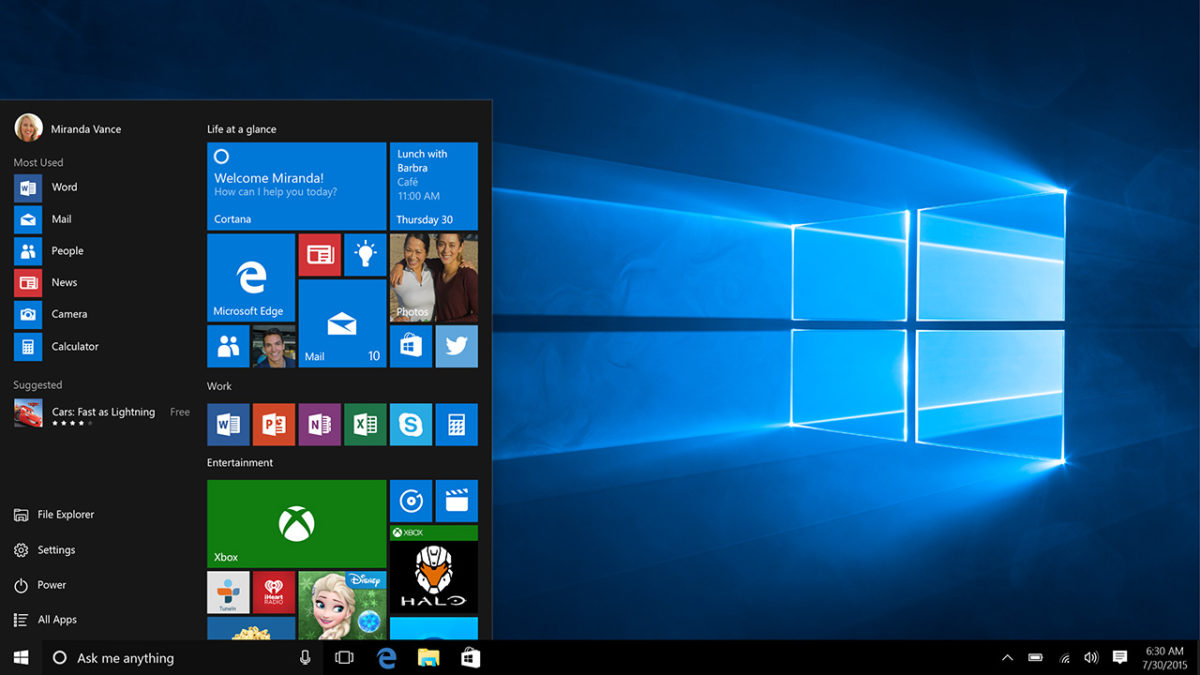
With Windows 10, Microsoft really has created a fantastic operating system for your laptop or desktop PC. It is stable, fast, secure, easy to navigate, looks great, and offers some fantastic customization options straight out the box. If you’re looking to customize your Windows 10 PC and overall Windows experience, there are plenty of things you can do without having to download extra apps or programs.

You can go into the Windows 10 settings app and change your desktop background, change the color scheme for all Windows and backgrounds, edit the lock screen, customize your Start menu, personalize your title bars and taskbar, and set a system-wide theme that will do most of the above for you. Now that’s a lot, but if you’ve already been through all of that and still want more, there is a lot more you can do to personalize your Windows experience. Let’s look at how to customize Windows 10.
The latest and greatest version of Microsoft's operating system.

How to personalize Windows 10

Customizer God
Customizer god

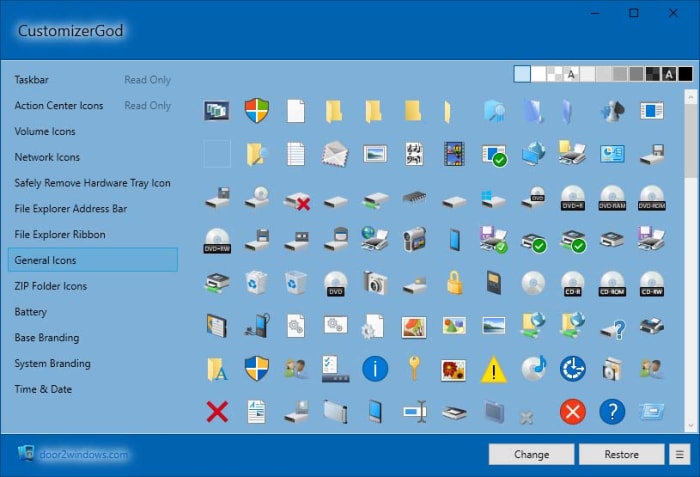
Although Windows 10 is, without doubt, a much more advanced operating system than the likes of Windows 7 and Windows 8, there is still one element of the flagship Microsoft OS that doesn’t seemed to have changed going back years. Those are the icons. We get emoji updates from the likes of WhatsApp and Apple every few months but many of the default Windows icons feel like they haven’t changed since Windows 95 first gave us the Start Menu.

Customizer God addresses this issue brilliantly giving you a LOT of icons to choose from that can help you customize everything from the hallowed Start Menu to seemingly insignificant icons like your laptop’s battery power. What’s great about Customizer God too is that it is relatively easy to use meaning you can personalize everything without having to go through a steep learning curve.

CustomizerGod Download now
8

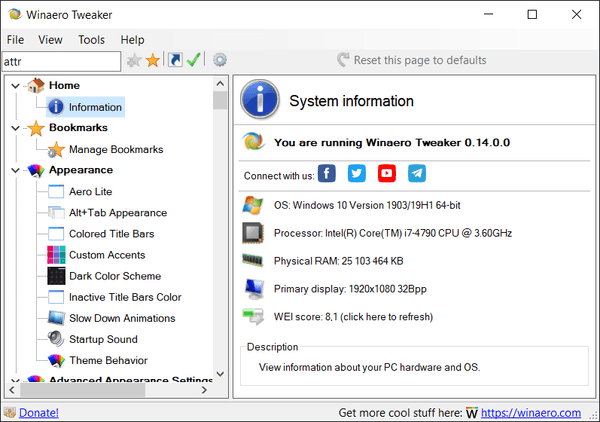
WinAero Tweaker

This program offers you many different customization options that go beyond the aesthetics of your operating system. For example, you can make simple changes that will make a big difference, like being able to stop the word Shortcut from automatically being added to new shortcuts you create. Of course, there are plenty of aesthetic changes you can make with WinAero Tweaker too, but overall the program offers a much richer and deeper level of personalization. What’s great is that this program has been around for a long time and is updated regularly.

Winaero Tweaker Download now
8

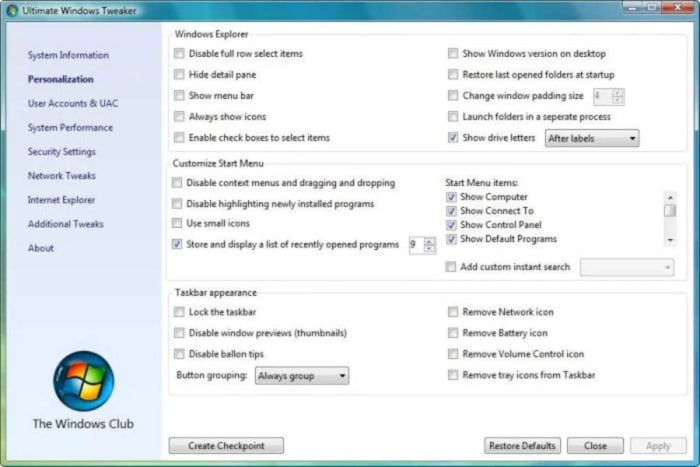
Ultimate Windows Tweaker

Ultimate Windows Tweaker

As the name suggests, the Ultimate Windows Tweaker allows you to customize a lot of different Windows 10 aspects. It also works with Windows 7 and Windows 8. In fact, it gives you access to well over 200 different tweaks that include tweaking your system’s performance, optimizing security, and completely redoing your taskbar on top of all the regular visual tweaks you’d expect to find.
Ultimate Windows Tweaker Download now
8

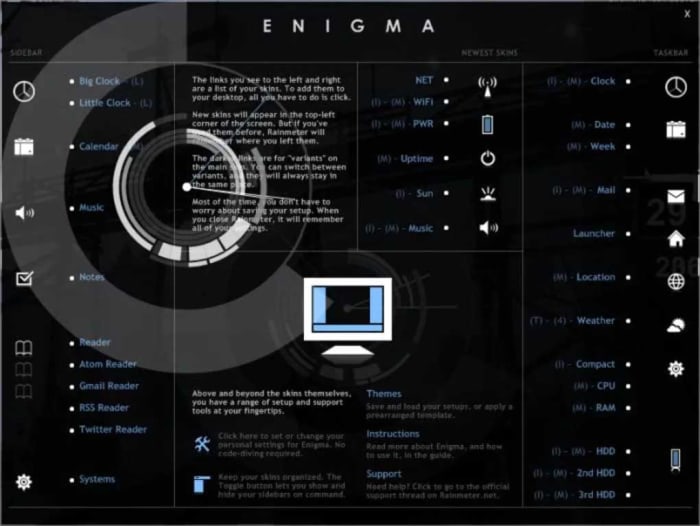
Rainmeter

Rainmeter has a bit of steep learning curve but once you get the hang of it, you’ll be able to really go deep with your Windows 10 customization. Through the development of what Rainmeter calls Skins you can make all sorts of different changes, all the way up to completely redesigning your Windows PC desktop. If you have the patience to get into Rainmeter, this is the Windows 10 customization tool you want. This is about so much more than your desktop wallpaper. If you like the sound of it but it all sounds a bit much, then you might be interested to know that the program has beginner skins that you can use out the box.

Rainmeter Download now
9

MyFolders Windows Explorer Extension

MyFolders doesn’t quite have the breadth of options you’ll find with Rainmeter or Ultimate Windows Tweaker, but it focuses on one aspect of customization and does it very well. Basically, it makes Windows 10 much easier to navigate by putting all your system files just a click away. Whenever you right-click you’ll find the MyFolders icon in the menu, which you can then expand to find all your system directories and access basic commands like CopyMove, and Open etc.

MyFolders Download now
6

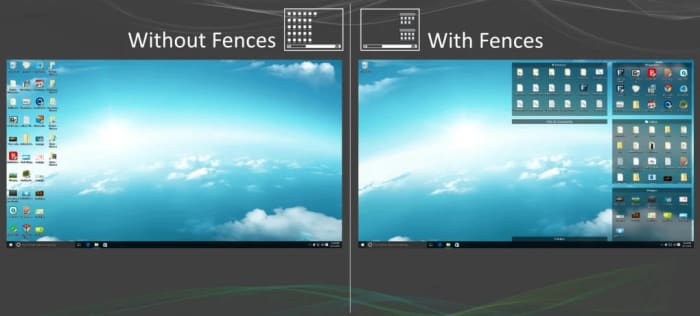
Fences

Fences Windows 10

Fences is another great customization app for Windows 10 that does one job well. Fences allows you to create groups of apps on your Windows 10 desktop that you separate from other apps by fencing them off. Basically, you build little fenced gardens that look a little like Android groups and then put all the relevant programs in there that you want to bunch together. If you’ve a lot of apps, you’ll find this very useful indeed.

Fences Download now
8

TileCreator

With Windows Tiles becoming such a prominent part of the operating system from Windows 8 onwards it is no surprise that one of our favorite Windows customization apps will help you personalize your tiles. Obviously, you can already change the size of your tiles but TileCreator brings with it a whole host of other impressive options too. You can get deep into the style of your tile icons, set themes that link them all so it doesn’t look like too much of a mess, and alter the background color that sits behind your customized icons.

Classic Shell

Nostalgia is a hell of a drug and Classic Shell is here for anybody looking for a hit. What Classic Shell does is give your Windows 10 operating system a nice classic feel that’ll take you back to the halcyon days of Windows 7. You’ll also have a nice shell icon where the Start button used to be. It isn’t just about reliving the good times, however, as Classic Shell also allows users to fully customize the whole Windows 10 Start Menu. This means you can stick with the retro Windows 7 feel but add more modern features to it as you’d get with Windows 10.

Classic Shell Download now
8
Wrapping up

There is a lot you can to Windows 10 to make your experience different from everybody else’s. If you’re not happy with the default personalization options, however, you can download any of the programs we’ve gone through today and take full control of the operating system. From major redesigns to individual feature upgrades, all options we’ve outlined today put you in control of Windows 10.
All the new Windows 10 features from 2019

These are all the best new features that came to Windows 10 in 2019.

Windows 10 is Microsoft’s flagship operating system and has been for quite some time. Microsoft has decided that rather than release new versions of Windows like back in the days of previous versions like Windows 7; it will stick with Windows 10 and regularly tweak and update it with new features. This means that although it still looks like the same program it was when released, Windows 10 is now quite different and has many new features.

We’ll also be looking at all the best new features for Google’s Android OS and Apple’s iPhone, but today, we’re going to look at all the new feature updates Microsoft added to Windows 10 in 2019. Let’s have a look then at what’s new with the latest updates to Windows 10.

The latest and greatest version of Microsoft's operating system.

New Windows 10 features 2019

The new Windows 10 Light Desktop Theme

New Light Mode for Windows 10

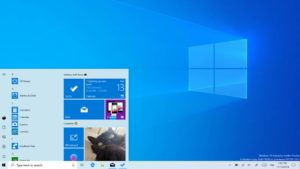
In a year when it seemed like every single mobile app and its dog were getting dark modes, Microsoft decided to take Windows 10 the other way. With the Windows 10 default theme being dark ,with a black taskbar running along the bottom of the desktop, 2019 saw the introduction of a Windows 10 Light Theme. When activated the taskbar runs a light grey and there is even a much lighter version of the original Windows 10 wallpaper.

Cortana’s split from search

The new and improved search console on Windows 10

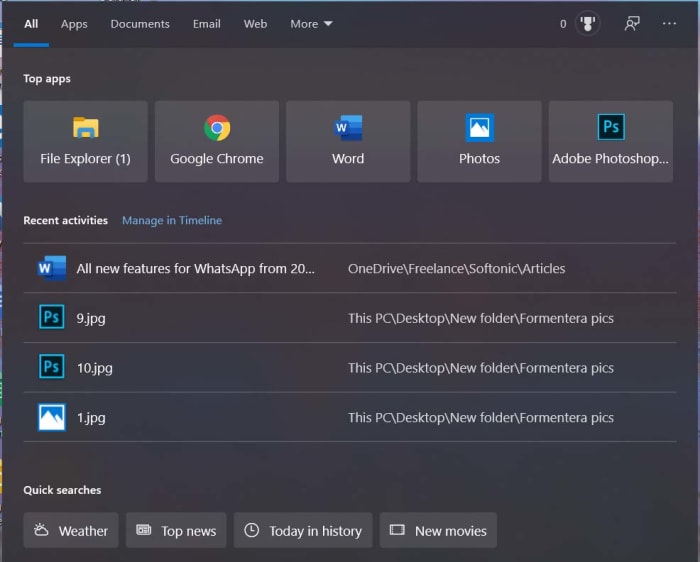
The Windows 10 AI digital assistant Cortana has now been separated from the  Windows search box. They now sit next to each other on the taskbar rather than being together. This means Cortana is no longer handling your Windows 10 searches and you can better focus your searches using Windows 10’s improved search interface. The Start menu file explorer can also now search through all files on your PC.

A world without passwords

Another cool new feature Microsoft has added to Windows 10 in 2019 is the ability to create a Microsoft account without an online password. This passwordless security will protect against the types of data breaches and hacks that end up with millions of passwords falling into the hands of nefarious cyber-criminals. You don’t have to but you can now set up an account using your phone number and then use Windows Hello sign-in features like a locally stored PIN, similar to that you use with your credit card, or biometric security credentials like your fingerprint.

The update to Windows Updates

More control over Windows 10 updates

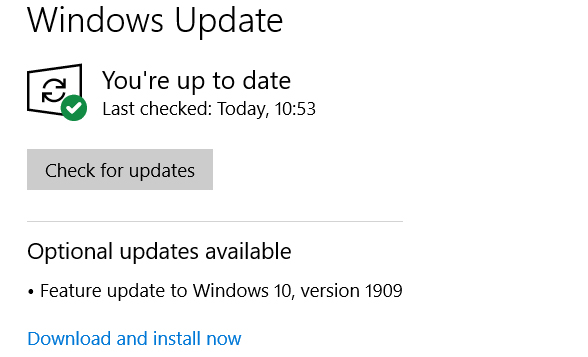
If this sounds a little confusing, it is because Microsoft made a huge mess of the whole Windows 10 update process. So much so, that they’re one of the most hated things about the Microsoft operating system. That’s why in the May 2019 Update, Microsoft updated Windows 10 updates. You now have greater control over Windows 10 updates. You no longer have to update Windows 10 when Microsoft tells you to and can stick with your current version of the OS for up to 18 months. After that Microsoft will no longer provide security updates. It is also possible now to pause updates.

7 GB of reserved disc space

Windows 10 disk space

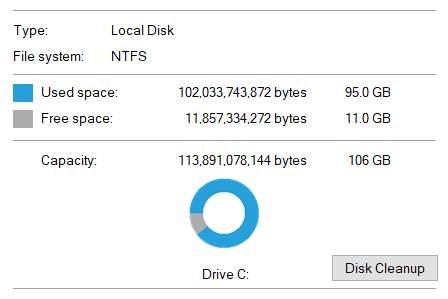
Another update to updates here. To make sure Windows 10 updates run as smoothly as possible, Microsoft now reserves at least 7 GB of space on your system’s hard drive. This will be more of an issue on machines that have smaller SSD hard drives, but there is good news. Microsoft uses the reserved space to write temporary files, which frees up the space normally used for this task. To be fair, this isn’t going to free up the whole 7 GB of space, but it does show you that not all of that space is completely wasted.

Improved Focus Assist

The Windows 10 Focus Assist was first introduced to stop notifications disturbing your game time. The feature has now been extended to all apps being operated in full screen. This covers everything from video players to web browsers and makes quite the difference.

Greater control over Microsoft apps

Uninstall Microsoft apps

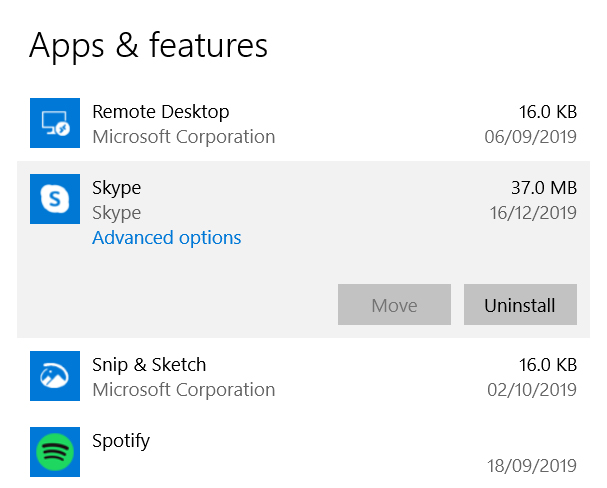
2019 was the year Microsoft gave you greater control over the apps it bundled along with Windows 10. It is now possible to uninstall pre-installed Windows 10 apps like Skype, Solitaire, Paint 3D, Groove Music, Mail, 3D Viewer, and more. These can now be removed from your device altogether. Probably something to think about when you realize your Windows 10 PC just took 7 GB of space from your hard drive for an update you don’t even want.

“Improved” Start Menu

A better start menu for Windows 10

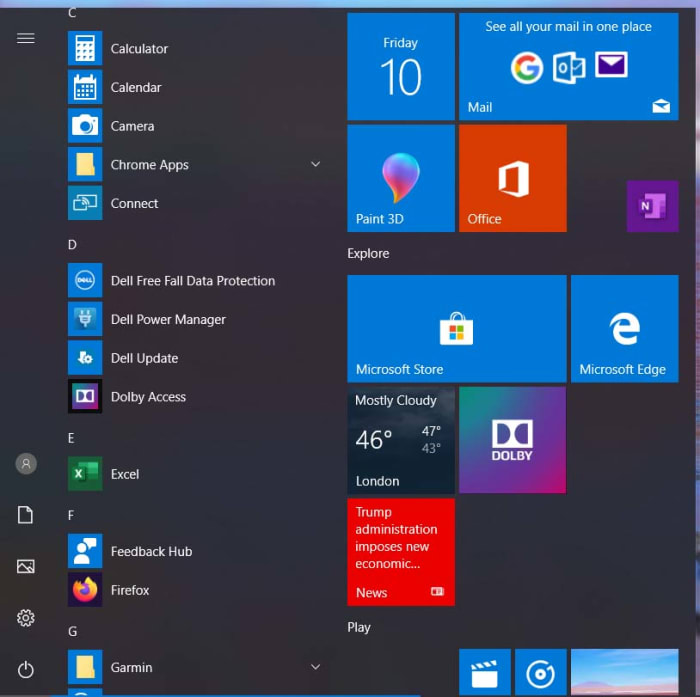
Windows 8 was a huge mess that did away with the traditional Windows layout as it experimented with touchscreen interfaces. One of the big things that set Windows 10 apart from Windows 8 was the return of the Start menu. Unfortunately, however, the Windows 10 Start menu retained much of the Windows 8 aesthetic, opening up a huge menu with different app tiles of varying sizes. In 2019, this was paired back with the Windows 10 Start menu only having one extra column beyond the list of major apps. It still has the Microsoft Store and Store apps, but it is definitely an improvement. If you’re Start menu still looks the same, you can now change it to the new updated setting.

Simpler troubleshooting

Windows 10 troubleshooting

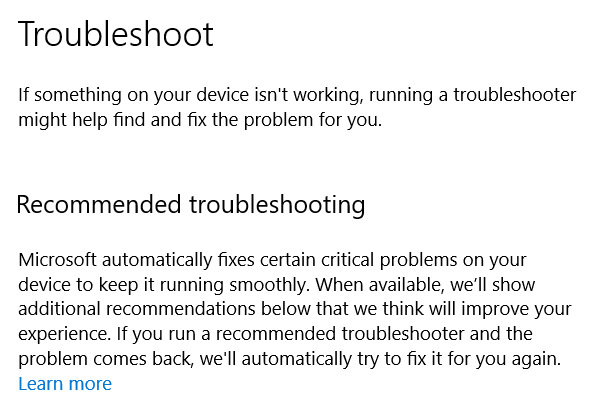
Windows has always done a pretty good job of searching out problems that could be causing your system issues. In 2019 Windows 10 got even better and made it much easier for you to troubleshoot any issues you might be having. Following the update, you no longer have to find the correct troubleshooting tool to search out your issue. The whole process has been centralized now meaning no matter what the problem is, you just go to the Windows 10 Settings page, hit Update & Security, and then hit Troubleshoot.

Wrapping up

So there you have all the biggest and best new features that were added to Windows 10 in 2019. The latest Windows 10 version has come a long way since it was first released for free by Microsoft. 2019 marked a good year for updates as there are plenty of interesting new features that have been added to the OS and Microsoft is finally doing something about the troublesome update process. Roll on 2020.

New year new computer? You need these essential apps going into 2020

These are all the essential apps you need to download and install on your new Windows PC.

Must have software for Windows 10

New years are perfect for new beginnings. The new year also comes just after Christmas too. Both these facts mean many of us are going to be starting 2020 with a brand-new Windows PC. Whether a Christmas gift, a January sale bargain, or an attempt to start afresh at the beginning of the new decade doesn’t matter. New computers are exciting for their possibilities, but out the box, they’re kind of grey. They come with basic software only and, as such, can’t actually do that much.

That’s where we come in with today’s guide. Today we’re going to walk you through all the must-have free software for your new Windows PC. If you’re a Mac OS or iOS iphone user come back later and Android smartphone users can check out their essential apps here. Everybody else, however, let’s get started.

Essential programs for a new computer

Your web browser of choice

Fortunately, the Windows 10 operating system comes with an excellent default web browser. Microsoft Edge is miles ahead of the old Internet Explorer, and offers some excellent unique features too like being a PDF reader, and giving you a very good Reader mode that cuts out all the clutter on the web pages you visit and turns the text into something more resembling a page out of a book. Very cool.

7

With web browsers though, it is very much horses for courses with everybody having their own preference. Google Chrome is the most popular by far offering fast load speeds and ton of available plugins, although it is also a RAM hog that can slow your new PC down to a crawl, if you have too many tabs open at any one time. Mozilla Firefox is big for privacy enthusiasts, offering you complete control over your own data. Opera is built with the same code as Chrome but has added different features, which means you can pick and choose the features your web browser has while maintaining the core offering you get from Chrome. Incidentally, Microsoft Edge is also based on the Chrome code now, which is something you might want to consider.

Security

malwarebytes

As soon as you’re connecting to the internet, you need to start thinking about your cyber-security. Windows Defender, which ships with Windows 10 is a decent antivirus program that is user-friendly and does a pretty good job of keeping Windows users safe. You might want to think about backing it up, however, with a powerful secondary antivirus software that can run as a specialized scanner. The free version of Malwarebytes is a great option for this as it is able to search out malware more effectively than Windows Defender. You can then leave Windows Defender to actively protect you in real-time and periodically scan your hard drive using Malwarebytes to make sure nothing has slipped through the cracks.

Malwarebytes Download now ►
8

Once you’ve got your system locked down tight, the only real threat to your cyber-security is you. Secure passwords are both a nightmare to come up with and a nightmare to remember. You need a unique password for each online account you have so it is basically impossible to remember them all. This is why you need a password manager to help you securely lock down all your accounts. Last Pass is the best free option as it will automatically generate secure passwords, store them using strong encryption, and then fill them in for you whenever you log into an account. Last Pass is great too because it’ll sync across three devices.

8

Productivity

LIbreOffice header

PCs are important tools for work as well as being fun for games. What’s great these days is that you can get your hands-on excellent productivity programs for free. Libre Office gives you a completely free alternative to the Microsoft Office suite including free alternative programs for Microsoft Word, Microsoft Excel, Microsoft Access, and more. There is no good reason for you not to download Libre Office on your new PC right now.

LibreOffice Download LibreOffice
7

Bonus appGoogle Drive also gives you access to Google’s free productivity programs including Google Docs and Google Sheets. Importantly, however, Google Drive gives you free access to 15GB of Cloud storage space, which you can then use to sync all of your media files and documents cross-platform to your multiple device or to share them with others.

7

Design

The other productivity aspect you may need your PC to take care of is design. Fortunately, however, there are some excellent free options here too. If you’re a professional graphic designer or a student looking to break into the industry you should download and install GIMP onto your new PC. GIMP is an open-source program that offers complex and advanced design tools and features that rival those found on Adobe Photoshop. If you’re more of an amateur looking for a simpler setup that will still allow you to get quite a lot done, you should download Paint.NET.

8
Paint.NET Download now
8

Bonus app – Screenshots are becoming more and more important in today’s increasingly connected social world. Whether you’re looking to include something you’re looking at in your design work or simply show a friend something funny you’ve seen, Greenshot is an excellent free tool for capturing what’s on your screen at any given moment.

Greenshot Download now
9

Media – Videos, Movies, and TV shows

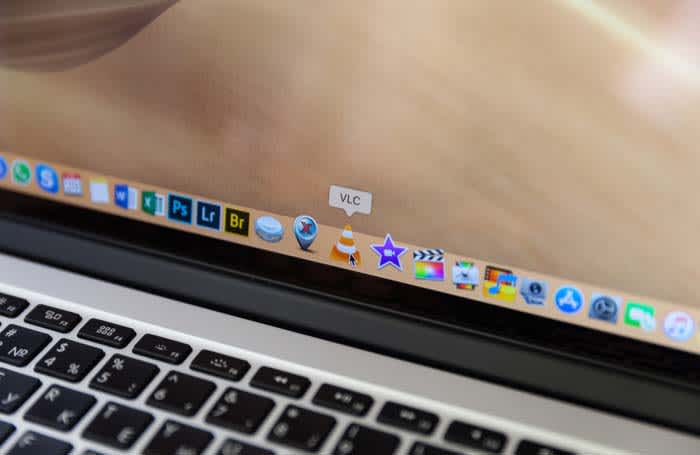
There are lots of options here for programs to watch movies and TV shows on. The way we listen to music has changed, however, so we’ll come to that in a moment. With video, there are lots of different file types and codecs that you need your media program to be able to read. If a program can’t read all of them, you need to download another one. Fortunately, the indomitable VLC Media Player is all you’ll ever need in this respect. When you have it on your Windows PC, there’ll be no video you can’t watch.

VLC media player download free ►
8

Your music streaming app of choice


In years gone by, this section would have included the likes of Winamp. Now though, most of us listen to music through our streaming subscriptions. Sure, we have subscriptions for movies and TV shows, but the music subscription services are mostly complete meaning there literally all we could ever need. The top apps are Spotify, Deezer, Apple Music, and Google Play Music. Whichever you use, download it now.

8
Deezer Download now
7
Apple Music Download Now ►
7
Google Play Music Download now
8
Wrapping up

If you’ve got this far and you’ve downloaded all the apps we’ve said, your new PC is now a powerful beast that is ready to go. Of course, there are more programs you can download and install like Skype, Dropbox, Steam, CCleaner, and One Drive; but we’ve just started you out here with the essentials.

The best Black Friday deals

These are all the best software deals you’ll find this Black Friday.

When Black Friday comes around, we’re inundated with limited-time special offers for all sorts of products like headphones, wearable tech, charging cases, video games, SSD hard drives, smart home devices, and iPads. With so many deals from the likes of Amazon, Walmart, Best Buy, Newegg, and Samsung, however, it can be hard to know where to start. Well, at Softonic, we’re specialists in software so you can trust us to bring you the best Black Friday sale software deals. Let’s get into it then, these are the best Black Friday deals for software and online subscriptions.

Disclosure: Softonic may receive a referral fee if you click or buy any of the products featured here.

The best Black Friday software deals 2019

ExpressVPN

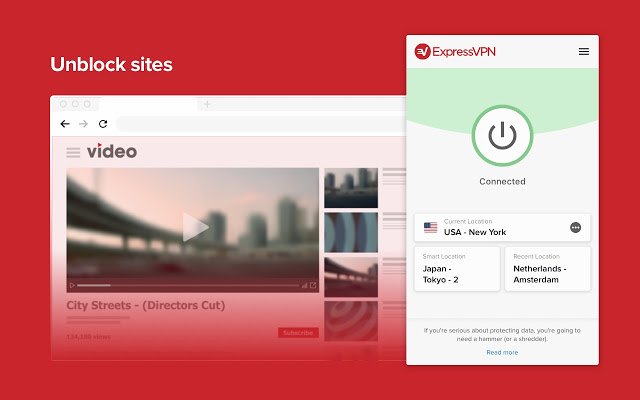
Virtual Private Networks (VPNS) allow you to mask the IP address of your Microsoft PC, Macbook, iPhone, or Android phone and encrypt all of your internet data. They have become essential for anybody who wants to surf the web safely. Add to that the fact that VPNs open up global content that would normally be locked due to your geographic location and you quickly realize that you need a powerful VPN on your machine.

The problem with VPNs, however, is that many of them are not that reliable. This is simply not the case with ExpressVPN though, which is widely regarded as the best VPN in the business. An ExpressVPN subscription will give you reliable access to over 3,000 servers round the world allowing you to protect your data and simulate your location in over 160 locations spread across 94 countries. If that sounds like something you want, act now to get three months free subscription to ExpressVPN.

Express VPN Save $$$ Now
10

Adobe Creative Cloud

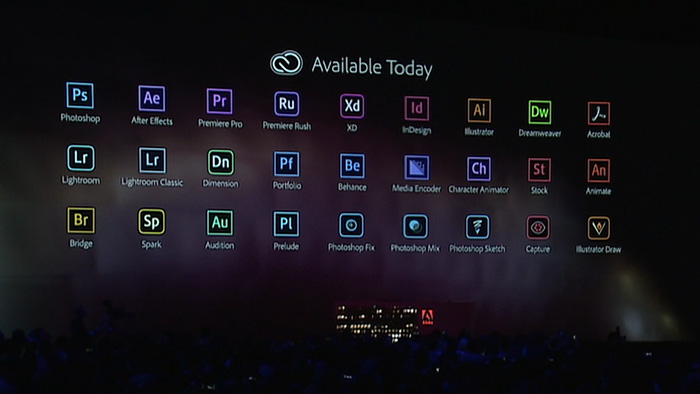
If you’ve never heard of Photoshop, then you must have been living in a cave or something. Photoshop and all the other programs in the Adobe Creative Cloud design suite are the best in their class. No matter your design job, the Adobe Creative Cloud will give you the best tools available to get it done.

Now’s your chance to get yourself a full subscription to the Adobe Creative Cloud package with massive savings of 40% off the normal price for all and 80% for students. Take advantage of early Black Friday savings that could end up saving you hundreds of dollars every year.

iObit

iObit Black Friday deal

Keeping yourself safe online is a tough job these days. Online threats and more advanced types of malware hit the internet all the time. As well as online threats, as software gets more and more complicated we can experience inexplicable slowdowns on our PCs. This is why it is more important than ever to have a robust cybersecurity suite protecting you every time you’re online and to keep your PC working as well as it should.

With that being the case, you do not want to miss out on the eye watering  discounts that iOBit is offering on its line of PC optimization and protection software. You can save up to 80% on complete packages of iObit cyber security software. iObit is also giving away $60 worth of software for free with every purchase made. Check out these deals now and save yourself some money.

iObit Special Offer Save Save Save
10

MacPaw CleanMyMac

CleanMyMac black Friday deal

MacPaw’s CleanMyMac optimization suite offers the industry standard that all other Mac cleanup programs try to match. CleanMyMac makes it a quick and simple process to clear up space on your Mac and get your Apple Mac back to its best. With MacPaw’s amazing Black Friday deals, you can save 30% on a CleanMyMac subscription. You need to act fast, however, as MacPaw discounts are rare, and it won’t be Black Friday forever.

CleanMyMac Clean for less
10

CCleaner

CCleaner Professional is a veritable institution in PC optimization. It has been around for years and is well-known for offering a quick, safe, and reliable disk cleaning service. Regularly regarded as the most efficient tool for identifying gigabytes of erroneous files and delivering noticeable boosts to your PC’s performance every time you use it. If your PC needs a boost, act now and save 50% on a CCleaner subscription.

CCleaner Click to Save
10

Sony Vegas

If you’re a video editor you need a feature packed video-editing suite offering full video production capabilities, audio editing, special effects, and more. Sony Vegas has all of these and more. If you’re an Instagram or YouTube video blogger then you should think seriously about this Sony Vegas Black Friday deal. Act now and you could save yourself hundreds of dollars and massively upgrade your video-making capabilities.

Sony Vegas Save $$$
10

Norton Antivirus

Norton Antivirus

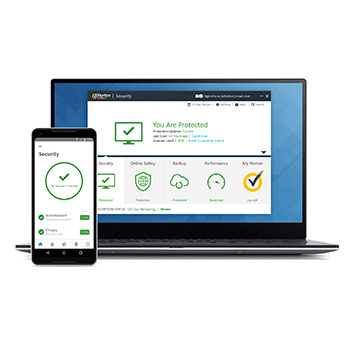
Our final Black Friday deal comes from Norton Antivirus, which is offering savings of up to $60. Protect yourself from threats including ransomware, malware, spyware, and more.  Norton will also protect your identity from potential hacks and  potential online scams and phishing attempts. Act now to save a massive $40 and protect your PC or Mac for an amazingly low $19.99. Protect up to 5 devices with the full Norton package and save a massive $60. Don’t wait to stay safe and save money.

Norton Antivirus Protect and Save
10

Top 20 best free games for Windows or mobile

Check out 20 free games packed with fun!

Free games for Windows 10

Microsoft has worked hard on making Windows 10 an excellent operating system for gamers. So much so, that the Microsoft Store is now full of amazing free games that will play just as well on your PC as they will on your Xbox One. Gone are the days of only having Solitaire or Minesweeper to play on your Windows PC. Now, PC games can bring intense gameplay action, massive FPS multiplayer battles, and many different game modes for you to sink your teeth into. Don’t worry about Steam, this list is the 20 best games you can find on the Windows Store.

The 20 best free games on Windows 10

Roblox

ROBLOX

It would be a massive understatement to call Roblox a big game. This is because Roblox is about building. You build your character, then you build your world, and then finally, if you’re up to it, you build your own game. You can make as many games as you like, and you can also play as many other people’s games as you like. There is a lot of gameplay action here.

Minecraft: Story Mode

Minecraft Story Mode header

Minecraft: Story Mode takes the blocky aesthetic made famous by the open-ended player led Minecraft and adds a story. The game plays a bit like a “choose your own adventure” book with the main characters having lots of adventures and you deciding how they’ll act in certain situations. The game is funny and definitely worth a try. Kids will love it too. It’s also available on iOS and Android.

Minecraft: Story Mode Download now
8

Jetpack Joyride

Jetpack Joyride

In Jetpack Joyride, you use your jetpack to fly nonstop through a never-ending landscape. It plays a lot like other endless runner games, with the only difference being the obstacles and gold coins you find along the way. Great graphics and a catchy soundtrack make for a light-hearted game that’s not too difficult.

Jetpack Joyride Download now
8

Judge Dredd vs. Zombies

Judge Dredd vs. Zombies for Windows 10

In Judge Dredd vs. Zombies, you must defend Mega-City One from a zombie attack. Using different weapons, you will clean out zombies from different areas as you move through the various levels of the game.

Judge Dredd vs. Zombies Download now
7


Roman Empire

Roman Empire for Windows 10

A bit like in Age of Empires, in Roman Empire, you take on the role of power-hungry Caesar. Your goal? To conquer Europe. You’ll have to vanquish neighboring villages, create alliances, and make spur of the moment decisions. Time to rule the world.

Roman Empire Download now
7

Microsoft Treasure Hunt

Microsoft Treasure Hunt

Microsoft Treasure Hunt is a new take on a classic puzzle game. It builds new elements on to the Minesweeper game as you search through underground tombs in search of long-lost treasure. A great game for anybody who loves to think.

Microsoft Treasure Hunt Download now
8

Monkey Flight

Monkey Flight for Windows 10

Fans of Angry Birds will enjoy Monkey Flight. The aim of the game is to throw your monkeys at flying fruit that passes you by, taking advantage of all the special items you can find to help your mission.

Monkey Flight Download now
7

My Country

My Country for Windows 10

In this copy of SimCity, your mission is to build a bustling metropolis. You’ll have to build and place various buildings, roads, and other utilities to create all the necessary infrastructure. If the people are happy, revenues will increase and your building plans will be safe, but if you don’t organize yourself well enough, you’ll find that you’ll soon lose control of your city planning.

My Country Download now
7

3D Boat Race

3D Boat Race for Windows 10

3D Boat Race lets you take part in adrenaline-fuelled, high-octane boat races through some fantastic aquatic locations. Make sure you stay in the arches as you fly around the course though, you don’t want to be disqualified.

3D Boat Race Download now
9

Asphalt 8: Airborne

Asphalt 8: Airborne for Windows 10

For more rip-roaring racing action, you can’t go wrong with Asphalt 8: Airborne. Start your engines and hit the streets for this high-energy multiplayer beast. Free games shouldn’t be this good.

Asphalt 8: Airborne Download now
8

Paper Dash

Paper Dash

This game is a remake of the classic, Paperboy. The main character is a paperboy and you need to steer him around the obstacles that he’ll find on his paper route. Simple, but fun.

Paper Dash Download now
6

Parking Mania

Parking Mania

The noble art of parking is recreated in Parking Mania. The aim is to park your car in a particular space. Just as in real life, however, this isn’t always easy – there’s little room to maneuver and the best spots are already occupied by other cars. Unlike with real parking, however, you’ll also need to keep an eye out for coins and other bonuses.

Parking Mania Download now
8

Radiant Defense

Radiant Defense for Windows 10

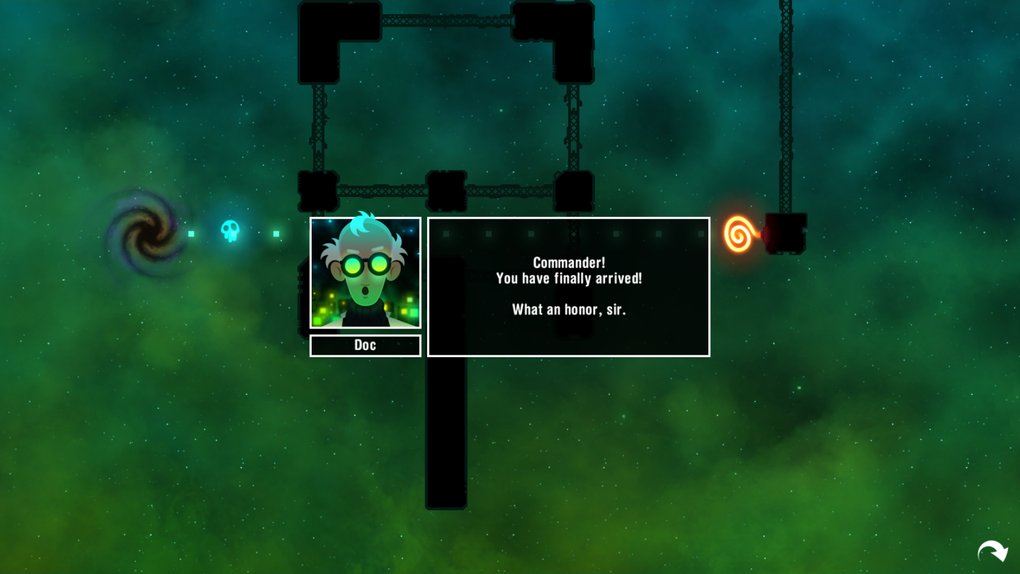
This is a colorful tower defense game. In your role as commander of a space station, you must defend the station against external attacks. Slow down and ultimately defeat your opponents by positioning defensive towers and walls.

Radiant Defense Download now
8

3D Marble Tracks

3D Marble Tracks for Windows 10

3D Marble Tracks is an interesting mix of mini-golf, bobsled racing, and billiards. You’re going to need a lot of patience and a steady hand to get to the end!

3D Marble Tracks Download now
9

SoulCraft

SoulCraft

This time we have an action-packed role-playing game full of sinister characters. In Soulcraft, you fight your way through a colorful fantasy world as an angel, demon, or human being. You need to build up your character by gaining experience in combat, weapons, and objects.

SoulCraft Download now
8

Trick Shot Bowling

Trick Shot Bowling on Windows 8

Trick Shot Bowling is a classic bowling game where you can choose to play against the computer or real opponents. You’ll need to decide for yourself where to aim and how hard to bowl the ball depending on the pins that are left standing in front of you.

Trick Shot Bowling Download now
7

Agent P Strikes Back

This fun adventure stars Perry the Platypus, a character from the animated series Phineas and Ferb. The game is a basic platformer that sees you jump between platforms and defend yourself against a series of animals that Dr. Heinz Doofenshmirtz has released to wreak havoc.

Agent P Strikes Back Download now
9

Drift Mania Championship 2

Drift Mania Championship 2 for Windows 10

Drift Mania Championship 2 is a fun racing game with good graphics and a catchy soundtrack. This isn’t just about being the best driver or winning the race, it is about looking good as you take the corners.

Drift Mania Championship 2 Download now
7

Guns 4 Hire

Guns 4 Hire for Windows 10

In this fast-paced action shooting game, characters are armed to the teeth. The control system is similar to that of Command & Conquer.

Guns 4 Hire Download now
7

Sniper Fury

Sniper Fury

Sniper Fury is an excellent First-Person Shooter for Windows 10. As the name suggests, however, the action concentrates on sniping enemies from far away. With amazing graphics, this is one you should definitely give a go.

Sniper Fury Download now
7

Best plugins for Microsoft Word

These Microsoft Word Plugins will help you save time and take care business.

We’ve recently been looking into the best templates for Microsoft Office applications and also particularly looking at the best templates for Microsoft Word. Templates aren’t the only tool available, however, to augment your Microsoft Word experience. Like with browser extensions plugins, or add-ins as their known for Office apps, can add particular features to your version of Microsoft Word.

There are many different types of Microsoft Word plugin so let’s go through some of the best available. A lot of these add-ins will also work on Excel, Outlook, and PowerPoint.

Microsoft Word 2016 Download Now
9

Plugins for Microsoft Word

In past versions of Office, add-ins used to be called Office apps and in many ways that describes them rather well. Mini Office programs that add specific features to your Office documents. Think about having to find a certain image or maybe signing an electronic document and you’ll get an idea of what Microsoft Word add-ins can do.

Where to find Microsoft Word add-ins

how to find add-ins for Word

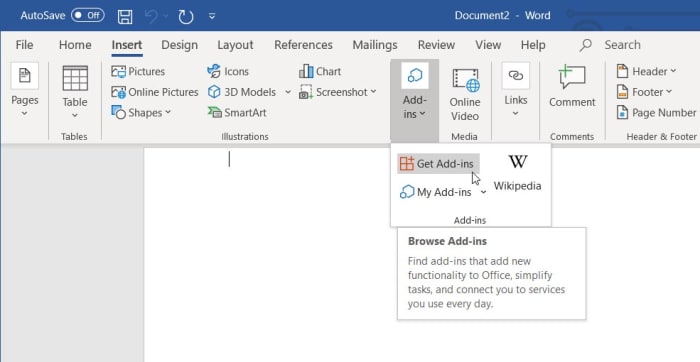
There is an official Microsoft Office store for add-ons that can be found in the Insert tab in the main menu ribbon that runs across the top of the latest version of Microsoft Word. If you’re running Word as a part of an Office 365 subscription, you’ll have the latest version and so once you’ve clicked on Insert you should see the Add-ins option. Clicking this will show you the Get Add-ins button, which will open the store when clicked.

Choosing the right add-ins for Word

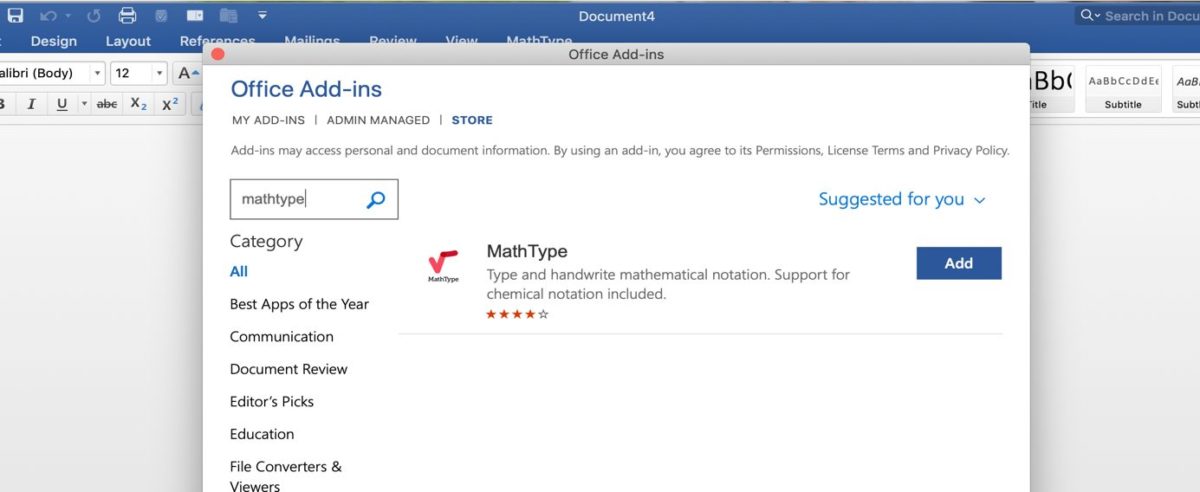
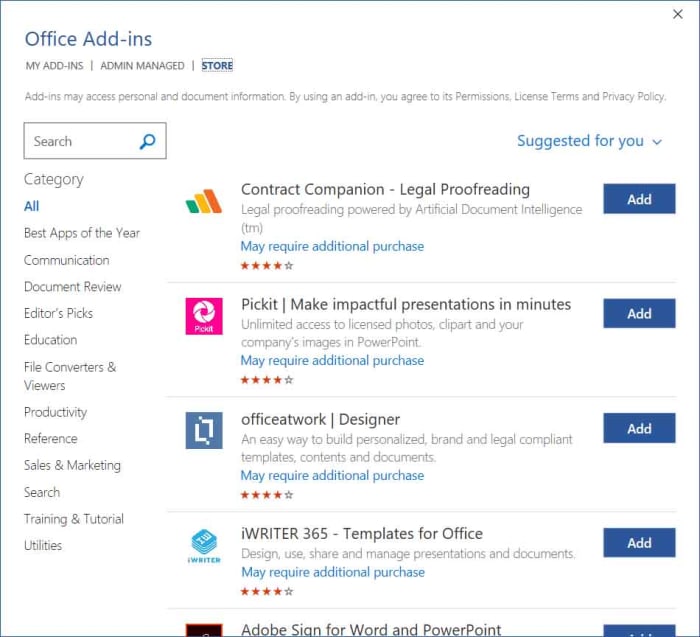
Office add-in store

Just like with any app or browser extension store, you need to tread carefully when installing add-ins on Microsoft Word. Not all add-ins will work as well as each other and some could even cause problems. This means you need to pay attention to the add-ins Names and more importantly Ratings.

The most useful plugins for Microsoft word

Wikipedia Word add-in

Wikipedia Word add-in

The Wikipedia add-in for Microsoft Word adds a handy encyclopedia widget to your word processing. You can search Wikipedia entries by typing into the search bar, which is found to the right on new documents or you can simply highlight text while the add-in is active, and it will automatically search for the highlighted text. Images and tables will be minimized but still form a part of the Wikipedia entry and can be opened up simply and quickly.

Wikipedia Word add-on Download now
9

Emoji Keyboard

Emoji keyboard add-in

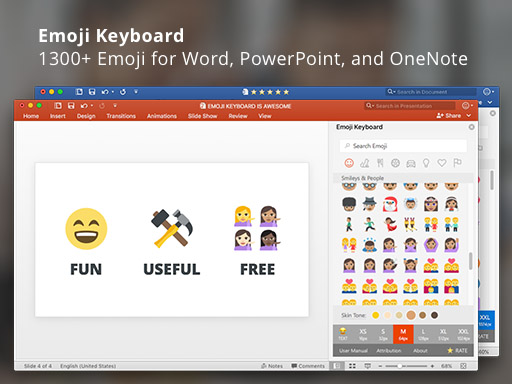
If there is one way that smartphones have greatly excelled over laptops and PCs in recent years it is through the seamless integration of emojis. On your phone, extensive libraries filled with all manner of different types of emoji lie just a simple tap away. The Emoji Keyboard add-in for Microsoft Word puts this capability on Windows PC and Mac too.

Emoji Keyboard Download Now
9

Handy Calculator

Word addin handy calculator

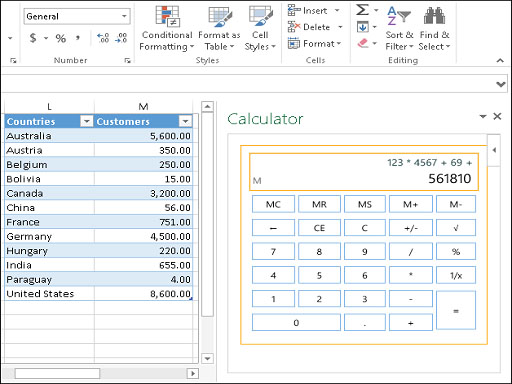
The Handy Calculator Word add-in is simple enough but very useful. It adds a basic calculator function to Microsoft Word that works right there in the app. There is no need to open a separate calculator program, which could save you time opening new apps and then flipping between them while you get on with your work. Also, as well as a regular calculator the Office add-in store at office.com has lots of different types of calculator add-in including a BMI calculator, a VAT calculator, and even more complicated tools like a benefit-cost analysis calculator.

Handy Calculator Download Now
9

DocuSign for Word

Docusign word add in

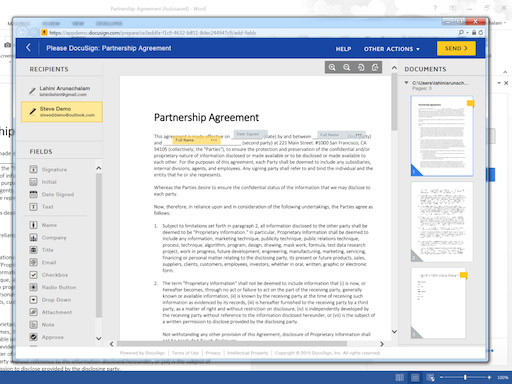
Giving consent is simple enough on a physical document. You simply scribble out your signature and you’ve consented to whatever is written in the text on the document. It isn’t so simple on digital documents when you don’t have a pen and most people use standard input devices like keyboards. This is where the DocuSign for Word plugin comes in. It offers an easy, in-app way to add eSignatures to your Microsoft Word documents.

DocuSign for Word Download Now
9

OfficeMaps

officemaps plugin

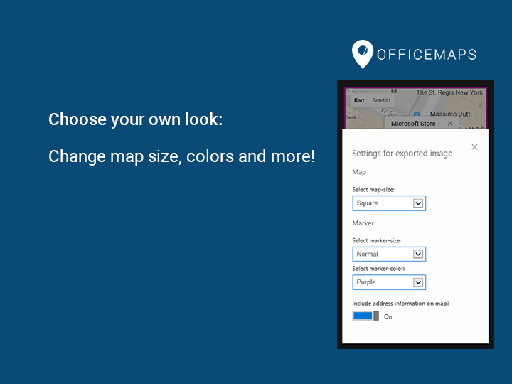
The OfficeMaps add-in for Word makes it very easy to add images of maps into your documents. If you’re making flyers, posters, invitations, or any other type of document that could benefit from having a map, this Word plugin will save you time and effort. All you need to do is search for the location in question and then add the map to your document.

OfficeMaps Download Now
9

Grammarly

grammarly for office

Grammarly works like an AI-augmented extension of Word’s in-built spelling and grammar checker. Although, the best Grammarly services require a paid subscription the free option still marks an improvement over the basic Word checker. It’ll also learn from you the more you use it.

Grammarly for Microsoft Office Download Now
9

Pexels

pexels word addin

Pexels is a library of free stock imagery that you can use for any document that you’re working on that need visuals. The Pexels add-in for Word adds this library to Microsoft Word so that you search the stock images without having to leave Word or open your web browser. Another Word add-in that offers access to an extensive library of free-to-use stock imagery is Pixabay Images.

Pexels Download Now
9

Icons by Noun Project

icons by noun project for word

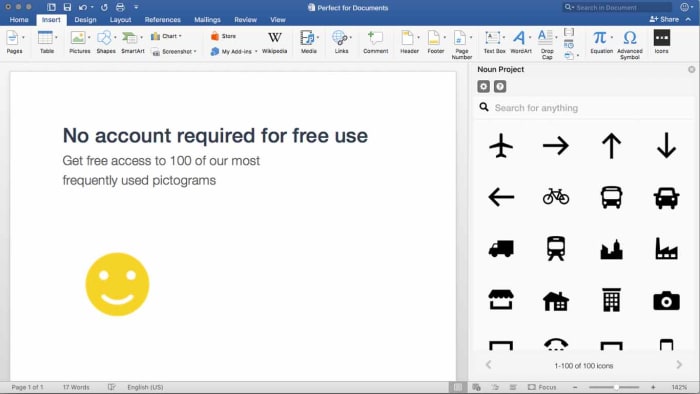
The final Word add-in we’re going to highlight today works a little like the Emoji Keyboard. The Icons by Noun Project Word plugin makes it very easy to add icons and symbols to your documents, which normally would be difficult to do using just your keyboard. With the Word add-in installed, all you need to do is search through the database of icons and then click the one you want to add it to your document.

Icons by Noun Project Download Now
0

Just like with browser extensions, Word plugins are built to help save you time, make life easier, and most of all keep you in the same app. We’ve highlighted our top Word plugins that will do all of those things. Some Word add-ins offer simple extensions to your Word experience but others, like the Emoji keyboard and Icons by Noun Project, offer elegant solutions to the new types of problems that have materialized since we started using smartphones as much as we use our PCs. Other good add-ins worth your attention are Font Finder, Consistency Checker, Myscript Math Sample, Woodpecker, and Abbreviation List.

We hope you like the Microsoft Office add-ins we’ve recommended and would love to hear about any add-ins you like, which we haven’t mentioned. Let us know all about them in the comments below.

VLC: All you can do besides play videos

Check out some of the best hidden features of VLC. Learn how to record audio, video, and your desktop and may other great features too.

VLC Media Player by VideoLAN is an absolute behemoth open-source digital media and video player. It is quite comfortably able to play almost all types of codecs, file formats, and media from MP3 files to MP4 and a whole host of other video format playlists. This is the thing though, whereas it is definitely important for a media player to be able to play video file types like MKV, MOV, and AVI; VLC Media Player can actually do so much more.

That’s why we’ve decided to put together a list of the 5 best hidden features of VLC. After reading our guide not only will you know about the best VLC features, you’ll also know how to use them. Let’s get started:

VLC media player download free ►
8

5 of the best hidden VLC tricks and features

How to use VLC to convert audio and video files

VLC Player offers a very competent option for anybody who needs to convert a media file from one format to another. If you’ve VLC Player installed on your Windows PC or Mac, you won’t need to purchase, download, or install any third-party software so that you can convert your media files. It doesn’t even require a special plugin. No more searching for solutions on Google, this is how to convert video.

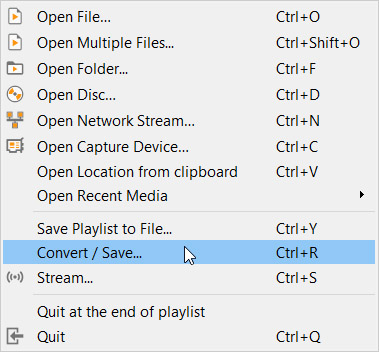
VLC media menu

First you need to open VLC, then click on the Media dropdown menu, and finally hit Convert/Save. You’ll then need to select the videos or audio files you want to convert using the Add button. Then in the Destination file box put the folder you want your converted files to save to and what you want the files to be called. After that you choose the VLC file type by clicking on the spanner button and selecting from the dropdown menu. Once you’ve followed the above instructions all you need to do is hit the Start button to begin. There are also some advanced features you can take advantage of, and you can find out all about the advanced VLC file conversion features here.

How to use VLC to record video and audio

If you have a Windows 10 PC or a Mac, you will have a native camera app and sound recorder for taking photos and videos using your webcam and recording sounds using your microphone. That’s all well and good but you can do both on just one app; VLC. Furthermore, as we’ve just seen, VLC can also convert audio and video files easily meaning you can quickly and simply take your recordings and convert them into any video output or file type. These will then be good for use on all your devices from Android smartphones and tablets to Apple iPhones and iPods.

Advanced controls on VLC

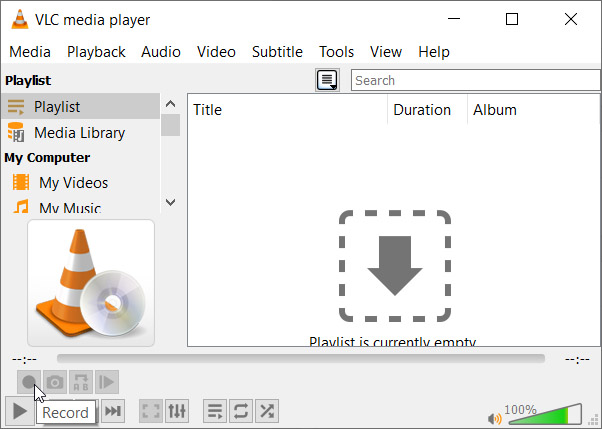
To record audio on VLC you need to activate Advanced Controls by clicking View in the top menu and then selecting Advanced Controls. This will display new controls in the bottom-left of VLC above the play button. To start recording sound all you need to do is press the Record button. To stop recording and save your file, simply press the Record button again.

Open Media on VLC

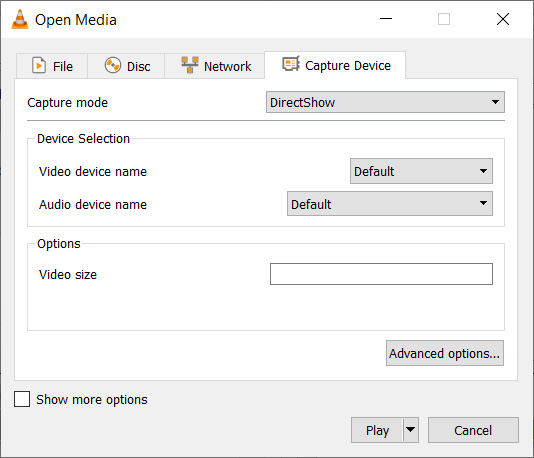
To record video on VLC using your webcam you need to go to Media then Open Capture Device. You now need to set Capture Mode to Direct Show and you’ll need to select your webcam from the options in the Video device name menu. If you want to record sound with your video, you’ll need to select your microphone from the Audio device name menu.

How to use VLC to record your desktop

Screenshots are an important part of the modern digital life we’re all living. Yes, you guessed it VLC does screenshots too, but we’ll get to that in a minute. VLC also offers the chance to record everything that is happening on your desktop rather than simply catching an instant.

Record desktop on VLC

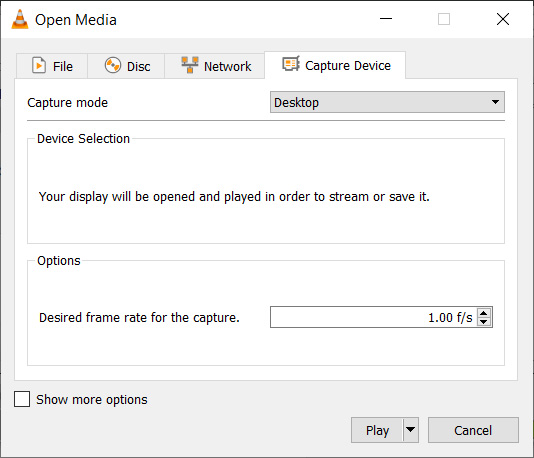
To record your desktop open VLC, hit Media in the top menu and then click Open Capture Device. You now need to change the Capture mode setting to Desktop and then select the framerate you want for your recording.  After that hit Convert so that you can select the file type your recording will save as and hit Start to begin. When you’re done recording your desktop hit Stop to save it.

How to screenshot on VLC

There are two ways to snap screenshots of videos using VLC. The first is to right-click and then select Video in the dropdown menu and select Take Snapshot. The other way to take a screenshot using VLC is to use the keyboard shortcut. On Windows or Linux press Shift + S and on Mac OS press CMD + ALT + S.

How to use VLC to rip DVDs onto your PC

DVDs used to be everything. When they first replaced VHS tapes their superior quality and sleek smaller form factor made them perfect for collections. If you’ve a huge DVD collection and want to save the movies and shows on your PC in case something happens to them or just because you never watch DVDs anymore, VLC can help you out.

Rip DVD on VLC

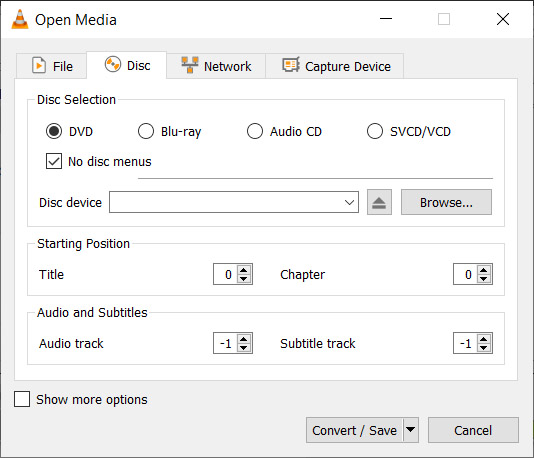
To rip a DVD using VLC insert the disc and then go to Media and then hit Convert/Save. Open the Disc tab and then choose the type of disc you’re ripping, which in this case is DVD. After that, check the No disc menus button and choose the desired Disc device where you want to save your DVD. Then hit the Convert/Save button and choose the file type you want to save your DVD as and then hit Start to begin the process.

Wrapping up

So, there you have five hidden VLC features that go beyond just playing media files. Now you know how to take advantage of some of the best VLC features. If you’d like to know more cool hidden VLC features, you’ll be glad to know that we’ve put together another guide to some of the best hidden VLC features, which you can read here. This guide includes how to listen to internet radio and podcasts using VLC and even gets into video effects.

VLC isn’t just great because it is a free open-source piece of software. It puts a lot of very powerful tools at your fingertips. We hope you enjoy using the tools we’ve highlighted in this guide.

How to fix the most common Windows 10 update errors

Windows 10 updates can cause a lot of problems. This guide will walk you through some common problems and solutions but will also show you how to deal with more specialized and advanced problems.

Possibly the most controversial feature of Microsoft Windows 10 is the regular update service that is forced upon users. Sure, it is good to have your desktop operating system receive whatever  regular feature updates and security updates that that come with the latest update. The flip of this, however, is that for too long Microsoft was forcing these updates upon us when we weren’t ready, getting in the way of whatever we were doing at the time. Even worse, in many cases Windows updates haven’t worked properly, Windows update problems are very common. If you’ve ever encountered a Windows update error, or if you’re annoyed because you tried to run Windows update and it failed, fear not; don’t go back to Google, we’re here to help.

The latest and greatest version of Microsoft's operating system.

Common Windows update errors and problems

As Microsoft has been updating Windows every six months or so since midway through 2015, there are many updates we could get into. We’re going to concentrate on the recent updates from October of last year (2018) and May of this year (2019). For clarity these are Windows versions  1809 and 1903 respectively. We’ll start with the most recent update, Windows 10 version 1903. This is how to fix Windows.

Windows 10 version 1903 update issues

The recent Windows 10 May update has caused quite a few problems for users despite Microsoft trying to reboot its reputation and going to great pains to try and prevent similar issues to those cause by the October update from 2018. Microsoft has even created a dedicated webpage that lists all recorded Windows update 1903 issues. The page also includes a list of known fixes to each issue.

Windows 10 version 1903 update errors

There are many different types of Windows 10 update error codes that could be behind your problem. You could see error codes like “windows 10 error code 0xc00000e9”, “windows 10 error code 0xc00000f”, “windows 10 error code 0xc004c003”, or “windows 10 update error 0x8000ffff”. If the sight of such codes gives you a headache, don’t worry. There is simple way to address many different types of Windows update errors. Step forward the Windows 10 update troubleshooting tool.

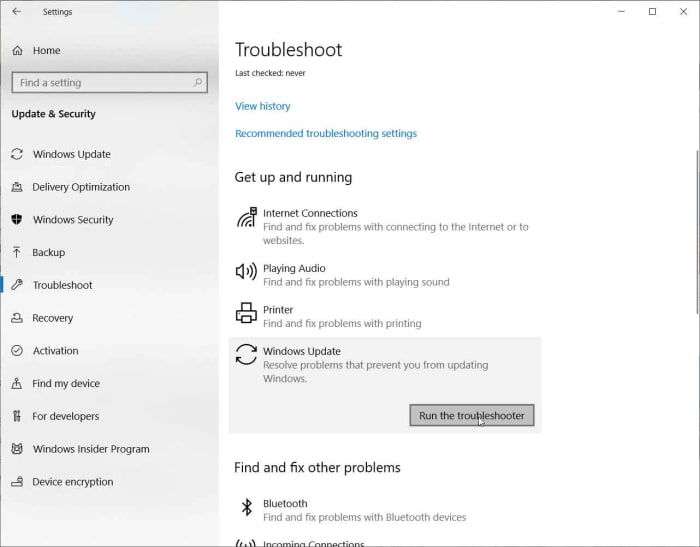
Windows Update Troubleshooter

The Windows Update Troubleshooter will analyse your system files, search for the problem that has stopped the Windows 10 update working, and then try and find a fix. All it takes is a simple click here and a right-click there. If you’re looking to fix Windows update without getting into the command prompt, this is what you need to do. When trying this fix remember to run as administrator.

windows 10 update troubleshooter

To start the Windows update troubleshooting tool, open the Windows Settings, then hit Update & Security, and then finally select the Troubleshoot option. Find the Get up and running menu and then hit Windows Update at the bottom of the list. Click the Run the troubleshooter button to start the tool. The troubleshooter will then investigate what’s blocking your update and may offer a solution. If it does, click Apply this fix. Follow all the instructions the tool gives and then restart your device. This should have fixed your problem.

More ways to fix your Windows update problems

Obviously, the Windows update troubleshooting tool we walked you through above can also be used to address common issues that’ll mean your Windows update won’t work. There are a number of other tricks you can use to try and sort out your update error codes.

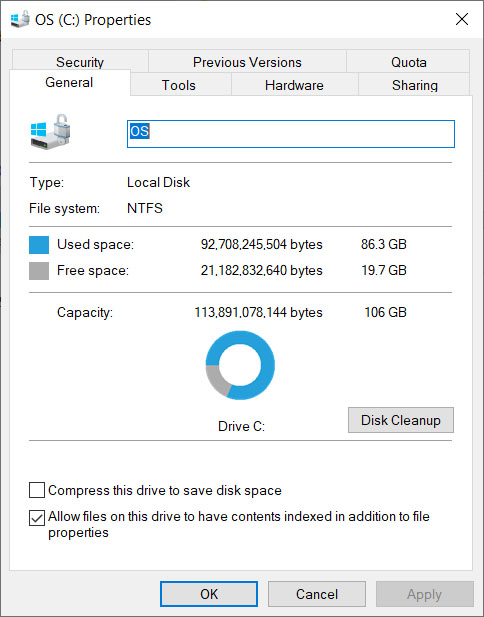
One of the most common Win 10 update problems is not enough disk spaceWindows 10 updates are very large these days meaning, if you don’t have plenty space on your hard drive, they won’t work properly. Check how much space you have on your drive, free up some disk space, and then try again when you have more free space.

windows 10 disk space

Another problem, which you might not have considered is that your antivirus program might be interfering with the Windows update and causing errors. If you’ve run into problems updating Windows 10, try disabling your antivirus program and then running the update again. In extreme circumstances you may even need to delete your antivirus software temporarily while you update to the latest version of Windows 10.

Windows 10 update 1809 issues

You may remember that the Windows October 2018 update caused a lot of problems for the first people to download it. We specifically warned you not to install updates until, because they were deleting people’s files! Microsoft ended up pausing the roll-out of the update so that they could address the main issues.

If the update deleted any of your files, you need to contact Microsoft that says it is able to help you reclaim your lost files. You can find out all the necessary contact details on the Microsoft support website.

Windows 10 Error Recovery

We’ve tried to walk you through the common tools and solutions Windows 10 has for fixing update errors. We’ve also shown you how to find official extensive lists of known Windows 10 update problems and potential fixes in case the common solutions won’t deal with your Windows 10 update error code. All of this, however, can seem a bit daunting and if your Windows 10 update fails every time, you may decide that you want to uninstall your Windows 10 update. If you can’t fix problems, reset them.

reset Windows 10 updates

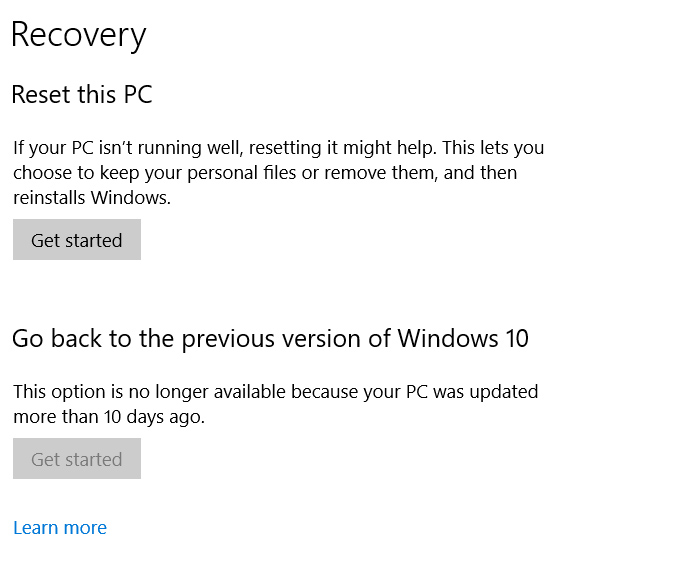
To uninstall your Windows 10 update if you have your login details, all you need to do is go to Settings, then Update & Security, look for Recovery, and then find Go back to the previous version of Windows 10. Finally, click Get started. You’ll see your update history and need to answer a quick question to help Microsoft improve future updates and then click No thanks when it asks you if you want to check for updates. Then keep clicking next until you get the option Go back to earlier build. Following these steps will revert Windows back to the previous version. This option is only available for ten days after you’ve updated Windows.

The latest and greatest version of Microsoft's operating system.

One thing you need to consider, however, on top of the ten day period is that if you’ve deleted the previous versions to free up space on your hard drive, this option won’t be available. This means you need to be sure you’re happy with the update you’ve installed before you delete previous versions.

How to fix Bluetooth problems in Windows 10

This guide will help you deal with many common Bluetooth problems on Windows 10.

Solve Bluetooth problems on Windows 10

Bluetooth is one of those technological advances that is so good it almost feels like magic. Where did those wires go? How does it work? etc. When you banish cables and wires from your life, it can feel baffling, to say the least. Like all great technology, however, Bluetooth is not without its problems. As you’d guess, connectivity can cause difficulties so let’s look at how to fix Bluetooth issues on Windows 10.

The latest and greatest version of Microsoft's operating system.

Bluetooth not working on Windows 10

If you’re Windows 10 PC can’t find your Bluetooth device there could be a whole host of reasons behind it. This is because there are many different types of Bluetooth device and many different types of Bluetooth connection error. You could be trying to connect a Bluetooth mouse, Bluetooth headphones, a Bluetooth keyboard, or maybe even a Bluetooth speaker. The frustration is the same for all.

Windows 10 Bluetooth Troubleshooter

If you’re looking to fix Bluetooth problems, there is no better place to start than with the official Windows operating system Bluetooth support service, which will give clear on-screen instructions to help you go through your Bluetooth settings and fix your Bluetooth connection.

Bluetooth troubleshooter

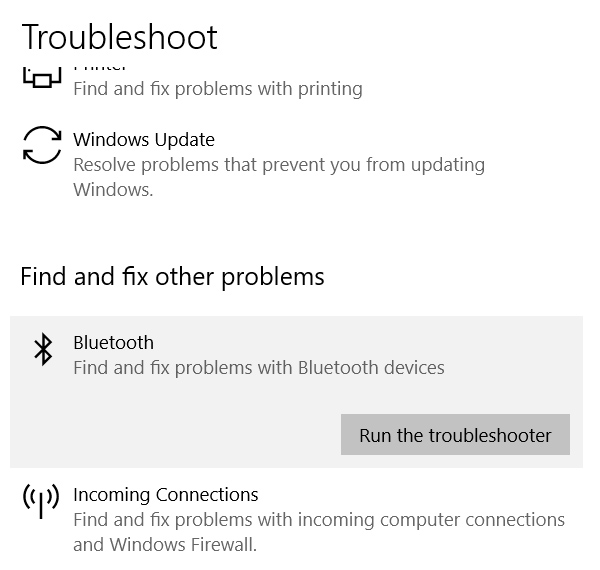
To access the Bluetooth troubleshooter open Windows Settings, click Update & Security, and then go to Troubleshoot. Find the Bluetooth option, click on it, and then click Run the troubleshooter. This will launch the troubleshooting tool and highlight how to solve Bluetooth problems in Windows 10. Follow all the on-screen instructions and then restart your computer. Once you’ve rebooted your device try and connect your Bluetooth devices again.

Bluetooth Drivers

Although you need a special Bluetooth adapter to make a connection, there could be a software issue causing your problem. You may need to update the driver, or you may need to re-install your Bluetooth drivers.

bluetooth device manager

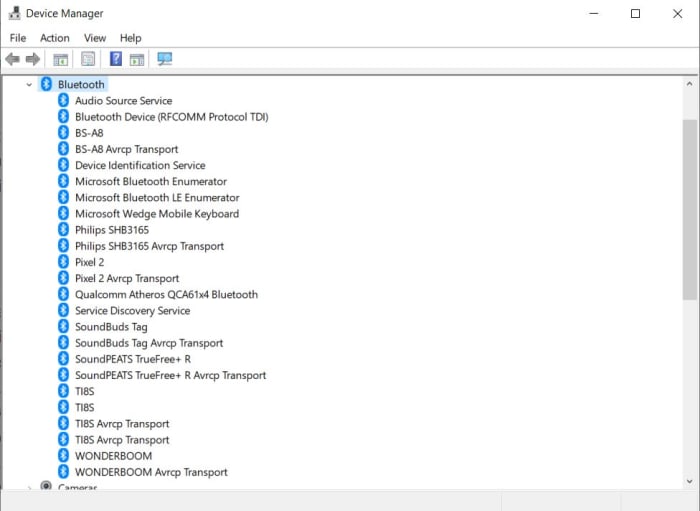
To update or re-install your Bluetooth drivers you need to open the Windows Device Manager and click the Bluetooth option. This will open a list of Bluetooth driver software. If you double-click or right-click on the desired driver and then hit Update driver, Windows will update the Bluetooth driver. Once the process is complete reboot your Windows PC and try again. If it still doesn’t work, repeat the process but instead click Uninstall driver instead of Update. Then, when the process is complete reinstall the Bluetooth device’s driver by going to the manufacturer’s website.

Check your Bluetooth connection settings

The problem could be that a simple switch needs flicking. Your PC might not be set to allow Bluetooth connections and then even if it is, it might not be discoverable. This means you need to check your connection settings.

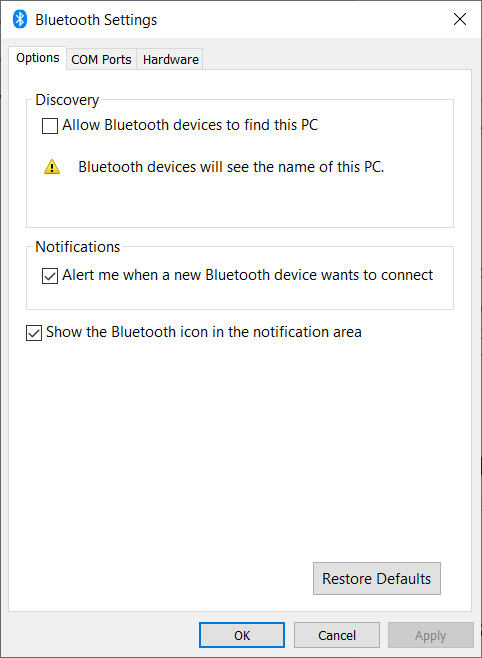
To check your Windows 10 Bluetooth connection settings, open the Settings menu and then click Devices. Once you’ve done so, in the Bluetooth & other devices section scroll down until you see the More Bluetooth options button. Click it and then make sure the box next to Allow Bluetooth devices to find this PC is ticked.

more bluetooth settings on Windows 10

To make sure Bluetooth is turned on your Windows PC couldn’t be simpler. All you need to do is click the speech bubble to the right of the clock icon on the Windows taskbar. This will open up the new easy access Windows 10 settings box. In the middle you should see the Windows Bluetooth toggle button, which will allow to turn Bluetooth on and off again very easily. If the button is colored blue, it means Bluetooth is turned on.

Make sure Bluetooth services are running

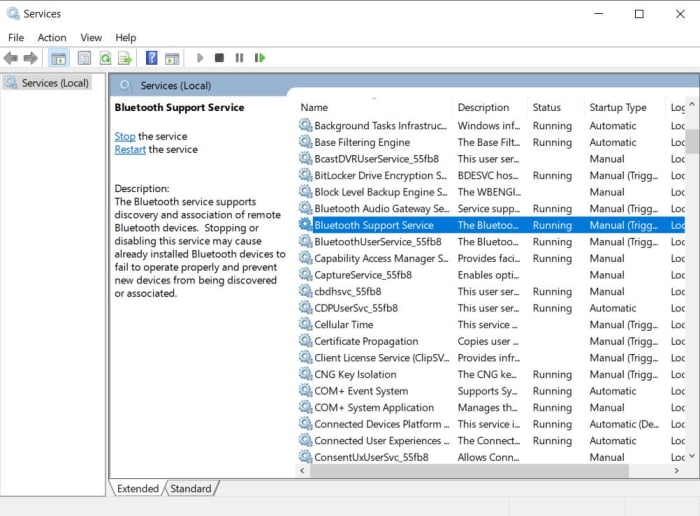
There is a chance that your machine’s Bluetooth Support service might not be active and that is why you can’t connect to your Bluetooth devices. There could be many reasons why this is the case but no matter what is behind it, if Bluetooth services aren’t active you won’t be able to connect Bluetooth devices to your Windows PC.

run services.msc on Windows 10

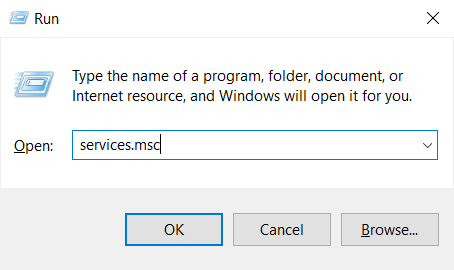
To check if Bluetooth support services are active on your PC, you need to open the Run dialog box. You do this by simultaneously pressing the Windows key and R key at the same time. When you have the Run dialog box open, type in services.msc and press enter. This will open the Windows Services box and you’ll need to find and double-click on the Bluetooth Support option. If it isn’t active, click Start to activate it.

Bluetooth Services on Windows 10

Once you’ve activated the Windows Bluetooth support services there is one more option you can select to make sure you don’t run into the problem again. While still in the Bluetooth Support service look for Startup type and switch it to Automatic. After you’ve done this open the Log on tab, then the Local System account, and hit OK. After you’ve done this restart your PC and retry connecting to the Bluetooth devices that have been causing you problems.

The latest and greatest version of Microsoft's operating system.

Wrapping up: How to fix Bluetooth issues on Windows 10

We’ve been through some of the main Bluetooth errors you might experience when using Windows 10 and how to fix them. It is important when you’re experiencing difficulties to cover all potential issues that you may have overlooked. That means you should also check settings that aren’t explicitly related to your Bluetooth settings. For example, if you have Airplane mode active on your Windows PC, this could be blocking all the Bluetooth settings we’ve mentioned.

We’d also like to point you in the direction of a specialized Windows 10 Bluetooth connection tutorial we’ve put together for Softonic users, which will walk you clearly and concisely through various Bluetooth connection procedures.

Finally, if you find yourself in the unfortunate position where you’ve followed all of our instructions and are still having Bluetooth connection problems, you should go to the official Microsoft support page on how to fix Bluetooth problems in Windows 10. Here you’ll find a slightly more detailed look at some of the solutions we’ve been through as well as the option to talk to Microsoft’s virtual support bot about your Bluetooth problems.

How to fix common Windows 10 blue screen errors

Microsoft Windows shows a Blue Screen error message whenever your system experiences a critical failure it can’t fix by itself. Here we look at some of the common causes of these error codes and how to deal with them.

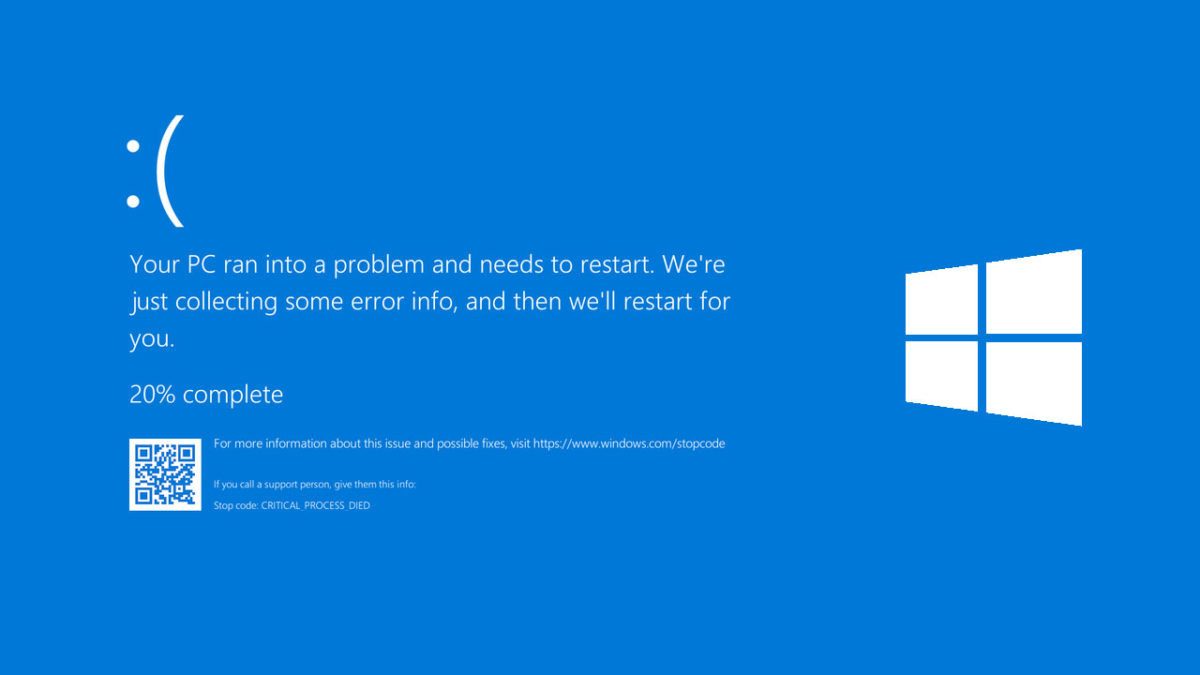
The dreaded blue screen of death. If you’re a Microsoft Windows user, you’ll have brushed up against its icy touch more than once. The BSoD is an error message you receive whenever your operating system has experienced a critical error. Blue screens normally show up when Windows 7, Windows 8, or Windows 10 is faulty or when an uncorrectable error or a registry error is unable to be fixed.

Windows 10 Blue Screen of Death

The really frustrating thing about blue screen error codes is that they don’t tell you much about what has actually caused the stop error. Sure, you might see something like “windows 10 blue screen error irql_not_less_or_equal”, “critical_process_died” or “windows 10 blue screen video_dxgkrnl_fatal_error” but nine times out of ten it’ll take further investigation for you to understand what the blue screen error is about and more importantly, how to fix it.

This is where we come in as your antivirus or malware program won’t help here. Let’s then look at how to fix Windows and get into some solutions on how to fix common blue screen errors for Windows 10.

Most common blue screen errors for Windows 10

You normally see blue screen errors on Windows 10 when you’re doing one of three things. They come when you’re pushing your system to its limits, upgrading to the latest version of Windows, or booting up your PC and launching Windows. Usually, these errors are caused by the same types of issue, which could be a buggy bit of code, a hardware problem, something not being right in the upgrade you’re trying to install, or an attempt to run a piece of software that isn’t compatible with Windows or your device.

Fixing a Windows 10 BSoD error after or during an upgrade

When your system shows the blue screen error code, if it is working properly, it will undo the damage and then go back to the previous state before you started doing what you were doing. The bad news is, it won’t fix the problem, it’ll only remove it. This means that until you figure out what is causing it, you’ll keep seeing the error every time you try to upgrade Windows 10. Fear not though, we’re here to help you figure out what is going on.

Not enough space on your hard drive

You might be seeing the blue screen error code because your primary hard drive doesn’t have enough space to install the upgrade correctly. Once your system has rebooted go and see how much space you have on your primary drive and if you don’t have much, clear out some space and try again.

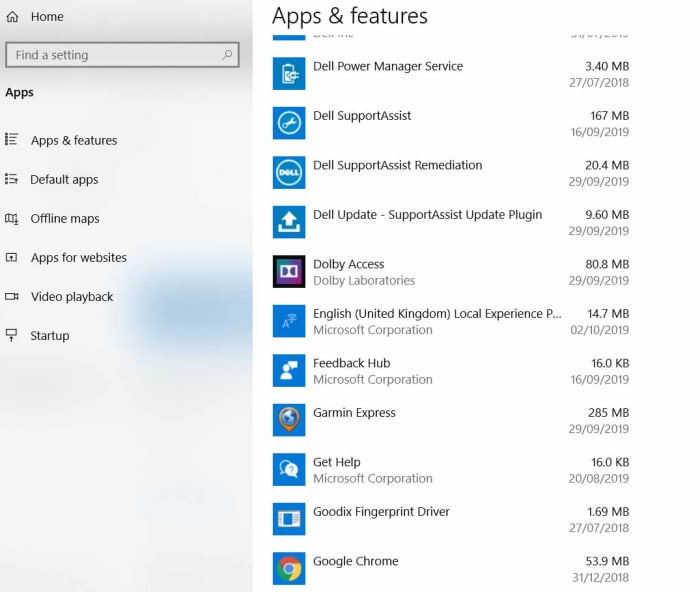
Windows 10 apps

To clear space on your primary hard drive go to Settings, then hit Apps, and finally click Apps & features. You’ll then see a list of all your installed apps, and you can select the apps you don’t use too often and uninstall them.

Flawed upgrade files

The other main reason you could be seeing the blue screen error during an upgrade is because the upgrade files didn’t download correctly and could have a flaw or be damaged in some way. If you have plenty of space on your main hard drive, it is likely that this will be behind the BSoD.

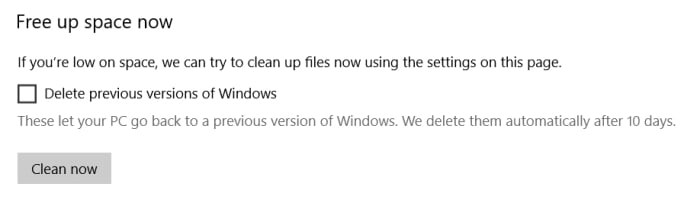
To fix this problem, you’ll need to remove the downloaded upgrade files and then re-download them. To do so go to the Windows 10 settings menu, click System and then Storage. Once here you’ll have to find the Storage sense option and then click the Free space now option. The damaged upgrade files will be stored in your Windows Temporary files so you’re going to need to uncheck all the other options and only leave the Temporary Windows installation files button checked. Once you’ve removed these files you should try and install the upgrade again and see what happens.

Fixing a Windows 10 Blue Screen Error on Startup or during normal use

The key to fixing blue screen codes that happen during startup or during normal use is to think about what you were doing before the blue screen of death flashed up. This is because whereas sometimes your system will be able to undo the problem itself and reboot to its previous state, there is also a good chance it’ll lock itself into a repeating BSoD cycle and you’ll have to undo the problematic action yourself.

If you can boot Windows after the Blue Screen of Death

If Windows boots normally, you’re still going to want to backtrack from what you were doing and uninstall whatever it was that you think caused the problem; whether that be an update, a driver, or a program.

Windows 10 update history


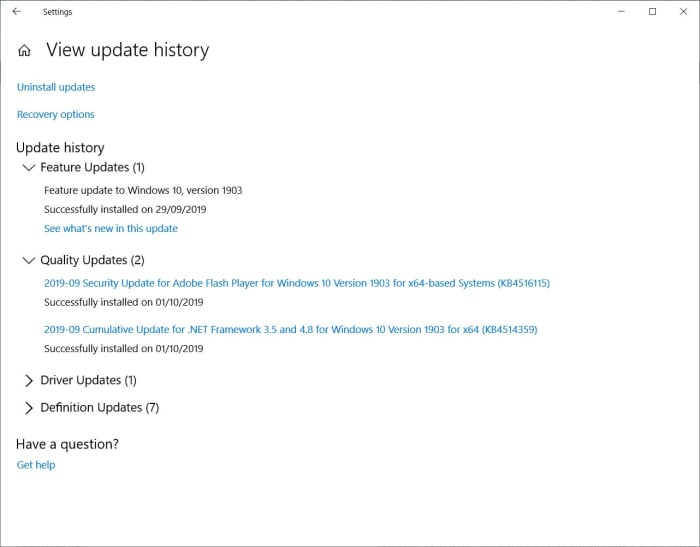
  • To uninstall an update, go to Settings, click Update & Security, then Windows UpdateView your update history, and then Uninstall updates. You’ll see a list of all your updates, and you can delete the one causing the problem either by right-clicking on it and selecting delete or simply double-clicking it.
  • To uninstall a program, open the Control Panel, then hit Program, and then click Uninstall a program. Then pick the program you want to remove and right-click on it and select uninstall from the menu.
  • To uninstall a hardware driver, click Start and then open the Device Manager. Choose the device that is affected and right-click on the device driver you want to remove and hit Uninstall.
If you can’t boot Windows and you’re stuck in a Blue Screen loop

If your system keeps restarting but then crashing to a Blue Screen of Death, you’re going to have to enter Safe Mode so that you can uninstall the program, driver, or update that is causing the problem. You might need to start thinking about a system restore.

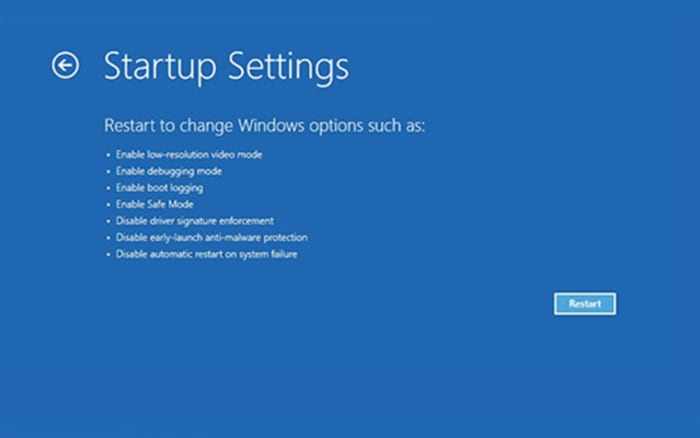
To boot in Safe Mode, you need to press F8 and shift when your PC is booting. The problem with this, however, is that Windows 10 has been designed to have a fast boot procedure, which means you might miss your chance. If this is the case, you’ll need to use a Windows 10 installation disc or recovery drive. To do so insert the disc and boot your machine. Hit Next, then Repair your computerTroubleshoot, Advanced options, Startup Settings, and Restart. When your computer restarts you need to select either Enable Safe Mode or Enable Safe Mode with Networking.

Once you’ve enabled Safe Mode, you’ll be able to uninstall whatever is causing the problem using the instructions given above.

Wrapping up: How to deal with Blue Screen errors

Blue Screen error codes don’t just happen for nothing. Usually, they occur because of the actions we’ve taken, or our system’s have taken automatically. The key is to discover what the flawed action is that has caused the dreaded Blue Screen of Death to appear and work backwards removing whatever it is along the way.

We’ve laid out some of the best ways to deal with the most common blue screen errors out there. If our solutions don’t work for you, however, there is always the nuclear option; reinstall Windows.