Windows 10 settings you need to fix to get the best performance

This guide will help walk you through the different Windows 10 settings that can help you improve system performance.

Microsoft’s flagship operating system, Windows 10, has banished the demons that haunted the software giant ever since the mess that was Windows 8. Windows 10 looks slick and works well and is just as easy to manage using a touchscreen as it is your mouse and keyboard. That is no mean feat and should be applauded. Even so, there are plenty of Windows 10 settings you can play around with, if you want to ensure best performance.

It isn’t just settings either. In truth, over time, your Windows PC will inevitably begin to slow down and you will have to start thinking about performance options. As hard drives fill up and software starts to slow down a guide for improving Windows 10 performance becomes more and more useful. Let’s look then at some of the Windows 10 settings you can change that will make your PC work faster. We’ll look at your software options first before checking out a couple of hardware issues that could also affect your system speed.

Windows 10 settings to improve performance
Windows 10 performance improvement settings

Look at your Startup apps

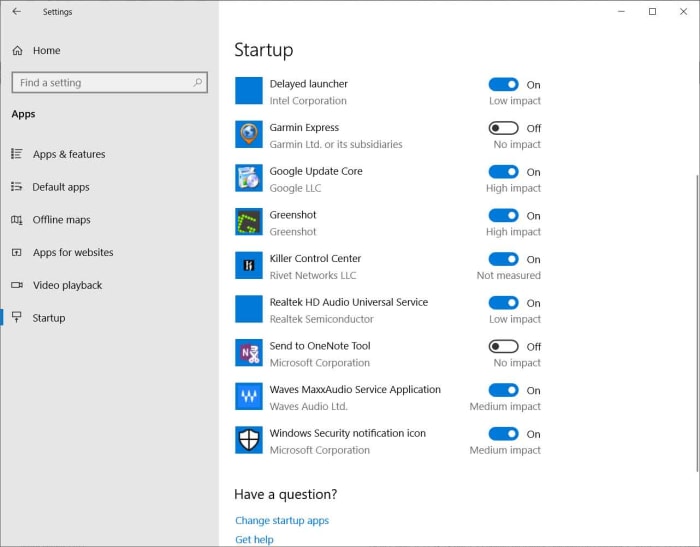
When you install apps onto your PC many of them will try to sneak in a setting that enables them to launch automatically whenever you turn on your PC and start Windows. This can cause issues at startup as you’ll have to wait for all of these programs to launch before you can start using your PC normally, but it can also cause general performance issues as these programs will always be running in the background and using up your system’s resources. You can disable this setting in each app, or you can disable it en masse using Windows 10 settings.
Windows 10 startup apps

To do so, all you have to do is go to Windows 10 Settings, then hit Apps, and click Startup. Once in the Startup menu hit Sort by and then Startup impact. This will show you how much of an effect each app will have on system performance and give you a simple toggle switch to stop whichever apps you don’t want starting up when you launch Windows 10. Once you’re done, you’ll need to restart your computer before the changes will come into effect.
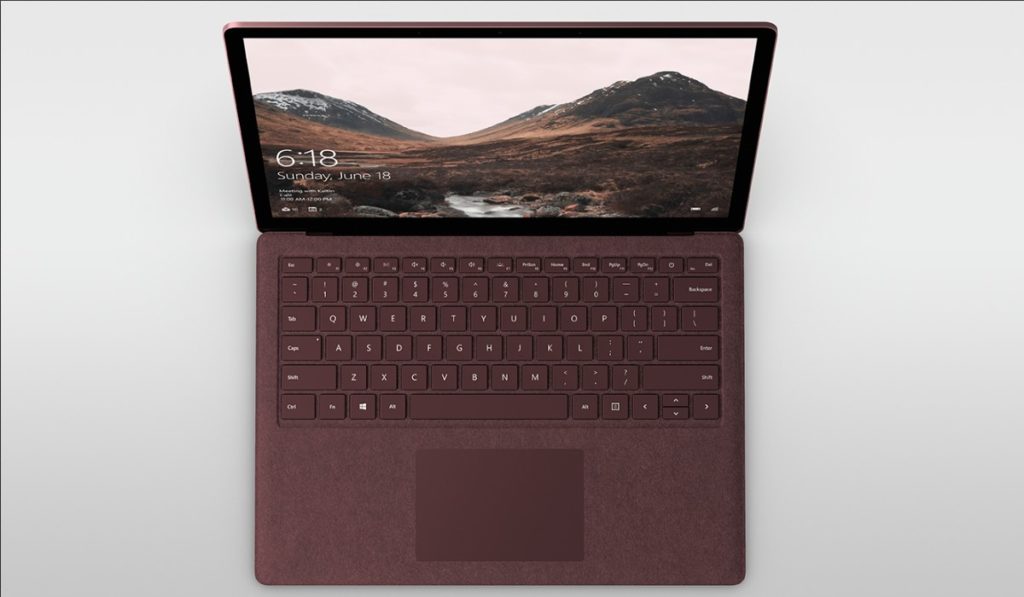
Disable background apps

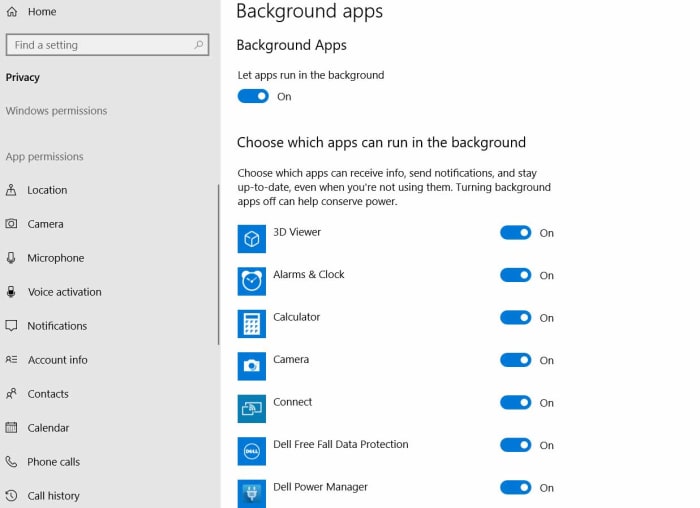
Startup apps aren’t the only apps that will slow your Windows 10 PC down by running in the background. Other apps can run in the background and hog up your system memory. Like with Startup apps, Windows 10 gives you the chance to disable them all in one place.
windows 10 background apps

To disable Windows 10 background apps go to Settings, then Privacy, and finally hit, Background app. This will show you all Windows apps that can run in the background with toggle switches next to them so you can turn them on or off. The only catch here is that this only gives you control over Windows Store apps. If you’ve installed traditional software, you’ll have to go into the app’s settings to stop it from running in the background.
Free up some space on your hard drive

We’ll look at different types of hard drives in a bit, but for now, let’s just stress that no matter what type of hard drive you have you don’t want to fill more than 70% of its total capacity. This is a good rule of thumb to follow as once you get over 70%, you’ll likely start experiencing performance issues and your system will slow down. If this is you, you can free up some space now by:

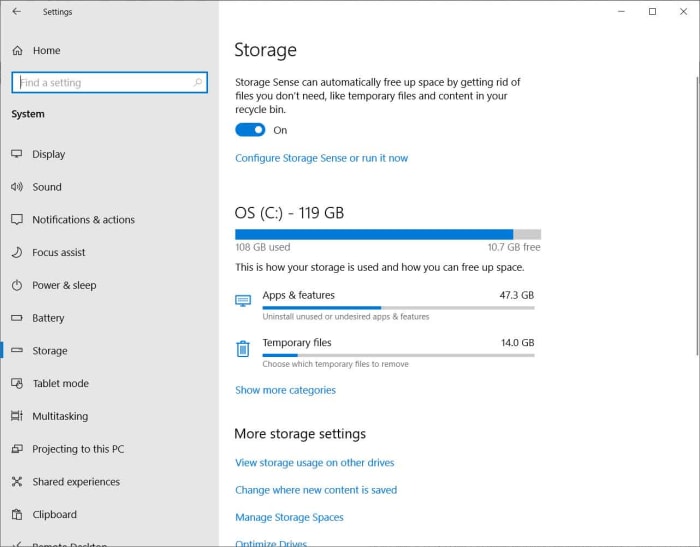
  • DELETING TEMPORARY FILES – Go to Windows 10 Settings, click System, and then hit Storage. What you’ll see is a menu showing you what is taking up space on your hard drive. One of these will be your system’s Temporary files. Clicking this option will allow you to pick the temporary files you want to get rid of.
sTORAGE wINDOWS 10 MENU

  • UNINSTALLING APPS YOU DON’T USE – As well as showing your system’s temporary files, the above instructions will also give you the option delete your regular apps and programs. If you hit Apps and features instead of Temporary files, you’ll get a list of all the apps and programs installed on your Windows PC as well as the option to uninstall them.

Defrag your hard drive

If you’re using a traditional HDD hard drive, you might see an improvement in performance once you’ve defragged your hard drive. If your hard drive is fragmented, it’ll take longer for your PC to access your files. Defragging fixes this issue.
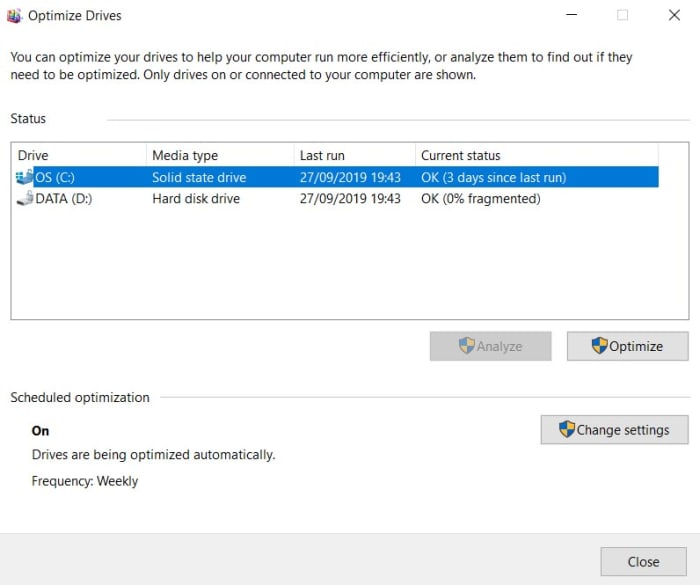
Windows 10 Defrag hard drive

To Defrag your Windows 10 hard drive, you’ll need to again go to Storage in the System settings menu. Once here click More Storage options and then click Optimize Drives. Select your hard drive and then hit Optimize.
Install the most recent Windows 10 Update

Microsoft is constantly working on improving Windows 10 and usually pushes out an update every six months or so. As well as bringing with them cool new Windows 10 features, updates also address any performance issues that may have been affecting previous versions of the Microsoft operating system.
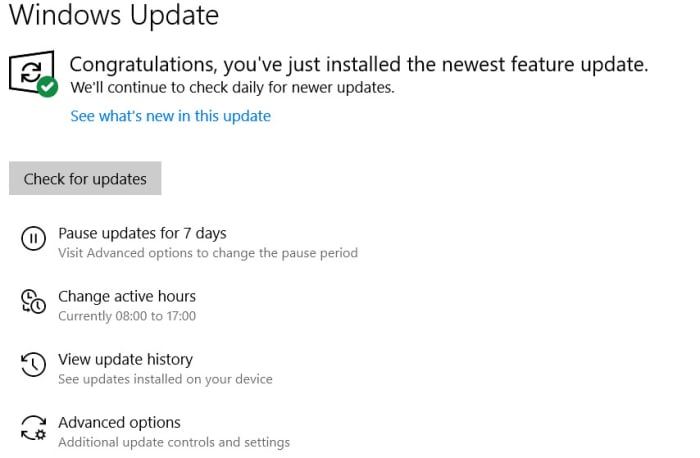
Windows 10 update

To update Windows to the latest version, go to Settings, hit Update & Security, click Windows Update, and finally hit the Check for Updates button. If you’re not running the latest version of Windows 10, you’ll be given the chance to download and install it.

Check for viruses and malware

If your Windows 10 PC is running slow, it could be because it is infected with malware. Fortunately, Windows Defender, which is already on your PC offers a robust defense against such occurrences and a strong scan and removal tool.
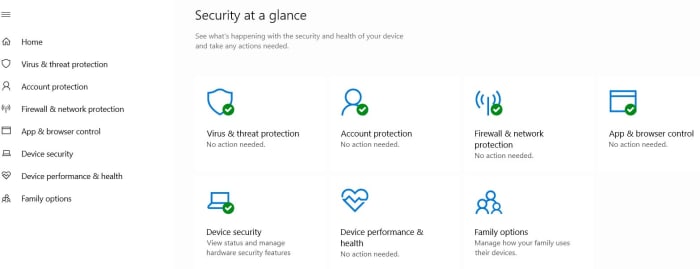
Windows Defender

To perform a Windows Defender scan all you have to do is click Start, then scroll down your list of apps and open Windows Security. Once open select Virus & threat protection in the menu on the left and then hit Scan options. To be safe you’ll want to run a Full Scan.
Hardware solutions to improve performance on your Windows 10 PC

Upgrade your hard drive to a Solid-State Drive (SSD)

SSDs are much faster than traditional hard drives (HDD). They’re becoming standard in all high-end machines but, fortunately, they’re also becoming much cheaper to purchase as upgrade items. You should be able to pick up a 256GB for around $100. If you upgrade your main system drive from an HDD to an SSD you’ll notice a significant increase in your system’s performance.

Give your system a RAM boost

If you notice that your PC usually slows down when using Google Chrome or other RAM heavy programs, you might need to upgrade your system’s memory. To find out for sure right click anywhere on the taskbar and hit Task Manager. Then hit the Performance tab and click Memory. In a similar fashion to your hard drive, you don’t want to be using more than 80% of your system’s RAM. If you’re regularly peaking out above 80%, you should look into putting more RAM into your system.

So, there you have a number of ways you can try to boost the performance of your Windows 10 PC. If none of the software settings improve Windows 10 performance, you can look at the two hardware options, which offer noticeable improvements to your system’s performance. If you are upgrading your hardware, however, make sure you know what you’re doing or get somebody who does to help you.
8 new Windows 10 2019 features that you may have missed

Check out all the best new features that have come with Windows 10 updates in 2019.

Windows 10 is an ever-evolving operating system for your PC. Once you download Windows 10 and install it, you’ll regularly receive updates and new features. Microsoft has turned Windows 10 into the most popular desktop OS on the planet, which means an article about new Windows 10 best hidden tips and features will be very useful to a lot of people. Therefore today; we’re bringing you a list of 8 Windows 10 best new features from 2019 that you might have missed.

Best Windows 10 features of 2019

Due to the regular updates, Windows 10 has a number of different versions. These versions have numbers, which usually show the month and year that Microsoft first made them available. They begin with 1507 (July 2015) and go all the way up to the latest version of Windows 10, which is 1903. In this article, we’ll be looking at some of the Windows 10 1903 best new features.

The latest and greatest version of Microsoft's operating system.

The final thing to consider about Windows 10 updates, however, is that they tend to come every six months. If you’ve been paying attention, you’ll realize that this means we should be about to see a new Windows 10 update arrive on our PCs any second now, in fact it started rolling out on September 25, 2019. It might be a while before you get it though. We’ll finish up our Windows 2019 new feature update then by looking at some of the features that will ship with version 1909.

1. Windows Sandbox

One of the biggest new features to land on Windows 10 in 2019 is only available for Windows 10 Pro users and above. It has, however, also been added to Windows Defender. The Sandbox feature marks a major update as it allows you to test new software in a secure environment, which is cut off from the rest of your machine.

Why is it important that Windows Defender Antivirus can run in a sandbox?

2. Improved Cortana and Search features

When Microsoft first started pushing Windows 10 as a free desktop operating system in 2015, the software giant made a huge deal about Cortana. Microsoft’s AI assistant was baked into the search bar found next to the Start button. Basically, Cortana handled all search queries on Windows 10.

This has now changed, as Microsoft has decided to give you a choice for search. Thanks to the 2019 Windows 10 update you can now choose to show the regular search box or Cortana on the taskbar. Also, the new prevalence of the text search bar means Cortana will only handle voice searches from now on. If you really don’t like Cortana, you can go one further. By going to Settings, then Cortana, and finally Talk to Cortana you can stop her from performing voice searches too, essentially disabling her altogether.

The new Windows 10 search features now also allow you to perform Enhanced searches. These new types of search will go through everything on your PC rather than just your file libraries and desktop. To perform Enhanced searches go to Settings, then Search, then hit Permissions and History, and finally open the Searching Windows tab.

Cortana and Search options

3. Windows 10 Light Theme

Dark Modes have seemingly been taking over recently, with all major apps announcing their own darker way of doing things. This year though, Windows decided to go the other way by making a big deal out of the introduction of a Light Theme. To give your Windows 10 a brighter and sunnier outlook all you have to do is go to Settings, then Personalization, Colors, and then Choose your Color. You even have the option to run a Custom theme, which will allow you to select separate color options across the OS.

Windows 10 Light Theme

4. Improved Game Bar

The Windows 10 Game Bar made a splash on launch as it brought lots of different gamer friendly features into one handy place. The 2019 Windows 10 update added Spotify and meme making features to the Game Bar. This means you can now control Spotify while you’re playing your games on Windows 10 and more easily snap screenshots and make memes from your gameplay.

5. Improved Windows 10 Security features

An interesting little change that Microsoft has introduced to Windows 10 this year is the introduction of password free log ins. With password databases often ending up in the hands of hackers, Microsoft has pushed forward with alternative means of signing into your Microsoft account, and then offering local (on your device only) ways of logging in thereafter. You can now register your phone number with your account and use a special code Microsoft will send you each time you want to log in. After that you can use Windows Hello to log in using a fingerprint or PIN once you’ve signed in locally. Check out the link below to see why your four-digit Windows Hello PIN code is more secure than a much longer password.

Best Windows 10 September 2019 features

Windows 10 update screen

The thing about Windows 10 updates is that they tend to be big and have, over time, attracted a fair amount of criticism. They take time to download and install and  can be rather annoying, if they come at the wrong time. Microsoft has tried to alleviate this in a number of ways and Windows 10 version 1909 shows a new way it is attempting to do so. The September update has been designed to be less disruptive and will offer fewer changes than past updates. There are a few nice new features to talk about, however, so let’s get started.

6. Add other AI Assistants to the Taskbar

Following on from the silencing of Cortana we metioned earlier, Microsoft seems to be turning its back on the Master Chief’s faithful assistant even further. With the latest Windows 10 update, you’ll be able to add other AI assistants to your Windows 10 taskbar, like Amazon’s Alexa for example.

7. Online Search

Another boost to Windows 10’s search features that 2019 has wrought, is the addition of Online Search features to File Explorer. As well as searching all your local files, Windows 10 1909 gives you the option to search files you’ve stored on your One Drive too.

OneDrive devices header

8. Create a Calendar event directly from the Taskbar

This little update will make life much easier for anybody who uses the Windows 10 calendar. As soon as you have the Windows 1909 update installed on your PC, you’ll be able to open the Calendar widget in the taskbar and create a reminder right there. A quick, simple, and elegant solution.

windows 10 2019 new feratures
Image via: Windows Blog

So, there you have the best new features to come to Windows 10 in 2019. Make sure you stick with Softonic for more cools lists, tips, tricks, and solutions for all your favorite apps, programs, and software.

What is God Mode in Windows and how do you activate it?

Find out what God Mode is and how it can make Windows even better.

If you spend as much time clacking away at a keyboard as we do, then you’ll be glad to learn any tricks of the trade to speed up your work. A fast operating system is one thing, and there are several ways you can speed up your actual computer, but speed is also user-dependent, and there’s nothing quite like wielding the might of Windows God Mode.

Windows 10 Download Windows 10
8
The latest and greatest version of Microsoft's operating system.

What is Windows God Mode?

“God Mode” is one of the lesser-known quirks of the Windows OS, and no, it doesn’t give your operating system super powers or unlock any hidden features. Rather it’s a way to super easily lump a ton of commonly-used processes into one convenient window.

The window will let you quickly access all manner of backup and restore options, administrative privileges, and other handy management settings. With God Mode, you won’t have to search beneath a dozen default folders and windows settings just to find a simple function like “connect to a network” or “uninstall a program.”

Here’s how to set it up in 3 extremely easy steps:

Enabling god mode in Windows

1. Create a new folder

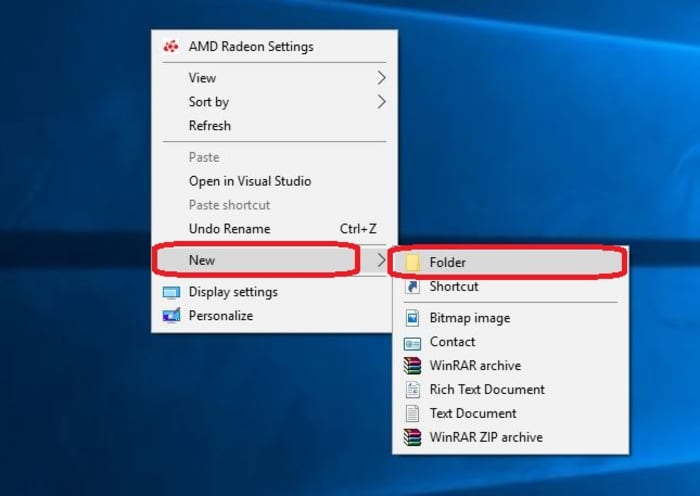
For a function called “God Mode” it sure has humble beginnings. To start, create a new folder. Right-click on your desktop and select ‘folder‘ under ‘new‘ and an unnamed folder will pop right into view.

Create new folder Windows 10

2. Name the folder

The key to creating God Mode is simply in the naming of the folder. Copy and paste the following right into the folder name:

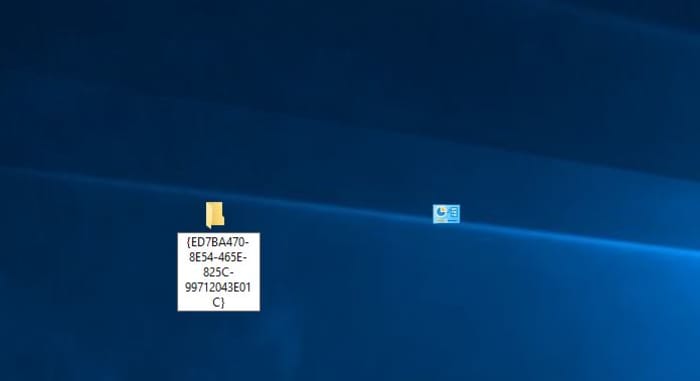
GodMode.{ED7BA470-8E54-465E-825C-99712043E01C}

Once you’ve renamed the folder you should notice that the folder icon will change to a control panel icon immediately. You can place this new windows master control panel shortcut wherever you like.

Windows 10 God Mode icon change
Rename your folder and the icon will immediately change

3. Open the folder

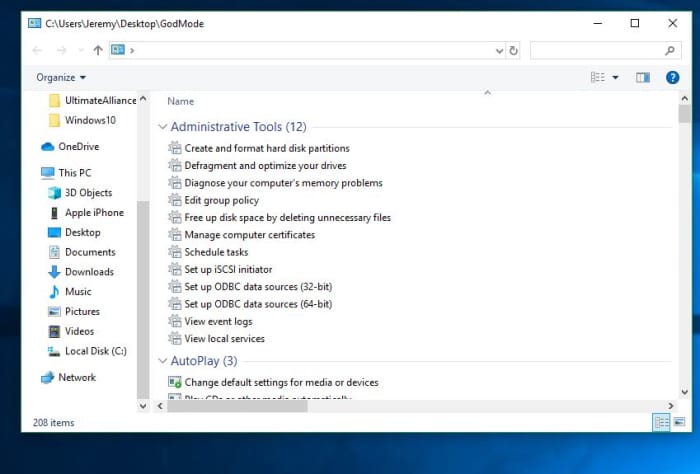
Double-click the god mode folder and it’ll open a window with a ton of utility tools. The categories are all listed in alphabetical order, so it should be easy to find whatever you’re looking for.

Windows 10 God Mode window
A new omniscient view

Congrats! You now have a special folder that serves as an incredibly useful shortcut for accessing all manner of tools and programs within your version of Windows. You can also drag-and-drop any of the shortcuts from the list right onto your desktop. This lets you access your most-used programs on the fly. Enjoy your new streamlined Windows 10 experience!

Let us know in the comments below whether you’ve found God Mode as useful of a feature as we have, and stick with Softonic for the latest in Windows tips and tricks!

WhatsApp’s desktop app won’t need your mobile phone’s connection

This new desktop version of WhatsApp will work even when your phone is off!

WhatsApp on laptop with a wavy background

There has been a desktop version of WhatsApp since 2015 when the messaging app released WhatsApp web. On its own, WhatsApp web works well as a PC version of the Facebook-owned app. It looks similar to the mobile app and has much the same feature set, although you can’t make voice or video calls from WhatsApp Web. It is so handy that, thanks to this neat Softonic tutorial, I often use WhatsApp Web as my go-to solution for sending files and photos quickly, easily, and securely from my phone to my PC and vice versa.

There is one catch, however, when it comes to WhatsApp Web and that is that it doesn’t work unless you link it to your phone. Once your phone is linked, you’ll be able to use WhatsApp Web as long as your phone is connected to the internet, even if you don’t have it with you. Without that connection though, WhatsApp Web is useless. All you’ll get is a page asking you to link your phone. It has now come out though, that this might be about to change.
WhatsApp Messenger Download Now ►
8

New WhatsApp web will work even when your phone is off

The UWP is the Universal Windows platform. When an app is developed for the UWP it will work on Windows 10, Windows Phone, Xbox, and other Microsoft platforms like HoloLens. According to the ever-reliable WhatsApp tipsters over at WABetaInfo, WhatsApp is currently working on a new UWP version of WhatsApp. This means that there might soon be a version of WhatsApp that you can download and install officially on your Xbox.

The really exciting news about this latest development, however, is relating to the app itself and not just its platforms. The leak says that the new WhatsApp UWP app will work even when the user’s phone is switched off. This means the UWP version of WhatsApp will enjoy its own independent connection to the WhatsApp servers. If you’ve had your phone die, and let’s be honest that has happened to all of us, then you’ll know just how useful this could be. At the moment, whenever your phone has battery or not, you can’t send or receive WhatsApp messages. It is as simple as that.

Wrapping up

This move pushes WhatsApp towards a more internet-focused messaging service that you can use on your phone. There are lots of questions that will need answering as the UWP app moves along the development path, including how many active connections a single account will be able to have at the same time. Scrolling down through all of the Twitter comments celebrating this latest development, however, finds another pressing question that could change WhatsApp fundamentally. When the UWP version of WhatsApp is released, will you even need a phone or phone number to use it?

Is this what the new Windows 10 Start menu will look like?

The new Start menu leak shows a much cleaner, simpler interface without live tiles.

a retro Windows Start button

A recent leak of an internal build of Windows 10 has set a few chins wagging as it includes an overhaul of one of the biggest and most used elements of the Microsoft operating system: the Start menu. The leak comes from Microsoft itself, which means there is a good chance that we could be seeing something legitimate that may well end up on a lot of our desktops.
The new Start menu leak shows a much cleaner, simpler interface without live tiles

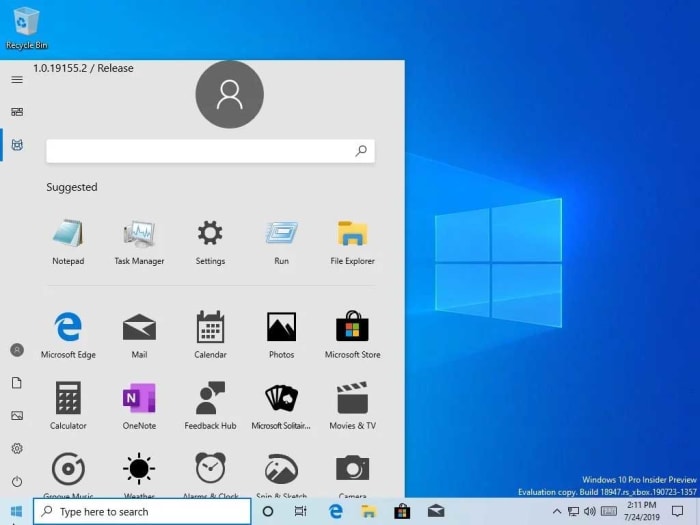
According to Windows Central, Microsoft wasn’t supposed to leak this new version of the Start menu so soon, and in such an unfinished fashion, but that it was inadvertently added to a recent Windows Insider preview build. From there, it was used by members of Microsoft’s Insider program, some of whom decided to post screenshots on the internet. You can see one of these screenshots below.

Windows Lite start menu
Image via: Windows Central

The big changes to note are that the search bar has been moved from the bottom of the Start menu options to the top and that there is a new “Suggested apps” section. These will likely relate to your most commonly used apps. The more eagle-eyed of you might have noticed the possibility of support for a Dark Mode in the redesign.

The report from Windows Central actually claims that this leaked version of the Start menu will be for the upcoming Windows Lite operating system that Microsoft is currently developing. This means that were as it is highly likely this iteration of the Windows 10 Start menu will make it into a Microsoft operating system, it might not be the full version of Windows 10 that most of us are using now.

New Microsoft Operating system

Microsoft has been working on Windows Lite for quite some time now and we actually reported on leaked internal documentation back in January that showed Microsoft was looking at redesigning the Start menu and doing away with live tiles.

Windows Lite will be a stripped-down version of Windows 10, designed for use on less powerful machines. You could think of it as Microsoft’s alternative to Chrome OS, which offers a speedy experience on limited PCs and laptops. Back in January though, there were no images to illustrate Microsoft’s plans, so it is interesting to see how they’ve developed since then.

It must be stressed, however, that the newly designed Start menu is still in the very early stages of development so there is a very good chance the design could change before we see Windows Lite receive a general release. Also, as yet, there is no way to know whether the new Start menu will be available on the full Windows 10 but as this latest leak has come from a Windows Insider preview build, we can assume that Microsoft is at least toying with the idea.

Microsoft forces Windows 10 users to version 1903

Like it or not, you’re going to have to change to a version with some problems…

Windows 10

Windows 10 updates are like fast food: There’s waiting involved, there’s miscommunication, there’s trepidation, and you already know going in that there’s going to be issues with it. Oh, and when you open the lid it never looks as good as it did in the picture.

Windows 10 Download Windows 10
8
The latest and greatest version of Microsoft's operating system.

It’s been a rocky year for Windows 10, and updates that sound great before you install them turn out to be yet another minefield. It’s no surprise that many users don’t want to update at all, or choose to hold off until the last minute out of mistrust. You can only get burned so many times. Microsoft’s also gotten a lot of flack for being annoyingly insistent when pushing their updates (even when users opted out of receiving them). The company has recently acquiesced and made updates starting with 1903 optional (unless a version you’re on stops being supported), but surprise, surprise – this build has issues, too.

Good-bye, 1803

A Windows 10 version wouldn’t be complete without some kind of roadblock, but that’s not the red flag today. It’s that Microsoft has begun pushing its 1803 users on to the troublesome 1903. Starting on November 12, 1803 will no longer be supported, so 1903 will be the only way to go from that point on. This forced update is hitting Pro and Home editions already “to help ensure adequate time for a smooth update process,” the company claimed in a support document.

Why Microsoft is pushing 1903

As for why the company is making such an aggravating decision, they’re presenting the same argument as usual: “Keeping these devices both supported and receiving monthly updates is critical to device security and ecosystem health.” In other words, if you’re not on the latest patch, you’re not receiving the latest protection. It sounds logical until you consider the new problems that 1903 brings with it.

The problem with 1903

There’s a litany of issues with the 1903 build that are still being investigated, such as:

  • An unresponsive display brightness
  • Graphic issues with some of its apps and games
  • A black screen that pops up when you initiate Remote Desktop connection
  • A literal error message that pops up when you try to start up the Windows Sandbox

For a full list of problems you might run into, check out Microsoft’s bug list here. According to Microsoft’s own news site, there are more than 800 million devices that use Windows 10, an estimated half of which will be affected by the aforementioned flaws.

We see what you did

The switch to 1903 won’t become mandatory until November, but it’s the principle of it that bothers us: For a hot minute there, we thought Microsoft was listening to its users. Not having to update until your current version isn’t supported anymore? Very cool. But it won’t matter if they start cutting support for older versions earlier! Nice loophole, guys.

Stay tuned with Softonic for more info about 1903 as it’s made available, and learn what steps you can take to keep your OS healthy.

Windows 10 to allow sign-on without password

Sick of typing in a password? The newest Windows 10 lets you break free.

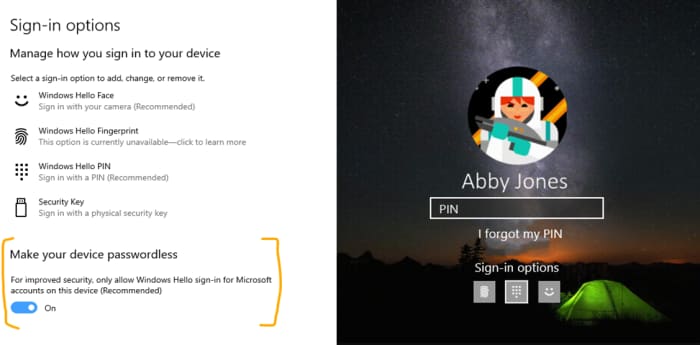
Microsoft is about to allow you to ditch the password.

The company is testing the possibility of allowing you to sign in with your Windows Hello Face, Fingerprint, or PIN.

Right now, the option is only available to a small segment of the Windows Insider program. To ditch the password in Windows 10, go to Settings > Accounts > Sign-in options, and select “On” under “Make your device passwordless.”

Windows 10 eliminate password

If you don’t have Windows Hello set up, Microsoft will walk you through the process the next time you go to sign in. Is a PIN really more secure than a password? Here’s what Microsoft has to say:

BlueKeep security issue threatens nearly one million Windows users

If you’re running an older version of Windows, your data could be at risk.

Microsoft

There’s a reason people update to new versions of Windows: Old versions don’t get updated, and that makes them more susceptible to issues, both internal and external. While not every Windows update is a move forward, transitioning to a newer OS is almost always a smart step. Google is making the same assertion, too: If you haven’t upgraded to Windows 8 or 10, now’s a very good time; anything older is now putting you at risk.

Windows 10 Download
7
Update to a safer OS

The BlueKeep vulnerability

Just like old browsers are full of holes for malware to enter, an old OS can start becoming fallible as new threats emerge and evolve. Technically known as CVE-2019-0708, BlueKeep is a remote code execution vulnerability that exists in Remote Desktop Services. It’s when an unauthenticated attacker connects to a target system using RDP, and then starts sending requests. A successful hack attempt could then start to inflict arbitrary code on the targeted system, installing programs, deleting data, or creating new accounts that still mimic your user rights. It’s a nasty pre-authentication vulnerability in older Windows Operating Systems, and therefore doesn’t require any user interaction before it latches on.

Which OS is at risk?

Anything less than Windows 8. So if you’re running 7, 2008 R2, Vista, Server 2008, or XP, BlueKeep leaves your computer open to infection. How many people are running these old versions of Windows? Almost a million, Microsoft discovered in a recent report. Frighteningly, that’s not even including the computers on corporate networks. Errata Security predicts that anyone using an older OS probably has a month or two before BlueKeep worms its way in.

How to tell if you’re already infected

If you’re running an older OS, now’s the time to upgrade. In the meantime Errata Security’s Rob Graham has put together binaries on Github to scan for BlueKeep. If you think your PC might be infected, go to the link in his tweet and run the scan:

Hopefully, both your computer and network have not been compromised, but trust us – you don’t want to procrastinate on things like this. Get Windows 8 or 10 today and stay secure!

Is Microsoft about to ditch Windows?

Microsoft is aiming for “Seamless Updates” with its “modern OS.”

Recently, Microsoft began talking about a new high-tech OS system that possibly won’t be the next installment of Windows. 

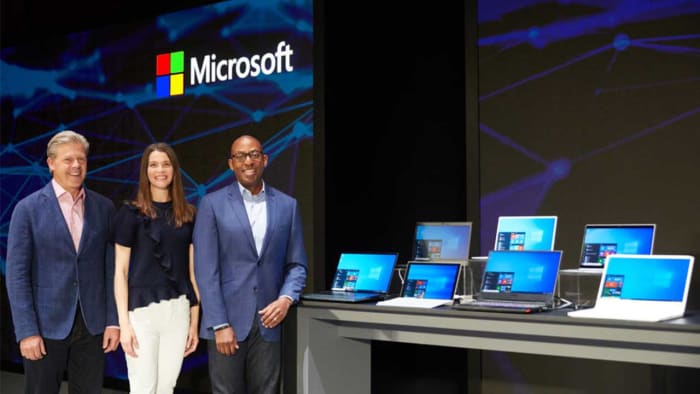
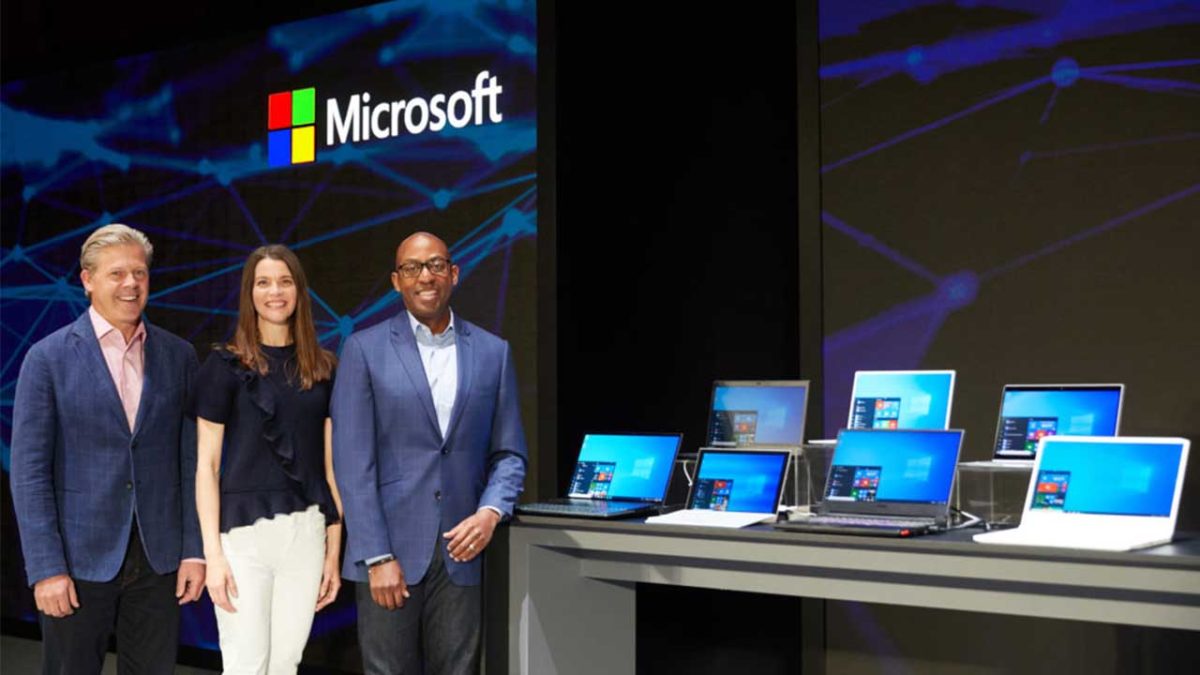
Microsoft has been talking about the innovation that goes into developing the latest generation of Windows-enabled devices. At Computex in Taipei, Microsoft’s Corporate Vice-President of Consumer and Device Sales, Nick Parker, was quick to heap praise on some of Microsoft’s hardware partners for the new possibilities their devices are creating.

Microsoft execs in front of Windows PCs

Asus, Acer, and Dell were among the plaudits. Parker also spoke of a new “modern OS” that would make the most of the latest tech that was going into the newest machines. What Parker didn’t mention, however, was Windows. In fact, there was no mention at all about what this new modern OS would be called. It could be Windows 11, or it could be something else altogether.

Microsoft is aiming for ‘Seamless Updates’ with its ‘modern OS’

In many ways, Windows 10 has been a success story for Microsoft. After the abomination that was Windows 8, Windows 10 marked a true return to form for the software giant. It is now the most popular desktop operating system on the planet. As support for older versions of Windows falls away more and more people will turn to Microsoft’s flagship offering.

The success story hasn’t been without its problems. Windows 10’s update process is definitely the biggest Microsoft has faced with the new OS. Microsoft wants Windows 10 to be a continuously evolving OS and as such has been cramming new features, alongside security patches and bug fixes, into regular updates. Sometimes they interrupt regular use.  Updates are sometimes taking far too long,  or are too large. Also, they sometimes just straight-up not work and even delete user files. Clearly, these updates have been a constant thorn in Windows 10’s side.

Windows 10 updates
Windows 10 updates have long been a source of frustration for both Windows users and Microsoft execs

It is no surprise then that when talking about the future, Microsoft is aiming for what it calls seamless updates. In his talk in Taipei, Parker spoke of “Enablers” and “Delighters.” Enablers are the basics people expect from their devices and delighters provide more innovative experiences.

Parker went on to say, “Enablers include seamless updates – with modern OS updates invisibly done in the background; the update experience is deterministic, reliable, and instant with no interruptions!”

It almost sounds like he read that straight off of the Windows Help forums, where users have been spreading their ire about the Windows 10 update process.

The latest and greatest version of Microsoft's operating system.

Parker went on to talk about a lot of the other key features Microsoft believes a modern OS should have. This includes the likes of multiple input possibilities, constant connection, sustained performance, and security by default. Once again, there was no mention of Windows. Every time he spoke about the modern capabilities offered by the machines he lavished praise upon, he always spoke of a modern OS rather than Windows.

We can’t say for sure if Windows will be a relic of the past, but it is interesting. With Windows 10 continuously evolving, Parker could simply have been mapping out the direction that evolution will take in the future. He may not have been talking about a new operating system altogether.

The good news, however, is that if we can take one of Microsoft’s top VPs at his word. We know that Microsoft is working hard to fix the update problem that has been giving us all a communal headache for far too long.

Xbox Game Pass coming to Windows 10

Game Pass is coming to PC! But should I buy it?

Xbox Game Pass

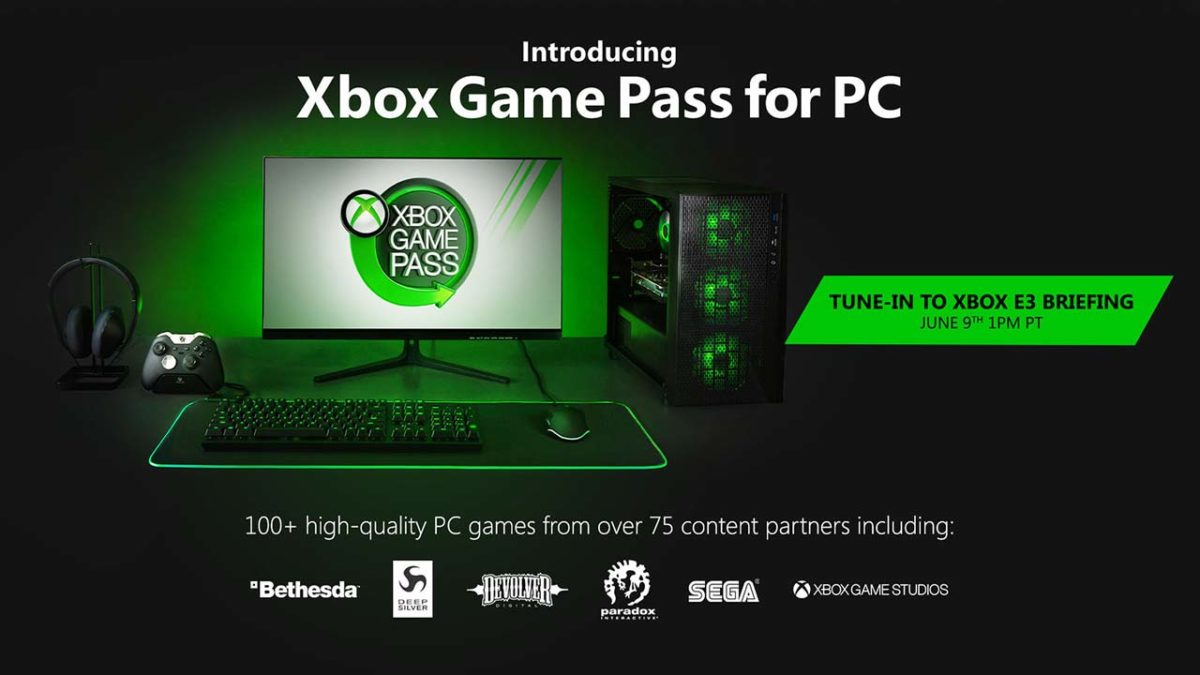
Xbox is bringing its subscription service Game Pass to PC. Soon, PC gamers will have access to more than 100 games from developers like Bethesda, Deep Silver, Devolver Digital, Paradox Interactive, and Sega.

The service will only be available for Windows 10 users.

The latest and greatest version of Microsoft's operating system.

Microsoft typically charges $10 per month for Game Pass, but players can take advantage of a limited time offer and get it for $1 until June 10.

Later this year, Game Pass Ultimate will give players all the benefits of Xbox Gold as well as the vast library of games for $15 per month. That said, it might be in your best interest to wait until then so you can play with your friends online. 

The move appears to be an attempt by Microsoft to capitalize more on non-console gamers and boost Game Pass’s subscriber base.

What are the perks?

Aside from the library of games, the subscription comes with other sweet deals. You can get discounts of up to 20% for select games in the Microsoft Store. 

The PC-specific version of Game Pass will also have exclusive first-party games. Microsoft announced that they will reveal more details about the subscription service at E3 in June.

More games coming to Steam

Microsoft also announced today that they are bringing more games to Steam. These include Gears of War 5, and the definitive versions of Age of Empires I, II, and III. 

Should I buy a subscription?

If you want to know whether or not you should subscribe to Game Pass, you should look at the complete list of available games. Sure, there’s a bunch of solid games like Saints Row: The Third and Banjo Kazooie, but there are also some stinkers like  Metal Gear: Survive that will be included.

Where Game Pass on PC comes in handy is in that you won’t need to buy an expensive Xbox One in order to play these games.

Potentially, this service could convince you to leave consoles in the dust altogether. However, for those of us who already have the best games the service offers, it’s a pretty hard pass.