IObit turbocharges latest release of Advanced SystemCare Ultimate to keep PCs safe and speedy

If you own a PC, you’re already familiar with the need for robust antivirus software. You might also be acquainted with software that scans your computer and helps you make tweaks to keep it humming along efficiently rather than getting bogged down with useless files and malware. What you might not know is that IObit has been producing a software solution that combines both of these functions, and that in its latest release of the program – Advanced SystemCare Ultimate 13 – it has injected a significant dose of new tech to ensure that its solution is one of the best on the market at this time.

For starters, Advanced SystemCare Ultimate 13 has been bestowed with an antivirus database that is 30 percent larger than in the previous release, along with a spyware database that is a whopping 200 percent larger than in the past. This bleeding-edge digital gold mine ensures that the software is now entirely equipped to identify even the most recently unleashed online threats. 

On top of this, IObit partnered with Bitdefender, a global cybersecurity leader, to update its antivirus algorithm – meaning that real-time protection against threats including viruses, malware, worms, Trojan horses, spyware and ransomware are now at an industry-leading level. 

Advanced SystemCare Ultimate 13’s protective features have also been expanded to monitor system emails to guard against spam, phishing scams and more, while the program’s Surfing Protection functionality indicates unsafe links when search results are returned, allowing users to steer clear of potentially troublesome websites.

So that covers the improvements to Advanced SystemCare Ultimate 13’s protection software. What about its PC cleaning and optimizing functions? IObit has introduced significant improvements here as well.

As with the protective side of the software, it starts with a database upgrade. The Startup Organization database has been increased by 30 percent to speed boot time by eliminating unnecessary processes and system services. Beyond this, Advanced SystemCare Ultimate 13 has a stronger PC cleaning function, which zaps junk off your hard drive like temp files and the cache files kept by programs such as Dropbox, Steam, Chrome Firefox and more. A file shredder functionality completely eliminates deleted files, a context menu helps clear out unwanted shortcuts without a trace, more robust privacy shields guard against the leakage of personal information, and a multiple accounting cleaning utility allows full machine optimization without the need to switch accounts. 

“With the continuous appearance of new viruses, we consistently value the expansion of our anti-virus & spyware database, we believe that only if we insistently extend the anti-virus database we can truly deal with rampant viruses” said Bing Wang, the Product Director at IObit, “Advanced SystemCare Ultimate 13 aims at providing users a more secure and stable PC with a larger anti-virus database and more powerful cleaning, that can rank among the top comprehensive utilities of antivirus and system optimization.”


Advanced SystemCare Ultimate 13 is now available on Softonic. It provides full support for Windows 10, Windows 8/8.1, Windows 7, Windows XP and Vista.


 

How to stop Gmail spam forever

Follow these steps to block all spam emails from reaching your inbox.

Block Gmail spam

Spam is not only annoying it is dangerous. No, we’re not talking about the canned luncheon meat that you used to have nightmares about as a kid, we’re talking about the spam mail you get in your email inbox. Junk mail, as it is sometimes called, is annoying because it clogs up your inbox and makes it harder to find the emails that matter; and dangerous because it can often be carrying malware, viruses, and phishing scams.

You’d be forgiven then for wanting to get rid of spam forever and that is probably why you’ve ended up here. This is the Softonic guide to stopping spam mail forever. With these tips and tricks, you should be able to send everything to your spam folder and live a spam-free life. This is how to avoid Gmail spam.

How to block spam on Gmail

Spam blocker
This is not the spam we’re talking about

First things first. You’ll be happy to know that Gmail, like Outlook, already has a spam filter. It’ll search for incoming emails that look suspicious or that carry links to untrustworthy URLs. With the power of Google behind it too, it is pretty powerful. Unfortunately, however, some spam can trick the Gmail filter with canny subject lines, etc. and find its way into your inbox. This means to block ALL spam from your email list you’re going to have to take some extra steps. Let’s get started then.

Train your spam filter

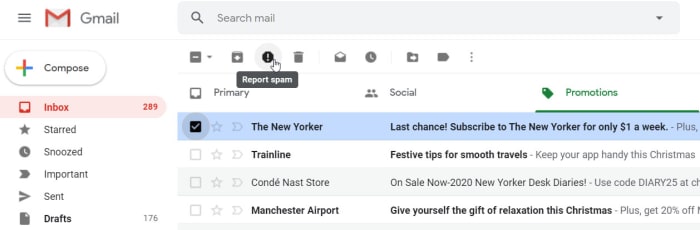
Report spam on Gmail

Like everything else from Google, your Gmail spam filter is always learning. It learns from everything it does, but it can learn most from you. You and your big human brain can look at an email and know immediately that it is spam. To help your spam filter do the same, don’t just delete the spam, report it. This way your spam filter will get a better idea of what spam looks like every time you make a spam complaint, and will then be more likely to spot it next time.

Keep your email address secret

OK, so this isn’t the most practical step you can take. If nobody knows your email address, then what good is your email service in the first place? Think of this as more of a general rule than a blanket ban. We’re constantly under pressure these days to hand over our email address whenever we want to use online services. This rule is designed to think twice about the websites you share your email address with. It is also a reminder to never post your email address on public forums and to hesitate every time you think of forwarding that spammy email content chain you received. If you’re careful enough, your email won’t ever end up on the contact lists of email marketers looking to send you spam messages.

NEVER open a spam email

We’ve already pointed out the security concerns that should be warning you off opening any spam emails that end up in your email inbox. The other big reason for not opening spam emails, however, is that they’re likely filled with trackers that will flag your email address as active whenever they’re opened or if elements like images are interacted with. Opening spam emails will lead to many more spammers sending you stuff that should only ever end up in your junk folder.

Only tick the boxes you MUST tick

Like we’ve already said, these days almost every online service and website will try and get you to hand over your email address so they can hit you with email campaigns. Then, when they get you to opt-in, they try to get you to double opt-in to other various email newsletters, and maybe even to give them permission to share your details with selected third-parties. Needless to say, if you don’t want spam, don’t allow them to share your email address with other companies. It’d also be in your best interest to only sign up to the newsletters you actually want rather than whatever they try and shove on you when they show you the terms and conditions. Only opt-in to what you have to and don’t be afraid to click that unsubscribe link whenever necessary.

Change your email address

This final trick for blocking all spam on Gmail might sound a little drastic but if you’re constantly being bombarded by nonsense spam email emails from Nigerian Princes or for cheap Viagra, it could be the best way to go. In truth, we’ve all had our email addresses for longer than we can remember so we’ve probably been bouncing all over the internet for years without even considering shielding our email address from prying eyes.

If you’re getting a lot of spam emails getting through your spam filters, follow the first rule we laid out. Report them so that your spam filter can adjust and do more to block out those unwelcome junk emails. Then unsubscribe to all the email marketing rubbish you know longer want to receive. If that still doesn’t work, you’re just going to have to bite the bullet and start again. Once you’ve done so, stick to the rules outlined above and you should be able to live a spam-free existence. Just make sure that when you’re sharing your new email address, you’re doing so in a responsible manner and not just blasting it all over the internet.

9 tips to take Gmail control

These excellent tips will help you get more out of Gmail.

Gmail tips

With over 1.5 million users Gmail is by far the most popular email service on the planet. It is even more popular that Outlook and Yahoo Mail. It is a great program with lots of features and, as you’d expect with a Google product, it is constantly evolving. If you follow Softonic news, you’ll know just how often Google is adding new features like advanced search bar, canned responses, and email snooze and  mute . As well as Google adding new features, third-party developers are also able to create Chrome browser add-ons like a to-do-list app that also boost Gmail’s capabilities.

Where do you start though? If you’re trying to step up your Gmail game, take advantage of all it has to offer, and make your life easier in the process, where do you begin? Well, that’s where we come in. Today we’re going to look at some of the best Gmail features and give you some top Gmail tips and tricks to help you get the most out of your email provider.

How to use Gmail

Shortcut cheat sheet

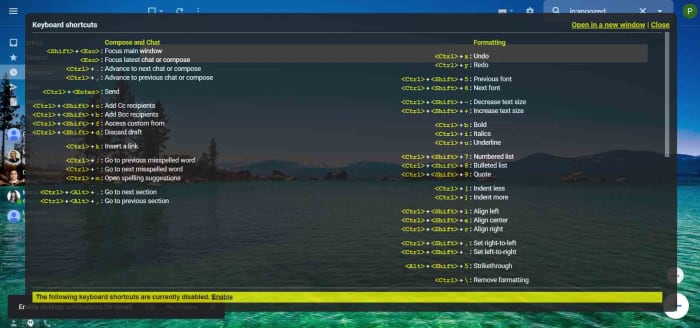
Gmail keyboard shortcut cheat sheet

A great place to start this list is the Gmail keyboard shortcut cheat sheet. There are a lot of actions you can perform on Gmail simply and quickly by pressing a certain combination of keys. This cheat sheet gives you a list of these keyboard shortcuts. To access it all you need to do is press Shift ?.

Unsend sent messages

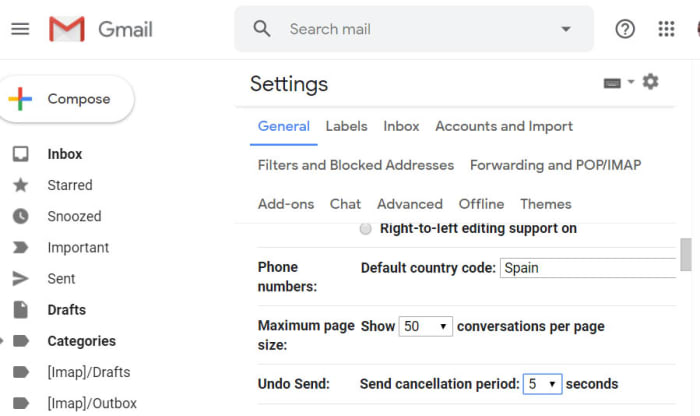
Undo send on Gmail

Did you know that you can actually give yourself a short window of opportunity to unsend Gmail messages you’ve sent. This is extremely useful, if you ever find yourself cursing your own existence when you realize you’ve forgotten to mention something important in the email you’ve just sent. To enable the Gmail unsend feature go to Settings then search in the General tab, and then tick the box next to Enable Undo Send. You can also set the time you’ll give yourself to reconsider at 5, 10, 20, or 30 seconds. Don’t forget to hit Save when you’re done and then keep an eye out for the Undo Send option when you send a new message.

Spelling mistakes

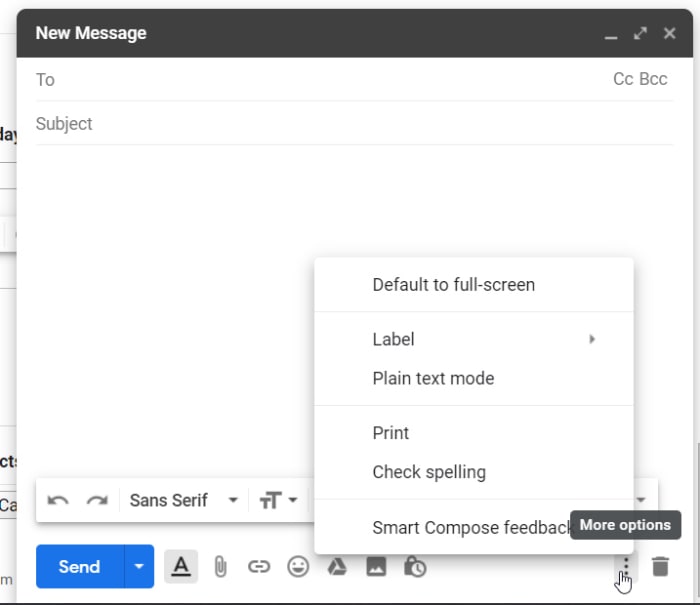
Check spelling on Gmail

Normally email messages are important messages, which means spelling mistakes are a big no no. Fortunately, Gmail has a feature that will highlight any spelling mistakes you’ve made so that you can easily change them. To use this feature all you need to do is click the ellipsis menu icon  in the bottom-right corner of your Gmail compose window and hit Check Spelling.

Infinite Gmail accounts

OK, so this trick doesn’t give you an infinite amount of Gmail accounts, but it does give you plenty to play around with, should you need to sign up to an online account more than once. Basically, full stops in your Gmail address don’t count for anything. This means if you send an email to emailaddress@gmail.com and another to email.address@gmail.com both emails will go to the same inbox. This means you can add full stops between every letter of your Gmail address to create a new email you can use to sign up to accounts with. This is also a good way of tracking who is selling your data as you can monitor which accounts have full stops in certain places and then compare that list to the email addresses you receive your spam to.

Schedule send

Gmail schedule send

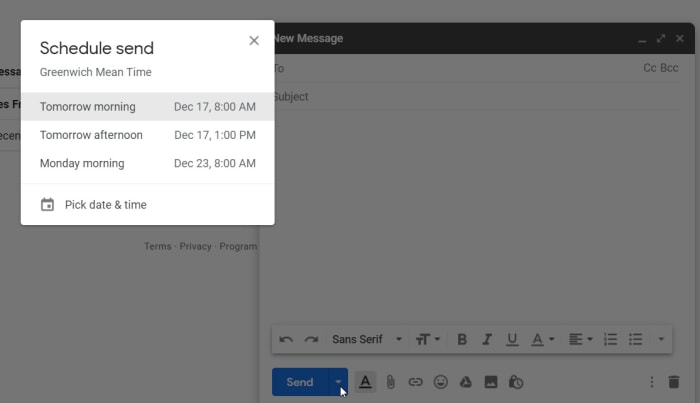
Gmail’s schedule send feature is fairly new. You used to have to enable the feature using Gmail Labs, but now it is here for everybody to use and it couldn’t be simpler. To schedule an email to send at a later date all you need to do is hit the small down arrow that is next to the send button. This will open up the Schedule send option, which will give you the chance to send your email exactly when you want the recipient to receive it.

Add or remove inbox tabs

Gmail inbox tabs

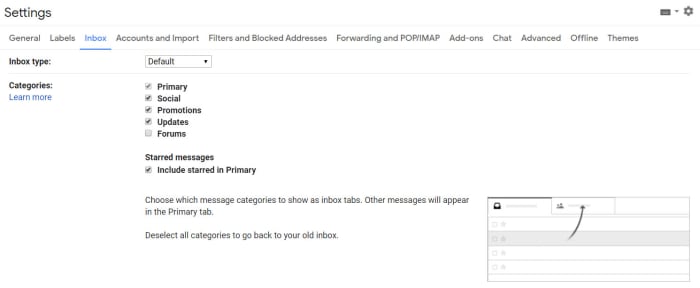
The Gmail Inbox tabs are a great way of keeping on top of your incoming mail. If you’re toiling away to reach Inbox Zero, tabs can help you a great deal by automatically cutting out the emails you don’t really need to handle yourself. They’ll automatically be added to different tabs and so won’t class as primary emails. To customize your Gmail tabs go to Settings, then Inbox, and then hit Categories. Once you’ve activated all your tabs you can then drag and drop individual messages between them to help Google classify your incoming mail better.

Desktop notifications

You can set Gmail to send you a desktop notification every time you receive an email. To do so go to Settings, then General, and then Desktop Notifications. Once enabled, Gmail will send you a pop-up notification every time you’ve got mail.

Filter your newsletter signups

Gmail has a very cool feature that allows you to add words and phrases to your email address by putting a  sign after it. For example, if I was to send an email to myemail@gmail.com and myemail+softonic@gmail.com, both emails would go to the same inbox. This means I could sign up for various email newsletters and use the sign plus different categories to make it easier to search through my regular newsletters. Categories like News, Sports, Tech, etc. to help me search for particular types of content that are being pinged to my inbox.

Easy unsubscribe

Gmail unsubscribe

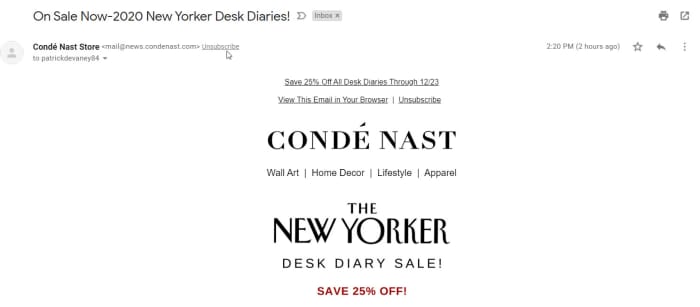
Email newsletters can be annoying. Tabs make it easier for you to keep on top of them, but still, they’re a real pain, especially the ones you can’t remember signing up to. The truth is you’re pressured into signing up for newsletters all the time these days. Want to buy some clothes online, sign up to an email; looking to find a local bus schedule, sign up online; want to do absolutely anything you could think of on the internet, yep, sign up online. Fortunately, however, Gmail has an elegant solution to this very modern problem. For every email you receive that has an unsubscribe button hidden away at the bottom, Gmail will create an Unsubscribe button at the top of the email next to the email address.

There you have some top tips for the Gmail app. For more great guides to Google apps and products like Google Drive, Google Calendar,  and Hangouts stick with Softonic.

Don’t gift your credit card number to a scammer this holiday season

So far, 2019 has smashed records for online shopping as people embrace the ease and relative security of making purchases electronically. Unfortunately, this also means that scammers such as phishers are also out there in record numbers trying to score a gift of their own: your credit card number. Here’s how to keep your data private and stop them in their tracks.

Know your phish

Phishing, which is the term for when someone uses fraudulent methods to gain access to your personal data, generally originates from an email – perhaps even from an organization that you already do business with. But here’s the catch. Phishing emails need to get you to a website where you will be asked to fill in personal information – something reputable organizations simply don’t do. So if you receive such an email, beware.

During the holidays you might even receive an email asking you to confirm your order details, which seems like a logical request. But even if you follow the link asking for this information and the website you arrive at looks like you’d expect, be extra cautious if you’ve already provided your shipping address and credit card information to an online retailer. If you’ve done it once, you don’t need to do it again.

Remove the disguise

One easy-to-find telltale sign of a phishing scam has to do with the link you’re being asked to follow. It’s very easy for scammers to create a link that seems legitimate, but that actually masks its real destination. Let’s say you see a link that reads “paypal.com” in an email. It looks legitimate, and that is indeed a correct web address for the company. To see where the link really leads however, simply hover your mouse over it. The true address will pop up in a small box. If it’s not what you expect, DON’T CLICK!

Protect yourself

Lastly, no one should be online these days without some kind of antivirus software securing your private details. Avast Antivirus Free has consistently been one of our top picks because it offers protection rarely seen in a free package. Avast Antivirus comes loaded with technology that will not only scan your email for dangerous attachments, but it will warn you that a site is unsafe if you’ve unwittingly clicked a link in a phishing email so that you can steer clear.

Additionally, Avast beefed up its anti-phishing efforts recently by incorporating robust artificial intelligence (AI) coding into the software. This cutting-edge technology not only compares links to known phishing sites, but it goes much deeper.

By using computer vision to analyze the composition of a site and determining if a site might be stealing images from another, phishing scams are more readily uncovered. Plus, the AI also investigates sites based on their ranking in search engines. Because phishing sites are not usually online long enough to be indexed by search engines, finding out a page’s ranking adds to the information gathered, allowing the software to warn you – with extreme accuracy – when a site is to be avoided.

8 tips to take advantage of Google Maps

These 8 tips and tricks for Google Maps will help you get the most of the app

Google Maps tricksGoogle’s suite of apps has come in and taken the legs out from under what we all considered to be modern life. Everything is different now. You don’t need to remember anything now because you can just Google it, life and death letters come at you instantly via Gmail, and you can now look at every photo you’ve ever taken or seen instantly using Google Photos. Today though, we’re going to look at another Google app that has massively changed the way we see and interact with the world; Google Maps.

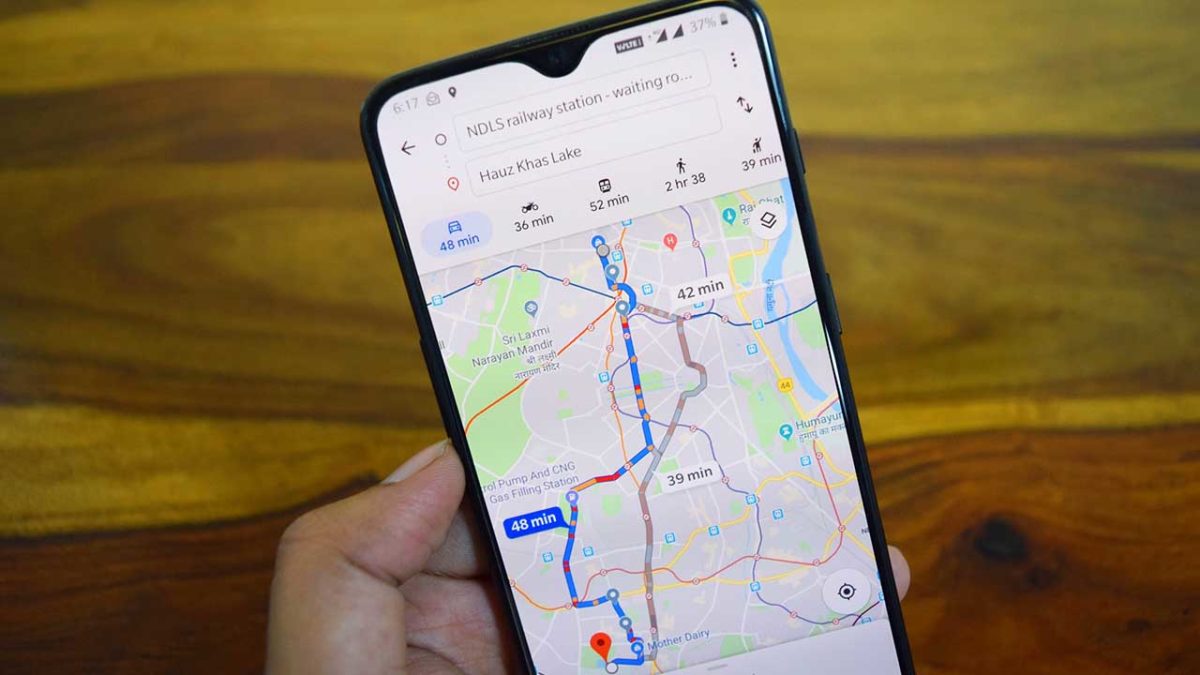
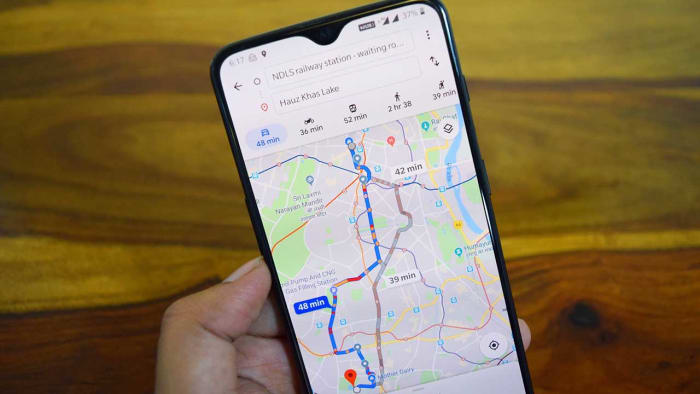
Google Maps means we never have to remember place names or route directions, and it always puts us at the center of the world. You don’t need map skills to get to even the remotest of hidden away places and it’ll even tell you which lane you need to be in when you’re driving in a city you’ve never been to before. The Google Maps app can put all your places at your fingertips, show you where the nearest gas stations and ATMs are, help you with your daily commute, and even give you a decent street view of almost every street on the planet. Yep, having Google Maps on your Apple iPhone or Android smartphone puts a lot of power in your hands. Let’s have a deeper look then at how to use the best Google Maps features.

Google Maps Download
7

Google Maps tips and tricks

Download maps for offline use

Download a map on Google maps

You can download offline maps by going to the Google Maps menu in the top-left of the app and selecting Offline Maps. You then tap SELECT YOUR OWN MAP and navigate to the area you want to download. The other way to do it is to search for a place normally using the search bar, and then hit the description bar that appears at the bottom of the app. You’ll then see a download button, which will give you the ability to select the custom map you’re looking to download and save it to your device.

Turn on Incognito Mode

Incognito Mode on google Maps

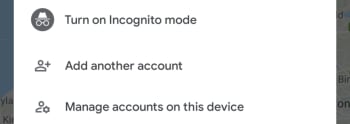
Another feature of this modern world is always off privacy. All the big app developers have baked surveillance features into their products that constantly track our movements; literally so with Google Maps. Fortunately, however, Google Maps has an Incognito Mode, which will stop the app from saving your search and location history.

To turn on Incognito Mode all you need to do is tap your Google account Profile Picture in the top-right corner of the app and then hit Turn on Incognito Mode. You can turn it off again by following the same instructions.

Save where you’ve parked your car

Save your parking space on Google Maps

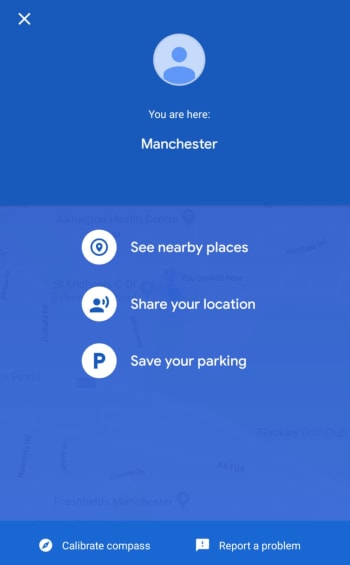
This little-known feature is a lifesaver if you’re constantly forgetting where you’ve parked your car. All you need to do to save your parking location is tap the blue dot on Google Maps before you walk away from your car. This will open up a small menu about your current location and one of the options you see will be Save your parking. Tap it to save your parking location. You’ll then see a notification in your Android phone, which will offer you directions to your car when you tap it.

Share your real-time location

Live Location Sharing on google Maps

Real-time location sharing is a popular feature these days with apps like WhatsApp and Facebook Messenger having their own version. Google Maps offers a comprehensive live location sharing feature too, however, that gives you control over how long you’ll be sharing where you are as well as who you’ll be sharing your location with.

To share your live location in real-time you need to select the Google Maps menu in the top-left corner of the app and then select Location sharing. You can then Add people who’ll have access to your real-time location and select how long you’ll share your location. You can then send your location via Google Maps itself or via several messaging platforms like Messenger and WhatsApp.

Quick zoom

This a simple tip that will make a world of difference when you only have one hand free. You can double-tap the map to zoom in partially and then continue to do so if you want to focus further on a particular area. For greater control, however, it is better to hold your finger or thumb down after the second tap. If you double-tap but then leave your thumb on the screen after the second tap, you’ll be able to zoom in or zoom out, if you simply swipe your thumb up or down.

Add stops to your directions

Add stop to Google Maps directions

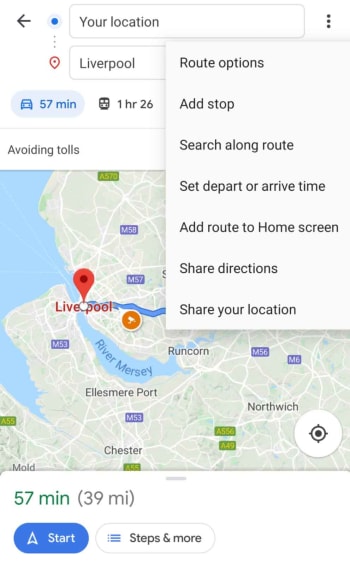
If you need to go to more than one place, Google Maps can help you plan a route that’ll get you to all of them. To do so, all you need to do is ask Google for directions as you normally would and then hit the ellipsis menu icon in the top-right of the route options bar. In the menu that opens, the top option will be Add stop. You can use this option to add multiple stops and then rearrange the order of the stops by dragging each location up and down. When you have all the stops you need and they’re in the right order, click Finished and Google Maps will give your directions and open navigation mode, should you need it.

Google Maps chat

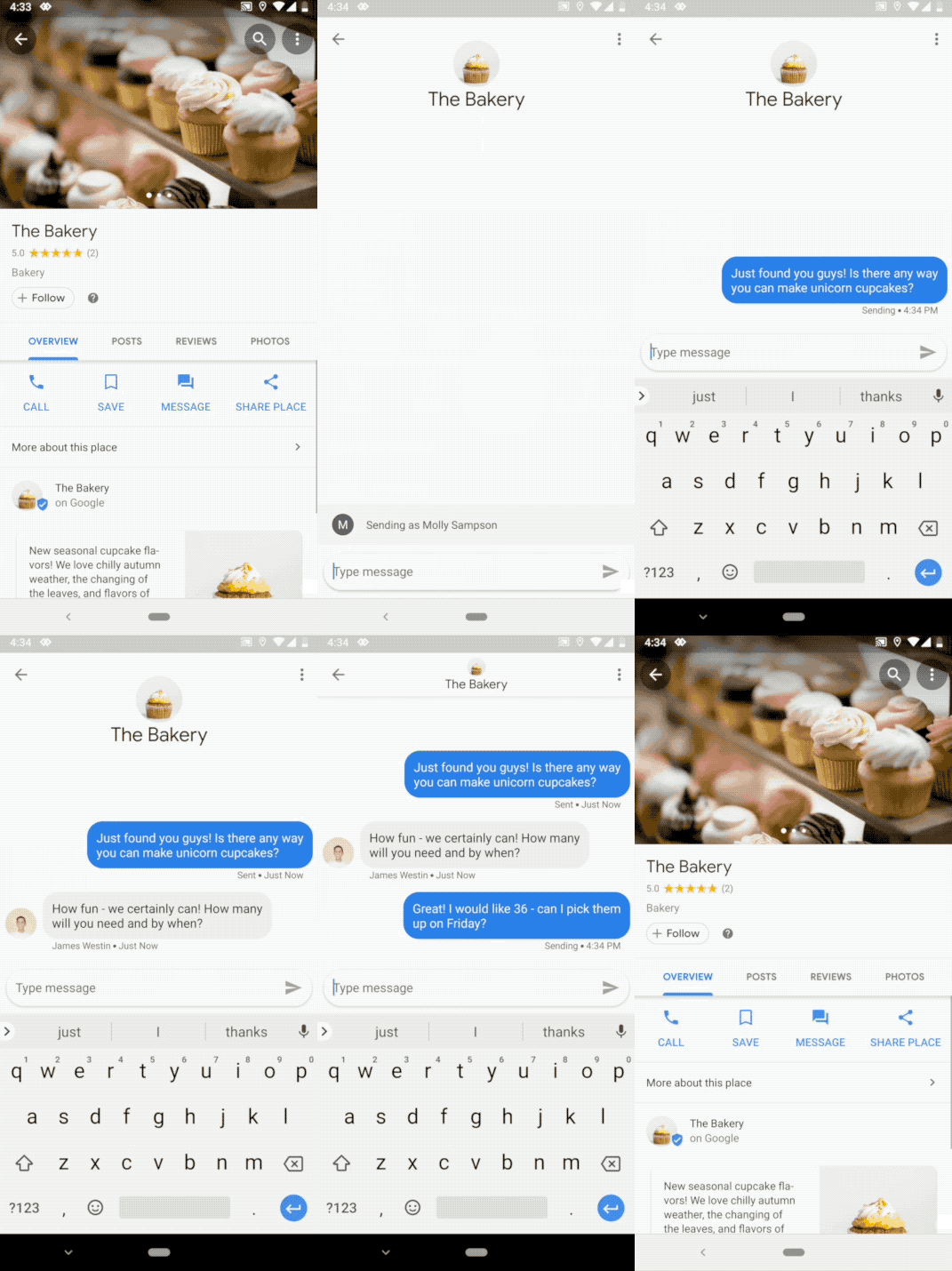
OK, this isn’t for chatting with your friends, you’ve plenty of other apps for doing that, but Google Maps does have a functioning chat feature. Google Maps chat is for talking to local businesses. If a business has enabled messages, you’ll see the new Messages tab, when you click on it in Google Maps. You’ll then be able to chat away with them as if you were friends.
Ask a question

Another good way of getting answers about locations and favorite places on Google Maps is to ask the community. To do so, all you need to do is select a location on Google Maps and then tap the description bar at the bottom of the app. If you scroll down, you’ll see the Questions & answers section, which will include a text box that you can use to ask questions. Other Google Maps users will then answer back over time.

Best Winamp skins

These are the best Winamp Skins

All the best Winamp skins

Nullsoft’s Winamp has been around forever. Back when you started downloading songs from Napster, Winamp was the best program to listen to them with. As other programs have come and gone, and the likes of the iPod, iPhone, and now Spotify have revolutionized the way we listen to music, it bears remembering that Winamp is still here and it is still going strong.

As well as Winamp’s ability to play many different types of audio files like MS-Audio, WAV, MP3, and AAC, one of the big stand out features for Winamp has always been its skins. Winamp skins have long given users a fun way to make their digital music player their own. Through the years there has been all manner of Winamp skin landing on the internet from classic Winamp 2 and Winamp 5 skins to skins of your favorite movies and shows. Let’s have a look then at some of the best Winamp skins you can download right now.

Winamp skins collection

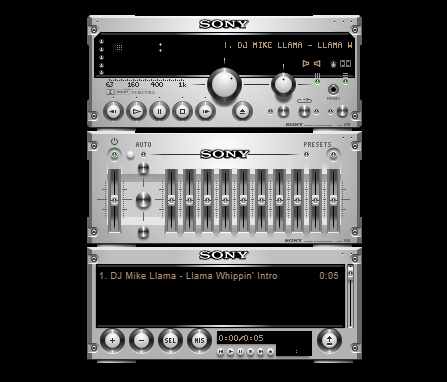
Expensive Hi Fi Skin

Expensive Hi Fi

Although a modern skin, the Expensive Hi-Fi Skin is an absolute classic for Winamp. The premise is simple, you make Winamp look a high-end separates stereo with each part of the Winamp console, including the main window and the playlist section, being a separate stereo module. There are lots of these to choose from. But this one stood out for us as the equalizer looks so good.

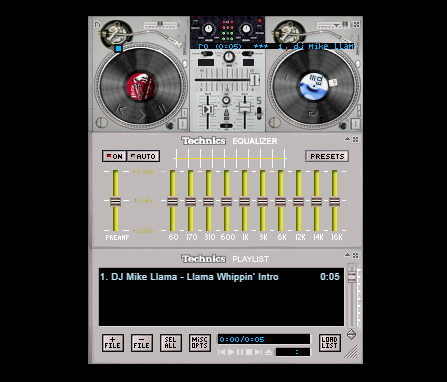
Technics 1210 Skin

Technics 1210

Most DJs simply mix with their laptops these days, but any DJ worth their salt learned their trade on a pair of Technics 1210s. These things were built like tanks and this skin does a fairly good job of recreating the old beasts with a decent mixer and equalizer to go with them too.

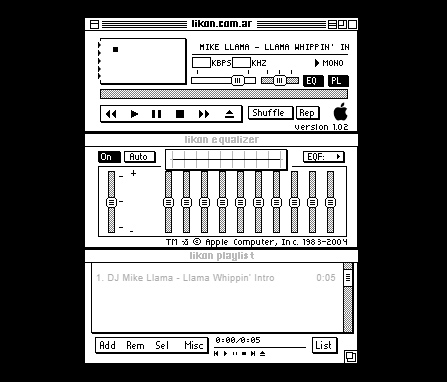
Old Mac OS Skin

Old MacOS

These days Winamp has quite a bit of nostalgic value to it. Like we’ve already said, there are now many other options out there for listening to music in many different formats. We don’t even have to download music onto our devices anymore. We still use Winamp though, for one reason or the other, with it definitely having a nostalgic feeling to add to it too. Well, how about this black and white original Mac-style Winamp skin to add to that nostalgic feeling?

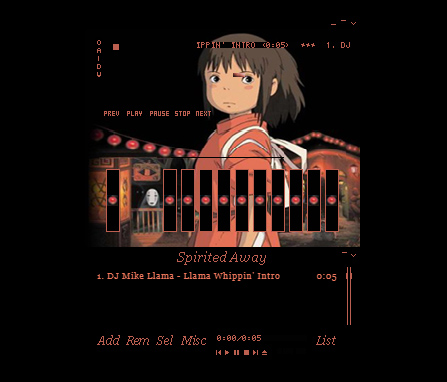
Anime Winamp Skin

There are a lot of different Anime themed Winamp skins out there. This one from the classic movie Spirited Away. It is sleek and simple with a bold red on a black color scheme and a cool image to go with it.

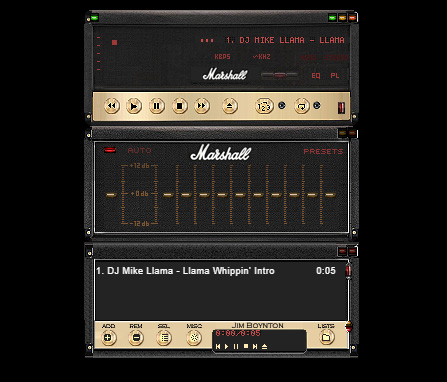
Marshall Skin

Marshall skin

This Winamp skin is so cool. It basically turns your Winamp controller into an epic Marshall amp, just like you’ve seen on stage at some of the world’s biggest rock concerts. If you’re listening to anything with a guitar solo of more than a minute, this is the skin you need.

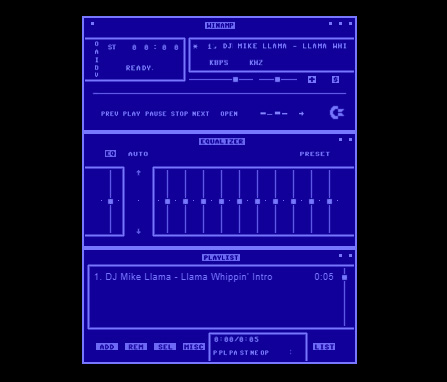
Commodore 64 Skin

Commodore 64 skin

This 64-bit skin is one of our favorites. It takes us back to the days when video games came on cassette tapes and you’d have to turn the tape over halfway through a load screen. This is nostalgic to the max and, with cyberpunk minimalism being very much on-trend, it looks great too and will definitely get people’s attention.

The Hustler Skin

The Hustler

This Winamp skin is just funny. It takes that classic image of the dog’s playing pool and turns it into a Winamp skin complete with pool balls as equalizer knobs so you can rearrange how the game is going by playing with the levels.

Wonder Woman Skin

Wonder Woman

Some people turn Winamp into what is essentially a poster that plays music. There are plenty of movie posters out there that people have turned into Winamp skins, but we’ve seen more Wonder Woman skins than any other movie. This is our favorite.

Super Mario Land Skin

Super Mario Land

This Super Mario Land skin is very cool indeed and is more than just a flat image. It depicts a number of different game worlds and houses the control buttons in the question mark chance cubes you find all over Super Mario World. The coolest bit, however, is the equalizer, which is series of Mario’s famous pipes with Piranha Plants sticking out. You mess around with them to change the levels of your music. It looks great.

Spiderman Skin

Spiderman skin

Another poster skin here. Although this is a basic skin with only minor button design, a main image, and a color scheme we still love it. The Spiderman image is as cool as they come. It’s almost like Winamp keeps pulling you back in with Spidey’s web. Just listen to one more tune…

Nucleo Skin

Nucleo Skin

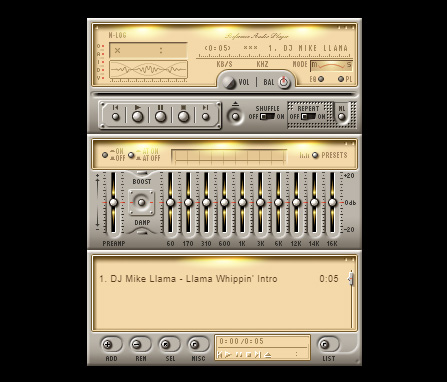
If you’ve ever seen or used an old school HAM radio, you’ll be familiar with the retro stylings of the Nucleo Winamp skin. Waveforms, KHZ, and analog buttons really make this skin stand out as a sleek and light offering.

Windows Media Player Skin

Windows Media Player skin

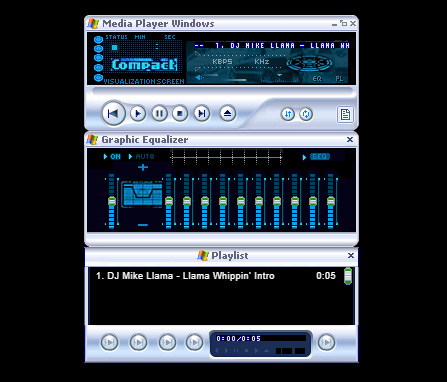
The old Windows Media Player was likely what you used to listen to your tunes on before you downloaded Winamp, which was able to play a lot more file types than Windows Media Player could handle. If the old girl had a style you liked though, don’t worry. You can simply download this skin, which will make Winamp look like Windows Media Player.

Windows Classic Skin

Windows Classic skin

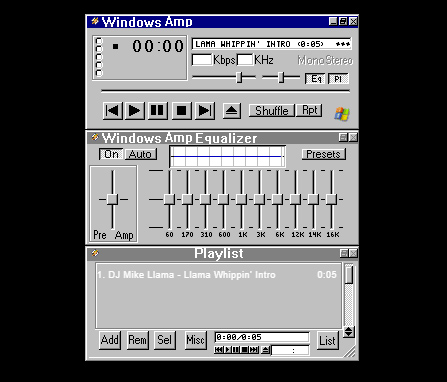
You wouldn’t believe how popular Windows 95 was. Back when Minesweeper and Solitaire were the only games you had on your PC was a happier time for many people as Windows 95 nostalgia is a real thing. This Winamp skin looks like a classic Windows from back in the day, complete with the solid greys and blues that made Windows 95 what it was.

Winamp Classic Skin

Winamp classic

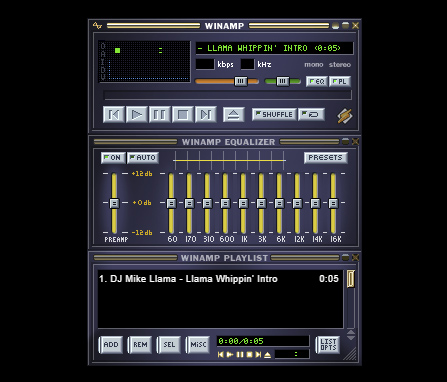
Why mess with perfection? The classic Winamp skin is pretty good, which means there isn’t really any need to change it in the first place. This is all about personal choice and tastes so have at it, if you wish.

Best Winamp Plugins

All the best Winamp plugins

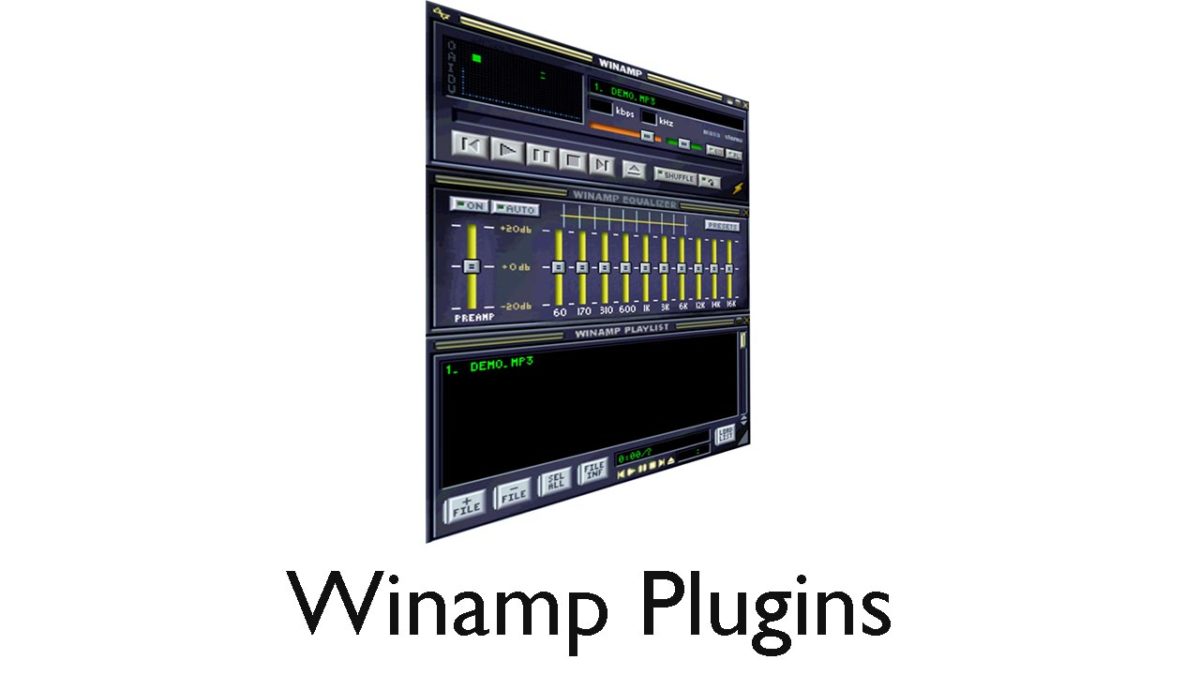
Winamp Plugins

At over 20 years old, the Winamp media player is a bit of a Windows institution. Famous for its scrolling text display, audio file versatility, retro visuals, customizable skins, and just being better than Windows Media Player; Winamp still has a lot to offer users even today. One of the reasons Winamp has been able to keep going through the decades is because of plugins. Winamp plugins allow you to add new features to your standard Winamp console.

As it’s been around for so long, understandably, there are a lot of Winamp skins to choose from offering all manner of new feature or tool to add to your Winamp setup. Let’s go though some of the best Winamp plugins then, so you don’t have to endlessly search on Google.

Winamp Download now
8

Free Winamp Plugins

Playlist File Remover

This a simple plugin that will automatically delete tracks from your playlists. Building your media library playlists can be a painstaking task and it can really drag you down, if it is a painstaking task also removing tracks you no longer want in your playlist. This plugin solves that problem.

Winamp Desktop Control Gadget

Winamp Desktop Control

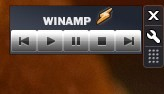
Another simple yet effective Winamp plugin here. Basically, this adds a Winamp control widget to your desktop. This means you play, pause, stop, and skip your tracks without having to maximize the Winamp window. This will free up your screen’s real estate for whatever else you might be doing at the time.

EQ Hotkeys

This is a great plugin that will make it much easier to play with the equalizer levers when you’re listening to music. With this plugin installed, you’ll be able to set hotkeys for the Winamp equalizer meaning you’ll be able to make adjustments simply by pressing certain buttons on your keyboard. Much easier and less fiddly than having to do it with your mouse.

Close to Notification Area

This plugin will close Winamp Audio Player to your Windows notification tray when you hit the close button. Normally, hitting close will shut down Winamp altogether so this plugin gives you an extra way of minimizing Winamp and even hiding it from the taskbar while still active.

Winamp Remote Control Gadget

Winamp Remote Control

This Winamp plugin is similar to the one above. The difference is that it also offers the scrolling text bar that Winamp is famous for. This means you’ll be able to see the name of the song and artist whenever you’re using it.

Vocal Remover Plugin

Go on, you know you want to. This plugin removes vocals from songs so that you and you alone can take center stage. Remove the vocals from your favorite songs and turn into the karaoke star you always knew you could be, at least while you’re at home anyway. This plugin isn’t flawless, however, and often you might still hear the vocals in the background, just very low, or other instruments might be taken out too.

Best Audacity plugins

Check out our list of the best Audacity plugins.

The best audacity plugins

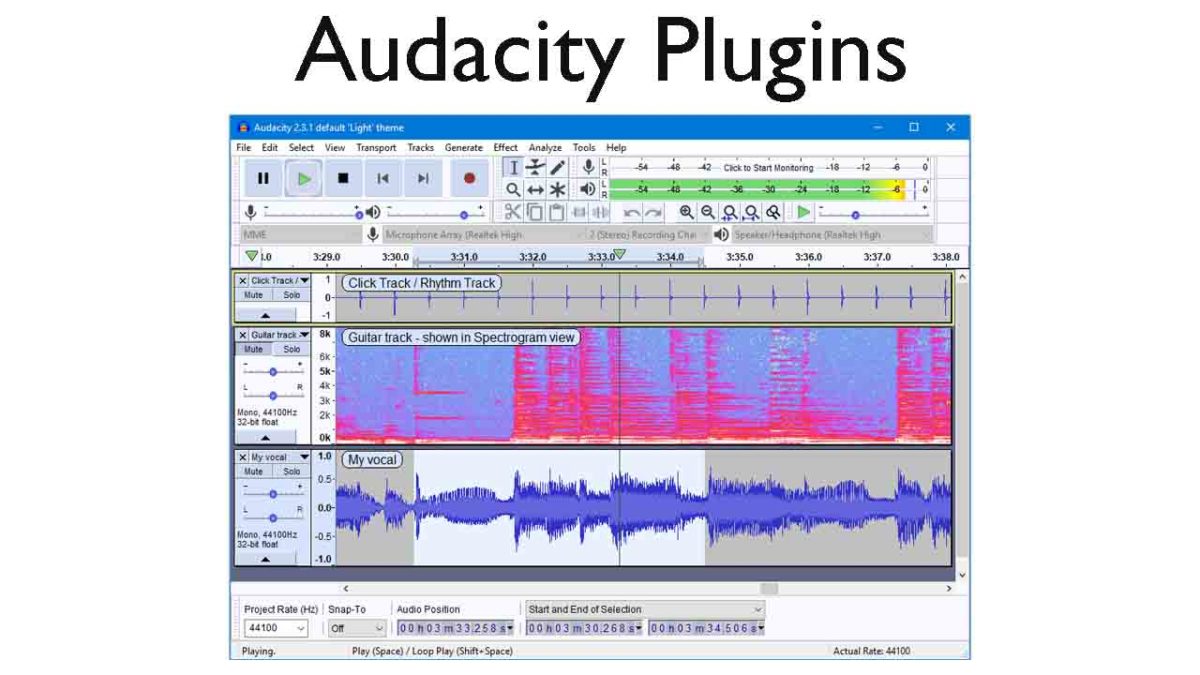
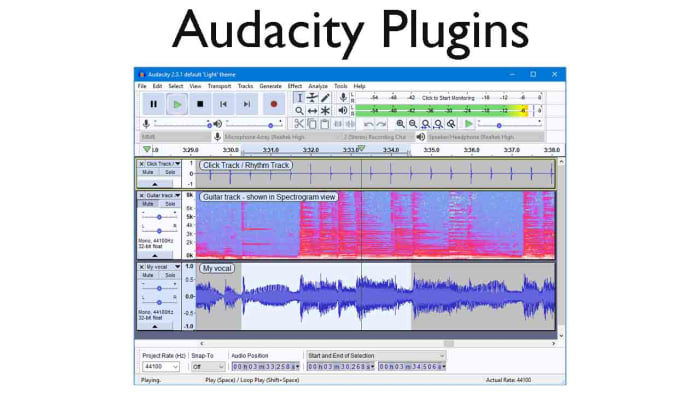
Audacity on Windows, Linux, and Mac OS X operating systems is an excellent open-source audio editor for anybody who needs to do pretty much any task relating to the audio. Audacity puts the power of a music producer recording studio right there in your bedroom and it is fair to say that many of the biggest tracks have been produced in bedrooms by aspiring producers and DJs just like you.

Audacity is a very well-made piece of music software that has been developed by and continues to be maintained by the audacity team, which is a group of volunteer developers all over the world. The nature of the Audacity software is why we’re here today. Its core functions mean it can help you create podcasts or produce tracks that can hit the top of the charts, it is that good. On its own, however, it can be and feel a little limited. This is OK though, as because it does the basics so well, other developers can build their own plugins that augment the music production process. This is what we’re going to look at today, an Audacity-files plug-in directory. These are the best Audacity plugins.

7

Best free plugins for Audacity

Audacity VST Enabler

VST effect plugins. This is where all Audacity plugin guides should start. The Audacity VST Enabler plugin manager allows users to take advantage of high-quality Visual Studio Technology (VST). Using VST plugins will give you the ability add all sorts of different recording studio like features to your setup. Think pianos, synthesizers, oscillators, and even guitar rigs or classical instrument inputs and samples and you’ll start to see just how much is possible with VST plugins for Audacity.

There is good news and bad news, however, when it comes to the Audacity VST Enabler. The bad news is that it has been removed from the official Audacity website. The good news is that it has been built-into Audacity itself. If you’ve recently installed Audacity, you already have it and can begin downloading VST plugins. If you installed Audacity a while ago or have an older version like v. 1.3, update Audacity and you’ll be ready to install VST plugins.

Djindrumm LM-1

Djinndrum

Now that we’ve cleared all that up, let’s get into some of the best VST plugins you can add to Audacity. Let’s go through VSTs that’ll help you create and enhance all the sounds you’d get from a band then add some creative powers to your setup too.

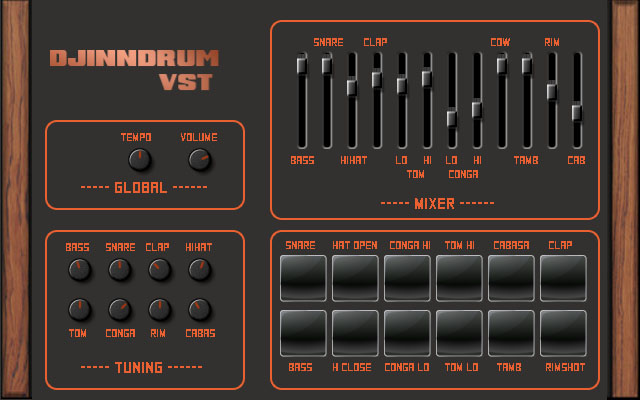
First off then, is the Djindrumm VST. The Djindrumm is a digital re-creation of the classic Linn LM-1 drum machine. The Linn has been a stalwart of rock and pop gods for years. Michael Jackson used one and so did Prince. Enough said. You can get the tools they used to make their hits with this free VST plugin for Audacity, which you also got for free. It really is a mad and crazy world we live in.

Piano One

Piano One

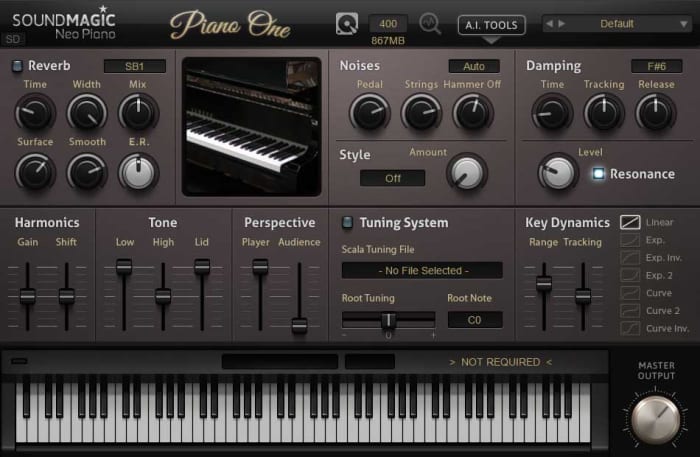
Many people think that Piano One is the best free acoustic piano VST plugin you can get your hands on. One of the main reasons for this is because the samples came from a Yamaha C7 Grand Piano, which would set you back about $75,000, if you bought one today. Yep, that’s right, you can get a free acoustic piano that sounds like a $75,000 piano. The free version of this VST isn’t feature rich, but it sounds incredible.

Acon Digital Multiply Chorus

Acon Chorus Multiplier

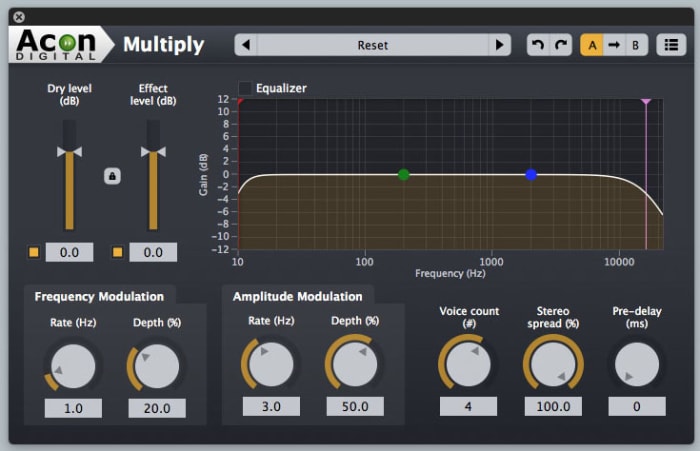
The Acon Digital Multiply Chorus plugin is great if you want to thicken out your sound and add a bit of depth to your tracks. It offers control over frequency and amplitude modulation and can add minute delays to your vocals. This effects VST is excellent if you’ve already laid down your track and you’re looking to add a little atmosphere and emotion to the sound. It is only a small console, but it can bring so much to your music.

Melda MAutoPitch Auto-Tune

Melada AutoTune

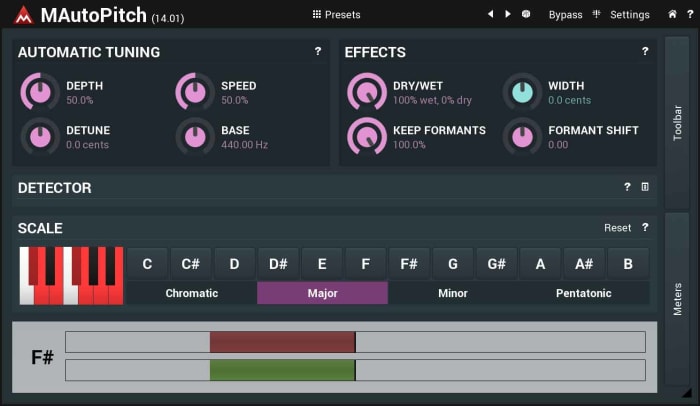
Auto-Tune processes sound and then shifts the pitch to the nearest true semitone. This makes it an invaluable tool for any vocal mixer. If you’re laying down vocals on your track, you need to an Auto-Tune plugin, and the Melda MAutoPitch is one of the best you can get for free. It will fix the pitch in your tracks, correct all the notes that aren’t quite right, and also give you the ability to distort the vocal tracks you’re putting into your songs.

VK-1 Viking Synthesizer

Viking VK-1

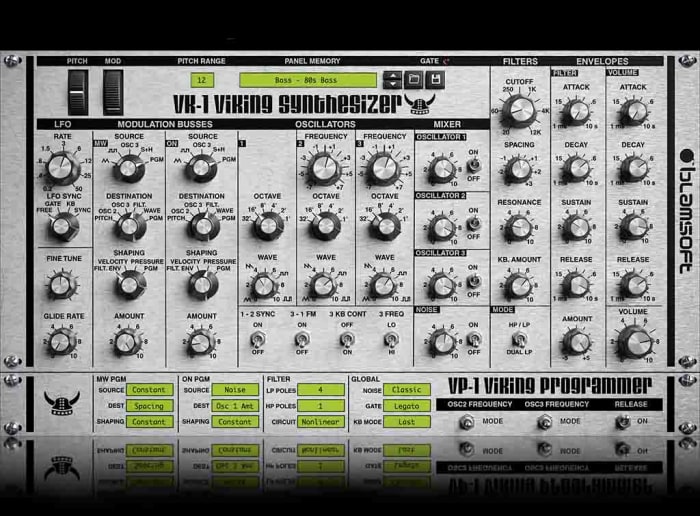
If you’re looking to bring some retro electronica into your music, you’re going to want a synthesizer. The VK-1 is a VST plugin emulation of an analog mono synthesizer that’ll bring some real power to your Audacity setup. It comes with oscillators, dual modulation channels and an all-round accurate recreation of a very retro sound. What’s even better about the VK-1 Viking is that it is paid as you like. If you’re just getting started and don’t have much money to invest in your setup you can get this for free or very little.

CamelCrusher

CamelCrusher

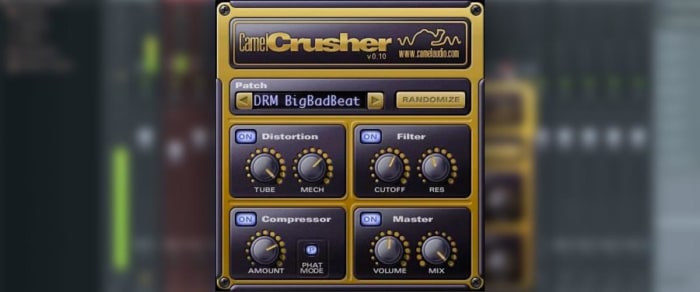
CamelCrusher adds distortion control, reverb, compression, and filtering to your Audacity toolkit, giving you powerful control over the sounds and beats you add to your tracks. As well as giving you the control, CamelCrusher also gives you a number of presets to add some instant oomph to your output while also giving you an idea of what the plugin is capable of. The CamelCrusher plugin is so good that Apple decided to acquire the developers that built it. Don’t worry though, you can still download CamelCrusher for free.

Guitar Rig 5

Guitar Rig

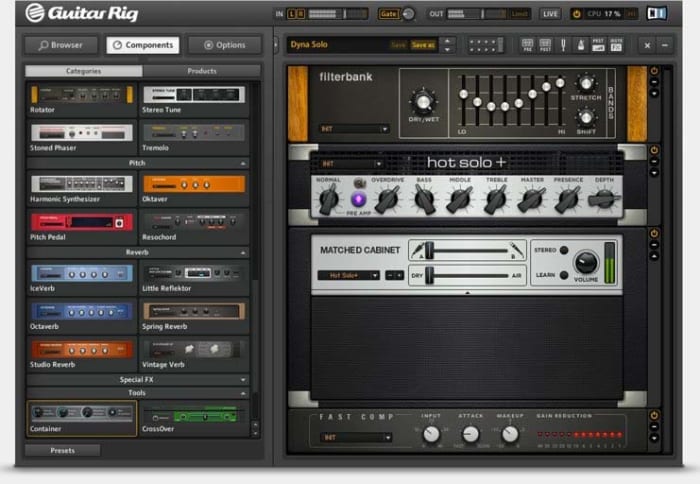
Guitar Rig from Native Instruments brings the power of the most epic of rock god recording studios right into your bedroom. With 17 different amps to choose from, 27 cabinets, and 54 effects this VST plugin gives you the power to really take control of the guitar tracks in your audio files. It can even manage effects like tone shaping, different mics, and even the positioning of your setup. This really is some next-level gear.

The best free music production software

These are all the essential programs a DJ needs to produce and play music.

Best audio editing software

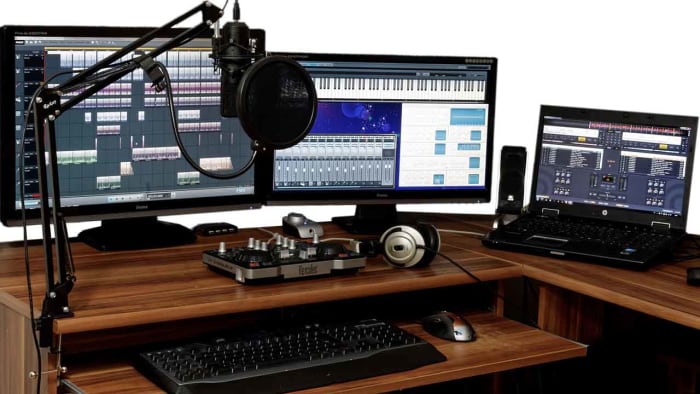
These days your laptop can turn you into a superstar. There are people out there who travel the world with nothing but their laptops, plug them into the sound systems wherever they end up, and then blast out concerts to thousands of fans. I am of course talking about superstar DJs.

The best DJs hunt out all the best music and then play right tracks at the exact right moment for the crowd to hear them . It sounds like an easy job, but it’s not. On top of that, if you want to become a superstar DJ who tours the world, there is something else you’ll have to master; music production. Unsurprisingly, a LOT of people want to be superstar DJs, which makes it very hard to stand out the crowd. The best way you prove yourself to be special, however, is by making your own songs to play in your own sets and for other DJs to play in theirs. Yep, music production is an integral part of the journey you take towards becoming an international superstar DJ. It’s time to become a music maker.

Music production software can come with a hefty price tag though, and if you’re just starting out, you might well baulk at the cost. This is where Softonic comes in. We’re here to start you on your path to stardom by walking you through some of the best free music production software options.

Free music making software

Audacity

Audacity

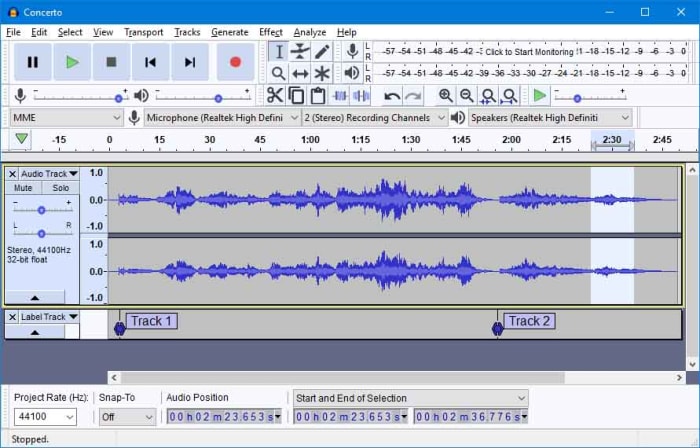
Audacity works on Windows, MacOS, and GNU/Linux and is a marvel of free music software. Like all the best pro-grade free programs, such as the image editor GIMP, Audacity is open source software, which means users and developers can add features to the main product or iron out any bugs they find.

Audacity has a lot of features that put it alongside some of the more expensive premium options out there. With Audacity you can easily perform live audio recording, record sounds coming from your PC, convert music, edit, cut, copy, and splice tracks of many different audio formats, and download and install plugins to add new features as and when you realize you need them. Audacity offers advanced audio editing software while, somewhat surprisingly, remaining very simple to use.

7

Mixxx

Mixxx

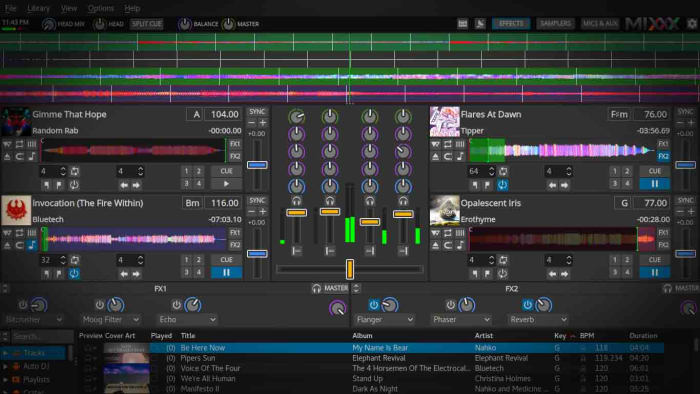
Mixxx is a fantastic piece of free software for all budding DJs. As the name suggests it is more for DJing and mixing than it is for producing music but it still an important tool for any new DJ to have. Another free and Open Source program, Mixxx is available on Windows and Mac OS X and has quite a few features that’ll make DJs happy. It integrates well with external DJ controller decks offering a complete digital audio workstation, has beats per minute (BPM) detection and auto-sync, and will even integrate with iTunes. You can broadcast your mixes live, save them as a variety audio formats or simply blast them out of your speakers for people to dance to. Mixxx is a lot of fun.

Mixxx Download now
8

LMMS

LMMS

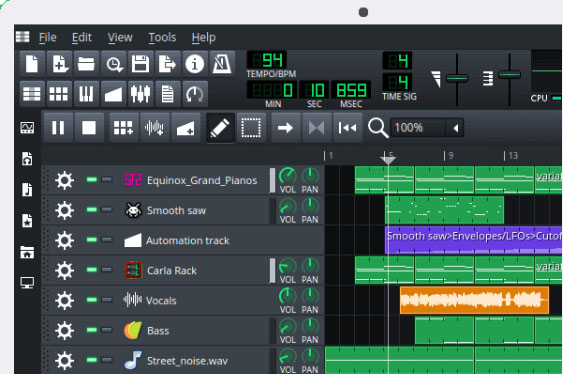
Another advanced, cross-platform, and free open-source audio production suite you can download on Windows, Mac, or Linux is LMMS. It comes with a lot of cool features that will have you creating beats in no time like a built-in Piano roll that you can connect to a MIDI controller, 64 FX mixing channels, and a specific beat and bassline editor.

LMMS loosely stands for Let’s Make Music and that is exactly what the program is designed to do, help you make music. The program works well with external instruments and samples, and, like Audacity, has a lot of plugins you can use to augment your music production experience. You won’t be able to believe that this program is free when you download it.

7

MuLab DAW

MuLab

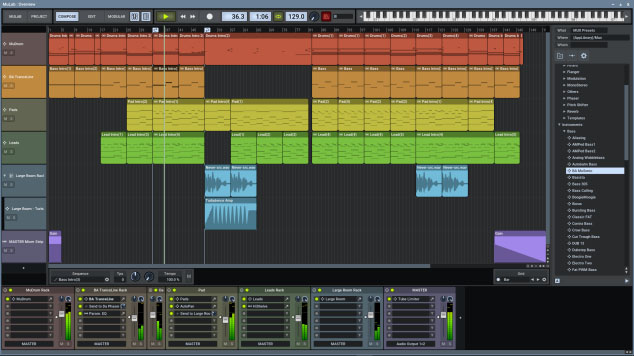
MuLab is chock full of high-end audio production and editing tools that will help you get that song you’re coming up with out of your head and into your speakers. Looking at a bit like Ableton Live and available on Windows and Mac, Mulab is a fantastic music creation program. It has over 300 selected waveforms with its superfast oscillators, multi-track support, flexible track and sub-track support, an easy to use and understand modular architecture, and automatic mono/stereo handling.

The features we’ve outlined above only cover a small portion of those offered by the free version of Mulab, which will give users access to professional-level music production facilities. With lots more features like synthesizer support, MIDI player plugin support, and even a synth effect builder this program has it all. Download it now to see just how much it has to offer.

MuLab Download now
8

GarageBand

GarageBand

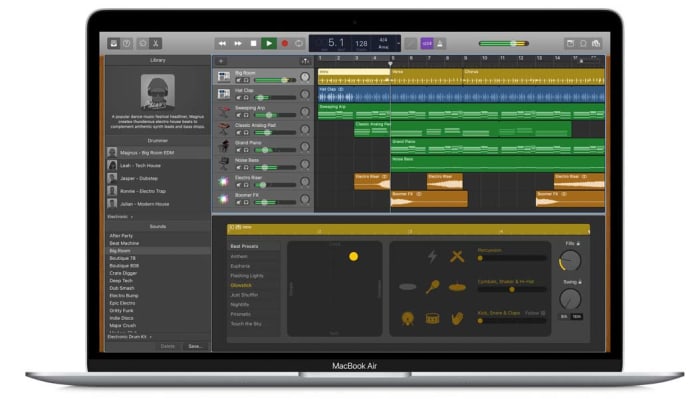
GarageBand for Mac has some really incredible pro tools that you just wouldn’t expect a corporate giant like Apple to give away for free. Many famous artists like Rihanna and Justice have created massive global hits using GarageBand, so if you have a Mac, this could be the best option for you.

GarageBand gives you the ability to create songs with up to 255 audio tracks and offers very well produced drum machine grooves to add to your songs and give them a beat. Other cool features include multi-take recording so that you always end up saving your best take and Multi-Touch support on iPad, which makes it possible to wirelessly play GarageBand virtual instruments on your Mac. This is the most user-friendly app on our list too.

GarageBand Download now
7
Wrapping up

We’ve brought you five essential apps for all budding young DJs and music producers. If you want to make a name for yourself, you’re going to have to make yourself stand out and there is no better way to do that than making your own music and having other DJs play it at their parties.

All of the programs we’ve featured today offer complete experiences that rival that offered by the premium music production apps that cost many hundreds of dollars each. With most of these apps, however, there is a steep learning curve so you should take that into account if you’re just getting started. There’s no point having massive and fully-featured music production suites on your PC, Mac, or Linux, if you don’t know how to use them. Many of these apps come with extensive online forum support so check out the forums for user guides. You’ll also be able to find extensive support on YouTube too.

Best audio editing apps for Android

These are all the best audio editing apps available on Android smartphone

Best audio editing tools for Android

Modern phones have modern apps that can do things that just 10 years ago you’d never have imagined a phone could do.  You can now live a complete modern life without having to own a Windows PC or an Apple Mac. With smartphones becoming more and more powerful, apps can do more and more things. There are credible mobile image editing apps; you can edit video on your phone; and you can even run a complete office with productivity apps, calendars, and to-do lists, social media managing apps, and a plethora of team communication apps.
Today, we’re going to look at all the best audio editing apps you can get for your Android smartphone. With these apps, you’ll be able to produce your own music, remix your favorite classic track, make your own ringtones, or simply stitch together some audio clips into a coherent podcast. Without further ado then, these are the best audio editors and audio recorders for Android.

The best audio editing apps for Android

MP3 Cutter

MP3 Cutter

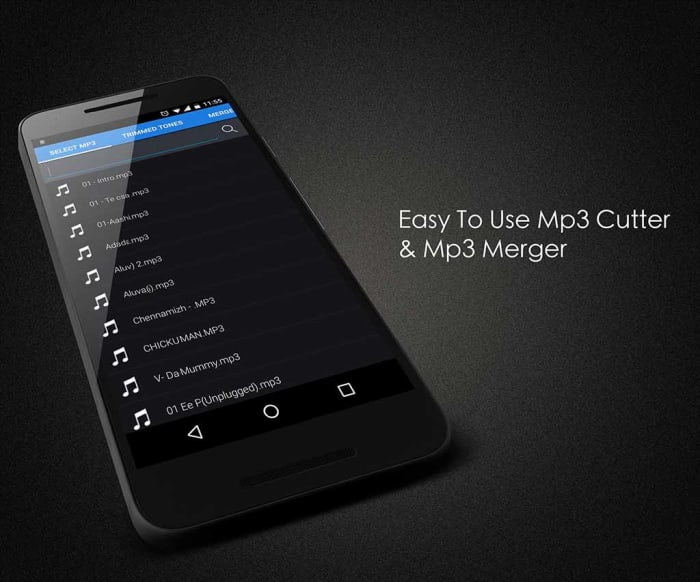
We’re starting off with a great app for stitching together your podcasts or for other basic audio editing jobs. MP3 Cutter makes it easy for you to trim your audio tracks, splice them, cut them and put them all back together again in whichever order you see fit. It works great with voice tracks as well as music. You’ll also be able to save your completed audio tracks in various file formats and even set them as your ringtone from within the app.

MP3 Cutter is a free app, paid for by ads. It does, however, offer an in-app purchase costing $1.99 that will remove all the ads.

MP3 Cutter Download now
7

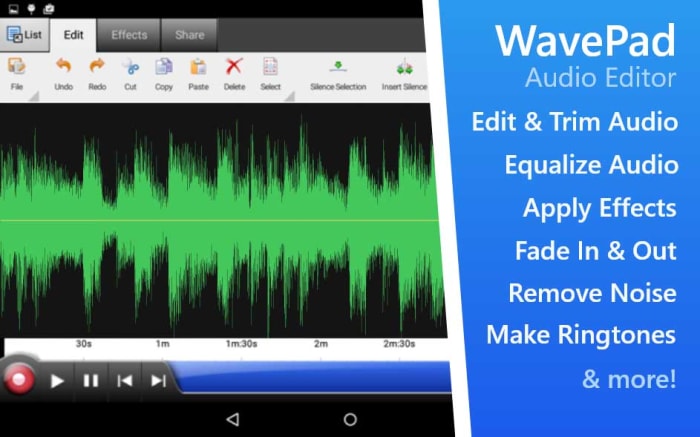
WavePad Audio Editor

WavePad Audio Editor

Another free audio editing app for Android is the WavePad Audio Editor. WavePad is a great editor for amateurs and professionals alike giving users the ability to stitch together many different types of audio files and then save them as a single format. You can use WavePad to record your sounds, add sound effects, and then save to the format of your choice. The app also has good sharing features, which will be good for anybody needing to submit their work or upload it to a third-party website.

WavePad is a free app but you’ll need to pay to access some premium features.

WavePad Editor Download now
8

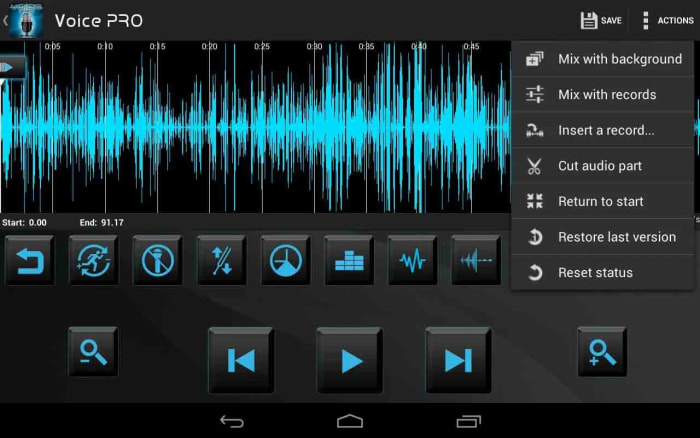
Voice Pro

Voice Pro

Voice Pro is another excellent app that gives you access to high-quality audio recording features. Voice Pro users will get their hands on a lot of audio editing tools including background music tracks, audio encryption, up to 100 different audio formats to save your work as, and solid mixing capabilities. Voice Pro doesn’t just record audio either, it also has a transcription feature, but we’ve found it doesn’t work as well as some other transcription apps.

Although Voice Pro is one of the most feature-rich apps on our list, unfortunately, it comes with a price tag to match. To get your hands on this professional audio editing and voice recording app will set you back $9.99.

Voice Pro Download now
8

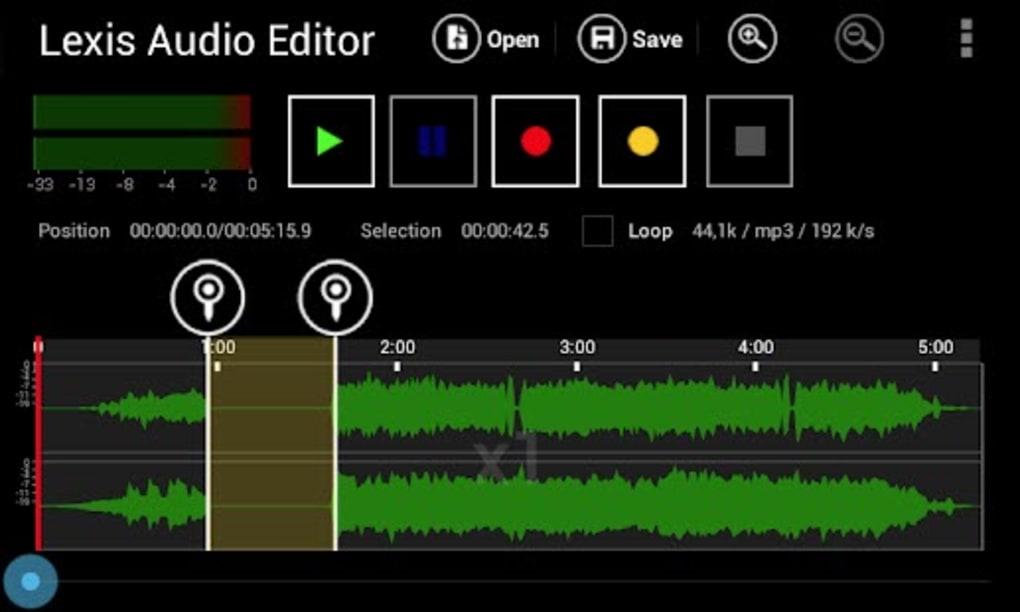
Lexis Audio Editor

Lexis Audio Editor

Lexis offers audio editing software available on Windows, Google Android, and iOS iPhone and iPad. The Android app offers some great audio editing capabilities and a nice user-friendly interface. This is a great app for beginners but also has plenty of tools to get more complex jobs done too. Lexis allows you to record quickly and simply, and then perform many editing tasks on your track. It has noise reduction features, tempo change, speed and pitch control, and many other useful features like normalizing and fades.

Lexis Audio Editor Download now
8

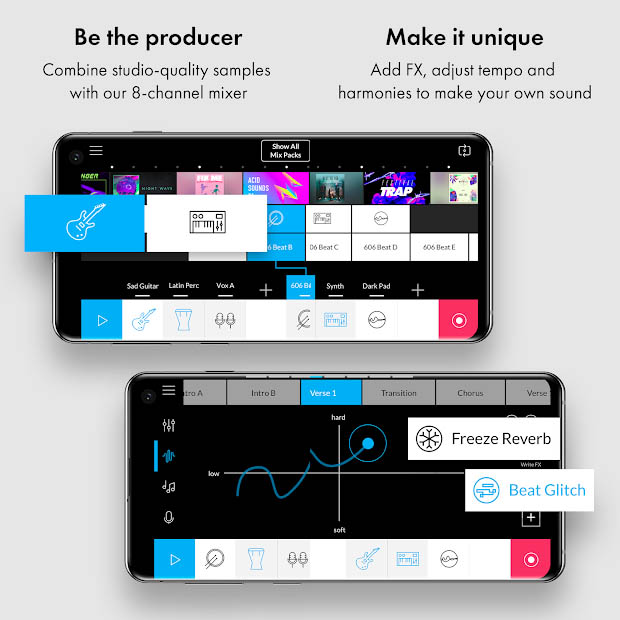
Music Maker Jam

Music Maker Jam

Music Maker Jam is another app that is available on Windows as well as having mobile apps for both iPhone and Android. As the name suggests, this app is a music editor much more geared towards producing music files as opposed to podcasts or interviews. The app gives eight multitrack channels for you to build your track with and offers many different sample sounds and instrument tracks for you to include in your hits.

Again, like with most of the other free apps in this list, Music Maker Jam hides some features behind in-app purchases and will show ads to all free users.

Music Maker Jam Download now
8

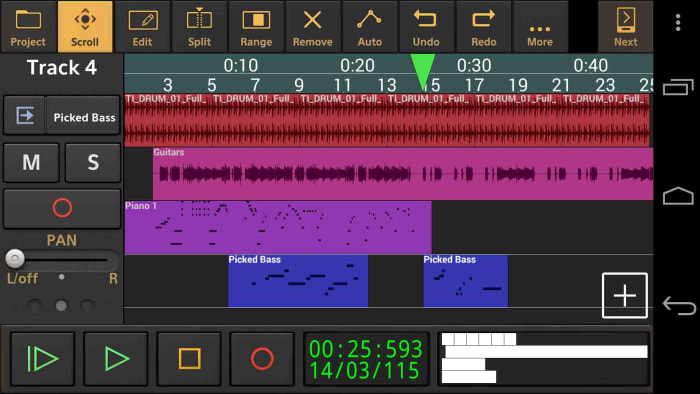
Audio Evolution Mobile Studio

Despite how amazing our smartphones are these days they still offer a certain handicap over a full-sized laptop or Mac. That handicap is the size as it can be a lot fiddlier and frustrating trying to edit or control your audio tracks on a tiny screen. This is where Audio Evolution Mobile Studio comes in for Android users. It supports over 250 USB audio/MIDI interfaces meaning a DJ could take their midi controller with them and then DJ full gigs from their Android phone or tablet, knowing they’d be able to do everything they could on their laptop or Mac. It is also a great app recording audio on an Android device and will also help you edit audio files. It offers most of the features you can find elsewhere on this list. This app should definitely be taken seriously.

Audio Evolution Mobile Studio is a free app, but some of the more advanced features will require in-app purchases.

Audio Evolution Mobile Studio Download now
8

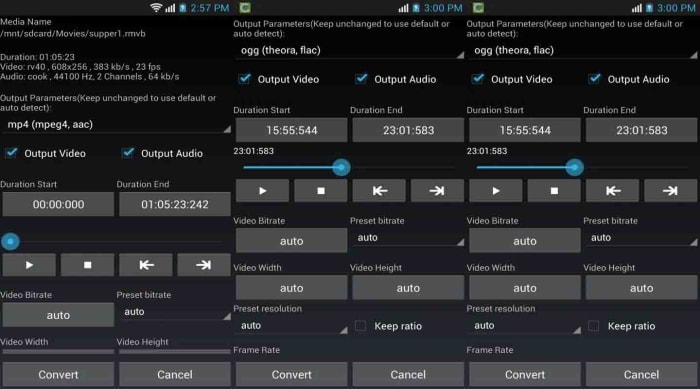
Media Converter

Media Converter

The final app on today’s list strips away all the bells and whistles you get with the more advanced apps featured above. Sometimes you don’t need to edit your tracks, trim them, splice them together, or fade in or out to a tempo change. Sometimes you don’t even need to stitch two different tracks together and you just need a simple app for a simple task. That is exactly what Media Converter is. If all you need to do is convert your audio file to upload it to a certain social network, website, or audio player then Media Converter is the app for you. It still has simple audio clipping features, but the main feature is converting your media files into various formats. It can also save your audio files as ringtones making it a great ringtone maker, which is probably the main reason you wanted to read this article anyway.

Media Converter is a free app.

Media Converter Download now
9