Best Winamp Plugins

All the best Winamp plugins

Winamp Plugins

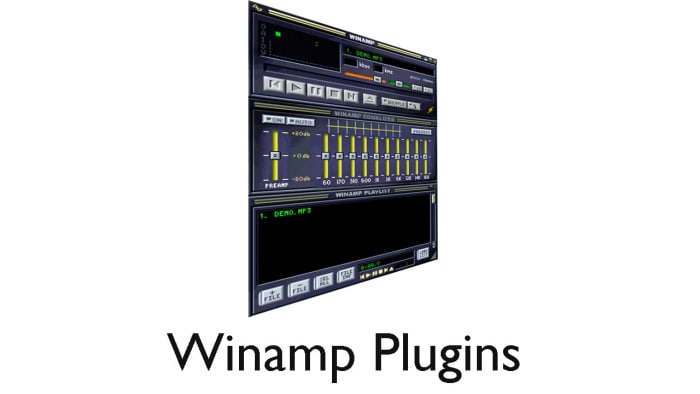
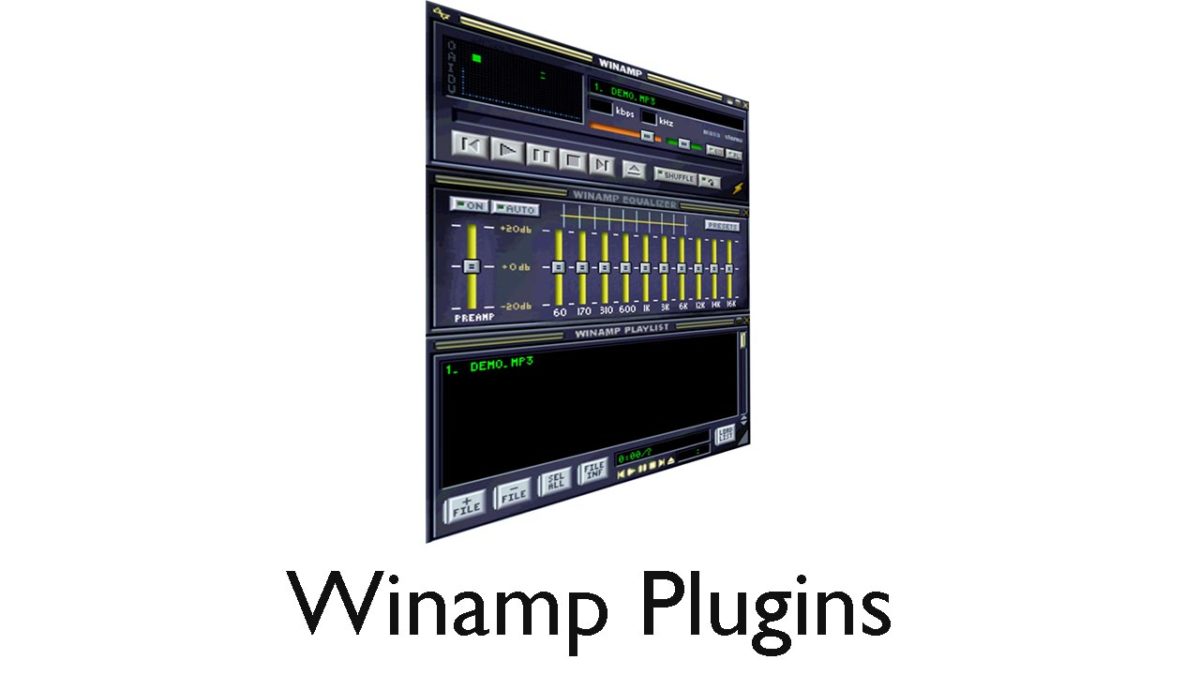
At over 20 years old, the Winamp media player is a bit of a Windows institution. Famous for its scrolling text display, audio file versatility, retro visuals, customizable skins, and just being better than Windows Media Player; Winamp still has a lot to offer users even today. One of the reasons Winamp has been able to keep going through the decades is because of plugins. Winamp plugins allow you to add new features to your standard Winamp console.

As it’s been around for so long, understandably, there are a lot of Winamp skins to choose from offering all manner of new feature or tool to add to your Winamp setup. Let’s go though some of the best Winamp plugins then, so you don’t have to endlessly search on Google.

Winamp Download now
8

Free Winamp Plugins

Playlist File Remover

This a simple plugin that will automatically delete tracks from your playlists. Building your media library playlists can be a painstaking task and it can really drag you down, if it is a painstaking task also removing tracks you no longer want in your playlist. This plugin solves that problem.

Winamp Desktop Control Gadget

Winamp Desktop Control

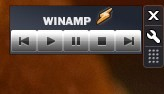
Another simple yet effective Winamp plugin here. Basically, this adds a Winamp control widget to your desktop. This means you play, pause, stop, and skip your tracks without having to maximize the Winamp window. This will free up your screen’s real estate for whatever else you might be doing at the time.

EQ Hotkeys

This is a great plugin that will make it much easier to play with the equalizer levers when you’re listening to music. With this plugin installed, you’ll be able to set hotkeys for the Winamp equalizer meaning you’ll be able to make adjustments simply by pressing certain buttons on your keyboard. Much easier and less fiddly than having to do it with your mouse.

Close to Notification Area

This plugin will close Winamp Audio Player to your Windows notification tray when you hit the close button. Normally, hitting close will shut down Winamp altogether so this plugin gives you an extra way of minimizing Winamp and even hiding it from the taskbar while still active.

Winamp Remote Control Gadget

Winamp Remote Control

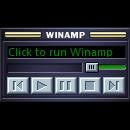
This Winamp plugin is similar to the one above. The difference is that it also offers the scrolling text bar that Winamp is famous for. This means you’ll be able to see the name of the song and artist whenever you’re using it.

Vocal Remover Plugin

Go on, you know you want to. This plugin removes vocals from songs so that you and you alone can take center stage. Remove the vocals from your favorite songs and turn into the karaoke star you always knew you could be, at least while you’re at home anyway. This plugin isn’t flawless, however, and often you might still hear the vocals in the background, just very low, or other instruments might be taken out too.

Best audio editing apps for Android

These are all the best audio editing apps available on Android smartphone
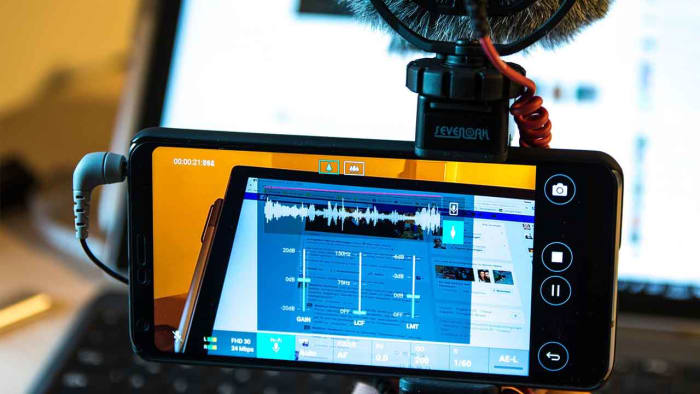
Best audio editing tools for Android

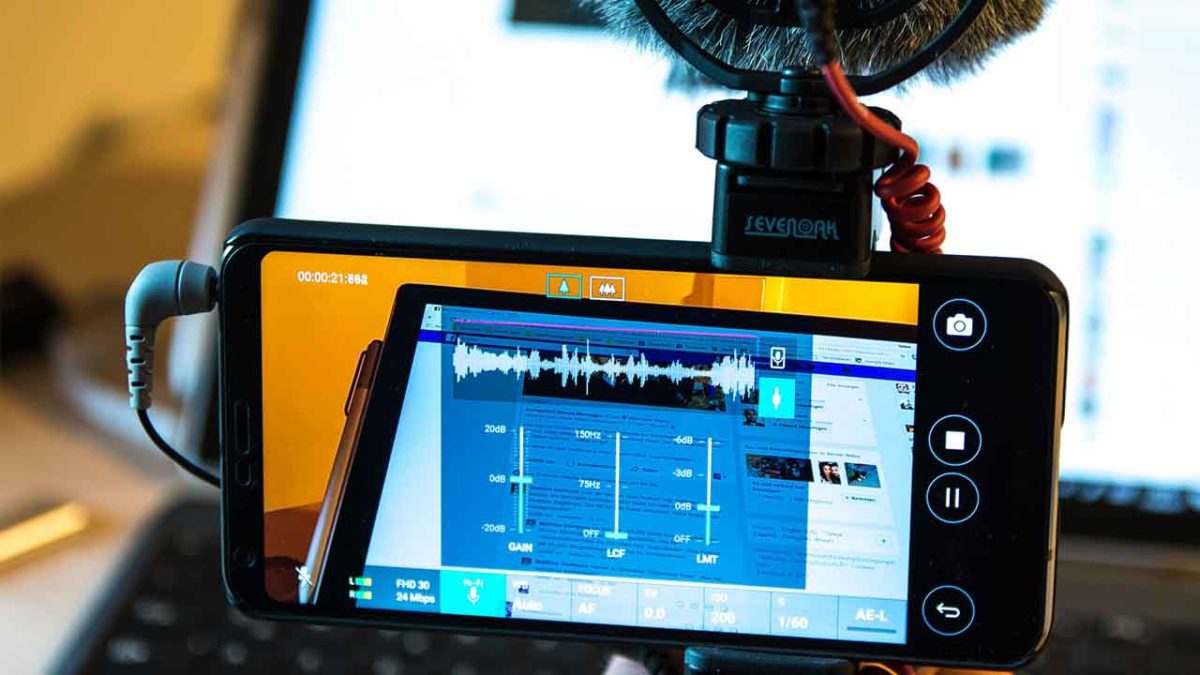
Modern phones have modern apps that can do things that just 10 years ago you’d never have imagined a phone could do.  You can now live a complete modern life without having to own a Windows PC or an Apple Mac. With smartphones becoming more and more powerful, apps can do more and more things. There are credible mobile image editing apps; you can edit video on your phone; and you can even run a complete office with productivity apps, calendars, and to-do lists, social media managing apps, and a plethora of team communication apps.

Today, we’re going to look at all the best audio editing apps you can get for your Android smartphone. With these apps, you’ll be able to produce your own music, remix your favorite classic track, make your own ringtones, or simply stitch together some audio clips into a coherent podcast. Without further ado then, these are the best audio editors and audio recorders for Android.

The best audio editing apps for Android
MP3 Cutter

MP3 Cutter

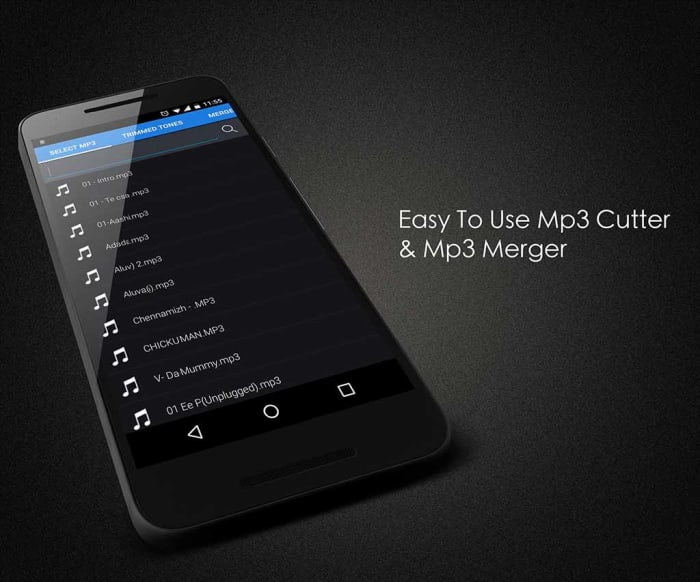
We’re starting off with a great app for stitching together your podcasts or for other basic audio editing jobs. MP3 Cutter makes it easy for you to trim your audio tracks, splice them, cut them and put them all back together again in whichever order you see fit. It works great with voice tracks as well as music. You’ll also be able to save your completed audio tracks in various file formats and even set them as your ringtone from within the app.

MP3 Cutter is a free app, paid for by ads. It does, however, offer an in-app purchase costing $1.99 that will remove all the ads.
MP3 Cutter Download now
7

WavePad Audio Editor

WavePad Audio Editor

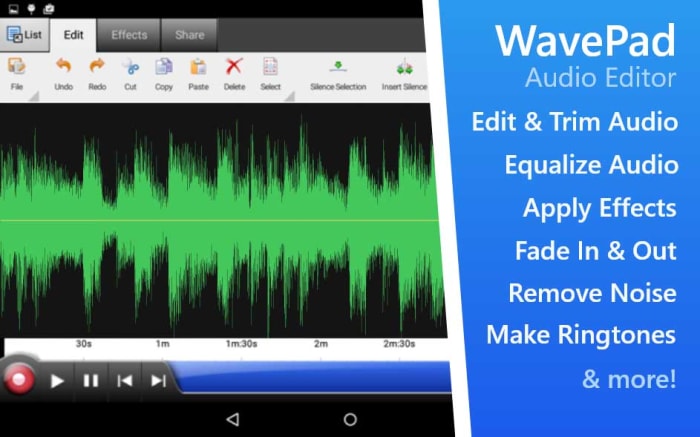
Another free audio editing app for Android is the WavePad Audio Editor. WavePad is a great editor for amateurs and professionals alike giving users the ability to stitch together many different types of audio files and then save them as a single format. You can use WavePad to record your sounds, add sound effects, and then save to the format of your choice. The app also has good sharing features, which will be good for anybody needing to submit their work or upload it to a third-party website.

WavePad is a free app but you’ll need to pay to access some premium features.
WavePad Editor Download now
8

Voice Pro

Voice Pro

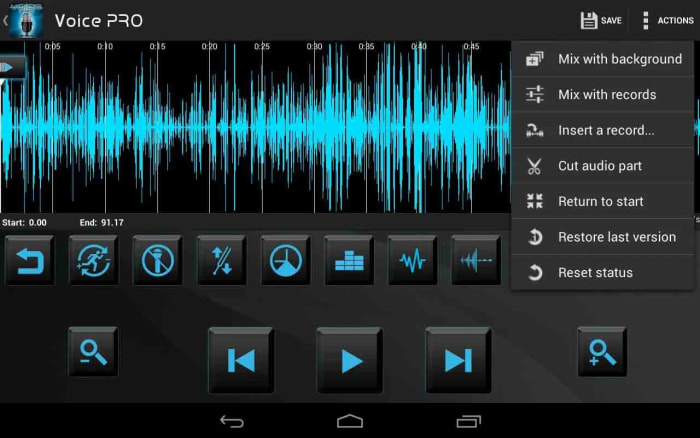
Voice Pro is another excellent app that gives you access to high-quality audio recording features. Voice Pro users will get their hands on a lot of audio editing tools including background music tracks, audio encryption, up to 100 different audio formats to save your work as, and solid mixing capabilities. Voice Pro doesn’t just record audio either, it also has a transcription feature, but we’ve found it doesn’t work as well as some other transcription apps.

Although Voice Pro is one of the most feature-rich apps on our list, unfortunately, it comes with a price tag to match. To get your hands on this professional audio editing and voice recording app will set you back $9.99.
Voice Pro Download now
8

Lexis Audio Editor

Lexis Audio Editor

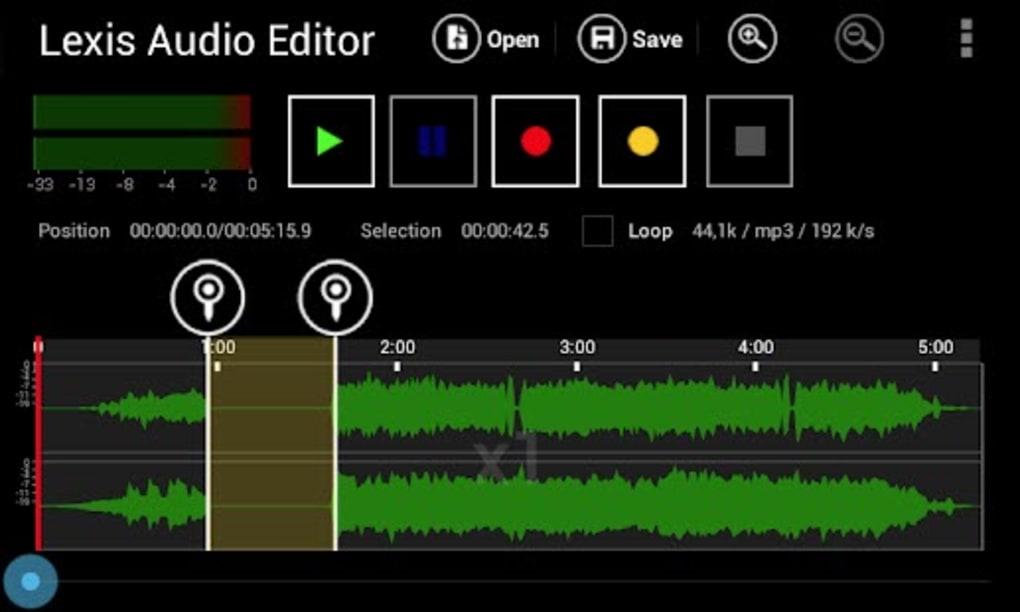
Lexis offers audio editing software available on Windows, Google Android, and iOS iPhone and iPad. The Android app offers some great audio editing capabilities and a nice user-friendly interface. This is a great app for beginners but also has plenty of tools to get more complex jobs done too. Lexis allows you to record quickly and simply, and then perform many editing tasks on your track. It has noise reduction features, tempo change, speed and pitch control, and many other useful features like normalizing and fades.
Lexis Audio Editor Download now
8

Music Maker Jam

Music Maker Jam

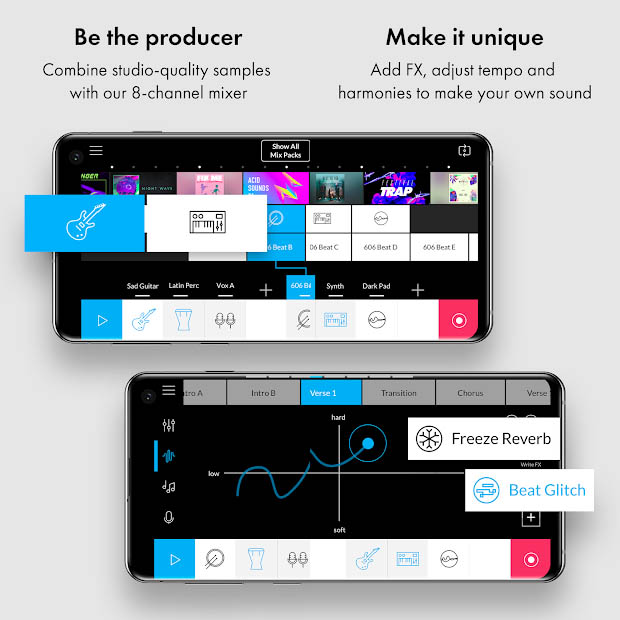
Music Maker Jam is another app that is available on Windows as well as having mobile apps for both iPhone and Android. As the name suggests, this app is a music editor much more geared towards producing music files as opposed to podcasts or interviews. The app gives eight multitrack channels for you to build your track with and offers many different sample sounds and instrument tracks for you to include in your hits.

Again, like with most of the other free apps in this list, Music Maker Jam hides some features behind in-app purchases and will show ads to all free users.
Music Maker Jam Download now
8

Audio Evolution Mobile Studio

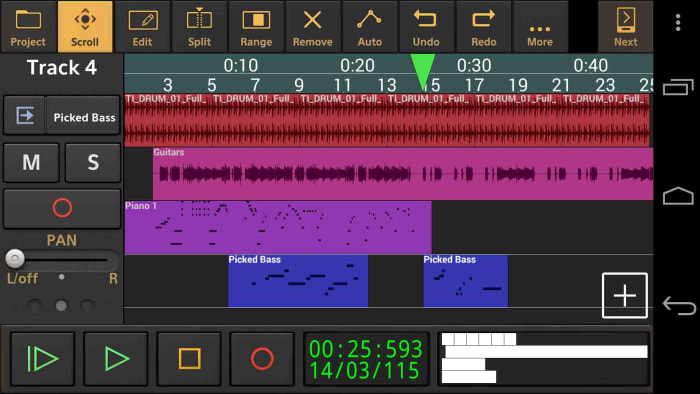
Despite how amazing our smartphones are these days they still offer a certain handicap over a full-sized laptop or Mac. That handicap is the size as it can be a lot fiddlier and frustrating trying to edit or control your audio tracks on a tiny screen. This is where Audio Evolution Mobile Studio comes in for Android users. It supports over 250 USB audio/MIDI interfaces meaning a DJ could take their midi controller with them and then DJ full gigs from their Android phone or tablet, knowing they’d be able to do everything they could on their laptop or Mac. It is also a great app recording audio on an Android device and will also help you edit audio files. It offers most of the features you can find elsewhere on this list. This app should definitely be taken seriously.

Audio Evolution Mobile Studio is a free app, but some of the more advanced features will require in-app purchases.
Audio Evolution Mobile Studio Download now
8

Media Converter

Media Converter

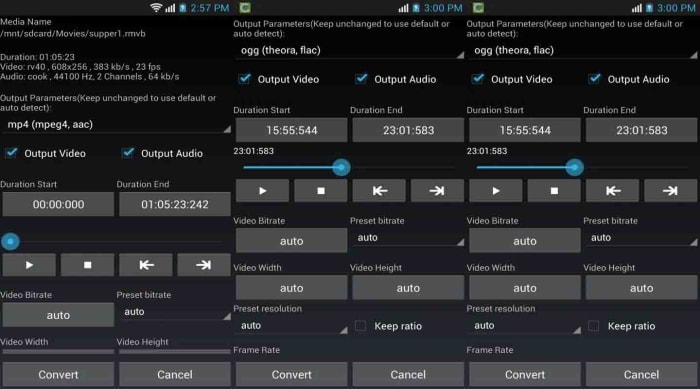
The final app on today’s list strips away all the bells and whistles you get with the more advanced apps featured above. Sometimes you don’t need to edit your tracks, trim them, splice them together, or fade in or out to a tempo change. Sometimes you don’t even need to stitch two different tracks together and you just need a simple app for a simple task. That is exactly what Media Converter is. If all you need to do is convert your audio file to upload it to a certain social network, website, or audio player then Media Converter is the app for you. It still has simple audio clipping features, but the main feature is converting your media files into various formats. It can also save your audio files as ringtones making it a great ringtone maker, which is probably the main reason you wanted to read this article anyway.

Media Converter is a free app.
Media Converter Download now
9

How to use VLC

VLC is the premier free tool for all of your audio and video files! Here’s how to use it!

VLC

No, that traffic cone on your buddy’s desktop doesn’t mean his computer is under construction.

It means that your friend is using VLC, the best free tool for playing and capturing video! 

VLC plays most media files as well as DVDs, CDs, VCDs, and many streaming protocols. This tool really comes in handy. More often than naught, your device’s default video player is less than optimal. Once the program finally opens, you have to wait for it to load the video, and then play it. This only works if your video player can even play video in that format in the first place. VLC can play just about anything, and it does so quicker than most other apps. 

VLC for mobile Download now ►
8

How to use VLC

Use VLC to play audio/video files

VLC open file

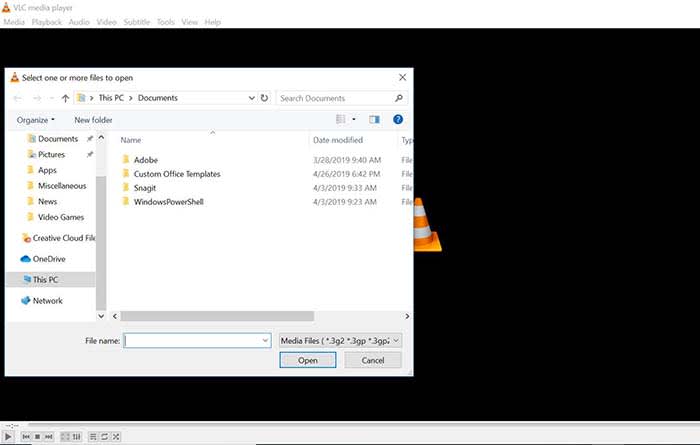
Playing a file with VLC is a lot like opening a photo in Photoshop. Either manually open the file by going to Media, and clicking Open File, or drag just drag the file onto the VLC window.

Keep a library of videos

VLC
Image courtesy of VLC

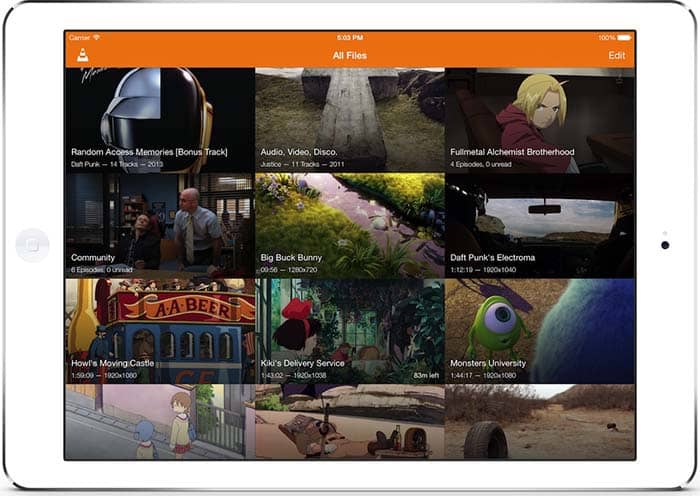
If you watch multiple videos on VLC, you have the option to keep a library of them to finger through at your leisure. Once you have several files loaded into VLC, you can organize them under All Files. Do you have a huge collection of anime? Organize them with VLC! Do you have a digital version of every movie in the MCU? Create a specialized folder for them!

Stream yourself

If you want to take a picture of yourself or record a video of yourself with a webcam, your device probably already has some built-in tools. However, it probably doesn’t have tools that help you stream yourself.

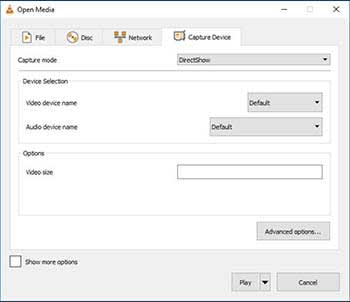
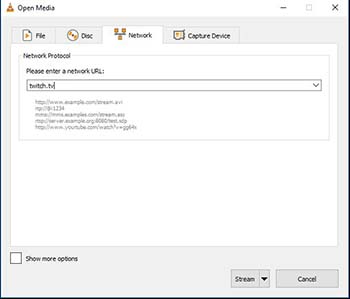
Go to Media and click Open Capture Device. Choose your preferred settings from here, and click the play button to start recording yourself. If you want to stream yourself, Go to Media and click Stream. A new window will pop up with streaming options.

VLC stream

You can even throw in a URL to the website you will be streaming to.

VLC stream

Record your desktop

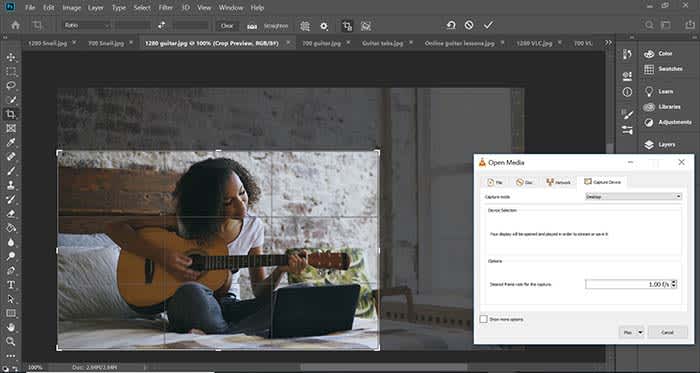
Capture photoshop tutorialLet’s say you’re a content creator and you need to record your desktop. VLC has the answer. Go to Media and click Open Capture Device. Now you can record your desktop and do it in whatever FPS rate your computer can muster.
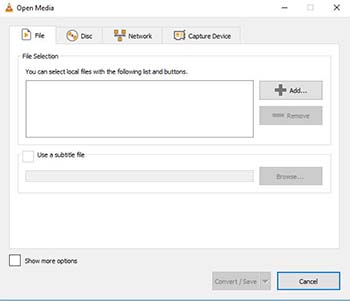

All of a sudden, you have an option for recording your next “let’s play” or that Photoshop tutorial you were making for your YouTube channel.

Convert files

VLC convert

If you have an old video or music file that is in some weird format, you can actually change the format with VLC. Click on Media and choose Convert/Save. From here, you can add files and change their format with the option at the bottom of the window. Finally, those weird videos from high school that you recorded with an off-brand video recorder can be converted to MP4. Sure, you might’ve wanted that cringey video you made for a class to die, but now you can share the video with them on Facebook!

Edit audio/video files

VLC edit

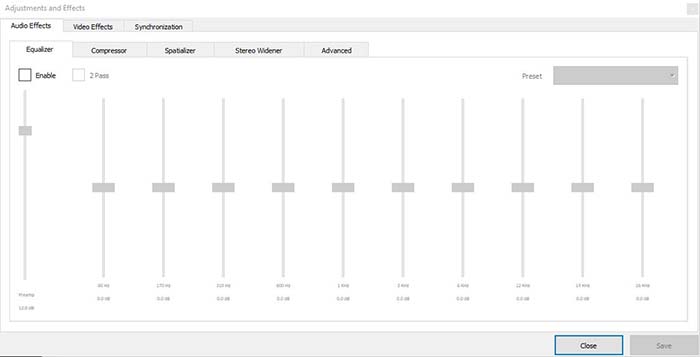
Ever take notes in class, but you can’t hear them because of background noise? Have you ever recorded a video of your friend, but it turned out too dark? VLC has tools to fix these issues and more! Go to Tools, and from there click on Effects and Filters. Here, you can edit audio and video files to make them as you see fit.

A quick note on the legality

VLC is meant to be used for audio and video files you legally own. It is not meant to be used for movies you illegally download or torrent from piracy sites. Also, the capture mode should not be used to rip videos from other sites.

Wrapping up

If you have a huge collection of video files that you want to watch/catalog, VLC is your best option. If you are looking for an easy to use program for streaming yourself, and recording your desktop, VLC is your best option yet again! It’s free to use, and a quick download. Basically, there’s no reason why you shouldn’t download it!

VLC for mobile Download now ►
8

34 handy keyboard shortcuts for Audacity

Edit audio like a pro for free with these Audacity shortcuts!

Audacity

If you’ve ever done any kind of audio editing you’ve probably at least heard of Audacity – that free program that covers the basics but probably isn’t as good as a more pricey DAW like Pro Tools, Logic, or Ableton. While a heavyweight DAW like Ableton can get the job done like a champ, don’t overlook Audacity just because it’s free. Spend some time with the program and you can work absolute magic with it. People will hear your final mix and be absolutely shocked that you made it with freeware.

7

One easy way to take your Audacity skills to the next level is to familiarize yourself with its many keyboard shortcut commands. This will allow you to work faster, gain a more discerning edge over your audio product, and fine-tune your tracks more accurately and meticulously. Here’s a list of 34 different shortcuts you can use as you work:

Universal commands

Starting with the absolute basics, these are general Windows commands that seamlessly translate over to Audacity for ease of use. You’ve probably used many of these before in a program like Microsoft Word or Photoshop, and Audacity conveniently keeps the paradigm.

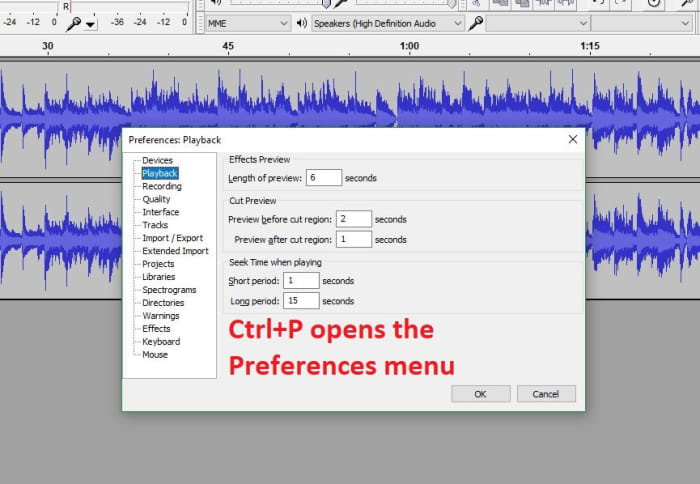
Audacity preferences menu shortcut

CTRL+N New project

CTRL+O Open project

CTRL+W Close project

CTRL+S Save project

CTRL+Z Undo

CTRL+Y Redo

CTRL+X Cut

CTRL+C Copy

CTRL+V Paste

CTRL+A Select all

CTRL+D Duplicate

CTRL+P Preferences

Playback commands

Audacity shares similar audio playback functionality as other digital audio workstations (like Pro Tools, Reaper or even Finale). If you start using Audacity more consistently you’ll be using these functions a lot. These shortcut commands will save you a ton of time:

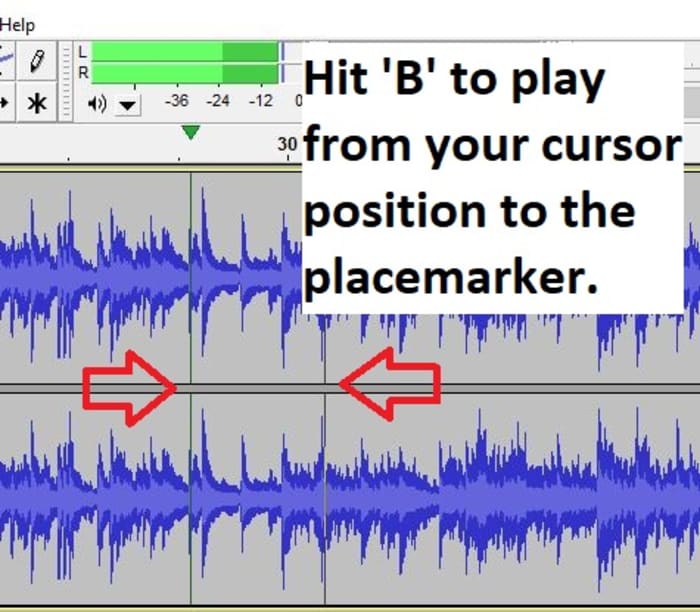
Audacity play shortcut B

Space Play/Stop

Shift+SPACE or L Loop

P Pause

R Record

1 Preview for one second

B Play from cursor to selection

Navigation commands

Editing audio is a lot of zooming in and out, selecting parts of the file, syncing tracks, and picking just the right nanosecond where you want to start that Fade Out effect or modify the volume a touch. Navigating your project is a cornerstone of using the interface, and getting a grasp of the relevant keyboard commands will grant you more finesse, maneuverability, and precision.

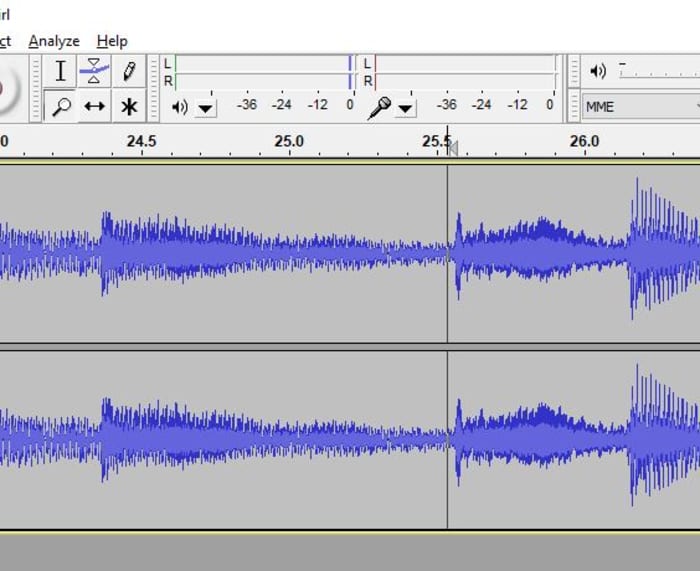
Audacity zoom feature
Set your zoom level faster with CTRL+#

CTRL+1 Zoom in

CTRL+2 Zoom normal

CTRL+3 Zoom out

CTRL+E Zoom to selection

F4 Zoom tool

F1 Selection tool

Edit commands

At its heart Audacity is free editing software, and that’s what the program’s all about. The following edit commands are what you’ll probably be using the most, to avoid having to keep clicking on obscure toolbar buttons or hunting through menus. Get used to these and you’ll be able to add effects, switch tools, and remove unwanted noise on the fly.

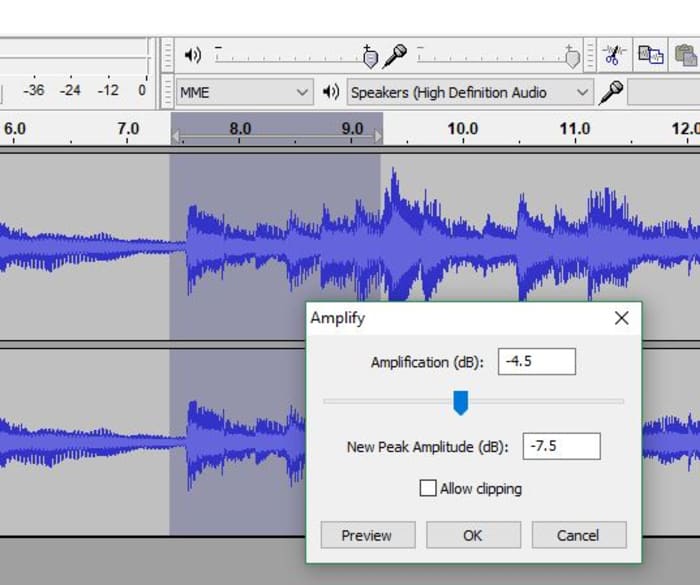
Audacity Amplify tool window
Switch to the right tool for the job.

F3 Editing tool

CTRL+R Repeat previous effect

Delete or CTRL+K Delete

CTRL+L Silence

F2 Envelope tool

F5 Timeshift tool

F6 Multi tool

D cycle tool forward

A cycle tool backward

For editing audio on a budget, you can’t do much better than Audacity. While it does suffer a few shortcomings (such as an inability to import WMA, AAC, AC3, or proprietary file formats), you’re getting a program that can keep up with other digital audio workstations, and that does it all for free. Other Audacity functions include multi-track mixing, vocal reduction and isolation, MIDI playback, and even full cross-platform operation.

We hope these helpful shortcut commands save you time! Stick with Softonic for more Audacity tips and tricks.

Unleash your creativity with this new Adobe software sale

Get 20% off the Adobe Creative Cloud for a limited time.

These days, it’s hard to think of a career that doesn’t benefit from access to good video and audio editing software: Photoshop, Illustrator, Lightroom, After Effects – these are the secrets to stepping up your presentation game, no matter your vision, no matter what medium. Whether you’re an Animator, YouTuber, Filmmaker, or a Graphic Designer, these are the tools you need.

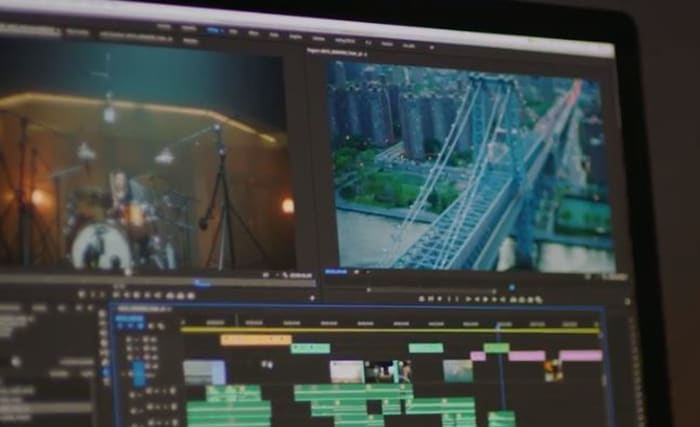
Adobe video editing software
Edit your projects with the same tools as Hollywood professionals

These Adobe products will let you create and edit on the fly from either your desktop or mobile device, and breathe life into whatever you can dream up, adding any manner of graphics, effects, and pro-quality audio.

Creative Cloud

Got your eye on a few of these products? Save your money and check out the Creative Cloud. The Creative Cloud is a series of different price plans that group all the best video and audio editing software into a neat bundle. Now, for a limited time, you can grab all this great software for £39.95/month. That’s 20% off.

Creative Cloud contains all the renowned apps and services we mentioned above, giving you a huge leg up in any video editing, visual and audio design, and photography you want to tackle.

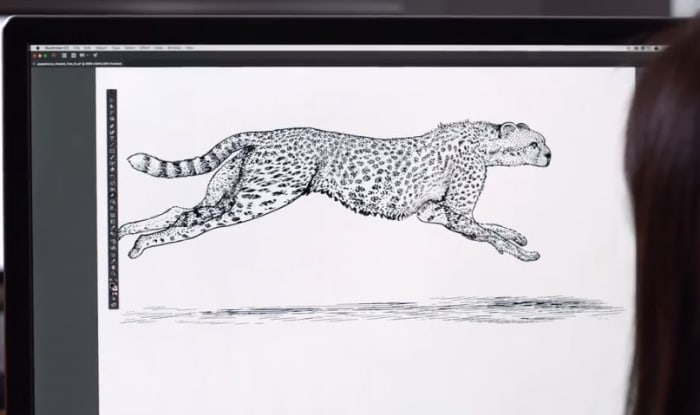
Adobe Creative Cloud
Watch your art and animations come to life

It’s also got built-in tutorials and templates if you’re just starting out, so you’ll get a feel for how each program functions as you take your first steps. If you’re already a seasoned artist, you’ll find the Creative Cloud has all the design tools to bring your ideas to life.

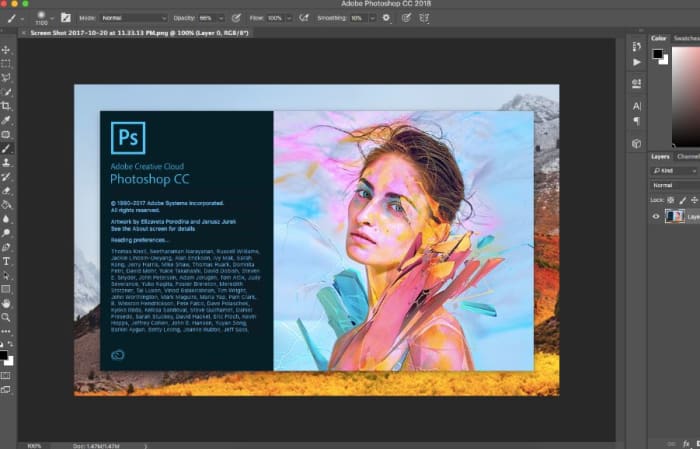
Adobe Photoshop
Your trial subscription will automatically roll over to the full version!

This is the perfect opportunity to sample some of Creative Cloud’s most powerful tools, and to do it conveniently and for a great discount.  If you’ve ever wanted to unleash your creativity, jump on the sale and see what you can dream up!

Adobe offer

6 best sites to find royalty-free audio

Need some free music for your project? Here it is!

Music

Receiving a copyright claim can be terrifying, especially for small independent creators who have worked hard on a project, only to have it taken away from them due to using audio they didn’t own. It can be incredibly confusing to figure out what music you can actually use for your projects, since it may seem like all songs are available to you if you paid for them. While you may be able to listen to any song without copyright repercussion, you’ll have to double check the royalties of a song if you want to use it in a YouTube video or a work project. Thankfully, there are dozens of sites that provide royalty-free audio that anyone can use without ever fearing a copyright claim against them. While some royalty-free music does come with a stipulation (the creator of the song you’re using may require you to credit them somewhere in your work), you won’t have to pay a dime to anyone. Here are some great sites to check out in order to find music and audio clips that are royalty-free.

Best places to find free music, sounds, and other audio

YouTube Audio Library

YouTube Audio Library

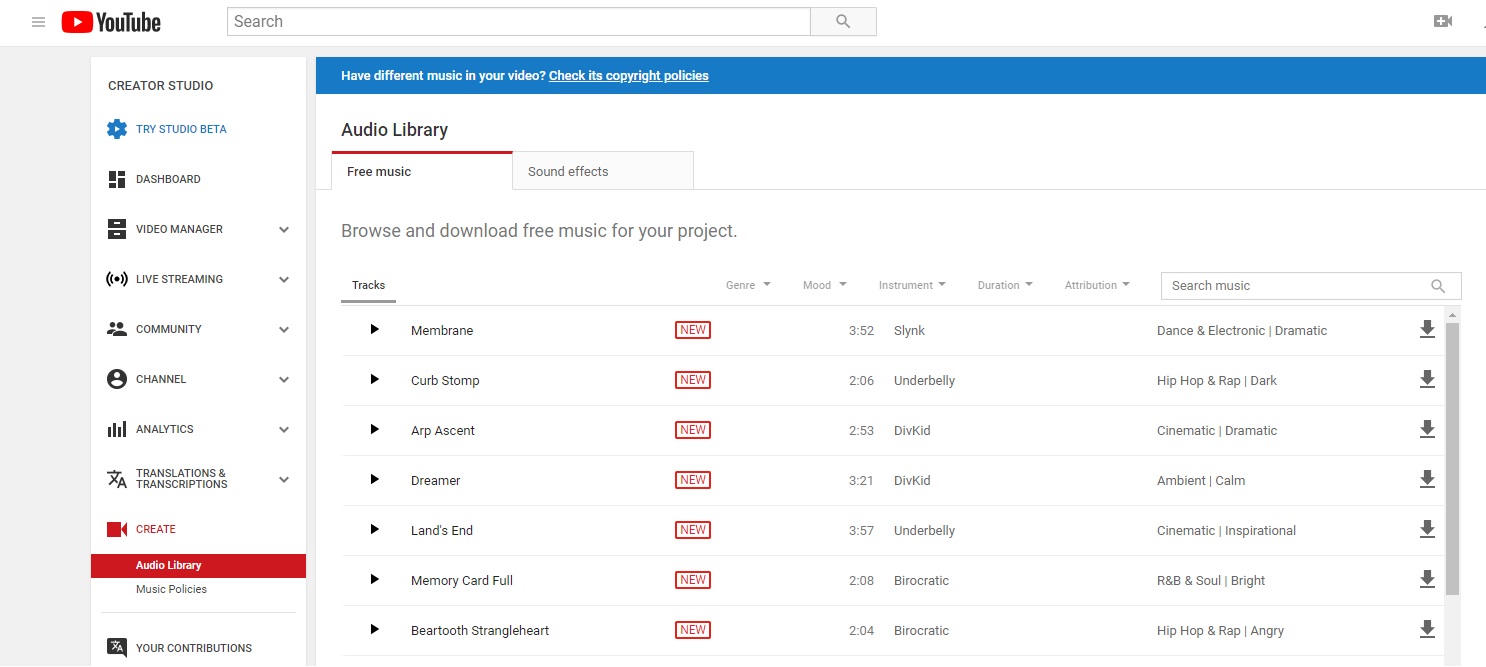
YouTube has really gotten serious about removing videos that feature copyright audio in them over the past few years. As a way to discourage the use of copyrighted music, they’ve created their own catalog of royalty-free audio clips and music. While some require attribution, they are all completely free, and you can easily see which ones require you to credit the artist. You’ll also be happy to know that all of these clips can be downloaded for offline use in addition to their original purpose for being used in YouTube content.

PremiumBeat

PremiumBeat

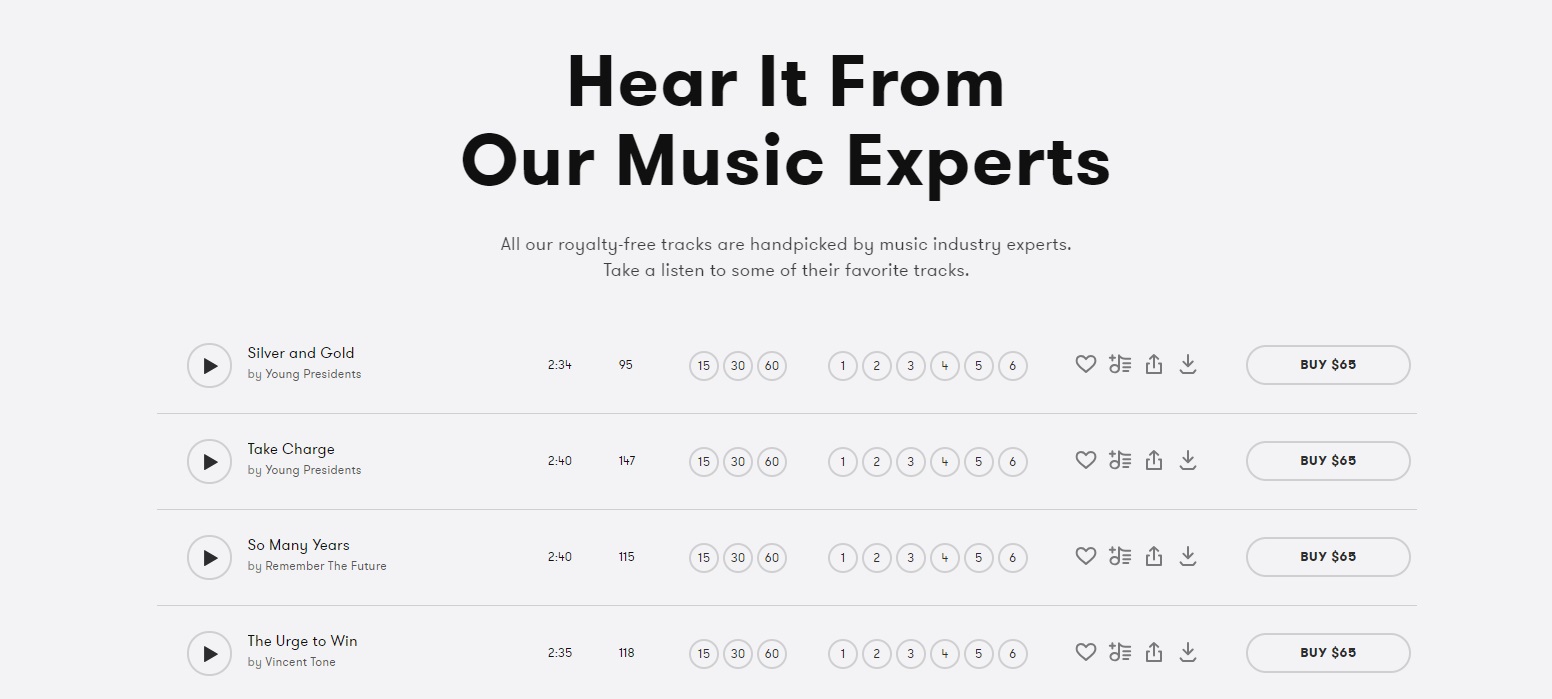
PremiumBeat is a subsidiary to one of the largest stock images sites on the web (Shutterstock), so it’s no surprise that it’s one of the most popular sites for finding stock audio. Some of their prices are a little high, but their selection of royalty-free music is probably the largest you’ll ever find. They also have curated most of the music themselves, so you can find the highest quality music easily through their editor’s pick playlist.

They also have an interesting YouTube channel dedicated to helping you find the right audio for your video projects. It can be very helpful when getting started with using audio clips.

Epidemic Sound

Epidemic Sound

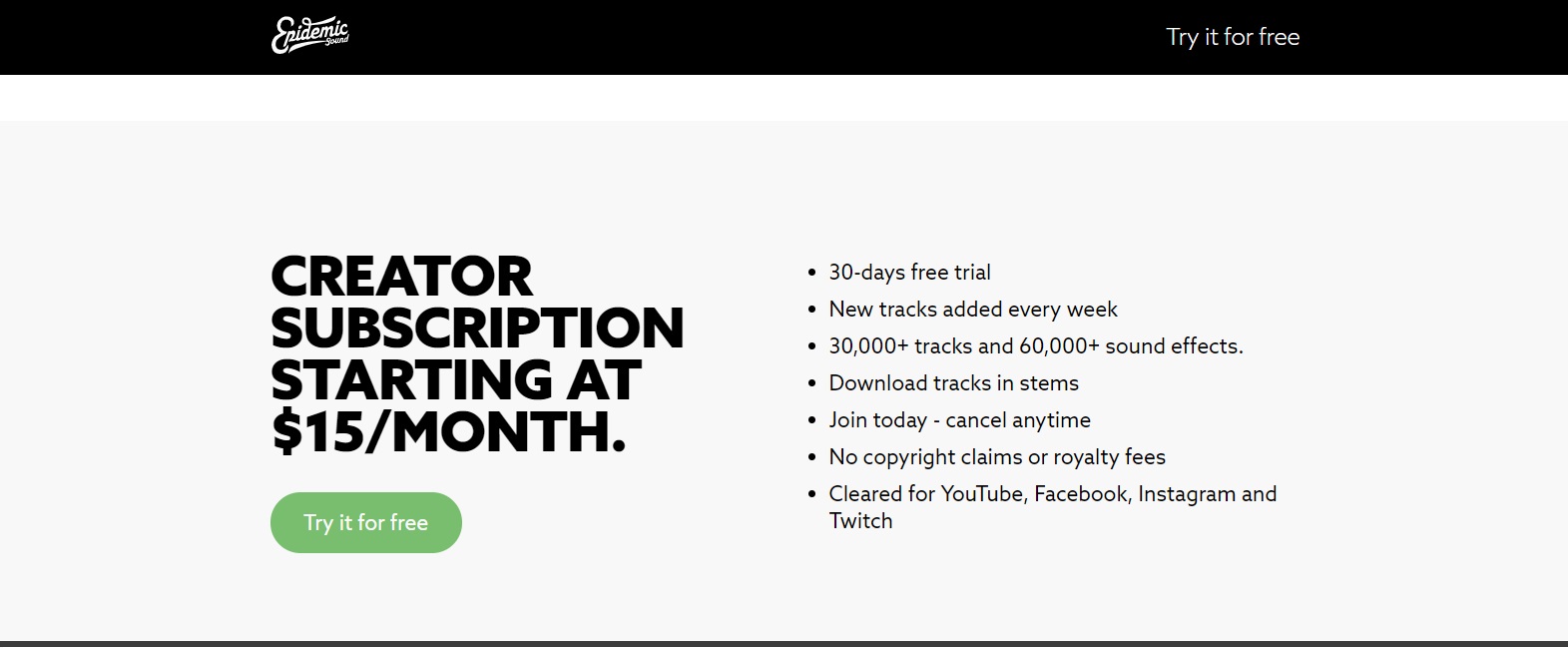
While many sites, like Amazon, require you to purchase the rights to their music individually, Epidemic Sound gives you their music on a subscription basis. This means you have access to all music in their library, so long as your subscription is active. Even if your subscription is canceled, you’re only barred from making future content with their music. You’re still able to keep any content you’ve already posted online, so you don’t have to worry if you end up not wanting to continue with the service. This is the ideal site for content creators, such as YouTubers and Instagram influencers, since it gives you such an expansive library, instead of just individual songs.

Purple Planet

Purple Planet

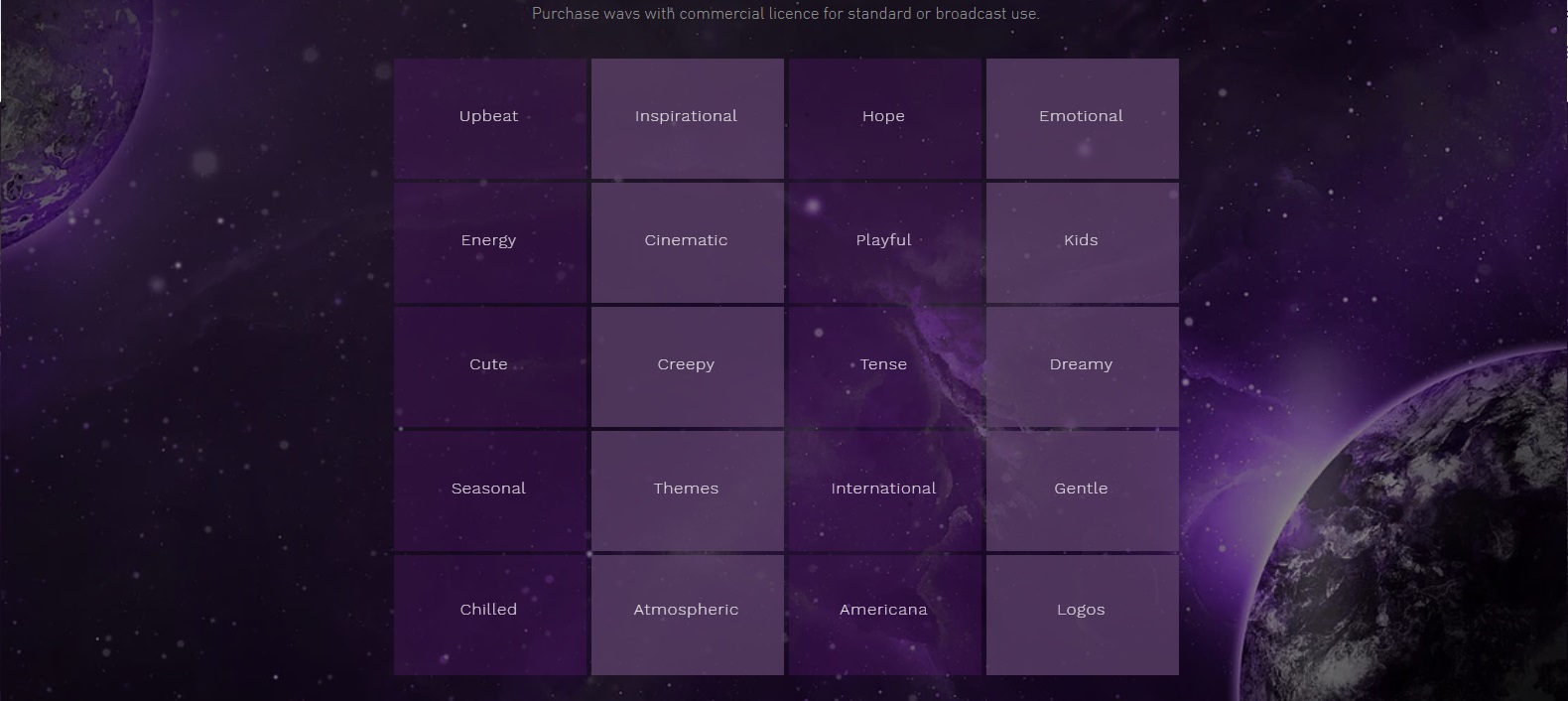
Purple Planet is all about discovering the right sound to fit your project. Instead of sorting their music by genre, they sort by mood and emotion. Some examples are “gentle”, “playful”, and “creepy”. They provide royalty-free music for a price, and also their own, Purple Planet, free music for you to try. Most of their music is specifically created to be placed into YouTube videos. This means that you don’t have to worry about whether the audio will match your content as long as it fits the mood you’re going for.

Filmstro

Filmstro

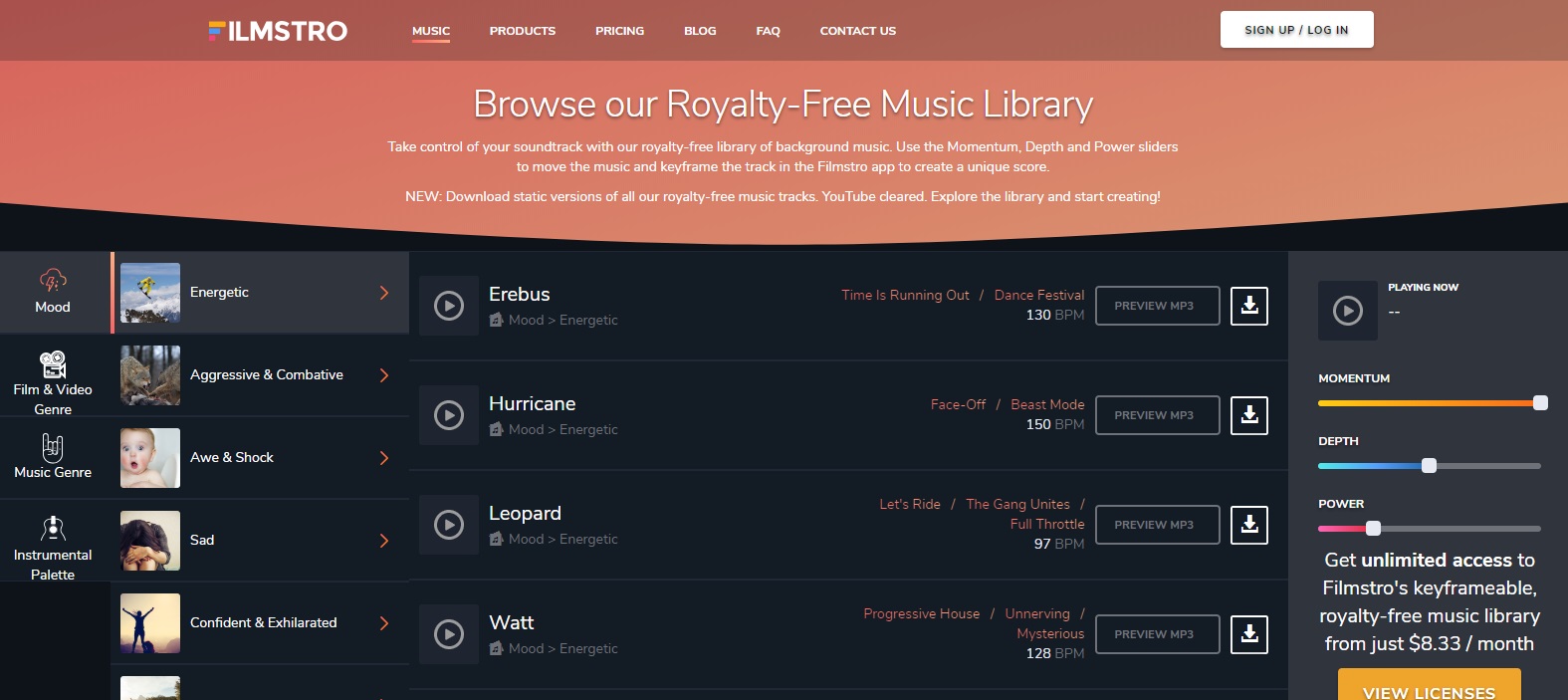
This site may require you to understand music theory a little bit in order to fully utilize it, but if you understand concepts like “depth” and “power” then you’ll be able to create incredible videos using music that fits your exact concepts. Like Purple Planet, Filmstro lets you search by more “feeling-based” genres than actual genre titles. This lets you look for something that fits the exact mood of the videos you’re trying to create.

Storyblocks Audio

Storyblocks

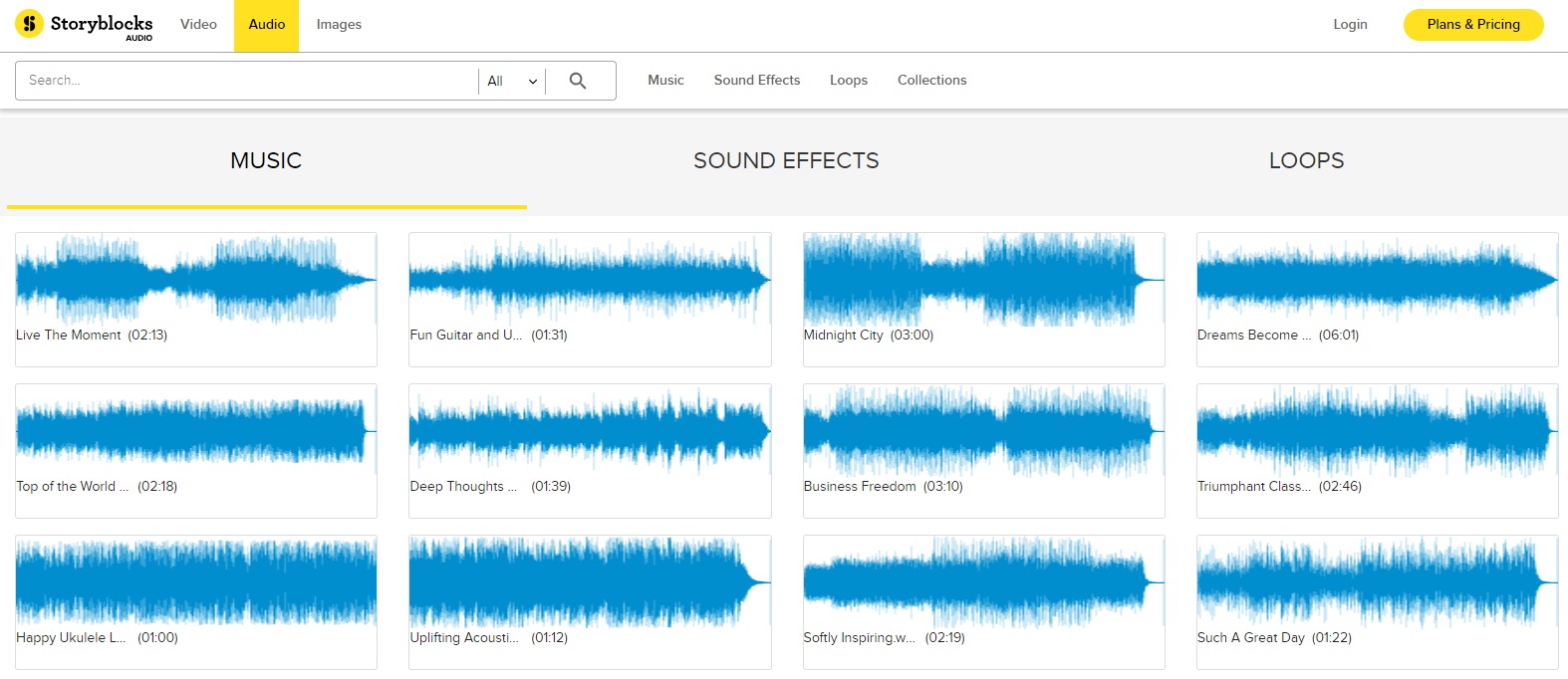
It may be strange to think about, but it’s sometimes harder to find simple audio clips over the plethora of royalty-free music there is. However, these clips do exist, and can be found at an impressively cheap subscription over at Storyblocks Audio. They also have royalty-free music, but their expansive collection of audio clips is the main benefit of using it.

We’ve also detailed some more intricate details about Storyblocks Video, if you’re looking for stock videos as well as audio.

Depending on what you need the audio for, it may be worth looking into a few of these options for putting a video together. However, for the most part, you’ll only ever have to go through one or two of these sites to get everything you need. So find the one that works best for you!