12 most useful console commands in Skyrim

Toggle God Mode and take your Skyrim game to a whole new level with these great commands!

We’ve all had it happen – you’re in the middle of combat high up on a mountain when boom, you accidentally fus-roh-dah poor Lydia off a cliff. Reloading a save is easy, but what if you haven’t saved in a couple hours? Or what if your old save is corrupted? What if you didn’t even know she died until the courier comes up to you with the dreaded letter?
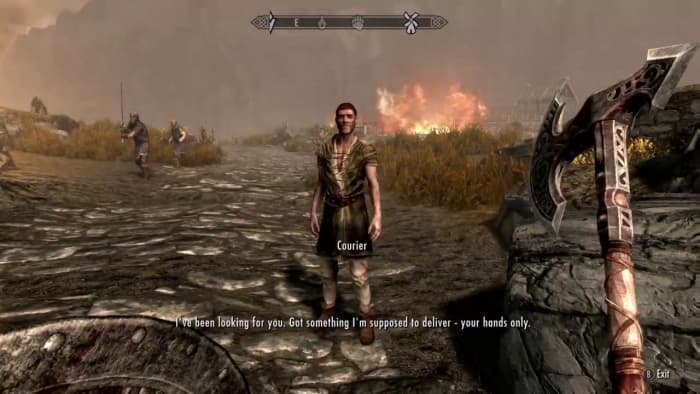
Skyrim courier
“Your wife is dead, but here’s 200 gold. I’ll even throw in a bag of pretzels!”

Disclaimer: This isn’t a eulogy for Lydia. If that’s what you’re looking for, though, you can check out this one and shed a few tears. Rather, this article is about how to problem-solve in Elder Scrolls V: Skyrim. How so? Console commands.

If you’re playing Skyrim on PC you can input console commands to do … well, practically anything. Broken quest? Fix it. Wabbajack glitched through the floor? Get a new one. Broke? Give yourself a small loan of a million dollars. No matter your issue, fixing it is usually just a few keystrokes away.

Elder Scrolls V: Skyrim Special Edition download
9

How to use console commands

To input a console command you just need to bring up the menu. Pressing the tilde key (~) should bring it right up. If you’re playing with a controller, there’s a chance that won’t work, so just unplug your controller first, then press it. Plug it back in after and you should be able to seamlessly use both at once.
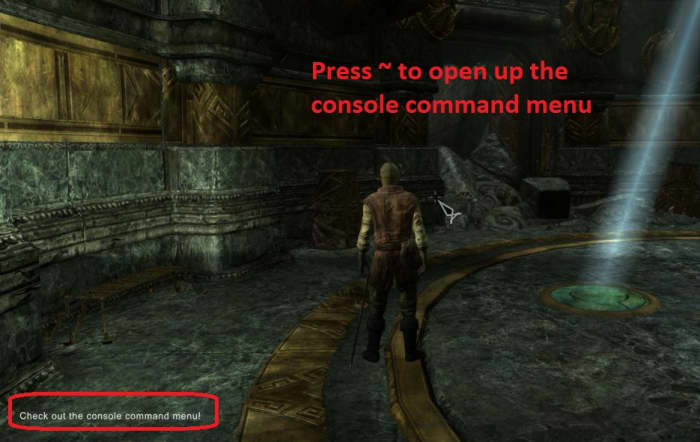
Skyrim console command window

Once the menu is up, your game will pause and you’re free to start all the crazy shenanigans your heart desires. Here’s a list of 12 super useful console commands you’ll definitely want to know:

1. How to enable god mode

tgm

Just to show we’re serious business we’ll start with the one you’re probably asking for first: How to toggle invincibility. Type ‘tgm’ (toggle god mode) and you’ll not only be immune to damage, you’ll also have unlimited stamina and magicka. Note that ‘unlimited magicka’ or ‘unlimited stamina’ does not equate having a larger pool of either, so you’ll still be unable to cast those master spells if you’re stuck at the baseline mana pool.
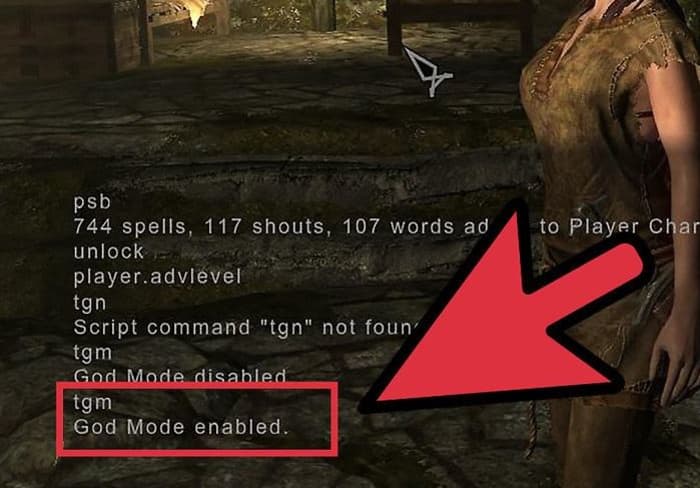
Skyrim god mode console command

To disable god mode, just type ‘tgm‘ again.

2. How to change appearance

showracemenu

Do you regret making your character a bald orc female with black lipstick and a hideous scar? Of course you don’t! You crazy Skyrimer, you. In case you do want to modify the way your character looks (maybe give your higher-level character an appropriate beard and gray hair?) just type ‘showracemenu’ and it’ll bring up the character creation menu from the start of the game.
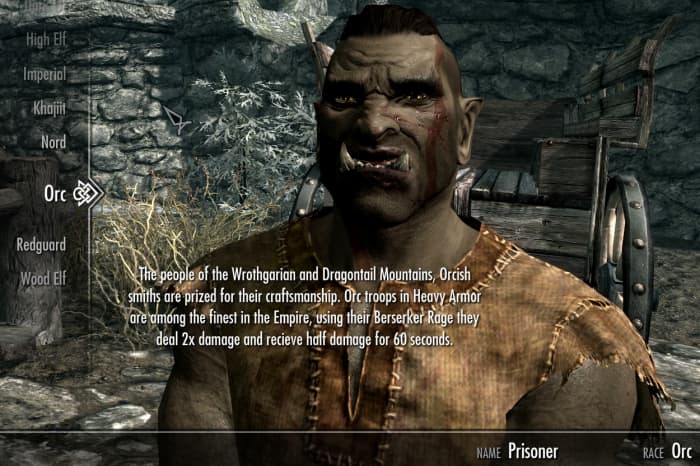
Skyrim race menu

Careful when you do this, though; it’ll set you back to level one and all your skills along with it!

3. How to find an NPC

prid X, moveto player

This one’s a little more complicated, but hang with us: To bring a follower to your exact spot, usually, the easiest way is to just enter a new ‘cell,’ (like going in and out of a cave or city). That’ll usually trigger them to appear unless they’re really stuck (or dead). For characters that are not followers, there’s the ‘prid’ command. After you’ve typed the code, though, you’ll still need to enter the specific NPC’s ref ID.
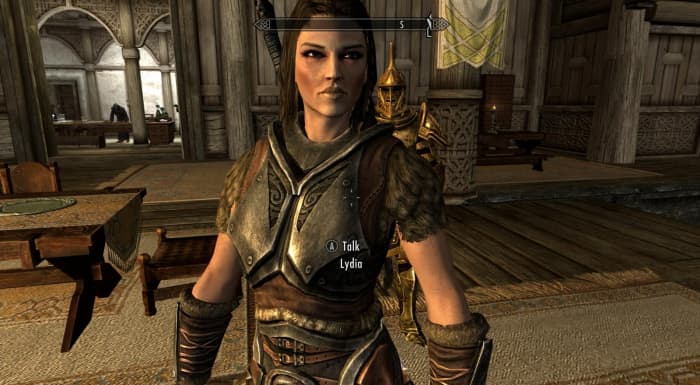
Skyrim Lydia follower
Lovable but derpy

Let’s use our good pal Lydia as an example. If you’ve lost track of her (again) simply type ‘prid 000A2C94.’ You’ll see the code appear at the top of the console command input box if you did it right. Next type ‘moveto player‘ and she’ll poof right next to you. To find an NPC’s ref ID just look them up here in the Elder Scrolls wiki. It’s sorted alphabetically.
4. How to bring back dead NPCs

prid X, moveto player, recycleactor

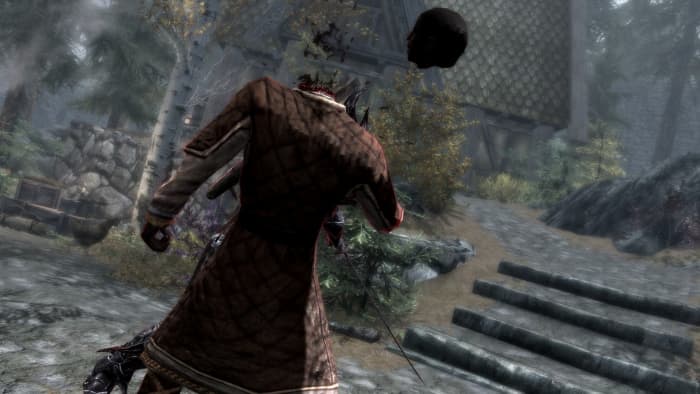
If Lydia’s been eaten by a bear or something you can bring her back by adding one extra step to the series of commands we just mentioned. Find the character’s ref ID, move them to you, and then once their body is lying in front of you, follow up with the nifty command ‘recycleactor.’ Let’s mix things up and use everybody’s favorite Skyrim character: Nazeem.
Skyrim Nazeem dead
A tragic accident

If Nazeem’s been tragically murdered as the result of a vampire attack, you can bring him back like so: ‘prid 0001A6A4’ (which is his ref ID), ‘moveto player,’ ‘recycleactor.’ Now he’ll be back to charm Whiterun with renewed vigor.

5. How to fix a broken quest

player.sqs X, setstage X Y

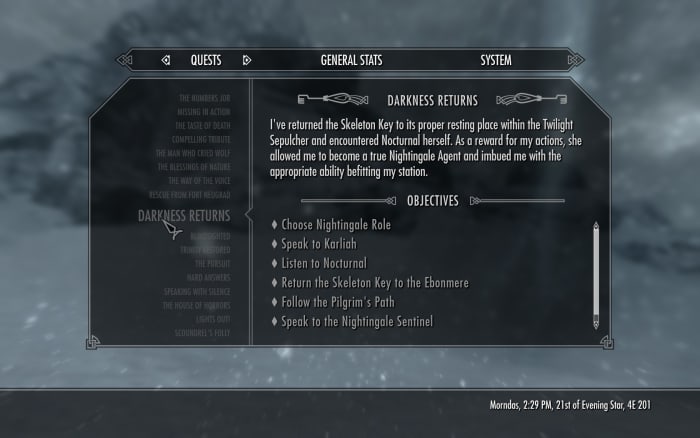
One of the most frustrating things is when you can’t complete a quest due to a game-breaking bug. This can happen for a number of reasons, but there’s something of a catch-all that will hopefully get you back on track. First, check the UESP wiki to get the quest ID. Once you’ve found it open up the console command window and type ‘player.sqs X‘ where ‘X’ is the quest ID. This command will list all the stages of the relevant quest, with each stage marked with a ‘1’ if complete, and a ‘0’ if incomplete.
Skyrim quest log
You can also type ‘ShowQuestTargets’ to see a list of all your active quests and their codes

To fix the broken quest you’ll need to bump your progress to the next stage manually. Type ‘setstage X Y‘ where ‘X’ is the quest ID and ‘Y’ is the stage number of the quest that you want to be at.

6. How to level up skills and perks

player.advskill X, Y; player.addperk X

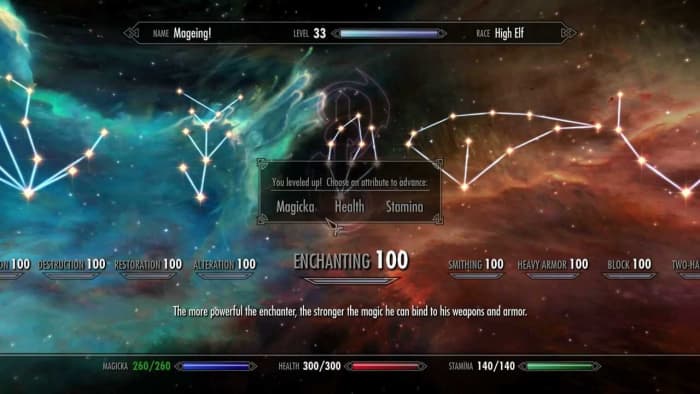
Some skills like Two-handed, Destruction, or Light Armor might level up quickly, but others can be a real grind (lookin’ at you, Speechcraft and Alchemy). If you’ve done multiple playthroughs you’re likely really tired of combining 8,000 iron ingots with another 8,000 leather strips to make iron daggers and watch your Smithing skill slowly crawl up to 100. Open up console commands and type ‘player.advskill X Y‘ where ‘X’ is the skill you want (check out the official command names on the wiki right here) and ‘Y’ is the numerical amount you’d like to advance the skill. If you just want to max it out to 100, just type a bunch of nines in a row.
Skyrim max enchanting

You might also choose to forego leveling up a skill and just grant yourself a specific perk. You can do that too. Just type ‘player.addperk X‘ where ‘X’ is the perk code. You can find a list of all perk codes here. So let’s say for example that you want to give yourself the ‘Poisoner’ perk under Alchemy. In the console command window, you’d type ‘player.addperk 00058217.’

7. How to increase stats

player.modav X Y

Having all the skills in the game isn’t going to give you a magicka pool big enough to use them! So you’ll need to bump it up before you can cast something like a master Illusion spell. Type ‘player.modav X Y‘ where ‘X’ is the attribute you want to increase (‘magicka,’ ‘health,’ and ‘stamina’ respectively) and ‘Y’ is the amount you want to increase it by. Again, if you just want to cheese it, you can type ‘10000000’ or something.

Our favorite use for this code is to use it for carry weight. To do this type something like ‘player.modav carryweight 100000.’ Now you can carry around all the junk you like.

8. How to get spells

player.addspell X

Spells in Skyrim can only even be seen in a vendor’s lists if you have the prerequisite levels in the skill tree. It’s even harder with master spells since they usually involve doing a whole quest on top of that (and that master Destruction quest requires a lot of travel)! For some special spells like Transmute Ore or Equilibrium, it’s even harder; they’re not even for sale!
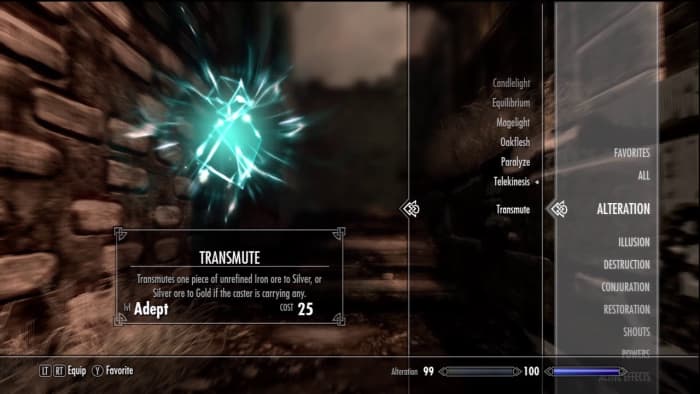
Skyrim transmute spell alteration
Good luck ever finding this spell.

To give yourself any spell you’ll need its Spell ID first. Then open up the console command window and type ‘player.addspell X‘ where ‘X’ is the spell ID. Alternatively you can get the ID for the spell tome, and type ‘player.additem X,’ ‘X’ being the tome ID.

9. How to get weapons and armor

player.additem X Y

Not able to find that one pair of Daedric boots to complete the set? We feel for you. Luckily it’s super easy to place literally any item right into your inventory. All you have to do is find its Form ID (again, just look online) and type ‘player.additem X Y‘ where ‘X’ is the Form ID. The only catch here is that it won’t work if you don’t specify how many of the items you want. So you’ll have to add a numeral afterwards (usually ‘1’) to complete the code.
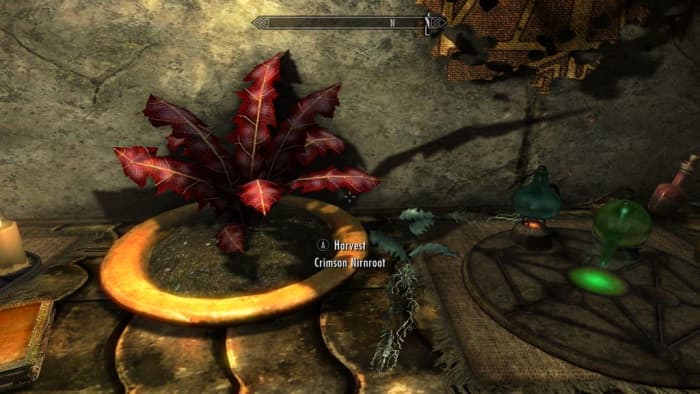
Skyrim crimson nirnroot quest
Never have to collect these again!

So a good example is giving yourself items that would normally be super obnoxious to obtain – like, say, 30 crimson nirnroots. To give them to yourself right away you’d type ‘player.additem 000B701A 30’ and call it a day before you go absolutely crazy hunting for them all across Blackreach (no, we’re still not over it).

10. How to get unlimited gold

player.additem f X

From the second you turned this game on you wanted to be that player, didn’t you? The one who opened every chest, searched every house, looted every corpse, and pillaged every urn. Don’t even lie. We’ll tell you the code for infinite gold, but we know that still won’t stop you from plundering every jar in every draugr crypt. Jeez, no respect for the dead.
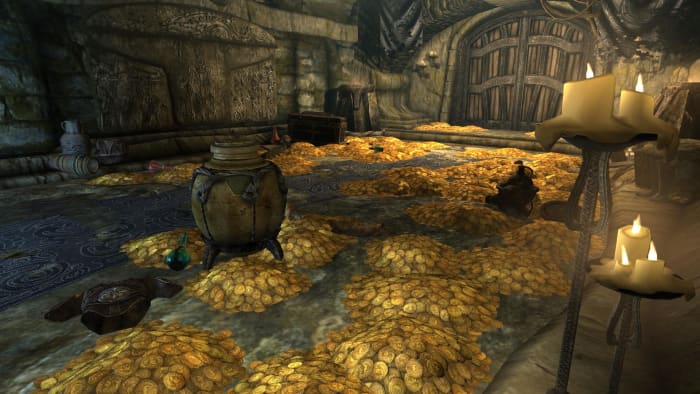
Skyrim gold room dragonborn deathbrand
A room full of gold? Ah well. Maybe there’ll be something good next time.

To give yourself gold all you need to do is type ‘player.additem f X‘ where ‘X’ is the amount of gold you want. Gold in Skyrim is weightless, so there’s nothing to stop you from being Tamriel’s next billionaire. Kind of takes the fun out of completing quests for gold, though, doesn’t it? (Yeah, right.)

11. How to open locked doors (and how to ‘no clip’)

unlock X

Lockpicking in Skyrim isn’t too tough once you get the hang of the mini-game, but there are still some doors or chests that can’t be opened without a key. If this sort of thing annoys you, you’re not alone. Luckily for you, this is also one of the easiest commands in the game. Just open up the console command window and click on the object (or door) you want to open. Keep in mind again that if you’re using a controller you might have to unplug it first in order for the game to recognize your mouse.
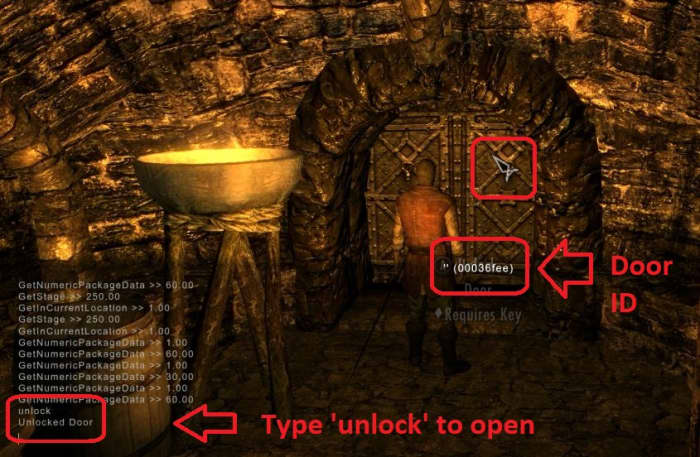
Skyrim unlock door console command

Clicking on the object in question will bring up its corresponding ID. Now just type ‘unlock,’ and look at it again and it’ll magically be unlocked. If that’s not enough for you, you can also turn on ‘no clip’ mode by typing ‘tcl.’ Now you can walk through everything. Be careful with this, though, as it can break all kinds of things. Type ‘tcl’ again to turn it back off.

12. How to get to any location

coc X

You can fast-travel anywhere in Skyrim that you’ve already been, but sometimes that’s not enough. If you want to quickly get somewhere that you either haven’t been yet or that would normally take multiple load screens (like a cave somewhere in Solstheim, or the big fortress in the Forgotten Vale), you can save time with the ‘coc‘ command. Again you’ll need the location ID for the place you have in mind.

Skyrim Forgotten Vale Dawnguard DLC
Beautiful location. Hard to get to, though.

Some of them are logical (like ‘riverwood’ to teleport straight to the city) while others are a bit more complicated (like ‘DLC2KolbjornBarrowExterior01’). You can use this convenient list of locations to find the ID of a specific place, then type ‘coc X‘ to get there, where ‘X’ is the relevant location ID.

Use the ‘help’ command

To get the specific ID for virtually anything (including content added by mods!) one insanely useful trick is to type ‘help’ right into the command window followed by whatever hints you can give the program. Examples include ‘help iron‘ to show you anything that the game tags as iron, or ‘help riften‘ for a list of all the location IDs within the city. You might have to get creative with this (like typing ‘ingot’ when you want a steel ingot instead of ‘steel,’ which will just list off a bunch of weapons or armor), but it’s a great way to find things without having to constantly look online.
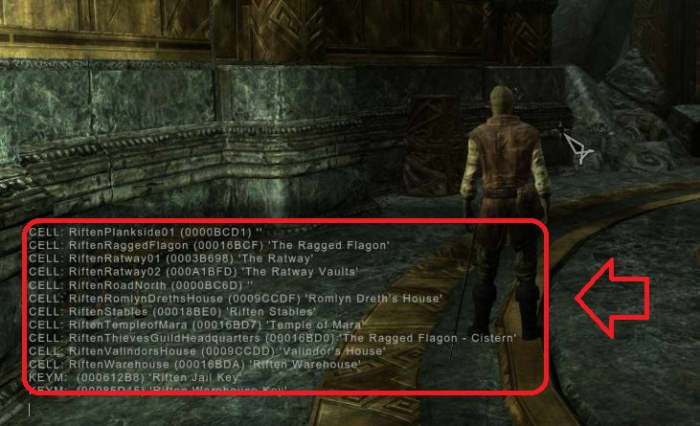
Skyrim help menu console command
Pro tip: Anything with the ‘CELL’ designation is a location you can ‘coc’ to.

We hope these commands will help you enjoy Skyrim, and let us know in the comments below if you found them helpful, or if there’s a command you’d like to know. Until then, stick with Softonic for Elder Scrolls for any upcoming news on Elder Scrolls 6!

Amazon is making a Lord of the Rings MMO game

Get ready to battle for the future of Middle Earth!

Jeff Bezos must be on a Tolkien kick, because now Amazon’s got two big Lord of the Rings projects in the works: A Lord of the Rings TV series which looks like it might land some time in 2021, and now they’re officially working on an MMO set in Middle Earth as well.

The Lord of the Rings is a logical setting for an MMO – so much so that this isn’t the first time it’s been done. For those of you who can remember back as far as 2007, you might know that The Lord of the Rings Online was (and still is) a thing. Developers Standing Stone and Daybreak are the current benchmark for such a product, and with Amazon’s production and development budget we’re excited to see what they can give us.

The Lord of the Rings Online Gandalf
2007 was a long time ago

Who’s behind the project?

Amazon Game Studios is in charge of the MMO project, but they’re not doing it alone. They’re getting help from Athlon Games, Leyou and Digital Extremes, the guys who made Warframe, The Darkness 2, Bioshock 2’s multiplayer, and the Unreal Tournament series.

Will the game be based on the upcoming TV series?

For better or for worse, the MMO will have nothing to do with the upcoming TV series. Amazon has since confirmed that the two are unrelated and are being developed independently of each other. It’s an odd choice considering that both projects are allegedly set thousands of years before The Hobbit and the War of the Ring trilogy.

Lord of the Rings Peter Jackson Aragorn Viggo Mortenson
Hopefully the King will return in a later game

We have to admit a little disappointment not to be seeing some of our favorite characters from Peter Jackson’s trilogy (though we suppose they could throw in an immortal character like Gandalf if they so choose), but are anxious to see what they do with “the time that is given to them.” Athlon has described the MMO as “an online game set in the world of Middle-earth at a time long before the events of The Lord of the Rings, exploring lands, people and creatures never seen before by fans of the Tolkien universe.”

Does it have a title?

It certainly will! Alas, there’s nothing official yet.

Which platforms can play the game?

Amazon has said the game will be playable both on PC and on console. We hope they’re planning for cross-platform compatibility; we’ve already got eight friends who’d make a great fellowship, and not all of them play on PC.


Lord of the Rings Peter Jackson trilogy Fellowship of the Ring
Legolas and Gimli might not play on the same platform

When’s the game coming out?

Not soon enough! Amazon hasn’t revealed a release window yet, but we’re probably looking at 2021 earliest, considering how much time and development goes into a polished product like this’ll need to be.

Though the MMO and TV series will be unrelated to each other, with two major projects set in Tolkien’s world there’s no doubt the public’s gaze will be set on Middle Earth in the coming years.

Stay tuned with Softonic for more information as it’s made available, and watch that first step off of Khazad-dum; it’s a doozy.

Total War: Three Kingdoms – Complete beginner’s guide

The latest entry in the Total War series takes us back to ancient China.

Ruling a kingdom is hard. Establishing a kingdom to rule is even harder. Maintaining a hard-won kingdom while competing to rule an empire? That’s not for the faint of heart.

In Total War: Three Kingdoms you’ll take on the mantle of one of 12 (15 if you include the Yellow Turban DLC) faction leaders, with one ultimate goal in mind: become the Emperor, defend your claim to the title, and unify China under your singular banner. Whether you achieve this largely through peaceful diplomacy, shrewd trade, a cunning network of spies, or through military conquest is up to you; there are many paths to the throne.

Whether you’re new to Total War: Three Kingdoms or are new to the Total War franchise as a whole, this is the guide for you. Check out these 10 beginner tips and you’ll be min/maxing commanderies and scoring decisive victories like you were born with a glaive in hand.

What Is Total War: Three Kingdoms?

Total War: Three Kingdoms is a turn-based strategy game by Creative Assembly and published by Sega. This game is available on Windows and is the 12th mainline entry of the Total War series.

In the game, you can choose between 12 different warlords and attempt to conquer China. You can recruit ancient heroes with exceptional abilities to aid your cause and help you achieve your goals. 

The storyline is very compelling, and all the warlords and heroes have their own backstories, skills, and uses. Choosing who you’ll play at will significantly affect how you experience the game, so make sure to select a character that resonates with your playing style.

In this Total War: Three Kingdom guide, we’ll be covering more about the game, how it works, and we’ll even share some helpful Three Kingdom tips to get you started.

Total War: Three Kingdoms - Complete beginner's guide

How to Play Total War Three Kingdoms?

Total War: Three Kingdoms is a turn-taking strategy game. This means that you can make decisions and adjust your strategies as each turn goes by. Hopefully, this will lead to success in your quest and battles.

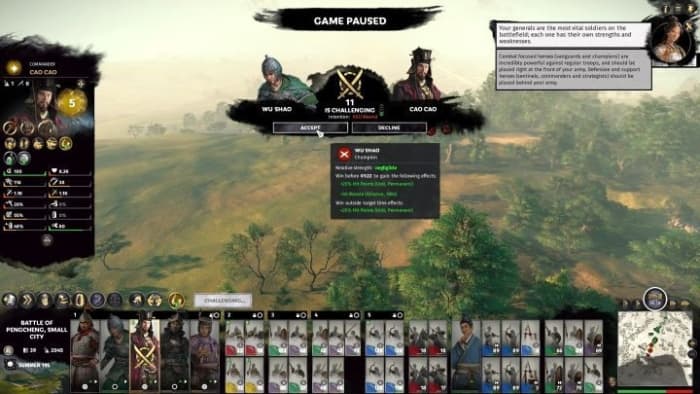
During the gameplay, you’ll get opportunities to move your various troops in strategic battles against the opposition. This is where the strategy comes in, and you’ll have to use the suitable types of soldiers against the enemy to get the advantage. Your heroes can use their unique abilities to support your troops or to duel it out with other commanders to end the battle. 

This is not purely a game centered on battle strategy. You also have to gather resources to keep your generals and troops sustained during battle and the travels across the continent in a quest for complete domination.

Here are some tips and tricks for Total War: Three Kingdoms.

1. Prestige is key

You can’t make a claim for Emperor without climbing up the hierarchy, and you can’t climb that ladder without earning prestige. Once you load up your first campaign (we recommend starting with Cao Cao, Sun Jian, or Liu Bei) you’ll get a few missions (like conquering the Han, for instance), but the game will quickly stop holding your hand once you start making progress. As such, it’s easy for novice players to lose sight of what you’re supposed to be doing.

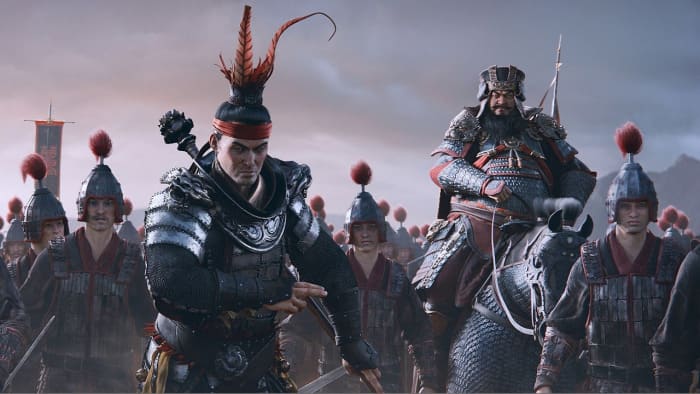
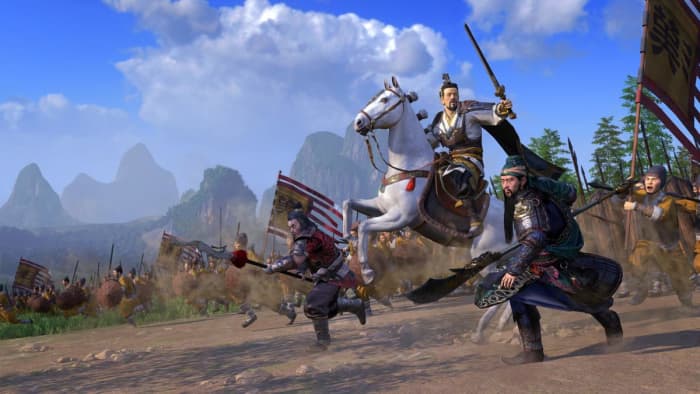
Total War: Three Kingdoms cutscene Cao Cao
Gain land to gain prestige

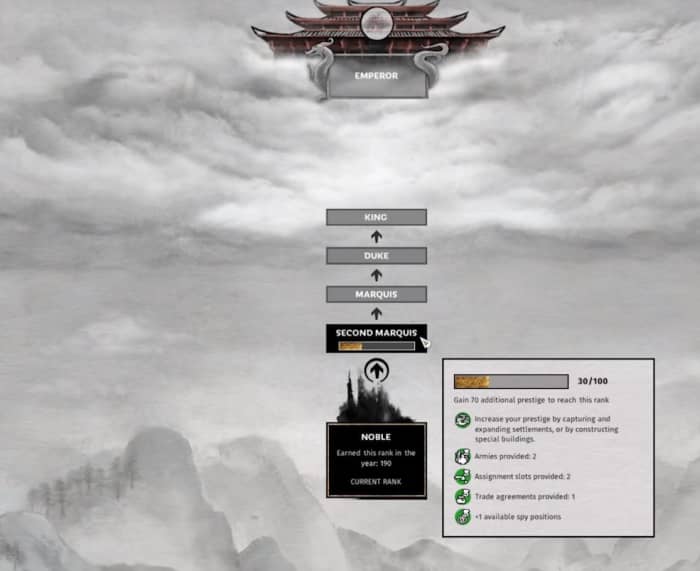
The way to win any of the campaigns in Total War: Three Kingdoms is to unite and rule over all of China. While there are many types of currency in the game like gold or food, the only one that progresses you to the win state is prestige, which lets you rise to claim higher titles, eventually culminating in a battle for the title of Emperor. Prestige is earned through taking enemy commanderies and expanding your territory, and slowly covering the map with your flag and your flag only.

Total War: Three Kingdoms prestige ladder
Reaching new levels of leadership grants expansive bonuses

2. Know your attributes

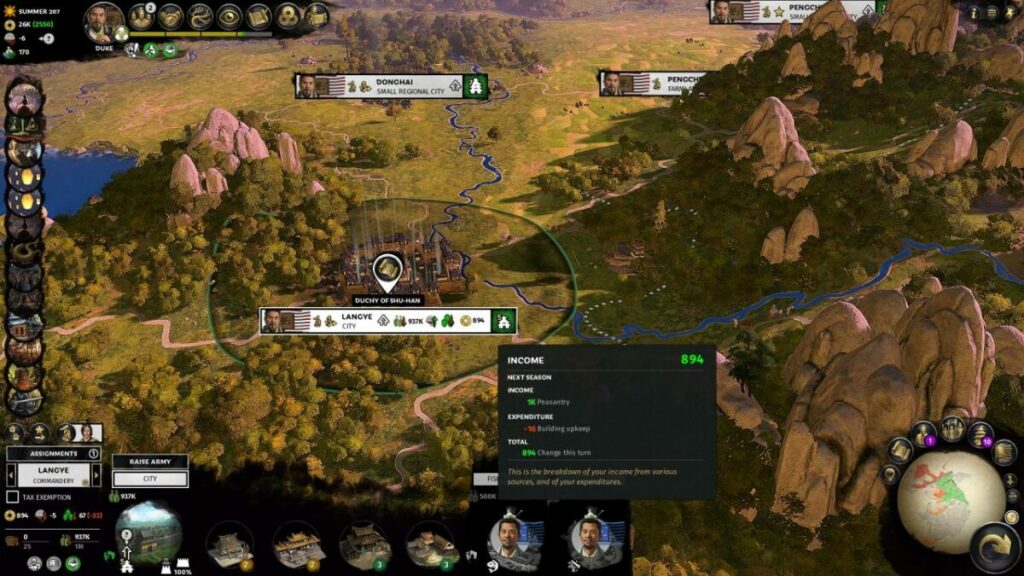
Let’s simplify this tip even more: The characters at your command mean everything – your court, your family, your commanderies (cities), your armies, and your very administration. Every character has a set of attributes which grow and change, depending on how you mold them. These attributes are color-coded per character, and everyone has their strengths and weaknesses. The attributes are:

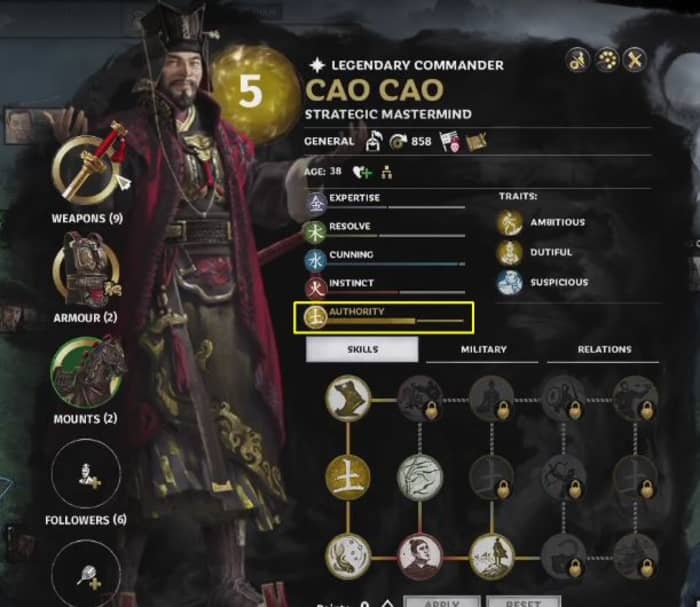
Authority (yellow): Authority connotes leadership in Three Kingdoms, and represents a general’s ability to lead others both on and off the battlefield. Politically these characters are good at boosting satisfaction. When fighting they’re great at keeping your units’ morale high.

Cunning (blue): Blue characters are used for strategy and planning (and also make good spies), but generally aren’t great in a fight. They are, however, exceptionally good when leading ranged units, and in Three Kingdoms archers reign supreme, so don’t discount these archetypes from your armies! Characters with high cunning also grant troops in their retinue more ammunition and overall military supplies.

Instinct (red): Red is the color of blood and valor and as such designates a character’s military might and battle prowess. These generals excel at melee combat and belong on the front lines, particularly when leading a shock cavalry charge. Don’t forget that higher instinct levels also mean that initial recruitment costs are lower, so these generals can lead bigger mightier armies.

Resolve (green): A high resolve means a high vitality. Raising this attribute will keep your unit alive longer on the battlefield, and will help them boost population (more peasantry = more money!) in commanderies if they’re assigned as administrators. Green characters are also the best duelists, so in battles use them to duel and kill opposing generals to sew terror in enemy ranks.

Expertise (purple): On the battlefield, Expertise is a measure of evasion and defense, making retinues led by a Sentinel very hard to break. They have improved melee defense and work great with shielded infantry and defensive garrisons. Expertise also helps with administering commanderies. A character with high expertise will reduce building costs, which means you have more money to spend on extra upgrades or larger armies.

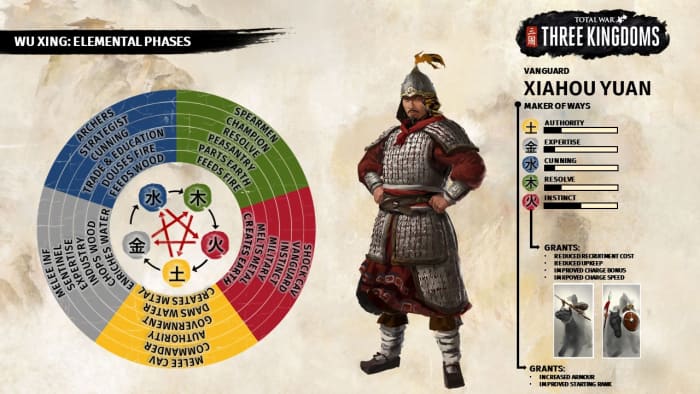
The five colors yellow, purple, blue, green, and red match the five elements (earth, metal, water, wood, and fire respectively) where each element nurtures another, and is countered by its opposite.

Total War: Three Kingdoms elemental phases
Everything has a counter, everything has a balance

3. Battlefield vs boardroom

With these attributes in mind, the next step is deciding where the officer can best serve you. Do you want them on the field leading a battle? Or would you rather have them administering a city, or out spying on your rivals? Maybe you don’t want them at all, and would be better off marrying them out of your faction for some quick cash and improved relations.

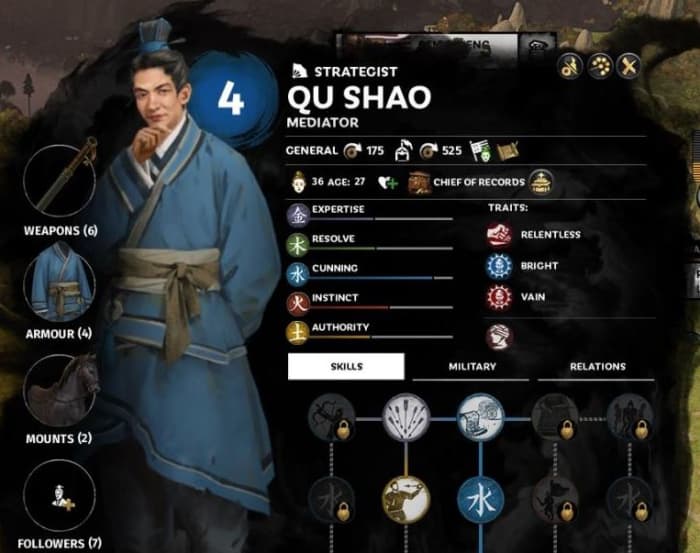
Total War: Three Kingdoms character attributes
Qu Shao is a smart dude, but he’s also relentless and vain.

Where you position your characters is important not just for you, but for the characters themselves. In Three Kingdoms, these officers aren’t just pawns on a chessboard; they have unique attitudes, aspirations, and opinions on other officers. For better or for worse, that means they won’t always get along with each other.

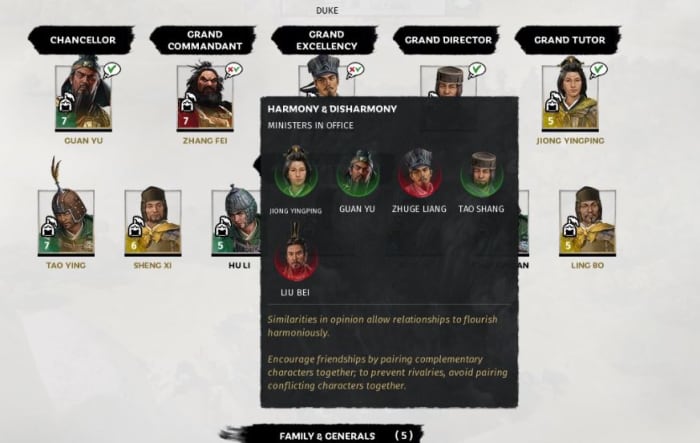
If members of your court are in disharmony with each other, things won’t run as smoothly, and satisfaction will drop faster, which can lead to defection or even civil war. Taking someone out of your court and placing them on the battlefield (or at least administering them in a commandery far away) might make everybody happier.

Total War: Three Kingdoms court harmony disharmony
Jeez. Even Liu Bei doesn’t like this guy.

4. Rock paper scissors combat

Like many RTS games, the combat in Three Kingdoms is ‘rock-paper-scissors,’ which means its a system of checks and balances. We said earlier that archers reign supreme, and that’s still true, but they’ll get utterly destroyed by cavalry. Cavalry are great, too, but will meet a swift end if they charge into the pointy ends of enemy spearmen. In general, the order goes like this:

Cavalry > Archers, Melee infantry, Artillery
Melee infantry > Polearm, Archer, Artillery
Polearm > Cavalry
Archers > Polearms
Ranged Artillery > Structures units

Try and line up your units so that they’re in the right place at the right time. Upgrading your units and letting them gain XP over time is a good way to strengthen them, but in the end, it’s more important where they are positioned.

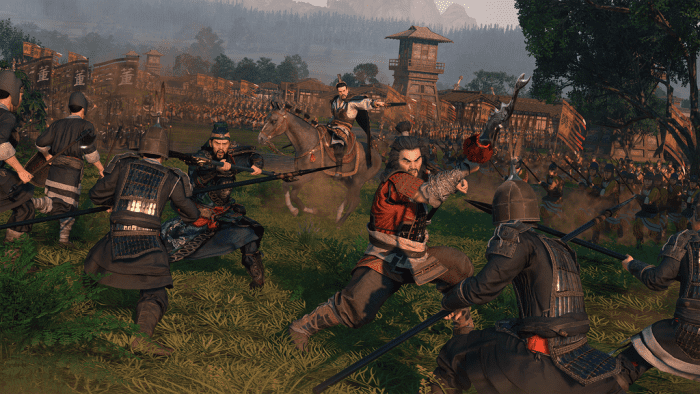
Total War: Three Kingdoms battle
Where is your vanguard needed most? What about your strategist?

5. Know your faction strengths

While the overall mechanics, gameplay, and goals of each faction remain the same, you’re in for a rough ride if you try to play He Yi and Yuan Shao the same way. Some factions are at home on the battlefield, while others prefer diplomatic manipulation. Leaders like Liu Bei and Yuan Shao prefer noble altruism and favorable coalitions while the likes of Yuan Shu or Dong Shuo are more demanding and tyrannical.

Total War: Three Kingdoms Lu Bu Dong Zhuo
The guy with the feathers is Lu Bu. Our professional advice is to ave as little to do with him as possible.

Factions you play will also receive unique perks, units, structures, or sometimes even a unique spendable resource, such as Yuan Shu’s Legitimacy or Cao Cao’s Credibility.
=> Full walkthrough of each faction’s abilities

Of course, different factions begin at different locations as well, so bear in mind the advantages and disadvantages of the terrain modifiers as you make your start.

6. Gold vs Rice

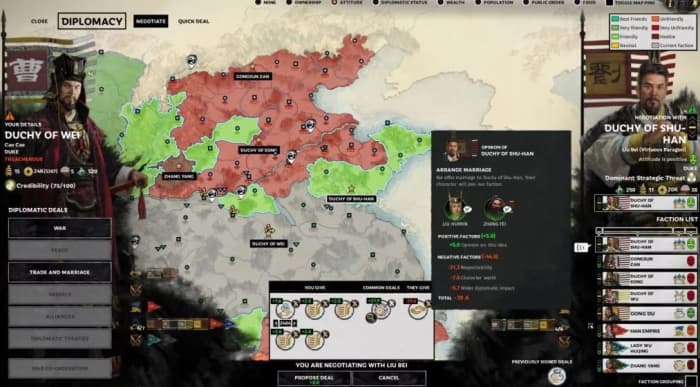
Trade is the lifeblood of diplomacy in Three Kingdoms, and you’ll find yourself wheeling and dealing practically every turn. Don’t be quick to accept deals, though, even if they’re in your favor. Instead, weigh your options carefully.

Another faction may offer you a lump sum of gold for you to join them in a war, but if you’re already loaded with cash, you might be better off asking for something else – like food, ancillaries, military access, or even territory.

Total War: Three Kingdoms Diplomacy Cao Cao
If you’re willing to pay top dollar, you can even get new territory through diplomacy

You can make deals of your own too, of course, and it’s worth your while gauging the opinions, politics, and positions of other factions often. This can be especially helpful at the start of the game when you’re trying to keep your economy afloat, build your armies, manage your population, and keep your commanderies defended.

Signing multiple trade agreements and quick deals that grant you income per turn is a great way to generate a positive income to then use on building and upgrading commanderies that will eventually make you self-sufficient.

7. Match your colors

We already went over what each color means, and how that should help dictate where they belong in your growing empire, but the next step is to stack your bonuses to min/max your character to best effect. Various upgrades, ancillaries, followers, and even outfits and weapons can boost a character’s attributes to huge effect.

If your Champion is going against another Champion in a duel, the deciding factor might be which of them has more health and deals more damage. If you spent time stacking Authority and Cunning upgrades on your Champion while the enemy focused on Resolve and Instinct, you’re probably not winning this duel.

Total War: Three Kingdoms Cao Cao
Check out the authority on this guy! Someone’s been min/maxing!

8. Consider army composition

When you’re building an army, obviously you want to keep that rock-paper-scissors combat in mind; making sure your archers are defended by pikemen, that you have enough cavalry to flank properly, and that you’ve got enough infantry to surround your otherwise squishy trebuchet.

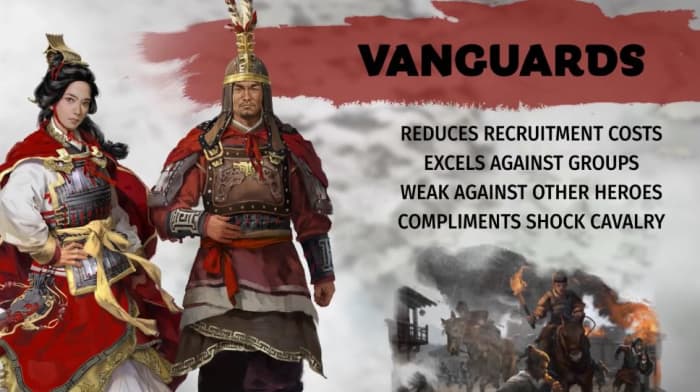
On a more macro level, though, you also want to consider your generals’ colors again. You can have one general per retinue, and three retinues per army, so what’s the best combination of archetypes for what you’re trying to accomplish with this force? Are you trying to defend your territory? Then be sure to incorporate a Sentinel and a Commander. If you’re trying to lay siege to a large enemy city, though, you’d be better off with a Strategist or a Vanguard.

Total War: Three Kingdoms vanguard
Need a strong army ASAP? Call a vanguard!

9. Rout and shatter

Make no mistake, you’ll be murdering plenty of units in Three Kingdoms, but if you look at the bigger picture of a battle you’ll quickly realize that killing isn’t actually that important. You’ll more likely win skirmishes by breaking the opponent’s morale.

Overwhelming numbers and coordinated flanking maneuvers can quickly cause panic in enemy units, especially if done with cavalry, and this can cause enemy units to quake, panic, and eventually flee altogether. This buys you time to re-position for another charge, engage the capture point, or move up your squishier units so you wrest more control of the battle.

Total War: Three Kingdoms cavalry charge
Morale debuff. Cavalry charge. Rinse, repeat.

Some officers leading your retinue can debuff enemy troops with morale penalties, which can tactically stack with a well-timed cavalry charge to send foes scattering. Likewise, you can also position your Commanders around your more feeble units to ensure that they benefit from the boosted morale. This will keep your troops on the battlefield even if they’re getting nervous.

10. Two armies can group up

If you’re looking at the total strength of a fully decked-out army in one of enemy capitals and wondering “what’s my advantage if both of us are at full strength?” then you’re not thinking outside the box. There are many ways to weaken an enemy force before the siege (or defense) even begins.

You can manage your stance to plot an ambush, starve out a city while building siege equipment, demand their surrender, or even attack during winter for a  seasonal debuff that works both ways. One reliable strategy to boost your numbers is to attack with two armies at once.

Total War: Three Kingdoms two army stack
See all those units at the bottom? That’s what fielding two armies looks like.

To attack with two armies at once, all you have to do is position your second attack force adjacent to the commandery you’re attacking. When the battle starts you’ll only have access to the army that initiated the battle during the deployment phase. Once the battle officially starts, however, your reinforcements will arrive to join the fight. What this means is that if you plan to use two armies during an engagement, you have a total of six retinues at your disposal, each with their own (color-designated) officer.

If you wanted to, you could have your entire second army comprised of cavalry and vanguards who can storm in and break the enemy line once you’ve engaged them with army 1. Hey, it worked for Gandalf.

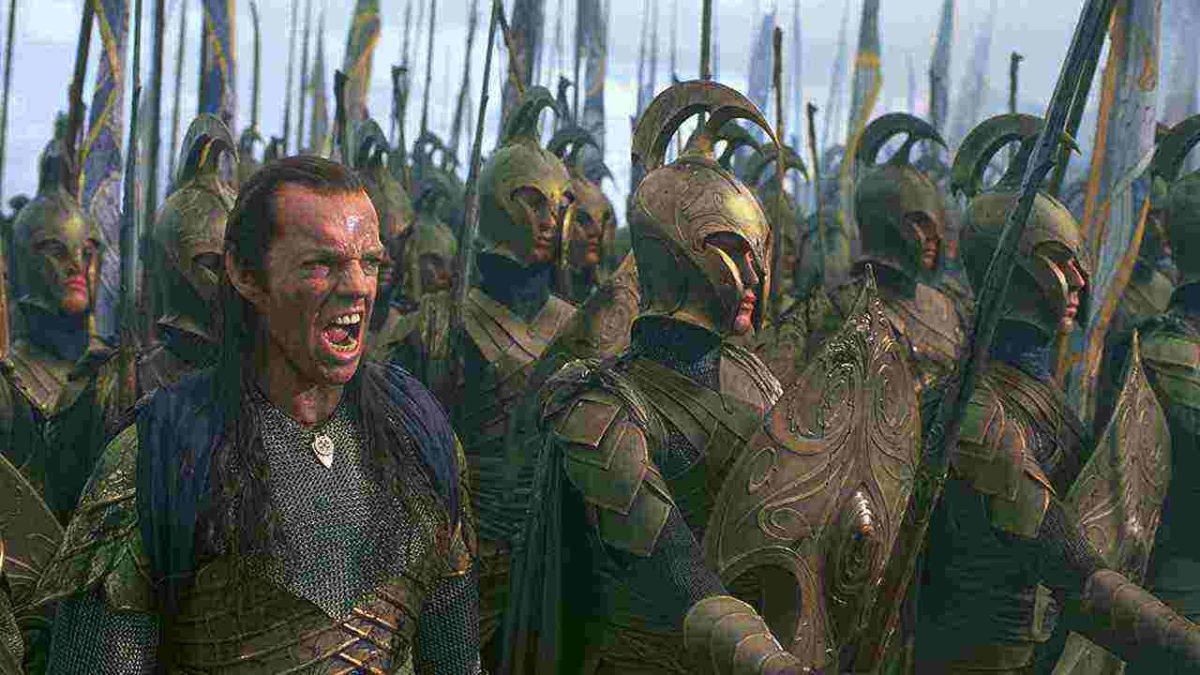
Lord of the Rings: Two Towers Helm's Deep
Yeah. It feels exactly this glamorous.

Study up, and don’t be afraid to practice in custom battle mode before starting a campaign to get a better feel for the ebb and flow of combat.

34 handy keyboard shortcuts for Audacity

Edit audio like a pro for free with these Audacity shortcuts!

Audacity

If you’ve ever done any kind of audio editing you’ve probably at least heard of Audacity – that free program that covers the basics but probably isn’t as good as a more pricey DAW like Pro Tools, Logic, or Ableton. While a heavyweight DAW like Ableton can get the job done like a champ, don’t overlook Audacity just because it’s free. Spend some time with the program and you can work absolute magic with it. People will hear your final mix and be absolutely shocked that you made it with freeware.

7

One easy way to take your Audacity skills to the next level is to familiarize yourself with its many keyboard shortcut commands. This will allow you to work faster, gain a more discerning edge over your audio product, and fine-tune your tracks more accurately and meticulously. Here’s a list of 34 different shortcuts you can use as you work:

Universal commands

Starting with the absolute basics, these are general Windows commands that seamlessly translate over to Audacity for ease of use. You’ve probably used many of these before in a program like Microsoft Word or Photoshop, and Audacity conveniently keeps the paradigm.

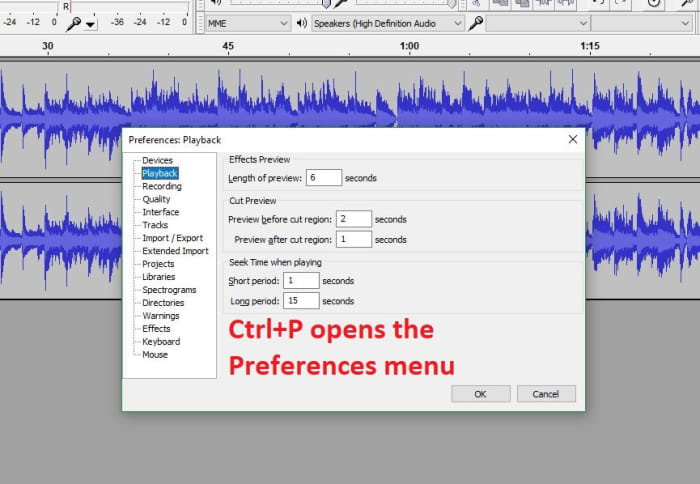
Audacity preferences menu shortcut

CTRL+N New project

CTRL+O Open project

CTRL+W Close project

CTRL+S Save project

CTRL+Z Undo

CTRL+Y Redo

CTRL+X Cut

CTRL+C Copy

CTRL+V Paste

CTRL+A Select all

CTRL+D Duplicate

CTRL+P Preferences

Playback commands

Audacity shares similar audio playback functionality as other digital audio workstations (like Pro Tools, Reaper or even Finale). If you start using Audacity more consistently you’ll be using these functions a lot. These shortcut commands will save you a ton of time:

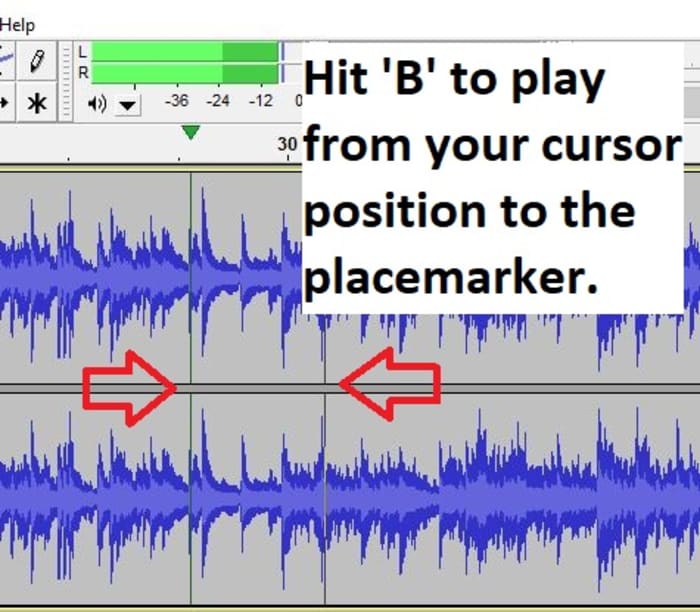
Audacity play shortcut B

Space Play/Stop

Shift+SPACE or L Loop

P Pause

R Record

1 Preview for one second

B Play from cursor to selection

Navigation commands

Editing audio is a lot of zooming in and out, selecting parts of the file, syncing tracks, and picking just the right nanosecond where you want to start that Fade Out effect or modify the volume a touch. Navigating your project is a cornerstone of using the interface, and getting a grasp of the relevant keyboard commands will grant you more finesse, maneuverability, and precision.

Audacity zoom feature
Set your zoom level faster with CTRL+#

CTRL+1 Zoom in

CTRL+2 Zoom normal

CTRL+3 Zoom out

CTRL+E Zoom to selection

F4 Zoom tool

F1 Selection tool

Edit commands

At its heart Audacity is free editing software, and that’s what the program’s all about. The following edit commands are what you’ll probably be using the most, to avoid having to keep clicking on obscure toolbar buttons or hunting through menus. Get used to these and you’ll be able to add effects, switch tools, and remove unwanted noise on the fly.

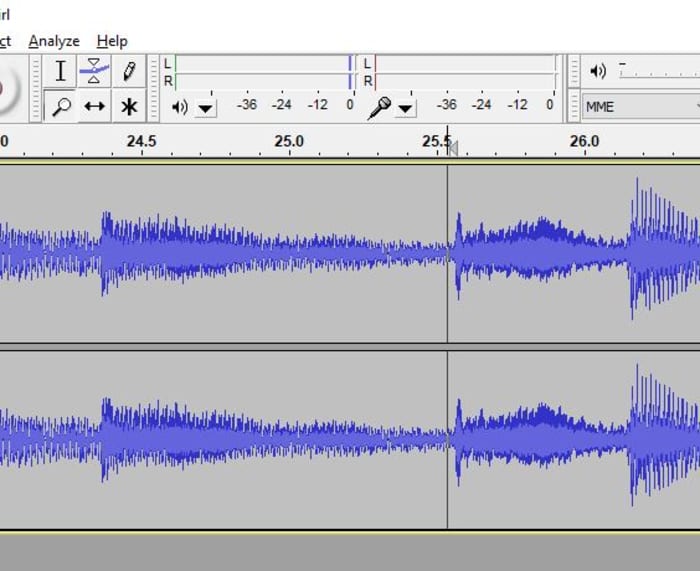
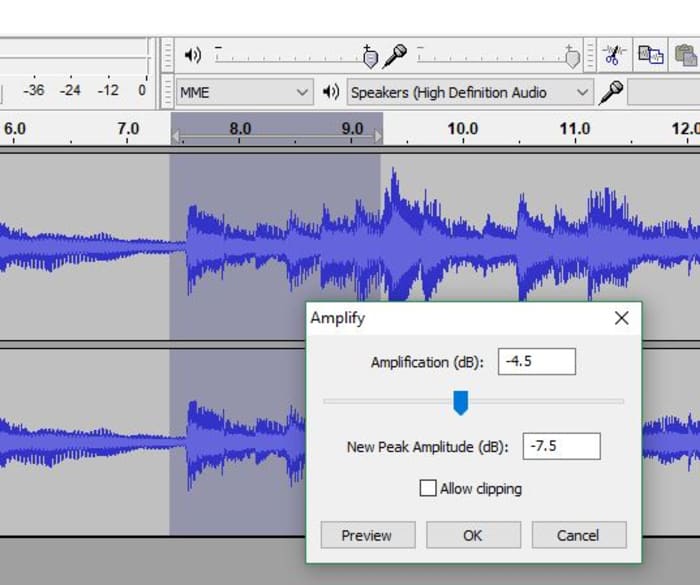
Audacity Amplify tool window
Switch to the right tool for the job.

F3 Editing tool

CTRL+R Repeat previous effect

Delete or CTRL+K Delete

CTRL+L Silence

F2 Envelope tool

F5 Timeshift tool

F6 Multi tool

D cycle tool forward

A cycle tool backward

For editing audio on a budget, you can’t do much better than Audacity. While it does suffer a few shortcomings (such as an inability to import WMA, AAC, AC3, or proprietary file formats), you’re getting a program that can keep up with other digital audio workstations, and that does it all for free. Other Audacity functions include multi-track mixing, vocal reduction and isolation, MIDI playback, and even full cross-platform operation.

We hope these helpful shortcut commands save you time! Stick with Softonic for more Audacity tips and tricks.

Apex Legends quick gun reference sheet reveals weapon stats

Which weapon will serve you best in Apex Legends? Check out this chart!

If you’ve been cleaning house in Season 2 of Apex Legends then you already know there have been some big changes made since last season. There’s new Ranked Leagues to grant in-game rewards to competitive players, a newly transformed Kings Canyon, a shocking new Legend added to the roster, and another hinted to follow sometime soon.

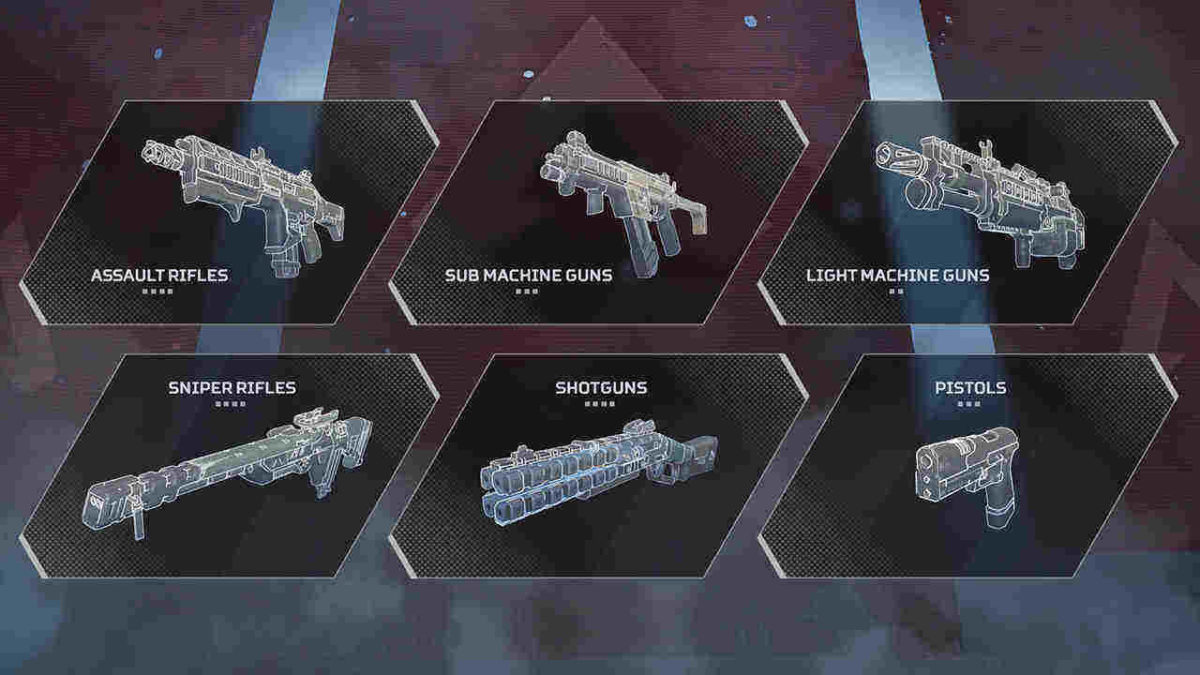
If that’s not enough to shake up the game, Esports Host and Twitch Partner JetSetJamerson just put out an incredibly useful bit of information that players have been wondering and debating about since release: A quick gun reference sheet that displays everything you’d want to know about any weapon in the game. It’s especially useful since Season 2 has changed many of the weapons. If you think you know what’s good, it may be worth your while to take another look:

Apex Legends Quick Gun Reference Chart Season 2

Unfortunately, the chart is missing a few details, such as how long it takes to kill with a particular gun (taking into account details like DPS vs RoF), but there’s still a ton of info here, even including body shot damage vs a hit to the leg or head (looks like body shots do slightly more than leg, while head shots deal almost twice as much damage as either).

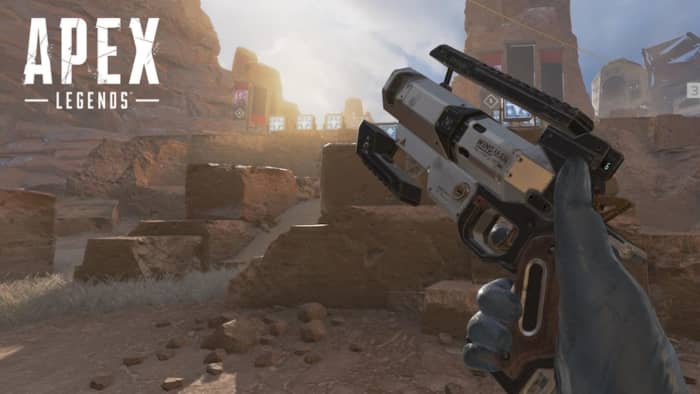
Apex Legends Wingman
Spoiler: The Wingman still dominates.

If you’re one of the many players who’s been dissing the Mozambique, take a good look at what happens once you mod it with a Hammerpoint! If you’ve got the backpack space for them, you might consider sacrificing a few for hop-ups; they’ll radically change up your game. Check out this detailed video for a full breakdown!

Big thank you shout-out to JetSetJamerson for creating (and editing) this awesome chart.

Let us know in the comments below whether this changes up the way you’ll be playing Apex Legends in Season 2, and we’ll see you in Kings Canyon!

Apex Legends Download FREE ►
9


11 hidden Spotify tips and tricks

Make Spotify even better with these 11 features!

Spotify

Having a hard time requesting a song while driving? Or maybe you want to preview a song without playing the whole thing? What about when you can’t find a particular song? Spotify is an awesome for listening to (and for teaching) music, and while it doesn’t take a music degree to create a new playlist or put your library on shuffle, there are some handy tricks to the app that are a little more under the radar. Check out these 11 tips that will add utility and ease to the software:

8

1. Quality vs Data

On both desktop and mobile you’ve got the option to either stream or download music on Spotify. By default, this process strikes a balance between fidelity and data, but through the Settings menu you can actually tweak which gets priority.

To do so (on Desktop) open the Settings menu from the drop-down under your profile picture. Scroll down until you see Music Quality. Use the ‘streaming quality’ drop-down to manually select either normal, high, or very high quality for your streaming.

You can use this function via mobile, too; just open Settings from Your Library and find it under Music Quality. On iOS specifically, you can find it under the Streaming Quality menu.

Spotify Settings menu Music Quality

2. Keep tabs with Last.fm

Spotify is integrated with Last.fm, a service that lets you track and discover new music. If you make an account with Last.fm (which you can do right here) it can connect directly to Spotify and you’ll be able to browse through the records it keeps of all the tracks you’ve been listening to on any of your devices. It’s even free!

Spotify Last.fm integration

3. Sing along with the lyrics

How does the second verse to “Tiny Dancer” go? Whether it’s because you’re trying to sing the song on the fly, or simply because not knowing what the singer is saying has always bothered you, it helps to have the lyric sheet handy.

Spotify might have the lyrics up for you already – all you have to do is tap on the album picture while the track is playing. Spotify is partnered with Genius and certain songs have the lyrics integrated right in. Alternatively, you can switch this feature to “Behind the Lyrics” mode which tells information about the song alongside its lyrics.

Spotify Genius lyrics

4. Set up the queue

One of our favorite features for Spotify is that you can set multiple tracks in a queue, and they’ll play one after another. Doing so is very easy; on mobile all you need to do is select the song and press the ellipsis. From here you can do all sorts of things (view the album, check out the artist, add it to a playlist, or go to the radio), one of which is “add to queue.”

Once the current song is finished playing, it’ll start the next one in your queue, and then afterwards it’ll go right back into whatever playlist you were in before. It’s especially useful when you’re in something like a “classic rock” playlist but are hankering to hear one specific jazz tune before resuming.

Spotify Queue menu

You can also view the default queue of songs as well as your song history at any time by pressing the “queue” button on the bottom right (on desktop) or by looking through the queue menu on mobile.

5. Preview a track

If you’re a fan of instrumental music, you might not recognize a song by its title (since there are no lyrics to go by). Or maybe you just can’t remember how a song starts.

A neat trick on mobile is to press and hold the song title for a quick preview. That way you can navigate away from the page, check out other music, or show your friend a quick sample without committing to the whole track.

Spotify preview track mobile

6. Follow artists

It’s always exciting to find a new artist you like, and Spotify makes it very easy to look up more tunes, more information, or even upcoming concerts from artists in its huge roster.

Next time you’re listening to a song on Spotify, click on the artist’s name (or find it via pressing the ellipsis on mobile) and it’ll take you right to their page. Here you’ll see their most popular tracks, albums they’ve put out, and even recommendations for other similar artists.

Spotify artist page

7. Crossfade tracks

If you want your Spotify experience to sound extra fancy, you can set it to seamlessly blend from song to song using crossfades between tracks.

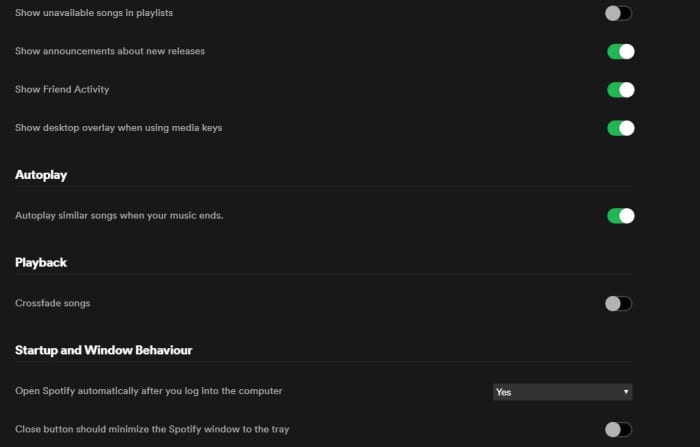
To engage this just go back into your Settings menu and look for “Playback.” Enabling the crossfade feature is the only option here; just toggle it on.

If you’re on desktop you might find this option under “Advanced Settings” instead. Just scroll down and you’ll see a button for it.

Spotify Settings Playback crossfade

8. Request tracks via voice command

Texting and driving is a terrible idea, and that’s why it’s illegal. If you use Spotify on mobile, there’s a good chance you listen to it while driving, too. Sometimes, there’s a song we really want to hear and it’s tempting to scramble during a red light to try and put it in queue – but there’s actually a much safer, more convenient way.

Spotify can recognize voice commands, so just hit the mic button on your smartphone and tell it the song you want to hear. Tap it and it’ll start to play immediately. It’s faster and nearly hands-free!

Spotify mobile driving voice command

9. Make a collaborative playlist

Planning a road trip with friends? Maybe trying to organize a list of songs for your band to cover? Maybe your friend’s getting married and you and the other bridesmaids are in charge of making a playlist.

Start making a new playlist and then right-click on it. In the drop-down you’ll see an option to “make it collaborative.” Select this and then select any friends with whom you’d like to share the monumental task of picking the most appropriate music.

Good luck with that.

Spotify drop-down collaborative playlist

10. Recover deleted playlists

There’s definitely a moment of panic when you think you’ve accidentally deleted an entire playlist. Fear not; there’s a way to fix it.

Go to Spotify’s website right here, log in to your profile, and there’s a Recover Playlist option right there. You’re welcome!

Spotify website recover deleted playlist

11. Add music that isn’t on Spotify

Spotify’s got thousands of tracks out there, but there’s still the odd outlier that you can’t find in their massive library. If you’re willing to take a few minutes, there’s a way you can add your own local MP3s to your playlist.

All you have to do is access your Local Files via the Settings menu, add a source (giving Spotify the path through your File Explorer), and then sync it up with whatever playlist you like. Check out our full walkthrough of the process for details!

We hope these tips and tricks will make using Spotify easier and allow you to use it more effectively.

Let us know in the comments below if there’s one that we missed, and stay tuned with Softonic for more Spotify news and info!

Fake Black Widow trailer gets 9 million views

Agent Romanoff’s dark beginnings take the stage in the fake trailer for the Black Widow movie.

Black Widow

Someone trolled us hard, but it looks so good we can’t even be mad. An upcoming Black Widow movie has been confirmed and we already know the director (Cate Shortland). There have even been a few set photos leaked. With the release date TBA, the environment is just right for someone truly evil to release a fake trailer. That someone was a YouTuber named ModeMarvelous. Here’s the (nearly believable) result:

The fake trailer has gotten more than 9 million views, and we’re not sure whether to be angry. On the one hand, it’s not real. It’s not fun being lied to, especially when people are so excited for any details regarding the movie. On the other hand, it’s hard to knock the quality. Okay, so that ID definitely says ‘Lucy,’ from Johansson’s 2014 movie but hey, she’s a spy, right? It’s a fake name!

The worst part is that this trailer looks like it’d make for a legitimately good movie. We see Black Widow going through her initial training, kicking butt as a spy, and meeting Hawkeye for the first time in a place that could pass for Budapest. It hurts to find out someone’s been crying wolf, but hey – at least we’ve got these cool leaked set photos?

Whether Taskmaster is going to be an actual villain is also anyone’s guess (though we think he’d be a perfect choice). Production for the actual Black Widow movie began in June, and there’s no actual trailer for it yet. If we do get one from Marvel this year, the bar is set pretty high.

Let us know in the comments below whether you’d go see the movie based on this sadly unofficial trailer!

Top 10 MCU fight scenes

Buckle up for the best battles in MCU history.

The Marvel Cinematic Universe has been knocking it out of the park the past 10+ years, and with “Avengers: Endgame” returning to theaters alongside the premier of “Spider-Man: Far From Home,” Phase 3 is coming to a close. From heartfelt conversations to joke scenes to empowering, character-defining moments, at the end of the day these films are still inspired by Jack Kirby and Stan Lee and the multiverse they helped create. Considering these are blockbuster movies based on comic books, popcorn-munching fight scenes are around practically every corner.

Some of these fight scenes are for the visual spectacle, others are big turning points for characters, and others are climactic showdowns that took several movies to build up to. Fight scenes are a big part of the MCU, but which ones were the most memorable? We took a walk down memory lane and composed a list of what we think are the top 10 combat scenes in the MCU:

10. Dr. Strange versus Dormammu

Doctor Strange Dormammu

In one corner we have Dormammu, an otherworldy entity who can enslave and destroy entire dimensions. In the other corner: Stephen Strange, a relatively inexperienced (but very determined) Sorcerer Supreme who’s barely gotten used to the title. You can’t get a much better underdog story than that.

What puts this finale of “Doctor Strange” on our list is that it’s not even really a fight scene; it’s a battle of wills, and Dr. Strange emerges victorious. By creating a time loop with the Time Stone, he’s essentially able to annoy Dormammu into letting Earth go free. “Pain is an old friend,” he says to the titanic otherworldly being, and in that moment we know it’s not the Sorcerer Supreme who beat be baddie – it was the surgeon with broken hands.

9. Hulk versus Thanos

Avengers Infinity War Hulk vs Thanos

When the Hulk gets involved it’s game over for whoever he’s up against. Just look what happened to poor Loki in “Avengers.” That’s why jaws dropped when Thanos was able to knock the big green guy to the floor in under a minute. It’s the first time we’ve seen the Hulk lose a fight, and it happens right out of the gate, in the first few minutes of “Avengers: Infinity War.”

What makes this loss hit even harder is “Infinity War” takes place literal minutes after “Thor: Ragnarok,” a movie where Hulk is the grand champion of Sakaar, beats up Thor, and goes toe-to-toe with both Surtur and Hela. To have Thanos take out the Avengers’ biggest gun right from the start is a gut-punching shock, and it makes our list for being one of the most powerful narrative fight scenes in the series.

8. Iron Man versus Thor

Avengers Thor Iron Man Captain America

“Avengers” was one of the best (and historically important) films in the MCU, and it’s because we finally get to see our heroes come together to become the team Nick Fury hinted at as early as “Iron Man.” The team is hardly ready to work together at first encounter, however, and the first time it comes to blows is when its two most hotheaded members meet up in a forest after Thor swoops down to capture Loki.

It’s the classic instance of magic versus technology, and we learn that Thor’s lightning actually helps power Tony’s suit – a trick that would come in handy later on. When Captain America comes down to stop the fight, Thor swings down on his shield, proving that the metal of the three matches their mettle, and all are capable combatants in their own right. An unspoken respect is shared between the three from that point moving forward, but it’s this initial clash that paved the way.

7. Winter Soldier versus everybody

Cap pulls helicopter

Zemo has taken control of Bucky’s mind, and the poor guy’s going full rampage – or at least as full rampage as you can get with minimal access to weapons. The titular civil war hasn’t happened yet, but this scene is fuel for the fire that “Captain America: Civil War” is all about.

This scene is a rare instance in which none of our heroes are geared up for a fight; Black Widow even tells Tony “I hope you brought a suit,” and Tony quips back that “it’s a nice three-piece.” The battle breaks out without warning, and that means we get to see them armed with little but their training and wits (and superhuman enhancements for a few of them). Everyone tries to take a crack at the Winter Soldier, and he keeps them at bay, culminating in Cap bringing down a helicopter with his bulging biceps. What’s not to love?

6. Nebula versus Gamora

Guardians of the Galaxy Vol. 2 Nebula

Nebula and Gamora have been at each other’s throats since childhood. We saw them going at it in “Guardians of the Galaxy,” but it’s nothing like this fight in “Guardians of the Galaxy Vol. 2.” Gamora is sitting contemplatively in a field when Nebula streaks out of the sky in a ship, murder in her eyes. It turns into a knock-down, drag-’em-out fight in an eerie cavern beneath the ground, and there’s no holds barred from either of them. Nebula finally gets the upper hand … and can’t bring herself to kill Gamora.

Then she says the line that changes their relationship from that point forward: “You were the one who wanted to win, and I just wanted a sister!” It’s a pivotal moment in their relationship, and starts her on her journey into the Nebula we see in “Avengers: Endgame.”

5. Killmonger versus T’Challa

Killmonger T'Challa waterfall fight

By the second waterfall fight in “Black Panther” the audience already knows the ritualistic significance of the combat. T’Challa’s earlier battle here with M’Baku serves as a comparison to what is perhaps his darkest moment: T’Challa cannot beat Killmonger in this fight, and as a result, his mentor Zuri is killed in front of him.

Zuri’s death breaks T’Challa’s discipline, and for the first time we see a crack in his usual calm, cool demeanor. Killmonger puts that crack under the spotlight. “Is this your king?” he taunts. T’Challa’s spirit is broken, and his body follows shortly after. This fight makes our top 5 because (aside from the awesome choreography and backdrop) this is the real turning point in “Black Panther,” and really sets up the later conflict between Killmonger and T’Challa.

4. The Airport Battle

Civil War airport battle

If there was a single MCU fight that was all about the spectacle, it was this one from “Captain America: Civil War.” The fight at the airport was made for the fans, and it’s chock full of quips (including the first time we see the new Spider-Man fight!) and consists of a bunch of our favorite characters duking it out with each other because of … the Sokovia Accords? Or maybe it’s got something to do with the Winter Soldier? Eh, who cares, this is epic.

On one side you’ve got Cap, Falcon, Ant-Man, Hawkeye, Scarlet Witch, and Bucky.

On the other side is Iron Man, Black Panther, Black Widow, Spider-Man, War Machine, and Vision.

The fight gets progressively more ridiculous as it goes, reaching its zenith when Ant-Man gets huge and starts wreaking havoc. It’s all fun and games until Vision misfires and forever cripples Rhodey with a misfired blast from the Mind Stone. It’s this moment that juxtaposes the silly fun, and puts the civil war into perspective, properly raising the stakes.

3. Winter Soldier versus Captain America

Winter Soldier punches Cap shield

“Captain America: Winter Soldier” was a game changer in many ways: Cap’s trying to make ends meet in modern day, HYDRA has infiltrated SHIELD, Nick Fury is compromised, and suddenly no one knows who to trust. To make matters worse, the mysterious Winter Soldier is somehow mixed up in all this, and Steve and Natasha end up facing off with him in the streets.

In what’s arguably the best-choreographed fight of the entire MCU, the Winter Soldier puts two Avengers on the ropes, even daring to fight in CQC with Captain America, a step into the ring that few can handle. The scene  ends with the Winter Soldier unmasked. Steve manages to croak out his friend’s name, to which he responds, “Who the hell is Bucky?” There are powerful forces at work here, Cap. Powerful forces indeed. Between the excellent combat, fluid camera direction, and the huge significance this has on the plot, this one makes our top three.

2. Everybody versus Thanos

Avengers Infinity War Thanos fight Titan

“Infinity War” started with Thanos killing a ship full of Asgardians, curb-stomping the Hulk, killing Loki (which we’re still not okay with), and overpowering Thor. It’s not until Iron Man, Spider-Man, Dr. Strange, and the Guardians of the Galaxy reach Thanos’ homeworld of Titan that they also get to try their hand against the big purple guy. Thanos at this point has four Infinity Stones, and the fight sequence is a series of coordinated attacks trying to wrest the Gauntlet away from him.

Besides just being visually spectacular, this scene cleverly uses all the Avengers’ talents in tandem, and we get to see just how powerful Thanos really is; in the end, even that isn’t enough. Strange sacrifices the Time Stone to save Tony’s life … because it’s the only way they’ll make it to the endgame.

1. Avengers Assemble

Avengers Endgame Thanos army

Ever since “Infinity War,” our heroes have been dying for some payback with the Mad Titan. At the climax of the “Endgame,” Thor, Iron Man, and Captain America step outside to see Thanos (currently without the Gauntlet or any Infinity Stones) awaiting their approach. It’s been a long five years for the Avengers, and now’s their chance for redemption.

Thanos is still a formidable foe, even without the Infinity Stones, and even their combined strength still isn’t enough. The Avengers give it their all: Iron Man gets his second crack at the big guy, Thor works right alongside him and dual-wields hammers, and Captain America steals the show by lifting Mjolnir in what is probably the best moment in the film.

Avengers Engame Cap stands alone

We could stop right there, but it only gets better from that point. In a moment of unmatched heroism, Captain America stands alone against the alien hordes of Thanos … or so it seems. Portals open up, and our favorite heroes get to come join the fight: Black Panther, Okoye, and Shuri; Falcon, Dr. Strange, and Wong; Spider-Man, Valkyrie, Wasp, Pepper, and the Guardians of the Galaxy; and eventually Captain Marvel as the ace up the sleeve. It’s the lineup everyone was waiting for, and the battle to end all battles.

Agree with our list? Let us know your favorite MCU fight scene, and we’ll see you in theaters July 2 for “Spider-Man: Far from Home.”

(function(d,s,id){var js,fjs=d.getElementsByTagName(s)[0];if(d.getElementById(id))return;js=d.createElement(s);js.id=id;js.src=’https://embed.playbuzz.com/sdk.js’;fjs.parentNode.insertBefore(js,fjs);}(document,’script’,’playbuzz-sdk’));

Marvel Ultimate Alliance 3: Everything we know

Superhero fans are going to love this game.

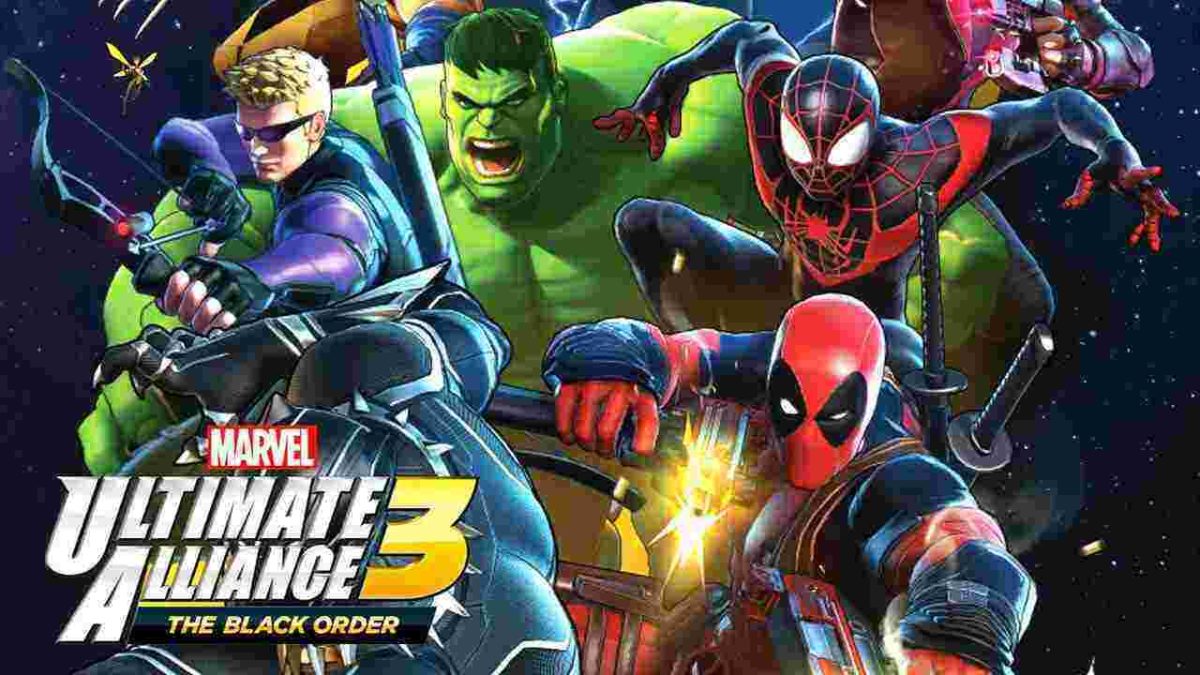
Marvel Ultimate Alliance 3

It’s been a long 10 years since Marvel and Activision released Marvel Ultimate Alliance 2, the semi-official fourth game in the series that began with X-Men Legends way back in 2004. If you’re a nostalgic fan of the series, it’s a lot of fun to look back through the journey that spans from Alison Crestmere’s first tentative days exploring the X-Mansion, to allying with the Brotherhood to take down Apocalypse (in the sequel), to banding all the Marvel characters together to defeat Dr. Doom’s Masters of Evil, to finally fighting the fearsome Fold in the frenetic Ultimate Alliance 2.

Marvel: Ultimate Alliance 2 Download
9
Choose a side!

It’s been so long since that final encounter in the game’s final act in Wakanda that many fans of Ultimate Alliance have long since abandoned the hope of ever getting another game. Our surprise at the announcement of a Marvel Ultimate Alliance 3 were matched only by our enthusiasm, and with the game coming out next month we were immediately curious to see how (and if) they were changing the formula so that it matches the expectations of a 2019 crowd.

Ultimate Alliance 3
Ultimate Alliance is finally making its triumphant return!

We’re happy to see that Ultimate Alliance 3 will be adding in some exciting new characters and features while still respecting and maintaining the elements we love from the older games. Here’s a rundown of both the old and the new of Ultimate Alliance 3 (did we mention we’re super excited to play this game?):

The familiar

Teams of four

First things first, Ultimate Alliance 3’s gameplay will feature player-made teams of four Marvel characters, a staple number that’s been in place since the beginning of the franchise. As we hoped, this also means up to four players can play cooperatively – both online and local! In today’s online-obsessed gaming world, it’s a rare treat to get to play with our friends in a real local game. We expect the easy, pick-up-and-play style of the game to make this a hugely popular game at parties. Just be sure to have an extra controller lying around!

Ultimate Alliance 3 Guardians of the Galaxy
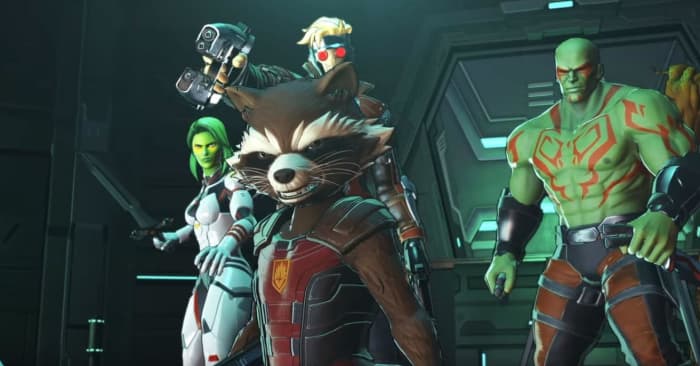
Suit up as the Guardians of the Galaxy as they take the fight to the Black Order

Xtraction points

Like in the preceding titles, you’ll come across glowing blue icons on the ground that serve as the game’s checkpoints. These are points where you’re permitted to save, load, change teams, upgrade characters, change costumes, or fast-travel to prior locations. It’s an especially useful feature if you’re a completionist who finds they missed something important back during the first act. It’s also handy if you pick up new gear or characters that you want to switch between as the story progresses.

Ultimate Alliance SHIELD Access Point
Remember these?

Lockjaw offers teleporting

Once you’re on a mission you’re committed. Whatever team you assembled will have to do until you reach an extraction (“Xtraction” in the earlier games) point. The exception (“Xception?”) to the rule was that you were allowed a portal every five minutes courtesy of Blink. In Ultimate Alliance 3 you’ll get the same function, this time with the help of the lumbering and adorable Lockjaw.

Ultimate Alliance 3 Lockjaw
This woofer earns his treatos

While this wasn’t implemented in Ultimate Alliance 2, we think a return of this feature is a good thing; being able to quickly switch in a character at any time took weight away from our team-building decisions prior to a mission, and led to some cheesing of the system with characters like Iron Fist (the game’s only healer).

Four abilities per character (MUA2)

While X-Men Legends 2 (and even Ultimate Alliance) had around 10 upgradeable moves per character, it looks like Ultimate Alliance 3 will be maintaining the trend of its prequel. Characters in the upcoming game will cap at four abilities, with each mapped to a designated button on the controller. While this at first sounds disappointing, remember that there’s a large roster of characters (over two dozen!), and that this way there are fewer instances of moves being copy/pasted between the cast, allowing for each hero to feel more distinct. Scarlet Witch, for example, can buff her teammates with a radial healing effect, while Daredevil uniquely uses radar sense to identify enemy weaknesses.

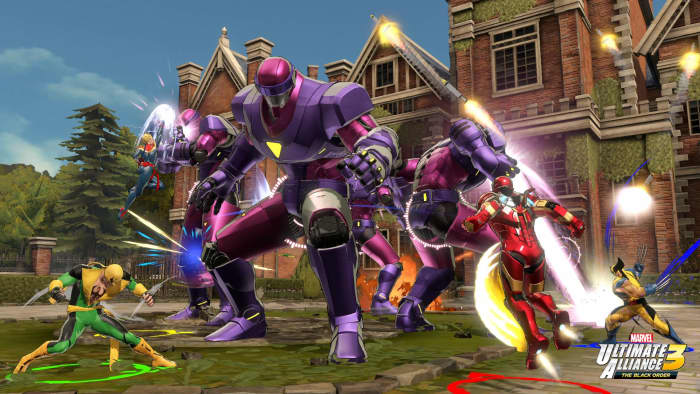
Marvel Ultimate Alliance 3 X-Mansion Sentinels
Fighting sentinels on the X-Mansion lawn. Another nostalgic callback.

Team bonuses

Remember when you could put Scarlet Witch, Magneto, Juggernaut, and Toad on the same team to receive the “Brotherhood of Evil” bonus back in X-Men Legends 2? Or put Thor, Hulk, Iron Man, and Captain America together in Ultimate Alliance to form the “Classic Avengers?” Ultimate Alliance 3 incorporates and improves this feature, allowing you to once again benefit from assembling a particular team of heroes. Some will deal bonus damage, others receive additional XP, and some even regenerate health passively when grouped up.

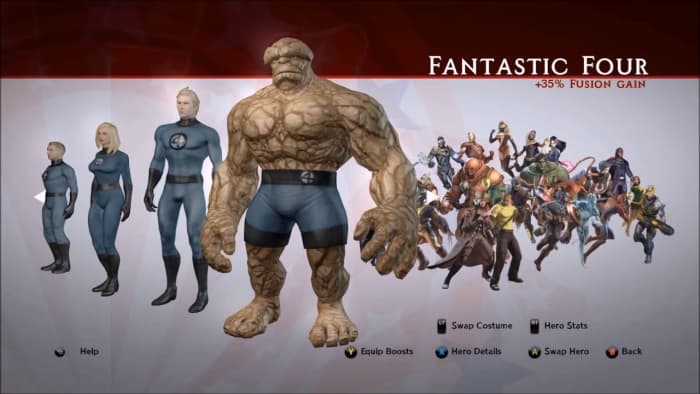
Marvel Ultimate Alliance 2 Fantastic Four team bonus
Once again you’ll receive bonuses for putting certain characters together

There is, however, one hugely significant change to this function in Ultimate Alliance 3: Multiple team bonuses can stack. Put together a team like Black Widow, Spider-Gwen (she’s in this game!), and Scarlet Witch and you’ll trigger a “Women of Marvel” bonus. Add Miles Morales (yep, he’s here too!) and his inclusion with Spider-Gwen will add the “Web Warriors” bonus on top of that. Keep track of which pairings provide which bonuses and you can start putting together more cohesive teams.

Extreme and Synergy

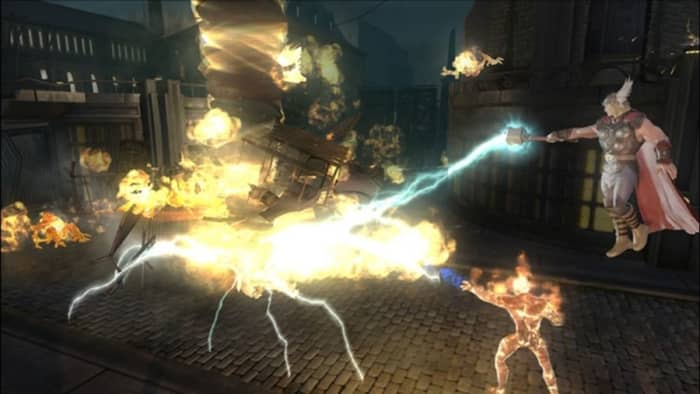
The first three games in the series featured “Xtreme attacks” which worked like ultimate abilities for each character. These ranged from the big crowd-clearers (like Storm’s ‘Raging Tempest’) to the more creative tricks (like Gambit’s ‘Prince of Thieves’ that provided a brief but substantial increase to loot found). These ultimate attacks were removed in Ultimate Alliance 2 in favor of fusion abilities, which came in three varieties: Targeted (for massively damaging single targets), Clearing (AoE), and Guided (which bulldozed the competition in a direction the players set).

Marvel Ultimate Alliance 2 fire tornado fusion
Fire tornado ca. Ultimate Alliance 2

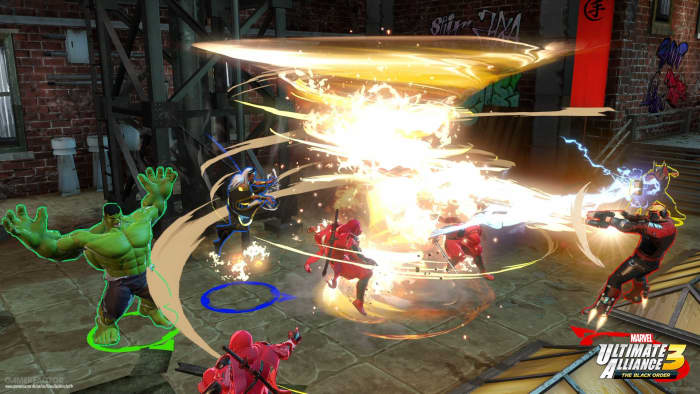
Ultimate Alliance 3 is bringing together the best of both worlds, giving each character both an Extreme Attack and Synergy Attacks. Fill up the EX gauge and you’ll build up power to unleash your individual Extreme Attack, or combine unique character abilities together (like Iron Man shooting his uni-beam at Captain America’s shield) to make more devastating attacks. splitting the laser to hit multiple targets, Storm and Thor create a cyclone with electricity, etc. If all four characters unleash their Extreme Attacks at once it’s considered an Ultimate Extreme and generates a ton of additional damage.

Marvel Ultimate Alliance 3 Star-Lord fusion
Laser tornado ca. Ultimate Alliance 3

The new

Switch only

If you’re a Nintendo Switch owner, this is your time to shine; it’s the only platform that will be able to play this game, at least for now. Interestingly enough, this Marvel made this decision after Nintendo first visited them – before the Switch was even publicly revealed. They showed them the hardware and discussed their plans to move forward with its launch, and the presentation was solid enough to convince Marvel to work exclusively with Nintendo on the game.

Team Ninja

While Marvel Games is providing the character selections and writing talent, the game’s actually developed by Team Ninja. Marvel Games were huge fans of Team Ninja and Koei Tecmo for years, and always wanted to work with them. Both teams wanted to see the series return, and when Nintendo eventually jumped on as their publisher, they started cooking with gas.

Meet the cast

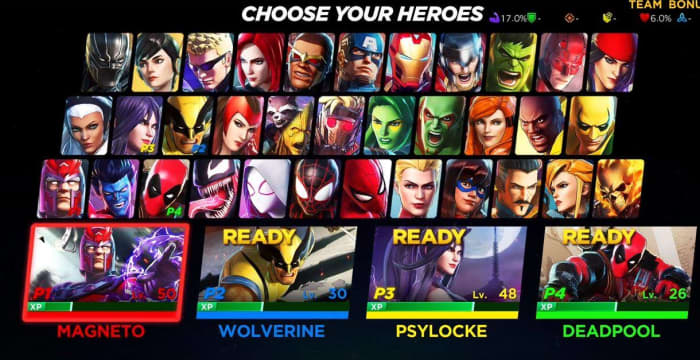
While the first two X-Men Legends games focused on keeping the characters in the X-Men (and Brotherhood) family, Ultimate Alliance brought the story to the full Marvel universe. This meant the inclusion of characters like Daredevil, Dr. Strange, the Fantastic Four, and Venom. Ultimate Alliance 3 is bringing in a huge assortment of characters, some of whom are making their debut, such as Crystal, the Guardians of the Galaxy (finally!), Miles Morales, and Spider-Gwen.

Check out this pic of the the full roster so far:

Marvel Ultimate Alliance 3 roster
Check out the full cast!

Story

Marc Sumerak is recognized as one of the best writers for Marvel content, and his talents are coming to the franchise once again. He wrote the plot for Ultimate Alliance 3 with the intent being to weave together aspects of both the comics and the films. As such, characters like Captain America will draw from both: He’s got the looks of Cap from the MCU, and has an appropriately cool shield kick animation, but some of his other moves (like his more cartoonish block) are more in the style of the comics. Similarly, his attitude and dialogue will be a little more on the corny side. As for what this plot is, we don’t know the full details yet, but here’s what we do know:

Marvel Ultimate Alliance 3 Captain America block
This weird-looking block can reflect projectiles!

The story starts with the Guardians of the Galaxy entering a derelict Kree warship. Here they confront Nebula, Ronan the Accuser, and eventually Proxima Midnight, the first encounter with Thanos’ Black Order. The infamous Infinity Stones are gathered aboard this ship, and the ensuing battle scatters them across the universe. The subsequent chapters take take place at locations like the Raft (at which point you’ll be introduced to most of the other cast), the Shadowland, New York, Avengers Tower, the X-Mansion and more. We also know that certain baddies (like the Green Goblin) will be in possession of various Infinity Stones.

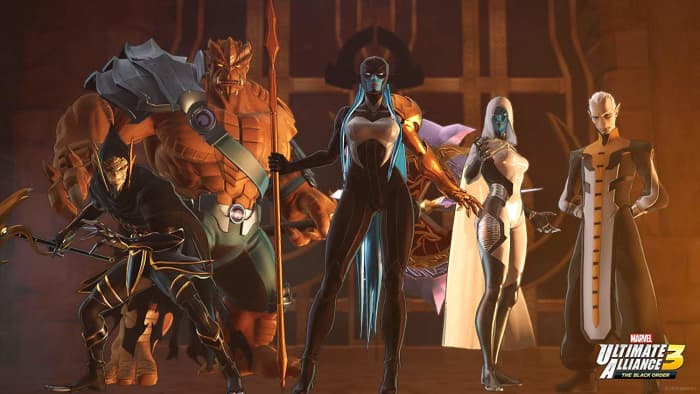
Marvel Ultimate Alliance 3 Black Order
These guys always spell trouble

Emotes

Since the game can be played either locally or online, every character also gets a variety of emotes (to help communicate without a headset). Iron Man will have numerous quips he can say at any moment, and Hulk is verified to shout “Hulk approves!” which we’re certain that players won’t spam.

Alliance Enhancement System and ISO-8

If you’re still disappointed that each character only gets four moves, you’ll be happy to hear about these two big gamechangers: ISO-8 and the Alliance Enhancement System. The latter is a series of upgrades that applies to the whole team. The dev team has cited it as being similar to the Sphere Grid in Final Fantasy X, with nodes unlocked through both credits and enhancement points. Characters will level up individually as they always have, and Ability Points (another takeaway from earlier titles) can also be used to improve your character’s primary abilities.

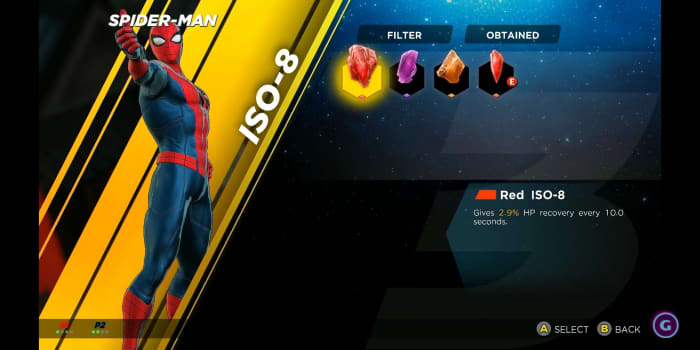
Marvel Ultimate Alliance 3 ISO-8 Spider-Man
Use red Iso-8 to boost a character’s HP recovery rate

ISO-8, on the other hand, is an element that you can equip on your hero. This lets you tweak their abilities in a fight to dramatic, direct effect. These  are dropped during particularly tough encounters and provide creative new elements to your combat: Decreasing damage when health is low, increasing the chances of health orbs dropping, largely improving your chance to stun, and more. You can also break down individual ISO-8 pieces to upgrade other pieces to bolster their effect.

Stagger gauge

Speaking of tough fights, we also know there’ll be a new “stagger gauge” mechanic. This is a feature implemented during fights with heavies, mini-bosses and boss characters, and will be displayed via a purple stagger gauge. This gauge will have to be depleted before you’re able to do any lasting damage to the target, and the enemy is stunned and open to attack. The only way to reliably deplete the stagger gauge is to deliver continuous damage. Considering that you’ll have to balance this with managing your own power cooldowns, this will undoubtedly lead to some pretty cool changes to the usual strategy.

Infinity Trials

Lastly, we know that Ultimate Alliance 3 will include Infinity Trials, which work similarly to the Rod of Trials from Ninja Gaiden 2. These Infinity Trials are optional battles that appear as rifts during your first playthrough. Players will be transported to a new location, in which a tough challenge mode will trigger, featuring twists and variations on previous encounters. Undergoing these trials are always heavily rewarded, and are most certainly worth your while if you’re trying to maximize your characters before the start of each new act.

Stay tuned with Softonic for more news and details about Marvel Ultimate Alliance 3 as they’re made available. We can’t wait to get our hand on a copy on July 19 – less than a month!!

Use Calendly to schedule meetings easier and faster

Need to schedule a meeting? Calendly could be the perfect tool.

Calendly

You’ve got a busy schedule. Making ends meet is hard enough without having to log your conversations, add meetings to your to-do list, or spend time meticulously setting up virtual conference rooms.

Calendly takes care of all the tedious micromanagement of your work life so that you can spend your time preparing the important stuff. Think of it as your own personal secretary, helping you plan your itinerary and schedule meetings without the back-and-forth of countless emails.

Calendly makes it easier to access, share, and manage events both far in the future, and sudden and unexpected. You can even send them as a one-click booking experience. Check it out today on the Chrome Store, and see why it’s the go-to organization and scheduling tool for loads of people.

How it works

Time management is something we all struggle with, and it only gets harder the higher you are in the company ladder. Chief Marketing Officers have a tendency not to last more than a few years in their position, with the average tenure being just 44 months. Many CMOs stumble early in their new role solely because there are so many threads to keep track of. Calendly is a secret tool in your back pocket that partitions your daily work effectively and uniquely for you. Take a peek at the strategy:

Calendly works by seamlessly integrating itself with your digital schedules such as Google, Outlook, Office 365, or iCloud. It flags any double-bookings, and works with your selected calendars to automatically check availability to help you professionally connect with clients, contacts, and prospects. You can allow invitees to schedule individual slots (or multiple team members at once) to take the burden off your own shoulders, and create and manage all kinds of meetings, no matter how large a team you’re working with. If you like to host webinar events, Calendly is simply a must-have. For a more in-depth walkthrough of all Calendly’s specific features, check the full rundown on their website here.

Control your own experience

The best thing about Calendly is that it offers complete customization no matter what kind of business you’re working in, or what kind of relationship you have with your co-workers. You can elect to have Calendly send confirmation and reminder emails to your team so that you don’t have to do it in person (this is super helpful in improving no-show rates), and customize your alerts to account for a comfortable buffer time before the meeting officially starts. You can even use Calendly to cap the number of meetings allowed per day. It keeps track so you don’t have to.

How much does it cost?

Calendly is 100% free.

You can sign up in seconds right here. You don’t even need to give it your credit card information. Calendly has over 2 million monthly users, and requires virtually no setup. Give it a whirl right now and watch your productivity reach new levels! Never get double booked again, automate appointment scheduling, and choose to share links via your email or website to fully integrate yourself in a work environment that you set.

Let us know in the comments below if Calendly was able to help you, and enjoy easier, faster, and painless scheduling!