What to do if your iPhone won’t hold a charge

iPhone dying too fast? These could be the reasons.

So, your iPhone has suddenly stopped holding a charge and you’re not sure what changed or what to do. Don’t panic! This doesn’t necessarily mean you have malware or that you need to drop $1,000 on a new iPhone. There are many other possibilities that could explain why your phone might be dying quickly.

What to do if your iPhone won’t hold a charge
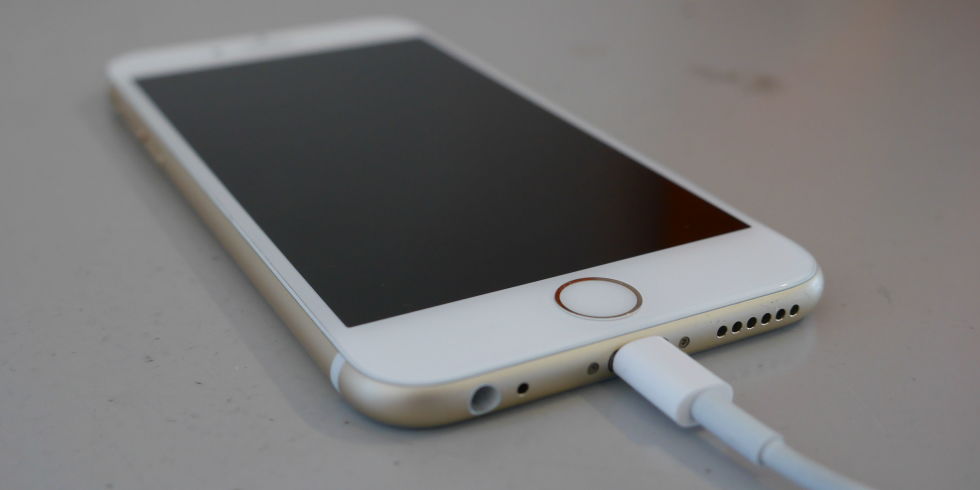
iphone charging

1. A software update could be to blame

New software updates can be much more demanding on newer and older phones alike. If you were used to using your phone without much battery drain, but you’re suddenly seeing your charge rapidly disappear — especially if your phone is dying while you’re not using it — it could be because of a new software update. Check out Apple’s support forums to see if other users are having the same problem with the update. If this is the problem, you may have to wait until Apple corrects the issue.

Conversely, you may also be experiencing battery issues if you don’t update your phone regularly. Although you may seemingly have more battery issues with phone updates, you should update your phone regularly. Doing so could jeopardize your phone’s health and security.
2. Which apps do you use?

If you love to bounce between Facebook, Instagram, and Google Maps, this could be the reason your phone battery is quickly draining. Or, maybe the new version of your favorite app is too demanding for your phone. If you’re a huge fan of AR or VR, those could also be the culprit.

Go to your phone’s settings and click on Battery to see which apps are using up your battery the most.
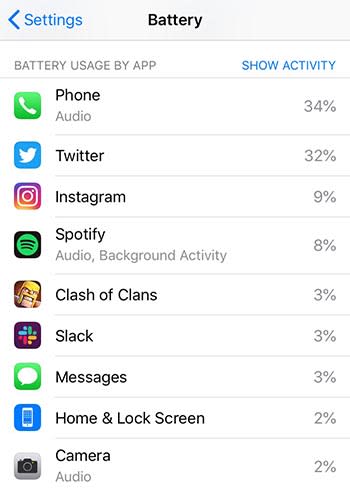
phone battery

While in your settings, you should also go to General > Background App Refresh to see if you have too many apps refreshing while you’re not using them.
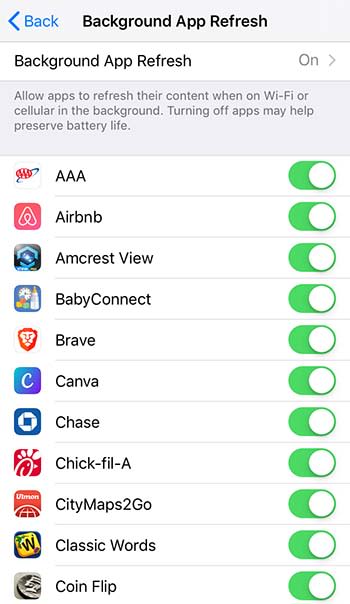
background appsYou may also want to see if too many apps are accessing your location (Settings > Privacy > Location Services), or if your screen brightness is too high. Note: Depending on your phone model, some of these might be in a different location in your phone’s settings.
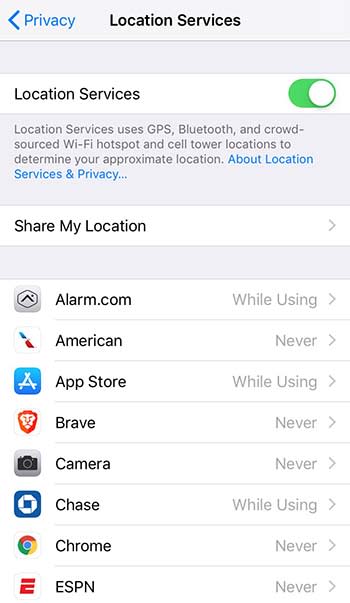
location services

3. How old is your phone?

Do you have one of the latest iPhone models, or is your iPhone a few years old? It’s not unusual for a brand new iPhone to experience some initial battery drainage, but if this lasts longer than a few days, another issue may be at play. Regardless of age, if your phone isn’t holding a charge for more than an hour or so, that’s a problem.

It’s normal for any phone to stop holding a charge over time, especially after a year or two. Instead of going 24 hours between charges, you might have to charge it every 10 or 12 hours, depending on usage. Nonetheless, you may experience more battery drain issues with models older than the iPhone 7.

4. You could have a bad or old battery

If you’ve tested the above and your battery is still not holding a charge for a reasonable amount of time, then you might have an old or failing battery. If you just bought a new or refurbished model within the last few months, your phone’s battery should not be dying within a few hours. (Still, you need to consider your usage.) This could mean that you’ve got a bad battery. If your phone is under warranty, you can replace it for free. To check your battery health, go to Settings > Battery > Battery Health.
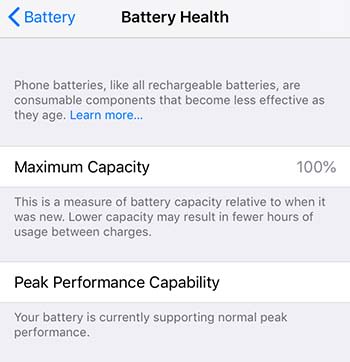
iphone battery

If your phone is two or three years old and it’s not holding a charge, your battery may be finally reaching the end of its lifespan. But that doesn’t mean you have to buy a new iPhone. Battery replacements, even out of warranty, are much more affordable than buying a new phone. Costs currently range from $49 to $69.

5. You’ve damaged your phone recently

While the newer iPhone models are water resistant for a certain amount of time and up to a certain depth, older iPhone models might experience battery issues if exposed to water. Try putting your phone in a bag of rice to draw the water out, and see how it functions after.

Additionally, if you recently exposed your phone to extreme hot or cold temperatures, this can also affect your phone’s battery life. If you left your phone out in the sun on a very hot day, and it won’t hold a charge when at a normal operating temperature, it might have irreversible damage. You’ll need to replace it.
Apple AirPods are spying on people

Another privacy scandal for Apple.

Apple Airpods

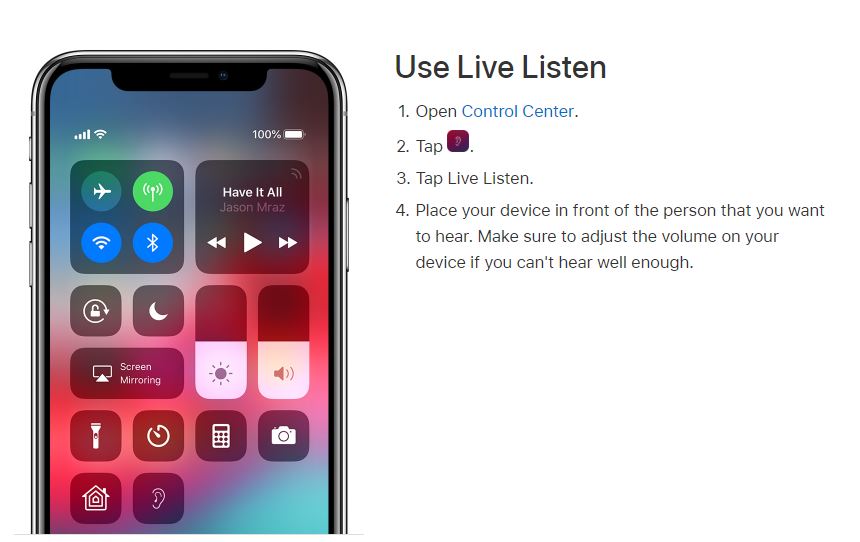
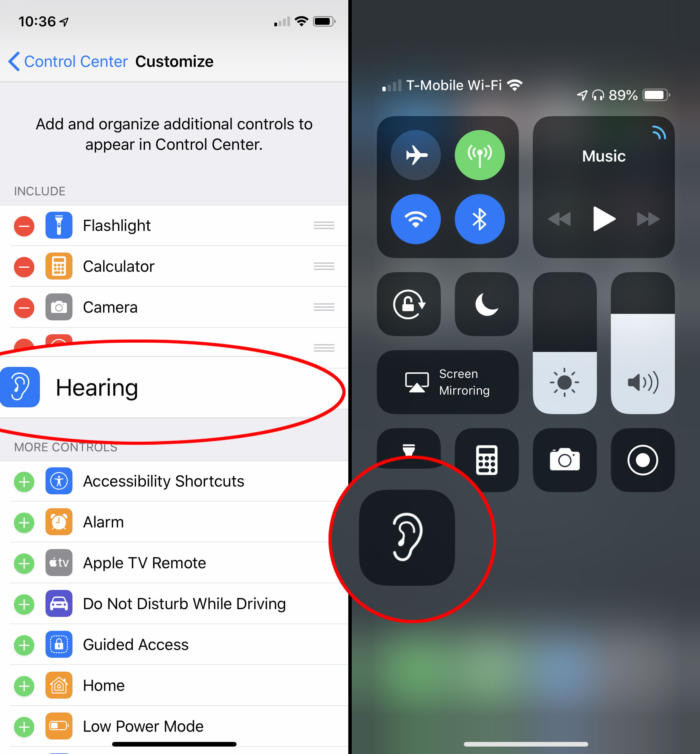
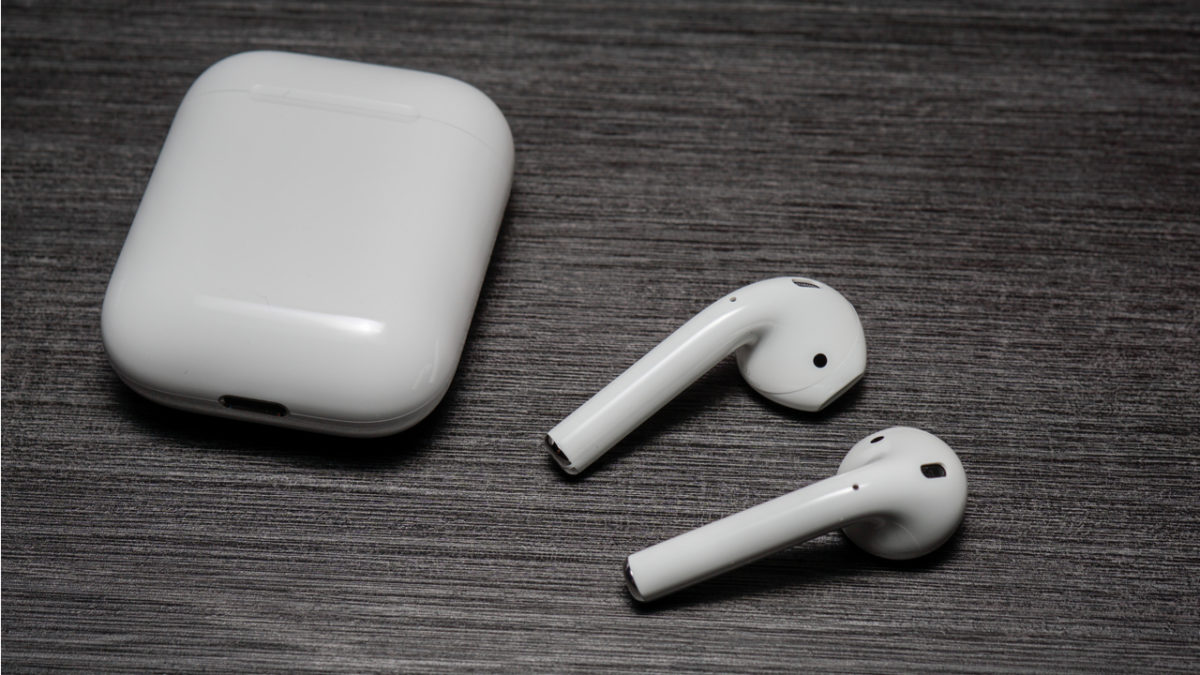
With the iPhone 7 came the death of the headphone jack and the birth of the AirPod. The wireless earbuds are good enough, we suppose, but their reception has been a largely mixed bag. The iPhone X has a Live Listen feature right on the front screen (if you swipe down, it’s the ear icon) and again we have to wonder whether its inclusion is a good thing.

You can even access it right on the top menu.
Live Listen helps you to better hear anything near your iPhone.

What is Live Listen?

Live Listen allows for iPhone users with hearing impairment to hear people across a room, in a noisy environment, or even tune into a TV without having to crank up the volume. All they need to do is enable the Live Listen feature on their iPhone and sync it to their hearing aid (or AirPod) and their iPhone turns into a directional mic.

In Apple’s own words, “with Live Listen, your iPhone, iPad, or iPod touch becomes a remote microphone that sends sound to your Made for iPhone hearing aid. Live Listen can help you hear a conversation in a noisy room or hear someone speaking across the room.”

Will people with hearing issues really be able to use this tech to help in their daily lives? Apparently, they already have. Apple has always been known for their intuitive, user-friendly gadgetry and the Live Listen feature is no exception. There’s even an option to adjust volume on the fly, and set it as a preferred Accessibility Shortcut like we mentioned earlier.

Pair it to your control center like so
Access Live Listen with a simple downward swipe.

No good deed goes unpunished, however, and for all the help that this feature is giving to the hearing-impaired, it’s also creating some more questionable uses.

The problem with Live Listen

Live Listen works well – maybe too well. Users have discovered that if you leave your iPhone in another room, it still transmits sounds straight to your AirPods. The result is that you can now use Live Listen to pick up conversations you wouldn’t normally be a part of: Eavesdropping.

The feature works from up to 15 meters away, which makes it very easy to conveniently leave your phone a couple rooms over and still remain privy to what others are saying. The Twitter user above also commented that Live Listen could be used as a makeshift walkie-talkie, or even to cheat on school tests.

Apple still promises privacy

It’s 2019 and we’re all very quick to be afraid and point fingers at anything that threatens our privacy. The great data breaches and leaks of late have made us more fearful than ever. Apple is still standing resolute, however, and maintains their stance that privacy is of the utmost importance to them. Besides, can you really hold Apple accountable for something that you could have already done with a standard recording device? If you’re that concerned you could always just disable the Live Listen feature like this:

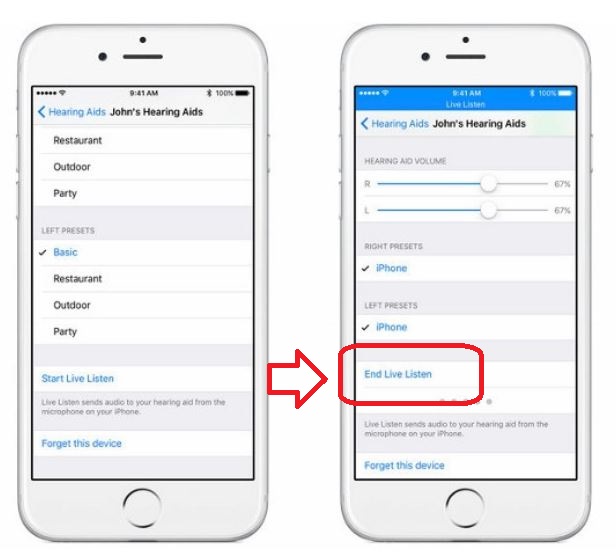
How to turn off Live Listen

1. Open your iPhone Settings
2. Go to General
3. Press Accessibility
4. Open MFi Hearing Devices
5. Tap on the name of your hearing aid or AirPod
6. Select End Live Listen

You can manage your own phone, but not other peoples'.
Press this to end all feed to the synced AirPods.

Is this a helpful feature that will help the hearing-impaired from this point forward? Or should Live Listen be removed from all future models of iPhone? Let us know your thoughts in the comments below, and stay tuned for the latest in tech news.

Apple rumored to be developing Netflix-like gaming service

Is Apple about to make a huge splash in the gaming industry?

Rumors are swirling that Apple is in the early stages of developing a subscription-based service for games, similar to Netflix’s model for movies and shows. There are few details about the service beyond this, as we don’t know if this service is being developed for mobile devices, home computers, or both.

Making a gaming service is a puzzling move on Apple’s part for multiple reasons. Even though Apple basically created the mobile gaming market with the App Store, they’ve never really gone all in on the gaming industry. Though Apple has placed tight quality control restrictions on the App Store, for the most part, they’ve been content to lay back and get their (sizable) cut from in-app purchases. Additionally, though Macs have received increased support from game developers over the years, the vast majority of PC gamers play on either Windows or Linux. Apple does not seem to mind this as their core Mac audience usually buy their devices for business or creative purposes. With this in mind, it’s relatively safe to assume that Apple’s upcoming gaming subscription service will focus on mobile gaming.

What would an Apple gaming subscription look like?

A subscription for mobile games wouldn’t make much sense, as the most popular mobile games by far are free titles that heavily utilize microtransactions. Why would anyone pay to play free games?

To make the subscription price worth it, Apple would have to offer some sort of premium content. Games could lock special levels, characters, or power-ups behind the subscription service, incentivizing hardcore players into subscribing. This model would make financial sense, as research has shown that mobile games make their money not from casual players, but from “whales.” Whales are hardcore players who pour tons of money into freemium games. Locking content behind a subscription would encourage whales and completionists to make the dip. There’s also the possibility that instead of locking content, the subscription would give a small amount of money to spend in every game included in the service. This would give players a brief glimpse into the premium side of popular games, encouraging them to spend more money after their subscription credits run out.

Another possibility is that Apple could focus on “premium” iOS games rather than free to play ones. These games are often console quality and cost around $10-$20, but don’t feature additional microtransactions. Examples of these games include Civilization VI and XCOM: Enemy Within. Apple could allow subscribers to play these games at no additional cost, which would encourage people to play these games who would have never before considered them due to their price.

By combining these two ideas, it’s possible that Apple could have a success on their hands. The subscription hinges entirely on how it is embraced by whales. If whales don’t see value in paying for a subscription, the service will fail.

6 apps that will help you ace your next test

Got a big test coming up? Here’s how to get an “A.”

Few life events stress us out as much as an upcoming exam — especially one that weighs heavily on our final grade. Luckily, today’s students can use technology to get a leg up. Check out these great resources to supercharge your test-prep efforts.

6 apps that will help you ace your next test

1. Cite This For Me

It’s not enough to write a great report. You also have to cite your sources properly. APA, Harvard, Chicago, MLA — it’s a lot to learn! Good thing Cite This For Me exists. Use it to totally nail your bibliographies, references, and citations.
2. iTunes U

Looking for materials to help you put together a killer paper or nail that big exam? iTunes U provides access to loads of lectures, books, videos, and other collegiate-level learning resources from respected higher-ed institutions (Yale, Stanford, Oxford, MIT, and more). Plus, it’s all free.

7

3. Grafio

Visual learners, rejoice! Grafio is an app that helps you create diagrams for days. There are some similar apps out there, but this one is by far the most polished. Turn your notes into diagrams and charts so you can create a study map that makes sense to you. The app also supports integrated audio recordings to help you further customize your visual aids.

Grafio 3 - Diagram Maker Download Now ►
8

4. Notability

This note-taking app lets you do notes your own way. Import files and data, convert your handwritten notes, or “write” directly in the app. You can also create, sign, and share documents using Notability. Additionally, the app lets you record and play back audio.

Notability Download Now
7 ►

student-smartphone-class

5. My Study Life

If getting through the semester feels like chaos, try organizing your workload with My Study Life. This app is a student’s best friend — especially an organizationally-challenged student. Get reminders about study groups, upcoming exams, due dates, classes, and more. Use the app to carve out time to study, and set alarms to help you stick to it.

My Study Life Download Free ►
7

6. Quizlet

Remember those good old flashcards? They’re actually a very effective way for many people to absorb and remember information. Quizlet lets you create your own virtual flashcard sets to study. The app also lets you make your own cool learning aids, such as games that make studying a lot less boring.

10

Online map searches just got more private

Apple Maps will now show location results for DuckDuckGo on mobile and desktop

apple maps

Privacy is a big deal these days. As tech giants like Facebook and Google increase their influence over our daily lives, we become more acutely aware of the increasing efforts they put into knowing everything about us. Knowing what we do can make big tech companies a lot of money and that leads the likes of Facebook to try and monitor people who aren’t even members of Facebook and Google to keep extensive records of everything we’ve ever searched.

It isn’t all bad though. As well as handy tutorials from Softonic teaching you how to purge your Google data or learn what Facebook has on you, there are companies out there that purposely avoid collecting user data. Privacy forms the cornerstone of their business model. One such company is DuckDuckGo, which runs a competing search engine to Google. DuckDuckGo doesn’t track your browsing habits or mine your personal data. The problem is that it is hard for DuckDuckGo to compete with Google and offer all the features the search giant can offer. Enter Apple.

Apple Maps will now show location results for DuckDuckGo on mobile and desktop

Location searches are an incredibly useful way of finding what you’re looking for. To this end, we’ve recently seen a spate of updates to Google Maps as Google tries to turn it into the ultimate business directory. DuckDuckGo has, until now, been unable to compete with this. Now, however, whenever somebody searches for something using DuckDuckGo location results will show up on a small Apple Maps module, just like Google would show location results using Google Maps.

private location searches

According to the blog post announcing the Apple partnership, DuckDuckGo explained that there will also be a new Maps tab for all search results. Clicking the Maps tab or on the small Apple Maps module will open up a map for further searches. The new Maps page will then list all the locations matching the search term in the selected area, again, just as a Google search would. This new function will work for addresses, geographical places, local businesses, types of businesses, and nearby places.

DuckDuckGo was also eager to point out that location searches will remain anonymous, saying, “Naturally, our strict privacy policy of not collecting or sharing any personal information extends to this integration. We do not send any personally identifiable information such as IP address to Apple or other third parties. For local searches, where your approximate location information is sent by your browser to us, we discard it immediately after use.”

Trying to maintain a level of privacy these days can seem like an uphill struggle. Often, you’ll have to sacrifice functionality in order to keep your data private. This deal means that this is no longer the case for performing location searches with DuckDuckGo.

This ingenious phishing scam is targeting iPhone users

Scammers are calling iPhone users from a number that appears to be Apple Support

iphones

Phishing scams are nothing new. For years, fake websites, emails, text messages, and phone calls have been trying to trick us in a bid to steal valuable personal information like credit card details or login credentials. Just because these types of scam are old, however, does not mean that they’re not still dangerous. We always need to be on our toes when clicking on links and handing over our details.

A basic scam targeting Netflix users has recently grabbed the attention of the FTC even though it comes in the form of a simple email. The more convincing the scam though, the more likely it is to trip us up. This means we have to put a warning out about what is possibly the most sophisticated phishing attack we’ve seen so far.

Scammers are calling iPhone users from a number that appears to be Apple Support

The trick for phishing scams is to persuade users they are dealing with an official communication from a company, which usually translates into fake emails or websites adorned with official-looking logos and literature. This one, however, is in a whole different league. This latest phishing scam is calling Apple users from what appears to be a genuine Apple number and raising the standard security alert that requires the victim to hand over their security credentials.

If you’re thinking this is just another spam phone call, hold your horses. The reason why this scam stands out is that the call really does look like it is coming from Apple Support. When one iPhone user raised the issue with Apple, they noticed something rather chilling when Apple called them back to discuss it. Obviously, Apple told them it was a scam, but when they looked at their call log after they’d completed the call, the scam call and the official call had been grouped together as calls from the same contact, Apple Inc.

Image via: Krebs on security

This new scam was first highlighted by security specialist Brian Krebs. Krebs noted that although it is disappointing that the iPhone can’t differentiate between a real call from Apple and a scam call, it isn’t too surprising. Scammers are constantly trying to come up with new ways to get past our defenses by making us lower our guard.

Although this trick is more sophisticated than other phishing scams we’ve seen, the trick to defeating it is still the same. As with the scam emails, you need to be aware when things are out of the ordinary. In this case, the call itself should raise eyebrows as Apple never contacts users by phone to raise issues their account, it is always done by email.

Any time anybody contacts you by any medium and asks for your details, make sure you are absolutely sure of the legitimacy of the request before you hand your details over. If you are not 100% sure you should contact the company requesting your details yourself, using the contact details shown on their official website.

Full Windows 10 experience coming to iPad

Windows Virtual Desktop no has mouse support for iPads

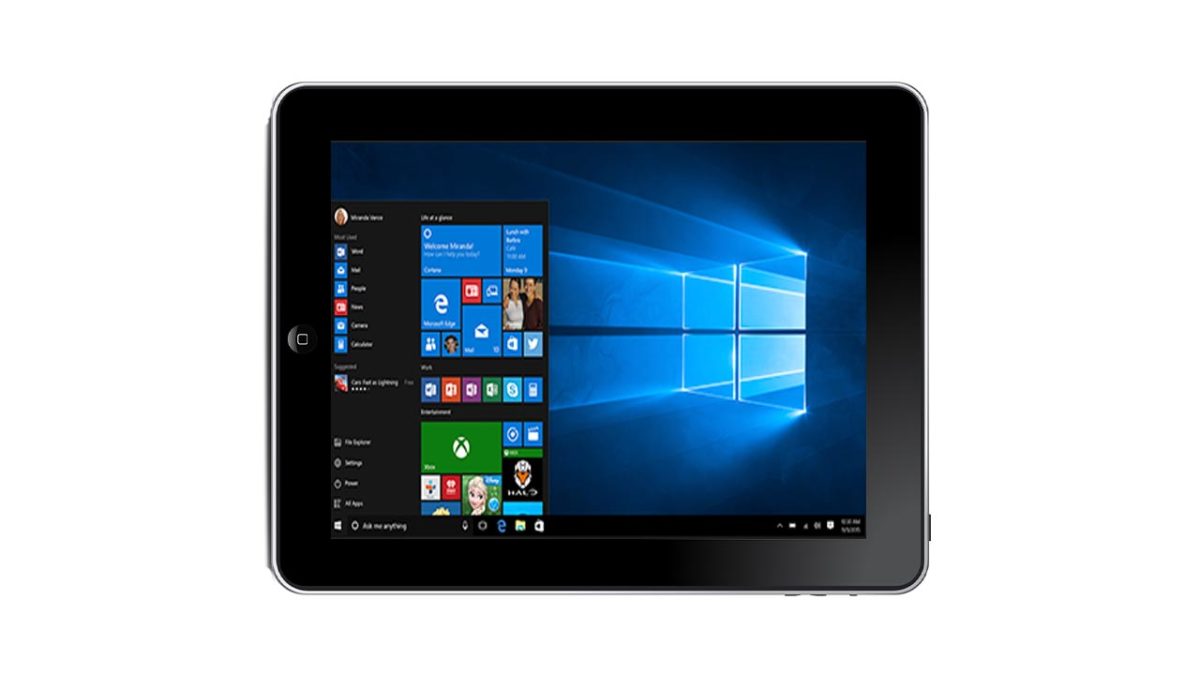
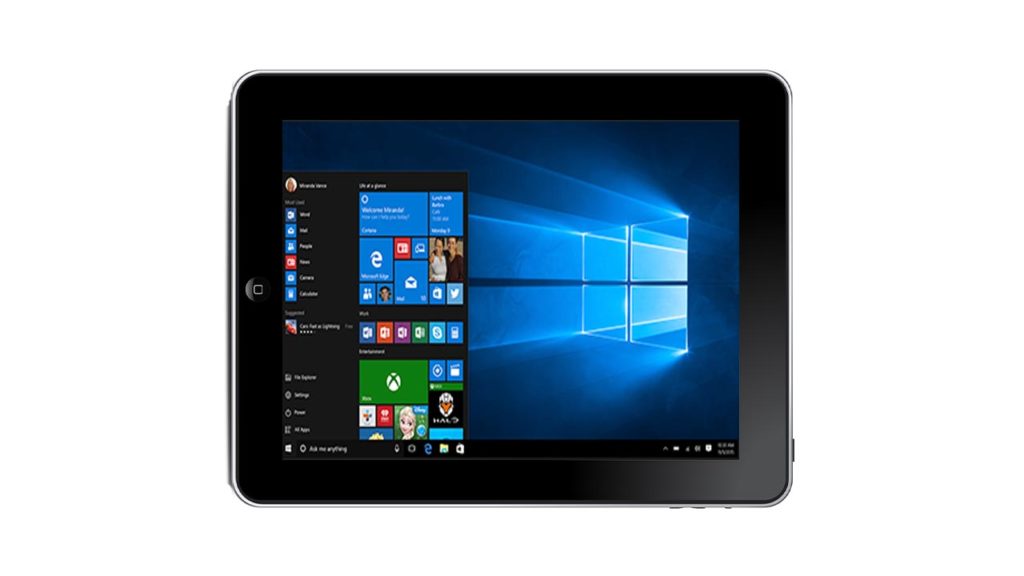
Use an iPad for Windows 10

Apple has been pushing their new iPad lineup as laptop killers. Apparently, iPads are no longer second devices, they are the only device you need. Pair up your new iPad with a Bluetooth keyboard and off you go. Unfortunately for Apple, even if the new iPads have the power needed to get any job done well enough, they still fall short on the software. Not the iOS, but the third-party software needed to do many jobs. A lot of it just isn’t available for iPads yet. There could be a new solution to this, however, but it might not be one that Apple will be too happy about.

Windows Virtual Desktop no has mouse support for iPads

The Windows Virtual Desktop isn’t new software, it has been around for about a year now, but its newest feature will have a big effect on its usability. In a recent tweet, Scott Manager, who is the MS Remote Desktop Service Group Manager, announced that mouse support will be coming to the Windows Virtual Desktop on iOS soon.

When mouse support does actually launch, iPad owners will be able to put the Windows Virtual Desktop on their tablet and use it as if it was a Windows PC. There are a few small caveats to bear in mind, however.

Mainly, not all Bluetooth mice will be supported. In the video he tweeted, Manchester was using a Swiftpoint GT mouse, which was designed specifically for use with Windows Virtual Desktop. MSPowerUser reports that there are plans to extend compatibility to more mice in the future, with Microsoft’s own range of Bluetooth mice being first on the list.

The other thing that you’ll need to consider should you be considering replacing your laptop with an iPad is that the Windows Virtual Desktop is a cloud-based service. It runs like a multi-user Windows desktop PC that is hosted on Microsoft’s Azure cloud. You connect to the service and then log in using your credentials. This means it isn’t too taxing on your local device, but it also means that you can only use the service when you have a reliable connection to the internet. No internet connection means no Windows Virtual Desktop.

This is an interesting development for both iPads and Windows 10. It offers the iPad a whole new world of functionality and potential customers, but in a way that Apple might not be pleased about. With Apple shares plummeting recently due to lack of demand for its hardware (mainly the new iPhones), the company is making a big deal about the services they offer, too. If people start using their Apple hardware with a Microsoft OS it is highly likely to affect which Apple services they use, too.

There is no word yet about an official release date for mouse support on the Windows Virtual Desktop for iOS.

Best apps to survive in the wilderness

Heading to the woods? Add these apps that could literally save your life.

survival apps

Whether you find yourself lost in the jungle or you’re planning a camping trip and something goes wrong, it’s important to be prepared for any situation. No matter where you find yourself, you’re likely to have your phone on you, and this handy little device might just be the key to your survival. The apps below can help you with every step of getting your survival path on track, from finding water to learning first aid, and they are invaluable during a time of crisis.

10 best apps to survive in the wild

10. Disaster Alert

As the name implies, this app is made to warn you of incoming disasters. You should always have some kind of alert like this, especially if you live somewhere with frequent natural disasters like earthquakes and tornadoes. It is also able to tell you about nearby disasters which can help you avoid going in the direction of one, and lets you check on family who may be near a disaster area.

Disaster Alert (PDC Global) Download free ►
7

9. Weather Bug

Similar to Disaster Alert, although less extreme, Weather Bug will help you keep track of upcoming weather in your relative location. It is the easiest weather app to manage, and this makes it ideal for checking whether it’s going to rain or not (which can be a good or bad thing depending on your situation). The app is more specific than the generic weather apps that your phone usually comes with.

Weather Bug Free Download ►
7

8. Prep & Pantry

This really isn’t intended to be a survival app, however, being able to keep track of your food when you have a limited amount can help you ration portions to a reasonable size. Prep & Pantry lets you manage what you have, and where you have it. Making it particularly useful for if you have an RV or cottage in the woods.

Prep & Pantry Free Download ►
7

7. Scanner Radio

This radio will help you pick up on any emergency signals, making it useful for knowing what kind of situation you might be in. You can also use it to avoid any problems that may be happening in your area that you wouldn’t have known about without it. Thankfully, you don’t have to have the app running constantly to get information from it.

Scanner Radio Free Download ►
7

6. Knots 3D

Unless you were a Boy Scout, you most likely don’t know how to tie a variety of knots that can be imperative to surviving in harsh environments. Whether you’re putting up a tarp, pitching a tent, or setting up traps, there are countless ways to tie a rope effectively. This app brings you through each one, and even lets you pull on the 3D rope to get a visual of how it works.

Knots 3D Download Now ►
7

If you’re looking for a free alternative, Useful Knots can be equally as useful (though the instructions are not as clear or clean as Knots 3D).

Useful Knots Free Download ►
6

5. Smart Tools

You may find yourself without many valuable survival tools, such as rulers and flashlights that can make things much easier to manage on your own. This app turns your phone into a virtual Swiss Army knife. These tools on the app are perfect replacements for the real tools, meaning you never have to worry about losing the tools or not having them on you when you need them.

Smart Tools Download Now ►
8

4. Spyglass

Your phone may come prebuilt with a compass app, but none are more sophisticated than Spyglass. This app doubles as a compass and GPS, making it invaluable to finding your way anywhere. While some may not realize the importance of a compass when lost, it is the best way to keep you from walking in circles.

7

3. Offline Survival Manual

The Offline Survival Manual is able to teach you anything you need to know about surviving in the woods, or anywhere, for that matter. It has an encyclopedic database of knowledge on survival guides, and it is one of the few knowledge-based survival apps that can work entirely offline. This makes it an ideal app in a crisis where there are no cellphone towers.

Offline Survival Manual Free Download ►
7

You may also enjoy the SAS Survival Guide, as it functions similarly and gives quizzes to make sure you’re learning.

SAS Survival Guide Download Now ►
8

2. American Red Cross First Aid

The Red Cross has a few apps that you may find useful, but their First Aid is by far the most vital to survival. Unless you have a medical background, it will be difficult to know what to do in a medical emergency. The Red Cross’ other apps tend to give advice on what to do in other types of emergency situations, but the medicinal knowledge from the First Aid app is irreplaceable.

First Aid - American Red Cross Download Free ►
8

1. Wild Edibles Forage

You may already know the simple rule, “If birds can eat it, so can you,” but there won’t always be birds to check your food for you. This app will help you identify wildlife and find out what’s edible and what’s not. It is the most essential survival tool for finding food in the wilderness.

Wild Edibles Forage Download Now ►
8

In addition to these apps, you should probably have some sort of social media. While typically not associated with survival, social media apps can be a lifesaver in emergency situations where you don’t know who to call. Facebook and WhatsApp, in particular, have been known to save lives. Even if you decide to take a break from social media, it’s a good idea to keep these apps handy, just in case.

There also used to be an app called Bug Out Bag Checklist to help with putting together a bug-out bag, in preparation for a disaster. Unfortunately, the app has been taken down, but Uncharted Supply Co has created a useful list for putting your bag together.


How to get text messages on your MacBook

It only takes a second to sync texts across your Apple devices.

macbook

Once upon a time, phone calls and emails were the most popular ways to communicate. These days, texting is king.  Avid texters often want to be able to keep track of all their messages and save them in an easy-to-access area. One simple way to do this is by syncing a MacBook and an iPhone. Linking these devices can save time and make the texting process that much faster for frequent MacBook users. Here’s how to get text messages on a MacBook.

How to get text messages on your MacBook

Determine your eligibility

The basic requirement for getting text messages on a MacBook is to have both an Apple phone and a MacBook (or any other Apple computer). You can even receive SMS text messages in addition to iMessages.

Both the phone and the computer need to be logged into iCloud using the same Apple ID. Both also must run operating systems that can handle the text message forwarding software. The most recent operating systems for both iPhones and Macs have this capability.

Sync your phone and your computer

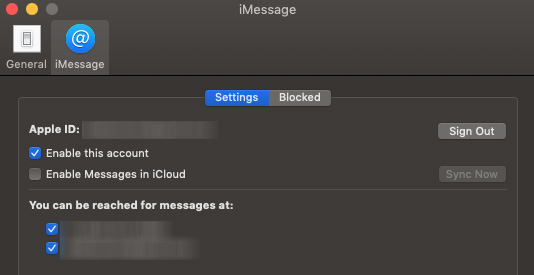
Once you’ve determined that you meet these criteria, you need to sync your phone and your computer. Make the connection by opening the Messages app on your Mac, logging in, and then enabling iMessages from your phone number and Apple ID email in Preferences.

imessages

The process is as simple as changing a notification and opening a window on an already-loaded app for your computer.

Confirm text message forwarding

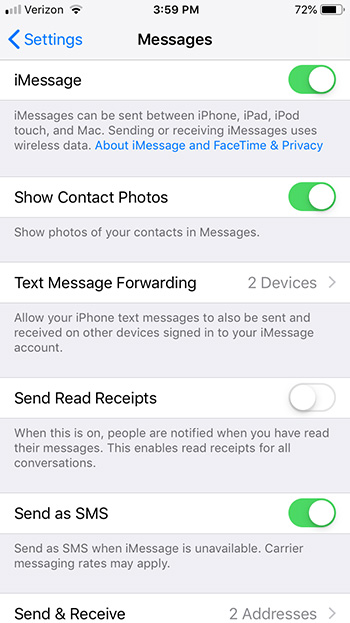
Then, to send and receive text messages on a Mac, you can set up text message forwarding on your iPhone. On your phone, open Settings, tap Messages, and then select both Text Message Forwarding and Send & Receive to link your accounts. Enter a verification code if prompted on your Mac’s Messages app. Note: if you’re not logged into Messages on Mac, you won’t even see the Text Message Forwarding option. But other than that, you’ll be quickly streamlined across your devices!

imessages setup

The benefits of MacBook texts

You can use the Messages app to send text messages to phones from your Mac. This option is particularly helpful if you don’t want to (or can’t) tap out long text messages on a small phone screen.

Text message forwarding also can help you share the storage load of your messages between your computer and your phone. In addition, text message forwarding can increase your productivity as you work on your laptop.

Greater connectivity makes communication that much easier for Apple ID users.

How to set up parental controls on iPhone and Android

Keep your kids safe with these simple steps.

Parental controls are important to set up when you want to give your child access to a mobile device. Not only can it prevent your child from doing something harmful or inappropriate, but it can also keep them from doing basic mistakes like deleting important apps. These parental controls can also free you up because you won’t have to worry about what they can access and when. Here’s an easy way to set these controls for Androids and iPhones.

How to set up parental controls on iOS and Android

Android instructions

Restricting a child’s Google Play access can be easy on Android devices. There are two ways to access parental controls on Google Play devices, depending on how you have set up your child’s device. The first way is if your child’s Google Play account is already linked to yours under Family Link. This makes things easy, as all you need to do is access your Family Link app on your device, click on your child’s Google Play account, then “Manage Settings” and “Controls on Google Play.” This will give you access to your child’s settings so you can restrict their account however you want. You actually don’t even need to do this on app, since you can access Family Link on a browser.

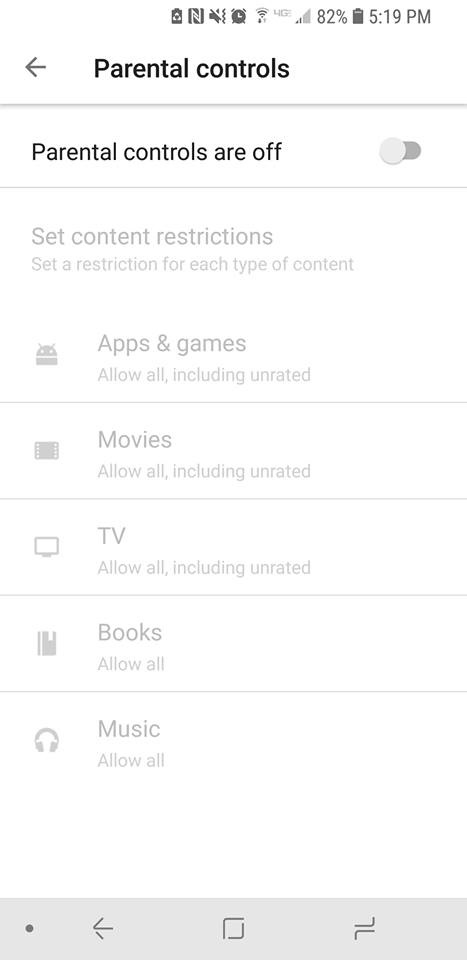
If you don’t have your child’s account linked to yours through Family Link, then you’ll have to go on their device itself, rather than being able to set it up on your phone or a browser. Once you’re on their device, you can go to “Settings” under the Google Play app and press “Parental Controls.” Once you switch them to on you’ll be prompted to create a PIN. This PIN will be how you access and manage the controls, so pick something that isn’t easy for your child to guess. Once it’s created, you can pick and choose the settings you’d like to set for the device.

Android parental controls

If you wish to restrict access to features outside of Google Play on an Android, then you will find each Android has different ways to go about this, depending on which model you are using. As such, it may be easier to use a third-party app for setting up your parental controls. There are many apps out there to use, but we recommend Mobile Fence. This app provides makes management of your child’s phone incredibly easy.

iPhone instructions

Apple has recently updated their terminology and process for setting up parental controls, so there are also two ways in which you may have to go about setting these parental controls.

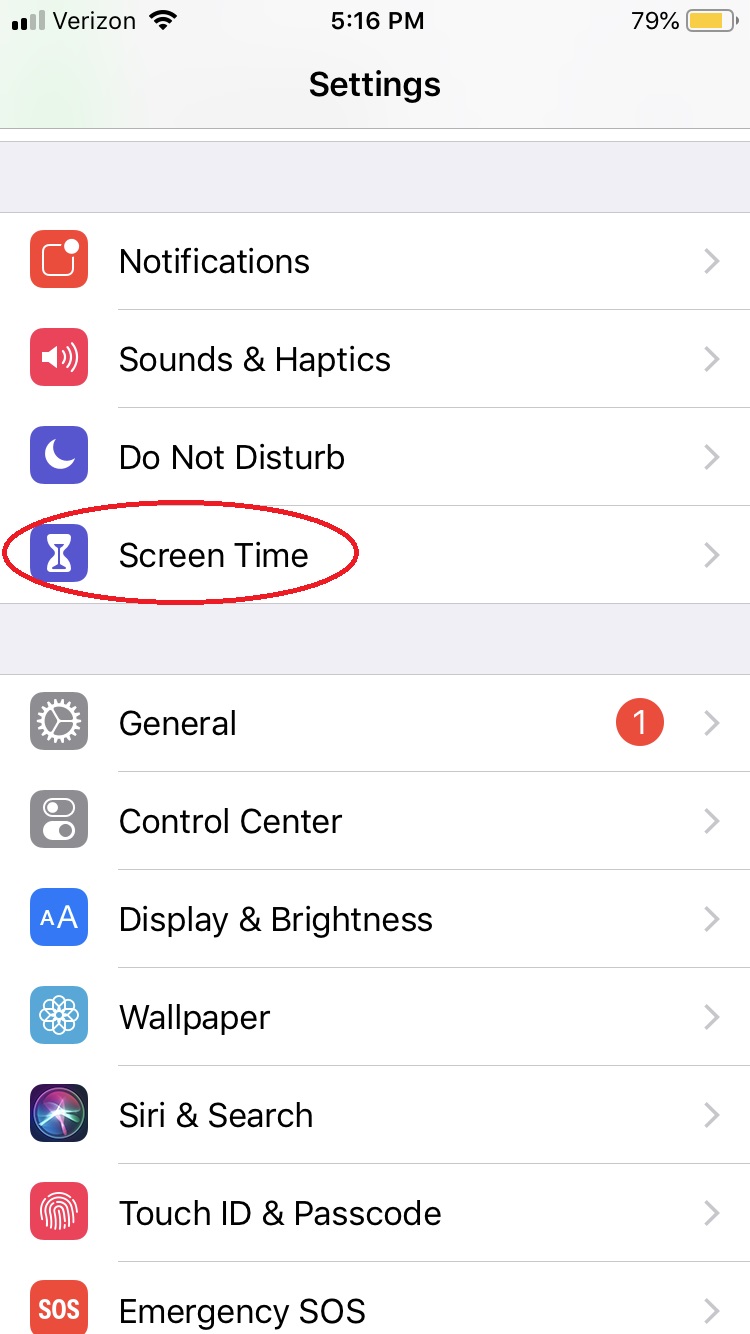
For iOS 12 and newer, under Settings there is a button titled “Screen Time.” 

Parental Controls iphone

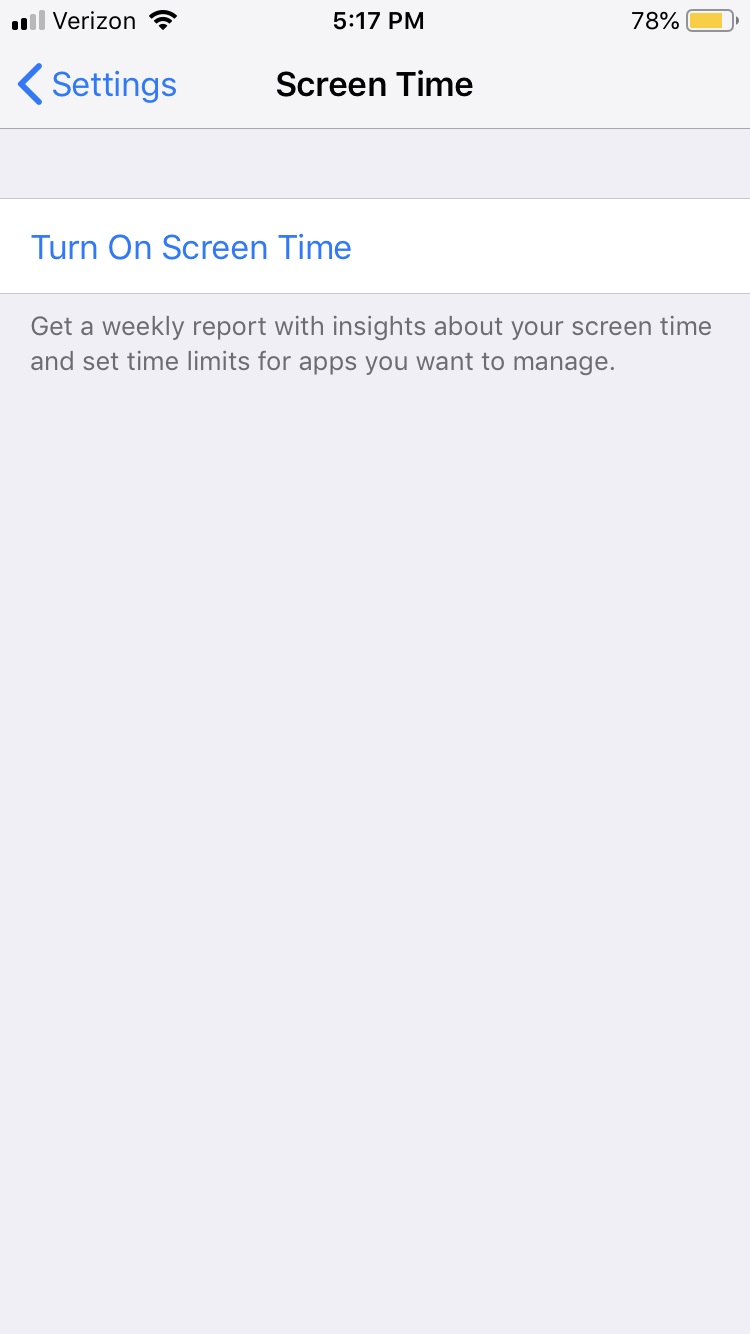
This is essentially the parental controls for Apple devices now. You’ll want to turn on Screen Time to monitor all activity on the phone and create any restrictions you want.

iPhone parental controls

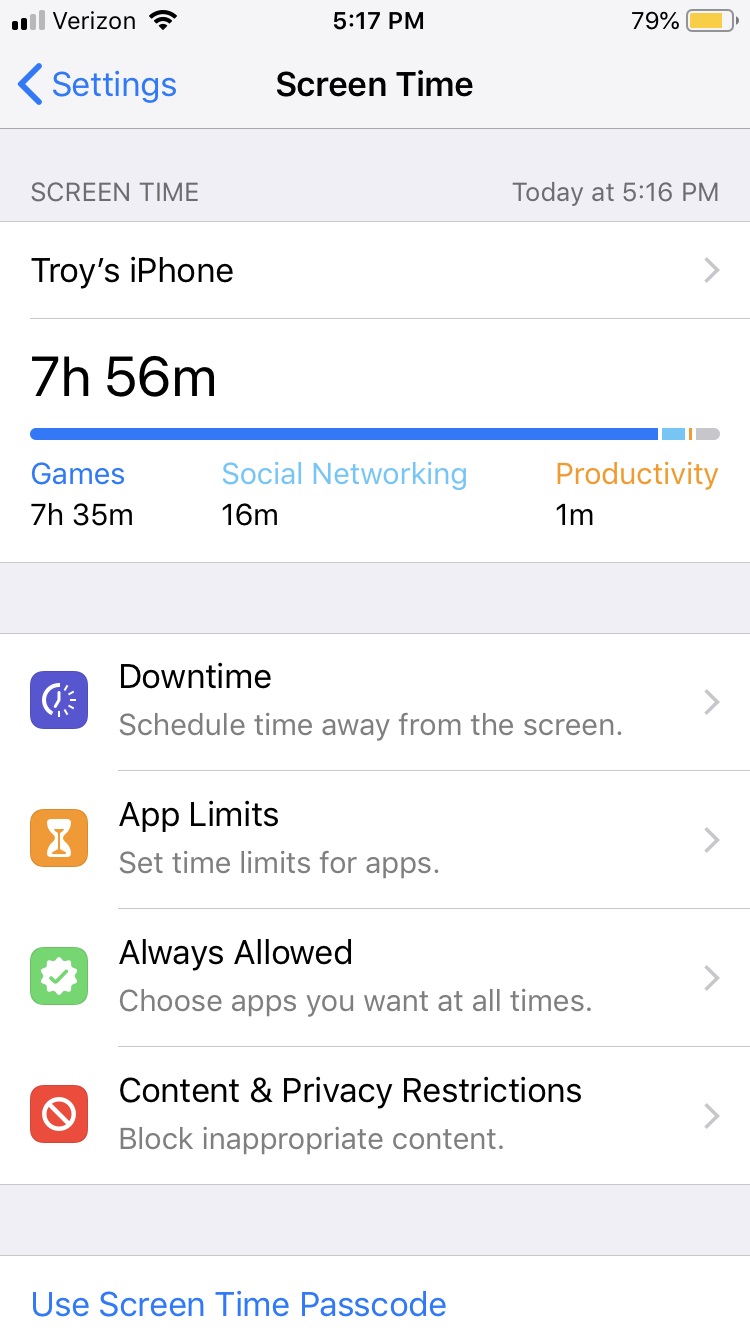
Notable things you’ll want to check out in the Screen Time menu are: “Downtime,” which lets you turn off the phone at specific times; “Content & Privacy restrictions,” which let you block any specific activity or app from your child’s access; and “Set Up Screen Time for Family,” which will let you access your child’s Screen Time from your personal iOS device.

iPhone parental controlsAny iOS before 12 will have parental controls in the settings tab under “General” > “Restrictions.” Enabling restrictions will prompt you to create a passcode that you can use to disable those restrictions if you ever feel the time is right.

With these simple steps, you’ll protect your children and provide yourself a little peace of mind, knowing your little ones aren’t accessing the dark web and setting up an illegal Bitcoin gambling ring or whatever.