Extensions on Chrome for Faster Browsing

The internet has become a fundamental tool and part of our daily lives. We use browsers on a daily basis to check email, read the news, stay on top of social media and even work remotely. It’s therefore essential for them to work seamlessly and take us to the websites we want to visit as fast as possible.

mujer utilizando un portátil

With more than a billion new monthly users, Google Chrome is positioned as one of today’s best browsers. It’s especially convenient for users of Google products, as it can be synchronized with your Gmail account. What’s more, it consumes few resources and is lightning fast, but did you know there are extensions that can make it even speedier?

In today’s article, we’re going to share some tricks to boost Chrome’s performance as well as a roundup of the best extensions for much faster browsing. We hope you find it helpful!

First of all, make sure to update Chrome

Before installing any browser extensions, it’s a good idea to make sure you’re using to the latest version of Chrome. Just click the “Customize and control Google Chrome” button in the upper right corner of your browser (the icon with the three vertical dots). Then select the “Help” option and click “About Google Chrome.”
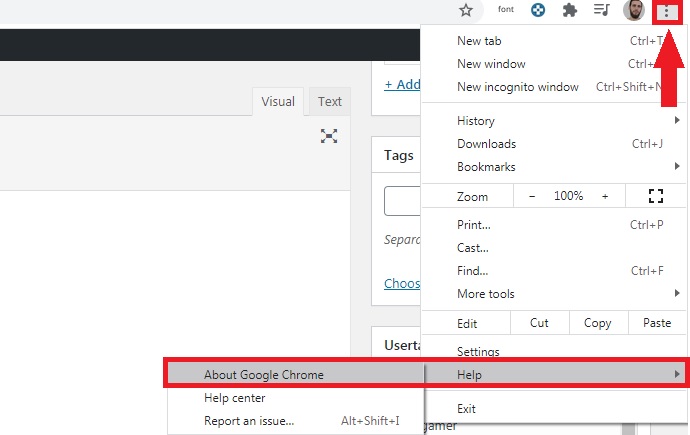
Then a new window will open and display the Chrome version installed on your computer. If there is a newer one, Chrome will download and install it automatically, although you’ll need to restart your browser for the changes to take effect.

If you prefer, you can also download the latest version of Google Chrome quickly and safely below.

Google Chrome DOWNLOAD
8

The best extensions to speed up Chrome

Below is a roundup of what we consider to be the best Chrome extensions to improve your browser’s performance. They have all been verified by the Chrome Web Store, so they are completely safe for your computer and your internet sessions.

FasterChrome

FasterChrome

We’ll start off our list with FasterChrome, an extension that greatly increases the loading speed of websites.

By default, Chrome pre-loads your most visited pages in the background through your cookies or cached images. That way you can enjoy your favorite websites without long waits. But FasterChrome gives this concept a further twist and starts pre-loading websites when you hover your mouse over the link for more than 65 milliseconds. It ends up saving you a total of 300 milliseconds, making web navigation faster and easier. Although this means a slight increase in bandwidth use, you’ll notice the difference between browsing with or without this extension

If interested, you can download FasterChrome from Chrome Web Store here.

The Great Suspender

The Great Suspender

One of the main reasons why your browser slows down is open tabs. Keep in mind that the more tabs you have open during a session, the harder your browser needs to work to keep that page open and updated in the background. This results in increased use of your computer’s memory and diminished performance.

This is where The Great Suspender comes into play. This useful extension lets you freeze unused tabs, increasing the amount of free memory on your computer and also the speed of your internet sessions. If you’re one of those people who needs to have dozens of tabs open in your browser while working, you should definitely check it out.

You can download The Great Suspender quickly and safely here.

uBlock Origin

uBlock Origin

uBlock Origin is the perfect option for anyone who, along with faster website loading, is looking for other options that improve their browsing experience. uBlock Origin achieves this by far, because in addition to increasing Chrome’s performance in an astonishing way, it’s capable of blocking those annoying popup ads that torment you whenever you visit your favorite websites.

Unlike similar extensions, uBlock Origin uses only a moderate amount of RAM, so along with improving browser performance, it keeps your computer working optimally. Want to try it?

You can download uBlock Origin quickly and safely from Chrome Web Store here.

Web Boost

Web Boost

As its name suggests, Web Boost promises to boost Chrome’s speed so your websites load more efficiently. And it certainly gets the job done! To achieve this, the extension uses an interesting algorithm that blocks the downloads that are activated whenever you visit most websites. That way, a page that normally takes more than two seconds to load can be ready in just one second.

What’s more, it can block annoying ads and the services that spy on all your online activity. The extension is easy to use, at the click of a button on your browser. Get ready to be wowed by a new level of speed. If any page doesn’t load correctly, don’t worry. Simply click the Web Boost button again to deactivate it, and the site will load as usual.

You can download Web Boost from the Chrome Web Store here.

SearchPreview

SearchPreview

Our final pick is SearchPreview, a simple extension that displays a thumbnail of the websites that come up whenever you run a search. If you don’t use Google for your searches, don’t worry: it’s also compatible with DuckDuckGo, Bing and Yahoo. The utility of SearchPreview is as simple as this: by previewing pages before you click, you can avoid unnecessary browsing and spend your time on other online activities.

If you’re interested, you can download SearchPreview from the Chrome Web Store by clicking here.

I’ve tried many extensions, but Chrome is still slow

Sometimes your browser will remain slow no matter what extensions you install. This can be due to several factors, but one of the most common ones is that your browser cache is cluttered with files. We recommend that you first clear Chrome’s browsing data as well as its cache and cookies. Then restart the browser and see if it runs faster.

If your problem persists, you probably have an unnecessary extension installed that is using all your browser memory. To fix it, simply go to the Extensions menu (click on “Customize and control Google Chrome” followed by “More tools”) and check to see which extensions are installed on your browser. Deactivate any that you don’t use, or, if you wish, delete them. If you don’t know how to do that, don’t worry. In the article below, we discuss how to do this step by step.
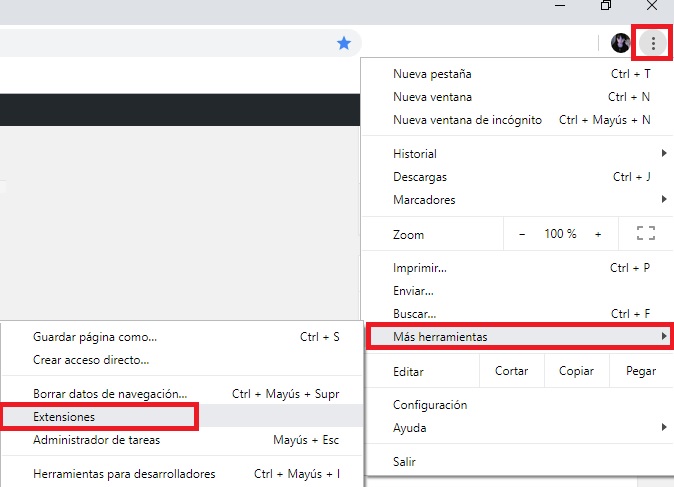
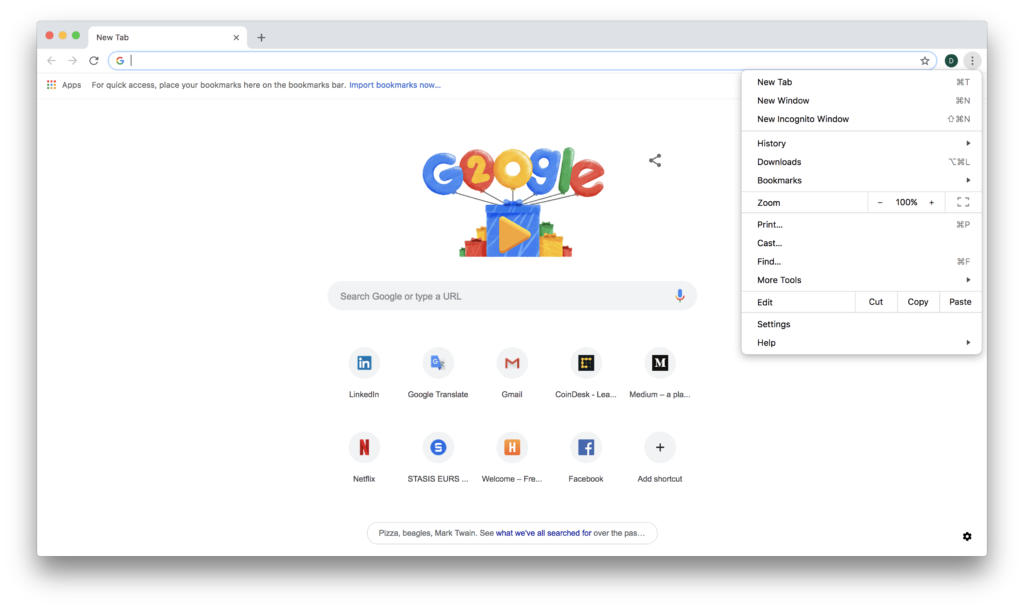
Maybe none of the above options helped you. Don’t despair because you still have an ace up your sleeve. Did you know that Google Chrome has its own cleaner built into the browser? To access it, click the “Customize and control Google Chrome” button in the upper right corner of the screen (it looks like three vertical dots). Then a drop-down menu will appear where you should click the “Settings” option.

In the browser settings window, click “Advanced” to access the rest of Chrome’s options. Among them, look for the “Reset and clean up” section and click “Clean up computer.” Chrome will ask for your permission to collect information about the scan results and send the report to Google. This decision is totally optional, so don’t worry if you’d rather uncheck the box. After that, click the blue “Find” button.
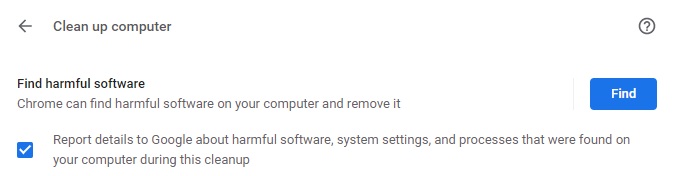
After running the analysis, Chrome will generate a report where you can see if there is any type of malicious software installed on your browser. If so, it could be not only affecting your browser’s performance, but also jeopardizing the security of your data. After removing these programs, Chrome will restore its settings as if you had installed it from scratch. Now just restart the browser and see if it works faster.

If none of the above tricks work, click below for our guide with an in-depth discussion about how to speed up your web browser.
We hope our roundup of extensions to make Chrome faster has been helpful to you. Do you use any that we didn’t include on our list? Tell us about them in the comments section!


Best Chromecast apps

Have you just bought a new Chromecast? These are the must-have apps you need on your Android or iOS device to get the most out of your purchase.

The Google Chromecast is a fantastic little device that makes it possible to wirelessly “cast” media from your Android and iOS mobile device onto your TV. You simply plug the Chromecast into one of your TV’s spare HDMI ports, hook it up to a USB-based power supply, and then you’re good to go. The connection then works over Wi-Fi, which means you can control apps on your phone that are then run through the Chromecast.

The way the system works then relies on compatible apps. Not all apps will stream wirelessly from your mobile device your TV via the Chromecast. Instead, you need to find Chromecast compatible apps and that is what we’re here for today. Today, we’re going to walk you through all the best Chromecast apps.

Best apps for Chromecast

These are the Chromecast apps you need to download right now. They will help you stream your content wirelessly from your mobile device to your TV.

Google Home

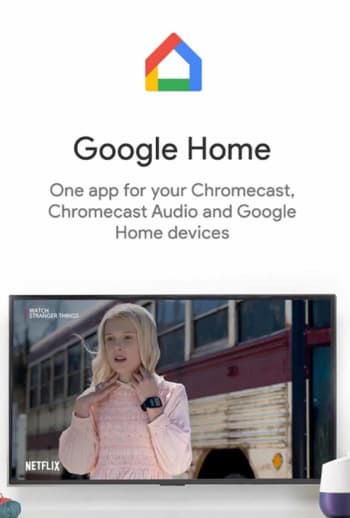
This list will mostly revolve around media. The Chromecast is a fantastic little device that makes it really easy for you to take the media content you have or are streaming onto your phone and have it display on your much bigger TV. In truth, however, there’s more to the device than that and the Google Home app is how you unlock what else the Chromecast has to offer.

The Google Home allows you to run all your smart home connected devices and also allows you to enjoy features such as content discovery, universal search, and app recommendations. If you’ve just got your first Google Chromecast, you should definitely download the Google Home app as, in truth, it is more like the official companion app to the Chromecast. In fact, the app used to be called the Chromecast app.

Google Home Download now
8

Netflix

Netflix in the living room

So, we’ve already mentioned that one of the top uses for the Google Chromecast is casting media such as videos and photos to your big screen TV. You’ll no doubt be relieved and in no way surprised then to learn Netflix is compatible with your Google Chromecast and is one of the best Chromecast apps around today. You can, of course, download Netflix on Android smartphones and iOS iPhones.

What’s great about the Netflix mobile app is that it allows you to cast your movies or TV shows to the TV and then use your mobile phone as a remote control. You can control playback, skip scenes, and of course browse the Netflix library all while sat on the sofa using your phone. Other great Chromecast media playing apps include HBO Go, Hulu, Roku, Plex, and if you’re in the UK, the BBC iPlayer. By connecting your phone to your TV the Chromecast turns your television into a smart TV.

8

YouTube

YouTube on the TV really is a treat. In truth, the platform has long been a big-screen platform with well-produced content that’s easily able to compete with more established networks coming from a wide variety of professional media outlets as well YouTube’s army of popular bedroom content producers.

The YouTube Chromecast app is simple yet effective and it couldn’t be easier to cast any video you find onto your TV. YouTube also has a premium model now too that includes being able to download videos but that also gives access to premium content, much like Netflix has Netflix Originals.

8

AllCast

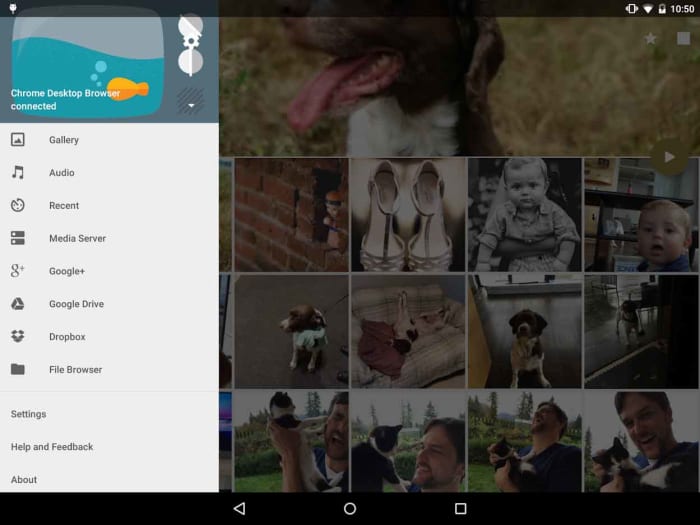
AllCast is probably the most versatile Chromecast app out there and is available on both iOS and Android devices. AllCast offers an easy and effective way to cast all the photo and video media you have on your phone onto your lounge TV. The app also makes it possible for you to cast photos you have stored on cloud storage solutions like Dropbox.

You can try AllCast for free, but all the best features are hidden behind a paywall. Furthermore, you can only cast videos up to five minutes in length on the free version, which means you’re going to have to pay to get any real value out of the app.

AllCast Download now
7

TED

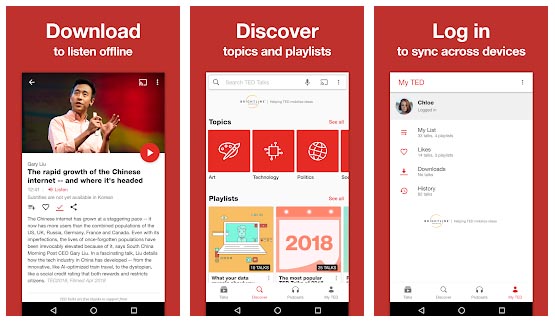
TED talks are a cultural phenomenon these days. Instantly shareable and infinitely inspiring, everybody has watched and shared at least one TED talk. That’s what makes the TED app so perfect for using with your Chromecast. TED talks can inspire you on a personal level, but so often you want to share the experience with somebody else and that is the Chromecast comes in.

Whether you’re watching a brand-new lecture on your living room TV or sharing one of your old favorites with your family, the Chromecast-enabled TED app makes it easier than ever to watch TED talks as a group.

Google Photos

How to Breathe New Life into your Old Phone Get a cloud based photo sync app google photos

It probably comes as no surprise that there are many great Google apps that are Chromecast compatible. We’ve already mentioned YouTube and Google has recently made its native Files app for Android Chromecast-compatible too, which offers another great way for you to display the photos and videos you hold on your phone on a much larger screen.

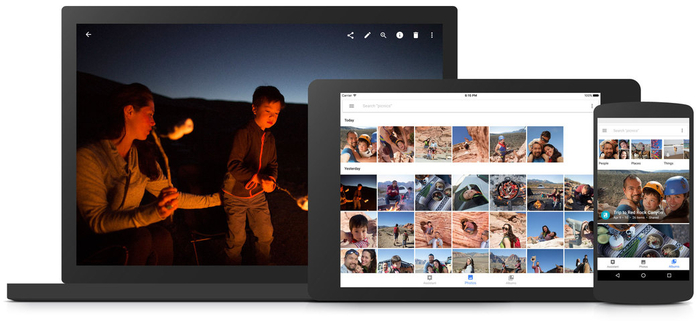
The final app we’re highlighting today, though, is Google Photos, which deserves a special mention all on its own. As well as turning your TV into a giant picture frame, the Chromecast compatible Google Photos app can also help you broadcast all the magical creations you can build on the app. As well as slideshows and albums, Google Photos can help you turn the photos and videos you’ve captured on your smartphone into dynamic movie-like experiences, complete with transition effects, music, and even special integration elements from other Google apps such as Google Maps.

Google Photos Download Google Photos
7

Best VLC add-ons

If you have VLC but think it is missing a key feature, check out our list of the best VLC extensions, plugins, and addons.

VLC Media Player is a verifiable institution. The ever-reliable media player has been around on Windows, Mac OS X, Linux, and Android and iPhones for what feels like forever and can play pretty much any video type or codec that has ever been invented is as popular now as it has ever been. It is the versatility that has always made VLC so popular with so many users but did you know that VLC is even more versatile than most people know. VLC can do so much more that think it can because of something very simple: extensions.

Yep, there are many VLC extensions, add-ons, and plugins that you can install to further augment VLC’s features. There are lots available too. If something about VLC has been frustrating you, there is likely an extension to fix the problem. If you’ve ever thought the VideoLan video player was missing a vital feature, there’s a good chance there is a VLC addon or plugin available that will add that feature to your version of VLC. Let’s take a look then at some of the best VLC Media Player add-ons, extensions, and plugins.

VLC media player download free ►
8

VLC plugins, extensions, and addons

These are all the best VLC Media Player extensions we’ve found to help you get more from the most popular and versatile video and media player available today.

SyncPlay

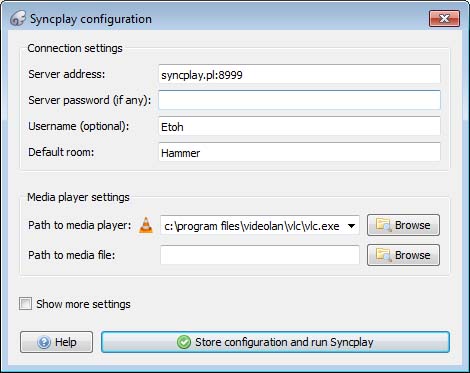
SyncPlay for VLC Media Player truly is an extension for our times. We’ve all had to deal with being away from loved ones recently, stuck at home and unable to spend time with friends and family. Sure, apps like Zoom and Skype have allowed us to chat with each other but when it comes to actual activities, it’s been tough. SyncPlay solves this problem, for one activity anyway, by making it possible to watch the same video concurrently on multiple computers at the same time. Yep, SyncPlay allows you to watch the same movie with friends and family even if you’re not in the same house.

To work you need to install VLC Media Player and the SyncPlay extension on all the different computers. Each PC then needs to connect to the same server and you’re ready to go. Once it has begun, one user can control playback on all the systems at once.

TuneIn Radio

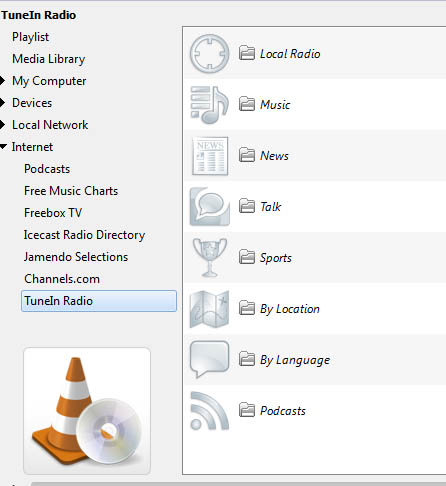
The TuneIn Radio plugin for VLC does exactly what you think it does. The plugin automatically grabs and displays all available TuneIn Radio stations instantly turning your VLC Media Player console into a massive and powerful internet radio. This means you can browse TuneIn’s extensive list of active radio stations without having to open Google Chrome, go to the radio stations web page, or look for it on a search engine.

With TuneIn installed on your VLC console you can easily browse radio stations by Music Genre, Local Radio Stations, News, Talk, Sports, and more. This extension basically puts radio stations from all around the world at your fingertips.

VLC for mobile Download now
8

Remember “Now Playing”

This simple extension works a little like Shazam but with audio tracks, you listen to while using internet radio stations. Yep, this extension will work perfectly alongside the TuneIn Radio extension we’ve just told you about. Basically, whenever you’re listening to internet radio you can use this extension to grab all of the metadata relating to that song so that you can then go and search for it and play it on your own. This extension keeps track of everything you’ve listened to so that you don’t have to.

Resume Media V3.4

The thing with VLC is that you usually use it to consume large media files. Whether they be movies, TV shows, or podcasts they all can last well over an hour. Sometimes you might not have all the time you need to get from start to finish and have to interrupt your playback. Of course, you can try to remember where you left off so that you can get back to it later, but wouldn’t it be much better to have VLC do that for you?

The Resume Media V3.40 plugin does exactly that. Whenever you close VLC Media Player with an active video or audio file, the extension will automatically start that file at the exact moment you left it when you open it up again.

Click to Play/Pause

As more and more online streaming platforms have launched a number of them have added cool new features that make so much sense. We’ll get to the Skip Intro button in a minute but first we’re going to show you a simple extension that will make a big difference to how you use VLC. Straight out the box, VLC offers two ways for you to control playback. You can hit the tiny Play/Pause button in the bottom left of the screen or you can hit the space bar on your keyboard.

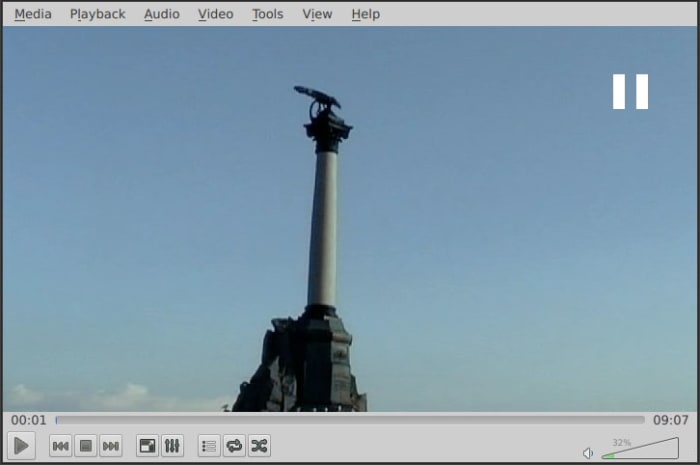
This extension makes it much easier to control playback by allowing you to click anywhere on the video to play or pause the action. As we said, it might not sound like much but trust us, it will make a big difference.

Skipper

Please don’t misunderstand this as hyperbole or fluff. We think that the Skip Intro button might just be one of the greatest inventions of the 21st Century. Show intros and credits are incredibly annoying when all you’re trying to do is binge a season or two of your favorite show. Even if you like the intro, watching it 10-20 times in a single day is going to drive you crazy.

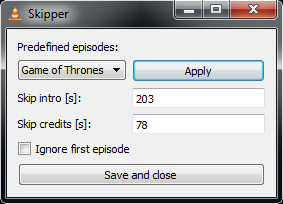
Well, the Skipper extension for VLC brings this wonderous innovation to the world’s most versatile media player. You can simply type I the amount of time you want skipping at the beginning and end of every media file and you’re good to go.

Secret Google Docs tips and tricks

This introduction to Google Docs will tell you all the top tips that make it a game-changer in the world of word processing.

Everybody has used a word-processing package at some point in their lives, the most established and well-known being Microsoft Word. However, Google now offers an attractive alternative for creating professional-looking documents in the office or at home. Google Docs is a complete online-based word processing app that can be accessed easily by creating a new document from your Google Drive (drive.google.com ) or going to docs.google.com.

Not only is Google Docs an effective package for creating documents, but it also includes a smorgasbord of features. These valuable features will help you save time and produce more visually pleasing documents.

So here are some handy Google Docs Tips to help you on your way to becoming a pro user.

Google Docs download free ►
8

Tips to help you use Google Docs

The Google apps are more powerful than ever and give anybody with a Google account access to powerful tools that rival those you’ll find in Microsoft Office. Google Docs work best on the Google Chrome browser but they do also work on other browsers such as Mozilla Firefox and Microsoft Edge. These are our top tips for Google Docs.

1.  Keyboard Shortcuts

As with most applications, Google Docs has a wide range of keyboard shortcuts to help you write and format your work without the use of your mouse. This will help you edit documents more efficiently and also help prevent the type of wrist pain associated with overusing your mouse.

The most common action shortcuts that people should know are copy, paste, and cut (Ctrl + C/V/X). Useful text formatting shortcuts include bold, italicize, and underline (Ctrl + B/I/U), and you can increase and decrease the font size on the fly by holding Ctrl and Shift and pressing the< > keys.

There are also controls for paragraph formatting, image formatting, comments and footnotes, menu navigation, and many more. A full list of shortcuts can be found here and you can pick the ones you frequently use and

2.  Voice Typing

voice typing google docs

Most computers now come with built-in microphones and you can easily pick up a decent one for the price of a coffee or two. So, why not make use of your voice, when creating important documents and relax your precious digits for a while.

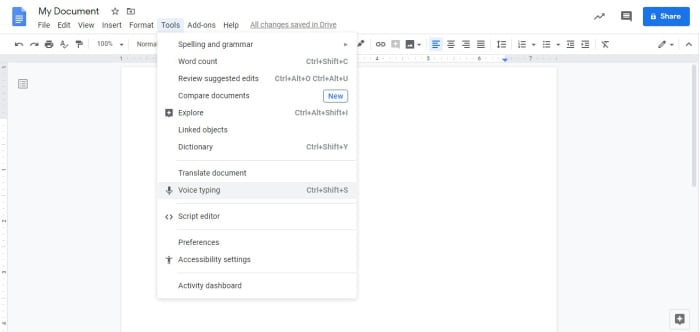
Google Docs has a built-in voice typing feature that listens to your voice and can quickly put your ideas into text.  It can understand voices in 48 languages and even recognize some regional variants.  You can also instruct the use of basic punctuation and use commands to edit and format your document. A list of these commands can be found here.

It’s a helpful tool for people who need a break from typing but also a huge advantage for those people who have disabilities or injuries.  You can activate it in the ‘tools’ drop-down menu or by the shortcut CTRL+SHIFT+S (Windows) and CMD+SHIFT+S (Mac).

3.  Document Templates

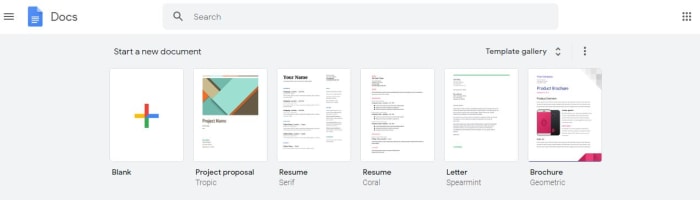
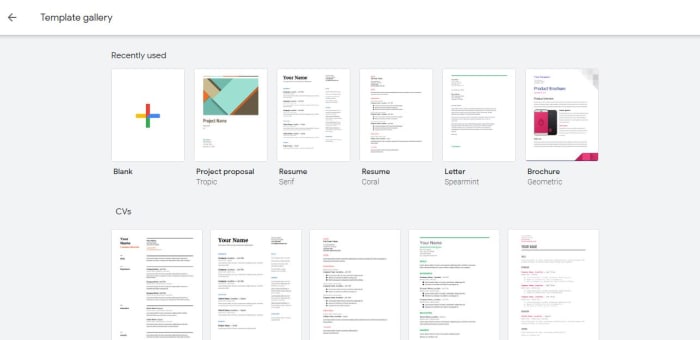
An awesome design feature of Google Docs is the ability to create a document using one of the many pre-designed templates available.  These templates offer easy to edit layouts for a wide range of documents including school reports, resumes, and legal documents.

The templates are accessed when creating a new document. When you open Docs you’ll see the opening gallery with templates grouped into different themes.  You can also view the templates by going to docs.google.com and clicking on the template gallery.

4.  Custom Templates

Google already provides you with some beautiful templates to choose from, but maybe they are not exactly what you are looking for.  So, how about saving a massive amount of time by uploading your own custom templates for the documents you use the most.  This can be done by going to docs.google.com, clicking on the template gallery, and then summit template. A window then appears where you can select your own custom template document that you have saved to your Google Drive.

5.  Collaboration in real-time

Collaboration is a huge feature within Google’s suite of apps.  It allows you to quickly share your documents with friends and colleagues and edit them together in real-time. Once a document has been shared, the collaborators have the option to highlight text in the document and add their own comments for the other users to read.  In addition, if you are all logged into the document there is a chat option that enables you to share your ideas with group members instantly.

6. Version History

Ever gone back to a document and realized that you have accidentally deleted a chunk of text by mistake.   Well, this life-saving feature lets you get a full list of different versions of your documents dating back to its creation.  All you have to do is click file-version history-see version history and a list of versions of past versions of your document will appear.  If you are collaborating on a document, it will conveniently show you the person who was editing the document at that time so you can give them a good telling off for their mistakes.

7.  Custom Fonts

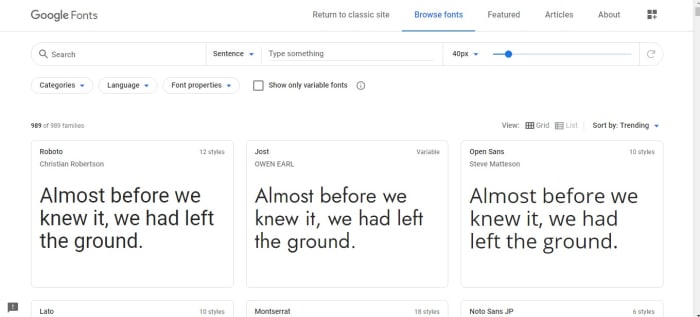
Google Docs has a range of attractive fonts already built into its drop-down menu, and helpfully lists the fonts you use the most at the top.  If you get bored of these fonts or you are simply looking for a new look for a document, you can click ‘more fonts’ at the top of this menu you will be greeted by an extensive list of fonts to customize your font menu with.   There are literally hundreds to choose from so it might take some time to get through all of them.  However, Google has made it easier to choose a suitable font by showing its use in sentences on the Google Fonts page, so take a look.

8.  The Explore Research Tool

Explore research

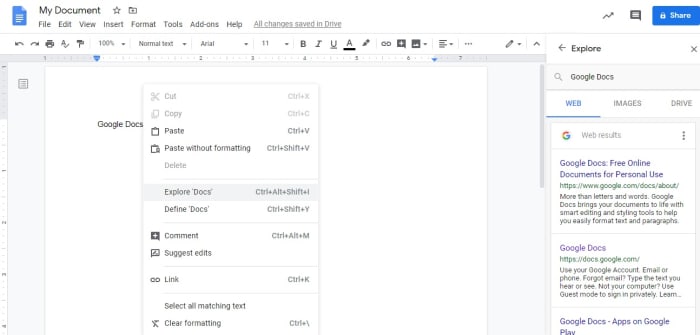
Have you ever gotten sick of switching between your word processor and internet browser when researching for an important project?  Well, You should take a look at the explore tool in Google Docs, as it helps you get some research without having to leave your document.  All you have to do is simply click the explore button located at the bottom right of the document screen.  As if by magic, a side screen slides in showing related research, topics, and images for you to review.

If you want to research specific words in your document you can type them into the search or highlight them and right click and go to explore.  The search function will display pages from the web, images and will even search your google drive.  As you can imagine the search function is second to none with Google being the biggest search engine on the planet.

The coolest Google Chrome extensions

googleGoogle Chrome is the leader of the browser market for many reasons, and one of them is inarguably the number of extensions it offers. As anyone familiar with the wonders of Google’s program will know, the Chrome Web Store is outstanding when it comes to extensions. The only drawback is that there are too many to choose from!

So today, Softonic is going to save you lots of time. Here’s our list of the coolest Chrome extensions.

Google Chrome Descargar
7

1. Classic Games

The name says it all, doesn’t it? Our first pick is Classic Games, which offers exactly that: classic video games. It contains a wide range of historic, retro arcade games. For example, you can play the legendary Pac-Man, Tetris, Street Fighter 2, Quake, King of Fighters, Mahjong, and much more on Chrome. Enjoy them all for free, just a few clicks away on your browser. That said, this extension can sometimes crash, so be patient.

2. Vikings War of Clans

Vikings have captured our collective imaginations in a big way. Just as the Romans were all the rage 15 years ago, bringing us endless movies and series, now, thanks to the show Vikings, they’re the “stars” of many products. Vikings: War of Clans is a fun game of strategy for your Google Chrome browser. The best thing: a whopping 40,000+ players have installed it on their toolbar, which says a lot.

3. Death Racing

Classic arcade games, a Vikings game… and now, how about some driving? Like Nicolas Cage in Gone in Sixty Seconds (what a movie!), with Death Racing, you can enjoy crazy car chases from your Google Chrome browser. The developers have created a simple, straightforward game inspired by films like The Fast and the Furious. The best thing about this game is that it’s incredibly addictive, so you’ll get hooked in a matter of seconds. But be careful not to play it at work, because it’s pretty scandalous and not at all quiet.

4. Coloring pages

Here’s another extension whose name leaves little room for doubt. “Coloring pages” is exactly that: an extensive collection of black-and-white pages you have to bring to life with color. The illustrations are typical of children’s coloring books, so as you can imagine, this extension is targeted towards that crowd. It includes basic painting and erasing tools, so just add the extension to keep your little rascals busy. Just make sure they don’t visit any other sites in the meantime!

5. 2048

You’re probably familiar with this game, but if not, be patient and calm: you might feel like taking a sledgehammer to your keyboard and mouse, and the point is to have fun, not to get frustrated! 2048, a video game by Italian developer Gabriele Cirulli, has had great success all over the world. The objective is simple: different numbers appear on the display, and you have to add them until the multiplied combination of the boxes equals 2048. It may seem easy, but it’s actually pretty hard. You’ll see it!

6. Word Search Puzzle

The name sounds a bit bizarre, but Word Search Puzzle is really just a version of the famous game of Alphabet Soup, and one you can play from a Google Chrome extension. How cool is that? The tool works pretty well, and you’ll get the hang of it after a few tries. All you have to do is find words as quickly as possible.

7. Google Arts and Culture

Next on our list is an application developed by Google itself, so it’s one of the best Chrome extensions out there. Known as Google Arts & Culture, this tool lets you tour the greatest works of art and culture that humanity has ever created. True masterpieces ranging from Van Gogh to Monet and other renowned artists. The point is, you have all the world’s art in the palm of your hand. Or better said, at the click of your mouse.

8. You DJ

Ever been fascinated by the world of DJs? If the answer is yes, You.dj is a fantastic tool to get your start on a turntable. Although there are dozens of websites to emulate DJs, this is the most famous one thanks to its extensive catalog of songs and excellent recreation of the turntable. We must say it’s a bit hard to use at first, but with a few hours’ practice, you’ll be fast (but to be perfect, you need a lot of experience).

9. Backgrounds Every Day

There are many apps that keep all of their promises, literally. And Backgrounds Every Day is one of them. This extension is a tool that will decorate your Google Chrome homepage with a new wallpaper every day. Feel like seeing cats one day? Well, it has them. What about a sports car driving through a stunning landscape? Well, that’s available too. All of these popular images are provided by this extension, which does exactly what it promises to do. And that’s pretty neat.

10. Netflix Party

It’s one of the apps we’ve mentioned the most at Softonic, and it’s still one of Google’s best: Netflix Party. How many times have you wanted to watch a movie or TV series with that special someone, but he or she is far away? Well, Netflix Party makes it possible for two people to watch a movie at the same time on their respective PCs. What it does is synchronize the video playback of both profiles and add a group chat so you can comment on everything, similar to a live stream. It may seem otherwise, but it’s one of those very useful extensions.

11. Improve YouTube

Now that we’re in the audiovisual world, we can’t overlook Improve YouTube. This Chrome extension does an incredible job of enhancing the characteristics of Google’s famous streaming platform. You can resize all the uploaded videos, hide distracting elements around the clips, find the best codecs to improve quality, modify the playback speed more than usual, activate the dark theme, subtitles always on, auto pause, etc. It’s an incredible Google Chrome extension.

12. Evernote Web Clipper

We’re not sure if this application is as fun as the others we’ve recommended, but it’s certainly not boring. Evernote Web Clipper can make all your electronic devices work in unison. Let us explain. Imagine you’re looking at a website and want to view it later on your iPhone or Android smartphone, but don’t feel like searching for it again on your phone. Well, with Evernote, you can just click on the extension and add the URL. It will appear on your mobile device as long as you’ve installed Evernote Web Clipper there too. All in real time. It’s that simple!

13. Fruits Slice

One of the most popular games at Google Play Store is also available for Google Chrome. Called Fruits Slice, it has an easy premise: fruit falls from the “sky,” and you have to slice it like a ninja or samurai. In fact, you’ll use swords, katanas and other famous cutting tools. The more fruit you slice, the higher your score. It’s a lot of fun, and it has been praised by players all over the world. Its reputation precedes it.

14. Lastpass

Like Evernote, we’re not sure if Lastpass is fun, but it’s certainly useful and will save you lots of time. After all, with this extension, all your passwords will be stored in a sort of vault. You might be wondering, is it secure? The answer is obviously yes. All your passwords appear as encrypted and it’s not possible to view them, so everything is saved. It’s one of the securest extensions in the catalog, with thousands of positive reviews. You won’t be disappointed.

15. Battle Tabs

Now we’ll jump back to very fun video games: Battle Tabs is inspired by the legendary game of Battleship. It takes the same approach. Each team takes turns, and there are fleets of ships on a grid that you have to sink. Every time it’s your turn, you have to mark a box to bomb. If you guess right, the ship is hit. When all the targets of the ship have been hit, it sinks.

16. Keepa

If you’re a frequent Amazon shopper, you’re going to love Keepa. This extension tracks all the website’s prices at every moment and notifies you when one increases, drops, stays the same, is discounted, etc. It’s capable of incredible things! We promise you’ll spend a lot of time exploring Amazon’s catalog of discounted products, to the point where it becomes fun. Also, you can program different tasks to keep track of a specific item.

17. Twitch Now

In the same league as YouTube, Twitch has become the biggest streaming platform around. In fact, its Google search ranking keeps climbing. How has it managed that? Well, by attracting the whole gaming community to its site, where there are tens of thousands of streams every day. And yes, there’s something for everyone. Precisely because of that, Twitch Now is the perfect extension, because it expands upon the platform to offer more exhaustive content. Because after all, one of the drawbacks of Twitch is that its search engine isn’t that great. This is how you can fix it.

18. Paint Editor

Imagine drawing on Softonic’s website. Imagine drawing over this text. Is that even possible?! With the Paint Editor extension, it is: you can virtually draw on any website. Obviously, the changes are not saved, but this extension gives free rein to your creativity. Enable it, grab your tools, and start drawing. It’s that simple! When you close the tab, mind you, it will all disappear.

19. Colorful Tic-Tac-Toe

Does Tic-tac-toe need any explanation? It might be one of the most legendary games that mankind has ever played. This is because you only need a piece of paper and a pen. One player draws “X”s and the other one “O”s. The first player to place three of their marks in a row is the winner. This extension comes with two different game modes and multiple levels of difficulty. Because if you’re tired of always winning, the only thing you can do is move up a level.

And those are our top 19 coolest Chrome extensions if you’re looking to have a good time. Which one is your favorite?

How to create your own Google Chrome theme

Although new competitors are appearing all the time and the existing ones keep getting better, there’s no doubt that Google Chrome is at the top of its game. Beyond the well-known and much-discussed issues like its heavy use of RAM, Google’s browser hasn’t stopped advancing and gaining new features, which have improved everything around it. Today, we’re going to tell you how to take advantage of its latest big gain: how to create your own Google Chrome theme.

Your browser will never look the same, and after all, it’s nice to have something pleasant to look at!

A necessary update

Before we get down to business, there’s an important detail we need to discuss. In order to create your own theme, you need at least Google Chrome version 78 or later. In other words, it needs to be from August or later.

But in fact, the option in this version still has to be enabled through flags, so we recommend updating your browser by downloading the latest version on the market (this way, you’ll avoid the issue of flags, as it comes pre-installed as standard).

Google Chrome Download
7

How to create a Google Chrome theme

Now that we’ve covered this important aspect – after all, unless you update, you’re not getting anywhere – we can get started on how to create a custom Google Chrome theme (or your own themes, plural).

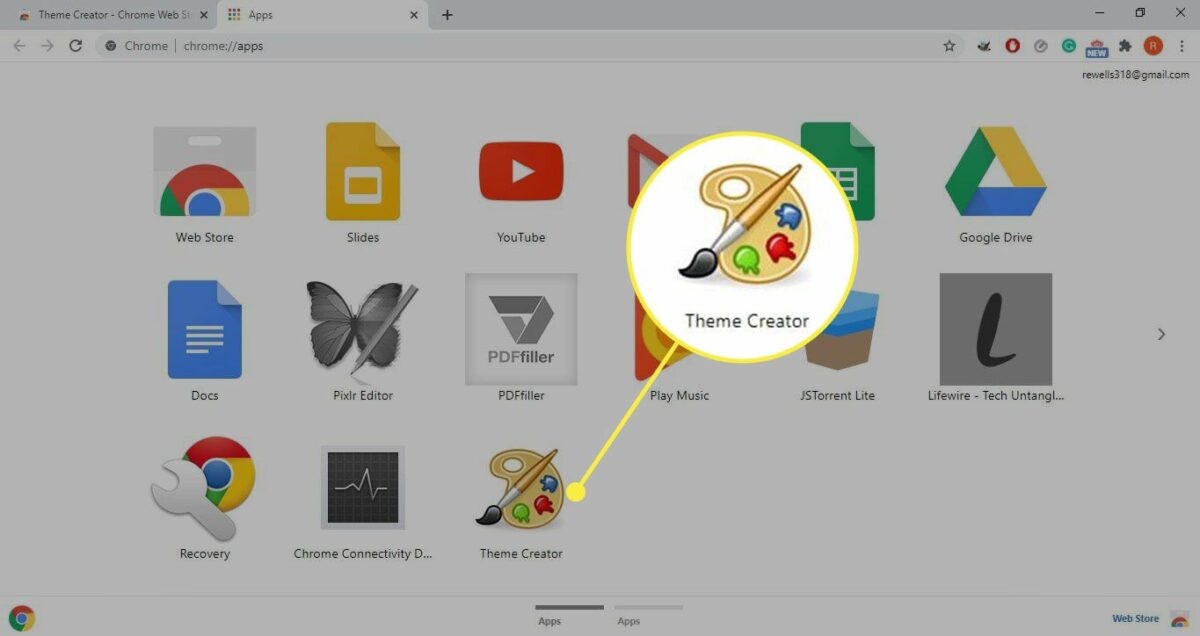
Although it may seem tricky, it’s actually quite easy. It’s just “hidden,” one of those pages we never seem to notice. Just open Google Chrome and click on a new tab. Right away, you’ll see the websites you have recently accessed as well as your most visited sites. Look for the button in the bottom right-hand corner that’s clearly marked “Customize.”

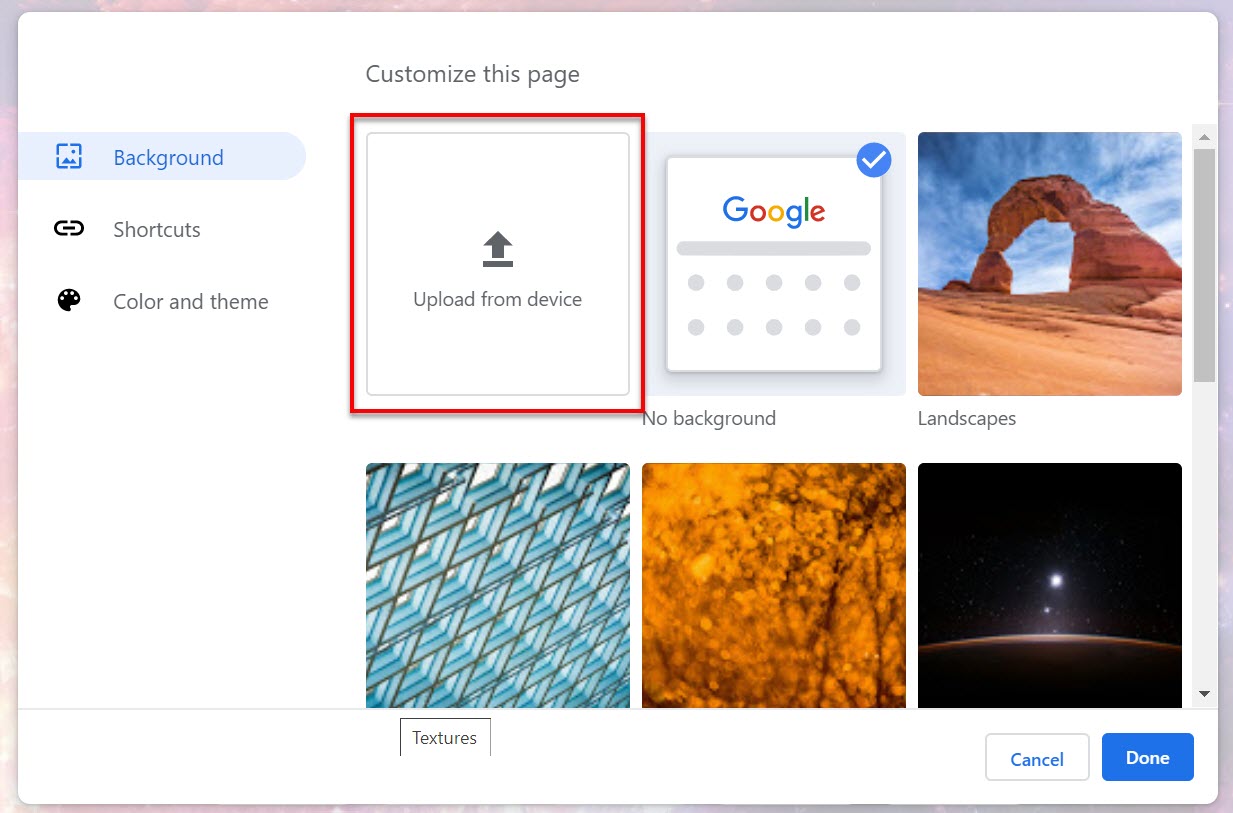
When you click there, Google Chrome will display three well-defined options. The first is called “Background,” and as the name suggests, it lets you choose a wallpaper or a background for your browser. These backgrounds have been pre-selected by Google, and you can choose one from its extensive collection.

However, there’s a box that you’re going to love, and it’s none other than “Upload from device.” Use it to upload an image from your PC. Whatever you want. It’s up to you. Our only recommendation is to try to maintain the proportions. That is, always use panoramic formats and maintain the resolutions (if you have your PC at 1920×1080, for example, the image you upload to Google Chrome should be identical). By the way: you can have Google Chrome refresh your background images automatically and display a different one every day. Just enable that option, which appears when you turn on a theme for your browser.

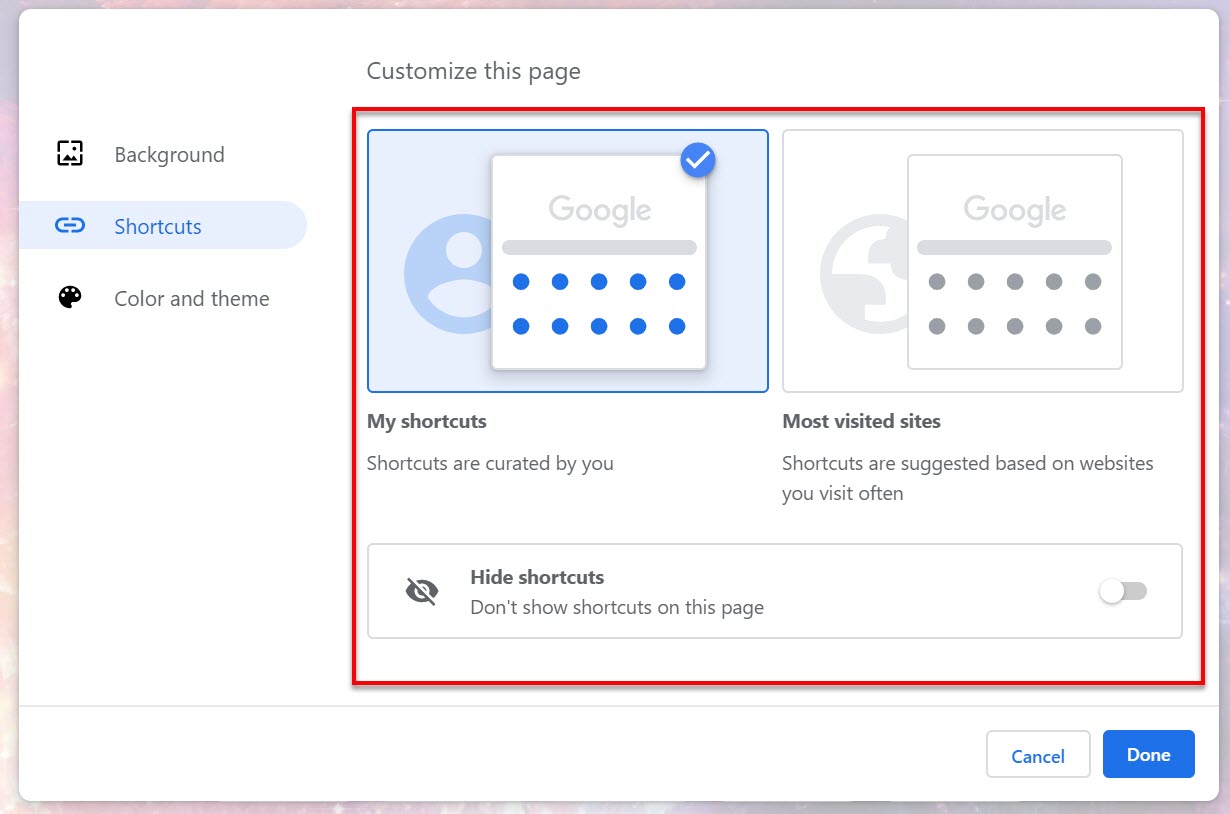
This is the first Google Chrome background option. The second one concerns “Shortcuts.” And you might be wondering (logically), what is that? In fact, it’s not a background as such, but the settings for the icons in your background. You can do one of three things: display your shortcuts (each one is curated and customized by you); display your most visited sites (shortcuts to the websites you visit often are suggested); and finally, hide shortcuts (which, obviously, makes shortcuts disappear from your homepage). It’s fast and easy.

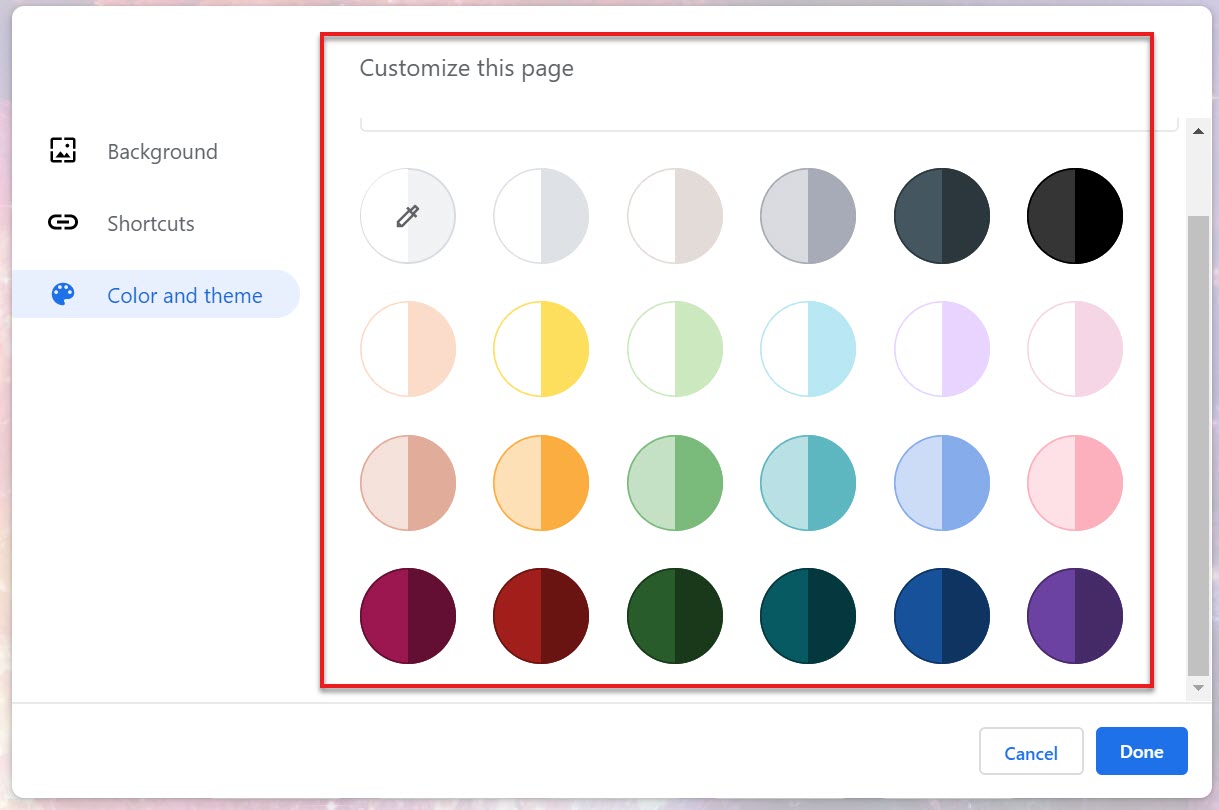
But the third and final option is what interests us the most, and it’s the reason for this article: customizing your Google Chrome theme. It’s called “Color and theme.” If you look closely, this option can be used to change your browser colors. Specifically, it always uses two different tones, one light, and one dark. The lighter tone appears in the more central areas, to reduce eye strain, and the darker one is applied to trims, such as the tool bar, tabs, and similar areas.

Google offers a vast range of choices, always based on the colors it considers the most suitable and fitting to beautify your browser. However, you can even customize and select your own colors by clicking the corresponding button. Keep in mind that all these colors can also be combined with backgrounds, that is, with option one (which is why we covered all of them because ultimately, all three are related and equally important).

Store themes

As if that were not enough, don’t forget that the Chrome Web Store, that is, Google’s virtual store for its many applications, has an extensive catalog of Chrome themes, so instead of coming up with a new theme, you can choose a premade one. Also, they are more varied and diverse than the default themes in the main menu of the Google Chrome browser, in case you’d like something special, such as starry skies, wild animals in their habitat or more minimalist themes. You can access them here and click on this article, which lists the best ones we’ve found.

And that’s our comprehensive tutorial on how to create a custom theme for the internet’s most famous browser. As you have seen, you can select the color combinations according to your style and taste, which you’ll appreciate if you’ve always had something creative in mind. That said, we recommend avoiding the extensions in Google’s digital bazaar, not because they don’t work, but because they may be obsolete and more suitable for previous Chrome versions than the latest one.

Best Chrome extension alternatives to incognito mode

Incognito mode has saved our hides over the years, but are there better solutions.

Incognito mode

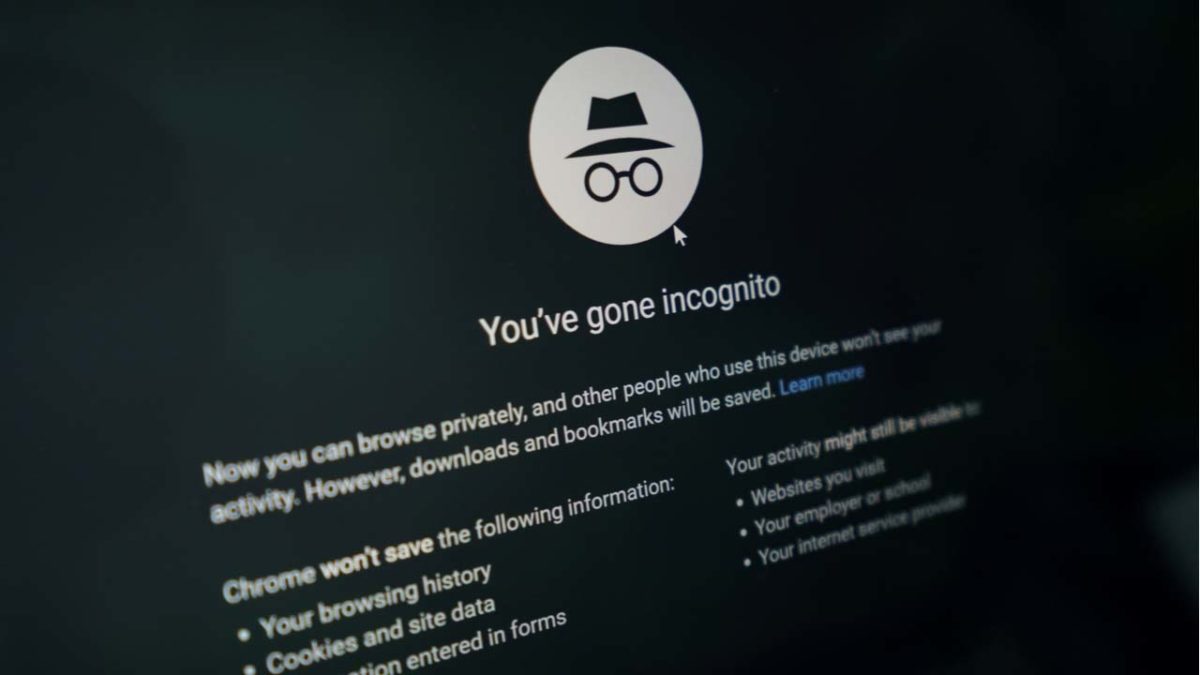
Some of us would rather crawl into a hole and die than have our friends and family see our browser history. Luckily, the incognito mode has had our backs.

Incognito mode is an incredibly useful tool for hiding your browser activity, but also for the security measures it provides. Many Google Chrome users use this function to protect themselves from a variety of online threats.

7

While incognito mode provides a great option for browsing, there are a few Google Chrome extensions you can use to provide the same or better privacy:

Ghostery

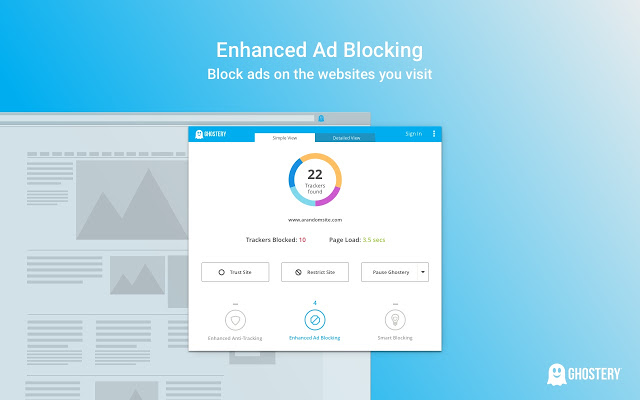
Ghostery is a free anti-tracking extension. It runs in the background to see if sites are tracking any of your information. When it finds a site that’s tracking you, it’ll block the information from being tracked and alert you.

It’ll also speed up your web browsing because each web page will spend less time trying to track your information.

Ghostery
7

HTTPS Everywhere

HTTPs Everywhere

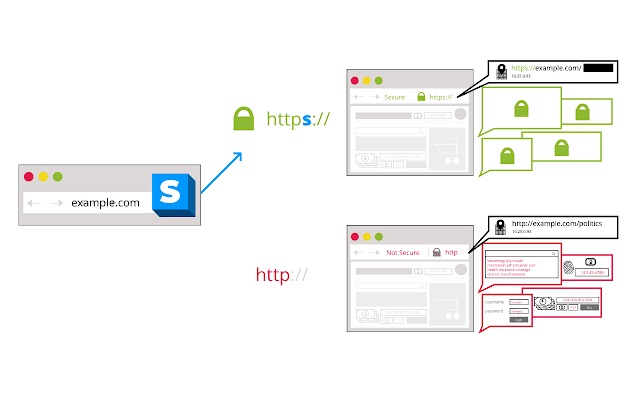
Most sites have an HTTP version to open them, but not all sites have an HTTPS version. Typically, your web browser will open the HTTP version (which is the unsecured version) by default.

HTTPS Everywhere makes your browser check for an HTTPS version of a site first. That way, if it’s available, you can have a secure connection to the site without needing to worry about any invasive malware.

HTTPS Everywhere Free Download ►
8

Vanilla Cookie Manager

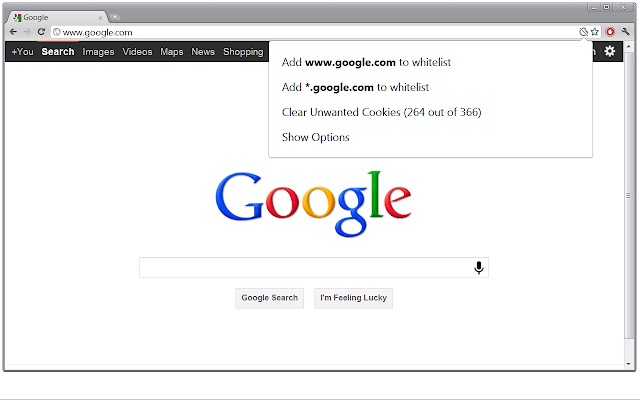
This extension can be used to speed up your computer, as well as protect yourself from potentially dangerous cookies. Since cookies are necessary to run certain sites, it lets you fully manage the cookies that each site is trying to place on your computer.

It will also tell you whether these cookies are tracking your information or not. You will have a good understanding of how they work before you decide whether you want to block them.

Vanilla Cookie Manager
Vanilla Cookie Manager Download now ►
7

DuckDuckGo Privacy

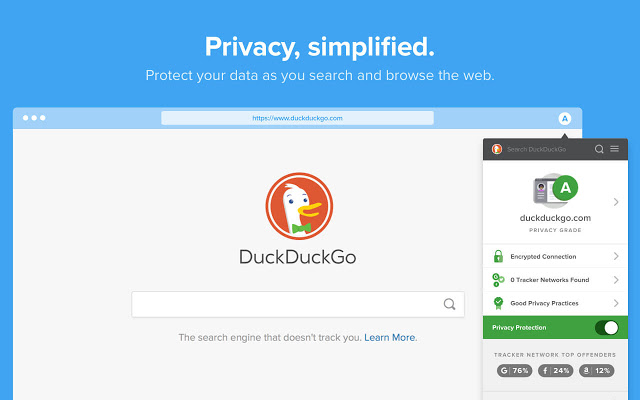
This extension provides an alternative search engine to Google. While Google records your search results and your information, DuckDuckGo will let you search completely as if you were in incognito mode.

It even gives you a privacy grade for each website you visit, letting you see how secure each one is. You can also use this extension to force open HTTPS versions of sites.

DuckDuckGo
DuckDuckGo Privacy Browser Free Download ►
7

Hide Incognito Mode

While this isn’t exactly an alternative to incognito mode, it will fix one of the main problems people have with it. Some sites are able to detect when you’re in an incognito window and will prevent you from viewing their site until you’ve switched. This extension lets you bypass these security measures so you can continue your incognito browsing.

Hide Incognito Mode
Hide Incognito Mode Download now ►
7

Another alternative

If you’re worried about privacy, you might consider switching browsers entirely. Chrome isn’t really your best bet for that. Firefox is a great alternative. You could also try Brave, which offers you everything you love about Chrome with much better privacy, built-in ad blockers, and more.

Wrapping up

These are just a few of the fantastic extensions you can use on Google Chrome. If you haven’t been using any until now, you may want to check out our list of the best Chrome extensions for Windows. Each of these privacy extensions can enhance your browsing experience, but so can dozens of other extensions as well.

The Best Chrome Extensions to help you focus and avoid distractions

These five Chrome extensions will help you concentrate more and avoid distractions.

Since the beginning of time, humans have been distracted from completing essential tasks, having a detrimental effect on their daily productivity.  In this modern world, progressing technologies play an increasing role in making us more efficient workers, but lots more distractions have appeared too.  With just one wrong click, your attention wanders away from a productive session, and precious minutes are wasted as you get lost in the endless web of mind-numbing links that is the internet.

As well as this being a massive problem in the traditional workplace, the most challenging place to keep tabs on your productivity is while remote working.  More and more people are making use of workspaces to get away from the physical distractions at home.  But the biggest distractions of all reside in the tools you use to meet the deadline set by your employers.

Smartphones and the internet have long been touted as the biggest distractions in our daily lives, and Google Chrome is one of the most popular browsers used in any life situation. So, let’s take a look at some of the best Chrome extensions out there to help you remain focused on the task and put an end to your procrastination.

7

Leechblock NG

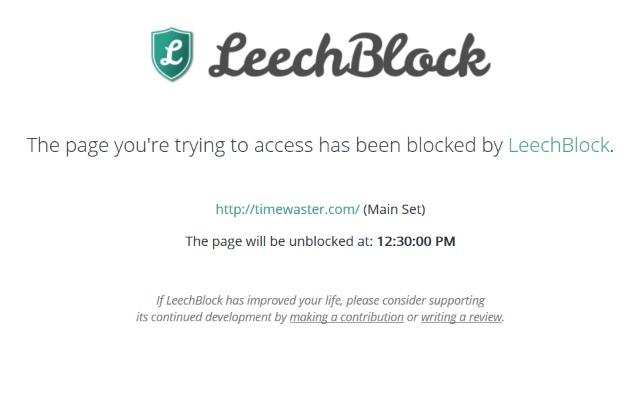
One of the most common types of productivity apps in the Google Chrome store is site-blocking extensions. They allow you to pick out addictive sites that distract you from your daily goals and block you from accessing them when you are trying to focus on your work. This helps you to avoid temptation, boost your willpower, and make use of your time more effectively.

Leechblock is one such Chrome extension that will help you take back control of your attention span and get on with the task at hand.

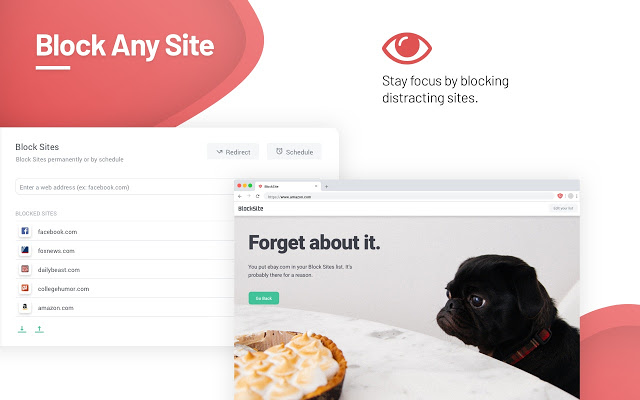
Block Site – Website Blocker for Chrome

With over 25,000 reviews and a 4.5-star rating, this Chrome add-on seems to be popular with the most accomplished procrastinators.

Block Site is another distraction-blocking Chrome extension, and with a few simple clicks, your productivity levels will be through the roof.  You will also be amused by the delightful images displayed when your concentration wanes, and you try to click on one of the sites in your blocked list.

Apart from the ease of blocking distracting sites, Block Site also has an abundance of other impressive features.  There is Work Mode, a Pomodoro technique timer to help you set blocking times, and a scheduling feature to help you manage your time effectively.  Other features include password protection, uninstall prevention, and an adult content blocker to boot.

A great download, but be careful, you may end up addicted to blocking sites that much that you will have no fun sites left.  Block Site is also available on Apple and Android devices and Mozilla Firefox.  It is a free app but does contain some in-app purchases

Rescue Time for Chrome

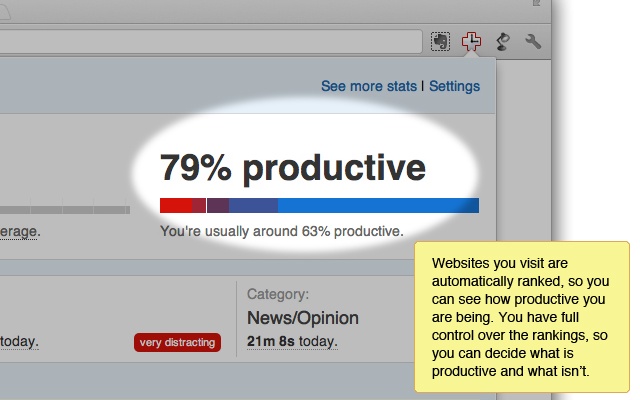
We have just covered an app that helps you block out sites that you think will negatively affect your productivity, but what if you are unaware of some other distracting sites that are interrupting your workflow. Well, this is where  Rescue Time comes in, another neat Chrome extension that tracks the websites you visit and presents them in an easy to understand graphical display.  To accomplish this, it automatically categorizes the sites you visit in your digital day and ranks them on a productivity scale to show you exactly which sites are distracting you the most.  It can also detect when you are away from your device and disable tracking to improve accuracy.  If you prefer not to have your browsing tracked, you can easily pause Rescue Time or delete it at any time.

Rescue Times allows you to quickly see exactly what you have been doing day to day and adjust your online habits to stay focused on the tasks at hand.

Rescue Time is available on Apple and Windows devices, as well as Android and iOS.  If you download the client onto other devices, it can track the apps you use and gain a more detailed picture of how you spend your priceless work time.  It is available as a free download for Google Chrome, but full functionality is $9 per month or $72 a year (4 free months), with a 14-day free trial.

News Feed Eradicator for Facebook

One of the most common distractors known to humanity has to be Facebook.  Since Facebook burst onto the scene in 2004, it has become the most prominent social media site in the world.  While Facebook is actively trying to reduce the amount of clickbait in its newsfeed, there are plenty of clickable items that will test your willpower.

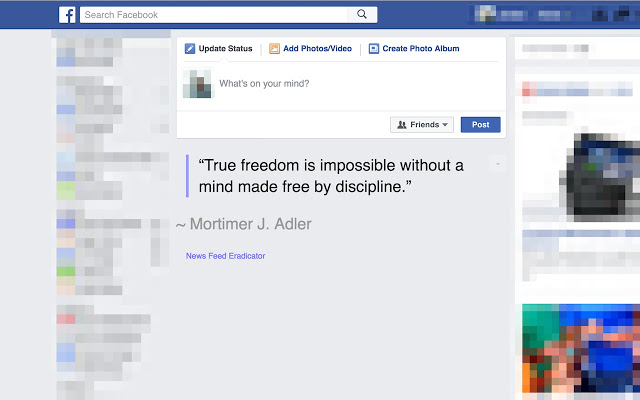
The beauty of News Feed Eradicator for Facebook is that it replaces your news feed with an inspirational quote to keep your mind focused on work, instead of getting lost in a world of news feed nonsense.  Another fantastic feature of this extension is the ability to edit quotes and even add your own motivational phrases. Adding a few amusing jokes could also be a cheerful injection into your working day.

This extension is available free on Google Chrome and is also available on Mozilla Firefox.

Remove YouTube Recommended Videos and Comments

Another social media giant is ever-expanding YouTube.  Who hasn’t clicked on a link and got lost in the bottomless pit of recommended videos made readily available to you.

Maybe all you want to do is watch a short YouTube video as part of your research on a particular project, but with the plethora of distractions presented to you, you can’t muster the self-control and end up deviating from your plan.  Help is at hand with this Chrome extension as it will actively hide related videos, video suggestions, user comments, and other recommended distractions from the YouTube page.  This enables you to confidently navigate to YouTube without the worry of being sidetracked by useless media and messing up your tight schedule.

This is available as a free extension on Chrome and Firefox.

The best free mobile platform games

These mobile platform games are all free and available to play now.

You can’t overstate just how useful smartphones are these days. They can do pretty much anything and everything. You can take great photos, take care of pretty much any work-related task, contact people all over the world and have actual face-to-face conversations, and obviously access all the wonders the internet has to offer from almost everywhere.

The other big thing smartphones have to offer these days is video games. You don’t need a specialized gaming phone like the Asus Rog or the Razer Phone to get console console-like graphics on your mobile device. Most phones these days can handle state of the art graphics and hold vast game worlds that take days to uncover and explore. There is a rich gaming experience to be had with your iOS iPhone or Android devices and today we’re going to go through the best free platforming games you can play right now.

Platform games for Android

Below you’ll find a list of our top five free platforming games you can download for Android. Simply click the download button below any of the games, follow all the online instructions, and you’ll be good to go.

Super Phantom Cat 2

Super Phantom Cat 2

It shouldn’t come as a surprise that when they made a game about a cat that had phantom superpowers it became so popular that they simply had to make a sequel. Well, that is exactly what happened and Super Phantom Cat 2 is the result. This 2D platformer is a lot of fun to play with Phantom Cat’s superpowers creating all sorts of interesting dynamics that add to the gameplay.

There are plenty of mini-puzzles and games here to get into as the main action that plays as a fast-paced side scroller with plenty secret areas to discover, enemies to get the better of, and obstacles and platforms to jump over. This game is colorful too with a trippy feel to it that makes you feel lie you’re playing around inside a cat-themed crayon box. Try this game now.

Super Phantom Cat 2 Download now
8

Rayman Adventures

Rayman is the classic protagonist of one of the best platformer series ever. He’s been around forever and starred in a lot of great games. In fact, at the moment there are quite a few Rayman games available and they’re not all platformers. There’s also Rayman Jungle Run and Rayman Fiesta Run, which offer interesting side-scrolling takes on the Endless Runner genre.

Rayman Adventures takes these classic tap and swipe dynamics and adds a little more nuance, giving you control over Rayman’s vertical as well as horizontal movements. The results are a frantic-feeling action platformer that keeps going and going. The action is always a challenge but never stops being fun in the meantime.

Rayman Adventures Download now
7

Super Mario Run

Super Mario Run was the first mobile game from the legendary Nintendo. Ever since he first appeared on the 8-bit Nintendo Entertainment system way back when Mario has been the king of all platformers. When Nintendo took him to mobile the plan was to keep all of the platforming elements that Nintendo fans had come to love but to make the experience fun and relatable on smaller devices often used with just one hand.

The result is a non-stop running game that sees Mario sprinting across the screen from left to right with the player simply controlling when Mario jumps and how high or how far he goes. With other cool dynamics like wall jumps added to the action, Super Mario fun is a lot of fun and feels like a premium mobile game in every way, even if you could say that is gameplay is limited compared to the bigger console versions of Mario that are out there. If you’re a Mario fan, there’s a lot to like here and you can try the game for free before having to commit to the relatively high purchase price for a mobile game.

Super Mario Run Download now
8

Sonic the Hedgehog

Another classic platformer to rival Mario but this time coming from Sega is the inimitable Sonic the Hedgehog. Sonic is the ridiculously fast Hedgehog that for decades now has been battling against the evil Doctor Robotnik. Sonic’s antics are so famous that he’s recently been the protagonist in his own movie battling against non-other than Jim Carrey.

Sonic’s background makes him much more suited to high-speed frantic action than Mario and all of Sonic’s mobile games showcase this well. Game worlds in Sonic games are lush beautiful places filled jungle greenery, beautiful gold coins, and all manner of baddy out there looking to take them off you. The other great thing about Sonic mobile games is that they’re pretty much like for like reproductions of the full version games you get on consoles. Sure the controls can feel a little clumsy at times, dragging your fingers along virtual D-Pads on your touchscreen device the fact the full games are here on your mobile device and play so well is a testament to how well they were made in the first place.

Sonic Download now
9

Blackmoor

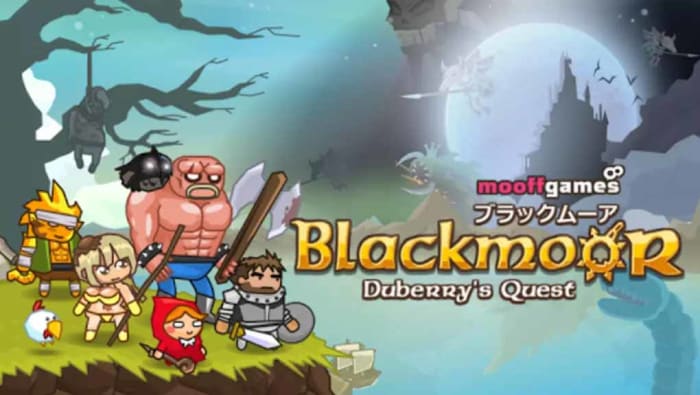
Blackmoor – Duberry’s quest is the final game in today’s list. Although it might not have the name recognition of a Sonic or a Mario, you can still expect a very good side-scrolling platformer here. You pick your hero and then you through 16 different worlds that are filled with 57 different types of enemies for you to vanquish. What makes this game so great, however, is that all worlds are randomly generated meaning you’ll never play the same level twice. If you add to this the fact that you can play cooperatively with friends, and you really have a lot of games to get into on your mobile. This is definitely up there with even the biggest names in today’s list.

Blackmoor Download now
9

Where to find the coolest minimalist wallpapers

These are the best sites, pages, and posts for finding the best minimalist wallpapers

Minimalism is a philosophy that stands out in today’s world of more, more, more. The idea that less is actually more goes against the very culture that we’ve built our society upon, but do you know what? It works. There is a true, elegant beauty that can be found in minimalist designs, which has led to many non-believers adopting the minimalist deign style too.

A perfect way of adopting the minimalist design style is via a desktop wallpaper. Think about it, you don’t want your background distracting you from the live icons that sit above it. You don’t want a busy image with lots going on, you want something smart and distinct yes, but also quiet and understated. You want a minimalism wallpaper. What’s more perfect then for this than an image than adheres to the minimalist design philosophy.  Let’s look today then, in our fifth and final article on desktop wallpapers for Windows PC, Apple Macs, and Android and Apple smartphones, iPhones, and iPads, at where to find the best minimalist desktop wallpapers and 4K Ultra HD backgrounds. You’ll get extra points, if you spot the second Star Wars design.

Minimalist wallpapers

Imgur

Amazingly, our first source of mind-bendingly good minimalist wallpapers isn’t a webpage but rather a post on social media. Imgur was set up originally as a way of sharing images across the social network Reddit. As is usually the case on the internet, however, things evolved quickly and the Imgur platform quickly developed its own community, complete with its own unique quirks.

The post we’re highlighting today was made in 2016 and contains over 140 unique HD wallpapers. Strictly speaking, not all of these designs are what you’d call minimal designs, but there are more than enough fantastic designs here to warrant it a place in today’s list. These designs do follow a chic and minimal design philosophy but some of the images also include minute details, which goes against the idea of keeping elements to an absolute minimum. Still though, this is a fantastic collection of wallpapers that definitely deserves a look.

Inspiration Feed

If you’re looking for quotes, articles, tips, tricks, and all manner of listicle designed to inspire you to do what needs to be do then Inspiration Feed is a site worth looking at. There is lots here and the site is still updating with new content. What we’re looking at today though, is a post from 2019 that included 75 excellent minimal designs that would make fantastic minimalistic wallpapers on both desktop and laptop PCs, and mobile devices. The great thing about minimal designs is that they can simply be cropped to suit you layout needs. As there isn’t a lot going on in the images the chances of you cutting out something vital are slim to zero.

Minimalism.Life

As we mentioned earlier, for some, minimalism isn’t just a design philosophy it is a way of life. For those people, or anybody looking to enter that way of life, minimalism.life is a central hub offering information on how to organize your life according to minimalist principles.

As well as the articles and links to other minimalist organizations, you’ll also find a small gallery of minimalist wallpaper designs you can use on either your PC or smartphone. There are some great iPhone wallpapers here. It is definitely worth us pointing out though, that these designs take the minimalist idea to a whole new level offering little more than a fade from one color to another. In fact, some don’t even bother with the fade, simply offering a solid brick of color.

I can be creative

Here we have another design website that offers various tools to budding and professional designers alike. You’ll find tutorials here as well as guides and many different types of free tools that you can download. On top of all that, you can also download different designs to be used as wallpapers and backgrounds. Lucky for us, and for all you minimal lovers out there, there’s also a section for minimal wallpapers including lots of great minimal takes on things such as the solar system, superheroes, outfits, movies, and more. There are some fantastic designs here for you to check out.

Hongkiat

Our final source of stunning minimalist designs you can use as backgrounds for your phones, tablets, and desktop backgrounds is Hongkiat. Another design website, Hongkiat brings with it all the usual inspirational bells and whistles as well as a place for up and coming designers to showcase their work. This is where we come in looking for cool images and iconography to plaster all over our electronic devices. Hongkiat doesn’t let us down here at all and presents us with many different cool, inspirational, and most of all minimal designs that look amazing.