Get more work done in less time with these great extensions.
Everyone gets a bit distracted now and then. How many tabs do you have open right now? We surf from one website to the next, checking our social media pages — just looking, reading, browsing. Fun stuff — but it can tank your productivity quickly. However, many people need to remain online to complete their work. This can be particularly difficult for remote workers who may not have a constant watchful eye.
So, what do you do? You make yourself productive. These five Chrome extensions take seconds to download, cost you nothing, and can significantly boost your productivity in minutes.
This easy-to-use extension keeps you focused and on task for 25 minutes at a time. Once you download the extension to Chrome, you click the button to start the timer. During that time, you can limit your access to certain sites — such as eBay or Facebook. And, when you know you will get a 5-minute break from your work in 25 minutes, you’ll likely stay on track.
Managing your email inbox is a task in itself — and it can be pretty time-consuming. One of the benefits of using Boomerang for Gmail is you can schedule emails to go out at a specific time. For example, you can work through your inbox, write emails to go out, and then set a time for them to send. This way, you don’t have to worry about responses in the middle of the night. In short, you tell it when to send emails out, which helps control when people can respond to you.
Sometimes the best way to really boost your productivity is to see just how bad it really is. What are you accomplishing in that hour? With this extension, you can do what you want and when you want to. But, it tracks how much time you spend over the course of time at various domains. This is a real eye-opener for those who may learn they are spending 30 percent (or more!) of their time on social media.
Many people find that passwords slow them down. And now that every site requires you to change them frequently, it gets even more difficult to remember what’s what. With LastPass, a password manager, you can keep secure while you browse from site to site. The best part? You don’t have to waste your time trying to remember passwords.
Available in a free and paid version, this app gives you the help you need with your writing. That might mean fixing a typo or catching that awkwardly-worded phrase. The extension is very easy to use and works automatically.
Which of these productivity tools are you using? Could updating your productivity methods help you to get more done? Maybe it’s time to try one out. And if you need more extension ideas, we’ve got your back.
Microsoft is moving to Chromium for future development of the Edge browser.
Microsoft Edge has had a short but strange life. It was billed as the Microsoft web browser that would finally kill all of Microsoft’s Internet Explorer demons. In many respects, it was successful. It is known as being a reliable web browser with a number of interesting and unique features. Despite its features, it hasn’t been able to break Google Chrome’s dominance of the market. With Edge only able to command a tiny percentage of market share, Microsoft has decided to take a bold step with its web browser.
The idea of Microsoft Edge is to be as fast, clean, and lightweight as possible to cope with the demands of different devices, whether it be a PC, tablet or phone.
Microsoft is moving to Chromium for future development of the Edge browser
Chromium is the open source project that lies at the heart of the Google Chrome browser. Like with Android, Google has made the core code of the Chrome browser open source, so independent developers can create their own web browsers and introduce their own features. Essentially, Microsoft is giving up in its efforts to develop its own, fully independent, web browser and Edge will become just another flavor of Chrome.
It isn’t all doom and gloom, however. There have been some very capable browsers built using the Chromium open source code. Some could even be said to be better than Google Chrome itself. This could be what Microsoft is aiming for as it moves its flagship web browser into the coding ecosystem of one of its biggest rivals.
In the blog post announcing the move, Microsoft cited a move away from fragmentation as being a driver of the decision. The software giant believes it is making things easier for both users and developers. Web developers won’t have to worry about code for another type of web browser and users will be able to enjoy greater cohesion between different web browsers. As Edge will become another Chromium browser, Google Chrome plug-ins will soon work on the Microsoft browser. Another key improvement, in Microsoft’s eyes, is that the move will make it much easier for Edge to make the move to macOS.
There is still a long road ahead for this Microsoft migration, but at least now we have the roadmap. Microsoft Edge users won’t have to do anything for a while yet, as developers won’t have access to a preview build of the new Chromium fueled Edge browser until early 2019.
Increase your productivity with these great Chrome extensions.
The internet can be an extremely distracting place. You tell yourself you’re going to buckle down and focus, but soon you get distracted and your productively drops. Lucky for you, we’ve found four great Chrome extensions that will take your productivity to new heights!
Sometimes it can be tough to focus when everyone around you is chatting. If you work in a busy or loud office, then Noisli is perfect for you. This Chrome extension plays background noise like falling rain or a bonfire to help cancel out the background noise. In addition to the relaxing sounds, Noisli also comes with a timer to help you break down your work into sessions. Finally, one of the best features of all is that Noisli has a built-in text editor to help you gain productivity you while you write.
This is the Chrome extension for anyone who wants to be as efficient as possible. Strict Workflow lets you set a 25-minute timer that will block all popular, distracting websites so you can focus and get your work done. After your work period, you will get a 5-minute break where all of the popular websites will be available again. This timer system is great for holding yourself accountable while still giving yourself a reward for hard work.
This extension is a must-have for Gmail users. With it, you’ll be able to effortlessly stay on top of multiple Gmail accounts without even opening Gmail in Chrome. You’ll receive real-time notifications, and you’ll be able to read, listen to, or delete emails immediately. Other cool features include receiving notifications even when Chrome is closed, monitoring emails with custom labels in your Gmail account, and offline viewing.
Best apps and online tools to stay focused and be more productive
Pocket is the perfect Chrome Extension if you want to be productive without missing out on some seriously interesting articles. With Pocket, you can save any interesting website or article in one simple click. Then, when you’re done with your work you can open your Pocket and check out all the articles that you’ve saved throughout the day. (It’s also our favorite for offline reading situations, like catching up on interesting articles when you’re on a plane.) If you find yourself getting distracted by the latest news of the day, Pocket is the Chrome extension for you!
Microsoft is announcing a new Chrome-based browser
Objectivity in the tech world is all relative. Microsoft did a great job with the Edge browser. They packed it full of useful features to help anybody wanting to browse the internet. It is much better than its predecessor, Internet Explorer, which has been drowning in problems for years. The issue now is that no one is really using Microsoft’s shiny new browser. Now, it looks like the software giant may have a solution.
The idea of Microsoft Edge is to be as fast, clean, and lightweight as possible to cope with the demands of different devices, whether it be a PC, tablet or phone.
Microsoft is announcing a new Chrome-based browser
Like a lot of the software that Google develops, Chrome is open source. Well, not exactly. The Google Chrome web browser isn’t open source, but the Chromium code that sits at the heart of it is. This means that any developer can take the code that Google used to make Google Chrome and use it to make their own web browser. This system has led to some interesting browsers becoming available, all similar to Google Chrome in many ways, but also offering their own unique flavors based on the Chrome experience. Some could even be said to be better than Chrome itself, depending on how you want your browser to behave and what you want to use it for.
Better than chrome? See what other browsers offer.
Being a software giant in its own right, it is understandable that Microsoft didn’t go down the same route and decided to build a brand-new browser from scratch. Edge was supposed to be a showpiece program at the heart of Windows 10, but it’s not working out that way.
Microsoft is working on a new default browser for Windows 10. Reports in The Verge and Windows Central say that Microsoft is close to announcing new Chromium-based browser very soon. The reports don’t mention what will happen to Edge once this new browser (currently codenamed Anaheim) launches.
Will the browser replace Edge altogether? Could the new browser even take the name of Edge or could this new Chrome-based browser from Microsoft be released as a separate product altogether, with Microsoft soldiering on with Edge on the side? We’ll just have to wait and see before we find out, but if all the rumors flying around are to be believed, we won’t have to wait too long. As soon as we have more information about Microsoft’s new web browser we’ll let you know.
Take Chrome to the next level with these great extensions.
The wide world of Chrome extensions makes surfing the web much better — and much more convenient. If you’ve ever used any extensions, you know how handy they can be. For that reason, we’ve rounded up some of our favorites below. Every Chrome user should download these extensions ASAP.
Especially great for freelancers and students, this extension makes it easy to find citations for information. With just the click of a button, you can quickly cite the web page you’re looking for in any of four citation styles.
Sick of having to remember usernames and passwords for a host of different sites? So were the creators of this genius extension. This tool keeps login credentials together in one place in a secure way. Stop searching for that crumpled paper in the back of your desk and bring your passwords to the future.
This is another smart extension that allows users to save web pages and articles for reading to synced devices, easily bookmarking them for later. You can even download articles for offline reading, making Pocket one of the best apps for any travel where you’re out of Wi-Fi range.
Keep your web browsing secure by using this extension to keep information private and safe. It works by encrypting web usage to HTTPS all the time. Make your browsing secure!
In a world full of online shopping, this extension helps users save a few bucks whenever they’ve added items to a virtual cart. Honey automatically finds and tests coupon codes for thousands of online stores, making it easy to save money.
For those who always have a billion tabs and windows open on their screen, this extension freezes any tabs when they’re not in use. This step saves your computer’s RAM usage. The tabs automatically go live again once a user clicks on them. Download this and enjoy your faster computer.
Everyone’s always looking for ways to be more productive, and this extension helps with that. Momentum replaces new tab pages with a personalized dashboard that holds to-do lists, the weather, and even visual aids to keep you inspired.
These extensions are just a few of the many, but they’re our top picks across the spectrum. Try out one (or more!) today to improve your Chrome experience.
A year ago Google announced a big improvement that would be present in Chrome 64 and 65: Addressing the issue of pop-ups, banners, and website redirects. In a blog post, Google explained that (shock of all shocks) some content producers “use the flexibility and power of the web to take advantage of users and redirect them to unintended destinations.”
One out of every five feedback reports from Chrome users on desktop mention encountering some type of unwanted content, they concluded, “and we take this feedback seriously when considering how to improve Chrome.” Undesired redirects occur as a result of third-party content embedded on a page. It’s actually not even the content creator’s fault; authors of the page rarely intend for these irksome redirects to happen at all.
Chrome 68 aimed to fix the issue by substituting in an info bar for any redirect that would otherwise originate from third-party iframes. The aim was to keep users on the page they were reading, and hopefully, prevent surprising redirects.
“We’ve learned since then that this approach did not go far enough,” Google announced. “In fact, more than half of these abusive experiences are not blocked by our current set of protections, and nearly all involve harmful or misleading ads.” Luckily for us, Google is working on yet another solution:
Ads can attack in many various forms, which is why it’s proved so difficult stopping them; there’s not really a catch-all. Chrome 71 is arriving next month, and with it come the hopes and dreams of a browser experience that’s blissfully free of abusive ads, automatic redirects, phishing, and fake system messages.
So what’s the solution?
Google is using the universal threat of telling a site that it’ll be generating less revenue. Here’s how it works:
Users have always had the option to report abusive experiences (such as new tabs opening without user permission or consent, or pop-ups that won’t go away), but those complaints didn’t seem to make much difference. For users who were willing to write up reports (and not many are), does doing so actually solve the problem? Sort of, kind of, maybe; never quickly. If Microsoft deems your specific problem worthy of fixing, it’s certainly not going to get fixed any time soon, so you’re better off finding your own workaround.
The ban hammer
What Chrome 71 aims to do differently is to send a message to the content creator any time that ad abuse is filed. The site owner is then granted a 30-day grace period during which they need to locate and remove the abusive advertisement. If they fail to do so, Chrome will then block all ads on the site – even the ones that were never classified as abusive.
Users can choose to turn off this filter, but there’s little incentive for them to do so; why would anyone want to keep experiencing abusive ads and redirects on their browser? Sites use advertising to generate income, and if Chrome shuts down all their ad content, they’ll be suddenly making substantially less.
‘This has been going on long enough,” says Google, and Chrome’s taking the gloves off and aiming where it hurts – the publisher’s wallet. But here’s the caveat: Honest advertisers (and startup sites) could easily be hurt by this too. Using an adblocker is one thing, but having all ads forcibly removed could be a steep price to pay.
All the better incentive to remove them, right?
Sure, but it does leave content publishers at the viewing opinion – and wrath – of the user. And let’s not forget that we’re seeing just one more example of how much power Google now wields over the rest of the internet. Is it worth it? Install the beta here and decide for yourself!
The Bing search engine is showing up malicious and dangerous ads for search terms like “download chrome”
Microsoft Edge is a good browser. It is miles ahead of the Internet Explorer it replaced and Edge even does well when compared against modern browsers like Google Chrome or Mozilla Firefox. For many users though, this won’t matter. Years of familiarity with their browser of choice means they’re unlikely to change to a browser like Edge, which was quite late to the game. This means that whenever they buy a new PC or laptop, or update their operating system to Windows 10, the default Edge web browser has one task: to download Chrome. This is a problem.
Sometimes even Microsoft needs to use Google Chrome
The Bing search engine is showing up malicious and dangerous ads for search terms like “download chrome”
Be careful if you’re going to use Microsoft Edge to download Google Chrome
The issue arises because we’ve all become accustomed to typing basic phrases into the address bar when we want something rather than typing in complete domain names. Hackers know that we’re like this and they set up traps accordingly. They can set up fake sites on authentic sounding domains like GoogleOnline2018.com and place legitimate sounding download files like ChromeSetup.exe. It all looks and feels fine until your PC falls victim to the malware these fake domains and files contain.
For more tips on avoiding phishing scams like this one check out our infographic below:
How to avoid phishing scams, spot fake website, and detect dodgy emails
This exact scam is what almost tripped up Gabriel Landau. He bought a new laptop and opened up Microsoft Edge so that he could download Google Chrome. Fortunately, he stopped himself from downloading the fake ChromeSetup extension when he noticed that the digital signature was linked to Alpha Criteria Ltd. and not Google.
Brand new Win10 laptop. Attempt to install Chrome. Almost get owned with my very first action. Why is this still happening in 2018, @bing? Please explain. pic.twitter.com/uYJhu7xa9H
The real issue here is that this is a problem that Chrome and Firefox deal with automatically. The fake phishing sites, which show as normal on Edge, show warnings on both the Google and Mozilla browsers. Even worse for Microsoft is that this is not a new problem.
According to a How-to-Geek report, a similar issue on the Bing search engine was reported way back in April. Microsoft removed that ad, but the fact that an almost identical ad appeared over six months later means it hasn’t addressed the underlying issue. This lack of action is putting Bing users who are looking for Google Chrome at risk. Could it be spite?
In the same report, Microsoft responded to say, “Protecting customers from malicious content is a top priority, and we have removed the ads from Bing and banned the associated account. We encourage users to continue to report this type of content so we can take appropriate action.” This almost feels like an abdication of responsibility as it puts the emphasis on users to report false ads rather than on Microsoft itself to filter them out.
This is just one more issue in a long list of problems Microsoft faces at the moment. It is also likely to hit the credibility of Edge that, default search engine aside, is an otherwise capable web browser.
To protect yourself against this particular threat you are going to have to take action that Microsoft isn’t going to like. To download Google Chrome or Mozilla Firefox, click either of the two download buttons below.
If you do want to continue using Microsoft Edge, however, we recommend changing the default search engine from Bing immediately. Google is an obvious choice but there are plenty of other options out there.
How many times do you browse the internet, find something interesting, and then (within a matter of minutes) forget all about it? If you ever thought you needed a simple way to take notes, you’re not alone. That’s why Google Keep may be just what you’re looking for.
How to use Google Keep to take notes while you work
What does Google Keep do?
Google Keep is a simple tool, but that’s what people love about it! Once you download it, you can create a title and start taking notes. It really is this simple to use.
You may have heard about it previously (or its biggest rival, Evernote). But, Keep is a bit unique in the features it offers, and the tool makes it possible for users to easily create and track notes.
You can use it on your personal computer and any device using iOS or Android. If you use it with your Google account, it will sync to your account for easy access. Do this through this Chrome extension.
Once you download Google Keep and open it, you’ll find it easy to get started. But how can you benefit from it? Use it for just about anything, including planning your to-do lists, meals, work ideas, project notes, and so on. Once you start using it, you’ll appreciate how easy it is to make it work for you.
For example, in a matter of seconds, you can color-code your notes. That way, you can easily move through them to find exactly what you are looking for. Keep allows you to change the color easily so you can just link similar topics. For example, you can keep all of your meal ideas in one place with a single color. You can also label your notes, which then allows you to browse through all notes with the same label.
Google Keep is full of other features, too. For example, you can create a to-do list for a project with little boxes next to each item. Check them off as you go — and you can even share them. Why not send that to-do list to your spouse so they’re on top of the tasks?
This feature is also fantastic for work collaboration. Plus, you can set up reminders, so you’ll receive a notification when something needs to be done. You can also customize your notes with images, memos, voice messages, and much more.
As you can tell, this is the type of note-taking you want to do but don’t have time to do. Google Keep is simple, and you’ll love using it once you get started.
These 8 extensions will make your browsing better!
One of the greatest benefits of Google Chrome is its extensive supply of browser extensions. It’s effectively capable of doing anything other browsers can do, and more, just through its addons. Despite this, many people use Chrome without taking advantage of its customizability. Below we’ve listed some of the best extensions that everyone can benefit from:
The first extension most people install is some kind of ad-blocker, and none are better for Chrome then Adblock Plus. It’s free and customizable, so you can make sure to keep it off for sites that you need to see the pop-ups for.
If you’ve ever been on YouTube then you’ve probably seen sponsored ads for this extension. It’s essentially free money. Honey searches online for coupon codes whenever you’re online shopping, so that you don’t have to. It’s completely free, and it works in the background, so you can install it and just let it go as you shop, and it’ll save you money.
Grammarly is the grammar-check extension that everybody needs. Not only can it help you have clean and consistent grammar, but it also checks for plagiarism, so you can make sure your ideas are unique and your own. It’s not foolproof, but it can save you from creating a resume or cover letter with a glaring error.
If you’re someone who has a lot of tabs open at once, then this is the perfect extension for you. One of the big problems people face when having multiple tabs open is how much data Chrome ends up using to manage all of these. The Great Suspender can temporarily suspend tabs that you’re not using, so that they don’t take up space, but are still there for you to go back to. This can be especially effective for tabs that run videos that you may not be wanting to run in the background.
This is a bit more specific than the other extensions, but it’s incredibly useful for anyone who needs to take a screenshot of a website that is too large to take naturally. It is similar to being able to take a panoramic photo, except for websites instead of in-person.
Similar to Full Page Screen Capture, this extension lets you save any specific piece of a website so that you can go back and search for it whenever you want. It’s like bookmarking a specific screenshot, rather than an actual site itself. It’s an easy way to manage your bookmarks and notes if you are searching through many sites at the same time.
Some sites require intricate passwords that are hard to remember. LastPass allows you to manage which passwords are saved to your Google Chrome account, so you can safely save passwords for the sites you want to, and while keeping some diversity to your passwords as a whole.
This is an extension that will probably help you more at work then it will at home. It is similar to a grammar-check extension, except it checks for basic and insincere sounding words like “sorry” or “just”. It’s perfect for fixing emails to sound more professional, in case you have a habit of using commonly repeated words like these.
Of course, there are many other great extensions available for Chrome, as it is one of the most accessible browsers for addons. However, these are some of the most universally useful ones that everyone should have.
When you think of gaming, Xbox, PlayStation, and sometimes Steam come to mind. That is, if you’re thinking of more recent consoles, and not the good old days of Magnavox Odyssey, Atari, and Sega. What if I told you that soon, you could stream video games on your computer? Even better, that you don’t have to have an expensive, souped-up gaming PC to play them? Move over Steam, a new challenger has appeared.
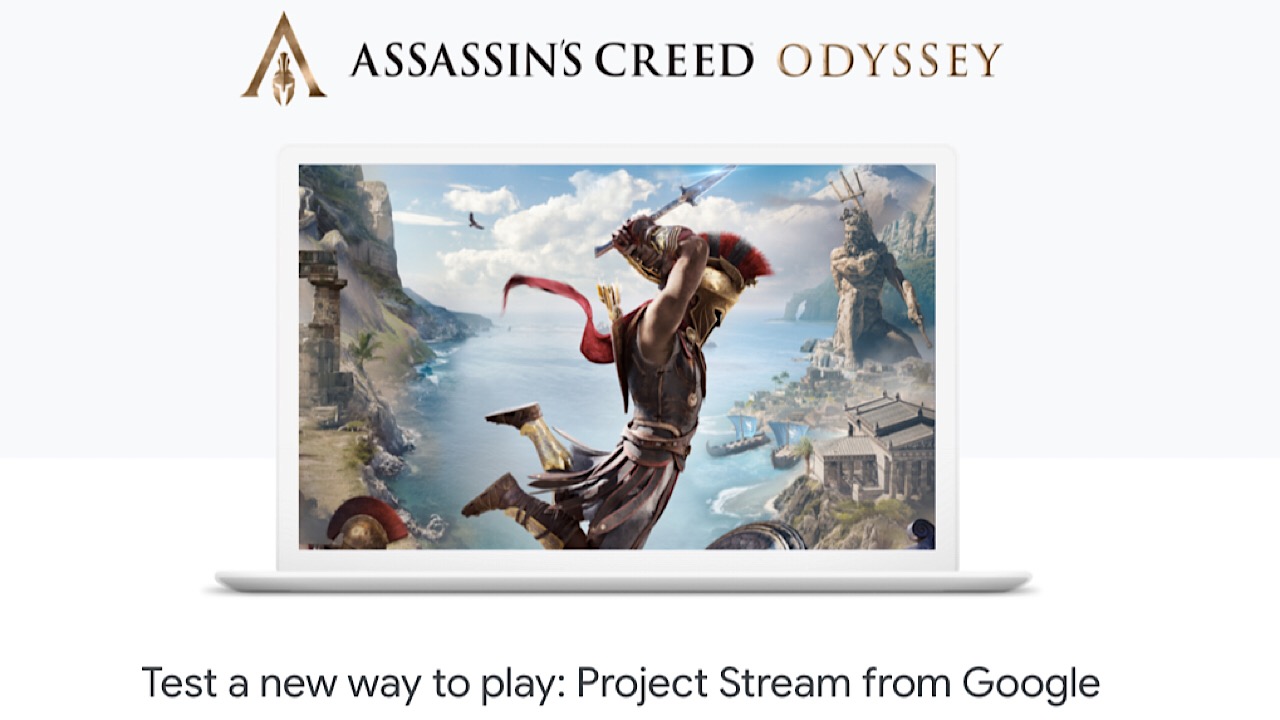
A few days ago, Google announced that it had partnered with Ubisoft, one of the most popular game publishers around for a possibly revolutionary new project – Project Stream. The goal of Project Stream is to be able to stream some of the hottest AAA video game titles without having to download them, go through a gaming platform like Steam, or play on your PC through your other consoles. With Project Stream, you’ll be able to beam the game directly to your Chrome browser. So, open Chrome, click on a game, play the game in another browser. That’s it!
Those lucky enough to snag an invite to the beta version can play Ubisoft’s unreleased title Assassin’s Creed Odyssey for the duration of the testing. Check out the video below to see some gameplay:
Looks amazing, right?
For those who want to get in on some of this beta testing action, there’s a chance that you can! Before you apply for an invite, you must have some tech that’ll be able to run the game. Don’t worry, Google Stream is geared toward home internet connections so chances are, you’ll meet these qualifications:
Player must be at least 17 years old
A computer, mouse, and keyboard (no phones or tablets just yet)
An internet connection that can stream at 25 mbps or more (Google tests it for you!)